
MVP-TDS-9 - Mobile Device Charger AMX - Free user manual and instructions
Find the device manual for free MVP-TDS-9 AMX in PDF.


| Product Type | Table Docking Station for MVP-9000i |
| Brand | AMX |
| Model | MVP-TDS-9 |
| Dimensions (HWD) | 6.25" x 11.50" x 5.50" (15.88 cm x 29.21 cm x 13.97 cm) |
| Weight | 1.25 lbs (0.57 kg) |
| Power Requirements | 30 W (Class II listed power supplied via PS-POE-AT High-Power PoE Injector) |
| Power Source | Power over Ethernet (PoE) with included injector |
| Charging | Automatic charging of MVP-9000i battery when docked; stops at full charge |
| Ethernet Connection | Wired Ethernet when docked; automatic switch from wireless to wired |
| Release Button | Capacitive touch on front to release panel and switch to wireless |
| USB Ports | 2 on rear for firmware download or keyboard/mouse |
| Operating Temperature | 0°C to 40°C (32°F to 104°F) |
| Battery Charging Temperature | 0°C to 30°C (32°F to 86°F) |
| Storage Temperature | -10°C to 60°C (-14°F to 140°F) |
| Operating & Charging Humidity | 20% to 85% RH |
| Storage Humidity | 5% to 85% RH |
| Color Options | Black (MVP-TDS-9-GB, FG5967-10) or White (MVP-TDS-9-GW, FG5967-11) |
| Compatibility | AMX MVP-9000i touch panel (FG5967-01/02) |
| Included Accessories | Installation guide, PS-POE-AT PoE injector, Ethernet cable (matching color) |
| Care & Cleaning | Wipe with dry soft cloth; avoid liquids and abrasives; do not use while charging |
| Safety Notes | Use only supplied PoE injector; do not charge above 45°C; panel removal not allowed during firmware download |
| Repair & Spare Parts | Contact AMX professional service; no user-serviceable parts inside |
| Mounting | Desktop; cable routed through bottom groove |
Frequently Asked Questions - MVP-TDS-9 AMX
User questions about MVP-TDS-9 AMX
0 question about this device. Answer the ones you know or ask your own.
Ask a new question about this device
Download the instructions for your Mobile Device Charger in PDF format for free! Find your manual MVP-TDS-9 - AMX and take your electronic device back in hand. On this page are published all the documents necessary for the use of your device. MVP-TDS-9 by AMX.
USER MANUAL MVP-TDS-9 AMX
The Power-over-Ethernet MVP-TDS-9 Table Docking Station (FIG. 1) charges the MVP-9000i and provides a wired Ethernet connection when the panel is docked. The MVP-TDS-9's sleek design allows the panel to slide into perfect placement in the docking station and includes password protection support for panel removal. When the MVP-9000i is placed into the PoE docking station, it automatically switches from wireless to wired Ethernet communication. The Docking Station is available in either black (MVP-TDS-9-GB, FG5967-10) or white (MVP-TDS-9-GW, FG5967-11).
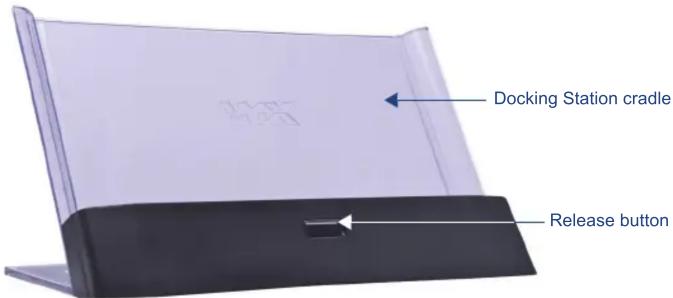
FIG. 1 MVP-TDS-9-GB Table Docking Station (FG5967-10)
Specifications
| MVP-TDS-9 Specifications | |
| Dimensions (HWD): | • 6.25" x 11.50" x 5.50" (15.88cm x 29.21cm x 13.97cm) |
| Weight: • 1.25 lbs (57 kg) | |
| Power Requirements: | • 30 W (Class II listed power supplemented), supplied via the PS-POE-AT High-Power PoE Injector. |
| Startup Power Requirements: | • Cradle and panel (not charging): 16 W• Cradle and panel (charging): 23 W• Ejection: 23 W |
| Front Panel Components: | • Docking Station cradle: for supporting the device while connected or charging.• Release button: before removing the MVP touch panel, press this button to switch the panel from a wired to a wireless Ethernet connection to its network.• 12-pin charging connector on bottom of device cradle. |
| Rear Panel Components: | • 2 USB ports on the left side of the device, for firmware or file download to a docked touch panel. These ports may also be used for using a keyboard and/or mouse with the touch panel. |
| Operating/Storage Environments: | • Operating Temperature: 0°C (32°F) to 40°C (104°F)• Battery Charging Temperature: 0°C (32°F) to 30°C (86°F)• Operating & Battery Charging Humidity: 20% to 85% RH• Storage Temperature: -10°C (-14°F) to 60°C (140°F)• Storage Humidity: 5% - 85% RH |
| Included Accessories | • MVP-TDS-9 Table Docking Station Installation Guide (93-5967-10)• PS-POE-AT High Power PoE Injector (FG423-81)• Ethernet cable - black (ECA5967-22BL) (for MVP-TDS-9-GB)• Ethernet cable - white (ECA5967-22WH) (for MVP-TDS-9-GW) |
| Other AMX Equipment: | • MVP-9000i Modero Viewpoint Widescreen Touch Panel with Intercom - Black (FG5967-01)• MVP-9000i Modero Viewpoint Widescreen Touch Panel with Intercom - White (FG5967-02) |
Powering the MVP-TDS-9
The MVP-TDS-9 uses the PS-POE-AT High-Power PoE Injector to provide direct power for the MVP panel via a standard Ethernet connection, both for standard function and for charging its internal battery. This also allows a wired Ethernet connection for the panel, and the panel may be used normally while docked in the MVP-TDS-9 without the need for a wireless connection.
NOTE: Use the included RJ45 plug for connecting the included Ethernet cable to the MVP-TDS-9. Other RJ45 plugs will not fit in the device's jack, and attempting to use another plug may damage the jack.
- Turn the device upside down and connect one end of the Ethernet cable to the PWR RJ45 connector on the bottom of the MVP-TDS-9.
- To prevent wear on the Ethernet cable and assure that the device's base is in full contact with the table surface, press the cable into the locking groove running across the bottom of the device (FIG. 2).

FIG. 2 MVP-TDS-9-GB - Rear view
-
The other end of the included Ethernet cable has an input port, intended for a standard RJ45 jack. Use a standard Ethernet cable to connect the Ethernet/PoE port to the PS-POE-AT plugging the other end of the Ethernet cable into the Data & Power Out RJ45 port on the PS-POE-AT. Make sure that the PS-POE-AT's power cable is connected to the device and to an available power source, and that the incoming Ethernet cable accessing the Data In RJ45 jack is connected to the desired network.
-
Place the touch panel in the Docking Station cradle bottom-first and make sure the device is fully seated in the Docking Station. When fully seated, the touch panel's docking station connector should be in contact with the Docking Station's charger pins (FIG. 2).
For more information on the PS-POE-AT, please refer to the PS-POE-AT High-Power PoE Injector Installation Guide, available from www.amx.com.
Recharging
To recharge the MVP-9000i, slide the device into the Table Docking Station cradle bottom-first and make sure the device is fully seated in the Docking Station. The charger pins in the bottom of the cradle (FIG. 2) must be in contact with the connector on the bottom of the MVP-9000i for it to start recharging. The MVP panel will stop recharging automatically once the battery has achieved its maximum charge. The MVP panel will also switch automatically from a wireless to a wired Ethernet connection.
For more information on transferring files, please refer to the MVP-9000i Modero Viewpoint Widescreen Touch Panel Operation/Reference Guide, available at www.amx.com.
Removing the MVP-9000i from the MVP-TDS-9
The center front of the MVP-TDS-9 contains one capacitive touch Release button. This button, when pressed, switches the MVP panel from a wired to a wireless Ethernet connection and disconnects the latch holding the panel to the MVP-TDS-9. The panel may be removed from the device at that time.
NOTE: The MVP panel CANNOT be removed from the MVP-TDS-9 during a software or firmware download. The panel can only be removed when the download is complete.
NOTE: Charging Lithium Polymer batteries at high temperature will reduce the battery life. Industry guidelines dictate that batteries should not be charged at temperatures above 45^ C ( 113^ F). The temperature is determined by a combination of the ambient temperature where the panel is located, plus temperature increases normally occurring inside electronic devices containing batteries. AMX has implemented battery temperature monitoring features to maximize the rate of battery charging, while staying within industry temperature guidelines.
Battery charge times will increase in installations where the room temperature is above 25^ C ( 77^ F), and may be temporarily suspended at room temperatures above 30^ C ( 86^ F). Battery charging will automatically resume once the temperature has fallen to appropriate levels. Minimizing the display backlight intensity and turning off the backlight during periods of non-use will also yield faster charge times.
Brand : AMX
Model : MVP-TDS-9
Category : Mobile Device Charger