
SoundCube - Soundcard TRUST - Free user manual and instructions
Find the device manual for free SoundCube TRUST in PDF.


Pick your language and provide your email: we'll send you a specifically translated version.
| Product Type | External USB Sound Card |
| Brand | Trust |
| Model | SoundCube |
| Dimensions (approx.) | 2.5 x 1.5 x 0.8 cm |
| Weight | 10 g |
| Power Supply | USB bus powered (5V) |
| Audio Output | 3.5 mm stereo jack (headphone/speaker) |
| Audio Input | 3.5 mm microphone jack |
| Supported Operating Systems | Windows 10, 11; macOS; Linux (plug and play) |
| Sampling Rate | Up to 48 kHz |
| Bit Depth | 16-bit |
| Plug and Play | Yes, no driver installation required |
| LED Indicator | Yes (power/activity) |
| Cleaning | Wipe with a soft, dry cloth |
| Safety Notes | Keep away from liquids and excessive heat |
| Spare Parts | Not available individually |
| Repairability | Not repairable by user |
| Certifications | CE, RoHS |
Frequently Asked Questions - SoundCube TRUST
Is the Trust SoundCube compatible with Windows 11?
Yes, the SoundCube is compatible with Windows 10 and 11. It is a plug-and-play device, so no additional drivers are needed.
Does it work with macOS?
Yes, it works with macOS. Simply connect it to a USB port and it will be recognized automatically as an external sound card.
What connectors does it have?
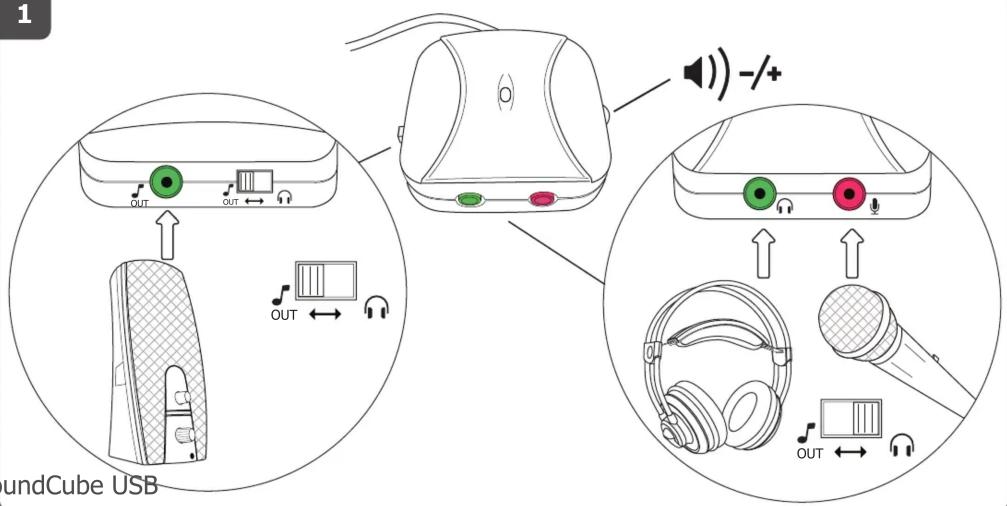
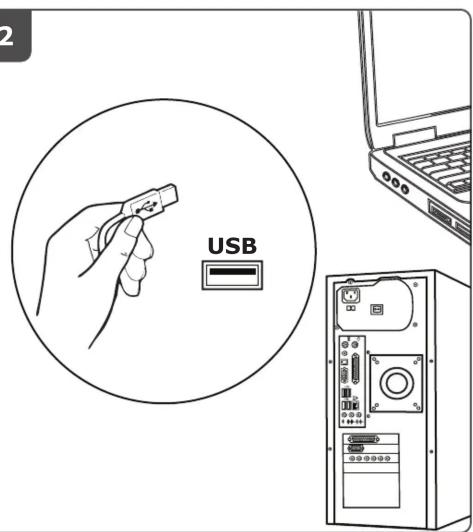
It has a 3.5mm headphone/speaker output and a 3.5mm microphone input. The device connects via USB.
Do I need to install drivers?
No, the SoundCube is a plug-and-play device. It uses generic USB audio drivers built into the operating system.
Can I use it to record audio?
Yes, you can connect a microphone to the mic input and use it for recording or voice chat.
What is the maximum audio quality?
It supports up to 48 kHz sample rate and 16-bit depth, which is CD-quality audio.
Does it have volume control?
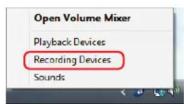
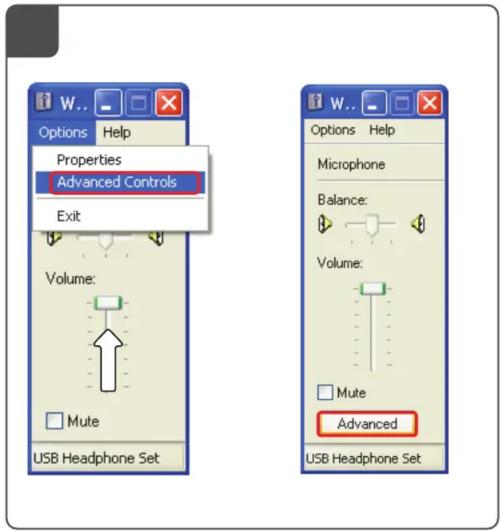
No, the SoundCube does not have a physical volume knob. Volume must be adjusted in the operating system settings.
Is it compatible with game consoles?
It may work with consoles that support USB audio devices via the USB port, but compatibility is not guaranteed for all models.
How do I clean the SoundCube?
Unplug it and wipe with a soft, dry cloth. Do not use water or cleaning solvents.
What should I do if my computer doesn't recognize it?
Try a different USB port or another computer. Ensure the USB port is working. If still not recognized, check device manager or sound settings for the device.
User questions about SoundCube TRUST
0 question about this device. Answer the ones you know or ask your own.
Ask a new question about this device
No questions yet. Be the first to ask one.
Download the instructions for your Soundcard in PDF format for free! Find your manual SoundCube - TRUST and take your electronic device back in hand. On this page are published all the documents necessary for the use of your device. SoundCube by TRUST.
USER MANUAL SoundCube TRUST
natural_image
Silver fitness phone with two connected buttons and a mouse (no visible text or symbols)Quick Installation Guide
17002S
1
2
3
Windows 7 / Vista
Windows XP 5



4
A

2×

B




Manual assistant
Powered by Anthropic
Waiting for your message
Product information
Brand : TRUST
Model : SoundCube
Category : Soundcard