
Vaio Wireless Bluetooth Mouse - Mouse SONY - Free user manual and instructions
Find the device manual for free Vaio Wireless Bluetooth Mouse SONY in PDF.


| Product Type | Wireless Bluetooth Laser Mouse |
| Model Number | VGP-BMS77 |
| Brand | Sony |
| Communication Method | Bluetooth Standard Ver. 2.0+EDR |
| Position Tracking | Laser Sensor |
| Adjustable Resolutions | 800 / 1200 / 1600 dpi |
| Frequency Band | RF 2.4 GHz (Bluetooth) |
| Power Requirements | 3.7 V DC (Built-in rechargeable lithium-ion battery) |
| Battery Life | Approx. 4 weeks (fully charged) |
| Transmission Distance | 32 ft (10 m) max. line of sight |
| Mouse Dimensions (W × H × D) | 2.3 × 1.1 × 4.6 in (56.4 × 34.1 × 121.7 mm) |
| Mouse Weight | Approx. 2.9 oz (80 g) including battery |
| Cradle Dimensions (W × H × D) | 2.5 × 2.3 × 3.0 in (62.1 × 57.0 × 75.7 mm) |
| Cradle Weight | Approx. 1.8 oz (50 g) |
| Buttons | Left, Right, Wheel (scroll), Forward, Back, Connect, Power switch |
| Supported Operating Systems | Windows XP (SP2 or later), Windows Vista (SP1 or later) |
| Laser Safety Class | Class 1 Laser Product (IEC/EN 60825-1) |
| Included Accessories | Mouse, Cradle, AC Adapter, Power Cord, Built-in Battery, Operating Instructions, Warranty Card |
| Cleaning Instructions | Wipe with soft dry cloth; mild detergent if needed. Avoid solvents. |
| Battery Replacement | Replace only with same type (built-in lithium-ion). Follow polarity marks. |
| Operating Temperature | 41°F to 95°F (5°C to 35°C) |
| Humidity Range (Operating) | 20% to 80% (non-condensing) |
Frequently Asked Questions - Vaio Wireless Bluetooth Mouse SONY
User questions about Vaio Wireless Bluetooth Mouse SONY
0 question about this device. Answer the ones you know or ask your own.
Ask a new question about this device
Download the instructions for your Mouse in PDF format for free! Find your manual Vaio Wireless Bluetooth Mouse - SONY and take your electronic device back in hand. On this page are published all the documents necessary for the use of your device. Vaio Wireless Bluetooth Mouse by SONY.
USER MANUAL Vaio Wireless Bluetooth Mouse SONY
Bluetooth® Laser Mouse VGP-BMS77
Operating Instructions
CE Bluetooth®
4-123-465-11(1) © 2008 Sony Corporation / Primed In Japan
VAIO
English
WARNING
To prevent fire or shock hazard, do not expose the unit to rain or moisture.
The socket-outlet shall be installed near the equipment and shall be easily accessible.
Owner's Record
The model number and the serial number are located inside the battery compartment of the mouse. Record the serial number in the space provided below. Refer to this number whenever you call your sorry dealer regarding this product.
Mode No. VGP-BMS77
For customers in the U.S.A.
This equipment has been tested and found to comply with the limits for a Class II digital service, pursuant to Part 13 and for an IBM equipment, pursuant to Part 19 of the FCC Rules. These limits are designed to provide reasonable protection against harmful interference in a residential installation. This equipment generates, uses, and can radiate radio frequency energy and, if not installed and used in accordance with the instructions, may raise harmful interference to radio communications. However, there is no guarantee that interference will not occur in a particular installation. If this equipment does cause harmful interference to reduce its radiation protection, which can be determined by Luring the equipment. The user is willing to try to correct the interference by use or more of the interfering measures:
Reorient or relocate the receiving antenna.
Increase the separation between the equipment and receiver.
- Cenex, the equipment into an sequel on a circuit different from that to which the receiver is connected.
Consult the dealer or an experienced radio/TV technician for help. You are cautioned that any changes or modifications not expressly approved in this manual could visit your authority to operate this equipment.
This device complies with Part 15 of the FCC Rules. Operation is subject to be following two conditions: (1) this device may not cause harmful interference, and (2) this device must accept any interference received, including interference that may cause undesired operation.
Model No.: VGP-BMS77C (Cradle)
For questions regarding your product or for the Sony Service Center nearest you, call 1-588-476-6972 in the United States or 1-800-961-7869 in Canada. The number below is for FCC related matters only.
Declaration of Conformity
Trade Name: SONY
Model No: VGP BME77C
Responsible Party: Sony Electricis Inc.
Andress: Tello Via Espinio, San Diego, CA 92127 U.S.A.
Telephone No: 850 912 2230
For customers in Canada
This Class II digital apparatus complies with Canadian ICPS-100.
Operation is subject to the following two conditions: (1) this device may not cause harmful interference, and (2) this device must accept any interference received, including interference that may cause undesired operation of the device.
For customers in the U.S.A. and Canada
This equipment complies with FCC/IC radiation exposure limits set forth for uncontrolled equipment and meets the FCC radio frequency (RF) Exposure Guidelines in Supplement C to DFE65 and RSS-702 of the IC radio frequency (RF) Exposure rules. This equipment has very low levels of RF energy that it deemed to comply without maximum permissive exposure evaluation (MTEs). But it is desirable that it should be installed and operated with at least 20cm and more between the radiator and person's body (excluding extremities hands, wrist, feet and ankles).
This device and its antennas must not be evaluated or operating with any other antenna or transmitter except Grant condition.
Caution. The use of optical instruments with this product will increase eye hazard.

Located at the bottom
Danger of explosion if battery is incorrectly replaced. Replace only with the same or equivalent type recommended by the manufacturer. Discard used batteries according to the manufacturer's instructions.
The battery pack used in this device may present a fire or chemical burn hazard if mistreated. Do not disassemble, heat above 140^ F ( 60^ C) or incinerate. Dispose of used battery promptly. Keep away from children. Do not short circuit.

Printed on 70% or more recycled paper using VOC (Volatile Organic Compound)-free vegetable oil based ink.
http://www.sony.net/
RECYCLING LITHIUM-ION BATTERIES
Lithium Ion batteries are recyclable.
You can help preserve our environment by forwarding your used rechargeable batteries to the collection and recycling location nearest you. For more information regarding recycling of rechargeable batteries, call toll free 1 800 922 8637, or visit http://www.zbc.org/
Caution: Do not handle damaged or leaking Lithium-Ion batteries.

For customers in other countries and regions
The equipment is classified as a CLASS 1 LASER PRODUCT and complies with the Laser Products Safety Standard (IEC)/EN 60825-1. You can find the following sticker on the bottom of this equipment.
CLASS 1 LASER PRODUCT
For customers in Europe
Hereby, Sany declares that this product is in compliance with the essential requirements and other relevant provisions of Directive 1999/5/EC.
To obtain a copy of the Declaration of Conformity (Doc.) with the R&TTE Directive, please access the following URL. http://www.compliance.sony.de/
The manufacture of this product is Sony Corporation, 1-2-1 Kovan Vinshuka Tokya, 109 0075 Japan. The Authorized Representative for EMC and product safety is Sony Deutschland GmbH, Hedellinger Strasse 61, 70027 Stuttgart, Germany. For any service or guarantee matters please refer to the addresses given in separate service or guarantee documents.
It also complies with the EN 60825-1, being classified as a CLASS 1 LASER PRODUCT.
Repair and maintenance of this equipment should be made only by Sony authorized technicians. Improper repairs and use can create safety hazards
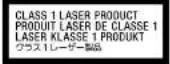
Located at the bottom
Do not open wireless devices, as opening them, for whatever reason, could lead to damages that are not covered by the guarantee.
In some situations or environments, the use of Bluetooth wireless technology might be restricted by the proprietor of the building or responsible representatives of the organisation, for example onboard airplanes, in hospitals or in any other environment where the risk of interference with other devices or services is perceived on itself as harmful. If you are uncertain of the policy that applies to the use in a specific organisation or environment, you are encouraged to ask for authorization of Bluetooth wireless technology prior to switching it. Consult your physician on the manufacture of personal realistic development, hearing aids, etc.) regarding any restrictions on the use of Bluetooth wireless technology.
Disposal of Old Electrical & Electronic Equipment (Applicable in the European Union and other European countries with separate collection systems)
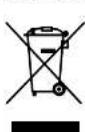
This symbol on the product or on its packaging includes that this product shall not be treated as household waste. Instead it shall be handed over to the applicable collection point for the recycling or electrical and electronic equipment. By ensuring this product is disposed of correctly, you will help prevent potential negative consequences in the environment and human quality, which would otherwise be caused by inappropriate waste, handling of this product. The recycling of materials will help to conserve natural resources. For more detailed information about recycling of this product, please contact your local Civic Office, your household waste disposal service or the shop where you purchase the product.
Disposal of waste batteries (applicable in the European Union and other European countries with separate collection systems)

This symbol on the battery or an the packaging indicates that the battery provided with this product shall not be treated as household waste. By ensuring these batteries are disposed of correctly, you will help prevent potentially negative consequences for the environment and human health which could otherwise be caused by inappropriate waste handling of the battery. The recycling of the materials will help to conserve natural resources.
In case of products that for safety, performance or data integrity reserves require a permanent connection with an incorporated battery, this battery should be replaced by qualified service staff only.
To ensure that the battery will be treated properly, hand over the product at end of life to the applicable collection point for the recycling of electrical and electrical equipment.
For all other batteries, please view the section on how to remove the battery from the product safety.
Hand the battery ever is the applicable collection point for the recycling of waste batteries. For more detailed information about recycling of this product or battery, please contact your local Civic Office, your household, waste disposal service or the shop where you purchased the product.
• VASQ is a trademark of Sony Corporation
• Microsoft, Windows, and Windows-Visits are registered trademarks of Microsoft Corporation in the United States and/or other countries.
- The Bluetooth word mark and logos are owned by the Bluetooth SIG, Inc., and any use of such marks by Sony Corporation is under license. Other trademarks and Transactions are all those of their respective owners.
- All other names of systems, products and services are trademarks of their
respective owners. In this manual, the ^19 or @ marks are not specified.
• In this manual, Microsoft * Windows*. XFI Home Edition and Windows 2. XP: Production of Windows 197
- In this manual, Windows Vista® Home Basic, Windows Vista® Home Premium, Windows Vista® Business and Windows Vista® Ultimate are referred to as Windows Vista.
Before Use
This product is a laser mouse equipped with Bluetooth® technology. The Bluetooth Laser Mouse can be used with the following personal computers (as of September 2006):
- Sony VAIO personal computers equipped with Bluetooth technology and pre-installed with Windows XP (after SP2) or Windows Vista (after SP1).
*Bluetooth technology
Bluetooth wireless technology provides instant short-range connectivity without the need for troublesome cabling. For details, refer to the manuals included with your personal computer.
Note
Depending on the personal computer or version of software you are using, the mouse may not operate correctly.
Consult your nearest Sony dealer about proper operating environments and information about Sony VAIO and Bluetooth compatibility.
Part Names
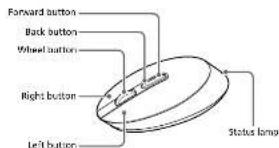
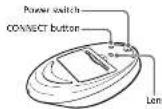
Charging the Battery
Note
Charge the battery in an ambient temperature of between 11^ F to 95^ F ( 7^ C to 33^ C).
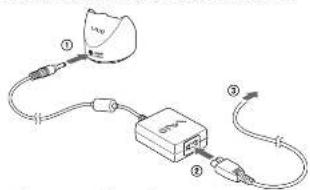
1 Plug the AC adapter into the DC IN 5.2 V connector on the Cradle ①, plug the power supply cord into the AC adapter ②, plug into a proper electrical socket ③.
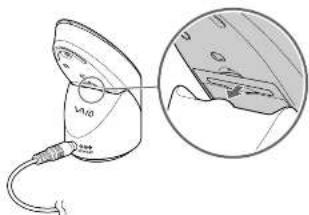
2 Put the mouse on the Cradle.
natural_image
Diagram of a medical device with a magnified inset showing internal components (no text or symbols)When charging starts, the status lamp lights up orange. The status lamp turns off when charging is complete.
About charging time
- When the status lamp flashes orange, the mouse built in battery power is low and needs to be changed.
- if the mouse is sufficiently charged when placed on the Cradle, the status lamp will light up orange for 5 seconds and then turn off.
Enabling Communication between the Mouse and Your Personal Computer
Use the Bluetooth software installed on your personal computer to enable communication between the mouse and your personal computer.
Note
Make sure that the Bluetooth software on your personal computer is activated. For details, refer to the manuals provided with your personal computer.
Before you start
Note
Operation of the Bluetooth software may vary depending on your personal computer.
If your personal computer is pre-installed with Windows XP; Go to "Case C."
If your personal computer is pre-installed with Windows Vista: Follows the steps below.
1 Click (Start), then "Control Panel."
2 Click the "Hardware and Sound" Icon.
3 If the "Bluetooth Devices" icon is in the "Hardware and Sound" window.
Go to step 1
If the "Bluetooth Devices" icon is not in the "Hardware and Sound" window:
Close the "Control Panel" and go to "Case C."
4 Click the "Bluetooth Devices" icon, and verify the contents of the window displayed.
Note
If you switch to Classic View, double click the "Bluetooth Devices" icon. If the following "Bluetooth Devices" window is displayed: Go by "Can: A."
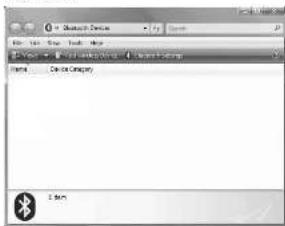
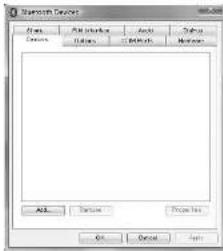
If the following "Bluetooth Devices" window is displayed:
Case the "Control Panel" and ga to "Case II."
Case A
1 slide the power switch to the ON position.
2 On the "Bluetooth Devices" window, click the "Add Wireless Device" icon.
3 Press the CONNECT button on the bottom of the mouse. The status lamp flashes green.
4 In the device list, select "VGP-BMS77," and click "Next." Depending on the usage environment, the "Pair with a Wireless Device" window may appear. In this case, select "Pair without using a code," and click "Next."
5 On the "Pair with a Wireless Device" window, click "close."
6 Close the "Bluetooth Devices" window.
7 Try moving the mouse. If the pointer displayed on your screen moves accordingly, the connection is complete.
Case B
1 Slide the power switch to the ON position.
2 On the "Bluetooth Devices" window, select the "Devices" tab and click "Add." The "Add Bluetooth Device Wizard" appears.
3 Press the CONNECT button on the bottom of the mouse. The status lamp flashes green.
4 Select the "My device is set up and ready to be found" check box and click "Next."
5 In the device list, select "VGP-BMS77", and click "Next." 6 Select "Don't use a passkey" and click "Next."
- Click "Finish."
8 click "OK."
9 Try moving the mouse. If the pointer displayed on your screen moves accordingly, the connection is complete.
Case C
1 slide the power switch to the ON position.
2 Double-click the icon in the notification area in the bottom right corner of your personal computer's desktop.
The "Black-and-Setings" section appears.
3 Click "New Connection."
The "Add New Connection" wizard screen appears.
4 Press the CONNECT button on the bottom of the mouse. The status lamp flashes green.
5 Select "Express Mode", and click "Next." The search for Bluetooth devices begins.
6 In the device list, select "VGP-BMS77", and click "Next."
7 If the "Add New Connection" wizard disappears, connection is complete. Go to step 10.
8 If the prompt to connect the HID (Human Interface Device) device appears, click "OK."
9 Verify the contents of the window displayed, and click "Next."
10 Try moving the mouse. If the pointer displayed on your screen moves accordingly, the connection is complete.
Disconnecting
Slide the power switch to the OFF position.
Operating distance of the mouse
The mouse can normally be operated within about a 32 ft. (10 m) radius around
the personal computer. Depending on the usage environment, some possible disease may be probably sharper, presenting normal anxiety.
In such a case, take the following measures:
- Use the mouse as far away from other wireless devices as possible.
- Use the mouse closer to the personal computer.
- Use a mouse pod
Using the Mouse
When you move the mouse, the pointer displayed on your screen moves in
the same direction. This section describes basic mouse operations.
Notes
- Due to the characteristics of the laser sensor, the mouse may not work
properly on transparent surfaces or on a mouse pad that has a clear surface.
Avoid using on such materials, or use a commercially available mouse pad that is compatible with a laser sensor mouse.
• The furanaphener used for the sales of the mouse (PTFE, or
polytetrafluoroethylene is designed for low frictional resistance, but the
mouse may slide differently depending on what material your desk or
mousepad is made of.
[Unreadable]
If necessary, you can adjust the mouse pointer speed under "Mouse Properties". To
display "Mouse Properties", with the Windows Vista operating system, click
"Mouse" in the "Control Panel" (with the Windows XP operating system, select
"Printers and Other Hardware in the 'Control Paper', then select 'Mouse'
Basic operations
![SONY Vaio Wireless Bluetooth Mouse - [Unreadable] - 1](/content/2026/05/1065583/images/4ca3bd13c791fc35004cf4c3b3a02c78579c2ad0d35c953c907b0c813865b928.jpg)
Slide the power switch to the ON position.
①Wheel button
Use the wheel button to easily scroll up and down in a window. You can
also use auto scroll by pressing the wheel button.
②Left button
Use to open saved documents, pictures, files, and programs.
Most mouse functions are performed using this button.
③Right button
Use this button to display shortcut menus that allow you to copy saved
documents, pictures, files, view file details, and access various
commands and settings.
④Forward button / ⑤ Back button
Move to next/previously displayed screen of Internet Explorer.
Changing resolution
The resolution is bill dips (when shipped). You can change the resolution by
doing the following:
Note
You must slide the power switch to the OFF position before attempting to
change the resolution
1 While pushing and holding down the left and right
buttons ①, push the CONNECT button on the bottom of the mouse ②.
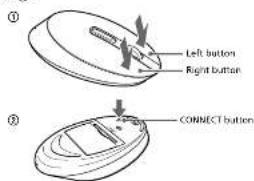
2 While holding down all 3 buttons, slide the power
switch to the ON position.
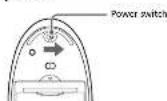
The status lamp flashes on and off in green and orange.
3 When the status lamp flashes on and off in green and
orange, push the following buttons depending on
resolution.
Hill dpc Left button
1200 dpi Back button
1600 dpi: Right button
Precautions
Safety If any solid object or liquid falls onto the mouse, disconnected
it and have it checked by qualified personnel before
continuing its use.
Location Do not place the mouse in a location where it is
• On an unstable surface
• In very humid areas or where there is no ventilation
- Subject to excessive dust
- Subject to direct sunlight or extreme heat
• Exports vol
Operation If the mouse is brought directly from a cold to a warm
location or is placed in a very damp room, moisture may
condense on the inside of the mouse. If this occurs, the
mouse may not work properly.
In this case, wait about 30 minutes for the moisture to
evaporate. If the middle does not wish property after an hour, consult your nearest square dealer.
hour, carried your time. Salary is \$100.
Bluetooth communications
- The 2.4 GHz band used by Blackooth and wireless LAN devices is also used by various other devices. Blackooth devices incorporate technology that minimizes interference from other devices using the same wavelength. However, communication speed and achievable distances may be reduced. Interference from other devices can also stop communications altogether.
- The data transfer role will vary depending on distance and obstacles between devices, device configuration, radio interference, operating system, software application, and so on. In some cases, communication may be interrupted.
- Communication range will vary according to whether walls or other obstacles are located between devices, the material used in walls, the presence of radio frequency interference and other environmental conditions, and the type of software being used.
- If wireless LAN and Bluetooth functionality are used at the same time on the same personal computer, communication speed may be reduced due to electrical transgenic interference, and other uncontrolled effects may occur.
Cleaning the outside of the mouse
Clean the mouse with a soft, dry cloth or a soft cloth lightly moistened with a mild detergent solution. Do not use any type of adhesive pad, securing powder, or solvent such as alcohol or heroin.
To remove the built-in rechargeable battery
Notes
- Do not remove the battery, except when disposing of the mouse. If the battery is accidentally removed, replace it correctly, observing the polarity mark in the battery compartment.
- Do not use any other battery except this built in rechargeable battery, and do not use it with other devices
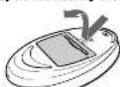
1 Open the battery cover on the bottom of the mouse.
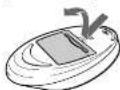
2 Pull the battery cover lightly.
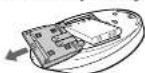
How to replace the battery
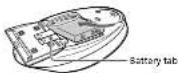
1 Open the battery cover on the bottom of the mouse.
2 Replace the battery on the tab, matching the polarity
marks in the battery compartment.
Specifications
■ Mouse
Communication method Bluetooth Standard Ver. 2.0+EDR
Position tracking principle Laser sensor
Adjustable Resolutions 800 / 1200 / 1600 dpi
Frequency band RF 2.4 GHz (Bluetooth)
Power requirements 3.7 V DC (Built-in rechargeable lithium-ion
(bollery)
Battery life Approx. 4 weeks (fully charged)
Transmission distance 32 ft. (10 m) max. line of sight*
Approx. 2.3 × 1.1 × 4.6 in.
(56.4×34.1×121.7 mm) (w × h × d)
Mass Approx. 29 oz. (80 g) (including battery)
■ Cradle
Approx. 2.5×2.3×3.0 in
(62.1×57.0×75.7 mm) (w×h×d)
Mass Approx. 1.8 oz. (50 g)
■ Rechargeable battery (built-in)
Model number
Maximum charge current 1065 mA
Maximum charge voltage 4.2 V
■ Miscellaneous
Supported models
Sony VAIO personal computers with the
Windows XP or Windows Vista operating
NY-109
Input: AC 100 - 240V 51/60Hz
Output: DC 5.2V
41°F to 95°F (5°C to 35°C) (temperature
gradient less than 18°F (10°C)/hour)
20% to 80% (not condensed), provided that
humidity is less than 65% at 95°F (35°C)
(hygrometer reading of less than H_2^+P (29°C))
14 to 129°C to 20°C to 60°C (temper
gradient less than 10 P(0.5°C)/hour) VTE to IITC (not condensed), provided the
10.8 at 94.3% (for catheterless), previously that humidity is less than 70% at 142°F (65°C).
(hyrometer reading of less than 95°F (35°C))
Cradle
AC: adapter
Power cord
Rechargeable battery (built-in Lithium-ion
battery
Operating Instructions (this document)
Warranty Card
- Communication range will vary according to whether walls or other obstacles are located between devices, the material used in walls, the presence of radio frequency interference and other environmental conditions, and the type of software being used.
Design and specifications are subject to change without notice.
Troubleshooting
If you experience any of the following difficulties while using the mouse, use this troubleshooting guide to solve the problem. If a problem persists, consult your nearest Seyy dealer.
The mouse does not turn on when I slide the power switch to the ON
position.
The mouse built in battery power is low.
→ If the power does not mention when the power switch is set to ON, change the pattern for details, see "Changing the patterns".
Nothing happens when I press a mouse button.
The software is not compatible.
→ Use a supported software
The mouse built-in battery power is low.
→ Charge the battery. For details, see "Charging the Battery".
□The mouse and the personal computer are not communicating
- Perform the steps in "Enabling Communication between the Mouse and
your Per possible
→ Turn off the mouse, wait a few seconds, turn on the mouse, and then
reestablish communication.
→ In some operating environments, the usable distance may be notably clear, providing normal operation, by such case, use the mouse fusion
- Other, processing, non-for-affective, in-sil wear, and the course details. away from other electronic devices such as other computers and displays.
→ If the mouse is too far from your personal computer, communication is
not possible. Bring the mouse and your personal computer closer
together.
☐The mouse is being used on an unsuitable surface.
→ Due to the characteristics of the laser sensor, the mouse may not work
properly an transparent surfaces or on a mouse pad that has a excise surface. Avoid using on such materials, we use a commercially available
mouse pad that is compatible with a laser sensor mouse.
☐The CONNECT button is pressed while operating the mouse.
→ When the CONNECT button is pressed while operating the mouse, the
mouse goes into a standby state for about 1 minute and cannot be operated during this time. It was now the CONNCT photon, received
- Open a button during this time. If you press the ON/ARX, I should, then power switch at the mouse once to ON before beginning operation.
□The mouse may have difficulty communicating in an environment with
2.4 GHz wireless LAN or other Bluetooth communication
→ It is best to use the mouse in a location with low interference from wireless devices.
Pressing the CONNECT button does not establish a connection.
→ If the power switch on the mouse is set to OFF, communication with
(the personal computer is not possible. Check the power switch setting
on the bottom of the ma
- If the power does not come on when the power switch is set to ON, the
mouse built-in battery power may be low. Under normal operation conditions, a set of batteries lasts about a month (not always
conditions, a set of batteries lasts about a month. For details, see "Charging the Battery".
Charging the Delivery
→ Communication between the mouse and your personal computer may
not have been properly established. If the CONNECT button on the move is not covered within 20 seconds after the illustrate device.
mouse is not pressed within 30 seconds after the inflation device search buying, means communication is cancelled. In such a case
perform the procedure again to enable communication. For details, see
^2 Enabling Communication between the Mouse and Your Personal
Computer.
- If the mouse and personal computer are too far apart, communication
is not possible. The maximum communication distance between the
mouse and personal computer is about. 32 ft. (10 m). If used on a metal table, it is not possible to be seen the mouse and personal computer.
table of it obstacles the between the mouse and personal amplifier, the analytical distance may be less
SOME LEAVES
→ Make sure that the bluetooth function on your computer is activated. Two details refer to the use of a device with a user's own
For details, refer to the individuals provided with your personal computer.
compters.
The scrolling features do not work.
The operating system is not compatible.
- Use a supported operating system.
The program you are using is not compatible with the scrolling
features.
→ The scrolling features only work with programs that use a scroll function.
- Scene programs do not support the scrolling features
The pointer does not move when I move the mouse.
→ Processing performed by Windows or other software may temporarily
disable the mouse. Wait a few moments for the processing to finish
before using the mouse.
→ You may find some useful solutions in your personal computer's
operating instructions. Refer to the manuals provided with your
perschro Kipapin.
The mouse built-in battery power is low.
- If the power does not come on when the power switch is set to ON, where the power is set to ON.
charge the battery. For details, see Charging the Battery
□The mouse is not set to ON.
→ Slide the power switch to the ON position.
The mouse and your personal computer are not communicating.
- Perform the steps in "Enabling Communication between the Mouse and Your Personal Computer" to ensure that every communication is
possible
→ In some operating environments, the usable distance may be notably
shorter, preventing normal operation. In such case, use the mouse partner
away from other electronic devices such as other computers and displays. If the mouse is too far from your personal computer, communication is
- If the means is too far from your personal computer, communication, not possibly. Bring the name and your personal computer closer.
together.
The mause is being used on an unsuitable surface.
→ Due to the characteristics of the laser sensor, the mouse may not work
properly on transparent surfaces or on a mouse pad that has a clear
Surface. A cone using an sinter materials, be used a computer-saved mouse pad that is compatible with a laser sensor mouse.
When I am using the mouse, the display goes dark or the personal
computer enters power-saving mode.
The personal computer enters power-saving mode even while the
house is in use.
- Charge the power management settings for the personal computer to
prevent: from entering power-saving mode. For
→ Touch the touchpad or press any key on the keyboard to exit power-
saving made.
The personal computer does not return from Standby mode.
→ Touch the touchpad or press any key on the keyboard to exit this mode
The mouse pointer does not move smoothly across the screen.
→ Due to the characteristics of the laser sensor, the mouse may not work
properly an transparent surfaces or on a mouse pad that has a clear
surface. Avoid using on such materials, or use a commercially-available surface and that is compatible with a large screen wave.
In mouse pad that is compatible with a laser sensor mouse.
Exiting power-saving mode with the mouse is not possible.
→ Press any key or the power button on the keyboard
The mouse does not move smoothly after returning from the power-
saving mode.
→ Deactivate the Bluetooth connection, wait a few seconds, and then.
re-establish connection
The mouse is not found when the Bluetooth device search is
performed.
The mouse is unable to be detected.
→ Press the CONNECT boxran located on the bottom of the mouse, and
then try the search again.
The power switch on the mouse is set to OFF.
- Check the power switch setting on the bottom of the mouse.
The Bluetooth function on your computer is not activated.
→ Make sure that the Blueteth function is activated. For details, refer to the
manuals provided with your personal computer.
I am asked to input a key at the time of authentication.
→ Input "0000" as the key
(三) 2017年1月1日
- Bluetooth® Laser Mouse VGP-BMS77
- English
- WARNING
- Owner's Record
- For customers in the U.S.A.
- Model No.: VGP-BMS77C (Cradle)
- Declaration of Conformity
- For customers in Canada
- For customers in the U.S.A. and Canada
- RECYCLING LITHIUM-ION BATTERIES
- For customers in other countries and regions
- For customers in Europe
- Disposal of Old Electrical & Electronic Equipment (Applicable in the European Union and other European countries with separate collection systems)
- Disposal of waste batteries (applicable in the European Union and other European countries with separate collection systems)
- Before Use
- Part Names
- Charging the Battery
- About charging time
- Enabling Communication between the Mouse and Your Personal Computer
- Before you start
- Case A
- Case B
- Case C
- Disconnecting
- Operating distance of the mouse
- Using the Mouse
- Notes
- [Unreadable]
- ①Wheel button
- ②Left button
- ③Right button
- ④Forward button / ⑤ Back button
- Changing resolution
- Note
- resolution.
- Precautions
- Bluetooth communications
- Cleaning the outside of the mouse
- To remove the built-in rechargeable battery
- How to replace the battery
- Specifications
- ■ Mouse
- ■ Cradle
- ■ Rechargeable battery (built-in)
- Model number
- ■ Miscellaneous
- Troubleshooting
- position.
- together.
- compters.
- performed.
Brand : SONY
Model : Vaio Wireless Bluetooth Mouse
Category : Mouse