IC-SYM - Car kit ZZ-2 - Free user manual and instructions
Find the device manual for free IC-SYM ZZ-2 in PDF.


| Product Type | Car Kit (Hands-Free Kit) |
| Brand | ZZ-2 |
| Model | IC-SYM |
| Dimensions (approximate) | 100 x 60 x 20 mm |
| Weight | 50 g |
| Power Supply | 12V DC via car cigarette lighter or USB cable |
| Main Functions | Hands-free calling, FM transmitter, music streaming via Bluetooth |
| Bluetooth Version | 5.0 |
| Supported Profiles | HFP, A2DP, AVRCP |
| FM Frequency Range | 87.5 – 108.0 MHz |
| Microphone | Built-in, noise cancellation |
| Audio Output | 3.5 mm AUX or FM transmission |
| Controls | Buttons for answer/hang up, volume, track control |
| LED Indicator | Blue/Red for pairing and status |
| Compatibility | Most smartphones with Bluetooth |
| Maintenance | Keep dry and clean; wipe with a soft cloth |
| Safety | Do not use while driving unless legally permitted; use voice commands |
| Spare Parts & Repairability | Contact authorized service center; battery not user-replaceable |
| General Information | Designed for safe hands-free driving; user manual available online |
Frequently Asked Questions - IC-SYM ZZ-2
User questions about IC-SYM ZZ-2
0 question about this device. Answer the ones you know or ask your own.
Ask a new question about this device
Download the instructions for your Car kit in PDF format for free! Find your manual IC-SYM - ZZ-2 and take your electronic device back in hand. On this page are published all the documents necessary for the use of your device. IC-SYM by ZZ-2.
USER MANUAL IC-SYM ZZ-2
natural_image
Abstract logo design with stylized lightning bolt and number '2' on yellow background (no text or symbols)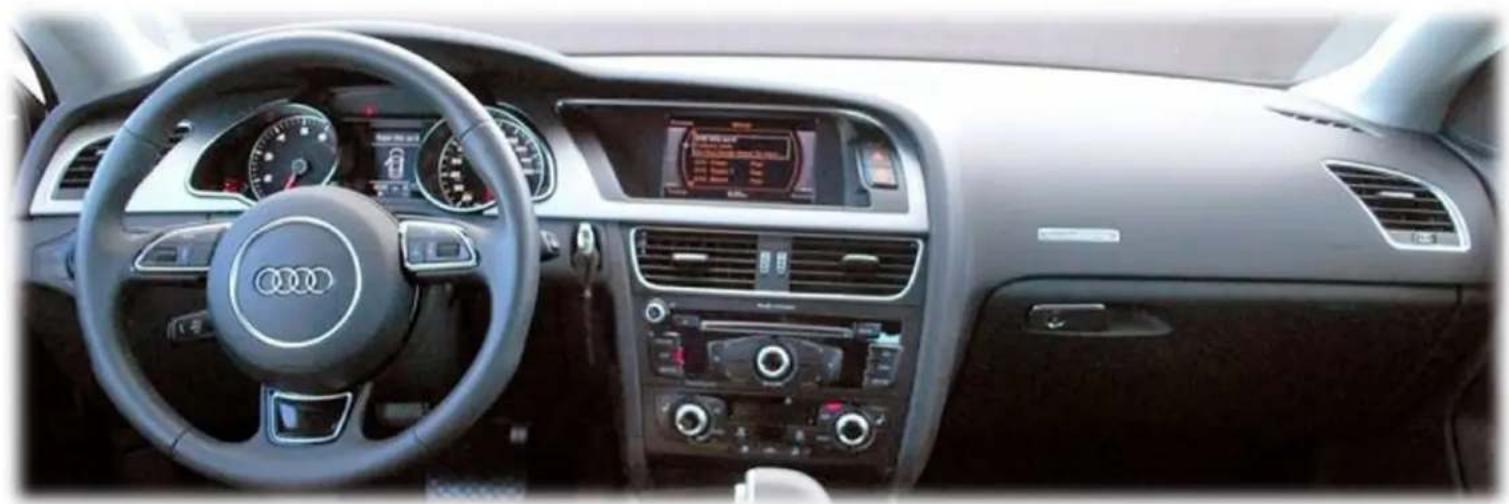
natural_image
Interior view of a Audi car dashboard and steering wheel (no visible text or symbols)Camera Integration System for AUDI vehicles equipped with the Symphony or Concert system

IC-SYM Overview
The IC-SYM adds up to 3 additional composite video inputs to the factory screen in AUDIs equipped with the Symphony or Concert system.
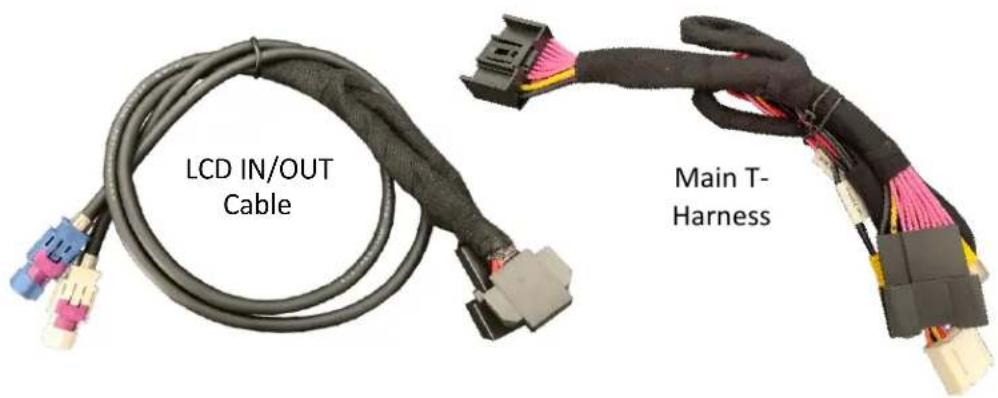
KIT COMPONENTS
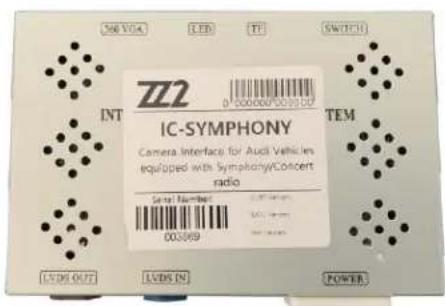
IC-SYM Interface
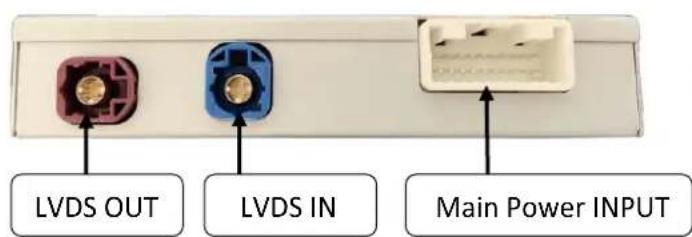
INTERFACE PORTS
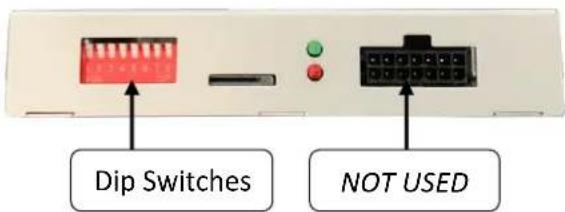
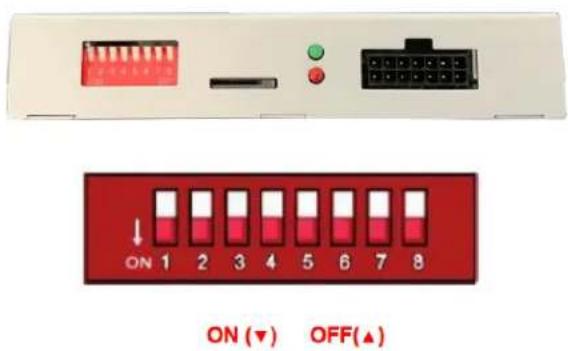
DIP SWITCH SETTINGS
| DIP | ON ↓ | OFF ↑ |
| 1 | LEAVE OFF | |
| 2 | LEAVE ON | |
| 3 | LEAVE OFF | |
| 4 | DISABLE PDC | ENABLE PDC |
| 5 | DISABLE GUIDELINES | ENABLE GUIDELINES |
| 6 | -- | -- |
| 7 | FRONT CAM shows (10 sec) | Disable front after REV |
| 8 | Using wire trigger for REV | Using CAN data for REV |
IC-SYM Diagram
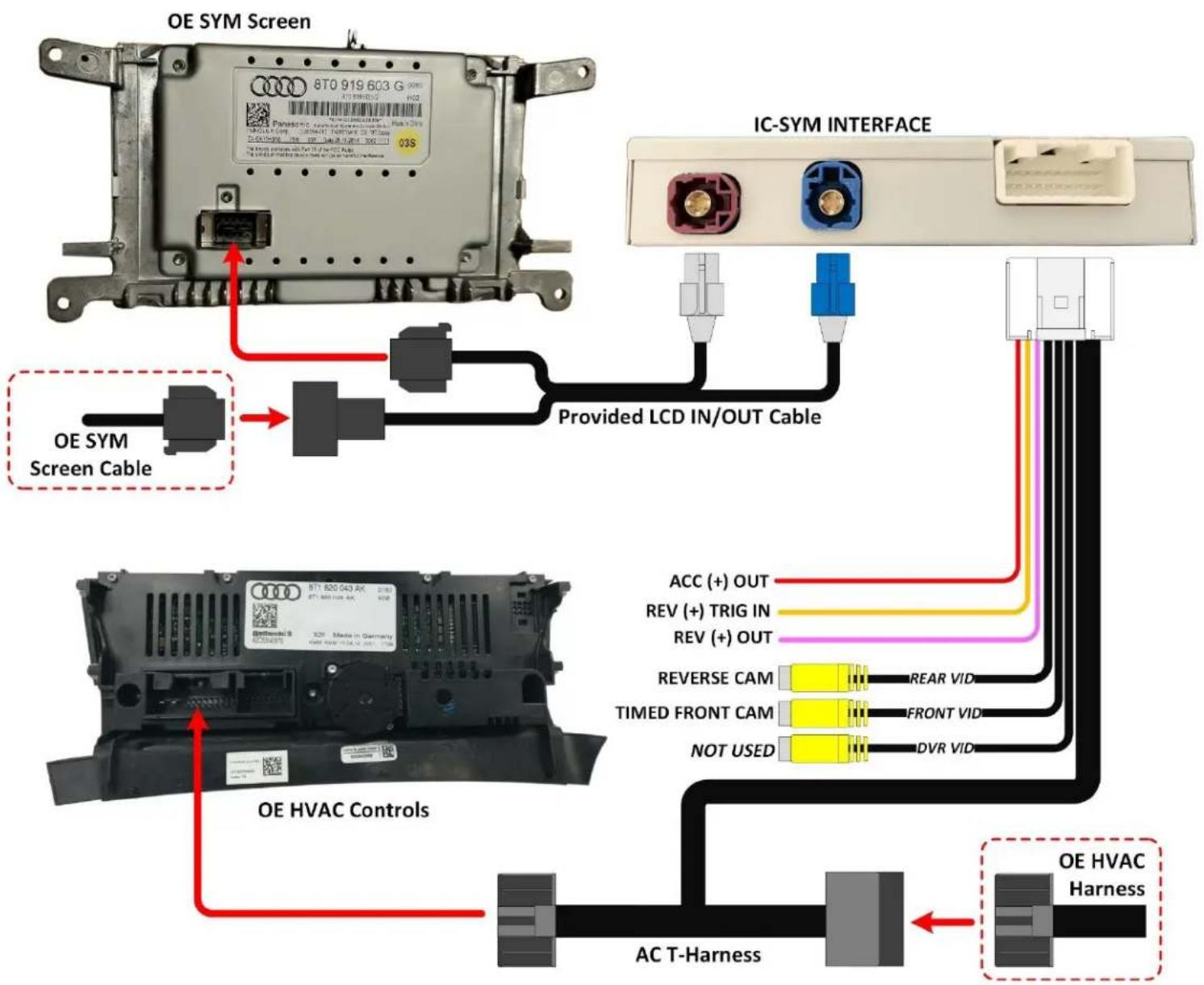
flowchart
graph TD
    A["OE SYM Screen"] -->|Red arrow| B["Provided LCD IN/OUT Cable"]
    C["IC-SYM INTERFACE"] -->|Blue port| D["Provided LCD IN/OUT Cable"]
    E["OE HVAC Controls"] -->|Red arrow| F["AC T-Harness"]
    G["OE HVAC Harness"] --> H["AC T-Harness"]
    B --> I["Provided LCD IN/OUT Cable"]
    D --> I
    F --> I
    H --> I
    style A fill:#f9f,stroke:#333
    style C fill:#ccf,stroke:#333
    style E fill:#cfc,stroke:#333
    style G fill:#fcc,stroke:#333
AUDI Dash Disassembly
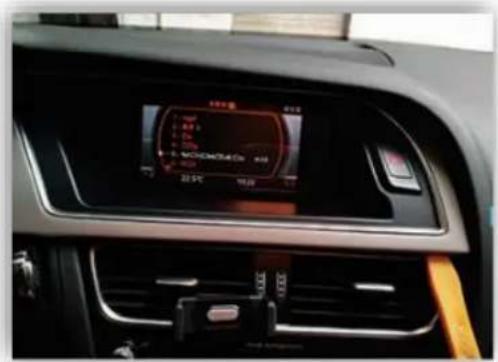
Using plastic tools, carefully remove the dash surrounding the screen. Disconnect the hazard button.
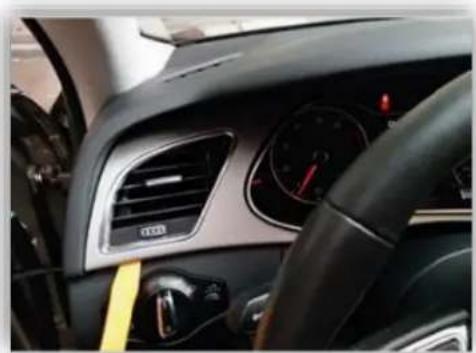
natural_image
Interior view of a car dashboard with visible controls and steering wheel (no text or symbols)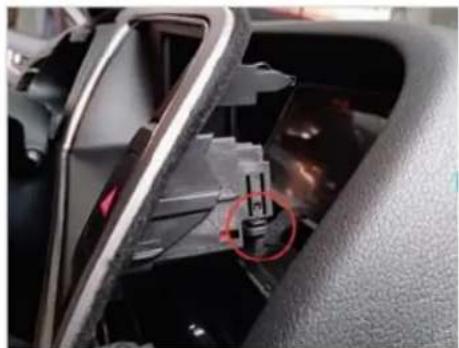
natural_image
Interior view of a car showing internal components and a red circular annotation (no visible text or symbols)Remove (4x) Torx screws securing the screen to the sub-dash. Connect the provided LCD harness to the screen and screen cable.
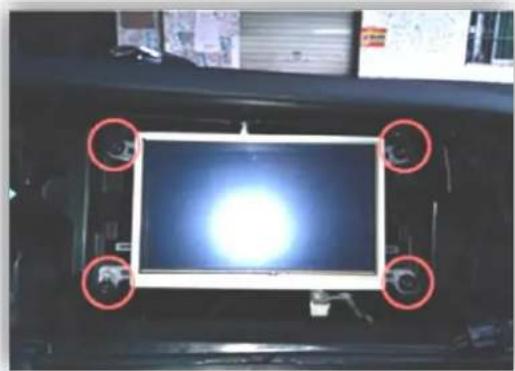
natural_image
Interior view of a vehicle showing a central illuminated screen with red circular markers and a bright light source (no visible text or symbols)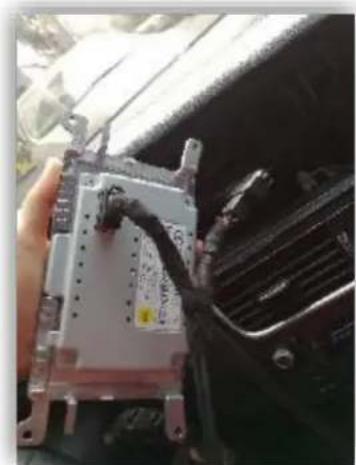
natural_image
Close-up of a car's front panel with visible wiring and connectors, no text or symbols presentRemove the HVAC controls using plastic tools. Connect the T-Harness to the HVAC main power harness.
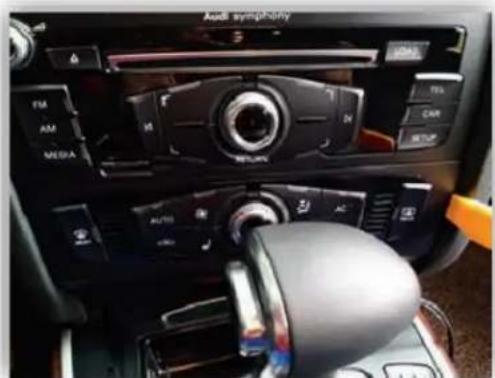
natural_image
Interior view of a car dashboard with steering wheel, air buttons, and control panel (no readable text or symbols)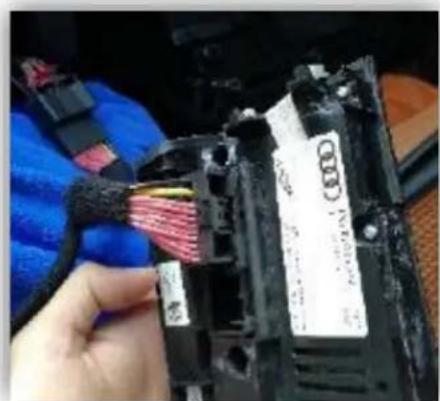
natural_image
Close-up of a hand inserting a color-coded cable into an Audi (no visible text or symbols)IC-SYM Utilization

natural_image
Abstract graphic with a lightning bolt symbol on a yellow background (no text or symbols)Once installation is complete and all dip-switches are set properly and camera is powered and connected, reverse image should display automatically while in reverse (unless manual transmission – in this case, power Orange trigger wire with reverse gear).
- DIP SWITCHES affect resolution (screen size), CAN type (vehicle type) and OE vs aftermarket camera.

natural_image
Abstract geometric logo design with stylized letter 'Z' and arrow shape (no text or symbols)support@zz-2.com
929-220-1212
Toll free: 877-241-2526
Brand : ZZ-2
Model : IC-SYM
Category : Car kit