Passport Max 2 - Radar detector Escort - Free user manual and instructions
Find the device manual for free Passport Max 2 Escort in PDF.


| Type of Product | Radar/Laser Detector with GPS and Bluetooth |
| Brand | Escort |
| Model | Passport Max 2 |
| Dimensions (approx.) | 2.5 x 4.5 x 1.2 inches |
| Weight (approx.) | 6 oz |
| Power Source | 12V DC via SmartCord lighter adapter |
| Display | OLED with adjustable color (blue, green, red, amber) and auto brightness |
| Radar Bands Detected | X, K, Ka, Laser, POP |
| GPS Features | TrueLock false alert locking, AutoLearn, Marking locations, Over-Speed Alert, speed display |
| Bluetooth | Built-in Bluetooth 3.0 for ESCORT Live app connectivity |
| Database | Pre-loaded DEFENDER Database for speed cameras, red light cameras, and speed traps |
| Audio Alerts | Voice alerts, selectable tones (Standard or Mild), AutoMute, Cruise Alert |
| Mount | StickyCup windshield mount with adjustable angle |
| Software Updates | Via USB connection to computer |
| Warranty | One-year limited warranty |
| Included Accessories | SmartCord power adapter, StickyCup mount, Quick Reference Guide, soft-shell case |
| Optional Accessories | Coiled SmartCord, DirectWire SmartCord, SHIFTER ZR4 Laser Shifting System, replacement cases |
| Cleaning and Maintenance | Rinse StickyCup mount with warm water; clean detector with soft cloth |
| Safety | Follow all traffic laws; do not rely solely on detector |
| Reparability | Service through ESCORT; optional extended service plan available |
Frequently Asked Questions - Passport Max 2 Escort
User questions about Passport Max 2 Escort
0 question about this device. Answer the ones you know or ask your own.
Ask a new question about this device
Download the instructions for your Radar detector in PDF format for free! Find your manual Passport Max 2 - Escort and take your electronic device back in hand. On this page are published all the documents necessary for the use of your device. Passport Max 2 by Escort.
USER MANUAL Passport Max 2 Escort
GPS Powered for Speed and Location Intelligence

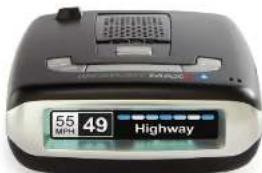
PASSPORT MAX2
High Definition Radar Performance
Designed in the USA
ESCORT Inc.
5440 West Chester Road
West Chester OH 45069
800.433.3487
Esconlnc.com
©2014 ESCORT Inc. ESCORT®, PASSPORT® Max2, Escort Level®, DEFENDER®, and SmartCord® are trademarks of ESCORT Inc.
Manufactured and printed in Canada, Features, specifications, and prices subject to change without notice.

Pre-loaded DEFENDER Database
RADAR · LASER · SAFETY CAMERA · DETECTOR
Owner's Manual
Congratulations
PASSPORT Max2 Features

You've just purchased the first and only radar/laser detector to offer high-definition (HD) performance and accuracy—the all-new PASSPORT Max2.
Go to EscortRadar.com for the full featured PASSPORT Max2 Owner's Manual.
The text in the source image is illegible due to extreme blurriness and low resolution. No characters can be confidently identified.
• PASSPORT Max2's HD Performance accurately identifies real threats sooner than any other detector, providing more advanced warning when you need it.
- PASSPORT Max2's GPS location-based intelligence automatically locks out false alerts and allows you to mark locations for future reference.
• PASSPORT Max2 gives you access to ESCORT'S DEFENDER Database, which warns you of verified speed traps, speed cameras, and red light cameras.
- The PASSPORT Max2 now with built in Bluetooth ^3 technology gives you access to ESCORT's award-winning app, ESCORT Live. Our exclusive real-time ticket protection, the network which warns you of upcoming alerts received and reported by other users in the area, and gives you access to local speed limit data for over speed alerts.


Live Ready!
Table of Contents
Getting Started 4-6
• Registration and Pairing 4-5
- Installation 6
Controls & Features 7-11
- Max2 Detector 7
- SmartCord 7
• AutoPower 8
• Volume 8
- Mute B
- User Mode B
• Display Color 8
• Display Brightness 8
• Speed Display 8
• Radar Sensitivity 9
• TrueLock/Locking Out False Alerts 9
• AutoLearn 9
• Marking Locations 9-10
• Over-Speed Alert 10
- Alert Tones 10
• Voice Alerts 11
• How to use Preferences 12
■ Overview of Preferences 12-13
Understanding Your Detector 14-16
• Interpreting Alerts 14
• How Radar Works 15
• How Pop Works 15
• How Laser Works 15
■ How TSR Works 15
■ How Red Light Cameras Work 16
■ How Speed Cameras Work 16
■ How GPS Works 16
Troubleshooting 17
Software Updates 18
Service 18
Parts & Accessories 19
Warranty 19
Getting Started – Registration
Before downloading ESCORT Live, you must first register your PASSPORT Max2 device. Be sure to have your Max2 unit nearby, as you will need the serial number. To view serial number and software revision press MRK and MUTE button while powering on detector.
1 Visit www.EscortRadar.com and click Product Registration.
2 Click the link for Escort Live Ready devices.
3 Follow the onscreen instructions to register your device.
Be sure to write down the username and password you create, as you will need this information to access and download ESCORT Live. (You will also receive an e-mail with this information, once you have registered your device.)
1 Enter the iTunes App Store or Google play store on your smartphone and search for ESCORT Live radar!

2 Follow the onscreen instructions to download.
3 When prompted, enter the username and password you created when registering your PASSPORT Max2 device.

Pairing with your Smartphone Down
To pair your Smartphone with PASSPORT Max2:
1 Ensure PASSPORT Max2 power is ON.
2 On your Smartphone go to Bluetooth Settings.
3 Ensure Bluetooth is ON.
4 Press Scan for devices and/or wait for the device list to populate, PASSPORT Max2 should appear under devices.
5 Tap PASSPORT Max2 to pair the device to your phone.
6 Bluetooth icon on the PASSPORT Max2 display screen will appear blue when paired to the phone.
7 Open the app, walk through the tutorial, and you're ready to hit the road!
For Bluetooth pairing tips and more information on using ESCORT Live! visit: www.EscortRadar.com
Getting Started - Installation
What's Included
- Radar/laser detector unit
- StickyCup windshield mount
• SmartCord power adapter - Quick Reference Guide
- Soft-shell case
passenger.
Mounting Tips
• Center on windshield between driver and
- Ensure clear view of road ahead and sky above.
- Avoid windshield wipers and heavily tinted areas.
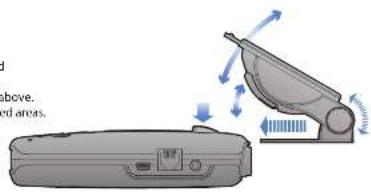
To mount in your vehicle:
1 Remove backing from StickyCup mount.
2 Firmly press StickyCup onto windshield and flip
locking clamp to secure.
3 Slide PASSPORT Max2 mounting slot onto
mounting bracket and push back gently to lock into place.
4 To adjust view, loosen thumb wheel and adjust angle of mounting bracket. Tighten thumb wheel to secure.
5 To remove detector, press mount release button on top of PASSPORT Max and slide device off mounting bracket.
6 To remove mount from windshield, release locking clamp and pull tab on top of StickyCup.
StickyCup Care Instructions
To clean StickyCup, simply rinse under warm water, gently wipe off any debris and allow to air dry.


To begin using PASSPORT Max2:
1 Plug small end of SmartCord into modular jack on PASSPORT Max2 and large end of SmartCord into your car's lighter/accessory socket.
2 PASSPORT Max2 should power on automatically. If
not, press the device's power button.
3 Upon initial power-up, PASSPORT Max2 will ask you to confirm some basic settings and preferences. Press MRK button to scroll through and OK these settings (or press VOLUME + or - to edit).
Earphone Jack
Connects to optional 5.5 mm
Stereo carphone.
Modular Jack
Connects to SmartCord for powering your device
Mini USB Jack
Connects to your computer via USB A/mini B cable for downloading software updates
Controls & Features

Display (OSP)
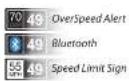
OverSpeed alert setting that can be adjusted in Preferences. Bluetooth icon will appear on display screen blue when paired to phone and Speed limit data will show here when ESCORT Live App is open.
Using SmartCord
- Mute Button: Press to mute an alert: press three times to lock out a false alert: press twice while receiving a locked-out alert to unlock (When connected to ESCORT Live! Press and hold mute button on unit or cord to manually report to other users a verified X or K-band alert, or a police officer observing traffic.
- Alert Light: Blinks orange when receiving an alert.
• Power Light: Lights blue when receiving power.

natural_image
Close-up of a black flexible cable with connector and connector details (no visible text or symbols)Lighter Adapter
Connects to lighter/accessory socket
Controls & Features
AutoPower
This feature automatically turns off PASSPORT Max2 after a set period of time to save unnecessary drain on your battery. This is especially useful if your vehicle has a constant-power ignition. See the Settings & Preferences section for details on how to customize the AutoPower feature.
NOTE: When AutoPower is ON, the display will go dark after the vehicle has been sitting still for 30 minutes, to save screen life. The screen will turn back on automatically once your vehicle reaches a speed of 10 mph.
Volume
To adjust PASSPORT Max2 to your preferred audio level for alerts, simply press and hold VOLUME + or -. The audio will increase/decrease while it is depressed. Once you reach the desired audio level, simply release the button. PASSPORT Max2 will retain this setting in its memory, even if the system is turned off.
Mute
The MUTE button allows you to silence the audio during an alert. Simply press the button during the alert. Once the radar encounter has passed, the mute will disengage, and the audio will return to your pre-set level. You can also silence an alert by pressing the SmartCord MUTE button.
AutoMute
Your PASSPORT Max2 also includes ESCORT's patented AutoMute feature. Once PASSPORT Max2 alerts you to a radar encounter at your selected volume level, it automatically reduces the volume more than 50%. This keeps you informed without the annoyance of a continuous full-volume alert. If you prefer, you can turn the AutoMute feature off. See the Settings & Preferences section for details.
SmartMute
If AutoMute has already reduced the volume for one alert and a higher priority band is detected, PASSPORT Max2 will sound an alert at your set volume for the second band before adjusting the volume back down to the AutoMute level.
User Mode
PASSPORT Max2 offers two unique user modes:
Advanced
In this mode, you can access and customize all of PASSPORT Max2's settings and preferences.
Novice
In this mode, you can access and customize units (English or metric) and display color only. All other preferences are set to the factory defaults. To view all preferences, you must switch back to Advanced mode.
Display Color
Your detector screen can be displayed with blue, green, red or amber accents to match the dashboard lighting of various vehicles. See the Settings & Preferences section for details on how to change the display color.
Blue
Green
Red
Amber



Display Brightness
PASSPORT Max2's display brightness is automatically adjusted to suit ambient lighting conditions in your car. (The light sensor is located inside the controller, so the display may dim momentarily when you access the buttons.) If you prefer, you can press the BRT button to set a fixed brightness level:
Auto Automatically adjusts brightness (factory setting)
Dark Dark mode
Minimum Minimum brightness
Medium Medium brightness
Maximum Maximum brightness
NOTE: If you select Dark mode, the display will not provide any indication that it is on. Therefore, only audible alerts will notify you of detected signals.
Speed Display
PASSPORT Max2 displays your current speed just to the right of the Over-Speed Alert setting (or posted speed limit for your current location, if connect to ESCORT Live). If you prefer, you can turn off the speed display feature (see Settings & Preferences section for details). If speed display is OFF, PASSPORT Max2 will simply display your battery voltage in this location.

Speed display ON: Current speed

Speed display OFF: Battery voltage
Radar Sensitivity
The SEN button allows you to select your preferred radar sensitivity: Highway, Auto or Auto No X. In general, ESCORT recommends Auto for everyday driving.
Highway
In this setting, PASSPORT Max2 will detect all radar signals on all bands at maximum range.
Auto
In this setting, PASSPORT Max2 will continuously analyze all incoming signals and intelligently adjust the sensitivity circuits, providing long-range warning with minimal false alarms.
Auto No X
Auto No X works the same as Auto mode; however, X band is completely turned off.
WARNING: Do not use PASSPORT Max2 In Auto No X unless you are absolutely certain that there are no traffic radar guns using X band in your area.
TrueLock/Locking Out False Alerts
PASSPORT Max2 is equipped with a TrueLock GPS Filter to lock out and store in its memory false alerts. To lock out a false alert (X band, K band or laser only), press the MUTE button on the detector or the SmartCord three times during an alert. Pressing the first time will silence the audio. Pressing a second time will generate a prompt on the display that will read "Lockout"? Press a third time to confirm you want to lock this signal out by location and frequency. A "Stored" message will be displayed.
Once a signal has been stored, PASSPORT Max2 will reject the signal the next time you approach this area and will display the locked-out alert.

Locked out alert
To unlock a signal that has already been stored, simply press and hold the detector or SmartCord MUTE button while receiving the locked out alert. The display will read "Unlock?" Press the detector or SmartCord MUTE button again to unlock it from memory. The display will then read "Unlocked" to confirm your action.
For details on how to turn the GPS Filter off, refer to the Settings & Preferences section.
NOTE: When the GPS Filter is set to OFF, you do not have access to PASSPORT Max2's other GPS-enabled features (e.g., DEFENDER Database alerts, marking locations, etc.).
AutoLearn
The AutoLearn feature analyzes (over time) the source of radar signals by location and frequency. This allows PASSPORT Max2 to determine if a signal is a real threat or a false one. If it determines that the signal is an automatic door opener, motion sensor, etc., it automatically locks out this source at this particular location. A "Stored" message will appear on the display when a signal has been automatically locked out. If you prefer, you can turn the AutoLearn feature off. See the Settings & Preferences section for details.
NOTE: AutoLearn typically needs to encounter the exact frequency in the same location approximately three times to lock it out. Since some door openers are turned on and off routinely, some variations may occur. When AutoLearn is on, PASSPORT Max2 will also unlearn signals to protect you from locking out real threats. If a particular signal is no longer present at a location that was previously locked out, PASSPORT Max2 will unlock that signal.
Marking Locations
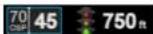
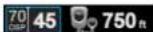
The MRK button allows you to mark a specific location and label it for future reference. Once marked, PASSPORT Max2 will provide an alert when you reach this area again.
Red light camera

Red light & speed camera
Speed camera

Speed trap

Other
Controls & Features
PASSPORT Max2 gives an advanced warning of upcoming markers at the following distances:
• Red light cameras: 250 ft or 10 seconds
• Red light & speed cameras: 250 ft or 10 seconds
• Speed cameras: 500 ft when traveling below 55
mph; 1,000 ft when traveling above 55 mph
• Speed traps: 0.3 mi or approximately 1,584 ft
- Other: 500 ft when traveling below 55 mph; 1,000 ft
- Red light cameras: 250 ft or 10 seconds
- Red light & speed cameras: 250 ft or 10 seconds
- Speed cameras: 500 ft when traveling below 55 mph; 1,000 ft when traveling above 55 mph
- Speed traps: 0.3 mi or approximately 1,584 ft
- Other: 500 ft when traveling below 55 mph; 1,000 ft when traveling above 55 mph
To mark a location, press the MRK button. The display will read "Mark?" Press MRK again to bring up a menu of markers to choose from. Press VOLUME + or - to scroll through the markers, then press MRK to select the marker you wish to use at this location. The display will read "Marked!"
NOTE: When a location is marked the first time, you must travel at least 1 mile away from that location to receive an alert when you return to the area.
To unmark a location, touch the MRK button when you are receiving a marked-location alert. The display will read "Unmark?" Touch the MRK button again to confirm. The display will read "Unmarked!" To customize the types of markers you want to be able to set and receive, see the Settings & Preferences section.
Over-Speed Alert
With PASSPORT Max2, you can set the Over-Speed Alert to notify you when you are traveling over a specified speed (factory default is 70 mph; see Settings & Preferences for details). When you travel above the speed threshold you have set, the background display for your current speed will turn red to alert you that you have exceeded the specified speed.

Alert Tones
PASSPORT Max2's factory default for alert tones is the ESCORT Standard mode. In which PASSPORT Max2 uses a Geiger counter-type sound to indicate the signal strength and type of radar signal being encountered. When you encounter radar, a distinct audible alert will sound and will increase as the signal gets stronger. This allows you to judge the distance from the signal source without taking your eyes off of the road. Each band has a distinct tone for easy identification:
X band
= beep tone
K band = brap tone
Ka band = double-brop tone
Laser = solid brap tone
Pop = solid brap tone
Mild
If you prefer, you can change your alert tone settings to Mild mode, which offers softer, simpler alert tones that are less obtrusive to the driving experience:
X band, K band,
Ka band and Pop = Doorbell chime
Low signal strength = Double chime
High signal strength = Triple chime
If alert remains in area
more than 15 seconds = Single chime (as a reminder)
Laser = Solid brap tone (Since laser
signals are a possible threat no matter how weak. PASSPORT Max2 alerts you to all laser signals with a full laser alert.)
See the Settings & Preferences section for details on switching your alert tones.
Cruise Alert
The Cruise Alert feature allows you to modify your alert tones when traveling below a specified speed (factory default is 20 mph; see Settings & Preferences for details). For all alerts received while traveling below the specified speed, PASSPORT Max2 will sound a simple double-beep alert.
Voice Alerts
PASSPORT Max2 provides digital voice announcements for alerts and selection feedback. If you prefer, you can turn off the voice feature. See the Settings & Preferences section for details.
PASSPORT Max2 offers four different settings for displaying alerts:

Standard
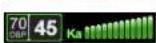
The Standard option provides information on a single radar signal. When PASSPORT Max2 detects radar, it displays the band of the radar (X, K or Ka) and a bar graph of the signal's strength. When laser is detected, the display will simply read "Laser." If there are multiple signals present, PASSPORT Max2 will determine which one is the most important threat to display.

SpecDisplay
The SpecDisplay option is an advanced display for experienced detector users. In this mode, it will display the actual numeric radar frequency being received. Even long-time detector users will require some time to get familiar with this new level of information about detected signals. To use SpecDisplay Instead of the Standard bar graph meter you must select it (Spec) in Preferences.

ExpertMeter
ESCORT's exclusive ExpertMeter option is also designed for the advanced detector user. To use the ExpertMeter instead of the Standard bar graph meter, you must select it (Expert) in Preferences.
ExpertMeter simultaneously tracks up to four radar signals: Ka band, X band, K band and X band. It shows each signal along with a bar graph of its strength. ExpertMeter can help you spot a change in your normal driving environment (e.g., a traffic radar unit being operated in an area where there are normally other signals present).
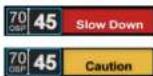
In this mode, Simple messages replace actual bands and signal strengths or frequencies. "Caution" is used when an alert is received while you are travelling below your current Cruise Alert setting (or posted speed limit for current location, when connected to ESCORT Live). "Slow Down" is displayed when an alert is received while you are traveling above the current Cruise Alert setting (or posted speed limit for current location, when connected to ESCORT Live).
NOTE: PASSPORT Max2's selectable bands feature allows you to customize which bands are monitored. For details on modifying your band detection, see the Settings & Preferences section. For details on the various radar/laser bands and how they work, see the Understanding Your Detector section.
Clearing the Database
At some point, you may wish to clear some of the data in PASSPORT Max2's database. This may include any of the following: DEFENDER Database data, marked locations or locked-out locations. For details on how to clear, see the Settings & Preferences section.
Restoring Detector Settings
To restore PASSPORT Max2 to its original factory settings, press and hold the SEN and BRT buttons while powering on the detector. A "Restored" message will display, acknowledging the reset.
Settings & Preferences
How to use Preferences
To access Preferences, press and hold both the MRK and SEN buttons. PASSPORT Max2 will display "Preferences," Indicating It is in program mode.
Once the unit is in Preferences mode, the MRK button is used to review the preference categories, and the VOLUME + AND - buttons are used to change the individual settings within the selected option.
To exit Preferences, simply wait a few seconds without pressing a button. The unit will display "Completed" and return to normal operation.
Example:
Here's how you would turn the AutoMute feature off:
1 Enter Preferences by pressing and holding both the MRK and SEN buttons. PASSPORT Max2 will display "Preferences."
2 Press the MRK button to scroll through the categories to "AutoMute." 3 Since the factory setting is for AutoMute to be on, PASSPORT Max2 will show AutoMute as ON.
4 Press the VOLUME + or - button to change from ON to OFF.
5 To complete this change, simply wait a few seconds without pressing a button. The unit will display "Completed" to confirm your selection.
NOTE: You can only access and customize the AutoMate feature while in the Advanced user mode. See Overview of Preferences below for details on how to switch user modes.
Overview of Preferences
Press and hold the MRK and SEN buttons to access Preferences. To exit Preferences, simply wait a few seconds without pressing a button. The unit will display Completed to confirm your selections.
NOTE: AutoPower works only with constant-power ignitions.
NOTE: When AutoPower is ON, the display will go dark after the vehicle has been sitting still for 30 minutes, to save screen life. The screen will turn back on automatically once your vehicle reaches a speed of 10 mph.
To restore PASSPORT Max2 to its original factory settings, press and hold the SEN and BRT buttons while powering on the detector. A "Restored" message will display, acknowledging the reset.
To view your device's serial number and software version, press and hold the MRK and MUTE buttons while powering on the detector.
Press MRK to go from Press VOLUME + or - to change
| User Name | Advanced*NoviceSettings are set to factory details?NOTE Switch button to search mode to show all Preferences | |
| Scan Bar®Full Word | Scanning bar with Full WordFull Word: Auto, Auto NoX, or Highway | |
| Display Color | Blue®/Green/Ried/Amber | Set colors to match your vehicles each display |
| Speed Display | On*Off | Displays current speedDisplays battery voltage |
| Crush Alert | 20 mph*Off / 20-90 mph | Others double cheap alert tones below specified speed |
| Over Speed | 70 mph*Off / 20-90 mph | Reminders you when you exceed a specified speed |
| Motor Mode | Standard*SpecExpertSimple | Single band with bar graph of signal strengthSingle band with numeric frequencyMultiple bands with bar graph of digital stringsSimple messages replace bandsCaution (free/sailing/below/close alert limitSlow down if traveling above cruise alert limit) |
| Tonces | Standard*Mild | Standard ESCORT start tonesMild doorbell chart alert tones |
| AutoAuto | On*/ Off | Automatically reduces audio during alert |
| Auto Ison | On*/ Off | Automatically stores and locks out base alarms |
| Units | English*/ Metric | Units for distance and speed |
| Language | English*/ Espeanel | Language for voice and text |
| Voice | On*/ Off | Voice announcements |
| GPS Filter | On*/ Off | Encodes GPS powered features |
| Auto ¥over | Off1 Hour2 Hours4 Hours5 Hour | Power form on or off depending on your vehicle's ignition type (constant power or switched):Powers off automatically after 1 hourPowers off automatically after 2 hoursPowers off automatically after 3 hoursPowers off automatically after 8 hoursNOTE: Power form on, the display screen goes blank after 30 minutes to save screen file. Display screen will turn an automatic only after your watch URL#PH |
| Band Enables | DefaultTModified | Default Settings for North AmericaCustomize the bands you want to monitor |
| Press SEN to go from one band category to the next | Press VOLUME + or - to change your setting within a category | |
| X BandK BandKe BandKe-PDFLaserISR | On*/ OffOn*/ OffOn*/ OffOn*/ OffOn*/ OffOn*/ OffOn*/ Off | Automatically rejects traffic flow sensors-monitoring false alarms |
| Marker Enable | On*/ OffModified | Other, Red Light Camera, Red and Speed Camera, and Speed TrapCustomize the types of locations you want to mark for future reference |
| Press SEN to go from one marker category to the next | Press VOLUME + or - to change your setting within a category | |
| OtherRed lightRed & SpeedSpeed CornSpeed TripAir Padrol | On*/ OffOn*/ OffOn*/ OffOn*/ OffOn*/ OffOn*/ Off | Other locationRed light cameraRed light & speed cameraSpeed cameraSpeed TrapKnown aircraft panelled areasNOTE: User can choose and any park location |
| Clear Location | MarkedLockoutsDefenderFormat | Clear all user Marked locations. Press SUN button to confirmClear all lockouts. Press SFRS button to confirmClear all DLLNDU data. Press SUN button to confirmClear DIFFERRF database, all markers, and all lockouts. Press Sun button to confirm |
| Press and hold the MRK and SEN buttons to access Preferences. To exit Preferences simply wait a few seconds without pressing a button. The unit will display Completed to confirm your selections. |
"Default Setting
Understanding Your Detector
Interpreting Alerts
Although PASSPORT Max2 has a comprehensive warming system, only experience will teach you what to expect from your detector and how to interpret what it tells you. The specific type of radar being used, the type of transmission (continuous or instant-on) and the location of the radar source affect the alerts you receive.
The following examples will give you an introduction to understanding your detector's warning system for radar and laser alerts.
Alert Explanation
Detector begins to sound slowly; rate of alert. You are approaching a continuous radar source increases until it becomes a solid tone. The aimed in your direction, signal meter ramps accordingly.
Detector emits short alerts for a few seconds. An instant-on radar source is being used ahead then falls silent, only to briefly alert and fall of you and out of your view. silent again.
Detector suddenly sounds a continuous tone. An instant-on radar or laser source is being used for the appropriate band received. nearby. This kind of alert requires immediate attention.
Detector sends a brief laser alert. Laser is being used in the area. Because laser is inherently difficult to detect, any laser alert may indicate a source very close by.
Detector receives weak signals. Signals may be: A moving patrol car with continuous radar is a little stronger as you pass large, roadside objects. Signals increase in frequency. large objects), they may or may not eventually melt into a solid point, even when the patrol car is directly behind you.
| Detector alerts slowly for a while then abruptly jumps to a strong alert. | You are approaching a radar unit concealed by a hill or an obstructed curve. |
| Detector alerts intermittently. Rate and strength of alerts may be consistent or vary wildly.sometimes not, the alerts may seem inconsistent. | A patrol car is traveling in front of you with a radar source aimed forward. Because signals are sometimes reflected off of large objects and |
| Detector alerts intermittently; rate and strength of signal increases with each alert.Such alerts should be taken seriously. | A patrol car is approaching from the other direction, sampling traffic with instant-on radar. |
| Detector gives an X band alert intermittently. radar motion sensors (e.g., door openers or burglar alarms). Since these transmitters are usually contained inside buildings or aimed toward or away from you, they are typically not as strong or lasting as a real radar encounter. | You are driving through an area populated with |
CAUTION: Overconfidence in an unfamiliar area can be dangerous. Likewise, if an alert in a commonly traveled area is suddenly stronger or on a different band than usual, speed radar may be set up nearby.
How Radar Works
Traffic radar, which consists of microwaves, travels in straight lines and is easily reflected by objects such as cars, trucks, and even guardrails and overpasses. Radar works by directing its microwave beam down the road. As your vehicle travels into range, the microwave beam bounces off your car, and the radar antenna looks for the reflections. Using the Doppler principle, the radar equipment then calculates your speed by comparing the frequency of the reflection of your car to the original frequency of the beam sent out.
Traffic radar has limitations, the most significant of these being that it typically can monitor only one target at a time. If there is more than one vehicle within range, it is up to the radar operator to decide which target is producing the strongest reflection. Since the strength of the reflection is affected by both the size of the vehicle and its proximity to the antenna, it is difficult for the radar operator to determine if the signal is from a sports car nearby or a semi truck several hundred feet away.
Radar range also depends on the power of the radar equipment itself. The strength of the radar unit's beam diminishes with distance. The farther the radar has to travel, the less energy it has for speed detection.
Because intrusion alarms and motion sensors often operate on the same frequency as X and K band radar, your detector will occasionally receive non-police radar signals. Since these X band transmitters are usually contained inside of a building or aimed toward the ground, they will generally produce much weaker readings than will a true radar encounter. As

you become familiar with the sources of these pseudo alarms in your daily driving, they will serve as confirmation that the device's radar detection abilities are fully operational.
How POP Works
POP works by transmitting an extremely short burst, within the allocated band, to identify speeding vehicles in traffic. Once the target is identified, or "popped," the gun is then turned to its normal operating mode to provide a vehicle tracking history (required by law).
NOTE: According to radar gun manufacturers, tickets should not be issued in pop mode.
How Laser Works
Laser speed detection is actually light detection and ranging (UDAR). Laser guns project a beam of invisible infrared light. The signal is a series of very short infrared light energy pulses that move in a straight line, reflecting off your car and returning to the gun. Laser uses these light pulses to measure the distance to a vehicle. Speed is then calculated by measuring how quickly these pulses are reflected, given the known speed of light.
Laser is a newer technology whose use is not as widespread as conventional radar; therefore, you may not encounter it on a daily basis. And unlike radar detection, laser is not prone to false alarms. Because laser transmits a much narrower beam than does radar, it is much more accurate in its ability to distinguish between targets and is also more difficult to detect. As a result, even the briefest laser alert should be taken seriously.
There are limitations to laser, however. Laser is much more sensitive to weather conditions than radar, and a laser gun's range will be decreased by anything affecting visibility, such as rain, fog or smoke. A laser gun cannot operate through glass, and it must be stationary to get an accurate reading. Because laser must have a clear line of sight and is subject to cosine error (an inaccuracy that increases as the angle between the gun and the vehicle increases), police typically use laser equipment parallel to the road or from an overpass. Laser can be used day or night.
How TSR Works
PASSPORT Max2 Includes a new boost in anti-falsing software to eliminate excessive alerts from erroneous X and K band sources, such as traffic flow monitoring systems. These systems, which are becoming more widely used in several countries, generate K band signals to measure the flow of traffic on a given road. Unfortunately, most detectors see this as a real threat and will alert you to it unnecessarily. Our new proprietary software, TSR, intelligently sorts, ranks and rejects these types of false alarms automatically. The result is ultimate protection without excessive false alarms.

Understanding Your Detector
How Red Light Cameras Work
Red light cameras use three basic things: a camera, a device to trigger the camera and a computer. An intersection may have more than one camera to monitor traffic from multiple directions. The trigger is typically a series of wires buried just beneath the surface of the road. These wires are separated by a pre-set distance to create a magnetic field or induction loop. Once a vehicle is in the intersection, the loop or circuit becomes closed and alerts the computer to take a picture.
In some states, tickets are issued to the car's owner, no matter who's actually driving. In this case, the red light camera only needs to photograph the vehicle's rear license plate. In other states, the actual driver is responsible for paying the ticket. In this case, the system needs a second camera in front of the car to get a shot of the driver's face.
How Speed Cameras Work
There are several types of fixed position speed cameras used, including radar, laser, induction-loop and photo-based. Radar and laser based cameras are typically mounted near the road and transmit a short range signal across the lanes monitored. Since this signal is transmitted across the road instead of down the road like with many handheld systems, detecting them in time is critical.
Another technology used is an induction loop system. This type of system utilizes wires buried just beneath the surface of the road to trigger a computer that calculates speed between the two points. Photo based systems take two sets of pictures of all passing vehicles between two separate fixed locations. Both sets of photographs are date and time stamped, which enables the system to calculate average speed between the two locations.
Fixed speed cameras can also be set up to monitor one to four lanes of traffic in the same direction. To achieve this, a sensor is installed in each lane, and a wide angle camera lens is used to photograph the vehicle that is speeding.


How GPS Works
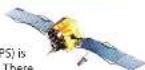
Developed by the U.S. military, the global positioning system (GPS) is made up of 24 orbiting satellites. There are at least four satellites visible at any given time every day. A GPS receiver is designed to locate and receive data from four of these satellites. These data include the distance to your location from each of the satellites. Once the distance from each satellite is known, the receiver can calculate and pinpoint your exact location.
Troubleshooting
Problem Explanation/Solution
Detector beeps briefly at the same. An X band motion sensor or intrusion alarm is located location every day, but no radar within range of your route. source is in sight.
Detector did not alert when a VASCAR (Visual Average Speed Computer and police car was in view. Recorder), a stopwatch method of speed detection, may be in use.
Officer may not have radar or laser unit turned on.
Detector's audible alerts become Detector is in AutoMute mode. See "AutoMute" in the softer after the first few alerts. Settings & Preferences section for details.
The power-on sequence reoccurs A loose power connection can cause PASSPORT Max2 while you are driving. to be briefly disconnected and will retrigger the power-on sequence. Check all connections.
You wish to restore the factory Press and hold the SEN and BRT buttons while default settings. powering on the detector. A "Restored" message will display, acknowledging the reset.
The device will not turn on. Check that vehicle ignition is on.
Check all connections.
The display feels warm. It is normal for the device to feel warm.
The display is blank. button to adjust the brightness. PASSPORT Max2 is in Dark mode. Press the BRT
Software Updates
You can easily update the DEFENDER Database and operating software for your detector by visiting our website. To access updates, you must first register your device at escortinc.com. Once registered, you will receive e-mail notifications that updates are available.
To update your software, follow these simple steps:
1 Connect the mini USB end of the USB data cable to
PASSPORT Max2.
2 Plug the standard USB connector end of the cable
into your computer.
3 Log on to www.escortinc.com/download.
4 Follow the instructions online.
Service
Service
To obtain service, contact ESCORT (800-543-1608) to obtain a Return Authorization Number. Properly pack your product and include: your name, complete return address, written description of the problem with your product, daytime telephone number and a copy of the original purchase receipt.
Label the outside of the package clearly with your
Return Authorization Number.
Ship the product prepaid (insured, for your protection) to:
ESCORT Inc.
Customer Service Department
Return Authorization Number
5440 West Chester Road
West Chester OH 45089
ESCORT Extended Service Plan
ESCORT offers an optional extended service plan. Contact ESCORT Sales for details at 800-433-3487.
Parts & Accessories
The following accessories and replacement parts are available for PASSPORT Max2:
• Coiled SmartCord
- DirectWire SmartCord
• SHIFTER ZR4™ Laser Shifting System
- Replacement detector cases
Visit EscortInc.com for selection and pricing.
Warranty
ESCORT One-Year Limited Warranty
ESCORT warrants your PASSPORT Max2 device against all defects in materials and workmanship for a period of one (1) year from the date of the original purchase, subject to the following terms and conditions:
The sole responsibility of ESCORT under this warranty is limited to either repair or, at the option of ESCORT, replacement of PASSPORT Max2. There are no expressed or implied warranties, including those of fitness for a particular purpose or merchantability, which extend beyond the face hereof. Some states do not allow limitations on how long an implied warranty lasts, so the above limitations may not apply to you.
This warranty does not cover installation, removal or reinstallation charges. ESCORT is not liable for any incidental or consequential damages arising from the use, misuse, installation or mounting of PASSPORT Max2. Some states do not allow the exclusion or limitation of incidental or consequential damages, so the above limitation or exclusion may not apply to you.
This warranty gives you specific rights. You may have other legal rights, which vary from state to state. This warranty does not apply if the serial number on the PASSPORT Max2 housing has been removed or if your PASSPORT Max2 device has been subjected to physical abuse, improper installation or modification.
FCC NOTE Modifications not expressly approved by the manufacturer could void the user's FCC granted authority to operate the equipment. FCC ID: Q61MSMAX
This device complies with part 15 of the ICC rules. Operation is subject to the following two conditions: (1) This device may not cause harmful interference, and (2) this device must accept any interference received including interference that may cause anodever operation.
- PASSPORT MAX2
- Congratulations
- PASSPORT Max2 Features
- Table of Contents
- Getting Started 4-6
- Controls & Features 7-11
- Understanding Your Detector 14-16
- Troubleshooting 17
- Software Updates 18
- Service 18
- Parts & Accessories 19
- Warranty 19
- Getting Started – Registration
- Pairing with your Smartphone Down
- Getting Started - Installation
- What's Included
- Mounting Tips
- To mount in your vehicle:
- StickyCup Care Instructions
- To begin using PASSPORT Max2:
- Earphone Jack
- Mini USB Jack
- Display (OSP)
- Using SmartCord
- Lighter Adapter
- Controls & Features
- AutoPower
- Volume
- Mute
- AutoMute
- SmartMute
- User Mode
- Advanced
- Novice
- Display Color
- Display Brightness
- Speed Display
- Radar Sensitivity
- Highway
- Auto
- Auto No X
- TrueLock/Locking Out False Alerts
- AutoLearn
- Marking Locations
- Over-Speed Alert
- Alert Tones
- Mild
- Cruise Alert
- Voice Alerts
- Clearing the Database
- Restoring Detector Settings
- Settings & Preferences
- How to use Preferences
- Example:
- Overview of Preferences
- Understanding Your Detector
- Interpreting Alerts
- Alert Explanation
- How Radar Works
- How POP Works
- How Laser Works
- How TSR Works
- How Red Light Cameras Work
- How Speed Cameras Work
- How GPS Works
- Troubleshooting
- Problem Explanation/Solution
- Software Updates
- Service
- ESCORT Extended Service Plan
- Parts & Accessories
- Warranty
- ESCORT One-Year Limited Warranty
Brand : Escort
Model : Passport Max 2
Category : Radar detector