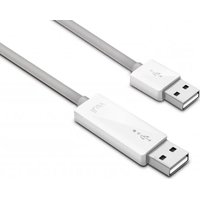
ILUV iCB707 - Câble de connexion informatique

iCB707 - Câble de connexion informatique ILUV - Free user manual and instructions

Find the device manual for free iCB707 ILUV in PDF.

📄 5 pages English EN Download 💬 AI Question 10 questions ⚙️ Specs
Notice ILUV iCB707 - page 1
Pick your language and provide your email: we'll send you a specifically translated version.
Product Type Bluetooth Speaker
Brand iLuv
Model iCB707
Dimensions (H x W x D) 150 x 70 x 50 mm
Weight 300 g
Power Source USB-C 5V/1A
Battery Capacity 2000 mAh
Charging Time 2-3 hours
Playback Time Up to 8 hours
Bluetooth Version 5.0
Wireless Range 10 meters
Audio Output Stereo 3W x 2
Frequency Response 100 Hz - 20 kHz
Supported Audio Formats MP3, WAV, FLAC
Connectivity Bluetooth, AUX 3.5mm, MicroSD
Controls Power, Volume +/-, Play/Pause, Mode
Built-in Microphone Yes, for hands-free calls
Housing Material ABS plastic with fabric grille
Water Resistance IPX5 (splash-proof)
Accessories Included USB-C cable, AUX cable, User manual

Frequently Asked Questions - iCB707 ILUV

How do I pair the iLuv iCB707 with my phone?
Turn on the speaker by pressing and holding the power button until you hear a tone. Then, enable Bluetooth on your phone and select iCB707 from the list.
How long does the battery last?
The built-in 2000 mAh battery provides up to 8 hours of playback at moderate volume.
Can I use the speaker while charging?
Yes, you can use the speaker while it is connected to a USB power source, but charging may take longer.
What should I do if the speaker does not connect?
First, ensure the speaker is in pairing mode (flashing blue light). Then, delete the device from your phone’s Bluetooth list and try again. If the issue persists, reset the speaker by pressing the reset button with a paperclip.
How do I charge the iCB707?
Use the included USB-C cable and connect it to a standard USB charger (5V/1A). The indicator light turns red during charging and blue when fully charged.
Can I play music from a microSD card?
Yes, insert a microSD card into the slot and the speaker will automatically switch to card mode. Use the buttons to navigate tracks.
Is the speaker waterproof?
The iCB707 has an IPX5 rating, meaning it can withstand splashes of water but should not be submerged.
How do I answer a call?
When a call comes in, press the Play/Pause button to answer. Press it again to end the call. The built-in microphone enables hands-free conversation.
What does the LED indicator mean?
Solid blue: connected. Flashing blue: pairing mode. Red: charging. Blue: fully charged. Off: speaker is off or in sleep mode.
How do I reset the speaker to factory settings?
With the speaker powered on, use a small pin to press the reset button located near the charging port. This will clear all paired devices and restore default settings.

User questions about iCB707 ILUV

0 question about this device. Answer the ones you know or ask your own.

Ask a new question about this device

The email remains private: it is only used to notify you if someone responds to your question.

No questions yet. Be the first to ask one.

Download the instructions for your Câble de connexion informatique in PDF format for free! Find your manual iCB707 - ILUV and take your electronic device back in hand. On this page are published all the documents necessary for the use of your device. iCB707 by ILUV.

USER MANUAL iCB707 ILUV

iCB707 Connection Instructions

Mac to Mac

  1. Connect cable to both computers
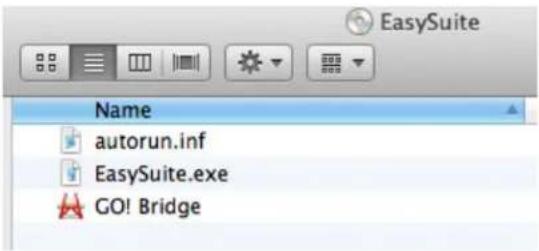
  2. On one computer under "Devices" choose "EasySuite"

ILUV iCB707 - Mac to Mac - 1

  1. Launch "GO Bridge"

EasySuite Name autorun.inf EasySuite.exe GO! Bridge

  1. Image appears

Remote computer is not connected or GO! Bridge is not running. Please connect to another computer and launch GO! Bridge.

  1. Launch "GO! Bridge on second computer
  2. Window appears on both computers

CO! Bridge Remote Computer C: • Documents and Settings • temp • My Documents Name Date Modified desktop.ini Feb 28, 2012 9:38 AM 7! My Music Feb 28, 2012 9:38 AM My Pictures Feb 28, 2012 9:38 AM PLACES Desktop My Documents

  1. Click and drag files to and from "GO! Bridge" on both computers

Mac to PC

  1. Connect cable to both computers (PC and Mac)

  2. On Mac launch "GO! Bridge"

EasySuite Name autorun.inf EasySuite.exe GO! Bridge

  1. For PC, if the program does not automatically launch, go to "My Computer" and launch "EasySuite."

Screenshot of a Windows system interface showing disk drive options including Hard Disk Drives, Devices with Removable Storage, and EasySuite.

  1. With "EasySuite" launched, click and drag files between computers

EasyFile Current Left View Window Help Browse Front Desktop My Documents My Documents C: D: E: Name Type Total Size Free Size PC Hard Data CD-ROM CD-ROM Download Name: Name Size:+ Type Last Date: My Music Publisher 2/08/2012 9:30 13:4K My Picture Publisher 2/08/2012 9:30 13:4K My Computer 75.0 Configuration Settings 2/08/2012 9:30 13:4K My Network Files Welcome to Executive World

PC to PC

  1. Connect cable to both computers
  2. If the program does not automatically launch, go to "My Computer" and launch "EasySuite."

My Computer File Edit View Favorites Tools Help Disk Search Folders Address My Computer System Tasks View system information Add or remove programs Change a setting Hard Disk Drives Local Disk (C:) Devices with Removable Storage Other Places My Network Places My Documents Control Panel DVD/CD-R/W Drive (D:) EasySuit (E:) Details My Computer System Folder

  1. Window appears on both computers

Easide_text Windows Help Tools Window Help Simulink Front Desktop My Documents My Documents C: D: E: Name Type Total Size Free Size M0 Near Size M1 CI:ROM M2 ① ROM Conference Settings Conference Files Welcome to Eclipse's World

  1. Click and drag files to and from "GO! Bridge" on both computers

iLuv®

THANK YOU FOR YOUR PURCHASE

www.i-luv.com

iLuv®, Innovative Lifestyle Unquestionable Value® and GreeNology® trademarks are the exclusive properties of jWIN Electronics Corp. and are registered with the U.S. Patent and Trademark Office, and may be registered or pending registration in other countries. All other iLuv® trademarks, service marks, and logos may be registered or pending registration in the U.S. or in other countries. All other trademarks or registered trademarks are the property of their respective owners. © 2012 iLuv Creative Technology.

© 2012 iLuv Creative Technology All rights reserved. No portion of this printed material or product enclosed herewith including design, shape or graphics, may be reproduced or transmitted in any form without the expressed written consent of iLuv Creative Technology by any means, electronic or mechanical, including photocopying, recording or use of an information storage and retrieval system. Any unauthorized distribution or reproduction of this printed material or product, or any portion thereof, will be prosecuted to the fullest possible extent of the law.

Table of contents Click a title to access it
Manual assistant
Powered by Anthropic
Waiting for your message
Product information

Brand : ILUV

Model : iCB707

Category : Câble de connexion informatique