
HB-U930 - USB Hub Sabrent - Free user manual and instructions
Find the device manual for free HB-U930 Sabrent in PDF.


| Product Type | USB 3.0 Hub with Charging Ports |
| Model | HB-U930 |
| Brand | Sabrent |
| Number of USB 3.0 Ports | 7 |
| Number of Charging Ports | 2 (front, high-power) |
| Interface | USB 3.0 (backward compatible with USB 2.0/1.1) |
| Power Supply | External power adapter (included) |
| Power Protection | Surge protection with automatic disconnect and reset |
| LED Indicators | Red LED for power/status |
| Dimensions | Approximately 6.3 x 2.2 x 0.9 inches (160 x 56 x 23 mm) |
| Weight | Approximately 5.6 oz (160 g) without adapter |
| Cable Length | Approximately 3 feet (0.9 m) |
| Compatibility | Windows, Mac, Linux (driverless, plug-and-play) |
| Installation | No additional drivers required; automatic installation |
| Surge Recovery | Click "Reset" or reconnect USB cable |
| Charging Feature | Two dedicated high-power charging ports for tablets and smartphones |
| Color | Black |
| Operating System | All major operating systems supported |
| Package Contents | HB-U930 hub, power adapter, USB 3.0 cable, user manual |
| Warranty | 1 year limited (via manufacturer support) |
Frequently Asked Questions - HB-U930 Sabrent
User questions about HB-U930 Sabrent
0 question about this device. Answer the ones you know or ask your own.
Ask a new question about this device
Download the instructions for your USB Hub in PDF format for free! Find your manual HB-U930 - Sabrent and take your electronic device back in hand. On this page are published all the documents necessary for the use of your device. HB-U930 by Sabrent.
USER MANUAL HB-U930 Sabrent
natural_image
Black energy storage unit with red LED indicators and blue/red ports, mounted on a base (no visible text or symbols)Sabrent 7 Port USB 3.0 HUB & 2 Charging Ports with Power Adapter

natural_image
Line drawing of a device with a cable and connector, no text or symbols present- Connect the hub's USB cable to an available USB port on your computer or laptop.
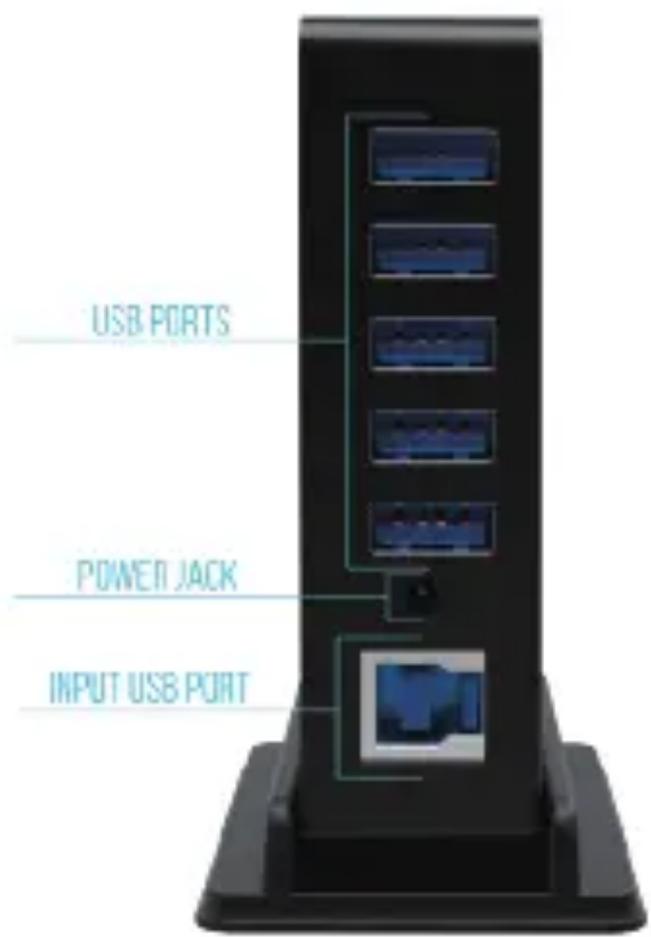
- Connect the other end of the cable into the square port of the hub.
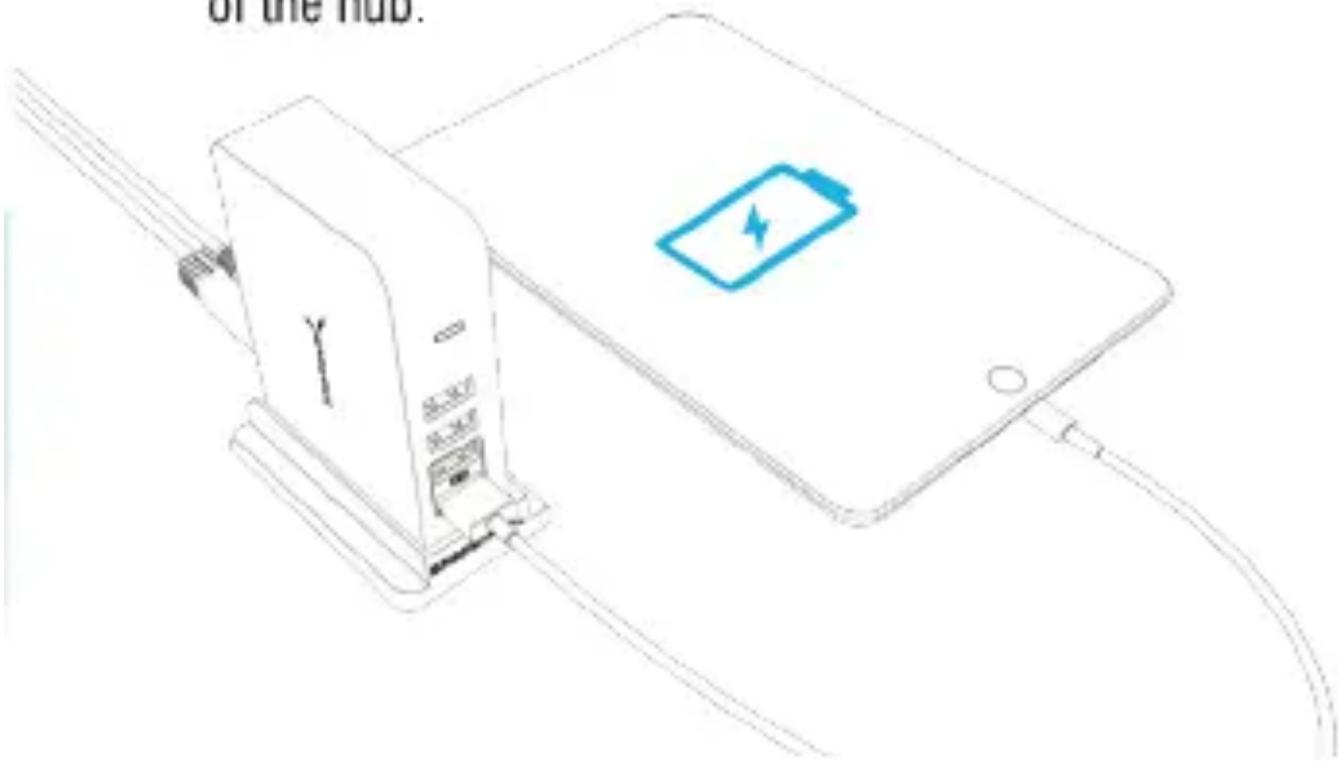
- Connect the power adapter into the hub's power jack.
- Connect the other end of the power adapter into a power outlet.
Drivers install automatically. Once installed, you can begin use of the hub.
Enjoy!
At this point, the 7 Port USB 3.0 Hub is completely installed -- no software drivers are needed to complete the installation.
Thank you for choosing Sabrent and enjoy!
For installation issues please contact:
Support@Sabrent.com

If A Power Surge Occurs:
The power to the hub is disconnected and the red LED indicator turns off. The "USB Hub Current Limit Exceeded" window opens. Click "Reset" to resume work, or unplug the USB cable, then plug it back in.
Hub Will Not Recognize My USB Device:
Make sure the USB cable is securely connected to your hub and computer or laptop. Try connecting the hub to a different USB port on your computer or laptop. Connect the power adapter from the hub to a power outlet. Make sure you have the most recent updates for your operating system. Make sure your power outlet is working. Plug your USB device directly into a USB port on your computer. If your computer still does not recognize the device, the problem is with the device.
Connection Is Slow:
Make sure the hub is connected to a USB 3.0 port on your computer or laptop. While the hub is backwards compatible, when connected to a USB 2.0 or USB 1.1 port, the hub operates at slower speeds. Connect the power adapter to the hub and a working power outlet.
USB Device Will Not Charge:
Connect the power adapter to the hub and a working power outlet. Make sure the USB cable is securely connected to your hub and computer or laptop. Use one of the two USB ports on the front for high-power charging.
Hub Disconnects From Computer Or Laptop:
Make sure the USB cable is securely connected to your hub and computer or laptop. Connect the power adapter to the hub and a working power outlet. Try connecting the hub to a different USB port on your computer or laptop. Check your computer's sleep or standby settings.
Brand : Sabrent
Model : HB-U930
Category : USB Hub