
Lightning Flash Drive for iPhones and iPads - USB Drive Sharper Image - Free user manual and instructions
Find the device manual for free Lightning Flash Drive for iPhones and iPads Sharper Image in PDF.


| Product Type | Lightning Flash Drive for iPhones and iPads |
| Brand | Sharper Image |
| Model | Lightning Flash Drive for iPhones and iPads |
| Interface | Lightning connector (iOS) and USB Type-A (computer) |
| Compatibility | iPhone and iPad with iOS 10.0 or later; Mac and PC with USB port |
| Dimensions | Approx. 6.5 cm × 2.5 cm × 0.8 cm (estimated) |
| Weight | Approx. 10 g (estimated) |
| Material | Plastic |
| Power Source | Powered via connected device (no external power required) |
| Main Functions | High-speed storage, frees up device space, backs up photos/contacts/calendar, transfers files between iOS and computer |
| Backup Features | Automatic backup of photos, contacts, and calendar via PhotoFast ONE app |
| Cloud Integration | Dropbox, Google Drive, Facebook, Flickr, Tumblr, YouTube, Vimeo |
| Security | App lock with 4-digit passcode, Touch ID, Drive Lock (Lightning Lock and USB Lock) |
| Supported File Formats | Documents (Pages, .doc, .pdf, etc.), Images (.jpg, .png, .raw), Audio (.mp3, .wav, .flac), Video (.mp4, .mov, .avi), Compressed (.zip) |
| Maintenance | Clean with dry cloth; place plastic caps when not in use |
| Safety Precautions | Do not disconnect during file transfer; do not connect both ends simultaneously; do not use as cable |
| Repairability | Not user-repairable; no spare parts available; warranty may apply |
Frequently Asked Questions - Lightning Flash Drive for iPhones and iPads Sharper Image
User questions about Lightning Flash Drive for iPhones and iPads Sharper Image
0 question about this device. Answer the ones you know or ask your own.
Ask a new question about this device
Download the instructions for your USB Drive in PDF format for free! Find your manual Lightning Flash Drive for iPhones and iPads - Sharper Image and take your electronic device back in hand. On this page are published all the documents necessary for the use of your device. Lightning Flash Drive for iPhones and iPads by Sharper Image.
USER MANUAL Lightning Flash Drive for iPhones and iPads Sharper Image
Thank you for purchasing the Lightning Flash Drive for iPhones and iPads. Please take a moment to read this guide and store it for future reference.
FEATURES
- High-speed storage drive
- Frees up space on your device
- Store, transfer, backup and stream data
- Transfer files between iPhone/iPad and Mac/PC
GETTING STARTED
- Please make sure you are running iOS 10.0 or later on your iPhone/iPad.
- Plug the Lightning Flash Drive into your iPhone/iPad.
- You will be prompted to download the PhotoFast ONE app.
- Click DOWNLOAD and install the app.

NOTE: If you accidentally tap "ignore," you can find PhotoFast ONE in the iTunes App Store.
FILE BACKUP
In addition to file transfer, the Lightning Flash Drive can also back up your photos, contacts, calendar and other data.
- During setup, you will be asked to authorize your Lightning Flash Drive to backup your photos, contacts and/or calendar if you like. This is optional.
- After setup, the Lightning Flash Drive will automatically backup whatever data you have specified. Go to the Settings menu for more backup options.
TRANSFERRING FILES FROM MAC OR PC
- Plug the Lightning Flash Drive into a USB port on your computer [Mac or PC].
- The Lightning Flash Drive will appear on your desktop as iFlashDrive.
- Drag files from your computer hard drive (movies, videos, photos, music, documents, etc.) into the iFlashDrive icon.
- Your files will be copied and stored on the Lightning Flash Drive. You can now access them the next time you connect the Lightning Flash Drive to your iPhone/iPad and launch the PhotoFast ONE app.
MAC LAPTOP USERS: The 2015 MacBook Pro was the last MacBook to feature the standard USB Type-A connection. If you want to connect this device to a newer version of MacBook, you will need a USB-C to USB-A adapter or hub [not included].
NOTE: The PhotoFast ONE App only accepts file formats that are supported by iOS. Currently, it supports more than 40 different types of file formats, including:
| TYPES OF FILES FORMATS SUPPORTED | |
| Documents Pages, N | Numbers, Keynote, doc, docx, xls, xlsx, ppt,pptx, rtf, txt, html, pdf |
| Images jpg, png, bmp | gif, tif, tiff, ico, xbm, cur, RAW |
| Audio mp3, aac, aif, aiff, wav, m4a, caf, FLAC | |
| Video mp4, mov, m4v | [without DRM], mkv, avi, flv, rm,rmvb, wmv, vob, 3gp |
| Compressed zip | |
EXPLORING THE APP
HOME PAGE
A. In-App Storage – Displays the storage on your iPhone/iPad [iOS memory]. Tap to access, manage and transfer data.
B. External Storage – Displays the storage on your Lightning Flash Drive. Tap to access, manage and transfer data.
C. Refresh – Tap to refresh In-App Storage and External Storage memory usage. External Storage usage will refresh every time the Lightning Flash Drive is connected to your device.
D. Settings – Tap to access Options, Help, Auto Backup and Cloud.
E. Functions Panel – Swipe left to go to the next page.
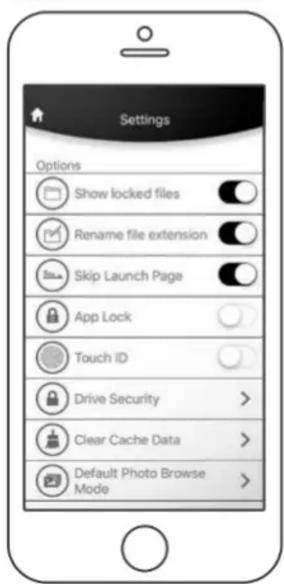
SETTINGS / OPTIONS PAGE
Show Locked Files – Show or hide locked folders or files.
Rename File Extension – Edit file extension when renaming a file.
Skip Launch Page – Skip the app launch page when the app is opened.
App Lock - Set a 4-digit passcode for the app.
Touch ID - Use Touch ID to unlock App Lock.
Drive Security – Lightning Lock and USB Lock keep your data secure from unwanted access.
Clear Cache Data – Delete temp files used by the app.
Default Photo Browse Mode – Set the default browse mode for Photo.

SETTINGS / HELP PAGE
FAQ - Frequently Asked Questions
Video Tutorial – Instructional video for the app.
About i-FlashDrive – Legal information about the app.
Report Bug – Send bug information for future improvements.
SETTINGS / AUTO BACKUP
Select the data to backup automatically every time the Lightning Flash Drive is connected to your iPhone or iPad (contacts, calendar and/or photos). Use the toggle buttons to turn On or Off.
SETTINGS / CLOUD PAGE
Tap each icon to link or unlink from your respective app accounts.
Supported apps include: Dropbox, Google Drive, Facebook, Flickr, Tumblr, YouTube and Vimeo.
WARNING
- Do not disconnect the Lightning Flash Drive during file transfer.
- Do not connect both sides of the Lightning Flash Drive at the same time.
- Do not use the Lightning Flash Drive as a cable.
- Place the plastic caps on the Lightning Flash Drive when not in use.
- If there are too many files/photos in a folder on the external storage, the transfer rates will decrease due to Apple limitations.
- If your iPhone/iPad displays the message “this accessory is not optimized for this iPhone,” simply disconnect the Lightning Flash Drive and reconnect.
FOR MORE INFORMATION
The PhotoFast ONE app has many advanced features. For instructions, watch the Video Tutorial located on the Help Page in the app. For complete details, please visit https://www.photofast.com. Click on the PRODUCTS menu, then click FAQ to download the App Quick Start Guide PDF.


Brand : Sharper Image
Model : Lightning Flash Drive for iPhones and iPads
Category : USB Drive