CRUX

RVCGM-80B - Dash cam CRUX - Free user manual and instructions

Find the device manual for free RVCGM-80B CRUX in PDF.

📄 5 pages English EN Download 💬 AI Question 10 questions ⚙️ Specs
Notice CRUX RVCGM-80B - page 1
Pick your language and provide your email: we'll send you a specifically translated version.
Brand CRUX
Model RVCGM-80B
Product Type Dash Cam / Car Video Recorder
Dimensions Approximately 2.0 x 1.5 x 1.2 inches (50 x 38 x 30 mm)
Weight Approximately 3.5 ounces (100 grams)
Power Input 5V DC via USB cable (car charger included)
Battery Built-in rechargeable lithium-ion battery (for parking mode)
Video Resolution 1080p Full HD (1920 x 1080) at 30 fps
Lens Angle 170° wide angle
Recording Mode Loop recording, G-sensor impact detection, parking mode
Storage Supports microSD card up to 32 GB (Class 10 or higher)
Display 2.0 inch LCD screen
Connectivity Mini USB for power, AV out for monitor
Night Vision Built-in infrared LEDs for low-light recording
Mount Suction cup mount for windshield
Maintenance Clean lens with soft cloth; format SD card monthly
Safety Do not install where it obstructs driver's view; keep away from airbags
Spare Parts / Repairability Replacement power cable, mount, and battery available; no user-serviceable parts inside
General Info User manual included; operation temperature -10°C to 60°C

Frequently Asked Questions - RVCGM-80B CRUX

How do I install the CRUX RVCGM-80B dash cam?
Clean the windshield area, attach the suction mount, connect the power cable to the cigarette lighter, and route the cable along the edge of the windshield.
Why does the dash cam turn off shortly after the car is turned off?
The dash cam relies on the car's power supply. When the engine is off, the built-in battery lasts only for parking mode. To extend use, hardwire it to a constant power source.
How do I format the microSD card?
Insert the card, go to Settings, select 'Format' and confirm. Format monthly to ensure reliable recording. The card must be Class 10 or higher.
The recorded video is choppy or missing files. What can I do?
Use a high-quality microSD card (Class 10, UHS-I) and format it in the dash cam. Ensure loop recording is enabled. If issues persist, try a different card.
How do I enable parking mode?
Parking mode detects motion or impact when the car is parked. Ensure the dash cam is connected to constant power (hardwire kit). In settings, enable 'Parking Mode'.
Can I view footage on my phone?
The RVCGM-80B does not have Wi-Fi. To view videos, remove the SD card and use a computer or connect the dash cam to a monitor via the AV out port.
What do I do if the screen shows 'SD Card Error'?
Turn off the device, remove and reinsert the SD card. If error persists, format the card in the dash cam or replace it with a compatible card (up to 32 GB, Class 10).
How can I clean the lens without scratching it?
Use a soft microfiber cloth slightly dampened with lens cleaner. Gently wipe the lens in circular motions. Avoid using rough materials.
What is the warranty coverage?
CRUX typically offers a 1-year limited warranty. Keep your purchase receipt. For details, visit the CRUX website or contact support.
Where can I find the latest firmware?
Check the CRUX official website under 'Support' or 'Downloads'. Firmware updates may improve performance and add features. Read instructions carefully before updating.

User questions about RVCGM-80B CRUX

0 question about this device. Answer the ones you know or ask your own.

Ask a new question about this device

The email remains private: it is only used to notify you if someone responds to your question.

No questions yet. Be the first to ask one.

Download the instructions for your Dash cam in PDF format for free! Find your manual RVCGM-80B - CRUX and take your electronic device back in hand. On this page are published all the documents necessary for the use of your device. RVCGM-80B by CRUX.

USER MANUAL RVCGM-80B CRUX

  • Adds front and rear aftermarket camera inputs.
  • Retains functionality of the OEM backup camera if present.
  • Front camera automatically shows on the screen after changing the gear from reverse to drive.
  • Programmable front camera delay OFF time using the OSD menu.

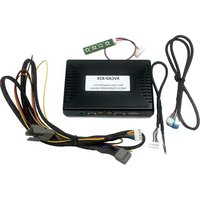
PARTS INCLUDED:
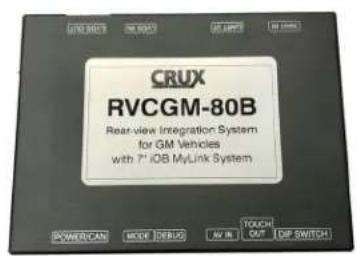
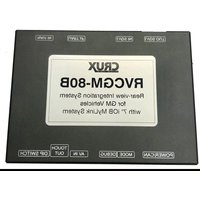
CRUX RVCGM-80B - PARTS INCLUDED: - 1

text_image CRUX RVCGM-80B Rear-view Integration System for GM Vehicles with 7th iOB MyLink System POWERCAN MODE DEBUG TOUCH OUT DIP SWITCH

CRUX RVCGM-80B - PARTS INCLUDED: - 2

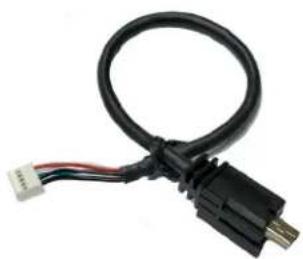
natural_image Coiled electrical cable with multicolored wires and connectors (no visible text or symbols)

CRUX RVCGM-80B - PARTS INCLUDED: - 3

natural_image Coiled black USB connector with red cable, no visible text or symbols

RVCGM-80B Module RVCGM-80B Power Harness LVDS Cable
CRUX RVCGM-80B - PARTS INCLUDED: - 4

natural_image Coiled black and red electrical connector with two yellow connectors (no text or symbols visible)

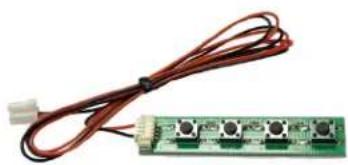
AV Cable Keypad

CRUX RVCGM-80B - PARTS INCLUDED: - 5

natural_image Electronic circuit board with four connected components and a connector (no visible text or symbols)

WIRING DIAGRAM:
CRUX RVCGM-80B - PARTS INCLUDED: - 6

flowchart
graph TD
    A["Front Camera 12V Power & Ground"] --> B["Fuse"]
    C["Front Camera"] --> B
    D["REAR CAMERA"] --> B
    E["Rear Camera 12V Power & Ground"] --> B
    B --> F["LVDS Adapter Cable"]
    F --> G["To the LVDS Connector behind the radio"]
    G --> H["From the LVDS Connector behind the radio"]
    H --> I["CRUX® RVCGM-80B Front & Rear Camera Integration Interface for CHLVROLT and GMC Vehicles with 7" MyLink O8 Radios"]
    I --> J["Main"]
    K["OSD Control Pad"] --> L["To the 10-pin connector behind the radio"]
    L --> M["From the 10-pin connector behind the radio"]
    M --> N["To the 10-pin connector behind the radio"]
    N --> O["OSD Control Pad is used to adjust the settings. Must be unplugged and stored after."]

REAR CAMERA CONNECTION
CRUX RVCGM-80B - PARTS INCLUDED: - 7

text_image USING OEM CAMERA Turn DIP#2 to OFF REAR CAM

CRUX RVCGM-80B - PARTS INCLUDED: - 8

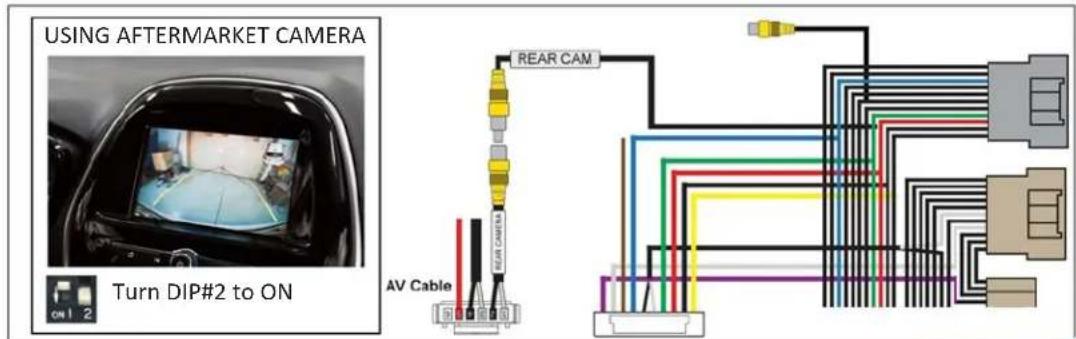
text_image USING AFTERMARKET CAMERA Turn DIP#2 to ON AV Cable REAR CAM

When using the OEM backup camera, set DIP#2 to OFF. Plug the male RCA (Rear Camera) to the female RCA (OEM Camera) found on the power harness. If an aftermarket backup camera is used, plug the male RCA (Rear Camera) to the female RCA (Rear Camera) of the AV Cable. Plug the front camera RCA to the female RCA (Front Camera) of the AV Cable. Use the RED wire (Front and Rear Camera +12V) to power both the front and rear cameras.

DIP SWITCH SETTINGS:

PIN ON ( ) OFF ( ) ▼
1 Set to OFF
2 Aftermarket Backup Camera OEM Backup Camera
3 Front Camera ON Front Camera OFF
4 Set to OFF

ON SCREEN DISPLAY (OSD) SETTINGS:

Plug the Key Pad to the MODE port on the RVCGM-80B module and press the SEL button once to enter the OSD settings menu.

CRUX RVCGM-80B - ON SCREEN DISPLAY (OSD) SETTINGS: - 1

flowchart
graph LR
    A["Input"] --> B["Terminal Block"]
    B --> C["MENU"]
    B --> D["SEL"]
    B --> E["UP"]
    B --> F["DOWN"]
BUTTONFUNCTIONOPERATION
2SELEnter Settings MenuShort Press
1MENUBack to previous MenuShort Press
2SELSelect ValueShort Press
3UP 4DOWNMove Pointer and adjust settingsShort Press

REAR VIEW CAMERA SETTINGS

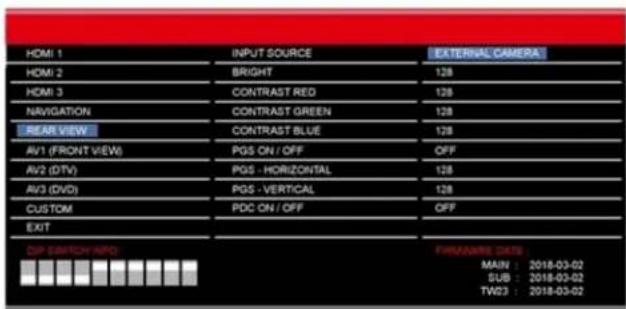
REAR VIEW

INPUT SOURCE

OEM CAMERA

AVM (NOT APPLICABLE)

EXTERNAL CAMERA (AFTERMARKET)

OPTIONS:

BRIGHTNESS & CONTRAST

Adjust Brightness and Contrast

PGS (Parking Guidance System)

Turn parking lines ON or OFF

Adjust position of parking guide lines
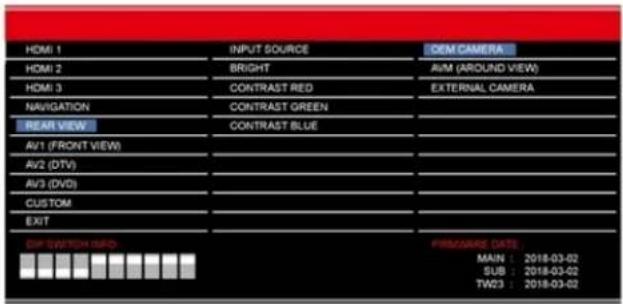
CRUX RVCGM-80B - OPTIONS: - 1

text_image HDMI 1 HDMI 2 HDMI 3 NAVIGATION PEAR VIEW AV1 (FRONT VIEW) AV2 (DTV) AV3 (DVD) CUSTOM EXIT DIFF SWITCH INFO: BRIGHT CONTRAST RED CONTRAST GREEN CONTRAST BLUE FIRI/ORSE DATE: MAIN : 2018-03-02 SUB : 2018-03-02 TW23 : 2018-03-02

CRUX RVCGM-80B - OPTIONS: - 2

text_image HDMI 1 HDMI 2 HDMI 3 NAVIGATION REAR VIEW AV1 (FRONT VIEW) AV2 (DTV) AV3 (DVD) CUSTOM EXIT PDC ON / OFF AVM KEEPING TIME R → D AVM KEEPING TIME P → D PGS ON / OFF PGS - HORIZONTAL PGS - VERTICAL PDC ON / OFF DEFAULT 128 128 128 128 7 Sec 7 Sec OFF 128 128 OFF FAMWARE DATE: MAIN : 2018-03-02 SUB : 2018-03-02 TW23 : 2018-03-02

REAR VIEW

INPUT SOURCE

OEM CAMERA

AVM (NOT APPLICABLE)

EXTERNAL CAMERA (AFTERMARKET)

OPTIONS:

BRIGHTNESS & CONTRAST

Adjust Brightness and Contrast

PGS (Parking Guidance System)

Turn parking lines ON or OFF

Adjust position of parking guide lines

CRUX RVCGM-80B - OPTIONS: - 1

text_image HDMI 1 HDMI 2 HDMI 3 NAVIGATION REAR VIEW AV1 (FRONT VIEW) AV2 (DTV) AV3 (DVD) CUSTOM EXIT DIP SWITCH INFO: BRIGHT CONTRAST RED CONTRAST GREEN CONTRAST BLUE PGS ON / OFF PGS - HORIZONTAL PGS - VERTICAL PDC ON / OFF EXTERNAL CAMERA OFF 128 128 128 128 128 OFF FINANCIAL DATA MAIN : 2018-03-02 SUB : 2018-03-02 TW03 : 2018-03-02

FRONT CAMERA SETTINGS

AVI (FRONT VIEW)

INPUT SOURCE

OEM CAMERA

OPTIONS:

CAM KEEPING TIMER

Set the time the front camera is ON when

changing gear from Reverse to Drive.

(example: 7 sec.)

AVI (FRONT VIEW)

INPUT SOURCE

EXTERNAL CAMERA (Aftermarket Camera)

OPTIONS:

BRIGHTNESS & CONTRAST

Adjust Brightness and Contrast

CAM KEEPING TIMER

Set the time the front camera is ON when changing gear from Reverse to Drive.

(example: 7 sec.)
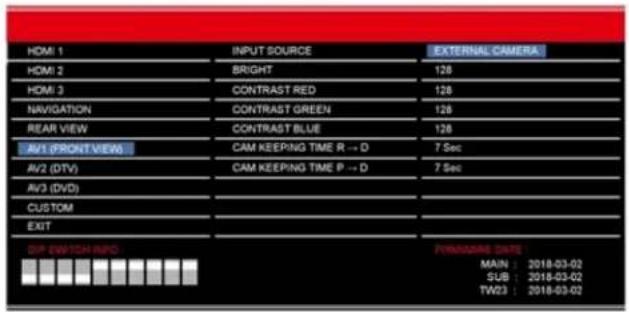
CRUX RVCGM-80B - FRONT CAMERA SETTINGS - 1

text_image HOMI 1 HOMI 2 HOMI 3 NAVIGATION REAR VIEW AV1 (FRONT VIEW) AV2 (DTV) AV3 (DVD) CUSTOM EXIT DIP SWITCH INFO : CAM KEEPING TIME R → D CAM KEEPING TIME P → D 7 Sec 7 Sec FORMAIRE DATE: MAIN : 2018-03-02 SUB : 2018-03-02 TW23 : 2018-03-02

CRUX RVCGM-80B - FRONT CAMERA SETTINGS - 2

text_image HDMI 1 HDMI 2 HDMI 3 NAVIGATION REAR VIEW AV1 (FRONT VIEW) AV2 (DTV) AV3 (DVD) CUSTOM EXIT DIP SWITCH INFO: BRIGHT CONTRAST RED CONTRAST GREEN CONTRAST BLUE CAM KEEPING TIME R → D CAM KEEPING TIME P → D 7 Sec 7 Sec PENNSKINE STATE: MAIN : 2018-03-02 SUB : 2018-03-02 TW23 : 2018-03-02

VEHICLE APPLICATIONS:

Compatible with 7" MyLink iOB Systems

CHEVROLET

2016 - 2018Colorado
2016 - 2018Impala
2016 - 2018Silverado
2016Spark

GMC

2017Acadia
2016 - 2018Canyon
2016 - 2018Sierra

CRUX RVCGM-80B - VEHICLE APPLICATIONS: - 1

text_image 50° 12:00

7" iOB Radio with a Knob in the middle
Manual assistant
Powered by Anthropic
Waiting for your message
Product information

Brand : CRUX

Model : RVCGM-80B

Category : Dash cam