
LCLG002-T - Controller LG - Free user manual and instructions
Find the device manual for free LCLG002-T LG in PDF.


| Product Type | Smart Controller / Remote Control |
| Brand | LG |
| Model | LCLG002-T |
| Compatibility | LG Smart TVs (2016 or later models) |
| Dimensions (W x H x D) | 4.5 cm x 17 cm x 2 cm |
| Weight | 82 g (including batteries) |
| Power Source | 2 x AAA batteries (not included) |
| Battery Life | Approximately 12 months under normal use |
| Connectivity | Bluetooth 4.0, IR (infrared) |
| Main Functions | Volume, channel, navigation, voice control, smart home control, media playback |
| Voice Control | Integrated microphone for LG ThinQ and Google Assistant |
| Remote Control Range | Up to 10 m (IR) / 15 m (Bluetooth) |
| Additional Buttons | Netflix, Prime Video, LG Channels, Disney+, Settings, Home, Back |
| Material | Plastic with soft-touch coating |
| Color | Black |
| Safety Instructions | Keep away from water and heat; do not disassemble; use only specified batteries |
| Maintenance | Wipe with a soft, dry cloth. Avoid harsh chemicals. |
| Spare Parts | Batteries (AAA) are user-replaceable; no other parts available |
| Reparability | Not user-repairable; contact LG support for service |
| Included Accessories | Remote control, user manual (PDF available), no batteries |
| Warranty | 1 year limited warranty |
| Certifications | CE, FCC, RoHS |
Frequently Asked Questions - LCLG002-T LG
User questions about LCLG002-T LG
0 question about this device. Answer the ones you know or ask your own.
Ask a new question about this device
Download the instructions for your Controller in PDF format for free! Find your manual LCLG002-T - LG and take your electronic device back in hand. On this page are published all the documents necessary for the use of your device. LCLG002-T by LG.
USER MANUAL LCLG002-T LG
Please read the safety information carefully before using this product.
After reading this manual, keep it in an easily accessible location for future reference.
LCLG002
TABLE OF CONTENTS
SAFETY PRECAUTIONS ......3
- Electrical Power Related Precautions....3
- Precautions for installing the Product ....5
- Precautions for Moving the Product......6
- Precautions for Using/Cleaning the Product.....7
- Product Disposal (Only, Hg lamp used LCD Monitor)....7
LICENCE......8
ASSEMBLING AND PREPARING .9
- Remote Control Receiver 9
- Optional Accessories....10
- Parts and Buttons....11
- Installing on a Wall....12
- Connecting to LCLG002 with LVDS Cable.....13
USING LCLG002 14
- Connecting to PC 14
- Connecting to External Devices....14
TROUBLESHOOTING......15
PRODUCT SPECIFICATIONS.....17
WARNING - This equipment is compliant with Class A of CISPR 32. In a residential environment this equipment may cause radio interference.
SAFETY PRECAUTIONS
Please read these safety precautions carefully before using the product.

WARNING
If you ignore the warning message, you may be seriously injured or there is a possibility of accident or death.

CAUTION
If you ignore the caution message, you may be slightly injured or the product may be damaged.

WARNING
- Indoor Use Only.

NOTE
- Some features described in the User Manual may not be supported in certain models and countries.
Electrical Power Related Precautions

WARNING
- Use only the power cord supplied with the unit or another manufacturer's authorized cord.
- Failure to do so may result in fire or electrical shock or damage to the product.
• Use only a properly grounded plug and receptacle.
- If you do not you may be electrocuted or injured. Or the product might be damaged.
- Do not use a damaged or loose plug.
- This may cause electrical shock or fire.
- Operate the display only from a power source(i.e. voltage) indicated in the product specification.
- Otherwise the product can be damaged, fire can occur or you may be electrocuted. If you are not sure what type of power supply you have, consult a certified electrician.
- In the presence of thunder and lightning, never touch the power cord and signal cable because it can be very dangerous.
- It can cause electric shock.
- Do not connect several extension cords, electrical appliances or electrical heaters to a single outlet. Use a power strip with a grounding terminal designed for exclusive use with the computer.
- A fire can break out due to overheating.
- Do not touch the power plug with wet hands. Additionally, if the cord pin is wet or covered with dust, dry the power plug completely or wipe dust off before plugging in the cord.
- You may be electrocuted due to excess moisture.
- If you don't intend to use the product for a long time, unplug the power cable from the product.
- Layers of dust can cause a fire, or insulation deterioration can cause electric leakage, electric shock or fire.
- Insert the power plug firm so it cannot come loose.
- A loose connection can cause fire.
- Hold the plug when pulling out the power cable. Do not pull the plug out by the wire. Do not bend the power cord with excessive force or put heavy objects on the power cord.
- The power line can be damaged, which may cause electric shock or fire.
- Do not insert metal or other conductive materials into the product openings. Additionally, do not touch the power cable right after plugging into the wall input terminal.
- You may be electrocuted.
- Use an appliance coupler as a disconnect device.
- Please make sure the device is installed near the wall outlet to which it is connected and that the outlet is easily accessible.
- Do not unplug the power cord while the product is in use.
- Electrical shock can damage the product.
- As long as this unit is connected to the AC wall outlet, it is not disconnected from the AC power source even if the unit is turned off.
Precautions for installing the Product

WARNING
- Keep away from heat sources like heaters or open flames.
- Electrical shock, fire, malfunction or deformation may occur.
- Keep the packing anti-moisture material or vinyl packing out of the reach of children.
- Anti-moisture material is harmful if swallowed. If swallowed by mistake, force the patient to vomit and visit the nearest hospital. Additionally, vinyl packing can cause suffocation. Keep it out of the reach of children.
• Do not put heavy objects on the product or sit upon it.
- If the product collapses or is dropped, you may be injured. Prevent Children from climbing or pulling on the unit.
- Do not leave the power or signal cable where someone can trip over it.
- Pedestrians may become entangled in the cables and cause the device to become damaged causing electrical shock, fire, or serious injury.
• Install the product in a neat and dry place. Do not use near water.
- Dust or moisture can cause electrical shock, fire or product damage.
- Do not add accessories that have not been designed for this display.
- If you smell smoke or other odors or hear a strange sound from the product unplug the power cord and contact LG Customer Service.
- If you continue to use without taking proper measures, electrical shock or fire can occur.
- If you dropped the product or the case is broken, turn off the product and unplug the power cord.
- If you continue to use without taking proper measures, electrical shock or fire can occur. Contact LG Customer Service.
- Do not drop an object on or apply impact to the product. Do not throw any toys or objects at the product.
- It can cause injury to humans, problems to the product and damage the display.
- Keep out of reach of children and do not place toys near the product.
- Make sure the product ventilation hole is not blocked. Install the product more than 100 mm (3.9 inches) from the wall.
- If you install the product too close to the wall, it may be deformed or fire can break out due to internal heat build-up.
- Do not cover the product with cloth or other material (eg. plastic) while plugged in.
- The product can be deformed or fire can break out due to internal overheating.
- Place the product on a flat and stable surface that is large enough to support the product.
- If the product is dropped, you may be injured or the product may be broken.
• Install the product where no Electromagnetic Interference occurs.
- Keep the product away from direct sunlight.
- The product can be damaged.
• Do not place the product on the floor.
- Small Children and others may trip over it.
- Do not install this product on a wall if it could be exposed to oil or oil mist.
- This may damage the product and cause it to fall.
- For displays with glossy bezels the user should consider the placement of the display as the bezel may cause unwanted reflections from surrounding light and bright surfaces.
Precautions for Moving the Product

WARNING
• Make sure to turn off the product.
- You may be electrocuted or the product can be damaged.
• Make sure to remove all cables before moving the product.
- You may be electrocuted or the product can be damaged.
- When lifting or moving the product, do not hold it upside down while holding only the stand.
- This may cause the product to fall resulting in damage or injury.
- Do not shock the product when moving it.
- You may be electrocuted or the product can be damaged.
- Make sure the panel faces forward and hold it with both hands to move.
- If you drop the product, the damaged product can cause electric shock or fire.
- Do not place the product face down.
- This may damage the TFT-LCD screen.
Precautions for Using/Cleaning the Product

WARNING
- Do not attempt to disassemble, repair or modify the product yourself.
- Fire or electric shock can occur.
- Contact LG Customer Service for repair.
- When cleaning the product, unplug the power cord and scrub gently with a soft cloth to prevent scratching. Do not clean with a wet cloth or spray water or other liquids directly onto the product. An electric shock may occur. (Do not use chemicals such as benzene, paint thinners or alcohol.)
- Keep the product away from water.
- Fire or electric shock accident can occur.
- Avoid high temperatures and humidity.
• Do not put or store flammable substances near the product.
- There is a danger of explosion or fire.
- Keep the product clean at all times.
• Take a comfortable and natural position when working with the product.
• Take a regular break when working with the product for a long time.
- Do not press on the panel with a hand or sharp object such as nail, pencil or pen, or make a scratch on it.
- Keep proper distance from the product and rest from time-to-time.
- Your vision may be impaired if you look at the product too closely or for too long.
- Set the appropriate resolution by referring to the User's Guide.
- Keep small accessories out of the reach of children.
- Displaying a still image for long time on the monitor may leave persistent image or stain on the monitor screen. To avoid this problem, use a screen saver and power off when this product is not used. Persistent image or stain caused by long time usage are not covered by the warranty on this product.
- Do not use products using high voltage around the Monitor. (ex. Electrical Swatter)
- Monitor may have malfunction as its electrical shock.
- Spray water onto a soft cloth 2 to 4 times, and use it to clean the front frame; wipe in one direction only. Too much moisture may cause staining.

flowchart
graph LR
    A["WATER"] --> B["Sample"]
    B --> C["Image of solar panel"]
    C --> D["Chemical Output"]
    D --> E["Output"]
Product Disposal (Only, Hg lamp used LCD Monitor)
• The fluorescent lamp used in this product contains a small amount of mercury.
• Do not dispose of this product with general household waste.
- Disposal of this product must be carried out in accordance to the regulations of your local authority.
LICENCE
Supported licenses may differ by model. Visit www.lg.com for more information on licenses.

The terms HDMI and HDMI High-Definition Multimedia Interface, and the HDMI Logo are trademarks or registered trademarks of HDMI Licensing Administrator, Inc. in the United States and other countries.
ASSEMBLING AND PREPARING

CAUTION
• Always use genuine components to ensure safety and durability of the product.
• The product warranty will not cover damage or injury caused by the use of unauthorized components.
- Replacing the batteries with the wrong type may result in explosion.
- Batteries that have reached end-of-life should be disposed in an appropriate manner.
- Connect the power cord to the product before you plug it into a wall outlet. Plugging the power cord into a wall outlet first may cause an electric shock, which can damage the product.

NOTE
- The accessories provided with your product may vary depending on the model.
- Product specifications or contents in this manual may be changed without prior notice due to upgrade of product functions.
• SuperSign Software & Manual - Visit http://partner.lge.com to download the latest SuperSign software and manual.
- The warranty will not cover any damage caused by using the product in an excessively dusty environment.

WARNING
- The warranty will not cover any component damage caused by electrostatic discharge at the time of installation. When installing this product, you must wear anti-electrostatic discharge (ESD) gear.
Remote Control Receiver
Because the product is the embedded-type, the remote control should be used only during installation and the use of remote control by user is not recommended.
Optional Accessories
Without prior notice, optional accessories are subject to change to improve the performance of the product, and new accessories may be added. The illustrations in this manual may differ from the actual product and optional accessories.
LAT240DT1LAT240DT2

natural_image
Empty rectangular frame with four vertical black lines on the right side (no text or symbols)
natural_image
Simple rectangular outline with four vertical lines extending from its right side (no text or symbols)ACC-LATB2

natural_image
Technical line drawing of a mechanical component with top and side views (no text or symbols)ACC-LATB3

LCLG012U

natural_image
Line drawing of a rectangular electronic device with multiple ports and connectors (no text or symbols)ACC-LATP1

NOTE
- Optional accessories are only available for some models. If necessary, please purchase them separately.
Parts and Buttons
The illustrations may differ depending on the model.

: Turns the power on and off.
HDMI switches to HDMI input.
DVI Switches to DVI-D input.
DP: Switches to DP input.
-WHITEcesses/Exits White Pattern.
R/G/B Consecutively accesses/exits R/G/B Pattern.
- IP RESET : Press and hold for 3 seconds or more to set the IP address to 192.168.0.101.
• KEY LOCK : Press and hold for 3 seconds or more to access/exit Key Lock.

NOTE
- If you press WHITE or R / G / B to access the corresponding pattern, HDMI/DVI-D/DP screen will not be available. If you want to switch to the external input screen, repeatedly press the button until you exit from the pattern.
Installing on a Wall
Fix the assembled set on a desired place.

Connecting to LCLG002 with LVDS Cable
Connect the LVDS cable with the set.
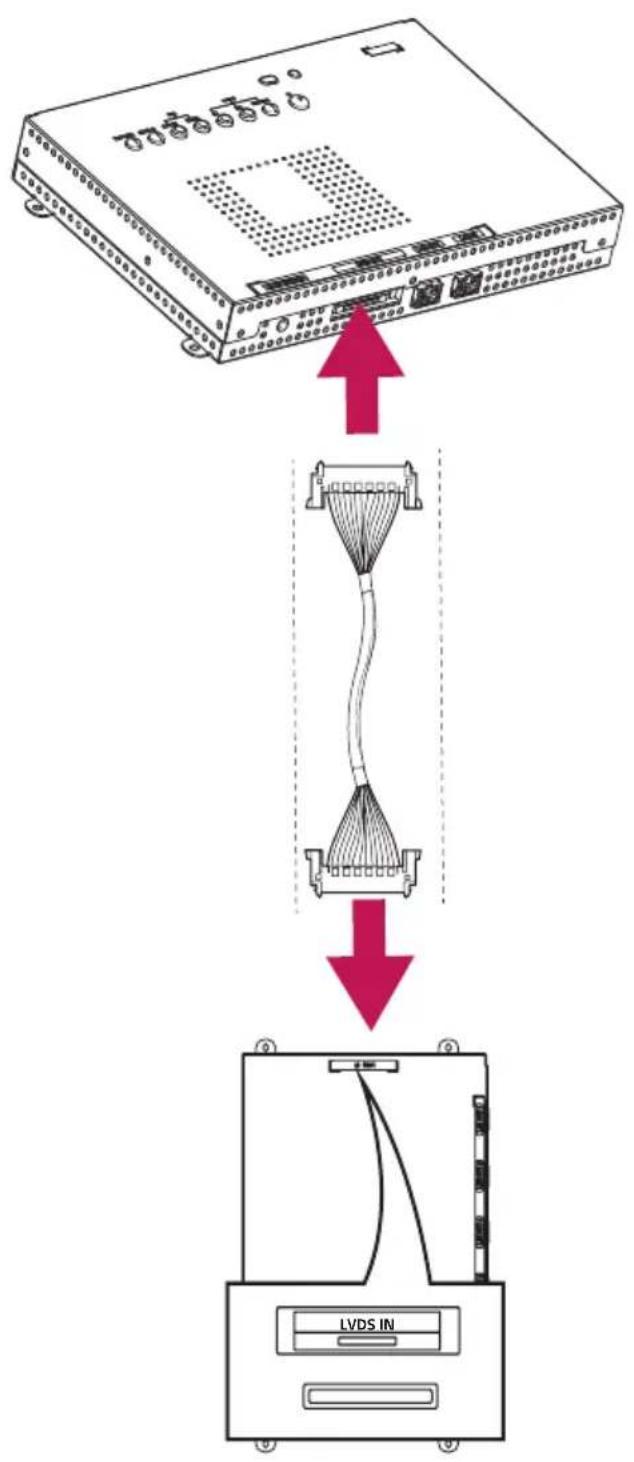
flowchart
graph TD
    A["Network Switch"] -->|Packet Flow| B["Hourglass Cable"]
    B --> C["LVDS IN Device"]
CAUTION
- Check the direction so that the LVDS cable is not damaged.
- Inserting the LVDS cable with excessive force may damage the contact point.
USING LCLG002
Connecting to PC
The LCLG002 model itself does not have any screen. You may connect it with LCLG012U and see the screen through the colored, transparent LED film (LAT240DT1, LAT240DT2).
LCLG002 supports the Plug and Play* feature.
* Plug and Play: a feature that enables a PC to recognized devices attached by the user without device configuration or user intervention when powering up.
Connecting to External Devices
Connect a HD receiver, DVD, or VCR player to the product and select an appropriate input mode.
For the best picture quality, use a HDMI cable to connect the product to external devices.
NOTE
- For the best image quality, using HDMI connection is recommended.
- To comply with the specifications of the product, use a shielded interface HDMI cable with ferrite core.
- Fasten the cables with cable ties to minimize electromagnetic interference.
• Use a High Speed HDMI ^® cable. - If you want to use HDMI-PC mode, you must set your input to PC mode.
- You may experience compatibility issues if you use a HDMI cable to connect to a PC.
- Use a certified cable that displays the HDMI logo. The screen may not appear or a connection error could occur if a non-certified cable is used.
• Recommended HDMI Cable Types
- High-Speed HDMI ^® /™ Cable
- High-Speed HDMI/™ Ethernet Cable

CAUTION
- Connect the signal input cable and check whether it is inserted properly into the connector.
- If you are using a DP to HDMI dongle, use products that have been verified by graphics card manufacturers.
- If you are connecting the graphics card to multiple-channel ports, use the same DP to HDMI dongle model.
TROUBLESHOOTING
No image is displayed.
| Problem Solution | |
| Is the power cord connected to the product? | · Check if the power cord is correctly plugged into the power outlet. |
| Does the ‘Invalid Mode’ message appear? | · The signal from the PC (graphics card) is out of the vertical or horizontal frequency range of the product. Adjust the frequency range by referring to the Specifications in this manual. |
| Is the ‘No Signal’ message displayed? | · The signal cable between PC and product is not connected. Check the signal cable. |
| Check if the power cord is properly connected. | · Problems may occur if the user connects cables arbitrarily. Contact a system integrator or the service center for cable connection change. |
The ‘Unknown Product’ message appears when the product is connected.
| Problem Solution | |
| Did you install the driver? | • Check if the Plug and Play function is supported by referring to the graphics card user manual. |
The screen image looks abnormal.
| Problem Solution | |
| Is the screen position wrong? | Check if the graphics card resolution and frequency are supported by the product. If the frequency is out of range, set to the recommended resolution in the “Display” settings in Control Panel. |
| The screen is displayed abnormally. | The proper input source is not connected to the port. Connect a cable that matches the input source signal. |
After-image appears on the product.
| Problem Solution | |
| After-image appears when the product is turned off. | ·If you display a still image on the screen for a long time, the LED package may be damaged rapidly. Use the screen-saver function.·When a dark image is displayed on the screen after an image with high contrast (black and white or grey), this may cause image sticking. This is normal for LED products. |
The display color is abnormal.
| Problem Solution | |
| Screen has poor color resolution (16 color). | Set the color depth to more than 24 bits (true color). To do this, select [Control Panel] → [Display] → [Setting] → [color Palette] on Windows. (May differ depending on your operating system (OS).) |
| Screen color is unstable or mono-colored. | Check the connection status of the signal cable. Or, re-insert the PC graphics card.Problems may occur if the user connects cables arbitrarily. Contact a system integrator or the service center for cable connection change. |
The operation does not work normally.
| Problem Solution | |
| The power suddenly turned off. | • Is the Timer set?• Check the power control settings. Power supply is interrupted. |
PRODUCT SPECIFICATIONS
Without prior notice, all product information and specifications contained in this manual are subject to change to improve the performance of the product.
The \~symbol means alternating current, and the symbol means direct current.
| Video Signal Max Resolution HDMI / DisplayPort: 3840 x 2160 @ 30 HzDVI-D: 1920 x 1080 @ 60 Hz- This may not be supported on some OS or graphics card types. | |
| Recommended Resolution | HDMI / DisplayPort: 3840 x 2160 @ 30 HzDVI-D: 1920 x 1080 @ 60 Hz- This may not be supported on some OS or graphics card types. |
| Horizontal Frequency | HDMI / DisplayPort / DVI-D: 30 kHz - 83kHz |
| Vertical Frequency | HDMI / DisplayPort: 50 Hz - 60 HzDVI-D: 50 Hz - 75 Hz |
| Synchronization Separate Sync / Digital | |
| Input/Output Ports | |
| Power Power Rating | LAN IN/OUT, RS-232C IN/OUT, HDMI IN, DP IN/OUT, DVI-D IN, USB IN, LIGHT SENSOR, LVDS OUT |
| AC 100-240 V - 50/60 Hz 0.5 A | |
| Power Consumption | |
| Embedded Battery Applied | |
| Environmental Conditions | Operating Temperature |
| Operating Humidity | |
| Storage Temperature | |
| Storage Humidity 5 % to 85 % | |
| Dimensions[Width x Height x Depth] / Weight | |
![[Unit: mm (inches)] 293 (11.5) UNIT SEISM 186.8 (7.3) LCLG002](/content/2026/05/1063971/images/68cc6f095051c3f4e88b304a96e68098d8cfa61835d75b58b9bcf965ad9378e5.jpg)
DVI-D/HDMI/DisplayPort (PC) Support Mode
| Resolution | Horizontal Frequency (kHz) | Vertical Frequency (Hz) Note |
| 800 x 600 37.879 6 | 0.317 | |
| 1024 x 768 48.363 | 60.0 | |
| 1280 x 720 44.772 | 59.855 | |
| 1280 x 1024 63.981 | 60.02 | |
| 1680 x 1050 65.290 | 59.954 | |
| 1920 x 1080 67.5 60 | ||
| 3840 x 2160 67.5 30 | HDMI/DisplayPort |
HDMI/DisplayPort (DTV) Support Mode
| Resolution | Horizontal Frequency (kHz) | Vertical Frequency (Hz) Note |
| 480/60p 31.5 60 | ||
| 576/50p 31.25 50 | ||
| 720/50p 37.5 50 | ||
| 720/60p 45 | 60 | |
| 1080/50i | 28.1 50 | |
| 1080/60i | 33.75 60 | |
| 1080/50p | 56.25 50 | |
| 1080/60p | 67.432 59.94 | |
| 1080/60p 67.5 60 | ||
| 2160/30p 67.5 30 | HDMI/DisplayPort |

NOTE
- Resolutions available for the Input Label option in HDMI/ DisplayPort input modes.
- PC resolutions: 1280 x 720 / 60 Hz and 1920 x 1080 / 60 Hz.
- DTV resolutions: 480p, 720p and 1080p.
- Vertical frequency: The product display functions by the screen image changing dozens of times every second like a fluorescent lamp. The vertical frequency or refresh rate is the number of image displays per second. The unit is Hz.
- Horizontal frequency: The horizontal interval is the time taken to display one horizontal line. When 1 is divided by the horizontal interval, the number of horizontal lines displayed every second can be tabulated as the horizontal frequency. The unit is kHz.

Supplier's Declaration of Conformity
Trade Name LG
Responsible Party LG Electronics USA, Inc.
Address 1000 Sylvan Ave Englewood Cliffs, NJ 07632
Telephone (201)266-2215
The label attached to the product contains information you need to receive service.
Model
Serial Number
Note for user/reseller: The noise that occurs temporarily when the product is turned on or off is not abnormal nor due to malfunction.
- TABLE OF CONTENTS
- SAFETY PRECAUTIONS ......3
- LICENCE......8
- ASSEMBLING AND PREPARING .9
- USING LCLG002 14
- TROUBLESHOOTING......15
- PRODUCT SPECIFICATIONS.....17
- SAFETY PRECAUTIONS
- WARNING
- CAUTION
- NOTE
- Electrical Power Related Precautions
- Precautions for installing the Product
- Precautions for Moving the Product
- Precautions for Using/Cleaning the Product
- Product Disposal (Only, Hg lamp used LCD Monitor)
- LICENCE
- ASSEMBLING AND PREPARING
- Remote Control Receiver
- Optional Accessories
- Parts and Buttons
- Installing on a Wall
- Connecting to LCLG002 with LVDS Cable
- USING LCLG002
- Connecting to PC
- Connecting to External Devices
- TROUBLESHOOTING
- After-image appears on the product.
- The display color is abnormal.
- The operation does not work normally.
- PRODUCT SPECIFICATIONS
- Supplier's Declaration of Conformity
Brand : LG
Model : LCLG002-T
Category : Controller