
KAWAKLGT2SA - Light therapy Kogan - Free user manual and instructions
Find the device manual for free KAWAKLGT2SA Kogan in PDF.


| Product Type | Light Therapy Lamp |
| Brand | Kogan |
| Model | KAWAKLGT2SA |
| Dimensions (approx.) | 30 x 20 x 15 cm |
| Weight | 0.8 kg |
| Power Supply | AC 100-240V, 50/60Hz |
| Power Consumption | 15 W |
| Light Source | LED |
| Color Temperature | 6500 K |
| Light Intensity | 10,000 lux at 30 cm |
| Brightness Levels | 3 |
| Timer Settings | 15, 30, 45, 60, 90 minutes |
| Auto-Off | Yes |
| Adjustable Stand | Yes |
| Recommended Usage | 20-30 minutes daily, preferably in morning |
| Maintenance | Wipe with a soft, dry cloth |
| Safety Warnings | Do not look directly at the light; not for use by people with certain eye conditions |
| Spare Parts Availability | Contact Kogan customer support |
| Repairability | Please refer to the user manual for repair instructions |
Frequently Asked Questions - KAWAKLGT2SA Kogan
User questions about KAWAKLGT2SA Kogan
0 question about this device. Answer the ones you know or ask your own.
Ask a new question about this device
Download the instructions for your Light therapy in PDF format for free! Find your manual KAWAKLGT2SA - Kogan and take your electronic device back in hand. On this page are published all the documents necessary for the use of your device. KAWAKLGT2SA by Kogan.
USER MANUAL KAWAKLGT2SA Kogan
This product includes a button battery that can be used as an emergency power source and has a memory function. No need to reset the alarm after power off.
Remove the insulation sheet from the button battery when using for the first time.
To reduce the risk of fire, electric shock or injury to persons:
- Place the appliance on a stable, level and non-slippery surface.
- Do not use the appliance at room temperatures lower than 10irc C ( 50irc F) or higher than 35irc C ( 95irc F).
- This appliance is only intended for household use.
- Ensure the adapter does not get wet.
- Do not use this appliance in wet surroundings, or any areas where exposure to moisture is frequent (in the bathroom; near a shower; near a swimming pool; etc.)
- Do not let the water run into the appliance or spill water onto the appliance.
- Only use the original adapter. If the adapter is damaged, cease use immediately and contact Kogan.com
- This appliance has no On/Off switch. To disconnect the appliance from the power source, remove the plug from the wall outlet.
- Do not use this appliance to reduce your hours of sleep. The purpose of this appliance is to help you wake up more easily. It does not diminish your need for sleep.
OVERVIEW


1 Light Brightness Adjustment
2 Light Switch
3 Alarm 1 / Alarm 2
4 Setting "-" / Volume down
5 Snooze / Night Light Switch
6 Setting "+" / Volume up
7 Fall Asleep
8 Display Brightness / Time Setting
9 FM Tuning
10 FM Switch
11 USB Output
12 FM Antenna
13 Micro USB Input
14 Reset
15 Button Battery

Alarm

- Press: turn on/off the alarm.
- Press and hold: Set the alarm with pressing to adjust.
Fall Asleep

- Press: turn on/off the fall asleep function.
- Press and hold: set the fall asleep mode, with pressing to adjust
Display Brightness and Time Setting

- Press: adjust the time display brightness.
- Press and hold: set the time with pressing to adjust.
Light

- Press 📌 to turn on/off sunrise light. Press 📞/☐ to adjust the brightness.
- Press twice to turn on/off the coloured light. Press / to adjust the light colour.
FM Radio

- Press ☐ to turn on/off the FM; Press ☐ twice to scan radio frequencies automatically.
- Press ☐/☐ to adjust the frequency (0.1MHz). Press and hold ☐/☐ to adjust the channel.
ASSEMBLY
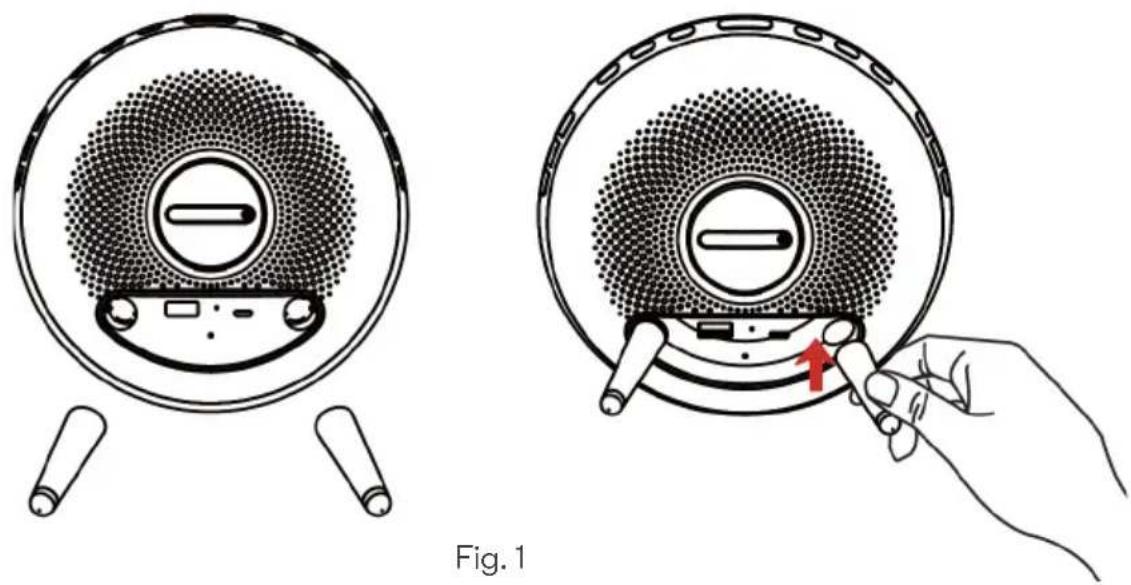
1. Install the stand
Insert the stand directly into the mounting hole until it is securely attached.
natural_image
Illustration of two circular devices with a speaker grille and a hand inserting a plug into the base (no text or symbols)2. Remove the stand
Hold the stand and gently press down to remove it.

natural_image
Illustration showing two hands performing a tool manipulation process, with one hand holding a tool and the other holding a tool (no text or symbols present)Fig. 2
OPERATION
Time and 12/24H Setting
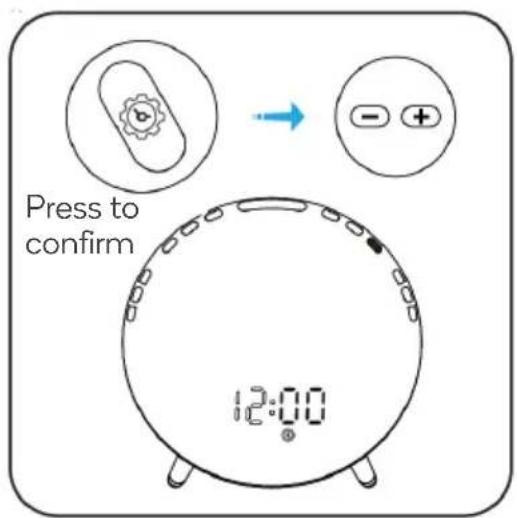
- Press and hold ⚙️ for 2s, the ⚠️ icon will illuminate, and the hour indication will start to flash. Press −/⊕ to adjust the hour.

- Press ⚙️ to confirm the setting, the minute indication will start to flash; press ⏻/⊕ to adjust the minute.
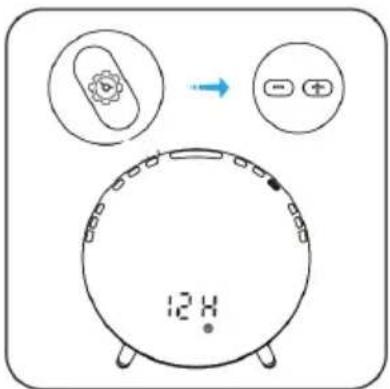
- Press ⚙️ to confirm the setting, the 12H indication will start to flash; press ⏰ / + to choose between a 12-hour and a 24-hour clock. Press ⚙️ to complete the time setting.
Press to confirm
Display Brightness
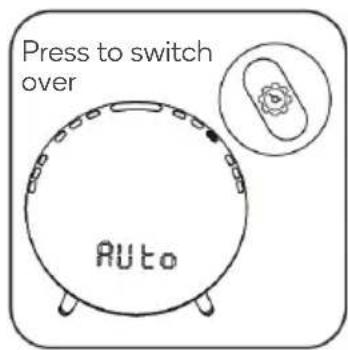
Press ⚙ to adjust the display brightness.
3 Levels: Bright - Auto - Off.
Default Brightness: Bright.

Bright Mode
Auto Mode

Off
ALARM FUNCTIONS
Alarm Groups
Allow users to program 2 alarms based on individual needs. For example, set Alarm 1 for weekdays and Alarm 2 for the weekend.
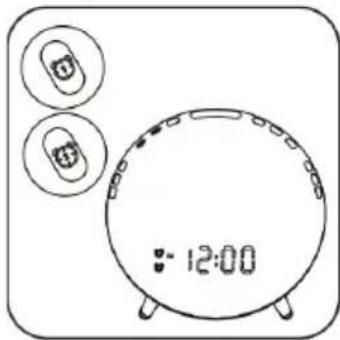
Note:
Although times may differ, the rest of the alarm settings will be the same.
Alarm Switch (Alarm 1 as the example)
Press 📄 to turn on/off the alarm. When Alarm 1 is turned on, the ⏱ icon will illuminate on the display.

Alarm 1 on
Alarm Setting
- Press and hold Ⓤ for 2s, the ⏱ icon and the hour indication will start to flash. Press to adjust the hour.

- Press ☐ to confirm the setting, the minute indication will start to flash. Press to adjust the minute.
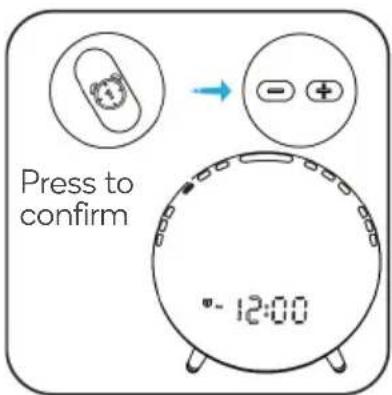
- Press ☐ to confirm the setting, the sound indication will start to flash. Press to choose the sound:
- S-00: Muted - S-01 – S-07: Built-in sounds
• XX MHz: The most recent FM radio frequency listened to in FM Radio mode.
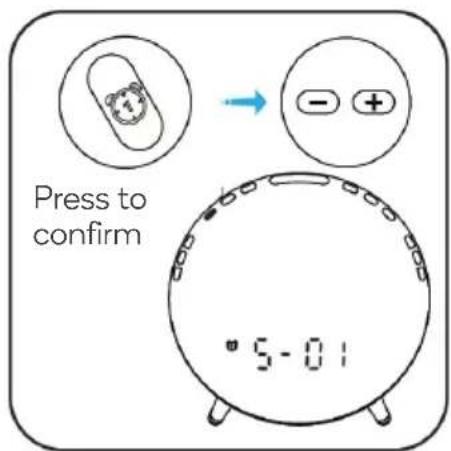
- Press Ⓤ to confirm the setting, the volume indication will start to flash. Press ⏻/⊕ to adjust the alarm volume (V-01 - V-16).
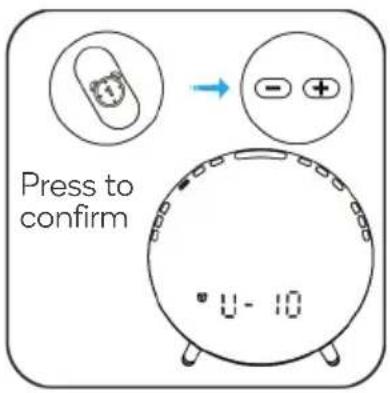
- Press Ⓤ to confirm the setting, the wake-up light brightness indication will start to flash. Press ⏻/⊕ to adjust the wake-up light brightness.
- L-00: Light is off
• L-01 - L-20: Minimum brightness - maximum brightness.

Note:
The light will reach the maximum brightness when the alarm goes off.
- Press ⏻ to confirm the setting, the "light up prior to alarm" indication will start to flash. Press ⏱ / Ⓒ to adjust the duration (10\~60 min). Press ⏱ to confirm and complete the alarm setting.

Snooze and Stop
The wake-up light can simulate sunrise to gradually increase the brightness. The alarm will go off at the set time as the wake-up light reaches the set brightness. When the alarm goes off, you can tap to snooze, adjust the alarm volume or stop the alarm.
- Press ⋯⋯ to snooze. After 9 minutes, the light will automatically come on and the sound will play again. You may snooze up to 5 times, after this the alarm will turn off.

natural_image
Simple line drawing of a digital alarm clock with an inset showing a simple icon (no text or symbols)- Press ☐/⊕ to adjust the current volume when the alarm is ringing.

- Press Ⓜ to stop the alarm.

Note:
If the alarm is turned on, it will still go off next time.
- If the alarm is ignored for 30 minutes, it will stop automatically.
LIGHT FUNCTIONS
Night Light
Press ⋯ to turn on/off the night light. The night light is intentionally dim, and recommended only for use at night.

Sunrise Light
- Press 🎨 to tun on the sunrise light; the 🔺 icon will illuminate.

natural_image
Line drawing of a digital alarm clock with an inset showing a small illuminated object (no text or symbols on the clock face)- Press 📄/☐ to adjust the brightness. Press 🌿 again to turn it off.

natural_image
Simple line drawing of a round digital alarm clock with no text or symbols on the clock faceColoured Light
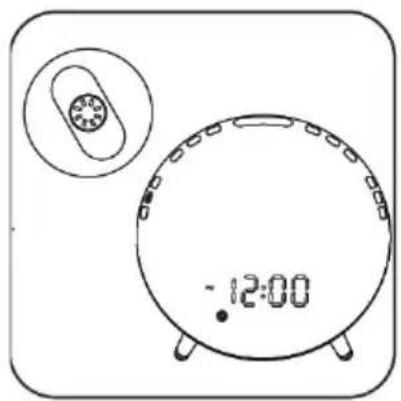
- Press twice to turn on the coloured light. The icon will illuminate and the light will activate auto colour-change mode.

- Press 📧/* to manually adjust the light colour. Press and hold 📧/* to quickly adjust the light colour and the light will activate auto colour-change mode. Press 📧 to turn it off.
natural_image
Simple line drawing of a digital alarm clock with an oval dial and time display showing 12:00 (no text or symbols on the clock face)FM RADIO
Radio Switch
Press 📷 to turn on/off FM. The 🔺 icon will illuminate on the display when the FM mode is turned on.

natural_image
Line drawing of a digital alarm clock with an inset showing a small circular device (no text or symbols on the clock face)Auto Scan
Press twice to scan radio channel automatically; the icon will start to flash. It broadcasts the first channel after the search is complete.

natural_image
Line drawing of a digital alarm clock with an inset showing a circular device (no text or symbols)FM Tuning
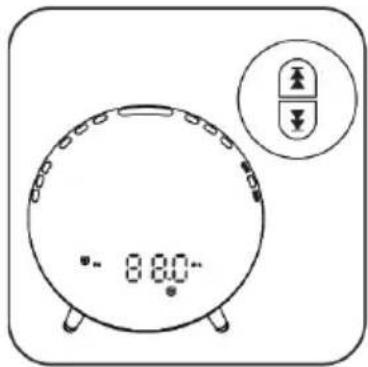
When the FM mode is turned on, press 📧/💡 to adjust the frequency (0.1 MHz). Press and hold 📧 to adjust channels.
FM Volume
When the FM mode is turned on, press to adjust the volume.

FALL ASLEEP FUNCTION
Fall Asleep Switch
Press to turn on/off the fall asleep mode.
The 📄 icon will illuminate on the display when the fall asleep mode is turned on.

natural_image
Simple line drawing of a round digital alarm clock with an inset showing a smiling button (no text or symbols)Fall asleep mode: ON
Fall Asleep Setting
- Press and hold Ⓤ for 2s to start the setting, the ⏻ icon will illuminate and the time indication will start to flash. Press 📄/☐ to adjust the fall asleep time (10 minutes - 120 minutes).
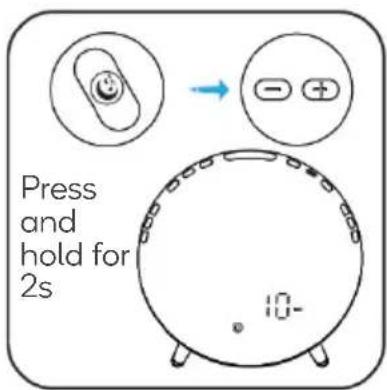
- Press ⬆ to confirm the setting, the fall asleep brightness indication will flash. Press to adjust the fall asleep brightness.
• L-00: Light is off
• L-01 - L-20: Minimum brightness - maximum brightness.

Note:
The fall asleep brightness is the initial brightness when fall asleep mode is turned on.
- Press ⚙ to confirm the setting, the fall asleep sound indication will start to flash. Press 📄/💡 to adjust the fall asleep sound.
S-00: Muted
• S-01 - S-03: Built-in sounds
• XX MHz: The most recent FM radio frequency listened to in FM Radio mode.
Press 🏠/ Heath to adjust the radio frequency. Press and hold 🏠/ Heath to adjust the radio channel.

- Press ⚙ to confirm the setting, the fall asleep volume indication will start to flash. Press ⚙/☐ to adjust the volume (V-01 – V-16). Press ⚙ to confirm the completion and activation of fall asleep mode.

Fall Asleep Adjustment
Sunset simulation for peaceful bedtime: when the fall asleep mode is turned on, the light will dim until it goes out and the sound will gradually decrease until there is no sound.
- Press ☐/☐ to adjust the brightness.

natural_image
Line drawing of a digital alarm clock with a circular dial and two small icons above it (no text or symbols on the clock face)- Press to - / + adjust the volume.

natural_image
Line drawing of a digital alarm clock with an inset showing a small device (no text or symbols on the clock face)CONNECT TO SMARTERHOME™ APP
Install App
Download the "Kogan SmarterHome" app from the Play Store (Android) or App Store (iOS).
Register
If you do not have a Kogan SmarterHome™ account, register or sign in with a verification code sent by SMS.
To register:
- Tap to enter registration page.
- The system automatically recognises your country/area. You can also select your country code manually. Enter your email address and tap 'Next.'
- Alternatively, you can select 'Register by mobile number' and enter the verification code sent to you by SMS.
- Create a profile on the next page to define your location and room.


Register by Email

Register by Mobile Number

Get Verification Code
Get Verification Code
Set device in pairing mode
When the device is first turned on, it may automatically enter pairing mode (the Wi-Fi indicator light, below the time, will be flashing rapidly).
If not automatically in pairing mode when powered on, you can manually set the device in pairing mode by long pressing the Snooze button ⋯⋯ for 10 seconds or until the indicator light begins flashing rapidly.
Add device through network
- Once registered, tap “+” in the upper right corner of the app’s home page to add a new device through the network.
- Select the product type from the list of options in the app (Lighting > Wake Up Lights).
- Ensure that the device is in pairing mode, with the indicator light flashing rapidly, and tap "Confirm light is rapidly flashing".
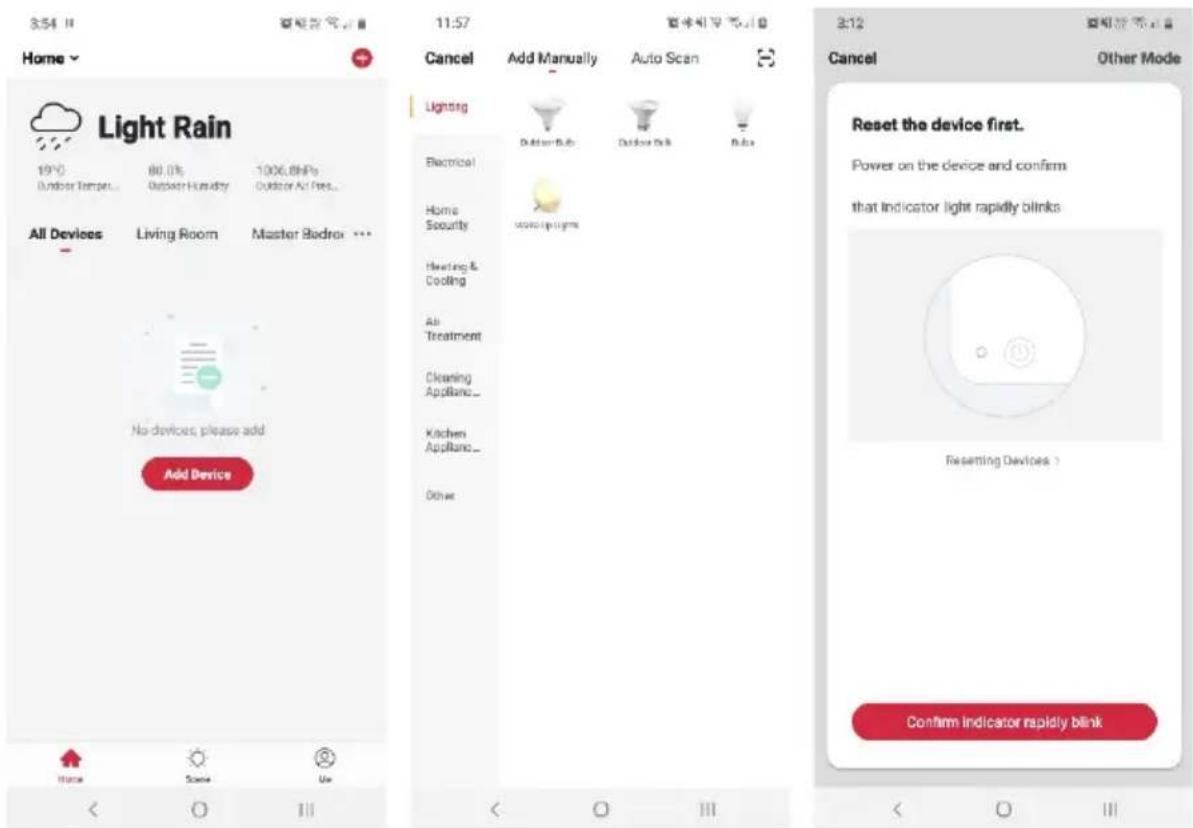
- Upon successfully confirming pairing mode, enter your Wi-Fi details. It is important that your SmarterHome™ device and the app are connected to the same Wi-Fi network during setup.
- The device will commence the pairing process and connect to the app. Ensure your Wi-Fi router, mobile phone, and the SmarterHome™ device are kept close until connection is complete.
- After successfully being added, you will have the option to rename the device and assign it to a location. It will now be listed on the app's home page. Tap the device listing to enter its control page.


Notes:
• The device and the app have to use the same Wi-Fi network.
• The device is only compatible with 2.4Ghz networks.
USING SMARTERHOME™ APP

1 Light Brightness Adjustment
2 Light Switch
3 Alarm 1/Alarm 2
4 Setting "-" / Volume down
5 Snooze/Night Light Switch
6 Setting "+"/Volume up
7 Fall Asleep
8 Display Brightness/Time Setting
9 HM Tuning
10 FM Switch
A. Click ⏻/② to set the 4 alarm clock options.
| Back | Alarm clock 1 | Save | |
| 19 | 21 | ||
| 20 | 22 | ||
| 21 | 23 | ||
| 22 | 24 | ||
| Voice Control Name | Alarm clock 1 > | ||
| Repeat | Everyday > | ||
| Ring Time | 15 MIN > | ||
| Alarm Mode | Sound&Light > | ||
| Ringing sound | 6-Soft > | ||
| Volume | 5 > | ||
| Simulated Sunrise Time | 10 MIN > | ||
| Sunrise Brightness | 15 > | ||
| Support Snooze | |||
B. Click 📋 to choose the light display type and adjust the light intensity.

C. Click

to set the snoozing pattern.

| Back | Snooze | Save |
| Snooze Mode | Sound&Radio&Light > | |
| Snooze Time | 9 MIN > | |
D. Click

to turn on/turn off the FM radio and choose the frequency you want.

E. Click Ⓔ to set the sleep timer and create your Sleep AID.
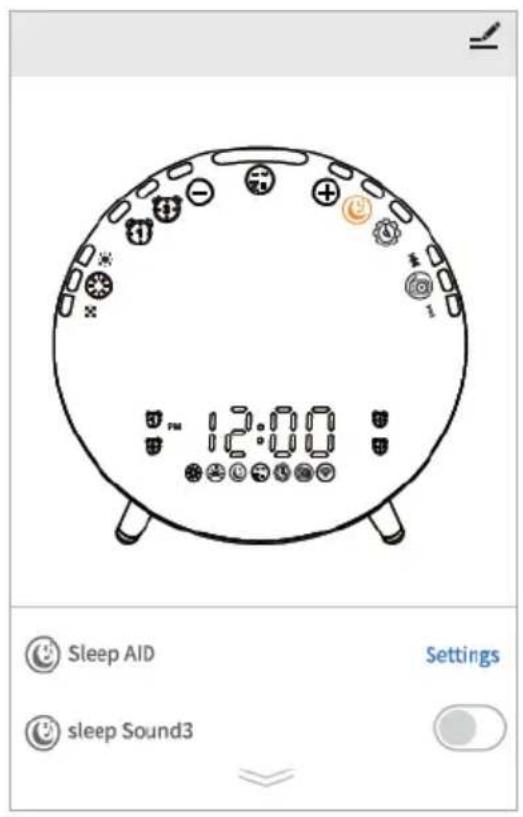
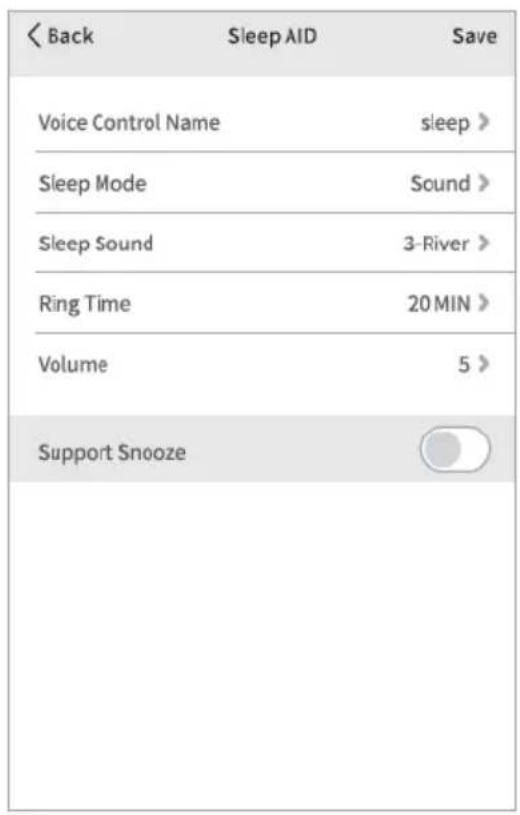
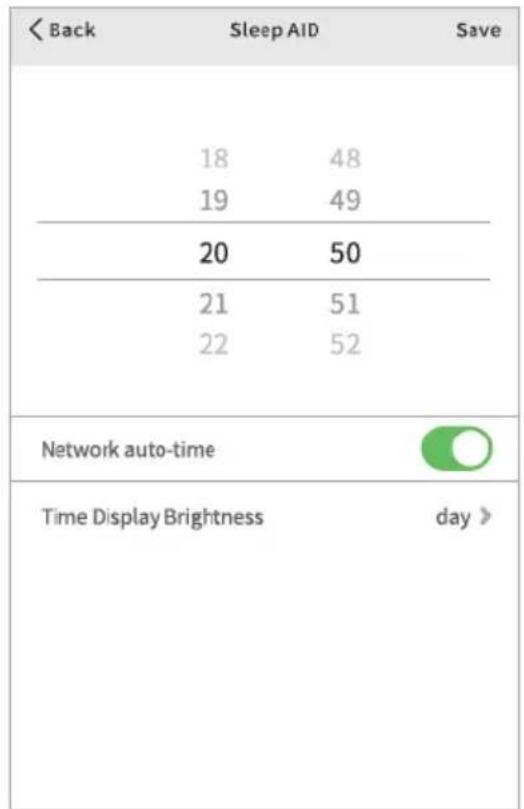
F. Click 📄 to set the time of the wake-up light and time display brightness.
GOOGLE HOME CONTROL
Note:
You will need to have set up a Google Home account prior to linking your Kogan SmarterHome™ device.
Adding "SmarterHome" to the Google Home app
- From the home page of the Google Home app, select the "+" icon to access the 'Add and manage' page.
- Select 'Set up device', then under the Works with Google banner, select 'Have something already set up?'
- Select the search bar and type 'Smarter Home' to locate the Kogan SmarterHome™ service.
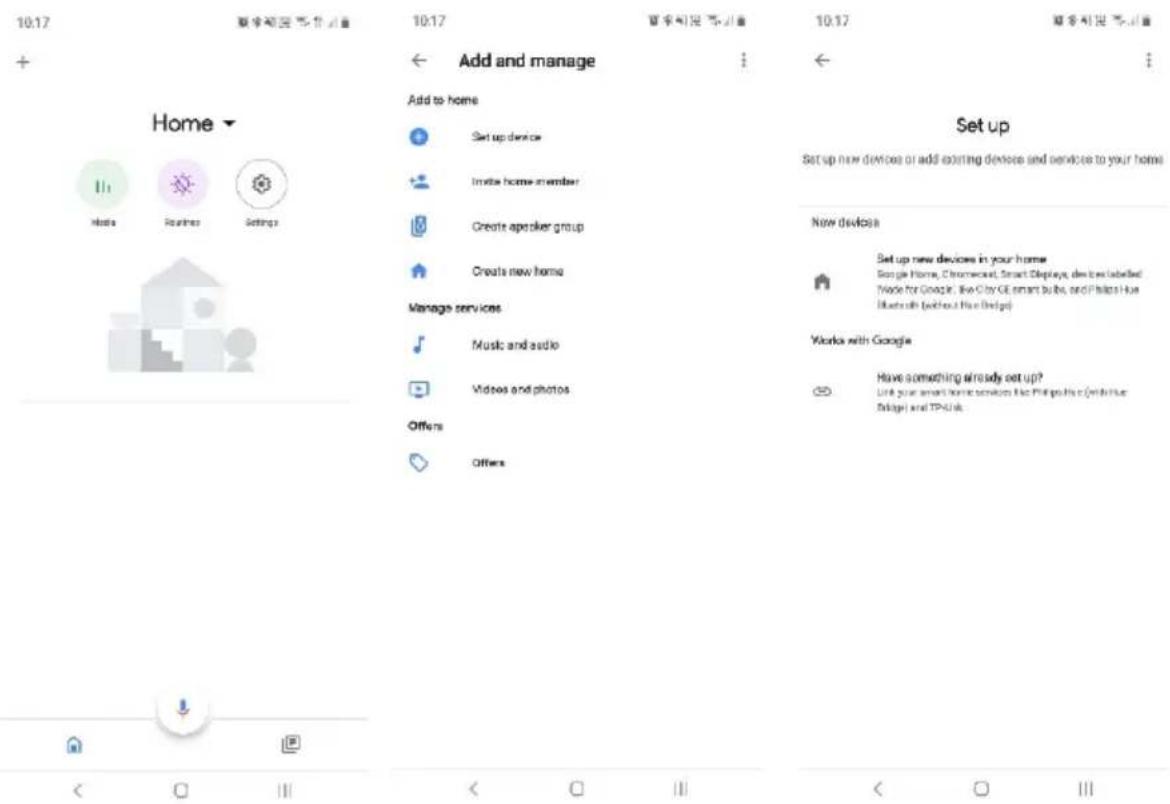
- Tap 'Authorise' to grant Google permission to access the SmarterHome™ app and your devices.
- From here, you will be prompted to sign into your SmarterHome™ account using either your email or mobile phone number, depending on which method you used to register your account.


- Once connected, the app will display any compatible devices linked to your SmarterHome™ account. From here you can assign them to rooms and set up any routines.
- Tap on any of the devices to view a list of available commands.
10:21

图中包含“空”字,其余为“空”字。
10:23
夏步影混

Add smart home devices
Select devices and add to a room

Home

Media

Routines

Settings
Back garden
2 devices

Dog Cam (Backyard)

Dog Cam (Undercover)
Kitchen
1 device

Cat Cam (Kitchen)
ADD TO A ROOM


Other cast devices
8 devices


Note:
Please note that Google Home can only control the base/core functions of any compatible SmarterHome™ devices. To make full use of this product's smart functionality, please use the Kogan SmarterHome™ app.
AMAZON ALEXA CONTROL
Note:
You will need to have set up an Alexa account prior to linking your Kogan SmarterHome™ device.
Adding "SmarterHome" to the Alexa app
- From the home page of the Alexa app, select the “=” icon in the top-right and select Skills & Games from the sidebar.
- Select the search bar and type 'Smarter Home' to locate the Kogan SmarterHome™ skill.


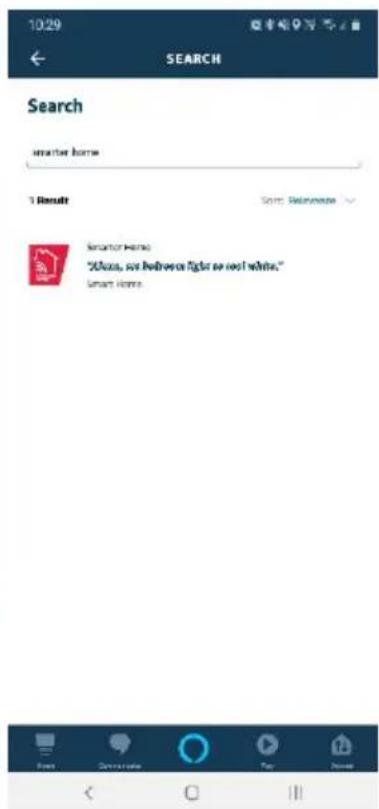
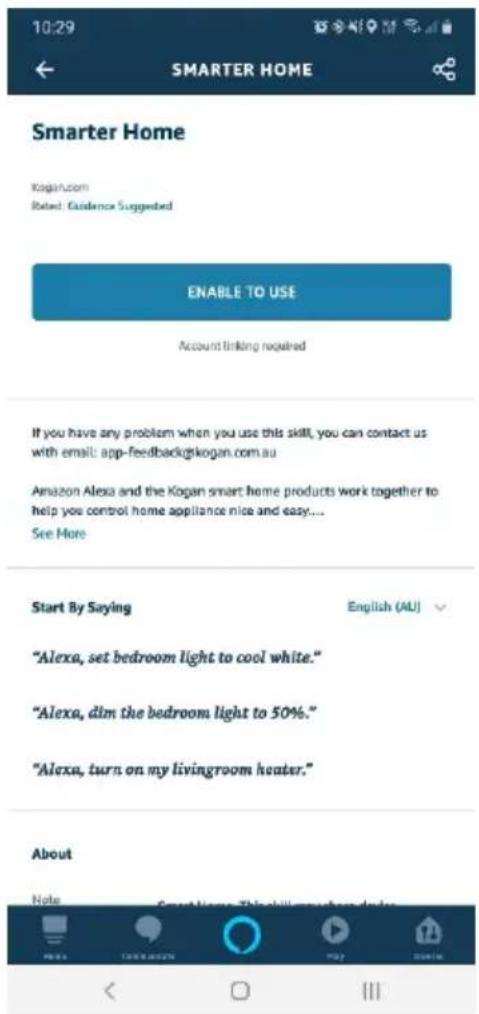
- Tap 'Enable to Use' to add the Kogan SmarterHome™ skill to Alexa.
- From here, you will be prompted to sign into your SmarterHome™ account using either your email or mobile phone number, depending on which method you used to register your account.
- Tap 'Authorise' to grant Alexa permission to access the SmarterHome™ app and your devices.
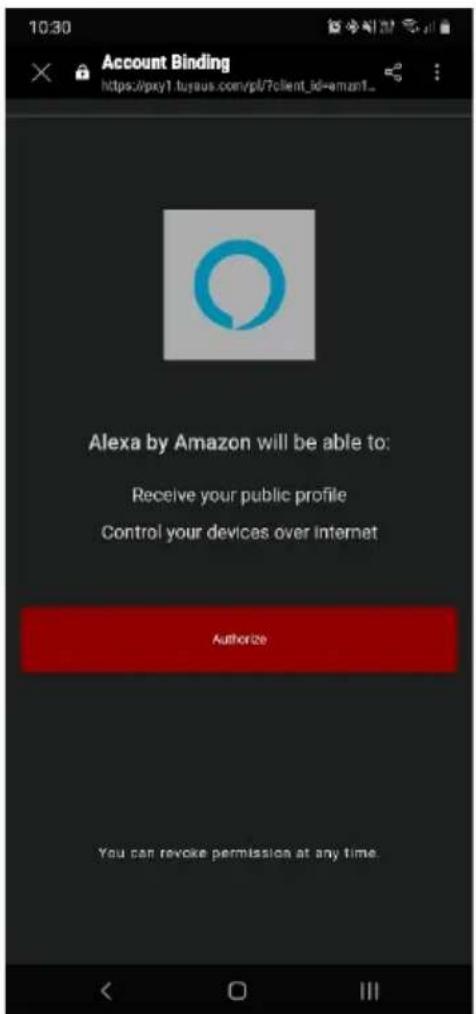
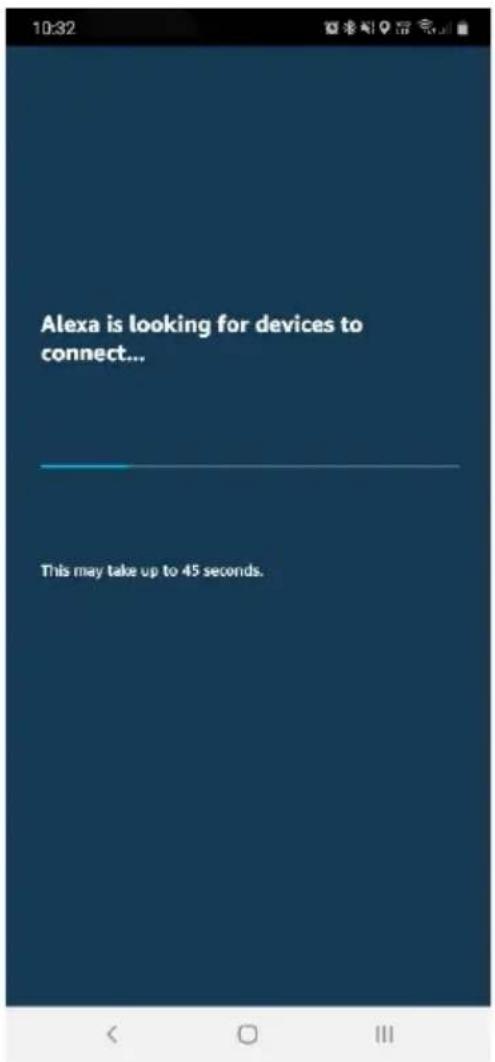
- Once connected, the app will perform a search and display the devices linked to your SmarterHome™ account.
- When your devices have successfully connected to the Alexa app, you will be able to control your Kogan SmarterHome™ devices via Alexa's voice commands.

Note:
Please note that Alexa can only control the base/core functions of any compatible SmarterHome™ devices. To make full use of this product's smart functionality, please use the Kogan SmarterHome™ app.
CLEANING & CARE
- Clean the appliance with a soft cloth.
- Do not use abrasive cleaning agents, pads or cleaning solvents like alcohol, acetone, etc., as this might damage the surface of the appliance.
- If the appliance will not be used for an extended period, remove the power cord from the wall outlet and store the appliance in safe, dry surroundings where it will not be crushed, banged or subject to damage.
SPECIFICATIONS
| Product Name | Wake-up Light |
| Brightness Adjustment | 20 levels |
| Light Colour | 7 options |
| Volume Adjustment | 16 levels |
| Display Brightness | 3 levels |
| Alarm Groups | 4 via Kogan SmarterHomeTM app; 2 via clock |
| Type of Alarm Sound | 7 natural sounds; FM radio |
| Sunrise Simulating Time | Adjustable 10-60 minutes |
| Alarm Mode | Sound only; light and sound; FM radio only; FM radio and light |
| Alarm Time | 30 minutes max |
| Snooze Time | 8-15 minutes |
| Number of Snooze Times | 5 |
| Fall Asleep Sound | 3 natural Sounds; FM Radio |
| Sunset Simulating Time | 10-120 Min |
| Fall Asleep Mode | Light and sound; sound only; light only |
| Frequency | 76.0-108MHz |
| Material | Light-proof ABS, PC, silicone |
| Operating Temperature | 0°C - 40°C (32°F - 104°F) |
| Type of Battery | Button cell CR2032 |
| Input Voltage | 100~240V |
| USB Output | 5V/2A |
NOTES
NOTES
Need more information?
We hope that this user guide has given you
the assistance needed for a simple set-up.
For the most up-to-date guide for your product, as well as any additional assistance you may require,
head online to help.kogan.com
kōgan
- OVERVIEW
- Alarm
- Fall Asleep
- Display Brightness and Time Setting
- Light
- FM Radio
- ASSEMBLY
- Install the stand
- Remove the stand
- OPERATION
- Time and 12/24H Setting
- Display Brightness
- ALARM FUNCTIONS
- Alarm Groups
- Note:
- Alarm Switch (Alarm 1 as the example)
- Alarm Setting
- Snooze and Stop
- LIGHT FUNCTIONS
- Night Light
- Sunrise Light
- Coloured Light
- Radio Switch
- Auto Scan
- FM Tuning
- FM Volume
- FALL ASLEEP FUNCTION
- Fall Asleep Switch
- Fall Asleep Setting
- Fall Asleep Adjustment
- CONNECT TO SMARTERHOME™ APP
- Install App
- Register
- To register:
- Register by Email
- Register by Mobile Number
- Set device in pairing mode
- Add device through network
- Notes:
- USING SMARTERHOME™ APP
- Click
- Click
- GOOGLE HOME CONTROL
- Adding "SmarterHome" to the Google Home app
- AMAZON ALEXA CONTROL
- Adding "SmarterHome" to the Alexa app
- CLEANING & CARE
- NOTES
- Need more information?
Brand : Kogan
Model : KAWAKLGT2SA
Category : Light therapy