KASMBMPT09A - Baby monitor Kogan - Free user manual and instructions
Find the device manual for free KASMBMPT09A Kogan in PDF.


| Product Type | Baby Monitor |
| Brand | Kogan |
| Model | KASMBMPT09A |
| Video | Yes, color video with night vision |
| Display | 2.4-inch LCD screen |
| Audio | Two-way talk with volume control |
| Range | Up to 300 meters (line of sight) |
| Night Vision | Infrared LEDs for clear night viewing |
| Temperature Sensor | Room temperature monitoring and alarm |
| Power Source | Camera: AC adapter; Monitor: rechargeable battery |
| Battery Life (Monitor) | Up to 8 hours |
| Dimensions (Camera) | 70 x 50 x 110 mm |
| Dimensions (Monitor) | 150 x 80 x 25 mm |
| Weight (Camera) | 150 g |
| Weight (Monitor) | 200 g |
| Frequency | 2.4 GHz |
| Security | Encrypted digital transmission |
| Mounting Options | Desk stand or wall mountable (bracket included) |
| Additional Features | Lullabies, VOX mode, low battery alert |
| Cleaning | Wipe with a dry cloth; do not use liquid cleaners |
| Spare Parts Availability | Contact Kogan customer support for accessories |
Frequently Asked Questions - KASMBMPT09A Kogan
User questions about KASMBMPT09A Kogan
0 question about this device. Answer the ones you know or ask your own.
Ask a new question about this device
Download the instructions for your Baby monitor in PDF format for free! Find your manual KASMBMPT09A - Kogan and take your electronic device back in hand. On this page are published all the documents necessary for the use of your device. KASMBMPT09A by Kogan.
USER MANUAL KASMBMPT09A Kogan
natural_image
White cartoon-style robot with cat ears and camera lens (no text or symbols visible)KOGAN SMARTERHOME™ PAN & TILT SMART BABY MONITOR SECURITY CAMERA
KASMBMPT09A
COMPONENTS
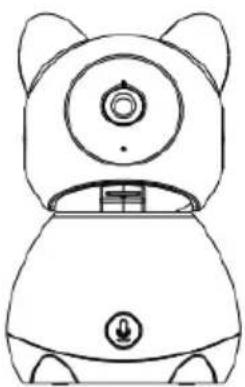
natural_image
Line drawing of a cartoon character with round ears and a circular head (no text or symbols)Camera
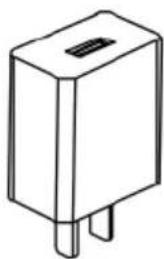
natural_image
Line drawing of a rectangular electronic component with two pins (no text or symbols)Power Adapter
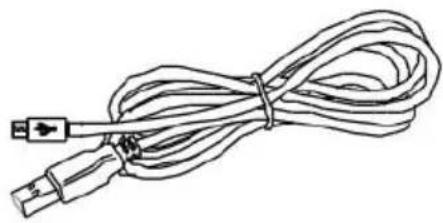
natural_image
Line drawing of a coiled cable with connectors (no text or symbols)USB Cable
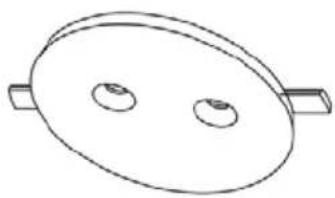
natural_image
Simple line drawing of an oval-shaped object with two circular holes, no text or symbols present.Bracket
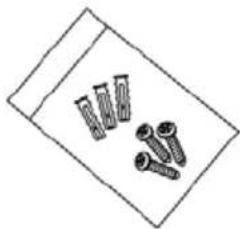
natural_image
Simple line drawing of three screws and two bolts on a rectangular surface (no text or symbols)Mounting Hardware
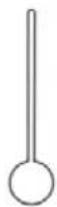
Reset pin
User Guide
OVERVIEW
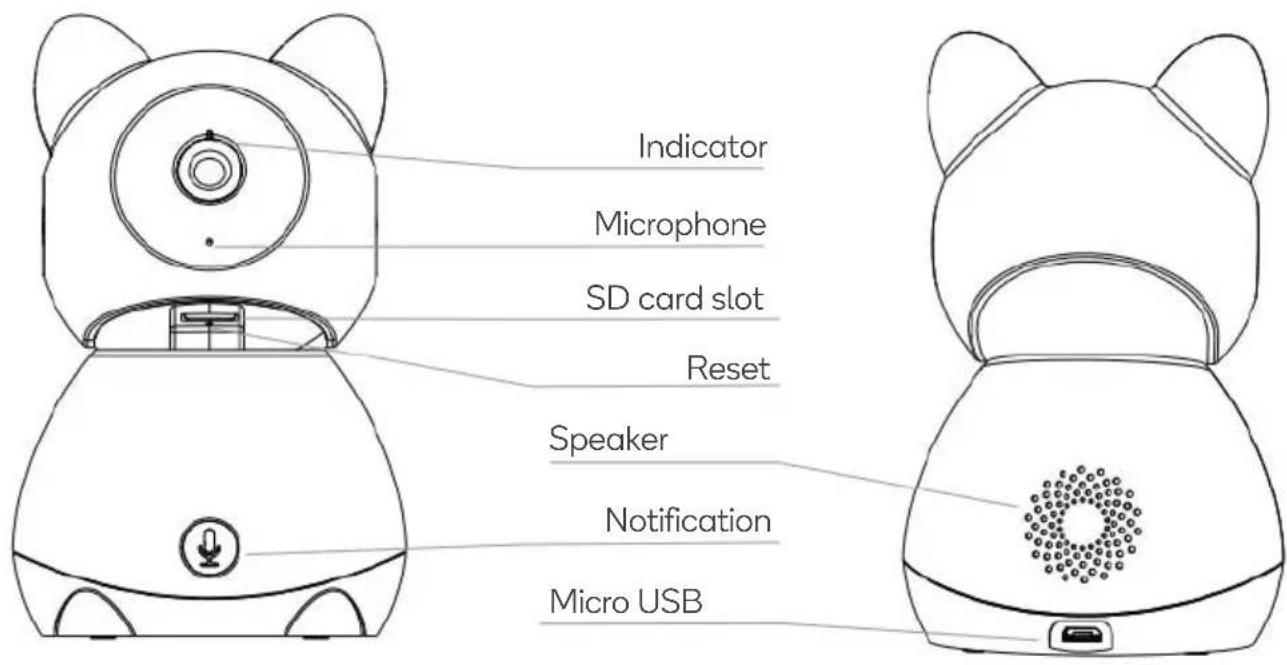
| Power | DC 5V/1A |
| Microphone | Capture sound for your video |
| microSD card slot | Supports local SD Card storage (Max.128G) |
| Indicator | Solid red light on: network is malfunctionalBlinking red light: wait for network connection (fast blinking)Solid blue light on: camera is working correctlyBlinking blue light: camera is currently pairing with network |
| Notification | Pressing this button will send a pop-up notification to your linked smartphone. |
| Reset | Press and hold for 5 seconds to reset the device. The camera will return to factory defaults. |
INSTALLATION
Mounting to wall/ceiling (masonry):
-
Drill pilot holes and insert the supplied wall anchors first.
-
Place the bracket against the surface, in line with the wall anchors, and secure it in place with the supplied screws.
-
Attach the camera to the bracket.
Mounting to wall/ceiling (timber / dry wall):
-
If not drilling into wall studs, drill pilot holes and insert the supplied wall anchors first
-
Place the bracket against the surface, in line with the wall anchors (if used) and secure it in place with the supplied screws.
-
Attach the camera to the bracket.
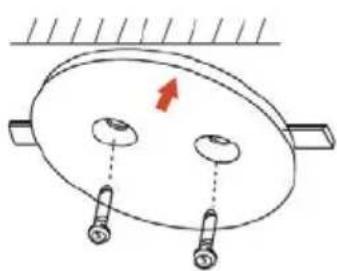
natural_image
Simple line drawing of a ceiling-mounted device with two buttons and a red arrow indicating direction (no text or symbols)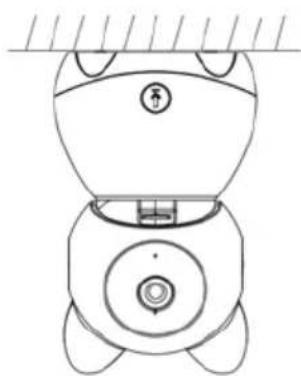
natural_image
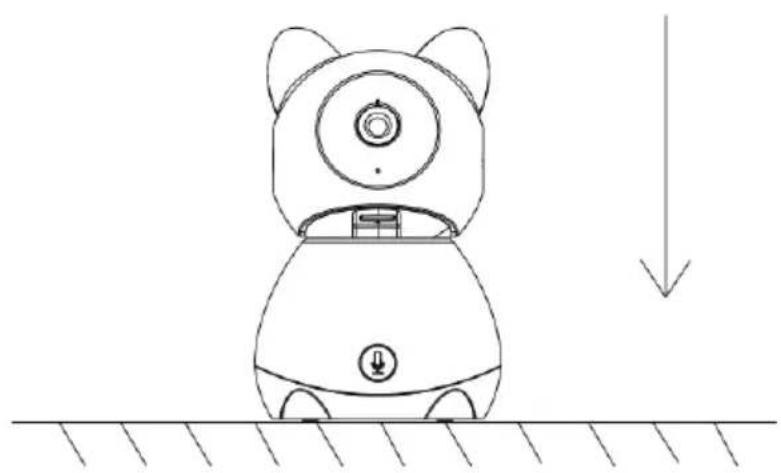
Line drawing of a robot-like device with no visible text or symbolsAlternatively, the camera can be placed on a clean, horizontal, flat surface.
natural_image
Line drawing of a robot-like device with a circular head and sensor array, positioned above ground with a downward arrow indicating motion (no text or symbols)CONNECT TO SMARTERHOME™ APP
Install App
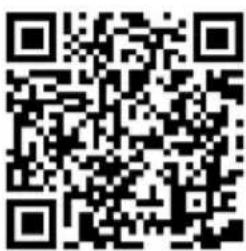
Download the "Kogan SmarterHome" app from the Play Store (Android) or App Store (iOS).
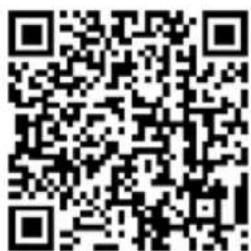
Play Store (Android)
App Store (iOS)
To register:
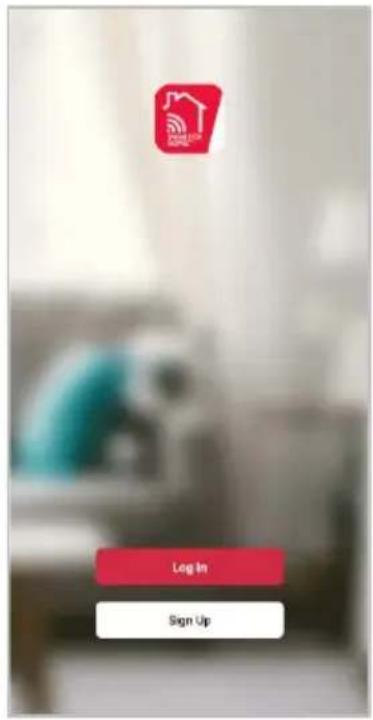
- If you already have a SmarterHome account, select 'Log In'. To register a new account, select 'Sign Up'.
- The system will automatically recognise your country. If needed, you can manually select your country from the drop-down box. Enter your email address and tap 'Get Verification Code' to continue.
- A 6-digit code will be sent to the submitted email address. Enter this code before the one-minute timer expires.
- Continue to the next page and complete your SmarterHome profile.
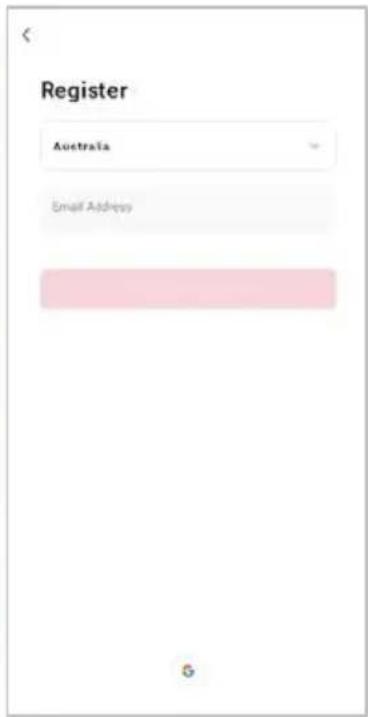
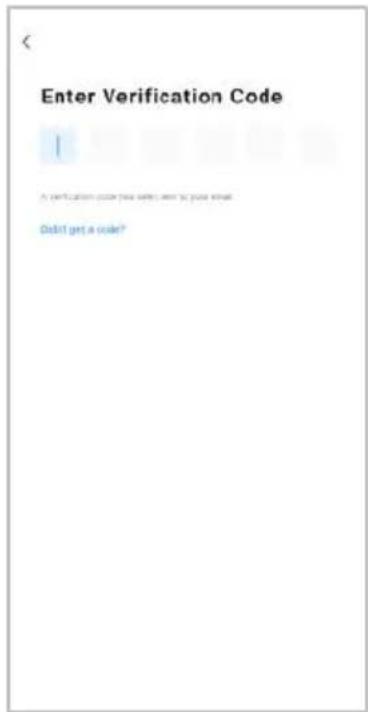
Set device in pairing mode
When the device is first turned on, it may automatically enter pairing mode (prompt tone will be heard and the status light will be flashing rapidly).
If not automatically in pairing mode when powered on, you can manually set the device in pairing mode by pressing and holding the Reset button for 5 seconds until prompt tone is heard and the indicator begins flashing rapidly.
Add device through network
- Once registered, tap "Add Device" on the app's home page, or the "+" in the upper right corner, to add a new device through the network.
- Select the product type from the list of options in the app (Home Security > Cameras).
- Ensure that the device is in pairing mode, with the prompt heard and light flashing, and tap "Confirm light is flashing rapidly".
- Enter your Wi-Fi details. It is important that your SmarterHome™ device and the app are connected to the same Wi-Fi network during setup.
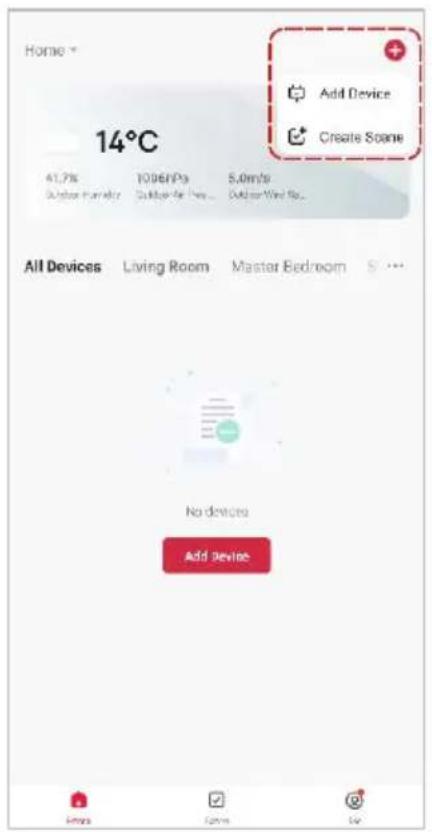
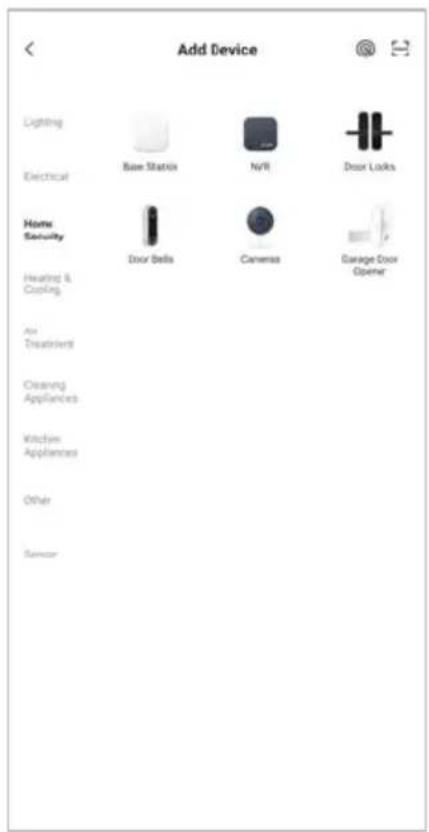
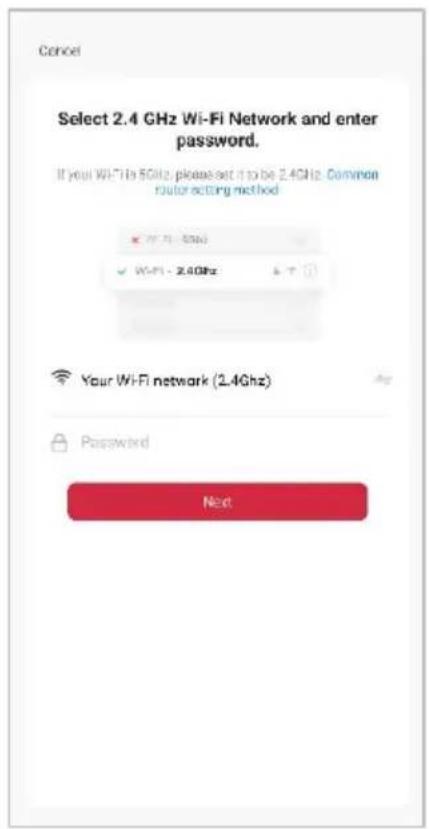
Notes:
• The device and the app have to use the same Wi-Fi network.
• The device is only compatible with 2.4Ghz networks.
• Depending on the product, Steps 3 and 4 may be in opposite order.
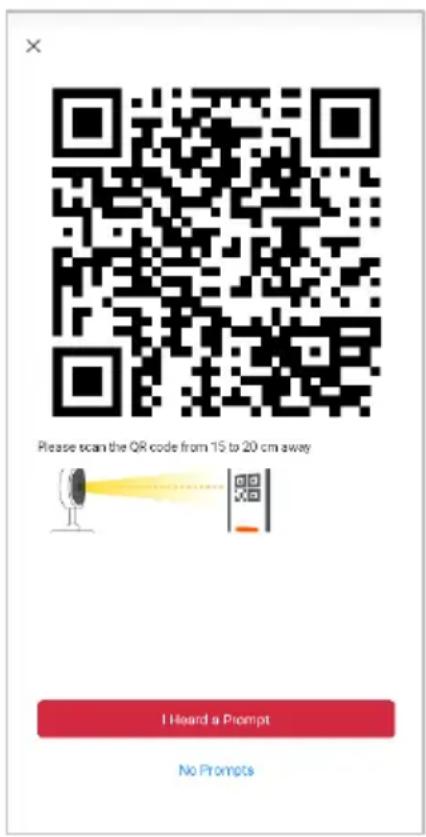
- Calibrate the smart camera by holding your smartphone 15-20cm away from the camera lens until it successfully scans the QR code shown on the following screen of the setup. The device will make a prompt sound to confirm, click "I heard a prompt" to proceed to the next screen.
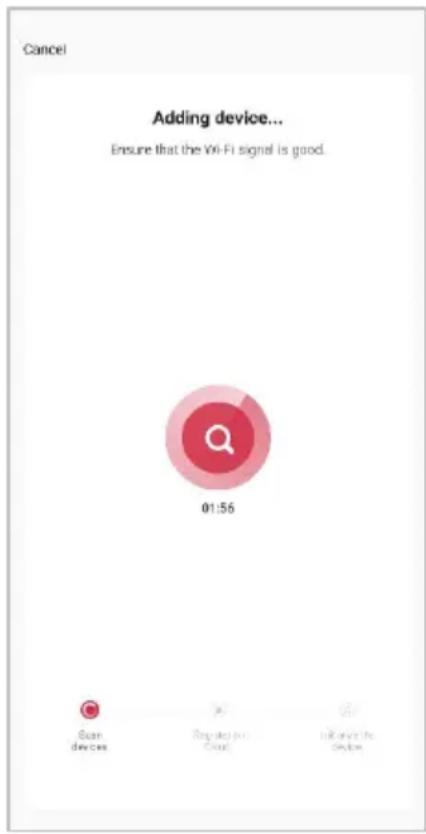
- The device will commence the pairing process and connect to the app. Ensure your Wi-Fi router, mobile phone, and the SmarterHome™ device are kept close until connection is complete.
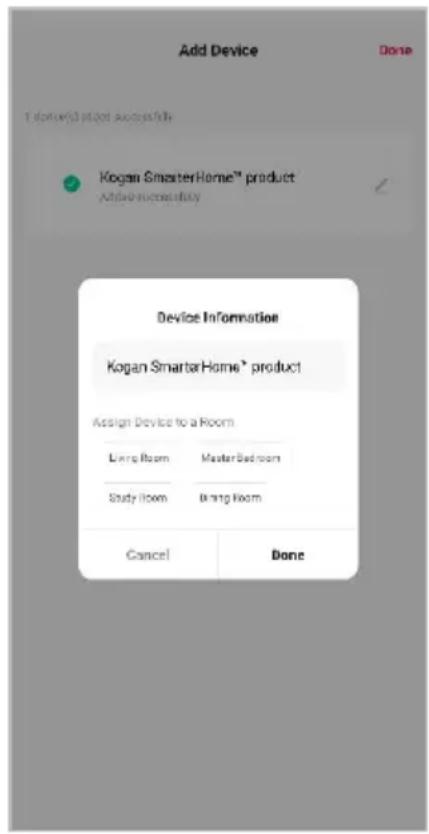
- After successfully being added, you will have the option to rename the device and assign it to a location. It will now be listed on the app's home page. Tap the device listing to enter its control page.
Note:
Once connected, you can select Create Scene from the “+” in the upper right corner (or from the Scene tab) to group connected SmarterHome™ products and automate their functions.
GOOGLE HOME CONTROL
Note:
You will need to have set up a Google Home account prior to linking your Kogan SmarterHome™ device.
Adding "SmarterHome" to the Google Home app
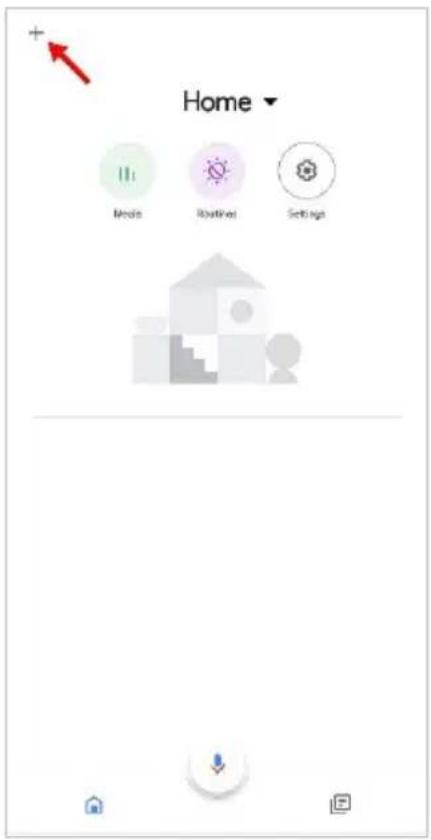
- From the home page of the Google Home app, select the “+” icon (top left corner, see arrow in the below screenshot) to access the ‘Add and manage’ page.
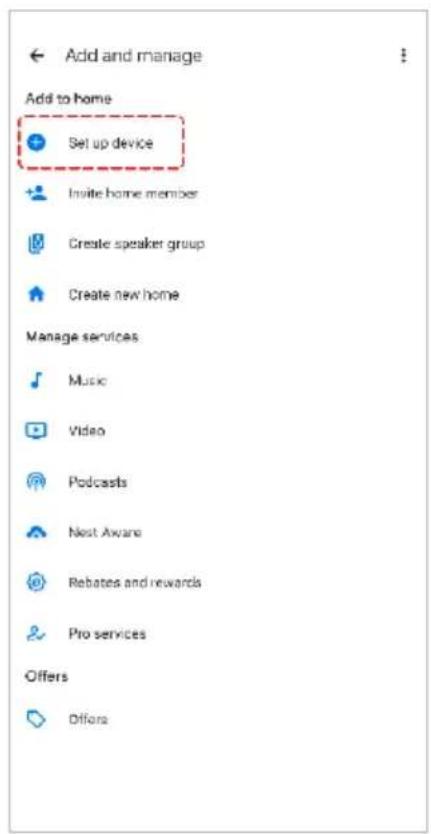
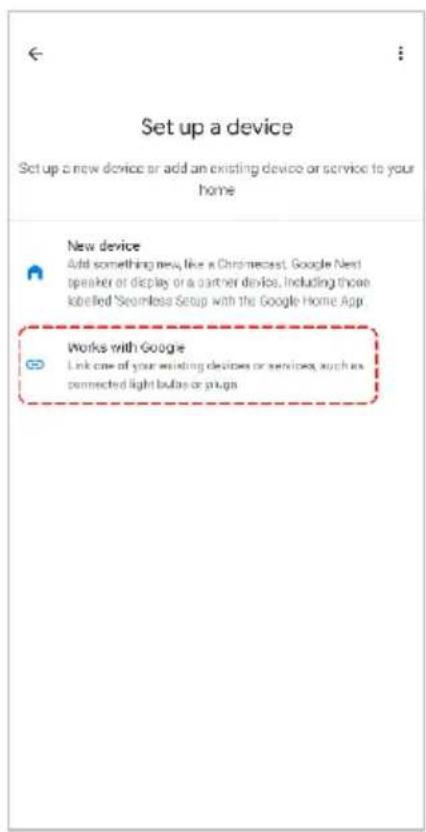
- Select 'Set up device', then select the 'Works with Google' option.
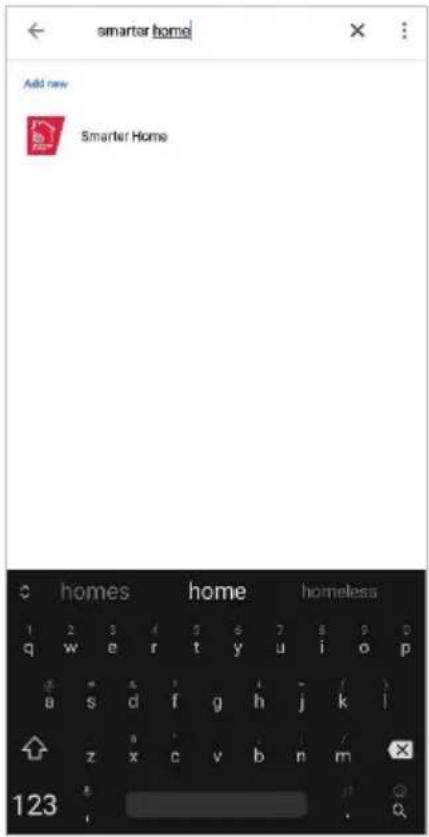
- Select the search bar and type 'Smarter Home' to locate the Kogan SmarterHome™ service.
- From here, you will be prompted to sign into your SmarterHome™ account using either your email or mobile phone number, depending on which method you used to register your account.
- Select "Kogan SmarterHome™" from the app options.
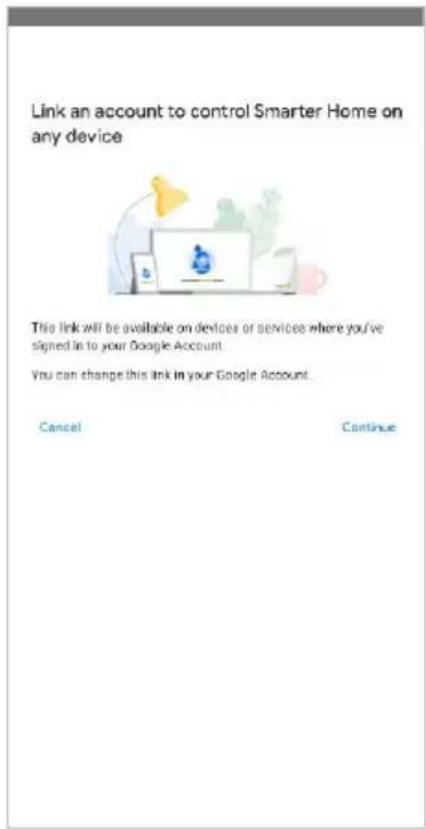
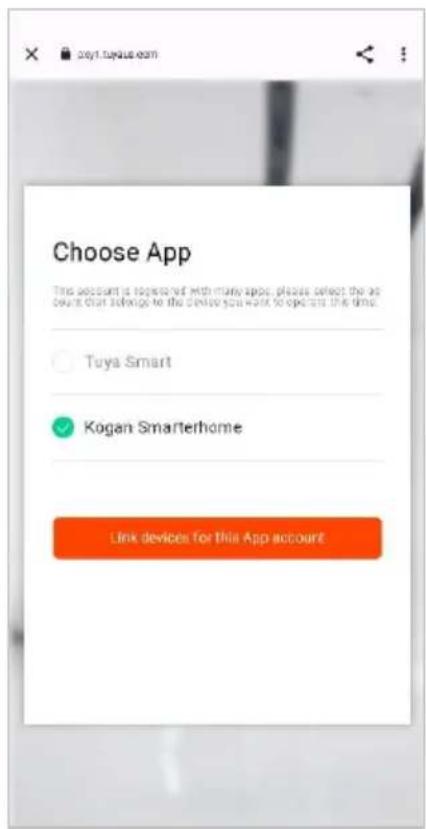
-
Tap 'Authorise' to grant Google permission to access the SmarterHome™ app and your devices.
-
Once connected, the app will display any compatible devices linked to your SmarterHome™ account. From here you can assign them to rooms and set up any routines. Tap on any of the devices to view a list of available commands.
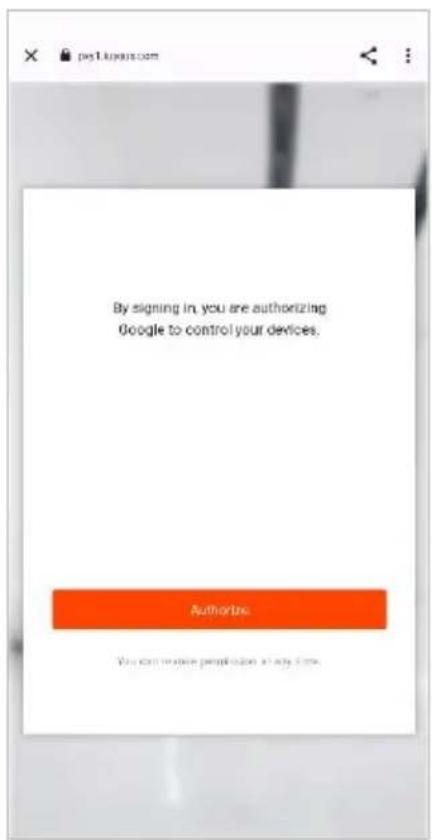
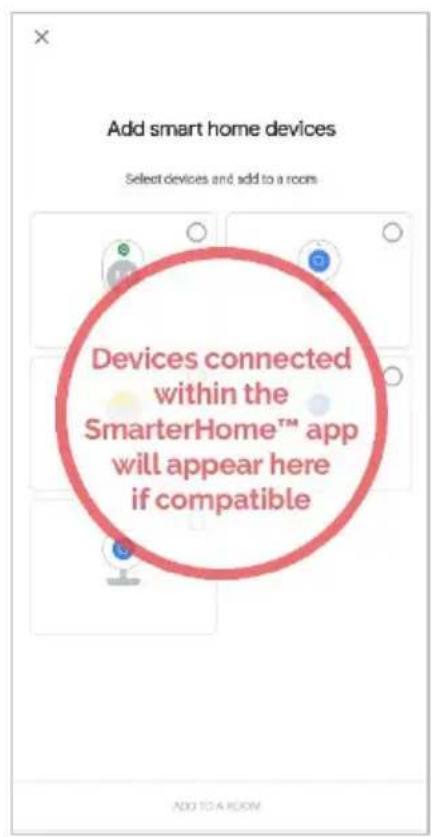
Note:
Please note that Google Home can only control the base/core functions of any compatible SmarterHome™ devices. To make full use of this product's smart functionality, please use the Kogan SmarterHome™ app.
AMAZON ALEXA CONTROL
Note:
You will need to have set up an Alexa account prior to linking your Kogan SmarterHome™ device.
Adding "SmarterHome" to the Alexa app
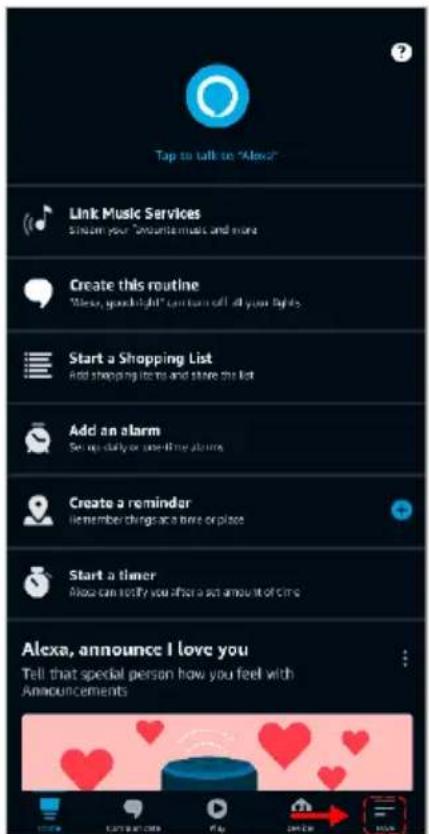
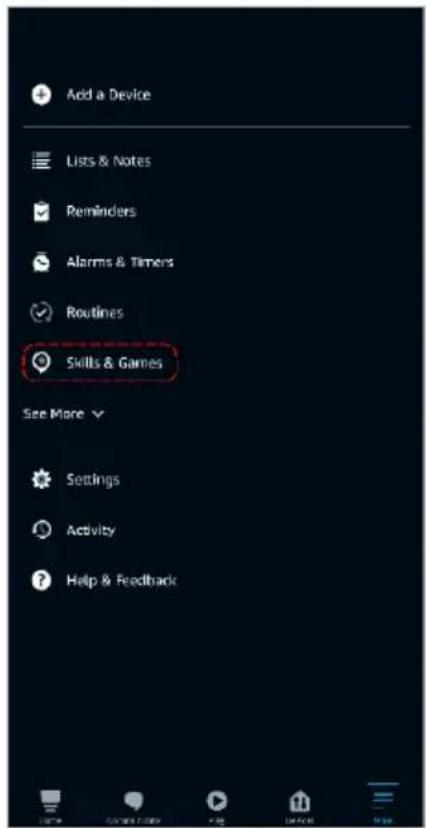
- From the home page of the Alexa app, select the “=” icon in the bottom-right and select “Skills & Games” from the sidebar.
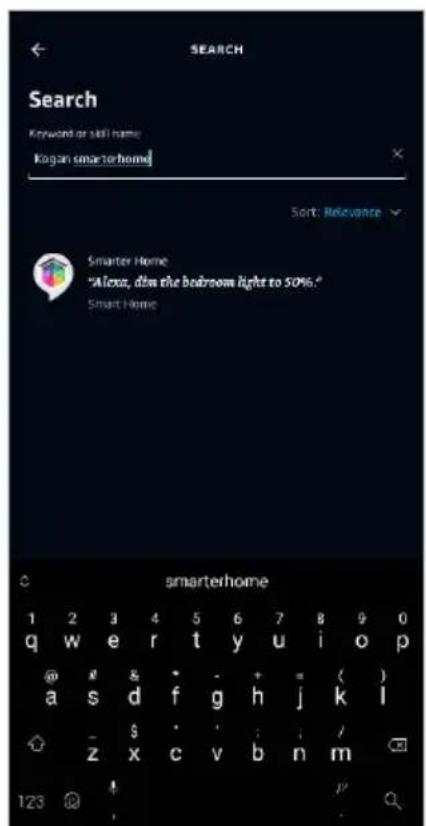
- Select the search bar and type 'Smarter Home' to locate the Kogan SmarterHome™ skill.
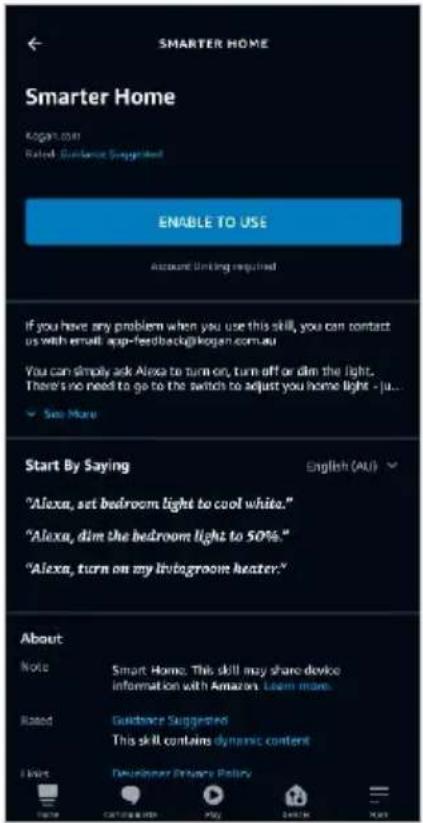
- Tap 'Enable to Use' to add the Kogan SmarterHome™ skill to Alexa.
- From here, you will be prompted to sign into your SmarterHome™ account using either your email or mobile phone number, depending on which method you used to register your account.
- Select "Kogan SmarterHome™" from the app options.
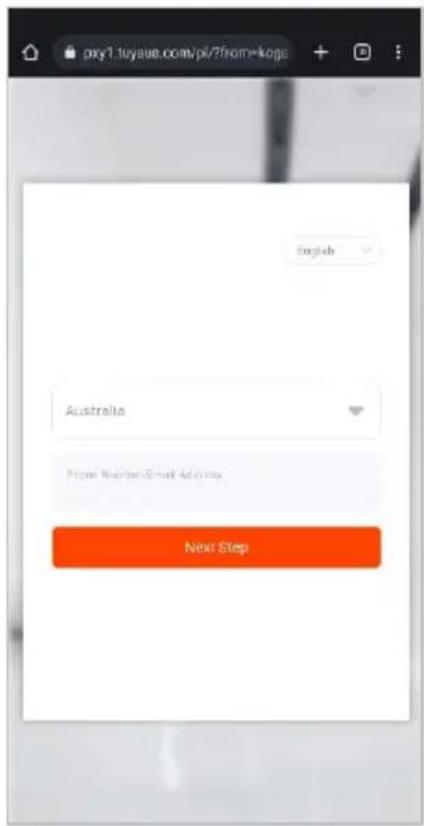
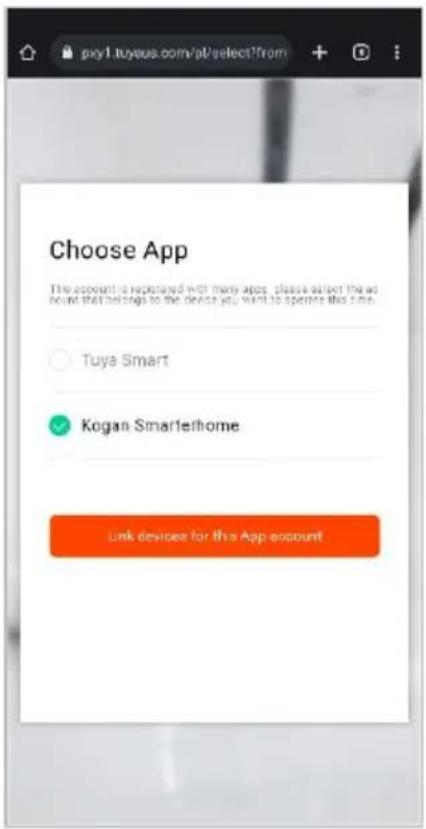
-
Tap 'Authorise' to grant Alexa permission to access the SmarterHome™ app and your devices.
-
Once connected, the app will perform a search and display the devices linked to your SmarterHome™ account. When your devices have successfully connected to the Alexa app, you will be able to control your Kogan SmarterHome™ devices via Alexa's voice commands.
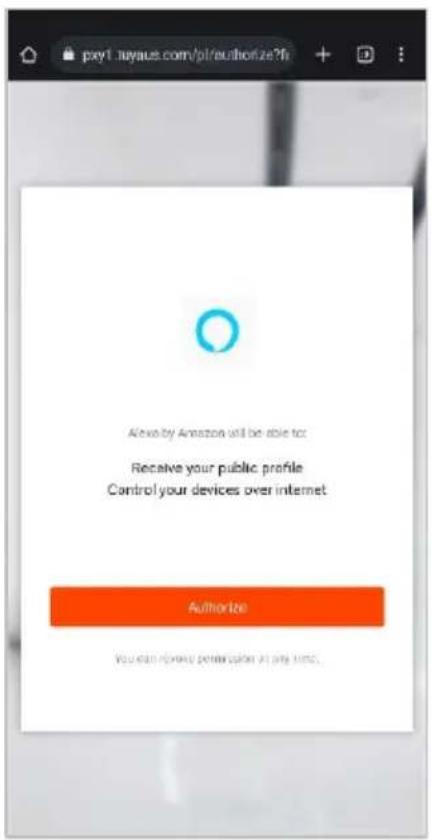
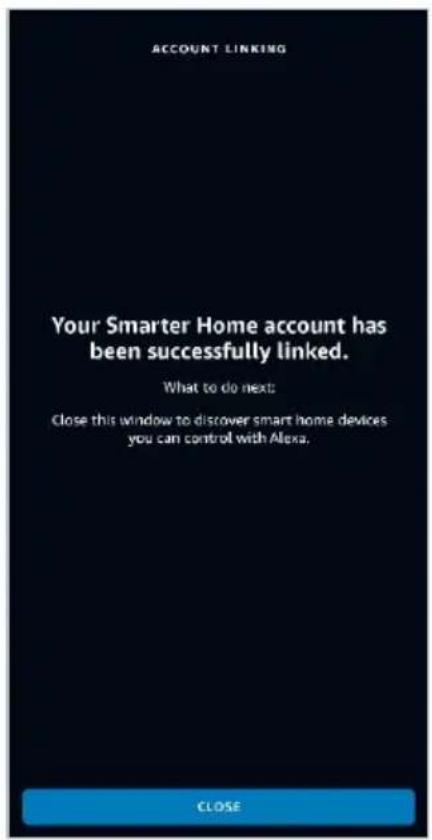
Note:
Please note that Alexa can only control the base/core functions of any compatible SmarterHome™ devices. To make full use of this product's smart functionality, please use the Kogan SmarterHome™ app.
OPERATION
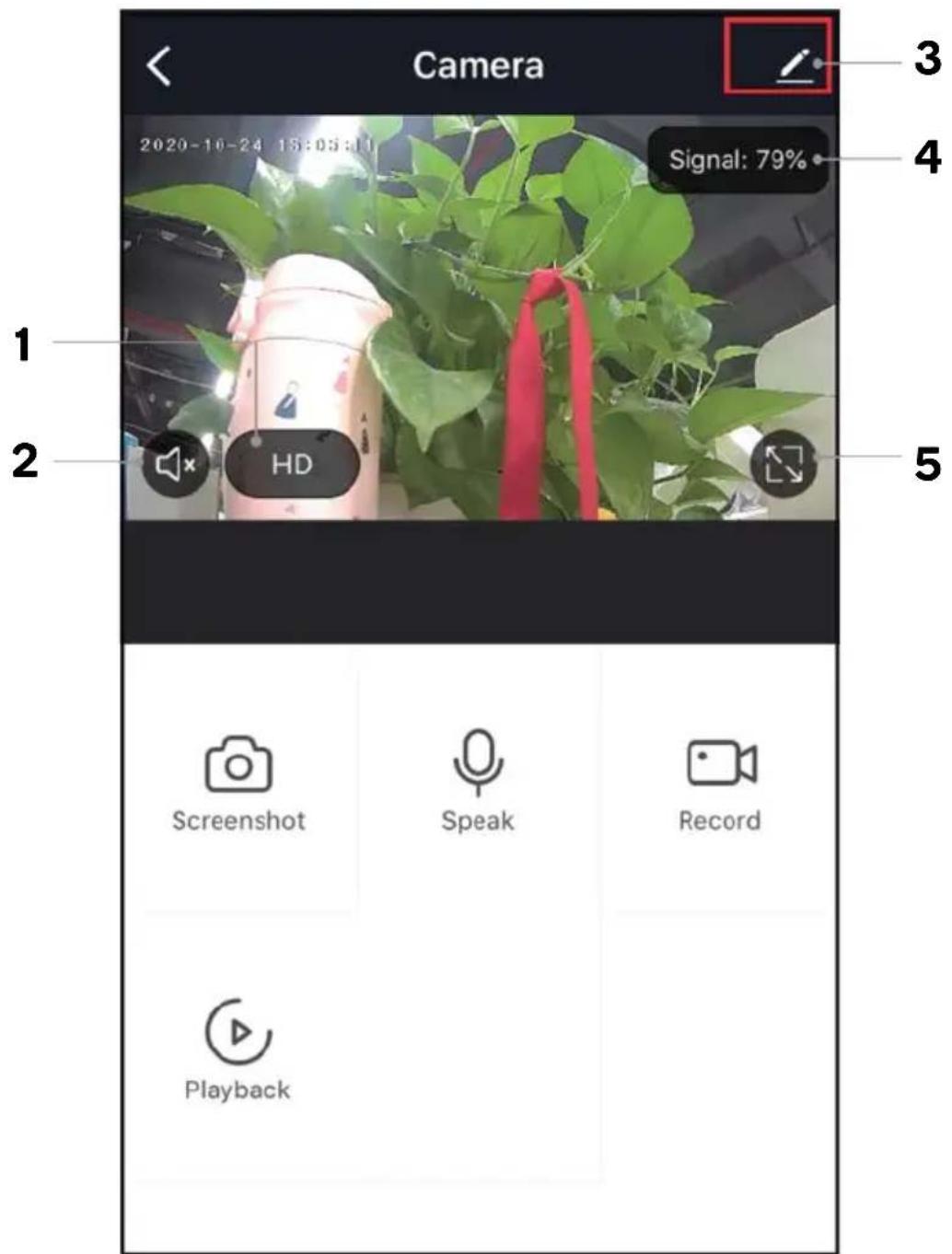
- Preview mode
- Audio
- About device
- Signal strength
- Full screen mode
Settings
In the Smart Camera interface, click "∠" in the upper right corner to access the camera's settings.
Pan/Tilt
Rotate the camera by sliding your finger on your smartphone's screen, allowing you to have a greater field of vision.
Video flip
Flip your video stream vertically. This is useful if you've mounted the camera upside down.
Motion detection
Smart motion detection will send push notifications to your smartphone once abnormal movement is detected.
Sound detection
The camera can detect sounds such a crying baby and will send push notifications to your smartphone. The sensitivity of the audio detection can be adjusted in the setting menu.
Temperature & humidity detection
The camera can detect the temperature and humidity of the environment. These values can be monitored using the app.
Screenshot
Saves a screenshot of the current video feed to the microSD card.
Speak
Enables 2-way audio using the camera's built-in microphone and speaker.
Record
This function allows 24-hour continuous recording using high-capacity microSD card storage (max. 128GB).
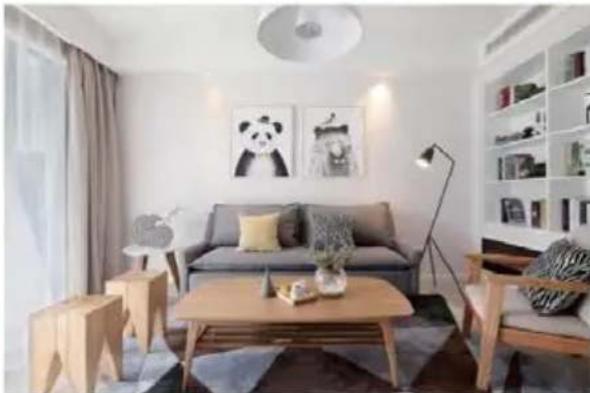
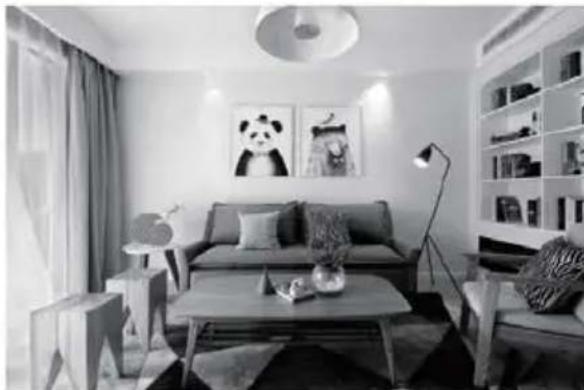
Day & Night
Never miss a moment, even in complete darkness, with powerful night-vision technology
natural_image
Modern living room interior with sofa, coffee table, lamp, and wall art (no visible text or symbols)Daytime
natural_image
Interior view of a modern living room with sofa, coffee table, lamp, and wall art (no visible text or symbols)Night
TROUBLESHOOTING
| Issue | Possible solution |
| The device cannot be connected properly | Check whether the network is operating correctly.Ensure the camera is positioned closely to the router.Ensure you are connecting to a 2.4Ghz network, and that this is the network you are currently connected to on your smartphone.Double check that you have read through the instructions correctly, that the indicator light is flashing and ready for connection before attempting to pair.If this does not work, we recommend resetting the device and attempting again. |
| The device is still appearing in SmarterHomeTM app after resetting | Resetting device only initializes network configuration of the camera, but cannot change the configuration in the app. To stop it appearing in the app, you must also remove the device from the app. |
| How to change the camera network to another router | First remove the device from the app, then reset the device manually. It is now ready to pair using a new network or device. |
| Device isn’t identifying the microSD card | It is recommended to insert the microSD card while power is off.Confirm whether the microSD card is normally available and ensure the format is FAT32.Sometimes the microSD card may not be identified when the internet connection is not stable. |
| Push notifications are not appearing | Confirm that the app has been running on the phone and the relevant reminder function has been enabled from the settings list.Ensure message notification and app permissions have been enabled on the smart phone. |
NOTES
Need more information?
We hope that this user guide has given you the assistance needed for a simple set-up.
For the most up-to-date guide for your product, as well as any additional assistance you may require, head online to help.kogan.com
kogan.com
- KOGAN SMARTERHOME™ PAN & TILT SMART BABY MONITOR SECURITY CAMERA
- COMPONENTS
- OVERVIEW
- INSTALLATION
- Mounting to wall/ceiling (masonry):
- Mounting to wall/ceiling (timber / dry wall):
- CONNECT TO SMARTERHOME™ APP
- Install App
- To register:
- Set device in pairing mode
- Add device through network
- Notes:
- Note:
- GOOGLE HOME CONTROL
- Adding "SmarterHome" to the Google Home app
- AMAZON ALEXA CONTROL
- Adding "SmarterHome" to the Alexa app
- OPERATION
- Settings
- Pan/Tilt
- Video flip
- Motion detection
- Sound detection
- Temperature & humidity detection
- Screenshot
- Speak
- Record
- Day & Night
- TROUBLESHOOTING
- NOTES
- Need more information?
Brand : Kogan
Model : KASMBMPT09A
Category : Baby monitor