
VP70 LTE+ - Media player Videotel Digital - Free user manual and instructions
Find the device manual for free VP70 LTE+ Videotel Digital in PDF.


| Product Type | Industrial Media Player / Video Player |
| Brand | Videotel Digital |
| Model | VP70 LTE+ |
| Category | Media Player |
| Resolution | Up to 1080p (720p, 1080i, 1080p selectable) |
| Video Output | HDMI and Composite (via 3.5mm to RCA cable) |
| Audio Output | HDMI or RCA L/R audio jacks |
| Media Input | SD card (up to 32GB supported), USB drive |
| Included Memory | 8GB SD card (pre-loaded with sample files) |
| Power Supply | External power adapter with Twist & Lock DC plug |
| Remote Control | Infrared remote with AAA batteries (included) |
| Video Formats | Most codecs (H.264 recommended); bitrate up to 20 Mbps |
| Audio Formats | Most common audio codecs |
| Photo Formats | JPEG (other formats compatible) |
| Photo Slideshow | Adjustable interval (1s to 5 min), 14 transition effects, background music support |
| Auto Play Modes | Mix, Video only, Audio only, Photo only; In Order or Random |
| Operating Modes | Auto on, auto looping, screen saver (Videotel logo, timer up to 2 hours) |
| Language Support | 15 languages selectable via menu |
| HDMI Compatibility | Default and Alternate modes for 720p, 1080p, 1080i; 1080p24Hz support |
| Dimensions (approx.) | 5.9 x 3.9 x 1.2 inches (150 x 100 x 30 mm) |
| Weight (approx.) | 1.1 lbs (0.5 kg) |
| Warranty | Limited 2 years from invoice |
| Included Cables | 5 ft HDMI cable, 5 ft 3.5mm to RCA composite video/audio cable |
| Cleaning & Maintenance | Wipe with dry soft cloth; avoid liquids |
| Repairability | No user-serviceable parts; contact support for repairs |
Frequently Asked Questions - VP70 LTE+ Videotel Digital
User questions about VP70 LTE+ Videotel Digital
0 question about this device. Answer the ones you know or ask your own.
Ask a new question about this device
Download the instructions for your Media player in PDF format for free! Find your manual VP70 LTE+ - Videotel Digital and take your electronic device back in hand. On this page are published all the documents necessary for the use of your device. VP70 LTE+ by Videotel Digital.
USER MANUAL VP70 LTE+ Videotel Digital
1 - VP70LTE+ Industrial Video Player
1 - 8GB (or larger) SD Card
1 - Remote Control
2 - AAA Remote Batteries
1 - 5' HDMI Cable
1 - 5' 3.5mm to RCA Video/Audio Cable
1 - External Power Supply
Basic operation of the VP70LTE+

The VP70LTE+ is pre-set as an auto on and auto looping HD video, audio and photo player. Once you connect the player to a TV or monitor, simply load your video, audio and or photo files on the enclosed SD Card (sample files have been pre-loaded for initial testing) and insert it into the player. The order in which the files are sorted on the card is the order in which they play. Your player will start play and continue to do so until power is turned off or the remote is used to stop or pause the video.
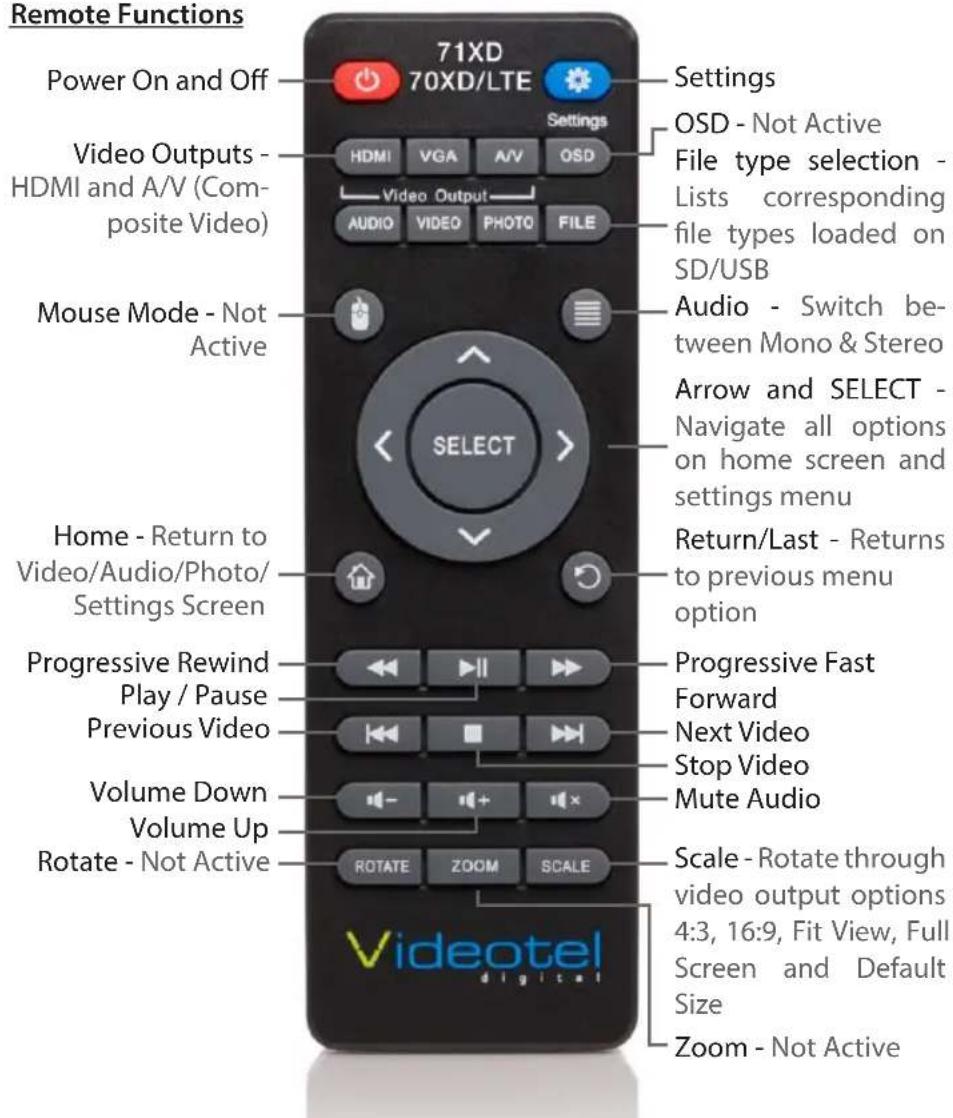
Remote Functions
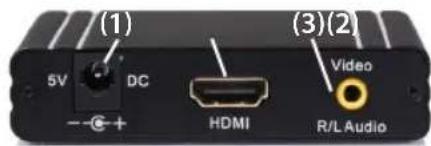
Twist & Lock DC Plug


Connections
The VP70LTE+ utilizes a "Twist & Lock" DC Power Plug (1). Make sure to line up the notches, insert and twist. The VP70LTE+ is capable out outputting video from either HDMI (2) or Composite Video (3). Only 1 video output can be used at a time. The VP70LTE+ is capable of outputting audio through either HDMI or R/L audio jacks (1) while HDMI is being used (see audio settings).
Operation
The VP70LTE+ rarely needs an interaction via the remote. The most common menu changes are switching from 720p to 1080p, changing the setting to play background music during a photo slide show and changing photo slide show delay and transition type. All other settings are pre-set and rarely get accessed.
Play "only" video, audio or photo files
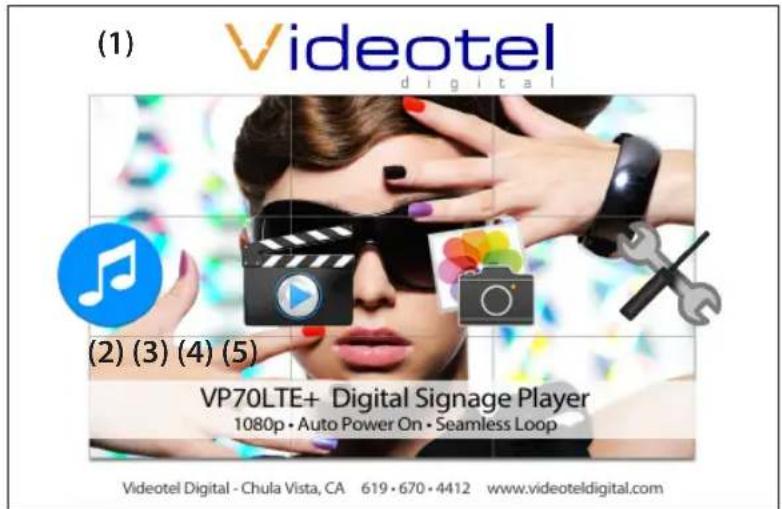
When you press the "Home" button on the remote, the screen to the right (1) will appear. The menu options are... Audio (2), Video (3), Photo (4) and Settings (5). If you wish to manually select a file to play, use one of these options to select your desired file using the arrow keys and "SELECT" button on the remote. If you wish to set up the player to only play a specific file type, you simply need to change the "Auto Play" option from "Mix" (6) (meaning play all file types) to Video only, Audio only or Photo (7) only (there are 2 playback options - "In Order" or "Random").
Setting up a photo slide show
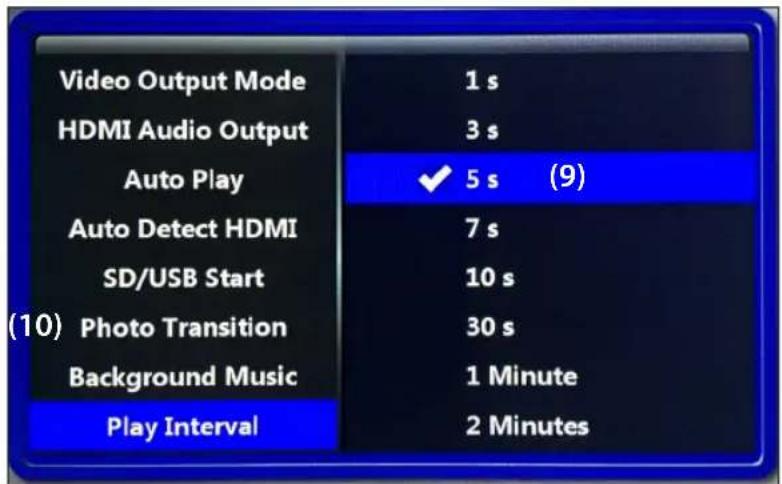
By default if you load photos onto your SD/USB the player will auto start and rotate through all the pictures every 5 seconds using "Cross Dissolve" Transition. If you wish to add background music, you must first change the "Auto Play" option to "Photo" (7), and then turn on "Background Music" (8). The delay between photos can be changed from 1 second to 5 minutes using the "Play Interval" option (9). There are also 14 photo transitions available under the "Photo Transition" menu option (10).
Video output mode
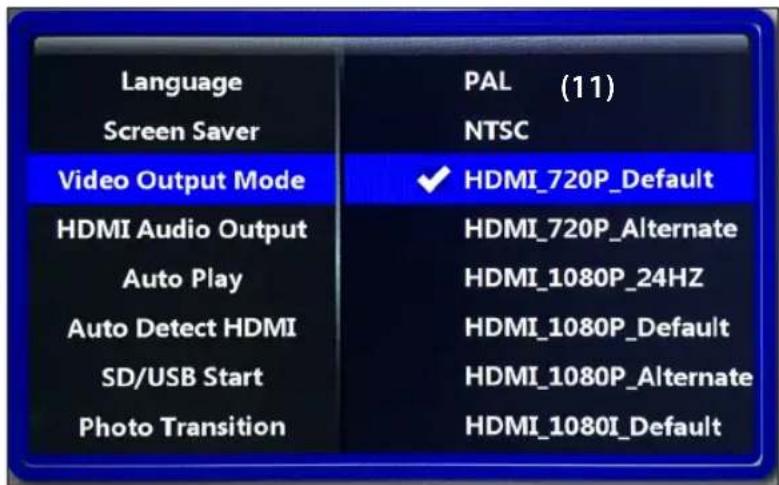
When using HDMI you can change your resolution size from 720p to 1080p depending on what your TV is capable of. Note: Some TV's will not sync correctly with the "default" option, in these cases use the "alternate" selection (11). If you wish to use the AV jack and RCA cables you can activate this output by selecting NTSC (USA Standard) or PAL (11).


Other menu options
• Language - Allows you to choose from 15 different languages
- Screen Saver - This option will generate a screen saver (Videotel Logo) to move around the screen when no activity is detected. Available options range from off to 2 hours.
- Audio Output Mode - Choose between HDMI or RCA audio output (when using HDMI).
- Auto Detect HDMI - When set to off, you can set a resolution which will be used regardless of the HDMI "Handshake".
- SD/USB Start - This only applies if you have and SD and USB card loaded at the same time.
Video encoding tips
The VP70LTE+ will play a majority of video and audio codecs. The only limitation is the bit rate of the file. The VP70LTE+ is capable of playing up to 20Mbps (Blu-Ray DVD quality). Most customers are using video files well under 20Mbps but if the VP70LTE+ is not playing properly, load the video on any computer and play it. Every video program should have an option for "Video Properties". You can view the bit rate and determine if it is within range. If the video is out of range, it will need to be re-encoded using a number of free or low cost video converters. When re-encoding, try to choose h.264 for a video codec and a bit rate under 20Mbps.

Troubleshooting tips
When connecting the VP70LTE+ to a TV or monitor you should see either your looping content or the Videotel "Splash Screen" (1). If you get a black, blue or pixelated screen, remove the SD and USB. If you see the Videotel "Splash Screen" there is an issue with your content. If you still do not see an image, press the HDMI, AV or VGA button on the remote and switch to the type of connection you are using. Your TV's HDMI input may not be compatible with the output setting of the VP70LTE+. Simply press and release the HDMI button on the VP70LTE+ remote several times to switch between the various options (720P - Default, 720P - Alternate, 1080P - Default, 1080p - Alternate, 1080P-24Hz, 1080i - Default and 1080i - Alternate). 1080p Default or Alternate are the most common settings for newer TVs.
Limited 2 Year Warranty
Videotel Digital warrants the VP70LTE+ to be free from defect in material and workmanship. Warranty shall be limited to a period of 2 years from invoice date. Warranty shall not cover products that are found to be defective due to customers improper operation, accident, misuse, mishandling or damage occurring during transportation.
Brand : Videotel Digital
Model : VP70 LTE+
Category : Media player