
VARIA-ACS-100F - Support pour écran tactile AMX - Free user manual and instructions
Find the device manual for free VARIA-ACS-100F AMX in PDF.


| Product Type | Audio/Video Accessory Controller |
| Brand | AMX |
| Model | VARIA-ACS-100F |
| Supported Languages | English |
| Manual Format | |
| Number of Pages | 2 |
| Dimensions (H x W x D) | 1.7 x 19 x 6 inches (standard 1U rackmount) |
| Weight | 2.2 lbs (1.0 kg) |
| Power Input | 100-240 V AC, 50/60 Hz |
| Power Consumption | 20 W max |
| Main Functions | Power distribution, remote on/off control, surge protection |
| Connectivity | IEC 60320 C14 inlet, multiple C13 outlets |
| Remote Control | RS-232 and Ethernet (AMX link compatible) |
| Safety Certifications | UL, CE, RoHS |
| Operating Temperature | 32°F to 104°F (0°C to 40°C) |
| Storage Temperature | -4°F to 140°F (-20°C to 60°C) |
| Maintenance & Cleaning | Disconnect power, wipe with dry soft cloth; do not use liquids |
| Spare Parts & Repairability | Contact AMX support for replacement power supply or internal fuses |
| Mounting | 19-inch rack mountable, 1U height; includes mounting brackets |
| Warranty | Limited 2-year warranty from date of purchase |
Frequently Asked Questions - VARIA-ACS-100F AMX
User questions about VARIA-ACS-100F AMX
0 question about this device. Answer the ones you know or ask your own.
Ask a new question about this device
Download the instructions for your Support pour écran tactile in PDF format for free! Find your manual VARIA-ACS-100F - AMX and take your electronic device back in hand. On this page are published all the documents necessary for the use of your device. VARIA-ACS-100F by AMX.
USER MANUAL VARIA-ACS-100F AMX
The Varia Fixed Tabletop stands are designed for 8" VARIA-80 & 10.1" VARIA-100 Touch Panels, and give them a sturdy & stylish fixed-angle tabletop solution that's reminiscent of AMX's Modero touch panel family.

FIG. 1 Varia Touch Panel on Fixed Tabletop Stand
Model Availability & Compatibility
| FIXED TABLETOP STANDS | |
| VARIAC-80F(AMX-UMT0801) | VARIAC-80 Touch Panel (AMX-UTP0811) |
| VARIAC-100F(AMX-UMT1001) | VARIAC-100 Touch Panel (AMX-UTP1011)VARIAC-100N Touch Panel (AMX-UTP1011N) |
Other Models Available
| ANGLE-SELECT TABLETOP STANDS | |
| VARIA-ACS-810A(AMX-UMT8111) | VARIA-80 Touch Panel (AMX-UTP0811)VARIA-100 Touch Panel (AMX-UTP1011)VARIA-100N Touch Panel (AMX-UTP1011N) |
| VARIA-ACS-150A(AMX-UMT1511) | VARIA-150 Touch Panel (AMX-UTP1511)VARIA-150N Touch Panel (AMX-UTP1511N) |
Installation
Varia Fixed Tabletop Stands are easily installed with the supplied hardware and a Philips-head screwdriver.
- Place the panel face-down on a soft cloth, and orient the panel so that the top of the touch panel is closest to you.

FIG. 2 Varia Touch Panel, rear
- If they are installed, remove two screws from the lower back cover.

FIG. 3 Rear cover screws, if installed
- Place your thumbs on the rectangular access holes, and push the lower cover away from you. The lower cover can then be placed aside; it is not used with the Fixed Tabletop Stands.
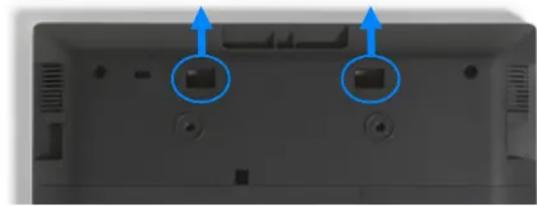
FIG. 4 Rear cover removal
- Rotate the panel back around so the bottom is closest to you.
- On the tabletop stand, remove the black plastic cover by sliding it away from the aluminum base. It is held on by magnets. Then unscrew the rubber pads from the base.
- Install the aluminum base on the back of the touch panel.
Note: In most circumstances, the networking cable can be routed in after base installation. However, category cables with bulky strain relief and/or hoods over the RJ-45 connector may need to be installed before the aluminum base.

FIG.5 Fixed Tabletop Stand, aluminum base, underneath
-
Attach the base with the four (4) supplied screws.
-
Attach the left & right rubber pads to the bottom of the base, and then stand the unit upright to expose the screw holes. Attach with the five (5) supplied screws.


FIG. 7 Fixed Tabletop Stand, base assembled with rubber pads
Note: Certain screwdriver handles may interfere with the rear of the touch panel, especially the VARIA-80, when attaching screws that hold the rubber pads. Take care not to make contact.
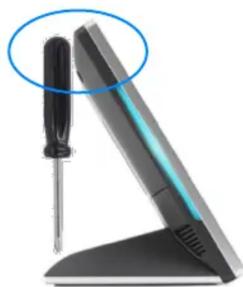
FIG. 8 Varia Touch Panel, caution
-
Route your networking cable through the opening and plug into the back of the panel. Then tuck your cable into the cable management tabs attached to the rubber pad.
-
Align the black plastic cover with the tabs & slots on the aluminum base. Slide the cover on, and it will seat automatically with its built-in magnets.

FIG. 9 Fixed Tabletop Stand, black plastic cover
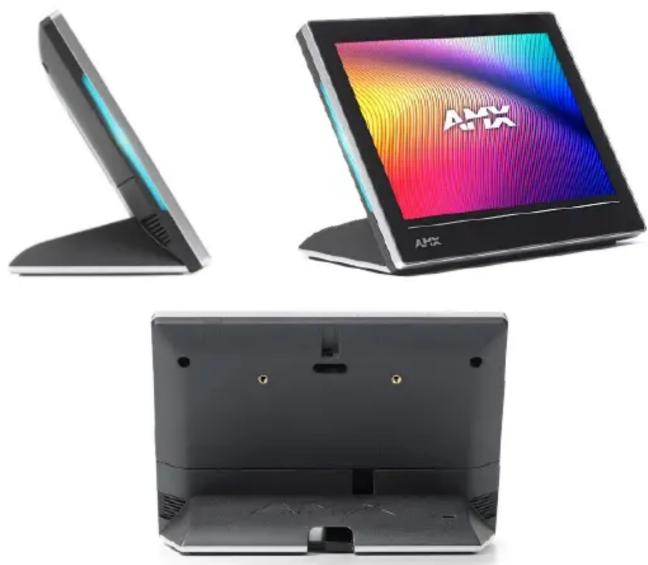
FIG. 10 Varia Touch Panels on Fixed Tabletop Stand, various angles
Removing
To remove the panel, follow the installation directions in reverse.
Brand : AMX
Model : VARIA-ACS-100F
Category : Support pour écran tactile