
RF-BTR319 - Media player Rocketfish - Free user manual and instructions
Find the device manual for free RF-BTR319 Rocketfish in PDF.


| Type | Bluetooth Audio Receiver |
| Brand | Rocketfish |
| Model | RF-BTR319 |
| Bluetooth Version | Bluetooth 5.0 |
| Supported Audio Codecs | Qualcomm aptX HD, aptX Low Latency, aptX |
| NFC Support | Yes |
| Audio Outputs | Optical digital (TOSLINK), 3.5mm analog stereo |
| Wireless Range | Up to 100 feet (30m) line of sight |
| Power Supply | DC 5V via included AC/DC adapter |
| LED Indicators | Solid blue (connected), blinking blue (pairing/not connected), off (power off) |
| Device Memory | Remembers up to 8 paired devices |
| Simultaneous Connection | 1 device at a time |
| Wall Mountable | Yes |
| Included Accessories | Power adapter with cable, 6 ft (1.8m) 3.5mm audio cable, 3.5mm to RCA adapter, Quick Setup Guide |
| Warranty | 1-year limited warranty |
| Customer Support | 1-850-670-2790 |
| Regulatory Compliance | FCC Part 15, Industry Canada RSS |
| Maintenance | Wipe with a dry cloth |
| Safety | No specific safety instructions provided |
| Spare Parts Availability | Not listed |
Frequently Asked Questions - RF-BTR319 Rocketfish
User questions about RF-BTR319 Rocketfish
0 question about this device. Answer the ones you know or ask your own.
Ask a new question about this device
Download the instructions for your Media player in PDF format for free! Find your manual RF-BTR319 - Rocketfish and take your electronic device back in hand. On this page are published all the documents necessary for the use of your device. RF-BTR319 by Rocketfish.
USER MANUAL RF-BTR319 Rocketfish
RF-BTR319, Bluetooth Audio Receiver
Wirelessly stream music from your smartphone, tablet, or other Bluetooth-enabled device to your home stereo or other audio device.
PACKAGE CONTENTS
- Bluetooth Receiver - Power supply with 6 ft. cable
- 6 ft. 3.5 mm cable • Quick Setup Guide
• 3.5 mm to dual RCA adapter
FEATURES
- Bluetooth (BT) 5.0
- Qualcomm® aptX™ HD, aptX® Low Latency, aptX® codec audio decoding provide the best audio quality
• Supports Near-Field Communication (NFC) for easy connection with compatible Bluetooth devices - Optical digital audio output: The highest quality audio connection to your home stereo
- Analog stereo audio output: Easily connect to amplified speakers or any device with an audio input jack.
• Wireless range of up to 100 feet (30m) L.O.S. no obstruction
• Wall mount feature
- Remembers up to eight Bluetooth devices Note: Music can be played from only one device at a time.
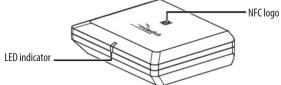
LED indicator status
| INDICATION | DESCRIPTION |
| Solid blue | Paired and connected to your Bluetooth device. |
| Blinks blue | Not connected to your Bluetooth device or in pairing mode. |
| Off | The receiver is turned off. |
Before using your new product, please read these instructions to prevent any damage.
SETTING UP YOUR BLUETOOTH AUDIO RECEIVER
Connecting to an output device

CONNECTING YOUR RECEIVER
You can choose either digital (best) or analog (good) cables to connect your Bluetooth audio receiver, depending on the connections available on your home stereo system.
Digital connection
Connect a digital optical cable (not included) to the OPTICAL jack on your Bluetooth audio receiver and to your home stereo system or other device.
OR
Analog connection
Connect the included 3.5 mm audio cable to your home stereo system or other device to the AUDIO OUT jack on your Bluetooth audio receiver.
Note: If your home stereo system does not have a 3.5 mm Audio In connector, use the included 3.5 mm to RCA adapter cable.
Connecting power:
1 Plug the AC/DC adapter into the DC 5V jack on your Bluetooth audio receiver.
2 Plug the AC/DC adapter into a wall power outlet and slide the power switch to ON. The LED indicator begins to blink blue to indicate that the unit is on and ready to be paired to your Bluetooth devices.
PAIRING YOUR DEVICES
Before you can use your Bluetooth audio receiver with a Bluetooth device, you need to pair the two. Your Bluetooth audio receiver can connect to a Bluetooth-enabled device using the Bluetooth settings on your device or by touching your Bluetooth device to the Bluetooth audio receiver using NFC.
To pair your devices using Bluetooth settings:
1 Make sure that a compatible Bluetooth device (like a music player or phone) is turned on and within 33 feet (10 meters) of your Bluetooth audio receiver.
2 Turn on your Bluetooth audio receiver. Your receiver enters pairing mode and the LED indicator blinks blue.
3 Turn on Bluetooth on your Bluetooth device, then set it to pairing mode. For more information, see the documentation that came with your Bluetooth device.
4 On the Bluetooth device, select RF-BTR319 in the list of found devices.
5 On the Bluetooth device, enter 0000 as the PIN, if prompted. The LED indicator lights blue on the Bluetooth audio receiver.
6 If you are pairing with a computer, make sure that your Bluetooth audio receiver is selected as the computer's default playback device. See the computer's documentation for instructions.
To pair your devices using NFC Fast connection:
Note: Check your Bluetooth device to see if it is compatible with NFC. If it is not, use the steps for pairing your device using Bluetooth settings.
1 Turn on your Bluetooth audio receiver. Your receiver enters pairing mode and the LED indicator blinks blue.
2 Turn on Bluetooth on your Bluetooth device.
3 Turn on the NFC function (see the documentation that came with your NFC-enabled device).
4 Touch your smartphone or tablet to the NFC logo (N) on the top of your Bluetooth audio receiver, to pair your devices. The LED indicator on the Bluetooth audio receiver lights blue
5 When your smartphone or tablet tells you that the Bluetooth audio receiver is connected, you can begin playback.
6 To disconnect, touch your smartphone or tablet to your Bluetooth audio receiver again (see documentation that came with your NFC-enabled device).
General Pairing Notes:
- Some devices, such as an iPhone, connect immediately after pairing so the LED on the Bluetooth audio receiver remains on. Other devices, such as notebook computers, may ask you if you wish to connect. In this instance, the LED continues to blink until a connection is established.
- Your Bluetooth audio receiver saves pairing information for up to eight devices. However, it can only be connected to and play content from one device at a time.
- When you turn on your Bluetooth audio receiver, it automatically connects to the last connected device if that device is in range. To connect to a different paired device, you have to turn off Bluetooth or unpair from the currently paired device and manually connect to the other paired one.
- The auto-connect feature may not work with some Bluetooth devices. If this occurs, use your Bluetooth device settings menu to manually select RF-BTR319 from the list of found Bluetooth devices.
Reconnecting your device:
When your Bluetooth audio receiver is not paired to a device, the LED indicator slowly
blinks on and off.
| Your receiver loses the Bluetooth connection if you... | To reconnect... |
| Turn off your receiver. | Turn on your Bluetooth audio receiver. Your Bluetooth audio receiver searches for the last connected Bluetooth device and reconnects. |
| Move the Bluetooth device out of range. | Make sure that your Bluetooth device is within 33 feet (L.O.S.) of your Bluetooth audio receiver. |
| Turn off your Bluetooth device. | Turn on your Bluetooth device, then make sure that Bluetooth is on. |
| Turn off Bluetooth on your Bluetooth device. | Turn on Bluetooth on your Bluetooth device. |
| Connect your Bluetooth device to another Bluetooth device. | Disconnect your Bluetooth device from the other Bluetooth device, then set your device to pairing mode.Select RF-BTR319 on your Bluetooth device. |
TROUBLESHOOTING
| PROBLEM: | SOLUTION: |
| No power | Make sure that your Bluetooth audio receiver power cord is connected to your Bluetooth audio receiver and a power outlet.Make sure your Bluetooth audio receiver is turned on. |
| No sound or low volume | Make sure that your Bluetooth device is turned on, Bluetooth is turned on, and RF-BTR319 is selected.Turn up the volume on your audio device connected to your Bluetooth audio receiver.Turn up the volume on your Bluetooth device.Make sure that your Bluetooth device is not muted.Make sure that the cable connections are secure.Shorten the distance between your Bluetooth audio receiver and your Bluetooth device.Make sure that your Bluetooth audio receiver is not paired to another Bluetooth device.Make sure that your Bluetooth device is not paired to another Bluetooth device. |
| Cannot establish a Bluetooth connection | Shorten the distance between your Bluetooth audio receiver and your Bluetooth device.Turn your devices off, then on. Re-pair your Bluetooth audio receiver and your Bluetooth device.Make sure that your Bluetooth audio receiver is not paired to another Bluetooth device.Make sure that your Bluetooth audio receiver and Bluetooth device are both in pairing mode.Make sure that your Bluetooth device is not connected to any other device.Make sure that you have selected RF-BTR319 on your Bluetooth device. |
| PROBLEM: | SOLUTION: |
| My Bluetooth device keeps unpairing | • Shorten the distance between your Bluetooth audio receiver and your Bluetooth device.• If the battery on your Bluetooth device is low, recharge the battery. |
| My Bluetooth Music Receiver does not appear on my Bluetooth device | • Shorten the distance between your Bluetooth audio receiver and your Bluetooth device.• Put your Bluetooth audio receiver into pairing mode, then refresh your list of Bluetooth devices. For more information, see the documentation that came with your Bluetooth device. |
| NFC pairing does not work | • Make sure that your device has the NFC feature. See the device's documentation for instructions.• Make sure that your Bluetooth device is turned on and Bluetooth is turned on.• Make sure that your NFC device supports Bluetooth pairing with NFC.• Make sure that your Bluetooth device is turned on and the NFC function is turned on.• When connecting, touch your Bluetooth device to the NFC logo (R) on the top of your Bluetooth audio receiver. When connected, your Bluetooth device may make a sound to indicate that it is paired. |
LEGAL NOTICES
FCC caution: Changes or modifications not expressly approved by the party responsible for compliance could void the user's authority to operate the equipment.
FCC statement:
This equipment has been tested and found to comply with the limits for a Class B digital device, pursuant to part 15 of the FCC Rules. These limits are designed to provide reasonable protection against harmful interference in a residential installation. This equipment generates, uses, and can radiate radio frequency energy and, if not installed and used in accordance with the instructions, may cause harmful interference to
radio communications. However, there is no guarantee that interference will not occur in a particular installation. If this equipment does cause harmful interference to radio or television reception, which can be determined by turning the equipment off and on, the user is encouraged to try to correct the interference by using as more of the following necessary
interference by one or more of the following: - Reorient or relocate the receiving antenna
- Reconciliation of relocate the receiving antenna. Increase the separation between the equipment and receiver
- Increase the separation between the equipment and receiver. - Connect the equipment into an outlet on a circuit different from that to which the receiver is connected. - Consult the dealer or an experienced radio/TV technician for help.
RSS-Gen & RSS-210 statement:
This device complies with Industry Canada licence-exempt RSS standard(s). Operation is subject to the following two conditions: (1) this device may not cause interference, and (2) this device must accept any interference, including interference that may cause undesired operation of the device.
This equipment complies with Industry Canada radiation exposure limits set forth for an uncontrolled
Qualcomm aptX is a product of Qualcomm Technologies, Inc. and/or its subsidiaries. Qualcomm is a trademark of Qualcomm Incorporated, registered in the United States and other countries. aptX is a trademark of Qualcomm Technologies International, Ltd., registered in the United States and other countries.
ONE-YEAR LIMITED WARRANTY
Visit www.rocketfishproducts.com for detail
CONTACT ROCKETFISH:
For customer service call 1-800-620-2790
www.rocketfishproducts.com
(No text)
ROCKETFISH is a trademark of Best Buy and its affiliated companies
Distributed by Best Buy Purchasing, LLC
7601 Penn Ave South, Richfield, MN 55423 U.S.A.
©2019 Best Buy. All rights reserved.
V2 ENGLISH 19-0557
Brand : Rocketfish
Model : RF-BTR319
Category : Media player