
BRC1H82W - Home Automation DAIKIN - Free user manual and instructions
Find the device manual for free BRC1H82W DAIKIN in PDF.


| Product Type | Wired Remote Controller |
| Brand | Daikin |
| Model | BRC1H82W |
| Dimensions (H x W x D) | 120 x 80 x 20 mm |
| Weight | 150 g |
| Power Supply | 24 V AC from indoor unit |
| Display Type | LCD with backlight |
| Main Functions | Temperature setting, fan speed, operation mode (cool/heat/dry/fan/auto), schedule timer, swing control |
| Buttons | Touch-sensitive or mechanical keys |
| Connectivity | Wired (2-wire or 3-wire connection to indoor unit) |
| Compatibility | Daikin split systems, multi-split, VRV |
| Maintenance & Cleaning | Wipe with soft dry cloth; avoid water or solvents |
| Safety Features | Low voltage operation; child lock function |
| Repairability | Spare parts available via Daikin service centers |
| Warranty | 2 years (depending on region) |
| Certifications | CE, RoHS |
Frequently Asked Questions - BRC1H82W DAIKIN
User questions about BRC1H82W DAIKIN
0 question about this device. Answer the ones you know or ask your own.
Ask a new question about this device
Download the instructions for your Home Automation in PDF format for free! Find your manual BRC1H82W - DAIKIN and take your electronic device back in hand. On this page are published all the documents necessary for the use of your device. BRC1H82W by DAIKIN.
USER MANUAL BRC1H82W DAIKIN
Installer and user reference guide
Madoka wired remote controller

natural_image
Circular icon with a black square and control buttons (no text or symbols)
Table of contents
1 About the documentation 5
1.1 About this document 5
1.2 Meaning of warnings and symbols 6
1.3 Installer and user reference guide at a glance 6
2 General safety precautions 8
2.1 For the installer 8
2.2 For the user 9
3 Specific installer safety instructions 10
For the user 11
4 Remote controller: Overview 12
4.1 About the controller 12
4.2 Buttons.... 13
4.3 Status icons 13
4.4 Status indicator 15
5 Operation 16
5.1 Basic usage 16
5.1.1 Home screen.... 16
5.1.2 Main menu.... 17
5.2 Operation mode.... 18
5.2.1 About the operation modes.... 19
5.2.2 To set the operation mode 23
5.3 Setpoint 23
5.3.1 About the setpoint 24
5.3.2 To set the setpoint 26
5.4 Date and time.... 26
5.4.1 About date and time 26
5.4.2 To set date and time.... 27
5.5 Airflow 27
5.5.1 Airflow direction 27
5.5.2 Fan speed.... 28
5.6 Ventilation 30
5.6.1 Ventilation mode 30
5.6.2 Ventilation rate 30
5.7 Advanced usage 31
6 Maintenance and service 32
6.1 Overview: Maintenance and service 32
7 Troubleshooting 33
7.1 Overview: Troubleshooting 33
7.2 Refrigerant leak detection 33
7.2.1 About refrigerant leak detection 33
7.2.2 To stop the leak detection alarm 34
For the installer 35
8 About the box 36
8.1 To unpack the controller 36
9 Preparation 37
9.1 Wiring requirements.... 37
9.1.1 To prepare the wiring for installation 37
10 Installation 38
10.1 Overview: Installation 38
10.2 Mounting the controller 38
10.2.1 About mounting the controller 38
10.2.2 To mount the controller 39
10.3 Connecting the electrical wiring.... 40
10.3.1 Precautions when connecting the electrical wiring.... 40
10.3.2 To connect the electrical wiring.... 40
10.4 Closing the controller.... 41
10.4.1 Precautions when closing the controller 41
10.4.2 To close the controller 41
10.5 Opening the controller 42
10.5.1 Precautions when opening the controller 42
10.5.2 To open the controller 42
11 Starting up the system 43
11.1 Controller designation 43
11.1.1 To designate a controller as slave 44
12 Remote controller: Overview 45
12.1 About the controller 45
12.1.1 To configure the controller 46
12.2 Buttons 46
12.3 Status icons 47
12.4 Status indicator 48
12.4.1 Behaviour 48
13 Operation 50
13.1 Basic usage 50
13.1.1 Screen backlight 50
13.1.2 Home screen 51
13.1.3 Information screen 52
13.1.4 Main menu.... 53
13.2 Operation mode 54
13.2.1 About the operation modes.... 54
13.2.2 To set the operation mode 58
13.3 Setpoint 58
13.3.1 About the setpoint 59
13.3.2 To set the setpoint 61
13.4 Date and time.... 61
13.4.1 About date and time 61
13.4.2 To set date and time.... 62
13.5 Airflow 62
13.5.1 Airflow direction.... 62
13.5.2 Fan speed.... 63
13.6 Ventilation 65
13.6.1 Ventilation mode 65
13.6.2 Ventilation rate 65
13.7 Advanced usage 66
14 Configuration 67
14.1 Installer menu 67
14.1.1 About the installer menu 67
14.1.2 Screen settings 68
14.1.3 Status indicator settings 69
14.1.4 Field settings.... 69
14.1.5 Miscellaneous settings 76
14.2 Software update 89
14.2.1 About software updates.... 89
14.2.2 Software update with app....90
14.2.3 Software update with updating tool 90
15 About the app 92
15.1 Operation and configuration overview 92
15.2 Pairing....92
15.2.1 About pairing 92
15.2.2 To pair the app with a controller 93
15.2.3 To make a Bluetooth connection.... 93
15.2.4 To terminate the Bluetooth connection 95
15.2.5 To remove bonding information.... 96
15.3 User access levels 98
15.3.1 About user access levels 98
15.3.2 Basic mode.... 98
15.3.3 Advanced mode 98
15.3.4 Installer mode 99
15.4 Demo mode 100
15.4.1 About demo mode 100
15.4.2 To launch demo mode.... 100
15.4.3 To exit demo mode 100
15.5 Functions.... 100
15.5.1 Overview: Functions 100
15.5.2 General 103
15.5.3 Setting migration 103
15.5.4 Remote controller settings.... 104
15.5.5 Energy saving.... 106
15.5.6 Scheduling.... 107
15.5.7 Configuration and operation.... 108
15.5.8 Maintenance.... 116
16 Maintenance 123
16.1 Maintenance safety precautions 123
16.2 About maintenance 123
16.3 To remove a warning screen 125
16.4 To clean the controller.... 125
16.5 Time to clean filter indication.... 125
16.5.1 To remove the Time to clean filter indication 125
17 Troubleshooting 126
17.1 Error codes of the indoor unit.... 126
17.2 Refrigerant leak detection 128
17.2.1 About refrigerant leak detection 128
17.2.2 To stop the leak detection alarm 128
18 Technical data 130
18.1 Connection diagram.... 130
18.1.1 Typical layout.... 130
18.1.2 Typical layout for group control.... 130
18.1.3 Controller + DIII central control equipment 132
19 Glossary 133
1 About the documentation
In this chapter
1.1 About this document.... 5
1.2 Meaning of warnings and symbols.... 6
1.3 Installer and user reference guide at a glance.... 6
1.1 About this document
Target audience
Authorised installers + end users
Documentation set
This document is part of a documentation set. The complete set consists of:
- Installation and operation manual:
- Installation instructions
- Basic operation instructions
- Installer and user reference guide:
- Extended installation and operation information
■ Declaration of conformity:

INFORMATION: Declaration of conformity
Hereby, Daikin Europe N.V. declares that the radio equipment type BRC1H is in compliance with the Directive 2014/53/EU. The original declaration of conformity is available from the BRC1H product pages.
The documentation set is available from the BRC1H product pages:
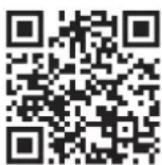
BRC1H82W: https://qr.daikin.eu/?N=BRC1H82W
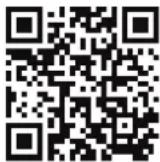
BRC1H82K: https://qr.daikin.eu/?N=BRC1H82K
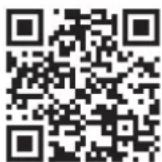
BRC1H82S: https://qr.daikin.eu/?N=BRC1H82S

INFORMATION: Madoka Assistant in-app documentation
The controller only allows for basic settings and operation. Advanced settings and operation are performed via the Madoka Assistant app. For more information, see the app and its in-app documentation. The Madoka Assistant app is available from Google Play and the Apple Store.
Latest revisions of the supplied documentation may be available on the regional Daikin website or via your dealer.
The original documentation is written in English. All other languages are translations.
1.2 Meaning of warnings and symbols

DANGER
Indicates a situation that results in death or serious injury.

DANGER: RISK OF ELECTROCUTION
Indicates a situation that could result in electrocution.

WARNING
Indicates a situation that could result in death or serious injury.

CAUTION
Indicates a situation that could result in minor or moderate injury.

NOTICE
Indicates a situation that could result in equipment or property damage.

INFORMATION
Indicates useful tips or additional information.

DANGER: RISK OF EXPLOSION
Indicates a situation that could result in explosion.
1.3 Installer and user reference guide at a glance
| Chapter Description | |
| About the documentation What | documentation exists for the installer and the user |
| General safety precautions Safety | instructions that you must read before installing |
| Specific installer safety instructions | Safety instructions that the installer must read before installing |
| For the user | |
| Remote controller: Overview Overview of the remote controller | |
| Operation How to operate the remote controller | |
| Maintenance and service How to maintain and service the remote controller | |
| Troubleshooting What to do in case of problems | |
| For the installer | |
| About the box How to unpack the remote controller and remove the accessories | |
| Preparation What to do and know before going on-site | |
| Installation What to do and know to install the remote controller | |
| Starting up the system How to start up the remote controller | |
| Remote controller: Overview Overview of the remote controller | |
| Configuration What to do and know to configure the system after it is installed | |
| About the app What to do and know to commission the remote controller after it is configured | |
| Maintenance How to maintain the remote controller | |
| Troubleshooting What to do in case of problems | |
| Technical data Specifications of the system | |
| Glossary Definition of terms | |
2 General safety precautions
In this chapter
2.1 For the installer....8
2.2 For the user....9
2.1 For the installer
The precautions described in this document cover very important topics, follow them carefully.

INFORMATION
This controller is an option and cannot be used standalone. Also see the installation and operation manual of the indoor and outdoor units.

WARNING
Improper installation or attachment of equipment or accessories could result in electrical shock, short-circuit, leaks, fire or other damage to the equipment. ONLY use accessories, optional equipment and spare parts made or approved by Daikin.

WARNING
All field wiring and components MUST be installed by a licensed electrician and MUST comply with the applicable legislation.

NOTICE
The remote controller MUST be mounted indoors.

NOTICE
When the controller is used as room thermostat, select an installation location where the average temperature in the room can be detected.
Do NOT install the controller in the following places:
- In places where it is exposed to direct sunlight.
- In places where it is near a heat source.
- In places that are affected by outside air or air draught due to e.g. door opening/closing.
- In places where the display can easily get dirty.
- In places where there is NO easy access to the controls.
- In places with temperatures < -10^ C and >50^ C .
- In places where the relative humidity is >95%.
- In places where there is machinery that emits electromagnetic waves. Electromagnetic waves may disturb the control system, and cause malfunction of the equipment.
- In places where it may be exposed to water, or in generally moist areas.
If you are NOT sure how to install or operate the unit, contact your dealer.
After finishing installation:
- Conduct a trial operation to check for faults.
- Explain the user how to operate the controller.
- Ask the user to store the manual for future reference.

INFORMATION
Consult your dealer regarding the relocation and reinstallation of the controller.
2.2 For the user

WARNING
To clean the controller, do NOT use organic solvents, such as paint thinner.

WARNING
Do NOT use flammable materials (e.g. hairspray or insecticide) near the controller.

WARNING
To prevent electric shocks or fire:
- Do NOT operate the controller with wet hands.
- Do NOT disassemble the controller and touch interior parts. Contact your dealer.
- Do NOT modify or repair the controller. Contact your dealer.
- Do NOT relocate or reinstall the controller by yourself. Contact your dealer.

WARNING
Do NOT play with the unit or its remote controller. Accidental operation by a child may result in impairment of bodily functions and harm health.
3 Specific installer safety instructions
Always observe the following safety instructions and regulations.

CAUTION
NEVER touch the internal parts of the controller.

CAUTION
When closing the controller, be careful not to pinch the wiring.

CAUTION
Before starting up the system, make sure:
The indoor and outdoor unit wiring is completed.
The switch box covers of the indoor and outdoor units are closed.

CAUTION
When connecting the controller to the indoor unit, make sure the indoor unit switchbox and transmission wiring are not connected.

WARNING
All field wiring and components MUST be installed by a licensed electrician and MUST comply with the applicable legislation.

WARNING
Before carrying out any maintenance or repair activities, stop system operation with the controller, and turn off the power supply circuit breaker. Possible consequence: electrical shock or injury.

WARNING
Do NOT wash the remote controller. Possible consequence: electric leakage, electrical shock, or fire.
For the user
4 Remote controller: Overview
In this chapter
4.1 About the controller 12
4.2 Buttons.... 13
4.3 Status icons 13
4.4 Status indicator.... 15
4.1 About the controller
Depending on configuration, the controller is operable in either one of three modes. Each mode offers different controller functionality.
| Mode Functionality | |
| Normal The controller is fully functional. All functionality described under "5 Operation" [▶ 16] is available. The controller can be a master or a slave controller. | |
| Alarm only The controller only acts as leak detection alarm for a single indoor unit. No functionality described under "5 Operation" [▶ 16] is available. For information on the leak detection alarm, see "7.2 Refrigerant leak detection" [▶ 33]. The controller can be a master or a slave controller. | |
| Supervisor The controller only acts as leak detection alarm for the whole system, i.e. multiple indoor units and their respective controllers. This mode is intended for a controller that is to be used in a supervision location, e.g. the reception desk of a hotel. No functionality described under "5 Operation" [▶ 16] is available. For information on the leak detection alarm, see "7.2 Refrigerant leak detection" [▶ 33]. The controller can only be a slave controller. | |
For more information on how to set the controller to be operable in a specific mode, see "12.1.1 To configure the controller" [▶ 46]. When using "Supervisor" mode, it is important to set the supervised room address in order to know for which indoor unit the refrigerant leak alarm occurs. See "Supervised room address" [▶ 116] for more information.
4.2 Buttons

a ON/OFF
- When OFF, press to turn ON the system.
- When ON, press to turn OFF the system.
b ENTER/ACTIVATE /SET
- From the home screen, enter the main menu.
- From the main menu, enter one of the submenus.
- From their respective submenu, activate an operation/ventilation mode.
- In one of the submenus, confirm a setting.
c — CYCLE/ADJUST
- Cycle left.
- Adjust a setting (default: decrease).
d + CYCLE/ADJUST
- Cycle right.
- Adjust a setting (default: increase).
4.3 Status icons
| Icon Description | |
 | System operation ON. Indicates that the system is in operation. |
 | System operation OFF. Indicates that the system is NOT in operation. |
 | Bluetooth.(1) Indicates that the controller is communicating with a mobile device, for use with the Madoka Assistant app. |
 | Lock. Indicates that a function or operation mode is locked and therefore cannot be used or selected. |
 | Centralised control. Indicates that the system is controlled by central control equipment (optional accessory) and that control of the system by the controller is limited. |
 | Changeover under centralised control. Indicates that the cooling/heating changeover is under centralised control by another indoor unit, or by an optional cool/ heat selector that is connected to the outdoor unit. |
^(1) The Bluetooth ^® word mark and logos are registered trademarks owned by the Bluetooth SIG, Inc. and use of such marks by Daikin Europe N.V. is under license. Other trademarks and trade names are those of their respective owners.
| Icon Description | |
 | Defrost/Hot start. Indicates that the defrost/hot start mode is active. |
 | Schedule/Timer. Indicates that the system operates according to a schedule, or that the OFF timer is enabled. |
 | Time not set. Indicates that controller's time is not set. |
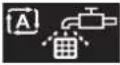 | Self-cleaning filter operation. Indicates that self-cleaning filter operation is active. |
 | Quick Start. Indicates that Quick Start mode is active (Sky Air only). |
 | Test operation. Indicates that Test Operation mode is active (Sky Air only). |
 | Inspection. Indicates that the indoor or outdoor unit is being inspected. |
 | Periodic inspection. Indicates that the indoor or outdoor unit is being inspected. |
 | Backup. Indicates that in the system an indoor unit is set as backup indoor unit. |
 | Individual airflow direction. Indicates that the individual airflow direction setting is enabled. |
 | Information. Indicates that the system has a message to convey. To see the message, go to the information screen. |
 | Warning. Indicates that an error occurred, or that an indoor unit component needs to be maintained. |
 | Power consumption limit. Indicates that the system's power consumption is being limited, and that it is running with restricted capacity. |
 | End of power consumption limit. Indicates that the system's power consumption is no longer being limited, and that it is no longer running with restricted capacity. |
 | Rotation. Indicates that Rotation mode is active. |
 | Setback. Indicates that the indoor unit is operating under setback conditions. |
 | Ventilation. Indicates that a heat reclaim ventilation unit is connected. |

INFORMATION
- For information on the operation mode and ventilation mode icons, see "5.2 Operation mode" [▶ 18] and "5.6.1 Ventilation mode" [▶ 30] respectively.
- Most icons are related to things set in the Madoka Assistant app. For more information, see the app.
4.4 Status indicator
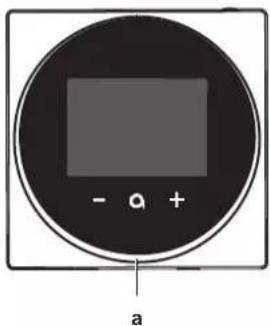
a Status indicator
5 Operation
In this chapter
5.1 Basic usage.... 16
5.1.1 Home screen 16
5.1.2 Main menu 17
5.2 Operation mode 18
5.2.1 About the operation modes.... 19
5.2.2 To set the operation mode 23
5.3 Setpoint 23
5.3.1 About the setpoint 24
5.3.2 To set the setpoint 26
5.4 Date and time 26
5.4.1 About date and time 26
5.4.2 To set date and time 27
5.5 Airflow 27
5.5.1 Airflow direction.... 27
5.5.2 Fan speed 28
5.6 Ventilation 30
5.6.1 Ventilation mode 30
5.6.2 Ventilation rate 30
5.7 Advanced usage.... 31
5.1 Basic usage
5.1.1 Home screen
Home screen mode
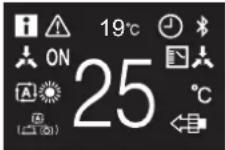
Depending on configuration, the controller either has a standard or a detailed home screen. While the standard home screen gives you only limited information, the detailed home screen gives you all kinds of information through status icons. After a period of operation inactivity, the controller will always revert to the home screen.
| Standard Detailed | |||
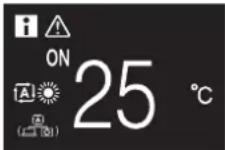 | 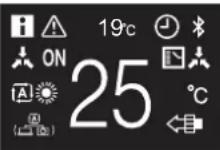 |
When the Home screen mode is Detailed, it is possible to either visualise the indoor temperature or the CO_2 concentration value as measured by a unit equipped with a CO_2 sensor. For more information, see "Screen" [▶ 104].
| Indoor temperature CO | _2 concentration value | ||
 |  | ||
Home screen operation
In certain conditions, the controller allows you to perform actions from the home screen.
| Condition Action | |
| The system is running in Cooling, Heating, or Auto operation mode. | Change the setpoint |
| The system is composed of ONLY heat reclaim ventilation units. | Change the ventilation rate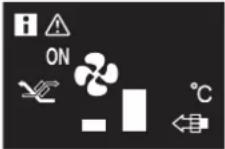 |

INFORMATION
- Depending on configuration, the home screen displays the setpoint either as a numerical value, or as a symbol. For more information, see "5.3.1 About the setpoint" [▶ 24].
In case the home screen displays the setpoint as a symbol, then it will only display the status icons of the standard home screen mode, even when the controller is in detailed home screen mode.

INFORMATION
The controller is equipped with a power saving function that causes the screen to go blank after a period of inactivity. To make the screen light up again, press any button.
5.1.2 Main menu
From the home screen, press 📄 enter the main menu. Use and—to cycle through the menus. Press 📄 gain to enter one of the menus.
| Menu Description | |
 | Operation mode. Set the operation mode. |
 | Date and time. Make date and time settings. |
 | Airflow direction. Set the indoor unit airflow direction. |
 | Fan speed. Set the indoor unit fan speed. |
 | Ventilation mode. Set the ventilation operation mode. |
 | Ventilation rate. Set the fan speed for ventilation operation. |
 | Bluetooth. Activate Bluetooth to control the system with the Madoka Assistant app, and/or to perform a remote controller software update. |

INFORMATION
- Depending on the type of indoor unit you are operating, more or less menus may be available.
- In the main menu, the icon for each menu reflects the current active setting or mode. When operating the controller, the menu you navigate through can look different from that represented in this manual.
- The controller only allows for basic operation of the system. For advanced operation (setback, schedule timer, ...), see the Madoka Assistant app.

INFORMATION
It is possible that menus are locked. When this is the case, they appear crossed-out in the main menu, and get accompanied by a lock icon. The locking of functions happens through the Madoka Assistant app. For more information, see the Madoka Assistant app and "Function lock" [▶ 113].

5.2 Operation mode
The indoor unit can operate in various operation modes.
| Icon Operation mode | |
 | Cooling. In this mode, cooling will be activated as required by the setpoint, or by Setback operation. |
 | Heating. In this mode, heating will be activated as required by the setpoint, or by Setback operation. |
 | Fan Only. In this mode, air circulates without heating or cooling. |
 | Dry. In this mode, the air humidity will be lowered with a minimal temperature decrease.The temperature and fan speed are controlled automatically and cannot be controlled by the controller.Dry operation will not function if the room temperature is too low. |
 | Ventilation. In this mode, the space gets ventilated, but not cooled or heated. |
 | Air Clean. In this mode, the optional air cleaning unit operates. |
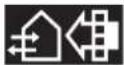 | Ventilation + Air Clean. Combination of ventilation and air clean operation. |
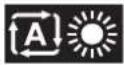 | Auto. In Auto mode, the indoor unit automatically switches between heating and cooling mode, as required by the setpoint. |
 | |

INFORMATION
Depending on the indoor unit, more or less operation modes are available.
5.2.1 About the operation modes

INFORMATION
If the indoor unit is a cooling-only model, it can only be set to run in Cooling, Fan only, or Dry operation mode.

INFORMATION
When operation modes are not available in the operation mode menu, it is additionally possible that they are locked. The locking of operation modes occurs through the Madoka Assistant app. For more information, see the Madoka Assistant app and "Function lock" [▶ 113].

INFORMATION
If the operation mode changeover of an indoor unit is under centralised control ('changeover under centralised control' status icon blinking in the home screen), then it is NOT possible to change the operation mode of that indoor unit. For more information, see "Cooling/Heating masterhood" [▶ 86].
Cooling
If the outdoor air temperature is high, it can take some time until the indoor room temperature reaches the setpoint temperature.
When the indoor room temperature is low, and the indoor unit is set to run in Cooling operation mode, the indoor unit can enter Defrost operation mode first (i.e. Heating operation), this to prevent a decrease of the system's cooling capacity due to frost on the heat exchanger. For more information, see "Heating" [▶ 19].
The indoor unit can run in Cooling operation mode because it is operating under Setback conditions. For more information, see "Setback" [▶ 110].
Heating
When running in Heating operation mode, the system requires a longer time to reach the setpoint temperature than when running in Cooling operation mode. To make up for this, it is recommended to let the system start operation in advance by making use of the timer function.
The indoor unit can run in Heating operation mode because it is operating under Setback conditions. For more information, see "Setback" [▶ 110].
To prevent cold drafts and a reduction of the system's heating capacity, the system can run in the following special heating operation modes:
| Operation Description | |
DefrostTo prevent the loss of heating capacitydue to frost accumulation in the outdoor unit, the system will automatically switch to defrost operation.During defrost operation, the indoor unit fan will stop operation, and the following icon will appear on the home screen: The system will resume normal operation after approximately 6 to 8 minutes. The system will resume normal operation after approximately 6 to 8 minutes. | |
| Hot start (VRV only)During hot start, the indoor unit fan willstop operation, and the following icon will appear on the home screen: | |

INFORMATION
When the system is stopped while the indoor unit is running in Heating operation mode, the fan will continue to operate for approximately 1 minute, this to get out any heat remaining in the indoor unit.

INFORMATION
- The lower the outdoor air temperature, the lower the heating capacity. If the system's heating capacity is insufficient, it is recommended to include another heating appliance into the setup (if you use a combustion appliance, ventilate the room regularly. Also, do not use the heating appliance in places where it is exposed to the airflow of the indoor unit).
- The indoor unit is of the hot air circulation type. As a result, after operation start, it takes the indoor unit some time to warm up the room.
- The indoor unit fan will automatically operate until the indoor temperature of the system rises to a certain level.
- When hot air stays under the ceiling and your feet feel cold, it is recommended to include a circulator into the setup.
Dry

NOTICE
To prevent water leakage or system failure, do NOT turn off the system immediately after indoor unit operation. Before turning off the system, wait until the drain pump finishes discharging any water remaining in the indoor unit (approximately 1 minute).

INFORMATION
To ensure a smooth start, do not turn off the system while it is operating.
Auto

INFORMATION
In case of indoor unit setpoint logic, the system cannot run in Auto operation mode. Therefore, to allow for Auto operation mode, go for remote controller setpoint logic. For more information, see the Madoka Assistant app and "Setpoint logic" [▶ 108].
The Auto operation mode logic depends on the set setpoint logic (Madoka Assistant app setting).
| Single setpoint Dual setpoint | |
Cooling setpoint Heating setpoint
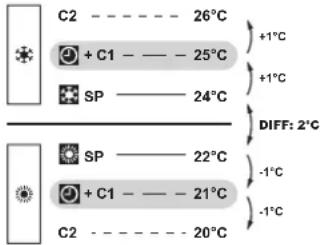
DIFF Minimum setpoint differential between the Heating and the Cooling setpoint
C1+C1 Changeover setpoint (with guard timer)
C2 Forced changeover setpoint
0.5°C\~2°C Field settable temperature intervals between setpoints

INFORMATION
The default value of the settable temperature range (0.5°C\~2°C) is 0.5°C.
A changeover from the one operation mode to the other occurs in the following cases:
Case 1: primary changeover (C1)
A changeover occurs from the moment the room temperature rises above/drops below the Cooling/Heating changeover setpoint (C1), and the guard timer has run out.
Example:
Single setpoint Dual setpoint

chemical
Temperature range diagram for carbon nanotubes C2 and C1 with temperature labels at 24°C, 23°C, and 20°CThe system is heating up the room. When after a while the room temperature rises above C1 (23°C), a changeover from Heating to Cooling occurs, provided that the guard timer has run out. If the guard timer has not run out, the changeover will only occur from the moment the timer does run out. As a result of the changeover, the guard timer starts running again so as to allow for or prevent the next changeover.
The system is cooling down the room. When after a while the room temperature drops below C1 (21°C), a changeover from Cooling to Heating occurs, provided that the guard timer has run out. If the guard timer has not run out, the changeover will only occur from the moment the timer does run out. As a result of the changeover, the guard timer starts running again, to allow for or prevent the next changeover.

The system is heating up the room. When after a while the room temperature rises above C1 (25°C), a changeover from Heating to Cooling occurs, provided that the guard timer has run out. If the guard timer has not run out, the changeover will only occur from the moment the timer does run out. As a result of the changeover, the guard timer starts running again so as to allow for or prevent the next changeover.
The system is cooling down the room. When after a while the room temperature drops below C1 (21°C), a changeover from Cooling to Heating occurs, provided that the guard timer has run out. If the guard timer has not run out, the changeover will only occur from the moment the timer does run out. As a result of the changeover, the guard timer starts running again, to allow for or prevent the next changeover.
Case 2: forced changeover (C2)
A changeover is forced from the moment the room temperature rises above/drops below the Cooling/Heating forced changeover setpoint (C2) while the guard timer is still running.
Example:
Single setpoint Dual setpoint

chemical
Chemical reaction diagram showing temperature-dependent reactions of C2 and C1 with SP, including temperature changes at 24°C, 23°C, 22°C, 21°C, and 20°C.The system is heating up the room. When the room temperature rises above C2 (24°C) while the guard timer is still running, a changeover is forced from Heating to Cooling.
The system is cooling down the room. When the room temperature drops below C2 (20°C) while the guard timer is still running, a changeover is forced from Cooling to Heating.

chemical
Chemical reaction diagram showing temperature-dependent reactions of C2 and SP with temperature changes at 26°C, 25°C, and 24°CThe system is heating up the room. When the room temperature rises above C2 (26°C) while the guard timer is still running, a changeover is forced from Heating to Cooling.
The system is cooling down the room. When the room temperature drops below C2 (20°C) while the guard timer is still running, a changeover is forced from Cooling to Heating.

INFORMATION
To prevent operation mode changeovers from occurring too frequently, changeovers typically occur only after the guard timer has run out (i.e. Case 1). However, to prevent the room from getting too hot or too cold, a changeover is forced when the room temperature reaches C2 while the guard timer is still running (i.e. Case 2).
5.2.2 To set the operation mode
1 Navigate to the operation mode menu.

2 Use and to lect an operation mode.

3 Press to activate.
Result: The indoor unit changes its operation mode and the controller returns to the home screen.
5.3 Setpoint
The setpoint is the target temperature for the Cooling, Heating, and Auto operation modes.

INFORMATION
The lower setpoint limit of the Cooling operation mode is 20°C, as per UAE Federal regulation UAE.S 5010-5:2016 clause 6, and UAE.S 5010-1:2016 clause 10.
5.3.1 About the setpoint
Depending on configuration, the home screen displays the temperature setpoint either as a numerical value, or as a symbol.

INFORMATION
For how to set the home screen setpoint, see the Madoka Assistant app. Also see "Screen" [▶ 104].
Home screen setpoint: Numerical
In case the home screen displays the temperature setpoint as a numerical value, you control the room temperature by raising or lowering the setpoint by 1°C increments.
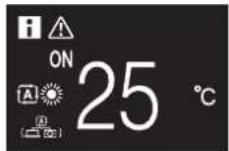
The default setpoint range is 16^ 32^ . If any limitations are set to this range with the setpoint range function (Madoka Assistant app function; see "Setpoint range" [▶ 111]), it is only possible to raise or lower the setpoint up/down to the set maximum/minimum setpoint range limits.
Home screen setpoint: Symbolic
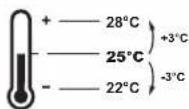
In case the home screen displays the temperature setpoint as a symbol, you control the room temperature by raising or lowering the setpoint in relation to the "reference setpoint" (visually indicated by the marker in the middle of the thermometer).

It is possible to raise the setpoint up to three steps of 1^ C above and up to three steps of 1^ C below the reference setpoint.
Example: if the reference setpoint is 25^ C, it is possible to raise the setpoint to 28^ C and lower it to 22^ C.

INFORMATION
For how to set the reference setpoint, see the Madoka Assistant app. Also see "Screen" [▶ 104].
Exceptions to this logic are possible in case of:
- Setpoint range limitations
- Central control / control by a schedule
Setpoint range
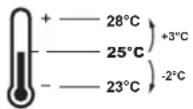
If any limitations are set to the default setpoint range (16°C\~32°C) with the setpoint range function (Madoka Assistant app function; see "Setpoint range" [▶ 111]), it is only possible to raise or lower the setpoint up/down to the set upper/lower setpoint range limits.
Example: if the reference temperature is 25^ C, you can normally lower the setpoint three steps to 22^ C. However, if a setpoint range limit is set to 23^ C, you can only lower the setpoint to 23^ C.
Central control / Schedule
If the system is under the control of a centralised controller or a schedule, then the regular +3^/-3^ setpoint range limits can get overruled AND changed.
| IF THEN | |
| The centralised controller or schedule imposes a setpoint that is within the regular +3°C/-3°C setpoint range. | Nothing unusual happens and the system follows the regular setpoint and setpoint range logic. |
| The centralised controller or schedule imposes a setpoint that exceeds the regular +3°C/-3°C setpoint range. | The imposed setpoint becomes the new upper/lower limit of the +3°C/-3°C range, and the whole range shifts in relation to this new limit.Example: the reference setpoint is set to 25°C, yielding the following setpoint range: If the centralised controller or schedule changes the setpoint to 21°C, which is below the range, then "21°C" becomes the new lower limit, and the range shifts in relation to this new limit. If the centralised controller or schedule changes the setpoint to 21°C, which is below the range, then "21°C" becomes the new lower limit, and the range shifts in relation to this new limit.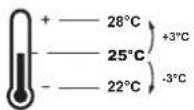  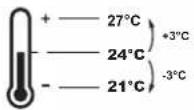 |
5.3.2 To set the setpoint
Prerequisite: The active operation mode is either 'Cooling', 'Heating', or 'Auto'.
1 In the home screen, use and to adjust the setpoint.
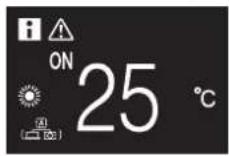
Result: The indoor unit changes its temperature setpoint.
5.4 Date and time
Set the date and time for the indoor units connected to the controller.
5.4.1 About date and time
Depending on daylight saving time settings, the date and time menu has the following daylight saving time indicators:
 | Summer time |
 | Winter time |
For more information, see "Indoor unit field settings" [▶ 73] (remote controller settings) and "Date and time" [▶ 105] (app settings).
5.4.2 To set date and time
1 Navigate to the date and time menu.
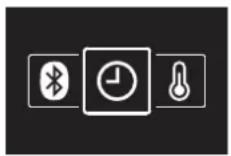
2 Press t+activate.

Result: The fields become editable.
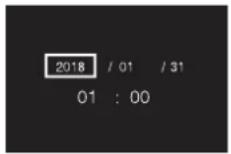
3 Set the date and time. Set with an - . Confirm with . Cycle through the menu until all fields are set correctly.
Result: You set the date and the time.

INFORMATION
Confirming the value in a field will automatically bring you to the next field. To finish making settings and leave the menu, navigate to and confirm the value in the last field.
5.5 Airflow
5.5.1 Airflow direction
The airflow direction is the direction in which the indoor unit blows its air.
About airflow direction
The following airflow directions can be set:
| Direction Screen | |||
| Fixed position. The indoor unit blows air in 1 of 5 fixed positions. |  | ||
| Swing. The indoor unit alternates between the 5 positions. |  | ||
| Auto. The indoor unit adjusts its airflow direction according to movement sensed by a movement sensor. |  | ||

INFORMATION
- Depending on the type of indoor unit, and/or on system layout and organisation, Auto airflow direction may not be available.
- For some types of indoor unit, you cannot set the airflow direction.
Automatic airflow control
In the following operating conditions, the airflow direction of the indoor units is controlled automatically:
- When the room temperature is higher than the controller's setpoint for Heating operation (including Auto operation).
- When the indoor units run in Heating operation mode, and the Defrost function is active.
- When the indoor units run in Continuous operation, and the airflow direction is Horizontal.
To set the airflow direction
1 Navigate to the airflow direction menu.

2 Use and to adjust the airflow direction.

3 Press to confirm.
Result: The indoor unit changes its airflow direction and the controller returns to the home screen.
5.5.2 Fan speed
The fan speed is the strength of the airflow coming out of the indoor unit.
About fan speed
Depending on the indoor unit, you can choose between either:
Some indoor units additionally support Automatic fan speed. In this case, the indoor unit adjusts its fan speed automatically, according to the setpoint and indoor temperature.
| Fan speed Screen | |
| Automatic |  |

INFORMATION
- For mechanical protection purposes, it is possible that the indoor unit switches itself to 'Automatic fan speed' mode.
- If the fan stops operating, this does not necessarily mean system failure. The fan can stop operating at all times.
- It may take some time before changes made to fan speed settings are actually carried out.
To set the fan speed
1 Navigate to the fan speed menu.
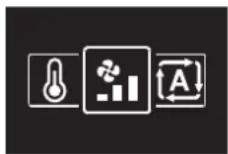
2 Use and to adjust the fan speed.

3 Press to confirm.
Result: The indoor unit changes its fan speed and the controller returns to the home screen.
5.6 Ventilation

INFORMATION
Ventilation settings can ONLY be made for heat reclaim ventilation units.
5.6.1 Ventilation mode
The heat reclaim ventilation unit can operate in various operation modes.
| Icon Ventilation mode | |
 | Energy Reclaim Ventilation. The outdoor air is supplied to the room after passing through a heat exchanger. |
 | Bypass. The outdoor air is supplied to the room without passing through a heat exchanger. |
 | Auto. To ventilate the room in the most efficient way, the heat reclaim ventilation unit automatically switches between "Bypass" and "Energy Reclaim Ventilation" mode (based on internal calculations). |

INFORMATION
Depending on the heat reclaim ventilation unit, more or less ventilation modes are available.

INFORMATION
Ventilation mode changes are possible regardless of Cooling/Heating masterhood. For more information, see "Cooling/Heating masterhood" [▶ 86].

INFORMATION
To ensure a smooth start, do not turn off the system while it is operating.
To set the ventilation mode
1 Navigate to the ventilation mode menu.

2 Use and to elect a ventilation mode.

3 Press t→activate.
Result: The heat reclaim ventilation unit changes its operation mode and the controller returns to the home screen.
5.6.2 Ventilation rate
The ventilation rate is the fan speed during ventilation operation.
To set the ventilation rate
1 Navigate to the ventilation rate menu.

2 Use and to adjust the ventilation rate.

3 Press t confirm.
Result: The heat reclaim ventilation unit changes its ventilation rate and the controller returns to the home screen.
5.7 Advanced usage
The controller only allows for basic operation. For advanced operation, use the Madoka Assistant app.

INFORMATION
To operate the controller with the app, you need to connect the controller to a mobile device on which the app is installed. For instructions, see "15.2 Pairing" [▶ 92].
6 Maintenance and service
6.1 Overview: Maintenance and service
When a system components needs maintenance or service, consult your dealer. To indicate that maintenance is due, the controller displays the home screen, and/or displays a warning screen as soon as you press enter the main menu from the home screen.
The following warning screens are related to indoor unit maintenance:
Clean the indoor unit filter Replace the indoor unit filter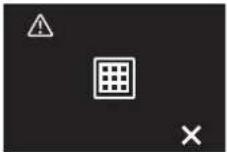 |  |
Empty the indoor unit dustbox —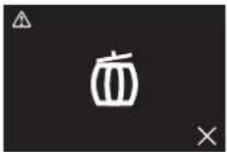 |
7 Troubleshooting
In this chapter
7.1 Overview: Troubleshooting 33
7.2 Refrigerant leak detection 33
7.2.1 About refrigerant leak detection 33
7.2.2 To stop the leak detection alarm 34
7.1 Overview: Troubleshooting
When the system is in error, consult your dealer. To indicate system error, the controller displays ▲ in the home screen, and/or displays an error screen as soon as you press □ to enter the main menu from the home screen.
Error screen (example)


INFORMATION
If the controller is set to be operable in "Supervisor" mode, then the controller adds the "supervised room address" of the faulty indoor unit to the error screen. In "Supervisor" mode, it is mandatory to set a unique "supervised room address" for every indoor unit. The "supervised room address" can be set in the Madoka Assistant app. Note that in case of multiple leakages, only the address of the first faulty unit rising the error is displayed.

For more information about the modes the controller can be set to be operable in, see "4.1 About the controller" [▶ 12].
7.2 Refrigerant leak detection
When the system detects a refrigerant leak, an alarm goes off. Stop the alarm and consult your dealer.

INFORMATION
For more information on what to do in the app in case of a refrigerant leak, see "15 About the app" [▶ 92].
7.2.1 About refrigerant leak detection
The information that the controller displays in case of a refrigerant leak depends on the mode that the controller is set to be operable in.
Normal and Alarm only mode
| Master controller Slave controller | |
The controller displays the unit number of the leaking indoor unit | The controller does not display the unit number of the leaking indoor unit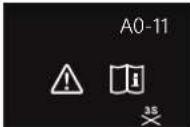 |
Supervisor mode
| Master controller Slave controller | |
— The controller displays the supervised room address of the leaking indoor unit 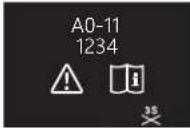 |

INFORMATION
For more information about the modes, see "4.1 About the controller" [▶ 12].
7.2.2 To stop the leak detection alarm

1 Press f+3 seconds to stop the alarm.
Result: The alarm stops.
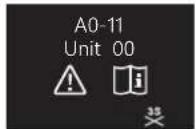
2 Consult your dealer.

INFORMATION
In case the controller is set to be operable in 'Supervisor' mode, the controller will indicate the supervised room address of the indoor unit for which the leak detection alarm occurs. However, it is not possible to stop the alarm of the indoor unit controller (set to be operable in either "Normal" or "Alarm only" mode) from the controller in "Supervisor" mode. The alarm of the controller connected to the indoor unit with the leak has to be stopped individually.
For the installer
8 About the box
Keep the following in mind:
- At delivery, the unit MUST be checked for damage and completeness. Any damage or missing parts MUST be reported immediately to the claims agent of the carrier.
- Bring the packed unit as close as possible to its final installation position to prevent damage during transport.
- Prepare the path in advance along which you want to bring the unit to its final installation position.
8.1 To unpack the controller
1 Open the box.
2 Separate the accessories.

a Installation and operation manual
b Wood screws + wall plugs ( 4.0×30 )
9 Preparation
9.1 Wiring requirements
All wiring must comply with the following requirements:
| Wire specification Value | |
| Type Sheathed vinyl cord or cable (2 wires) | |
| Section 0.75~1.25 mm | ^2 |
| Maximum length 500 m |
9.1.1 To prepare the wiring for installation
1 Peel the sheath of the part of the cable that needs to pass through the inside of the rear casing (L), according to the figure and the table.
2 Keep a 10 mm distance between the length of the 2 wires.

| Wiring outlet L | |
| Top ±150 mm | |
| Left ±120 mm | |
| Bottom ±100 mm | |
| Rear No requirements |
10 Installation

NOTICE
During the installation of the controller, keep the installation environment dust-free in order to avoid any particles entering the PCB side of the controller.
In this chapter
10.1 Overview: Installation.... 38
10.2 Mounting the controller 38
10.2.1 About mounting the controller 38
10.2.2 To mount the controller.... 39
10.3 Connecting the electrical wiring.... 40
10.3.1 Precautions when connecting the electrical wiring 40
10.3.2 To connect the electrical wiring.... 40
10.4 Closing the controller 41
10.4.1 Precautions when closing the controller.... 41
10.4.2 To close the controller 41
10.5 Opening the controller 42
10.5.1 Precautions when opening the controller 42
10.5.2 To open the controller 42
10.1 Overview: Installation
The installation of the controller typically consists of the following stages:
1 Determining how you want to route the electrical wiring, and nipping away a piece of the rear casing accordingly.
2 Mounting the rear casing to the wall.
3 Connecting the electrical wiring.
4 Closing the controller.
10.2 Mounting the controller
10.2.1 About mounting the controller
Before you can mount the controller, you have to determine the wiring routing, and accordingly, remove a piece of the controller's rear casing.
The wiring can be routed from the top, the rear, the left, or the bottom. Remove a piece of the rear casing according to the illustration:
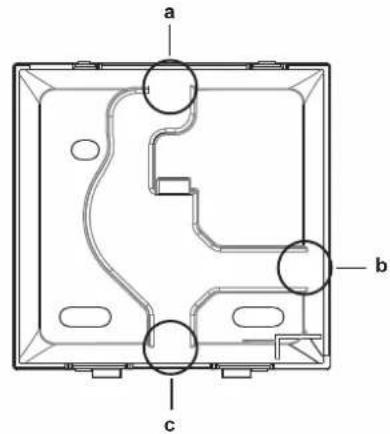
a Wiring from the top
b Wiring from the left
c Wiring from the bottom
In case you are routing the wiring from the rear, you do not have to remove anything.

INFORMATION
When routing the wiring from the top or from the rear, insert the wiring through the knockout hole before mounting the rear casing to the wall.
10.2.2 To mount the controller
1 Take the screws and plugs from the accessory bag.
2 Mount the rear casing to a flat surface.
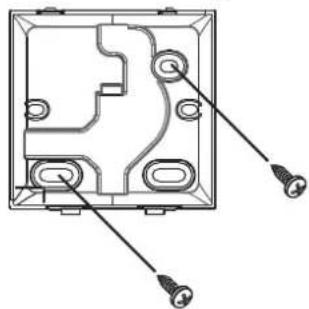
natural_image
Technical diagram of an electrical enclosure with mounting holes and wiring (no text or labels)
INFORMATION
If required (e.g. when mounting to a flush-mounted electrical installation box), mount the rear casing by way of the knockout holes.

natural_image
Technical line drawing of an electrical socket with two screws inserted (no text or symbols)
NOTICE
When mounting the rear casing to a flush-mounted electrical installation box inside a wall, make sure that that wall is completely flat.

NOTICE
Be careful not to distort the rear casing by overtightening the mounting screws.
10.3 Connecting the electrical wiring
10.3.1 Precautions when connecting the electrical wiring

INFORMATION
Also read the precautions and requirements in the following chapters:
■ General safety precautions
- Preparation

WARNING
All field wiring and components MUST be installed by a licensed electrician and MUST comply with the applicable legislation.

CAUTION
When connecting the controller to the indoor unit, make sure the indoor unit switchbox and transmission wiring are not connected.

NOTICE
The wiring for connection is NOT included.

NOTICE
When wiring, run the wiring away from the power supply wiring in order to avoid receiving electric noise (external noise).

INFORMATION
P1 and P2 have no polarity.
10.3.2 To connect the electrical wiring
Connect controller terminals P1/P2 to indoor unit terminals P1/P2.
From the top

From the rear
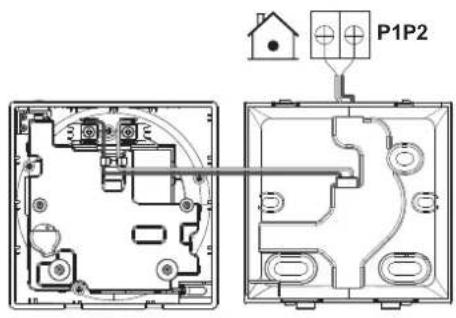
From the left

From the bottom
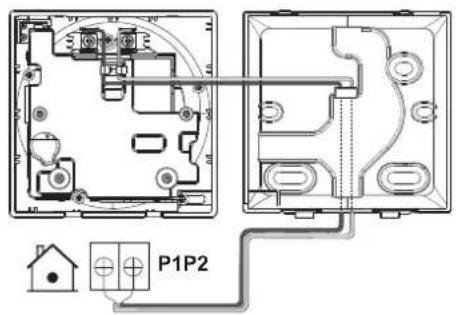
10.4 Closing the controller
10.4.1 Precautions when closing the controller

CAUTION
NEVER touch the internal parts of the controller.

CAUTION
When closing the controller, be careful not to pinch the wiring.

NOTICE
To prevent damage, make sure the front of the controller is clicked into the rear casing securely.
10.4.2 To close the controller
1 Click the front of the controller into the rear casing.

natural_image
Technical line drawing of a mechanical component with circular and curved features, no text or symbols present2 When the installation site is dust-free, peel off the protective seal.
10.5 Opening the controller
10.5.1 Precautions when opening the controller

NOTICE
The controller PCB is mounted into the front casing. When opening the controller, be careful not to damage the PCB.

NOTICE
When the front and rear casing are separated, make sure the PCB does not come into contact with dust or moisture.
10.5.2 To open the controller
1 Insert a flat-head screwdriver into one of the bottom closing mechanisms and slowly twist it.

natural_image
Technical line drawing of a square electronic component with a circular top and a coiled cable attached (no text or symbols)11 Starting up the system

CAUTION
Before starting up the system, make sure:
The indoor and outdoor unit wiring is completed.
The switch box covers of the indoor and outdoor units are closed.
The controller gets its power from the indoor unit. It will start up as soon as it is connected. For the controller to be operable, make sure the indoor unit is powered on.
Once the controller is powered, it will automatically start up. If it is the first and only controller that is connected to the indoor unit, it will automatically get designated as a "Normal" master controller.
11.1 Controller designation
Once started up, designate the controller to be operable in "Normal", "Alarm only", or "Supervisor" mode, and designate it as either a master or a slave controller. If a controller is set to be operable in "Supervisor" mode, it can only be a slave controller.

flowchart
graph TD
    A["a"] --> B["b"]
    B --> C["c"]
    B --> D["d"]
a Outdoor unit
b Indoor unit
c Master remote controller
d Slave remote controller
On the information screen, master/slave status is indicated by the following icons:
| Icon Description | |
 | Master |
 | Slave |
For more information, see "13.1.3 Information screen" [▶ 52].

INFORMATION
It is only possible to use a master and a slave controller of the same type.

INFORMATION
In case digital input adapter BRP7A5* is part of the system, it is not possible to connect and designate a second controller. Connecting a second controller when the system already contains the adapter, will cause the adapter to go in error.
11 | Starting up the system

INFORMATION
If the slave controller does not display the home screen two minutes after its designation, turn off the power and check the wiring.

INFORMATION
After re-designating a controller, the system requires a power reset.

INFORMATION
Slave controllers do not support all functions. If you cannot find a function on a slave controller, check for it on the master controller.

INFORMATION
For master and slave controllers to function together, they need to have the same value for the "Home screen setpoint" setting (Madoka Assistant app setting), i.e. all set to "Numerical" or all set to "Symbolic".
11.1.1 To designate a controller as slave
Prerequisite: A master controller is already connected to the indoor unit.
1 Connect a second controller.
Result: It will start up automatically.
2 Wait for a U5 or U8 error to appear on the screen.
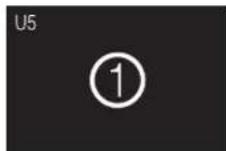
3 When the U5 or U8 error appears, press ■ and keep it pressed until "2" appears on the screen.

Result: The controller is now designated as slave.
12 Remote controller: Overview
In this chapter
12.1 About the controller 45
12.1.1 To configure the controller 46
12.2 Buttons.... 46
12.3 Status icons 47
12.4 Status indicator 48
12.4.1 Behaviour 48
12.1 About the controller
Depending on configuration, the controller is operable in either one of three modes. Each mode offers different controller functionality.
| Mode Functionality | |
| Normal The controller is fully functional. All functionality described under "13 Operation" [▶ 50] is available. The controller can be a master or a slave controller. | |
| Alarm only The controller only acts as leak detection alarm for a single indoor unit. No functionality described under "13 Operation" [▶ 50] is available. For information on the leak detection alarm, see "7.2 Refrigerant leak detection" [▶ 33]. The controller can be a master or a slave controller. | |
| Supervisor The controller only acts as leak detection alarm for the whole system, i.e. multiple indoor units and their respective controllers. This mode is intended for a controller that is to be used in a supervision location, e.g. the reception desk of a hotel. No functionality described under "13 Operation" [▶ 50] is available. For information on the leak detection alarm, see "7.2 Refrigerant leak detection" [▶ 33]. The controller can only be a slave controller. | |
For more information on how to set the controller to be operable in a specific mode, see "12.1.1 To configure the controller" [▶ 46]. When using "Supervisor" mode, it is important to set the supervised room address in order to know for which indoor unit the refrigerant leak alarm occurs. See "Supervised room address" [▶ 116] for more inormation.
12.1.1 To configure the controller
You can configure the controller to be operable in either one of three modes. For more information about the modes, see "12.1 About the controller" [▶ 45].
| Mode Configuration | |
| Normal (default) | Change remote controller field setting: Mode: R2SW: 5Value: 0 |
| Alarm only | Change remote controller field setting: Mode: R2SW: 5Value: 1 |
| Supervisor | Change remote controller field setting: Mode: R2SW: 5Value: 2 |
For more information on how to change remote controller field settings, see "14.1.4 Field settings" [▶ 69].
12.2 Buttons
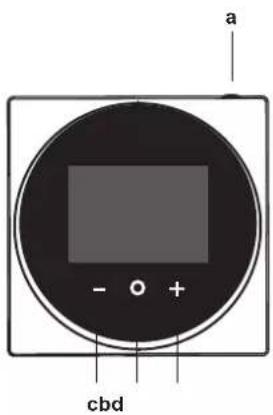
a ON/OFF
- When OFF, press to turn ON the system.
- When ON, press to turn OFF the system.
b ENTER/ACTIVATE /SET
- From the home screen, enter the main menu.
- From the main menu, enter one of the submenus.
- From their respective submenu, activate an operation/ventilation mode.
- In one of the submenus, confirm a setting.
c CYCLE/ADJUST
Cycle left.
- Adjust a setting (default: decrease).
d + CYCLE/ADJUST
Cycle right.
- Adjust a setting (default: increase).
12.3 Status icons
| Icon Description | |
 | System operation ON. Indicates that the system is in operation. |
 | System operation OFF. Indicates that the system is NOT in operation. |
 | Bluetooth.(1) Indicates that the controller is communicating with a mobile device, for use with the Madoka Assistant app. |
 | Lock. Indicates that a function or operation mode is locked and therefore cannot be used or selected. |
 | Centralised control. Indicates that the system is controlled by central control equipment (optional accessory) and that control of the system by the controller is limited. |
 | Changeover under centralised control. Indicates that the cooling/heating changeover is under centralised control by another indoor unit, or by an optional cool/ heat selector that is connected to the outdoor unit. |
 | Defrost/Hot start. Indicates that the defrost/hot start mode is active. |
 | Schedule/Timer. Indicates that the system operates according to a schedule, or that the OFF timer is enabled. |
 | Time not set. Indicates that controller's time is not set. |
 | Self-cleaning filter operation. Indicates that self-cleaning filter operation is active. |
 | Quick Start. Indicates that Quick Start mode is active (Sky Air only). |
 | Test operation. Indicates that Test Operation mode is active (Sky Air only). |
 | Inspection. Indicates that the indoor or outdoor unit is being inspected. |
 | Periodic inspection. Indicates that the indoor or outdoor unit is being inspected. |
 | Backup. Indicates that in the system an indoor unit is set as backup indoor unit. |
 | Individual airflow direction. Indicates that the individual airflow direction setting is enabled. |
 | Information. Indicates that the system has a message to convey. To see the message, go to the information screen. |
 | Warning. Indicates that an error occurred, or that an indoor unit component needs to be maintained. |
| Icon Description | |
 | Power consumption limit. Indicates that the system's power consumption is being limited, and that it is running with restricted capacity. |
 | End of power consumption limit. Indicates that the system's power consumption is no longer being limited, and that it is no longer running with restricted capacity. |
 | Rotation. Indicates that Rotation mode is active. |
 | Setback. Indicates that the indoor unit is operating under setback conditions. |
 | Ventilation. Indicates that a heat reclaim ventilation unit is connected. |

INFORMATION
- For information on the operation mode and ventilation mode icons, see "13.2 Operation mode" [▶ 54] and "13.6.1 Ventilation mode" [▶ 65] respectively.
- Most icons are related to things set in the Madoka Assistant app. For more information, see the app.
12.4 Status indicator

natural_image
Circular device with a black screen and control buttons (no text or symbols)a
a Status indicator
12.4.1 Behaviour
The behaviour of the status indicator depends on remote controller field setting R1-11 (status indicator mode). Depending on the value that is set for this setting, the status indicator has the following behaviour:
| Operation state Status indicator behaviour | |||
| 0 (Normal) 1 (Hotel setting 1) 2 (Hotel setting 2) | |||
| Operation ON ON ON ON (when the | backlight goes into faint state, the status indicator turns OFF) | ||
| Operation OFF OFF OFF | |||
| Error | Blinking | (no change) | (no change) |
| Warning ON ON ON | (when the | backlight goes into faint state, the status indicator turns OFF) | |
| Setting of status indicator intensity | ON ON ON | ||
| Pairing with indoor unit | Blinking Blinking Blinking | ||

INFORMATION
Remote controller field setting R1-11 allows for changes to the behaviour of the status indicator, making the controller suitable for use in hotels.

INFORMATION
By default, the controller is in status indicator mode "Hotel 2".
13 Operation
In this chapter
13.1 Basic usage....50
13.1.1 Screen backlight 50
13.1.2 Home screen 51
13.1.3 Information screen.... 52
13.1.4 Main menu 53
13.2 Operation mode 54
13.2.1 About the operation modes.... 54
13.2.2 To set the operation mode 58
13.3 Setpoint 58
13.3.1 About the setpoint 59
13.3.2 To set the setpoint 61
13.4 Date and time 61
13.4.1 About date and time 61
13.4.2 To set date and time 62
13.5 Airflow 62
13.5.1 Airflow direction....62
13.5.2 Fan speed 63
13.6 Ventilation.... 65
13.6.1 Ventilation mode.... 65
13.6.2 Ventilation rate 65
13.7 Advanced usage 66
13.1 Basic usage
13.1.1 Screen backlight
For the controller to be operable, the screen backlight needs to be ON. Otherwise, the controller does not detect any button presses.
After a period of operation inactivity, the backlight will either turn OFF, or go into a faint ON state, depending on operation conditions:
- Operation OFF: backlight OFF;
- Operation ON: backlight ON faintly.

INFORMATION
- Backlight state changeover after inactivity is set with remote controller field setting R1-8 (No-operation timer). For more information, see "Remote controller field settings" [▶ 75].
- Backlight faintness is set with remote controller field setting R1-10 (Backlight faintness). For more information, see "Remote controller field settings" [75].
- For instructions on how to set screen brightness and contrast when the backlight is ON, see "14.1.2 Screen settings" [▶ 68].
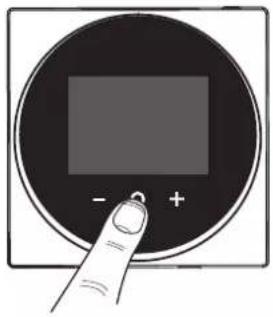
To turn ON the backlight
1 Press shortly.
natural_image
Hand holding a circular digital display with plus and minus signs (no text or symbols on the screen)13.1.2 Home screen
Home screen mode
Depending on configuration, the controller either has a standard or a detailed home screen. While the standard home screen gives you only limited information, the detailed home screen gives you all kinds of information through status icons. After a period of operation inactivity, the controller will always revert to the home screen.
| Standard Detailed | |
 | 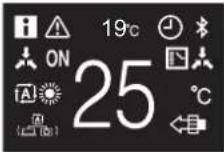 |
When the Home screen mode is Detailed, it is possible to either visualise the indoor temperature or the CO2 concentration value as measured by a unit equipped with a CO2 sensor. For more information, see "Screen" [▶ 104].
| Indoor temperature CO | _2 concentration value |
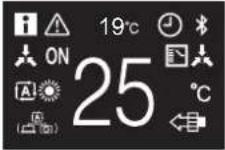 | 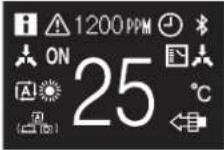 |
Home screen operation
In certain conditions, the controller allows you to perform actions from the home screen.
| Condition Action | |
| The system is running in Cooling, Heating, or Auto operation mode. | Change the setpoint |
| The system is composed of ONLY heat reclaim ventilation units. | Change the ventilation rate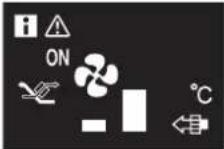 |

INFORMATION
- Depending on configuration, the home screen displays the setpoint either as a numerical value, or as a symbol. For more information, see "13.3.1 About the setpoint" [▶ 59].
In case the home screen displays the setpoint as a symbol, then it will only display the status icons of the standard home screen mode, even when the controller is in detailed home screen mode.

INFORMATION
The controller is equipped with a power saving function that causes the screen to go blank after a period of inactivity. To make the screen light up again, press any button.
13.1.3 Information screen
The controller collects operation information in an information screen.
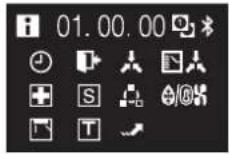
When there is information to convey, the controller displays ⓘ in the top left corner of the home screen.

a i
On the information screen, you can find the following information:
Status icons

For the meaning of the status icons, see "12.3 Status icons" [▶ 47].
Software version

a Software version

INFORMATION
- The presence of icons on the information screen depends on operation status. The controller may display more or less icons than are indicated here.
- The information screen always displays the current software version, regardless of operation status.
To enter the information screen
Prerequisite: The controller displays the home screen.
1 Press and keep it pressed until the information screen appears.

13.1.4 Main menu
From the home screen, press ⬆ enter the main menu. Use and to cycle through the menus. Press 📄 gain to enter one of the menus.
| Menu Description | |
 | Operation mode. Set the operation mode. |
 | Date and time. Make date and time settings. |
 | Airflow direction. Set the indoor unit airflow direction. |
 | Fan speed. Set the indoor unit fan speed. |
 | Ventilation mode. Set the ventilation operation mode. |
 | Ventilation rate. Set the fan speed for ventilation operation. |
 | Bluetooth. Activate Bluetooth to control the system with the Madoka Assistant app, and/or to perform a remote controller software update. |

INFORMATION
- Depending on the type of indoor unit you are operating, more or less menus may be available.
- In the main menu, the icon for each menu reflects the current active setting or mode. When operating the controller, the menu you navigate through can look different from that represented in this manual.
- The controller only allows for basic operation of the system. For advanced operation (setback, schedule timer, ...), see the Madoka Assistant app.

INFORMATION
It is possible that menus are locked. When this is the case, they appear crossed-out in the main menu, and get accompanied by a lock icon. The locking of functions happens through the Madoka Assistant app. For more information, see the Madoka Assistant app and "Function lock" [▶ 113].

13.2 Operation mode
The indoor unit can operate in various operation modes.
| Icon Operation mode | |
 | Cooling. In this mode, cooling will be activated as required by the setpoint, or by Setback operation. |
 | Heating. In this mode, heating will be activated as required by the setpoint, or by Setback operation. |
 | Fan Only. In this mode, air circulates without heating or cooling. |
 | Dry. In this mode, the air humidity will be lowered with a minimal temperature decrease.The temperature and fan speed are controlled automatically and cannot be controlled by the controller.Dry operation will not function if the room temperature is too low. |
 | Ventilation. In this mode, the space gets ventilated, but not cooled or heated. |
 | Air Clean. In this mode, the optional air cleaning unit operates. |
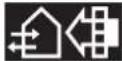 | Ventilation + Air Clean. Combination of ventilation and air clean operation. |
 | Auto. In Auto mode, the indoor unit automatically switches between heating and cooling mode, as required by the setpoint. |
 | |

INFORMATION
Depending on the indoor unit, more or less operation modes are available.
13.2.1 About the operation modes

INFORMATION
If the indoor unit is a cooling-only model, it can only be set to run in Cooling, Fan only, or Dry operation mode.

INFORMATION
When operation modes are not available in the operation mode menu, it is additionally possible that they are locked. The locking of operation modes occurs through the Madoka Assistant app. For more information, see the Madoka Assistant app and "Function lock" [▶ 113].

INFORMATION
If the operation mode changeover of an indoor unit is under centralised control ('changeover under centralised control' status icon blinking in the home screen), then it is NOT possible to change the operation mode of that indoor unit. For more information, see "Cooling/Heating masterhood" [▶ 86].
Cooling
If the outdoor air temperature is high, it can take some time until the indoor room temperature reaches the setpoint temperature.
When the indoor room temperature is low, and the indoor unit is set to run in Cooling operation mode, the indoor unit can enter Defrost operation mode first (i.e. Heating operation), this to prevent a decrease of the system's cooling capacity due to frost on the heat exchanger. For more information, see "Heating" [▶ 55].
The indoor unit can run in Cooling operation mode because it is operating under Setback conditions. For more information, see "Setback" [▶ 110].
Heating
When running in Heating operation mode, the system requires a longer time to reach the setpoint temperature than when running in Cooling operation mode. To make up for this, it is recommended to let the system start operation in advance by making use of the timer function.
The indoor unit can run in Heating operation mode because it is operating under Setback conditions. For more information, see "Setback" [▶ 110].
To prevent cold drafts and a reduction of the system's heating capacity, the system can run in the following special heating operation modes:
| Operation Description | |
| DefrostTo prevent the loss of heating capacitydue to frost accumulation in the outdoor unit, the system will automatically switch to defrost operation.During defrost operation, the indoor unit fan will stop operation, and the following icon will appear on the home screen:[IMAGE]The system will resume normal operation after approximately 6 to 8 minutes. | |
| Hot start (VRV only)During hot start, the | indoor unit fan willstop operation, and the following icon will appear on the home screen:[IMAGE] |

INFORMATION
When the system is stopped while the indoor unit is running in Heating operation mode, the fan will continue to operate for approximately 1 minute, this to get out any heat remaining in the indoor unit.

INFORMATION
- The lower the outdoor air temperature, the lower the heating capacity. If the system's heating capacity is insufficient, it is recommended to include another heating appliance into the setup (if you use a combustion appliance, ventilate the room regularly. Also, do not use the heating appliance in places where it is exposed to the airflow of the indoor unit).
The indoor unit is of the hot air circulation type. As a result, after operation start, it takes the indoor unit some time to warm up the room. - The indoor unit fan will automatically operate until the indoor temperature of the system rises to a certain level.
- When hot air stays under the ceiling and your feet feel cold, it is recommended to include a circulator into the setup.
Dry

NOTICE
To prevent water leakage or system failure, do NOT turn off the system immediately after indoor unit operation. Before turning off the system, wait until the drain pump finishes discharging any water remaining in the indoor unit (approximately 1 minute).

INFORMATION
To ensure a smooth start, do not turn off the system while it is operating.
Auto

INFORMATION
In case of indoor unit setpoint logic, the system cannot run in Auto operation mode. Therefore, to allow for Auto operation mode, go for remote controller setpoint logic. For more information, see the Madoka Assistant app and "Setpoint logic" [▶ 108].
The Auto operation mode logic depends on the set setpoint logic (Madoka Assistant app setting).
Single setpoint Dual setpoint

flowchart
graph TD
    A["C2"] --> B["SP"]
    C["C1"] --> D["SP"]
    E["SP"] --> F["C2"]
    style A fill:#f9f,stroke:#333
    style C2 fill:#ccf,stroke:#333
    style B fill:#cfc,stroke:#333
    style D fill:#cfc,stroke:#333
    style F fill:#cfc,stroke:#333
    note1["0.5℃ ~ 2℃"] --> A
    note2["0.5℃ ~ 2℃"] --> C
    note3["0.5℃ ~ 2℃"] --> E
    note4["0.5℃ ~ 2℃"] --> F

flowchart
graph LR
    A["C2"] --> B["+ C1"]
    B --> C["SP"]
    C --> D["DIFF"]
    E["C2"] --> F["+ C1"]
    F --> G["SP"]
    G --> D
    style A fill:#f9f,stroke:#333
    style E fill:#f9f,stroke:#333
    style B fill:#ccf,stroke:#333
    style C fill:#ccf,stroke:#333
    style F fill:#ccf,stroke:#333
    style G fill:#ccf,stroke:#333
Cooling setpoint
Heating setpoint
DIFF Minimum setpoint differential between the Heating and the Cooling setpoint
C1 Changeover setpoint (with guard timer)
C2 Forced changeover setpoint
0.5°C\~2°C Field settable temperature intervals between setpoints

INFORMATION
The default value of the settable temperature range (0.5°C\~2°C) is 0.5°C.
A changeover from the one operation mode to the other occurs in the following cases:
Case 1: primary changeover (C1)
A changeover occurs from the moment the room temperature rises above/drops below the Cooling/Heating changeover setpoint (C1), and the guard timer has run out.
Example:
| Single setpoint Dual setpoint | |
 |  |
| The system is heating up the room.When after a while the room temperature rises above C1 (23°C), a changeover from Heating to Cooling occurs, provided that the guard timer has run out. If the guard timer has not run out, the changeover will only occur from the moment the timer does run out. As a result of the changeover, the guard timer starts running again so as to allow for or prevent the next changeover.The system is cooling down the room.When after a while the room temperature drops below C1 (21°C), a changeover from Cooling to Heating occurs, provided that the guard timer has run out. If the guard timer has not run out, the changeover will only occur from the moment the timer does run out. As a result of the changeover, the guard timer starts running again, to allow for or prevent the next changeover. | The system is heating up the room.When after a while the room temperature rises above C1 (25°C), a changeover from Heating to Cooling occurs, provided that the guard timer has run out. If the guard timer has not run out, the changeover will only occur from the moment the timer does run out. As a result of the changeover, the guard timer starts running again so as to allow for or prevent the next changeover.The system is cooling down the room.When after a while the room temperature drops below C1 (21°C), a changeover from Cooling to Heating occurrences, provided that the guard timer has run out. If the guard timer has not run out, the changeover will only occur from the moment the timer does run out. As a result of the changeover, the guard timer starts running again, to allow for or prevent the next changeover. |
Case 2: forced changeover (C2)
A changeover is forced from the moment the room temperature rises above/drops below the Cooling/Heating forced changeover setpoint (C2) while the guard timer is still running.
Example:
Single setpoint Dual setpoint

chemical
Temperature gradient diagram showing C2 and C1 states at 24°C, 23°C, and 22°C with SP and -1°C annotationsThe system is heating up the room. When the room temperature rises above C2 (24°C) while the guard timer is still running, a changeover is forced from Heating to Cooling.
The system is cooling down the room. When the room temperature drops below C2 (20°C) while the guard timer is still running, a changeover is forced from Cooling to Heating.

The system is heating up the room. When the room temperature rises above C2 (26°C) while the guard timer is still running, a changeover is forced from Heating to Cooling.
The system is cooling down the room. When the room temperature drops below C2 (20°C) while the guard timer is still running, a changeover is forced from Cooling to Heating.

INFORMATION
To prevent operation mode changeovers from occurring too frequently, changeovers typically occur only after the guard timer has run out (i.e. Case 1). However, to prevent the room from getting too hot or too cold, a changeover is forced when the room temperature reaches C2 while the guard timer is still running (i.e. Case 2).
13.2.2 To set the operation mode
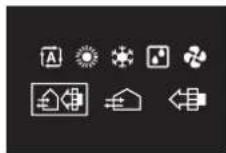
1 Navigate to the operation mode menu.

2 Use and to lect an operation mode.
3 Press to activate.
Result: The indoor unit changes its operation mode and the controller returns to the home screen.
13.3 Setpoint
The setpoint is the target temperature for the Cooling, Heating, and Auto operation modes.

INFORMATION
The lower setpoint limit of the Cooling operation mode is 20^ C, as per UAE Federal regulation UAE.S 5010-5:2016 clause 6, and UAE.S 5010-1:2016 clause 10.
13.3.1 About the setpoint
Depending on configuration, the home screen displays the temperature setpoint either as a numerical value, or as a symbol.

INFORMATION
For how to set the home screen setpoint, see the Madoka Assistant app. Also see "Screen" [▶ 104].
Home screen setpoint: Numerical
In case the home screen displays the temperature setpoint as a numerical value, you control the room temperature by raising or lowering the setpoint by 1^ C increments.

The default setpoint range is 16^ 32^ . If any limitations are set to this range with the setpoint range function (Madoka Assistant app function; see "Setpoint range" [▶ 111]), it is only possible to raise or lower the setpoint up/down to the set maximum/minimum setpoint range limits.
Home screen setpoint: Symbolic
In case the home screen displays the temperature setpoint as a symbol, you control the room temperature by raising or lowering the setpoint in relation to the "reference setpoint" (visually indicated by the marker in the middle of the thermometer).

It is possible to raise the setpoint up to three steps of 1^ C above and up to three steps of 1^ C below the reference setpoint.
Example: if the reference setpoint is 25^ C, it is possible to raise the setpoint to 28^ C and lower it to 22^ C.


INFORMATION
For how to set the reference setpoint, see the Madoka Assistant app. Also see "Screen" [▶ 104].
Exceptions to this logic are possible in case of:
- Setpoint range limitations
- Central control / control by a schedule
Setpoint range
If any limitations are set to the default setpoint range (16°C\~32°C) with the setpoint range function (Madoka Assistant app function; see "Setpoint range" [▶ 111]), it is only possible to raise or lower the setpoint up/down to the set upper/lower setpoint range limits.
Example: if the reference temperature is 25^ C, you can normally lower the setpoint three steps to 22^ C. However, if a setpoint range limit is set to 23^ C, you can only lower the setpoint to 23^ C.
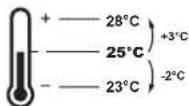
Central control / Schedule
If the system is under the control of a centralised controller or a schedule, then the regular +3^ / -3^ setpoint range limits can get overruled AND changed.
| IF THEN | |
| The centralised controller or schedule imposes a setpoint that is within the regular +3°C/–3°C setpoint range. | Nothing unusual happens and the system follows the regular setpoint and setpoint range logic. |
| The centralised controller or schedule imposes a setpoint that exceeds the regular +3°C/-3°C setpoint range. | The imposed setpoint becomes the new upper/lower limit of the +3°C/-3°C range, and the whole range shifts in relation to this new limit.Example: the reference setpoint is set to 25°C, yielding the following setpoint range: If the centralised controller or schedule changes the setpoint to 21°C, which is below the range, then "21°C" becomes the new lower limit, and the range shifts in relation to this new limit. If the centralised controller or schedule changes the setpoint to 21°C, which is below the range, then "21°C" becomes the new lower limit, and the range shifts in relation to this new limit.   |
13.3.2 To set the setpoint
Prerequisite: The active operation mode is either 'Cooling', 'Heating', or 'Auto'.
1 In the home screen, use and to adjust the setpoint.

Result: The indoor unit changes its temperature setpoint.
13.4 Date and time
Set the date and time for the indoor units connected to the controller.
13.4.1 About date and time
Depending on daylight saving time settings, the date and time menu has the following daylight saving time indicators:
 | Summer time |
 | Winter time |
For more information, see "Indoor unit field settings" [▶ 73] (remote controller settings) and "Date and time" [▶ 105] (app settings).
13.4.2 To set date and time
1 Navigate to the date and time menu.

2 Press
t+activate


Result: The fields become editable.

3 Set the date and time. Set with
an-. Con+rm with . Cycle through the
menu until all fields are set correctly.
Result: You set the date and the time.

INFORMATION
Confirming the value in a field will automatically bring you to the next field. To finish making settings and leave the menu, navigate to and confirm the value in the last field.
13.5 Airflow
13.5.1 Airflow direction
The airflow direction is the direction in which the indoor unit blows its air.
About airflow direction
The following airflow directions can be set:
| Direction Screen | |||
| Fixed position. The indoor unit blows air in 1 of 5 fixed positions. |  | ||
| Swing. The indoor unit alternates between the 5 positions. |  | ||
| Auto. The indoor unit adjusts its airflow direction according to movement sensed by a movement sensor. |  | ||

INFORMATION
- Depending on the type of indoor unit, and/or on system layout and organisation, Auto airflow direction may not be available.
- For some types of indoor unit, you cannot set the airflow direction.
Automatic airflow control
In the following operating conditions, the airflow direction of the indoor units is controlled automatically:
- When the room temperature is higher than the controller's setpoint for Heating operation (including Auto operation).
- When the indoor units run in Heating operation mode, and the Defrost function is active.
- When the indoor units run in Continuous operation, and the airflow direction is Horizontal.
To set the airflow direction
1 Navigate to the airflow direction menu.
2 Use and to + just the airflow direction.
3 Press to confirm.
Result: The indoor unit changes its airflow direction and the controller returns to the home screen.
13.5.2 Fan speed
The fan speed is the strength of the airflow coming out of the indoor unit.
About fan speed
Depending on the indoor unit, you can choose between either:
Some indoor units additionally support Automatic fan speed. In this case, the indoor unit adjusts its fan speed automatically, according to the setpoint and indoor temperature.
| Fan speed Screen | |
| Automatic |  |

INFORMATION
- For mechanical protection purposes, it is possible that the indoor unit switches itself to 'Automatic fan speed' mode.
- If the fan stops operating, this does not necessarily mean system failure. The fan can stop operating at all times.
- It may take some time before changes made to fan speed settings are actually carried out.
To set the fan speed
1 Navigate to the fan speed menu.

2 Use and to adjust the fan speed.

3 Press to confirm.
Result: The indoor unit changes its fan speed and the controller returns to the home screen.
13.6 Ventilation

INFORMATION
Ventilation settings can ONLY be made for heat reclaim ventilation units.
13.6.1 Ventilation mode
The heat reclaim ventilation unit can operate in various operation modes.
| Icon Ventilation mode | |
 | Energy Reclaim Ventilation. The outdoor air is supplied to the room after passing through a heat exchanger. |
 | Bypass. The outdoor air is supplied to the room without passing through a heat exchanger. |
 | Auto. To ventilate the room in the most efficient way, the heat reclaim ventilation unit automatically switches between "Bypass" and "Energy Reclaim Ventilation" mode (based on internal calculations). |

INFORMATION
Depending on the heat reclaim ventilation unit, more or less ventilation modes are available.

INFORMATION
Ventilation mode changes are possible regardless of Cooling/Heating masterhood. For more information, see "Cooling/Heating masterhood" [▶ 86].

INFORMATION
To ensure a smooth start, do not turn off the system while it is operating.
To set the ventilation mode
1 Navigate to the ventilation mode menu.
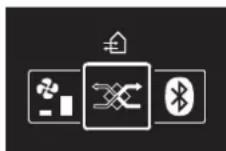
2 Use and to lect a ventilation mode.
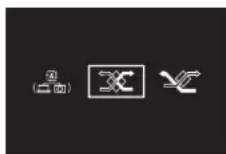
3 Press to activate.
Result: The heat reclaim ventilation unit changes its operation mode and the controller returns to the home screen.
13.6.2 Ventilation rate
The ventilation rate is the fan speed during ventilation operation.
To set the ventilation rate
1 Navigate to the ventilation rate menu.

2 Use and to adjust the ventilation rate.
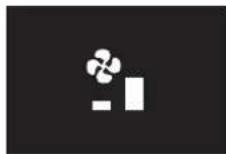
3 Press to confirm.
Result: The heat reclaim ventilation unit changes its ventilation rate and the controller returns to the home screen.
13.7 Advanced usage
The controller only allows for basic operation. For advanced operation, use the Madoka Assistant app.

INFORMATION
To operate the controller with the app, you need to connect the controller to a mobile device on which the app is installed. For instructions, see "15.2 Pairing" [▶ 92].
14 Configuration
In this chapter
14.1 Installer menu.... 67
14.1.1 About the installer menu 67
14.1.2 Screen settings 68
14.1.3 Status indicator settings.... 69
14.1.4 Field settings.... 69
14.1.5 Miscellaneous settings 76
14.2 Software update 89
14.2.1 About software updates 89
14.2.2 Software update with app 90
14.2.3 Software update with updating tool.... 90
14.1 Installer menu
14.1.1 About the installer menu
In the installer menu you can make the following settings:
| Category Icon Settings | ||
| Screen settings Brightness |  | |
 | Contrast | |
| Status indicator settings Intensity |  | |
| Field settings Indoor unit field setting |  | |
 | Remote controller field settings | |
| Miscellaneous settings Group address |  | address |
 | External input interlock | |
 | Force fan ON | |
 | Cooling/Heating masterhood | |
 | Refrigerant leak alarm test | |
 | Information |
To enter the installer menu
Prerequisite: The controller displays the home screen.
1 Press and keep it pressed until the information screen appears:


INFORMATION
- The presence of icons on the information screen depends on operation status. The controller may display more or less icons than are indicated here.
- The information screen always displays the current software version, regardless of operation status.
2 From the information screen, press and simultaneously and keep them pressed until you enter the installer menu:

Result: You are now in the installer menu.
14.1.2 Screen settings
To set screen brightness
Prerequisite: You are in the installer menu.
1 Navigate to the screen brightness menu.

2 Use and to adjust screen brightness.

3 Press to confirm.
Result: The screen adjusts its brightness and the controller returns to the installer menu.
To set screen contrast
Prerequisite: You are in the installer menu.
1 Navigate to the screen contrast menu.
2 Use a to + just screen contrast.

3 Press t confirm.
Result: The screen adjusts its contrast and the controller returns to the installer menu.
14.1.3 Status indicator settings
To set status indicator intensity
Prerequisite: You are in the installer menu.
1 Navigate to the status indicator intensity menu.
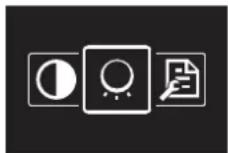
2 Use and to adjust status indicator intensity.

3 Press to confirm.
Result: The status indicator adjusts its intensity and the controller returns to the installer menu.
14.1.4 Field settings
About field settings
The controller allows for making field settings related to the indoor unit, and to the controller itself.
| Screen Field settings | ||
 | Indoor unit | |
 | Remote controller | |
In both case, the setting procedure is the same. For instructions, see "Setting procedure" [▶ 70].
Setting procedure
Field settings are composed of the following components:
1 Modes ("Mode"),
2 Units ("Unit"),
3 Settings ("SW"), and
4 Values for those settings.
The field settings menus have two levels. You set modes and units in the first level, and settings and values in the second.
| Level Description | |
First level Mode (Mode)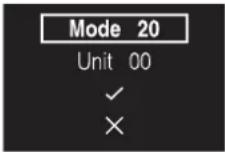 | 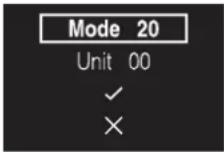 A mode is a group of settable parameters.In the field settings tables, find available mode numbers in the "Mode" column. Mode numbers that apply to individual indoor units are between brackets in the "Mode" column. A mode is a group of settable parameters.In the field settings tables, find available mode numbers in the "Mode" column. Mode numbers that apply to individual indoor units are between brackets in the "Mode" column. |
Unit (Unit) (indoor unit field settings only) A unit is an individual unit to which a setting might apply.When making field settings for individual units, this is the place where you define the number of the unit to which the setting applies.When making field settings for grouped units, you do NOT set the unit number. The settings will then apply to all indoor units that are part of that group. A unit is an individual unit to which a setting might apply.When making field settings for individual units, this is the place where you define the number of the unit to which the setting applies.When making field settings for grouped units, you do NOT set the unit number. The settings will then apply to all indoor units that are part of that group. |
Level Description
Second level Setting (SW)


A setting is a settable parameter. These are the settings you are making.
In the field settings tables, find the available setting numbers in the "SW" column.
Value

A value is one of a fixed set of values that you can choose for a setting.
When the value field contains a "-" , there are no values available for the selected setting:

When making group settings, you can ONLY set a value for a setting if the value field contains a "*" (if the value field does NOT contain a "*", you cannot apply the selected setting to the group):

In the field settings tables, find the available values for each setting in the "Value" column.
Navigation
To navigate through the field settings menus, use -, and . +
1 Use and to move the highlighter.

2 Press to select a field setting component.

3 Use and to change the value of that field setting component.
4 Press to confirm that value.
5 In the first level, select t√move to the second level.
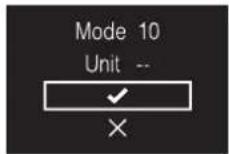
6 In the second level, navigate and select in the same way as you did in the first level.
7 Select confirm and activate made settings.

8 At all times, select t go back a level.
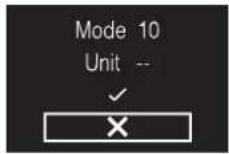
Indoor unit field settings
The setting procedure is different depending on whether you want to make settings for individual indoor units, or for groups of indoor units.
Individual indoor units
- Define a mode by setting a Mode number (number between brackets)
- Define the unit to which the setting will apply by setting a Unit number
- Define the setting by setting a SW number
- Define a value for that setting
Groups of indoor units
- Define a mode by setting a Mode number (number NOT between brackets)
- Do NOT set a Unit number (setting applies to all the units in the group)
- Define the setting by setting a SW number
- Define a value for that setting
| Mode SW Setting (SW) description — | |||||||||
| 01 02 03 04 | |||||||||
| 10 (20) 00 Filter contamination timer: set the timer for the appearance of the "Time to clean filter" screen. | Ultra long life filter Light ±10000 hrs. Heavy ±5000 hrs — — | ||||||||
| Long life filter ±2500 hrs ±1250 hrs | |||||||||
| Standard filter ±200 hrs ±100 hrs | |||||||||
| — | |||||||||
| — | |||||||||
| Long life filter | Ultra long life filter | — | — | ||||||
^(e) This is applicable for codes 02-06. Codes 05 and 06 are not shown in the table. See the service manual for more detailed information.

INFORMATION
- The connection of optional accessories to the indoor unit might cause changes to some field settings. For more information, see the installation manual of the optional accessory.
- For details about the specific field settings of each type of indoor unit, see the installation manual of the indoor units.
Field settings that are not available for a connected indoor unit are not displayed. - Field setting default values are different depending on the indoor unit model. For more information, see the service manual of the indoor units.
Remote controller field settings
| Mode SW $W description | Value Default value | ||||
| R1 3 Controller thermistor adjustment (Cooling) | 0: -3.0°C, 1: -2.5°C,2: -2.0°C, 3: -1.5°C,4: -1.0°C, 5: -0.5°C,6: ±0°C, 7: +0.5°C,8: +1.0°C, 9: +1.5°C,10: +2.0°C, 11: +2.5°C,12: +3.0°C | 6 | |||
| 4 Controller thermistor adjustment (Heating) | 0: -3.0°C, 1: -2.5°C,2: -2.0°C, 3: -1.5°C,4: -1.0°C, 5: -0.5°C,6: ±0°C, 7: +0.5°C,8: +1.0°C, 9: +1.5°C,10: +2.0°C, 11: +2,5°C,12: +3.0°C | 6 | |||
| 5 Controller thermistor adjustment (Auto) | 0: -3.0°C, 1: -2.5°C,2: -2.0°C, 3: -1.5°C,4: -1.0°C, 5: -0.5°C,6: ±0°C, 7: +0.5°C,8: +1.0°C, 9: +1.5°C,10: +2.0°C, 11: + 2.5°C,12: +3.0°C | 6 | |||
| 6 Controller thermistor adjustment (Fan only) | 0: -3.0°C, 1: -2.5°C,2: -2.0°C, 3: -1.5°C,4: -1.0°C, 5: -0.5°C,6: ±0°C, 7: +0.5°C,8: +1.0°C, 9: +1.5°C,10: +2.0°C, 11: +1.5°C,12: +3.0°C | 6 | |||
| 7 Home screen 0: Detailed | 1: Standard | 1 | |||
| 8 Backlight no-operation timer 0: 5 seconds | 1: 10 seconds2: 20 seconds | 0 | |||
| 9 Status indicator faintness 0: 0% (OFF), | 1: 1%,2: 2%, 3: 3%,4: 5%, 5: 7%,6: 9%, 7: 11%,8: 13%, 9: 15%,10: 17%, 11: 20% | 9 | |||
| 10 Backlight faintness 0: 0% (OFF), 1: 1%, | 2: 2%, 3: 3%,4: 4%, 5: 5%, | 5 | |||
| 11 Status indicator mode 0: Normal | 1: Hotel setting 12: Hotel setting 2 | 2 | |||
| 13 Bluetooth Low Energy advertising | 0: Always advertising1: Enable manually | 0 | |||
| Mode SW | SW description | Value Default value | ||
| R2 1 Touch | button indicator (on screen) | 0: None1: Small2: Medium3: Large | 1 | |
| 5 Remote controller mode 0: Normal | 1: Alarm only2: Supervisor | 0 | ||
| 7 Home screen mode visualisation | 0: Indoor temperature^(a) 1: CO_2 concentration value | 0 | ||
| 1E 8 Home screen setpoint | 1: Numerical | 2: Symbolic | 1 | |
^[3] Temperature measurement is done by either the indoor unit thermistor or the controller thermistor (determined by indoor unit field setting Mode 1c – SW 01). See "Indoor unit field settings" [▶ 73] for more information.

INFORMATION
Remote controller field setting R1-11 allows for changes to the behaviour of the status indicator, making the controller suitable for use in hotels.
14.1.5 Miscellaneous settings
Group address
About group address
To control the system with central control equipment, it is required that you assign the indoor units with the necessary addresses. It is possible to assign an address to a group of indoor units, or to individual indoor units.
| Group of indoor units |  |
| Individual indoor units |  |
To assign an address to a group of indoor units
Prerequisite: You are in the installer menu.
1 Navigate to the address settings menu.

2 Select "Group"
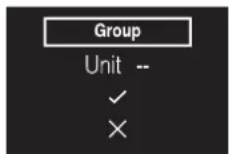
3 Confirm your selection.

4 Define the address.

5 Before you confirm the address, make sure is ☑elected.
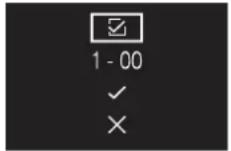
6 Confirm the address.

Result: You assigned an address to the group of indoor units.
To assign an address to an individual indoor unit
Prerequisite: You are in the installer menu.
1 Navigate to the address settings menu.

2 Select "Group(Unit)"

3 Define the indoor unit to which you want to assign the address.

4 Confirm your selection.

5 Define the address.
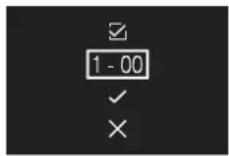
6 Before you confirm the address, make sure is selected.
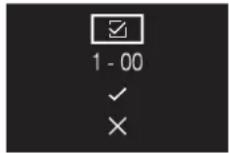
7 Confirm the address.

Result: You assigned an address to the indoor unit.
To remove an address
1 Navigate to the address that you want to remove.
2 Change t.

3 Confirm your selection.
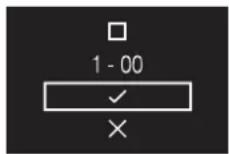
Result: The address gets removed.
AirNet address
About AirNet address
To connect the system to the AirNet monitoring and diagnostics system, it is required that you assign the indoor and outdoor units with the necessary addresses.
| Indoor units |  | |
| Outdoor units |  |
To assign an AirNet address to an indoor unit
Prerequisite: You are in the installer menu.
1 Navigate to the address settings menu.

2 Select "I/U"

3 Define the indoor unit to which you want to assign the address.
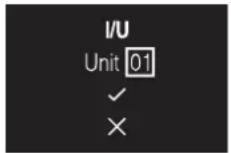
4 Confirm your selection.

5 Define the address.

6 Before you confirm the address, make sure is selected.
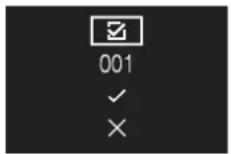
7 Confirm the address.

Result: You assigned an AirNet address to the indoor unit.
To assign an AirNet address to an outdoor unit
Prerequisite: You are in the installer menu.
1 Navigate to the address settings menu.
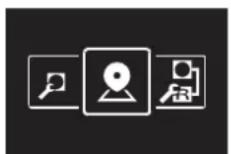
2 Select "O/U"

3 Define the outdoor unit to which you want to assign the address.
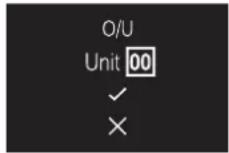
4 Confirm your selection.

5 Define the address.

6 Before you confirm the address, make sure is selected.
7 Confirm the address.
Result: You assigned an AirNet address to the outdoor unit.
To remove an address
1 Navigate to the address that you want to remove.
2 Change t.

3 Confirm your selection.
Result: The address gets removed.
External input interlock
About external input interlock
External input interlock allows for the integration of external contacts in the system's control logic. By adding a key card contact and/or a window contact to the control setup, it is possible to have the system respond to the insertion/removal of a key card in/from a card reader, and/or the opening/closing of windows.

INFORMATION
To use this function, it is required that digital input adapter BRP7A5* is part of the system.
- Make sure that the digital input adapter and its optional contacts (window contact B1 and key card contact B2) are correctly installed. Confirm that the voltage free contact of the digital input adapter is in the correct position. For instructions on how to install the digital input adapter, see the installation manual of the digital input adapter.
- When the digital input adapter does not function properly, external input interlock is not available in the menu.
- When the digital input adapter is part of the system, the system does not allow for the connection of a slave controller.
- When the digital input adapter is part of the system, it is not possible to use the Schedule function.
- When the digital input adapter is part of the system, as well as a centralised controller, the external input interlock function is controlled by the centralised controller, and not by the adapter.
To make external input interlock settings
Prerequisite: You are in the installer menu.
1 Navigate to the external input interlock menu.

2 Use and to navigate through the menu.
3 Press to select a parameter.
4 With a parameter selected, use and to change that parameter's value.
5 With a parameter selected, press to confirm the value for that parameter.
6 When you are done making settings, confirm all settings by selecting an ▼ pressing 🔒
Result: The system will restart and implement any changes made.

INFORMATION
For an overview of settable parameters and what they mean, see "External input interlock settings overview" [▶ 82].
External input interlock settings overview
| Parameter Description | ion Possible values Default value | ||
B2 Delay TimerTimer that start | starts as soon asthe key card is removed.The unit continues normaloperation until the timerexpires. | 0-10 minutes "1 min" | |
B2 Reset TimerTimer that start | starts as soon asthe Delay Timer expires.When this timer expires,the previous state (i.e.regular setpoint) changesto the "Default ResetSetting" state. | 0-20 hours "20 hours" | |
Reset ON/OFF "Default Reset | et Setting"on/off state | "ON", "OFF", "--" "OFF" | |
Reset Mode "Default Reset | Setting"operation mode | Auto, Cooling, Heating, Fanonly, -- | "--" |
Reset Cool SP "Default Reset | Setting"cooling setpoint | See indoor unit's setpointrange and setpoint rangelimitation, "--" | "22°C" |
Reset Heat SP "Default Reset | et Setting"heating setpoint | See indoor unit's setpointrange and setpoint rangelimitation, "--" | "22°C" |

INFORMATION
When the value for a parameter is "- -", this means that when the timers expires, nothing changes for that parameter and the current active value is kept.
Window contact logic
| Window contact B1 Key | card contact B2 Time Action | ||
| Contact closed (window closed) | Contact closed (key card IN) | — | Normal indoor unit operation.The unit returns to the previous state before opening the contact. |
| Contact open (window open) | Contact closed (key card IN) | — Unit operation is forced off:No delay and reset timer functionality.No Setback functionality.Not possible to turn on/off the unit with the controller's ON/OFF button. | |
Key card contact logic
| Window contact B1 Key | card contact B2 Time Action | ||
| Contact closed (window closed) | Contact closed (key card IN) | —Delay timerReset timer | The unit operates normally.If the reset timer has not expired, the unit returns to the previous state before opening the contact.If the reset timer has expired, the unit returns to the "Default Reset Setting" (see "External input interlock settings overview" [ ▶ 82]). |
| Contact closed (window closed) | Contact open (key card OUT) | TimeNormal indoor unit operation. | Normal indoor unit operation. |
| Contact closed (window closed) | Contact open (key card OUT) | Time>Delay timer | Unit operation is forced off:Depending on whether the Setback function is enabled, Setback will work or not.Not possible to turn on/off the unit with the controller's ON/OFF button.After the delay timer has expired, the reset timer will start counting. |

INFORMATION
- The "previous state" can be the on/off state, operation mode, cooling setpoint, and heating setpoint.
- When using the contacts, the fan speed as well as the Setback cooling and heating setpoints can be changed at any time, without losing changes.
- The fan speed is stored independently for the two main operation modes (Heating and Cooling). Separate fan speed settings are saved for Heating operation mode on the one hand, and Cooling, Dry and Fan only operation mode on the other hand.
- When closing the contact, changes made while the key card contact is open and the delay timer has not expired (normal operation) will not be saved.
Combination of window contact and key card contact logic
- The window contact has priority over the delay timer and the Setback functionality of the key card contact:
When the window contact is opened while the key card contact is open, the delay timer will immediately expire if it is still running, and Setback will not work anymore. The reset timer will immediately start counting or will not reset when it was already running. - The reset timer functionality of the key card contact has priority over the window contact when returning to the previous state:
When the key card contact is opened while the window contact is open, the delay timer will start running. When the delay timer expires the reset timer will start running. When the reset timer expires, the previous state is updated to the "Default Reset Setting" state.
Example 1
1 You remove the key card.
Result: The indoor unit continues operating normally until the delay timer expires.
2 You open the window before the delay timer expires.
Result: The indoor unit stops immediately. It is not possible to turn the unit on or off, the Setback functionality does not work, the delay timer stops counting, and the reset timer starts counting.
3 You insert the key card again.
Result: An update of the previous state occurs. The unit is forced off and the Setback functionality is still disabled (see "Window contact logic" [▶ 82]).
IF the reset timer HAS NOT expired before inserting the key card, the previous state is the same as the original state because there was only a change to the original state.
IF the reset timer HAS expired before inserting the key card, the previous state is the "Default Reset Setting" state.
4 You close the window.
Result: The unit reverts to the previous state. The previous state depends on the expiration of the reset timer.
Example 2
1 You open the window.
Result: The unit stops immediately. It is not possible to turn the unit on or off with the ON/OFF button, the Setback functionality does not work, and the delay timer does not start counting.
2 You remove the key card.
Result: The delay timer starts counting.
3 You close the window again.
Result: There is no change in state. It is as if you never opened the window (Setback will work if enabled).
IF the delay timer HAS expired before closing the window, the reset timer will have started counting. Closing the window has no influence on the reset timer.
IF the delay timer HAS NOT expired before closing the window, it will expire immediately and the reset timer will start counting. When the reset timer expires, the previous state is updated to the "Default Reset Setting" state.
4 You insert the key card again.
Result:
IF the reset timer HAS NOT expired before inserting the key card, the unit returns to the state before the window was opened (last "on" state);
IF the reset timer HAS expired before inserting the key card, the unit goes to the "Default Reset Setting" state.
Force fan ON
About Force fan ON
Force fan ON allows you to force fan operation of individual indoor units. In this way, you can check which indoor unit number was assigned to which indoor unit.
To force fan operation
Prerequisite: You are in the installer menu.
1 Navigate to the Force Fan ON menu.

2 Select an indoor unit number.

3 Select and press to force fan operation.

Result: The fan of the indoor unit that corresponds to the selected indoor unit number starts operating.
Cooling/Heating masterhood
About Cooling/Heating masterhood

flowchart
graph TD
    A["Server Unit a"] --> B["Client 1"]
    A --> C["Client 2"]
    A --> D["Client 3"]
    A --> E["Client 4"]

A Heat pump system
B Heat recovery system
a Outdoor unit
b Indoor unit
c Remote controller
d BS unit
When multiple indoor units are connected to an outdoor unit, one of these units (or a group of indoor units, in case of group control) needs to be set as Cooling/ Heating master. The other units/groups then become Cooling/Heating slaves, and are restricted in their operation by the master (e.g. one outdoor unit does not allow for one indoor unit to run in Cooling operation while another runs in Heating operation).
When an indoor unit or group of indoor units is set as Cooling/Heating master, the other indoor units automatically become its slaves. For instructions, see "To set Cooling/Heating masterhood" [▶ 87].
Status icon
Cooling/Heating masterhood corresponds to the following status icon:
The behaviour of this status icon is according to the following table:
| If a controller displays ... Then ... | |
| ... NO status icon ... The indoor unit connected to that controller is Cooling/Heating master. | |
| ... a CONSTANT status icon ... The indoor unit connected to that controller is slave to a Cooling/Heating master. | |
| ... BLINKING status icon ... NO indoor unit is assigned as Cooling/ Heating master yet. | |
Operation mode
The operation mode behaviour of the indoor units is according to the following table:
| If the master ... Then the slaves ... | |
| ... is set to "Heating", "Dry", or "Auto" operation mode | ... start running in the same operation mode as the master. No other modes are then available for them. |
| ... is set to "Cooling" operation mode ... then | en the slaves cannot run in "Heating" operation mode, but can still run in "Cooling", "Fan only" and "Dry" operation mode. |
| ... is set to "Fan only" mode ... can ONLY run | in "Fan only" mode. |
Once an indoor unit is set as master, it can be released from masterhood. For instructions, see "To release Cooling/Heating masterhood" [▶ 88]. To turn a slave unit/group into the master, first release the currently active master from its masterhood.

INFORMATION
Ventilation mode changes are possible regardless of Cooling/Heating masterhood.
To set Cooling/Heating masterhood
Prerequisite: No indoor unit is yet set as Cooling/Heating master ("changeover under centralised control" icon blinking on all controllers).
Prerequisite: You are operating the controller of the indoor unit that you want to set as Cooling/Heating master.
1 Navigate to the operation mode menu.
2 Set the operation mode to either Cooling or Heating.
Result: The indoor unit is now Cooling/Heating master ("changeover under centralised control" icon not on controller).
Result: All slave controllers display the "changeover under centralised control" icon.
To release Cooling/Heating masterhood
Prerequisite: You are in the installer menu.
Prerequisite: You are operating the controller of the indoor unit that you want to release from its masterhood.
1 Navigate to the Cooling/Heating masterhood menu.

2 Press t+ release the indoor unit from its masterhood.
Result: The indoor unit is released from its masterhood.
Result: The controllers of all indoor units display a blinking "changeover under centralised control" icon.
Refrigerant leak alarm test
About refrigerant leak alarm test
It is possible to test the refrigerant leak alarm.
To test the refrigerant leak alarm
Prerequisite: You are in the installer menu.
1 Navigate to the refrigerant leak alarm test menu.

2 Press tenter the menu and thus activate the alarm.
Result: The controller starts buzzing and the status indicator starts flashing.
Result: The controller displays the following screen:
3 To stop the alarm again, press.
Result: The alarm stops and the controller returns to the installer menu.

INFORMATION
The refrigerant leak alarm can also be tested using the Madoka Assistant app. See "R32 refrigerant system settings" [▶ 116] for more information.
Information
About the information menu
In the information menu, you can see the following information:
 |
To see information
Prerequisite: You are in the installer menu.
1 Navigate to the information menu.

2 Read out information.

3 Press t+go to the second page.

14.2 Software update
14.2.1 About software updates
It is strongly recommended that the remote controller has the latest software version. There are two ways to perform a software update.
| Software update Instructions | |
| Madoka Assistant app "14.2.2 Software update with app" [▶ 90] | |
| Updating tool "14.2.3 Software update with updating tool" [▶ 90] | |

INFORMATION
- When the software of a controller is out-of-date, the Madoka Assistant app will suggest a software update for that controller as soon as you try to connect it (the controller) to the app.
- Checking the current controller software version is possible from the information screen (see "13.1.3 Information screen" [▶ 52]) and/or from the information menu ("About the information menu" [▶ 88]).
14.2.2 Software update with app
To update the software with the app:
1 Make sure that Bluetooth is activated on the remote controller ( displayed on the home screen). If not, activate Bluetooth according to the instructions set out in "15.2.3 To make a Bluetooth connection" [▶ 93].
2 In the home screen of the app, tap the tile of the remote controller of which you want to update the software, and follow the instruction from there.

INFORMATION
The Madoka Assistant app is available from Google Play and the App Store.

INFORMATION
When it is the first time you connect a remote controller to your device, app and user interface initiate a numeric comparison procedure. To successfully connect the controller to the app, follow the procedure.
After each successful connection to a mobile device, the controller automatically stores information about that mobile device, this to facilitate future reconnection. This information is called "bonding information".
When no bonding information is stored, (i.e. at first connection, or after it got manually removed), you will have to go through the numeric comparison procedure.
When bonding information is stored, you can connect the controller to the mobile device just by making the controller send out a Bluetooth signal and tapping the tile of the controller in the app. The controller will then connect to the mobile device automatically.
Bonding information gets stored automatically, and can be removed manually. Remove the bonding information from the controller when you want to update the software from another mobile device than the one the controller contains information about.

INFORMATION
To connect the remote controller to the mobile device with Bluetooth, and to perform a software update, it is required that you stay close to the remote controller (i.e. within Bluetooth range).
14.2.3 Software update with updating tool
To update the software with Updater
Prerequisite: PC with Updater (contact your dealer for the correct version of the software)
Prerequisite: PC USB cable EKPCCAB4 or higher (includes a USB cable and additional connection cables)
1 Make sure that the indoor unit is powered OFF.
2 Connect the controller to the PC.

a PC with Updater
b USB cable
c Controller PCB
d To indoor unit
3 Power ON the indoor unit.
4 Open Updater.
5 In Updater, go to "Update procedure".
6 Type in the model name of the controller.
7 Select the desired update procedure.
8 Follow the on-screen instructions.
15 About the app
The Madoka Assistant app is a companion to the BRC1H remote controller. Where the controller only allows for basic operation and configuration, the app offers advanced operation and configuration functionality.
In this chapter
15.1 Operation and configuration overview 92
15.2 Pairing 92
15.2.1 About pairing.... 92
15.2.2 To pair the app with a controller 93
15.2.3 To make a Bluetooth connection.... 93
15.2.4 To terminate the Bluetooth connection.... 95
15.2.5 To remove bonding information.... 96
15.3 User access levels 98
15.3.1 About user access levels 98
15.3.2 Basic mode 98
15.3.3 Advanced mode 98
15.3.4 Installer mode 99
15.4 Demo mode 100
15.4.1 About demo mode 100
15.4.2 To launch demo mode 100
15.4.3 To exit demo mode 100
15.5 Functions.... 100
15.5.1 Overview: Functions.... 100
15.5.2 General 103
15.5.3 Setting migration.... 103
15.5.4 Remote controller settings 104
15.5.5 Energy saving.... 106
15.5.6 Scheduling 107
15.5.7 Configuration and operation 108
15.5.8 Maintenance 116
15.1 Operation and configuration overview
The app continually searches for BRC1H controllers to connect with. All controllers that are in range of your mobile device are listed in the home menu under Nearby Devices. You can also find a list of controllers you have recently interacted with under Recent Devices.
To operate and/or configure the system, tap the tile of the controller that is connected to the indoor units that you want to control.

INFORMATION
In installer mode, the "Recent devices" section is not shown. See "15.3 User access levels" [▶ 98] for more information.
15.2 Pairing
15.2.1 About pairing
Before you can actually connect with a controller, you have to make sure that the app and the controller are paired. Pair the app with all the controllers that you want to connect with.
15.2.2 To pair the app with a controller
Prerequisite: You are close to the controller.
1 In the app, tap the controller that you want to pair with.
Result: The operating system of your mobile device sends out a pairing request.
Result: The controller displays the following screen:
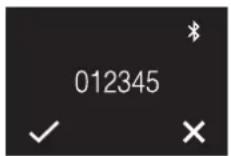
2 In the app, accept the pairing request.
3 On the controller, accept the pairing request by pressing.
Result: The app is paired with the controller.

INFORMATION
Once paired with the app, the controllers will remain bonded. It is not required to repeat this procedure each time you want to use the app, unless you delete the bonds.
15.2.3 To make a Bluetooth connection

INFORMATION
How to make a Bluetooth connection depends on the mode the controller is set to be operable in.
Remote controller mode: "Normal"
Prerequisite: You have a mobile device on which the Madoka Assistant app is installed and running.
Prerequisite: On that mobile device, Bluetooth is turned ON.
Prerequisite: You are close to the remote controller.
1 From the home screen, press to enter the main menu.

2 Use and to navigate to the Bluetooth menu.

3 Press to enter the menu.

4 Press t+activate an make the controller send out a Bluetooth signal.
Result:

Numeric comparison
5 In the Madoka Assistant app, tap the tile of the controller of which you want to update the software.
Result: If it is the first time you make a connection, or when bonding information was removed, the operating system of your mobile device sends out a pairing request, including a numeric string.
Result: The controller displays a numeric string, for comparison with that of the pairing request.

6 In the app, accept the pairing request.
7 On the controller, press confirm the numeric string.
Result: The controller and the mobile device are connected via Bluetooth.
Remote controller modes: "Alarm only" and "Supervisor"
Prerequisite: You have a mobile device on which the Madoka Assistant app is installed and running.
Prerequisite: On that mobile device, Bluetooth is turned ON.
Prerequisite: You are close to the remote controller.
1 From the home screen, press 📄d keep it pressed until the information screen appears.

2 From the information screen, press and simultaneously and keep them pressed until you enter the installer menu.
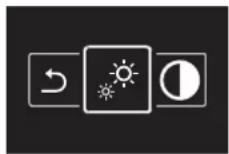
3 Use and to navigate to the Bluetooth menu.

4 Press to enter the menu.
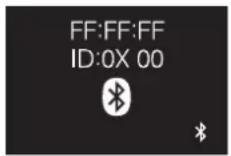
5 Press t+activate and make the controller send out a Bluetooth signal.
Result:

Numeric comparison
6 In the Madoka Assistant app, tap the tile of the controller of which you want to update the software.
Result: If it is the first time you make a connection, or when bonding information was removed, the operating system of your mobile device sends out a pairing request, including a numeric string.
Result: The controller displays a numeric string, for comparison with that of the pairing request.
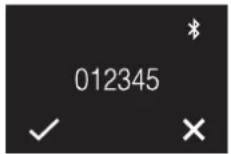
7 In the app, accept the pairing request.
8 On the controller, press to confirm the numeric string.
Result: The controller and the mobile device are connected via Bluetooth.
15.2.4 To terminate the Bluetooth connection

INFORMATION
How to terminate a Bluetooth connection depends on the mode the controller is set to be operable in.
Remote controller mode: "Normal"
1 From the home screen, press to enter the main menu.
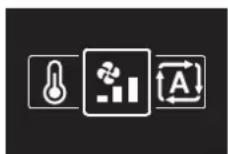
2 Use and to navigate to the Bluetooth menu.

3 Press to enter the menu.
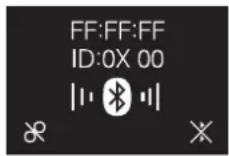
4 Press t+stop the remote controller from sending out a Bluetooth signal.
Result:
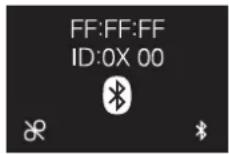
Remote controller modes: "Alarm only" and "Supervisor"
1 From the home screen, press 📋d keep it pressed until the information screen appears.

2 From the information screen, press and simultaneously and keep them pressed until you enter the installer menu.

3 Use and to navigate to the Bluetooth menu.

4 Press to enter the menu.
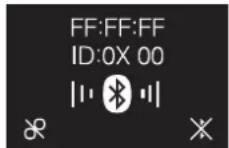
5 Press to stop the remote controller from sending out a Bluetooth signal.
Result:
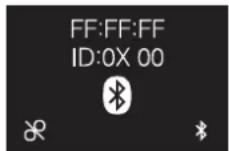
15.2.5 To remove bonding information

INFORMATION
How to remove bonding information depends on the mode the controller is set to be operable in.

INFORMATION
Removing the bonding information makes the controller forget all previously bonded mobile devices. When removing the bonding information from a remote controller, also delete the bonding information from your mobile device's Bluetooth list. Failure to do this may result in unsuccessful future bonding.
Remote controller mode: "Normal"
1 From the home screen, press to enter the main menu.
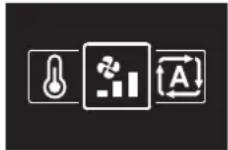
2 Use and to navigate to the Bluetooth menu.

3 Press to enter the menu.

4 Press t remove the bonding information from the remote controller.
Result:

Remote controller modes: "Alarm only" and "Supervisor"
1 From the home screen, press 📋d keep it pressed until the information screen appears.
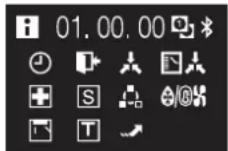
2 From the information screen, press and simultaneously and keep them pressed until you enter the installer menu.

3 Use and to navigate to the Bluetooth menu.
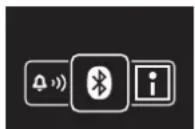
4 Press to enter the menu.
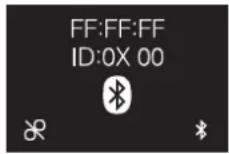
5 Press t remove the bonding information from the remote controller.
Result:

15.3 User access levels
15.3.1 About user access levels
The user access level defines which functions and settings are visible to the user of the app. A higher user access level will allow the user to make more in-depth changes to advanced operation and configuration settings. There are 3 possible user access levels that correspond to 3 possible modes:
Basic
- Advanced
- Installer
15.3.2 Basic mode
This mode allows the user to access all necessary basic settings. This mode is recommended for regular end users. When you first install the app, this mode is enabled by default. To change to a different mode, see "15.3.3 Advanced mode" [▶ 98] or "15.3.4 Installer mode" [▶ 99].
15.3.3 Advanced mode
About advanced mode
Advanced mode allows you to make in-depth changes to more advanced operation and configuration settings. Once enabled, you will be able to see and modify settings that, when misconfigured, may harm the working of your device. It is recommended that only advanced users enable this setting. For an overview of which settings can be made in advanced mode, see "15.5.1 Overview:
Functions" [▶ 100].
To activate advanced mode
Prerequisite: You are not in advanced mode.
1 Go to the main menu.
2 Tap "App Settings".
3 Tap "Advanced Settings".
4 Tap the switch to toggle on "Advanced Settings".
5 Confirm your selection by selecting "I understand" when asked.
Result: Advanced mode is activated. Advanced Settings are visible in the "Unit settings" menu.
To deactivate advanced mode
Prerequisite: You are in advanced mode.
1 Go to the main menu.
2 Tap "App Settings".
3 Tap "Advanced Settings".
4 Tap the switch to toggle off "Advanced Settings".
Result: Advanced mode is deactivated. Advanced Settings are no longer visible in the "Unit settings" menu.
15.3.4 Installer mode
About installer mode
In installer mode you have access to settings that are not available for regular end users or advanced users. For an overview of which settings can only be made in installer mode, see "15.5.1 Overview: Functions" [▶ 100].
To activate Installer mode
Prerequisite: You are not in installer mode.
1 Go to the main menu.
2 Tap "About".
3 Tap "Application version" five times.
Result: You are in the installer mode menu.
Result: Installer mode is automatically activated.

INFORMATION
- To continue using the app in installer mode, tap the return button.
- The duration of installer mode depends on installer mode settings. For more information, see "To make Installer mode settings" [▶ 99].
- There is a visual indication that installer mode is active, which can be disabled. For more information, see "To make Installer mode settings" [▶ 99].
To deactivate Installer mode
Prerequisite: You are in installer mode.
1 Go to the main menu.
2 Tap "Installer mode enabled".
Result: You are in the installer mode menu.
Result: Installer mode is automatically activated.
3 Deactivate installer mode by tapping the slider.
Result: Installer mode is deactivated.
To make Installer mode settings
1 Enable installer mode.
Result: You are in the installer mode menu.
2 Make installer mode settings.
| Installer mode settings Description | |
| Installer mode Enable or disable installer mode. | |
| Temporary / Indefinite Set the duration of installer mode. · Temporary: installer mode active for 30 minutes. After 30 minutes, installer mode will automatically deactivate. (default) · Indefinite: installer mode active until the next manual deactivation. | |
| Installer mode indicator Set whether installer mode activation is indicated by the installer mode indicator. |

INFORMATION
Mind that installer mode is automatically enabled as soon as you enter the installer mode menu.
15.4 Demo mode
15.4.1 About demo mode
To try out the app's operation and configuration functions in a safe environment, it is possible to launch a demo version of the app.
15.4.2 To launch demo mode
Prerequisite: You are not in demo mode.
1 Go to the main menu.
2 Tap "Demo mode".
Result: You are in demo mode.
15.4.3 To exit demo mode
Prerequisite: You are in demo mode.
1 Go to the main menu.
2 Tap "Exit demo mode".
Result: You exited demo mode.
15.5 Functions
15.5.1 Overview: Functions

NOTICE
Depending on the user access level, more or less settings may be visible in the unit settings menu. See "15.3 User access levels" [▶ 98] for more information about changing modes.

INFORMATION
Settings can be saved as favourites by tapping the star symbol in the top-right corner in the menu of a specific setting. These settings are then displayed at the top of the unit settings menu, making them more easily accessible.
| Category Control | |
| Operation Turn ON/OFF unit operation | |
| Read out temperature sensor information | |
| Change the operation mode | |
| Change the setpoint | |
| Change the fan speed | |
| Change the ventilation mode | |
| Change the ventilation rate | |
| Change the airflow direction | |
| See notifications | |
| Configuration and advanced operation Make controller and indoor unit settings:GeneralFirmware updateNotificationsRemote controller settingsMaster/slave status ^(a) Screen ^(a) -Home screen setpoint: Numerical or SymbolicStatus indicator ^(a) Date and time ^(a) AboutRemove bonding information ^(a) Energy savingPresence detection ^(a) OFF timer ^(a) Energy consumptionPower consumption limit ^(b) Setpoint auto reset ^(a) >> to be continued | |
(a) Available in advanced or installer mode only. For more information, see "15.3.3 Advanced mode" [▶ 98] and "15.3.4 Installer mode" [▶ 99].
(b) Available in installer mode only. For more information, see "15.3.4 Installer mode" [▶ 99].
| Category Control | |
| << continuationConfiguration and advanced operation SchedulingScheduleHolidayConfiguration and operationSetpoint logic (a)- Single setpoint or Dual setpointSetback (a)Individual airflow direction (a)Active airflow circulation (a)Setpoint range (a)Cooling/Heating masterhood (a)Airflow direction range (a)Draught prevention (a)Quick start (a)Defrost operation (a)Function lock (a)Quiet mode (a)External input interlock (a)MaintenanceR32 refrigerant settings (a)- R32 refrigerant system settings- Supervised room addressErrors and warnings (b)Unit number (b)Filter auto clean (a)Filter notifications (a)Contact informationAirNet address (b)Group address (b)Field settings (b)Duty rotation (b)Test operation (b)Unit status (b)Operating hours (c) | |
(a) Available in advanced or installer mode only. For more information, see "15.3.3 Advanced mode" [▶ 98] and "15.3.4 Installer mode" [▶ 99].
(b) Available in installer mode only. For more information, see "15.3.4 Installer mode" [▶ 99].
15.5.2 General
Remote controller firmware update
Update remote controller firmware. It is required to keep remote controller firmware up to date. When new firmware is available for a controller, the app will send out a notification in the operation screen of that controller.
To update remote controller firmware
Prerequisite: You are in the operation screen of one of the controllers, and the app notified you that new firmware for that controller is available.
Prerequisite: You are close to the controller.
1 Tap the settings icon.
Result: You are in the "Unit settings" menu.
2 At the very top, tap "Firmware update available".
Result: You are in the "Firmware update" menu.
3 Tap "Update firmware".
Result: The latest firmware is downloaded to the controller.
Result: During the download, the controller displays the following screen.

Result: After the download, the controller restarts to implement changes.
Notifications
Get an overview of active system notifications. These can be:
Errors
Warnings
- System information
15.5.3 Setting migration
Some functions allow you to save settings to your mobile device, and load them to other remote controllers. This is useful in case you have to make the same settings for multiple controllers.
When you are finished making settings on one controller, choose to save them to your mobile device. After saving, connect the app to another controller, go to the applicable setting, and tap "Load configuration".
The following Madoka Assistant app functions allow you to save and load settings:
Schedule
- Setback
- Setpoint range
Field settings
■ Power consumption limit
15.5.4 Remote controller settings
Master/slave status
Find out if the controller you are operating is a master or a slave controller. It is not possible to make changes to master/slave status from the app. For instructions on how to change a controller's master/slave status, see "11 Starting up the system" [▶ 43].
Screen
Make remote controller screen settings:
| Setting Description | |
| Home screen mode Set the home screen | mode:Standard: limited information about system operation (few status icons).Detailed: extensive information about system operation through status icons. |
| Home screen setpoint Set how the home | screen displays the setpoint:Numerical: by way of a numerical value.Symbolic: by way of a symbol.In case "Home screen setpoint " is set to "Symbolic", set the reference setpoints for both Cooling and Heating operation:Cooling reference setpointHeating reference setpointFor more information, see "Home screen setpoint: Symbolic" [ ▶ 59]. |
| Brightness Set screen brightness. | |
| Contrast Set screen contrast. |

INFORMATION
When making remote controller screen settings from the app, it is possible that the remote controller does not implement changes immediately. To make the controller implement changes: on the controller, navigate to the installer menu, and then back to the home screen. For instructions on how to enter the installer menu, see "To enter the installer menu" [▶ 68].
CO _2 concentration value visualisation
When Home screen mode is set to Detailed, it is possible to visualise the CO_2 concentration value measured by the CO_2 sensor of the unit on the remote controller display. In this case, the measured value replaces the indoor temperature.

To enable this visualisation, set the appropriate remote controller field setting to 1 (Mode R2 - SW 7). See "Remote controller field settings" [▶ 75] for more information about the remote controller field settings and the setting procedure.

INFORMATION
In case the remote controller only displays a blank CO concentration value, check whether the unit equipped with the CO_2 sensor has the lowest unit number.

In the Madoka Assistant app (Unit settings > Maintenance > Unit number) change the unit number of the unit equipped with the CO _2 sensor to the lowest number of all connected units.
Status indicator
Make remote controller status indicator settings:
| Settings Description | |
| Mode Check the active status indicator mode. | It is not possible to set the status indicator mode from the app; this happens through remote controller field setting R1-11. For more information, see "Remote controller field settings" [▶ 75]. |
| Intensity Set status indicator intensity. |
Date and time
Set the remote controller date and time. In the date and time menu you send date and time information to the remote controller from the app. You can choose to either send the date and time information of your mobile device ("Synchronise with device date and time"), or to manually create and send date and time information.

INFORMATION
If the controller is disconnected from the power for more than 48 hours, the date and the time need to be set again.

INFORMATION
The clock will maintain accuracy to within 30 seconds/month.
About
Read out the current remote controller and remote controller Bluetooth module software version.
Remove bonding information
Make the controller forget all previously bonded mobile devices.
15.5.5 Energy saving
Presence detection
Set a timer for the system to adjust the temperature setpoint or to turn off automatically, based on (the lack of) presence detected by a motion sensor.
| Action Description | |
| Auto OFF Set an OFF timer that starts running | as soon as the motion sensor detects the room is unoccupied. |
| Setpoint adjustment Set setpoint adjustment | increments and intervals for both heating and cooling operation. When the motion sensor detects the room is unoccupied, the system will raise (cooling operation) or lower (heating operation) the setpoint, until the set limit is reached. |

INFORMATION
To use this function, it is required that the indoor units are equipped with a motion sensor (optional accessory).

INFORMATION
This function cannot be used when the indoor units are controlled by a centralised controller.

INFORMATION
This function is not supported when the system contains Sky Air RR or RQ outdoor units.

INFORMATION
This function cannot be used when the indoor units are in group control.

INFORMATION
For systems in which the indoor units run in simultaneous operation, this function is controlled by the motion sensor mounted in the master indoor unit.
OFF timer
Set a timer for the system to turn OFF automatically. The timer can be enabled or disabled. When the timer is enabled, it starts running each time the system gets turned ON.
The timer has a range of 30\~180 minutes, and can be set in increments of 30 minutes.
Energy consumption
See and compare energy consumption data.

INFORMATION
The availability of this function depends on the type of indoor unit.

INFORMATION
This function cannot be used when the indoor units are in group control.

INFORMATION
This function is not supported when the system contains Sky Air RR or RQ outdoor units.

INFORMATION
The displayed energy consumption can be different from the actual energy consumption. The displayed data is not the result of a kWh measurement, but the result of a calculation based on measured operation data. Some of that operation data are absolute values, but some are interpolations, including room for interpolation tolerance.
Power consumption limit
Set a timespan in which the system limits its peak power consumption. When enabled, this function makes the outdoor unit operate with limited energy consumption (70% or 40% of usual consumption) in the set timespan.

INFORMATION
The availability of this function depends on the type of outdoor unit.
Setpoint auto reset
Set a timer for the system to automatically adjust the temperature to a set temperature value. The timer can be enabled or disabled for Heating and Cooling operation separately. When a timer is enabled, it starts running each time the system gets turned ON. When the timer runs out, the temperature setpoint will always change to the set value, also if the temperature setpoint has been changed in the meanwhile.
The timer has a range of 30\~120 minutes, and can be set in increments of 30 minutes.

INFORMATION
This function cannot be used when the indoor units are controlled by a centralised controller.
15.5.6 Scheduling
Schedule
Organise system actions into schedules. The schedule function allows you to set up to 5 timed actions for each day of the week. It is possible to create up to 3 different schedules, though only 1 schedule can be active at the same time.
The action logic is as follows:
1 Set a timespan for the action.
2 Choose to turn system operation ON or OFF, and set the conditions.
| IF "Operation" THEN | |
| ON Set action-specific temperature | setpoints for Cooling and/or Heating operation, or choose to maintain the current setpoints. |
| OFF Choose to enable or disable Setback | operation for Cooling and/or Heating operation.If enabled, set action-specific Setback setpoints, or choose to maintain the current setpoints.For more information, see "Setback" [ ▶ 110]. |

INFORMATION
If the "Home screen setpoint" setting is set to "Symbolic", there is only a limited range of possible temperature setpoints. However, if "Home screen setpoint" is set to "Symbolic", and there is a setpoint change coming from a schedule, then the system will disregard the regular setpoint limitations and allow the schedule to exceed the limited setpoint range. For more information, see "Home screen setpoint: Symbolic" [▶ 59].

INFORMATION
This function cannot be used when the indoor units are controlled by a centralised controller.

INFORMATION
This function cannot be used when digital input adapter BRP7A5* is part of the system.
Holiday
Select days of the week for which the schedule does not apply. On the selected days, any actions set with the schedule function do not get executed. The holiday function can be enabled or disabled. When enabled, it applies to any schedule that is set to be active.

INFORMATION
For more information, see "Schedule" [▶ 107].
15.5.7 Configuration and operation
Setpoint logic
Set up the setpoint logic. Choose whether the setpoint logic is executed by the indoor unit, or by the remote controller.
| Setpoint logic Description | |
| Indoor unit The setpoint logic is executed | by the indoor unit. |
| Remote controller The setpoint logic is executed by the remote controller. | |
In case of remote controller setpoint logic, choose whether to have single setpoint logic, or dual setpoint logic.
| Remote controller setpoint logic Description | |
| Single setpoint There is only one temperature | ture setpoint, independent of the operation mode. If this is the case, changing the operation mode does NOT change the setpoint. Or the other way around, if you change the setpoint, you do so for both Cooling and Heating operation. |
| Dual setpoint There are two temperature | setpoints: one specifically for Cooling operation, and one specifically for Heating operation. If this is the case, changing the operation mode DOES change the setpoint (i.e. to the setpoint of the other operation mode). Or the other way around, if you change the Cooling setpoint, you do NOT change the Heating setpoint. |
In case of dual setpoint logic, set the Minimum setpoint differential. This is the minimum difference between the possible setpoints for Cooling and Heating operation:
- Cooling setpoint ≥ (Heating setpoint + Minimum setpoint differential)
- Heating setpoint ≤ (Cooling setpoint – Minimum setpoint differential)
This means that:
- If you lower the Cooling setpoint < (Heating setpoint + Minimum setpoint differential), then the controller will automatically lower the Heating setpoint.
- If you raise the Heating setpoint > (Cooling setpoint - Minimum setpoint differential), then the controller will automatically raise the Cooling setpoint.

DIFF Minimum setpoint differential

INFORMATION
When the system is controlled by central control equipment, control of the system by the controller is limited. When this is the case, it is not possible to set dual setpoint logic in the Madoka Assistant app.

INFORMATION
When the indoor units are under control of a centralised controller, only indoor unit setpoint logic is possible.

INFORMATION
In case of indoor unit setpoint logic, the system cannot run in Auto operation mode. To enable Auto operation mode for VRV heat pump systems, go for remote controller setpoint logic.
Setback
Enable Setback temperature control. Setback is a function that keeps the room temperature in a specific range when the system is turned off (by the user, the schedule function, or the OFF timer). To achieve this, the system temporarily runs in Heating or Cooling operation mode, according to the setback setpoint and recovery differential.
Example:

flowchart
graph TD
    A["Sun icon"] --> B["10°C"]
    B --> C["12°C"]
    C --> D["OFF"]
    D --> E["33°C"]
    E --> F["35°C"]
| Settings Result | |||
Heating operation | Heating setback setpoint | 10°C If the room temperature drops below 10°C, the system automatically starts heating operation. If after 30 minutes the temperature rises above 12°C, the system stops heating operation, and turns off again. When the room temperature drops below 10°C again, the process gets repeated. | |
| Heating recovery differential | +2° | ||
Cooling operation | Cooling setback setpoint | 35°C If the room temperature rises above 35°C, the system automatically starts cooling operation. If after 30 minutes the temperature drops below 33°C, the system stops cooling operation, and turns off again. When the room temperature rises above 35°C again, the process gets repeated. | |
| Cooling recovery differential | -2°C | ||

INFORMATION
- Setback is by default enabled.
- Setback turns on the system for at least 30 minutes, unless the setback setpoint is changed, or the system is turned on with the ON/OFF button.
- When Setback is active, you cannot make changes to fan speed settings.
- When Setback activates while the system is set to Auto operation mode, the system will switch to Cooling or Heating operation mode, depending on which is required. The Setback setpoint displayed on the operation screen is then according to the operation mode.
- When Setback is active and the "Home screen setpoint" setting is set to "Symbolic", then there is no indication of Setback operation on the remote controller home screen.

INFORMATION
This function cannot be used when the indoor units are controlled by a centralised controller.

INFORMATION
The default setpoint range limits for Setback operation are [33^ - 37^] for Cooling operation, and [10^ - 15^] for Heating operation. It is not possible to change these limits.
Individual airflow direction
Set the airflow direction of each individual indoor unit air outlet. The maximum number of indoor units for which you can make these settings depends on the type of system:
| System Maximum number of indoor units | |
| Sky Air 4 | |
| VRV 16 | |
Of cassette-type indoor units, it is possible to identify the individual air outlets by way of the following indicators:
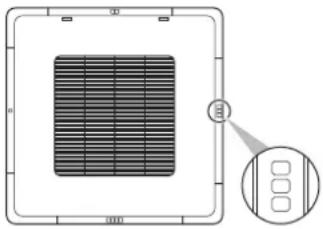
natural_image
Diagram of a solar panel array with a magnified inset showing its internal structure (no text or symbols)
INFORMATION
The availability of this function depends on the type of indoor unit.
Setpoint range
Set a limitation to the temperature setpoint range of both Cooling and Heating operation.

INFORMATION
This function cannot be used when the indoor units are controlled by a centralised controller.

INFORMATION
The default setpoint range limits for both Heating and Cooling operation is [16^-32^] , regardless of whether or not "Setpoint range limitation" is enabled. It is not possible to exceed these limits.

INFORMATION
The lower setpoint limit of the Cooling operation mode is 20^ C, as per UAE Federal regulation UAE.S 5010-5:2016 clause 6, and UAE.S 5010-1:2016 clause 10.

INFORMATION
The upper setpoint limit of the Heating operation mode is 28^ C, as per Egypt regulation.
Active airflow circulation
Enable Active airflow circulation to have a more even temperature distribution in the room.
When Active airflow circulation is enabled, indoor unit fan speed and airflow direction get controlled automatically, making manual fan speed and airflow direction changes impossible.
Cooling/Heating masterhood
Set an indoor unit (or group of indoor units) as Cooling/Heating master. When multiple indoor units are connected to an outdoor unit, one of these units (or a group of indoor units, in case of group control) needs to be set as Cooling/Heating master. The other units/groups then become Cooling/Heating slaves, and are restricted in their operation by the master (e.g. one outdoor unit does not allow for one indoor unit to run in Cooling operation while another runs in Heating operation).
When an indoor unit or group of indoor units is set as Cooling/Heating master, the other units/groups automatically become its slaves. To turn a slave unit into the master, first connect the app to the controller controlling the currently active master and release it from its masterhood, then set the (slave) unit as master.
Airflow direction range
Set the indoor unit airflow direction range according to the installation location. This function is available for floorstanding indoor units only. The maximum number of indoor units for which you can make these settings is 16.
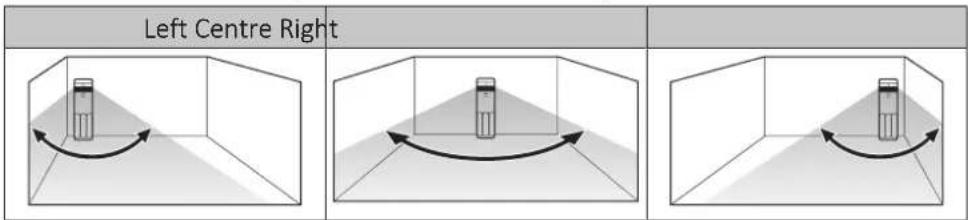
The ranges correspond with the following airflow swing patterns:
| Left Centre Right | ||
| Left swing Wide swing Right swing | ||


Draught prevention
Prevent people from getting affected by indoor unit airflow, based on (the lack of) presence detected by a motion sensor.

INFORMATION
To use this function, it is required that the indoor units are equipped with a motion sensor (optional accessory).

INFORMATION
This function is not supported when the system contains Sky Air RR or RQ outdoor units.
Quick start
Activate Quick start to quickly bring the room to a comfortable temperature.
When Quick start is active, the outdoor unit operates with increased capacity. Indoor unit fan speed gets controlled automatically, making manual fan speed changes impossible.
After activation, Quick start is active up to 30 minutes. After 30 minutes, Quick start automatically deactivates, and the system resumes normal operation. Additionally, Quick start will deactivate from the moment you change the operation mode manually.
Quick start can ONLY be activated when the system is running in Cooling, Heating, or Auto operation mode.

INFORMATION
This function is only available for Sky Air indoor units.

INFORMATION
This function is not supported when the system contains Sky Air RR or RQ outdoor units.
Defrost operation
Make the system run in defrost operation mode, this to prevent the loss of heating capacity due to frost accumulation in the outdoor unit.

INFORMATION
The system will return to normal operation after approximately 6 to 8 minutes.
Function lock
Make functions and operation modes unavailable by locking them. It is possible to lock the following functions and operation modes:
Remote controller ■ Menu button

| Functions • Setpoint | • Fan speed• Operation mode• Airflow direction• System ON/OFF• Setpoint range• Setback• Presence sensor - Setpoint adjustment• Presence sensor - Auto OFF• Setpoint adjustment timer• OFF timer• Power consumption limit• Schedule• Filter auto clean• Date and time• Draught prevention• Airflow direction range• Duty rotation• External input interlock• Individual airflow direction• Ventilation rate• Ventilation mode |
| Operation modes • Automatic | • Cooling• Heating• Fan• Dry• Ventilation |

INFORMATION
- When you lock an operation mode that is active at the moment of locking, that mode will still be active upon saving settings and leaving the menu. Only when you change the operation mode, that mode will not be available anymore.
- When you lock ALL operation modes, it will not be possible to switch to an operation mode other than the one that is active at the moment of locking.
Remote controller
Locking functions and operation modes from the app results in changes on the remote controller.
| Operation Remote controller | |
| Home screen When you lock | k functions buttons that are operated from the controller home screen, the controller will display a lock screen when you try to use these functions buttons.  |
| Main menu When you lock | functions that are main menu items on the controller, these functions get crossed out in the main menu, and accompanied by a lock icon.  When locking operation modes, the controller simply omits them from the operation mode menu. When locking operation modes, the controller simply omits them from the operation mode menu. |
Quiet mode
Set a timespan in which the outdoor unit operates more quietly.

INFORMATION
The availability of this function depends on the type of outdoor unit.
External input interlock
External input interlock allows for the integration of external contacts in the system's control logic. By adding a key card contact and/or a window contact to the control setup, it is possible to have the system respond to the insertion/removal of a key card in/from a card reader, and/or the opening/closing of windows.
For more information, see "About external input interlock" [▶ 81].

INFORMATION
To use this function, it is required that digital input adapter BRP7A5* is part of the system.
- Make sure that the digital input adapter and its optional contacts (window contact B1 and key card contact B2) are correctly installed. Confirm that the voltage free contact of the digital input adapter is in the correct position. For instructions on how to install the digital input adapter, see the installation manual of the digital input adapter.
- When the digital input adapter does not function properly, external input interlock is not available in the menu.
- When the digital input adapter is part of the system, the system does not allow for the connection of a slave controller.
- When the digital input adapter is part of the system, it is not possible to use the Schedule function.
- When the digital input adapter is part of the system, as well as a centralised controller, the external input interlock function is controlled by the centralised controller, and not by the adapter.
15.5.8 Maintenance
R32 refrigerant settings
R32 refrigerant system settings
The refrigerant leak alarm can be tested using the Madoka Assistant app.
1 In the app, navigate to R32 refrigerant settings in the Maintenance section under Unit settings.
2 Tap R32 refrigerant system settings.
3 Tap Test alarm and blinking LED to test the refrigerant leak alarm.
Result: The refrigerant leak alarm starts.
4 Tap Stop testing alarm and blinking LED to stop the alarm.
Result: The refrigerant leak alarm stops.
Supervised room address
Assign a unique supervised room address to individual indoor units. It is mandatory to set a unique supervised room address for every indoor unit when the remote controller is set to "Supervisor" mode. First select an indoor unit by way of its unit number, then assign a unique supervised room address to it. If the supervised room address is not set, alarms will not be communicated to the remote controller in "Supervisor" mode.
To set the supervised room address in the Madoka Assistant app, navigate to R32 refrigerant settings in the Maintenance section under Unit settings. Then, tap Supervised room address to manage the supervised room address of the indoor units.
Errors and warnings
Consult the error history, and temporarily enable/disable the pushing of error and/or warning notifications.
The pushing of error and warning notifications is by default enabled. Disable "Display errors" and "Display warnings" to prevent the system from pushing error and warning notifications for 48 hours. After 48 hours, "Display errors" and "Display warnings" become automatically enabled again.
Unit number
Change the unit number of the indoor unit(s). To configure individual indoor units, these units require a unit number. The unit number of an indoor unit is its ranking in the list. To give a unit a new unit number, change its ranking by either moving it to an empty slot, or switching it with another indoor unit. If you need help identifying physical indoor units, tap an indoor unit's fan icon to make that indoor unit's fan operate.
Filter auto clean

INFORMATION
To use this function, it is required that the indoor units are equipped with a self-cleaning decoration panel (optional accessory).
Enable automatic indoor unit filter cleaning operation and set a timespan for it.
Reset dustbox maintenance timer
When it is time to empty the self-cleaning decoration panel's dustbox, the app displays a notification in the operation screen. Empty the dustbox and reset the notification.
AirNet address
Assign AirNet addresses to the indoor and outdoor units, this to connect the system to the AirNet monitoring and diagnostics system. First select a unit by way of its unit number, then assign it an AirNet address.
Group address
Assign addresses to the indoor units, this to control the system with central control equipment. You can assign an address to the group of indoor units connected to the controller, and to indoor units individually.
Filter notifications
Dismiss notification
The app displays a notification in the operation screen when it is time to perform one of the following filter-related maintenance activities:
- Replacement of indoor unit filter.
- Cleaning of indoor unit filter.
- Cleaning of indoor unit element.
Perform the required maintenance, then dismiss the notification.

INFORMATION
For more information on indoor unit maintenance, see the operation manual of the indoor unit.
Reset notification timer
Filter maintenance due time is controlled by timers. The app sends out a maintenance notification each time a timer expires. It is possible to reset these timers.

INFORMATION
To use this function, it is required that you use the app in installer mode. For instructions on how to activate installer mode, see "15.3.4 Installer mode" [▶ 99].
Contact information
Enter the phone number of the system's service contact.
Field settings
Make indoor unit and remote controller field settings. For an overview of possible field settings, see "Indoor unit field settings" [▶ 73] and "Remote controller field settings" [▶ 75].
Setting procedure
Field settings are composed of the following components:
Modes
Units
Settings
Values
The field settings procedure differs depending on whether you are making settings for individual indoor units or for groups of indoor units, or for the remote controller.
| Field settings type Procedure | |
| Individual indoor units | Set the field setting type to "Indoor unit".Define a mode. In the field settings table, find this number between brackets in the Mode column.Define the unit to which the setting will apply by setting a unit number.Define the setting by tapping the right tile in the app. In the field settings table, find settings in the SW column.Define a value for that setting. |
| Groups of indoor units | Set the field setting type to "Indoor unit".Define a mode. In the field settings table, find this number NOT between brackets in the Mode column.Do NOT set a unit number (the settings will apply to all units in the group).Define the setting by tapping the right tile in the app. In the field settings table, find settings in the SW column.Define a value for that setting. |
| Remote controller • Set the field setting | type to "Remote controller".• Define a mode.• Define the setting by tapping the right tile in the app. In the field settings table, find settings in the SW column.• Define a value for that setting. |
Default values
Field setting default values are different depending on the indoor unit model. For more information, see the service manual of the indoor units. For the following field settings, the default values are the same for all indoor unit models:
| Field setting Default value | |
| Thermostat sensor 02 | |
| Setback 04 | |
| Window contact B1 02 | |
| Key card contact B2 02 | |
| Airflow direction range 02 | |
| Remote controller thermostat sensor 02 | |
| Rotation overlap time 03 |

INFORMATION
- The connection of optional accessories to the indoor unit might cause changes to some field settings. For more information, see the installation manual of the optional accessory.
- For details about the specific field settings of each type of indoor unit, see the installation manual of the indoor units.
- Outdoor unit field settings can only be configured via the outdoor unit PCB. For more information, see the installation manual of the outdoor unit.
- Field settings that are not available for a connected indoor unit are not displayed.
Duty rotation
Activate Duty rotation to let the indoor units operate alternately (one indoor unit alternately inactive), this to increase system lifespan and reliability.
Duty rotation is designed for units operating in critical applications (e.g. in server rooms that require lots of cooling). In these cases, the system is equipped with an extra backup unit. Activating Duty rotation then allows for:
- Rotation: because the system is equipped with more units than are required to provide the heating/cooling load, one of the units can remain inactive during normal operation. After a set time (i.e. "Rotation cycle time"), the inactive unit will start operation, and a previously active unit will become inactive (i.e. duty rotation). Because the units only operate alternately, the lifespan of the system increases.
- Backup: having a backup unit allows for system redundancy. If an active unit goes into error, Duty rotation makes sure an inactive one takes over.
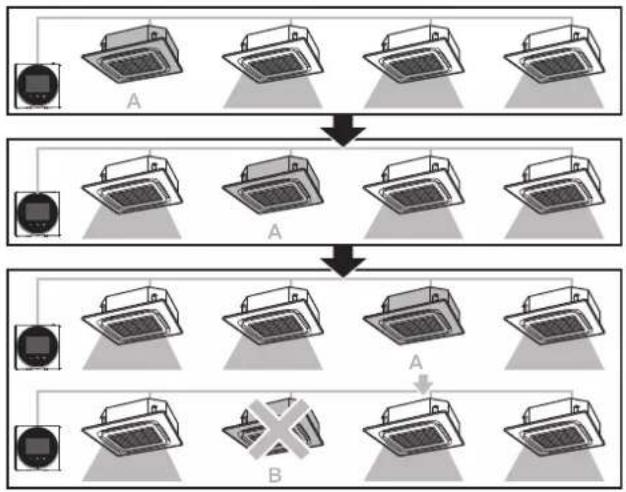
flowchart
graph TD
    A["Component A"] --> B["Component B"]
    B --> C["Component C"]
    C --> D["Component D"]
    style A fill:#f9f,stroke:#333
    style B fill:#ccf,stroke:#333
    style C fill:#cfc,stroke:#333
    style D fill:#fcc,stroke:#333
A Inactive backup unit
B Unit in error

INFORMATION
This function can only be used when the indoor units are in group control.

INFORMATION
- To let the backup unit reach its cooling/heating capacity, an overlap period is included in which all indoor units are active. For more information, see "Indoor unit field settings" [73] (cfr. field setting 1E-7).
- The rotation order depends on the set unit number. For instructions on how to change the indoor units' unit number, see "Unit number" [▶ 117].
Test operation
Perform an indoor unit test operation. During the test run, the indoor units cycle through various operation modes and functions to check if they are ready for operation.
When
Only activate the test operation after the following is completed:
- Installation of refrigerant piping;
- Installation of drain piping;
- Connection of electrical wiring.
Typical workflow
Performing a test operation typically consists of the following stages:
1 Activating the test operation (Madoka Assistant app),
2 Testing the indoor unit functions according to the instructions set out in "To perform a test operation" [▶ 121],
3 Deactivating the test operation (Madoka Assistant app),
4 Checking the error history for possible errors.
5 If applicable, fixing the causes of those errors.
6 Repeating the procedure if required.

INFORMATION
This function is only available for Sky Air indoor units.

INFORMATION
Also see the installation manual of the indoor unit and outdoor unit.
Precautions when performing a test operation

CAUTION
Before starting up the system, make sure:
- The indoor and outdoor unit wiring is completed.
- The switch box covers of the indoor and outdoor units are closed.

NOTICE
Turn ON the power 6 hours before operation in order to have power running to the crankcase heater and to protect the compressor.

INFORMATION
After the installation of the refrigerant piping, drain piping, and electrical wiring, make sure to clean the inside of the indoor unit, as well as the decoration panel.
To perform a test operation
1 Confirm that the indoor unit gas and liquid stop valves are open.

INFORMATION
It is possible that the pressure inside the refrigerant circuit does not rise, despite the opened stop valve. This can be due to the expansion valve (or the like) blocking the refrigerant, and does not obstruct the test run.
2 Open the Madoka Assistant app.
3 Navigate to the operation screen of the controller that is connected to the indoor unit(s) on which you want to perform a test run.
4 In the operation screen, set the operation mode to Cooling.
5 Go to Unit settings by tapping the cogwheel in the upper right corner of the operation screen.
Result: You are in the Unit settings menu.
6 Scroll down to the Maintenance section and tap Test operation.
Result: You are in the Test operation menu.
7 Tap Start test operation.
Result: The indoor unit(s) enter test operation mode, during which normal operation is not possible.
8 Return to the operation screen.
9 Tap Vertical airflow direction.
10 Tap Fixed.
11 Cycle through the five fixed airflow directions, and confirm if the indoor unit flaps behave correspondingly.
12 Return to the Test operation menu.
13 Tap Stop test operation.
Result: The indoor units leave test operation mode. Normal operation is possible again.
14 Go to "13 Operation" [▶ 50] and confirm if the indoor unit(s) behave according to the information set out there.
15 Check the error history. If required, solve the cause of the errors and perform the test operation again.

INFORMATION
The test operation finishes after 30 minutes.
Unit status
With Unit status, you can:
- Information retrieval: enter a code to make the system retrieve specific information about an indoor or outdoor unit component. First select a unit by way of its unit number, then enter the code to start the information retrieval.
- Indoor unit: see information provided by various sensors that are present in the system. First select a unit by way of its unit number.

INFORMATION
The information retrieval function is only present in the menu when you use the app in installer mode. For instructions on how to activate installer mode, see "15.3.4 Installer mode" [▶ 99].
Operating hours
Monitor indoor and outdoor unit operating hours.
16 Maintenance
In this chapter
16.1 Maintenance safety precautions.... 123
16.2 About maintenance 123
16.3 To remove a warning screen 125
16.4 To clean the controller 125
16.5 Time to clean filter indication 125
16.5.1 To remove the Time to clean filter indication 125
16.1 Maintenance safety precautions

WARNING
Before carrying out any maintenance or repair activities, stop system operation with the controller, and turn off the power supply circuit breaker. Possible consequence: electrical shock or injury.

NOTICE
To clean the controller, do NOT use organic solvents, such as paint thinner. Possible consequence: damage, electrical shock, or fire.

WARNING
Do NOT wash the remote controller. Possible consequence: electric leakage, electrical shock, or fire.

INFORMATION
When the dirt on the surface cannot be removed easily while cleaning the controller, soak the cloth in neutral detergent diluted with water, squeeze the cloth tightly, and clean the surface. Afterwards, wipe dry with a dry cloth.
16.2 About maintenance
When an indoor unit component needs maintenance, the controller displays the home screen, and generates a warning screen. Go to the warning screen to see which component needs maintenance, perform the maintenance, and remove the warning screen.
The following warning screens are related to indoor unit maintenance:
Clean the indoor unit filter Replace the indoor unit filter
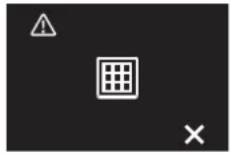
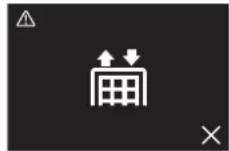
Empty the indoor unit dustbox —

The procedure to see the warning screen is different depending on the set status indicator mode (i.e. "Normal", "Hotel 1", or "Hotel 2").

INFORMATION
By default, the controller is in status indicator mode "Hotel 2".
Status indicator mode: "Normal"
Prerequisite: The controller displays the home screen, and 📄 visible, indicating maintenance.
1 Press.
Result: The controller displays the warning screen.

Status indicator mode: "Hotel 1" and "Hotel 2"
Prerequisite: The controller displays the home screen, and 📄 visible, indicating maintenance.
2 Press and keep it pressed.
Result: The controller displays the information screen.
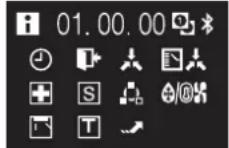
3 Press and keep it pressed.
Result: The controller displays the warning screen.
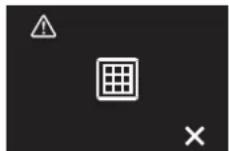
16.3 To remove a warning screen
Prerequisite: The controller displays the home screen, and 🚠visible, indicating maintenance.
1 Go to the warning screen.

2 Solve the cause of the warning screen.
3 Press t+remove the warning screen.
Result: The controller returns to the home screen. If the cause of the warning was properly solved, ▲ as disappeared.

INFORMATION
The procedure to see the warning screen is different depending on the set status indicator mode (i.e. "Normal", "Hotel 1", or "Hotel 2"). For more information, see "16.2 About maintenance" [▶ 123].
16.4 To clean the controller
1 Wipe the screen and other surface parts of the controller with a dry cloth.
16.5 Time to clean filter indication
When the indoor unit filter is dirty and needs to be cleaned, the controller will indicate this by displaying ⚠ in the top left corner of the home screen, and confronting you with the 'Time to clean filter' screen as soon as you try to enter the main menu from the home screen.
16.5.1 To remove the Time to clean filter indication
Prerequisite: On trying to enter the main menu from the home screen, you are confronted with the 'Time to clean filter' screen.

1 Clean the filter.
2 Press t+remove the 'Time to clean filter' indication.
17 Troubleshooting
In this chapter
17.1 Error codes of the indoor unit 126
17.2 Refrigerant leak detection.... 128
17.2.1 About refrigerant leak detection 128
17.2.2 To stop the leak detection alarm.... 128
17.1 Error codes of the indoor unit
When the system is in error, the controller display⚠️ on the home screen, and generates an error screen. Go to the error screen to see the error code, solve the cause of the error, and press+to remove the error screen. For a list of error codes and their meaning, see the documentation of the indoor unit.
The procedure to see the error screen is different depending on the set status indicator mode (i.e. "Normal", "Hotel 1", or "Hotel 2").

INFORMATION
By default, the controller is in status indicator mode "Hotel 2".
Status indicator mode: "Normal"
Prerequisite: The controller displays the home screen, and 📄 visible, indicating error.
1 Press.
Result: The controller displays the error screen.
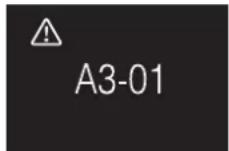
Status indicator mode: "Hotel 1" and "Hotel 2"
Prerequisite: The controller displays the home screen, and 📄 visible, indicating error.
2 Press and keep it pressed.
Result: The controller displays the information screen.

3 Press and keep it pressed.
Result: The controller displays the error screen.
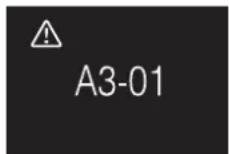

INFORMATION
If the controller is set to be operable in "Supervisor" mode, then the controller adds the "supervised room address" of the faulty indoor unit to the error screen. In "Supervisor" mode, it is mandatory to set a unique "supervised room address" for every indoor unit. The "supervised room address" can be set in the Madoka Assistant app. Note that in case of multiple leakages, only the address of the first faulty unit rising the error is displayed.

For more information about the modes the controller can be set to be operable in, see "12.1 About the controller" [▶ 45].
17.2 Refrigerant leak detection
When the system detects a refrigerant leak, an alarm goes off on the controller, and the Madoka Assistant app sends out a notification. Stop the alarm and dismiss the notification.
17.2.1 About refrigerant leak detection
The information that the controller displays in case of a refrigerant leak depends on the mode that the controller is set to be operable in.
Normal and Alarm only mode
| Master controller Slave controller | |
The controller displays the unit number of the leaking indoor unit | The controller does not display the unit number of the leaking indoor unit |
Supervisor mode
| Master controller Slave controller | |
— The controller displays the supervised room address of the leaking indoor unit  |

INFORMATION
For more information about the modes, see "12.1 About the controller" [▶ 45].
17.2.2 To stop the leak detection alarm

1 Press 3 seconds to stop the alarm.
Result: The alarm stops.

2 Fix the refrigerant leak of the unit.

INFORMATION
In case the controller is set to be operable in 'Supervisor' mode, the controller will indicate the supervised room address of the indoor unit for which the leak detection alarm occurs. However, it is not possible to stop the alarm of the indoor unit controller (set to be operable in either "Normal" or "Alarm only" mode) from the controller in "Supervisor" mode. The alarm of the controller connected to the indoor unit with the leak has to be stopped individually.
18 Technical data
A subset of the latest technical data is available on the regional Daikin website (publicly accessible). The full set of latest technical data is available on the Daikin Business Portal (authentication required).
18.1 Connection diagram
18.1.1 Typical layout

18.1.2 Typical layout for group control

INFORMATION
In case of a system that includes units with R32 refrigerant, group control of the indoor units may not be possible, depending on the type of indoor unit or the configuration of the system. See the installation manual and/or installer reference guide of the specific indoor unit(s) for more information.

Group control: master and slave controller

flowchart
graph TD
    A["012"] --> B["P1P2"]
    B --> C["P1P2P1P2"]
    C --> D["Display Screen - +"]
    C --> E["Display Screen - +"]

flowchart
graph TD
    A["Group control: controller + digital inputs adapter BRP7A5"] --> B["Device with P1P2"]
    A --> C["Device with P1P2P1P2"]
    A --> D["Device with P1P2"]
    B --> E["Control Unit"]
    C --> F["Control Unit"]
    D --> G["Control Unit"]
18.1.3 Controller + DIII central control equipment
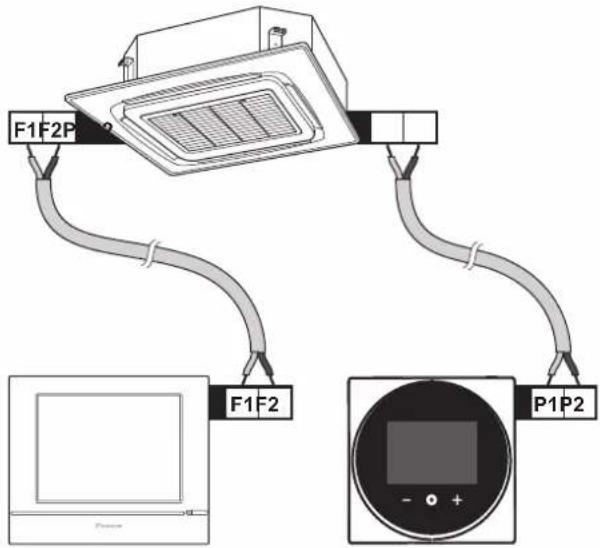
19 Glossary
DHW = Domestic hot water
Hot water used, in any type of building, for domestic purposes.
LWT = Leaving water temperature
Water temperature at the water outlet of the unit.
Dealer
Sales distributor for the product.
Authorised installer
Technical skilled person who is qualified to install the product.
User
Person who is owner of the product and/or operates the product.
Applicable legislation
All international, European, national and local directives, laws, regulations and/or codes that are relevant and applicable for a certain product or domain.
Service company
Qualified company which can perform or coordinate the required service to the product.
Installation manual
Instruction manual specified for a certain product or application, explaining how to install, configure and maintain it.
Operation manual
Instruction manual specified for a certain product or application, explaining how to operate it.
Accessories
Labels, manuals, information sheets and equipment that are delivered with the product and that need to be installed according to the instructions in the accompanying documentation.
Optional equipment
Equipment made or approved by Daikin that can be combined with the product according to the instructions in the accompanying documentation.
Field supply
Equipment NOT made by Daikin that can be combined with the product according to the instructions in the accompanying documentation.

natural_image
Blank grid paper with no text, numbers, or symbols

natural_image
Blank grid paper with no text, numbers, or symbols
TA-2017/3281
APPROVED

И005 18
OMAN - TRA
TRA-TA-R/5107/18
D100428
TRC/LPD/2018/60
- Table of contents
- About the documentation 5
- General safety precautions 8
- Specific installer safety instructions 10
- For the user 11
- Remote controller: Overview 12
- Operation 16
- Maintenance and service 32
- Troubleshooting 33
- For the installer 35
- About the box 36
- Preparation 37
- Installation 38
- Starting up the system 43
- Remote controller: Overview 45
- Operation 50
- Configuration 67
- About the app 92
- Maintenance 123
- Troubleshooting 126
- Technical data 130
- Glossary 133
- About the documentation
- In this chapter
- About this document
- Target audience
- Documentation set
- INFORMATION: Declaration of conformity
- INFORMATION: Madoka Assistant in-app documentation
- Meaning of warnings and symbols
- DANGER
- DANGER: RISK OF ELECTROCUTION
- WARNING
- CAUTION
- NOTICE
- INFORMATION
- DANGER: RISK OF EXPLOSION
- Installer and user reference guide at a glance
- General safety precautions
- For the installer
- For the user
- Specific installer safety instructions
- For the user
- Remote controller: Overview
- About the controller
- Buttons
- Status icons
- Status indicator
- Operation
- Basic usage
- Home screen
- Home screen mode
- Home screen operation
- Main menu
- Operation mode
- About the operation modes
- Cooling
- Heating
- Auto
- Case 1: primary changeover (C1)
- Single setpoint Dual setpoint
- Case 2: forced changeover (C2)
- To set the operation mode
- Setpoint
- About the setpoint
- Home screen setpoint: Numerical
- Home screen setpoint: Symbolic
- Setpoint range
- Central control / Schedule
- To set the setpoint
- Date and time
- About date and time
- To set date and time
- Airflow
- Airflow direction
- About airflow direction
- Automatic airflow control
- To set the airflow direction
- Fan speed
- About fan speed
- To set the fan speed
- Ventilation
- Ventilation mode
- To set the ventilation mode
- Ventilation rate
- To set the ventilation rate
- Advanced usage
- Maintenance and service
- Overview: Maintenance and service
- Troubleshooting
- Overview: Troubleshooting
- Error screen (example)
- Refrigerant leak detection
- About refrigerant leak detection
- To stop the leak detection alarm
- About the box
- To unpack the controller
- Preparation
- Wiring requirements
- To prepare the wiring for installation
- Installation
- Overview: Installation
- Mounting the controller
- About mounting the controller
- To mount the controller
- Connecting the electrical wiring
- Precautions when connecting the electrical wiring
- To connect the electrical wiring
- Closing the controller
- To close the controller
- Opening the controller
- Starting up the system
- Controller designation
- | Starting up the system
- To designate a controller as slave
- Remote controller: Overview
- About the controller
- To configure the controller
- Buttons
- Status icons
- Status indicator
- Behaviour
- Operation
- Basic usage
- Screen backlight
- To turn ON the backlight
- Home screen
- Information screen
- To enter the information screen
- Main menu
- Operation mode
- About the operation modes
- Dry
- Example:
- To set the operation mode
- Setpoint
- About the setpoint
- To set the setpoint
- Date and time
- About date and time
- To set date and time
- Airflow
- Airflow direction
- Fan speed
- Ventilation
- Ventilation mode
- Ventilation rate
- Advanced usage
- Configuration
- Installer menu
- About the installer menu
- To enter the installer menu
- Screen settings
- To set screen brightness
- To set screen contrast
- Status indicator settings
- To set status indicator intensity
- Field settings
- About field settings
- Setting procedure
- Level Description
- Value
- Navigation
- Indoor unit field settings
- Individual indoor units
- Groups of indoor units
- Miscellaneous settings
- Group address
- About group address
- To assign an address to a group of indoor units
- To assign an address to an individual indoor unit
- To remove an address
- AirNet address
- About AirNet address
- To assign an AirNet address to an indoor unit
- To assign an AirNet address to an outdoor unit
- External input interlock
- About external input interlock
- To make external input interlock settings
- Combination of window contact and key card contact logic
- Example 1
- Example 2
- Result:
- Force fan ON
- About Force fan ON
- To force fan operation
- Cooling/Heating masterhood
- About Cooling/Heating masterhood
- Status icon
- Operation mode
- To set Cooling/Heating masterhood
- To release Cooling/Heating masterhood
- Refrigerant leak alarm test
- About refrigerant leak alarm test
- To test the refrigerant leak alarm
- About the information menu
- To see information
- Software update
- About software updates
- Software update with app
- Software update with updating tool
- To update the software with Updater
- About the app
- Operation and configuration overview
- Pairing
- About pairing
- To pair the app with a controller
- To make a Bluetooth connection
- Remote controller mode: "Normal"
- Numeric comparison
- Remote controller modes: "Alarm only" and "Supervisor"
- To terminate the Bluetooth connection
- To remove bonding information
- User access levels
- About user access levels
- Basic mode
- Advanced mode
- About advanced mode
- To activate advanced mode
- To deactivate advanced mode
- Installer mode
- About installer mode
- To activate Installer mode
- To deactivate Installer mode
- To make Installer mode settings
- Demo mode
- About demo mode
- To launch demo mode
- To exit demo mode
- Functions
- Overview: Functions
- General
- Remote controller firmware update
- To update remote controller firmware
- Notifications
- Setting migration
- Remote controller settings
- Master/slave status
- Screen
- CO _2 concentration value visualisation
- Status indicator
- Date and time
- About
- Remove bonding information
- Energy saving
- Presence detection
- OFF timer
- Energy consumption
- Power consumption limit
- Setpoint auto reset
- Scheduling
- Schedule
- Holiday
- Configuration and operation
- Setpoint logic
- Setback
- Individual airflow direction
- Active airflow circulation
- Airflow direction range
- Draught prevention
- Quick start
- Defrost operation
- Function lock
- Remote controller
- Quiet mode
- Maintenance
- R32 refrigerant settings
- R32 refrigerant system settings
- Supervised room address
- Errors and warnings
- Unit number
- Filter auto clean
- Reset dustbox maintenance timer
- Filter notifications
- Dismiss notification
- Reset notification timer
- Contact information
- Field settings
- Default values
- Duty rotation
- Test operation
- When
- Typical workflow
- Precautions when performing a test operation
- To perform a test operation
- Unit status
- Operating hours
- Maintenance
- Maintenance safety precautions
- About maintenance
- Status indicator mode: "Normal"
- Status indicator mode: "Hotel 1" and "Hotel 2"
- To remove a warning screen
- To clean the controller
- Time to clean filter indication
- To remove the Time to clean filter indication
- Troubleshooting
- Error codes of the indoor unit
- Refrigerant leak detection
- About refrigerant leak detection
- To stop the leak detection alarm
- Technical data
- Connection diagram
- Typical layout
- Typical layout for group control
- Glossary
- DHW = Domestic hot water
- LWT = Leaving water temperature
- Dealer
- Authorised installer
- User
- Applicable legislation
- Service company
- Installation manual
- Operation manual
- Accessories
- Optional equipment
- Field supply
Brand : DAIKIN
Model : BRC1H82W
Category : Home Automation