
GSYS-4000 - Loudspeaker GEMINI - Free user manual and instructions
Find the device manual for free GSYS-4000 GEMINI in PDF.


| Product Type | Portable Bluetooth Speaker |
| Brand | Gemini |
| Model | GSYS-4000 |
| Dimensions (W x H x D) | 200 x 100 x 100 mm |
| Weight | 0.5 kg |
| Power Supply | Built-in rechargeable battery, USB-C charging |
| Battery Capacity | 2000 mAh |
| Playback Time | Up to 8 hours |
| Bluetooth Version | 5.0 |
| Wireless Range | 10 meters |
| Main Functions | Bluetooth streaming, hands-free calling, AUX input, FM radio |
| Controls | Power, Volume, Play/Pause, Next/Previous, Answer/End call |
| Speaker Driver | 1x 40mm full range |
| Output Power | 5W RMS |
| Frequency Response | 80 Hz - 20 kHz |
| Care and Cleaning | Wipe with a soft, dry cloth. Do not use liquids or abrasives. |
| Safety | Keep away from water and moisture. Do not disassemble. Avoid extreme temperatures. |
| Spare Parts / Repairability | Battery replacement possible by qualified technician. No other spare parts available. |
| General Information | Gemini GSYS-4000 portable speaker; compatible with most Bluetooth devices. |
Frequently Asked Questions - GSYS-4000 GEMINI
User questions about GSYS-4000 GEMINI
0 question about this device. Answer the ones you know or ask your own.
Ask a new question about this device
Download the instructions for your Loudspeaker in PDF format for free! Find your manual GSYS-4000 - GEMINI and take your electronic device back in hand. On this page are published all the documents necessary for the use of your device. GSYS-4000 by GEMINI.
USER MANUAL GSYS-4000 GEMINI
At Gemini, our highest priority is making your experience unforgettable.
Need help with setting up, troubleshooting, or looking for some tips?
We're here for you, Monday through Friday 9AM-5PM EST.

hello@geminisound.com

1-844-GEMINI9

www.geminisound.com
| 2 | gemini®GSYS-4000DUAL 12" BLUETOOTH PARTY SYSTEM | |
| INDEXENGLISH //CONTENTS 2FUNCTION 3DESCRIPTION 4CONNECTION DIAGRAM 4POWERING ON AND STANDBY 4CONTROLLING THE SOUND 4USING BLUETOOTH 4USING THE FM RADIO 5SCANNING FOR STATIONS 5USB AND SD CARD PLAYBACK 5USING THE AUX AND GUITAR INPUTS 5USB RECORDING 5CONTROLLING THE LIGHTING 6SPECIFICATIONS 6TROUBLESHOOTING 6WARNINGS AND PRECAUTIONS 7WARRANTY AND REPAIR 28 | CONTENTS ENGLISH //Please ensure that you find these accessoriesincluded with your GSYS-4000:(1) GSYS-4000 Dual 12" Bluetooth Party System(1) User Manual(1) Wired Microphone(1) Power cable | |
FUNCTION ENGLISH //
TOP PANEL
- Guitar/Microphone Input
- USB Port
- SD Card Port
- Guitar Volume Knob
-
Echo Knob (Adjust to control amount of Echo)
-
Microphone Volume Knob (Control the microphone volume under any mode from CV00 to CV15)
-
Main Volume Knob (Control the volume under any mode from VL00 to VL64) Bass EQ Knob
-
Bass EQ Knob
-
Treble EQ Knob
-
Standby Button (Press to start/stop recording)
-
Record Button (Under any mode, press "REC" button to record sound with connected microphone and plugged in USB stick/SD card)
-
Previous Track (Under USB/SD/Bluetooth mode, press shortly for previous sound source, Under FM mode, press to skip to previous Channel)
-
Play Button (Under USB/SD/BT mode, this button is Play/Pause, Under FM mode, Press and hold a while for auto searching, under Aux-in mode, this button has no function)
-
Next Track Button (Under USB/SD/Bluetooth mode, press shortly for next sound source; Under FM mode, press to skip to next channel.)
-
Mode Switch Button (Press to cycle between Media Player/ Bluetooth/FM Radio/AUX Input)
REAR PANEL
-
LED Light Switch (Toggle to turn lights on or off)
-
Main Power Switch (Toggle to turn unit on or off)
-
AC Power Input (For connecting the AC cable to get power supply)
-
AUX Line Input (For connecting the external device under AUX-in mode)
-
Telescoping Antenna (for FM Radio)
TOP PANEL

REAR PANEL

| 4 | gemini® | GSYS-4000DUAL 12" BLUETOOTH PARTY SYSTEM |
REMOTE CONTROL

(PLEASE POINT AT THE LED SCREEN WHEN YOU ARE USING THE REMOTE CONTROLLER)
REMOTE CONTROL
- Mute Button
- Previous Track Button
- Mode Button
- Recording Button
- LED Lights Button
- Bass EQ +/- Buttons
- Mic Volume +/- Buttons
- Play/Pause Button
- System Power Button
- Next Track button
- Voice Prompts On/Off Button
- Repeat Key (Repeat single track/Repeat all tracks/Repeat off)
- Play Recorded Files Button
- Delete Recorded File Button
- Mic Priority Button
- LED Color Button
- Treble EQ +/- Buttons
- Main Volume Button
- EQ Preset Button
(Cycles through EQ presets) - 0-9 Direct Entry Buttons
ENGLISH // DESCRIPTION
The Gemini GSYS-4000 Dual 12" Bluetooth Party System is all you need to bring the ultimate nightclub experience to any room or event! With 6000 watts of power, the GSYS-4000 makes its dual 12" woofers and twin 4" tweeters sound amazing at any volume. The DJ style interface makes controlling your music easy and intuitive, and the built-in lights create a party atmosphere. With inputs for microphone and guitar, karaoke and even full-on live performance is as easy as turning a knob.
CONNECTION DIAGRAM

POWERING ON AND STANDBY
There are 2 switches that control power for the GSYS-4000. At the rear of the unit next to the AC power input, there is a switch that can be used to disconnect the unit from mains power completely. However, if you just want to suspend operations but don't need to completely disconnect power, you can use the STANDBY button located on the top of the unit.
The GSYS-4000 can tune the overall sound to suit your needs. Maybe you need a little more bass in the track, or more treble to bring out a singer's voice. The easiest way to contour the sound is to use the BASS and TREBLE knobs located on the top of the unit. Turning the BASS knob controls the low frequencies in the track, while the TREBLE knob controls the high frequencies. BASS and TREBLE controls are also
available on the unit's remote control.
The remote also has an EQ button, which acts independently from the BASS and TREBLE knobs. Pressing the EQ button cycles through 5 presets EQ curves (POP/ ROCK/JAZZ/NORMAL/CLASSICAL). Please note that you can also use the EQ knobs to further tailor the sound.

USING BLUETOOTH
The GSYS-4000 can connect wirelessly to your external music source (for example, your phone or tablet). To enable this feature, you must first pair your external device to the GSYS-4000.
PAIRING
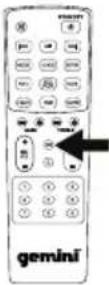
Turn the GSYS-4000 on and press the MODE button until the display shows the word "BLUE". This is Bluetooth mode. If no Bluetooth device is currently paired, the BT icon will flash to let you know the GSYS-4000 is in SEARCH mode.
On your portable device, make sure Bluetooth is turned on. Search through the list of available Bluetooth devices for "GSYS-4000" and connect to it.
You should now be connected to the GSYS-4000. Any audio from your portable device should now play through the Gemini GSYS-4000 speaker.
You can control basic functions (like play/pause, volume, and previous/next track) with the buttons on the top of the GSYS-4000 (as well as with your media player). You should only ever have to pair with the GSYS-4000 once. It will remember paired devices and connect to them automatically after first pairing.

natural_image
Technical line drawing of a mechanical component with no visible text or symbolsUSING THE FM RADIO

The GSYS-4000 is equipped with an FM radio receiver and intelligent scanning capability, making finding and storing local stations fast and easy.
Turn the GSYS-4000 on and press the MODE button until the display
shows the word "FM". This is RADIO mode. Be sure to also extend the antenna on the back of the unit to increase the reception.
SCANNING FOR STATIONS
At first, there won't be any stations stored in the unit. To begin a station scan, press and hold the PLAY button. This will begin the scanning process. When the GSYS-4000 finds a strong station, it will store it as a preset.

Once the scan is complete, you can pick between the available stored preset by pressing the I<< and >>I buttons. The preset number and station frequency will appear in the display.

natural_image
Technical line drawing of a mechanical component with mounting holes and a central body (no text or symbols)USB AND SD CARD PLAYBACK
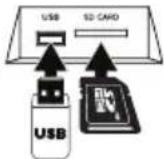
It is possible to play music from either a USB Flash drive or an SD card without the need for an external device (like a phone or computer). Please note that supported file types are ".mp3" and ".wma".
Turn the GSYS-4000 on and insert either a USB or SD card with compatible music on it.
If the GSYS-4000 does not automatically switch to USB mode, press the MODE button until the display shows the word "USB" or "SD".
You will now be able to play music from your USB or SD device. Basic controls (for instance play/ pause, next, and previous track) allow you to change songs, etc. You can use the REC PLAY button on the remote to play back any previous recordings stored on the USB or SD card.
USING THE AUX AND GUITAR INPUTS
The GSYS-4000 lets you perform for an audience with the ability to mix external sources. Turn the GSYS-4000 on and make sure the volumes are all

down. Insert the included Mic and/or a Guitar into the inputs and make sure they are switched on. Press the MODE button until the display shows the word "AUX".
You will now be able to play live audio from external devices like a microphone and guitar. Full control over volume is available with the
left platter (Mic Volume) and top left knob (Guitar Volume). You may also use the Echo knob to add in an echo effect.

natural_image
Technical line drawing of a mechanical component with no visible text or symbolsUSB RECORDING
The Gemini GSYS-4000 can record your live performance. Please note that recording is only enabled when a USB drive and mic are attached. To begin recording, unit can be in either AUX, USB, or FM mode.
- In AUX mode, audio from mic and AUX input will be recorded.
• In USB mode, mic input will be recorded.
• In FM mode, FM radio audio will be recorded.
Insert your USB drive. The GSYS-4000 will create a directory called "RECORD" that it will put your recordings.

Press the RECORD button to begin recording. You will see the display change to a time readout (starting at 00:01) showing elapsed recording time.
You may now begin your recording. When you are finished recording, press the RECORD button again to stop. Please note that while unit is in recording mode, audio through the speakers is muted. You can use the included remote control to access your new recordings, or you can remove your USB drive and play them on any computer. REC PLAY lets you play back recordings you've created, R.DEL allows you to delete the currently selected recording.

CONTROLLING THE LIGHTING
There are 2 buttons on the remote that control the GSYS-4000 lighting. The LIGHT button turns the lights on or off. The RGB button allows you to change the lighting color, cycling through RED, GREEN, and BLUE. Please note that pressing the LIGHT button is how you return the lights to their normal multi-color, sound active mode. Lighting will change on the speakers shown in the diagram. Other lighting on the unit (for instance, the display color, button backlighting, etc.) will not change.

SPECIFICATIONS
AUDIO
Output Power 1200W Peak
Frequency Range 20Hz to 20KHz
Input Voltage 100V - 240 VAC
50/60Hz + 10%
SPEAKERS
Subwoofers Dual 12"
Tweeters Dual 4"
OTHER
S/N Ratio: ≥70dB
Input Sensitivity: 500mV±50mV
Input Voltage: AC100V-240V 50/60Hz±10%
Support electric guitar/keyboard: Yes
FM Antenna: Telescopic FM antenna (20 FM preset channels)
USB port: support MP3/WAV playback
Specifications subject to change without notification for improvement.
TROUBLESHOOTING
UNIT WILL NOT POWER ON
- Check power cord is securely connected to mains power and wall outlet is powered and not switched.
CAN'T CONNECT VIA BLUETOOTH
• Make sure BLUETOOTH on your portable device is turned on.
- Make sure GMAX-6000 is in BLUETOOTH mode.
- Verify another Bluetooth device is not currently connected to unit.
CAN'T HEAR BLUETOOTH OR EXTERNAL DEVICE
- Verify power is on and volume is turned up on your external device.
MICROPHONE IS NOT AUDIBLE
- Slowly raise MIC LEVEL until mic is audible.
- Make sure microphone is fully plugged in and turned on (if switched).
For all other issues, please contact GEMINI support at 1-844-GEMINI9
Responsible Party Name:
Innovative Concepts & Designs
Company address:
107 Trumbull St-F8 2nd Floor
Elizabeth, NJ, 07206 USA

FCC Compliance Statement
This device complies with Part 15 of the FCC Rules. The operation is subject to the following two conditions:
(1) This device may not cause harmful interference, and (2) This device must accept any interference received, including interference that may cause undesired operation.
This device and its antenna(s) must not be co-located or operating in conjunction with any other antenna or transmitter.
The device has been evaluated to meet general RF exposure requirements. The device can be used in portable exposure conditions without restriction. Note: This equipment has been tested and found to comply with the limits for a class B digital device, pursuant to Part 15 of the FCC Rules. This equipment generates, uses and can radiate radio frequency energy and if not installed and used in accordance with the instructions, may cause harmful interference to radio communications. However, there is no guarantee that interference will not occur in a particular installation. If this equipment does cause interference to radio or television reception, which can be determined by turning the equipment off and then on, the user is encouraged to try to correct the interference by one or more of the following measures:
- Reorient or relocate the receiving antenna.
- Increase the separation between the equipment and receiver.
- Connect the equipment to a different outlet so that the equipment and receiver are on different branch circuits.
- Consult the dealer or an experienced radio/TV technician for help.
FCC ID: 2AE6G-GSYS4000

- FUNCTION ENGLISH //
- TOP PANEL
- REAR PANEL
- REMOTE CONTROL
- ENGLISH // DESCRIPTION
- POWERING ON AND STANDBY
- PAIRING
- SCANNING FOR STATIONS
- USB AND SD CARD PLAYBACK
- USING THE AUX AND GUITAR INPUTS
- USB RECORDING
- CONTROLLING THE LIGHTING
- SPECIFICATIONS
- AUDIO
- SPEAKERS
- OTHER
- TROUBLESHOOTING
- UNIT WILL NOT POWER ON
- CAN'T CONNECT VIA BLUETOOTH
- CAN'T HEAR BLUETOOTH OR EXTERNAL DEVICE
- MICROPHONE IS NOT AUDIBLE
- Responsible Party Name:
- Company address:
- FCC Compliance Statement
Brand : GEMINI
Model : GSYS-4000
Category : Loudspeaker