
AL40B - Uncategorized ZKTeco - Free user manual and instructions
Find the device manual for free AL40B ZKTeco in PDF.


| Type de produit | Time & Attendance Terminal |
| Brand | ZKTeco |
| Modèle | AL40B |
| Couleur | Black |
| Dimensions (L x H x P) | 180 x 130 x 45 mm |
| Poids net | 0.5 kg |
| Alimentation électrique | DC 12V, 2A |
| Consommation électrique | ≤ 5W (typical) |
| Type d'écran | 4.3-inch TFT color screen |
| Méthode de reconnaissance | Fingerprint (optical sensor) |
| Capacité d'empreintes | 3000 templates |
| Capacité de transactions | 100,000 records |
| Interface de communication | TCP/IP, USB Host, RS232/485 |
| Fonctions principales | Time attendance, access control (optional), T9 input, voice prompts |
| Entretien et nettoyage | Clean the sensor with a soft dry cloth; avoid moisture and direct sunlight. |
| Sécurité | Password protection, fingerprint verification, alarm for tamper |
| Pièces détachées et réparabilité | Power adapter, USB cable, mounting bracket available; consult service center. |
| Informations générales | For indoor use only; operating temperature 0°C to 45°C; humidity 20% to 80%. |
Frequently Asked Questions - AL40B ZKTeco
User questions about AL40B ZKTeco
0 question about this device. Answer the ones you know or ask your own.
Ask a new question about this device
Download the instructions for your Uncategorized in PDF format for free! Find your manual AL40B - ZKTeco and take your electronic device back in hand. On this page are published all the documents necessary for the use of your device. AL40B by ZKTeco.
USER MANUAL AL40B ZKTeco
natural_image
Two identical ZKT phone cases with rotary keypad and display, set against a green background (no visible text or symbols on keys)Table of Contents
Important Notes....1
Structure 2
Basic Function 3
Basic Information....3
Initialization....4
Random Password....4
Low Battery Warning....5
Lockout mode....5
9V External Battery....6
Emergency Mechanical Key....7
How to Use 8
Register First Administrator....8
Register another Administrator....10
Register User....11
Delete Administrator....12
Delete User....13
Backup Enroll (User's additional verification details)....14
Volume Setting....15
Setting....16
Always Open Mode....17
Add Remote Key (Optional)....18
Important Notes
- Factory setting of all new locks allows any verification to unlock them.
- One administrator must be registered on newly installed locks. Ordinary users cannot be registered until an administrator is registered.
- The lock is equipped with a mechanical key. Store the mechanical key in a safe place.
- Four alkaline AA batteries (not included) are required to power on the lock, Non-alkaline and rechargeable batteries ARE NOT RECOMMENDED.
- Do not remove batteries from the lock in working state.
- Batteries should be replaced soon when the lock prompts the low battery warning.
- If the lock does not have any activity for ten seconds it will go into sleep mode.
Structure
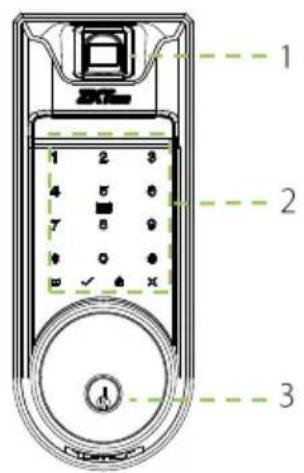
- Fingerprint Sensor(Only for AL40B)
- Touchscreen & Detection Area
- Keyhole
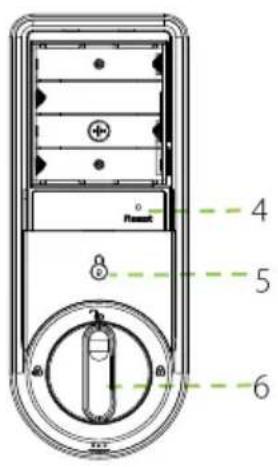
- Reset Button
natural_image
Simple line drawing of a rectangular object with a small triangle at the bottom and a dashed line extending to the right (no text or symbols)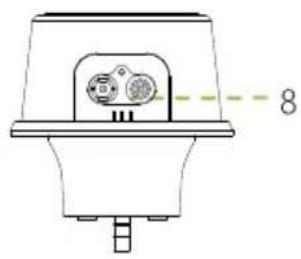
natural_image
Technical line drawing of a mechanical device with a labeled dimension (8), no readable text or symbols present.- Lockout symbol
- Knob
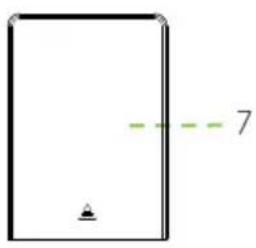
- Battery Cover
- 9V Battery port
Basic Function
Basic Information
| Group | Verification Mode | Function | Capacity |
| Administrator | Card | Register / Delete User, Open The Door, Access the menu | Max.100 |
| Password | Max.100 | ||
| Fingerprint (Only for AL40B) | Max.100 | ||
| User | Card | Open the door | Max.100 |
| Password | Max.100 | ||
| Fingerprint (Only for AL40B) | Max.100 |
Note:
- The maximum fingerprint/card/password capacity of lock is 100.
- Password must be of six digits.
Initialization
After installing the lock, you must perform initialization process as explained in below steps:
- Press and hold the reset button, then remove one battery and place it back again, keep holding until the lock prompts "Restore to default settings, wait a moment."
- And after 10 seconds, the lock will prompt "Complete", which means the initialization process is finished.
Random Password
To protect the password, user may enter their password with random digits before or after, the maximum number of digits entered must be 32 or less.
For example: If the correct password is 123456, the random password can be 89123456807, 1234562363, 389123456, etc.
Low Battery Warning
"Low battery, Replace the batteries !!" will prompt when the lock battery has low power.
Note: Menu options cannot be accessed in low battery status.
Lockout mode
Lockout mode means that only administrator can unlock the door from outside.
Enable: Press thumb on the indoor unit lockout icon for few seconds until you hear a long beep.
Disable: It can be disabled when an administrator unlocks the door from outside or by unlocking using the knob from inside.
9V External Battery
A 9V external battery is used to keep the lock operative when its battery is fully discharged.
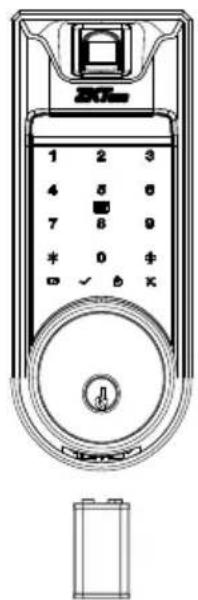
Note: The above battery must be a 9V alkaline battery (6LR61).
Emergency Mechanical Key
The mechanical key is used to open the door in an emergency situation.
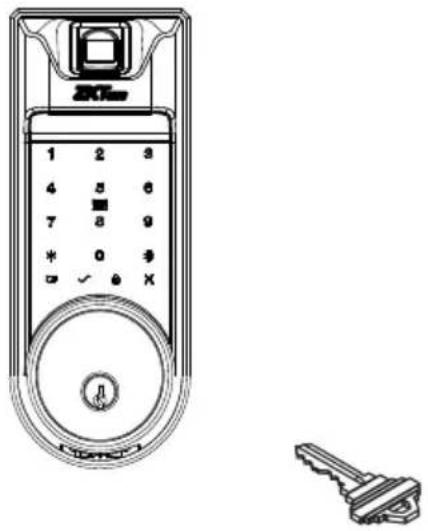
Note: Keep the mechanical key in a safe place.
How to Use
Register First Administrator
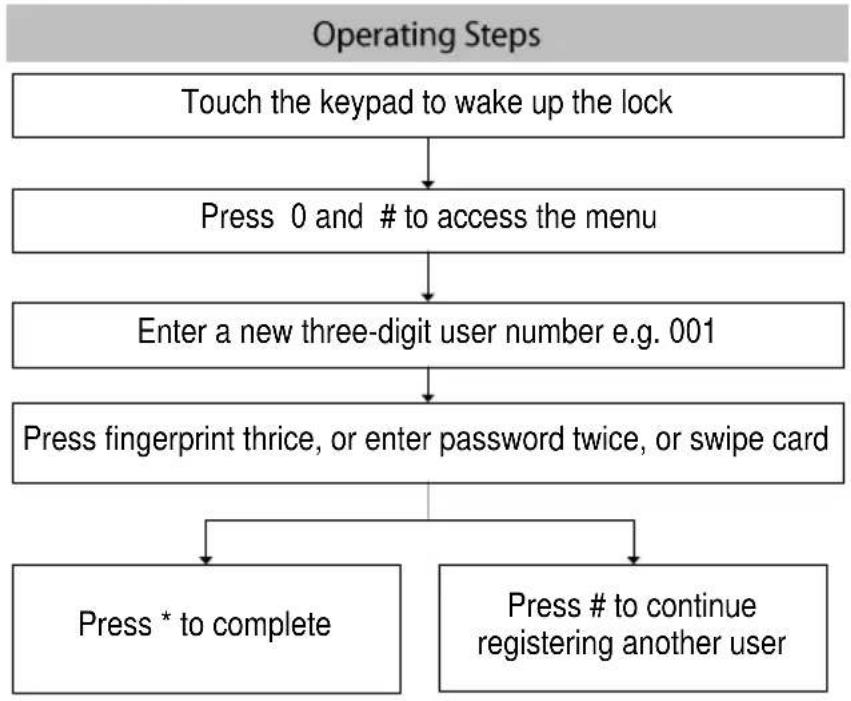
flowchart
graph TD
    A["Touch the keypad to wake up the lock"] --> B["Press 0 and # to access the menu"]
    B --> C["Enter a new three-digit user number e.g. 001"]
    C --> D["Press fingerprint thrice, or enter password twice, or swipe card"]
    D --> E["Press * to complete"]
    D --> F["Press # to continue registering another user"]
Note:
- Verify card by swiping it over the detection area.
- Password must be of six digits.
- Default user number is of three digits, e.g. 001.
- Press * to cancel the registration.
Register another Administrator
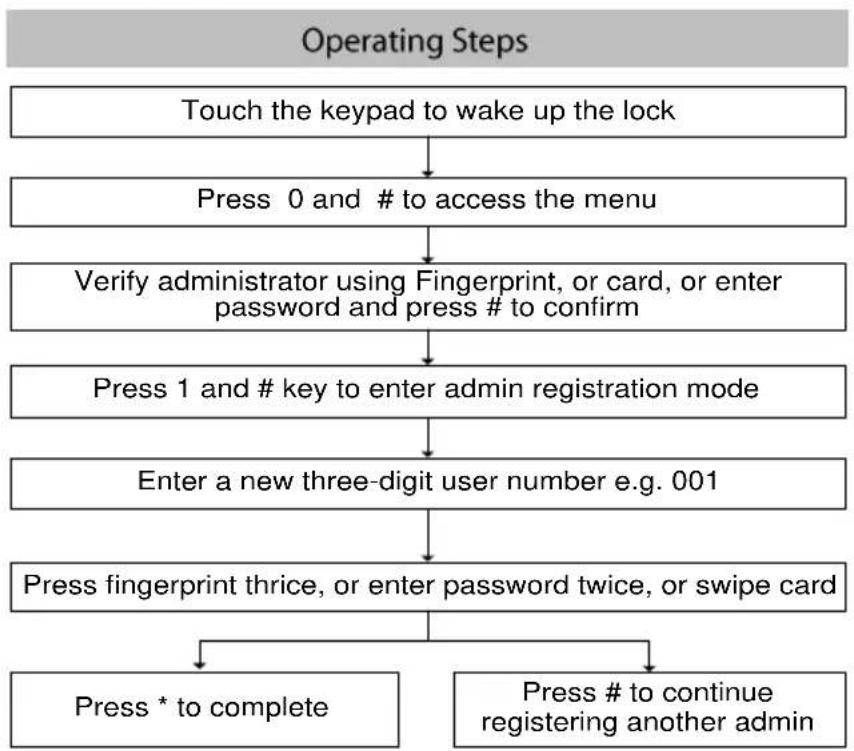
flowchart
graph TD
    A["Touch the keypad to wake up the lock"] --> B["Press 0 and # to access the menu"]
    B --> C["Verify administrator using Fingerprint, or card, or enter password and press # to confirm"]
    C --> D["Press 1 and # key to enter admin registration mode"]
    D --> E["Enter a new three-digit user number e.g. 001"]
    E --> F["Press fingerprint thrice, or enter password twice, or swipe card"]
    F --> G["Press * to complete"]
    F --> H["Press # to continue registering another admin"]
Register User
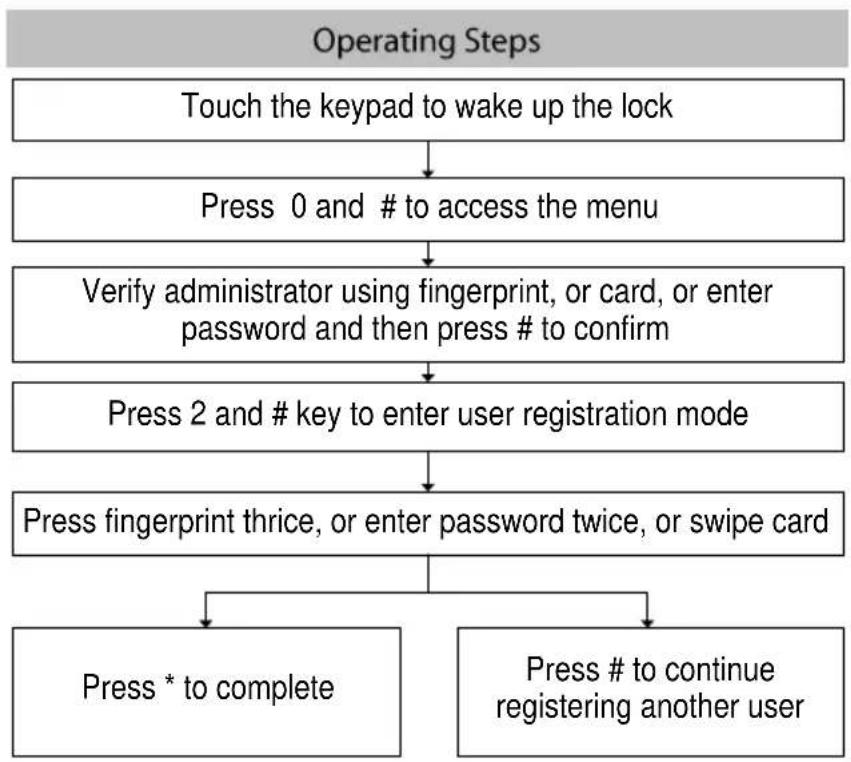
flowchart
graph TD
    A["Touch the keypad to wake up the lock"] --> B["Press 0 and # to access the menu"]
    B --> C["Verify administrator using fingerprint, or card, or enter password and then press # to confirm"]
    C --> D["Press 2 and # key to enter user registration mode"]
    D --> E["Press fingerprint thrice, or enter password twice, or swipe card"]
    E --> F["Press * to complete"]
    E --> G["Press # to continue registering another user"]
Delete Administrator
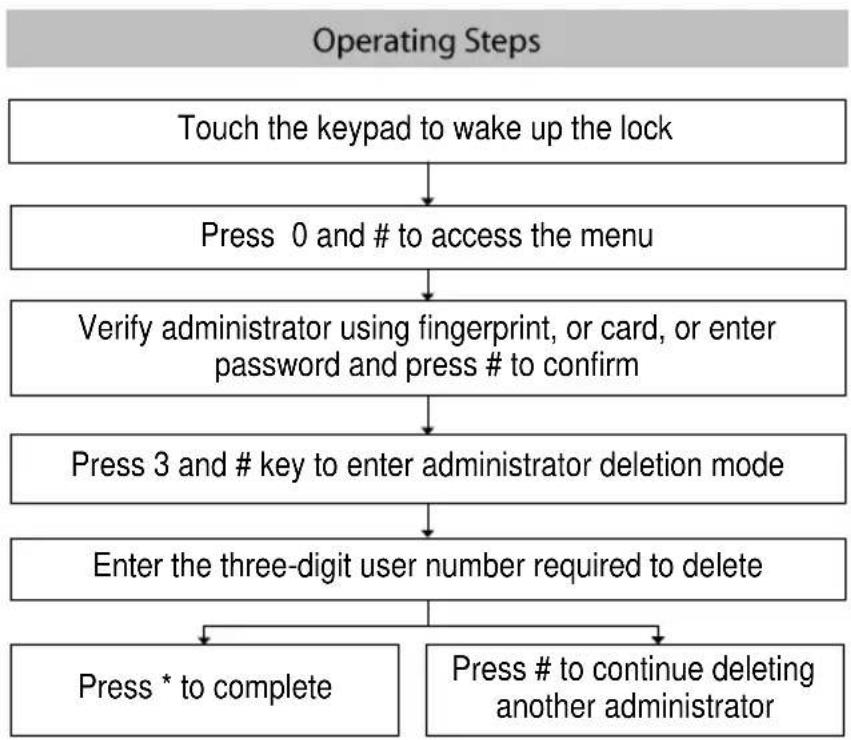
flowchart
graph TD
    A["Touch the keypad to wake up the lock"] --> B["Press 0 and # to access the menu"]
    B --> C["Verify administrator using fingerprint, or card, or enter password and press # to confirm"]
    C --> D["Press 3 and # key to enter administrator deletion mode"]
    D --> E["Enter the three-digit user number required to delete"]
    E --> F["Press * to complete"]
    E --> G["Press # to continue deleting another administrator"]
Delete User
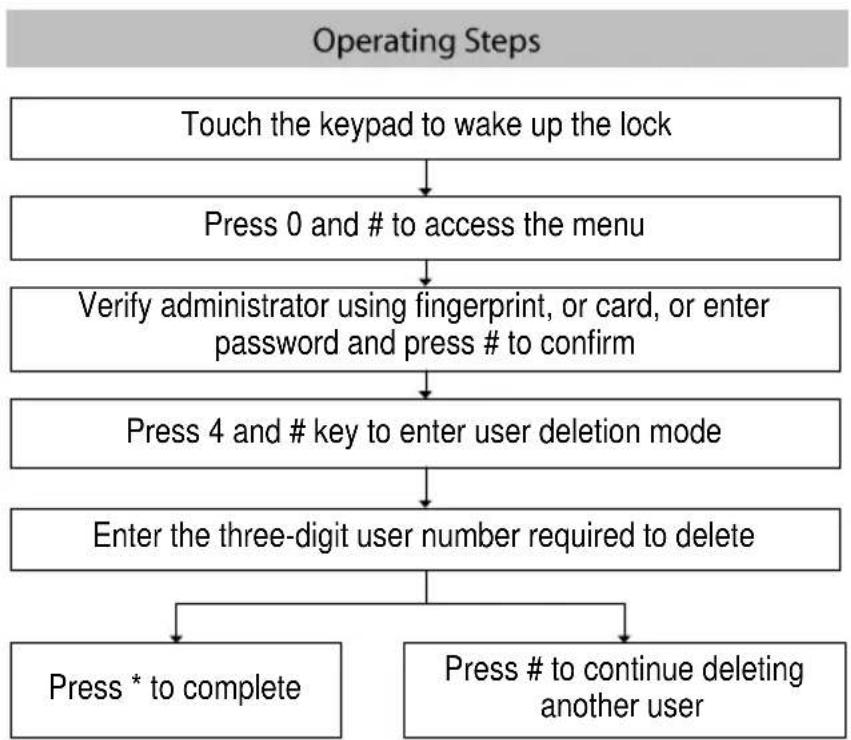
flowchart
graph TD
    A["Touch the keypad to wake up the lock"] --> B["Press 0 and # to access the menu"]
    B --> C["Verify administrator using fingerprint, or card, or enter password and press # to confirm"]
    C --> D["Press 4 and # key to enter user deletion mode"]
    D --> E["Enter the three-digit user number required to delete"]
    E --> F["Press * to complete"]
    E --> G["Press # to continue deleting another user"]
Backup Enroll (User's additional verification details)
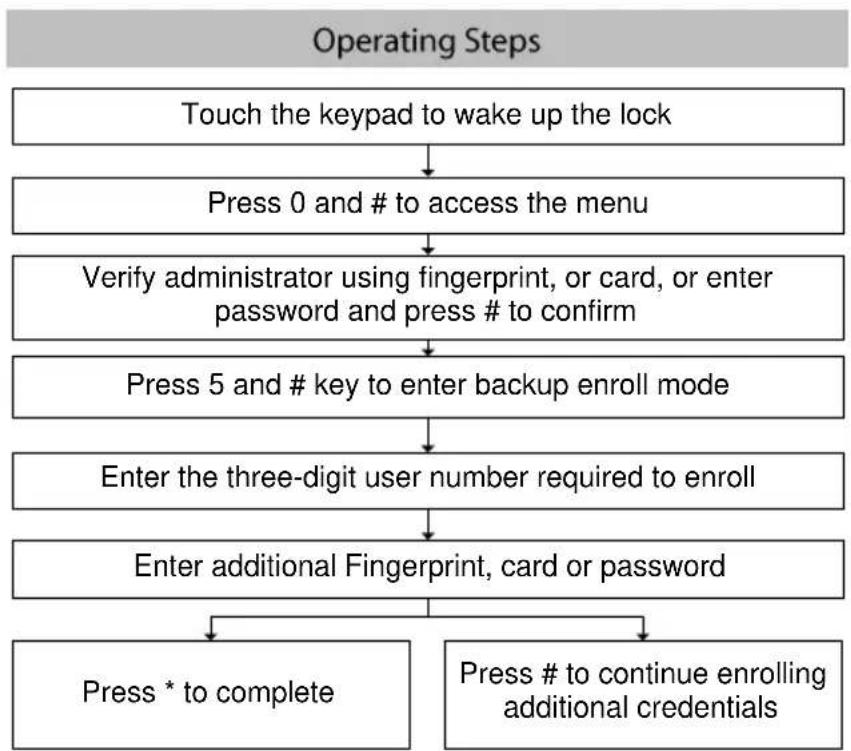
flowchart
graph TD
    A["Touch the keypad to wake up the lock"] --> B["Press 0 and # to access the menu"]
    B --> C["Verify administrator using fingerprint, or card, or enter password and press # to confirm"]
    C --> D["Press 5 and # key to enter backup enroll mode"]
    D --> E["Enter the three-digit user number required to enroll"]
    E --> F["Enter additional Fingerprint, card or password"]
    F --> G["Press * to complete"]
    F --> H["Press # to continue enrolling additional credentials"]
Volume Setting
The lock has three different volume modes: High volume mode, Low volume mode, and Silent mode.
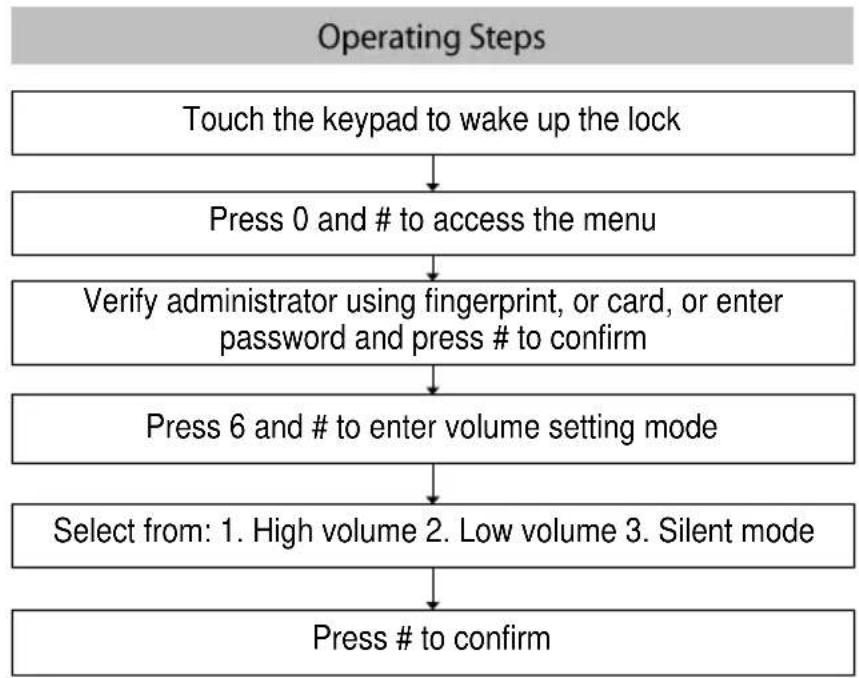
flowchart
graph TD
    A["Touch the keypad to wake up the lock"] --> B["Press 0 and # to access the menu"]
    B --> C["Verify administrator using fingerprint, or card, or enter password and press # to confirm"]
    C --> D["Press 6 and # to enter volume setting mode"]
    D --> E["Select from: 1. High volume 2. Low volume 3. Silent mode"]
    E --> F["Press # to confirm"]
Setting
By default, the lock has one language, if you want the language combination, please contact our sales team. The lock can support English, Spanish and Portuguese.
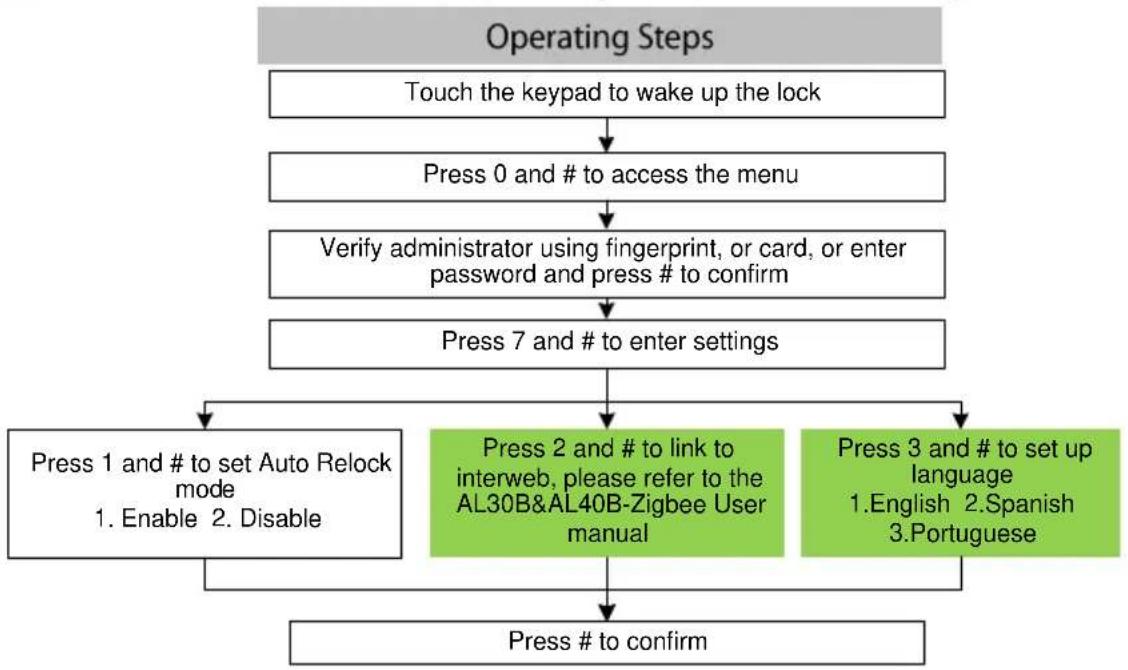
flowchart
graph TD
    A["Touch the keypad to wake up the lock"] --> B["Press 0 and # to access the menu"]
    B --> C["Verify administrator using fingerprint, or card, or enter password and press # to confirm"]
    C --> D["Press 7 and # to enter settings"]
    D --> E["Press 1 and # to set Auto Relock mode\n1. Enable 2. Disable"]
    D --> F["Press 2 and # to link to interweb, please refer to the AL30B&AL40B-Zigbee User manual"]
    D --> G["Press 3 and # to set up language\n1. English 2. Spanish 3. Portuguese"]
    E --> H["Press # to confirm"]
    F --> H
    G --> H

Optional
Always Open Mode
Always Open mode is to keep the door always unlocked, allowing people to pass in/out freely.
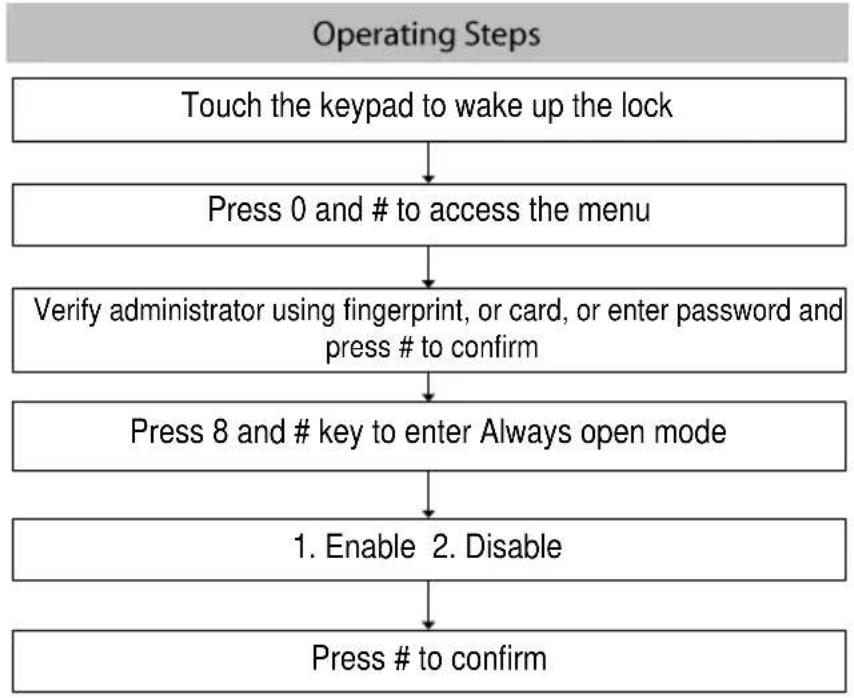
flowchart
graph TD
    A["Touch the keypad to wake up the lock"] --> B["Press 0 and # to access the menu"]
    B --> C["Verify administrator using fingerprint, or card, or enter password and press # to confirm"]
    C --> D["Press 8 and # key to enter Always open mode"]
    D --> E["1. Enable 2. Disable"]
    E --> F["Press # to confirm"]
Add Remote Key (Optional)
The door can be unlocked by a remote control. This is an optional function.
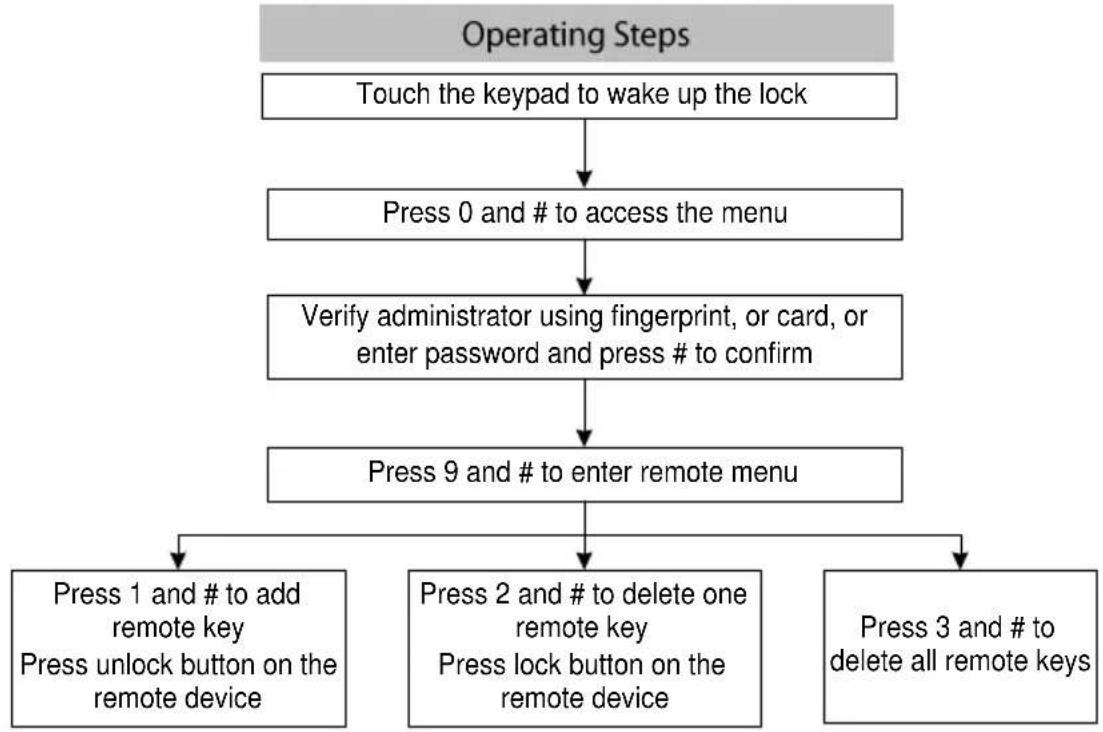
flowchart
graph TD
    A["Touch the keypad to wake up the lock"] --> B["Press 0 and # to access the menu"]
    B --> C["Verify administrator using fingerprint, or card, or enter password and press # to confirm"]
    C --> D["Press 9 and # to enter remote menu"]
    D --> E["Press 1 and # to add remote key\nPress unlock button on the remote device"]
    D --> F["Press 2 and # to delete one remote key\nPress lock button on the remote device"]
    D --> G["Press 3 and # to delete all remote keys"]
ZK Building, Wuhe Road, Gangtou, Bantian, Buji Town, Longgang District, Shenzhen China 518129
Tel: +86 755-89602345
Fax: +86 755-89602394
www.zkteco.com

© Copyright 2018. ZKTeco Inc. ZKTeco Logo is a registered trademark of ZKTeco or a related company. All other product and company names mentioned are used for identification purposes only and may be the trademarks of their respective owners. All specifications are subject to change without notice. All rights reserved.
- Table of Contents
- Important Notes
- Structure
- Basic Function
- Note:
- Initialization
- Random Password
- Low Battery Warning
- Lockout mode
- 9V External Battery
- Emergency Mechanical Key
- How to Use
- Register First Administrator
- Register another Administrator
- Register User
- Delete Administrator
- Delete User
- Volume Setting
- Setting
- Always Open Mode
- Add Remote Key (Optional)
Brand : ZKTeco
Model : AL40B
Category : Uncategorized