
TL-WN811N - Wi-Fi Antenna TP-LINK - Free user manual and instructions
Find the device manual for free TL-WN811N TP-LINK in PDF.


| Product Type | Wireless N USB Adapter / Wi-Fi Antenna |
| Model | TL-WN811N |
| Brand | TP-Link |
| Standards | IEEE 802.11b/g/n |
| Wireless Speed | Up to 150 Mbps |
| Frequency Band | 2.4 GHz |
| Interface | USB 2.0 |
| Antenna Type | Internal / External (if applicable) |
| Dimensions (approx.) | 2.6 x 0.9 x 0.5 in (66 x 22 x 13 mm) |
| Weight | 0.39 oz (11 g) |
| Power Source | USB bus-powered |
| Security Features | WEP, WPA/WPA2, WPA-PSK/WPA2-PSK |
| Operating Systems Supported | Windows, Mac OS, Linux (driver dependent) |
| Main Functions | Wireless network connectivity, internet access |
| Maintenance and Cleaning | Clean with a dry cloth; avoid liquids and solvents |
| Safety Precautions | Keep away from water and high temperatures; do not disassemble |
| Spare Parts and Repairability | Not user-serviceable; contact support for replacement |
| General Information | Compliant with EU and FCC regulations |
Frequently Asked Questions - TL-WN811N TP-LINK
User questions about TL-WN811N TP-LINK
0 question about this device. Answer the ones you know or ask your own.
Ask a new question about this device
Download the instructions for your Wi-Fi Antenna in PDF format for free! Find your manual TL-WN811N - TP-LINK and take your electronic device back in hand. On this page are published all the documents necessary for the use of your device. TL-WN811N by TP-LINK.
USER MANUAL TL-WN811N TP-LINK
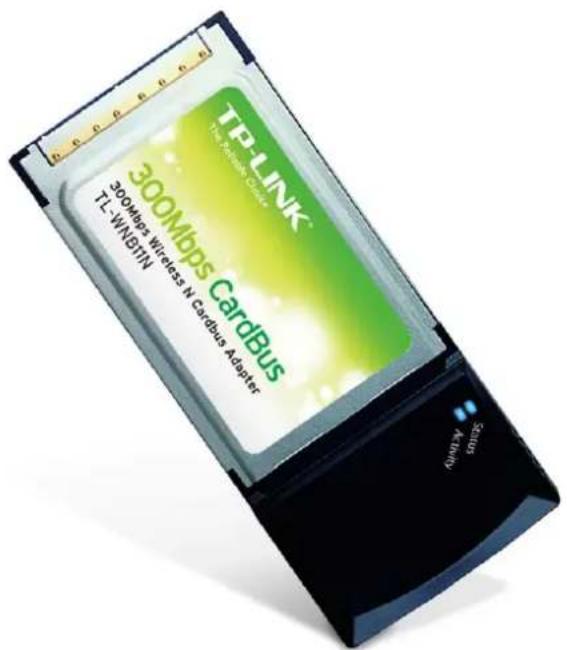
300Mbps Wireless N CardBus Adapter
COPYRIGHT & TRADEMARKS
Specifications are subject to change without notice. TP-LINK® is a registered trademark of TP-LINK TECHNOLOGIES CO., LTD. Other brands and product names are trademarks or registered trademarks of their respective holders.
No part of the specifications may be reproduced in any form or by any means or used to make any derivative such as translation, transformation, or adaptation without permission from TP-LINK TECHNOLOGIES CO., LTD. Copyright © 2010 TP-LINK TECHNOLOGIES CO., LTD. All rights reserved.
http://www.tp-link.com
FCC STATEMENT
FC
This equipment has been tested and found to comply with the limits for a Class B digital device, pursuant to part 15 of the FCC Rules. These limits are designed to provide reasonable protection against harmful interference in a residential installation. This equipment generates, uses and can radiate radio frequency energy and, if not installed and used in accordance with the instructions, may cause harmful interference to radio communications. However, there is no guarantee that interference will not occur in a particular installation. If this equipment does cause harmful interference to radio or television reception, which can be determined by turning the equipment off and on, the user is encouraged to try to correct the interference by one or more of the following measures:
- Reorient or relocate the receiving antenna.
- Increase the separation between the equipment and receiver.
- Consult the dealer or an experienced radio/ TV technician for help.
Connect the equipment into an outlet on a circuit different from that to which the receiver is connected.
This device complies with part 15 of the FCC Rules. Operation is subject to the following two conditions:
1) This device may not cause harmful interference. 2) This device must accept any interference received, including interference that may cause undesired operation.
Any changes or modifications not expressly approved by the party responsible for compliance could void the user's authority to operate the equipment.
Note: The manufacturer is not responsible for any radio or TV interference caused by unauthorized modifications to this equipment. Such modifications could void the user's authority to operate the equipment.
FCC RF Radiation Exposure Statement
This equipment complies with FCC RF radiation exposure limits set forth for an uncontrolled environment. This device and its antenna must not be co-located or operating in conjunction with any other antenna or transmitter.
"To comply with FCC RF exposure compliance requirements, this grant is applicable to only Mobile Configurations. The antennas used for this transmitter must be installed to provide a separation distance of at least 20 cm from all persons and must not be co-located or operating in conjunction with any other antenna or transmitter."
CE Mark Warning
CE1588!
This is a class B product. In a domestic environment, this product may cause radio interference, in which case the user may be required to take adequate measures.
National Restrictions
2400.0-2483.5 MHz
| Country | Restriction | Reason/remark |
| Bulgaria | General authorization required for outdoor use and public service | |
| France | Outdoor use limited to 10 mW e.i.r.p. within the band 2454-2483.5 MHz | Military Radiolocation use. Refarming of the 2.4 GHz band has been ongoing in recent years to allow current relaxed regulation. Full implementation planned 2012 |
| Italy | If used outside of own premises, general authorization is required | |
| Luxembourg | None | General authorization required for network and service supply(not for spectrum) |
| Norway | Implemented | This subsection does not apply for the geographical area within a radius of 20 km from the centre of Ny-Ålesund |
| Russian Federation | Only for indoor applications |
Note: Please don't use the product outdoors in France.
DECLARATION OF CONFORMITY
For the following equipment:
Product Description: 300Mbps Wireless N CardBus Adapter
Model No.: TL-WN811N
Trademark: TP-LINK
We declare under our own responsibility that the above products satisfy all the technical regulations applicable to the product within the scope of Council Directives:
Directives 1999/5/EC
The above product is in conformity with the following standards or other normative documents:
ETSI EN 300 328 V1.7.1: 2006
ETSI EN 301 489-1 V1.8.1:2008 & ETSI EN 301 489-17 V1.3.2:2008
EN60950-1:2006
EN62311:2008
Person is responsible for marking this declaration:

Yang Hongliang
Product Manager of International Business
CONTENTS
Package Contents .... 1
Chapter 1 Introduction....2
1.1 Overview of the Product....2 1.2 Features....2 1.3 LED Status 3
Chapter 2 Installation Guide....4
2.1 Hardware Installation 4 2.2 Software Installation 4 2.2.1 Software Installation for Windows XP 4 2.2.2 Software Installation for Windows Vista 9 2.2.3 Software Installation for Windows 7 13
Chapter 3 Configuration ...... 17
3.1 Current Status 17 3.2 Profile Management 18 3.2.1 Add or Modify a Configuration Profile.... 19 3.2.2 Remove a Profile 23 3.2.3 Switch to Another Profile 23 3.2.4 Export a Profile.... 23 3.2.5 Import a Profile.... 24 3.2.6 Scan Available Networks 24 3.2.7 Auto Profile Selection Management 25
3.3 Diagnostics 26 3.3.1 Check Driver Information....26 3.3.2 Check Receive and Transmit Statistical Information 27 3.4 Configuration for Windows Vista 27 3.5 Configuration for Windows 7....29
Chapter 4 QSS Configuration....32
4.1 PBC (Push Button Configuration) method....33 4.2 PIN method 35 4.2.1 Enter a PIN into your AP device.... 35 4.2.2 Enter the PIN from your AP device.... 36
Appendix A: Specifications....38
Appendix B: Glossary....39
Package Contents
The following items should be found in your package:
One TL-WN811N 300Mbps Wireless N CardBus Adapter
Quick Installation Guide One resource CD for TL-WN811N, including: - TP-LINK Wireless Client Utility (TWCU) and Drivers - User Guide - Other Helpful Information

Note:
Make sure that the package contains the above items. If any of the listed items are damaged or missing, please contact your distributor.
Conventions:
The 'Adapter' mentioned in this user guide stands for TL-WN811N 300Mbps Wireless N CardBus Adapter without any explanations.
Chapter 1 Introduction
Thank you for choosing the TL-WN811N 300Mbps Wireless N CardBus Adapter!
1.1 Overview of the Product
The adapter is a 802.11n client device; it is designed to provide a high-speed and unrivaled wireless performance for your notebook. With a faster wireless connection, you can get a better Internet experience, such as downloading, gaming, video streaming and so on.
With the 802.11n technology, higher throughput improvements using MIMO (multiple input, multiple output antennas), the TL-WN811N's auto-sensing capability allows high packet transfer rate of up to 300Mbps for maximum throughput. It has good capability on anti-jamming, and it can also interoperate with other wireless (802.11b) products. The adapter supports WEP, WPA and WPA2 encryption to prevent outside intrusion and protect your personal information from being exposed.
The adapter is easy to install and manage. The Quick Setup Wizard guides you step-by-step through the installation process; the TP-LINK Wireless Client Utility helps you create a wireless connection immediately.
With unmatched wireless performance, reception, and security protection, the TL-WN811N is the best choice for easily adding or upgrading wireless connectivity to your notebook computer.
1.2 Features
Complies with IEEE802.11n, IEEE802.11g, IEEE802.11b standards. Supports WPA/WPA2 data security, IEEE802.1x authentication, TKIP/AES encryption, 64/128/152-bit WEP encryption. Supports high rate of up to 300Mbps for maximum throughput, supports automatically adjust to lower speeds due to distance or other operating limitations. Provides 32-bit CardBus interface. Supports Ad-Hoc and Infrastructure modes. Good capability on anti-jamming. Supports roaming between access points when configured in Infrastructure mode. Ease to configure and provides monitoring information. Supports Windows 2000, Windows XP, Windows Vista, Windows 7. Built-in two internal antennas which are listed in a format of 2x2 for two receivers and two transmitters.
1.3 LED Status
| LED Indications | Status | Working Status |
| Status Solid | Light The adapter is inserted in the slot and the power is on. | |
| Activity | Flashing slowly | The adapter is trying to scan a networking connection;The adapter is already connected but is not transmitting or receiving data. |
| Flashing Quickly The adapter is transmitting or receiving data. | ||
Chapter 2 Installation Guide
2.1 Hardware Installation
To install the adapter, follow these steps listed below:
- Locate an available CardBus slot on your laptop.
- With the connector pin end facing the CardBus slot and the label facing up, slide the Adapter into the CardBus slot until it locks in place.

Note:
The Found New Hardware Wizard screen will pop up when the adapter is installed correctly. Click Cancel.
2.2 Software Installation
2.2.1 Software Installation for Windows XP
The Setup steps for Windows 2000 and XP are similar. This user guide takes Windows XP as an example.
- Insert the Resource CD into your CD-ROM drive, and Figure 2-1 will appear. To continue, select the TL-WN811N. There will be a menu including: Install Driver & Utility, Install QSS, and User Guide.
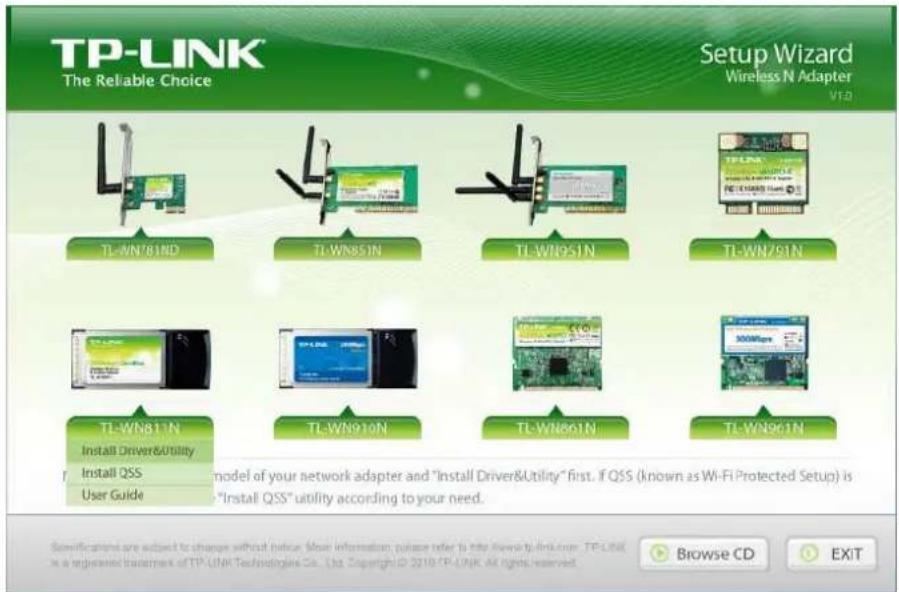
Figure 2-1
- Click Install Driver & Utility to load the following screen.
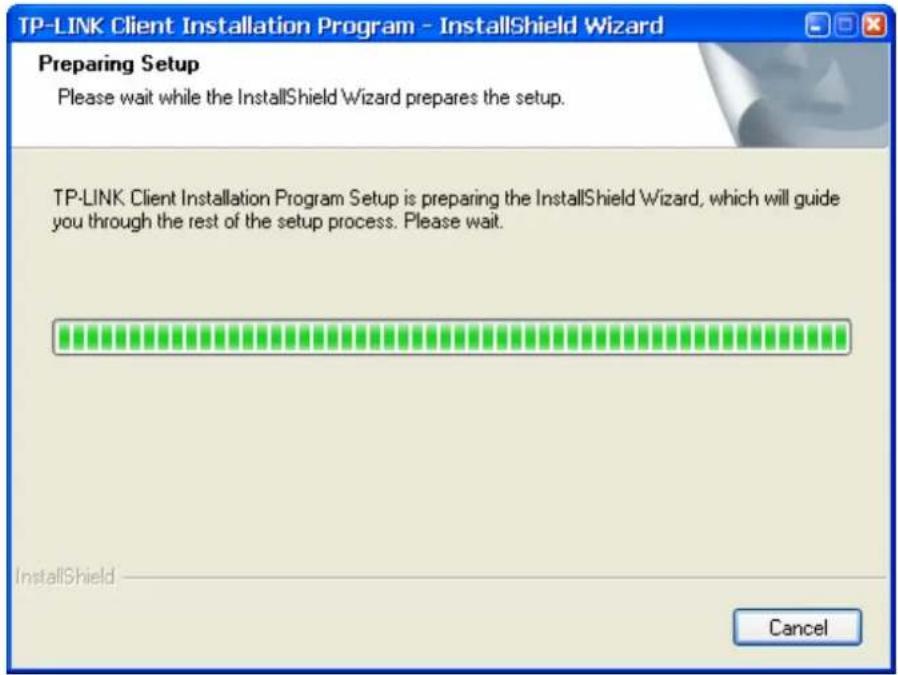
Figure 2-2
- Soon, Figure 2-3 will display after a moment. Click Next to continue.
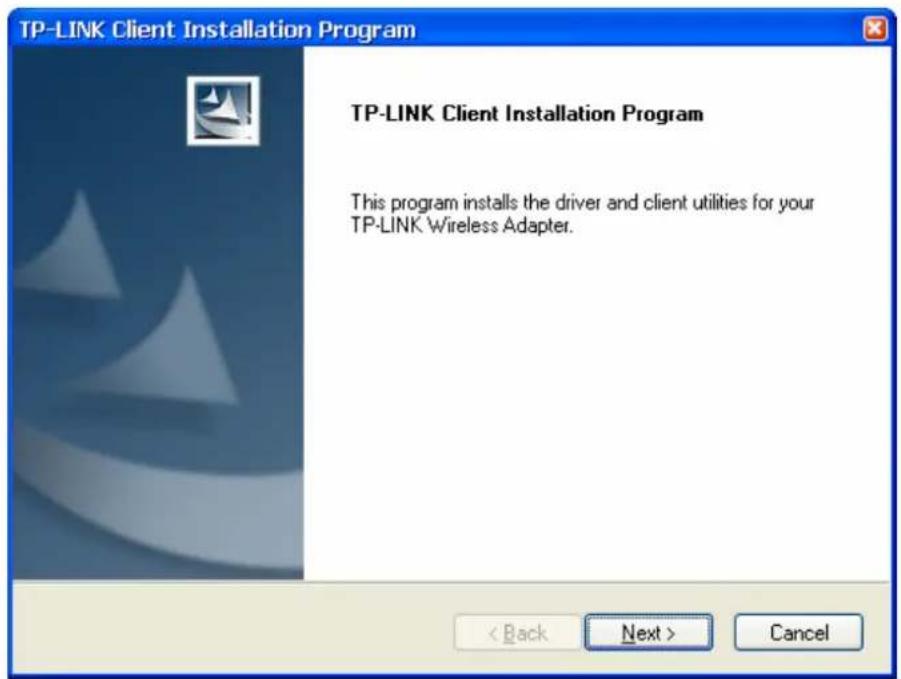
Figure 2-3
- After that, you should choose a Setup type. It is recommended that you select Install Client Utilities and Driver. Select Install Driver Only to install driver only (shown in Figure 2-4). Click Next to continue.
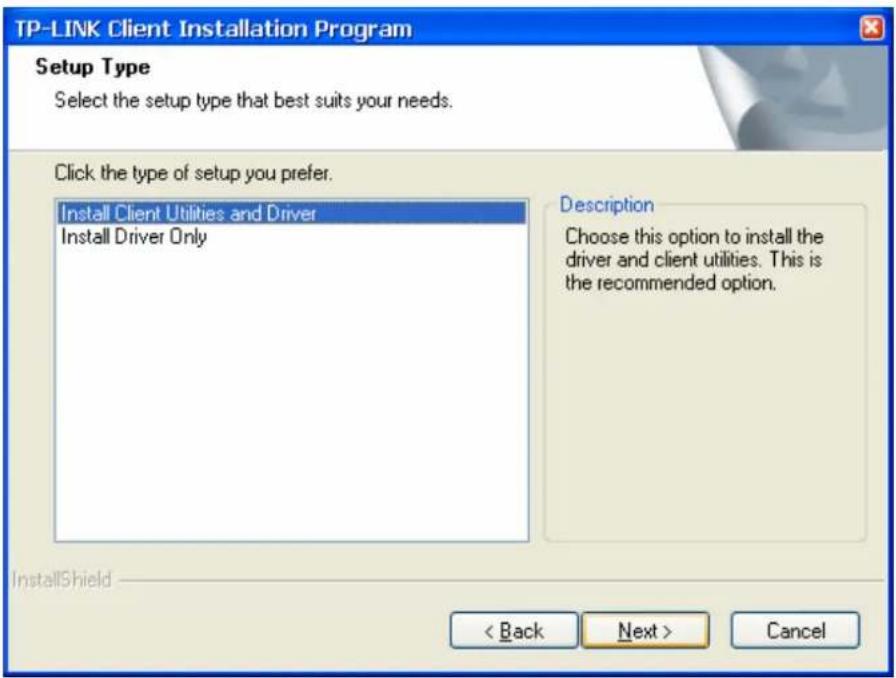
Figure 2-4
- Click Browse to change the destination location for the software, then click Next in the screen below (shown in Figure 2-5).
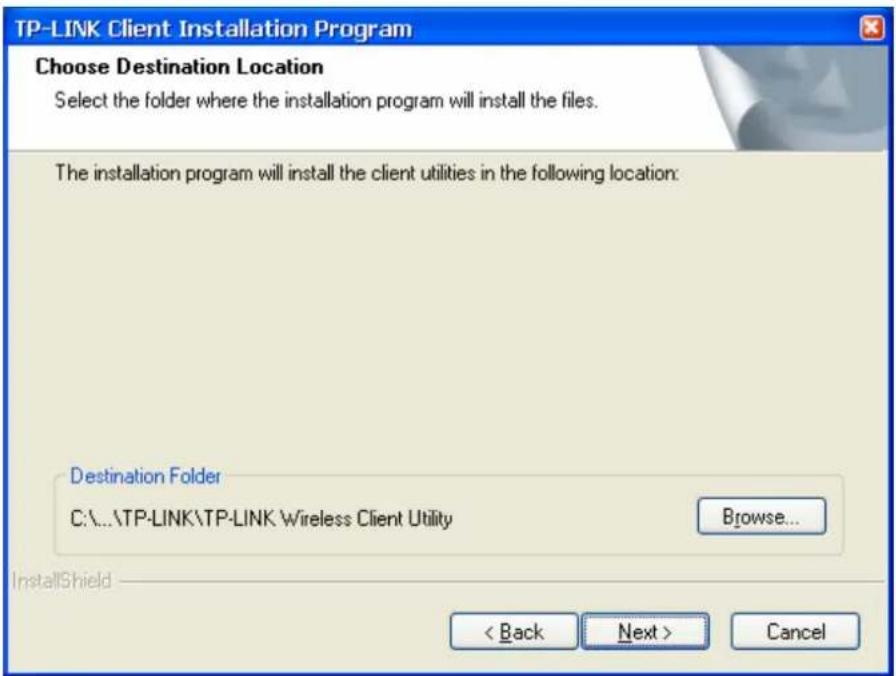
Figure 2-5
- After that, select the program folder. You should create a new folder name or select one from the Existing Folders list. It is recommended that you keep the default setting. Click Next to continue the installation.
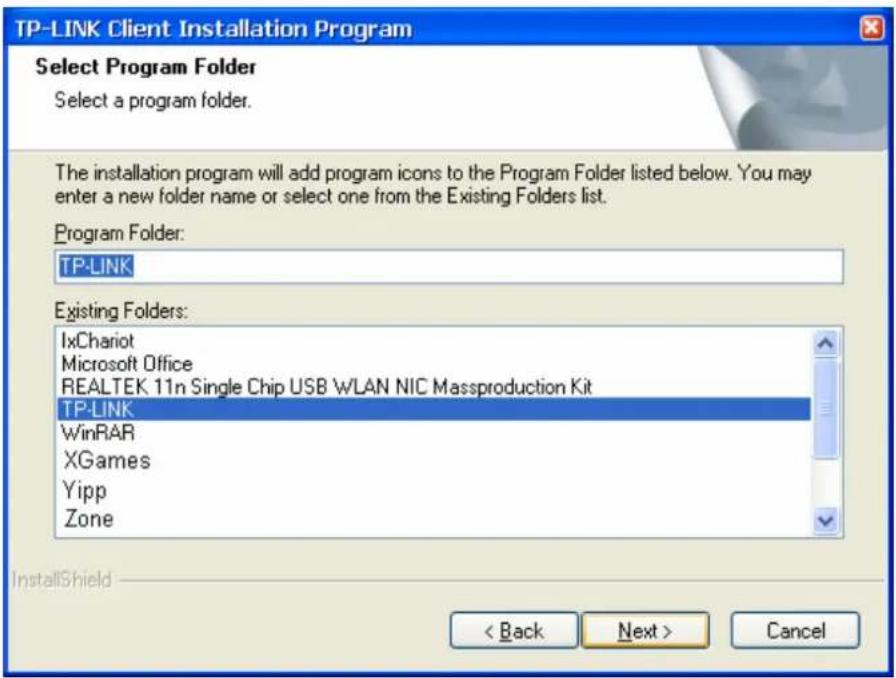
Figure 2-6
- Choose configuration tool. If you are not sure, leave it as default. Then click Next to continue.
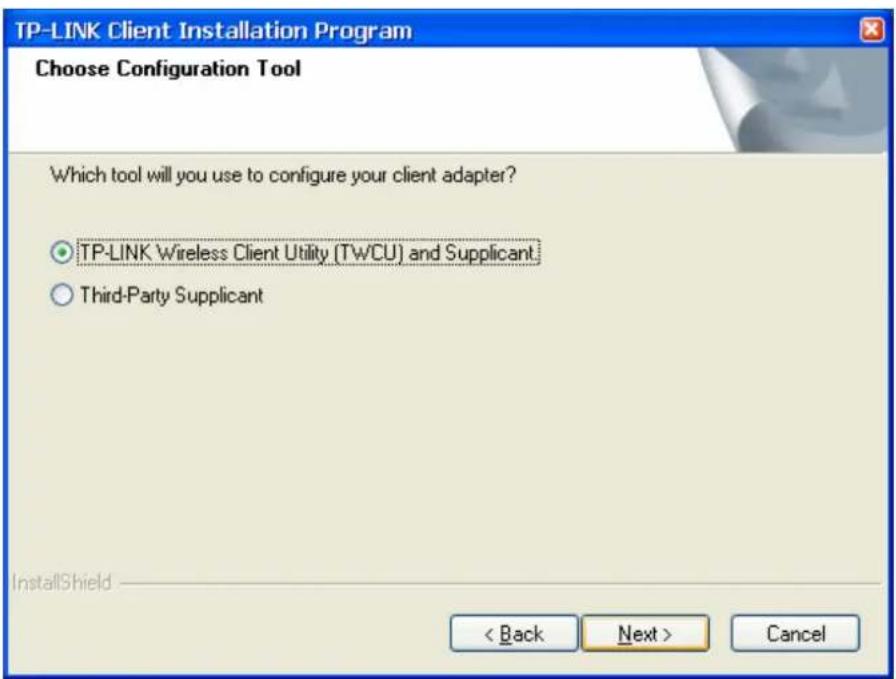
Figure 2-7
- Wait a while for the setup as shown in Figure 2-8.
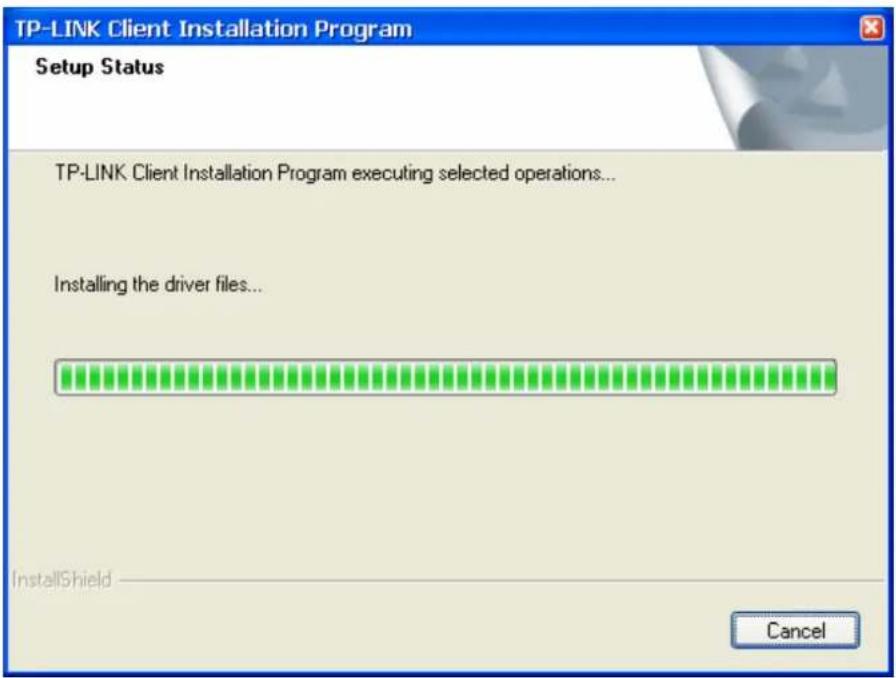
Figure 2-8
Note:
1) For Windows XP, the Setup Wizard will notify you of how to proceed with the installation during these steps (shown in Figure 2-9). Our drivers have been tested thoroughly and are able to work with the operating system. Click Continue Anyway to continue the installation.
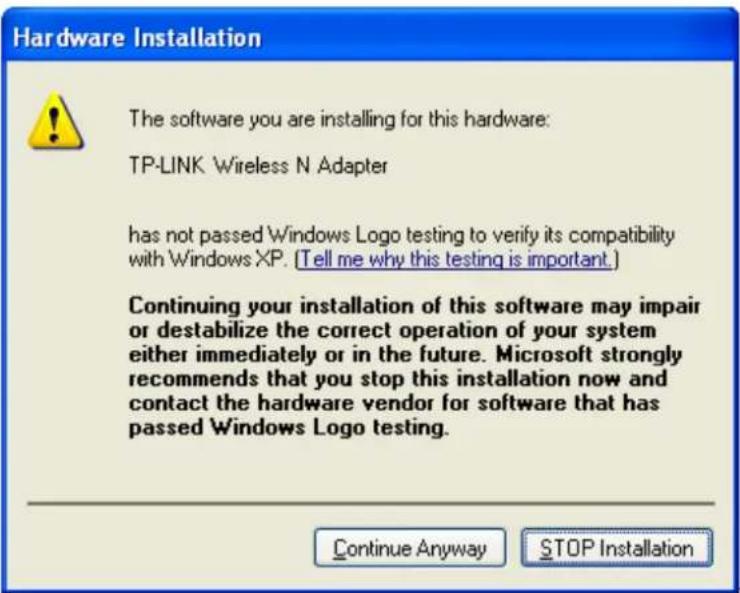
Figure 2-9
2) In Windows 2000, the warning screen is shown below (Figure 2-10). Please select Yes to continue installation.
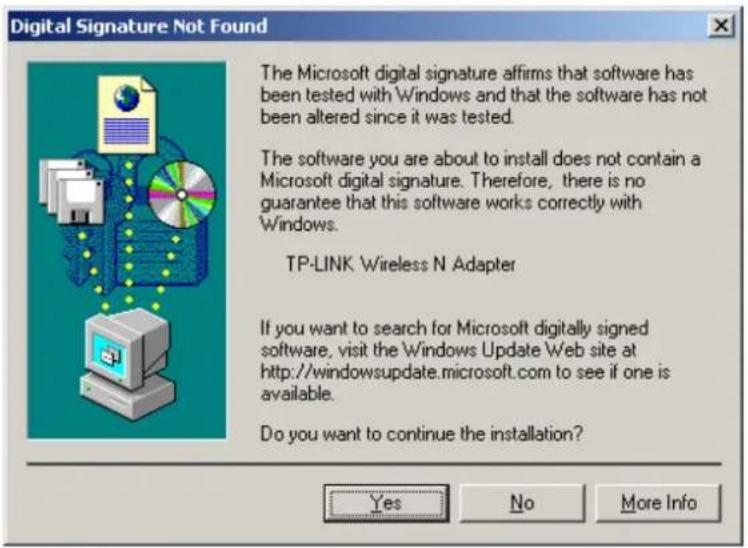
Figure 2-10
- After all the steps above, you will see the screen below. Click Finish to complete the installation.
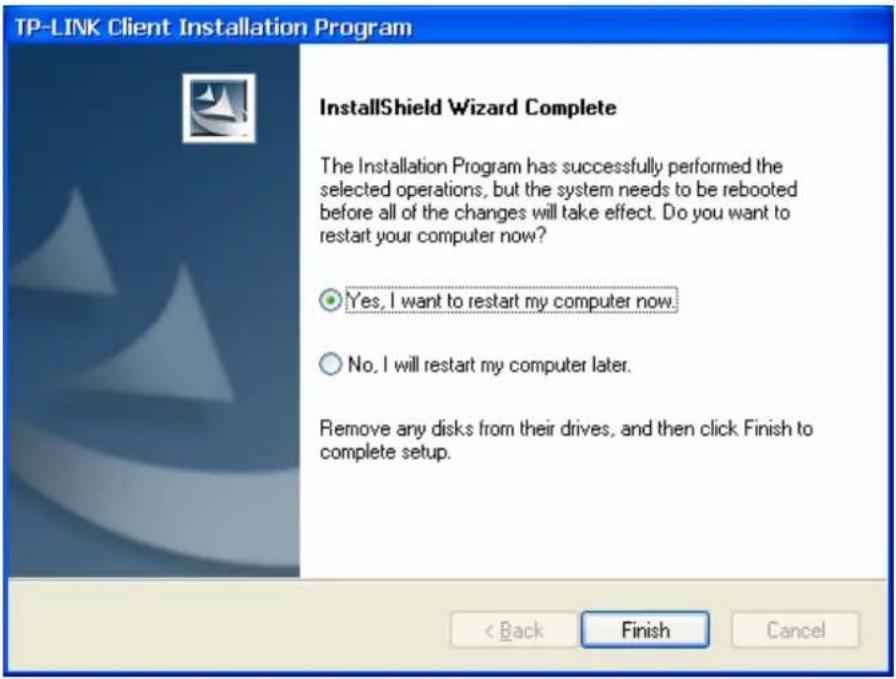
Figure 2-11
2.2.2 Software Installation for Windows Vista
- Insert the Resource CD into your CD-ROM drive, and Figure 2-12 will appear. To continue, select the TL-WN811N. There will be a menu including: Install Driver & Utility, Install QSS, and User Guide.
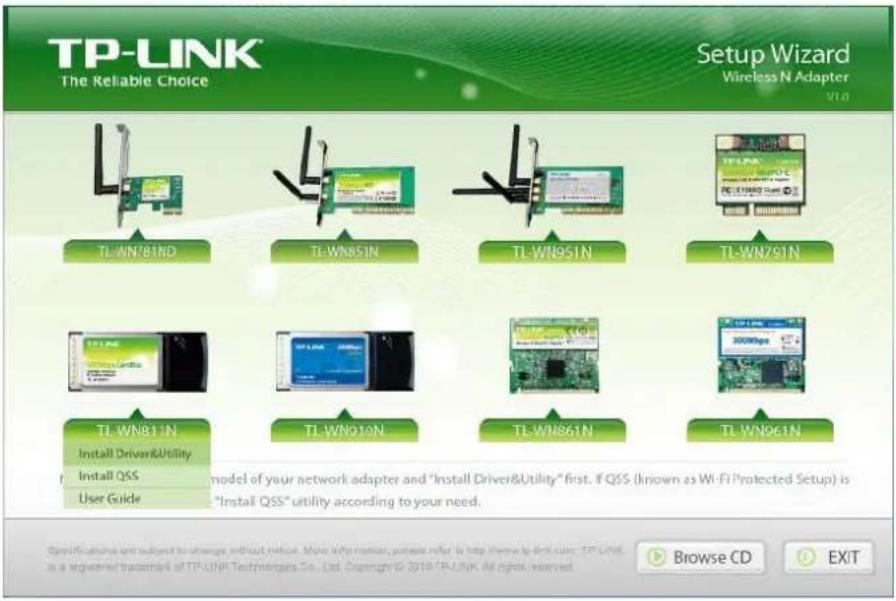
Figure 2-12
- Click Install Driver & Utility to load the following screen.
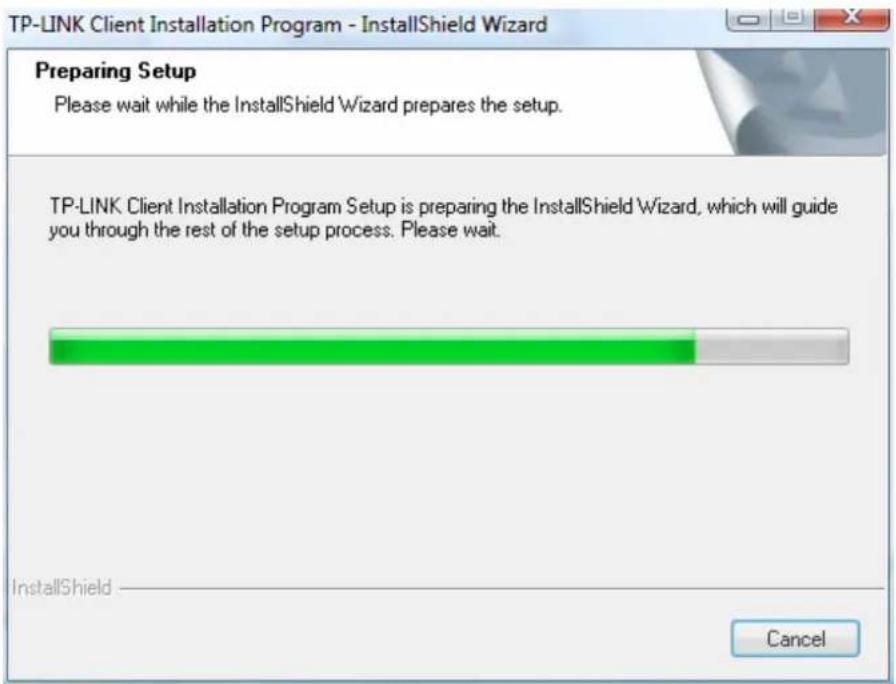
Figure 2-13
- Soon, Figure 2-14 will display after a moment. Click Next to continue.
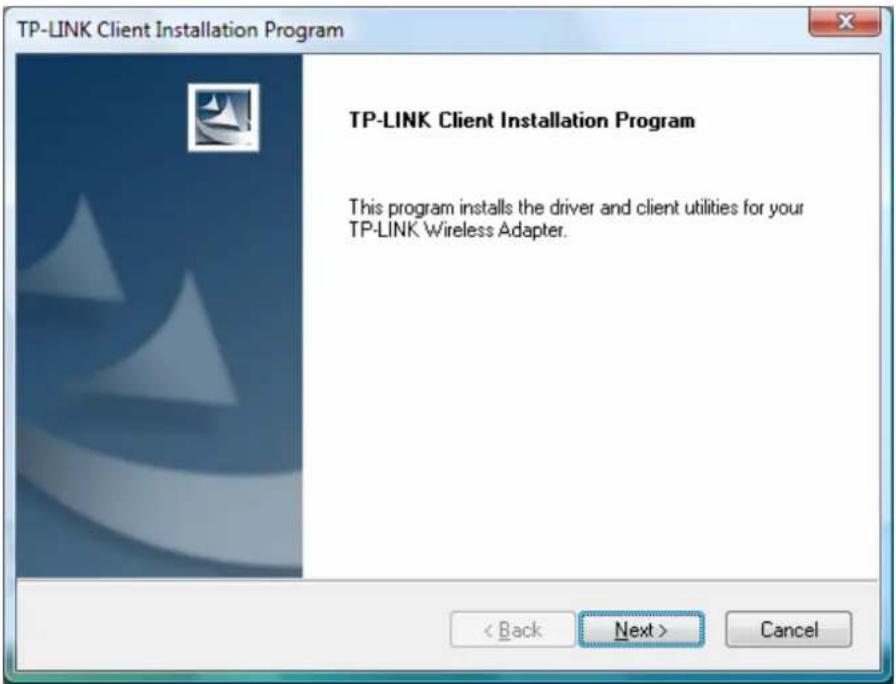
Figure 2-14
- Click Yes to continue.
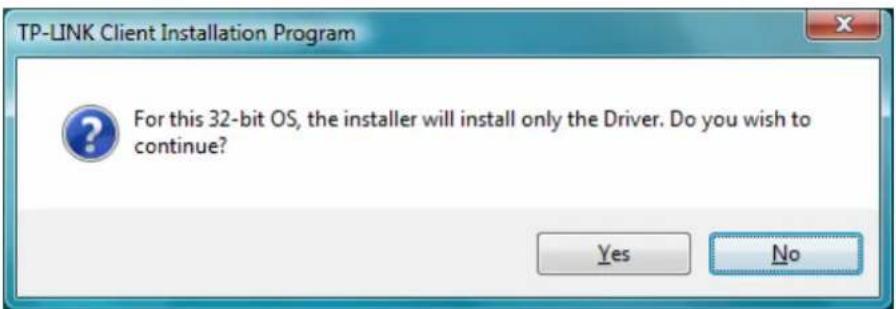
Figure 2-15
- The following page will display and please wait a moment.
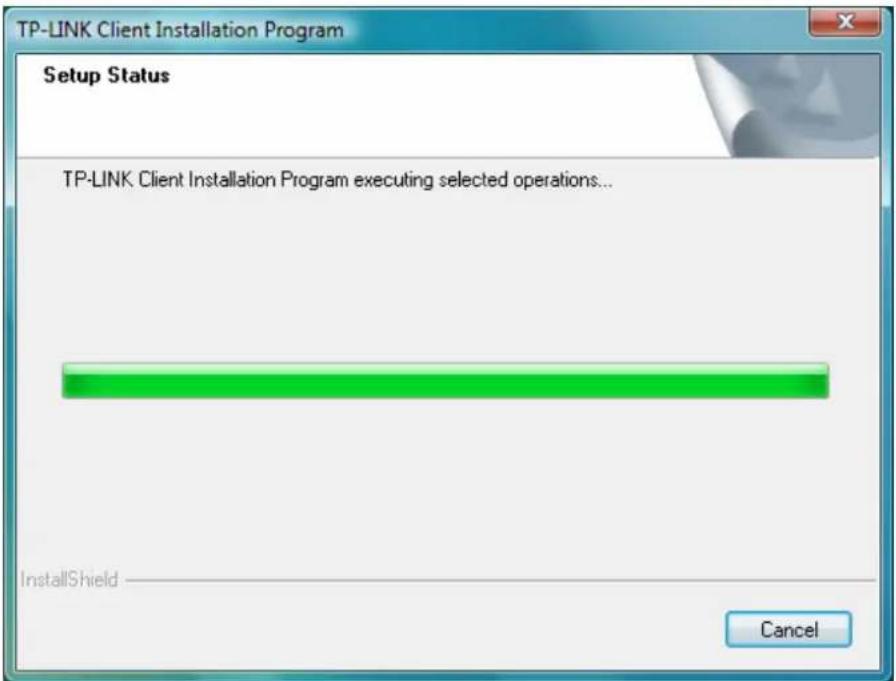
Figure 2-16
Note:
For Windows Vista, the Setup Wizard will notify you of how to proceed with the installation during these steps (shown in Figure 2-17). Our drivers have been tested thoroughly, and are able to work with the operating system. Click Install this driver software anyway to continue the installation.
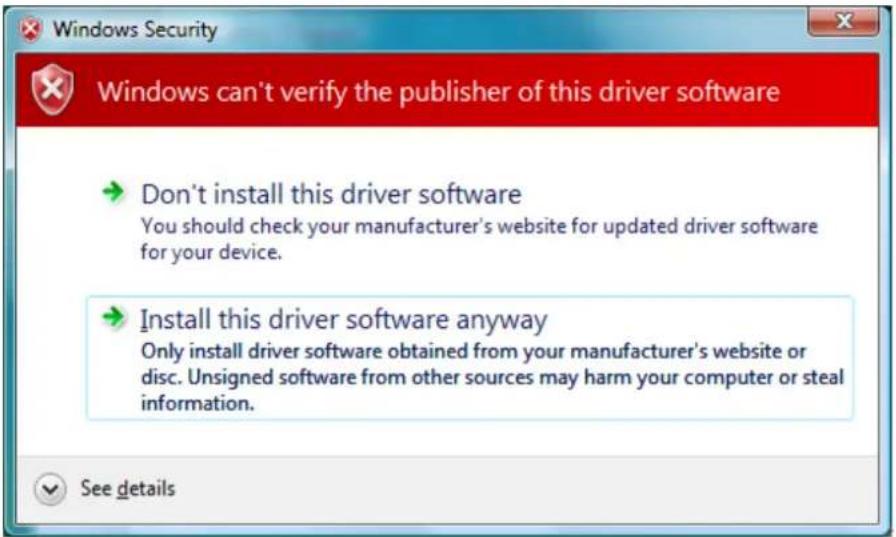
Figure 2-17
- Click Finish to complete the installation.
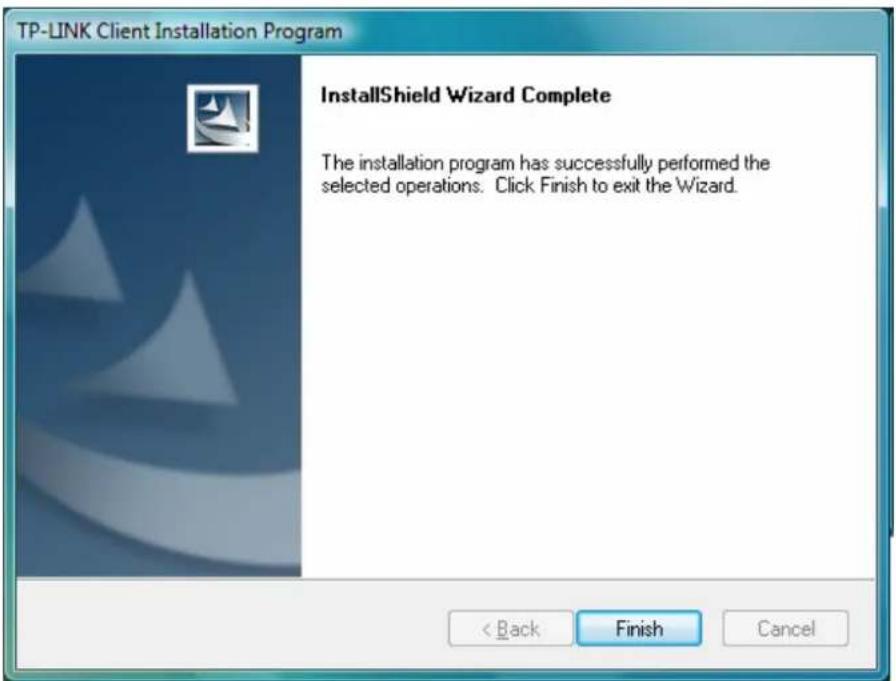
Figure 2-18
2.2.3 Software Installation for Windows 7
- Insert the Resource CD into your CD-ROM drive, and Figure 2-19 will appear. To continue, select the TL-WN811N. There will be a menu including: Install Driver & Utility, Install QSS, and User Guide.
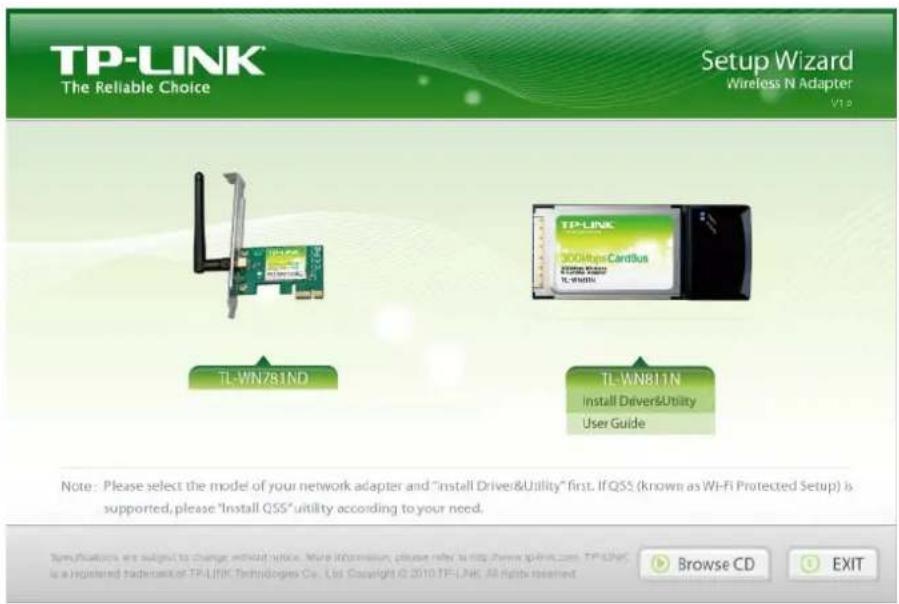
Figure 2-19
- Click Install Driver & Utility to load the following screen.
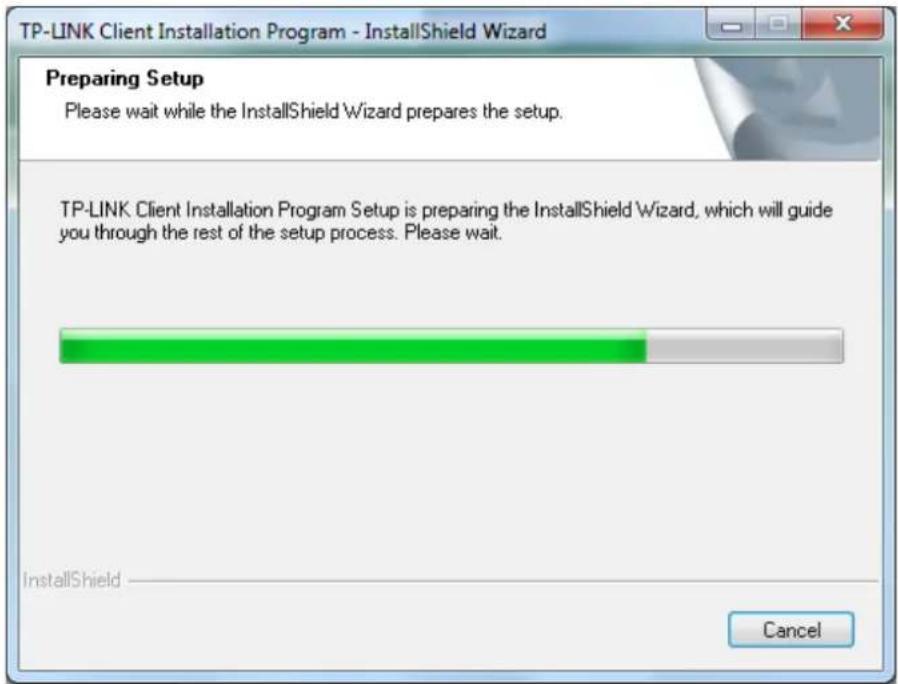
Figure 2-20
- Soon, Figure 2-21 will display after a moment. Click Next to continue.
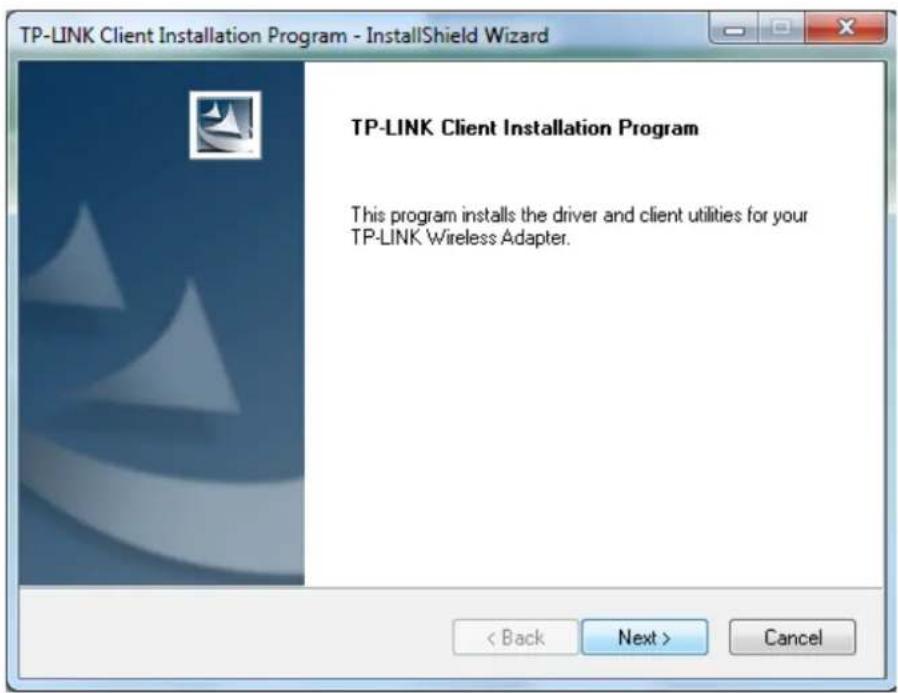
Figure 2-21
- Click Yes to continue.
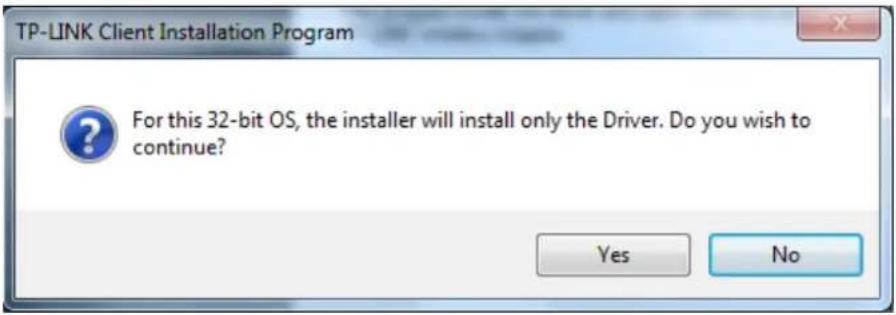
Figure 2-22
- Wait a while for the setup as shown in Figure 2-23.
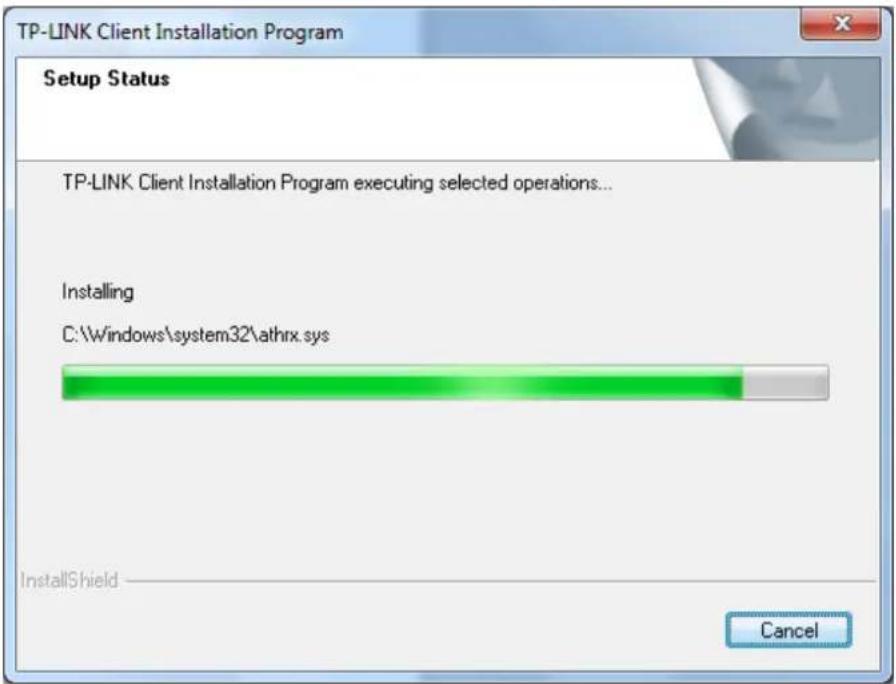
Figure 2-23
Note:
For Windows 7, the Setup Wizard will notify you about the Windows Security with the installation during these steps (shown in Figure 2-24). Our drivers have been tested thoroughly, and are able to work with the operating system. Click Install this driver software anyway to continue the installation.
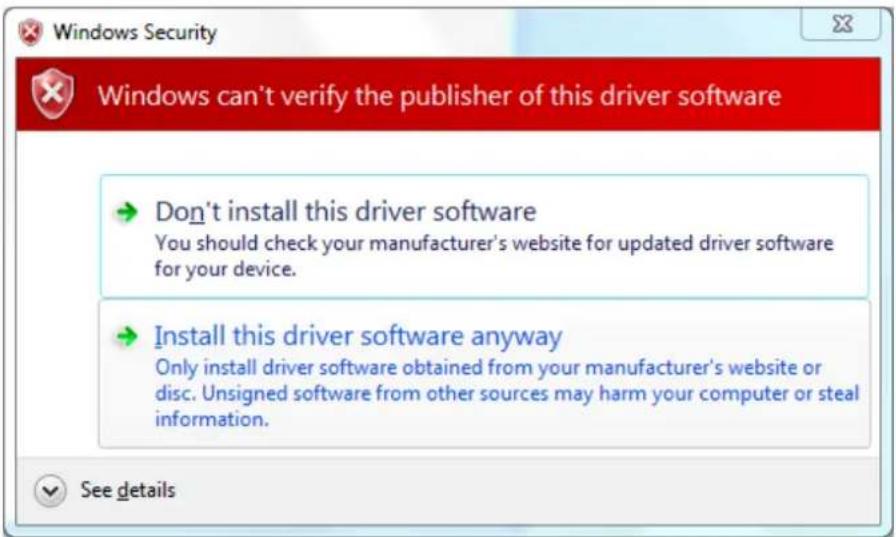
Figure 2-24
- Then you will see Figure 2-25. Click Finish to complete.
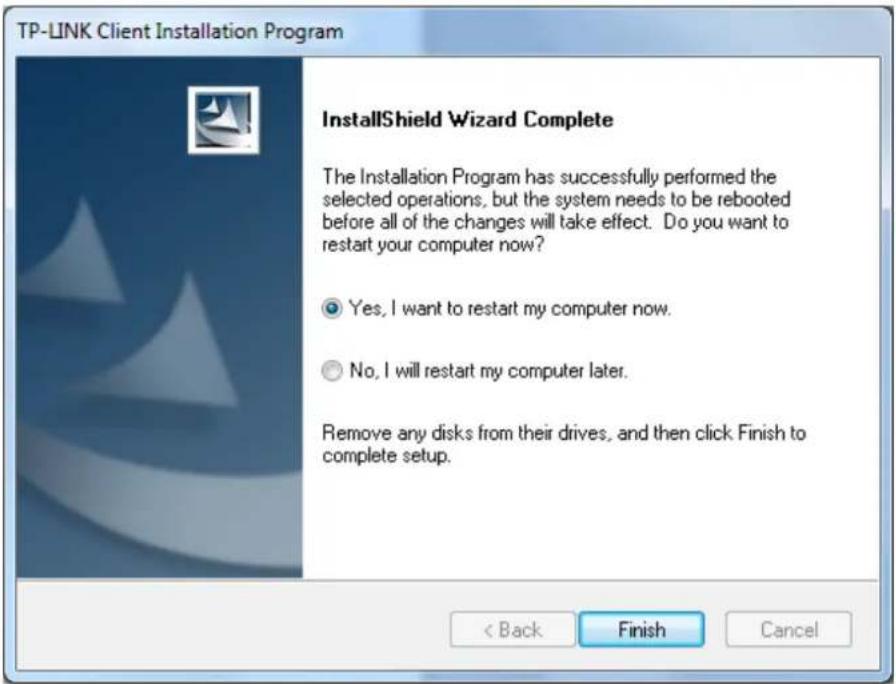
Figure 2-25
Chapter 3 Configuration
TP-LINK TL-WN811N can be configured by TP-LINK Wireless Client Utility (TWCU). This chapter describes how to configure your Adapter for wireless connectivity on your Wireless Local Area Network (WLAN) and use the data security encryption features.
After Installing the Adapter, the Adapter's tray icon will appear in your system tray. It appears at the bottom of the screen, and shows the signal strength using color and the received signal strength indication (RSSI).
If the icon is gray, there is no connection. If the icon is red, there is poor signal strength and the RSSI is less than 5dB. If the icon is yellow, there is poor signal strength and the RSSI is between 5dB and 10dB. If the icon is green, there is good signal strength and the RSSI is between 10dB and 20dB. If the icon is green, there is excellent signal strength and the RSSI is more than 20dB.
Double-click the icon and the TWCU will run. You can also run the utility by clicking the Start→All programs→TP-LINK→TP-LINK Wireless Client Utility. The TWCU provides some integrated and easy tools to:
▶ Display current status information - Edit and add configuration profiles ▶ Display current diagnostics information
The section below introduces these above capabilities.
3.1 Current Status
The Current Status tab contains general information about the program and its operations. The Current Status tab needn't any configurations.
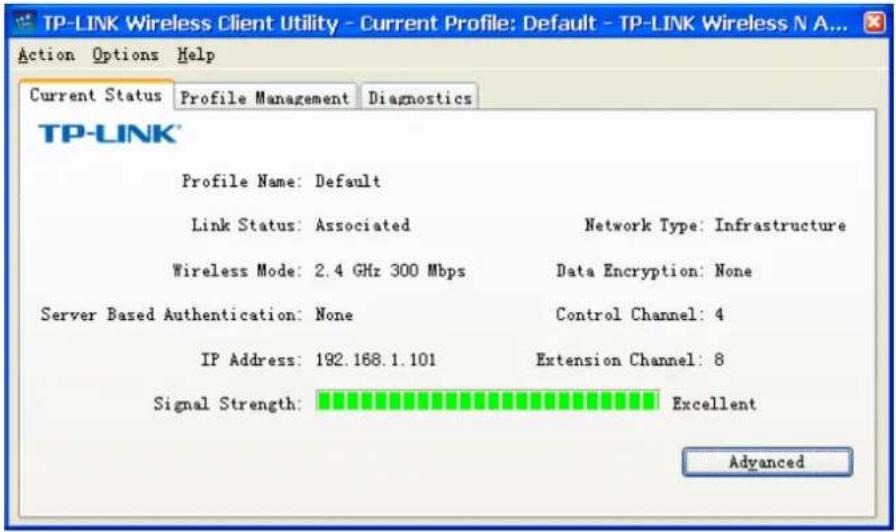
Figure 3-1
The following table describes the items found on the Current Status screen.
Profile Name - This shows the name of current selected configuration profile. The configuration of Profile name will be described on the General tab of Profile Management. Link Status - This shows whether the station is associated to the wireless network. Wireless Mode - Here displays the wireless mode. Network Type - The type of network and the station currently connected are shown here. The options include:
• Infrastructure (access point) - Ad Hoc
Note:
You can configure the network type and wireless mode on the Advanced tab of Profile Management.
IP Address - This displays the computer's IP address. Control Channel - This shows the currently connected channel. Data Encryption - Here displays the encryption type the driver is using. You can configure it on the Security tab of Profile Management. Server Based Authentication - This shows whether the server based authentication is used. Signal Strength - This shows the strength of the signal.
Click Advanced on the screen above, you can see advanced information about the program and its operations.
3.2 Profile Management
Click the Profile Management tab of the TWCU and the next screen will appear (shown in Figure 3-2). The Profile Management screen provides tools to:
Add a new profile Modify a profile
Remove a profile Activate a Profile Import a Profile Export a Profile Scan Available Networks Order profiles
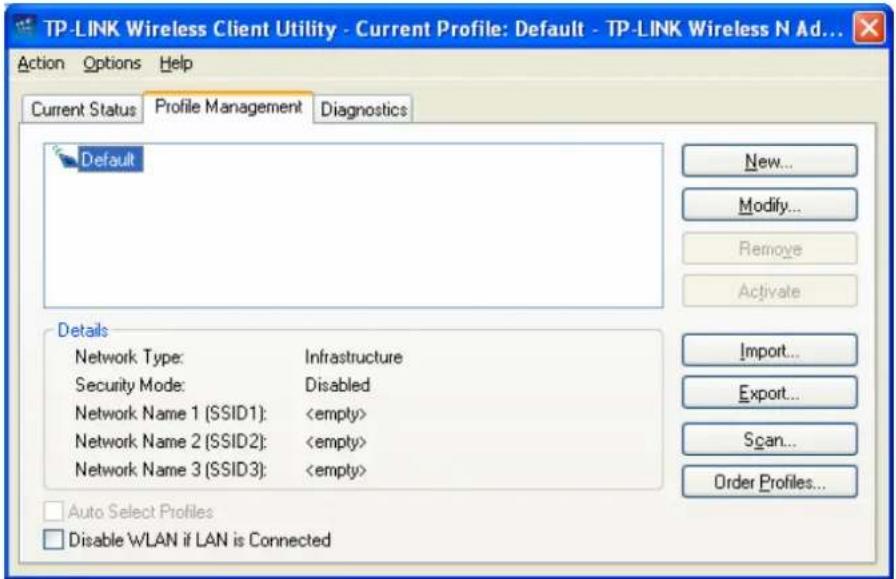
Figure 3-2
3.2.1 Add or Modify a Configuration Profile
To add a new configuration profile, click New on the Profile Management tab. To modify a configuration profile, select the configuration profile from the Profile list and click Modify. Then you will see the Management dialog box (shown in Figure 3-3).
1. Edit the General tab
Profile Name - Please enter the Profile name which identifies the configuration profile. This name must be unique. Note that the profile names are not case-sensitive. Client Name - Please enter the Profile name which identifies the client machine. Network Names (SSIDs) - Please enter the IEEE 802.11 wireless network name. This field has a maximum limit of 32 characters.
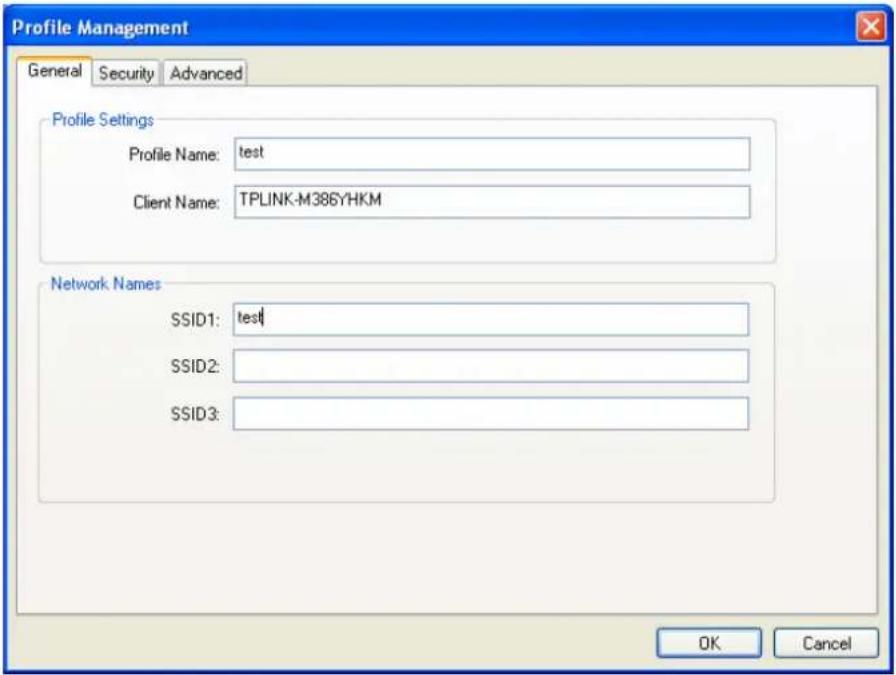
Figure 3-3
2. Edit the Security tab
Select the Security tab in the screen above, and then you can edit the fields to configure the profile. To define the security mode, select the radio button of the desired security mode as follows.
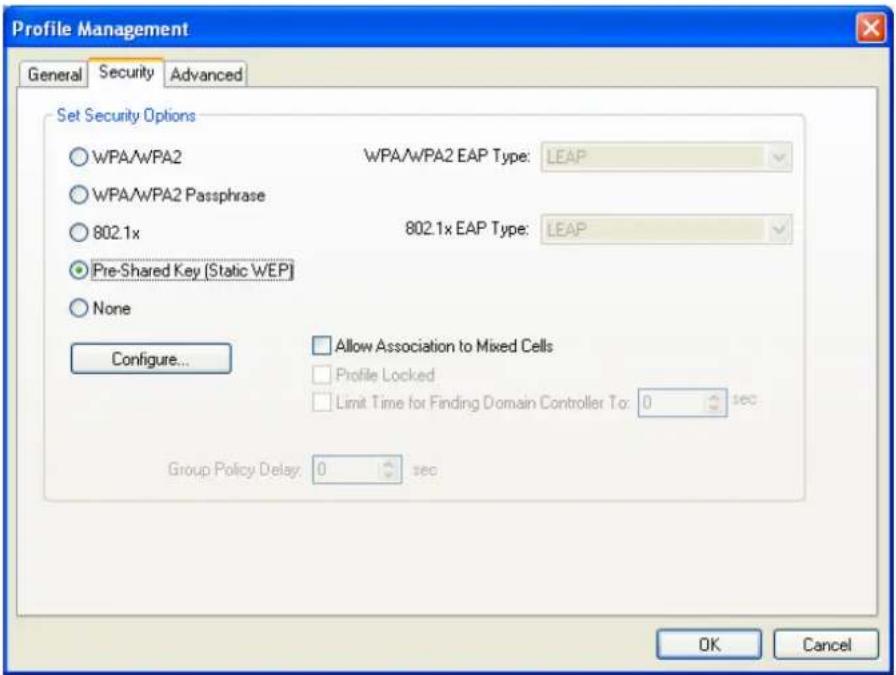
Figure 3-4
WPA/WPA2: Wi-Fi Protected Access. WPA/WPA2 Passphrase: Wi-Fi Protected Access Passphrase. 802.1x: Enables 802.1x security.
Pre-Shared Key (Static WEP): Enables the use of shared keys that are defined on both the access point and the station. To define shared encryption keys, choose the Shared Key radio button and click Configure to fill in the Define Shared Keys window (shown in Figure 3-5).
Note:
The WEP security mode is not available for 802.11n.
None: No security (not recommended).
Note:
If the access point which the Adapter is associated has WEP set and the client has WEP enabled, make sure that Allow Association to Mixed Cells is checked on the Security tab to allow association. To complete WEP encryption configuration, you must select the 802.11 Authentication Mode as appropriate on the Advanced tab of this Profile Management dialog.
To configure the Encryption Keys under the Pre-Shared keys (Static WEP) Security mode:
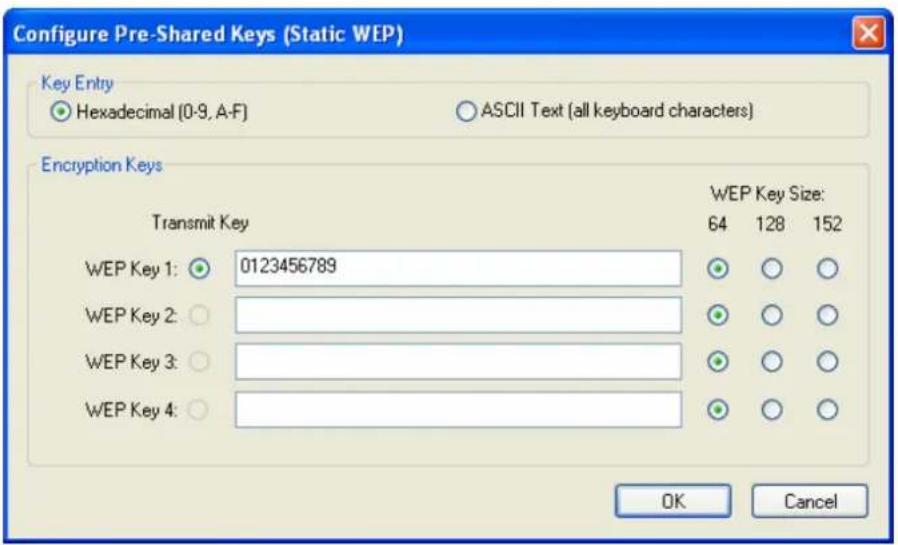
Figure 3-5
Note:
Select different Security Options, the configurations are different; you can select the appropriate security option and configure the exact key as your need.
3. Edit the Advanced tab
This screen below allows you to make advanced configuration for the profile.
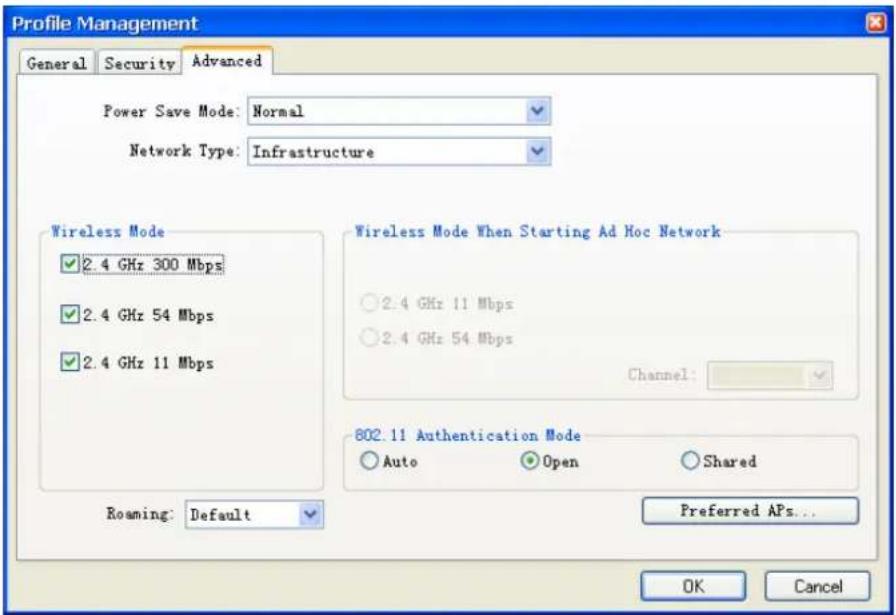
Figure 3-6
Power Save Mode - Please select the power save mode in the drop-down list.
- Maximum - Selects maximum mode to let the access point buffer incoming messages for the Adapter. The Adapter will detect the access point if any messages are waiting periodically.
- Normal - Normal mode uses maximum when retrieving a large number of packets, then switches back to power save mode after retrieving the packets.
- Off - Turns power saving off, thus powering up the Wireless CardBus Adapter continuously for a short message response time.
Network Type: There are basically two modes of networking:
• Infrastructure - All wireless clients will connect to an access point or wireless router. - Ad-Hoc - Directly connecting to another computer, for peer-to-peer communication, using wireless network adapters on each computer, such as two or more TL-WN811N wireless adapters.
Note:
1) An Infrastructure network contains an Access Point or wireless router. All the wireless devices or clients will connect to the wireless router or access point. 2) An Ad-Hoc network contains only clients, such as laptops with wireless desktop adapters. All the adapters must be in Ad-Hoc mode to communicate.
Wireless Mode: Specifies 2.4 GHz 300 Mbps, 2.4 GHz 54 Mbps or 2.4 GHz 11 Mbps operation in an access point network. The Wireless adapter must match the wireless mode of the access point with which it associates.
Wireless Mode when Starting an Ad Hoc Network: Specifies 2.4 GHz 300/54/11 Mbps to start an Ad Hoc network if no matching network name is found after scanning all available modes. This mode also allows the selection of the channel that the Wireless Adapter uses. The channels available depend on the regulatory domain. If the adapter finds no other ad hoc adapters, the channel that the adapter starts the ad hoc network with
will be selected automatically. The Adapter must match the wireless mode and channel of the clients it associates.
802.11 Authentication Mode: Select which mode the Adapter uses to authenticate to an access point:
- Auto causes the adapter to attempt authentication using shared, but switches it to open authentication if shared fails.
- Open enables an adapter to attempt authentication regardless of its WEP settings. It will only associate with the access point if the WEP keys on both the adapter and the access point match.
- Shared only allows the adapter to associate with access points that have the same WEP key.
For infrastructure (access point) networks, click Preferred APs... to specify up to four access points for the client adapter to attempt to associate with. The four access points have different priorities; the first one has the highest priority.
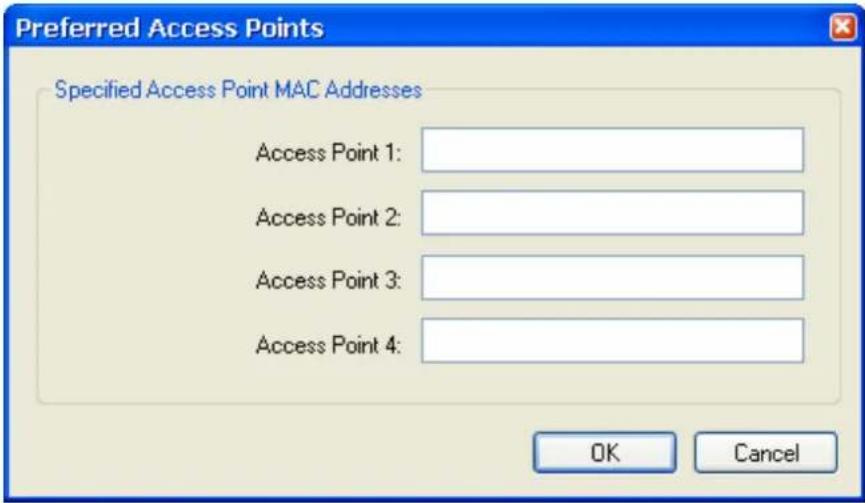
Figure 3-7
3.2.2 Remove a Profile
- Go to the Profile Management tab (shown in Figure 3-2).
- Select the profile name in the Profiles List.
- Click Remove.

Note:
The profile currently in use cannot be removed.
3.2.3 Switch to Another Profile
- Go to the Profile Management screen (shown in Figure 3-2).
- Select the required profile name in the Profiles List.
- Click Activate.
3.2.4 Export a Profile
- From the Profile Management screen (shown in Figure 3-2), highlight the profile to export.
- Click Export...; the Export Profile window will then appear below.
- Browse the directory to export the profile to.
- Click Save. The profile should then be exported to the specified location.
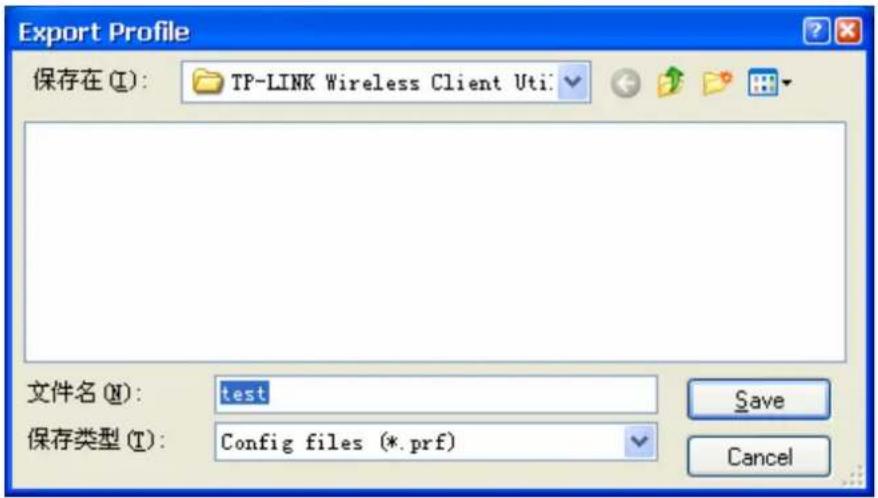
Figure 3-8
3.2.5 Import a Profile
- From the Profile Management screen (shown in Figure 3-2), click Import.... Then the Import Profile will appear below.
- Browse to the directory where the profile is located.
- Highlight the profile name.
- Click Open, the imported profile will then appear in the Profiles List.
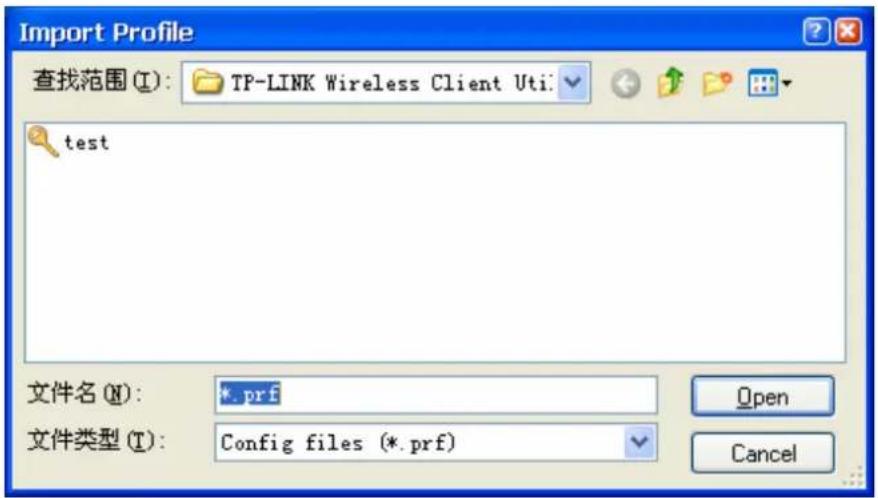
Figure 3-9
3.2.6 Scan Available Networks
- Click Scan on the Profile Management screen (shown in Figure 3-2), the Available Infrastructure and Ad Hoc Networks window will appear below.
- Click Refresh to refresh the list at any time.
- Highlight a network name and click Activate to connect to an available network. If no configuration profile exists for that network, the Profile Management window will open the
General tab screen. Fill in the Profile name and click OK to create the configuration profile for that network.
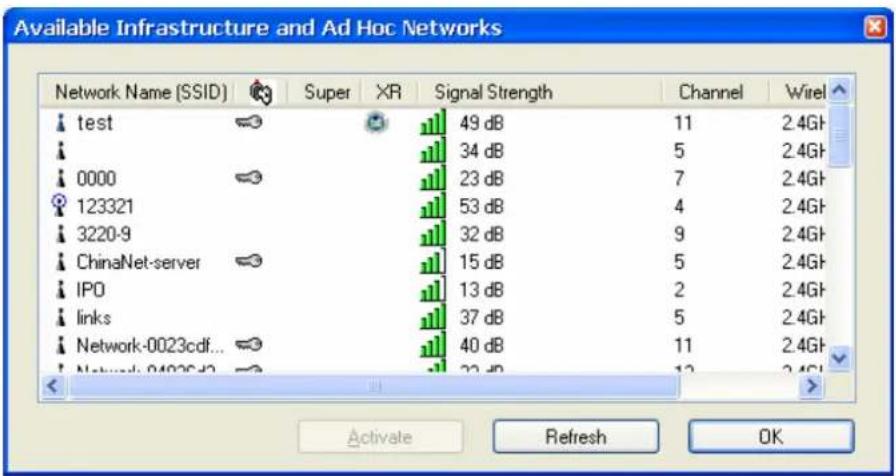
Figure 3-10
3.2.7 Auto Profile Selection Management
The auto selection feature allows the adapter to automatically select a profile from the list of profiles and use it to connect to the network. To add a new profile into the Auto Selected Profiles list, please follow these steps.
- On the Profile Management screen (shown in Figure 3-2), click Order Profiles....
- The Auto Profiles Selection management window will appear (shown in Figure 3-11) with a list of all created profiles in the Available Profiles.
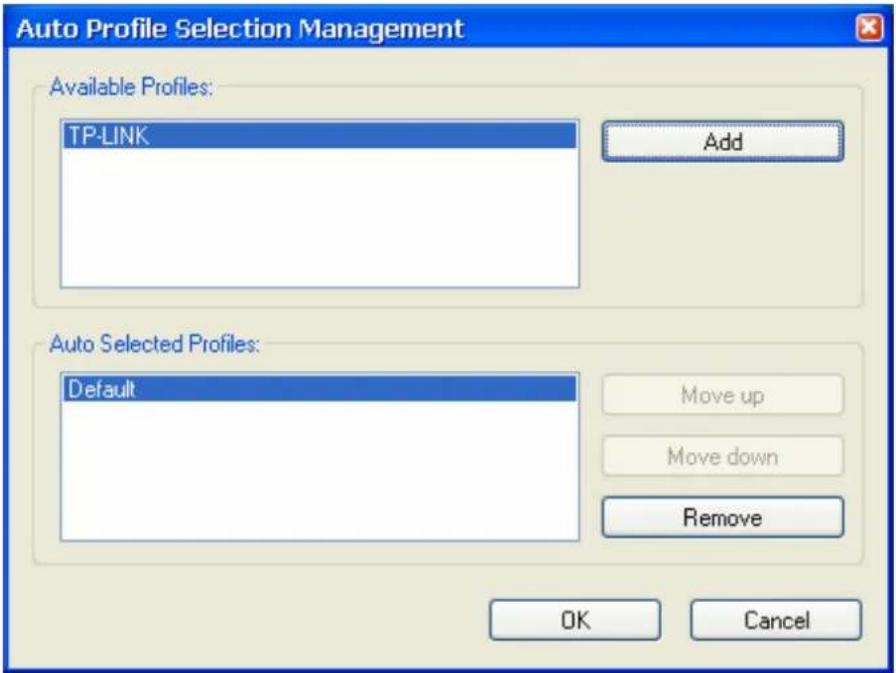
Figure 3-11
- Highlight the profiles to add to auto profile selection, and click Add. The profile will appear in the Auto Selected Profiles box.
- Highlight a profile in the Auto Selected Profiles box.
- Click Move Up or Move Down as appropriate.

Note:
The first profile in the Auto Selected Profiles box has highest priority, while the last profile has the lowest priority.
- Click OK.
- Check the Auto Select Profiles checkbox on the Profile Management tab (shown in Figure 3-2).

Note:
When auto profile selection is enabled by checking Auto Select Profiles on the Profile Management tab, the client adapter will scan for an available network. The profile with the highest priority and the same SSID as one of the found networks will be used to connect to the network. If the connection fails, the client adapter will try the next highest priority profile that matches the SSID until an available network is found.
3.3 Diagnostics
The Diagnostics tab of the TP-LINK Wireless Client Utility (TWCU) provides buttons used to retrieve receiving and transmitting statistics. The Diagnostics tab does not require any configuration.
The Diagnostics tab lists the following receiving and transmitting diagnostics for frames received or transmitted by the wireless network adapter:
➢ Multicast frames transmitted and received ▶ Broadcast frames transmitted and received ▶ Unicast frames transmitted and received ➢ Total bytes transmitted and received
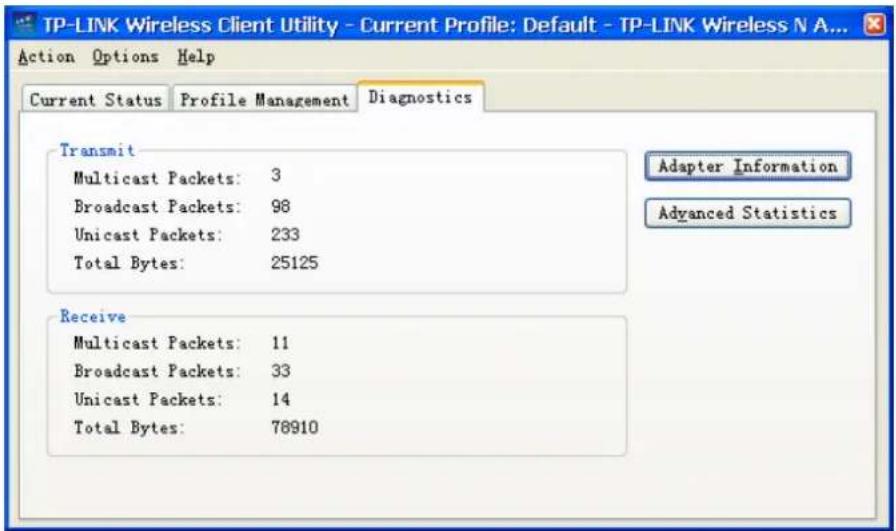
Figure 3-12
3.3.1 Check Driver Information
Click the Adapter Information button in the screen above, you will see the adapter information, including general information about the wireless network adapter and the Network Driver Interface Specification (NDIS) driver. Access the adapter information from the Diagnostics tab.
Card Name - The name of the wireless network adapter. MAC Address - The MAC address of the wireless network adapter. Driver - The driver name and path of the wireless network adapter driver. Driver Version - The version of the wireless network adapter driver. Driver Date - The creation date of the wireless network adapter driver. - Client Name - The name of the client computer.
3.3.2 Check Receive and Transmit Statistical Information
The Advanced Statistics show receiving and transmitting statistical information about the following receiving and transmitting diagnostics for frames received by or transmitted to the wireless network adapter.
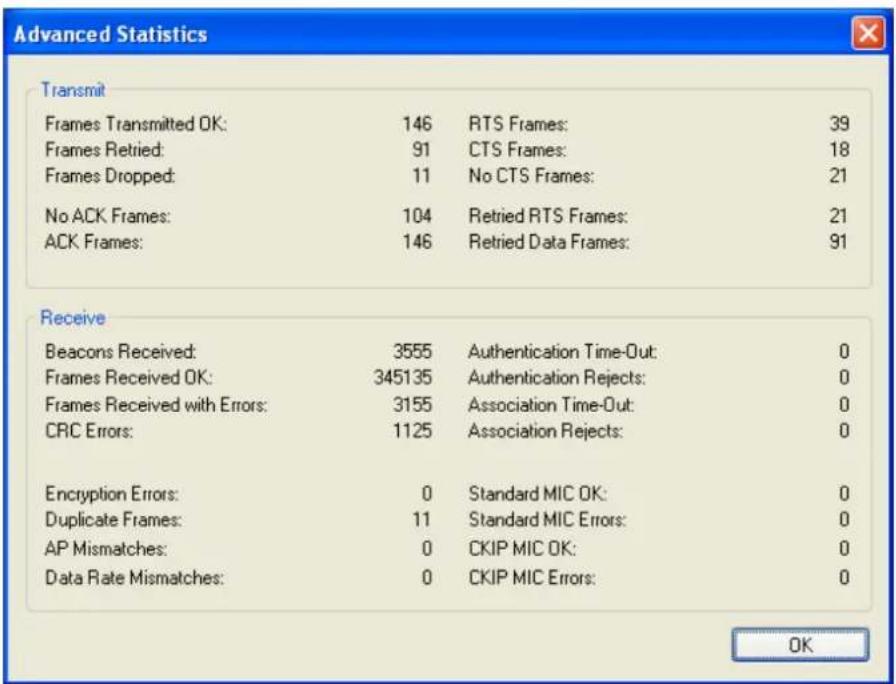
Figure 3-13
3.4 Configuration for Windows Vista
After the Adapter's driver has been installed, Windows Vista will display a wireless Network Connection message like this one.
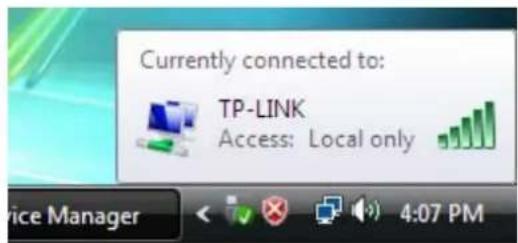
Figure 3-14
Icon means the connection has been established. Icon means there is no connection.
To establish a connection, please follow the steps below.
- Right-click the 📄 in your system tray, then click Connect to a network.
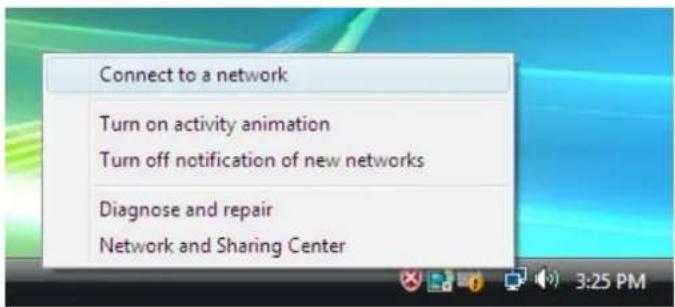
Figure 3-15
- The following screen will show you available wireless networks. Highlight the one you want to join, and then click Connect.
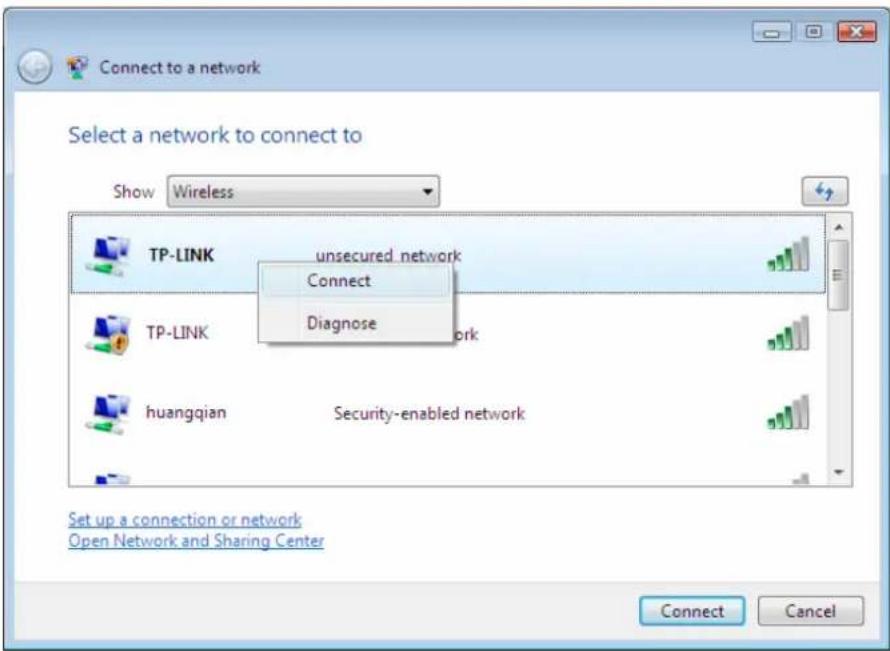
Figure 3-16
- To continue, click Connect Anyway. Click the Cancel button to end the connection.
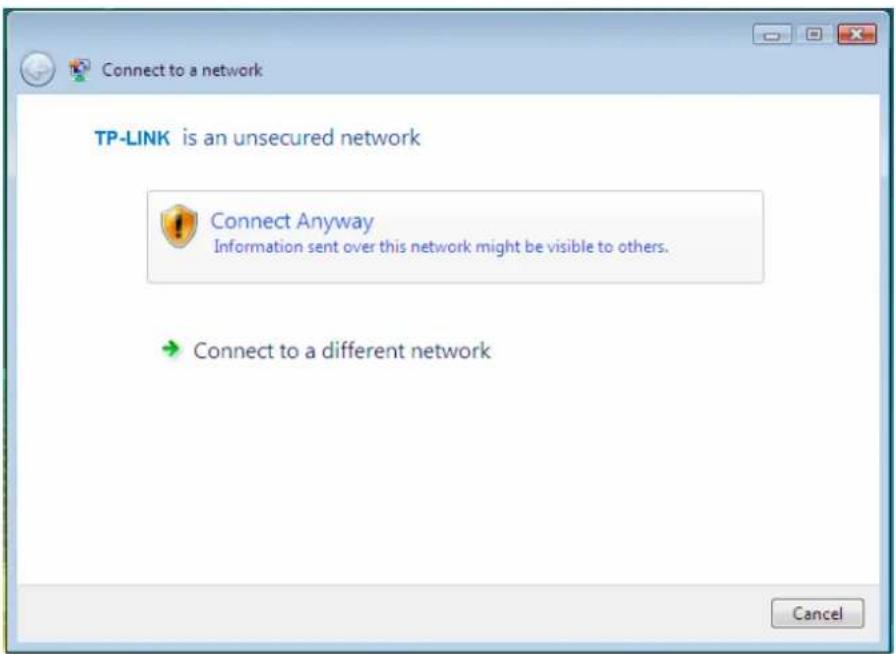
Figure 3-17
- If the connection is successful established, the following screen will appear, click close to finish the connection.
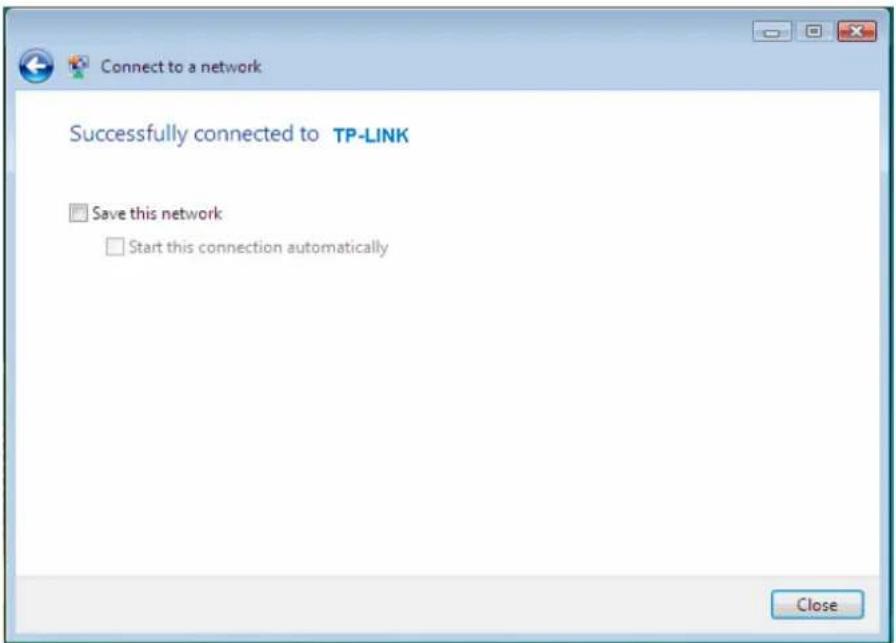
Figure 3-18
3.5 Configuration for Windows 7
TP-LINK Wireless Client Utility (TWCU) is not available for Windows 7. So after the Adapter's driver has been installed, we have to use Windows WLAN Autoconfig to establish a connection. Please follow the steps below.
- Click the icon 🖼️ at the bottom of your screen in your system tray and then you will see the available wireless network list. Select the SSID of your Access Point and click Connect.
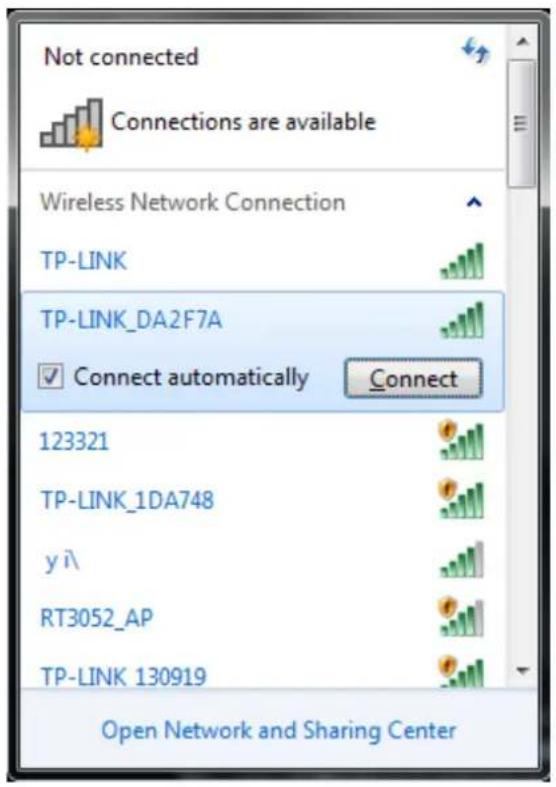
Figure 3-19
- If your wireless network is secured, you will be required to enter the security key as shown in Figure 3-20. Enter the passphrase, take 1234567890 for example. And then click OK.
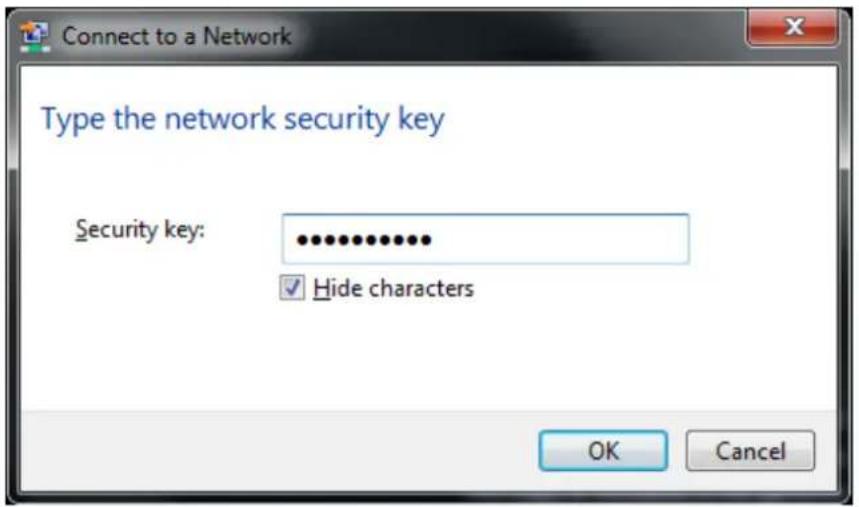
Figure 3-20
- If the key entered is correct, you will successfully connect to the network as shown in Figure 3-21.
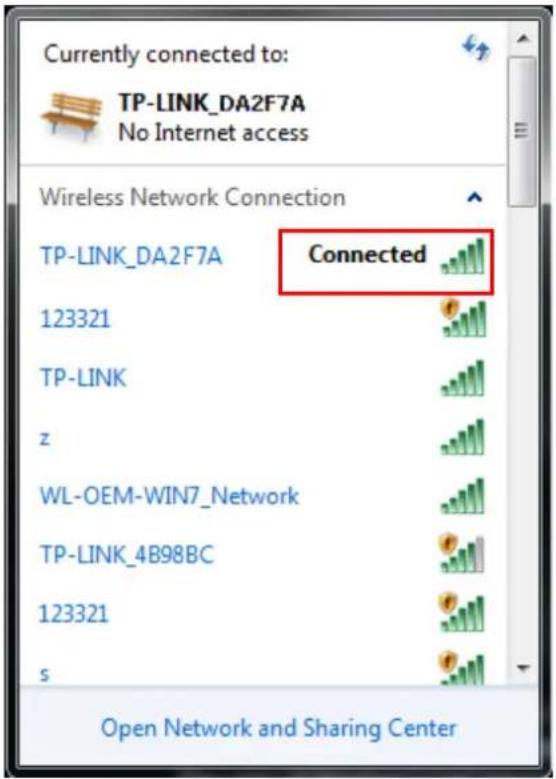
Figure 3-21 Connecting
Chapter 4 QSS Configuration
QSS (Quick Secure Setup) function allows you to add a new wireless device to an existing network quickly.
If the wireless card supports Wi-Fi Protected Setup (WPS), you can establish a wireless connection between wireless card and router using either Push Button Configuration (PBC) method or PIN method.
First, the QSS software should be installed. Insert the Resource CD into your CD-ROM drive, and the Figure 4-1 will appear. To continue, select the TL-WN811N.There will be a menu including: Install Driver & Utility, Install QSS and User Guide.
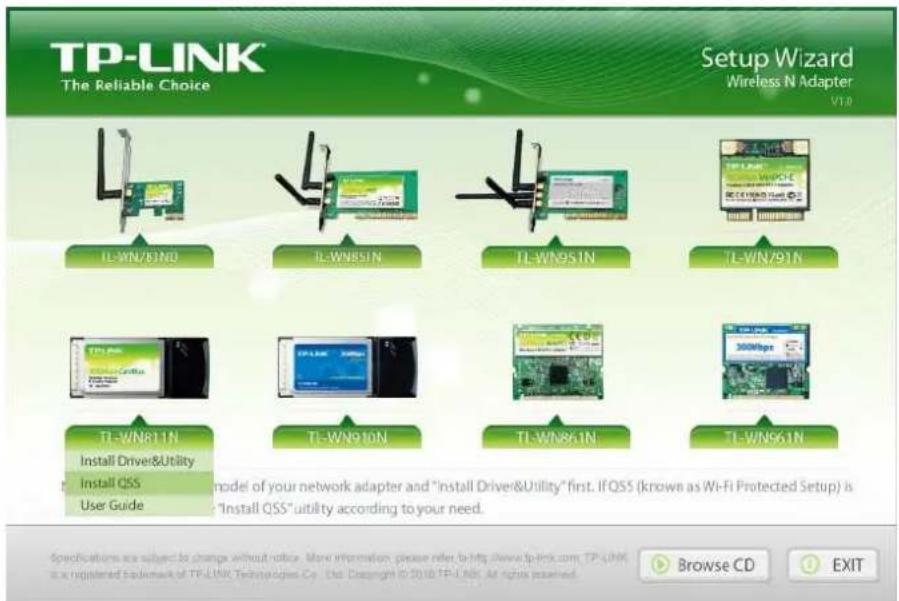
Figure 4-1
Next, select Install QSS to load the following screen.
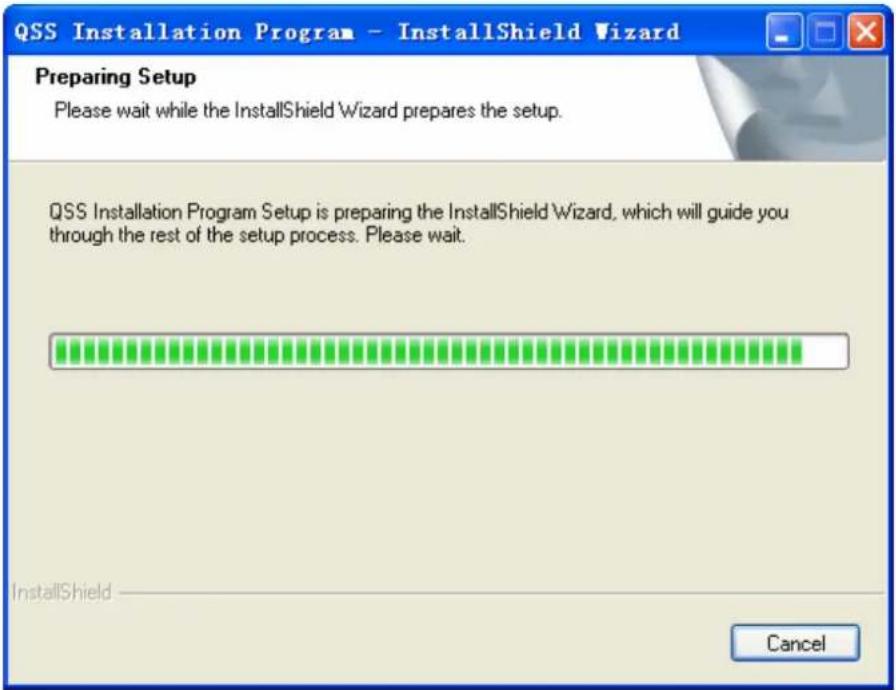
Figure 4-2
Then, please follow the clues of the Operating System to complete the QSS installation. After that, the QSS function can be enabled. Here we will introduce two ways to configure the QSS (for the configuration of QSS, here we take the Wireless Router of our company as an example).
4.1 PBC (Push Button Configuration) method
- Firstly, press the QSS button directly on the front panel of the Router, as shown in Figure 4-3.
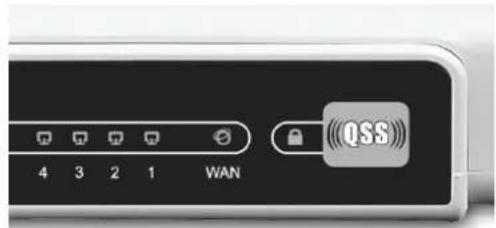
Figure 4-3
- Double-click the icon on the desktop to open the QSS Utility, and then you will see the welcome screen shown in Figure 4-4. Click Next to continue. Then select "Push the button on my access point" in the next screen shown in Figure 4-5 and click Next.
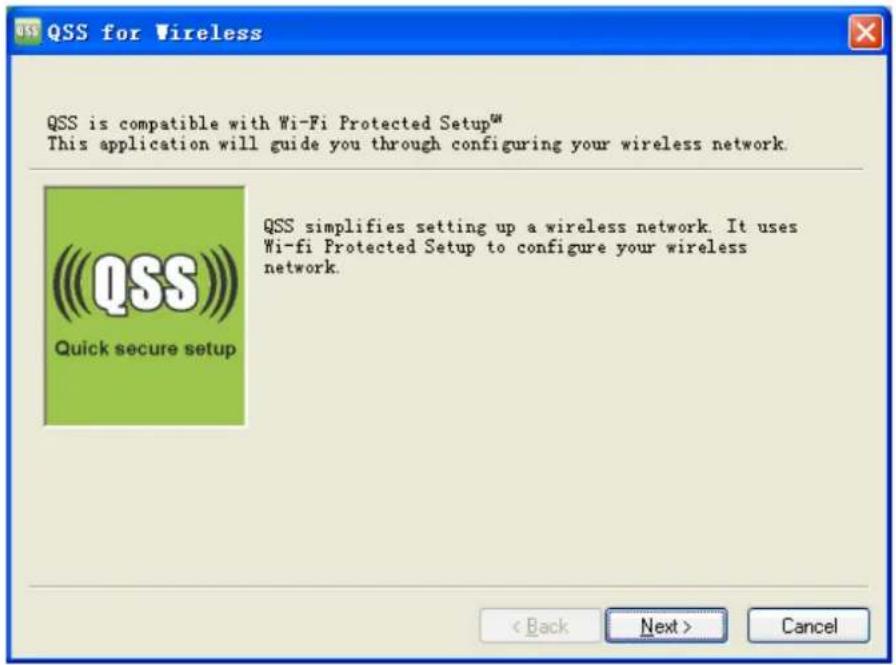
Figure 4-4
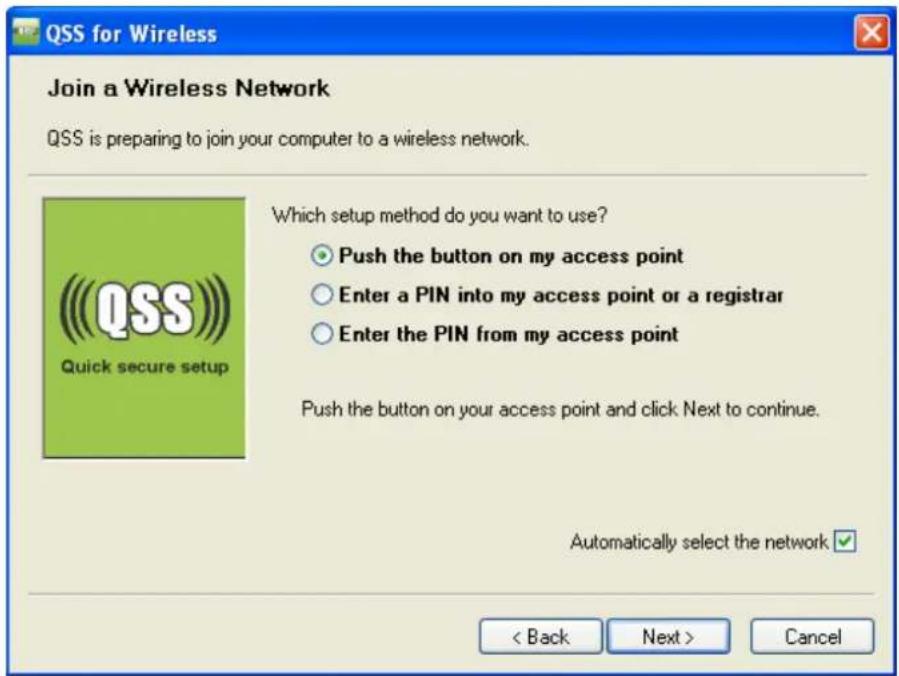
Figure 4-5
- Then wait a minute until Figure 4-6 appears. Click Finish to complete the QSS configuration.
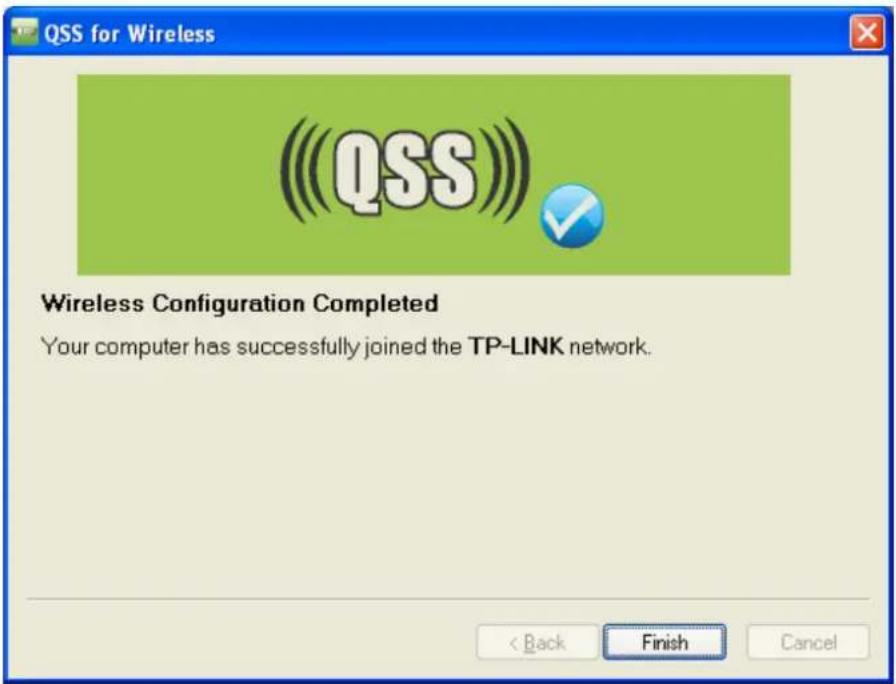
Figure 4-6
4.2 PIN method
There are two ways to configure the QSS by PIN method:
1) Enter a PIN into your AP device. 2) Enter the PIN from your AP device.
Following are the detailed configuration procedures for each way.
4.2.1 Enter a PIN into your AP device
- Double-click the icon on the desktop to open the QSS Utility, and then you will see the welcome screen shown in Figure 4-4. Click Next to continue. Figure 4-5 will appear. Select the second option, and you will see the PIN value of the adapter, which is randomly generated. Click Next.
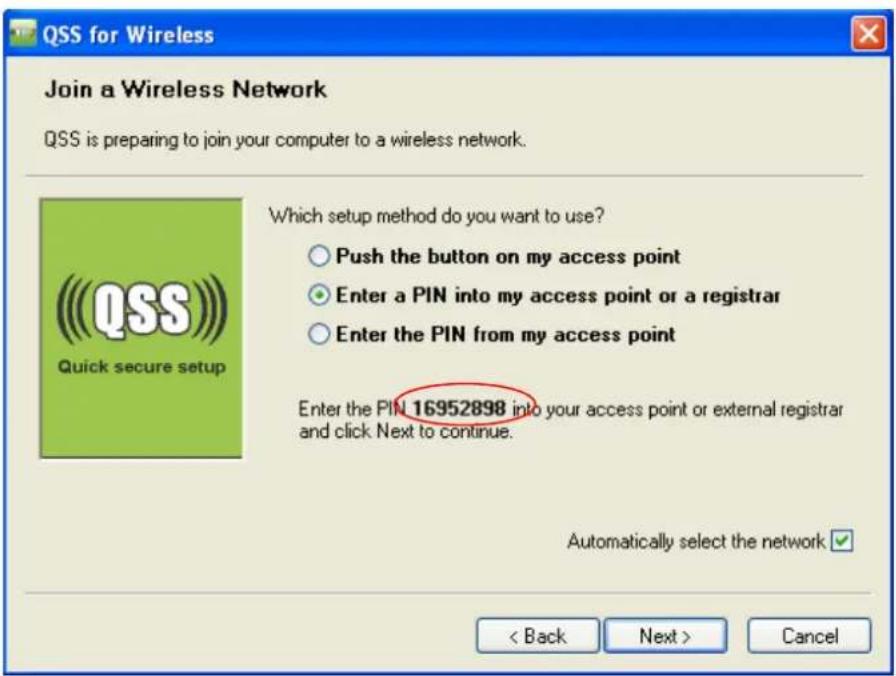
Figure 4-7
- Open the Router's Web-based Utility and click QSS link on the left of the main menu. Then Figure 4-8 will appear.
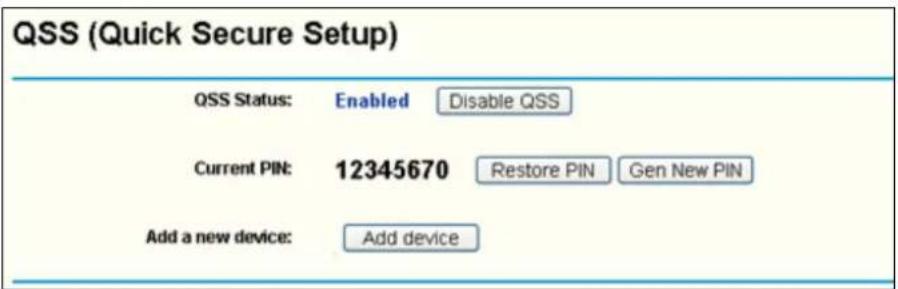
Figure 4-8
- Click Add device, then you can see Figure 4-9. Select Enter the new device's PIN and enter the PIN value of the adapter shown in Figure 4-7, click Connect.
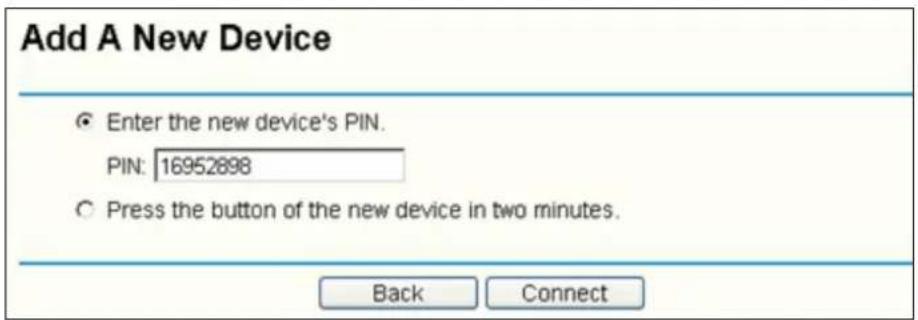
Figure 4-9
- When Figure 4-6 appears, the QSS configuration is complete.
4.2.2 Enter the PIN from your AP device
- Open the QSS Utility and you will see Figure 4-4. Click Next to continue. Then Figure 4-5 will appear. Select the third option and enter the PIN value which is labeled on the bottom of the Router. Click Next.
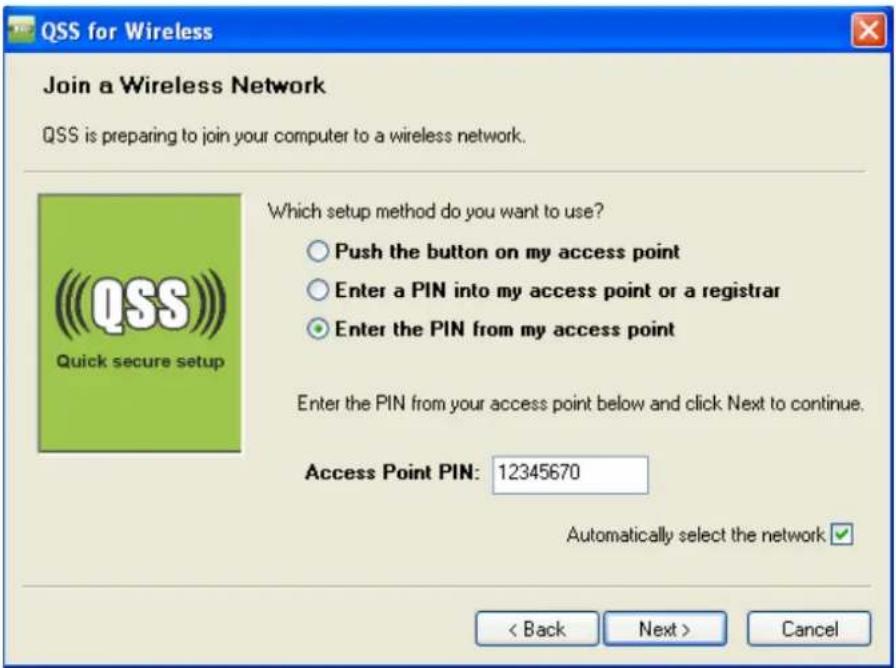
Figure 4-10
- When Figure 4-6 appears, the QSS configuration is complete.

Note:
If you generate a new PIN code for your Router, please enter the new one instead.
Appendix A: Specifications
| Normal | |
| Interface 32 bit CardBus | Interface |
| Standards | IEEE802.11n; IEEE802.11g; IEEE802.11b; |
| Operating System Windows 2000, Windows XP, Windows Vista, Windows 7 | |
| Throughput | 300Mbps (Maximal) |
| Radio Data Rate | 27/54/81/108/162/216/243/270Mbps13.5/27/40.5/54/81/108/121.5/135Mbps13/26/39/52/78/104/117/130Mbps6.5/13/19.5/26/39/52/58.5/65Mbps1/2/5.5/11Mbps(Auto Rate Sensing) |
| Modulation | 11b:CCK,QPSK,BPSK;11g:OFDM;11n: QPSK,BPSK,16-QAM,64-QAM |
| Media Access Protocol | CSMA/CA with ACK |
| Data Security WPA/WPA | 2; 64/128/152-bit WEP; TKIP/AES |
| Frequency 2.4 ~ 2.4835GHz | |
| Spread Spectrum Direct | Sequence Spread Spectrum (DSSS) |
| Safety & Emissions FCC, CE | |
| Environmental and Physical | |
| Operating Temp. | 0°C~40°C (32°F~104°F) |
| Storage Temp. | -40°C~70°C (-40°F~158°F) |
| Humidity 10% ~ 95% RH, Non-condensing | |
Appendix B: Glossary
802.11b - The 802.11b standard specifies wireless networking at 11 Mbps using direct-sequence spread-spectrum (DSSS) technology, operating in the unlicensed radio spectrum at 2.4GHz, and WEP encryption for security. 802.11b networks are also referred to as Wi-Fi networks. 802.11g - specification for wireless networking at 54 Mbps using direct-sequence spread-spectrum (DSSS) technology, using OFDM modulation and operating in the unlicensed radio spectrum at 2.4GHz, with backward compatibility with IEEE 802.11b devices, and WEP encryption for security. 802.11n - 802.11n builds upon previous 802.11 standards by adding MIMO (multiple-input multiple-output). MIMO uses multiple transmitter and receiver antennas to allow for increased data throughput via spatial multiplexing and increased range by exploiting spatial diversity, perhaps through coding schemes like Alamouti coding. The Enhanced Wireless Consortium (EWC) was formed to help accelerate the IEEE 802.11n development process and promote a technology specification for interoperability of next-generation wireless local area networking (WLAN) products. Ad-hoc Network - An ad-hoc network is a group of computers, each with a Wireless Adapter, connected as an independent 802.11 wireless LAN. Ad-hoc wireless computers operate on a peer-to-peer basis, communicating directly with each other without the use of an access point. Ad-hoc mode is also referred to as an Independent Basic Service Set (IBSS) or as peer-to-peer mode, and is useful at a departmental scale or SOHO operation. DSSS - (Direct-Sequence Spread Spectrum) - DSSS generates a redundant bit pattern for all data transmitted. This bit pattern is called a chip (or chipping code). Even if one or more bits in the chip are damaged during transmission, statistical techniques embedded in the receiver can recover the original data without the need for retransmission. To an unintended receiver, DSSS appears as low power wideband noise and is rejected (ignored) by most narrowband receivers. However, to an intended receiver (i.e. another wireless LAN endpoint), the DSSS signal is recognized as the only valid signal, and interference is inherently rejected (ignored). FHSS - (Frequency Hopping Spread Spectrum) - FHSS continuously changes (hops) the carrier frequency of a conventional carrier several times per second according to a pseudo-random set of channels. Because a fixed frequency is not used, and only the transmitter and receiver know the hop patterns, interception of FHSS is extremely difficult. Infrastructure Network - An infrastructure network is a group of computers or other devices, each with a Wireless Adapter, connected as an 802.11 wireless LAN. In infrastructure mode, the wireless devices communicate with each other and to a wired network by first going through an access point. An infrastructure wireless network connected to a wired network is referred to as a Basic Service Set (BSS). A set of two or more BSS in a single network is referred to as an Extended Service Set (ESS). Infrastructure mode is useful at a corporation scale, or when it is necessary to connect the wired and wireless networks.
Spread Spectrum - Spread Spectrum technology is a wideband radio frequency technique developed by the military for use in reliable, secure, mission-critical communications systems. It is designed to trade off bandwidth efficiency for reliability, integrity, and security. In other words, more bandwidth is consumed than in the case of narrowband transmission, but the trade off produces a signal that is, in effect, louder and thus easier to detect, provided that the receiver knows the parameters of the spread-spectrum signal being broadcast. If a receiver is not tuned to the right frequency, a spread-spectrum signal looks like background noise. There are two main alternatives, Direct Sequence Spread Spectrum (DSSS) and Frequency Hopping Spread Spectrum (FHSS). SSID - A Service Set Identification is a thirty-two character (maximum) alphanumeric key identifying a wireless local area network. For the wireless devices in a network to communicate with each other, all devices must be configured with the same SSID. This is typically the configuration parameter for a wireless PC card. It corresponds to the ESSID in the wireless Access Point and to the wireless network name. See also Wireless Network Name and ESSID. WEP - (Wired Equivalent Privacy) - A data privacy mechanism based on a 64-bit or 128-bit or 152-bit shared key algorithm, as described in the IEEE 802.11 standard. To gain access to a WEP network, you must know the key. The key is a string of characters that you create. When using WEP, you must determine the level of encryption. The type of encryption determines the key length. 128-bit encryption requires a longer key than 64-bit encryption. Keys are defined by entering in a string in HEX (hexadecimal - using characters 0-9, A-F) or ASCII (American Standard Code for Information Interchange – alphanumeric characters) format. ASCII format is provided so you can enter a string that is easier to remember. The ASCII string is converted to HEX for use over the network. Four keys can be defined so that you can change keys easily. Wi-Fi - A trade name for the 802.11b wireless networking standard, given by the Wireless Ethernet Compatibility Alliance (WECA, see http://www.wi-fi.net), an industry standards group promoting interoperability among 802.11b devices. WLAN - (Wireless Local Area Network) - A group of computers and associated devices communicate with each other wirelessly, which network serving users are limited in a local area. WPA - (Wi-Fi Protected Access) - A wireless security protocol uses TKIP (Temporal Key Integrity Protocol) encryption, which can be used in conjunction with a RADIUS server.
- MBPS WIRELESS N CARDBUS ADAPTER
- COPYRIGHT & TRADEMARKS
- FCC STATEMENT
- FC
- FCC RF RADIATION EXPOSURE STATEMENT
- CE MARK WARNING
- CE
- NATIONAL RESTRICTIONS
- DECLARATION OF CONFORMITY
- CONTENTS
- PACKAGE CONTENTS
- CHAPTER 1 INTRODUCTION
- CHAPTER 2 INSTALLATION GUIDE
- CHAPTER 3 CONFIGURATION
- CHAPTER 4 QSS CONFIGURATION
- APPENDIX A: SPECIFICATIONS
- APPENDIX B: GLOSSARY
- NOTE
- CONVENTIONS
- OVERVIEW OF THE PRODUCT
- FEATURES
- LED STATUS
- HARDWARE INSTALLATION
- SOFTWARE INSTALLATION
- SOFTWARE INSTALLATION FOR WINDOWS XP
- SOFTWARE INSTALLATION FOR WINDOWS VISTA
- SOFTWARE INSTALLATION FOR WINDOWS
- CURRENT STATUS
- PROFILE MANAGEMENT
- ADD OR MODIFY A CONFIGURATION PROFILE
- EDIT THE GENERAL TAB
- EDIT THE SECURITY TAB
- EDIT THE ADVANCED TAB
- REMOVE A PROFILE
- SWITCH TO ANOTHER PROFILE
- EXPORT A PROFILE
- IMPORT A PROFILE
- SCAN AVAILABLE NETWORKS
- AUTO PROFILE SELECTION MANAGEMENT
- DIAGNOSTICS
- CHECK DRIVER INFORMATION
- CHECK RECEIVE AND TRANSMIT STATISTICAL INFORMATION
- CONFIGURATION FOR WINDOWS VISTA
- CONFIGURATION FOR WINDOWS
- PBC (PUSH BUTTON CONFIGURATION) METHOD
- PIN METHOD
- ENTER A PIN INTO YOUR AP DEVICE
- ENTER THE PIN FROM YOUR AP DEVICE
Brand : TP-LINK
Model : TL-WN811N
Category : Wi-Fi Antenna