
G300 - Mobile Phone PANTECH - Free user manual and instructions
Find the device manual for free G300 PANTECH in PDF.


| Product Type | Mobile Phone |
| Brand | Pantech |
| Model | G300 |
| Dimensions (approx.) | 105 x 45 x 14 mm |
| Weight (approx.) | 80 g |
| Display | 1.8-inch CSTN, 128x160 pixels |
| Battery Type | Li-Ion 800 mAh, removable |
| Standby Time (approx.) | Up to 250 hours |
| Talk Time (approx.) | Up to 4 hours |
| Network | GSM 850/900/1800/1900 |
| Main Functions | Calling, SMS, Vibration, Alarm, Calculator, Calendar |
| Camera | VGA (optional, check specific variant) |
| Memory | Internal ~2 MB, expandable via microSD |
| Connectivity | Bluetooth 2.0, USB 2.0 |
| Power Input | 5V DC, 500 mA via charger |
| Cleaning | Wipe with dry soft cloth; avoid liquids near openings |
| Safety | Use only approved chargers; avoid extreme temperatures |
| Spare Parts & Repairability | Battery, charger and case parts available online; repair by qualified technician |
| General Information | User manual contains full instructions; firmware not upgradeable |
Frequently Asked Questions - G300 PANTECH
User questions about G300 PANTECH
0 question about this device. Answer the ones you know or ask your own.
Ask a new question about this device
Download the instructions for your Mobile Phone in PDF format for free! Find your manual G300 - PANTECH and take your electronic device back in hand. On this page are published all the documents necessary for the use of your device. G300 by PANTECH.
USER MANUAL G300 PANTECH
Dual clamshell TFT Main LCD.
Main LCD : 260,000 TFT Color Display (128 X 128)
Sub LCD : B&W Display ( 96x65)
Melody
40 Polyphonic Ringtone
Dimension &Weight
76*40*23.5mm with Slim Battery
90g with Slim Battery
Performance
Talk time: up to 180minutes (with 680 mAh Battery)
Standby time:up to 150hours (with 680 mAh Battery)
Operating Frequency
GSM 900MHz / DCS 1800MHz Dual Band
Some of the contents in this User Manual would differ from that in your phone.
It may differ depending on the S/W version and the network provider you subscribed to.
CAUTION
Please check and follow simple guidelines below for your safety and proper operation of the phone.
ANTENNA
Using unapproved antenna can cause severe damage or malfunction to the phone.
TRAFFIC SAFETY
Firstly, check and make sure you are aware of the traffic regulations related to the wireless phone use. Don't use a hand-held phone while driving a vehicle. If you want to use the phone while driving, please install a car kit.
ELECTRONIC DEVICES IN VEHICLE
RF(Radio Frequency) signals may affect improperly installed or inadequately shielded electronic devices.
HANDS-FREE KITS
Do not install the hands-free kits in the area over the air bag, in the air bag deployment area, or in the area where serious injury could result.
MEDICAL DEVICES
Switch the phone off in hospitals.
Follow any regulations or rules of the hospital.
Switch the phone off to avoid interference with pacemaker, or even other medical devices.
Consult a physician or the manufacturer of the medical device if you have any questions about using the phone in hospital.
CAUTION
PUBLIC PLACE
Do not turn on the phone in the area where wireless phone use is prohibited.
BOARDING AN AIRCRAFT
Switch off your phone before boarding an aircraft.
The use of wireless telephones in an aircraft may be dangerous to the operation of the aircraft.
EXPLOSIVE ATMOSPHERES
Switch off your phone in any area with a potentially explosive atmosphere and obey all signs and instructions.
Do not separate battery from the phone in a potentially explosive atmosphere.
USER GUIDE
If the phone does not work properly, take it to the nearest qualified service facility.
Always use only approved accessories and batteries.
Do not connect incompatible devices.
RF(Radio Frequency) from the phone can affect to the human body, so avoid prolonged exposure to RF as possible.
Remember to make backup copies of important data, such as phonebook, etc.
CAUTION
Your mobile phone is a radio transmitter and receiver.
It is designed and manufactured not to exceed the limits of exposure to RF energy recommended by independent scientific organizations through evaluation of scientific studies.
Use only batteries, chargers and accessories approved by the authorized manufacturer. The use of unauthorized items can not guarantee the permitted guidelines, and also can not ensure the safety of all persons, regardless of age and health.
PROPER USAGE
Use the phone only in its normal operating positions.
Don't touch or bend the antenna unnecessarily while you are calling. It may degrade the call quality and eventually limit the battery's performance.
Do not attempt to disassemble the phone. Non-expert handling may cause damages
Use only the supplied or approved batteries, chargers and accessories with this phone model. The use of any unauthorized items may invalidate the warranty.
MEMO
TABLE OF CONTENTS
PACKING ITEMS....10
HANDSET DESCRIPTION....11
INTERNAL LCD(MAIN LCD)....12
MAIN LCD DISPLAY....12
SCREEN STATUS, DISPLAY AND FUNCTION....12
FUNCTION KEYS....13
FUNCTION KEYS....13
INSTALLING SIM CARD....14
USING THE BATTERY....15
INSTALLING THE BATTERY 15
REMOVING THE BATTERY....15
CHARGE THE BATTERY....16
GETTING STARTED 17
TURN ON/OFF THE PHONE POWER....18
MAKE A CALL....19
END A CALL 20
ANSWER A CALL....20
ADJUST THE EARPIECE VOLUME....21
BROWSE MAIN MENU 21
TYPE NUMBERS AND LETTERS ON HANDSET 22
BASIC CALL FUNCTIONS.... 23
SPEED DIALING....24
MAKE AN INTERNATIONAL CALL....24
MISSED CALL MESSAGE 25
PHONEBOOK SHORTCUT 25
LAST NUMBER DIALED (RECEIVED, MISSED) 26
INCOMING CALL WAITING 27
DURING CALL OPTIONS....28
HOW TO USE T9....29
T9 ENGLISH....30
MULTI-TAP ENGLISH....30
MENU FUNCTIONS.... 31
MESSAGES....32
SMS/EMS....32
MMS....38
VOICEMAIL 42
CELL BROADCASTS....43
CALL LOGS 44
RECEIVED CALLS 44
DIALED CALLS....45
MISSED CALLS....46
CLEAR LOGS 47
CALL INFO 47
GPRS INFO....50
TABLE OF CONTENTS
SOUND....51
RINGING SETTINGS 51
MESSAGE ALERT 53
KEY TONE 54
FLIP OPEN TONE....55
SOUND EFFECT 56
SETTINGS 57
DISPLAY....57
DATE&TIME 62
LANGUAGE 64
RESET SETTING 64
INFORMATION 65
VOICE LED 66
AUTO POWER ALARM 66
NET SERVICES 67
DIVERT CALLS....67
CALL SETTINGS....72
NETWORK SETTING....74
SECURITY SETTINGS 76
ORGANIZER 82
ALARM 82
SCHEDULER 84
MEMO 87
CALCULATOR 88
CONVERTER 89
STOP WATCH....90
FUN&TOOLS 91
GAME 91
DOWNLOADED 98
VOICE RECORD 101
WAP 102
MEMORY INFO....108
STK 109
PHONEBOOK....110
GROUP SEARCH 110
NAME SEARCH 111
ADD NEW NAME 113
SPEED DIAL LIST 114
SETTINGS....115
APPENDIX 117
CARE AND MAINTENANCE 118
TROUBLESHOOTING....119
"INSERT SIM CARD" MESSAGE APPEARS 119
"HANDSET LOCKED ENTER PASSWORD" MESSAGE APPEARS....119
"ENTER PIN1" APPEARS 119
"NO SERVICE", "NETWORK FAILURE" IS DISPLAYED 119
TABLE OF CONTENTS
AUDIO QUALITY IS POOR. ECHO, OR NOISE MAKES IT HARD TO HEAR....120
CORRESPONDENCE CANNOT HEAR YOU SPEAKING....120
THE STANDBY TIME BECOMES SHORT....120
THE PHONE IS NOT TURNED ON....120
UN ABLE TO SEND MESSAGE....120
UN ABLE TO MAKE A CALL 120
UN ABLE TO CHARGE THE BATTERY 121
UN ABLE TO INPUT DATA IN THE PHONEBOOK....121
UN ABLE TO CHOOSE CERTAIN FUNCTION....121
USING THE BATTERIES 122
SAFETY INFORMATION....123
ROAD SAFETY 123
OPERATING ENVIRONMENT....124
ELECTRONIC DEVICES....125
EMERGENCY CALLS 126
IMPORTANT! 126
MEMO
PACKING ITEMS
The package items may differ from the ones shown below.
The items depend on the service provider's specification, and the picture below is for user reference only.
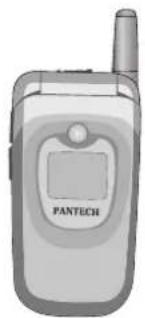
Handset

Batteries(Standard x 2)
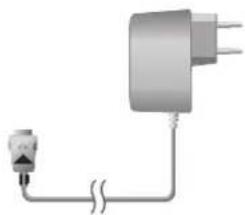
Travel Adaptor
User manual
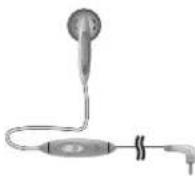
Ear-Microphon
HANDSET DESCRIPTION

Charging Connector / Cable Connecto

INTERNAL LCD(MAIN LCD)
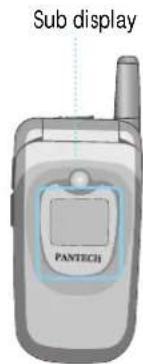
There are two LCD displays (Main and Sub).
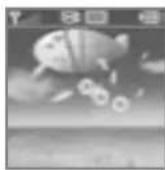
The line at the top of the display is for icons showing the status of the mobile phone.
Main LCD Display
Icons are displayed when specific functions are active or when you have received a message.
The figure above shows the list of all possible icons and their position.
Screen Status, display and function
For the description of each icons, please refer to the table below. | Signal strength | This icon shows the radio signal strength. The more bars displayed, the stronger the signal. |
 | In use | This icon indicates call active state. |
 | Ringing tone | This icon will appear when ring type is "Ringing tone". |
 | Vibration | This icon will appear when ring type is "Vibration" and in Etiquette mode . |
 | Vib+Melody | This icon will appear when ring type is "Vib+Melody". |
 | Short message | This icon will blink if SIM message box is full, or it will appear if there are unread messages. |
 | Alarm | This icon will indicate alarm set. |
 | Roaming | This icon will appear when roaming service is applied. |
| [Ty2T] | Battery | This indicates the remaining power of the battery. |
FUNCTION KEYS
There are function keys, which have one or more features. Following table shows list of function keys. Function keys| Key Icon | Name Key Function | |
| SEND KEY | Press this key to make a call,or answer incoming call.Press this key once to retrieve the list of AllCalls(recently dialed, received, and missed call numbers) | |
| END KEY | Press this key to end a call.Press this key to return to standby state. (Cancel, Exit).Press and hold this key to turn the phone on or off. | |
| OK KEY | Use this key to confirm the selected function or menu on the display. | |
| MENU KEY | Press this key to enter menu. When pressed, the menu will be displayed on the screen. | |
| CLEAR KEY | Press this key to delete a single letter and press and hold this key to clear a line.Press this key to return to the previous screen. | |
| NAVIGATION KEYS with shortcut keys to WAP, Sound setting, Message and Phonebook | Press these keys to move the cursor up/down or left/right in menu or in list.During a call, press 'up' key to see recently received call list and press 'down' key to see missed call list.These keys may act as shortcut keys by which you can easily access Phonebook, Sound Setting, Messages and WAP browser. | |
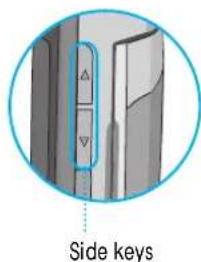
| SIDE UP and DOWN KEYS | Press these keys to adjust the phone speaker volume during a callWith the phone closed, press [down] key to change the type of display. When the phone is open, you can see the calendar with the same key. |
INSTALLING SIM CARD
Follow the steps below for the first time use; Install the SIM card When you subscribe to a cellular network, you are provided with a plug-in SIM card loaded with your subscription details (PIN, optional services available and so on). 1) If necessary, switch off the phone by holding down [ ]key until the powering down message is displayed. 2) Make sure the battery is removed. 3) Clear the SIM slot, and place the SIM card into slot in the direction of the arrow. 4) If you want to remove the SIM card, push it in the opposite direction of the arrow. USING THE BATTERY
Installing the battery
(1) Insert the bottom of battery into the groove at the bottom of the handset. Then (2)press in the top of the battery until it snaps. Removing the battery
Push the tab (1) with one hand and lift the top of the battery (2) to separate.   The battery must be correctly placed in the battery compartment. If battery is incorrectly inserted, the handset will not turn on or the battery may slip out during use.CHARGING THE BATTERY
Your phone is powered by a rechargeable Li-ion battery. A travel adapter is provided with your phone. Use only approved batteries and chargers. Ask your local PANTECH dealer for further details. The phone can be used while the battery is charging To Charge, make sure the battery is in position on the phone. Plug the charging connector into the slot at the bottom side of the phone, and plug the adaptor to a standard AC wall outlet. When charging is finished, disconnect the adapter by pressing the gray tabs at the side of the connector and pulling against the slot. Also, disconnect the adaptor from the AC wall outlet. GETTING STARTED
Turn on/off the phone power Make a call End a call Answer a call Adjust the earpiece volume Browse main menu Type numbers and letters on handsetTURN ON/OFF THE PHONE POWER
Turn on the phone power
Press and hold the [ ]key for 3 seconds to turn the phone power on. (Do the same to turn off the power) If the handset is in the lock mode, enter your 4 digit secret number. (Initially, "0000" for SIM lock code, "1234" for handset lock code.)MAKE A CALL
Make sure the phone power is on. Insert SIM card into the SIM slot if "Insert SIM card" message is shown. Enter your PIN1(Maximum up to 8 digits) to unlock handset (if applicable). After the PIN is accepted, network search will start automatically. When you press the wrong number, press [ ]key to delete. (Press and hold to delete all) In the idle mode, dial the phone number with area code. Then press [ ]key to make a call. When you'd like to make an international call, press and hold [ ]key until '+' sign appears. Then dial national code, area code and telephone number. With long press [ ]key, you can add 'P' pause symbol. If the number you want to call has an extension number, use this key between the main number and the ext. number to call directly to the extension.END A CALL
Press [ ]key to end or cancel a callADJUST THE EARPIECE VOLUME
When you are speaking with your phone, press the volume adjustment keys on the side of the phone to adjust earpiece volume. Seven levels of volume are available for your selection.ANSWER A CALL
When the phone rings or vibrates, the screen will display the name or the number of the caller (If the network you subscribe to supports this). The displayed name is dependent on the data in the Phone book. Press [ ]key to answer a call in normal answering mode option. With the Any Key option, you could answer a call by pressing any key except [ ]key.BROWSE MAIN MENU
Press [ ]key to enter main menu in standby mode. Press [ ]key to exit menu to standby screen. With navigation keys, [ ][ ]and[ ][ ], you can browse among menu items. To make a decision or answer the question, press [ ]key as YES, or [ ]key as NO.TYPE NUMBERS AND LETTERS ON HANDSET
To enter number, press the number keypad, as you want. To enter letters into handset, you can either be in 'T9' mode or in Multi-tab mode (e.g. Phone book, Message). Letters can be erased by pressing [ ]key.BASIC CALL FUNCTIONS
Speed Dialing Make an international call Missed call message Phonebook shortcut Last number dialed (received, missed) Incoming call waiting During call optionsSPEED DIALING
You can retrieve and call the desired number by pressing and holding the number of the phonebook in which you saved the number to call. For instance, if the number is saved in the Phonebook number 5, press and hold [5] key to make a call. (For more details, please refer to "HOT KEY/Phonebook")MAKE AN INTERNATIONAL CALL
Firstly, press and hold [0] key until “+” shows up on the display or enter the outgoing national code. Then enter the number you want to call.MISSED CALL MESSAGE
If for any reason, an incoming call cannot be answered, a missed call message will appear on the screen to remind you of the call you missed (Network and subscription dependent feature, not available in all areas). To reply to the missed call, first press [ ]key, then press [ ] [ ]key to select the number you want to reply to and press [ ]key to dial it.PHONEBOOK SHORTCUT
Under standby mode, you can press the [ ]key to enter the Phone book and browse the sub menu entries.LAST NUMBER DIALED/RECEIVED/ MISSED
Press [ ]key to access the list of latest dialed/received/missed numbers. Press [ ][ ]Key to scroll through the last dialed numbers Press [ ]key to send the call if the number shown is correct.INCOMING CALL WAITING
This is Network and subscription dependent feature. Please check with your Network provider before using this function. When a call comes in, you can press [ ] keys to enter the call options.  1. Answer 2. Reject 3. I am busy If another call comes in while you are on the phone, you can: Press  ]key to reject the incoming call. ]key to hold on the active call and connect to the incomingDURING CALL OPTIONS
When you are on a telephone call, you can press [ ] keys to enter the call options.  1. Phonebook 2. Messages 3. Volume 4. Hold 5. End current 6. Mute on 7. DTMF on/off Each function is described as follows in detail. Phonebook: You can look through the phonebook. Message: You can read and write SMS/EMS and check Voicemail. Volume: You can adjust the phone speaker volume. Hold - This function allows you to put a currently active call on hold, so that you can initiate a new call. End current - You can end a current call by selecting this function. Mute - When you want no sound to be heard by your caller during a call, you can choose the Mute function to do so. DTMF on/off - This function allows you to turn DTMF tone on/off. If DTMF(Dual Tone Multi Frequency) is turned off, the recipient will not hear the key sounds while you're pressing the keys.HOW TO USE T9
| Key | T9 Number T9 English | Multitap | |
| 1 | Next candidate | ||
| 2 | ABC | ABC | |
| 3 | DEF | DEF | |
| 4 | GHI | GHI | |
| 5 | JKL | JKL | |
| 6 | MNO | MNO | |
| 7 | PQRS | PQRS | |
| 8 | TUV | TUV | |
| 9 | WXYZ | WXYZ | |
| *+/- = | Smart period | Smart punctuation | |
| LONG press | T9Number | T9Number | |
| 0 | OPR | OPR | |
| LONG press | (SPACE) | (SPACE) | (SPACE) |
| # | Shift-CapsLOCK | Shift-Caps LOCK | |
| LONG press | T9 Emoticon | T9 Emoticon | |
HOW TO USE T9
T9 English
The more types you enter, the more complete word you can get using T9 English editor. For example If you like to make the word, "English", then press the keys, [3...] for E, [6m] for n, [4m] for g, [5m] for l, [4m] for i, [7m] for s, and [4m] for h. If you could not find the word what you want, just press [1] key for next possible candidates. You can switch the lowercase to the capital letter or the capital letter to one capital letter mode by pressing [ ]key. Also you can insert period by pressing key [ * * ]. Blank space can be added by pressing [0.2]. You can shift input mode by pressing [ ] or [ ] arrow keys. Alternately, you can switch to T9 number mode by long pressing [ ] key and to T9 Symbol mode by long pressing [ ] key. Multi-tap English
In this mode, you can insert special English word something like name, nickname, abbreviations and so on. T9 English has special dictionary to find and to list candidates up. As like ordinary mobile phone, you can input alphabets by pressing a key several times 'til finding the character. By pressing key [ ] you can easily shift to Capitalized letter to lowercase to T9 number easily. Menu functions
MENU TYPE
There are three ways to access the menu. One is the main menu by pressing [ ]key, second is the shortcut menu by pressing [ ]key. Messages Call logs Sound Settings Net Services Organizer Fun &Tools STK Phonebook Hot folderMESSAGES
You can send new messages, and check received messages.SMS/EMS
In EMS(Enhanced Messaging Service) messages you can add pictures, animation, melodies, emoticons to a text message.   to enter the SMS/ EMS menu and arrive at the following options.Entering the SMS/EMS menu
Each option is described below; Create - To create a new SMS/EMS message. Inbox - Displays SMS/EMS messages Outbox - Displays messages waiting to be sent Archive - SMS/EMS messages stored in the phone memory Settings – There are 3 sub-options;  Each option is described as follows in detail. Message center - Allows the address (URL) of the proxy relay or MMSC to be set. Message lifetime - Controls the lifetime of created messages (1 hour – 6 months) Message format - (normal, fax, voicemail, ermes. nation'l paging, x.400, internet)  Used space – State of SIM records (Capacity, Used records, Unread records)MESSAGES
Popup menu
When you read the message, in the "Inbox" or "Outbox" you can Edit, Delete, Forward, Reply or make a Voice Call by pressing [ ]key. Each option is described below; Edit - To edit incoming/outgoing messages. Delete - To delete the message. Forward - To forward the message to the desired number. Text Reply - To reply the message Voice call - To make a call to the originated number.MESSAGES
Create
1 Scroll to "Create" and press [ ]key. 2 While writing your message press [ ]key. 3 Select "Insert items" and press [ ]key. 4 Now, You can select "Picture", "Animation", "Melody", "Message" or "Emoticon" as you want. 5 And then select from "Predefined" or "Load" 6 Select an item by using [ ]key and then press [ ] There are two options in inserting an item. Predefined - you can load predefined items in the phone. (Except Picture and Message) Load - load form File view or Media box (Access to File system) MESSAGES
Sending a text message
1 Scroll to "Create" and press [ ]key. 2 Write your message and press [ ]key. 3 Scroll to "Send" and Press [ ]key. 4 Enter the number of the recipient. You can also search for the number from the "phonebook list" by pressing [ ]key. MESSAGES
Saving message
To save a text message (in the SIM) 1. After writing the message press [ ]key. 2. Select "Save" and press [ ]key. To save in Archive (in the file system in the memory) 1. After writing your message press [ ]key. 2. Select "Archive" and press [ ]key. 3. Select "Save" and press [ ]key.- Receiving a message
When you received a text message, the user will be alerted to the arrival of a message by a bell sound as set by the user (no sound in case the user has selected that option) and the message received icon would be visible on the Idle screen.To read the text message
Messages are saved in "Inbox" in the Message menu. Press [ ] to read the text message. To add the number of the message sender to the phonebook Enter "Inbox" and scroll to the message whose phone number's not registered to the phonebook. Press [ ] to select "Add to P-book"MESSAGES
Saving incoming text message
Incoming text messages are saved in the SIM card. When the SIM card is full, you cannot receive messages any more. In this case, a special icon is displayed alerting that alerts the SIM card is full. Messages can be then received only by deleting one or more messages in the Inbox or by moving one or more messages to Archives. To move messages from Inbox to Archive: - Enter Inbox and select the message that needs to be moved. - Press OK to enter the message. - Press MENU and select the EDIT function. - Press OK and Select ARCHIVE. - Press OK to Save message.To save objects from a text message
If a message text contains embedded components (such as picture, animation, melody, message or Emoticon), you can save them to your phone memory. While you are reading a message, and when you put the cursor on the object, you can select it with [ ]key and save to the phone (File system). The objects, which you saved through the process above, can be loaded from the menu, which isMESSAGES
MMS
 A new message is created by accessing the "Create" menu. The user is presented with a screen showing the first page in a blank MMS message. The screen displays the page with an informational/status bar above the message showing: The presence of any sounds or attachments on the current page. The size of the whole MMS in bytes or kilobytes. The current page number/total number of pages. MESSAGES
- Creating multimedia message
An MMS message can be a constitution of several objects, which are text, picture, photo, sound etc. 1 In Messages menu, select multimedia message ->Create and press [ ] 2 You can add some objects of multimedia message. To add an image, press [ ]key and select Add picture or Add photo ->Load. Select a picture file(*.jpg)with the cursor keys. ● To add a sound, press [ ]key and select Add sound ->Load. \- To add a new page (a text), press [ ]key and select Add page. 3 If you select Add image, sound, or attachment, a list of items opens. Scroll to the item you wish to add and press [ ]key. Press [ ] to view and edit your MMS message. 4 You can change the duration of showing each object; Display after: To decide when the object will appear after opening the page. Display for: To decide how long the object will be shown for. Press [ ] to select and [ ]key to confirm your choice.MESSAGES
5 In the Editor option, select Preview to view the MMS message you made so far. 6 If you're done with creating the message, select Done in the Editors option. Edit the address options and select Send or Send later.   MESSAGES
- Receiving messages
When the user receives a notification of new message's arrival the following actions will take place: 1 In Messages menu, select multimedia message ->Inbox and press [ ]key to select item. 2 Select received mail and press [ ]key.- Deleting a message
Here a user deletes a message from the mailbox. 1 In Messages menu, select multimedia message ->any mailbox 2 Scroll to the mail you want to delete and press [ ]key and select "Delete". MESSAGES
Voicemail
With this function, you can call the Voice mailbox provided by your network service provider to listen to your Voice mail messages. You can use this function by selecting Call and then the phone will automatically dial the designated number for your Voice mailbox.   Each option is described below; Call - The Phone makes a call to the Voice mailbox. Whether to call to Home Mbox or Roam Mbox will be decided according to the SIM card you°∅re using. Home Mbox - To set the number for the Home Mailbox of your Network provider. Roam Mbox - To set the number for the Roaming Mailbox of the Roaming Network provider. MESSAGES
Cell broadcasts
This function is dependant on your Network provider, please ask them for detailed information. You can receive information messages offered by your network provider. This function is to set the topics of the info. messages you want to receive that are offered by the Network.    Each option is described below; Read info - You can read the messages sent by the network you subscribed to. Settings - You can choose preferred topics and languages. Language : You can specify the language of info message. Addition of new language and elimination of existing language are possible. Set info : You can specify the topic number of info message. Contact network service provider for further information. \- Create subject: You can add a new list other than 'Current list'. \- Current list :It shows the list, which is stored. It contains new lists. You can select a "Current list" (maximum two) to receive info message. CALL LOGS
With this function, you can view call logs and set Call Info & GPRS info. Received calls   This function displays the list of phone numbers received. To make a call chose the number by scrolling the [ ]key, press [ ]key to connect. Press the [ ]Key to: -Edit: Edits number before dialing -View Call logs: Displays call information including time & date of when the call was made -Add to P-book: To store number in the phone book, select this key and enter caller details. -Send SMS: To send an SMS to the caller, select this key.CALL LOGS
Dialed calls
 This function displays the list of phone number dialed. To make a call chose the number by scrolling the [ ]key, press [ ]key to connect. With [ ]key, you'll see the same Pop-up menu as in Received calls. CALL LOGS
Missed calls
 This function displays the list of calls you've missed. To make a call chose the number by scrolling the [ ]key, press [ ]key to connect. With [ ]key, you'll see the same Pop-up menu.CALL LOGS
Clear logs
 This function is to delete the previously received, dialed, missed call numbers. The following are the sub-options. Call Info
This menu gives information on the duration and cost of a call.  CALL LOGS
- Call costs Call timers
This function records the information of the call cost. The maximum cost of a call can be set to avoid overcharge.  Last call
This function displays the cost of the last call with units.All calls
This function displays the cost of all calls with units. /****You can also clear logs with PIN2 authorization.****/Clear logs
This function clears all logs of call cost related after you enter PIN1.Cost units
You can read defined unit or set the unit cost of the call in your service area. This function has following sub-options to select. - Read units : Displays the unit Cost of a call. - Set units : You can set price/Unit and currency of Cost unit.Max cost
You can set the maximum value of call cost in specified unit /*****with PIN2 authorization.****/ This function has following sub-options to select. - Read limit : Displays the maximum call cost limit set. - Set limit : Sets the maximum value of a call after specifying PIN2 authorization.CALL LOGS
This function records the call duration.  Last call
This function displays the duration of the last call.All calls
This function displays the total duration for all calls.Reset call time
Resets the call timer to "00:00"CALL LOGS
GPRS Info
This menu shows you the amount of the data you've sent/received by using GPRS  Current connections
This shows you the total kbyte spent and received in the current connection.All connections
This function displays the total kbyte sent and received for all the GPRS connections made.Last connection
This function displays the kbyte sent and received in the last connection.Clear logs
This function is to clear the data related to GPRS.   SOUND
Sets tones for ringing, message, keytone, flip opening, etc.Ringing Settings
  Use [ ] keys to move across categories. Press [ ] to save settings. Ring Type
Ringing Tone: Select this to get a ringing tone on receipt of a call. Vibration : just vibration without sound. Vib then Ring : ring after vibration. Vib and Ring : ring and vibration come together. Ascending : ring gets louder and louder. None(Quit): no ring, no vibration. Only backlight glows. SOUND
- Melody Type
The ringing tones are categorised into: Melody, Bell Sounds, Voice Sounds, Natural Sounds and my melody (download of personal ringtones) Under each type, a variety of ringtones are available.- Ringing volume
You can adjust the volume with [ ] [ ] keys in 8 different levels.SOUND
Message alert
 1 You can choose and save the bell sound you like for alerting on receipt of a message.Select mode
You can choose the type of message alert from 4 options; Once/Every 2 mins/ Every 5 mins/off. Tones
You can select the alerting tone 3 options; Bell 1/Bell 2/Bell 3.Volume
8 different levels of volume can be set.SOUND
Key Tone
 1 You can choose and save the keypad tone you like.Setting
On/Off Tones
DTMF/Beep/VoiceVolume
You can set the volume in 8 different grades.SOUND
Flip open tone
 1 You can set up the Flip open sound you like.Setting
On/Off Tones
DTMF/Beep/VoiceVolume
8 different levels of volume can be set.SOUND
Sound effect
1 Helps set the sound for:
Connection/Minute minder/Disconnection/Area alerting/On&Off melody/menu moving Use [ ] [ ] keys to select the requirement. SETTINGS
In this menu, you can tune the phone settings such as Display, Date&Time, Language etc.Display
Visual setting
Screen Setting   To change the screen image, move to the screen you want by using [ ] [ ]key, move the cursor to the image change line by using [ ] [ ]key, and choose an image by using again [ ][ ]key for the screen. You can change each screen image as shown below. SETTINGS
Screen Option
 1 You can choose display options for the handset idle screen. There are three option as shown below. SETTINGS
• Greeting
You can write a greeting message.  - Contrast
You can set Main LCD Brightness, Main LCD contrast, Sub LCD contrast.  1 Use Navigation [ ] [ ] Keys to move up and down to the mode you want to change and then use Navigation [ ] [ ]keys to change the value. Each has 8 levels. SETTINGS
Backlight
You can set the Light Level of Main LCD.   1 Use Navigation [ ] [ ] Keys to move up and down to the mode you want to change and then use Navigation [ ] [ ] keys to change the value. 1. Light level(off, low, high, maximum) A. You can set the brightness of LED Back light. 2. Minimal bright(off, low, high, maximum) A. You can set the brightness of the LED Back light while it is off after the Light Duration is expired. (This value cannot be higher than the value of Light Level). 3. Light duration A. The duration of the LED Backlight when the phone is left idle. (always off, 5 sec, 10 sec 20 sec, always on)SETTINGS
Keypad color
Gives you three options for the keypad color  SETTINGS
Date&Time
 Set time
 Press [ ]key after you input the time you wish to set. Set date
Setting up the present date  Press [ ]key when you move the cursor to the date you wish to set. SETTINGS
- Set time zone
Showing the world wide time differences with present time.   Press [ ]key when you choose the time zone you want.• Display
  Set the time format as 12 hour or 24 hour. Set the date format as D:M:Y,M:D:Y,or Y:M:D. Choose the display as Time only, Date only, or Date & Time. Press [ ]key to save preferred options.SETTINGS
Language
Select the language to be displayed.  Choose one from the lists, and press [ key.Reset setting
Restore the default values for the settings.  Input the handset password, and press [ ]key when the "Restore factory setting?" pop up shows, the default values are restored into, and then the phone reboots.  SETTINGS
Information
Own number
You can input, edit, store, and delete your own phone number.   If there is no number stored, "List empty" message appears. Press [ ]key to edit & add your own number. With the number(s) listed, press [ ]key and select a menu you want. 1. Edit : modify and edit the number. 2.Add:add new number. 3. Delete : delete the number.SETTINGS
- Software version
 To check the software version, press [ ] and the software version is displayed. Voice LED
The Cubic on top of sub-LCD blinks in several colors according to the voice of the caller and you.  Auto power alarm
If the phone is off with this function on, it automatically turns on to ring at the saved time.  NET SERVICES
Some of the functions in this section are network dependant. Therefore, please check with your network provider whether they support these services.Divert calls
With this option, you can forward your incoming calls to any designated number.  All calls
You can all voice calls, data, fax and messages to another number.   On : Select ON to forward all the services provided by the network; voice calls, data, fax, and messages. If you select "On", you should enter a number to which you wish to direct. After entering the number, you should enter a waiting time just before directing a call and press [ ] to send the configuration to the network. Off : Select OFF to cancel "Divert All Calls". Status : STATUS shows the current configuration, ON or OFF. By service : You can use your handset to divert a specific type of call to another number if your network supports this feature. "All services" [1] enables all calls to divert and you can choose one of the services, "Voice calls"[2m], "Data" [3m], "Fax"[4m] or "Messages"[5m]. Choose "All except msgs"[6-8] to divert except the messages. NET SERVICES
When busy
Calls are diverted when your handset is already connected to another call.  On : Select ON to forward all the services provided by the network; voice calls, data, fax, and messages. If you select "On", you should enter a number to which you wish to direct. After entering the number, you should enter a waiting time just before directing a call and press [ ] to send the configuration to the network. Off : Select OFF to cancel "Divert All Calls" Status : STATUS shows the current configuration, ON or OFF. By service : You can use your handset to divert a specific type of call to another number if your network supports this feature. "All services" [1] enables all calls to divert and you can choose one of the services, "Voice calls"[2m], "Data"[3m], "Fax"[4m] or "Messages"[5m]. Choose "All except msgs"[ ] to divert except the messages.   NET SERVICES
On no answer
This option allows you to divert the calls to a designated number when the phone is not answered within a certain time; time can be set from 5 to 30 seconds.  On : Select ON to forward all the services provided by the network; voice calls, data, fax, and messages. If you select "On", you should enter a number to which you wish to direct. After entering the number, you should enter a waiting time just before directing a call and press [ ] to send the configuration to the network. Off : Select OFF to cancel "Divert All Calls". Status : STATUS shows the current configuration, ON or OFF. By service : You can use your handset to divert a specific type of call to another number if your network supports this feature. "All services" [ ] enables all calls to divert and you can choose one of the services, "Voice calls"[2], "Data" [3], "Fax"[4] or "Messages"[5]. Choose "All except msgs"[6-] to divert except the messages.   NET SERVICES
- When not found
Divert the calls when your handset is out side the network coverage area.  On: Select ON to forward all the services provided by the network; voice calls, data, fax, and messages. If you select "On", you should enter a number to which you wish to direct. After entering the number, you should enter a waiting time just before directing a call and press [ ] to send the configuration to the network. Off : Select OFF to cancel "Divert All Calls". Status : STATUS shows the current configuration, ON or OFF. By service : You can use your handset to divert a specific type of call to another number if your network supports this feature. "All services" [1] enables all calls to divert and you can choose one of the services, "Voice calls"[2], "Data"[3], "Fax"[4] or "Messages"[ ] Choose "All except msgs"[6→] to divert except the messages. NET SERVICES
Cancel all
You can cancel all the diverts by using this option. NET SERVICES
Call Settings
This function sets the way in which a call is received/ made.  Answer type
This key specifies the answering mode when a call is received.   Flip open : Select "Flip open" to connect the incoming call when the phone is flipped open. Send key : The incoming call is connected when the [ ]key is pressed. Any key : The incoming call is connected when any key except [ ]key is pressed. Auto answer : The incoming call is automatically connected after 10 secondsNET SERVICES
- Call waiting
Your handset can alert you when you've got a second call while you are already engaged in a call.  - Caller number
You can see the number of the incoming call (You can see the name of the caller if it's saved in the phonebook) or you can show your number to the caller when making a call. This service is network dependent so please ask your Network Provider.  Send my number (on, off, set by network): Select this option if you want to show your number to the recipient. Show called number: Select this option if you want to show your number to the recipient's diverted phone. Hide if called: Select this option if you do not want to show your number to the recipient's diverted phone. NET SERVICES
Network setting
 Preferred N/W
With this function, you can set preferred list of network service providers.   Press [ ]key to see the following ub-options; Insert : add the network to the top of the preferred network list Added to end : adds the network to the end of the preferred network list Delete : delete the network nameAdd new N/W
You can add to the list by entering network service provider code.   This function has following sub-options to select when you press [ ] Add : Enter the country code, network code, and network name as they are requested, and this can include new networks whose network codes are not known to the handset. Change : Choose a network name to change and then enter the network code, country code, and network name newly to change the network. Delete : Delete the network nameNET SERVICES
N/W selection
You can select the network you like or make a list of networks you like from the available networks.   Automatic : A network can be selected automatically. Manual : You can choose a specific network to subscribe.Change password
The network password is available from your network service provider. It is also used for setting Network Call Barring options and is not the same as your SIM card PIN1. NET SERVICES
Security settings
First, you need to enter the password. The password is set "1234" when you buy the phone. You must press the [ ]key after entering the password for getting the permission. If you fail to enter the right password for more than three times, it will go back to the main menu. The security functions can help to prevent your phone and SIM card from being used by an unauthorized person. With this function, you can set the password and settings relating to the phone. This function customizes the call barring service, fixed dialing mode.SIM lock
 Lock : When you turn on the handset, you need to enter the PIN1 password to access the main menu. Unlock : When you turn on the handset, you don't need the PIN1 password to access the main menu. NET SERVICES
Handset lock
If you select this option, the phone will be locked until you enter the right password. To enter the password, press [ ] key. (The password is set "1234" when you buy the phone). If you want to lock again, select "unlock" and then select "lock"  This function has following sub-options to select. - Unlock - Call only - Lock - Change code nlock - Call only - Lock - Change code NET SERVICES
H/S barring (Handset barring)
You can ignore the incoming calls or restrict certain outgoing calls with this menu.  Incoming call: If you select "on" in this option, all incoming calls will be barred. Outgoing call : There are three sub-options in this menu. 1) Bar all: This will bar disable all outgoing calls 2) Bar prefixed: This will bar the outgoing numbers that includes the first number(s) you previously designated. For example, if you designate first two numbers as "82", then all numbers that starts with "82" will be barred. You can add, edit, delete and clear all numbers in the Pop-up menu by pressing [ ] key. 3) Off: This will make all outgoing calls available. NET SERVICES
N/W barring (Network)
This feature is dependent on network service provider and subscription. Some of the bars are set by the network service provider. You can set the call barring for all or for each service. It is possible to select a range of call barring options. At each range, you can see the status and set it On/Off. You need to enter network password when you change the setting. You can clear all settings of call barring.  Followings are the sub-options : Foreign calls: to bar the outgoing international calls Only Local/Home : to bar all calls except those on local and home networks Bar incoming : to bar all incoming call Incoming abroad : to bar incoming calls from abroad Outgoing calls : to bar all outgoing call When you select one of the above menu, 1. The call list to be barred is displayed 2. You choose one item in the call list 3. Press [ ], and you can make the call -On: to be barred -Off: not to be barred. -Status: to see whether the call is barred or not  Clear all : After selecting a call type, activate or deactivate service type of information as following. - All services - Voice calls - Data - Fax - Messages - All except msgsNET SERVICES
Fixed dialing
Fixed dial setting
Enable : This option allows the user to only dial those numbers which match a set of "filters" stored in a list on the SIM Disable : Select this option to disable the "Fixed Dialing" [REF] The PIN2 pa ssword is required when you turn it on or turn itFixed dial list
Display the Fixed dial list NET SERVICES
• CUG settings (Closed User Group settings)
You can set a group of numbers that you can only call and receive within them. List CUGs
1. CUG name list specified by the user is displayed 2. Select the CUG name 3. Press [ ], and you can \- Add : add a new CUG name to the index list - Edit : The user can associate their own text, rather than the default text, with each of the 10 CUG identifiers - Delete : The pre-set CUG identifier is deleted. - Clear all : Erases all the pre-set CUG identifiers and CUG names.Select
1. CUG name list specified by the user is displayed 2. When the user selects a CUG from the menu, the corresponding CUG index will be sent when a call is set up ORGANIZER
In Organizer, you can set alarms, keep track of events, make notes, use a simple calculator, convert measures, and check time events.Alarm
You can set alarms to ring for once, or on a daily or weekly basis.   Adding & Deleting alarms  Fill in the alarm time and scroll down once to decide On or Off. At the next scroll bar, you can set this alarm to ring just once, or on a daily or weekly basis.  ORGANIZER
 If you choose [Once], then it will ring just once on the given Alert Date. If you choose [Daily], then it will ring every day at the given time. If you choose [Weekly], then it will ring at the given time on the days you select. To select press the [ ]key. You can select more than one day. Selecting alarm melody, Press [ ]key and select [Melody] from the popup menu that appears select alarm melody. From the options that appear. [On MorningCall] option lets you hear the alarm even when your phone is in silent mode.   Add : Add new alarm. Delete : Delete selected alarm. Delete all : Delete all alarms. Up to 5 alarms can be added.ORGANIZER
Scheduler
You can keep track of your events by putting short notes and alarms on the calendar. You will see a blue circle cursor on the calendar which you can move using the [ ]keys.  Adding & deleting Events
Move the blue circle cursor to the date you want to add an event. Then press [ ]key ->select [Add Event]. Or, just press [ ]key on a date and [ ]key ->select [Add Event] Add Event : Add a new event. View All Event : View all the event that is saved Goto Date : Going to the specific date. Memory Info : Defining saved event's number ORGANIZER
The following screen appears.  When a new event is set on a date, it is marked on the calendar with a green box. Press [ ] to see the details of the events. Event: You can choose the type of the event (Meeting, Call, restaurant, entertainment, birthday, Travel, and Others). Memo: Press [ ] to put a short note about the event and press [ ] Time: Set the alarm time. Alarm alert: You can set when the alarm will ring (On time, 1 Hour Before, 2 Hour Before, 1 Day Before, 2 Day Before, and No alerting) Repeat: You can set how often the event happens. (Once, Daily, Weekly, Monthly, and Yearly) Ex) For birthday, you would make it Yearly. Press [ ] to choose the melody for the alerting. Now, everything's done. Just press [ ] to save the event. ORGANIZER
Press [ ]key while viewing the details to see the followings; 1. Add Event: To add another event on the selected day. 2, 3. Delete & Delete All : Deletes one or all of the events registered on the selected day. 4. On D-day: Show you how many days are left until the event. 5. Memory Info : Shows the number of events registered.   To see all events put on the calendar Press [ ]key a select [View All Event] Jumping to specific date Press [ ]key a select [Goto Date]  ORGANIZER
Memo
You can keep short notes on your phone.  Press [ ] then you will see the following sub menus. 1. Add memo: You can create a short note. After you are done with the writing, press [ ] key to save the note. 2. Delete : Delete the selected note. 3. Delete all : Deletes all notes. You can edit notes by pressing [ ] key on the list view. You can keep up to 20 notes. ORGANIZER
Calculator
Adding, subtracting, multiplying, and dividing of decimal numbers are supported.  You can use [ ] , [ ], [ ] and [ ] keys to manipulate the calculation. Example : 6 X 5 / 2 + 2 =  ORGANIZER
Converter
In Converter, you can convert measures such as Length, Area, Volume and Weight from one unit to another. Basically, 'Length' includes cm, m, inch, feet, yard and mile. 'Area' includes sq. m, a, sq. feet, sq. yard and acre. 'Volume' includes cu. cm, cu. m, L, cu. inch, cu. feet, cu. yard and gallon. 'Weight' includes g, kg, t, grain, oz and pound.  Select the measure among Length, Area, Volume and Weight pressing navigation [ ]key or [ ]key. Select the target unit pressing navigation [ ] key or [ ] key after moving down using navigation [ ] key. Enter the target value pressing keypad and dot(.)using key [ ]. Select the result unit by pressing navigation [ ]key or [ ]key. ORGANIZER
Stopwatch
 You can time an event using this stopwatch function. The stopwatch can be operated with the navigation key. Press Start to time an event, press Pause to pause timing and press Start to resume. Press Reset to clear the time and wait FUN&TOOLS
This section describes the game embedded in your phone.Game
Mini Soccer 2003
| Title | mIniSoccer |
| LCD | 64K Color [128 x 160] |
| Sound | 40 Poly [MA3] |
| Release Date | 2003.04.30 |
| Copyright | Diffon, Inc. |
FUN&TOOLS
Title Screen  Tela de Menu   | Keys | Change Play Mode | |
| Change Play Mode | ||
| Move up | ||
| Move down | ||
| Select |
FUN&TOOLS
Single Match Tournament     Help Screen Record Screen     Playing Game         FUN&TOOLS
| Keys | / 4mm | Move Left |
| / 6mm | Move Right | |
| / 2mm | Move Up | |
| / 8mm | Move Down | |
| 1 | Move Left-Top | |
| 3mm | Move Right-Top | |
| 7mm | Move Left-Down | |
| 9mm | Move Right-Down | |
| 0± | Attack: Pass,Defense: Tackle | |
| #mm | Shoot |
FUN&TOOLS
My Puppy
| Title | MyPuppy |
| LCD | 64K Color [128 x 160] |
| Sound | 40 Poly [MA3] |
| Release Date | 2003.04.30 |
| Copyright | Diffon, Inc. |
FUN&TOOLS
FUN&TOOLS
| Keys | Move Left Menu | |
| Move Right Menu | ||
| Select Action |
| Keys | Select Left | |
| Select Right | ||
| Think and choose where the pet is about to jump. | ||
| Keys | Move Left Menu | |
| Move Right Menu | ||
| Select | ||
| If the player doesn't care the pet for about 5 days, It will go away or go to Heaven | ||
FUN&TOOLS
Downloaded
You can view a list of downloaded images, animations and melodies and execute the basic file operation like browse, delete, rename, set as wallpaper, play, and view.  Image
 If you press [ ] then you'll be given with several options to select. Select options you like with [ ] key. FUN&TOOLS
Browse image files using |      1) View : View the full screen image. 2) Set as wallpaper: Press [ ] key after saving to wallpaper image. If you want to display wallpaper image then go to display visual option. 3)Info: View file information 4) Delete: Delete the image file. 5)Rename: Rename the fileFUN&TOOLS
Animation
 View a list of animation image files Melody
 View a list of melody files FUN&TOOLS
Voice record
You can record and play your voice or those of other people using this function.  Press [ ] key to bring up the Pop-up menu, which has following sub-options.Record
Scroll the [ ] key to choose Record/Stop/Play/Save. If you press the [SAVE] key after completing the voice recording, you can make a brief note with the text editor, and then see the recorded voice memo on the view list. To play the memo, select the voice record by pressing [ ] key and press play.  Max recordable time : 30 Seconds / 1 voice memo Max recordable memo : 3 Voice memos FUN&TOOLS
Wap
You can surf the Internet using the WAP browser. The descriptions below can vary according to your Network provider. Therefore, ask your Network provider for detailed information. Home
 Resume
Reconnects to the lat web site entered. FUN&TOOLS
- Bookmarks
You can bookmark Internet address using the WAP browser. - Push messages
Mobile can receive Push Messages from Service Provider. Settings
Using this function, Connection settings, Security certification, Cache mode, and Push security can be set.  Connection settings  FUN&TOOLS
| Connection | Image settings | Display images | Connection type |
| Homepage Image settings Connection type Connect options Gateway settings | Display images Update images | No Yes | Temporary Continuous |
| Connect options None Secure | Gateway settings User ID Password | Bearer Data settings SMS settings GPRS settings | Data settings IP address Dial number Data call type Data call speed User ID |
| Bearer Data settings SMS settings GPRS settings | SMS settings Server number Service number | Bearer Data settings SMS settings GPRS settings | GPRS settings IP address Access point User ID Password |
FUN&TOOLS
Security
These are the lists of Security Certification. Cache mode
Two options(Always check/Never check) of Cache mode can be selected. Push security
\- Accept all : To accept all the messages the Network provider sends. \- Trusted only: To receive messages only from trusted sources. \- Accept none : To refuse all the pushed messages. FUN&TOOLS
Empty Temp File
 - Empty Cache : To delete the information related to the web-pages you previously visited. - Empty Cookies : To delete the Cookies stored in the phone memory. - Empty Password : To delete the saved password in the phone memory. FUN&TOOLS
Version info
Provides information about view the software version of the WAP browser.   Press the [ ] key while browsing to see the following sub-options. Stop : stops current page download Go back : navigates one page back in the history list Bookmarks : presents the list of bookmarks Add bookmark : creates a new bookmark for the page you are viewing. Enter address : allows you to enter a URL to browse to Home : takes you to the homepage of the current website. Top : jumps you back to the top of the current page FUN&TOOLS
Memory info
This option shows the memory status.  STK (SIM Tool Kit)
 This function is dependant on your Network provider, please ask them for more information.PHONEBOOK
Phone book menu allows you to set up your own phone book. You can add or delete the records anytime you want. In addition, you are able to save the records either in SIM card memory or phone memory. You can store up to 800 entries in the phone book. Group search  You can search a person's number registered in each group.  PHONEBOOK
Name Search  You can search a person's number with the name saved in the phonebook.  One person can have at most 3 numbers. Press [ ] [ ] key to select the correct number.PHONEBOOK
When viewing the list of the phonebook, press [ ] to; - Search (search a number in the list) - Edit - Delete (delete all numbers of the person) Press [ ] key to view all the information about the person. To modify the information, press [ ] Key and select Edit.PHONEBOOK
Add New Name
 Add new phone number in the Edit mode. To edit the Name / PhoneNumber / Memo / Picture, move to the item and press any key on the item. You can select group / individual bell by pressing [ ] or [ ] navigation key. You select Picture, then go into Album. By pressing [ ]Key, you can store the picture. PHONEBOOK
Speed Dial List
 Here you can see the whole list of the phone numbers stored in the phonebook with their names and given numbers. If you want to speed dial a number in idle mode, press and hold the number of the phonebook that matches the person you want to call.For example;
1) Single digit number(1\~9): Press and hold the phonebook number. 2) Double digit number(including 00): After pressing the tenths, press and hold the units of the phonebook number. PHONEBOOK
Settings
 Save nos.to
 You can choose between the SIM card and Phone memory for the phone number to be saved. If you choose "Choice", you'll be asked where to save when you Add New Name to the phonebook. Used space
  Shows the memory currently used. You can store up to 500 entries.PHONEBOOK
- Group ring tones
 You can set a bell sound for each group with navigation key  Delete all
You can delete all the stored numbers. You need to enter the Lock code to access this menu.  Select one of the following options with the Navigation key. Delete SIM – Select "O", "X" Delete phone – Select "O", "X" To save, press [ ]  Appendix
Care and Maintenance Troubleshooting Using the batteries Safety information Operating environment Electronic devices Emergency callsCARE AND MAINTENANCE
Followings are to help ensure the proper use and the life of your mobile phone. Keep your mobile phone and its accessories out of small children's reach. Keep it dry. Use your phone at a normal temperature. Temperature higher than 55 °C or lower than 20°C (Higher than 131° For lower than-4°F) may cause damage to your phone. Do not use or store your mobile phone in dusty or dirty areas if possible. Do not attempt to open your mobile phone. Do not drop, knock or shake it. Do not use harsh chemicals, cleaning solvents, or strong detergent to clean mobile phone. If your mobile phone or its accessory is not work properly, contact your dealer immediately. Use only approved batteries, battery chargers and accessories to help ensure the proper function of your phone and battery life. Any malfunction or damage caused by the use of any third-party accessories will void the limited product warranty. Keep battery contacts and battery charging socket at the bottom of your phone from direct contact with conductive objects. Otherwise it could cause a short-circuit and result in potential damage or harm.TROUBLESHOOTING
If you have any problem while using your phone, please refer to following check lists to solve problem. If the problem persists, please contact your dealer immediately for services them."Insert SIM Card" message appears
Make sure that the SIM card is correctly installed. Check SIM is working properly, it may be defected or out of order. If so, send it to network service provider. Or, clean the SIM card contact."Handset locked enter password" message appears
Enter the valid lock code. If you don't know the valid lock code, contact dealer near you."Enter PIN1" appears
Enter the valid PIN1 code with the SIM card. If you don't know the code, contact your dealer. With handset locked with 3 invalid trials, incoming call could be received."No service", "Network failure" is displayed
Check the signal strength indicator. The network connection was lost. You may be in the basement or building where signal is weak. Move to other location to receive signal properly. In another case, you may be too far from the base station of your network service provider. Then, ask your network service provider service range map.TROUBLESHOOTING
Audio quality is poor. Echo, or noise makes it hard to hear
Hang up the phone and then dial again. You may be switched to a better quality network line.Correspondence cannot hear you speaking
Your mobile phone is set to enable MUTE function. Make mobile phone to UNUTE by pressing.The standby time becomes short
You may be in weak signal area. Turn it off temporarily while you are expecting no calls. Or your mobile phone battery life may be over. Then, get a new battery.The phone is not turned on
Check the battery capacity or charge the battery. You can turn your phone on to check during charging.Unable to send message
You may have not subscribed to SMS service or network service provider in your area couldn't support service.Unable to make a call
You mobile phone is set to fixed dial function. Then, cancel fixed dial function.TROUBLESHOOTING
Unable to charge the battery
It could be one of 3 possible situations: one is that your mobile phone charger is out of order. Then contact dealer near you. Another is that you attempt to use your mobile phone in severe temperature. So, change the battery-charging environment. The other is the poor connection. Then check the connector.Unable to input data in the Phonebook
Your phonebook memory is full. Delete some entries from phonebook list.Unable to choose certain function
You are not subscribed in that service or in network service provider where not support that service. Contact your service provider.USING THE BATTERIES
Your mobile phone is equipped with Li-on battery. The following batteries are also available (Contact dealer near you): -Standard battery -Slim battery Precautions when using batteries Do not use any charger and battery that is damaged in anyway. Use the battery only for its intended purpose. If you use the phone near the near the network's base station, it uses less power; talk and standby time will increase as strong as signal strength. Battery charging time depends on the remaining battery charge and type of battery and charger used. Battery lifetime is about hundreds times in charging and discharging, but it will gradually wear out. Use only approved battery and recharges your battery only with approved chargers. When a charger is not in use, disconnect it from the power outlet. Overcharging makes battery lifetime shortened. Do not leave the battery in hot or cold places, such as in a car in summer or winter. This reduces the capacity of battery. Always try to keep the battery at room temperature. Do not short-circuit the battery. Accidental short-circuiting can occur when a conductive object contacts both contact directly. Short-circuiting terminals may damage the battery. Dispose of used batteries in accordance with local regulation. Always recycle. Never dispose of batteries in fire. Don't use other than the specified battery charger. To prevent injury or burns, don't allow metal objects to contact or short circuit the battery terminals. Don't discard the Battery Pack into to fire.SAFETY INFORMATION
Road Safety
Remember, road safety always comes first. Do not use a hand-held telephone while driving a vehicle. If using a hand-held phone, park the vehicle before conversing. Always secure the phone in its holder; do not place the phone on the passenger seat or where it can break loose in a collision or sudden stop. The use of an alert device to operate a vehicle's lights or horn on public road is not permitted.OPERATING ENVIRONMENT
Remember to follow any special regulations in force in any area and always switch off your phone whenever it is forbidden to use it, or when it may cause interference or danger. When connecting the phone or any accessory to another device, read its user's guide for detailed safety instructions. With other mobile radio transmitting equipment, users are advised use mobile phone in the normal operating position for the satisfactory operation of the equipment and for the personnel (Held to your ear with the antenna pointing over your shoulder)ELECTRONIC DEVICES
Most modern electronic equipment is shie Ided from radio frequency (RF)signals. However, certain electronic equipment may not be shielded against the RF signals from your wireless phone. Operation of any radio-transmitting equipment may interfere with inadequately protected medical devices. Consult a doctor or the manufacturer of the medical device if you have any questions. Other electronic equipment may also be subject to interference. Always switch off the phone when at a refueling point (service station). You are reminded of the need to observe restrictions on the use of radio equipment in fuel depot (Fuel storage and distribution areas), chemical plants or where blasting operations are in progress. Do not store or carry flammable liquids, gases or explosive materials in the same compartment as the phone, its parts or accessories. Switch off your mobile phone when in an aircraft. The use of mobile phones in an aircraft is illegal and may be dangerous to the operation of the aircraft or disrupt the cellular network. Failure to observe this instruction may lead to the suspension or denial of cellular telephone services to the offender, legal action or both.EMERGENCY CALLS
IMPORTANT!
This phone, like any wireless phone, operates using radio signals, wireless and landline network as well as user-programmed functions, which cannot guarantee connection in all condition. Therefore, you should never rely solely upon any wireless phone for essential communications (e.g. medical emergencies). Remember, to make or receive any calls the phone must be switched on and in a service area with adequate cellular signal strength. Emergency calls may not be possible on all wireless phone networks or when certain network services and/or phone features are in use. Check with local cellular service providers: To make an emergency call: If your phone is not on, Switch it on. You should be in a service area, so check the radio signal strength. Emergency calls may not be possible on all cellular phone networks or when certain network services and/or phone features are in use. Check local cellular service provider.MEMO
MEMO 
- MELODY
- DIMENSION &WEIGHT
- PERFORMANCE
- OPERATING FREQUENCY
- CAUTION
- ANTENNA
- TRAFFIC SAFETY
- ELECTRONIC DEVICES IN VEHICLE
- HANDS-FREE KITS
- MEDICAL DEVICES
- PUBLIC PLACE
- BOARDING AN AIRCRAFT
- EXPLOSIVE ATMOSPHERES
- USER GUIDE
- PROPER USAGE
- MEMO
- TABLE OF CONTENTS
- PACKING ITEMS
- HANDSET DESCRIPTION
- INTERNAL LCD(MAIN LCD)
- MAIN LCD DISPLAY
- SCREEN STATUS, DISPLAY AND FUNCTION
- FUNCTION KEYS
- INSTALLING SIM CARD
- USING THE BATTERY
- INSTALLING THE BATTERY
- REMOVING THE BATTERY
- CHARGING THE BATTERY
- GETTING STARTED
- TURN ON/OFF THE PHONE POWER
- TURN ON THE PHONE POWER
- MAKE A CALL
- END A CALL
- ADJUST THE EARPIECE VOLUME
- ANSWER A CALL
- BROWSE MAIN MENU
- TYPE NUMBERS AND LETTERS ON HANDSET
- BASIC CALL FUNCTIONS
- SPEED DIALING
- MAKE AN INTERNATIONAL CALL
- MISSED CALL MESSAGE
- PHONEBOOK SHORTCUT
- LAST NUMBER DIALED/RECEIVED/ MISSED
- INCOMING CALL WAITING
- DURING CALL OPTIONS
- HOW TO USE T9
- T9 ENGLISH
- MULTI-TAP ENGLISH
- MENU FUNCTIONS
- MENU TYPE
- MESSAGES
- SMS/EMS
- ENTERING THE SMS/EMS MENU
- POPUP MENU
- CREATE
- SENDING A TEXT MESSAGE
- SAVING MESSAGE
- RECEIVING A MESSAGE
- TO READ THE TEXT MESSAGE
- SAVING INCOMING TEXT MESSAGE
- TO SAVE OBJECTS FROM A TEXT MESSAGE
- MMS
- CREATING MULTIMEDIA MESSAGE
- RECEIVING MESSAGES
- DELETING A MESSAGE
- VOICEMAIL
- CELL BROADCASTS
- CALL LOGS
- DIALED CALLS
- MISSED CALLS
- CLEAR LOGS
- CALL INFO
- CALL COSTS CALL TIMERS
- LAST CALL
- ALL CALLS
- COST UNITS
- MAX COST
- RESET CALL TIME
- GPRS INFO
- CURRENT CONNECTIONS
- ALL CONNECTIONS
- LAST CONNECTION
- SOUND
- RINGING SETTINGS
- RING TYPE
- MELODY TYPE
- RINGING VOLUME
- MESSAGE ALERT
- SELECT MODE
- TONES
- VOLUME
- KEY TONE
- SETTING
- FLIP OPEN TONE
- SOUND EFFECT
- 1 HELPS SET THE SOUND FOR
- SETTINGS
- DISPLAY
- VISUAL SETTING
- SCREEN OPTION
- GREETING
- CONTRAST
- BACKLIGHT
- KEYPAD COLOR
- DATE&TIME
- SET TIME
- SET DATE
- SET TIME ZONE
- LANGUAGE
- RESET SETTING
- INFORMATION
- OWN NUMBER
- SOFTWARE VERSION
- VOICE LED
- AUTO POWER ALARM
- NET SERVICES
- DIVERT CALLS
- WHEN BUSY
- ON NO ANSWER
- WHEN NOT FOUND
- CANCEL ALL
- CALL SETTINGS
- ANSWER TYPE
- CALL WAITING
- CALLER NUMBER
- NETWORK SETTING
- PREFERRED N/W
- ADD NEW N/W
- N/W SELECTION
- CHANGE PASSWORD
- SECURITY SETTINGS
- SIM LOCK
- HANDSET LOCK
- H/S BARRING (HANDSET BARRING)
- N/W BARRING (NETWORK)
- FIXED DIALING
- FIXED DIAL SETTING
- FIXED DIAL LIST
- CUG SETTINGS (CLOSED USER GROUP SETTINGS)
- LIST CUGS
- SELECT
- ORGANIZER
- ALARM
- SCHEDULER
- ADDING & DELETING EVENTS
- CALCULATOR
- CONVERTER
- STOPWATCH
- FUN&TOOLS
- GAME
- MINI SOCCER 2003
- MY PUPPY
- DOWNLOADED
- IMAGE
- ANIMATION
- VOICE RECORD
- RECORD
- WAP
- HOME
- RESUME
- BOOKMARKS
- PUSH MESSAGES
- SECURITY
- CACHE MODE
- PUSH SECURITY
- EMPTY TEMP FILE
- VERSION INFO
- MEMORY INFO
- STK (SIM TOOL KIT)
- PHONEBOOK
- ADD NEW NAME
- SPEED DIAL LIST
- FOR EXAMPLE
- SAVE NOS.TO
- USED SPACE
- GROUP RING TONES
- DELETE ALL
- APPENDIX
- CARE AND MAINTENANCE
- TROUBLESHOOTING
- INSERT SIM CARD" MESSAGE APPEARS
- HANDSET LOCKED ENTER PASSWORD" MESSAGE APPEARS
- ENTER PIN1" APPEARS
- NO SERVICE", "NETWORK FAILURE" IS DISPLAYED
- AUDIO QUALITY IS POOR. ECHO, OR NOISE MAKES IT HARD TO HEAR
- CORRESPONDENCE CANNOT HEAR YOU SPEAKING
- THE STANDBY TIME BECOMES SHORT
- THE PHONE IS NOT TURNED ON
- UNABLE TO SEND MESSAGE
- UNABLE TO MAKE A CALL
- UNABLE TO CHARGE THE BATTERY
- UNABLE TO INPUT DATA IN THE PHONEBOOK
- UNABLE TO CHOOSE CERTAIN FUNCTION
- USING THE BATTERIES
- SAFETY INFORMATION
- ROAD SAFETY
- OPERATING ENVIRONMENT
- ELECTRONIC DEVICES
- EMERGENCY CALLS
- IMPORTANT
Brand : PANTECH
Model : G300
Category : Mobile Phone