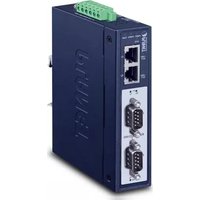
IMG-2200T - Industrial gangway Planet - Free user manual and instructions
Find the device manual for free IMG-2200T Planet in PDF.


| Product Type | Industrial Modbus Gateway |
| Model | IMG-2200T |
| Brand | Planet |
| Serial Ports | 2 x DB9 (RS232/422/485) |
| Ethernet Ports | 2 x RJ-45 10/100TX |
| Power Input | DC 12~48V |
| Power Consumption | Not specified (typical industrial gateway ~5W) |
| Mounting | DIN-rail and Wall-mountable |
| Dimensions | Approximately 100 x 75 x 30 mm (estimated) |
| Weight | Approximately 200 g (estimated) |
| Default IP Address | 192.168.0.100 |
| Default Admin Username | admin |
| Default Admin Password | admin |
| Management Interfaces | Web (IE 8+), Telnet, MB VCOM Utility |
| Supported Protocols | RS232, RS422, RS485 (2-wire and 4-wire) |
| Reset Button | Hardware-based reset to factory defaults (5 seconds) |
| Operating Temperature | -10 to 60°C (typical industrial, not explicitly stated) |
| Compatibility | Windows XP/7/8/10, Mac OS X, Linux, UNIX |
| Warranty | Refer to Planet support |
Frequently Asked Questions - IMG-2200T Planet
User questions about IMG-2200T Planet
0 question about this device. Answer the ones you know or ask your own.
Ask a new question about this device
Download the instructions for your Industrial gangway in PDF format for free! Find your manual IMG-2200T - Planet and take your electronic device back in hand. On this page are published all the documents necessary for the use of your device. IMG-2200T by Planet.
USER MANUAL IMG-2200T Planet
Thank you for purchasing PLANET Industrial RS232/422/485 Modbus Gateways. The table below shows the models with the number of serial ports:
| Model Name | Serial Port Ethernet Port Power Input DI/DO | |||
| IMG-2100T | 1 x 10/100TX RJ45 | DC 9~48V or AC 24V | - | |
| IMG-2105AT | 11 x 100FX x 5FP - | |||
| IMG-2102T | 1 x 4-pin terminal block | 1 x 100FX SC, MM/2km | - | |
| IMG-2102TS | 1100FX SC, SM/30km | - | ||
| IMG-2200T 2 x DB9 | 2 x 10/100TX RJ45 | DC 12~48V | - | |
| IMG-2400T 4 x DB9 | ■ | |||
"Industrial Modbus Gateway" is used as an alternative name in this Quick Installation Guide.
Open the box of the Industrial Modbus Gateway and carefully unpack it. The box should contain the following items:
The Industrial Modbus Gateway x 1
Quick Installation Guide x 1 Wall Mounting Kit x 1
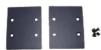
DIN-rail Bracket w/Screws x 1 Dust Cap (RJ45/SFP)


If any item is found missing or damaged, please contact your local reseller for replacement.
2. Requirements
The Industrial Modbus Gateway provides remote login interface for management purposes. The following equipment is necessary for further management:
■ Workstations running Windows XP/2003/Vista/7/8/2008/10, MAC OS X or later, Linux, UNIX, or other platforms are compatible with TCP/IP Protocols.
■ Ethernet Port Connection
➢ Workstations are installed with Ethernet NIC (Network Interface Card)
Network cables
◆ Use standard network (UTP) cables with RJ45
◆ Use multi-mode or single-mode fiber patch cord with SC connector (IMG-2102T/IMG-2102TS only)
Use Multi-mode or Single-mode fiber patch cord with LC connector and 100BASE-FX SFP transceiver (IMG-2105AT only).
The above PC is installed with Web browser
-1--2--3--4-

It is recommended to use Internet Explorer 8.0 or above to access the Industrial Modbus Gateway.

If the Web interface of the Industrial Modbus Gateway is not accessible, please turn off the anti-virus software or firewall and then try it again.
3. Hardware Introduction
3.1 Front Panels
IMG-2100T IMG-2105AT IMG-2102T IMG-2102TS IMG-2200T IMG-2400T

3.2 Wiring the Power Inputs
The upper panel of the Industrial Modbus Gateway indicates a DC inlet power socket and consists of one terminal block connector within 6 contacts. Please follow the steps below to insert the power wire.
- Insert positive/negative DC power wires into Contacts 1 and 2 for Power 1, or Contacts 5 and 6 for Power 2. Figures 3-1 to 3-3 show PWR1 and PWR2 of the Industrial Modbus Gateway.
IMG-2100T/2105AT/2102T/2102TS: 9\~48V DC/24V AC
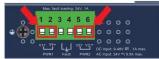
Figure 3-1: IMG-2100T/2105AT/2102T/2102TS Upper Panel
IMG-2200T: 12\~48V DC

Figure 3-2: IMG-2200T Upper Panel
IMG-2400T: 12\~48V DC
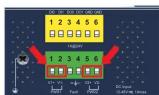
Figure 3-3: IMG-2400T Upper Panel
- Tighten the wire-clamp screws for preventing the wires from loosening.

Figure 3-4: PWR1 & PWR2 pins of terminal block

The wire gauge for the terminal block should be in the range from 12 to 24 AWG.

Don't pull out the plug while in operation.
3.3 Serial Port PIN Assignment
| Male DB9 | Pin RS232 | RS422RS485-4W | RS485-2W | ||
| 1 | DCD | TxD+ | -- | ||
| 2 | RxD | TxD- | -- | ||
| 3 | TxD | RxD- | Data+ | ||
| 4 | DTR | RxD+ | Data+ | ||
| 5 | GND | GND | GND | ||
| 6 | DSR -- | -- | |||
| 7 | RTS | -- | -- | ||
| 8 | CTS | -- | -- | ||
| 9 | -- | -- | -- | ||
3.4 4-pin Terminal Block PIN Assignment
| Terminal Block | Pin | RS422/RS485-4W | RS485-2W |
| 1 TxD+ (A) | -- | ||
| 2 TxD- (B) | -- | ||
| 3 RxD- (B) | Data- (B) | ||
| 4 RxD+ (A) | Data+ (A) | ||
4. Web Login
4.1 Starting Web Management
The following shows how to start up the Web Management of the Industrial Modbus Gateway. Note the Industrial Modbus Gateway is configured through an Ethernet connection. Please make sure the manager PC must be set to the same IP subnet address.
For example, the default IP address of the Industrial Modbus Gateway is 192.168.0.100, then the manager PC should be set to 192.168.0.x (where x is a number between 1 and 254, except 100), and the default subnet mask is 255.255.255.0.
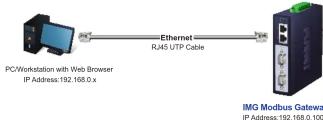
Figure 4-1: IP Management Diagram
4.2 Logging in to the Industrial Modbus Gateway
-
Use Internet Explorer 8.0 or above for Web browser and enter IP address http://192.168.0.100 (the factory-default IP address) to access the Web interface.
-
When the following dialog box appears, please enter the default user name "admin" and password "admin" (or the password you have changed before) as shown in Figure 4-2.
Default IP Address: 192.168.0.100
Default User Name: admin
Default Password: admin

Figure 4-2: Login Screen
- After entering the password, the main screen appears as shown in Figure 4-3.
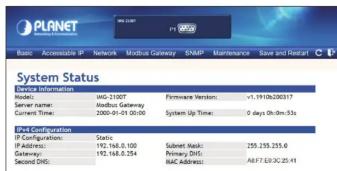
Figure 4-3: Web Main Screen of Industrial Modbus Gateway
- The Server Menu on the middle of the Web page lets you access all the functions and statuses the Industrial Modbus Gateway provides.
Basic Accessible IP Network Modbus Gateway SNMP Maintenance Save and Restart
Now, you can use the Web management interface to continue the Modbus Gateway management. Please refer to the user manual for more.

-
For security reason, please change and memorize the new password after this first setup.
-
Only accept command in lowercase letter under web interface.
5. Remote Telnet Login
5.1 Logging in to the Remote Command Line Interface
The Industrial Modbus Gateway also supports Telnet for remote management. You can use Telnet to open a terminal session over one of the Ethernet ports. The Modbus Gateway asks for user name and password for remote login when using Telnet; please use the following default IP address, username and password for the first-time login.
Default IP Address: 192.168.0.100
Default Username: admin
Default Password: admin
You will be presented with a text menu displaying the Industrial Modbus Gateway's general settings, which you will be able to view and modify. Please refer to User Manual for a description of the available settings
![UserName: admin Password: ****** * Corporation : PLANET * Model : MT-2100T * RIC Address : AXF7352C254J * Firmware Version : vj_1910B200317 * Ethernet IP Address : 192.168.0.100 Main Menu [1] Basic [2] Accessible IP [3] Network [4] SNMP [5] Chainic password [6] Load factory default [7] Save and Rest…](/content/2026/05/1052065/images/a0f136e4302a8f9a1acc03817dee0fb3667f6219ea220c84dd3917e14a03867b.jpg)
6. Getting Started with MB VCOM Utility
With MB VCOM Utility, you can easily search one or multiple IMG device servers over the network from a remote location.
![graph LR A["PC"] -->|Ethernet| B["COM1 (Pv01)"] A -->|Ethernet| C["COM2 (Pv02)"] B --> D["Serial Bus 1"] B --> E["Serial Bus 2"]](/content/2026/05/1052065/images/71ce2014f335db03696a1b09475d7f7b669b0e17e89e5b7b2efce65dbe95d684.jpg)
6.1 Installation of MB VCOM Utility
The MB VCOM Utility can be downloaded from PLANET Web site. Please locate and run the setup program "mbgsetup.exe" and follow the on-screen instructions.

Download link:
https://www.planet.com.tw/en/support/downloads?&method=keyword&keyword=IMG&view=6#list
After installing, rebooting your workstation/PC is required.

If you have difficulty in downloading or executing MB VCOM Utility, turn off the firewall and anti-virus software first.
-5--6--7--8-
6.2 Searching Modbus Gateway
First click "Add Device" and then click "Search" if Modbus Gateway has access to network, as shown below.

Then waiting for searching the Modbus device, the result will as shown below.

At last, select the Modbus devices then click "OK" to add the device, as shown below.

7. Recovering Back to Default Configuration
■ IP Address has been changed or admin password has been forgotten -
To reset the IP address to the default IP address "192.168.0.100" or reset the login username and password to default value, press the hardware-based reset button on the bottom panel for about 5 seconds. After the device is rebooted, you can log in the management Web interface within the same subnet of 192.168.0.xx and default password. Be noted that all the previous setups will be disappeared after the factory default reset is made.

Figure 7-1: IMG-2100T/IMG-2105AT Hardware-based Reset Button

PLANET Networking & Communication

PLANET Networking & Communication
Quick Installation Guide
www.PLANET.com.tw
Industrial RS232/RS422/RS485 Modbus Gateway
IMG-2x00T Series

PLANET Technology Corp.
10F., No. 96, Minquan Rd., Xindian Dist., New Taipei City 231, Taiwan
Warning: This device is compliant with Class A of CISPR 32.
Is a residential environment this device may cause radio interference.
2010-AI0050-003
UK CA CE EAC


Figure 7-2: IMG-2102T/IMG-2102TS Hardware-based Reset Button


Figure 7-3: IMG-2200T/IMG-2400T Hardware-based Reset Button
8. Customer Support
Thank you for purchasing PLANET products. You can browse our online FAQ resource on PLANET web site first to check if it could solve your issue. If you need more support information, please contact PLANET switch support team.
PLANET online FAQs:
http://www.planet.com.tw/en/support/faq
Switch support team mail address:
IMG-210x_220x series User's Manual:
https://www.planet.com.tw/en/support/download.
php?&method=keyword&keyword=IMG&view=3#list
(Please select your Industrial Modbus Gateway model from the Product Model drop-down menu)

MB VCOM Utility:
https://www.planet.com.tw/en/support/downloads?&method=keyword&keyword=MG&view=6#list
Copyright © PLANET Technology Corp. 2022.
Contents are subject to revision without prior notice.
PLANET is a registered trademark of PLANET Technology Corp. All other trademarks belong to their respective owners.

- REQUIREMENTS
- HARDWARE INTRODUCTION
- 3.1 FRONT PANELS
- 3.2 WIRING THE POWER INPUTS
- 3.3 SERIAL PORT PIN ASSIGNMENT
- 3.4 4-PIN TERMINAL BLOCK PIN ASSIGNMENT
- WEB LOGIN
- 4.1 STARTING WEB MANAGEMENT
- 4.2 LOGGING IN TO THE INDUSTRIAL MODBUS GATEWAY
- REMOTE TELNET LOGIN
- 5.1 LOGGING IN TO THE REMOTE COMMAND LINE INTERFACE
- GETTING STARTED WITH MB VCOM UTILITY
- 6.1 INSTALLATION OF MB VCOM UTILITY
- 6.2 SEARCHING MODBUS GATEWAY
- RECOVERING BACK TO DEFAULT CONFIGURATION
- IP ADDRESS HAS BEEN CHANGED OR ADMIN PASSWORD HAS BEEN FORGOTTEN
- CUSTOMER SUPPORT
Brand : Planet
Model : IMG-2200T
Category : Industrial gangway