
GS160 - Smartphone GIGASET - Free user manual and instructions
Find the device manual for free GS160 GIGASET in PDF.


| Product Type | Smartphone |
| Brand | Gigaset |
| Model | GS160 |
| Dimensions | 143.5 x 70.8 x 9.9 mm |
| Weight | 150 g |
| Display | 5.0 inch, 480 x 854 pixels, TFT |
| Operating System | Android 8.1 Oreo (Go edition) |
| Processor | Quad-core 1.3 GHz |
| RAM | 1 GB |
| Internal Storage | 8 GB (expandable via microSD up to 32 GB) |
| Rear Camera | 5 MP with flash |
| Front Camera | 2 MP |
| Battery | 2000 mAh, removable, Li-Ion |
| Connectivity | 4G LTE, Wi-Fi 802.11 b/g/n, Bluetooth 4.2, GPS, microUSB 2.0 |
| SIM | Dual SIM (Micro-SIM, dual stand-by) |
| Maintenance | Clean with a soft, dry cloth; do not use harsh chemicals. |
| Safety | Do not expose to extreme temperatures or moisture; use only approved chargers. |
| Spare Parts | Battery, screen assembly, charging port, and back cover available through service centers. |
| Repairability | User-replaceable battery; other parts require professional service. |
Frequently Asked Questions - GS160 GIGASET
User questions about GS160 GIGASET
0 question about this device. Answer the ones you know or ask your own.
Ask a new question about this device
Download the instructions for your Smartphone in PDF format for free! Find your manual GS160 - GIGASET and take your electronic device back in hand. On this page are published all the documents necessary for the use of your device. GS160 by GIGASET.
USER MANUAL GS160 GIGASET
You can also find the user guide online on your smartphone

natural_image
Orange background with two white speech bubbles containing exclamation marks (no text or symbols)Contents
Overview ....3
Gigaset GS160 3
Start screen 4
Illustration in the user guide 5
Safety precautions ....6
Getting started 10
Using the device 14
Getting to know your device 14
Configuring the start screens 20
Notifications 22
Apps 24
Downloads 28
Fingerprint sensor 29
"Do not disturb" 31
Additional functions 32
Communication 35
Making calls 35
Contacts 40
Messages (SMS/MMS) 43
Settings 49
Device 49
Security 57
Accounts and location detection 63
Apps 67
Network connections 69
System 79
Appendix 82
Customer service 82
Manufacturer's advice 82
Icons 84
Index 86

Not all functions described in the user guide are available in all countries or from all network providers.
Overview
Gigaset GS160
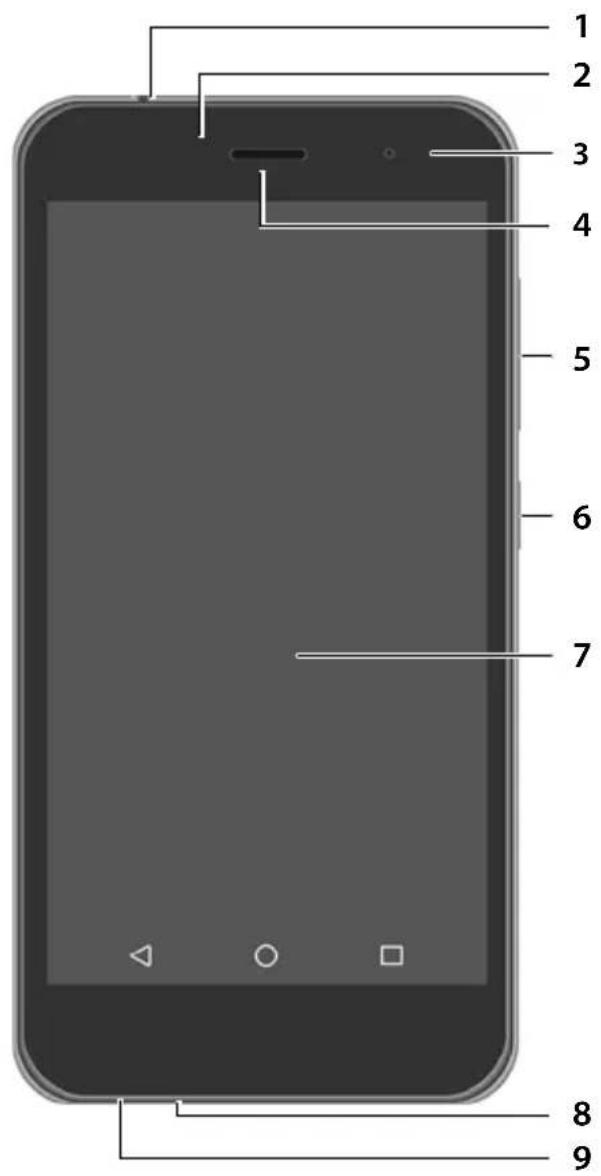
1 Headset connector (3.5 mm jack)
2 Light / proximity sensor
3 Front camer a
4 Receiver
5 Volume button (top: + , bottom: -)
6 On/Off button
7 Touchscreen
8 Micro-USB socket
9 Microphone
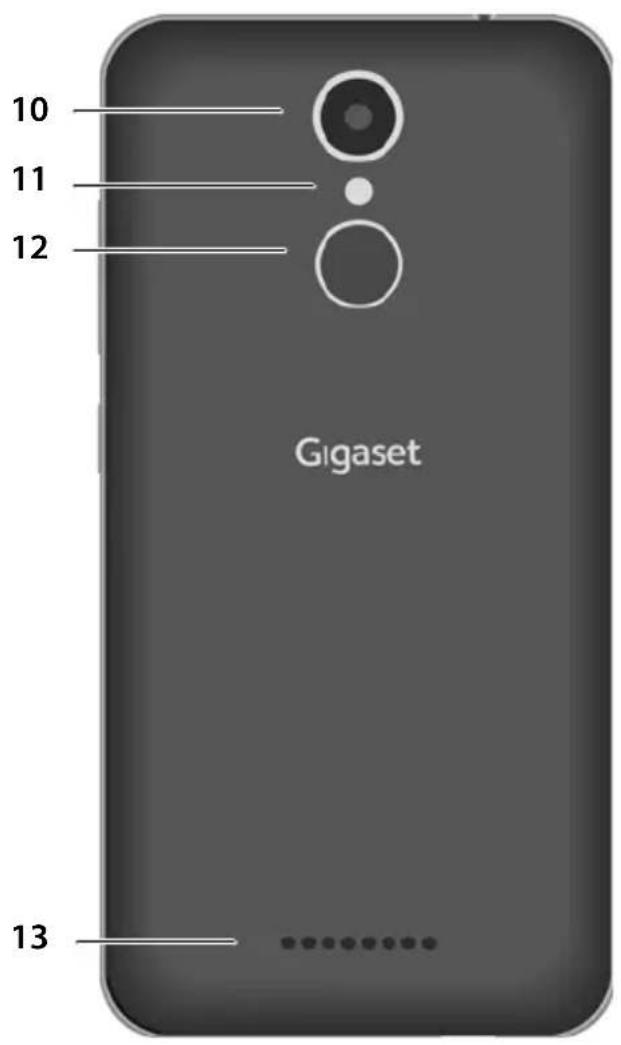
10 Rear camera
11 Flash / torch
12 Fingerprint sensor
13 Speaker
Start screen
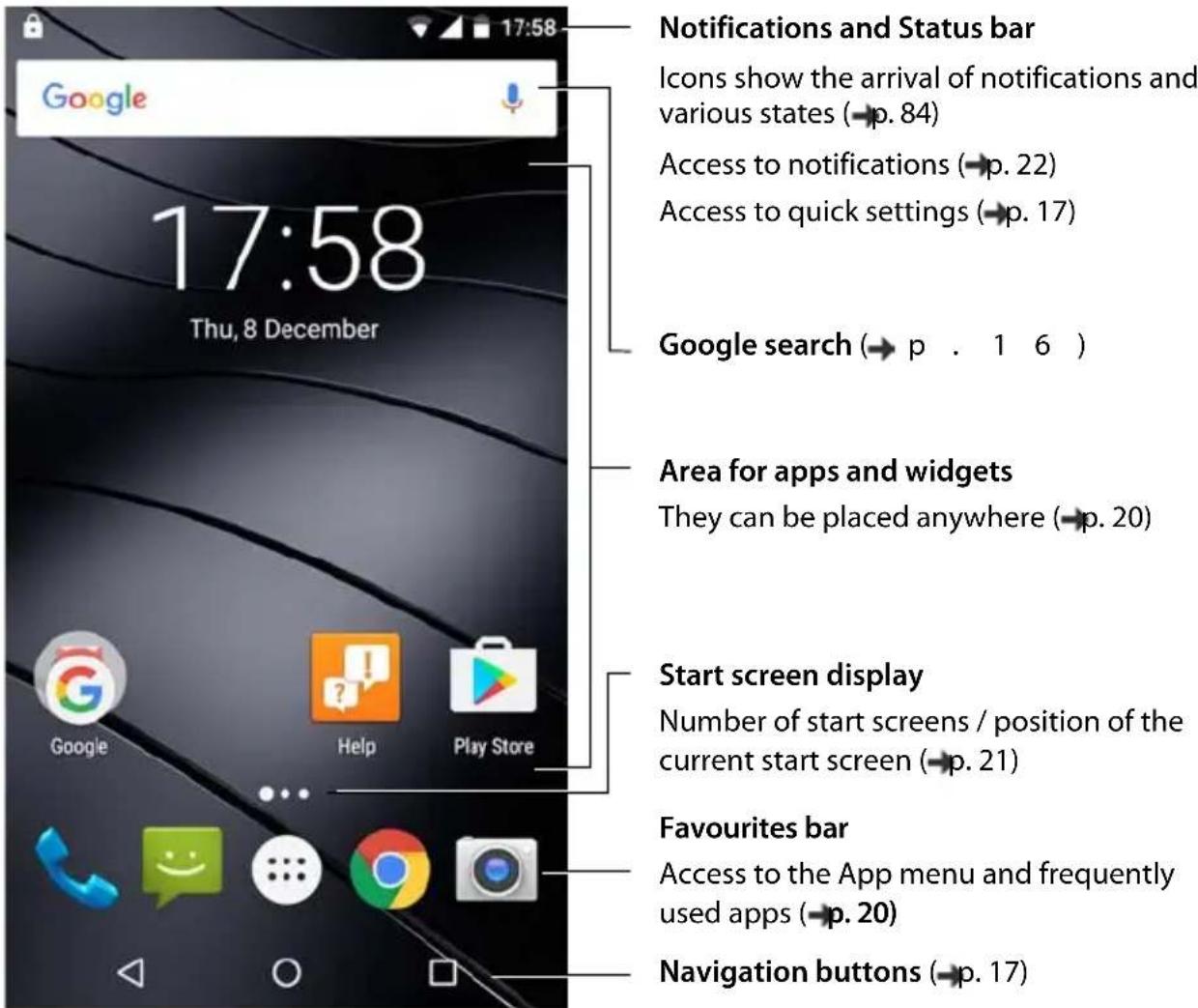
Illustration in the user guide
Icons
 | Warnings, the non-adherence to which can result in damage to devices or personal injury. |
 | Important information regarding function and appropriate handling or functions that could generate costs. |
 | Prerequisite for carrying out the following action. |
 | Additional helpful information. |
Procedures
Example: Change the time for transitioning to the idle status
▶ Settings ▶ Device – Display ▶ Sleep ▶ Select time
| Step Follow this procedure | |
▶T  the icon in the middle of the Favourites bar. The App menu opens. Note: You can skip this step if the app you want to open is on a start screen. the icon in the middle of the Favourites bar. The App menu opens. Note: You can skip this step if the app you want to open is on a start screen. | |
| ▶[WB7K] Settings Tap the Settings app. The Settings menu opens. | |
| ▶Device – Display In the Device area, tap Display. | |
| ▶Sleep Tap Sleep. | |
| ▶Select time Tap the required time = Selected, =Not selected |
Safety precautions

Please read these instructions carefully. Failure to comply presents a risk of injury and damage to a device, as well as breaches of applicable laws.
Please explain to your children the contents of this document as well as the potential risks associated with using this device.

Only use chargers approved and certified by Gigaset.
Using incompatible chargers can damage the mobile phone and entail hazardous situations.

This product is fitted with batteries and must not be disposed of in normal household waste at the end of its life.
The symbol with the crossed-out waste bin indicates that the product must be disposed of at a suitable collection point for recycled electric and electronic devices.

The function of medical equipment near your product can be impaired. Bear in mind the technical conditions of the environment in question (such as in doctors' surgery).
If you use a medical device such as a pacemaker, please consult the manufacturer of the product before using the product. You will be provided information on the sensitivity of the device to external, high-frequency energy sources.

This device is not waterproof. Do not keep the device or its accessories in moist environments (in bathrooms and shower rooms for example).
Rain, moisture, liquids and water potentially contain minerals which can cause the electrical circuitry to corrode.

Switch off your mobile phone when in potentially explosive areas and observe all warning signs. Potentially explosive areas also include places where switching off vehicle engines is normally recommended. It is at these kinds of places that flying sparks can be the cause of explosions or fires with resulting injuries, and there may be a risk to life. This pertains to petrol stations and chemical factories for example.
These areas include spaces under ship decks, transportation and storage systems for hazardous chemicals, areas in which the air contains chemical substances or fine particles (such as dust or metal powder particles).

Dispose of faulty devices or have them repaired by our Customer service team. These devices could interfere with other wireless services.

Do not use the device if the display is cracked or shattered. Fragments of glass and plastic can injure hands and face.
Send the device in to Customer service for repair.

High volumes can impair hearing.
Listening to music or conversation with headphones set to a loud volume can be unpleasant and permanently impair hearing.
To prevent loss of hearing, do not have the volume turned up too high for long periods. If you wear headphones whilst out walking or jogging, please ensure that the cord does not wrap itself around your body or objects on your person.
Only wear headphones in dry environments. The static electricity which builds up on the headphones can discharge via your ears as an electric shock. The static electricity can discharge if you touch the headphones with your hand or touch bare metal before connecting with the mobile phone.
Emergency calls
Make sure the mobile phone is switched on and connected to the GSM network. Enter the emergency number as required and speak.
Tell the person at the emergency call centre your location.
Do not end the conversation until the person at the emergency call centre asks you to.
Children and pets
Keep the mobile phone, batteries, chargers and accessories out of the reach of children and pets. Children and/or pets can swallow the small parts, posing a risk of suffocation and other hazards. A child may only use the mobile phone under the supervision of an adult.
Hospitals and medical equipment
• Heart pacemakers, implantable cardioverter defibrillators:
When you switch on your mobile phone, ensure that the distance between the phone and an implant is at least 152 mm. To reduce potential interference, use the mobile phone on the opposite side to the implant. Please switch the mobile phone off immediately if interference occurs.
Do not keep the mobile phone in a shirt pocket.
• Hearing aids, cochlear implants:
Some digital wireless devices can interfere with hearing aids and cochlear implants. Please consult the manufacturers of these products if interference occurs.
• Other medical devices:
If you and the people around you use other medical devices, please contact the relevant manufacturer for information on whether such devices are protected from radio frequency signals in the environment. You can also consult your doctor about this.
Switch off your mobile phone in aeroplanes
Please observe applicable restrictions and regulations.
Wireless devices can interfere with the function of aeronautical equipment. Follow the instructions issued by flight personnel when using your mobile phone.
Vehicles and road safety
The absolute priority for every vehicle driver and everyone in a vehicle is safety on the roads and for road users. Using a mobile phone whilst driving can be distracting and therefore lead to dangerous situations. You can also be violating applicable laws.
Use a qualified maintenance service
The installation and repair of products are the sole preserves of qualified maintenance personnel.
Battery

Not replacing the battery properly can cause a risk of explosion.
Dispose of used batteries in line with the instructions.
- Never burn or heat batteries, and do not dispose of them in environments which are at risk of heat or fire to prevent battery fluid escaping, overheating, explosion and fire. Do not disassemble, weld and/or modify the battery. Do not keep the battery where it is exposed to strong mechanical effects.
- Do not pierce the battery with sharp objects – the battery fluid can escape and the battery can overheat, explode or catch fire. Crushing, heating and burning batteries are strictly prohibited.
- Do not use any sharp objects (such as screwdrivers) to touch and pierce the battery. All of the actions mentioned present a risk of the battery catching fire and burning.
- The battery electrolyte coming into contact with eyes can cause a loss of eyesight. If electrolyte does enter an eye, please do not rub the eye with a hand. Immediately wash the affected eye thoroughly with clear water and consult a doctor.
The electrolyte coming into contact with skin (or clothing) presents a risk of skin burns. Immediately wash the skin or clothing thoroughly with soap and clear water, and consult a doctor if required. - Never use batteries for purposes other than those specified. Never use a damaged battery. If the battery becomes hot, discolours, deforms or becomes leaky whilst being used, charged or kept in a safe place, it must be replaced immediately by a new battery for safety reasons.
- The battery is not waterproof. Never use or charge the battery in a kitchen, bathroom or places with high temperatures or high humidity levels.
- The battery temperature rises during the charging process. Do not keep the battery together with ignitable products in the same drawer as this poses a risk of fire.
- The USB connection must be established with USB version 2.0 or higher.
- Caution: Dispose of used batteries in line with the instructions (Section Waste and environmental protection → p. 83).
Charger
- Only use the charger indoors.
- The socket must be easily accessible during the charging process.
- Whilst the phone is charging, do not use the phone for calls or dial any numbers.
• Electrical storms pose a risk of electric shocks.
- Short-circuiting, disassembling and modifying the mobile phone are not permitted because they present a risk of injury, electric shock, fire or damage to the charger.
- The charger is not waterproof. Never use the charger in a kitchen, bathroom or places with high temperatures or high humidity levels as this poses a risk of electric shock, fire and damage to the charger.
- Never charge a mobile phone without the battery inserted.
- Do not use the charger when the power cable is damaged or no battery is inserted in the mobile phone because this poses a risk of electric shock and fire.
- Only charge the device when the ambient temperature is between 0^ and 40^ .
SIM card, memory card and data connector cable
- Use the right slot/interface when inserting and removing the SIM card, memory card and data connector cable.
- Do not remove the card from the mobile phone whilst data is being sent or received as this presents a risk of data loss and damage to the mobile phone or memory card.
- Do not exert any force when inserting the SIM or memory card and when connecting the data cable - because doing so might damage the phone and other parts.
- Charges might apply when establishing Internet connections via the SIM card.
Playing games
Playing games on the mobile phone for long periods may mean assuming an unhealthy body posture. Take a 15 minute break every hour. Stop immediately if you feel unwell during game play.
Consult a doctor straight away if your condition persists.
More important information on safety
- For your own safety, only use original, approved accessories from Gigaset for your mobile phone. Original accessories can be purchased from Gigaset Customer service (see Customer service → p. 82).
- Do not charge the battery for longer than 12 hours.
- In the event of malfunction of your mobile phone, battery or accessories, please contact a Gigaset Service Centre for an inspection.
- Never point the flash light directly at the eyes of people or animals. Pointing a flash light too near to human eyes poses a risk of temporary loss of eyesight or impairment of vision.
- The device can heat up when running power-intensive apps or programs for longer periods. This is normal and has no bearing on the performance of the device.
- When the device warms up, please put it aside for a while and stop the program you were running. Coming into contact with a hot device can cause minor skin irritations such as redness.
Important information on using and safekeeping
- The mobile phone must not be used or kept in dusty or dirty places. Dust can be a reason for the mobile phone to malfunction.
- The mobile phone must not be used or kept in excessively hot places. High temperatures can shorten the life of electronic devices and damage the battery, and some plastic parts can deform or melt.
- The mobile phone must not be used or kept in refrigerated areas. Because the mobile phone stabilises to the ambient temperature, condensation can form inside the phone, damaging beyond repair the electronic circuitry. Mobile charging temperature: 0-40°C, mobile use (discharge) temperature: 0-40°C.
- Ensure your mobile phone is not dropped or shaken, or exposed to any impact. Treating the mobile phone without due care can shatter the display and damage the electronic circuitry and sensitive parts inside.
- Do not apply lacquer to the mobile phone. Lacquer and paint can damage the parts of the mobile phone and may cause malfunction.
Getting started
Contents of the package
• A Gigaset GS160 smartphone
- A battery
• A charger cable with power adapter
Getting started
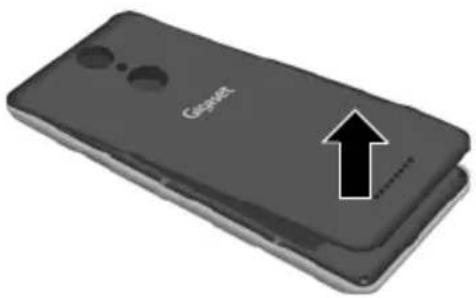
Opening the device
▶ Place your fingernail into the notch in the bottom left of the cover and pull the cover up.
natural_image
Close-up of a smartphone with a 'CaspX' logo and an upward arrow indicator (no text or symbols on the device itself)Inserting SIM and SD cards
▶ Insert a Micro-SIM card into the SIM card slot and push it backwards.
The Gigaset GS160 is a dual SIM smartphone: ▶ Insert a second SIM card into the card slot as required.
Inserting an SD card (optional)
To store personal data, photos, videos and music, you can insert a MicroSD card into the smartphone.
Insert a MicroSD card into the SD slot 3 and push it backwards.
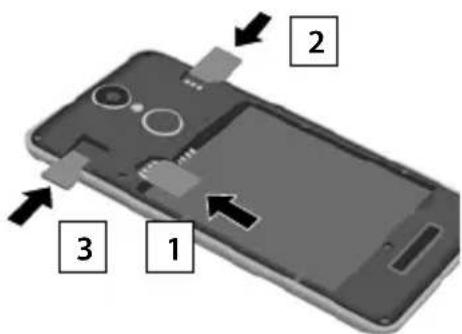

The device detects SD cards with a storage capacity of 32 GB. Higher capacity cards (to 128 GB) can be used if formatted on the GS160 (not from a PC).
Inserting the battery
▶ Insert the battery into the device with the connector contacts facing forwards ▶ Insert the battery downwards into the battery compartment.
Removing the battery:
To change the battery, place your fingernail into the recess on the right of the battery compartment and pull the battery up.
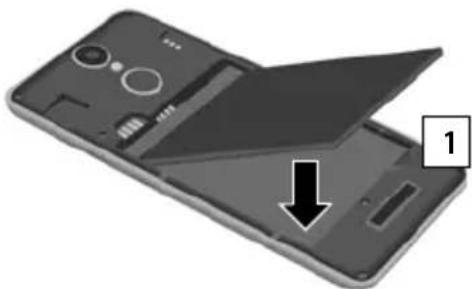
natural_image
Close-up of a smartphone showing the open lid and internal components, with a black arrow indicating the fold (no text or symbols present)Closing the cover
▶ Align the cover with the side tabs on the slots on the inside of the casing.
▶ Press the cover until it clicks into place.
Charging the battery
▶ Plug the Micro-USB connector of the charger cable provided into the Micro-USB socket of the smartphone
Connect the USB socket of the charger cable to a computer's USB port.
or
▶ Connect the power adapter to the USB connector of the charger cable and connect it to the power source.
The device is charged once the charge icon in the Status bar is filled completely.
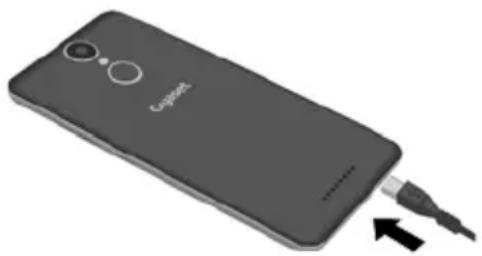
natural_image
3D rendering of a smartphone with a USB cable inserted, showing the brand logo and ports (no text or symbols on the device itself)
So your phone does not discharge during set-up, keeping it connected to the power is recommended until set-up is complete.
Switching on the device
▶ Keep the On/Off button pressed until the device vibrates.
When you are requested to unlock the SIM card,
▶ use the keypad to enter the PIN of the SIM card √
When switching on the device for the first time, a wizard starts which guides you through the initial configuration.
Wizard for configuring the device
When you switch on your phone for the first time, you are automatically guided through the most important configuration steps.
< Back: Check and change as required settings already configured.
Next > Apply the setting on the screen and jump to the next screen.
Skip Configure the setting later.
Selecting the language
The set language is displayed.
▶ Select another language as required ▶ tap

Inserting SIM cards
This screen is only shown when no SIM card is inserted:
▶ Insert card now ( p. 10)
Insert SIM card later: ▶ Sk ip
Establishing a WLAN connection
Wireless networks (WLANs) in range are displayed.
Tap the required WLAN ▶ Enter the WLAN password ▶ Connect ... A connection to the selected WLAN is established
Setting up a Google account
If you have another device on which emails, contacts, calendar entries and other information is managed, you can transfer this information.

The other device has NFC (Near Field Communication).
Transferring the account settings from another device
▶ Select Copy Google accounts, apps and data from another device ▶ Next ▶ ... Run the steps as described
or
▶ Select No, thanks ▶ Next
Logging in to the existing Google account
▶ Enter the email address and password of your Google account.
or
Creating a new account
Enter the email address and password for a new Google account.
Entering a name
You can enter a name to personalise apps.
Enter First name and as required Surname using the keypad Next
Setting up email
Gmail is set up once you log in to your Google account.
This is where you can set up email addresses for other mail accounts. The mails are also displayed in the Gmail app.
▶ Select provider ▶ Enter access details ▶ Next
If you do not want to set up any more email accounts: ▶ Not now
Setting up protection for the phone
Protect your smartphone from unauthorised use.
Fingerprint
▶ Add fingerprint ▶ Next ▶ ... A wizard opens to guide you through the necessary steps. Additional information → p. 29
or
PIN, pattern or password
- Configure PIN, pattern or password ▶ Next ▶ Select Pattern | PIN | Password ▶ Next ▶ Specify whether the selected protection applies also for starting the device - Enter pattern, PIN or password ▶ Next ▶ Repeat ▶ Confirm
Settings for notifications
▶ Select how notifications are displayed when the phone is locked ▶ Next
Using Google services
Various services are displayed.
▶ Use the switch to enable/disable the service you want to use ▶ Next

Performing this step also means you accept the conditions of use and data protection declaration of Google.
Settings for the start screen
The start screen is displayed. You can specify various settings for the start screen.
▶ Touch and hold the wallpaper on the start screen
Changing the wallpaper:
▶ Wallpaper ... Images saved on the device are displayed ▶ Select the wallpaper ▶ Tap Choose wallpaper from
Making widgets available on the start screen:
- Widgets ... The available widgets are displayed ▶ Touch and hold the required widget ... The start screen is displayed ▶ Position the widget and release it at the required position
Your smartphone is now ready to use.
Using the device
Getting to know your device
Switching the device on and off
Switching on
▶ Press and hold the On/Off button ▶ Unlock the display if required (if a display lock is set up to protect against unauthorised starting) ... The device is started
On/Off button → p. 3
Display lock: → p. 57
Unlocking the SIM card
Enter the PIN for the SIM card OK
Removing notifications (if available)
Clear notification: ▶ Swipe to the left or right Deal with notification later: ▶ Swipe upwards to the Notifications bar
Notifications → p. 22
When a display lock is set up to protect against unauthorised use
▶ Unlock the display ... The start screen is displayed
Display lock: -p. 57
Switching off
▶ Press and hold the On/Off button ▶ Tap ⏻ Power off ▶ OK

You can also switch the smartphone to Aeroplane mode. This only disables the wireless functions, the other device functions remain available.
Switching on and off at certain times
Automatically switch the smartphone on and off at certain times.
▶ Settings ▶ System – Scheduled power on & off ▶ Enable/disable the functions with the switches ▶ Tap the time currently set for switching on and off ...
Set the time at which you want to switch the device on or off:
Select the days on which the schedule is to apply:
▶ Repeat ▶ Select the days ▶ OK
Save the setting: ▶ Done

Before you can use the device after automatic switch-on, you must unlock the SIM card and the display.
Switching the device to and ending idle mode
Switching the device to idle mode
▶ Briefly press the On/Off button

If the device is not used for a defined time, it automatically switches to idle mode.
Setting the period of inactivity for transitioning to idle mode
▶ Settings ▶ Device – Display ▶ Sleep ▶ Select period
Ending idle mode
▶ Briefly press the On/Off button ▶ Remove any notifications as required ▶ Unlock the display

Some apps can be accessed directly from idle mode with a fingerprint ( p. 30) or code ( p. 24).
Using the touchscreen
Movements and gestures for using the touchscreen:
Tapping
▶ Briefly touch the screen with your finger
Examples:
Start an app, and select function or setting: ▶ tap the element
Enter text: ▶ Tap a text field ... A keypad is shown
Touching and holding
▶ Keep your finger on an element until it responds.
Dragging and releasing
▶ Touch and hold the element ▶ Move your finger across the screen to the place required ▶ Release the element
Example: Moving apps on the start screen
Swiping or dragging
▶ Move your finger quickly across the screen without stopping
Example: Switching between the start screens
Double tapping
▶ Tap the screen twice quickly in succession.
Example: Zooming. Only possible for special screens (such as websites or maps).
Zoom in: ▶ Tap twice quickly in succession
Zoom back out: ▶ Tap twice again
Getting to know your device
Spreading apart / pinching together your fingers
▶ Place two or more fingers on the screen at the same time
Zoom in:
▶ Spread your fingers apart
Zoom out:
▶ Pinch your fingers together
Example: Scaling screen content. Only possible for special screens (such as Google Maps and Chrome).
Start screen
A start screen is displayed when you switch on or unlock the device, and no app is open.
Elements on the start screen → p. 4
You can create several start screens and configure them as you wish - to be able to quickly access favourite apps and content (→p. 20).
Returning to the start screen from any user situation
Tap the Navigation button Ⓞ ... The start screen which was open last time is displayed
Switching between start screens
▶ Swipe left or right to the required start screen.
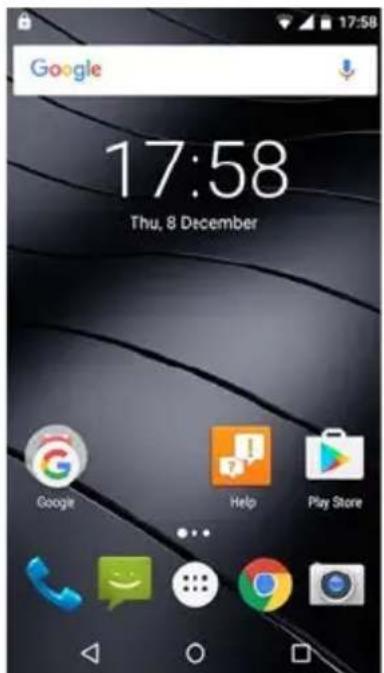
Browse smartphone and Internet
At the top of every start screen is Google search, enabling you to search on your smartphone and browse the Internet.

Entering a search term
▶ Tap the Search bar ▶ Enter a search term using the keypad ▶
Search using voice entry
▶ Tap the Microphone icon 🔊 ▶ Speak your search term into the microphone Additional information → Google Help
Switching between start screens and apps
At the bottom of every screen are three Navigation buttons:

natural_image
Three white geometric and symbol buttons on a black background: left-pointing triangle, circle, and square (no text or labels)
Opens the screen last viewed, even if it belongs to another app. You can go back several times (only as far as the start screen).

Opens the start screen which was open last time.

Opens an overview of the apps and browser tabs used last time.
Open an app: ▶ Tap it
Close an app: ▶ Swipe the app left or right
When the Navigation buttons are not shown: ▶ Tap the bottom of the screen
Quick settings
The quick settings enable you to access frequently used settings from all user situations, such as screen lighting, WLAN, Bluetooth and similar settings.
Opening the quick settings
From the Status bar, swipe down using two fingers ... The quick settings are displayed
Icons of the quick settings → p. 84
Enabling and disabling a function
Tap the setting ... Settings are white when enabled and not shown when disabled
Changing a setting
Settings for which there are more options (e.g. WLAN or Bluetooth) have a small arrow next to the name.
▶ Tap the name under the icon ▶ Change the setting as required
Quick settings for ringtone volume
Adjust the ringtone volume to the ambient conditions or situation.
Selecting an audio profile from the quick setting screen
From the Status bar, swipe down using two fingers ... The quick settings are displayed
Tap


Volume set as in profile General ( p. 50)


Silent: Ringtone and vibration disabled

Meeting: Vibration only

Outdoors: Loudest ringtone and vibration
Setting vibration and ringtone with the On/Off button
▶ Press and hold the On/Off button

Enable ringtone Enable vibration


Disable ringtone Loudest ringtone and vibration
The currently selected setting is underlined.
▶ Tap the setting you want to enable
Writing and editing text
Use the Google keypad to write text.
Opening the keypad
▶ Tap a place where text can be entered
You can enter letters, digits and special characters.
Switching between entry of letters and digits / special characters: ▶ Tap ?123
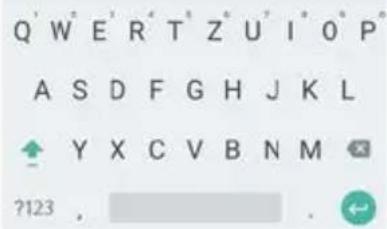
Adding text
Entering letters and symbols:
▶ Tap a key
Entering uppercase letters:
▶ Tap the shift key ()
Enabling/disabling Caps Lock:
▶ Double tap the shift key ()
Showing umlauts:
▶ Touch and hold the key
Whilst text is being entered, suggestions from the keypad dictionary are shown above the keypad.
Using a suggestion:
Tap the word ... The word is included and a space is inserted automatically
Editing text
Positioning the cursor:
▶ Tap the place in the text where you want to position the cursor
Moving the cursor:
▶ Swipe left or right on the text
Selecting text:
▶ Touch and hold a word ▶ Select more or less text with tabs on both sides
Deleting a character:
▶ Touch and hold the backspace key
Cutting and copying text:
▶ Touch and hold the text ▶ Tap Cut or Copy
Pasting text:
▶ Touch and hold the cursor ▶ Tap Paste
Changing the keypad settings
You can change various keypad settings, such as the language for the keypad assignment, the response to keypresses and the keypad design.


Settings ▶ Users – Language & input ▶ Android keyboard
Configuring the start screens
You can create several start screens and configure them as you wish - to be able to quickly access favourite apps and content.
Tailoring the Favourites bar
At the bottom of every start screen is the Favourites bar, from which you are able to quickly access the apps you use most frequently.
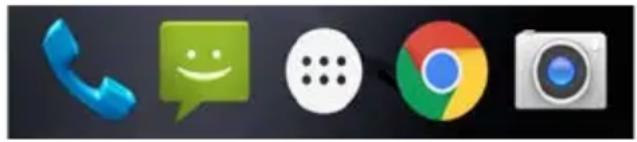
natural_image
Row of five app icons on a dark background: phone, smiley face, dot cloud, Google, and camera (no text or symbols)
Opening the menu with all the apps: ▶ Tap the 📄 in the middle
The apps in the App menu are in alphabetical order.
Scrolling through the list: ▶ Swipe up or down
Removing apps from the Favourites bar
▶ Touch and hold an app in the Favourites bar
Drag the app to the Remove button at the top of the screen and release your finger or
Drag it to somewhere else on the screen and release your finger
Adding an app
▶ Select the required app ▶ Touch and hold the app ... The start screen is shown in the background ▶ Drag the app to a free space in the Favourites bar and release your finger.
Changing the wallpaper
▶ Touch and hold the wallpaper ▶ Tap Wallpapers ▶ Select an image from the predefined backgrounds or your own photo from My photos ▶ Tap Set wallpaper

More wallpaper images can be downloaded from Google Play.
Adding an app to a start screen
▶ Open the App menu 🔊️ ▶ Look for the required app ▶ Touch and hold the app ... ▶ Drag the app to a free space in a start screen and release your finger
Adding a widget to a start screen
Widgets are components that are specifically intended to be displayed on a start screen, e.g. a clock, a calendar extract for the current day, an important entry from the contact list or a direct dial.
▶ Touch and hold a free space on a start screen ▶ Tap Widgets
▶ Touch and hold the required widget ... Images for the start screen are shown in the background ▶ Drag the widget to a free place on a start screen and release your finger
The sizes of some widgets can be changed:
▶ Touch and hold a widget ▶ Release your finger ... If the size of the widget can be changed, you see a dotted frame on the edges ▶ Change the size of the widget by dragging the dots
Once the correct size is set: ▶ Tap anywhere outside the widget
Moving apps and widgets
▶ Touch and hold an app or widget on a start screen ▶ Drag the app or widget to the required position and release your finger, or drag it to the left or right to another start screen and release your finger
Creating folders for apps
▶ Touch and hold an app on a start screen ▶ Drag the app icon over another app icon
Adding apps:
▶ Touch and hold an app ▶ Drag it to the folder
Renaming a folder:
▶ Open the folder ▶ Tap the name ... The keypad opens ▶ Delete the old name ▶ Enter the new name ▶
Removing an app or widget
▶ Touch and hold an app or widget on a start screen ▶ Drag it up to option Remove and release your finger
Adding, rearranging and removing start screens
The number of start screens set up is shown by dots above the Favourites. The bigger dot indicates the position of the current start screen.
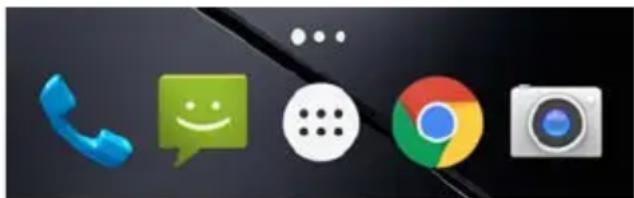
natural_image
Desktop icons including a telephone, smiley face, chat bubble, Google, and camera (no text or symbols)Adding start screens
▶ Touch and hold an app ▶ Drag the app all the way to the right until a blank start screen is shown ▶ Release your finger ... A new start screen is created and the app is placed on it
Notifications
Rearranging start screens
▶ Touch and hold a free space on a start screen . . . Images for the start screens are displayed in the background ▶ Touch and hold an image for a start screen ▶ Drag it to the left or right to the required position and release your finger
Removing a start screen
Remove all apps and widgets from a start screen (by deleting them or moving them to another start screen) ... When the last app or widget has been removed, the start screen is deleted
Notifications
Notifications inform you about various events, such as the arrival of a new voice message or email, appointments or wake-up calls.
Notifications are displayed as follows:
- In the Notifications bar: ▶ Swipe over the screen from the top down
An icon in the Notifications bar denotes which notifications are available ( p. 84). - On the lock screen: when the phone starts and when returning from idle mode
- At the top of the screen whilst you are doing something else on your phone, such as reading an email or watching a video
Changing the settings for displaying notifications: -p. 23
Dealing with notifications
Viewing and responding to notifications
Which information is displayed and which actions are possible depend on the app which triggers a notification.
Some apps allow actions to respond to a notification. You can for example reply directly to a mail, switch off a wake-up call or show on the map the meeting place for an appointment.
Displaying the app from which the notification originates:
▶ Touch and hold the notification ... The name of the app is displayed
Changing the display options of the app for notifications: → p. 23
Deleting and resetting notifications
Deleting a notification:
▶ Swipe the notification to the left or right
Deleting all notifications on the Notifications screen:
▶ Scroll down to the end of the notifications ▶ Tap
Resetting a notification on the lock screen or at the top of the screen to read it later:
▶ Swipe the notification up
Settings for notifications
Changing the default notification sound
▶ Settings ▶ Device – Sound & notification ▶ Tap 🎧 next to General ▶ Default notification sound ▶ Select a ringtone ▶ OK

- If you do not wish to be disturbed, you can mute your device. No notification sound is then played.
Use the "Do not disturb" function to mute your device → p. 31
- In some apps, sound and vibration settings for notifications can be set directly in the app from the Settings menu.
- If the volume for the ringtone is reduced down to Vibration mode ( p. 50), the device vibrates for notifications instead of playing a sound. The smartphone continues to vibrate for notifications for which Vibration mode is already selected.
Changing the settings for app notifications
Specify how and when notifications for an app are displayed.
▶ Touch and hold an app notification
Fap

or
▶ Settings ▶ Device – Sound & notification ▶ Notification ▶ App notifications . . . All apps are displayed ▶ Select an app ▶ Enable or disable the required option using the switch

Select the Treat as priority option when you also want to receive app notifications when the "Do not disturb" function is enabled ( p. 31).
Checking the settings for all apps
▶ Settings ▶ Device – Sound & notification ▶ Notification ▶ App notifications ... All apps are displayed
Filtering the display by notification settings:
▶ Tap ▼ next to All apps ▶ Tap one of the settings ... Only the apps for which this setting applies are displayed
Setting notifications on the lock screen
▶ Settings ▶ Device – Sound & notification ▶ Notification ▶ When device is locked ▶ Select the required option

If the Don't show notifications at all option is selected as the default setting for the lock screen, this setting applies for all apps.
Apps
The apps available on the device are stored in the App menu. The device is supplied with a number of default apps. Additional apps from your mobile operator are installed as soon as you insert a SIM card.
You can download and install more apps, or disable and uninstall existing apps.

You can place frequently used apps directly on a start screen ( p. 20), and the four most important apps in the Favourites bar ( p. 20).
Opening and exiting apps
Opening an app from the App menu

The start screen is open. If not: ▶ Tap

Tap ⚙… All apps are displayed (sorted alphabetically) ▶ Tap the app you want to open
Quick access to apps
If the device is in idle mode, you can open an app using the letter code.

Smart Features and the letter code for the app are enabled.
Enabling/disabling Smart Features
▶ Settings ▶ Users – Smart features ▶ Gesture functions ▶ Enable/disable Smart features with the switch
Enabling/disabling letter codes
▶ Settings ▶ Users – Smart features ▶ Gesture functions ▶ Enable/disable the switch next to the required letter code
The following letters are available as codes: c, e, w, o, m, s, z and v. Some letters are already assigned to apps. The apps assigned are within square brackets. You can change this default assignment. For codes not assigned by default, there is nothing within the brackets.
Assigning an app
Tap the entry for the required code . . . The list of available apps is displayed ▶ Select the app you want
Opening an app with the help of code
▶ With the device in idle mode, write a big letter for the app code on the display ▶ If the display is locked, unlock it ... The app opens
Switching between apps
▶ Tap □ in the Navigation bar . . . Recently used apps are displayed ▶ Tap the app you want to open
Navigation bar: → p. 17
Ending/exiting apps
Exiting an app
Tap in the Navigation bar ... The start screen is displayed. The app stays open and is included in the app overview.
Ending an app
▶ Tap □ in the Navigation bar ... The app overview is displayed ▶ Swipe an app left or right ... The app is ended
Ending all the apps: ▶ Scroll all the way up ▶ Tap
Installing/uninstalling apps
Installing new apps
Downloading apps from Google Play:
▶ Play Store ... The Google Play Store is opened ▶ Look for the app you want ▶ Open the app screen ▶ Install
Uninstalling or disabling apps
You can delete apps you no longer need from the device.
You can uninstall apps you have downloaded. They are completely removed from the device.
Apps preinstalled on the device (system apps) can be disabled but not completely removed.
Disabled apps are not show on the device.

Disabling a system app can cause problems with other apps.
▶ Settings ▶ Device – Apps ▶ Select an app you want to uninstall ▶ Uninstall / Disable
or (for apps which can be uninstalled)
▶ Touch and hold the app you want to uninstall ▶ Drag it to Uninstall and release your finger
Show system apps and processes:
▶ Settings ▶ Device – Apps ▶ Tap ◦ Show system
Preinstalled default Google apps
The smartphone makes available many of the default apps from Google, including:
| Search Browse Internet and search smartphone | |
| Chrome Browser for surfing on the Internet | |
| Gmail Receive, write and send emails | |
| Maps Look for and find out about places in al | I corners of the globe |
| YouTubePlay YouTube videos and playlists | |
| Drive Store data centrally | |
| Play Music Listen to the radio | |
| Play Movies & TV | Watch films and series |
| Hangouts | Communicate with friends with voice calls, messages and videos |
| Photos | Save and manage photos centrally |
| Play Store | Download apps |
More information on Google apps - Google Help
Protection from harmful apps
Downloading apps from sources other than Google Play
If you want to download apps from sources other than Google Play, you must permit it explicitly.

Apps from unknown sources can represent a security risk for your smartphone. A download can corrupt your smartphone, and personal details can be misused or go missing.
▶ Settings ▶ Users – Security ▶ Enable the Unknown sources switch ... You can now install apps from other sources
Enabling Verify apps
When the function is enabled, your device verifies apps when being installed, and regularly searches the device for potentially harmful apps.
▶ Settings ▶ Users – Google ▶ Security ▶ Verify apps – Enable the Scan device for security threats switch
The following actions are possible when you install an app which is not from Google Play:
- Recommendation not to install the app.
• Installation of the app is blocked when there is a threat to the security of the device. - Information on the app's identification is sent to Google, such as protocol information, URLs connected to the app, the device ID, its operating system version and the IP address.
Apps installed on the device are checked regularly. If a potential harmful app is detected, the app check can take the following actions:
- Recommend that you uninstall the app immediately.
- Remove an app which is known to be insecure.
Improving the detection of harmful apps

The Scan device for security threats function is enabled.
If the function is enabled, Google also receives anonymous information on all apps installed which are not from the Google Play Store. This helps Google to provide better protection for users against harmful apps.
▶ Settings ▶ Users – Google ▶ Security ▶ Verify apps ▶ Enable the Improve harmful app detection switch

This option might not work for all apps because developers are able to disable this function to prevent their apps being subjected to verification.
Downloads
You can download files from websites onto your device. Downloaded files are stored mainly in the Downloads app.

Content such as music, TV programs and books are generally not stored in Downloads but in the app with which the download was performed.
Working with downloaded files
Downloads
Sorting entries:
Opening a file:
Deleting a file:
Sharing a file:
▶ Tap Select sort criterion
▶ Tap the file
▶ Touch and hold the file
▶ Touch and hold the file
Tap
Tap

Enabling/disabling Turbo download
Quickly download big files. When Turbo download is enabled, data is downloaded in parallel over WLAN and the mobile data connection.

WLAN and data connection are enabled.
▶ Settings ▶ Wireless & networks – Turbo download ▶ Enable/disable the function with the switch
When Turbo download is enabled, the icon is displayed in the Notifications bar. During a transfer process, the message shows the data volume being transferred over WLAN and the mobile network.

Turbo download is automatically disabled when Roaming, Tethering or VPN is active. Additional charges might apply when downloading over mobile networks (p. 73)
Fingerprint sensor
The device has a fingerprint sensor ( p. 3). It enables for example the device to be unlocked using a fingerprint, purchases to be authorised, you to register with certain apps and opening of a contact quickly from idle mode.
Setting up the fingerprint
▶ Settings ▶ Users – Fingerprint ▶ Fingerprint Manager ... A wizard opens which guides you through the necessary steps ▶ Next
When a display lock is set up: ▶ Enter the pattern, PIN or password
If a display lock is not yet set up: ▶ Set u p screen lock (→ p. 57)

Pattern, PIN and password are alternatives to the fingerprint.
The alternative method must be used in the following cases:
- The fingerprint is not recognised after several attempts
- For editing fingerprint settings
- When it has been more than 48 hours since the alternative method was used for unlocking
Scanning a fingerprint
Place your finger onto the sensor on the back of the device. Hold the device as you will also hold it later for unlocking. ▶ Ne xt
- Keep tapping the sensor until the Fingerprint added! message is shown. Keep changing the position of your finger.
Ending the scan: ▶Done
Add more fingerprints ▶ Ad d another

You can add up to five fingerprints. They are saved as Finger 1 to Finger 5.
Note that all those who add their fingerprints are able to unlock the phone and authorise purchases with your account.
Fingerprints are stored securely and never outside the device.
Changing a fingerprint name
Assign a suitable name for the fingerprint, e.g. "Index finger left".
▶ Settings ▶ Users – Fingerprint ▶ Fingerprint Manager ▶ Use the alternative method for unlocking (pattern, PIN or password) ▶ Touch and hold the name ▶ enter the new name in the text field (max. 15 characters) ▶ OK
Locking an app with a fingerprint
Specify which apps can only be opened with a fingerprint.
▶ Settings ▶ Users – Fingerprint ▶ App-Sperre ▶ Use the alternative method for unlocking (pattern, PIN or password) ... The app list is displayed ▶ Use the switch to enable/disable apps to be opened only with a fingerprint

The setting applies for all registered fingerprints.
Quick start of functions
Select the functions to be started with prolonged pressing on the fingerprint sensor. Possible functions: Open the camera, take a photo from the viewfinder screen of the camera, accept a call and cancel a wake-up call.
▶ Settings ▶ Users – Fingerprint ▶ Enable/disable required function with switch

The settings apply for all registered fingerprints.
Quick start of apps and contacts from idle mode
Open an app or a contact with a fingerprint from idle mode. Take several fingerprints for the quick start of different apps or contacts.
▶ Settings ▶ Users – Fingerprint ▶ Fingerprint Manager ▶ Use the alternative method for unlocking (pattern, PIN or password) ▶ Touch and hold the name
▶ Tap Settings ▶ Enable/disable the Quick boot function with the switch ▶ Select an app or a contact for the quick start with fingerprint
App: ▶ Tap Apps ... The app list is displayed ▶ Select the app Contact: ▶ Tap Contacts ... The contact list is displayed ▶ Select a contact
Using a fingerprint
If an action can be authorised with a fingerprint, the 📋 icon or alternative pattern is displayed, for example when a display lock with fingerprint is set up or an app is locked.
Tap the fingerprint sensor with a finger which has been scanned ▶ Repeat the process as required
The alternative method is enabled automatically if the fingerprint is not recognised after several attempts.
"Do not disturb"
The "Do not disturb" function mutes the device. It does not ring or vibrate. It prevents for example the phone ringing at night and during meetings, and all interruptions apart from a wake-up call. You can choose between three modes:
Total silence (total silence)
No ringtones, no vibrating, no audible signalling of wake-up calls or notifications, no sound for music, videos, games or other media.
Alarms only
Signalising of wake-up calls, also the sound for music, videos, games or other media is turned on.
Priority only
Signalising of important notifications, also the sound for music, videos, games or other media is turned on.
Important notifications are messages from apps with setting Treat as priority ( p. 23). Further events can be defined as important interruptions, such as calls from certain people.

"Do not disturb" can also be enabled automatically in line with defined rules. Defining the rules: p. 51
Enabling "Do not disturb"
From the Status bar, swipe down using two fingers . . . The quick settings are displayed ▶ Tap
Do not disturb
▶ Select the required mode (Total silence / Alarms only / Priority only) ▶ Specify how long the setting is to apply (Until you turn this off or use +/- to choose a time period in hours) ▶
Done ... The following icon is displayed in the Status bar:
Total silence: ●Ala rms only, Priority only: -

You can also set the Alarms only mode as follows:
- With the display enabled, keep the Quiet button on the right of the device pressed until the volume has reached the lowest setting ▶ Press the Quiet button again ... The Alarms only mode is enabled
Disabling "Do not disturb"
From the Status bar, swipe down using two fingers ... The quick settings are displayed ▶ Tap the 📄 icon... All signals are turned on again and the icon is displayed
or
▶ Press the Quiet button on the right of the device ▶ Tap End now ▶ Set the volume as required
Disabling "Do not disturb" for certain apps
▶ Settings ▶ Device – Sound & notification ▶ Notification ▶ App notifications ... All apps are displayed ▶ Select an app ▶ Select option Treat as priority ... Notifications for this app are permitted in the Priority only mode
Specifying important interruptions
Specify events which are to be signalled acoustically in the Priority only mode.
From the Status bar, swipe down using two fingers . . . The quick settings are displayed ▶ Tap

Do not disturb ▶ More settings ▶ Priority only allows ▶ Enable/disable events for
Alarms, Reminders, Events and Repeat callers with the switch
Messages and calls are not signalled acoustically by default (setting None). To change the setting:
▶ Tap Messages / Calls ▶ Select the required option (From anyone, From contacts only, From starred contacts only)
Selected contacts are denoted as favourites in the contact list ( p. 42).
Additional functions
Creating screenshots
Take a screenshot of the smartphone as an image, and edit, share and send it.
Taking a screenshot
▶ Open the screen for which you want to create a screenshot.
▶ Press the On/Off and Volume buttons at the bottom at the same time.
or
▶ Use three fingers to swipe over the screen from the top down or bottom up

The function is activated.


Settings ▶ Users – Smart features ▶ Gestures ▶ Enable the switch ouch points
The screen content is stored in the internal memory of the device. The ▲ icon is displayed in the Notifications bar.
Viewing a screenshot
▶ Swipe the Notifications bar down ▶ Tap notification Screenshot captured. ... The screenshot is displayed
If more than one app is available for editing images, such as Photos and Gallery: ▶ Select the desired app

Screenshots can be edited with app resources.
For more detailed information on the app Photos → Google Help
Sending files between a computer and the smartphone
Use a USB cable to send photos, music, ringtones and other files between a computer and the smartphone.

A computer detects the device connected via USB. It is linked in as a drive.
Connecting the USB cable
▶ Use the USB cable provided to connect the phone to a computer ... The ⬤ icon is displayed in the Notifications bar.
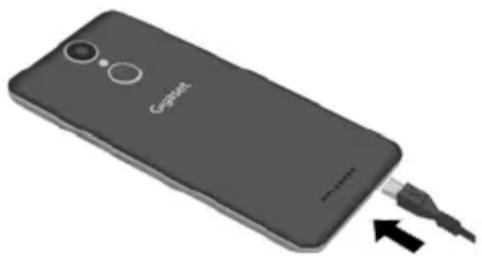
natural_image
Black smartphone with a USB cable inserted, showing the brand logo and ports (no text or symbols on the device body)Transferring files

For data interchange with a Mac: Android File Transfer is installed and started on the computer.
▶ Swipe the Notifications bar down ▶ Tap the USB notification ▶ Select File transfers
Windows: A automatic drive detection is opened on the computer ▶ Open Windows Explorer ▶ Use drag-and-drop to move files as for other external drives
Mac: The Android File Transfer window is opened on the computer ▶ Use Drag-and-Drop to move the files
Managing music
Use the Music Manager to upload music from the computer to the Google Play media library.
For information on managing music with Google Play Music: → Google Help
Printing
Apps with a print function enable you to print from your device.

A printer is available which is able to receive data over a WLAN connection or mobile network.
Printing via apps
The procedure for printing depends on the used app.
▶ Open the menu from icon ≡ or : ▶ Tap Printing Printing the screen content: ▶ Take a screenshot (→ p. 32) and then print it.
Adding, enabling and disabling printers
▶ Settings ▶ System – Printing
Adding the print service:
▶ Add service ▶ Select the print service ▶ Install
Enabling/disabling the print service:
▶ Select the print service ▶ Enable/disable it with the On/Off switch
Communication
Making calls
To make calls, use the Phone app. It is in the Favourites bar on the start screen by default (p. 20).
Making a call
▶ Phone ...
Enter the number
Tap ... The dialpad is shown ▶ Type in the phone number ▶ Tap

Whilst a number is being entered, contacts with a potential matching phone number are displayed. If there are no matching entries, you can add the entered number to the contact list.
Using a phone number from a contact
Tap ... The contact list opens Select an entry ... All phone numbers stored for the contact are shown Tap the required phone number
Contacts + p. 40
Using a phone number of a favourite contact
Tap ★ ... The Favourites list opens ▶ Tap the required contact ... The main phone number of the contact is selected
Adding contacts to Favourites → p. 42
Using a phone number from the call log
Tap ⏻ ... The call log opens ▶ Tap the required phone number
Call log → p. 39
Ending a call
▶ Tap

Calls can also be initiated from some other apps or widgets, such as from the Contacts app.
Accepting a call
With an incoming call, the phone number of the caller is displayed, if available. Information on the contact or the Caller ID is also displayed.
Accepting a call
Display lock enabled: ▶ Touch the white circle and drag it to the right to the blue circle
No display lock: ▶ Tap Answer
Making calls
Rejecting a call
Display lock enabled: ▶ Touch the white circle and drag it to the left to the red circle
No display lock: ▶ Tap Dismiss
Rejecting a call and sending an SMS to the caller
▶ Touch the white circle and swipe it upwards to the message icon ☐ Select a predefined quick response or write your own message ▶ OK... The caller receives a message with the selected text
Changing predefined messages -p. 38

If your mobile network operator has set up a mailbox for you, callers whose calls have been rejected by you can leave a message.
If you accept a call whilst talking to somebody else, the current call is put on hold.
Options during a call
Showing the dialpad during a call
Tap
Switching between headset, speaker and connected Bluetooth headset
▶ Tap
Muting and switching back on the microphone
▶ Tap / ♪ ♡
Interrupting and continuing a call
▶ Tap ||
Recording a call
▶ Tap : ▶ Start recording
End recording: ▶ST OP RECORDING

Tell the person you are talking to that the call is being recorded.
Listening to a recorded call:
▶ File Manager ▶ Internal storage ▶ PhoneRecord ▶ Tap the required sound file
The date and time of the recording are part of the name of the sound file.
Consultation, call swapping
Tap ▪ Add call ▶ Enter the number for a second person or select this person from the contacts ▶ Tap 🔥. The call is initiated. The first call is put on hold.
The current call with phone number is shown at the bottom of the screen, and the call on hold as On hold.
Switching between calls (call swapping):
Tap On hold ... The call on hold becomes the active call
Merging two calls into a conference call
One call active, one call on hold.
▶ Tap ⚠ ▶ Merge calls ... The calls are merged
Ending a conference call: ▶ Tap ▶ Manage conference call ... The phone numbers of those taking part are displayed ▶ Tap next to the number to no longer take part in the conference call
Making calls over WLAN
Make calls over WLAN and the Internet instead of the mobile network.

Your mobile network operator supports calls over WLAN and/or using SIP telephony.
Additional charges may apply. Contact your mobile network operator for more information.
Using a WLAN call function of a mobile network operator:
▶ Phone ▶ Tap ⋮ ▶ Settings ▶ Calls ▶ Enable/disable the Wi-Fi Calling option with the switch

If this option is not available, the function is not supported by your mobile network operator.
To make calls over WLAN, use the VoIP service from the mobile network operator (SIP):
▶ Phone ▶ Tap ⋮ ▶ Settings ▶ Calling accounts ▶ Use SIP calling

You may need to provide more details on the SIP account
Call settings
Display of caller name in the call log and contact list of the Phone app
Phone ▶ Tap : . ▶ Settings ▶ Display options ...
Specify how calls are sorted:
Sort by ▶ select First name or Surname
Specify how the names of contacts are displayed:
▶ Name format ▶ select First name first or Surname first
Setting tones and vibration
▶ Phone ▶ Tap ⚠️ ▶ Settings ▶ Sounds and vibration … Changing the ringtone: ▶ Phone ringtone ▶ Select ringtone ▶ OK Vibrate for incoming calls: ▶ Enable option Also vibrate for calls Tones when tapping the dialpad: ▶ Enable option Dialpad tones

More tone settings are available from app Settings -p. 50
Editing quick SMS responses
If you do not want to accept a call, you can send a predefined SMS instead ( p. 36).
Editing automatically sent SMS text:
▶ Phone ▶ Tap ▶ Settings ▶ Quick responses ... Four predefined messages are listed ▶ Tap a reply ▶ at the reply OK
Using TTY for calls
In TTY mode (Telephone Typewriter), those with speech and hearing impediments can communicate by entering text on a smartphone.

The smartphone is connected to a special teletypewriter or other TTY service via USB.
Enabling TTY mode:
▶ Phone ▶ Tap ⋮ ▶ Settings ▶ Accessibility ▶ TTY mode ▶ Select the mode required
TTY (full mode) See the call as text and hear it as audio.
TTY HCO Hear what the other person is saying, reply by entering text
TTY VCO See as text what the other person is saying, reply by speaking
Network-dependent settings
You can, depending on your mobile network operator, use additional network services such as a mailbox, Call divert and Call waiting. You can set up, and enable and disable as required, these services from the Settings menu in the Phone app.
▶ Phone ▶ Tap ▪ Settings ▶ Calling accounts ▶ Tap the SIM card of the operator whose network services you want to edit
Call log
The call log shows all outgoing, accepted and missed calls.
Showing the call log
Phone ▶ Tap ⏻ ... The calls are listed with phone number, place and date. Arrow icons show the types of calls:

Missed call

Accepted call

Outgoing call
Showing call details
Tap call ▶ Call details ... Information on the call is displayed, such as time and duration
Contacting the caller
▶ Phone
Tap▶ ...

Calling:
▶ Tap next to the entry
Sending an SMS:
Tap the call
▶ Send message
▶ Enter a message
Tap

Adding a phone number to the contacts
▶
Phone
Tap

Tap the call
▶ Add to contact or Create a new contact
Deleting calls from the call log
▶ Phone
Tap▶ ...

Deleting a call:
Tap the call
▶ Call details
Tap

Deleting more than one call:
Tap
Calls list Tap
:
▶ Delete ... Checkboxes are shown next to the entries
Select the entries to delete
Tap ▶ Confirm with OK
Deleting all entries:
Tap
Calls list Tap
• • •
▶ Clear call history ▶ Confirm with OK
Contacts
You can use the Contacts app to enter and organise all information on your contacts, such as different numbers, address, mail address and much more. Other apps, such as the iPhone app, access the information and make it available where it is needed.
Using contacts
If you require frequent access to the contacts, move the 📷 Contacts app to the start screen (→p. 20).
Viewing contacts
Contacts ... The contacts are listed in alphabetical order.
Only showing favourite and frequently used contacts: ▶ Tap Favourites
Specify how the contacts are sorted:
▶ Tap ⋮ ▶ Settings ▶ Sort by ▶ Select First name or Surname
Specify how the names of contacts are displayed:
▶ Tap ⋮ ▶ Settings ▶ Name format ▶ Select First name first or Surname first

Contacts can be stored at different places - locally on the smartphone, on the SIM card or in the Cloud of an account.
Narrowing down the display of contacts to one source: ▶ Tap ◆ ▶ Contacts to display ▶ Select the required display
Using a contact for communication
Calling a contact, sending an email or SMS to a contact.
Contacts ▶ Scroll through the list and select the required contact ▶ Select an action ...
Calling: ▶ Tap the number or .. The call is initiated
Sending an SMS: ▶ Tap □ Enter the text message Tap ▶
Sending an email: ▶ Tap the mail address or 📋 Write the email Tap
Grouping contacts
You can group contacts into contact groups. You can then for example send a group SMS or a group email to the members of a group. Different groups are predefined, such as Family and Friends.
Contacts ▶ Tap ▶ Groups ... Existing groups are listed
Creating a new group:
Tap ▶ Select the account with which the group is to be synchronised ▶ Tap Group name ▶ enter the name Tap √
Adding a contact to a group:
Tap the group ▶ Tap ⚠ ▶ Edit ▶ Tap 🙏 + ... All contacts belonging to the account are listed ▶ Tick the checkboxes next to the contacts to be assigned to the group ▶ OK ▶ Tap √

A contact can belong to more than one group.
Removing a contact from a group:
▶ Tap the group ▶ Tap ⋮ ▶ Edit ▶ Tap × next to the contact ▶ Tap √
Deleting a contact group:
Contacts ▶ Tap □ Groups ▶ Select group ▶ Tap □ Delete ▶ OK
Adding contacts

If you have set up a Google account, you can also set up and manage your contacts from your computer. The contacts are automatically synchronised with the smartphone.
Creating a contact
Contacts ▶ Tap ▶ Enter name, phone number and other details for the contact ▶ Tap √
Importing/exporting contacts
Contacts can be exported from any location and be imported into a different location, e.g. the contacts stored on the SIM card can be imported into your Google account, and the contacts of the Google account can be stored as vCards in the device's internal memory.
Contacts ▶ Tap ▶ Import/Export ▶ Select the source for the export ▶ Next ▶ Select the destination for the import ▶ Next ... The contacts of the source directory are displayed ▶ Select the contacts to export ▶ OK
Importing contacts from a VCF file:
▶ Use a USB cable to connect the device to a computer ▶ Copy the vCard or VCF file to the device's internal storage (→ p. 33) ▶ Select Internal storage as the source for the import
Editing contacts
Editing contact details
Contacts ▶ Select the contact to edit ▶ Tap ▶ Tap the field you wish to edit ▶ Change the contents ▶ Tap √
or ▶ Scroll down ▶ Tap More Fields ▶ Fill in the required fields ▶ Tap √
Editing the ME entry
The first entry in the contact list is called Me. This is where you define details about yourself. If you have already entered a name for personalising your smartphone when getting started, this name is assigned to the Me entry.
You can add more information to this name.
From the Status bar, use two fingers to swipe down ... The quick settings are displayed ▶ Tap the icon En the details Tap ▶ √
or
Contacts ▶ Select the Me entry ▶ Tap ▶ Edit the contact ▶ Tap √
Adding contacts to Favourites
Add people you contact frequently to your Favourites. Favourites are shown in a separate list (→p. 40).
Contacts ▶ Select a contact ▶ Tap ★ … The contact is listed in the All contacts list as well as in Favourites
Creating a special ringtone for a contact
Contacts Select a contact Tap Tap Set ringtone Select the ringtone OK
Diverting calls from a contact to the mailbox
Contacts ▶ Select a contact ▶ Tap ▶ Tap ▶ All calls to voicemail
Deleting contacts
Contacts ▶ Select a contact ▶ Tap □ Delete ▶ OK
Deleting more than one contact at the same time:
▶ Touch and hold the first contact ... Checkboxes are displayed next to the contact entries ▶ Select all the contacts you want to delete ▶ Tap ▶ Delete ▶ OK
Linking contacts
Merge multiple contact entries for a person in one contact.
Contacts ▶ Touch and hold the contact you want to merge with others ▶ Select the checkboxes next to the contacts to be merged with the first contact ▶ Tap ▶ Merge
or
Contacts ▶ Open the contact ▶ Tap ▶ Tap ▶ Merge ▶ Select the contact to merge
Cancelling a link
▶ Open the linked contact ▶ Tap ▶ Tap □ ▶ Separate
Messages (SMS/MMS)
To send and receive messages, use the screen by default ( p. 20).

Messaging app. It is in the Favourites bar on the start
Instead of using Messaging as the standard app for sending and receiving messages, use Hangouts:
▶ Messaging ▶ Tap ▪ Settings ▶ SMS Enabled ▶ Hangouts Information on Hangouts — Google Help
Sending and replying to messages

Sometimes apps send text messages using billable Premium services. Android detects every attempt by an app to send an SMS in your name. A warning is displayed when there is a suspicion that an SMS entails additional charges. Text messages can be discarded, or sent anyway, in these cases.
Writing an SMS
A text message (SMS) can comprise a maximum of 160 characters. If you enter more characters, the message is sent in several sub-messages (if this function is supported by your mobile network operator).
▶ Messaging ... The list of conversations is displayed ▶ Tap
Enter the phone number, name or email address ... Whilst you are doing so, possible matching contacts from the contact list are suggested ▶ Tap a suggestion or continue with your entry
or
Tap +... The contact list is opened ▶ Select one or more contacts to whom to send the message ▶ OK
▶ Tap Type text message ▶ Enter the message text
Inserting a Smiley (Emoticon)
▶ Whilst entering text, tap 😊 in the bottom right of the keypad ▶ Select icon
Back to the keypad: ▶ Tap AB C
Saving a message as a draft
▶ Whilst entering a text message, tap ← ... The message is stored in the list of conversations as a draft
Continue with entry: ▶Tap this conversation.
Writing an MMS
A multimedia message (MMS) can contain text, a picture, a recorded voice message, an audio file, a video, a slide show with images, a contact or an appointment.
▶ When writing a message, tap 📋 ▶ Select the required attachment ...
Pictures
... The pictures taken recently are displayed ▶ Select picture
Capture picture
... The Camera app opens ▶ Take a picture and attach it
Videos
... The videos recorded recently are displayed ▶ Select a video
Capture video
... The Camera app opens ▶ Record a video and attach it to the message
Record audio
... The Sound recorder opens ▶ Record the voice message
Slideshow
... The screen for editing the slide show opens ▶ Tap slide ▶ Make a slide
Put together a slide show of up to 10 slides using the text, photos, videos and audio recordings.
Contact
... The contact list opens ▶ Select a contact ▶ OK ... The contact is appended as a vcf file
Calendar
... The appointment list of the calendar opens ▶ Select an appointment ▶ OK ... The appointment is appended as a vcf file
The file appended is displayed in the message. Buttons enable you to show a preview of the media attachments, replace files and delete files.

When media attachments from several apps are shown, e.g. images in Photos or Gallery:
▶ Tap ≡ in the top left ▶ Select app
Sending a message
▶ Write a text or multimedia message ▶ Tap ▶ ... The message is sent
Back to the list of conversations: ▶ Tap ←
The message is the start of a conversation. It is stored in the message list under the name or phone number of the recipient. Responses from the message recipient are displayed in the same conversation.
Responding to received messages
When a new message arrives, you receive a notification and the 📄 is shown in the Notifications bar.
Tap the notification ... The message opens
or
▶ Messaging ... The list of conversations is displayed ▶ Tap the new conversation
▶ E r the reply Tap
What to do with multimedia messages
If the Auto-retrieve option in MMS settings is disabled:
▶ Tap Download
Show or play the file if the message contains a media file:
▶ TapPlay
Save the media file:
▶ Touch and hold the media file ▶ Save the message on an SD card or on USB storage
Reading and managing messages
Reading SMS/MMS messages
▶ Messaging ... The list of conversations is displayed ▶ Tap a conversation ... All messages in this conversation are shown in chronological order
Managing SMS/MMS messages
▶ Touch and hold a message Select option ...
Copying message text:
▶ Copy text ... The text is copied to the cache. You can use it for any text entry.
Forwarding a message to a contact or another recipient:
▶ Forward ▶ Enter the recipient ▶ Tap ▶
Preventing the message from being deleted when the storage limit is reached:
Lock ... The message is protected from being deleted automatically. It is denoted by the icon.

Cancel the lock: ▶Un lock
Displaying more information on the message and sender:
▶ View details
Saving a message to SIM card:
▶ Save message to SIM card
Messages are stored on the phone by default.
Saving all messages to SIM card → p. 47
Messages (SMS/MMS)
Opening message text for editing:
▶ Select text ▶ Edit message ▶ OK
Deleting message from the conversation:
▶ Delete ▶ Confirm once again with Delete
Deleting a conversation
▶ Messaging ... The list of conversations is displayed ▶ Touch and hold one or more conversations ▶ Tap
Deleting all conversations
▶ Tap ⋮ Delete all threads
Searching in SMS/MMS messages
▶ Messaging ▶ Tap ▶ Enter the search term ... Text sections matching the search term are displayed ▶ Tap a text section ... The text is displayed ▶ Tap text ... The conversation belonging to the text is displayed
SMS/MMS settings
Changing the font size
The font size in messages is aligned by default to the system font size. You can select a bigger font size.
▶ Messaging ▶ Tap ⋮ ▶ Settings ▶ General ▶ Message font size ▶ Select font size
Storage settings
Set the limits for messages and delete messages when the limits are exceeded.
▶ Messaging ▶ Tap ⋮ ▶ Settings ▶ General ▶ Tick the checkbox next to Delete old messages ▶ Set the limits ...
Setting the number of text messages to be stored per conversation:
▶ Tap Text-message limit ▶ Select the number ... Older text messages are deleted as soon as the highest number is reached
Setting the number of multimedia messages to be stored per conversation:
▶ Tap Multimedia message limit ▶ Select the number ... Older multimedia messages are deleted as soon as the highest number is reached

Excluding individual messages from an automatic delete → p. 45
SMS settings
▶ Messaging ▶ Tap ⋮ ▶ Settings ▶ Text Message (SMS) ...
Requesting a delivery confirmation for sent text messages:
Tick the checkbox next to Delivery reports
Managing text messages stored on the SIM card:
▶ Manage SIM card messages ... The messages stored on the SIM card are displayed
▶ Tap Select the option for all messages or: ▶ Touch and hold a message ▶ Select the option for this message
Specifying where text messages are stored:
▶ SMS storage location ▶ Select phone or SIM card Saving individual messages to SIM card → p. 45
MMS settings
▶ Messaging ▶ Tap ⋮ ▶ Settings ▶ Multimedia Message (MMS) ...
Requesting a delivery/read confirmation for sent multimedia messages:
Tick the checkbox next to Delivery reports/Read reports
Sending a read confirmation for received multimedia messages if requested:
Tick the checkbox next to Send read report
Setting the maximum size of a multimedia message:
▶ Size Limit ▶ Select the maximum size
Automatic retrieving of MMS messages

Multimedia messages from unknown sources can contain malware which might endanger the security of your smartphone. So you should only download attachments once you have identified the senders of MMS messages as secure.
Do not automatically retrieve the attachments of received multimedia messages:
▶ Untick the checkbox next to Auto-retrieve
Do not automatically retrieve the attachments of received multimedia messages when roaming:
▶ Untick the checkbox next to Roaming auto-retrieve
Settings for notifications about received SMS/MMS messages
▶ Messaging ▶ Tap ⋮ ▶ Settings ▶ Notifications ...
Showing notifications about new messages in the Notifications bar:
Tick the checkbox next to Notifications
Selecting the ringtone for notifications about new messages:
▶ Sound ▶ Select the ringtone for notifications about new messages
Disabling the sound for notifications completely or temporarily:
▶ Mute ▶ Disable the sound or select the time during which the notification sound is to be disabled
Vibration for receipt of messages:
▶ Tap Vibrate
Settings
Device
Language
Set the language for the displays.
▶ Settings ▶ Users – Language & input ▶ Language ▶ Select the language
Display
Brightness
Change the screen brightness or adapt it the surroundings.
From the Status bar, swipe down using two fingers ... The quick settings are opened or
▶ Settings ▶ Device – Display ▶ Brightness level

natural_image
Simple horizontal line with a small circular mark at the end, no text or symbols present.▶ Set the brightness level with the slider bar
Automatically adapting the brightness level depending on the ambient light available
▶ Settings ▶ Device – Display ▶ Enable/disable the Adaptive brightness option with the switch
Font size
Change the display size of text.
▶ Settings ▶ Device – Display ▶ Font size ▶ Select the font size
Display orientation
Set what the screen content does when you rotate the device.
▶ Settings ▶ Device – Display ▶ When device is rotated ▶ Select Rotate the contents of the screen or Stay in portrait view

This option is not available when the option "Auto-rotate screen" is disabled in the accessibility feature settings.
Tones and volume
Volume
Change the volume for ringtone, music and alarm.
Using the Volume button
▶ Press the Volume button on the right-hand side of the device ... The slider bar for the volume opens ▶ Tap the arrow on the right next to the slider bar ▶ Set the volume using the slider bar
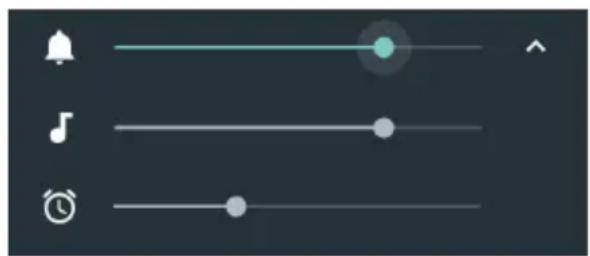
From the Settings menu
▶ Settings ▶ Device – Sound & notification ▶ Tap 🎧 next to General ▶ Set the ringtone and alarm volume with the slider bar
Selecting an audio profile
Adapt the ringtone volume to the ambient conditions or situation.
▶ Settings ▶ Device – Sound & notification ▶ Select a profile
General Tap and procure the detailed settings
Silent Disable ringtone and vibration
Meeting Vibration only
Outdoor Loudest ringtone and vibration

Quick setting for audio profiles from Quick setting screen or On/Off button: → p. 18
Enabling/disabling vibration
Disabling the ringtone, enabling vibration:
▶ Press the bottom of the Volume button until the ringtone volume reaches the lowest setting and the device vibrates ... The icon is displayed in the Status bar
Enabling the ringtone and vibration:
▶ Settings ▶ Device – Sound & notification ▶ Tap next to General ▶ Enable/ disable the option Vibrate with the switch
Ringtones
Changing the default ringtone
▶ Settings ▶ Device – Sound & notification ▶ Tap 🎨 next to General ▶ Phone ringtone ▶ Select a ringtone ▶ OK
Adding new ringtones
Ringtone apps: ▶ Download and install ringtone apps from the Google Play Store

Transferring a music file (MP3) from a computer:
▶ Use the USB cable provided to connect the device to a computer → p. 33
▶ Transfer the music file (MP3) to the Ringtones folder
Setting rules for automatic muting
Automatically mute the smartphone at certain times ("Do not disturb").
▶ Settings ▶ Device – Sound & notification ▶ Do not disturb ▶ Automatic rules
Muting tones at certain times
▶ Select default rule Weeknight or Weekend ▶ Change the settings for the rule as required ▶ Enable/disable the rule with the On/Off switch
or create a separate rule
▶ Tap Add rule ▶ Enter the rule name ▶ Tap Time rule ▶ OK ▶ Set the day, start time and end time ▶ Select the Do not disturb mode ▶ Enable/disable the rule with the On/Off switch
"Do not disturb" mode → p. 31
Muting a tone during events and meetings
▶ Tap Add rule ▶ Enter the rule name ▶ Tap Event rule ▶ OK ▶ Select option
During events for: ▶ Select the account to which the rule applies when you are using more than one account with calendar events
Where reply is: ▶ Select the events to which the rule applies (events you have confirmed with "Yes" or "Perhaps", or have not confirmed at all)
Do not disturb: ▶ Select the "Do not disturb" mode (Total silence, Alarms only, Priority only (→ p. 31)
Enabling a rule
▶ Enable/disable a rule with the On/Off switch

Mute the smartphone manually if required → p. 31
Setting keypad tones

You are using the standard Android keypad.
▶ Settings ▶ Personal – Language & input ▶ Android keyboard ▶ Settings ▶
Enable/disable option Sound on keypress and/or Vibrate on keypress with the switch
Enabling/disabling other tones
Set whether tones are sounded or the device vibrates when the dialpad is used - for every touch when the display lock is enabled.
▶ Settings ▶ Device – Sound & notification ▶ Tap next to General ▶ Enable/ disable the required option with the switch
Power management
To prolong the life of your smartphone as long as possible, the device has various ways to make best possible use of the battery capacity. Use the Battery Manager app to optimise power consumption.

Access to the information and a few settings is also possible from:

tings ▶ Device – Battery
Showing the battery charge level
The icon in the Status bar shows the charge level ( p. 84).
Showing the charge level next to the battery icon in %:
From the Status bar, use two fingers to swipe down ▶ Tap the battery icon ▶ Enable/ disable Battery Percentage with the switch
Showing the power consumption
▶ Battery Manager ... The current charge level (as %) and the expected usage time remaining are shown
Power consumption list ... Consumption since the device was last fully charged, and the consumption (as %) of various system components (system, system in idle mode, display lighting and WLAN), are shown graphically
Show more information on system component consumption: ▶ Tap the entry

When the device is being charged, the remaining time to charge level "Full" is shown instead of the usage time remaining.
Using Power Save mode
Save power until the device can be charged again.
Some of the device's functions are limited in Power Save mode:
- Google Maps Navigation cannot be used.
- The vibration function, location services and most background data are restricted.
- Email, SMS/MMS and other apps requiring the synchronisation function are only updated when opened.
Enabling/disabling Power Save mode:
▶ Battery Manager ▶ Power consumption list ▶ Tap ▶ Battery saver ▶
Enable/disable the function with the switch

When Power Save mode is enabled, the upper and lower areas of the screen are shown in orange.
Power Save mode ends automatically when the device is being charged.
Using Intelligent Power Save mode
In Intelligent Power Save mode, unused peripherals are disabled and system performance is optimised.
Battery Manager
Selecting components for power saving:
Tap the arrow next to Smart power saving mode ▶ Enable/disable the functions with the switches and set the process limit
Enabling Intelligent Power Save mode:
▶ Tap Smart power saving mode ▶ Confirm
Disabling Intelligent Power Save mode:
▶ Tap Normal mode
Using Super Power Save mode
In Super Power Save mode, access to the Phone, Contacts, Messages and Clock apps is restricted, the brightness is reduced and graphics on the start screens are minimised.
▶ Battery Manager ▶ Super power saving mode ▶ Confirm
or
From the Status bar, swipe down using two fingers ... The quick settings are opened ▶ Tap the Icon
Ending Super Power Save mode: ▶ Tap
Optimising the battery life
When battery power optimisation is enabled, apps are disabled when you are not using the device or have not used the apps for a few days. Apps are enabled again once they are used. Battery power optimisation is enabled by default.
▶ Battery Manager ▶ Power consumption list ▶ Tap ▶ Battery optimization ▶ ... All apps without battery power optimisation are displayed
Enabling battery power optimisation:
▶ Tap an app ▶ Select option Optimize ▶ Done
Show all apps: ▶ Tap the down arrow ▶ Tap All apps ... All apps are shown

Battery power optimisation is not available for some important services because correct functioning of the device is then not guaranteed.
Other power and resource consumption settings

Auto-start management
Select the apps which may / may not be started automatically on system start
Clean up background processes when in standby
Select the apps for which background information is deleted when you switch to standby mode
Clear background app
Select the apps which may / may not be started in the background
Night mode
At night, switch the mobile mode to 2G only. Select the time period for the switchover.
Power saving alert: low battery
Issue a notification when the battery has reached a low charge level.
Select critical value
Set the value for the low charge level using the slider bar.
Switch when battery is low
Set which Power Save mode is enabled when the low charge level is reached.
Storage
The device differentiates between permanent device storage (which can be extended with an SD card) and main memory. The permanent storage area is for data such as music and photos. Main memory is temporary storage used by the device to run apps and the overall system.
Device storage management without SD card
Check the available storage capacity and memory usage of apps.
▶ Settings ▶ Device – Storage & USB ... The total storage capacity available, and that being used at the moment, are displayed, as well as a list of components using storage capacity
Show more information: ▶ Tap an entry
Device storage management with SD card

The device detects SD cards with a storage capacity of 32 GB. Higher capacity cards (to 128 GB) can be used if formatted on the GS160 (not from a PC).
▶ Settings ▶ Device – Storage & USB ...
Specifying where personal information is stored:
▶ Select Internal storage or SD card
Checking the available storage capacity and memory usage of apps:
In the lower area of the screen next to ☐, tap Internal storage
Ejecting an SD card:
▶ Next to SD card..., tap ▲ ... The SD card is disabled. It can no longer be used as memory and the information on the card is no longer available.
Using the SD card again:
▶ Tap SD card ... ▶ Mount
Insert SD card → p. 10
Freeing up device memory
▶ Uninstall apps which are not used ( p. 25)
▶ Delete saved photos and videos and/or save them in the Cloud (e.g. using Google Photos)
▶ Remove downloaded music, films and other media
▶ Empty/clear the cache or data for individual apps ( p. 67)
Main memory
Your device might not work perfectly if not enough main memory is available.
Displaying main memory usage:
▶ Settings ▶ Device – Memory ... Main memory usage is shown in relation to a selected time period
Selecting another time period:
▶ Tap Time in the header ▶ Select a time period
Checking which apps are running and are using main memory:
Tap Memory used by apps ... All apps are shown with their usage
Sorting by usage: ▶ Tap ◦ Sort by max use
Exiting an app to free up main memory:
▶ Select an app ▶ Tap ◦ ▶ Force stop
Accessibility features
For those with disabilities, there are a number of useful settings for adapting the usage of the smartphone to personal needs.
▶ Settings ▶ System – Accessibility ▶ Enable/disable or set up the required function
Talk Back
Enable spoken feedback for users with impaired vision. The device describes the controls the user touches.
Captions
Enable subtitles for the device, and configure settings for voice, text size and subtitle style.
Magnification gestures
Use enlargement movements to temporarily increase the size of content on the screen.
Large text
Use a larger font for text on the display.
High contrast text
Use black or white as the text colour depending on the original text colour.
Power button ends call
End calls by pressing the On/Off button.
Auto-rotate screen
Automatically switch between landscape or portrait view when the smartphone is rotated.
Speak passwords
When entering passwords, receive spoken feedback from TalkBack.
Enabled: Password characters are spoken out so as to be audible, just like all other entered characters.
Disabled: Password characters can only be heard over a headset.
Accessibility shortcut
Quickly enable TalkBack without looking at the screen.
If the Accessibility shortcut is enabled, start TalkBack as follows:
▶ Keep the On/Off button pressed until you hear a tone or the device vibrates ▶ Use two fingers to touch and hold the screen until a confirmation signal sounds.
Text-to-speech output
Configure comprehensive settings for speech output.
Touch & hold delay
Change the time after which "Touch and hold" is enabled on touching the screen.
Color inversion
Swapping of colour values. For example, black text on a white screen becomes white text on a black screen.
Color correction
Compensate the effects of colour blindness.
More information on accessibility features is available from: → Google Help
Security
Display lock
The display lock protects the device from unauthorised use. When you switch the device on or enable the display, you are prompted to unlock the device.
The display lock becomes active after a defined time after the device has switched to idle mode.
A pattern, PIN or password is used as the display lock.

It is also possible to use a fingerprint as a display lock ( p. 29). In this case, the display lock set up serves as the alternative method.
Setting up a display lock when getting started ( p. 13).
Setting up a display lock
Settings ▶ Users – Security ▶ Screen lock ▶ Enter the PIN, pattern or password if you have already specified a lock ▶ Select the method ...
None ... No security
Swipe ... The display can be unlocked by swiping over the screen
Pattern, PI N, Password
▶ Select option Require pattern to start device if the requirement is for the device to prompt unlocking at the start ▶ Co ninue
For Pattern:
▶ Draw the pattern - join together at least four dots ▶ Continue ▶ Repeat the pattern ▶ Confirm
For PIN:
Enter at least four letters or digits ▶ Continue ▶ Repeat the PIN ▶ OK
For Pa ssword:
Enter at least four letters or digits ▶ Continue ▶ Repeat the password ▶ OK
Settings for the display lock
Entering a lock screen message
Enter the text to be displayed when the screen lock is enabled, such as your name and address, or an emergency message. All those picking up the phone can read the message without unlocking the smartphone.
Settings ▶ Users – Security ▶ Lock screen message ▶ Enter text ▶ Save
Showing/hiding the pattern
Only for a display lock with pattern. When entering the pattern to unlock the device, the pattern is shown as a line by default. You are able to change this for security reasons.
▶ Settings ▶ Users – Security ▶ Enable/disable the switch next to Make pattern visible
Security
Setting the time for automatic display lock
The display lock is enabled once the device has been in idle mode for a certain time.
▶ Settings ▶ Users – Security ▶ Automatically lock ▶ Select the duration of idle mode
Enabling the display lock when switching on and off
▶ Settings ▶ Users – Security ▶ Enable/disable the switch next to Power button instantly locks

The settings for Automatically lock and Power button instantly locks can be cancelled with Smart Lock.
Automatically unlocking the device with Smart Lock
Smart Lock enables the smartphone to be unlocked automatically under certain circumstances, such as when you have it on you or are at home.

Smart Lock must be enabled in Trust agents:
Settings ▶ Users – Security ▶ Trust agents
Configuring Smart Lock:
Settings ▶ Users – Security ▶ Smart Lock
More information on Smart Lock: → Google Help
Screen pinning
When you pass on the smartphone to someone else, you can restrict its usage to a single app. For this, you pin a certain view of this app.
Enabling/disabling screen pinning
▶ Settings ▶ Users – Security ▶ Advanced – Screen pinning ▶ Enable/disable the function with the switch
▶ Use the switch to specify whether the PIN, pattern or password needs to be entered to unpin the screen.
Pinning the screen
▶ Open the screen to be pinned ▶ Tap the ☐ Navigation button ▶ Swipe up until you can see the icon ▶ Tap the icon OK
Unpinning the screen
▶ Touch and hold at the same time the ◀ and □ Navigation buttons ▶ Enter the PIN, pattern or password as required ... The screen is unpinned
Protection in the event of theft
If your smartphone is stolen, you are able to lock it and delete personal data remotely. For this, specify as emergency contacts the phone number(s) of one or more different smartphones, such as those of friends and family members. When the SIM card in your smartphone is swapped out, the emergency contact(s) receive(s) a message requesting the new phone number of the sender to be saved. You can also arrange for SMS messages to be sent automatically to the smartphone via the emergency contacts, which trigger the following actions:
- Locking of the smartphone
- Deleting of personal data
- Resetting of anti-theft PIN
Configuring theft protection
▶ Settings ▶ Users – Security ▶ Mobile anti-theft protection ▶ Enter the PIN for theft protection (6 to 12 digits) ▶ Repeat the PIN in the Re-enter field ▶ Next
Enter the phone number of an emergency contact or select it from the contact list with Tap ▶ Ne xt
▶ Select option Reset remote control commands via SMS to emergency contacts ▶ Done
Changing/disabling theft protection
▶ Settings ▶ Users – Security ▶ Mobile anti-theft protection ▶ Enter the anti-theft PIN ... The current settings are displayed
To change the setting:
▶ Tap the required setting ▶ Change ▶ Done
Disabling theft protection:
▶ Tap Turn mobile anti-theft protection off ▶ OK
SIM card lock
The SIM card lock prevents unauthorised use of the device. For every locked SIM card, the PIN must be entered when the device is started.
The PIN lock is enabled when the device is purchased. The PIN is available from your mobile network operator.
▶ Settings ▶ Users – Security ▶ Set up SIM card lock ▶ When there are two SIM cards, select the provider of the SIM card from the header
Enabling/disabling the SIM card lock:
▶ Enable/disable the switch next to Lock SIM card ▶ Enter the valid PIN ▶ OK
Changing the PIN:
▶ Change SIM PIN ▶ Enter the valid PIN ▶ OK ▶ Enter the new 4-digit PIN ▶ OK
App permissions
When downloading an app from Google Play, specify the functions and data to which this app has access, e.g. to contacts or your location.
You can check and change permissions for apps on your device. With App permissions management, you have quick access to all permissions granted to apps on the device.
Permissions when installing apps
Many apps downloaded from Play Store request access to particular information before installation. For apps developed for Android 6.0 and higher, you can grant or deny permissions on initial use.
Information on app permissions in the Google Play Store:
- On the "Permissions" screen for an app in the Play Store, you can check which permissions the app requires and then decide whether you want to install it. Scroll down to the very end of the app description.
- For many apps, all permissions are displayed in Google Play before installation. You can use this information to decide whether you want to install the apps.
- Some apps are installed without any prompts about permissions. You are then able to grant or deny individual permissions when using the apps for the first time.
- Permissions might be changed when apps are updated automatically. When using for the first time a function which requests a new permission, you might have to grant or deny access to this data or function.
- If you want to check all updates before an installation, disable the automatic updates option in the Play Store.
For certain apps: In the menu under My apps and games For all apps: In the menu under Settings
Enabling/disabling permissions for apps on the smartphone
▶ Settings ▶ Device – Apps ... All installed apps are listed
Setting the permissions for an app:
▶ Select the app for which you want to change the permissions ▶ Permissions ... All meaningful permissions for the app are displayed ▶ Grant/deny the required permissions with the switch
Displaying all permissions in detail:
▶ Tap ⋮ ▶ All permissions
Setting all apps with certain permissions:
▶ Tap App permissions ... All possible permissions are displayed ▶ Select a permission ▶ Grant/deny a permission for the required apps with the switch

If you revoke or do not grant permissions for an app, it might not work properly.
Checking and managing permissions
App permissions management provides you a quick overview of all permissions. Specify for every app whether a permission is granted always (Always allow), never (Always deny) or only on request (Always ask).
Enabling/disabling app permissions management:
▶ Settings ▶ Users – Security ▶ Enable/disable the App permissions function with the switch
Displaying detailed information on app permissions:
▶ Tap App permissions
Permissions and assigned apps:
... In Permissions, all permission groups are displayed, each with the number of apps using a permission
Tap a permission group ... All apps using this permission are listed
▶ Tap an app ▶ Select whether the app is granted this permission always, never or only on request
Apps and assigned permissions:
... In Apps, all apps are displayed, each with the number of permissions they are using
▶ Tap an app ... All permissions for the app are listed ▶ Tap permission ▶ Select whether this app permission is granted always, never or only on request

If App permissions management is enabled, the 🔒 on is displayed in the Notifications bar. You can also open App permissions management from the notification.
Android Device Manager
If you have lost your smartphone, you can use the Android Device Manager to locate it, ring it, lock it and delete data on it.

The device is registered with a Google account ( p. 63)
Location detection is enabled ( p. 65).
Enabling/disabling monitoring by the Android Device Manager:
▶ Settings ▶ Users – Google ▶ Security ▶ Enable/disable the Remotely locate this device and Allow remote lock and erase functions with the switch
Check whether the Android Device Manager can locate the device:
- Log in to your Google account on android.com/devicemanager and see whether your device is displayed

You can also install the Android Device Manager on mobile devices, such as your smartphone or a tablet (downloaded from Google Play).
Device administrators
Device administrators are apps authorised to create a connection to your smartphone and to exchange data, for synchronisation for example. You can authorise this by setting up an account hosted by a business service, such as for an email, calendar or business app.
▶ Settings ▶ Users – Security ▶ Device administrators ... A list of device administrators is displayed ▶ Tick the checkboxes next to the apps to be allowed as device administrators
Displaying device administrator information:
▶ Touch and hold a service in the list

If you disable a device administrator, you revoke the permission of associated services to synchronise data on your phone.
Google services (Gmail, contacts, calendar, etc.) are not treated as device administrators. Permissions for these services to make changes on the smartphone are managed from the Google account settings.
Certificates
Digital certificates are used to identify your smartphone in secure network connections. You require a certificate for VPN or WLAN connections for example, or for authentication with email servers, browsers or other apps. Some certificates are already stored on your phone by default. You can install further certificates.
Supported formats:
• DER coded X.509 certificates with file extensions .CRT and .CER.
- X.509 certificates in PKCS#12 keystore files with file extensions .P12 and .PFX. If you install a certificate from a PKCS#12 keystore file, the corresponding private key certificates or certification authority (CA) certificates are also installed.
Files with different file extensions cannot be installed. Change the file extension if required.
Managing certificates
▶ Settings ▶ Users – Security ▶ Trusted credentials
The installed certificates are displayed.
System: Contains all certificates issued by a certification authority (CA) that are permanently installed in the write-protected memory of your phone.
User: Contains all CA certificates you have installed yourself, when installing a client certificate for example.
If a certificate is corrupt or you do not trust a certificate, you can disable or delete it.
▶ Tap a certificate ... Information on the certificate is displayed ▶ Scroll down
System certificate: ▶ Disa ble/Enable ▶ OK
User certificate: ▶Remo ve ▶OK ... The certificate is deleted permanently and needs to be reinstalled if required
Installing client and CA certificates
Install additional certificates from an SD card, internal storage, the Download folder or Google Drive.
▶ Save a certificate or keystore file on one of the media mentioned above.
▶ Settings ▶ Users – Security ▶ Install from SD card ▶ Open the ≡ menu ▶ Select the certificate location ▶ Tap the file name of the required certificate or keystore ▶ Enter the keystore password ▶ OK ▶ Enter the certificate name ▶ OK
CA certificates upon which client certificates are based are also installed.

A display lock with high security level must be set (with PIN or password) if you want to install certificates. You might be prompted to set a display lock (→ p. 57).
Accounts and location detection
Accounts
Use one or more accounts to use personal information such as contacts, pictures and mailbox on multiple devices. An account enables synchronisation of the information and makes it available to all registered devices.
Account types
Google account
You need a Google account for Google services such as Gmail™, Google+™ or YouTube™, and for downloading apps from Google Play™. When you log in with a Google account, emails, contacts, appointments and other information assigned to this account are automatically synchronised with your device. You can set up a new account on the smartphone or log in the smartphone to an existing account.
Email account
If you do not use the Google account for your email, you need to register your smartphone with your mail server. POP3 and IMAP mail servers are supported.
You can still use the Gmail app to receive and send emails.
Managing emails with the Gmail app: ▶ Use an account type with icon

Managing emails with the Email app: ▶ Use an account type with icon


You require information on the service the account uses, such as server address, user name and password. The phone must be able to establish an Internet connection over WLAN.
Exchange account
You set up an Exchange account to synchronise contacts, calendar, tasks and emails with Microsoft Outlook™.
Adding an account
▶ Settings ▶ Personal – Accounts ▶ Add account ▶ Tap the type of account you want to add ▶ Enter the account details. Follow the instructions on the screen
Removing an account

When an account is removed from a device, all associated content is also removed, such as emails, contacts and settings.
▶ Settings ▶ Personal – Accounts ▶ Tap the account to be deleted ▶ Tap ▶ Remove account
Synchronising
You can specify how apps synchronise messages, emails and other current data in your Google account.
Google apps are automatically synchronised with the Google account as standard. You can enable and disable automatic synchronisation for individual Google apps.

Apps which are not from Google cannot be synchronised using a Google account. Look in the respective settings menu for these apps for a synchronisation option.
Enabling/disabling automatic synchronisation
Setting synchronisation for individual apps:
▶ Settings ▶ Personal – Accounts ▶ Google ▶ Select an account if several are set up ... A list of Google apps with the time of most recent synchronisation is displayed ▶ Enable/disable synchronisation of an app with the relevant switch
Setting synchronisation for a Google account:
▶ Settings ▶ Personal – Accounts ▶ Tap ▪ Enable/disable the Auto-sync data option

Disabling automatic synchronisation prolongs the battery life. Enable automatic synchronisation again if you want to continue after charging the battery.
Manually synchronising an account
In manual synchronisation, the data of all Google apps is updated, including all apps with automatic synchronisation disabled.
▶ Settings ▶ Personal – Accounts ▶ Google ▶ Select an account if more than one is set up ▶ Sync now
Location detection
Apps with Location detection permission can use the device's location information to offer location-specific services, such as check-in options, traffic information and nearby restaurants.
Enabling/disabling location detection
From the Status bar, swipe down using two fingers ... The quick settings are displayed ▶ Tap

or
▶ Settings ▶ Personal – Location ▶ Enable/disable the function with the switch
Changing location mode
Different sources for location detection of the device are used depending on mode.
- High accuracy
GPS, WLAN, mobile networks and other sensors are used to determine the location of your device as accurately as possible.
- Battery saving
The device determines its location using sources which require little power, such as WLAN and mobile networks.
- Device only
Only GPS is used. The location service from Google is not used. This mode potentially requires more power and is slower.
Location detection enabled:
▶ Settings ▶ Personal – Location ▶ Mode ▶ Select the mode
Checking location detection by apps
Check which apps are currently accessing your location, or have recently accessed your location.
▶ Settings ▶ Personal – Location ... In Recent location requests is a list of apps which have recently accessed the location of the device. Information on battery usage is also provided.
Managing location history
When Location history is enabled, Google can also determine the device's location when no Google app is active. Location history information is stored in your Google account for all devices assigned to the account.
▶ Settings ▶ Personal – Location ▶ Google-Location History
or
Settings ▶ Personal – Google ▶ Location ▶ Google-Location History
The screen is the starting point for all activities pertaining to the location history. You can for example switch off the location history for individual or all devices, view locations visited over a certain period, show information on locations visited or delete all your location history information.
For information on location history - Google Help
Apps
Detailed information on working with apps → p. 24
Default app
If you have several apps with identical functions, you can select which app is used as standard for an action. For example, if you have downloaded from Google Play a different calendar or another app for making calls, you can make these the default apps.
Selecting a default app for an action
If multiple apps are available for an action and a default app is not defined, you are prompted to select an app.
▶ Tap the app you want to use.
▶ Select whether this app is used Just once or Always for the action.
If you select Always, the app is set as the default app for all actions of this type.
Resetting the default app
▶ Settings ▶ Device – Apps ... All installed apps are listed ▶ Select the app for which Always was selected before for an action ▶ Open by default ▶ Clear defaults

If you then restart the action, you are prompted again as to which app to use.
Specifying the default app for a frequently used function
For the following functions, you can select a default app at any time without performing a relevant action: Assist & voice input, Browser app, Phone app, SMS app.
▶ Settings ▶ Device – Apps ▶ Tap ▶ Default Apps ▶ Select function ▶ ... If there are several apps for this function, they are displayed ▶ Select app
Changing app settings
Check the current app settings and change them as required.
▶ Settings ▶ Device – Apps ▶ Select an app
Which settings are available depends on the respective app.
Uninstall / Disable
Uninstall app from device / disable app → p. 25
Force stop
Stops the app including all background processes. This is a sensible action when an app no longer responds for example, or is running in the background and is using too many system resources (such as memory). The app can easily be started again from the App menu.
Apps
Storage
Internal storage used by the app.
Freeing up storage: ▶ Tap Sto rage ▶ Clear data
Freeing up temporary app memory: ▶ Tap Storage ▶ Clear cache
Data usage
Data volume downloaded or uploaded by the app over the mobile data network or WLAN (→p. 73).
Permissions
Apps and system resources the app is permitted to access ( p. 60)
Notifications
Specify the procedure for app notifications ( p. 23)
Open by default
Specify how the app is to proceed with links.
Battery
Battery usage since the last full charge ( p. 52).
Memory
Average memory usage in the device's temporary main memory over the last three hours (→p. 52).

More settings are in the respective app in menu Settings. Access to the settings is dependent on the app, from = or the icon
General app settings
Checking and changing the permissions and default values for apps.


Settings ▶ Device – Apps ▶ Tap

App permissions
Granting and revoking app permissions ( p. 60).
App links
Specify how apps are to proceed with links.
Default Apps
If several apps with identical function are available, select which one is used by default (→p. 67).
Draw over other apps
Show the apps which are placed over other open apps when started.
Modify system settings
Show the apps authorised to change system settings.
Battery optimization
Shows the apps which do not have power optimisation ( p. 53).
Showing the details for a setting or changing a setting: ▶ Tap the required setting
Resetting app settings
Reset all the changes made to app settings.
▶ Settings ▶ Device – Apps ▶ Tap ▶ Reset app preferences
Network connections
The smartphone can establish connections to mobile networks, WLANs and other devices via Bluetooth.
Mobile networks
To make and receive calls with the smartphone over a mobile network, you require a SIM card from the relevant mobile network operator. Refer to your mobile contract for which services are available, and which terms and conditions apply.
You can insert two SIM cards into your device ( p. 10), i.e. you can use two mobile networks at the same time.
Editing settings
▶ Settings ▶ Wireless & networks – More ▶ Cellular networks

If two SIM cards are inserted into the device, the Mobile network settings screen contains a tab for each SIM card ▶ Select the appropriate tab as required.
Data roaming
Permit the sending of data by the device over mobile networks of other operators whilst you are in a region where the network of your operator is not available.

Additional charges can be incurred by data roaming (depending on your mobile contract).
Preferred networks
Select a preferred mobile network when you are not in the area of your mobile network operator.
Preferred network type
Select the preferred mobile standard, such as LTE, 3G or 2G. The smartphone uses the network with the best availability as standard.
Enhanced 4G LTE Mode
Improve speech quality and other communication.
Access point names
Your mobile network operator can use these settings to determine the correct IP address for your device, and so establish a secure connection for your device.
Cellular networks
Select your network operator from the networks available.
Using two SIM cards
▶ Settings ▶ Wireless & networks – SIM cards ... Detected SIM cards in slots 1 and 2 are displayed
Enabling and disabling a SIM card: ▶ Enable/disable the switch
Showing information:
Tap an entry ... The name of the SIM card, the colour used for the card, the mobile network operator and the phone number are displayed. You can change the name and display colour.
Specify the preferred SIM card for the following functions:
- Cellular data
Only one SIM card can be used for mobile data transmission.
- Calls
You can specify one SIM card for all outgoing calls, or be prompted for which SIM card to use before every call.
- SMS messages
One SIM card can be defined for sending SMS messages.

You might need to perform the assignment anew when you insert a new SIM card or swap out an existing one.
WLAN
Use the smartphone to establish a connection to a WLAN, and use the connection to send data and to surf the Internet.
A connection is established automatically if the smartphone is within range of a registered WLAN and the WLAN function is enabled.
Enabling/disabling the WLAN function
From the Status bar, swipe down using two fingers ... The quick settings are displayed ▶ Tap the WLAN icon
or
▶ Settings ▶ Wireless & networks – Wi-Fi ▶ Disable/enable WLAN with the On/Off switch
When WLAN is enabled, the ▼ icon is displayed in the Status bar. The icon shows the signal strength on four levels. Little arrows in the icon show when data is being sent.

To prolong the battery life, disable the WLAN function when you are not using it. WLAN is disabled in Flight mode.
Establishing a connection to a WLAN
From the Status bar, swipe down using two fingers . . . The quick settings are displayed ▶ Tap the arrow under the ▼ LAN icon
or
Settings ▶ Wireless & networks – Wi-Fi
... All WLANs within range are displayed.
Networks protected by a password have a lock next to the 📋 icon. Networks without a lock icon are public hot spots.
▶ Tap the required WLAN ▶ Enter the network password ▶ Connect ... If the connection is successful, Connected is displayed under the network name
WLANs registered for the smartphone are shown in the Saved networks list, even if they are currently out of range and no connection is established.
Showing saved WLANs: ▶ Tap ◦ ▶ Saved networks
Adding more WLANs
WLANs which do not send their name (the SSID) or are not within range are not displayed in the WLAN list. They can still be saved with name and password. The connection is established if the WLAN is within range.
▶ Settings ▶ Wireless & networks – Wi-Fi ▶ Tap ▶ Add a network ▶ Enter the network name (SSID) and security details ▶ Save ... The network is included in the Saved networks list
Removing a WLAN
If the requirement is for the device to not automatically connect to a saved WLAN, the WLAN can be removed from the list of saved networks.
▶ Settings ▶ Wireless & networks – Wi-Fi ▶ Tap ▶ Saved networks ▶ Tap the saved network to be removed ▶ Forget
Viewing WLAN details
▶ Settings ▶ Wireless & networks – Wi-Fi ▶ Tap the network name of a connected WLAN . . . Information on the connection is displayed, such as signal strength, connection status and transmission rate
Changing the network settings:
▶ Touch and hold the network name ▶ Modify network
Deleting a network: ▶ Fo rget network
Connection configuration
Align the network settings to the requirements of the WLAN to be used to establish a connection.
▶ Settings ▶ Wireless & networks – Wi-Fi ▶ Touch and hold the network name ▶ Modify network ▶ Tap the down arrow next to Advanced options ...
Proxy
If a connection to a WLAN is established over a proxy: ▶ Tap Proxy
Manually entering the proxy details: ▶ Manual ▶ Enter the details ▶ Save
Automatic proxy configuration: ▶A utom. proxy config. ▶ Enter the URL of a PAC file ▶ Save

A Proxy Auto Config (PAC) file enables a web browser to automatically find the right proxy server for a required URL.
DHCP
When there is no active DHCP server in the WLAN: ▶ Tap DHCP ▶ Static ▶ Enter the network configuration details ▶ S ave
Advanced options
Settings ▶ Wireless & networks – Wi-Fi ▶ Tap ▶ Advanced ▶ Select option
Show a notification when the device finds a WLAN to which a connection can be established.
▶ Enable/disable the function with the switch next to Network notification
The WLAN connection has a high power requirement. Specify how the WLAN connection proceeds when the device is in sleep mode.
▶ Keep Wi-Fi on during sleep ▶ Select the desired option
Digital certificates are used to identify the device for WLAN access. You can install additional certificates if not all those required are available.
▶ Install certificates ▶ Select the source for the certificate
Certificates → p. 62
Establish a connection between the device and other Wi-Fi Direct-enabled devices.
▶ Wi-Fi Direct ... WiFi Direct-enabled devices or groups within range are displayed ▶ Select the required device or group
Registration at a WLAN Access Point with the WPS Push function.
WPS Push Button ▶ Enable WPS Push function at the Access Point ... The connection is established
Registration at a WLAN Access Point with personal identification number (PIN).
WPS Pin Entry ... The WPS PIN of the device is displayed ▶ Enter WPS PIN at the Access Point ... The connection is established
Information on the device's WLAN interface
The screen shows the current MAC address, IP address and IP-V6 address of the device
Data usage
The data usage is the amount of data uploaded or downloaded by the device over a certain period over the mobile data connection or WLAN. Most tariffs include a restriction of data volume. So as not to incur any additional costs, you can check the data usage of the device and change it as required.
Checking data usage
Settings ▶ Wireless & networks – Data usage
Displayed in Cellular is the data volume sent so far in the current month for every SIM card inserted.
Displayed in Wi-Fi is the data volume sent over the WLAN for the current day and month.
Showing further information, such as the apps involved in data usage:
In the header, tap the name of a mobile network operator or Wi-Fi ▶ Scroll down to show the apps
Setting a limit and warning for data usage
▶ Settings ▶ Wireless & networks – Data usage ▶ In the header, tap the name of a mobile network operator ▶ Enable the function with the switch next to Set cellular data limit ... The data volume agreed with the mobile network operator is entered in the graphic. Data usage is disabled automatically when the limit is reached. You receive a notification.
Setting a limit for the warning:
In the graphic, touch the Warning line and drag it to the required position ... You receive a notification when the data volume reaches the set value
Re-enabling data usage:
▶ Disable the function again with the switch next to Set cellular data limit

Data transmission can now incur costs.
Enabling/disabling mobile data connection
When you disable data transmission over the mobile network, actions with high data usage (such as updating apps) are only performed when there is a connection to a WLAN.
From the Status bar, swipe down using two fingers ... The quick settings are displayed ▶ Tap
or
▶ Settings ▶ Wireless & networks – Data usage ▶ In the header, tap the name of a mobile network operator ▶ Enable/disable data transmission with the switch next to Cellular data
Other ways to reduce data usage
Disabling automatic synchronisation
When automatic synchronisation is enabled, the data of apps is updated automatically (such as contacts or appointments).
Disabling automatic synchronisation: → p. 64
Restricting the use of background data
▶ Settings ▶ Wireless & networks – Data usage ▶ In the header, tap the name of a mobile network operator ...
For all apps: ▶ Tap ⋮ ▶ Restrict app background data ▶ OK
For individual apps:
▶ Scroll down ▶ Select the required app ... Data usage details are displayed ▶ Enable/disable the function with the switch next to Restrict app background data

Restricting background data can impact the performance of the app. For example, you receive no more notifications until the app is opened next.
Disabling data roaming
If the network of your mobile network operator is not available, data roaming enables the device to use the networks of other operators.
▶ Settings ▶ Wireless & networks – Data usage ▶ In the header, tap the name of a mobile network operator ▶ Tap ▶ Cellular networks ▶ Enable/disable the option with the switch next to Data roaming

Data roaming can entail additional costs, but is in some places the only way to establish an Internet connection.
Bluetooth
Use the smartphone to establish a connection to a Bluetooth device.
If you are using a Bluetooth device for the first time, it must first be coupled with the smartphone by the Pairing process to enable a secure connection between the two devices. Then the connection is established automatically.
Enabling/disabling Bluetooth
From the Status bar, swipe down using two fingers . . . The quick settings are displayed ▶ Tap the Bluetooth icon
or
▶ Settings ▶ Wireless & networks – Bluetooth ▶ Disable/enable Bluetooth with the On/Off switch
When Bluetooth is enabled, the ✕con is displayed in the Status bar.

The device can be seen by all nearby devices with Bluetooth function.
To prolong the battery life, disable the Bluetooth function when you are not using it. Bluetooth is disabled in Flight mode.
Pairing
Before you can connect a phone or tablet to a Bluetooth device, you must perform a pairing between these devices. After a pairing is performed, the devices keep this status until the pairing is ended.
▶ Settings ▶ Wireless & networks – Bluetooth ... Bluetooth devices available in the vicinity are displayed ▶ Tap the name of the required Bluetooth device ▶ Follow the subsequent instructions on the screen to complete the pairing ... If performed successfully, the device is included in the Paired devices list

If requested to enter a password, try the popular 0000 and 1234 passwords, or read the documentation for the Bluetooth device.
Changing the names of connected Bluetooth devices or ending pairing
▶ Settings ▶ Wireless & networks – Bluetooth ▶ In the Paired devices list, tap next to the Bluetooth device
Changing name: ▶ Enter the name of the device ▶ OK
Ending a pairing: ▶ Fo rget
Changing the Bluetooth name of the smartphone
The smartphone can be seen by other Bluetooth devices under name Gigaset GS160. You can change this name.
▶ Settings ▶ Wireless & networks – Bluetooth ▶ Tap ▪ Rename this device ▶ Enter the new device name ▶ Rename
Displaying data transmission information
▶ Settings ▶ Wireless & networks – Bluetooth ▶ Tap □ Show received files . . . Data received via Bluetooth is displayed
Flight mode
WLAN, mobile networks and Bluetooth are disabled in Flight mode.
From the Status bar, swipe down using two fingers . . . The quick settings are displayed ▶ Tap the ✕light mode icon
or
▶ Settings ▶ Wireless & networks – More ▶ Airplane mode ▶ Enable/disable Flight Mode with the switch
or
▶ Press and hold the On/Off button ▶ Tap Airplane mode ▶ OK
When Flight mode is enabled, the icon is displayed in the Status bar.
Virtual Private Networks (VPN)
A Virtual Private Network (VPN) enables you to connect the smartphone to your private or a company network. When you are out and about and have access to a WLAN, use the VPN connection to surf free of eavesdroppers, to make free calls over your landline number, and to access your mailbox or data in the company network.

A VPN server is set up in the private or company network.
A VPN client is preinstalled on the smartphone. You need the configuration details of the VPN to set up a VPN connection.

You might require another VPN client for the VPN with which you want to connect the smartphone. Various VPN apps are available from the Google Play Store. Once you have installed a VPN app, configuration is done via the app.
Adding a VPN
▶ Settings ▶ Wireless & networks – More ▶ VPN ▶ Tap + ▶ Enter the configuration details ▶ Save
Establishing a connection to a VPN
▶ Settings ▶ Wireless & networks – More ▶ VPN … The VPNs set up are listed ▶ Select a VPN ▶ Enter Username and Password ▶ Connect
Once the device is connected to a VPN, the Open is shown in the Status bar.
Ending a VPN connection
From the Status bar, swipe down using two fingers ... The quick settings are opened ▶ Next to Network may be monitored, tap the 🔒 icon ▶ Next to the VPN to be disconnected, tap 🔒 ▶ Disconnect t
Deleting a VPN
▶ Settings ▶ Wireless & networks – More ▶ VPN … The VPNs set up are listed ▶ Next to the VPN to be deleted, tap Forget
Editing VPN settings
Settings ▶ Wireless & networks – More ▶ VPN ▶ Next to the VPN to be changed, tap For the VPN settings Save

If you are using a VPN app, it is opened and you can make the required changes.
Enabling/disabling "always-on" VPN
With some VPNs, the device remains always connected when the VPN connection is not active. This is a sensible option when moving between insecure public WLANs.
Enabling "always-on" VPN:
When registering with a VPN, select option Save account information
▶ Tap ⚠️ ▶ Always-on VPN ▶ Select the VPN ▶ OK
You receive a notification that "always-on" VPN is enabled, and when the connection to an "always-on" VPN is down.
Disabling "always-on" VPN:
Once you have set up a VPN from an app, the option Always-on VPN is not displayed.
Tethering with WLAN hotspot, Bluetooth or USB
With mobile WLAN hotspots, Bluetooth tethering and USB tethering, you can enable the data connection of the smartphone to other devices. For example, use a smartphone connection to surf the Internet with your notebook.

Using hotspot or tethering connections might entail additional charges.
Contact your mobile operator as required.
Hotspots and tethering require high levels of battery power.
Connect the smartphone to a power source when using hotspot and tethering.
▶ Disable hotspot and tethering when you do not need them.
Enabling and disabling WLAN hotspot
Set up your own device as a WLAN hotspot.
▶ Settings ▶ Wireless & networks – More ▶ Tethering & portable hotspot ▶ Wi-Fi hotspot ▶ Enable/disable the function with the switch
When the hotspot is enabled, the icon is displayed in the Status bar.
The icon is displayed in the Notifications bar. T he number of connected and blocked users is displayed in the message.
Changing WLAN hotspot settings
Change the network name, security, password and frequency band for access points.
▶ Settings ▶ Wireless & networks – More ▶ Tethering & portable hotspot ▶ Wi-Fi hotspot ▶ Set up Wi-Fi hotspot ▶ Change the required option ▶ Save
Connecting a device to the WLAN hotspot
Showing the network name and password on the smartphone:
▶ Settings ▶ Wireless & networks – More ▶ Tethering & portable hotspot ▶ Wi-Fi hotspot ▶ Set up Wi-Fi hotspot ▶ Tap Show password ... The network name and password are displayed
Connecting to the hotspot on the other device:
▶ Open the list of WLANs within range ▶ Select network with the network name of the hotspot ▶ Enter the password for the hotspot ▶ Connect.
Setting up and using Bluetooth tethering
Share the Internet connection with other devices via Bluetooth.

The mobile data connection is active → p. 73
Carry out pairing between the smartphone and the device with which you want to share the Internet connection (→p. 75)
▶ Set up the other device so that it establishes a network connection over Bluetooth. For more information, read the instructions for the device.
Enabling and disabling the Internet connection of the phone via Bluetooth tethering:
▶ Settings ▶ Wireless & networks – More ▶ Tethering & portable hotspot ▶ Enable/disable the Bluetooth tethering function with the switch ... You can now establish an Internet connection with the other device
Setting up and using USB tethering
Share the Internet connection with another device over a USB cable.

The mobile data connection is active → p. 73
▶ Use a USB cable to connect the smartphone to another device ... The ⬤ USB icon is displayed in the Notifications bar ▶ Open message over USB connection and ensure that USB for file transfer or USB for photo transfer is set (→ p. 33)
Enabling/disabling USB tethering:
▶ Settings ▶ Wireless & networks – More ▶ Tethering & portable hotspot ▶ Enable/disable the USB tethering function with the switch ... You can now establish an Internet connection with the other device
When USB tethering is enabled, the icon is displayed in the Notifications bar.

USB tethering is disabled permanently if you unplug the USB cable.
USB tethering is not available on Mac computers.
System
Date and time
▶ Settings ▶ System – Date & time ...
Automatic setting
The date and time are set automatically using a time server:
▶ Automatic date & time ▶ Select the source (network or GPS)
or: ▶ Disable it and set the date and time manually
Manual setting
▶ Set date ▶ Select a date in the calendar ▶ OK
▶ Set time ▶ Drag the hour display to the correct position ▶ OK
Use the outer ring for 12-hour display
Use the inner and outer rings for 24-hour display
▶ Tap the minutes display of the time displayed ▶ Drag the pointer to the correct position ▶ OK
Setting the time zone
The time zone is set automatically by default. Selecting the time zone yourself:
▶ Disable the switch next to Automatic time zone ▶ Tap Select time zone ▶ Select the time zone from the list
Setting the date and time format
Displaying the time in 24-hour format (e.g. 18:30) / 12-hour format (6:30 pm):
▶ Enable/disable the switch next to Use 24-hour format
Changing the date format:
▶ Tap Select date format ▶ Select the date format
Software updates
Checking the Android version
▶ Settings ▶ System – About phone ... The current version is displayed under Android version
Downloading Android updates
You will be informed when a new Android system update is available for your device.

Updates use up power and entail high data volumes.
So before an installation, check the battery charge level ( p. 52) and data usage ( p. 73). Connect the device to the power if required and establish a WLAN connection.
Installing an update after receiving a notification
Display not locked:
▶ From the Notifications bar, swipe down ▶ Tap the update notification
Display locked:
▶ Double tap the update notification on the lock screen
Start the installation:
▶ Tap Download
Installing an update without receiving a notification
Settings ▶ System – About phone ▶ System updates ... The system is checked
If there is a more up-to-date version: ▶ Tap Download
Backing up and restoring the system
Backing up data and settings
Use the Android Backup Service to backup data linked to one or more Google accounts. If you have to swap your device or delete data, you can restore the data from every Google account backed up beforehand.
The following data is backed up:
- Google calendar settings
- WLAN networks and passwords
• Wallpaper of start screens - Gmail settings
- Apps installed with Google Play (apps backed up in the Play Store app)
- Screen settings (i.e. brightness and sleep mode)
• Language and input settings - Date and time
- Settings and data of third party apps (different depending on app)

The Android Backup Service is not used by all apps. Not all data might be backed up or restored for certain apps.
▶ Settings ▶ Personal – Backup & reset ▶ Back up my data ▶ Enable/disable the function with the switch ▶ Back with
Setting up a backup account:
▶ Backup account ▶ Add account ▶ Enter the PIN, pattern or password ▶ Enter the account details

You can set up more than one backup account.
Restoring data and settings
Restore data backed up with the Android Backup Service.
▶ Settings ▶ Personal – Backup & reset ▶ Enable/disable the switch next to Automatic restore
Resetting network settings
Reset WLAN, mobile and Bluetooth data.
▶ Settings ▶ Personal – Backup & reset ▶ Network settings reset ▶ Reset settings
Deleting DRM licenses
If you have received and installed DRM licenses to use videos, music and electronic documents, you can delete these licenses (DRM = Digital Rights Management).
▶ Settings ▶ Personal – Backup & reset ▶ DRM reset ▶ OK
Resetting the device to the default settings
You can remove all personal data when you pass on the device to another person.

When resetting the device to the default settings, the internal storage is cleared, downloaded apps, music, photos, etc. are removed and registration to the Google account is cancelled.
▶ Settings ▶ Personal – Backup & reset ▶ Factory data reset ▶ Reset phone
Appendix
Customer service
Spare parts and accessories for your product are available from www.gigaset.com.
Help is available from www.gigaset.com/service.
Exclusion of liability
The display is made up of pixels. Each pixel consists of three sub-pixels (red, green, blue).
It may be the case that a sub-pixel is missing or has a colour deviation.
A warranty claim is only valid if the maximum number of permitted pixel errors is exceeded.
| Description Maximum number of permit | ted pixel errors |
| Colour illuminated sub-pixels 1 | |
| Dark sub-pixels 1 | |
| Total number of coloured and dark sub-pixels 1 |

Signs of wear on the display and casing are excluded from the warranty.
Certain content and services which can be accessed using this device are the property of third parties and are protected by copyrights, patents, trademarks and/or other laws for the purpose of safeguarding intellectual property. Such content and services are provided solely for non-commercial, private usage. You may not use content or services which has/have not been authorised by the owner of particular content or a service provider. Without limiting the generality of the foregoing, except as expressly specified by the owner of the content or the service provider, the modification, reproduction, dissemination, uploading, publication, transmission, translation, sale, creation of derived works, distribution of content or services shown on this device are not permitted in any form and on any medium.
Manufacturer's advice
Authorisation
This device is intended for use within the European Economic Area and Switzerland. If used in other countries, it must first be approved nationally in the country in question.
Country-specific requirements have been taken into consideration.
We, Gigaset Communications GmbH, declare that this device meets the essential requirements and other relevant regulations laid down in Directive 1999/5/EC.
The full text of the EU declaration of conformity is available at the following internet address:
www.gigaset.com/docs.
This declaration could also be available in the "International Declarations of Conformity" or "European Declarations of Conformity" files.
Therefore please check all of these files.
CE 0700
Waste and environmental protection
Correct disposal of this product
(Directive for electric and electronic equipment (WEEE))
(Applicable in countries with waste separation systems)

This label on the product, accessory or in documentation indicates that the product and its electronic accessories (such as charger, headphones and USB cable) may not be disposed of in household waste.
To avert potential environmental harm and health risks from unmanaged waste disposal, recycle
responsibly with the aim of encouraging sustainable reuse of raw materials.
Private users should turn to the dealers from where they bought their products, or contact the authorities responsible, who are able to provide information on where parts can be taken for disposal in an environmentally friendly manner.
Commercial users should please contact their suppliers and check the general terms of their purchase agreement.
This product and the electronic accessory parts may not be disposed of with other commercial waste.
This "WEEE" is compatible with the RoHS Directive.
Correct disposal of batteries in this product
(Applicable in countries with waste separation systems)

This label on the battery, in the manual or on the packaging denotes that the batteries in this product may not be disposed of in household waste.
Not disposing of batteries properly means the substances inside pose a health risk and a risk to the environment.
To protect natural resources and encourage environmentally responsible reuse of material resources, please separate batteries from other waste streams and dispose of them at your local, free collection point for used batteries.
About radiation
Information on SAR certification (specific absorption rate)
THIS DEVICE SATISFIES THE INTERNATIONAL DIRECTIVES FOR EXPOSURE BY RADIO WAVES.
Your mobile device has been developed so as not to exceed internationally recommended exposure thresholds for radio waves.
These directives have been specified by an independent scientific organisation (ICNIRP) and include a high margin of safety which should guarantee the safety of all regardless of age and state of health. The directives on exposure to radio waves use a unit called the specific absorption rate (SAR). The SAR threshold for mobile devices is 2.0 W/kg. The highest SAR values in the ICNIRP Directives for this device model:
Highest SAR value for this phone model and measurement conditions
SAR for head 0.408 W/kg
SAR for wearing on body 1.450 W/kg
The SAR values for wearing on the body are determined at a distance of 5 mm. To comply with the HF exposure directives for wearing on the body, the device should be positioned at least this distance away from the body.
Icons
Status bar and quick settings
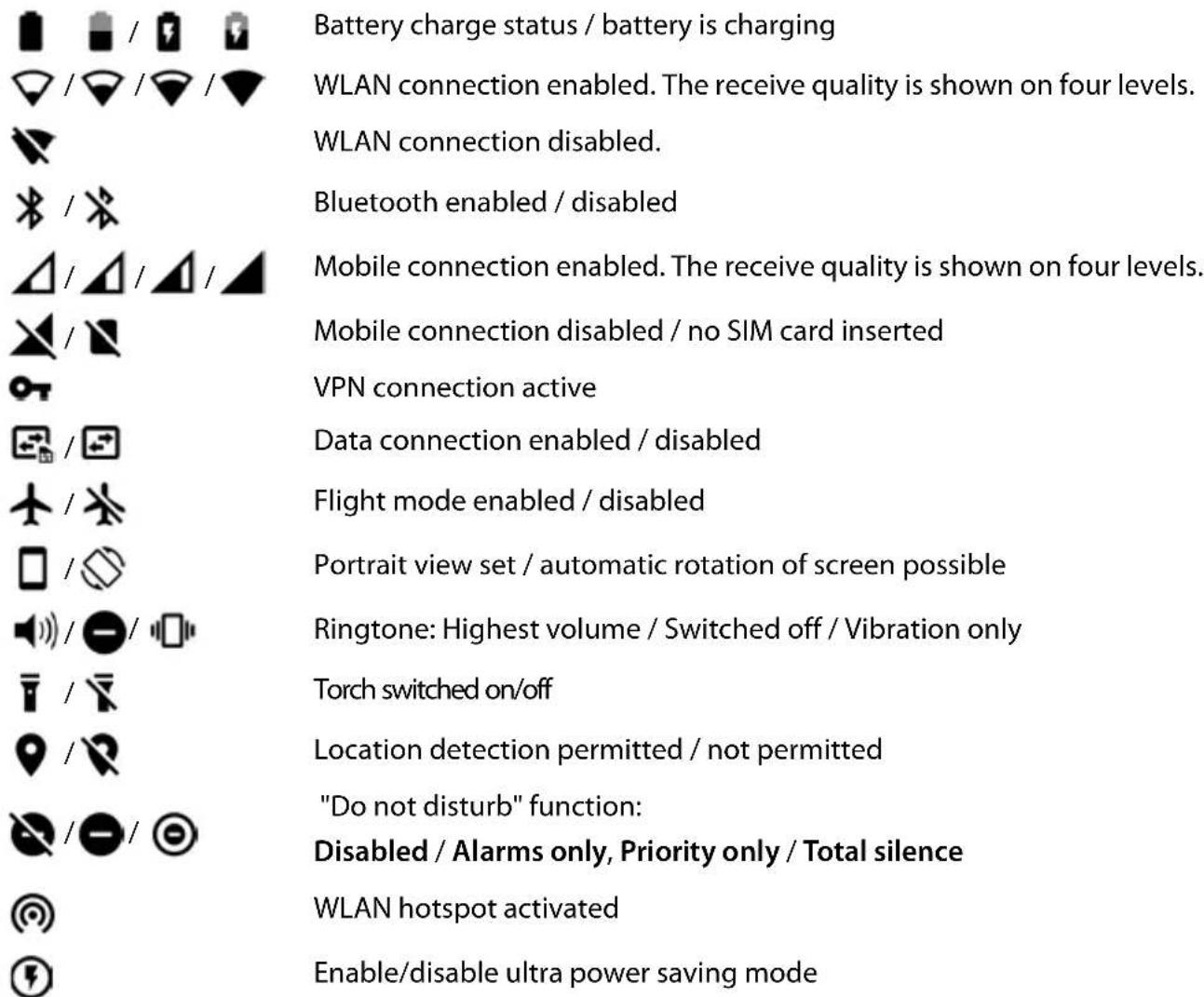
Notifications


App authorisation management
Missed call
New text message
New email
New SD card detected
Screenshot created
USB cable connected / USB tethering enabled
WLAN hotspot activated
Multiple tethering connections activated (USB and/or WLAN)
Data downloaded / data uploaded
Turbo download enabled
Update for Google available / Google apps updated
... Other app-specific notifications
Index
Numerics
2G 69
3G 69
4G LTE 69
A
Accessibility features ..... 56
Account 63
Add 64
Remove 64
Synchronise 64
Account types....63
Adding the print service....34
Android Device Manager ..... 61
Android version
Checking 79
Update....80
Anti-theft PIN 59
App
Data usage....68
Default....67
Detecting harmful....27
Disable....25
Email 63
End 25
Exit 25
Force stop....67
Install....25
Install from other source 26
Move on start screen....21
On start screen 20
Open last time 17
Personalise....12
Quick access 24
Security 26
Set letter code for quick access.....24
Store in folder on screen 21
Uninstall....25
Unknown source....26
Verify 27
App notifications....23
App permissions ....60
Granting/Denying....60
On installation 60
App permissions management....61
App settings 67
Reset 69
Apps
Battery Manager....52
Contacts....40
Downloads....28
File manager....36
Phone 35
Settings 49
SMS/MMS....43
Arranging start screens 22
Audio profile
Quick setting 18
Selecting from Settings menu ..... 50
Selection from On/Off button 18
Selection from quick setting 18
Authorisation 82
Auto-start app 54
B
Battery
Charging 11
Disposal....83
Insert. 10
Power optimisation.... 53
Safety precautions 8
Battery charge level 52
Battery life 53
Battery Manager....52
Bluetooth
Change name of your own device ..... 75
Change names of connected devices ..... 75
Enable/disable 74
End pairing 75
Pairing....75
Tethering....78
Brightness 49
Adapt to ambient conditions....49
C
Call
Accept....35
Delete from call log. 39
End 35
Initiate.... 35
Initiate from call log 39
Initiate from contact 40
Reject 36
Reject with SMS 36
Call account 38
Call details 39
Call log 39
Call back caller 39
Delete calls 39
Call swapping.... 36
Calls, sort sequence in the Phone app. . . . . . . 37
Camera
Front 3
Rear....3
Certificate 62
Delete 62
Enable/disable....62
Install from SD card. 63
Show list 62
WLAN 72
Charge icon 11
Charger
Safety precautions 8
Conference call 37
Configuration 11
Configuration wizard....11
Connecting the USB cable .....11, 33
Connection
Bluetooth....74
Data usage....73
Headset 3
Mobile 69
VPN 76
WLAN....71
Connector
Micro-USB 3
Consultation....36
Contact
Add to Favourites 42
Add to group 41
Call 40
Create 41
Delete 42
Delete more than one 42
Divert call to mailbox. 42
ME entry. 42
Set ringtone 42
Contact group....40
Contacts....40
Group 40
Import/Export. 41
Link 42
Name format 40
Sorting....40
Contents of the package 10
Conversation....44
Delete 46
Cover
Close 11
Open 10
Create screenshot 32
Creating folders for apps 21
Critical value for low charge level ..... 54
Customer care....82
Customer service....82
D
Data
Backup....80
Restore....81
Data connection
Check usage....73
Enable 77
Enable/disable 73
Data loaded via Bluetooth 75
Data roaming 69
Data usage 68,73
Limit 73
Reduce....74
Date and time
Set automatically 79
Set manually....79
Date format 79
Default app 67
Default settings 81
Deleting data remotely 61
Deleting DRM licenses.... 81
Device
Configuration....11
Locate....61
Lock 59
Lock remotely 61
Open....10
Ring remotely 61
Switch on.... 11
Device administrator....62
Device Manager 61
Device storage 54
DHCP, in WLAN 72
Dialpad 35
Dialpad tones.... 52
Enable in Phone app.... 38
Display
Brightness 49
Idle mode 15
Larger font.... 56
Rotate 49
Display lock 57
Automatic 58
Password.... 57
Pattern 57
PIN 57
Replacement for fingerprint 29
Disposal....83
Do not disturb 31
Disable 31
Enable.... 31, 32
Only permit important interruptions ..... 31
Silent.... 31
Specify important interruptions.... 32
Wake-up function only 31
Double tapping 15
Download 28
Turbo 28
Download file from the Internet.... 28
Draft, SMS 43
Drag 15
E
Email account
Set up from Settings.... 63
Set up with wizard 12
Emergency calls 7
Emergency contact.... 59
Emergency message 57
Emoticon in SMS. 43
Enter a name for personalising....12
Environment 83
Exchange account. 63
Exclusion of liability 82
Export of contacts.... 41
F
Favourite, in contacts....42
Favourites bar .... 4
Tailoring....20
File manager....36
Fingerprint
Alternative method....29
App lock....30
For the quick start of apps ....30
For the quick start of contact ..... 30
For the quick start of functions....30
Name....29
Processing 29
Set up from Settings 29
Set up with wizard....13
Using....30
Fingerprint sensor....3, 29
Flash 3
Flight mode 75
Font size....49,56
For multimedia message, see MMS
For text message, see SMS
For the screen lock, refer to the Display lock
Function
Enabling/disabling with quick settings ..... 17
Quick start with fingerprint .....30
G
Google account....63
Set up with wizard....12
Google apps 26
Google keypad 18
Google search....16
Google services....63
Enable/disable with wizard 13
H
Handsfree mode 36
Headset connection....3
Help....82
Hotspot 77
|
Icons
Notifications....85
Quick settings....84
Status bar....84
User guide 5
Idle mode
Enable 15
End 15
Set period of inactivity....15
Import of contacts....41
Important interruptions....32
Importing vCards 41
Install CA certificate....63
Install client certificate....63
Installation, app....25
Intelligent Power Save mode 53
IP address WLAN....72
IP-V6 address WLAN 72
K
Keypad 18
Keypad settings 19
Keypad tones 51
L
Language
Setting from Settings menu....49
Setting with wizard.... 11
Letter codes for quick access to apps ..... 24
Listening to a recorded call 36
Location detection 65
Location history 66
Location mode 65
Lock screen message. 57
Locking an app with a fingerprint. 30
LTE 69
M
MAC address WLAN 72
Main memory.... 54
Usage 55
Making calls 35
Over the Internet 37
Over WLAN 37
Using headset 36
Using speaker 36
Medical devices
Safety precautions 7
Memory
Freeing up 55
Message bar....4
Messages....43
Define settings with wizard....13
Microphone 3
Muting 36
Micro-USB socket 3
MMS
Create 44
Manage.... 45
Maximum size 47
Search all.... 46
Settings.... 47
Mobile network 69
Music
Managing 33
Setting the volume....50
Muting
From quick settings 31
Using rules.... 51
N
Name format
Contact in Contacts app 40
Contact in Phone app 37
Navigation buttons.... 4, 17
Network connections....69
Network services....38
Night mode 54
Notification....22
Clear 22
Reset 22
SMS/MMS....48
Sound 23
Vibration mode....23
View....22
Notifications Settings....23
Notifications bar Open....22
Number Enter from keypad....35
Set up with wizard....13
Pattern Display lock .... 57
Set up with wizard....13
Visible / not visible 57
Permissions for apps 60
Phone number Add to contacts from call log .... 39
PIN Display lock 57
Set up with wizard....13
PKCS#12 keystore files ..... 62
Power consumption. 52
Power Save alarm 54
Power Save mode 52
Preferred SIM card....70
Premium SMS 43
Printing 34
Protection against unauthorised use ..... 57
Protection from unauthorised use Set up with wizard....13
Protection in the event of theft ..... 59
Proximity sensor .... 3
Proxy, WLAN 72
Q Quick access to apps .... 24
Quick response Edit 38
Send 36
Quick settings....17 Icons....84
Quick start of function with fingerprint ..... 30
R Radiation 83
Recording a call 36
Resetting network settings 81
Responses to SMS/MMS 45
Ringtone Change 38,50
Set for contact 42
Volume 50
Ringtone volume Quick setting 18
Setting from Settings menu. 50
Roaming 69
S Safety precautions .... 6
SAR certification 83
Scaling screen content 16
Screen content Create screenshot.... 32
Rotate 49
Screen pinning 58
SD card Ejecting....55
Insert.... 10
Storage capacity.... 55
Using again 55
Using as memory extension. 55
Search 16
Send email to contact 40
Set large font 56
Silent Enable from "Do not disturb" ..... 31, 32
Enable from audio profile .... 50
Enable from quick settings 18
SIM card Insert.....10
Preferred 70
Unlock....14
Using two 70
SIM card lock 59
Smart Features 3 touch points 32
Enable/disable 24
Quick access to apps.... 24
Smart Lock....58
Smiley in SMS 43
SMS Billable 43
Draft 43
Manage....45
Search all.... 46
Send to a contact 40
Settings.... 47
Write 43
SMS/MMS 43
Font size 46
Limits 46
Notification 48
Index
Notification tone....48
Read 45
Respond to....45
Send 44
Software update ....80
Sort sequence, Phone app .... 37
Sorting sequence, contacts 40
Speaker 3
Spread apart / pinch together your fingers .... 16
Start screen....16
Add 21
Add, remove, move apps ..... 20
Add, remove, move widgets....21
Change wallpaper....20
Configuration 20
Overview 4
Remove 22
Return to 16
Settings in the wizard 13
Switching....16
Start screen display 4
Status bar 4
Storage capacity
Assignment 54
Available 54
Storage, permanent....54
Storage, temporary 54
Subtitles....56
Super Power Save mode....53
Swipe or drag 15
Switching off....14
Switching on....11, 14
Switching on and off 14
According to schedule....14
Synchronising....64
System Backup.....80
Restore....81
Update....80
T Talk Back....56
Quick enabling 56
Tap....15
Tethering Bluetooth....78
USB 78
Text Font size....49
Writing and editing....18
Text-to-speech output 56
The ME entry in contacts 42
Time format 79
Time server....79
Time zone....79
Torch 3
Touch and hold 15
Transferring files to/from a computer .....33
Trust agents 58
TTY mode....38
Turbo download 28
Data volume 28
Two SIM cards.... 70
U Update 80
USB tethering....78
Using the touchscreen 15
V Verification of apps.... 27
Vibration Enable/Disable in Phone app....38 Setting from Settings menu....50 Setting from Volume button....50
Virtual Private Network, see VPN
Volume Setting from Settings menu....50
Setting from Volume button ..... 50
Volume button 3
VPN 76
Add....76
End connection 76
Establish connection. 76
W Wake-up alarm, volume.... 50
Wallpaper Change 20
Set with wizard.... 13
Widget.... 21
Change size 21
Move on start screen. 21
On start screen....21
Position on start screen.... 13
Wi-Fi Direct 72
WLAN Add....71
Certificate 72
Configuration....72
DHCP 72
Enable/disable....70
Establish connection....12,71
Establish connection with wizard. 12
Hotspot 77
IP address 72
IP-V6 address 72
MAC address 72
Proxy....72
Remove....71
WPS PIN....72
WPS Push button 72
X X.509 certificate 62
Z Zooming .... 15
Issued by
Gigaset Communications GmbH
Frankenstr. 2a, D-46395 Bocholt
© Gigaset Communications GmbH 2017
Subject to availability.
All rights reserved. Rights of modification reserved.
www.gigaset.com
Google, Android, Google Play and other brands are trademarks of Google Inc.
- Contents
- Overview ....3
- Safety precautions ....6
- Getting started 10
- Using the device 14
- Communication 35
- Settings 49
- Appendix 82
- Index 86
- Overview
- Illustration in the user guide
- Icons
- Procedures
- Safety precautions
- Emergency calls
- Children and pets
- Hospitals and medical equipment
- Switch off your mobile phone in aeroplanes
- Vehicles and road safety
- Use a qualified maintenance service
- Battery
- Charger
- SIM card, memory card and data connector cable
- Playing games
- More important information on safety
- Important information on using and safekeeping
- Getting started
- Contents of the package
- Opening the device
- Inserting SIM and SD cards
- Inserting an SD card (optional)
- Inserting the battery
- Removing the battery:
- Closing the cover
- Charging the battery
- Switching on the device
- Wizard for configuring the device
- Selecting the language
- Inserting SIM cards
- Establishing a WLAN connection
- Setting up a Google account
- Transferring the account settings from another device
- Logging in to the existing Google account
- Creating a new account
- Entering a name
- Setting up email
- Setting up protection for the phone
- Fingerprint
- PIN, pattern or password
- Settings for notifications
- Using Google services
- Settings for the start screen
- Changing the wallpaper:
- Making widgets available on the start screen:
- Using the device
- Getting to know your device
- Switching the device on and off
- Switching on
- Unlocking the SIM card
- Removing notifications (if available)
- When a display lock is set up to protect against unauthorised use
- Switching off
- Switching on and off at certain times
- Switching the device to and ending idle mode
- Switching the device to idle mode
- Setting the period of inactivity for transitioning to idle mode
- Ending idle mode
- Using the touchscreen
- Tapping
- Touching and holding
- Dragging and releasing
- Swiping or dragging
- Double tapping
- Spreading apart / pinching together your fingers
- Start screen
- Returning to the start screen from any user situation
- Switching between start screens
- Browse smartphone and Internet
- Entering a search term
- Search using voice entry
- Switching between start screens and apps
- Quick settings
- Opening the quick settings
- Enabling and disabling a function
- Changing a setting
- Quick settings for ringtone volume
- Selecting an audio profile from the quick setting screen
- Setting vibration and ringtone with the On/Off button
- Writing and editing text
- Opening the keypad
- Adding text
- Editing text
- Changing the keypad settings
- Configuring the start screens
- Tailoring the Favourites bar
- Removing apps from the Favourites bar
- Adding an app
- Changing the wallpaper
- Adding an app to a start screen
- Adding a widget to a start screen
- Moving apps and widgets
- Creating folders for apps
- Removing an app or widget
- Adding, rearranging and removing start screens
- Adding start screens
- Notifications
- Rearranging start screens
- Removing a start screen
- Dealing with notifications
- Viewing and responding to notifications
- Deleting and resetting notifications
- Changing the default notification sound
- Changing the settings for app notifications
- Checking the settings for all apps
- Setting notifications on the lock screen
- Apps
- Opening and exiting apps
- Opening an app from the App menu
- Quick access to apps
- Enabling/disabling Smart Features
- Enabling/disabling letter codes
- Assigning an app
- Opening an app with the help of code
- Switching between apps
- Ending/exiting apps
- Exiting an app
- Ending an app
- Installing/uninstalling apps
- Installing new apps
- Uninstalling or disabling apps
- Preinstalled default Google apps
- Protection from harmful apps
- Downloading apps from sources other than Google Play
- Enabling Verify apps
- Improving the detection of harmful apps
- Downloads
- Working with downloaded files
- Enabling/disabling Turbo download
- Fingerprint sensor
- Setting up the fingerprint
- Scanning a fingerprint
- Changing a fingerprint name
- Locking an app with a fingerprint
- Quick start of functions
- Quick start of apps and contacts from idle mode
- Using a fingerprint
- "Do not disturb"
- Total silence (total silence)
- Alarms only
- Priority only
- Enabling "Do not disturb"
- Disabling "Do not disturb"
- Disabling "Do not disturb" for certain apps
- Specifying important interruptions
- Additional functions
- Creating screenshots
- Taking a screenshot
- Viewing a screenshot
- Sending files between a computer and the smartphone
- Connecting the USB cable
- Transferring files
- Managing music
- Printing
- Printing via apps
- Adding, enabling and disabling printers
- Communication
- Making calls
- Making a call
- Enter the number
- Using a phone number from a contact
- Using a phone number of a favourite contact
- Using a phone number from the call log
- Ending a call
- Accepting a call
- Rejecting a call
- Rejecting a call and sending an SMS to the caller
- Options during a call
- Showing the dialpad during a call
- Listening to a recorded call:
- Consultation, call swapping
- Merging two calls into a conference call
- Making calls over WLAN
- Call settings
- Display of caller name in the call log and contact list of the Phone app
- Setting tones and vibration
- Editing quick SMS responses
- Using TTY for calls
- Network-dependent settings
- Call log
- Showing the call log
- Showing call details
- Contacting the caller
- Adding a phone number to the contacts
- Deleting calls from the call log
- Contacts
- Using contacts
- Viewing contacts
- Using a contact for communication
- Grouping contacts
- Adding contacts
- Creating a contact
- Importing/exporting contacts
- Importing contacts from a VCF file:
- Editing contacts
- Editing contact details
- Editing the ME entry
- Adding contacts to Favourites
- Creating a special ringtone for a contact
- Diverting calls from a contact to the mailbox
- Deleting contacts
- Linking contacts
- Cancelling a link
- Messages (SMS/MMS)
- Sending and replying to messages
- Writing an SMS
- Writing an MMS
- Pictures
- Capture picture
- Videos
- Capture video
- Record audio
- Slideshow
- Contact
- Calendar
- Sending a message
- Responding to received messages
- What to do with multimedia messages
- Reading and managing messages
- Reading SMS/MMS messages
- Managing SMS/MMS messages
- Deleting a conversation
- Searching in SMS/MMS messages
- SMS/MMS settings
- Changing the font size
- Storage settings
- SMS settings
- MMS settings
- Automatic retrieving of MMS messages
- Settings for notifications about received SMS/MMS messages
- Settings
- Device
- Language
- Display
- Brightness
- Font size
- Display orientation
- Tones and volume
- Volume
- Using the Volume button
- From the Settings menu
- Selecting an audio profile
- Enabling/disabling vibration
- Ringtones
- Changing the default ringtone
- Adding new ringtones
- Setting rules for automatic muting
- Muting tones at certain times
- Muting a tone during events and meetings
- Enabling a rule
- Setting keypad tones
- Enabling/disabling other tones
- Power management
- Showing the battery charge level
- Showing the power consumption
- Using Power Save mode
- Using Intelligent Power Save mode
- Using Super Power Save mode
- Optimising the battery life
- Other power and resource consumption settings
- Auto-start management
- Clean up background processes when in standby
- Clear background app
- Night mode
- Power saving alert: low battery
- Select critical value
- Switch when battery is low
- Storage
- Device storage management without SD card
- Device storage management with SD card
- Freeing up device memory
- Main memory
- Accessibility features
- Talk Back
- Captions
- Magnification gestures
- Large text
- High contrast text
- Power button ends call
- Auto-rotate screen
- Speak passwords
- Accessibility shortcut
- Text-to-speech output
- Touch & hold delay
- Color inversion
- Color correction
- Security
- Display lock
- Setting up a display lock
- Pattern, PI N, Password
- Settings for the display lock
- Entering a lock screen message
- Showing/hiding the pattern
- Setting the time for automatic display lock
- Enabling the display lock when switching on and off
- Automatically unlocking the device with Smart Lock
- Screen pinning
- Enabling/disabling screen pinning
- Pinning the screen
- Unpinning the screen
- Protection in the event of theft
- Configuring theft protection
- Changing/disabling theft protection
- SIM card lock
- App permissions
- Permissions when installing apps
- Enabling/disabling permissions for apps on the smartphone
- Checking and managing permissions
- Android Device Manager
- Device administrators
- Certificates
- Supported formats:
- Managing certificates
- Installing client and CA certificates
- Accounts and location detection
- Accounts
- Account types
- Google account
- Email account
- Exchange account
- Adding an account
- Removing an account
- Synchronising
- Enabling/disabling automatic synchronisation
- Manually synchronising an account
- Location detection
- Enabling/disabling location detection
- Changing location mode
- Checking location detection by apps
- Managing location history
- Default app
- Selecting a default app for an action
- Resetting the default app
- Specifying the default app for a frequently used function
- Changing app settings
- Uninstall / Disable
- Force stop
- Data usage
- Permissions
- Open by default
- Memory
- General app settings
- App links
- Default Apps
- Draw over other apps
- Modify system settings
- Battery optimization
- Resetting app settings
- Network connections
- Mobile networks
- Editing settings
- Data roaming
- Preferred networks
- Preferred network type
- Enhanced 4G LTE Mode
- Access point names
- Cellular networks
- Using two SIM cards
- WLAN
- Enabling/disabling the WLAN function
- Establishing a connection to a WLAN
- Adding more WLANs
- Removing a WLAN
- Viewing WLAN details
- Connection configuration
- Proxy
- DHCP
- Advanced options
- Information on the device's WLAN interface
- Checking data usage
- Setting a limit and warning for data usage
- Enabling/disabling mobile data connection
- Other ways to reduce data usage
- Disabling automatic synchronisation
- Restricting the use of background data
- Disabling data roaming
- Bluetooth
- Enabling/disabling Bluetooth
- Pairing
- Changing the names of connected Bluetooth devices or ending pairing
- Changing the Bluetooth name of the smartphone
- Displaying data transmission information
- Flight mode
- Virtual Private Networks (VPN)
- Adding a VPN
- Establishing a connection to a VPN
- Ending a VPN connection
- Deleting a VPN
- Editing VPN settings
- Enabling/disabling "always-on" VPN
- Tethering with WLAN hotspot, Bluetooth or USB
- Enabling and disabling WLAN hotspot
- Changing WLAN hotspot settings
- Connecting a device to the WLAN hotspot
- Setting up and using Bluetooth tethering
- Setting up and using USB tethering
- System
- Date and time
- Automatic setting
- Manual setting
- Setting the time zone
- Setting the date and time format
- Software updates
- Checking the Android version
- Downloading Android updates
- Installing an update after receiving a notification
- Installing an update without receiving a notification
- Backing up and restoring the system
- Backing up data and settings
- Restoring data and settings
- Resetting network settings
- Deleting DRM licenses
- Resetting the device to the default settings
- Appendix
- Customer service
- Exclusion of liability
- Manufacturer's advice
- Authorisation
- Waste and environmental protection
- Correct disposal of this product
- Correct disposal of batteries in this product
- About radiation
- Information on SAR certification (specific absorption rate)
- Status bar and quick settings
- Index
- Numerics
- A
- App
- Audio profile
- B
- C
- Call
- Camera
- F
- Function
- G
- H
- |
- Idle mode
- K
- L
- M
- Medical devices
- MMS
- Music
- Muting
- N
- Name format
Brand : GIGASET
Model : GS160
Category : Smartphone