
Eluma 5 - Smartphone BUSH - Free user manual and instructions
Find the device manual for free Eluma 5 BUSH in PDF.


| Product Type | Smartphone |
| Brand | Bush |
| Model | Eluma 5 |
| Display Size | 5.0 inches |
| Resolution | 480 x 854 pixels |
| Processor | Quad-core 1.3 GHz |
| RAM | 1 GB |
| Internal Storage | 8 GB |
| Expandable Storage | microSD up to 32 GB |
| Operating System | Android 8.1 (Go edition) |
| Rear Camera | 8 MP with LED flash |
| Front Camera | 5 MP |
| Battery Capacity | 2500 mAh |
| Dimensions | 143 x 72 x 9 mm |
| Weight | 155 g |
| Connectivity | 4G LTE, Wi-Fi 802.11 b/g/n, Bluetooth 4.2, GPS |
| SIM | Dual SIM (Micro-SIM) |
| Sensors | Accelerometer, proximity, light |
| Cleaning | Wipe with a soft dry cloth; avoid liquids |
| Safety | Remove battery before cleaning; keep away from water |
| Spare Parts | Battery, screen, charging port available online |
Frequently Asked Questions - Eluma 5 BUSH
User questions about Eluma 5 BUSH
0 question about this device. Answer the ones you know or ask your own.
Ask a new question about this device
Download the instructions for your Smartphone in PDF format for free! Find your manual Eluma 5 - BUSH and take your electronic device back in hand. On this page are published all the documents necessary for the use of your device. Eluma 5 by BUSH.
USER MANUAL Eluma 5 BUSH
natural_image
Smartphone displaying a smartphone with app icons on its screen (no readable text or symbols)
natural_image
Color palette bar with grayscale gradient and a small crosshair symbol at the bottom (no text or labels)Table of contents
Package contents....2
Description of the phone....3
Getting started....6
Mobile data & WiFi connection....10
Outlook account &Contacts....12
Hints & tips with Windows™....14
Improving security on your Bush Phone....16
Troubleshooting....19
For more information, please consult the FAQs on the vendors website such as www.argos.co.uk. Make sure to read them before considering any product return. As we are often updating and improving our products, your device's software may have a slightly different appearance or modified functionality than presented in this Quick Start Guide.

natural_image
Color palette bar with grayscale gradient and a small crosshair symbol at the bottom (no text or labels)Package Contents
Check your product box for the following items:
-Bush 5" Windows
-Battery
-Headset
-USB cable
-1 extra white back cover
-1 screen protector
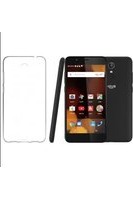
-1 clear TPU case
-Charger
-Quick start guide
-Warranty Legal & Safety notices
The supplied items are designed only for your device and may not be compatible with other devices.
Unapproved accessories may cause your device to malfunction.
2


natural_image
Color palette bar with grayscale gradient and a central crosshair symbol (no text or labels)Description of the phone
① Micro-USB port
② Headset jack
③ Front camera
④ Phone speaker
⑤ Light sensor
⑥ Back button
⑦ Start button
⑧ Search button
⑨ Microphone
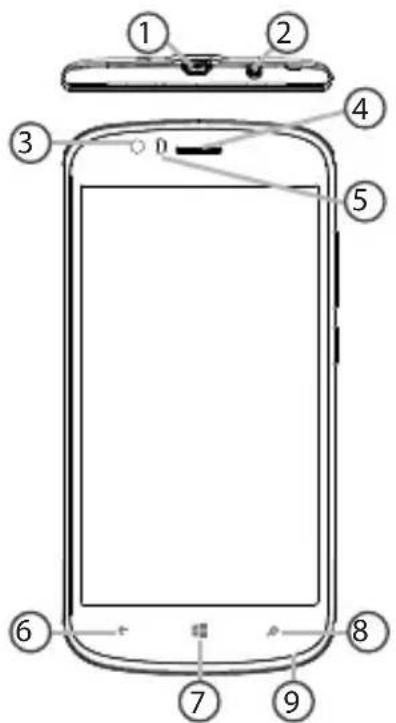
3


natural_image
Color palette bar with grayscale gradient and a central crosshair symbol (no text or labels)Description of the phone
⑩ Camera
⑪ Flash light
⑫ Volume buttons
⑬ ON/OFF button
14 Loudspeaker
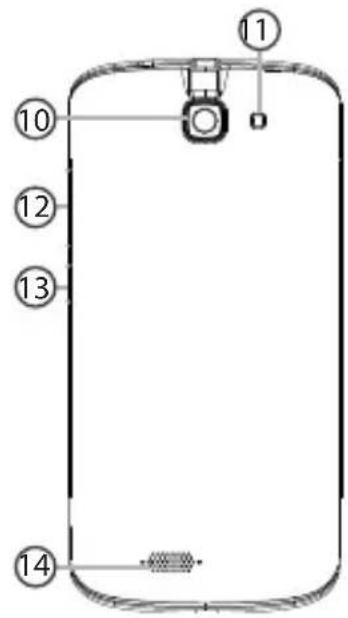

4
Bush_5_Windows_10_book(AC50Cesium).indd 4

02/12/2015 10:22:02

natural_image
Color palette bar with grayscale gradient and a small crosshair symbol at the bottom (no text or labels)
ON/OFF: when the device is off, long press to turn on. When the device is on, short press to turn off the screen and long press to display options.
Volume +/-: press +/- to adjust the volume. When you press the button, notification options are displayed. You can select the most appropriate one.
Back button: return to the previous screen/ long press to open the list of recent applications.
Start button: short press to return
to the Home screen.
Search button/Cortana: short press to access Cortana/the search page.


Micro-USB port: plug the provided cable to charge the device or to connect it to a computer.

Headphone jack: connect the provided earphones to make hand-free calls.

Camera & Flash: take pictures or make movies. To extend movies duration, insert a micro-SD card. Activate the flash option in a dark environment and use it as a torch through the quick settings.

Light sensor: it turns off the screen when the device is close to your ear during a call.


natural_image
Color palette bar with grayscale gradient and a small crosshair symbol at the bottom (no text or labels)Getting started
Assembling
After you have unpacked your mobile phone box:
- Remove the device's back cover using the notch.
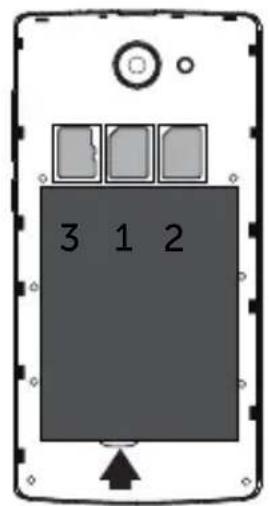
- Insert your SIM card or Memory card in the corresponding slot.
- Insert the device's battery.
- Replace the back cover.

| 4G/3G/2G slot 1 When inserting your SIM card or micro-SD card, make sure to follow the illustration, otherwise you may damage the slot or the card. The 2G slot is below the 3G/2G slot. |
| 2G slot 2 |
| Micro-SD card slot 3 |

6


natural_image
Color palette bar with grayscale gradient and a central crosshair symbol (no text or labels)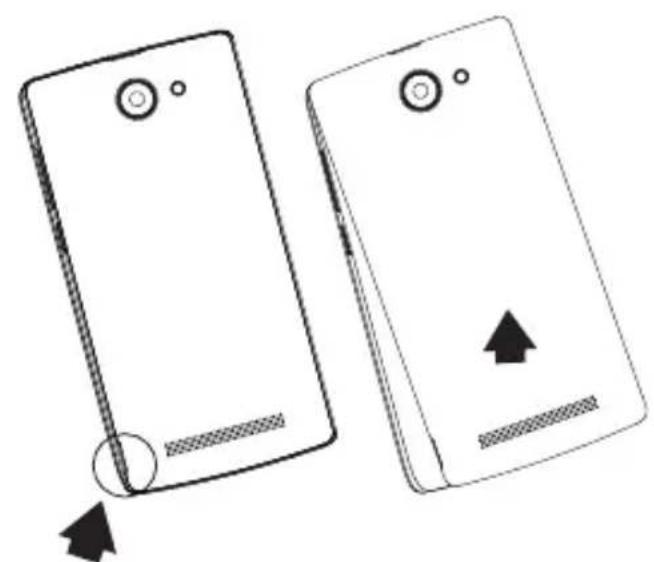
natural_image
Two smartphone screens shown side by side, one with a circular button and arrow indicator, the other with an upward arrow (no text or symbols)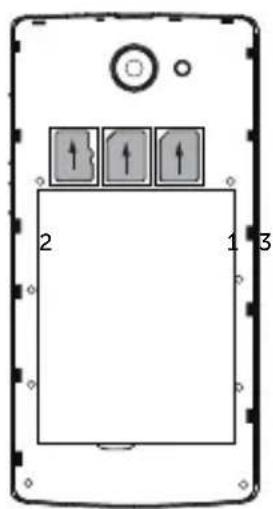
Lift the back cover using the notch

natural_image
Color palette bar with grayscale gradient and a small crosshair symbol at the bottom (no text or labels)Getting started
Turning on
- Plug the charging cable in the Micro-USB port and connect it to its charger.
Before using your device for the first time, charge its battery completely.
- Press and hold the ON/OFF button to turn on the device.
The first time you start up your tablet, the installation wizard will help you set up your device.
- Follow the onscreen instructions.
If you have inserted a SIM card, you may need to enter a PIN code.
Beware of typing a wrong PIN code.



natural_image
Color palette bar with grayscale gradient and a crosshair symbol at the bottom (no text or labels)On your homescreen
-
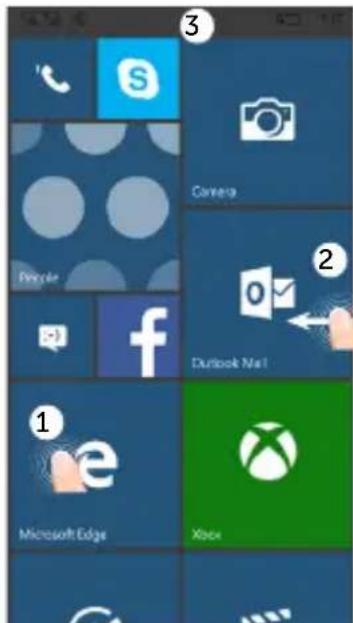
Select a tile to open the corresponding app
-
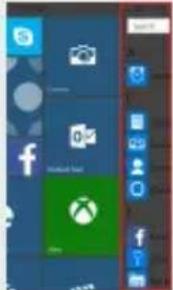
From the right side of the screen, slide your finger to the left.
to access all your apps
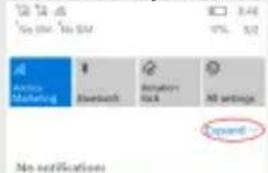
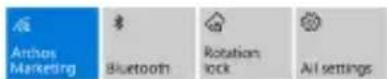
- Touch and pull down the status bar to display it. Touch Expand to reveal more quick settings.
9


natural_image
Color swatch bar with grayscale gradient from black to white (no text or symbols)
Mobile Data & WiFi connection
Mobile data connection
In order to get mobile data you must have the appropriate service from your network provider; some plans are for calls and texts only. For most major networks your SIM will connect with the network automatically. However, some networks may require you to do some manual set up to get started. In this case you will get a message from them telling you how to set up. Check to see if you already have network connection before making any changes in settings. Note that you will only be able to get mobile data (4G) if the area you are in is covered by signal from your network provider. When connected to the 4G network, the 4G icon is displayed in the status bar. If 4G is not available your phone will default to lower bit rate services (2G).
Activating/Deactivating the mobile data
- Touch and pull down the status bar to display it.
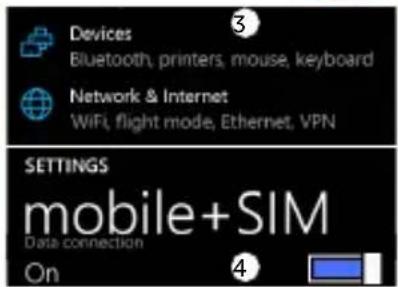
- Touch Expand to reveal all the quick settings. Select All Settings.
- Select Network & Internet, then Cellular & SIM.
- Slide the Data connection switch to turn on/off.



natural_image
Color palette bar with grayscale gradient and a central crosshair symbol (no text or labels)WiFi connection
WARNING: Make sure that you are in a WiFi zone. You can access the WiFi settings quickly from the status bar.
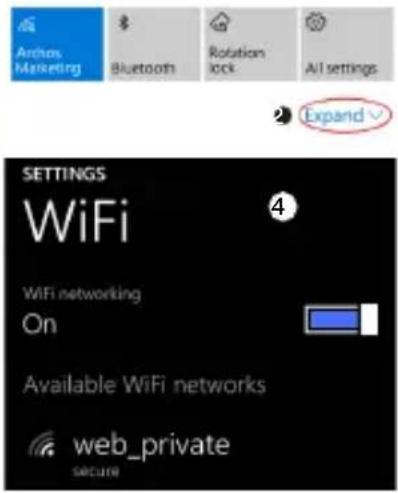
- Touch and pull down the status bar to display it.
- Touch Expand to reveal all the quick settings. Select WiFi to activate it.
- Select WiFi a second time to display the WiFi settings.
- Touch the name of the network you want to connect to. Private networks will require you to enter a password.



natural_image
Color palette bar with grayscale gradient and a crosshair symbol at the bottom (no text or labels)Outlook account & Contacts
Adding an account
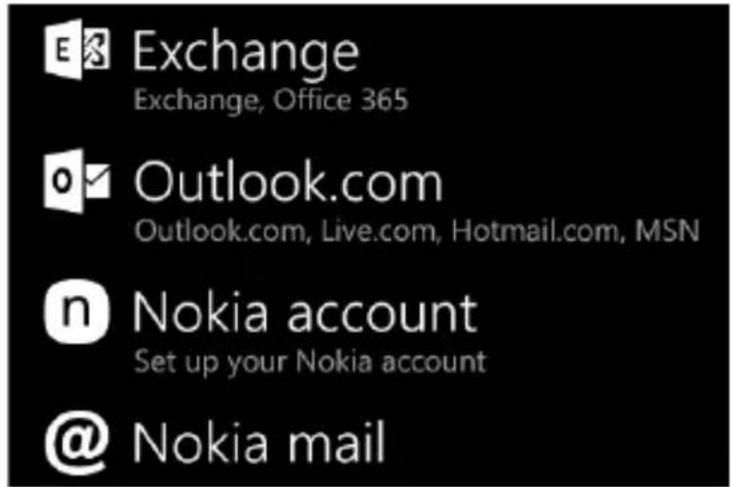
- Go to 'Settings' > 'Accounts' > 'Email & accounts' > 'add an account'.
- Select the account type to add.
- Follow the onscreen instructions to enter information about the account.

12
Bush_5_Windows_10_book(AC50Cesium).indd 12 02/12/2015 10:22:06


natural_image
Color palette bar with grayscale gradient and a small crosshair symbol at the bottom (no text or labels)Saving your contacts
When your contacts are saved, they are always available on the web and can be synced to any Windows phone that's set up with your account.
- From Start or All Apps screen, select the People app
- Tap and then select Settings.
- Select 'Import from SIM card'. If you have mowre than one SIM card, select the one you want under Import contacts from.
- Under Save contacts to, select the account you'd like to store the contacts in, and then tap Next.
- To import all of the contacts on your SIM card, tap Import.
- If you want to select contacts to import individually, tap Clear, select the contacts you want to import, and then tap Import.
- Your contacts are then automatically imported into the Microsoft account set up on your phone. After saving your contacts on your Windows Phone to a Microsoft account in the Cloud, you'll be able to keep your contacts synced between all the places you sign in with that account. And if you make a change in one place, it'll show up everywhere else.



natural_image
Color palette bar with grayscale gradient and a central crosshair symbol (no text or labels)Hints & tips with Android™
Making a call:
Make a call in just a few taps. On the Start screen, tap the Phone Tile, touch the Keypad icon, enter a phone number, then tap Call. To call one of your contacts, touch the Phone book, then tap Search to find the one you want. To call someone back, just tap a name or number in History.

Sending a text:
Limber up those thumbs- texting is a doodle on your Windows Phone. On Start Tap Messaging, then tap New.
Enter a phone number or contact, type your message in the text box, then tap Send. To reply to a text, just tap the thread with the message that you want to answer.
Shopping the store:
Browse free and paid apps and games in the Windows Phone Store. Make sure
14


natural_image
Color palette bar with grayscale gradient and a small crosshair symbol at the bottom (no text or labels)you've signed in to your phone with your Microsoft account. On Start Start Tap Store, then do one of the following: Swipe left or right to see top apps, browse by category and more. Tap Search to find a specific app or game.
Finding your apps and pinning them to Start:
Apps you've downloaded show up in the the App list. From there, you can pin your favourites to the Start screen.
Note: You can pin apps, contacts and more to Start to keep them handy.


Locking the touchscreen:
A lock screen password can help keep your phone more secure. Go to Settings < Lock screen and slide the Password switch to the "ON" position and then create a password. You can decide to remove this option at any time by sliding the Password switch to the "OFF".


natural_image
Color palette bar with grayscale gradient and a small crosshair symbol at the bottom (no text or labels)Improving security on your Bush Phone
Online
In order to avoid online threats we recommend that you install antivirus and security software on your device and keep these and your browser and other software up to date to take advantage of security fixes.
Physical theft
If you store valuable information on your phone including passwords and logins for personal accounts etc. you may want to enhance the security of your phone in case it is stolen or lost.
Setting a PIN or password
You can set a pin code (4-8 digit numerical code) or you can set a password which is 4 to 17 digits. We recommend you set a password, the longer and more complex it is the harder it is to break. For the best passwords use a mixture of upper and lower case letters, numbers and special characters such as %, # and *.
- In 'Settings', select 'Accounts', then 'Sign-in options, and follow the onscreen instructions.

natural_image
Color palette bar with grayscale gradient and a small crosshair symbol at the bottom (no text or labels)Encrypting your memory
In order to prevent more technically capable persons gaining access to your data, in the event that your phone is lost or stolen, you can encrypt your phone's memory so that even if the password is breached the data will be unreadable.
Please note encryption will have a modest effect on performance but for most tasks this will not be noticeable. For memory intensive tasks such as playing back video files stored in the phone's memory it may cause some buffering.
In order to encrypt your phone you must first set a PIN or password as shown above.
Go to:
- 'Settings', select 'System', then 'Device encryption'. Slide the button to ON.
- Please note that your phone cannot be decrypted by the same process. To decrypt you must return the phone to factory settings which will erase all of your files and downloaded apps (securely).
- To reset to factory defaults go to 'Settings', select 'Backup and Reset' then 'Factory data reset'.



natural_image
Color palette bar with grayscale gradient and a central crosshair symbol (no text or labels)Bush Phones Helpline
For detailed advice on this or any other issue concerning your Bush phone you can consult with the technical support helpline – 0207 744 0346



natural_image
Color palette bar with grayscale gradient and a small crosshair symbol at the bottom (no text or labels)Troubleshooting
My phone is frozen or cannot switch on
Check the battery contacts, remove and reinstall your battery, then turn your phone on. Check the battery power level, charge for at least 20 minutes.
My phone cannot connect to a network or "No service" is displayed. Try connecting in another location. Verify the network coverage with your operator.

Unable to make outgoing calls
Make sure your phone is connected to a network, and the network is not overloaded or unavailable.
Unable to receive incoming calls
Make sure your phone is switched on and connected to a network (check for overloaded or unavailable network).
SIM card PIN locked
Contact your network operator to obtain the PUK code (Personal Unblocking Key).



natural_image
Color palette bar with grayscale gradient and a central crosshair symbol (no text or labels)Troubleshooting
To configure a new 4G network:
On your device, tap Settings.
Select Wireless & networks > More... > Mobile networks.
Select Network settings. In Network operators, select your operator.
In Access Point Names, select the correct access point name and enter the exact connection parameters provided by your 4G provider.


SAR
After the laboratory measurement, this mobile phone SAR value is Head Max: 0.331 W/Kg (10g) Body Max: 1.66 W/Kg (10g)
Argos declares that this device is in compliance with the essential requirements and other relevant provisions of Directive 1999/5/EC.
A copy of the declaration of conformity can be obtained from: Argos Ltd. 489-499 Avebury Boulevard, Milton Keynes, MK9 2NW, UK
C€0700

www.argos.co.uk/bush
PN :114596Argos Limited © 2
Bush_5_Windows_10_cover(AC50Cesium).indd 2 24/11/2015 18:11:33
- Table of contents
- Package Contents
- Description of the phone
- Getting started
- Assembling
- Turning on
- On your homescreen
- Mobile Data & WiFi connection
- Mobile data connection
- Activating/Deactivating the mobile data
- WiFi connection
- Outlook account & Contacts
- Adding an account
- Saving your contacts
- Hints & tips with Android™
- Making a call:
- Sending a text:
- Shopping the store:
- Improving security on your Bush Phone
- Online
- Physical theft
- Setting a PIN or password
- Encrypting your memory
- Go to:
- Bush Phones Helpline
- Troubleshooting
- SAR
Brand : BUSH
Model : Eluma 5
Category : Smartphone