
NID-9003 - Tablet Naxa - Free user manual and instructions
Find the device manual for free NID-9003 Naxa in PDF.


| Product Type | Tablet |
| Model | NID-9003 |
| Brand | Naxa |
| Display Size | 9 inches (estimated) |
| Dimensions (W x H x D) | Approx. 240 x 170 x 10 mm |
| Weight | Approx. 400 g |
| Battery Type | Lithium-ion rechargeable |
| Battery Capacity | 4000 mAh (estimated) |
| Charging | via micro-USB or dedicated charger |
| Connectivity | Wi-Fi 802.11 b/g/n, Bluetooth, USB |
| Camera | Front and rear cameras |
| Storage | Internal (varies), microSD slot for expansion |
| Operating System | Android (version unspecified) |
| Processor | Quad-core or similar (estimated) |
| RAM | 1-2 GB (estimated) |
| Audio | Built-in speaker, 3.5mm headphone jack |
| Power Adapter | Input: 100-240V AC, Output: 5V DC |
| Cleaning | Wipe with a soft, dry cloth; avoid liquids |
| Safety | Do not disassemble, avoid extreme temperatures, keep away from water |
| Repairability | Contact Naxa support for service; parts may be available |
| Manual | User manual included (20 pages PDF) |
Frequently Asked Questions - NID-9003 Naxa
User questions about NID-9003 Naxa
0 question about this device. Answer the ones you know or ask your own.
Ask a new question about this device
Download the instructions for your Tablet in PDF format for free! Find your manual NID-9003 - Naxa and take your electronic device back in hand. On this page are published all the documents necessary for the use of your device. NID-9003 by Naxa.
USER MANUAL NID-9003 Naxa
THE NEW GENERATION IN TECHNOLOGY
Core 9 Tablet with Windows ^® 10
NID-9003
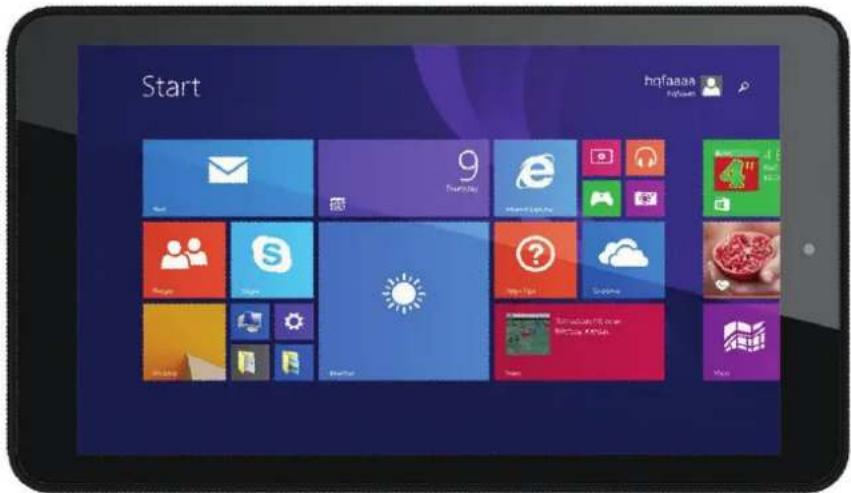
Instruction Manual
Please read carefully before use and keep for future reference.
Thank You
We know you have many choices when it comes to technology; thank you for choosing us here at Naxa Electronics. Established in 2001 in Los Angeles, California, we are dedicated to delivering products that entertain and delight.
We trust that you will be happy with your purchase. Please read this manual carefully and save it for reference. You may also find the latest FAQ, documentation, and other product material at our website. Come visit us on the web at www.naxa.com and see all that we have to offer!
In the Box
Please take a moment to make sure that you have everything in the list below. Although we make every effort to ensure that each Naxa device is securely packed and sealed, we know a lot can happen in between us and you. If anything is missing, check back with your local retailer to get immediate assistance. If they cannot help you, please contact our Naxa Support team at www.naxa.com/naxa_support.
- NID-9003 tablet
- USB power adapter
- USB OTG cable
- User manual
Before You Start
Please take note of the following before you start.
- This device is designed for use in non-tropical areas up to 2,000 meters above sea level. The ⚙️ mark indicates that the device should not be used in tropical areas.
- Prevent the device from falling to the ground or otherwise suffer a strong impact.
- Do not use the device for a prolonged period of time in any environment that is extremely cold, hot ( >35^ ), or humid or with too much dust. Do not expose the device to direct sunlight.
- Avoid using the device near strong magnetic fields or static as much as possible.
- If any water or other liquid splashes onto the device, turn it off and disconnect it from power immediately. Do not use the device again until it dries out completely.
- Do not clean the device with any detergents, chemicals, or liquids to avoid causing damage due to corrosion or dampness. If cleaning is really necessary, gently wipe the device with a soft dry cloth or tissue paper.
- Naxa Electronics disclaims any and all responsibility for loss or deletion of data stored on the device, or caused by abnormal software or hardware operation, maintenance or any other accident.
- Please back up important data at all times to avoid loss.
- Please do not disassemble the device; doing so will invalidate the warranty.
- This device supports an overwhelming majority of 3G network dongles from mainstream brands. However, we cannot guarantee
compatibility with all 3G network dongles. Before you buy a dongle, test it with the device to ensure compatibility.
- This guide and any relevant software may be updated periodically. Please visit www.naxa.com for the latest news and updates for your device.
- Should the instructions found within this guide be inconsistent with the device itself, the material object shall prevail.
At a Glance

1 Power button
Press and hold to turn the tablet on.
When the tablet is on:
Press it to turn the screen off and put the tablet to sleep. Press again to wake the tablet from ssleep.
Press and hold to turn the tablet off. A Power Off screen will be displayed; swipe down on the screen to finish turning off the tablet.
2 Volume - and Volume +
Decrease or increase the volume level.
3 Front camera
Works with communication or photography apps that require a camera.
4 Headphone out
Connect a headphone, speaker or other audio device with a 3.5 mm plug.
5 Micro USB
Connect to a power source with the included USB power adapter to charge the tablet. Connect a USB device with the included USB OTG cable.
6 Rear camera
Works with communication or photography apps that require a camera.
7 Memory card slot
Load a memory card here to provide additional storage to the tablet.
8 Speaker
Full-range stereo drivers provide dynamic sound.
9 Built-in Microphone
Introducing the Desktop
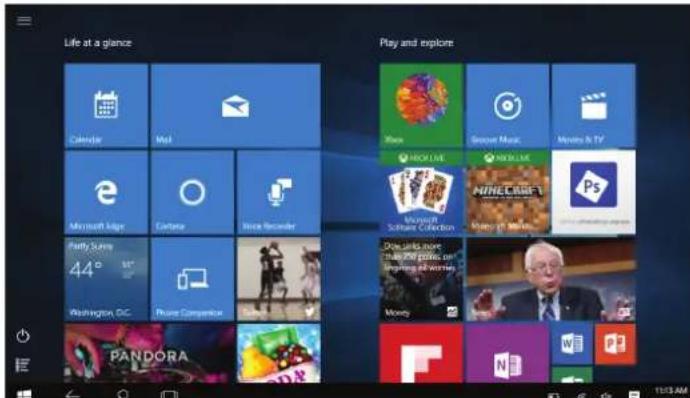
Windows 10 Start Screen
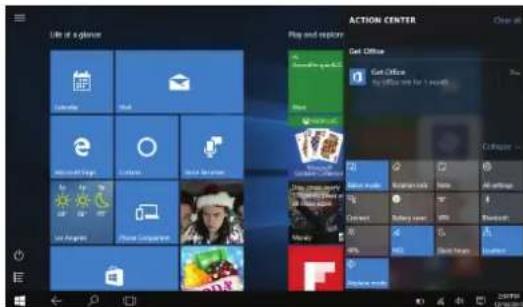
On the start screen, will can see many apps pinned to the desktop. These apps are displayed in the form of "tiles". Tap any one of them to visit them.
Some of the app tiles require you to sign up and log on to a Microsoft account.
Working with Apps
In addition to the apps that you see pinned to the Start screen, there may be other apps that are installed on your tablet.
• To view all apps, tap the "All Apps" icon.
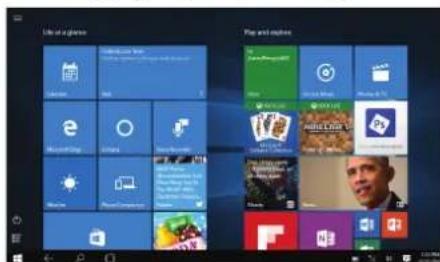
- Swipe up and down to browse the list of apps.

Tap an app to start it.
You can also pin an app to the Start screen. To do so:
1) Tap the "All Apps" icon to view all apps, then find the app you want to pin in the list.
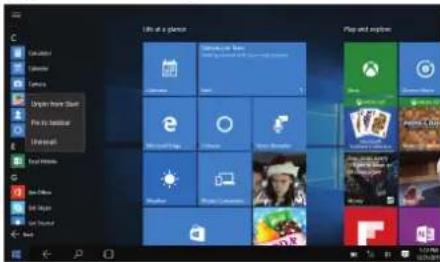
2) Tap and hold the app in the list, then drag the app to the right onto the Start screen. It will become a thumbnail.

3) Drop the thumbnail onto the Start screen.
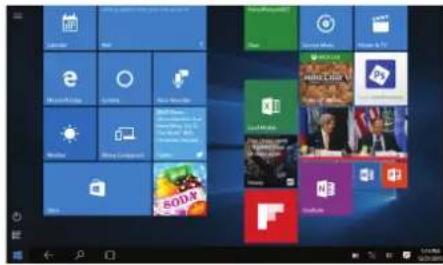
To remove a tile from the Start screen, tap and hold it, then tap the icon.


To move a tile around on the Start screen, tap and hold it, then drag it to its new location.
Start Screen Options
Tap the "Options" icon to access the Start screen options.

Most used: See a handy list of the apps you use the most.

File Explorer: View and manage the files on your tablet.

Settings: Adjust the options.
Power: Tap to put the tablet to sleep, turn it off, or to restart it.
All apps: See the apps installed on your tablet.
Accessing the Action Center
To quickly access the Action Center, swipe left from the right edge of the screen. The Action Center displays notifications from your apps as well as common settings for your tablet.
Switching Between Apps
To quickly switch between apps, swipe right from the left edge of the screen.

You'll see thumbnails of all the apps that are currently running. Tap the app to switch to it, or tap the [X] icon to close it.

To view apps side by side:
- From an app screen, swipe down from the top edge of the screen. Do not lift your finger; the running app will become a thumbnail.

- Without lifting your finger, drag and drop the thumbnail to the left or right side of the screen. When you release your finger, the app will take up half the screen.

- Tap the other side of the screen. When you open an app, it will take up the other half of the screen.

- You can drag the slider in the middle of the screen to adjust how much room each side will take up.

- To stop viewing an app side by side, swipe down from the top edge of the app, then drag the thumbnail all the way down to the bottom of the screen.

natural_image
Windows XP desktop wallpaper showing the classic Windows logo and a blank application window (no text or symbols on the screen)Connecting to Wi-Fi Networks
Your tablet works best when it is connected to the Internet. Your tablet can connect wirelessly to the Internet using Wi-Fi networks.
Wi-Fi is a wireless networking technology that can provide Internet access at distances of up to 100 meters, depending on the Wi-Fi router and your surroundings.
To use Wi-Fi, you connect to a wireless access point, or "hotspot." Some hotspots are open and you can simply connect to them. Others implement security features that require other steps to set up, such as digital certificates or other ways to ensure that only authorized users can connect.
If you're adding a Wi-Fi network when first setting up your device, Wi-Fi is turned on automatically.
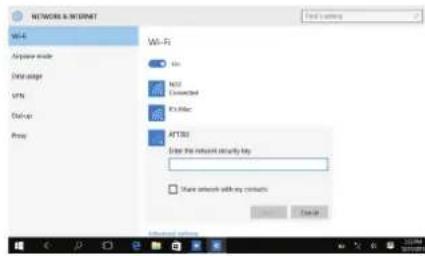
1) Swipe in to the left from the right edge of the screen to access the Action center. Tap expand to display the Wi-Fi settings tile.

2) If the Wi-Fi tile is gray, tap it once to turn Wi-Fi on.

3) Tap and hold the Wi-Fi tile, then tap "Go to Settings".

4) The tablet scans for available Wi-Fi networks and displays the names of those it finds.

5) Tap a network name to see more details or to connect to it. If the network is secured, you will be prompted to enter a password or other credentials. (If you don't know the password, you will need to ask the owner of the network to provide it.) If the tablet finds a network that you connected to previously, it will connect to it automatically.
Warnings and Precautions

CAUTION
WARNING: SHOCK HAZARD. DO NOT OPEN.
AVIS: RISQUE DE CHOC ELECTRIQUE.
NE PAS OUVRIR
CAUTION: TO REDUCE THE RISK OF FIRE AND ELECTRIC SHOCK, DO NOT REMOVE THE COVER (OR BACK) OF THE UNIT. REFER SERVICING ONLY TO QUALIFIED SERVICE PERSONNEL.
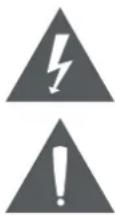
The lightning flash with arrowhead symbol within an equilateral triangle is intended to alert the user to the presence of uninsulated "dangerous voltage" within the product's enclosure that may be of significant magnitude to constitute risk of electric shock
The exclamation point within an equilateral triangle is intended to alert the user to the presence of important operation and servicing instructions in the literature accompanying the appliance.
CAUTION
- Do not block the ventilation openings or holes.
- Do not place any naked flames (such as lighted candles) on the apparatus.
- When discarding batteries, follow all local rules and laws governing the disposal of batteries. Consider the environmental impact of your actions!
- To prevent fire or shock hazard, do not expose this appliance to rain or moisture.
Important Safety Information
- Read Instructions: All the safety and operating instructions should be read before the product is operated.
- Retain Instructions: The safety and operating instruction should be retained for future reference.
- Heed Warnings: All warnings on the product and in the operating instructions should be adhered to.
- Follow Instructions: All operating and usage instructions should be followed.
- Cleaning: Unplug this product from the wall outlet before cleaning. Do not use liquid cleaners or aerosol cleaners. Use a damp cloth for cleaning.
-
Attachments: Use only attachments recommended by the manufacturer. Use of other attachments may be hazardous.
-
Water and Moisture: Do not use this product near water (e.g., near a bathtub, washbowl, kitchen sink, laundry tub, in wet basements, or near a swimming pool and the like).
-
Accessories: Do not place this product on an unstable cart,
stand, tripod, bracket, or table. Use only with carts, stands, tripods, brackets, or tables recommended by the manufacturer or sold with the product. Any mounting of the product should follow the manufacturer's instructions and should use a mounting accessory recommended by the manufacturer.

A product and cart combination should be moved with care. Quick stops, excessive force, and uneven surfaces may cause the product and cart combination to overturn.
- Ventilation: Slots and openings in the cabinet are provided for ventilation to ensure reliable operation of the product and to protect it from overheating. These openings should never be blocked by placing the product on a bed, sofa, rug, or other similar surface. This product should not be placed in a built-in installation such as a bookcase or rack unless proper ventilation is provided or the manufacturer instructions have been adhered to.
- Power Sources: This product should be operated only from the type of power source indicated on the rating label. If you are not sure of the type of power supply to your home, consult your product dealer or local power company. For products intended to operate from battery power or other sources, refer to the operating instructions.
- Grounding or Polarization: This product may be equipped with a polarized alternating-current line plug that has one blade wider than the other. This plug will only fit into the power outlet in one direction. This is a safety feature. If you are unable to insert the plug fully into the outlet, try reversing the direction of the plug. If the plug should still fail to fit, contact an electrician to replace the obsolete outlet. Do not defeat the safety purpose of the polarized plug.
- Power-Cord Protection: Power supply cords should be routed so that they are not likely to be walked on or pinched by items placed upon or against them, paying particular attention to cords at plugs, convenience receptacles, and at the point which they exit from the product.
- Protective Attachment Plug: The product may be equipped with an attachment plug with overload protection. This is a safety feature. See the operating instructions for replacement or directions to reset the protective device. If replacement of the plug is required, be sure the
service technician has used a replacement plug that has the same overload protection as the original plug as specified by the manufacturer.
- Lightning: For added protection for this product, unplug it from the wall outlet during a lightning storm or when it is left unattended and unused for long periods of time. This will prevent damage to the product due to lightning or power-line surges.
- Overloading: Do not overload wall outlets, extension cords, or integral convenience receptacles as this can result in a risk of fire or electric shock.
- Object and Liquid Entry: Never push objects of any kind into this product through openings as they may touch dangerous voltage points or short-out parts that could result in a fire or electric shock. Never spill liquid of any kind on the product.
- Servicing: Do not attempt to service this product yourself as opening or removing covers may expose you to dangerous voltage or other hazards. Refer all servicing to qualified service personnel.
- Damage Requiring Service: Unplug this product from the wall outlet and refer servicing to qualified service personnel under the following conditions: a) when the power-supply or plug is damaged; b) if liquid has been spilled or if objects have fallen into the product; c) if the product has been exposed to rain or water; d) if the product does not operate normally by following the operating instructions. Adjust only those controls that are covered by the operating instructions as improper adjustment of other controls may result in damage and will often require extensive work by a qualified technician to restore the product to its normal operation; e) if the product has been dropped or damaged in any way; f) when the product exhibits a distinct change in performance—this indicates a need for service.
- Replacement Parts: When replacement parts are required, be sure that your service technician has used replacement parts specified by the manufacturer or have the same characteristics as the original
part. Unauthorized substitutions may result in fire, electric shock, or other hazards.
- Safety Check: Upon completion of any service or repairs to this product, ask the service technician to perform safety checks to ensure that the product is in proper operating condition.
- Wall or Ceiling Mounting: The product should be mounted to a wall or ceiling only as recommended by the manufacturer.
- Heat: The product should be situated away from heat sources such as radiators, heat registers, stoves, or other products (including amplifiers) that produce heat.
FCC NOTICE
This device complies with Part 15 of the FCC Rules. Operation is subject to the following two conditions: (1) this device may not cause harmful interference, and (2) this device must accept any interference received, including interference that may cause undesired operation.
Note: This equipment has been tested and found to comply with the limits for a Class B digital device, pursuant to Part 15 of the FCC Rules. These limits are designed to provide reasonable protection against harmful interference in a residential installation. This equipment generates, uses and can radiate radio frequency energy and, if not installed and used in accordance with the instructions, may cause harmful interference to radio communications. However, there is no guarantee that interference will not occur in a particular installation. If this equipment does cause harmful interference to radio or television reception, which can be determined by turning the equipment off and on, the user is encouraged to try to correct the interference by one or more of the following measures:
- Reorient or relocate the receiving antenna.
- Increase the separation between the equipment and receiver.
- Connect the equipment into an outlet on a circuit different from that
to which the receiver is connected.
- Consult the dealer or an experienced radio/TV technician for help.
CAUTION ON MODIFICATIONS
Any changes or modifications not expressly approved by the grantee of this device may void the authority granted by the FCC to operate the equipment.
WARNING:
This product contains lead, a chemical known to the State of California to cause cancer and birth defects or other reproductive harm. Wash hands after handling.
Legal and Trademark Notices
The Bluetooth® word mark and logos are registered trademarks owned by Bluetooth SIG, Inc. and any use of such marks by Naxa Electronics is under license.
Intel ^® is a registered trademark of Intel Corporation in the United States and/or other countries.
Microsoft product images reprinted with permission from Microsoft Corporation. Microsoft and Windows are either registered trademarks or trademarks of Microsoft Corporation in the United States and/or other countries.
SD, SDHC and SDXC are trademarks or registered trademarks of SD-3C, LLC in the United States, other countries or both. Also, miniSD, miniSDHC, and miniSDXC are trademarks or registered trademarks of SD-3C, LLC in the United States, other countries or both.
Specifications
| Display Panel | 8.95” LCD touchscreen |
| Display Resolution | 1024 x 600 |
| Touch layer | Multi-touch, capacitive |
| OS Windows 10 | |
| CPU Intel Z3735G 1.83 GHz (quad core) | |
| RAM 1 GB DDR3 | |
| Built in Memory 16 GB | |
| External Memory miniSD, miniSDHC, miniSDXC (max 64 GB) | |
| Wireless Connectivity | Wi-Fi 802.11 b/g/nBluetooth® 4.0 |
| Computer Interface USB (micro type B) | |
| A/V connectivity Headphone out (3.5 mm) | |
| Built-in microphone | |
| Built-in stereo speakers (1 W x 2) | |
Camera Rear: 2.0 MP
Front: 0.3 MP
| Audio MP3, WMA, WAV, OGG, FLAC, AAC, AC-3 | |
| Video | 3GPP (.3gp), MPEG-4 (.mp4), MPEG-TS (.ts, AAC audio only), WebM (.webm), Matroska (.mkv), AVI (.avi) |
| Power adapter AC 100-240V adapter | |
Battery Rechargeable battery (4000 mAh)
* Note: Product are improved continuously. We reserve the right to modify the product and specifications without prior notice.
In case of malfunction due to electrostatic discharge, just reset the product to resume normal operation (reconnecting the power source may be required).
Support
If you have problems with your device, please consult the instructions in this manual. Please also visit us on the web at www.naxa.com to get up to the minute news, alerts, and documentation for your device. For additional assistance, please contact Naxa Technical Support.
NAXA Technical Support
2320 East 49th St.
Vernon, CA 90058
http://www.naxa.com/naxa_support/
- Core 9 Tablet with Windows ® 10
- Instruction Manual
- Thank You
- In the Box
- Before You Start
- At a Glance
- Power button
- Volume - and Volume +
- Front camera
- Headphone out
- Micro USB
- Rear camera
- Memory card slot
- Speaker
- Built-in Microphone
- Introducing the Desktop
- Windows 10 Start Screen
- Working with Apps
- Start Screen Options
- Accessing the Action Center
- Switching Between Apps
- To view apps side by side:
- Connecting to Wi-Fi Networks
- Warnings and Precautions
- CAUTION
- Important Safety Information
- FCC NOTICE
- CAUTION ON MODIFICATIONS
- WARNING:
- Legal and Trademark Notices
- Support
Brand : Naxa
Model : NID-9003
Category : Tablet