
BMZ-K2 - Hi-Fi System AIWA - Free user manual and instructions
Find the device manual for free BMZ-K2 AIWA in PDF.


| Product Type | Hi-Fi System |
| Brand | AIWA |
| Model | BMZ-K2 |
| Dimensions (W x H x D) | Approx. 40 x 30 x 15 cm |
| Weight | Approx. 5 kg |
| Power Supply | AC 110-240 V, 50/60 Hz |
| Power Consumption | 100 W (max) |
| Functions | CD player, FM/AM tuner, cassette deck, AUX input, USB playback |
| Speaker Type | 2-way bass reflex |
| Remote Control | Included |
| Inputs | AUX (RCA), USB, FM antenna, AM loop antenna |
| Outputs | Headphone jack |
| Display | LCD screen with clock and function indicators |
| Maintenance | Clean with a soft dry cloth; avoid water and cleaning solvents |
| Safety | Keep away from moisture; do not open the casing; unplug during thunderstorms |
| Spare Parts & Repairability | Contact authorized AIWA service center for parts and repairs |
Frequently Asked Questions - BMZ-K2 AIWA
User questions about BMZ-K2 AIWA
0 question about this device. Answer the ones you know or ask your own.
Ask a new question about this device
Download the instructions for your Hi-Fi System in PDF format for free! Find your manual BMZ-K2 - AIWA and take your electronic device back in hand. On this page are published all the documents necessary for the use of your device. BMZ-K2 by AIWA.
USER MANUAL BMZ-K2 AIWA
For assistance and information
visit us on the internet at
www.us.aiwa.com
call toll free 1-800-BUY-AIWA (United States only)
Owner's Record
The model and serial numbers are located on the rear panel of the unit. Record the serial number in the space provided below. Refer to them whenever you call upon your AIWA dealer regarding this product.
Model No.
Serial No.
WARNING
To prevent fire or shock hazard, do not expose the unit to rain or moisture.
To avoid electrical shock, do not open the cabinet. Refer servicing to qualified personnel only.
Do not install the appliance in a confined space, such as a bookcase or built-in cabinet.
To prevent fire, do not cover the ventilation of the apparatus with newspapers, table-cloths, curtains, etc. And don't place lighted candles on the apparatus.
To prevent fire or shock hazard, do not place objects filled with liquids, such as vases, on the apparatus.

This symbol is intended to alert the user to the presence of uninsulated “dangerous voltage” within the product’s enclosure that may be of sufficient magnitude to constitute a risk of electric shock to persons.

This symbol is intended to alert the user to the presence of important operating and maintenance (servicing) instructions in the literature accompanying the appliance.
CAUTION
The use of optical instruments with this product will increase eye hazard.
If you have any questions about this product, you may call; sony customer Information Center 1-800-488-7669. This Number below is for the FCC related matters only.
Regulatory Information
Declaration of Conformity
Trade name: SONY
Model No.: BMZ-K1/BMZ-K2
Responsible Party: Sony Electronics Inc.
Address: 680 Kinderkamack Road, Oradell,
NJ, 07649 USA
Telephone No.: 201-930-6972
This device complies with Part 15 of the FCC Rules. Operation is subject to the following two conditions:
(1) This device may not cause harmful interference, and (2) this device must accept any interference received, including interference that may cause undesired operation.
As an ENERGY STAR® Partner,
Sony Corporation has determined
that this product meets the ENERGY STAR® guidelines for energy efficiency.
PRECAUTIONS
WARNING
This equipment has been tested and found to comply with the limits for a Class B digital device, pursuant to Part 15 of the FCC Rules. These limits are designed to provide reasonable protection against harmful interference in a residential installation.
This equipment generates, uses, and can radiate radio frequency energy and, if not installed and used in accordance with the instructions, may cause harmful interference to radio communications. However, there is no guarantee that interference will not occur in a particular installation. If this equipment does cause harmful interference to radio or television reception, which can be determined by turning the equipment off and on, the user is encouraged to try to correct the interference by one or more of the following measures:
- Reorient or relocate the receiving antenna.
- Increase the separation between the equipment and receiver.
- Connect the equipment into an outlet on circuit different from that to which the receiver is connected.
- Consult the dealer or an experienced radio/TV technician for help.
CAUTION
You are cautioned that any changes or modifications not expressly approved in this manual could void your authority to operate this equipment.
Note to CATV system installer:
This reminder is provided to call the CATV system installer's attention to Article 820-40 of the NEC that provides guidelines for proper grounding and, in particular, specifies that the cable ground shall be connected to the grounding system of the building, as close to the point of cable entry as practical.
On operating voltage
Before operating the system, check that the operating voltage of your system is identical with the voltage of your local power supply.
On safety
- The unit is not disconnected from the AC power source (mains) as long as it is connected to the wall outlet, even if the unit itself has been turned off.
- Unplug the system from the wall outlet (mains) if it is not to be used for an extended period of time. To disconnect the cord (mains lead), pull it out by the plug. Never pull the cord itself.
- Should any solid object or liquid fall into the component, unplug the stereo system and have the component checked by qualified personnel before operating it any further.
- The AC power cord must be changed only at a qualified service shop.
On placement
- Place the unit in a location with adequate ventilation to prevent heat build-up the unit.
- Do not place the unit in an inclined position.
- Do not place the unit in locations where it is;
- Extremely hot or cold
- Dusty or dirty
- Very humid
- Vibrating
- Subject to direct sunlight.
On heat buildup
- Although the unit heats up during operation, this is not malfunction.
- Place the unit in a location with adequate ventilation to prevent heat build-up in the unit.
If you continuously use this unit at a large volume, the cabinet temperature of the top, side and bottom rises considerable. To avoid burning yourself, do not touch the cabinet.
On operation
- If the system is brought directly from a cold to a warm location, or is placed in a very damp room, moisture may condense on the lens inside the CD player. Should this occur, the system will not operate properly. Remove the CD and leave the system turned on for about an hour until the moisture evaporates.
- When you move the system, take out any discs.
Notes on discs
- Playable discs on this unit are Audio CDs (CDs), CD-R/CD-RW with audio data (CD-R/RW) and CD-R/CD-RW with MP3 files (MP3-CDs).
- Discs recorded on CD-R/RW drives may not be played back because of scratches, dirt., recording condition or the drive's characteristics.
- CD-R/RW discs which are not finalized at the end of recording cannot be played back.
- Do not attach adhesive label, etc. to either side of a CD-R/RW disc, as doing so may cause malfunction.
- Do not load an unrecorded CD-R/RW disc. The disc may be damaged.
- Do not insert 8-cm (3-inch) discs. Those discs cannot be played on this unit. Moreover, if you insert the discs of that size forcibly, you may not be able to eject it.
- Discs with non-standard shapes (e.g., heart, square, star) cannot be played on this unit. Attempting to do so may damage the unit. Do not use such discs.
- DVD, SACD, CD-ROM and VCD cannot be played on this unit.
Music discs encoded with copyright protection technologies
This product is designed to playback discs that conform to the Compact Disc (CD) standard. Recently, various music discs encoded with copyright protection technologies are marketed by some record companies. Please be aware that among those discs, there are some that do not conform to the CD standard and may not be playable by this product.
If you have any questions or problems concerning your stereo system, please consult your nearest Aiwa dealer.
TABLE OF CONTENTS
PREPARATIONS 4
PARTS AND CONTROLS .... 5
ADJUSTMENTS BEFORE OPERATION ...... 8
SOUND ADJUSTMENTS ...... 9
CD OPERATIONS 10
MP3-CD OPERATIONS ...... 13
TUNER OPERATIONS ...... 15
TIMER OPERATIONS ...... 16
CONNECTING A PERSONAL COMPUTER .... 18
REFERENCE 21
PREPARATIONS
Connection
Plug in the AC power cord to the AC outlet after all other connections are made.
1 Connect the speaker cords to the speakers. Connect the gray cords to the + terminals and the cords with black stripes to the - terminals.
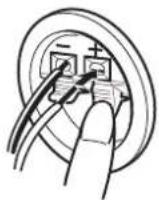
2 Connect the speakers to the main unit. Connect the right speaker (marked with "R") to the SPEAKERS R terminals and place it on the right side of the unit. Connect the left (marked with "L") to the SPEAKERS L terminals and place it on the left side. The speaker cords with the black stripes go to the ● terminals.

3 Connect the supplied antennas. Connect the FM antenna to the FM 75 Ω terminal and the AM antenna to the AM LOOP jack.
![graph TD A["AM antenna"] --> B["Switch"] B --> C["Computer"] D["FM antenna"] --> E["Switch"] E --> F["Computer"] G["AM LOOP"] --> H["Switch"] H --> I["Computer"]](/content/2026/05/1047505/images/824155244068d95b63ea96a5348314dc877d2f1f51cf6d93ee51ffe808b37c40.jpg)
4 Connect the AC power cord to an AC outlet. When the AC power cord is connected to a wall outlet for the first time, DEMO appears in the display. To deactivate the DEMO, press TITLE.
Speakers
- Do not short-circuit the + and - speaker cord leads. - Do not leave objects generating magnetism or objects affected by magnetism near the speakers.
Antennas
Keep antennas away from metallic objects, electrical equipment and cords.
- FM antenna: Extend fully and position for the best reception. If reception is poor, connect an optional outdoor antenna to the FM 75 Ω terminal. Note that, when connecting an optional outdoor antenna, use an adaptor as required. - AM antenna: Rotate to find best reception.
Remote commander
Detach the battery compartment lid at the rear of the remote commander and insert two R6 (size AA) batteries with correct polarity.
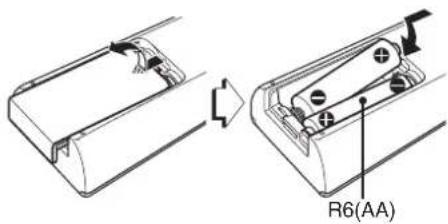
- Replace the batteries with new ones when the operational distance between the remote commander and main unit becomes shorter.
- Remove the batteries if the unit is not going to be used for an extended period of time.
- The remote commander may not operate if it is used under intense sunlight or if its line of sight is obstructed.
PARTS AND CONTROLS
Main unit: front
Refer to the pages indicated in parentheses for details.
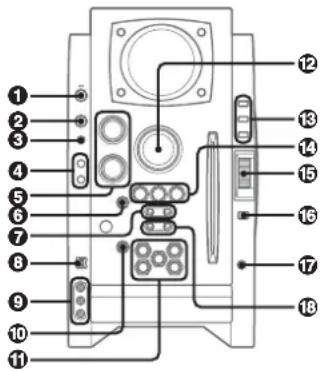
①POWER ⏻STANDBY/ON (8, 15, 16)
Switches the unit on and off (standby).
②FUNCTION (10, 13, 19, 20)
Switches the active function among CD, USB, TUNER, VIDEO and AUX.
③BAND (8, 15)
Select tuner function and the tuner band.
④GEQ (9)
Selects a sound equalization curve.
i-Bass (9)
Produces rich and clear low frequency sound.
⑤TREBLE/MIDDLE (9)
Adjusts the treble or middle range level.
BASS (9)
Adjusts the bass level.
⑥PLAY MODE (11-14)
Selects various CD play mode.
⑦ TUNING DOWN◄◄/I◄◄, UP►►/►►I (8-11, 13, 15, 16)
CD: skips to a previous or a succeeding track when pressed, searches a track in fast forward or reverse playback when held down.
Tuner: manually tunes up or down within the band.
⑧USB terminal
Accepts sound signals from a personal computer. Connect your personal computer to this terminal with a USB cable so that the unit can output the sound of an audio file which is played back by the Winamp3 on your computer.
Be sure to see "CONNECTING A PERSONAL COMPUTER" on page 18 for the details about the computer requirements, how to connect and so on before actually connecting your computer.
⑨LINE IN (VIDEO/AUDIO) jacks
Accepts analog signals from external equipment. Connect using an optional connecting cable with RCA phono plugs (red plug to R jack, white plug to L jack, yellow plug to VIDEO jack). Refer also to the operating instructions of your equipment. To switch function to external input, press FUNCTION repeatedly to display "VIDEO" or "RUX".
⑩ △EJECT (8, 10, 11, 13)
Ejects the disc(s).
①DISC SELECT (1-5) (8, 10, 13)
Selects a disc slot. Starts CD play for one desired disc.
⑫VOLUME (9)
Adjusts the volume.
13 TITLE (13, 20)
When the unit is turned off: activates or deactivated DEMO.
Changes the display in MP3-CD or USB source.
DISPLAY (8)
Changes the display in CD playback mode.
Turns the back light on and off when the unit is turned off.
MODE (8, 9)
Selects various modes (sound adjustment, etc.) when used in combination with ENTER and MULTI JOG.
Switches the ECO mode on and off when the unit is turned off.
⑭ PAUSE/SET (10, 15)
Pauses CD play.
■ STOP/CLEAR (10-13)
Stops CD play.
▶PRESET (10, 11, 13-15)
Starts CD play.
⑮ MULTI JOG (8-11, 13, 15, 16)
When used in combination with ENTER and MULTI JOG, CD: selects a track.
Tuner: selects a preset station.
⑯ ENTER (8, 9, 15, 16)
Fixes the modes and the time (clock and timer, etc.) when used in combination with ENTER and MULTI JOG.
⑰ PHONES jack
Plug in optional headphones set with a stereo mini plug (∅3.5 mm). Speaker output is canceled.
⑱ ALBUM/PLAY LIST ▼,▲ (13, 20)
Skips to a previous or succeeding album or play list.
Main unit: rear
Refer to the pages indicated in parentheses for details.
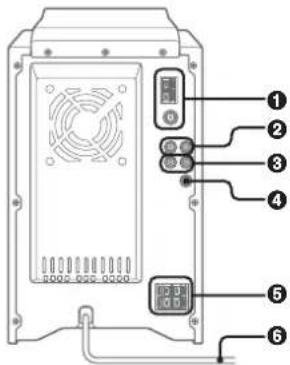
① AM LOOP jack and FM 75 Ω terminal (4)
Plug in the supplied AM and FM antennas.
②AUX IN jacks
Accept analogue sound signals from external equipment. Connect external equipment using an optional connecting cable with RCA phono plugs (red plug to R jack, white plug to L jack). Refer also to the operating instructions for your equipment. To switch function to external input, press FUNCTION repeatedly to display "VIDEO" or "RUX".
③ AUX OUT jacks
Analog sound signals for all functions can be output through these jacks. Use a cable with RCA phono plugs to connect audio equipment. Connect the red plug to the R jack, and the white plug to the L jack. However, the signal is not output when the function is "VIDEO" or "AUX".
④VIDEO OUT
Signals from VIDEO IN jack output through this jack.
⑤▷SPEAKERS terminals (4)
Connect the speaker cords of the supplied speakers.
⑥AC power cord (4)
Remote commander
Refer to the pages indicated in parentheses for details.

Buttons with the same or similar names on the main unit basically have the same function.
① POWER (8, 16)
②1-0/10, +10 (10, 11, 13, 15)
CD: selects a track of the specified number.
Tuner: tunes in the station with the specified preset number.
The numbered buttons take on these functions when pressed with SHIFT held down.
BAND (8, 15)
SPECTRUM (8)
Changes the spectrum analyser display.
TUNER MODE (15)
Switches between stereo or monaural FM reception.
GEQ (9)
③ ▶/◀▶ (10, 11, 13, 14)
Starts CD play.
■ (10-13)
II (10, 15)
◀◀/▶▶ (10, 15)
IPRESET (8-11, 13, 15, 16)
Tuner: selects a preset station.
V/A ALBUM (13)
Selects a previous or a succeeding album.
④PLAY MODE (11-14)
REPEAT (11)
Selects repeat CD playback mode.
⑤CLOCK/TIMER SET (8, 16)
Enters clock and timer setting mode.
CLOCK/TIMER SELECT (8, 16)
Switches timer setting on and off.
⑥DISPLAY (8)
SOUND (9)
Selects bass, treble or middle range level setting mode.
CLEAR (11)
Clears a track of the CD programmed playback and a tuner preset station.
7SHIFT
Hold down when pressing a numbered button to change its function to that printed above the number.
⑧FUNCTION (10, 13, 19, 20)
⑨DISC SKIP (10, 13)
Changes a disc slot.
⑩ ENTER (8, 9, 15, 16)
⑪SLEEP (16)
Selects sleep-timer mode.
⑫VOLUME +, - (9)
Note
The buttons not explained above (EDIT and KARAOKE) do not operate for this unit.
Playback will start automatically if a disc is loaded.
Tuming the unit off
Press POWER ⏻STANDBY/ON again.
The unit goes into standby.
ECO mode
Reduces power consumption in standby mode with the following operations.
Press MODE on the main unit when the unit is turned off.
Each press of the button changes the mode as follows;
ECO ON: Power economizing mode is activated.
When the unit turns off, everything on the display clears and only the red indicator above POWER lights to show that the power is being supplied.
ECO OFF: Power economizing mode is cancelled.
When the unit turns off, the clock display appears.
Initial mode is ECO OFF.
Standby power consumption
BMZ-K1
ECO ON: 0.25 W
ECO OFF: 20 W
BMZ-K2
ECO ON: 0.25 W
ECO OFF: 24 W
Setting the clock
1 Press CLOCK/TIMER SET on the remote. See below when to adjust the clock.
2 Press ◀◀◀ or ▶▶▶ to set the hour, then press ENTER.
3 Press ◀◀◀ or ▶▶▶ to set the minute. Each press changes the time in 1-minute steps.
4 Press ENTER.
The time display stops flashing and the clock starts from 00 seconds.
- MULTI JOG is also available in place of ◀◀◀ or ▶▶▶.
To adjust the clock
1 Press CLOCK/TIMER SELECT on the remote.
2 Press ◀◀◀ or ▶▶▶I repeatedly to display "CLOCK" and then press ENTER.
3 Carry out steps 2 to 4 described in "Setting the clock" to set the time.
To display the time while the power is on
Press DISPLAY repeatedly. The clock display appears in the display for 6 seconds.
If “- -:- -” appears when the unit is turned off
There has been a power interruption. Reset the clock.
Spectrum analyser display
You can change the spectrum analyser display.
1 Press MODE repeatedly so that "PATTERN" is displayed, and then press ENTER.
2 Within 6 seconds, turn MULTI JOG to select one of the three spectrum analyser displays (PATTERN 1, 2 and 3).
When using the remote, hold down SHIFT and press SPECTRUM repeatedly.
Back light
Turns the back light on and off.
Press DISPLAY while the unit is turned off.
The back light lights up and clock display appears in the display for 6 seconds.
SOUND ADJUSTMENTS

Volume
Turn VOLUME (press VOLUME +, - on the remote). Adjust from 0 (minimum) to 30 and MAX (maximum).
Tip:
Volume level setting is retained during power-off standby. If the unit is turned off with the volume set to 17 or more, it is automatically turned down to 16 the next time the unit is turned on.
To adjust the bass, treble and middle range level
To adjust the bass level
Turn BASS.
- If the sound becomes distorted, lower the level.
To adjust the treble or middle range level
1 Press MODE on the main unit repeatedly so that "TRE/MID" is displayed.
2 Within 6 seconds, press ENTER.
3 Turn MULTI JOG to select "MIDDLE" or "TREBLE", and then press ENTER.
4 Turn TREBLE/MIDDLE on the main unit.
To adjust the bass, treble and middle range level on the remote
Press SOUND repeatedly so that "BASS", "MIDDLE" or "TREBLE" is displayed, and then press ◀◀◀ or ▶▶▶ within 6 seconds.
Each level can be adjust from “-4” to “+4”.
i-Bass
Produces rich and clear low frequency sound besides BASS effect.
1 Press i-Bass to select "I-BASS ON". The red indicator on the i-Bass button lights up.
2 Turn BASS to adjust the level from "+1" to "MAX (+5)".
To select the frequency range for i-Bass effect
1 Press i-Bass to select "I-BASS ON".
2 Press MODE repeatedly so that "FREQ" is displayed, and then press ENTER.
3 Within 6 seconds, turn MULTI JOG to select one of the three frequency ranges (1, 2 and 3).
After step 3, adjust the i-Bass level by turning BASS if needed.
To cancel i-Bass
Press i-Bass to select "I-BASS OFF".
Note
When "I-BASS ON" is selected, BASS is deactivated; therefore, you cannot select "BASS" with SOUND on the remote. To activate BASS, cancel i-Bass.
Graphic equalizer
Selects a sound equalization curve to match the music type.
Press GEQ repeatedly.
Each press of the button changes the following seven settings: HEAVY, VOCAL, SALSA, TECHNO, HIP HOP USER and GEQ OFF.
- USER is a customized curve (see "Setting a curve manually")
To cancel equalization, select "GEQ OFF".
Setting a curve manually
1 Press GEQ repeatedly to display "USER".
2 Turn TREBLE/MIDDLE and BASS to adjust the sound level.
On the remote, press SOUND repeatedly to select "BASS", "MIDDLE" and "TREBLE", and then press ◄◀◀ or ▶▶▶ to adjust the level.
3 Hold down GEQ for 2 seconds.
4 Within 4 seconds, press ENTER.
- You cannot set the equalization curve when "I-BASS ON" is selected.
CD OPERATIONS
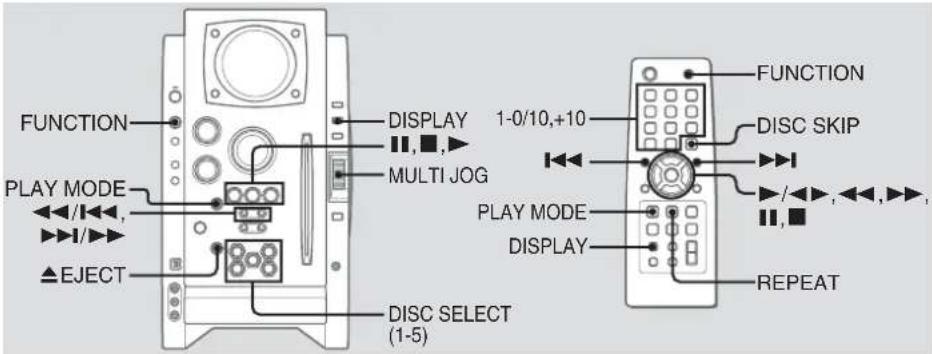
Notes
- Do not insert 8-cm (3-inch) discs. Those discs cannot be played on this unit. Moreover, if you insert the disc of that size forcibly, you may not be able to eject it. In addition, this unit does not support the CD adaptor.
- Discs with non-standard shapes (e.g., heart, square, star) cannot be played on this unit. Attempting to do so may damage the unit. Do not use such discs.
- Do not attach adhesive level to either side CD-R/RW discs, as doing so may cause malfunction.
- Do not insert more than one disc into one disc slot.
Playback
This unit plays back finalized CD-R/RW discs as well as audio CDs.
1 Press FUNCTION repeatedly to select the CD function, and load disc(s).
Press the DISC SELECT (1-5) and insert a disc with the labelled side right.
To insert more discs, press DISC SELECT (1-5) and the red indicator on the disc slot lights up, then insert a disc. The DISC SELECT button lights in amber when a disc is inserted at the corresponding disc slot, and the DISC SELECT button of selected disc slot lights in green. Do not insert a disc forcibly.
2 Press ▶ (▶/◀▶ on the remote) to start CD play.
You can start CD play by pressing one of DISC SELECT (1-5) on the main unit.
Playback starts from the first track and the elapsed playback time is displayed.
To insert discs consecutively
You can insert discs consecutively at one time.
1 Hold down ▲EJECT on the main unit for 2 seconds.
When no disc is inserted, "INSERT ALL" will be displayed.
When the disc(s) already inserted, "EJECT ALL" will be displayed and the unit will eject the disc(s) consecutively.
2 Insert a disc consecutively when "NO DISC" is displayed. Do not insert a disc forcibly.
To stop playback
Press ■.
To pause playback
Press III. Press III (or ▶) to resume playback.
To select a track
Press ◀◀◀ or ▶▶▶ repeatedly (or turn MULTI JOG).
To search (playback in fast forward or fast reverse)
Hold down ◀◀ or ▶▶. Release at the desired point.
To select a disc and a track on the remote
To select a disc
Press DISC SKIP repeatedly. With each press the button changes the disc.
To select a track
Press the numbered buttons in the following way.
- To select 10th track, press 0/10.
- To select 25th track, press +10, +10 and 5.
- To select 30th track, press +10, +10, +10 and 0/10.
To display the remaining playback time
Press DISPLAY on the remote during playback.
The display changes in the following order.
Track number being played and elapsed playing time. Remaining time of current track. Remaining time of current disc* Clock display
* During programmed playback, remaining time of program playback is displayed.
* During program playback for plural discs, the remaining time is displayed.
* During shuffle playback for all discs, the remaining time is displayed.
To eject the disc
Press the desired DISC SELECT (1-5) to select the disc, then press ▲ EJECT.
To select the play mode
In stop mode, press PLAY MODE repeatedly.
The play mode changes in following order:
- ALL DISCS: plays all discs
- 1 DISC: plays one desired disc
- ALL DISCS and PGM: plays the selected tracks in programmed order (see "Programmed play")
- ALL DISCS and SHUF: plays all the tracks on the all discs in random order
- 1 DISC and SHUF: plays all the tracks on one desired disc in random order (see "Shuffle play")
Shuffle play
In shuffle play mode the unit plays all the tracks on the disc inserted in random order.
1 In stop mode, press PLAY MODE repeatedly until the following indicators are displayed.
- ALL DISCS and SHUF: plays all the tracks on the all discs in random order.
- 1 DISC and SHUF: plays all the tracks on one desired disc in random order.
2 Press ▶ (▶/◀▶ on the remote) CD to start play.
To cancel shuffle play
In stop mode, press PLAY MODE on the remote repeatedly until the "SHUF" indicator disappears.
Repeat play
In repeat play mode the unit repeatedly plays all the tracks or the current track being played on the discs.
Press REPEAT on the remote repeatedly.
The mode changes as follows:
“▶”: Plays all the tracks of one desired disc repeatedly. (up to 5 times) You cannot select “ALL DISCS” repeat playback. When you switch the play mode to “ALL DISCS” during repeat playback, “▶” disappears and the repeat playback is canceled automatically. You cannot set “ALL DISCS SHUF” and “▶” at same time.
"▶ 1": Plays one track repeatedly. Select the track with ◀◀◀ or ▶▶◀ (or MULTI JOG).
To cancel repeat play
Press REPEAT on the remote repeatedly until "◀" and "◀1" disappears.
Programmed play
Plays back up to 30 selected tracks in programmed order.
1 In stop mode, press PLAY MODE repeatedly until the "PGM" indicator is displayed.
2 Press DISC SELECT (1-5) (DISC SKIP on the remote) to select a disc. Go to the next step when "CHANGE" disappears.
3 Press the numbered buttons on the remote to program a track. The selected track number appears in the display. To select the 10th track, press 0/10. To select the 20th track, press +10, +10 and 0/10. To select the 35th track, press +10, +10, +10 and 5. You can select a track by pressing ◀◀◀ or ▶▶◀ (or turning MULTI JOG) and then press ENTER.
4 Repeat step 2 and 3 to program other tracks.
5 Press ▶ (▶/◀▶ on the remote).
- During programmed playback, you cannot select a disc or a track with the numbered buttons.
- If the total playback time of the program exceeds 99:59 minutes, or if a track with a track number exceeding 30 is programmed, the playing time is displayed as "--:-".
- You cannot program more than 30 tracks. "FULL" is displayed.
To clear a previous track
Press CLEAR on the remote. Each time you press the button, a track is cleared from the end of the program.
To clear the entire program
Press ■ in stop mode.
To add a track to the program
Repeat steps 2 and 3 before starting playback. The track is added to the end of the program.
To cancel programmed play
In stop mode, press PLAY MODE repeatedly until "PGM" disappears.
The program content is retained even if the program cancelled or after programmed playback finishes. The same program plays back if you carry out step 1 and 5. However, the program content is cleared when you eject either of CDs.
When transporting the unit
Please carry out procedures below to prevent the breakage of CD mechanism.
1 Eject all the CDs.
2 Hold down ■ on the main unit for 5 seconds in CD function when the unit is turned on. "MECHA LOCK" appears in the display, and then the unit will turn itself off automatically.
3 Disconnect the AC power cord from the wall outlet.
Notes on CDs
- Do not tilt the unit with a disc inserted.
- Discs recorded on CD-R/RW drives may not be played back because of scratches, dirt, recording condition or the drive's characteristics.
- CD-R/RW discs which are not finalized at the end of recording cannot be played back.
- Do not load an unrecorded CD-R/RW disc. The disc may be damaged.
MP3-CD OPERATIONS
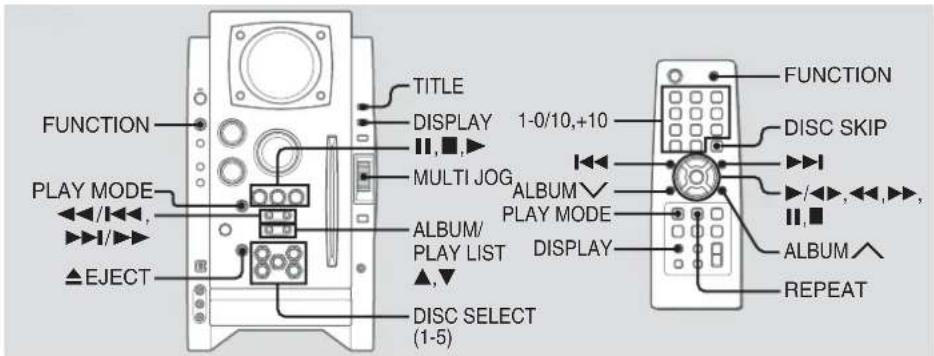
This unit plays back MP3-CDs: discs recorded with MP3 tracks (files). Basic operations for MP3-CDs are mostly the same as those in "CD OPERATIONS". Before playing an MP3-CD, also refer to "Descriptions of MP3" for the details of MP3.
To select an album
Press ALBUM/PLAY LIST ▼ or ▲ (ALBUM √ or ∧ on the remote).
1 Press FUNCTION repeatedly to select the CD function, and load disc(s).
Press the DISC SELECT (1-5) and insert a disc with the labelled side right.
To insert more discs, press DISC SELECT (1-5) and the red indicator on the disc slot lights up, then insert a disc. The DISC SELECT button lights in amber when a disc is inserted at the corresponding disc slot, and the DISC SELECT button of selected disc slot lights in green.
Do not insert a disc forcibly.
2 Press ▶ (▶/◀▶ on the remote) to start CD play.
You can start CD play by pressing one of DISC SELECT (1-5) on the main unit.
Playback starts from the first track and the elapsed playback time is displayed.
To stop playback
Press
To select a track
Press ◀◀◀ or ▶▶▶ repeatedly (or turn MULTI JOG).
To change the disc on the remote
Press DISC SKIP repeatedly. With each press the button changes the disc.
To select a track
It is convenient to select an album first and then select a track. If the album or the disc with no album has more than 99 tracks, press the numbered buttons on the remote in the following way to select the 100th track or more.
- To select the track 100, press +10 ten times, and press 0/10.
- To select the track 147, press +10 fourteen times, and 7. - To select the track 235, press +10 twenty-three times, and 5.
To display the title of the album and track in the display
Press TITLE on the remote during playback. The display changes in the following order:
Track number being played and elapsed playing time Track(file) name and album (folder) name being played Track title* and artist name* of ID3TAG being played
* "NO TITLE" or "NO ARTIST" is displayed if track title or artist name is not registered.
To eject the disc
Press the desired DISC SELECT (1-5) to select the disc, then press ▲ EJECT.
To select the play mode
In stop mode, press PLAY MODE repeatedly.
The play mode changes in following order:
- ALL DISCS: plays all discs
- 1 DISC: plays one desired disc
- ALBM: plays one desired album
- ALL DISCS and PGM: plays the selected tracks in programmed order (see "Programmed play")
- ALL DISCS and SHUF: plays all the tracks on the all discs in random order
- 1 DISC and SHUF: plays all the tracks on one desired disc in random order
- ALBM and SHUF: plays all the tracks on the desired album in random order
Programmed play
1 In stop mode, press PLAY MODE repeatedly until the "PGM" indicator is displayed.
2 Press DISC SELECT (1-5) (DISC SKIP on the remote) to select a disc.
Go to the next step when "CHANGE" disappears.
3 Select an album and a track.
4 Repeat steps 2 and 3 to program other tracks.
5 Press ▶ (▶/◀▶ on the remote).
Descriptions of MP3
An MP3 file stores audio data compressed using MPEG1/2, the audio layer-3 file-coding scheme.
In this manual, CDs, CD-R discs and CD-RW discs are all referred to as "discs". We refer to what are called "folder" and "file" in PC terminology as "album" and "track".
Notes on playing MP3 files
- An MP3 track must be recorded on a disc in the format compliant with ISO 9660. Note, however, that the unit may not play tracks in the order they were recorded.
- The maximum allowable number of tracks and albums in a disc are as follows:
- number of tracks: 255
- number of albums: 255
- The maximum allowable depth of nested albums is 8.
- It may take 30 seconds or more before the unit can start play of MP3 tracks, depending on the number of recorded tracks and the complexity of the album tree.
- This unit supports a multi-session discs; however, for a multi-session disc mixed with CD-DA tracks and MP3 tracks, it plays only one session.
-
The unit cannot play MP3 tracks recorded using a packet writing utility.
-
The unit can play MP3 tracks having a file extension ".mp3".
- If you play a non-MP3 track that has the ".mp3" file extension, you may hear some noise.
Notes on display indications during play
- Up to 64 characters (in ASCII code) are displayed for the title of an album or a track. If ID3TAG version 1.X was applied to record additional information for an MP3 track, up to 30 characters showing track title is displayed. This unit does not support ID3TAG version 2.X. character codes which cannot be represented in ASCII code are displayed as "☐".
- The elapsed playing time may not be displayed correctly for MP3 tracks.
Terminology
• ISO 9660
ISO stands for the "International Organization for Standardization". ISO 9660 determines the file structure for the CD-ROMs. This unit can play MP3 files recorded in the format compliant with ISO 9660.
• Nesting of folders (albums)
To organize data files stored in a PC, you can store related files in a folder. A folder can contain other folders as well as files. For example, folder A can contain folder B, and folder B can contain folder C; this is called "nesting of folders". The maximum depth of nested folders, allowed by ISO 9660, is 8.
- Writing utilities
There are 3 utilities used to record data on a disc.
.DAO (Disc At Once) utility
All data to be written must be prepared in advance and written onto a disc from the beginning to the end in one operation. No data can be added to a disc on which data were already written with DAO utility.
2.TAO (Track At Once) utility
Data are written onto a disc track by track. Data can be added to a disc on which data were written with TAO utility.
3.Packet writing utility
Tracks are divided into smaller pieces while being recorded, depending on the size of available spaces on the disc. Data can be added to a disc on which data were written with packet writing utility.
This unit can play MP3 discs recorded using DAO and TAO utilities.
• ID3TAG
ID3TAG determines the data format for the text to be added to an MP3 file, mainly used to indicate a track title or an artist's name, etc.
Notes on creating MP3 discs
- When converting audio data to MP3
The unit supports MP3 files with a sampling frequency of 16, 22.05, 24, 32, 44.1 or 48 kHz.
Toenjoy high sound quality, we recommend storing MP3 files with a sampling frequency of 44.1 kHz and a fixed bit rate of 128 kbps. The assured bit rate range for sound quality on the unit is 8 kbps to 320 kbps. If an MP3 files stored with a bit rate beyond that range is played back, sound quality is not guaranteed and noise may be generated.
- When creating MP3 discs
Do not store more than 255 albums in a disc. Also, keep the total number of albums and tracks 255 or less in a disc.
TUNER OPERATIONS

Manual tuning
1 Press BAND (hold down SHIFT and press BAND on the remote) to select a band.
The unit switches to the tuner from any other function and alternates between FM and AM.
2 Press ◀◀ or ▶▶ repeatedly to tune in a station.
"TUNED" is displayed when a station is tuned in.
"(I①①)" is displayed for FM stereo reception.
To search for a station automatically (Auto search) Hold down ◀◀ or ▶▶.
The unit searches for a station and stops at reception. To stop the search manually, press ◀◀ or ▶▶.
- Auto search may not stop at stations with weak signals.
Preset tuning
Preset up to 32 of your favourite stations and tune in directly.
Presetting stations
1 Tune in the desired station.
2 Press ENTER (or Ⅲ) to store the station.
The preset number, beginning from "1" appears in the display.
3 Repeat steps 1 and 2 to preset other stations. The next station will not be stored if a total of 32 preset stations have already been stored. ("FULL" is displayed.)
- If power is interrupted for more than approximately 12 hours, all settings stored in memory after purchase need to be reset.
Tuning in preset stations
1 Select the band.
2 Turn MULTI JOG (or press ▶ repeatedly).
On the remote, press ◀◀◀ or ▶▶◀I repeatedly.
With each press, the station with the succeeding or preceding preset number is tuned in.
You can tune in the desired preset station directly by pressing the numbered buttons on the remote.
- T o select preset number 7, press 7.
- T o select preset number 12, press +10 and 2.
To clear a preset station
1 T une in the station by preset tuning.
2 Press CLEAR, then press ENTER on the remote within 6 seconds.
On the main unit, press ■ then press ■ within 6 seconds. Preset station numbers in the band which are higher than the cleared number decrease by one.
Adjustments
To switch to monaural FM reception Hold down SHIFT and press TUNER MODE on the remote so that "MONO" is displayed.
To cancel, repeat the above so that "STEREO" is displayed. Tip:
When FM stereo reception is poor, switching to monaural reduces noise.
To switch the AM tuning interval
The default setting of the AM tuning interval is 10 kHz/step. If you use this unit in an area where the frequency allocation system is 9 kHz/step, change the tuning interval. Hold down TUNER/BAND and press POWER on the main unit.
Tip:
When the AM tuning interval is changed, all preset stations are cleared.
TIMER OPERATIONS

Sleep timer
Turns off the unit automatically after a specified time.
Press SLEEP on the remote.
"SLEEP" flashes in the display.
With each press, the timer duration changes as follows:
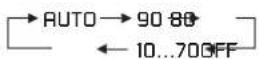
If you set to "AUTO", the unit turns off automatically when the current CD finishes playback or elapsed 100 minutes.
To check the remaining time until the unit turns off Press SLEEP on the remote. The remaining time is displayed for 6 seconds.
To cancel the sleep timer
Press SLEEP on the remote repeatedly so that "OFF" is displayed.
Timer playback
Turns on the unit at a specified time for the specified duration. Make sure the clock is set correctly.
1 Press CLOCK/TIMER SET on the remote.
2 Within 6 seconds, press ◀◀◀ or ▶▶▶I repeatedly to display "DRILY" and then press ENTER. The clock display and "ON" are displayed.
3 Press ◀◀◀ or ▶▶▶ to set the timer start hour, and press ENTER.
4 Press ◀◀◀ or ▶▶◀ to set the minute, and press ENTER.
"OFF" is displayed.
5 Set the time to stop playback by following the same procedures as steps 3 and 4.
6 Press ◀◀◀ or ▶▶◀ to select the source (CD and TUNER), and press ENTER.
7 Prepare the source. To play CD, load disc(s). To play the radio, select the band and tune in the desired station.
8 Press POWER ⬤STANDBY/ON (POWER) to turn the unit off.
"☐" remains in the display to indicate the timer standby mode (when ECO mode is deactivated).
At timer-on time, the unit turns on and plays the selected source. After the specified timer-activated duration, the unit turns off again.
- MULTI JOG is also available in place of ◀◀◀ or ▶▶◀.
- To stop timer setting in steps 3 to 5, press CLEAR. Timer standby mode is also cancelled.
- The timer playback is not activated when the clock is not set. ("SET NG" is displayed.)
- Timer playback will not begin unless the unit is turned off first.
- Timer playback for AUX function is not possible.
To check the timer setting
Press CLOCK/TIMER SELECT on the remote repeatedly to display "DRILY".
The timer-on time, the time to stop playback and the source are displayed for 6 seconds.
To change the timer setting
Reset the timer again.
To cancel the timer
Press CLOCK/TIMER SELECT on the remote repeatedly to display "OFF". ⏻ disappear from the display.
Tip:
Your timer setting is retained even if the timer is cancelled. Next time the timer is activated, you can change your previous setting, or simply use the same setting again.
Notes
- The timer playback performs every day at the specified time unless you cancel it.
- You cannot set the same time for timer-on time and timer-off time. "SET NG" is displayed if you do that. In this case, reset the time.
- The timer playback will not begin unless the unit is turned off first.
CONNECTING A PERSONAL COMPUTER
Installing the Software on your PC
Tip:
When you connect a personal computer, see also "Set up Manual" in the supplied CD-ROM.
Before Starting the Installation
Before installing the software on the supplied BMZ USB Driver CD, check to be sure that your system meets the following system requirements.
PC IBM PC/AT compatible
| Free hard disk space: At least 10 MB |
| USB portCD-ROM drive |
| Recommended CPU: MMXTechnology Pentium processor, 266MHz or greater |
| Operating System | Windows 98 Second Edition, Windows 2000 Professional, Windows Millennium Edition, or Windows XP Professional/Home Edition |
The software is not guaranteed to function in the following system environments.
- Operating systems other than Windows, including the Macintosh
- Versions of Windows XP other than Professional or Home Edition
- Version of Windows 2000 other than Professional
- Versions of Windows 98 other than Second Edition
• Windows NT, Windows 95 - Systems in which a preinstalled Windows 3.1/95/98 operating system has been upgraded
- Connecting by way of the USB hub
NOTE
The software is not guaranteed to function on all systems meeting the system requirements.
- IBM and PC/AT are registered trademarks of International Business Machines Corporation in the US.
- MMX and Pentium are trademarks or registered trademarks of Intel Corporation.
- Microsoft and Windows are trademarks of the US Microsoft Corporation registered in the US and other countries.
- The USB port of this unit is joint development of Sony Corporation and Micronas Semiconductor Holding AG.
- Other system names and product names mentioned herein are generally registered trademarks or trademarks of their respective owners. However, the TM and ® marks are not used in this Installation Guide.
Installing the USB Driver
First, install the USB driver.
You must log in to Windows XP or Windows 2000 as a user with Administrator privileges in order to install the software.
1 Power the PC on and start Windows.
2 Turn the unit to on.
3 Insert the supplied BMZ USB Driver CD into the CD-ROM drive of your PC.
The installer starts automatically, and the Installation Guide screen appears.
If the installer does not start automatically, locate the CD-ROM drive of your PC in the My Computer folder, and double click AIWAMENU on the CD-ROM.
4 Click "BMZ USB Driver".
5 Select a display language to be used by the installer, and click "OK".
The explanations of step 5 and following assume that you have chosen English as the display language.
6 Read the license agreement, and click "I Agree". A message appears asking you to connect a USB cable.
7 Connect this unit to the PC with a USB cable.
![graph TD A["Type A"] --> B["PC"] C["USB cable (supplied)"] --> D["Type B"] D --> E["Front panel of the unit"]](/content/2026/05/1047505/images/d141fc6b230d201471680c4ff0bf375b7e9b45a85d1e610f1e167e381e55326a.jpg)
8 Press FUNCTION repeatedly until "USB" appears in the display window of this unit.
9 Complete the installation by following the instructions on the screen.
If your operating system is Windows XP, a message may appear to the effect that the software being installed has not been certified for the Windows logo mark. This message can be safely ignored. Click "Continue" and continue with the installation.
10 When a message appears to inform you that the installation is complete, click "Close".
You are returned to the Installation Guide initial screen. If your operating system is Windows 98 or Windows Me, restart your PC at this point.
Depending on your computer, operating system installation CD-ROM may be needed. In that case, insert it as instructed.
To check the installation of the USB driver
If your operating system is Windows 98 Second Edition or Windows Millennium Edition
1 Click "Start" > "Settings" > "Control Panel"
2 In the "Control Panel" window, double click "System"
3 In the "System Properties" window, double click "Device Manager".
4 Check that the following devices are displayed under the following headings.
- "Sound, video and game controllers" > "USB Audio Device"
- "Universal Serial Bus controllers" > "AIWA BMZ USB-Device"
- "Human Interface Devices" > "HID-compliant consumer control device"
If these devices do not appear, the USB driver has not been recognized. Reinstall the USB driver.
If your operating system is Windows 2000 Professional or Windows XP Professional/Home Edition
1 Click "Start" > "Settings" > "Control Panel".
2 In the "Control Panel" window, double click "System"
3 In the "System Properties" window, click the "Hardware" tab.
4 Click "Device Manager" to open the "Device Manager" window.
5 Select "View" > "Devices by type".
6 Check that the following devices are displayed under the following headings.
- "Sound, video and game controllers" > "USB Audio Device"
- "Universal Serial Bus controllers" > "AIWA BMZ USB-Device"
- "Human Interface Devices" > "HID-compliant consumer control device"
If these devices do not appear, the USB driver has not been recognized. Reinstall the USB driver.
Installing Winamp3
After you finish installing the USB driver, install Winamp3.
NOTE
Winamp3 is free software. Any version of Winamp other than Version 3.0 is not guaranteed to function with this unit. Even if you already have Winamp installed on your PC, it is recommended that you install it again from the supplied CD-ROM.
1 Click "Winamp3" on the Installation Guide screen.
2 Read the license agreement, and click "I Agree".
3 Complete the installation by following the instructions on the screen.
If the "Winamp Setup: User information" screen appears click "Later"
When the installation finishes, the message "Winamp Setup: Winamp successfully installed" appears.
4 Click "Run Winamp". Winamp starts.
Installing the Winamp3 BMZ Plug-in
Finally, after you finish installing Winamp3, install the Winamp3 Plug-in.
1 Click "Winamp3 BMZ Plug-in" on the Installation Guide screen.
2 Select a display language to be used by the installer, and click "OK".
The installer will use that language in the following steps.
3 Read the license agreement, and click "I Agree".
4 When a message appears to inform you that the installation has finished, click "Close".
You are returned to the Installation Guide screen. Click "EXIT" and remove the CD-ROM from the CD-ROM drive of your PC.
To hear the sound of the file which is played back with the personal computer
This unit can output the sound of an audio file which is played back by the Winamp3 on your computer.
Make sure to connect the computer to USB terminal on the unit first.
1 Press FUNCTION repeatedly to display "USB".
2 Open the Winamp3 on your computer.
3 Operate your computer to play back audio file stored in it.
4 Adjust the volume level with Winamp3 on your computer.
Basic icons of Winamp3
| Operation Icon | |
| Starts playback | |
| Pauses playback | |
| Stops playback | |
| Selects a track or | |
| Shuffle play | |
| Repeal play | |
| Adjust the volume | |
When playing back with the Winamp, it is possible to operate even with the main unit or remote.
To change play list on the unit
Press ALBUM/PLAY LIST √ or ∧ during playback.
NOTE
PLAYLIST EDITOR does not necessarily show the same play list that is currently selected by the Winamp3.
To change the display on the unit
It is possible to display the current status on the display window of this unit.
Press TITLE on the main unit repeatedly.
The display changes in the following order: Track number being played and elapsed playing time Track (file) name and album(play list) name* being played Track title* and artist name* being played Clock display
* Album(play list) name, track title and artist name are not displayed if they are not registered.
Notes about Winamp3
- If sound is not generated, adjust the volume level in Winamp3. However, note that, do not adjust the "EQUALIZER" settings in Winamp3. It may cause to noise.
- Do not change the skin. It may not operate correctly.
- Winamp3 is freeware. We shall have no responsibility for any loss whatsoever after installing.
- The response rate differs depending on the performance of the PC, operating environment and the file being used.
- Do not disconnect the USB cable during playback.
To uninstall the software
Follow the procedure below to remove the software from your PC.
1 In the Control Panel, double-click "Add/Remove Programs".
2 Click "Change or Remove Programs" (or the "Install/Uninstall" tab) to show the list of programs that can be removed automatically.
3 Click the program you want to remove.
4 Click "Change/Remove" (or "Add/Remove").
5 Follow the instructions that appear on the screen to remove the program selected in step 3.
REFERENCE
Frequently Asked Questions for USB function
Q. Compared to the volume of the main unit CD player, the volume of the PC connected by USB is too small.
A. Adjust the volume setting on the PC. Open "Multimedia" or "Sound and Multimedia" on the Control Panel, and adjust "Sound volume" and "WAVE balance" in the Audio tab.
Q. Winamp starts, but the display on the main unit shows only "USB".
A. The Winamp3 BMZ Plug-in is not installed. Install the plug-in.
Q. Winamp does not respond when I press buttons like ▶ and ■ on the main unit.
A. The BMZ USB Driver may not be installed, or the Winamp3 BMZ Plug-in may not be installed, or another plug-in may be interfering with the BMZ Plug-in. Click the Add and Delete Applications icon in the Control Panel to delete the BMZ USB Driver and Winamp3, and install them again.
Q. The main unit does not play sound from the PC.
A. The PC many not be connected with a USB cable, or FUNCTION may not be set to USB. Or, the PC speakers may be muted, or audio output may be set to a different device. Check under "Multimedia" or "Sound and Multimedia" on the Control Panel.
Q. I can't install the USB driver in Windows98.
A. The USB driver supports only Windows XP/2000/Me/Second Edition. It cannot be installed on Windows 98 except for Windows 98 Second Edition.
Q. When Winamp is playing, the sound fades out from one song and into the next song.
A. The Cross Fade button in Winamp is on. Turn the button off.
Q. Winamp3 becomes unplayable suddenly.
A. Use latest Microsoft DirectX ® after downloading from Microsoft web site.
Q. PLAYLIST EDITOR does not necessarily show the same play list that is currently selected by the Winamp3.
A. During playback, the correct play list is shown.
Q. Winamp3 does not respond when I change setting of the USB port.
A. Install the software in the supplied BMZ USB Driver CD again.
Q. PLAY LIST becomes unplayable suddenly.
A. Right-click the PLAY LIST EDITOR window.
Q. The spectrum analyser of this unit does not respond or playback cannot stop when close Winamp3 during CD playback from CD-ROM drive on PC.
A. The PC's CD-ROM drive may sometimes be incapable of performing intended operations. In this case, restart the main unit and the Winamp3. And if you playback an audio-CD, we recommend to use the disc player of this unit.
Q. How can I get information of Winamp?
A. Refer to web site of Winamp (http://www.winamp.com).
Care and maintenance
Occasional care and maintenance of the unit and the software are needed to optimize the performance of your unit.
To clean the cabinet
Use a soft and dry cloth. If the unit surfaces are extremely dirty, use a soft cloth lightly moistened with mild detergent solution. Do not use strong solvents such as alcohol, benzine or thinner.
Care of CDs
When a CD becomes dirty, wipe it from the centre out with a cleaning cloth. Please do not use solvents. After playing a CD, store it in its case. Do not expose a CD to direct sunlight or heat sources.
Troubleshooting
If your unit fails to perform properly, check the following guide and the relevant sections of the Operating Instructions.
First check that the AC power cord and the speakers are connected correctly and firmly.
Should any problem persist, consult your nearest Aiwa dealer.
General
There is no sound
- Are the speakers and AC power cord connected properly?
- Turn VOLUME clockwise and hold.
- Check the volume level of Winamp3 in your computer.
• The headphones are connected. - Insert only the stripped portion on the speaker cord into the SPEAKERS terminal. Inserting the vinyl portion of the speaker cord will obstruct the speaker connections.
The unit shut off suddenly
- Possibly a short circuit in the speaker terminals. Disconnect the AC power cord from the AC outlet and reconnect the speaker cords correctly.
The display blacks out when the unit is turned off.
- ECO is mode set to on. (see "ECO mode" on page 8)
Erroneous display
- Reset the unit. (See "Resetting the unit".)
There is severe hum or noise.
- A TV or VCR is placed too close to the stereo system. Move the stereo system away from the TV or VCR.
The clock indication does not show the correct time.
- A power interruption occurred. Set the clock and timer settings again.
The clock setting/radio presetting/timer is cancelled.
- The AC power cord is disconnected or a power failure occurs longer than half a day. Redo the following: - "Setting the clock" on page 8 - "Preset tuning" on page 15 If you have set the timer, also redo "Timer playback" on page 16 and 17.
The timer does not function.
- Set the clock correctly.
The remote does not function.
- There is an obstacle between the remote and the unit.
- The remote is not pointing in the direction of the unit's sensor.
- The batteries have run down. Replace the batteries.
Tuner
Poor radio reception
- Check antenna connection. Adjust the antenna to find the best reception.
- For FM, move the FM antenna to reduce the noise.
- For AM, re-rotate the AM antenna to reduce the noise.
- Move the unit and antenna away from other electric appliances and cords.
CD player
The CD does not play.
- The CD is dirty.
• The CD is inserted label side left. - Moisture condensation has built up. Remove the CD and leave the system turned on for about an hour until the moisture evaporates.
Speakers
Sound comes from one channel or unbalanced left and right volume occurs.
- Check the speaker connection and speaker placement.
Sound lacks bass.
- Check that the speaker's + and - terminals are connected correctly.
Resetting the unit
If an unusual condition occurs in the display window, reset the unit as follows:
1 Press POWER to turn off the power.
If the power cannot be turned off, disconnect the AC power cord, then plug it in again.
2 Hold down ■ and press POWER on the main unit.
Everything stored in memory after purchase is cleared.
Specifications
MAIN UNIT CX-BK1 for BMZ-K1/CX-BK2 for BMZ-K2
TUNER
FM tuning range 87.5 MHz to 108 MHz
FM usable sensitivity (IHF) 13.2 dBf
FM antenna terminal 75 Ω (unbalanced)
AM tuning range 530 kHz to 1710 kHz (10 kHz step)
531 kHz to 1710 kHz (9 kHz step)
AM usable sensitivity 350 μV/m
AM antenna Loop antenna
AMPLIFIER
Power output CX-BK1
110 W + 110 W (40 Hz - 20 kHz,
THD less than 1%, 6 Ω)
140 W + 140 W (40 Hz - 20 kHz.
THD 10%, 6 Ω)
CX-BK2
160 W + 160 W (40 Hz - 20 kHz,
THD less than 1%, 6 Ω)
200 W + 200 W (40 Hz - 20 kHz,
THD 10%, 6 Ω)
Total harmonic distortion CX-BK1
0.08 % (90 W, 1 kHz, 6 Ω)
CX-BK2
0.08 % (120 W, 1 kHz, 6 Ω)
Input VIDEO IN: 500 mV
AUDIO IN: 500 mV
Outputs SPEAKERS: 6 Ω or more
PHONES: 32 Ω or more
AUX OUT: 500 mV
VIDEO OUT: 1.0 V
CD PLAYER
Laser Semiconductor laser ( λ = 800 nm)
Emission duration: continuous
D/A converter 1 bit dual
Signal-to-noise ratio 85 dB (1 kHz, 0 dB)
Wow and flutter Unmeasurable
SPEAKER SYSTEM SX-BK1 for BMZ-K1/SX-BK2 for BMZ-K2
Speakers system SX-BK1
3 way, Bass-reflex type (magnetic shielded)
SX-BK2
4 way, Bass-reflex type (magnetic shielded)
Speaker units SX-BK1
Woofer: 140 mm cone type × 2
Tweeter: 60 mm cone type
Super tweeter: 25 mm ceramic type
SX-BK2
Subwoofer: 140 mm cone type
Woofer: 140 mm cone type × 2
Tweeler: 60 mm cone type
Power requirements 120 V AC, 60 Hz
Power consumption BMZ-K1: 120 W
BMZ-K2: 145 W
Power consumption in standby mode
CX-BK1
with ECO mode on: 0.25 W
with ECO mode off: 20 W
CX-BK2
with ECO mode on: 0.25 W
with ECO mode off: 24 W
Dimensions (w/h/d) Approx. 211 × 379 × 419 mm
(83/8× 15× 165/8 in.)
Mass CX-BK1: Approx. 8.6 kg (19 lbs)
CX-BK2: Approx. 9.6 kg (21 lbs 3
OZ)
Supplied accessories: FM antenna (1)
AM antenna (1)
Speaker cords (2)
USB cable (1)
Remote commander (1)
Batteries (2)
Application CD-ROM (1)
Specifications and external appearance are subject to change without notice.
Licensed by BBE Sound, Inc. under USP4638258, 5510752 and 5736897.
Sony Corporation Printed in Malaysia
http://www.aiwa.com
- OWNER'S RECORD
- WARNING
- CAUTION
- PRECAUTIONS
- NOTE TO CATV SYSTEM INSTALLER
- ON OPERATING VOLTAGE
- ON SAFETY
- ON PLACEMENT
- ON HEAT BUILDUP
- ON OPERATION
- NOTES ON DISCS
- MUSIC DISCS ENCODED WITH COPYRIGHT PROTECTION TECHNOLOGIES
- TABLE OF CONTENTS
- PREPARATIONS
- CONNECTION
- SPEAKERS
- ANTENNAS
- REMOTE COMMANDER
- PARTS AND CONTROLS
- MAIN UNIT: FRONT
- ①POWER ⏻STANDBY/ON (8, 15, 16)
- ②FUNCTION (10, 13, 19, 20)
- ③BAND (8, 15)
- ④GEQ (9)
- I-BASS (9)
- ⑤TREBLE/MIDDLE (9)
- BASS (9)
- ⑥PLAY MODE (11-14)
- ⑦ TUNING DOWN◄◄/I◄◄, UP►►/►►I (8-11, 13, 15, 16)
- ⑧USB TERMINAL
- ⑨LINE IN (VIDEO/AUDIO) JACKS
- ⑩ △EJECT (8, 10, 11, 13)
- ①DISC SELECT (1-5) (8, 10, 13)
- ⑫VOLUME (9)
- 13 TITLE (13, 20)
- DISPLAY (8)
- MODE (8, 9)
- ⑭ PAUSE/SET (10, 15)
- STOP/CLEAR (10-13)
- PRESET (10, 11, 13-15)
- ⑮ MULTI JOG (8-11, 13, 15, 16)
- ⑯ ENTER (8, 9, 15, 16)
- ⑰ PHONES JACK
- ⑱ ALBUM/PLAY LIST ▼,▲ (13, 20)
- MAIN UNIT: REAR
- ① AM LOOP JACK AND FM 75 Ω TERMINAL (4)
- ②AUX IN JACKS
- ③ AUX OUT JACKS
- ④VIDEO OUT
- ⑤▷SPEAKERS TERMINALS (4)
- ⑥AC POWER CORD (4)
- ① POWER (8, 16)
- ②1-0/10, +10 (10, 11, 13, 15)
- BAND (8, 15)
- SPECTRUM (8)
- TUNER MODE (15)
- ③ ▶/◀▶ (10, 11, 13, 14)
- ④PLAY MODE (11-14)
- REPEAT (11)
- ⑤CLOCK/TIMER SET (8, 16)
- CLOCK/TIMER SELECT (8, 16)
- ⑥DISPLAY (8)
- SOUND (9)
- CLEAR (11)
- 7SHIFT
- ⑧FUNCTION (10, 13, 19, 20)
- ⑨DISC SKIP (10, 13)
- ⑩ ENTER (8, 9, 15, 16)
- ⑪SLEEP (16)
- ⑫VOLUME +, - (9)
- NOTE
- TUMING THE UNIT OFF
- ECO MODE
- STANDBY POWER CONSUMPTION
- SETTING THE CLOCK
- TO ADJUST THE CLOCK
- TO DISPLAY THE TIME WHILE THE POWER IS ON
- SPECTRUM ANALYSER DISPLAY
- BACK LIGHT
- SOUND ADJUSTMENTS
- VOLUME
- TO ADJUST THE BASS, TREBLE AND MIDDLE RANGE LEVEL
- TO ADJUST THE BASS LEVEL
- TO ADJUST THE TREBLE OR MIDDLE RANGE LEVEL
- TO ADJUST THE BASS, TREBLE AND MIDDLE RANGE LEVEL ON THE REMOTE
- I-BASS
- TO SELECT THE FREQUENCY RANGE FOR I-BASS EFFECT
- TO CANCEL I-BASS
- GRAPHIC EQUALIZER
- PRESS GEQ REPEATEDLY
- SETTING A CURVE MANUALLY
- CD OPERATIONS
- NOTES
- PLAYBACK
- TO INSERT DISCS CONSECUTIVELY
- TO STOP PLAYBACK
- TO PAUSE PLAYBACK
- TO SELECT A TRACK
- TO SEARCH (PLAYBACK IN FAST FORWARD OR FAST REVERSE)
- TO SELECT A DISC AND A TRACK ON THE REMOTE
- TO DISPLAY THE REMAINING PLAYBACK TIME
- TO EJECT THE DISC
- TO SELECT THE PLAY MODE
- SHUFFLE PLAY
- TO CANCEL SHUFFLE PLAY
- REPEAT PLAY
- PRESS REPEAT ON THE REMOTE REPEATEDLY
- TO CANCEL REPEAT PLAY
- PROGRAMMED PLAY
- TO CLEAR A PREVIOUS TRACK
- TO CLEAR THE ENTIRE PROGRAM
- TO ADD A TRACK TO THE PROGRAM
- TO CANCEL PROGRAMMED PLAY
- WHEN TRANSPORTING THE UNIT
- NOTES ON CDS
- MP3-CD OPERATIONS
- TO SELECT AN ALBUM
- TO CHANGE THE DISC ON THE REMOTE
- TO DISPLAY THE TITLE OF THE ALBUM AND TRACK IN THE DISPLAY
- DESCRIPTIONS OF MP3
- NOTES ON PLAYING MP3 FILES
- NOTES ON DISPLAY INDICATIONS DURING PLAY
- TERMINOLOGY
- NOTES ON CREATING MP3 DISCS
- TUNER OPERATIONS
- MANUAL TUNING
- PRESET TUNING
- PRESETTING STATIONS
- TUNING IN PRESET STATIONS
- TO CLEAR A PRESET STATION
- ADJUSTMENTS
- TO SWITCH THE AM TUNING INTERVAL
- TIP
- TIMER OPERATIONS
- SLEEP TIMER
- TO CANCEL THE SLEEP TIMER
- TIMER PLAYBACK
- TO CHECK THE TIMER SETTING
- TO CHANGE THE TIMER SETTING
- TO CANCEL THE TIMER
- CONNECTING A PERSONAL COMPUTER
- INSTALLING THE SOFTWARE ON YOUR PC
- BEFORE STARTING THE INSTALLATION
- THE SOFTWARE IS NOT GUARANTEED TO FUNCTION IN THE FOLLOWING SYSTEM ENVIRONMENTS
- INSTALLING THE USB DRIVER
- TO CHECK THE INSTALLATION OF THE USB DRIVER
- IF YOUR OPERATING SYSTEM IS WINDOWS 98 SECOND EDITION OR WINDOWS MILLENNIUM EDITION
- IF YOUR OPERATING SYSTEM IS WINDOWS 2000 PROFESSIONAL OR WINDOWS XP PROFESSIONAL/HOME EDITION
- INSTALLING WINAMP3
- INSTALLING THE WINAMP3 BMZ PLUG-IN
- TO HEAR THE SOUND OF THE FILE WHICH IS PLAYED BACK WITH THE PERSONAL COMPUTER
- TO CHANGE PLAY LIST ON THE UNIT
- TO CHANGE THE DISPLAY ON THE UNIT
- PRESS TITLE ON THE MAIN UNIT REPEATEDLY
- NOTES ABOUT WINAMP3
- TO UNINSTALL THE SOFTWARE
- REFERENCE
- FREQUENTLY ASKED QUESTIONS FOR USB FUNCTION
- CARE AND MAINTENANCE
- TO CLEAN THE CABINET
- CARE OF CDS
- TROUBLESHOOTING
- GENERAL
- THERE IS NO SOUND
- THE UNIT SHUT OFF SUDDENLY
- THE DISPLAY BLACKS OUT WHEN THE UNIT IS TURNED OFF
- ERRONEOUS DISPLAY
- THERE IS SEVERE HUM OR NOISE
- THE CLOCK INDICATION DOES NOT SHOW THE CORRECT TIME
- THE CLOCK SETTING/RADIO PRESETTING/TIMER IS CANCELLED
- THE TIMER DOES NOT FUNCTION
- THE REMOTE DOES NOT FUNCTION
- TUNER
- POOR RADIO RECEPTION
- CD PLAYER
- THE CD DOES NOT PLAY
- SOUND COMES FROM ONE CHANNEL OR UNBALANCED LEFT AND RIGHT VOLUME OCCURS
- SOUND LACKS BASS
- RESETTING THE UNIT
- SPECIFICATIONS
- MAIN UNIT CX-BK1 FOR BMZ-K1/CX-BK2 FOR BMZ-K2
- AMPLIFIER
- CX-BK2
- SPEAKER SYSTEM SX-BK1 FOR BMZ-K1/SX-BK2 FOR BMZ-K2
- SX-BK2
- CX-BK1
Brand : AIWA
Model : BMZ-K2
Category : Hi-Fi System