
MP180 - Mp3 player MPMAN - Free user manual and instructions
Find the device manual for free MP180 MPMAN in PDF.


| Product Type | MP3 Player |
| Brand | Mpman |
| Model | MP180 |
| Dimensions | Approx. 3.5 x 1.5 x 0.5 inches |
| Weight | Approx. 30 g (including battery) |
| Display | 1.8-inch color LCD screen |
| Storage Capacity | Internal flash memory, 2 GB (estimé) |
| Memory Expansion | MicroSD card slot (up to 32 GB) |
| Power Source | Built-in rechargeable lithium polymer battery |
| Battery Life | Up to 10 hours of music playback |
| Charging | Via USB cable (included) |
| Audio Formats | MP3, WMA, WAV, FLAC |
| Playback Functions | Music playback, FM radio, voice recording, e-book reader |
| Connectivity | USB 2.0 for data transfer and charging |
| Headphone Jack | 3.5 mm stereo |
| Additional Features | Equalizer presets, repeat/shuffle modes, folder navigation |
| Language Support | Multi-language menu support |
| Accessories Included | USB cable, earphones, user manual |
| Maintenance & Cleaning | Wipe with a soft dry cloth; avoid liquids and abrasive cleaners |
| Safety | Do not disassemble; keep away from heat and moisture |
| Spare Parts & Repairability | Battery and screen replaceable by qualified technicians |
Frequently Asked Questions - MP180 MPMAN
User questions about MP180 MPMAN
0 question about this device. Answer the ones you know or ask your own.
Ask a new question about this device
Download the instructions for your Mp3 player in PDF format for free! Find your manual MP180 - MPMAN and take your electronic device back in hand. On this page are published all the documents necessary for the use of your device. MP180 by MPMAN.
USER MANUAL MP180 MPMAN
MP3 & Video Player with FM Radio

natural_image
Black digital music player with headphones icon and playback controls (no text or symbols on device body)Instruction Manual
Please read this manual carefully before operation
Table of Contents
TABLE OF CONTENTS ......2
PACKAGE CONTENTS ......4
FEATURES ....5
CONTROLS AT A GLANCE 6
Disabling the Controls (Hold) 8
GETTING STARTED 9
Charging the Battery 9
Charging with a Computer ......9
Turning the Player On/Off 10
Resetting the Player 10
MAIN MENU 11
Main Menu Controls.... 11
MUSIC MODE 12
Music Browser Controls 12
Now Playing Controls (Music Playback) ...... 14
Quick Option Menu 15
PICTURES MODE 17
Picture Browser Controls 17
Picture Viewer Controls 18
MOVIES MODE 19
Movie Browser Controls 19
Movie Playback Controls ....20
RADIO MODE ....21
Radio Tuning Controls ....21
FM Radio Recording 22
E-BOOKS MODE 23
E-Book Browser Controls ....23
E-Book Reader Controls ....24
Table of Contents
RECORD MODE 25
Voice Playing control....25
Quick Option Menu ....25
EXPLORER MODE ....28
Explorer Controls ....28
SETTINGS MODE 29
TRANSFERRING FILES TO THE PLAYER ...... 31
Transferring with Microsoft Windows ......32
Transferring with Macintosh OS X ......32
Disconnecting from a Computer ....33
Microsoft Windows ....33
Macintosh OS X 34
VIDEO CONVERSION ......35
TROUBLESHOOTING 36
SPECIFICATIONS ......39
Package Contents
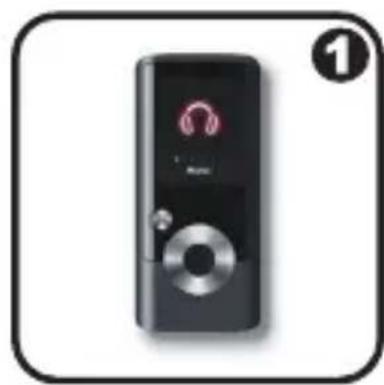
Please make sure that the items shown below are included in the package. Should an item be missing, please contact the local retailer from which you purchased this product.
natural_image
Black handheld electronic device with a circular button and speaker icon, enclosed in a rounded square frame (no text or symbols on the device itself)
natural_image
Simple line drawing of a cable with connectors and a connector, no text or symbols present
natural_image
Simple line drawing of a closed book with a bookmark, no text or symbols present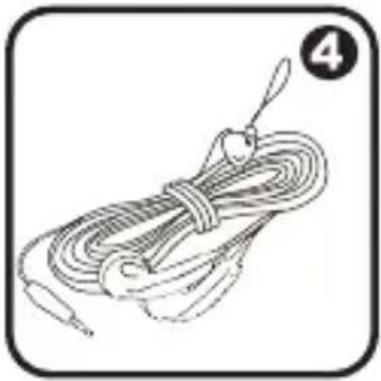
natural_image
Line drawing of a coiled cable with a loop and a small protrusion, no text or symbols present.- MP180
- USB Cable
- Instruction Manual & Documentation
- Professional Stereo Earphones
Features
♦ Integrated flash memory
✦ 1.8" TFT LCD full-color display
◆ Plays music, video, photos and text
ID3 and LRC support for song and synchronized lyric information display
♦ Integrated Microphone for Digital Voice Recording
✦ Integrated FM radio and Recorder
USB 2.0 Hi-speed for fast file transfers
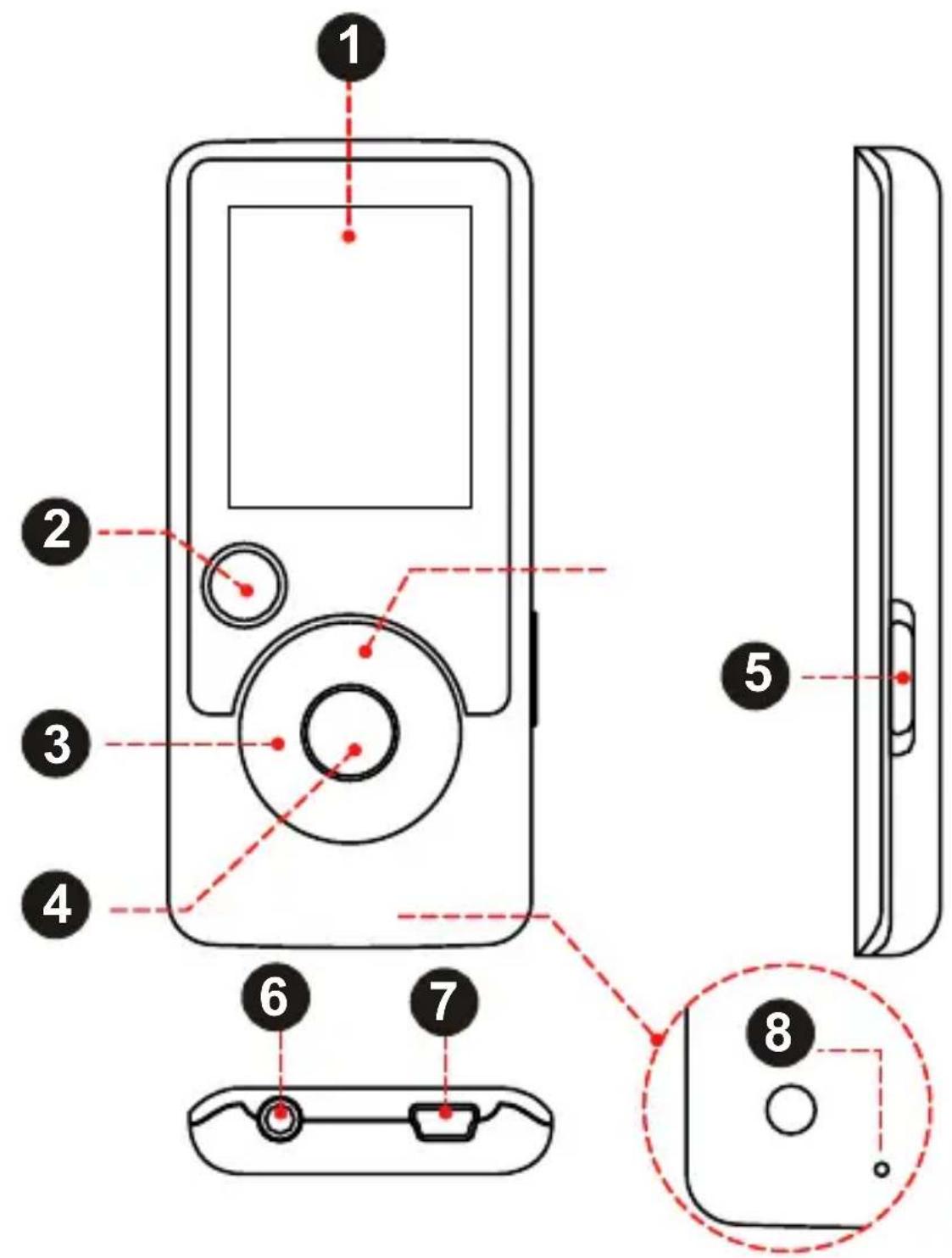
| Front View | ||
| 1. LCD Display | ||
| 2. Menu Button | ||
| 3. Control Buttons |  | |
 | ||
 | ||
 | ||
| 4. Enter Button | ||
| Side View | ||
| 5. Power / Hold SwitchSlide and hold the switchdown for Power.Slide the switch up for Hold. | ||
| Bottom View | ||
| 6. 3.5mm Headphone Jack | ||
| 7. USB/Charge Port | ||
| Rear View | ||
| 8. Reset Button | ||
Disabling the Controls (Hold)
When the
- To disable the controls, slide the
switch up until it clicks into the "Hold" position. - To enable the controls, slide the
switch down to release it from the "Hold" position.


You may want to disable the controls to avoid turning on the player or activating the controls accidentally when it is in your pocket or bag.
A lock icon will appear on the screen when the controls are disabled. Re-enable the controls to continue.
Charging the Battery
Your player has an integrated rechargeable battery. Upon initial use, the battery should be charged fully to ensure optimal performance and battery life.
If the player has not been used in a while, the battery may need to be recharged overnight (about 8 hours).

The battery used in this device may present a fire or chemical burn if mistreated. Do not disassemble, incinerate, or heat the battery. Do not leave the battery in a place subject to direct sunlight, or in a car with its windows closed.
Do not connect the player to a power source other than that which is indicated here or on the label as this may result in the risk of fire or electric shock.
Charging with a Computer
Your player can be charged through a USB computer connection. Use the supplied USB cable to connect the player to a high-power USB port of a computer. The computer must be powered on and not in sleep mode.

When the player is connected and charging, a USB symbol will be displayed on the player's screen.
Turning the Player On/Off
To turn the player on, slide the
To turn the player off, slide the

Resetting the Player
Reset the player if it should freeze and not respond or otherwise malfunction.
- Disconnect your player if it is connected to a computer.
- Use a paper clip to gently press the
button located on the rear of the player.
Main Menu
When you turn on the player, you will see the Main menu. The Main menu gives you access to the different function modes of your player. These modes are:
Music: Browse and play music.
Pictures: Browse and view pictures.
Movies: Browse and play movies.
Radio: Listen to FM radio broadcasts.
E-Books: Browse and read text files.
Record: Make or play the digital voice recording files.
Explorer: Browse(delete) all files.
Settings: Adjust the player's options.
Main Menu Controls
To browse through the different modes, press
To select a mode, press the
Browse for and play your music files.

If you have loaded new music files onto the player, the music library will need to be refreshed when you enter Music mode. This process may take several minutes. You will not be able to access the Music Browser screen until you refresh the music library.
For more information about how to get music onto your player, please refer to the section "Transferring Files to the Player".
Music Browser Controls
When you choose MUSIC mode from the Main menu, you will see the Music Browser screen. You can choose to browse your music by song name, album, artist, or genre, or you may choose “Browser” to view the music files and folders on the player.

| Function Key Action | |
| To browse through the list | Press <UP> or <DOWN> |
| To select an item Press | |
| To return to the previous screen Press | |
| To return to the Now Playing screen Press | |
| To return to the Main menu Hold |
Music Mode

If your music files contain ID3 song information tags, you will be able to view your tracks by Artist, Album, or Genre. To view all files (including those that do not contain ID3 information), select “All Songs” or use the “Browser” option.
If music is already playing, you will have the additional option to return to the Now Playing screen.

Lyric display requires a “.LRC” lyric file which may be found on the internet or may be created with a Lyric file editor. Lyric files can contain synchronized timing information as well as lyric information.
Lyric files must have the same name as its corresponding music file (e.g., "SongTitle1.Irc" and "SongTitle1.mp3") and must be placed in the same directory.
Using the Quick Play List
To create a quick Play List that contains your favorite songs:
- Select "Browser" from the Music Browser scree.
- Use the Browser controls to select a song to add.
- Press and hold
. The screen will display "Add to List". - Press
to finish adding the song to the Play List.

This quick Play List can be played from the Quick Option menu of the Now Playing screen (see page 16 for more details).
Now Playing Controls (Music Playback)
To start playing music, browse for a song and then press
When a song is playing, the Now Playing screen appears (see below).

The following functions may be performed from the Now Playing screen.
| Function Key Action | |
| To play the next track Press | |
| To play the previous track Press | |
| To forward-scan quickly through the current track | Hold |
| To reverse-scan quickly through the current track | Hold |
| To pause/resume playback Press | |
| To access the Quick Option menu (see below for details) | Hold |
| To adjust the volume level | Pressor |
| To return to the Music Browser screen | Press |
| To return to the Main menu Hold |
Quick Option Menu
To access the quick option menu, press and hold
To browse through the settings, press
To select a setting, press
To return to the previous screen, press
Music Mode
Equalizer
Select a digital equalizer preset to optimize the way the player processes audio signals. The options are: Normal, Pop, Rock, Classic, Jazz, and Bass.
Repeat
Change the repeat options to adjust the order in which tracks are played.
| Item Description | |
| No Repeat Play tracks in normal order and no repeat. | |
| One Play the current track repeatedly. | |
| All Play all tracks repeatedly. | |
| RandomAll Play all tracks in random order. | |
| Dir Normal Repeat all tracks in the current folder. | |
| Dir Rep Repeat all tracks in all folders. | |
| Dir Random Play folders in random order. |
Library
Return to the Music Browser screen.
Play List
Selet "Play List" and then "My List" to play a list of your favorite songs.

To add songs to the list, see "Using the Quick Play List" on the page 13.
Browse for and view your photo files (JPG).

For more information about how to get pictures onto your player, please refer to the section "Transferring Files to the Player".
Picture Browser Controls
When you choose PICTURES mode from the Main menu, you will see the Picture Browser screen. Your pictures will be displayed as thumbnail images.

- Folder (selected)
- Picture
- Name of the selected folder or picture
Use the Picture Browser to find all picture files loaded on your player.
| Function Key Action | |
| To browse through the pictures & folders | Press,,,, |
| To select/view an item Press | |
| To return to the previous screen Press | |
| To return to the Main menu Hold |
Picture Viewer Controls
To view a picture, browse through the thumbnail pictures and then press
The following functions may be performed from the Picture Viewer screen.
| Function Key Action | |
| To view the next picture Press | |
| To view the previous picture Press | |
| To start or stop slideshow mode Press | |
| To return to the Picture Browser screen | Press |
| To return to the Main menu Hold |

You can override and stop the automatic slideshow by pressing
Browse for and play your movie files.

Your player supports MTV files encoded at 160 x 128 and 25 fps. Videos may need to be encoded with the included software for device playback.
For more information about converting video, please refer to the section "Movie Conversion".
For more information about how to get movies onto your player, please refer to the section "Transferring Files to the Player".
Movie Browser Controls
When you choose MOVIES mode from the Main menu, you will see the Movie Browser screen.
Use the Movie Browser to find all movie files loaded on your player.
| Function Key Action | |
| To browse through the list of movie files & folders | Press <UP> or <DOWN> |
| To select/play an item Press | |
| To return to the previous screen Press | |
| To return to the Main menu Hold |
Movie Playback Controls
When a movie is playing, hold the player horizontally (landscape). The orientation of the controls will change accordingly.

natural_image
Simple line drawing of a digital camera with screen and lens (no text or symbols)Use the following controls during movie playback. (The name of the controls are still given as if you were holding the player vertically.)
| Function Key Action | |
| To play the next movie Press | |
| To play the previous movie Press | |
| To forward-scan quickly through the current movie | Hold |
| To reverse-scan quickly through the current movie | Hold |
| To pause/resume playback Press | |
| To adjust the volume level | Pressor |
| To return to the Movie Browser screen Press | |
| To return to the Main menu Hold |
Listen to FM radio broadcasts.

You must have a pair of headphones connected to the headphone jack to receive FM broadcasts; your player will utilize the headphone cord as an antenna.
Radio Tuning Controls
When you choose RADIO from the Main menu, you will see the Radio Tuning screen. You can search for stations, tune to stations manually, or tune to preset stations.

You must have saved preset stations prior to using pre-set tuning mode. Hold
The following functions may be performed from the Radio Tuning screen.
| Function Key Action | |
| To toggle between normal (manual) and preset tuning | Press |
| To auto-save all available stations as preset stations | Hold |
| To tune to a higher station Press | |
| To tune to a lower station Press | |
| To scan to the next highest station (normal mode only) | Hold |
| To scan to the next lowest station (normal mode only) | Hold |
| To save the current station as a preset station (normal mode) | Press, then |
| To delete the current preset station (preset mode) | Press, then |
| To adjust the volume level | Press or |
| To return to the Main menu Hold |
FM Radio Recording
Make digital recordings of FM radio broadcasts.
- Tune to the FM radio broadcast you wish to record.
- Press
✿ Press
✿ Press

- MP3 & Video Player with FM Radio
- Instruction Manual
- Table of Contents
- TABLE OF CONTENTS ......2
- PACKAGE CONTENTS ......4
- FEATURES ....5
- CONTROLS AT A GLANCE 6
- GETTING STARTED 9
- MAIN MENU 11
- MUSIC MODE 12
- PICTURES MODE 17
- MOVIES MODE 19
- RADIO MODE ....21
- E-BOOKS MODE 23
- RECORD MODE 25
- EXPLORER MODE ....28
- SETTINGS MODE 29
- TRANSFERRING FILES TO THE PLAYER ...... 31
- VIDEO CONVERSION ......35
- TROUBLESHOOTING 36
- SPECIFICATIONS ......39
- Package Contents
- Features
- Disabling the Controls (Hold)
- Charging the Battery
- Charging with a Computer
- Turning the Player On/Off
- Resetting the Player
- Main Menu
- Main Menu Controls
- Browse for and play your music files.
- Music Browser Controls
- Music Mode
- Using the Quick Play List
- Now Playing Controls (Music Playback)
- Quick Option Menu
- Equalizer
- Repeat
- Library
- Play List
- Browse for and view your photo files (JPG).
- Picture Browser Controls
- Picture Viewer Controls
- Browse for and play your movie files.
- Movie Browser Controls
- Movie Playback Controls
- Listen to FM radio broadcasts.
- Radio Tuning Controls
- FM Radio Recording
- Read text files loaded on your player (TXT).
- E-Book Browser Controls
- E-Book Reader Controls
- Play your digital voice recording files or record sounds from external audio sources.
- Voice Playing Controls
- Record Mode
- Start Record
- Enter Explorer mode to view and delete folders and files loaded on your player.
- Explorer Controls
- Settings Mode
- Enter the Settings mode to set your player's system options.
- Transferring Files to the Player
- Upon connection:
- Transferring with Microsoft Windows
- Transferring with Macintosh OS X
- Disconnecting from a Computer
- Microsoft Windows
- Macintosh OS X
- The player does not turn on.
- The buttons do not work.
- I cannot transfer files to the player.
- There is no sound during playback.
- The sound quality of the music is poor.
- The player will not play my music file.
- The LCD characters are corrupted or something is wrong with the display.
- Troubleshooting
- The player has malfunctioned.
- For more information please check our website
- www.mpmaneurope.com
- CE
Brand : MPMAN
Model : MP180
Category : Mp3 player