NF-586 - Measurement Noyafa - Free user manual and instructions
Find the device manual for free NF-586 Noyafa in PDF.


| Product Type | Laser Distance Meter |
| Model | NF-586 |
| Brand | Noyafa |
| Measurement Range | 0.05 m to 40 m (0.16 ft to 131 ft) |
| Measurement Accuracy | ±2 mm at 10 m |
| Laser Class | Class 2, 635 nm, <1 mW |
| Display | Backlit LCD |
| Units | Meters, feet, inches |
| Power Supply | 2 × AAA alkaline batteries |
| Auto Shut-off | After 3 minutes of inactivity |
| Continuous Measurement | Yes |
| Area / Volume Calculation | Yes |
| Pythagorean Function | Indirect height measurement |
| Min / Max Measurement | Yes |
| Dimensions (H × W × D) | 115 mm × 50 mm × 28 mm |
| Weight (including batteries) | Approx. 100 g |
| Operating Temperature | 0 °C to 40 °C |
| Storage Temperature | -20 °C to 60 °C |
| Water / Dust Resistance | IP54 |
| Included Accessories | Carrying pouch, batteries, user manual |
| Cleaning | Wipe with a soft, dry cloth |
| Safety Precautions | Do not point laser at eyes; avoid direct exposure |
Frequently Asked Questions - NF-586 Noyafa
User questions about NF-586 Noyafa
0 question about this device. Answer the ones you know or ask your own.
Ask a new question about this device
Download the instructions for your Measurement in PDF format for free! Find your manual NF-586 - Noyafa and take your electronic device back in hand. On this page are published all the documents necessary for the use of your device. NF-586 by Noyafa.
USER MANUAL NF-586 Noyafa
Instruction Manual of NF-583/586 Mobile
Phone Infrared Thermal Imager
Version (V1.0)
Table of Contents
1 PRODUCT OVERVIEW....2
2 PRODUCT CHARACTERISTICS....3
3 PRODUCT SPECIFICATIONS....4
4 APPEARANCE AND EQUIPMENT CONNECTION....5
5 APP FUNCTION INTRODUCTION ......6
5.1 APP Download and Installation....6
5.2 Interface Introduction ......6
5.3 Function Introduction ......8
5.3.1 Setting....8
5.3.2 About 9
5.3.3 Interface Reset....10
5.3.4 Photo Taking....10
5.3.5 Video Recording....11
5.3.6 Album....12
5.3.7 Color palette....13
5.3.8 Regional Temperature Measurement....15
5.3.9 Temperature Tracking ....15
5.3.10 Rectangle Temperature Measurement....16
5.3.11 High Temperature Alarm....17
5.3.12 Highlighted High-temperature Regions....18
6 PRECAUTIONS FOR USE AND MAINTENANCE .... 19
7 PACKING LIST....20
8 APPENDIX 21
8.1 able of Reflectivity of Common Materials ....21
1 Product overview
NF-583/586 mobile phone infrared thermal imager is a portable infrared thermal imaging analyzer with high precision and quick response, which adopts an industrial-grade infrared detector with small pixel spacing and high resolution ratio, and is equipped with a 3.2mm lens.
The product is lightweight and portable, and can be used directly when plugged in. With the customized professional thermal image analysis APP, it can be connected to a mobile phone to carry out infrared imaging of the target object, making it possible to perform multi-mode professional thermal image analysis anytime and anywhere.
2 Product Characteristics
- It has high-quality optical lens and high-resolution detector, with excellent imaging effect;
- It is lightweight and portable, and can be used with mobile APP to perform professional thermal imaging analysis anytime and anywhere;
- It has a wide temperature measurement range: -15°C - 600°C;
- It supports high temperature alarm and customized alarm threshold;
- It supports the display of user-defined temperature range screen, and has many use scenarios for the display of high-temperature regions;
- It supports high and low temperature tracking;
- It supports adding points, lines and rectangular boxes for regional temperature measurement, with lines and rectangular boxes supporting high and low temperature tracking and high temperature alarm;
- It has an aluminum alloy shell, which is firm and durable.
3 Product Specifications
| Infrared thermal imaging | ||
| Model | NF-583 | NF-586 |
| Detector resolution | 160x120 | 256x192 |
| FOV | 35° x 27° | 56° x 42° |
| Spectral range | 8-14 μm | |
| Frame rate | 25Hz | |
| NETD | <50mK @25°C | |
| Lens | 3.2mm | |
| Temperature measurement range | -15°C~600°C | |
| Temperature measurement accuracy | ± 2° Cor ± 2% of reading | |
| Temperature measurement | Highest, lowest, central point and area temperature measurement are supported | |
| Color palette | 6 | |
| General items | ||
| Language | English | |
| Working temperature | -10°C - 75°C | |
| Storage temperature | -45°C - 85°C | |
| IP rating | IP54 | |
| Dimensions | 34mm x 26.5mm x 15mm | |
| Net weight | 19g | |
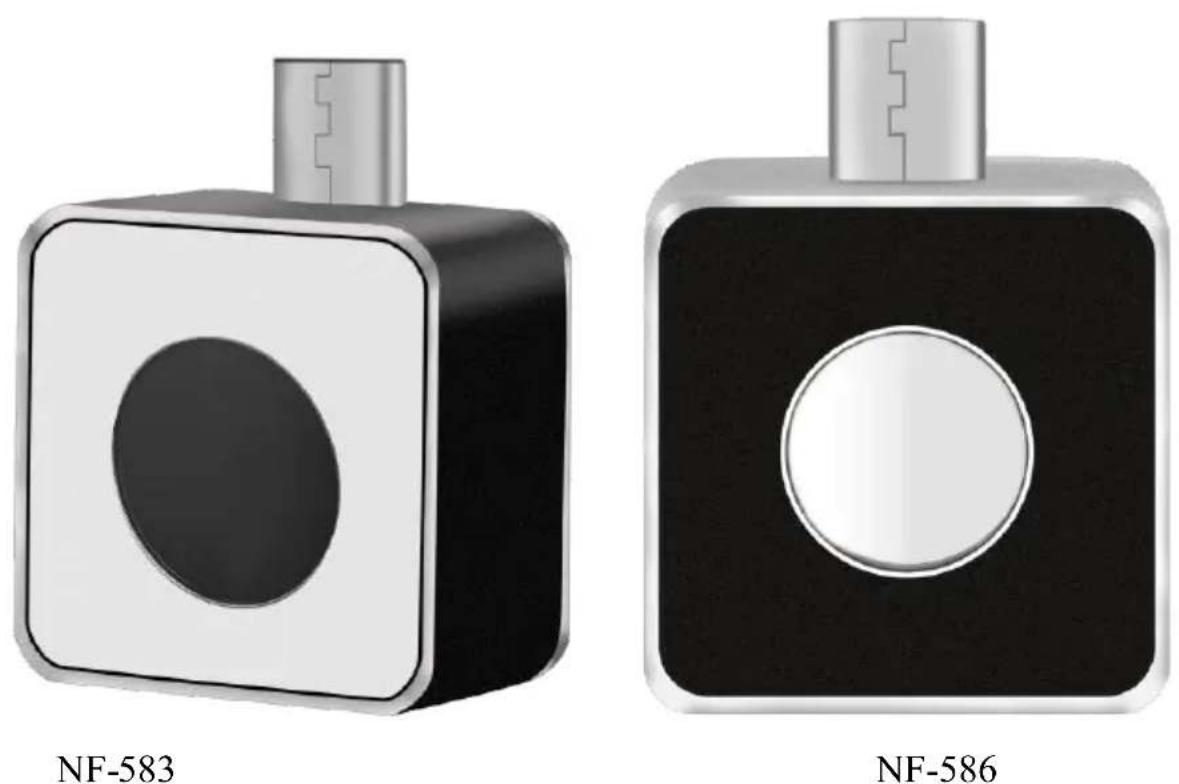
4 Appearance and Equipment Connection
Hardware Appearance and Part Name

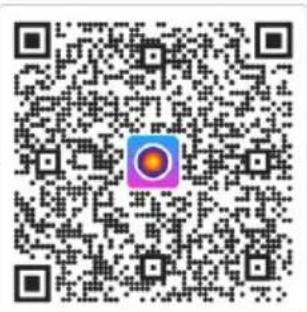
5.1 APP Download and Installation
Scan the QR code on the right for download and installation.
Note: OTG connection is required to be enabled in the mobile phone settings to run the APP normally (because its location varies from phone to phone, you can search for OTG in the settings)
5.2 Interface Introduction
Connect NF-583/586 to an Android phone and run APP, and you can see the interface as shown in Figure 5-1: Figure 5-1 0-1

Figure 5-1 0-1
| 1 | Setting | Provide App interface and parameter setting of infrared thermal imaging camera |
| 2 | About | Some information about the App |
| 3 | Reset | Reset all kinds of information in the screen and restore it to the state at startup |
| 4 | Photo Taking | Take photos and store them in an album |
| 5 | Video Recording | Make a video recording and store it in an album |
| 6 | Album | Store photos and videos |
| 7 | Infrared thermal imaging | Display infrared thermal imaging |
| 8 | Temperature color bar | Display the maximum temperature and minimum temperature in the current screen with different color block bars |
| 9 | Color palette | Different color palette can be switched to change the color of the video |
| 10 | Regional Temperature Measurement | Points, lines and boxes can be added to measure temperature in different regions |
| 11 | Temperature Tracking | The current maximum temperature, minimum temperature and center point temperature in the screen can be tracked |
| 12 | Rectangle Temperature Measurement | The current temperature in all rectangular boxes can be highlighted. If the current screen does not have a rectangle, one will be added automatically |
| 13 | High Temperature Alarm | The high temperature alarm threshold can be set. If the temperature in the video exceeds the threshold value, a sound and screen alarm will be issued |
| 14 | Highlighted High-temperature Regions | The maximum-temperature region in the screen can be displayed |
Table 1 1
5.3 Function Introduction
5.3.1 Setting
Click the [Settings] button to pop up the settings panel as shown in Figure 5-2.
Figure 5-2 0-2 See Table 2 for the description of each setting item in the panel. Table 2 2

Figure 5-2 0-2
| General items | |
| Language | English |
| Temperature unit | The temperature units can be set, with Celsius (°C), Fahrenheit (°F) and Kelvin (K) supported |
| Sound recording | Whether to record sound can be chosen when recording video. |
| Parameter | |
| Emissivity | Emissivity parameter values shall be filled in according to the measured target |
| Humidity (%) | Parameter values shall be filled in according to the humidity of the test environment |
| Correction (°C) | Correction parameters shall be filled in according to the temperature measurement deviation |
| Reflection temperature (°C) | Parameter values shall be filled in according to the reflection temperature of the test environment |
| Ambient temperature (°C) | Parameter values shall be filled in according to the temperature of the test environment |
Table 2 2
5.3.2 About
As shown in Figure 5-3. Figure 5-3 0-3
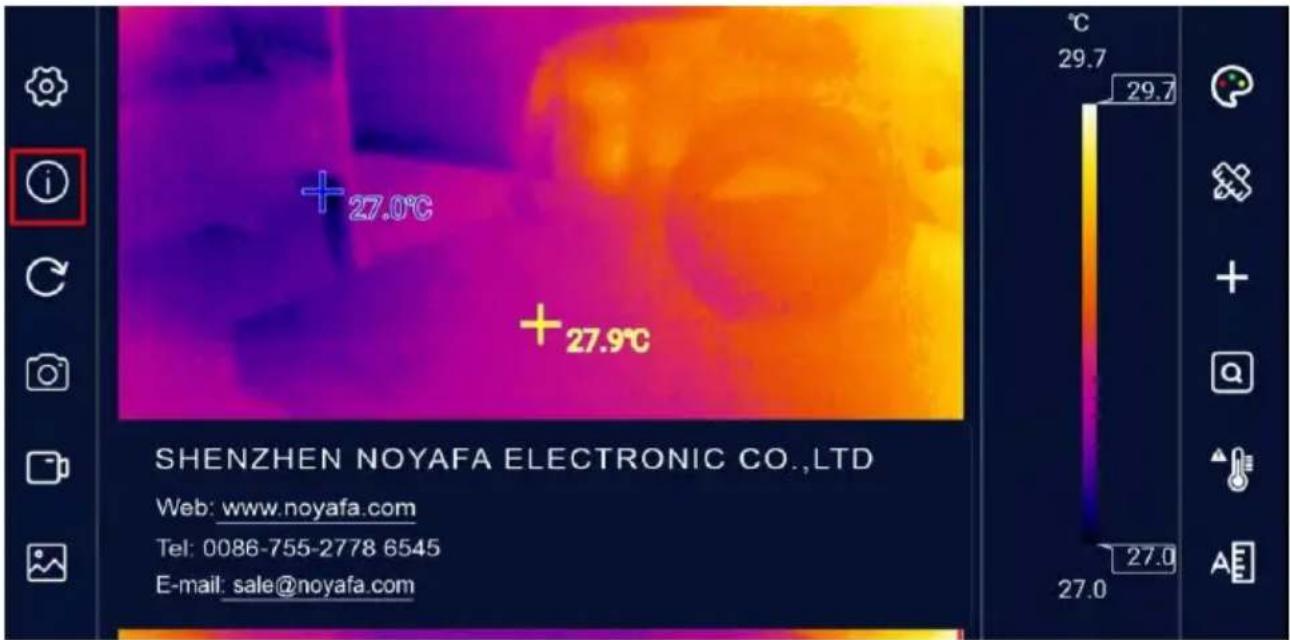
Figure 5-3 0-3
5.3.3 Interface Reset
The interface reset button is used to reset the APP interface and APP settings and restore the APP to its default state at startup.
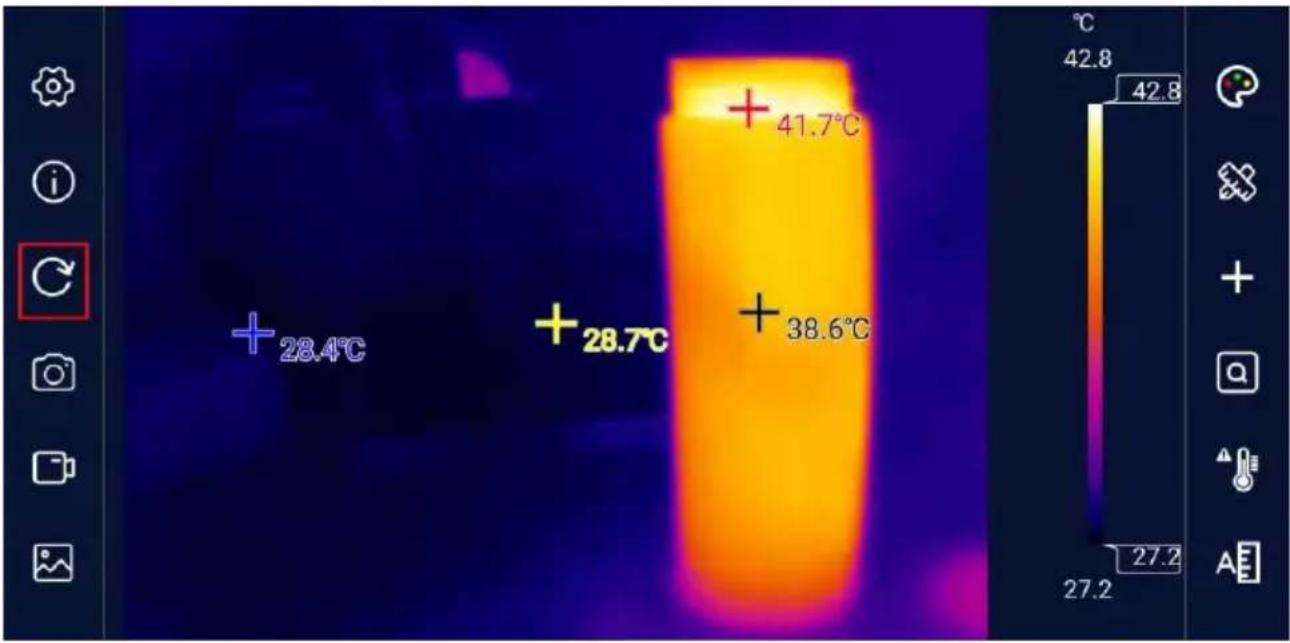
heatmap
| Temperature Range | Value | | ----------------- | ------- | | + 28.4°C | 28.4°C | | + 28.7°C | 28.7°C | | + 38.6°C | 38.6°C | | + 41.7°C | 41.7°C |Figure 5-4 0-4
5.3.4 Photo Taking
Click the [Photo Taking] button to take the current infrared screen and save it automatically. The photo button will remain red for one second and the heat map window will have an animation that is drawn into the album when the photo is successfully taken.

Figure 5-5 0-5
5.3.5 Video Recording
Click the [Video Recording] button to record a video. When the [Video Recording] button is clicked, the button will turn red accordingly, and the recording time will be displayed correspondingly in the lower left corner of the video window at the same time. Click the [Video Recording] button again to stop video recording.

Figure 5-6 0-6
5.3.6 Album
All photos and videos taken by the APP can be conveniently viewed by clicking [Gallery]. The interface of the gallery is shown in Figure 5-7, with all files arranged in chronological descending order.

| ① | Album | Photos and video files are displayed at the same time |
| ② | Photo | Only photo files are displayed |
| ③ | Video | Only video files are displayed, with the video duration in the preview image |
| ④ | Trash can | Files are selected and then deleted |
5.3.7 Color Palette
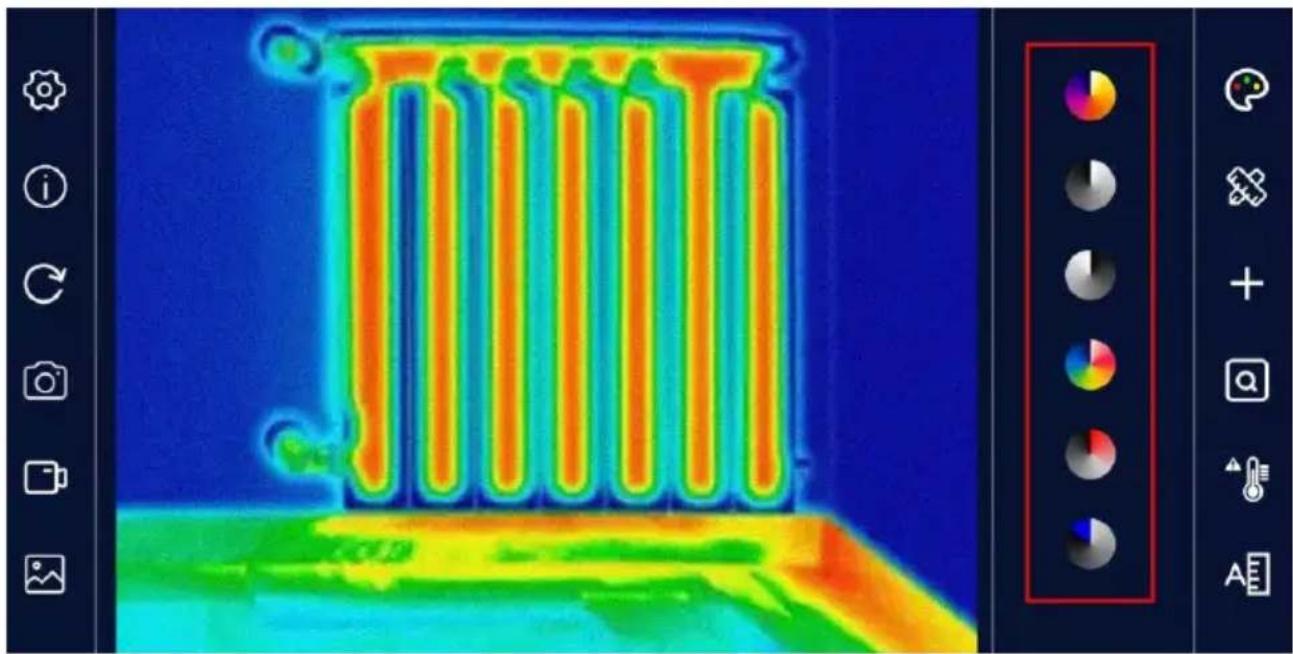
There are 6 display modes on the color palette, as shown in Figure 5-8. Figure 5-8 0-8
natural_image
Thermal imaging view of a heat exchanger with color-coded temperature gradient (no text or symbols)Figure 5-8 0-8
| Iron red |  | In the high-temperature region, red has a large proportion, which is suitable for detecting the scenario where the high-temperature region occupies the main proportion |
| White heat |  | The high-temperature section adopts white, and the full screen mainly adopts black-and-white transition, which is suitable for users of black-and-white traditional mode |
| Black heat |  | The high-temperature section adopts black, and the full screen mainly adopts black-and-white transition, which is suitable for users of black-and-white traditional mode |
| Rainbow |  | Red is used for displaying the maximum temperature, yellow is used for displaying the medium temperature, and blue and black are used for displaying the low temperature, which is suitable for scenarios with distinct colors of high and low temperature |
| Red heat |  | The main colors are red and black, and from the minimum temperature to the maximum temperature, the black, white and red transition mode is adopted, which is suitable for scenarios focusing on the high temperature state |
| Cold blue |  | Blue is used to mark the colder regions, which is more suitable for observing low-temperature target objects |
By adjusting the color palette bar on the right side of the screen, the temperature range can be adjusted to make the regions that need to be observed more obvious.

heatmap
| Temperature | Value | |-------------|--------| | - | 31.6°C | | - | 36.8°C | | - | 36.7°C | | - | 31.4°C | | - | 31.2°C | | - | 29.5°C | | - | 26.9°C |Figure 5-9 0-9
5.3.8 Regional Temperature Measurement
Click the [Regional Temperature Measurement] button on the right, and the following interface will pop up, allowing the temperature measurement of points, lines and rectangular boxes to be added to the video, in which the lines and rectangular boxes will display the real-time maximum temperature and minimum temperature of the region. By long pressing each new region, the trash can icon will pop up for deletion.

Figure 5-10 0-10
5.3.9 Temperature Tracking
Click the temperature tracking button on the right to enable or disable the measurement of the maximum temperature, minimum temperature and center point temperature in the real-time screen. Red is the maximum temperature, blue is the minimum temperature, and yellow is the center point temperature. Click to turn on temperature tracking, and click again to turn it off.
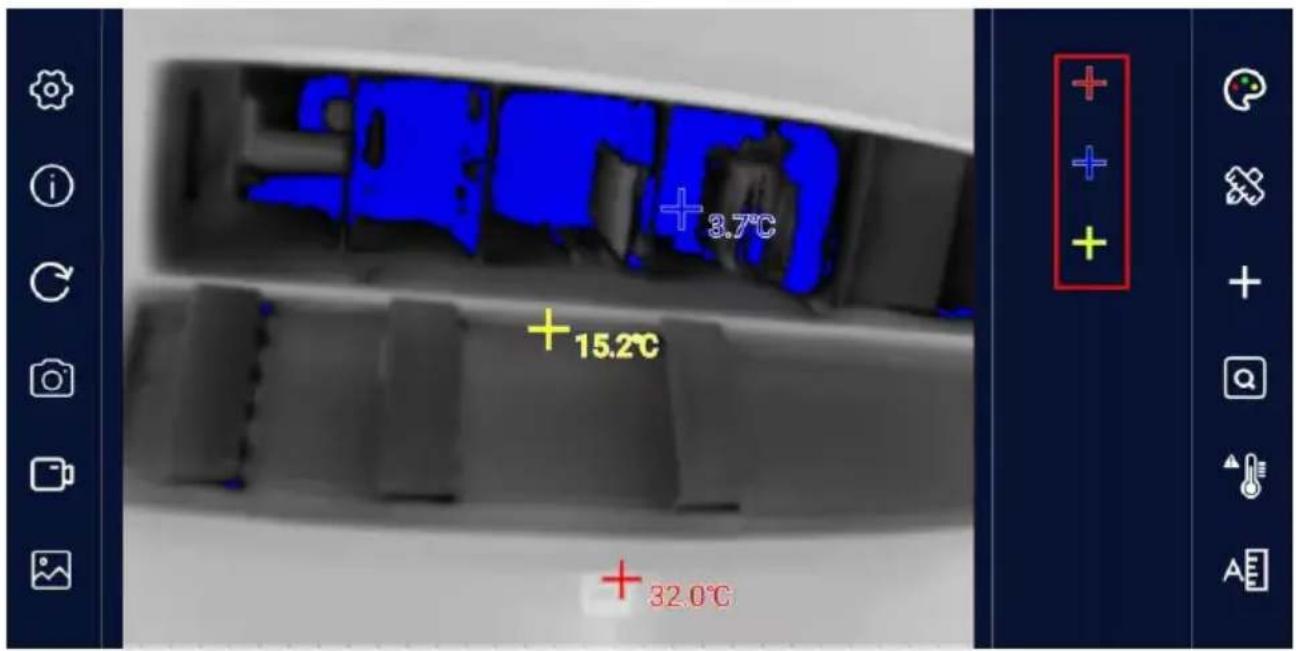
Figure 5-11 0-11
5.3.10 Rectangle Temperature Measurement
The current temperature in all rectangular boxes can be highlighted. If there is no rectangular box in the current screen, a rectangular box will be automatically added in the default position.
By long pressing the rectangular box, its size can be adjusted and its position can be dragged, and by clicking the delete icon next to it, the rectangular box can be deleted.
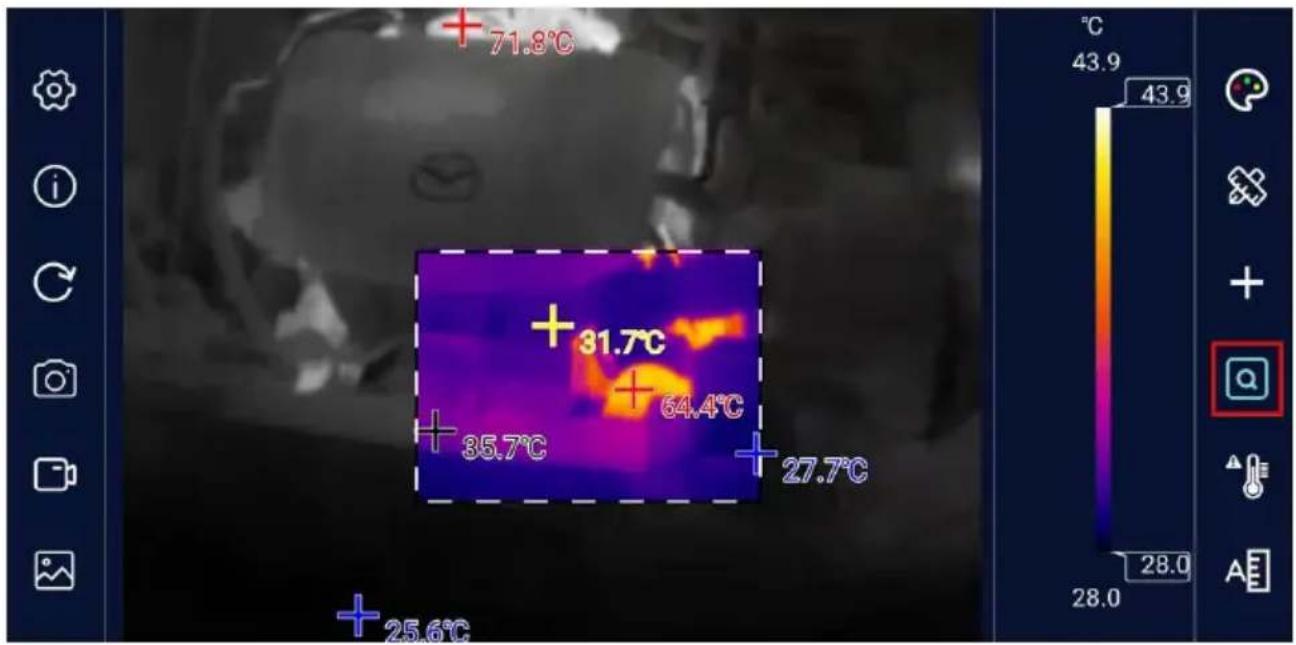
Figure 5-12 0-9
5.3.11 High Temperature Alarm
Click the switch icon of [High temperature Alarm], and a window for setting the high temperature alarm threshold value pops up on the interface, as shown in the figure below When the maximum temperature value in the screen is higher than the alarm threshold value (in the regional temperature measurement mode, the temperature in the region is taken as the benchmark, except point measurement), the system will sound an alarm, and the video screen will flash a red alarm.

Figure 5-13 0-10
5.3.12 Highlighted High-temperature Regions
In this mode, the high temperature region is displayed on the current color board, and the other regions are displayed as white heat, and the temperature range can be adjusted by the slider on the right side of the color board bar. The analysis mode of highlighted high-temperature regions facilitates most application scenarios that focus solely on temperature values of high-temperature regions.

Figure 5-14 0-11
6 Precautions for Use and Maintenance
-
It is forbidden to use alcohol, detergent and other organic cleaners to clean the lens. It is recommended to wipe the lens with soft objects dipped in water.
-
Do not let sunlight, laser and other strong light sources directly illuminate the lens, otherwise the thermal imager will suffer irreparable physical damage.
7 Packing List
| Name | Quantity |
| NF-583/586 host | 1 set |
| Lens cleaning cloth | 1 pcs |
| Cloth bag | 1 pcs |
| Instruction manual | 1 pcs |
8.1 Table of Reflectivity of Common Materials
| Material | Emissivity | Material | Emissivity |
| Asphalt | 0.90 to 0.98 | Cloth (black) | 0.98 |
| Concrete | 0.94 | Skin (human body) | 0.98 |
| Cement | 0.96 | Leather | 0.75 to 0.80 |
| Sand | 0.9 | Charcoal (powder) | 0.96 |
| Soil | 0.92 to 0.96 | Paint | 0.80 to 0.95 |
| Water | 0.92 to 0.96 | Paint (matte) | 0.97 |
| Ice | 0.96 to 0.98 | Rubber (black) | 0.94 |
| Snow | 0.83 | Plastic | 0.85 to 0.95 |
| Glass | 0.90 to 0.95 | Wood | 0.9 |
| Pottery | 0.90 to 0.94 | Paper | 0.70 to 0.94 |
| Marble | 0.94 | Chromium oxide | 0.81 |
| Plaster | 0.80 to 0.90 | Copper oxide | 0.78 |
| Mortar | 0.89 to 0.91 | Ferric oxide | 0.78 to 0.82 |
| Brick | 0.93 to 0.96 | Textile | 0.9 |
- Instruction Manual of NF-583/586 Mobile
- Phone Infrared Thermal Imager
- Version (V1.0)
- Table of Contents
- Product overview
- Product Characteristics
- Product Specifications
- Appearance and Equipment Connection
- APP Download and Installation
- Interface Introduction
- Function Introduction
- Setting
- About
- Interface Reset
- Photo Taking
- Video Recording
- Album
- Color Palette
- Regional Temperature Measurement
- Temperature Tracking
- Rectangle Temperature Measurement
- High Temperature Alarm
- Highlighted High-temperature Regions
- Precautions for Use and Maintenance
- Packing List
Brand : Noyafa
Model : NF-586
Category : Measurement