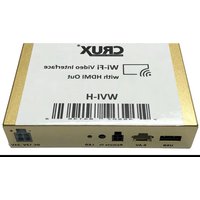
WVI-H - Interface audio/vidéo sans fil CRUX - Free user manual and instructions
Find the device manual for free WVI-H CRUX in PDF.


| Product Type | Wireless Audio/Video Mirroring Module |
| Brand | CRUX |
| Model | WVI-H |
| Compatibility | iOS (AirPlay, iOS 7+), Android (Quick Connect, OS 4.2+) |
| Wireless | Dual Band 5 GHz and 2.4 GHz |
| Video Output | HDMI, Composite RCA |
| Audio | Embedded in HDMI and composite |
| USB Input | For media playback (audio/video files) |
| AV Input | Via BLUE wire trigger, can add camera or toggle |
| Virtual Remote Control | Via web browser at 192.168.59.254 |
| Power Supply | 12V DC (from vehicle accessory power) |
| Included Items | WVI-H Module, Power Harness, Dual Antennas, WiFi AV Out Harness, AV In / Video Out Harness, Extension AV Cable |
| Functions | Screen mirroring, media playback, virtual remote control |
| Supported Apps | Facetime, Maps, Skype, YouTube, and more (except DRM-protected content on iOS) |
| DRM Limitation | Does not support Netflix or DRM protected files on iOS |
| Android Requirement | Power Saving Mode off, Quick Connect updated |
Frequently Asked Questions - WVI-H CRUX
User questions about WVI-H CRUX
0 question about this device. Answer the ones you know or ask your own.
Ask a new question about this device
Download the instructions for your Interface audio/vidéo sans fil in PDF format for free! Find your manual WVI-H - CRUX and take your electronic device back in hand. On this page are published all the documents necessary for the use of your device. WVI-H by CRUX.
USER MANUAL WVI-H CRUX
- Enables wireless (Wi-Fi) Audio/Video mirroring from mobile devices to an aftermarket screen or an OEM screen with a Crux AV interface (sold separately) for shared linking of functions from most Smartphones.
- Provides an audio/video input for which can also be used to add a camera.
- Includes a USB input to play audio and video files.
- Provides a virtual remote control via a smartphone wifi connection.
- Dual band (5GHz and 2.4GHz) Wifi capability for clear connection.
- Includes HMDI output for high quality video.
- Works with Facetime, Maps, Skype, YouTube, and other apps.
PARTS INCLUDED:


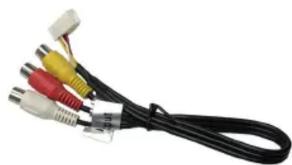
WVI-H Module Power Harness Dual Antennas
natural_image
Black cable with multiple colored connectors (red, yellow, white) attached to a white connector, no text or symbols visible.
natural_image
Close-up of a black cable with three red and yellow connectors (no text or symbols visible)
natural_image
Black cable with multiple audio/video connectors (no text or symbols visible)WiFi AV Out Harness AV In / Video Out Harness
Extension AV Cable
NOTE:
Tap the BLUE wire on the power harness to toggle the AV Input.
WORKS WITH:
iOS

AirPlay


iOS 7 and Newer OS 4.2 and Newer

1 of 3
rev.031221
INSTALLATION INSTRUCTIONS:
- Connect the 18-Pin power/video cable to the Wi-Fi Interface module.
- Connect the antennas to the module.
- Connect the RED power lead to +12V ACC and the BLACK wire to Ground.
- Connect the BLUE A/V Input wire to +12V to trigger the optional A/V input feature. The video input can also be connected to a camera source instead. A toggle switch (not included), wired between the BLUE wire and +12V can be used to switch ON or OFF the A/V input feature.
- An HDMI video output is available for HD video resolution. Connect to a screen that has an HDMI input.
- If the USB input feature will be used, you can use the virtual remote control on your smartphone to control the USB functions. See VIRTUAL REMOTE section for details. Extended a USB cable to an easily accessible location.
- Plug in the Composite RCA output of the WVI-H harness to the screen's AV input.
- Test for functionality.
SETTING YOUR DEVICE:
With the WVI-H module ON and READY:
For iOS devices:
Open settings > Select Wi-Fi > Under 'Choose Network' Select "Crux WiFi ***"
After connecting to Crux Wifi, select "SCREEN MIRRORING" from the Control Center and tap Crux Wifi ***. To access Control Center, on iPhone X, pull down from the upper right corner of the screen, on other iPhone models, pull up from the bottom of the screen.
NOTES:
- Does not support Netflix and any DRM protected files on iOS devices due to Restrictions by Apple.


For Android devices:
From the drop down drawer, press "Quick Connect" > Select "Crux Wifi ***"
Notes:
1) Make sure the "Power Saving Mode" is turned off.
2) Make sure Quick Connect is updated to the latest version.
VIRTUAL REMOTE CONTROL:
The WVI-H comes with a Virtual Remote Control via a Wifi connection. To access the virtual remote control, make sure that the phone is connected to Crux Wifi *** . Open your web browser and type in the following on the address bar: 192.168.59.254. Note that you have to stop the screen mirroring function to enter USB mode.
The Virtual Remote control will open. Use the virutal remote control to PLAY, PAUSE, STOP, TRACK UP/DOWN, VOLUME UP/DOWN, etc.

Plug in a USB thumb drive to the USB cable port of the WVI-H. Tap OPTIONS on the Virtual Remote Control to select MOVIES, PHOTOS, MUSIC, etc. Use the remote to play/pause or skip tracks. Note that you have to stop the screen mirroring function to enter USB mode.

Tap SETUP to change settings on VIDEO, SYSTEM, NETWORK, and AUDIO. We recommend NOT to change any SYSTEM settings as this would interfere with the WVI-H functionality.

MIRRORING:
The mirroring connection uses a direct Wi-Fi connection to transfer the Audio and Video from your smartphone to the WVI-H module. This does not require an active network. If your smartphone has the Screen Time Out enabled and your display goes to sleep mode, you will no longer see the image on the screen. Deactivate this feature for continuous viewing
Brand : CRUX
Model : WVI-H
Category : Interface audio/vidéo sans fil