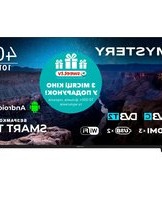
MTV-4060FST2 - Television Mystery - Free user manual and instructions
Find the device manual for free MTV-4060FST2 Mystery in PDF.


| Product Type | LED Television |
| Model | MTV-4060FST2 |
| Brand | Mystery |
| Screen Size | 40 inches (102 cm diagonal) |
| Display Resolution | 1920 x 1080 (Full HD) |
| Backlight Type | LED |
| Dimensions (with stand) | 902 x 558 x 209 mm |
| Dimensions (without stand) | 902 x 516 x 79 mm |
| Weight (with stand) | 7.8 kg |
| Power Supply | AC 100-240V, 50/60Hz |
| Power Consumption | 65 W (typical), <0.5 W (standby) |
| Connectivity | 2 x HDMI, 1 x USB, 1 x VGA, 1 x Composite, 1 x Coaxial, 1 x Headphone |
| Audio Output | 8W x 2 speakers |
| Supported Video Formats | MPEG, AVI, MKV, MOV, MP4 |
| Supported Audio Formats | MP3, WMA, AAC |
| Tuner Type | DVB-T2/C/S2 |
| Remote Control | Included |
| Wall Mount Standard | VESA 200 x 200 mm |
| Safety Class | Class I (earthed) |
| Operating Temperature | 5°C to 40°C |
| Cleaning Instructions | Wipe with a soft, dry cloth; do not use liquid cleaners |
| Repairability | Repairable by qualified service personnel; spare parts available for 5 years |
Frequently Asked Questions - MTV-4060FST2 Mystery
User questions about MTV-4060FST2 Mystery
0 question about this device. Answer the ones you know or ask your own.
Ask a new question about this device
Download the instructions for your Television in PDF format for free! Find your manual MTV-4060FST2 - Mystery and take your electronic device back in hand. On this page are published all the documents necessary for the use of your device. MTV-4060FST2 by Mystery.
USER MANUAL MTV-4060FST2 Mystery
natural_image
Front view of a black outdoor TV with 'MYSTERY' branding on the front screen (no additional text or symbols visible)SMART TV

Android
WiFi
HDMI ^TM
HIGH-DEFINITION MULTIMEDIA INTERFACE
USB
DVB T2
DVBC
ВАЖЛИВО!
natural_image
Solid gray gradient rectangle with no text, symbols, or discernible featuresLED-телевізор
natural_image
Black remote control with circular dial and two battery bank icons (no text or symbols)natural_image
Technical line drawing of two mechanical components with a screw base (no text or symbols)natural_image
Two overlapping squares with no text or symbolsnatural_image
Isometric technical diagram of a layered mechanical or electronic component with directional arrows indicating movement (no text or symbols)natural_image
Pure schematic diagram of a mechanical or electrical component with no text, numbers, or symbolsПопередження
1

2

natural_image
Front view of a flat-screen monitor with stand legs (no text or symbols visible)natural_image
Front view of a black horizontal-screen TV displaying the brand name 'MYSTERY' on its screen (no additional text or symbols visible)SMART TV

Android
WiFi
HDMI ^TM HIGH-DEFINITION MULTIMEDIA INTERFACE
USB
DVB T2
DVBC
Table of Contents
Safety warning.... 1
Important Safety Instructions 2
Preparation for Your New TV 3
Check Accessories 3
Stand Installation Guide 3
Wall mount specification 4
TV Jacks Explanation 5
External Device Connection Diagram....6
Side Keypad and Front Panel 7
Keypad Buttons....7
Front Panel 7
Remote Control Instructions 8
Inserting Batteries in the Remote 8
Remote Control Reception Angle 8
Learning about Remote Control 9
Remote Control Buttons 9
Basic Operations 10
Turning On and Off 10
Select input source 10
Adjust the OSD Screen 10
OSD Menu Operations 11
Menu Setting 11
Smart TV Operation 12
Media Operation 12
Troubleshooting....13
Identifying Problems 13
Specification 14
Safety warning

CAUTION
RISK OF ELECTRIC SHOCK DO NOT OPEN

Caution: To reduce the risk of electric shock, do not remove cover or back. No user-serviceable parts inside. Refer servicing to qualified service personnel.

The lightning flash with arrowhead symbol, within an equilateral triangle is intended to alert the user to the presence of uninsulated dangerous voltage within the product enclosure that may be of sufficient magnitude to constitute a risk of electric shock.

The exclamation point within an equilateral triangle is intended to alert the user to the presence of important operating and maintenance (servicing) instructions in the literature accompanying the TV.
WARNING: TO REDUCE THE RISK OF FIRE OR ELECTRIC SHOCK, DO NOT EXPOSE THIS APPLIANCE TO RAIN OR MOISTURE.
CAUTION: CHANGES OR MODIFICATIONS NOT EXPRESSLY APPROVED BY THE PARTY RESPONSIBLE FOR COMPLIANCE WITH THE FCC RULES COULD AVOID THE USERS AUTHORITY TO OPERATE THIS EQUIPMENT.
Safety Warning
Before operating the unit, please read through this manual.
PLACEMENT
- Do not place the unit on an unstable cart, stand, tripod, bracket, table, or shelf.
- Do not expose the unit to direct sunlight and other sources of heat.
• Do not handle liquids near or on the unit.
• Never spill liquid of any kind into the unit
• Do not put the unit near appliances that create magnetic fields.
• Do not put heavy objects on top of the unit.
TEMPERATURE
- Do not place the unit near or over a radiator or a heater register.
- If your unit is suddenly moved from a cold to a warm place, unplug the power cord for at least two hours so that moisture that may have formed inside the unit can dry completely.
HUMIDITY
• Do not expose machine in rain, damp or place near water.
• Ensure the indoor drying, cool.
VENTILATION
- Keep the ventilation openings clear.
WARNING(Only applicable to models over 7kg)
Never place a television set in an unstable location. A television set may fall, causing serious personal injury or death.
Many injuries, particularly to children, can be avoided by taking simple precautions such as:
- Using cabinets or stands recommended by the manufacturer of the television set.
- Only using furniture that can safely support the television set.
- Ensuring the television set is not overhanging the edge of the supporting furniture.
- Not placing the television set on tall furniture (for example, cupboards or bookcases) without anchoring both the furniture and the television set to a suitable support.
- Not placing the television set on cloth or other materials that may be located between the television set and supporting furniture.
- Educating children about the dangers of climbing on furniture to reach the television set or its controls. If your existing television set is being retained and relocated, the same considerations as above should be applied.
Important Safety Instructions
- Read these instructions.
- Keep these instructions.
- Heed all warnings.
- Follow all instructions.
- Do not use this apparatus near water. For example, do not use near a laundry tub, in a wet basement, or near a swimming pool, and the like.
- Clean only with dry cloth.
- Do not block any ventilation openings. Install in accordance with the manufacturer's instructions. Slots and openings in the cabinet back or bottom are provided for ventilation, to ensure reliable operation of the TV and to protect it from overheating. These openings must not be blocked or covered. The openings should never be blocked by placing the TV on a bed, sofa, rug, or other similar surface.
- Do not install near any heat sources such as radiators, heat registers, stoves, or other apparatus (including amplifiers) that produce heat.
- Do not defeat the safety purpose of the polarized or grounding-type plug. A polarized plug has two blades with one wider than the other. A grounding-type plug has two blades and a third grounding prong. The wide blade or the third prong is provided for your safety. If the provided plug does not fit into your outlet, consult an electrician for replacement of the obsolete outlet.
- Protect the power cord from being walked on or pinched particularly at plugs, convenience receptacles, and the point where they exit from the apparatus.
- Only use attachments/accessories specified by the manufacturer.
- Use only with cart, stand, tripod, bracket, or table specified by the manufacturer, or sold with the apparatus. When a cart is used, use caution when moving the cart/apparatus combination to avoid injury from tip-over. A TV and cart combination should be moved with care. Quick stops, excessive force, and uneven surfaces may cause the TV and cart combination to over
- Unplug this apparatus during lightning storms or when unused for long periods of time. For added protection for this TV receiver during a lightning storm, or when it is left unused for long periods of time, unplug it from the wall outlet and disconnect antenna or cable system. This will prevent damage to the TV due to lightning and power line surges.
- Refer all servicing to qualified service personnel. Servicing is required when the apparatus has been damaged in any way, such as power-supply cord or plug is damaged, liquid has been spilled or objects have fallen into the apparatus, the apparatus has been exposed to rain or moisture, does not operate normally, or has been dropped.
- This TV should be operated only from the type of power supply indicated on the rating label. If customer is not sure the type of power supply in your home, consult your appliance dealer or local power company. For TV remote control battery power, refer to the operating instructions.
- The TV set shall not be exposed to dripping or splashing. No objects filled with liquids, such as vases, shall be placed on the TV set.
- Never push objects of any kind into this TV through openings as they may touch dangerous voltage or other electrical parts that could result in fire or electric shock. Never spill liquid of any kind into the TV.
- Unplug the TV from the wall outlet before cleaning. Do not use liquid or aero cleaners. Use a damp cloth for cleaning.
- This TV should never be placed near or over a radiator or heat resource. This TV should not be placed in a built-in installation such as a bookcase or rack unless proper ventilation is provided or the manufacturer's instructions have been adhered to.
- Do not place this TV on an unstable cart, stand, tripod, bracket, or table. The TV may fall, causing serious injury to someone, and serious damage to the appliance.
- Do not attempt to service this TV by yourself because opening or removing covers may expose you to dangerous high voltage or other hazards. Refer all sen/icing to qualified service personnel.
- Please do the static electricity prevention and panel protect measures before overhaul, avert damage the panel and main board sensitive element, ex. IC etc.
- WARNING: To prevent injury, this apparatus must be securely attached to the floor/wall in accordance with the installation instructions.

Preparation for Your New TV
Check Accessories
Check the accessories that are packed with your TV.
natural_image
Plain gray rectangular background with no visible text, symbols, or features.LED TV

natural_image
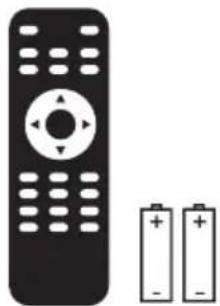
Black remote control with two batteries (no text or symbols visible)Remote Control & Batteries
natural_image
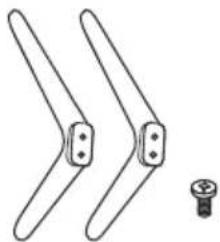
Pure mechanical linkage diagram without any text, numbers, or symbolsTV Stand Base + 4 x Screws
User's manual + Warranty Card
Stand Installation Guide
The TV is packaged with the TV stand separated from the cabinet. To setup the TV table stand, please carry out the installation according to the instructions below.
-
The panel can be scratched easily, so please:
Place a soft cloth on the table and place the TV face down on the cloth.
Note: Always unplug the AC cord first when installing/removing the stand. -
Take the base. Please align the screw holes of the base and the TV, and then insert the screws into the holes on the base and tighten them.
Note: To ensure that the TV is stable, please lock all screws.

natural_image
Isometric technical diagram of a mechanical component with internal channels and directional arrows, labeled (The illustration) at bottom right (no text or symbols within the diagram itself)Please take note of the base direction:
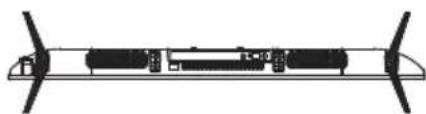
natural_image
Technical line drawing of a mechanical or electronic component with no visible text or symbolsThe bottom view of the TV (Front cabinet faces down)
(The illustration is for reference only, Please prevail in kind)
Wall Mounting(if available)
| Unit Dimension (unit:mm) | Screws |
| VESA 100x100 | M4x6mm, 4pcs |
Note: The length of the screw specified is only a recommendation; actual length required can vary depending on the type of wall mount used.

Warnings:
- Do not set up the wall mount by yourself. Please contact qualified professionals for installation.
- The TV should not be mounted on walls or surfaces which have an angle more than 10 degrees with vertical direction. Otherwise the TV set may fall.
- The walls for mounting must have enough strength to hold the whole weight of TV set. For example, concrete wall and brickwork are eligible. Do not place the mount on soft walls such as earth walls and plasterboard.
- If spare parts of different specifications (such as screws) are used during mounting, consult with qualified professionals to make sure these parts are safe and effective.
- Before attaching the base to wall, ensure the holes for anchors are in keeping with the installing rules. Otherwise there may exist some potential problems.
- Do not place any heating source under your television. Or else, it can cause fire.
- Do not place the TV near anything dripping. Transducers and high voltage wires should be kept far away from the apparatus too. Or else, it may cause creepage, electric shock or bad resonance.
- Do not place TV in a location where collision or vibration is liable to happen.
- In order to avoid unexpected falling of the TV set, do not put any strong force on TV or wall mount after installing.
- Be sure to unplug the TV before installing. Keep anything hard or sharp away from the screen panel to prevent the scuffing.
- After installing, if there is any need to move the cabinet, please contact the qualified professionals.
TV Jacks Explanation

1

②

HDMI: (High-Definition Multimedia Interface) Provides an uncompressed digital connection.
USB: Connect the USB device such as the flash disk to access the TV media function.
CI: CI card reader.
EARPHONE: Connect a 3.5mm headset for personal audio.
RJ45: Connect the Internet.
OPTICAL: Digital TV sound output.
CVBS IN : Connect an AV device that has composite video jacks, such as a VCR or DVD Player.
L: Left audio channel connection. The left audio connector is usually white.
R: Right audio channel connection. The right audio connector is usually red.
RF: Connect to receive the signal from your antenna or cable through a coaxial cable.
External Device Connection Diagram

Side Keypad and Front Panel
Keypad Buttons
If you cannot locate your remote, you can use the side keypad buttons on your TV to operate many TV features.

INPUT: Displays the Source Select List.
MENU: Displays the TV Main Menu.
CH+: Scans up through the channel list. In the TV menu system, it acts like the up arrow on the remote control and can be used to select menu options.
CH- : Scans down through the channel list. In the TV menu system, it acts like the down arrow on the remote control and can be used to select menu options.
VOL+: Increases the volume. In the TV menu system, it acts like the right arrow on the remote control and can be used to select menu options.
VOL-: Decreases the volume. In the TV menu system, it acts like the left arrow on the remote control and can be used to select menu options.
POWER: Turns the TV on and off.
Front Panel
Power/Standb Indicator: The LED shows white color in standby and does not show any color when the TV is turned on. Remote Control Sensor: Remote control IR sensor, which receives infrared ray sent by remote control.

NOTE: If there is a protective film around the screen, remove the protective film before using the TV.
Remote Control Instructions
Inserting Batteries in the Remote
- Remove the battery compartment cover from the back of the remote control by lifting the cover.
- Insert 2AAA batteries, making sure the polarities(+and-) are aligned correctly.
- Replace the cover.
If the remote control does not work, check these points:
• Are the polarities (+, -) correct?
• Are the batteries worn out?
• Is there an AC power failure?
• Is the power cord plugged in?
- Is there any interference or block near the remote control sensor?
CAUTION:
• Used batteries should be recycled.
- Keep out of children's reach.
• DO NOT use new and old batteries together.
- Change both the batteries at the same time.
- When not using the remote control for a long time, remove the batteries from the unit.
Warning: All batteries (packed or in use) must not be exposed to high temperature like sun heat or fire.
Remote Control Reception Angle
Use your remote control within the distance and angle range shown below.
Remote Control Sensor

Learning about Remote Control
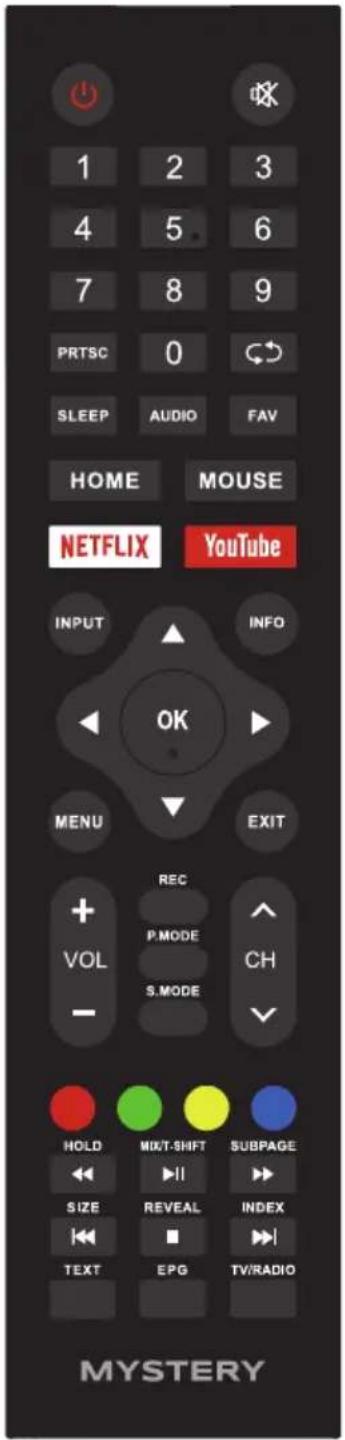
Remote Control Buttons
POWER (☐): Turns the TV on or off.
MUTE (☒): Reduces the TV volume to its minimum level. Press again to restore the volume.
NUMBER BUTTONS: Press 0-9 select a TV channel directly when you are watching TV.
PRTSC: Print Screen.
Recall (C): Returns to the previous channel.
SLEEP: Selects the sleep timer, after which the TV will shut off automatically.
AUDIO: Switch the audio channel in DVD or multimedia mode.
FAV: Show favorite channel list.
HOME: Press to open Android home page.
MOUSE: Switch to the mouse mode.
NETFLIX: Press this key to access the site.
YOUTUBE: Shortcuts of YouTube webpage.
INPUT: Accesses the available input channels, Use the arrows to highlight options, and press OK to select.
INFO: Press to display the current program information on the screen.
MENU: Accesses the Main Menu, or return to the upper level of a sub-menu.
EXIT: Exits the current menu or function.
Arrows (◄/►/▲/▼): Uses the four arrows to highlight different items in the TV menu or change the value.
OK: Enter and confirm button.
VOL+ or VOL-: Increases or decreases the TV volume.
CH^ or CH∨: To access the next or previous channels.
REC: Presonal video record button. A USB memory device must be connected to the USB port for recording.
P.MODE: Switches between the preset picture mode.
S.MODE: Switches between the preset sound mode.
RED/GREEN/YELLOW/BLUE: Use add-on functions in OSD menu.
◀ ▶ : Fast review and fast forward.
◀◀ ▶▶: Select the previous or the next media file.
■ ▶ : Stop and play or pause media files;
HOLD: Teletext mode-Hode current page which is display.
MIX: TV and TXT picture are mixed together in transparent background.
T-SHIFT: Press to activate Time Shift function in Digital TV mode, for delayed viewing.
SUBPAGE: Sub coded page access.
SIZE: Change the size of display in Teletext mode.
REVEAL: Teletext mode-To reveal or hide the hidden words.
INDEX: To display the index page.
TEXT: To enter Teletext mode.
EPG: Shows Electronic Program Guide.
TV/RADIO: Switch between TV and RADIO.
NOTE:
- All pictures in this manual are examples, only for reference, actual product may differ from the pictures.
◆ The buttons not mentioned here are not used.
Basic Operations
Turning On and Off
Connect the AC cord to power the TV. At this time the TV will enter standby mode and power indicator will turn white. Use Power button( ⏻ ) on the side panel of TV or on the remote control to turn on the TV. After switching off the TV for 5 seconds, you can turn on TV again.
Select input source

Press INPUT button to display the input source list;
Press ◀/▶ button to select the input source you want to watch; Press OK button to enter the input source;
Adjust the OSD Screen
- Press MENU button to display the MAIN OSD MENU;
- Press ◀/▶ button to select the MENU you want;
- Press OK button to enter the sub menu, and press MENU button to return back to the previous menu.
- Press ▲/▼ button to select the option and then press OK button to enter the submenu, press ◀/► button to adjust the value or press ◀/► button to select in the sub-menu;
You can press MENU button to save and return back to the previous menu, and press EXIT button to exit the entire menu.
OSD Menu Operations
Menu Setting
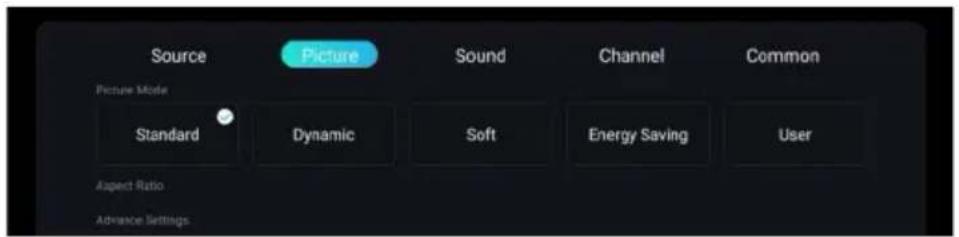
Press MENU button to display the MAIN OSD MENU:
Source: Select the Source to display the input source list.
Picture: Used for TV picture effect adjusting.
For example: Picture mode, Color Temperature and so on.
Note: When connected to the PC signal, there may be a mismatch between the picture and the screen, please enter the Advance Settings submenu in the picture menu and select HDMI mode, change the mode to graphic, at this time you can correct the screen display.
Sound: Used for TV sound effect adjusting.
For example: Sound Mode, Balance and so on.
Channel: Used for channel searching and edit, it's only available in TV input.
You can choose to automatically search, or choose to manually search according to your needs.
Common: Used for TV additional options.
For example: Blue Screen, Teletext, Lock and so on.
If the locking system is turned on, enter the password you set when you entered the TV system when you first turned it on. For easy memorization, it is recommended that you set a password that is simple and easy to remember.
For more settings, please refer to the menu settings.
OSD Menu Operations
Smart TV Operation
Press HOME button on the remote control to enter the Main Launcher.
Press the arrow buttons ◀/▶ to select the icon and press "OK" button to enter the sub-menu.
In smart TV mode, you can install / uninstall the application, browse the web, system settings and other operations.

Media Operation
Note: Before operation MEDIA menu, Plug in USB device or memory card.
Press HOME button to enter the Main Launcher. Press ◀/▶ button to select Multimedia in the menu, and then press "OK" button to enter.
You can browse multimedia files by selecting Video, Music, Photo or Folder. Then press the "▶II" button to start playing.

- Press ◀/▶ button to select the option that you want to adjust in the Media menu, then press OK button to enter.
- Press ◀/▶ button to adjust or press ▲/▼ button to select.
- After finishing your adjustment, press MENU button to save and return back to the previous menu and press EXIT button to exit the entire menu.
Troubleshooting
Identifying Problems
If there are any problems when using the product, please consult the list below. If the list does not solve the problem, call our Customer Service Center immediately.
TV Problems
The TV can't be turned on.
• Make sure the AC cord is plugged in.
- Check the wall outlet, make sure the AC output works normally and stably.
- Select the Key Lock function in the OPTION Menu and press OK to uncheck the locking status.
No picture or sound but the TV is on and there is a "No Signal" sign on screen.
- Are you trying to use an input source with no device connected to it? For using other video/audio device, make sure the external device works normally first, then press Source and choose the right input source.
• The signal type option may be set incorrectly. - The channel may be blank. Try to search the channel again or change another channel.
The sound is fine, but the picture is poor.
- If you can only get black and white pictures from external device that you've connected to your TV, maybe it is due to the video cables is not connected well, or they are connected wrongly. Check the connection stability first, then check the correctness.
- For AV input, the yellow video cable connects to the yellow Video In jack on the side of your TV. For Component input, the three Y, Pb, Pr video cables (red, blue, and green) should be connect to the corresponding input jacks on the side of your TV.
- Check the antenna connections. Make sure all of the cables are firmly connected to the TV jack on side of your TV.
• Try adjusting the color features to improve.
There is no sound, but the picture is fine.
- The sound might be muted. Try pressing the MUTE button to restore sound.
- For using AV or Component, remember to connect the device's left and right audio output correctly. The left channel cable is white and the right channel cable is red. Please match the cables and jacks according to their colors.
• The sound settings may not be set correctly. - If your audio source has only one jack or is a (mono) audio source, make sure you have plugged the connection into the Audio In L jack (white) on the TV.
The buttons on the side panel don't work.
- Unplug the TV from the AC power for 10 minutes and then plug it back. Turn the TV on and try again.
The TV turns off unexpectedly.
- The electronic protection circuit may have been activated because of a power surge. Wait 30 seconds and then turn the TV on again. If this happens frequently, the voltage in your house may be abnormal. If the other electronic equipment in your home can't work normally, consult a qualified service personnel.
The Remote control doesn't work.
- Something might be blocking between the remote control and the remote sensor on the front panel of the TV. Make sure there is a clear path.
• The remote may not be aimed directly at the TV. - The batteries in the remote may be weak, dead, or installed incorrectly. Put new batteries in the remote.
SPECIFICATIONS
Product Specifications
| Model: | MTV-4060FST2 |
| Video: | avi , MPEG |
| Music: | mp3 |
| Photo: | jpg , jpeg, bmp, png |
| Screen resolution: | 1920x1080 |
| Working voltage: | 100-240V ~ 50/60Hz |
| Rated power consumption: | 75W |
Note:
In accordance with the policy of continuous improvement of technical specifications and design, changes are subject to change without notice.
The device is assembled from modern and safe materials. At the end of its service life, in order to avoid possible harm to life, health, property or the environment, the appliance must be disposed of separately from household waste in accordance with the waste disposal regulations in your area.

Please note that the entire packaging of this appliance is not intended for secondary packaging or storage of FOOD.
The service life is 5 years, provided that the product is used in strict accordance with this operating manual.
TECHNICAL SUPPORT
One-stop reference service:
tel. 044-227-07-12
service@mystery.ua

Additional information on warranty and post-warranty repair can be obtained at the place of purchase of this product or at www.mystery.ua
Manufacturer:
MYSTERY ELECTRONICS PTE LIMITED.
Room 2006-8, 20/F, Two Chinachem Exchange Square,
338 Kings Road, Noz Point, Hong Kong, China
Made in China
Importer:
« SOUND DESIGN »
Address: 2-B, Mykilsko-Slobidska Street,
Kyiv, 02002
Tel.: 044-451-5000
Does not contain any harmful substances
Date of manufacture: 12.2023
- ВАЖЛИВО!
- Попередження
- Table of Contents
- Safety warning
- CAUTION
- PLACEMENT
- TEMPERATURE
- HUMIDITY
- VENTILATION
- Important Safety Instructions
- Preparation for Your New TV
- Check Accessories
- Stand Installation Guide
- Wall Mounting(if available)
- Warnings:
- TV Jacks Explanation
- Side Keypad and Front Panel
- Keypad Buttons
- Front Panel
- Remote Control Instructions
- Inserting Batteries in the Remote
- If the remote control does not work, check these points:
- CAUTION:
- Remote Control Reception Angle
- Learning about Remote Control
- Remote Control Buttons
- NOTE:
- Basic Operations
- Turning On and Off
- Select input source
- Adjust the OSD Screen
- OSD Menu Operations
- Menu Setting
- Smart TV Operation
- Media Operation
- Troubleshooting
- Identifying Problems
- TV Problems
- No picture or sound but the TV is on and there is a "No Signal" sign on screen.
- The sound is fine, but the picture is poor.
- There is no sound, but the picture is fine.
- The buttons on the side panel don't work.
- The TV turns off unexpectedly.
- The Remote control doesn't work.
- SPECIFICATIONS
- TECHNICAL SUPPORT
- Manufacturer:
- Importer:
Brand : Mystery
Model : MTV-4060FST2
Category : Television