
LEDme MAX - Bag PRESTIGIO - Free user manual and instructions
Find the device manual for free LEDme MAX PRESTIGIO in PDF.


| Product Type | Bag (Backpack/Duffel) |
| Brand | Prestigio |
| Model | LEDme MAX |
| External Dimensions (approx.) | 48 x 32 x 18 cm |
| Weight | 0.8 kg |
| Material | Polyester with water-resistant coating |
| Closure | YKK zippers |
| Main Compartment | Fits 15.6" laptop |
| Front Pocket | Organizer for accessories |
| Side Pockets | Elastic mesh for water bottle |
| LED Lighting | Integrated LED strip with on/off switch (USB-powered) |
| Power Supply | USB (5V/1A) or power bank (not included) |
| LED Color | RGB, 7 colors |
| Back Panel | Padded mesh for ventilation |
| Shoulder Straps | Ergonomic, adjustable with chest buckle |
| Handle | Top carry handle |
| Water Resistance | Splash-proof, not submersible |
| Care Instructions | Wipe with damp cloth; do not machine wash |
| Safety | Reflective elements for visibility |
| Repairability | Replaceable zippers and straps (contact support) |
| Warranty | 1 year limited |
Frequently Asked Questions - LEDme MAX PRESTIGIO
User questions about LEDme MAX PRESTIGIO
0 question about this device. Answer the ones you know or ask your own.
Ask a new question about this device
Download the instructions for your Bag in PDF format for free! Find your manual LEDme MAX - PRESTIGIO and take your electronic device back in hand. On this page are published all the documents necessary for the use of your device. LEDme MAX by PRESTIGIO.
USER MANUAL LEDme MAX PRESTIGIO
natural_image
Abstract logo design featuring a stylized letter 'P' within a shield shape (no text or symbols)Prestigio LEDme mobile application
Introduction
Prestigio LEDme is an iOS/Android mobile app designed to synchronize the LEDme backpack screen and a smartphone. The mobile application is free and available for download on Google Play and the App Store. This manual contains a detailed description of the user interface, as well as instructions for installing and configuring the application.
Copyright
Copyright ©Prestigio. All rights reserved.
All specified trademarks and names, as well as logos and other symbols are property of their respective owners*.
Prestigio reserves the right to make changes to this document without prior notice of the Customer and shall not be responsible for any potential negative consequences which may arise from technical and/or typographical errors and/or the use of an outdated version of this document.
Names of other companies, trademarks, and equipment are mentioned in this document only for description and explanation of how the devices work; none of such mentions violates any party's copyright.
Responsibility and Support
This document was drawn in adherence to all applicable requirements and contains detailed information on setting up and preparing the device. All information presented was up-to-date as of the time of device release.
Prestigio is entitled to modify the device and this document without prior notice to the users and is not responsible for possible negative consequences of using the outdated version of the document, or for any possible technical or typographical errors or omissions, or accidental or associated damage that may be done by handing over this document or using the devices.
Prestigio does not extend any assurances as to the material given in this document, including but not limited to, merchantability and applicability of the device.
For all technical questions, please contact your local Prestigio representative or the technical support department on the website www.prestigio.com/use. The most frequently encountered problems are described in Section 2 of this document and on the website www.prestigio.com, where you can also download the latest version of this guide.
Manufacturer:
"Prestigio Plaza Ltd." (Prestigio)
Cyprus, Limassol 4040, Spirou Kyprianou 26.
Made in China.
www.prestigio.com
Contents
Introduction 2
Copyright 2
Responsibility and Support ....3
1 General description and characteristics....4
1.1 Description and purpose of the Prestigio LEDme mobile application....5
1.2 Hardware and software requirements ....5
1.3 Installing, updating, and uninstalling the mobile application....5
1.3.1 Installing the mobile application on a smartphone....5
1.3.2 Uninstalling the application ....5
1.3.3 Updating the application....6
1.4 Safety guidelines ....6
1.5 Connecting a portable power supply and turning on the backpack....6
1.6 Launching the Prestigio LEDme mobile application....6
1.7 Device management ....6
1.7.1 Connecting the device....6
1.7.2 Device list....7
1.7.3 Adding a backpack....7
1.8 Application setup and feedback form 8
1.9 Managing projects....8
1.9.1. Creating a project....9
1.9.1.1. Creating a project by uploading a picture or photo 9
1.9.1.2. Creating a project from scratch....10
1.9.1.3. Project management interface....10
1.9.1.4. Image editing interface....11
1.9.2. Finishing a project....12
1.9.3. Sending a project to the device....12
1.9.4. Changing project properties 13
1.9.5. Filtering and sorting projects.... 14
1.9.6. Creating animation of multiple images.... 15
1.9.7. Deleting a project.... 16
1.10 Entering text.... 16
1.11 Managing media files....16
1.11.1 Capturing photos 16
1.11.2 Selecting an image from Gallery 16
1.12 Backup....17
2 Troubleshooting 18
1 General description and characteristics
1.1 Description and purpose of the Prestigio LEDme mobile application
The Prestigio LEDme mobile application allows users to connect the backpack to a smartphone or tablet and change the design of the backpack to suit their image, style, or mood—anytime. Using the Prestigio LEDme application, you can set any text or image from the gallery to be shown on the display, choose your favorite GIF animation from the library, or create your own unique animation by splitting it into frames and adding new elements.
The interface of the Prestigio LEDme app consists of two sections of the main menu—My projects and Library—and the lower menu, which consists of the following sections: Projects, Devices, Editor, Settings. Each tab contains special icons and buttons, each serving a certain function. This manual provides a detailed description of each tab.
1.2 Hardware and software requirements
The Prestigio LEDme app is available for devices powered by Android (version 7 or later) or iOS (version 11 or later).
System requirements:
- at least 1GB RAM;
- touch screen;
- power supply: 5V/2A or higher.
1.3 Installing, updating, and uninstalling the mobile application
1.3.1 Installing the mobile application on a smartphone
To install the application on a mobile device, follow these steps:
- Connect your smartphone to a Wi-Fi network.
- Scan the QR code or download the Prestigio LEDme app on Google Play (https://play.google.com/store) or the App Store (https://www.apple.com/ios/app-store).
- Download the Prestigio LEDme app.
1.3.2 Uninstalling the application
To remove the application, long-tap the application icon and in the context menu click Delete.
1.3.3 Updating the application
Prestigio strives to constantly improve the quality of its products, and regularly publishes the updated version of Prestigio LEDme on Google Play and the App Store. We recommend that you enable automatic updates on your smartphone.
1.4 Safety guidelines
Observe the following rules to make your experience with the Prestigio LEDme app more secure:
- Only use official Prestigio apps available on Google Play and the App Store.
- Install anti-virus software on your smartphone and update it regularly.
- Do not leave your smartphone unattended to prevent unauthorized use of the application.
NOTE. If the application starts requesting suspicious permissions that are beyond the intended functionality, do not grant them.
1.5 Connecting a portable power supply and turning on the backpack
Using the built-in USB-cable, connect the backpack to a portable power source. When connected to a portable power source, the backpack will turn on automatically.
1.6 Launching the Prestigio LEDme mobile application
Click the app icon to launch it. If you launch the app for the first time, you will be asked to add a backpack. If a backpack is already added, you will see the project screen.
At the first launch, after the boot screen the app will request permission to use Bluetooth. Allow access to Bluetooth, and automatic backpack search will start. After the backpack is found, connect the device following the instructions in Paragraph 1.7.
In the Devices section, you can add new devices, turn on or off a device, or remove devices. For that, click the three dots in the upper-right corner of the section.
If you click Skip, you will be able to add the backpack from Devices.
1.7 Device management
1.7.1 Connecting the device
To display and image or manage the backpack, make sure the backpack is on and the battery level is at least 20%.
1.7.2 Device list
To manage devices, click Devices in the main menu at the bottom of the screen, to the left of the "+" button. Every time you visit this menu, the system will request connection to your smartphone via Bluetooth. Enable access to automatically update the list.
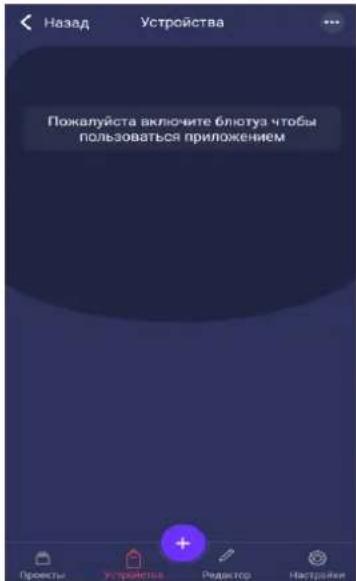
To add a backpack, go to the menu by click the three dots in the upper right corner of the screen. After that, in the drop-down menu, click Add new devices.
Once the backpack is connected, a message on successful connection will appear. After that, you will be able to set the backpack as default.

1.8 Application setup and feedback form
To configure the application, click Settings in the main menu located in the bottom-right corner of the screen. After clicking the Settings, the settings context menu will appear. The following settings are available:
- Application language: set based on the smartphone interface language.
- Support: if you click Support, the system will prompt you to write and send an email message to the support desk.
- Terms of Use: click here to view the Terms of Use.
- Privacy Policy: click here to read the Privacy Policy that applies to processing of personal data.
- Feedback: click here to write a review.

1.9 Managing projects
To manage the projects, click My Projects or Library in the main menu.
All projects are distributed between the main categories: Animations, Pictures, Effects, Text.
You can edit or delete any project in My Projects. Projects from Library can be copied or sent to the backpack. In this section, projects are regularly updated by the application developer.

To find a project by name, use the search bar in the upper menu of the app. Once you click the search button, you will see the bar where you can type the project name. If you enter more than 3 characters, the system will search in all categories.
1.9.1. Creating a project
1.9.1.1. Creating a project by uploading a picture or photo
To create a project, go to My Projects.
To create a project, click «++» (located at the center of the screen bottom). This will open the gallery context menu. In the context menu that opens, select the resource from which you want to load the image to the project: Gallery or Camera.

After selecting Camera, take a photo, following the media instructions provided in Paragraph 1.11.
After selecting Gallery, select the image, following the media instructions provided in Paragraph 1.11.
After you load an image or photo, the edit screen will open. To edit an image, use the project management tools.

1.9.1.2. Creating a project from scratch
In order to create a project from scratch, you need to click on the editor button located at the bottom right of the «++» button, and use project management interface as instructed by Paragraph 1.9.1.3.
The project is saved automatically. To close the project creation screen, click Close in the left corner of the screen.
1.9.1.3. Project management interface
The project management interface is a 64 by 64 pixel grid centered on the screen and a drawing toolbar. Drawing tools include the following functional buttons:


- Text : allows you to add an inscription.
- «+»: allows you to add a copy of the image to make changes or create animation.
- Undo: allows you to undo the previous action.
- Redo: allows you to redo the canceled action.
- Brush: allows you to paint (four brush sizes available).
- Eraser: allows you to erase what you have drawn (four eraser sizes available).
- Colors: allows you to select the brush color.
1.9.1.4. Image editing interface

The image editing interface is a window sized 64 by 64 pixels and a toolbar. The editing toolbar includes the following functions (from right to left):
Crop: crops the image so that only the selected area is left.
Center: places the selection in the center of the image.
Rotate: rotates the picture 90 degrees.
Undo: allows you to undo the previous editing.
Redo: allows you to redo previously undone actions.
1.9.2. Finishing a project
After completing finishing the project, click Close X in the upper-left corner of the screen. In the context menu that opens, select Save and exit to save or Delete and to leave without saving the changes.
Undo allows you to undo the action and continue editing.

1.9.3. Sending a project to the device
To send a project to the device, select the project first. After the project opens, click Show on the backpack (located under the project).
Once the uploading process starts, the progress bar will appear above the project. When completion is finished, a successful upload or error message will appear.

If you receive an error message, you can repeat the download procedure again.
1.9.4. Changing project properties
To change the project properties, select the project on the Projects page on one of the two tabs: My Projects or Library. Once you open the project, click the three dots in the upper-right corner to open the context menu with advanced parameters. In the context menu that opens, select Edit.
To change the project name, project category, or add a tag, after opening the project management interface, click the three dots again (upper-right corner) to open the context menu with advanced parameters. In the context menu that opens, select Edit.
After making changes, click Save to save the changes.

1.9.5. Filtering and sorting projects
To filter or sort projects, click Settings (located to the right of the Search button). The filter screen will open.
When on the filter page, select the type of sorting and tags. The following sorting options are available:
- by category name;
- by date of adding.
After selecting the type of sorting or tags, click Save at the bottom of the screen to apply filters. After the filters and sorting settings are applied, you will be automatically redirected to the list of projects sorted and filtered as you specified.
To reset filters, click Close X in the upper-left corner of the screen.

1.9.6. Creating animation of multiple images
To combine several pictures into animation, select the required projects by long-tapping on them in the My Projects tab on the Projects page. After that, the projects will be marked with a green check mark in the bottom-right corner of the picture, and the Merge button will appear in the upper-right corner of the screen. After you click Merge, the selected projects will be merged.

1.9.7. Deleting a project
To delete a project, select it by long-tapping on it in the My Projects tab on the Projects page. The project will be marked with a green check mark in the bottom-right corner of the picture, and the Delete button will appear in the upper-right corner of the screen. After you click Delete, the selected project will be deleted.
You can also delete a project after finishing the changes. For that, click Close in the upper-left corner of the screen. In the context menu, select Delete and then Exit.
WARNING! Once the project is deleted, the local database data cannot be restored.

The on-screen keyboard can be used as a text input method. To activate it, just tap on the field where you are going to enter text. The Finish (Next, Enter, etc.) button leads to switching between input fields without closing the keyboard.
1.11 Managing media files
The mobile app allows using the device's multimedia functions: using the built-in camera for shooting photos, and managing the gallery.
1.11.1 Capturing photos
Click the camera icon. The phone's camera screen will appear, and you will be able to take a photo. After the Take Photo button was clicked on the camera screen, you will be redirected to the mobile app for editing the photo taken.
To cancel the photo, click Back.
1.11.2 Selecting an image from Gallery
When you click Gallery, you will see the menu with the file list. Choose a picture. After you confirm your selection, the app will process the file and ask you to Save it.
To cancel, click Back.
1.12 Backup
Data backup is performed depending on the mobile application used.
If the mobile application is not associated with a remote system, you can use the operating system's standard backup functions.
On iOS devices, the app data folder is marked as not subject to backup. After the application data change (as you use the app), the application data folder is marked as subject to backup, and the system starts backing up the folder.
2 Troubleshooting
The table below shows typical errors and problems when connecting and configuring a backpack.
Table 1 – Typical errors and ways to fix them
| No. | Problem | Reasons | Solution |
| 1. | I can't connect my device to the backpack | 1. The backpack is already connected to another device nearby2. Bluetooth may be off on the device to which the backpack is trying to connect | 1. Remove the backpack from the app on the other device.2. Turn on Bluetooth on the device to which you want the backpack to connect. |
| 2. | No image | 1. The portable charger is not connected or discharged or turned off2. The device is not connected in the LEDme app | 1. Connect the portable charger.2. Charge the portable charger or turn it on.3. Connect the device in the Devices tab of the LEDme app. |
| 3. | The image is not shown on the screen or uploading is interrupted | Bluetooth connection issues | Make sure the device is close enough to the backpack. |
- Introduction
- Copyright
- Responsibility and Support
- Contents
- General description and characteristics
- Description and purpose of the Prestigio LEDme mobile application
- Hardware and software requirements
- System requirements:
- Installing, updating, and uninstalling the mobile application
- Installing the mobile application on a smartphone
- Uninstalling the application
- Updating the application
- Safety guidelines
- Connecting a portable power supply and turning on the backpack
- Launching the Prestigio LEDme mobile application
- Device management
- Connecting the device
- Device list
- Application setup and feedback form
- Managing projects
- Creating a project
- Creating a project by uploading a picture or photo
- Creating a project from scratch
- Project management interface
- Image editing interface
- Finishing a project
- Sending a project to the device
- Changing project properties
- Filtering and sorting projects
- Creating animation of multiple images
- Deleting a project
- Managing media files
- Capturing photos
- Selecting an image from Gallery
- Backup
- Troubleshooting
Brand : PRESTIGIO
Model : LEDme MAX
Category : Bag