GPN-400ACV - Router Planet - Free user manual and instructions
Find the device manual for free GPN-400ACV Planet in PDF.


| Product Type | Wireless Router |
| Brand | Planet |
| Model | GPN-400ACV |
| Default IP Address | 192.168.123.1 |
| Default User Name | user |
| Default Password | 123456 |
| Administrator User Name | admin |
| Administrator Password | super&123 |
| Default 2.4G SSID | 2.4G_XXXX (X = last 4 digits of MAC) |
| Default 5G SSID | 5G_XXXX (X = last 4 digits of MAC) |
| Wireless Standards | IEEE 802.11a/b/g/n/ac |
| Frequency Bands | 2.4 GHz and 5 GHz |
| Ethernet Ports | 4 x 10/100/1000 Mbps LAN, 1 x 10/100/1000 Mbps WAN |
| Power Supply | 12V DC, 1A |
| Package Contents | Router, Power Adapter, Quick Installation Guide |
| Security | WPA/WPA2, default encryption key on label |
| Management Interface | Web-based (HTTP) |
| Dimensions | Approximately 200 x 140 x 30 mm |
| Weight | Approximately 300 g |
| Operating Temperature | 0°C to 40°C |
| Antennas | 2 x external dual-band antennas |
Frequently Asked Questions - GPN-400ACV Planet
User questions about GPN-400ACV Planet
0 question about this device. Answer the ones you know or ask your own.
Ask a new question about this device
Download the instructions for your Router in PDF format for free! Find your manual GPN-400ACV - Planet and take your electronic device back in hand. On this page are published all the documents necessary for the use of your device. GPN-400ACV by Planet.
USER MANUAL GPN-400ACV Planet
1. Package Contents
Thank you for choosing PLANET GPN-400ACV. Before installing the router, please verify the following items in the package box.
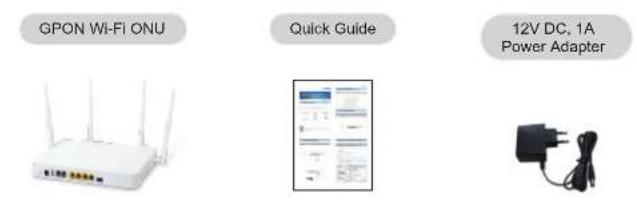

If there is any item missing or damaged, please contact the seller immediately.
-1--2-
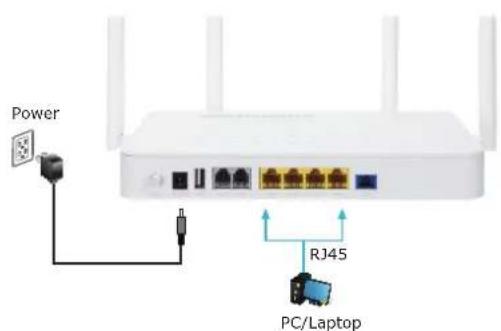
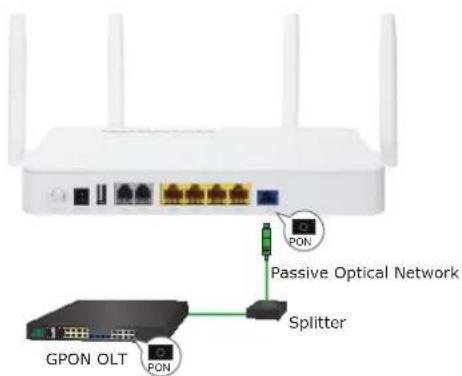
3. Hardware Installation
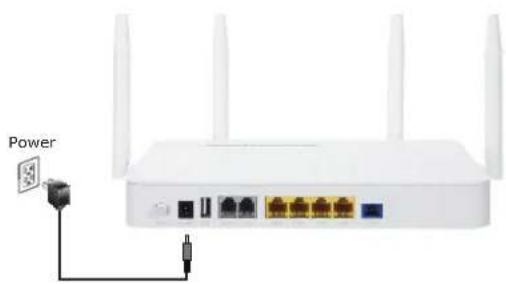
Step 2: Follow the figure below to connect the network devices.
2. Hardware Introduction
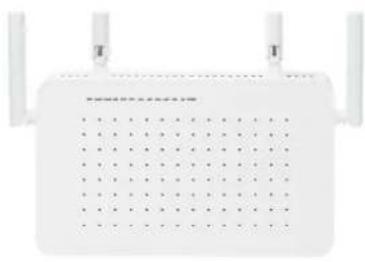
Front View
natural_image
Front view of a white wireless router with two antennas and ventilation slots (no visible text or labels)3. Hardware Installation
Step 1: Connect the Power Adapter provided in the package to the GPN-400ACV. The Power LED on the front panel will turn on accordingly.
natural_image
White wireless router with multiple Ethernet ports and external power outlet (no text or symbols visible)4. Network Configuration (Windows 10)
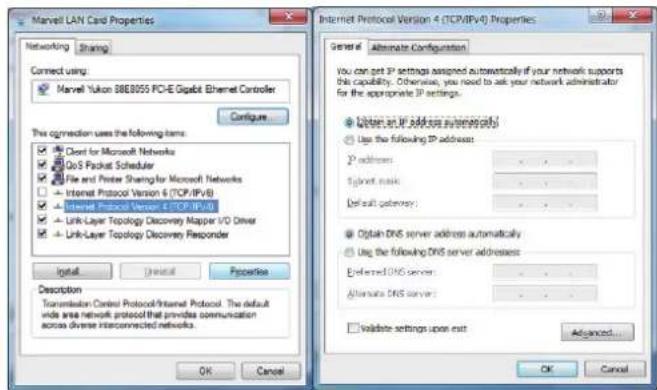
A computer with a wired Ethernet connection is required for the first-time configuration of the Wireless Router.
- Click the "Start" button located at the lower-left corner of your computer.
- Click "Settings".
- Double-click the "Network & Internet" icon.
- Click "Change Adapter Options".
- Double-click "Local Area Connection".
- Select "Internet Protocol Version 4 (TCP/IPv4)" and click "Properties".
- Select "Obtain an IP Address automatically" and "Obtain DNS Server Address automatically", and then click the "OK" button twice to save the configuration.
5. Enter into the Web Management
Default IP Address: 192.168.123.1
Default User Name: user
Default Password: 123456
Administrator User Name: admin
Administrator Password: super&123
Default 2.4G SSID: 2.4G_XXXX
("X" means the last 4 digits of the MAC address)
Default Wireless Encryption Type: XXXXXXXX
(Please refer to the label info on the backplane)
Default 2.4G SSID: 5G_XXXX
("X" means the last 4 digits of the MAC address)
Default Wireless Encryption Type: XXXXXXXXX
(Please refer to the label info on the backplane)
Step 1: The Web management allows you to access and manage the GPN-400ACV easily. Launch the Web browser and enter the default IP address http://192.168.123.1

-5--6-
6. Wireless Network Connection
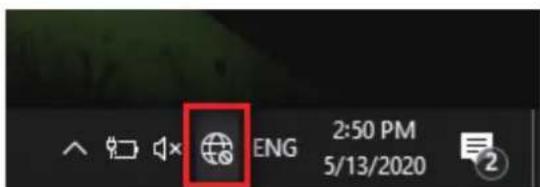
Step 1: Right-click on the network icon displayed in the system tray.
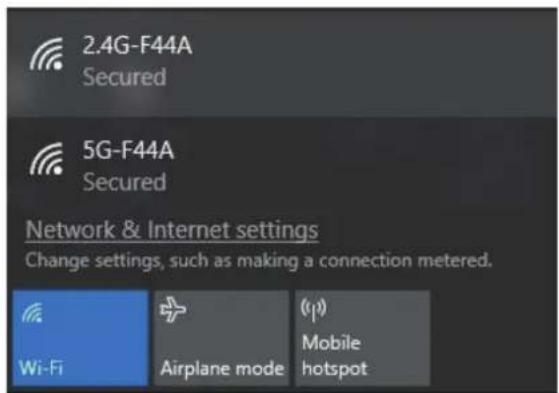
Step 2: Highlight the wireless network (SSID) to connect and click the [Connect] button.
-7--8-
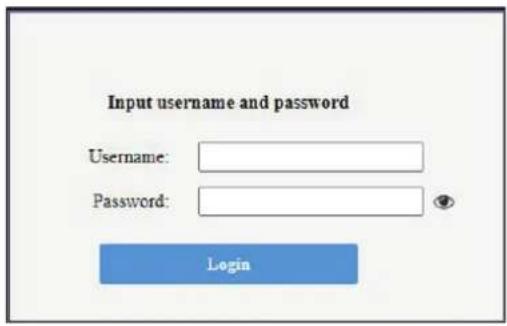
Step 2: When you enter into the Web User Interface, please enter the User Name and Password in the login window. Then click the "Login" button to continue.
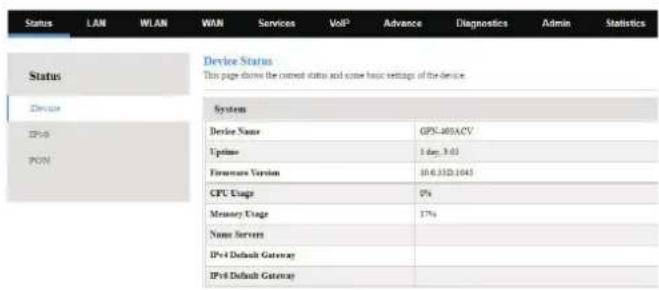
Step 3: After you enter into the Web User Interface, please follow the indications on the screen to quickly set up for the Internet connection.
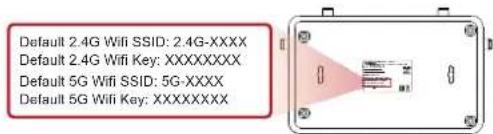
Step 3: Enter the encryption key of the GPN-400ACV.
Please refer to the label info on the backplane.
You have finally finished the configuration of the GPN-400ACV. Now you can use your smart phone, tablet, laptop or any other Wi-Fi device to connect with it wirelessly and start surfing the Internet.
Further Information
The above steps show the simple installation and configuration of the GPN-400ACV. For further configurations of WAN, LAN, Firewall, VoIP, DMZ, and DDNS, please refer to the user manual which can be downloaded from the website.
https://www.planet.com.tw/en/support/downloads?&method=keyword&keyword=GPN-400ACV&view=3#list
If you have further questions, please contact the local dealer or distributor where you purchased this product.
PLANET Technology Corp.
10F., No 96, Minquan Rd., Xindian Dist.,
New Taipei City 231, Taiwan
2011-BA0220-001
UK CA CE EAI
Brand : Planet
Model : GPN-400ACV
Category : Router