
DN-10161 - Network card Digitus - Free user manual and instructions
Find the device manual for free DN-10161 Digitus in PDF.


| Product Type | Network Interface Card |
| Model | DN-10161 |
| Brand | Digitus |
| Interface | PCI Express |
| Network Standard | IEEE 802.3, IEEE 802.3u, IEEE 802.3ab |
| Data Transfer Rate | 10/100/1000 Mbps |
| Connector Type | RJ45 |
| Dimensions (W x H x D) | 120 x 20 x 80 mm |
| Weight | 50 g |
| Power Consumption | 1.5 W |
| Operating System Support | Windows, Linux, macOS |
| Main Functions | Wired network connectivity, gigabit data transfer, auto-negotiation, Wake-on-LAN support |
| Compliance | RoHS, FCC, CE |
| LED Indicators | Link/Activity, Speed |
| Operating Temperature | 0°C to 50°C |
| Storage Temperature | -20°C to 70°C |
| Humidity | 10% to 90% (non-condensing) |
| Package Contents | Network card, low-profile bracket, driver CD, user manual |
| Maintenance & Cleaning | Keep dry and dust-free; clean with a soft, dry cloth |
| Safety Precautions | Disconnect power before installation; avoid static discharge |
| Spare Parts & Repairability | No user-serviceable parts; contact support for replacements |
| General Information | Designed for desktop computers; plug-and-play installation |
Frequently Asked Questions - DN-10161 Digitus
User questions about DN-10161 Digitus
0 question about this device. Answer the ones you know or ask your own.
Ask a new question about this device
Download the instructions for your Network card in PDF format for free! Find your manual DN-10161 - Digitus and take your electronic device back in hand. On this page are published all the documents necessary for the use of your device. DN-10161 by Digitus.
USER MANUAL DN-10161 Digitus
PCIe 10G SFP+ Network Controller Card

User Manual
DN-10161 • DN-10162
Contents:
Chapter 1: Introduction ...... 3
1.1 Product Introduction......3
1.2 Features....3
1.3 Requirements....4
1.4 Package Contents......5
Chapter 2: Getting Started....5
2.1 Hardware Installation .... 5
2.2 Driver Installation ...... 6
2.2.1 Installation for Windows ...... 6
2.2.2 Installation for Linux 8
2.3 Verifying the installation....9
2.3.1 Verifying for Windows....9
2.3.2 Verifying for Linux 10
Chapter 3: Troubleshooting Tips ...... 11
All brand names and trademarks are properties of their respective owners.
Chapter 1: Introduction
1.1 Product Introduction
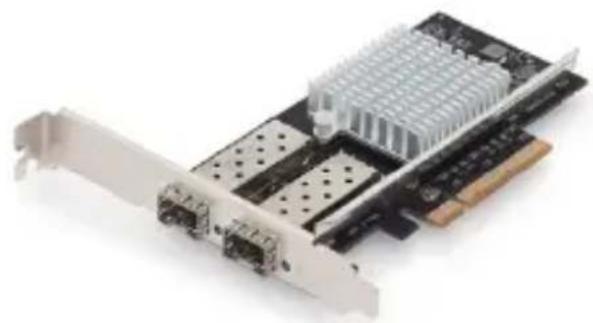
This PCIe 10G SPF+ Network Card is a cost-effective solution that delivers fast and reliable 10 Gbps network access at longer distances than copper-based networks. Using the SPP+ transceiver of your choice, you can connect your PCI Express-based server or workstation directly to your 10G fiber optic network.
1.2 Features
• Supports common 10GbE SFP+ optical and Direct Attached Copper modules
- EEE (Energy Efficient Ethernet)
- Up to 9K Jumbo Frames
- IP, TCP and UPD checksum offloading (IPv4, IPv6) capabilities
- Designed to meet PCI Express Specification Revision 3.0
- Eight lane (x8) PCI Express compatible with x8 and x16 PCI Express slots
- IEEE 802.1Q Tagged VLAN
- Intel PROSet Utility for Microsoft Device Manager
1.3 Requirements
Hardware
The following system specs are recommended minimum
- PCIe slot: Available 8-Lanes PCI-Express slot gen 2.0 or later
- Processor: Quad Core 3.0GHz or higher
• RAM: 4GB memory or higher
Software
Operating systems supported (64 bits only)
- Windows 7
- Windows Server 2008 R2
-
Windows Server 2012
-
Windows 8.1
- Windows Server 2012 R2
- Windows 10
- Linux 2. 6.x or later
1.4 Package Contents
• 1 x PCIe 10G SFP+ Network Card
- 1 x Driver CD
- 1 x User Manual
- 1 x Low Profile Bracket
Chapter 2: Getting Started
2.1 Hardware Installation
- Turn off the power to your computer.
- Unplug the power cord and remove your computer's cover.
- Remove the slot bracket from an available PCIe slot.
- To install the card, carefully align the card's bus connector
with the selected PCIe slot on the motherboard. Push the board down firmly.
- Replace the slot bracket's holding screw to secure the card.
- Secure the computer cover and reconnect the power cord.
2.2 Driver Installation
The following section shows you how to install PCIe 10G SFP+ Network Card driver on different operating systems.
2.2.1 Installation for Windows
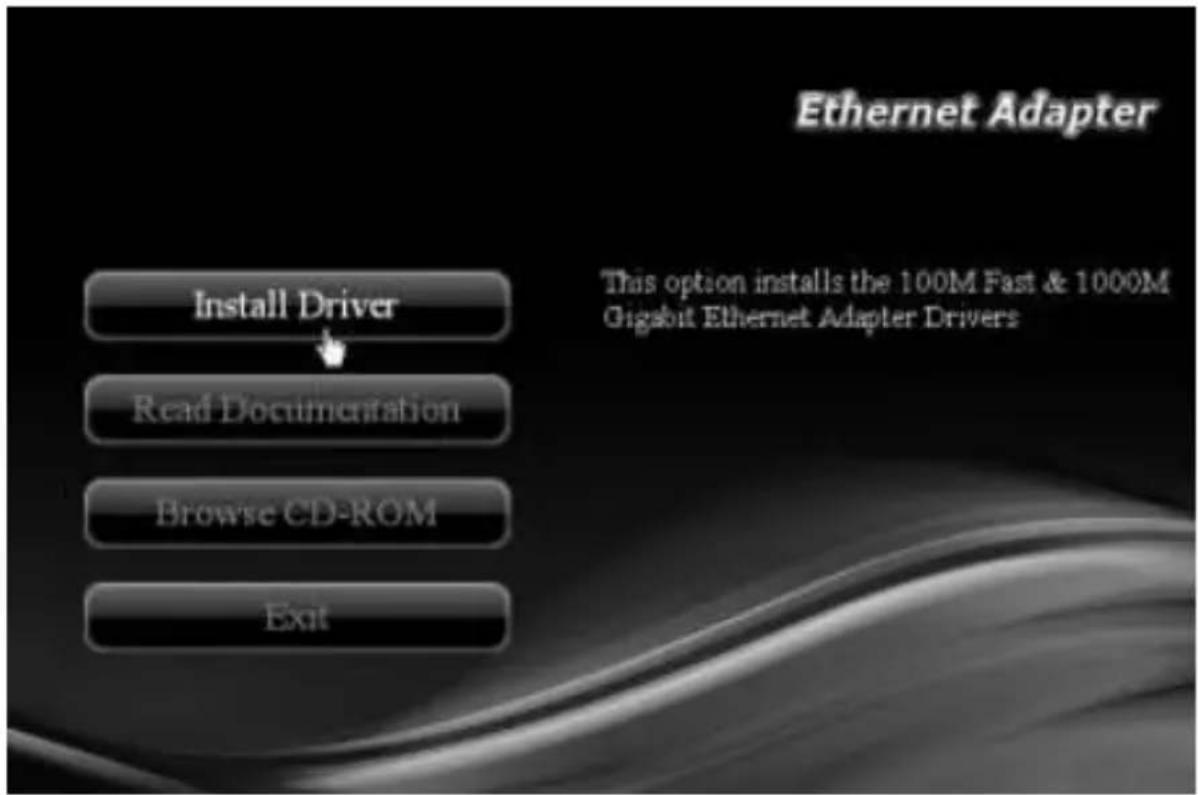
Insert the provided CD into your disk drive. The CD-ROM will start automatically. The following screen will show up and please click “Install Driver”.
*Note: Actual image may vary
Note: If the install program doesn't run automatically, please locate and double-click on the Autorun.exe file in the CD to launch the install program.
Please click "PCIe Dual Port Gigabit" to start the installation.

*Note: Actual image may vary
Follow the instructions on screen to install the driver.
2.2.2 Installation for Linux
- Insert the provided CD into your CD-ROM drive.
- Extract the compressed driver source file to a certain directory by the following command: (Please copy the driver file
"ixgbe-x.x.x.tar.gz" from the CD folder
“.\Driver\Intel_Dual_Port\Linux” to a certain folder on hard drive)
tar zxf ixgbe-.tar.gz
- Change to the driver src directory, where
is the version number for the driver tar:
# cd ixgbe-
- Compile the driver module:
# make install
2.3 Verifying the installation
2.3.1 Verifying for Windows
- Click on the “Device Manager” tab in the Windows Control Panel.
Start > Control Panel > Device Manager

- Entry “Network adapters” item, and you can read “Intel(R) 82599 10Gigabit Network Connection” in the Device Manager.


Network adapters

2.3.2 Verifying for Linux
- You can check whether the driver is loading by using
following commands:
# lsmod | grep ixgbe
# ifconfig -a
If there is a device name, ethX, shown on the monitor, the linux driver is load. Then, you can use the following command to activate the ethX.
# ifconfig ethX up, where X=0,1,2,...
Chapter 3: Troubleshooting Tips
- The computer can NOT detect the PCIe Dual Port Gigabit Server Adapter
- Make sure that the PCI Express card is correctly plugged into the PCI Express slot; if not, turn off the computer and plug it again.
- If the PCI Express card is plugged in correctly, see if the golden connectors on the card are clean; if not, clean the connector surface.
- If still NOT, please change another PCI Express slot on your motherboard.
- Please upgrade your motherboard BIOS to the latest version. If it still not work, contact your motherboard vendor asking the advanced supporting for BIOS updated.
- The board itself might be defective. You can try another motherboard testing PCIe 10G SFP+ Network Card working or not.
- Computer failed to start after inserting the PCIe 10G SFP+ Network Card Turn off the computer, remove the PCIe Dual Port Gigabit Server Adapter, and try to restart the computer. If the computer starts successfully, it means that the card has not been inserted into the PCI Express slot correctly. Please clean golden figure by rubber firstly, then change another PCI Express slot.
Hereby Assmann Electronic GmbH, declares that the Declaration of Conformity is part of the shipping content. If the Declaration of Conformity is missing, you can request it by post under the below mentioned manufacturer address.
www.assmann.com
Assmann Electronic GmbH
Auf dem Schüffel 3
58513 Lüdenscheid
Germany




- PCIE 10G SFP+ NETWORK CONTROLLER CARD
- CONTENTS
- CHAPTER 1: INTRODUCTION ...... 3
- CHAPTER 2: GETTING STARTED....5
- CHAPTER 3: TROUBLESHOOTING TIPS ...... 11
- CHAPTER 1: INTRODUCTION
- 1.1 PRODUCT INTRODUCTION
- 1.2 FEATURES
- 1.3 REQUIREMENTS
- HARDWARE
- SOFTWARE
- 1.4 PACKAGE CONTENTS
- CHAPTER 2: GETTING STARTED
- 2.1 HARDWARE INSTALLATION
- 2.2 DRIVER INSTALLATION
- 2.2.1 INSTALLATION FOR WINDOWS
- 2.2.2 INSTALLATION FOR LINUX
- TAR ZXF IXGBE-.TAR.GZ
- 2.3 VERIFYING THE INSTALLATION
- 2.3.1 VERIFYING FOR WINDOWS
- 2.3.2 VERIFYING FOR LINUX
- CHAPTER 3: TROUBLESHOOTING TIPS
- WWW.ASSMANN.COM
Brand : Digitus
Model : DN-10161
Category : Network card