
GD70 - Mobile Phone PANASONIC - Free user manual and instructions
Find the device manual for free GD70 PANASONIC in PDF.


| Product Type | Digital Cellular Telephone (GSM) |
| Network Support | GSM900 / GSM1800 |
| Dimensions (H x W x D) | 132 x 45.5 x 19.5 mm (with Li-Ion 860 mAh battery) |
| Weight | Approx. 134 g (with Li-Ion 860 mAh battery) |
| Supply Voltage | 3.6 V DC |
| Battery Options | Li-Ion 860 mAh, Ni-MH 950 mAh, Li-Ion 1500 mAh |
| Standby Time (Li-Ion 860 mAh) | Up to 100 hours |
| Talk Time (Li-Ion 860 mAh) | Up to 4 hours |
| Charge Time (Li-Ion 860 mAh) | Approx. 140 minutes |
| Display | Alphanumeric LCD with icons (signal, battery, alert indicators) |
| Phonebook Capacity | SIM dependent; stores names and numbers |
| Messaging | SMS (send, receive, edit, broadcast) |
| Call Features | Call hold, call waiting, call divert, call barring, DTMF tone sending |
| Additional Functions | Voice memo (50 sec recording), handsfree mode, vibration alert, automatic redial, key guard, fixed dial, hot key dial |
| Security | Phone lock (lock code), PIN/PIN2, call barring, fixed dial |
| Connectivity | Optional car mount kit, dual charger |
| Operating Temperature (Charging) | +5°C to +35°C |
| Storage Temperature | -20°C to +60°C |
| Care & Maintenance | Clean with mild detergent and damp cloth; avoid liquids and extreme temperatures |
| Safety Notices | Switch off in aircraft, at refueling points, near medical devices; use approved accessories only |
| Repairability | No user-serviceable parts; contact dealer for service |
Frequently Asked Questions - GD70 PANASONIC
User questions about GD70 PANASONIC
0 question about this device. Answer the ones you know or ask your own.
Ask a new question about this device
Download the instructions for your Mobile Phone in PDF format for free! Find your manual GD70 - PANASONIC and take your electronic device back in hand. On this page are published all the documents necessary for the use of your device. GD70 by PANASONIC.
USER MANUAL GD70 PANASONIC
Operating Instructions EB-GD70 Digital Cellular Telephone Main Kit
Before operating this equipment please read these instructions completely.
Contents
Before You Start. . . . . . . . . . . . . . . . . . 1
Symbols Used, Safety Information, Fitting/Removing the SIM, Fitting/Removing the Battery
Your Telephone....4
Location of Controls, Display
Basic Operation....6
Power on/off, Making a Call, Ending a Call, Answering a Call, Adjusting Volume, Vibration Alert, Automatic Redial
Advanced Operation....10
Concept of Operation, Desktop Handsfree, Voice Memo, DTMF Tones, Call Hold/Call Waiting
Stored Numbers....1 5
Note Pad, Recent Numbers, Phonebook, Fixed Dial, Service Numbers, Hot Key Telephone Numbers
Alpha Entry. 2 1
Editing Alpha Entry
Additional Features. 2 2
Key Guard, Phonebook, Messages, Call Service, Call Divert, Security, Network, Personalise
Battery Information. 2 8
Low Battery, Charging the Battery
Care and Maintenance....2 9
Other Information....30
Glossary of Terms, Trouble Shooting, Important Error Messages
Specifications....3 5
Before You Start
Thank you for purchasing this Panasonic GD70 digital cellular telephone. This telephone is designed to operate on the Global System for Mobile Communications (GSM), GSM900 or GSM1800.
These operating instructions detail use of the equipment contained in the Main Kit.
Some services are network dependent or may only be available on a subscription basis. Some functions are SIM dependent. For more information contact your Service Provider.
Symbols Used

Shows that you should press the following key(s).
→Text
Shows that the display text will be flashing.

Shows that the information is a Quick Tip.
Safety Information

This equipment is intended for use when supplied with power from the built-in charger or Dual Charger (EB-CRD70) through the AC Adaptor (EB-CAD70). Other usage will invalidate any approval given to this apparatus and may be dangerous. The use of approved accessories is recommended to ensure optimum performance and avoid damage to your telephone.

Switch off your cellular telephone when in an aircraft. The use of cellular telephones in an aircraft may be dangerous to the operation of the aircraft, disrupt the cellular network and may be illegal. Failure to observe this instruction may lead to the suspension or denial of cellular telephone services to the offender, or legal action or both.

You are advised not to use the equipment at a refuelling point. You are reminded of the need to observe restrictions on the use of radio equipment in fuel depots, chemical plants or where blasting operations are in progress. Never expose the battery pack to extreme temperatures (in excess of 60°C) or charge the battery pack for much longer than recommended.

You MUST exercise proper control of your vehicle at all times. Do not use a hand held telephone or microphone while you are driving. Find a safe place to stop first. Do not speak into a hands free microphone if it will take your mind off the road. Acquaint yourself thoroughly with restrictions concerning the use of cellular telephones within the country you are driving and observe them at all times.

Care must be taken when using the telephone in close proximity to personal medical devices, such as pacemakers and hearing aids.
Do NOT hold the telephone to your ear in Handsfree mode.
Fitting/Removing the SIM
The SIM is fitted into a holder at the back of the telephone underneath the battery.
Fitting the SIM
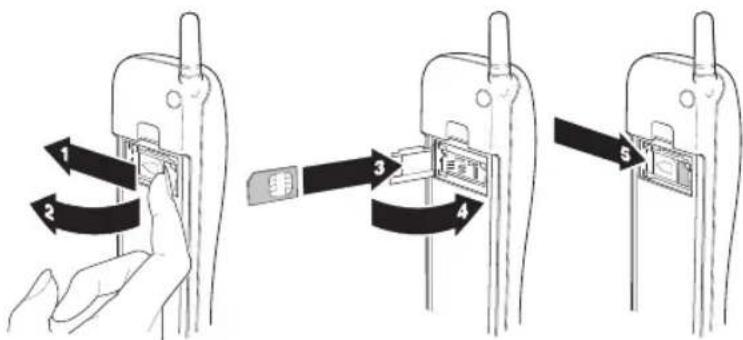
Removing the SIM
To remove the SIM follow the above steps in reverse.
Fitting/Removing the Battery
Fit a fully charged battery pack. If the battery pack is not fully charged, it must be charged as shown in "Charging the Battery" – see page 28.
Fitting the Battery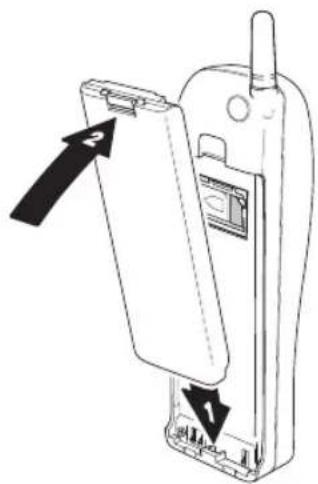
Removing the Battery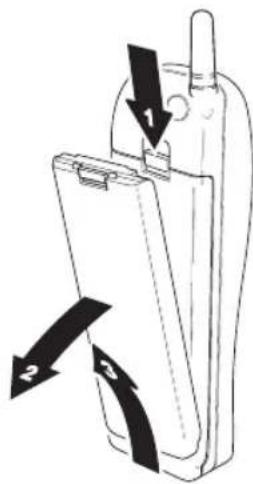
Your Telephone
Location of Controls
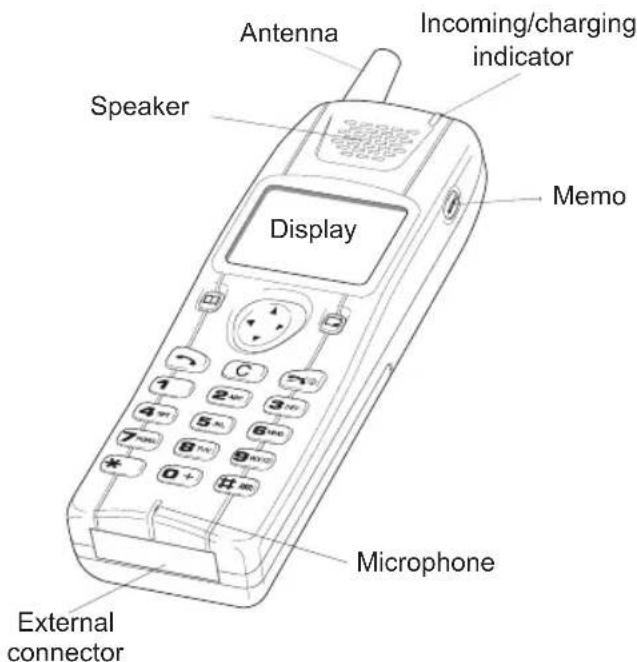
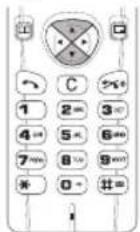
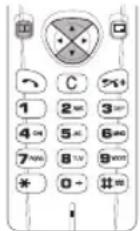
Navigation key – pressing up/down scrolls through options in the main area of the display or adjusts the volume. Pressing left/right scrolls through options in the option area of the display (see Display below). Select key – selects an option in the option area of the display (see Display below), accesses Phonebook or switches character types, makes a call or recalls recently dialled telephone numbers. (C) – clears the last digit entered, clears all digits when pressed and held, or returns to the previous display. Ends a call or switches the telephone on/off when pressed and held. Digit keys 0 to 9, * and # – the # key will switch on and off vibration alert. (MEMO) – Records a conversation during a call or plays it back during standby.
Display
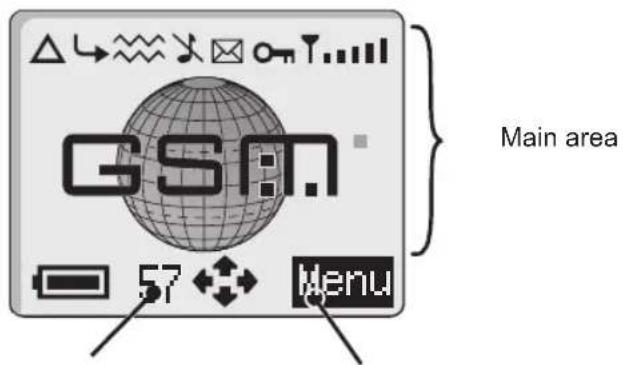
Location area - indicates menu number, location number, or alpha mode
Option area - shows options that can be selected by the select key
5
△ lights when you are registered to a non-home network - roaming
→ lights when call divert is enabled
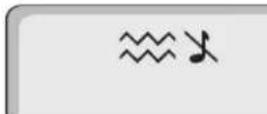
≈≈ lights when vibration alert is enabled
lights when all tones or ring volume is off
☒ flashes when an unread message is stored or lights when message area is full
- lights when phone lock is enabled
T indicates that it is possible to make emergency calls
indicates received signal strength - weak signal, strong signal
indicates the battery level - full, low battery
indicates that the Navigation key (⊕) can be pressed
Following some operations the display will automatically clear after three seconds or after pressing any key.
Basic Operation
Power on/off
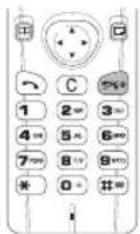
and hold to switch power on A greeting will be displayed.
and hold to switch power off

Making a Call
Make sure that the telephone is switched on and the signal strength meter is displayed.
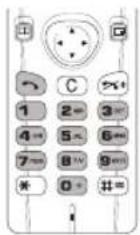
1 area code and telephone number

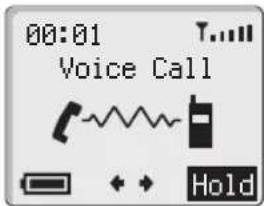
Emergency Calls
To make an emergency call the antenna symbol (T) must be present. ① ① ② or press ☐ when "SOS" is displayed in the option area of the display
International Dialling
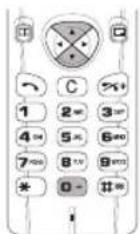
Using the Automatic International Access Code "+" you will be able to dial international numbers without having to know the code for the international exchange.
1 📶 + and hold until a "+" appears 2 country code or ⏻ to scroll through the abbreviated international names 3 area code and telephone number 4
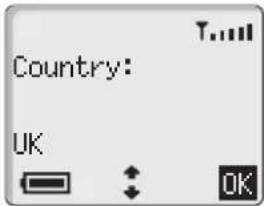
NOTE: Many countries include an initial "0" in the area code. This should, in most cases, be left out when dialling international numbers. If you have difficulties making international calls, contact your Service Provider.
Ending a Call

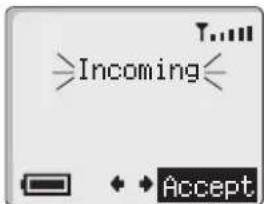
Answering a Call
To receive a call the telephone must be switched on and the signal strength meter must be displayed.
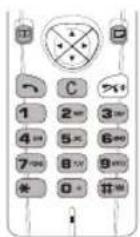
any key except or
to reject the call
If a call is not answered the number of unanswered calls will be displayed.
any key to clear the display
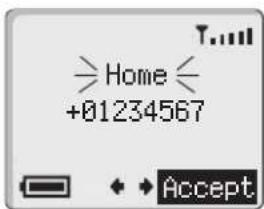
Calling Line Identification
This feature allows you to identify incoming calls and accept or reject them. The caller's telephone number, and name if stored in Phonebook, will be displayed.
NOTE: Call Line Identification may not always be available.
Adjusting Volume
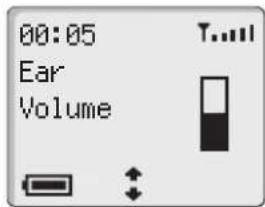
Earpiece Volume
Four levels of earpiece volume are available.
During a call: press the down arrow to decrease, the up arrow to increase.
Handsfree Volume
During handsfree operation, press the down arrow to decrease, the up arrow to increase the volume.
Ring and Key Volume
See "Ring Volume" – page 27 and "Key Volume" – page 27.
Vibration Alert
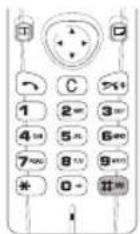
When vibration alert is switched on, the telephone will vibrate when a call is received. Switching on vibration alert will silence the ring volume. However, when the ring volume is adjusted after the vibration alert is switched on, the telephone will ring and vibrate when a call is received.
During standby:
Press and hold # to switch on or off. When switched on, the phone will vibrate briefly.
Automatic Redial
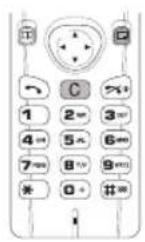
When a call is unsuccessful, the telephone will ask if you want to redial the telephone number again automatically.
When "OK" is displayed in the option area.
Auto Redial will count down the display to the next redial.
To stop redialling, when "Cancel" is displayed in the option area
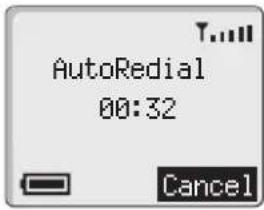
If a call is repeatedly unsuccessful you will not be able to automatically redial the telephone number. In this case you must redial the telephone number manually.
Advanced Operation
Concept of Operation
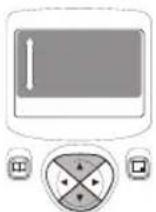
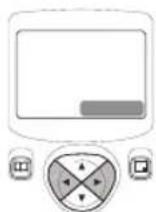
There is a close relationship between the select key, navigation key and the display.
Pressing ⚙️ scrolls through the main area of the display.
Pressing ⬆ scrolls through options at the bottom right of the display. To choose the option, press ☐.
Desktop Handsfree
Desktop Handsfree allows you to hold a conference call, whereby more than one person can listen to the call at a time.
NOTE: Do NOT hold the telephone to your ear in Handsfree mode. If the telephone is mounted in the optional Car Mount Kit, Handsfree is not available.
Making a Handsfree call
1. Enter area code and telephone number
2. The option area will display "H'free"
3. Press 📁 to activate Handsfree
Reverting to a Handheld call
1 📁 🔒 to display "H'held" in the option area
2 📄️ reverts to Handheld
NOTE: A warning tone will sound to indicate a change in audio mode from either Handheld to Handsfree or Handsfree to Handheld.
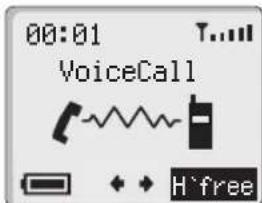

Answering a call Handsfree

and hold, will allow the call to be answered Handsfree.
Voice Memo
You can record a conversation for approximately 50 seconds during a call. If a different SIM is installed any recorded message will be lost.
CAUTION: Security of a recorded message is your responsibility. You MUST ask for the other party's consent before recording.
Record
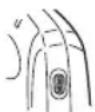


during a call
Two tones will sound when recording starts. Another two tones will sound, to the other party, every 15 seconds. When the recording stops a tone will sound to you.


while recording to restart
Recording cannot be stopped once started.
Play Back


during standby.
If there is no recording, two tones will sound.
To stop playing, press
Playback Handsfree


and hold, during standby will allow handsfree operation of the telephone
Erase


twice during playing
DTMF Tones
DTMF tones can be sent during conversation. These are often used to access voice mail, paging and computerised home banking. For example, you may need to input a number to remotely access voice mail messages.
Send DTMF Tones During a Call

digits (0 to 9, # and *)
Pause Dial
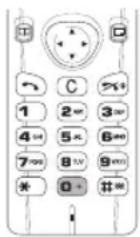
Using pauses allows you to send DTMF tones automatically.
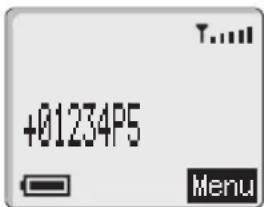
1 telephone number 2 📋 + and hold until a "P" appears 3 DTMF digits after the pause e.g. Enter the number to access voice mail messages. Repeat step 2 for more pauses. 4
When the call is successful DTMF tones will be sent every 3 seconds or when 📞 is pressed
Call Hold/Call Waiting
Holding/Resuming a Call

☐ when "Hold" is displayed in the option area

☐ when "Resume" is displayed in the option area
Making a Second Call
1. Enter the telephone number, or recall from Phonebook – see "Retrieving a Telephone Number" page 17. 2. Press the key.
The first call will be placed on hold.
Receiving a Second Call
A second call can be received, if call waiting is switched on – see "Call Service" page 24. It is not possible to have more than one fax or data call. All voice calls must be ended before you can make or receive a fax or data call.
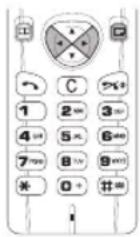
Accept a Second Call
When "Accept" is displayed in the option area. The current call will be placed on hold.
Reject a Second Call
1. Press the key to display "Reject" in the option area. 2. Press the key.
End Current Call and Receive Second Call
1. Press the key with a waiting call. 2. Press any key except the key or the key.
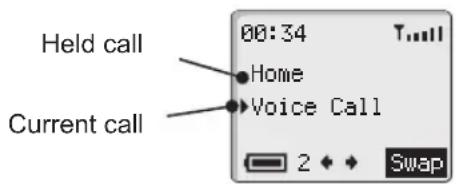
Operation During Two Calls
Swap Between Calls


when "Swap" is displayed in the option area
End Current Call


to display "End" in the option area


The held call will remain held.
End Both Calls

Stored Numbers
NotePad
During a call you can enter numbers which you may wish to dial when the call has ended.
During a call: 📂 telephone number
When the call has ended press 🔑 to call that number
To store in Phonebook, press ☑ while the number is displayed – see “Phonebook” page 22.
Recent Numbers
Recently dialled telephone numbers will be stored in "Last Dialled".
If Calling Line Identification is available, the caller's telephone number for an answered call will be stored in "Answered" and an unanswered call will be stored in "Unanswered".
When the store is full, the next telephone number will overwrite the oldest.
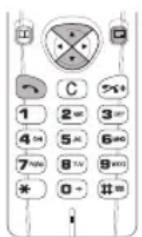
1 2 🐘, ⚠️ to point at “Last Dialled”, “Answered” or “Unanswered” 3 4 📌 🔊 to point at the telephone number (or name) you wish to dial. You can store these telephone numbers into the Phonebook by pressing 5
You can edit or delete the telephone number before dialling – see "Phonebook/Recall" page 22.

Calling the Last Dialled Number
To redial your last called telephone number 📄 🏠 🏠

Returning an Unanswered Call
When the display shows that you have received calls but not answered them.
1
The last caller's telephone number will be displayed.
2 ☐ to point at the telephone number you wish to dial
3
Phonebook
Telephone numbers are stored on your SIM. Therefore, the number of locations, length of name and number of telephone numbers that can be stored are dependent on your SIM.
Storing a Telephone Number
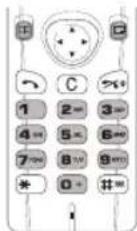
1 telephone number 2
The telephone number entered in step 1 will be displayed.
3 Edit the displayed number if necessary. 4 📁 to enter the telephone number. 5 📂 name – see "Alpha Entry" page 21. 6 📁 to enter the name. 7 location number if you do not want Automatic location.
Automatic Location
The telephone number can be stored automatically at the first available location. This can be done instead of entering a location number.
☐ when "Any" is displayed in the option area of the display
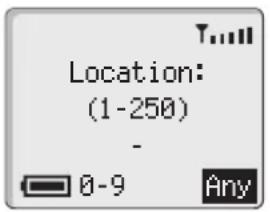
Overwrite Protection
If a location is occupied you will be asked if you wish to overwrite the current information.
to overwrite the selected location
C to choose another location number
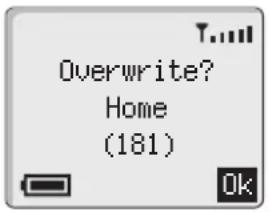
Retrieving a Telephone Number
1 2 🎨️ to browse through the Phonebook
You can browse through the Phonebook in the order that was last used by the “Phonebook” menu see page 22.
The telephone number, or name, pointed can be dialled, recalled, edited or deleted.
View
This is used to review the telephone number and name together or just the name.


when "View" is displayed in the option area
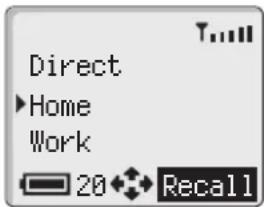
Recall
1. Press 📂 to display "Recall" in the option area. 2.
Dialling
When the desired telephone number or name is displayed

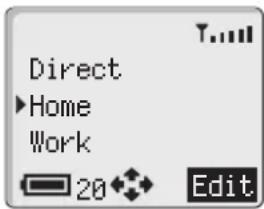
Editing
1. Press 📁️ to display "Edit" in the option area. 2. 3. Enter new telephone number. 4. 5. Enter new name. 6.
Deleting
1. Press 📂 → to display "Delete" in the option area. 2. Press twice.
Speed Dial - Stored Number
1. Enter location number (leading zeros may be left out). 2. 3.
Fixed Dial
The Fixed Dial Store is part of Phonebook, but with additional security. When the security feature Fixed Dial is switched on, it is only possible to make calls with telephone numbers that are in the Fixed Dial Store.
When Fixed Dial is switched on, any manually dialled telephone numbers must match a telephone number in the Fixed Dial Store.
To store, edit or delete a telephone number in the Fixed Dial Store, "Fixed Dial" must be switched on – see "Security" page 25. With Fixed Dial switched on, all telephone numbers can be added, edited or deleted as normal, but you will be asked for PIN2 – see "Security" page 25.
"Wild" Numbers
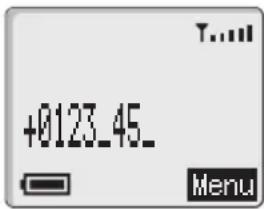
Wild numbers are spaces that can be stored in a telephone number. The "wild" numbers must be filled before the telephone number is dialled. In this way a call can be restricted to a specific area by storing the area code of a telephone and when recalled the remainder can be added. The "wild" numbers can be anywhere within a stored telephone number.
Press and hold until "_" appears to enter a wild number.
When the telephone number is recalled, pressing a numeric key will fill in a "wild" number.
Service Numbers
Your Service Provider may program some special telephone numbers into the Service Dial area of the Phonebook. It is not possible to modify the telephone numbers stored in the Service Dial part of the Phonebook.
Press and hold
to browse through the Service Dial list of telephone numbers.
The telephone number pointed to can only be recalled or dialled.
HotKey Telephone Numbers
It is possible to dial telephone numbers from the Phonebook or Service Dial part of Phonebook very quickly. Some HotKey telephone numbers may be reserved by the Service Provider, for example the first three HotKey telephone numbers may be linked to the Service Dial part of the Phonebook. To select a source for the HotKey telephone numbers see "Personalise" – page 27.
Press and hold to 9 WXYZ
Alpha Entry
Alpha Entry is used to enter alphanumeric characters into Phonebook, Short Messages, Price Per Unit and the Greeting Message.
| Key | Character entry type | ||
| Normal(ABC) | Greek(ABΓ) | Extended(AÄÄ) | |
| 1 | Space“@,..:!¿()’&%+-/<>=£$¥¤§ | ||
| 2ABC | ABCabc | ABΓ | ÄÄÄÆBCÇaäåæàbc |
| 3DEF | DEFdef | ΔEZ | DEÉFdeéèf |
| 4GHI | GHIghi | HΘI | GHIghii |
| 5JKL | JKLjkl | KAM | JKLjkl |
| Key | Character entry type | ||
| Normal(ABC) | Greek(ABΓ) | Extended(AÄÅ) | |
| 6MNO | MNOmno | NEO | MNÑOÖØmnñoöøò |
| 7PQRS | PQRSpqrs | ΠΡΣ | PQRSpqrsß |
| 8TUV | TUVtuv | ΤΥΦ | TUÜVtuüùv |
| 9WXYZ | WXYZwxyz | ΧΨΩ | WXYZwxyz |
Each time a key is pressed it will display the next character. When another key is pressed or no key is pressed for a short time the cursor will move to the next position.
To access the different character types, normal (ABC), numerals (0–9), Greek characters (ABΓ) and extended characters (AÄÅ) press ☑.
Editing Alpha Entry
Pressing ⏻ will move you up or down one line. Pressing ⏻ will move you left or right one character. When the cursor is moved over a character and another key pressed this will insert the new character. Pressing Ⓗ will delete the character to the left of the cursor or delete the current line when pressed and held.
Additional Features
When the word "Menu" is in the option area of the display pressing the ☐ will display a menu of telephone features. To select a feature press ⏻ so that the pointer is showing next to the feature that you require then press ☐.
A quick way of selecting a feature is to press the menu number shown in the bottom left of the display.
To leave the menu press Ⓒ repeatedly.
During a call a restricted menu will be available.
Key Guard
Key Guard
Key Guard will prevent any keys from being accidentally pressed e.g. when the telephone is being carried.
When a call is received Key Guard will be temporarily disabled allowing you to press any key to answer the call. When the telephone is mounted in the optional Car Mount Kit Key Guard will be disabled.
Emergency calls can still be made.

Disabling Key Guard
twice when "Free" is displayed in the option area of the display.
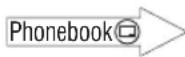
Phonebook
Browse
Create
Review
My Numbers
Service Dial
Most common use of the Phonebook is covered in Phonebook – see page 16.
When pointing to Browse, pressing ⬤ will show "Loc'ns (Locations)" to browse through Phonebook by location number or "Names" to browse by name in alphabetical order. When browsing by name, pressing a lettered key will take you to the first entry starting with that letter.
Review shows how many locations are available in the Phonebook. Occupied locations are shown with “■”.
My Numbers is a convenient part of Phonebook where your voice, fax and data telephone number(s) can be stored and viewed.
Service Dial enables you to view or recall the service dialling number(s) preprogrammed by your Service Provider.
Messages
![graph TD A["Messages"] --> B["ReceiveList"] B --> C["SendList"] C --> D["Create Review"] D --> E["Parameters"] E --> F["Broadcasts"] F --> G["Receive MessageList Topics Languages"] G --> H["AutoDelete Lifetime MessageCentre Report Protocol"]](/content/2026/05/1038479/images/205947113216bc05c0d866ab9e28d3546bc5cd1d3295d3f4d4207b70f1568e17.jpg)
You can receive, display, edit and/or send short text messages, of up to 160 characters.
Before you can send a message you must enter the Message Centre number into the Parameters. Your Service Provider will supply the Message Centre number.
When new messages are received, the message indicator (☒) flashes and they are automatically stored in the message area of your SIM. When all the messages are read, the ☒ disappears. If the message area is full, the ☒ lights and a new message will be rejected. To receive new messages, you will have to erase unwanted messages.
Received messages will be stored in the Receive List. A flashing "•" will indicate unread messages. Once the message is selected, you can read, delete, edit, and
reply. With the word "Sender:" displayed or a telephone number in quotation marks (""), pressing 📋 dials the telephone number or pressing 📋 stores the telephone number in the Phonebook.
When a message has been sent or edited, it will be stored in the Send List.
Create will create a new message and send or store it in the Send List.
Review allows you to review how much of the message area is available.
Parameters
The Parameters are necessary for receiving or sending messages.
AutoDelete will erase messages automatically. When "Received Read" is selected, a new message will overwrite the oldest read message. When "Received Any" is selected, a new message will overwrite the oldest message even though it may not have been read.
Lifetime is the duration that your message is stored at the Message Centre. Delivery attempts will be repeated until the message has been delivered or the Lifetime expires.
The Message Centre is where messages are sent before they are forwarded on to their destination. The Message Centre number may be pre-programmed into your SIM or supplied by your Service Provider.
When your message has been delivered, a confirmation can be received if Report is set to "Yes".
The Message Centre may be able to convert the message to the formats specified by Protocol.
Broadcasts
Broadcast can display information about your current area such as traffic or weather information.
The Message List will display the last received broadcast messages.
By specifying the required subjects in Topics, the telephone will receive related messages. If the required topic is not displayed, enter its topic code provided by your Service Provider.
The preferred languages in which broadcast messages are displayed can be changed.

Reading a Newly Received Message
when "Read" is displayed in the option area of the display.
Call Service
![graph LR A["CallService"] --> B["LastCall"] B --> C["AllCalls"] C --> D["Call Waiting"] D --> E["Caller'sID"] E --> F["WithholdID"] F --> G["CallCharge"] G --> H["CostLeft\nPrice/Unit\nMaxCost\nWarningAt"]](/content/2026/05/1038479/images/728766eb482f106eba5972ca369037ee4e42a251029d99b36e1b192edb3d7d30.jpg)
Last Call will display the duration and call charge, if available, of the last call during standby or the current call during a call. Times are indicated as: hours (0-99), minutes (0-59), seconds (0-59) - HH:MM:SS.
All Calls displays the accumulated duration and call charge, if available, of incoming and outgoing calls. The lock code is required to reset the timer and PIN2 is required to reset the timer and call charge.
Call Waiting allows you to receive a second call during your current call. When updating or checking the status of call waiting, the telephone must be registered with a network.
Caller's ID allows you to check the status of Calling Line Identification. The telephone must be registered with a network.
Using Withhold ID, it is possible to check if you send Calling Line Identification information when you make a call. When checking the status of Withhold ID, the telephone must be registered with a network.
Call Charge will set the cost of each unit for call charge information and the required currency in which call charge is displayed.
Using Max. Cost can restrict use of the telephone to a specified number of units.
NOTE: The duration of one unit may vary during the day, peak and off-peak times. Therefore, the call charge can be calculated accordingly. However, call charge information may not give an accurate reflection of the tariffs charged by your Service Provider.
Call Divert
![graph LR A["CallDivert"] --> B["VoiceCalls FaxCalls DataCalls CancelAll Status"]](/content/2026/05/1038479/images/d6b1d74f3bc0e08a9eb980953afde11c7b55d5d89d7f96826a3d7b44b74f0fe0.jpg)
When Call Divert is enabled, the divert icon (→) is displayed.
You can divert voice, fax, and data calls using different circumstances and to different telephone numbers.
When updating or checking the status of Call Divert, the telephone must be registered with a network.
Security
![graph LR A["Security"] --> B["PhoneLock"] B --> C["Bar V oice"] B --> D["BarFax"] B --> E["BarData"] B --> F["CancelAll"] B --> G["Status"] B --> H["Password"] I["CallBar"] --> J["PIN"] I --> K["PIN2"] I --> L["FixedDial"] I --> M["BarredDial"]](/content/2026/05/1038479/images/85b457be71f7a93cda93c913bb0d47c4fad34239a588e84b001e2c1831c49792.jpg)
There are three types of security code for your telephone:
Lock Code: Controls telephone security – Phone Lock. Factory-set to "0000".
PIN: Controls SIM security.
PIN2: Controls security for Fixed Dial Store and Call Charge metering.
It is recommended that you memorise your security codes. If you need to make an error of your security codes, never write them in a way that they can be recognised by another person. If you forget them, contact your dealer for the lock code or your Service Provider for PIN and PIN2.
Phone Lock will prohibit normal operation of the telephone. Only emergency calls can be made and received calls answered. Once the Phone Lock is
enabled, the lock icon (○) is displayed. To restore normal operation, enter your lock code.
Call Bar is used to restrict certain outgoing and/or incoming calls. Call Bar is controlled by a security password that is supplied by your Service Provider. When updating or checking the status of Call Bar, the telephone must be registered with a network. Different Call Bar restrictions can be used for voice, fax, and data calls. Any combination of call restrictions can be set.
When the PIN is enabled, you will be asked to enter the PIN every time the telephone is switched on. If asked, enter the PIN followed by. The PIN can be changed by passing when "Change" is displayed in the option area of the display.
The PIN2 can be changed by pressing ☐ when "Change" is displayed in the option area of the display.
With Fixed Dial switched on, you can only make calls with the telephone numbers stored in the Fixed Dial area of the Phonebook – see Fixed Dial page 19. Emergency calls can be made at any time. To use this function, PIN2 is required.
Barred Dial enables you to bar particular telephone numbers from being dialled on the telephone.
Network
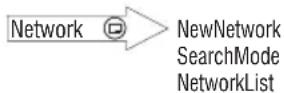
When not in your home country you may use a network that you don't directly subscribe to; this is called ROAMING. National law may not permit roaming in your home country.
New Network is used to manually select a network that is available in your current location.
When the Search Mode is set to "Automatic", the telephone will search through the preferred network list and select a new network automatically. While the Search Mode is set to "Manual", the telephone will display network(s) that are available in your current location and ask you to select one.
The Network List is used when the Search Mode has been set to "Automatic". The location numbers in the Preferred Network List show the search priority. Selecting "Insert" stores a new network in the currently displayed location and then moves other networks down; "Edit" overwrites the old network with a new one; and "Add" stores a new network at the end of the list.
Personalise![graph LR A["Personalise"] --> B["Language"] B --> C["All Tones"] B --> D["Ring Volume"] B --> E["Ring Type"] B --> F["Key Volume"] B --> G["Warning Tone"] C --> H["Voice Calls"] D --> I["Fax Calls"] D --> J["Data Calls"] D --> K["Messages"] B --> L["Tones"] B --> M["Keep Alive"] B --> N["Auto Answer…](/content/2026/05/1038479/images/c05069d4f81e825188dea267011e8d827b4d1bf2c2b0df66b9ce24aa72c1fb65.jpg)
The language that the telephone will use for display messages can be changed.
In Tones, the telephone key, ring, and warning tones (except low battery warning) can be switched off. When All Tones are switched off, the silent indicator (♪) is displayed.
When the Ring Volume is switched off, the silent indicator (✗) is displayed. Increasing the volume level above maximum can set an escalating ring tone.
A different Ring Type can be used for voice, fax, data, and messages.
The Keep Alive timer will delay switching off the telephone when the telephone is mounted in the optional Car Mount Kit and the vehicle ignition is turned off. If the ignition is turned off during a call, the call will be
maintained. When the call ends, the timer will start. If the telephone is removed from the Car Mount Kit during the specified delay time, the timer will be cancelled and the telephone will not be turned off.
When Auto Answer is switched on, and the telephone is mounted in the optional Car Mount Kit, a call will be answered without pressing any keys.
A personalised Greeting can be programmed for when the telephone is switched on – see Alpha Entry page 21.
The brightness of the Backlight can be changed.
DTMF Length can be changed between short and long.
Defaults will return your Personal Settings to their factory default, except the lock code and language.
The source for the Hot Key telephone numbers can be set using the Hot Key Dial menu.
Battery Information
Low Battery
When the battery power is low a warning tone will sound and a LOW BATTERY message will flash. The power will automatically shut off shortly after the warning tone. Fully charge the battery pack or replace it with a fully charged one.
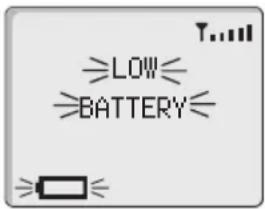
During conversation finish your call immediately.
Charging the Battery
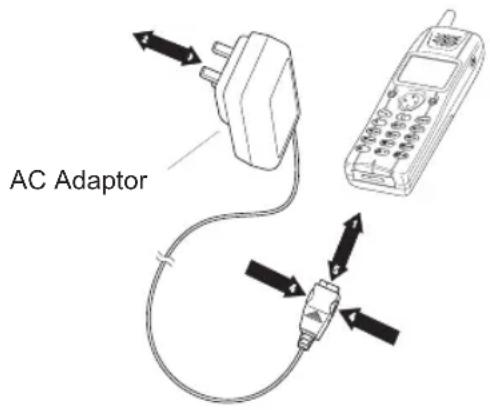
The battery pack must be attached to the telephone before the AC Adaptor.
NOTE: DO NOT force the connector as this may damage the telephone and/or the AC Adaptor.
When charging is complete remove the AC Adaptor. To maintain maximum performance of Ni-MH Battery Packs always use until the Low Battery Warning and then fully recharge.
Operation of Battery Level Indicator
| While charging Charging complete | |
| Telephone on ← [IMAGE] | |
| Telephone off ← [IMAGE] Indicator off | |
Care and Maintenance
Pressing any of the keys may produce a loud tone. Avoid holding the telephone close to the ear while pressing the keys.

Extreme temperatures may have a temporary effect on the operation of your telephone. This is normal and does not indicate a fault.

Do not disassemble the equipment. There are no user-serviceable parts.
Do not subject the equipment to excessive vibration or shock.
Avoid contact with liquids. If the equipment becomes wet immediately remove the power and contact your dealer.

The equipment may be cleaned with a soft cloth dampened with a mild detergent and water. Petroleum based cleaners may damage the equipment.

Do not leave the equipment in direct sunlight or a humid, dusty or hot area.
Keep metallic items that may accidentally touch the terminals away from the equipment.
Always charge the Battery Pack in a well ventilated area, not in direct sunlight, between +5°C and +35°C. It is not possible to recharge the battery pack if it is outside this temperature range.

Avoid recharging battery packs for longer than recommended.
Do not incinerate or dispose of the battery packs as ordinary rubbish. The battery packs must be disposed of in accordance with local legislation and may be recycled.

When disposing of any packing materials or old equipment check with your local authorities for information on recycling.
Other Information
Glossary of Terms
| DTMF Tones | Dual Tone Multi-Frequency tones allow you to communicate with computerised telephone systems, voice mailboxes etc. |
| GSM | Global System for Mobile Communications. The name given to the advanced digital technology that your telephone uses. |
| Home country | The country where your home network operates. |
| Home network | The GSM network on which your subscription details are held. |
| Network Operator | The organisation responsible for operating a GSM network. Each country will have a different network operator. |
| Password | Used for the control of the Call Bar. Supplied by your Service Provider. |
| PIN | Personal Identification Number used for SIM security. Supplied by your Service Provider. If the PIN is entered incorrectly 3 times, the PIN will be blocked. |
| PIN2 | Personal Identification Number used for the control of Fixed Dial Store and Call Charge metering. Supplied by your Service Provider. If the PIN2 is entered incorrectly 3 times, the PIN2 will be blocked. |
| PUK/ PUK2 | PIN/PIN2 Unblocking Key. Used to unblock the PIN/PIN2. Supplied by your Service Provider. If the PUK/PUK2 is entered incorrectly 10 times, the PUK/PUK2 will be blocked. |
| Registration | The act of locking on to a GSM network. This is usually performed automatically by your telephone. |
| Roaming | The ability to use your telephone on networks other than your Home network. |
| Service Provider | The organisation responsible for providing access to the GSM network. |
| SIM | Subscriber Identity Module. A small smart-card which stores unique subscriber and user-entered information such as Phonebook and Short Messages. Supplied by your Service Provider. |
Trouble Shooting
Should any problem persist contact your dealer.
| Problem Cause Remedy | |
| Telephone will not switch on. | Check that the Battery Pack is fully charged and correctly connected to the telephone. |
| Extremely short battery life for a new battery pack. | The network you are using and the condition of the battery pack can affect battery life. | |
| Short battery life for an old battery pack. | The battery pack was worn out. | Replace with a new one. |
| Short battery life for Ni-MH battery pack. | The life of the battery pack is affected by improper charging, this is inherent in all Ni-MH batteries. | To maintain maximum performance always use until the Low Battery Warning and then fully recharge the battery pack.To revive the Battery Pack use the telephone until the Low Battery Warning and then fully recharge, repeat this process at least three times. However, if the battery life is still short, the Battery Pack has eventually worn out. Replace with a new one. |
| The telephone cannot be switched on when charging | When the Battery Pack has been deeply discharged the telephone will take a short time to detect which type of Battery Pack it is charging | Leave the telephone charging the Battery Pack for a few minutes before attempting to switch it on. |
| Calls cannot be made. | The telephone is locked. | Unlock the telephone (Menu: Security: Phone Lock) |
| Outgoing calls are barred. | Disable the outgoing call barring (Menu: Security: Call Bar) | |
| The telephone is not registered to a network. | Move to a coverage area and operate your telephone after it has registered with a network. | |
| Calls cannot be made from Fixed Dial Store | Check your SIM supports Fixed Dial.Check if the Fixed Dial is switched on (Menu: Security: Fixed Dial).Check the telephone number is stored in the Fixed Dial. | |
| Calls cannot be received. | The telephone is not switched on. | Switch the telephone on. |
| Incoming calls are barred. | Disable the incoming call barring (Menu: Security: Call Bar) | |
| The telephone is not registered to a network. | Move to a coverage area and operate your telephone after it has registered with a network. | |
| Emergency calls cannot be made. | You are not in a GSM coverage area. | Check that the antenna symbol ↑ is displayed. Move to a coverage area and operate your telephone when the antenna symbol is displayed. |
| Telephone numbers cannot be recalled. | The telephone is locked. | Unlock the telephone (Menu: Security: Phone Lock) |
| Fixed Dial is switched on. | Switch off Fixed Dial (Menu: Security: Fixed Dial) |
Important Error Messages
Area not Allowed
Roaming in the selected area is not allowed.
| Network not Allowed | Roaming with the selected network is not allowed. |
| Security Failure | The network has detected authentication failure because your SIM is not registered with that network. Contact your Service Provider. |
| SIM Blocked | The SIM is blocked because the wrong PUK has been entered ten times. Contact your Service Provider. |
| SIM Error | The telephone has detected a problem with the SIM. Switch the telephone off and then back on. If the message does not disappear contact your Service Provider. |
| Message Rejected Store Full | A message has been received but the message store is full. To receive messages, delete some of the currently stored messages or set messages to automatically clear (Menu: Messages: Parameters: Auto Delete) |
| PIN2 Invalidated | The PIN2 is blocked permanently because the wrong PUK2 has been entered 10 times. Services controlled by PIN2 cannot be used. Contact your Service Provider. |
| Warning Store Full Continue? | The message area is full. Your messages cannot be stored until some of the currently stored messages are deleted. |
| Auto Redial List Full | Redial list of unsuccessfully dialled numbers is full. Switch the telephone off and then on again. |
Specifications
Telephone
| Type | GSM900 Class 4GSM1800 Class 1 |
| Temperature range | |
| Charging | +5°C to +35°C |
| Storage | -20°C to +60°C |
Battery - Attached to telephone
| Battery Pack (EB-BSD70) | Battery Pack (EB-BMD70) | Battery Pack (EB-BLD70) | |
| Weight 134g 162g 155g | |||
| DimensionsHeight x Width x Depth | 132 x 45.5 x 19.5mm | 132 x 45.5 x 26mm | 132 x 45.5 x 30mm |
| Supply Voltage | 3.6V DC, 860mAh Li-Ion | 3.6V DC, 950mAh Ni-MH | 3.6V DC, 1500mAh Li-Ion |
| Standby time (h)Talk Time (h) | Up to 1004 | Up to 1054 | Up to 1807.5 |
| Charge Time (min) 140 120 300 | |||
NOTE: Charge time will be longer when the telephone is turned on. Battery life is affected by the network you are using and the condition of the battery pack.
| The Serial Number can be found on the outside of the telephone under the battery. For your convenience we recommend that you note the following details as a record of your purchase. | |
| Part Number | |
| Serial Number | |
| Dealer Name | |
| Purchase Date | |
BULL CP8 PATENT
© Matsushita Communication Industrial UK Limited 1998
Information in this document is subject to change without notice. No part of these instructions may be reproduced or transmitted in any form or by any means without obtaining express permission from Matsushita Communication Industrial UK Limited

LOW IMMISSIONS DURING PRODUCTION

Printed in UK 990119

*7LA845A*



- OPERATING INSTRUCTIONS EB-GD70 DIGITAL CELLULAR TELEPHONE MAIN KIT
- CONTENTS
- BEFORE YOU START
- SYMBOLS USED
- SAFETY INFORMATION
- FITTING/REMOVING THE SIM
- FITTING/REMOVING THE BATTERY
- YOUR TELEPHONE
- LOCATION OF CONTROLS
- DISPLAY
- BASIC OPERATION
- POWER ON/OFF
- MAKING A CALL
- EMERGENCY CALLS
- INTERNATIONAL DIALLING
- ENDING A CALL
- ANSWERING A CALL
- CALLING LINE IDENTIFICATION
- ADJUSTING VOLUME
- VIBRATION ALERT
- AUTOMATIC REDIAL
- ADVANCED OPERATION
- CONCEPT OF OPERATION
- DESKTOP HANDSFREE
- MAKING A HANDSFREE CALL
- REVERTING TO A HANDHELD CALL
- ANSWERING A CALL HANDSFREE
- VOICE MEMO
- RECORD
- PLAY BACK
- PLAYBACK HANDSFREE
- ERASE
- DTMF TONES
- SEND DTMF TONES DURING A CALL
- PAUSE DIAL
- CALL HOLD/CALL WAITING
- HOLDING/RESUMING A CALL
- MAKING A SECOND CALL
- RECEIVING A SECOND CALL
- ACCEPT A SECOND CALL
- REJECT A SECOND CALL
- OPERATION DURING TWO CALLS
- STORED NUMBERS
- NOTEPAD
- RECENT NUMBERS
- CALLING THE LAST DIALLED NUMBER
- RETURNING AN UNANSWERED CALL
- PHONEBOOK
- STORING A TELEPHONE NUMBER
- AUTOMATIC LOCATION
- OVERWRITE PROTECTION
- RETRIEVING A TELEPHONE NUMBER
- VIEW
- RECALL
- DIALLING
- EDITING
- DELETING
- SPEED DIAL - STORED NUMBER
- FIXED DIAL
- WILD" NUMBERS
- SERVICE NUMBERS
- HOTKEY TELEPHONE NUMBERS
- ALPHA ENTRY
- EDITING ALPHA ENTRY
- ADDITIONAL FEATURES
- KEY GUARD
- DISABLING KEY GUARD
- MESSAGES
- PARAMETERS
- BROADCASTS
- READING A NEWLY RECEIVED MESSAGE
- CALL SERVICE
- CALL DIVERT
- SECURITY
- NETWORK
- BATTERY INFORMATION
- LOW BATTERY
- CHARGING THE BATTERY
- CARE AND MAINTENANCE
- OTHER INFORMATION
- TROUBLE SHOOTING
- IMPORTANT ERROR MESSAGES
- SPECIFICATIONS
- BULL CP8 PATENT
Brand : PANASONIC
Model : GD70
Category : Mobile Phone