
KX-TU311 - Mobile Phone PANASONIC - Free user manual and instructions
Find the device manual for free KX-TU311 PANASONIC in PDF.


| Product Type | Easy Use Mobile Phone |
| Model | KX-TU311 E |
| Brand | Panasonic |
| Network | Dual band GSM 900/1800 MHz |
| Bluetooth | Version 2.0 |
| Power Source (Charger) | 220-240 V AC, 50/60 Hz |
| Power Consumption (Standby) | Approx. 0.2 W |
| Power Consumption (Max Charging) | Approx. 4.0 W |
| Battery Type | Li-Ion 3.7 V / 940 mAh |
| Battery Operating Time (Continuous Use) | 3.8 - 9.0 hours |
| Battery Standby Time | Up to 280 hours |
| Charging Time | Approx. 3 hours |
| Operating Temperature | 0 °C – 40 °C |
| Charging Temperature | 5 °C – 40 °C |
| Shock Resistance | MIL-STD-810E,516 drop test |
| Display | Monochrome (no further info) |
| Phonebook Capacity | Up to 200 contacts (phone) + SIM dependent |
| Message Storage | Up to 100 SMS in phone memory |
| Key Features | Priority call, speed dial, call log, SMS, calendar, alarm, night mode, telecoil mode |
| Hearing Aid Compatibility | M3/T3 rating equivalent (ANSI C63.19) |
| Spare Parts Available | Battery CGA-LB102, Headset KX-TCA94EX |
| Maintenance | Clean with soft dry cloth; clean charge contacts monthly |
| Safety Certifications | CE, R&TTE Directive 1999/5/EC |
Frequently Asked Questions - KX-TU311 PANASONIC
User questions about KX-TU311 PANASONIC
0 question about this device. Answer the ones you know or ask your own.
Ask a new question about this device
Download the instructions for your Mobile Phone in PDF format for free! Find your manual KX-TU311 - PANASONIC and take your electronic device back in hand. On this page are published all the documents necessary for the use of your device. KX-TU311 by PANASONIC.
USER MANUAL KX-TU311 PANASONIC
Operating Instructions
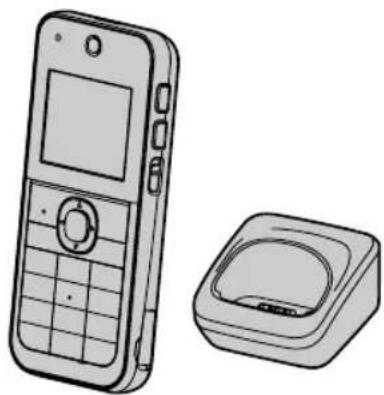
Easy Use Mobile Phone
Model No. KX-TU311 E

Bluetooth®
Thank you for purchasing a Panasonic product.
Please read these operating instructions before using the unit and save them for future reference.
Table of Contents
Introduction
Accessory information ....3
General information ....4
Important Information
For your safety 5
Important safety instructions ....7
For best performance 7
Other information 7
SAR 8
Specifications 8
Getting Started
Setting up 10
Note when setting up 11
Controls 12
Display 13
Turning the power on/off 14
Initial settings 14
Making/Answering Calls
Making calls 16
Answering calls 16
Call log 17
Useful features during a call 17
Network service features during a
Call 18
Messages
Character entry 20
Text message (SMS) 20
Voicemail service 22
Phonebook
Phonebook 23
Speed dial 25
Customising your phone
Settings and Tools 26
Call settings 30
Priority call 31
Security settings 32
Calendar/Schedule 33
Clock settings 34
Bluetooth
Using a Bluetooth wireless
connection 36
Useful Information
Error messages ....37
Troubleshooting 37
Conditions of guarantee ....41
Index
Index....42
Accessory information
Supplied accessories
| No. | Accessory item/Part number Quantity | |
| 1 | AC adaptor/PNLV226EZ 1 | |
| 2 | Rechargeable battery/CGA-LB102 1 | |
| 3 | Charger/PNLC1028ZB 1 |
Additional/replacement accessories
Please contact your place of purchase or Panasonic sales office for sales information.
| Accessory item Model number | |
| Rechargeable battery CGA-LB102 | ● Lithium Ion (Li-Ion) type battery only. |
| Headset KX-TCA94EX |
Sales and support information
Customer Communications Centre
- For customers within the U.K.: 0844 844 3899
- For customers within Ireland: 01289 8333
- For further support on your product, please visit our website: www.panasonic.co.uk
Direct Sales at Panasonic U.K.
- Order accessory and consumable items for your product with ease and confidence by phoning our Customer Communications Centre Monday - Thursday 9:00am - 5:30pm, Friday 9:30am - 5:30pm (Excluding public holidays).
- Or go on line through our Internet Accessory ordering application at www.pas-europe.com
- Most major credit and debit cards accepted.
- All enquiries transactions and distribution facilities are provided directly by Panasonic U.K.
- It couldn't be simpler!
- Also available through our Internet is direct shopping for a wide range of finished products. Take a browse on our website for further details.
Introduction
General information
- This phone is designed to operate on GSM network - Dual band GSM 900/1800 MHz. If you are inside a tunnel, basement, or buildings where does not provide satisfactory reception, move to another location for better reception.
- This equipment is designed for use in U.K. and Ireland.
- In the event of problems, you should contact your equipment supplier in the first instance.
Declaration of Conformity:
- Panasonic System Networks Co., Ltd. declares that this equipment is in compliance with the essential requirements and other relevant provisions of Radio & Telecommunications Terminal Equipment (R&TTE) Directive 1999/5/EC.
Declarations of Conformity for the relevant Panasonic products described in this manual are available for download by visiting:
http://www.doc.panasonic.de
Contact to Authorised Representative:
Panasonic Testing Centre
Panasonic Marketing Europe GmbH
Winsbergring 15, 22525 Hamburg, Germany
For your safety
Read this section carefully before using the product to ensure proper and safe operation. Failure to read them carefully may cause severe injury, loss of life/property, or be illegal.
WARNING
Power connection
- Use only the power source marked on the product.
- Do not overload power outlets and extension cords. This can result in the risk of fire or electric shock.
- Completely insert the AC adaptor into the power outlet. Failure to do so may cause electric shock and/or excessive heat resulting in a fire.
- Regularly remove any dust, etc. from the AC adaptor by pulling it from the power outlet, then wiping with a dry cloth. Accumulated dust may cause an insulation defect from moisture, etc. resulting in a fire.
- Unplug the product from power outlets and remove the battery from the phone if it emits smoke, an abnormal smell, or makes an unusual noise. These conditions can cause fire or electric shock. Confirm that smoke has stopped emitting and contact an authorised service centre.
- Unplug from power outlets and never touch the inside of the product if its casing has been broken open.
- Never touch the plug with wet hands. Danger of electric shock exists.
- The AC adaptor should only be used indoors.
Installation
- This product is not water-resistant. To prevent the risk of fire or electrical shock, do not expose the product to rain or any type of moisture.
- Keep all accessories and the SIM card out of the reach of children to prevent swallowing.
- This product emits radio waves and may cause interference to other electronic devices.
- Do not allow the AC adaptor to be excessively pulled, bent or placed under heavy objects.
- To prevent serious damage to this product, avoid strong impacts and rough handling.
Battery
- Use only the battery specified.
- Risk of explosion if battery is replaced with an incorrect type. Dispose of used batteries according to the instructions.
- Do not open, puncture, crush, or drop the battery. A damaged battery must not be used. This can result in the risk of fire, explosion, overheating, and leaking of the electrolyte.
- Stop using the battery immediately and keep away from fire if it emits an abnormal smell or leaks electrolyte. Released electrolyte may cause fire or burns.
- Do not touch released electrolyte if the battery leaks. It may cause burns or injury to the eyes or skin. The electrolyte is toxic and may be harmful if swallowed. If you touch it, immediately wash the affected areas with water and seek medical help.
- Exercise care when handling the battery. Do not allow conductive materials such as rings, bracelets, or keys to touch the battery, otherwise a short circuit may cause the battery and/or the conductive material to overheat and cause burns.
- Do not use or charge a wet battery. This can result in the risk of fire, explosion, overheating, and leaking of the electrolyte.
- Charge the battery provided with or identified for use with this product only, in accordance with the instructions and limitations specified in this manual.
- Only use a compatible charger to charge the battery. Do not tamper with the charger. Failure to follow these instructions may cause the battery to swell or explode.
Operating safeguards
- Unplug the product from power outlets before cleaning. Do not use liquid or aerosol cleaners.
Important Information
- Do not disassemble the product.
- Do not allow liquids such as water, or foreign materials such as metal pieces or flammable materials to get into the SIM card holder. This can result in the risk of fire, electric shock, or malfunction.
- Do not leave this product near heat sources (such as radiators, cookers, etc.), in direct sunlight, or in a car under blazing sun. It should not be placed in rooms where the temperature is less than 0 °C or greater than 40 °C.
- You are advised not to use the phone in an aircraft. Turn the phone off before boarding an aircraft. Set the alarm function off so that the phone cannot be automatically turned on. Using this phone in an aircraft may be hazardous to the aircraft's operation and disrupt wireless communication. It may also be illegal.
- You are advised not to use this product at refueling points. Users are reminded to observe restrictions on the use of radio equipment in fuel depots, chemical plants, or where blasting operations are in progress.
- It is imperative that drivers exercise proper control of vehicles at all times. Do not use a phone while you are driving; find a safe place to stop first. Do not speak into a hands-free microphone if it will take your mind off the road. Always acquaint yourself thoroughly with restrictions concerning the use of phones within the area where you are driving and observe them at all times.
- RF signals may affect electronic systems in motor vehicles (for example, fuel injection, air bag systems) that have been improperly installed or are inadequately shielded. For more information, consult the manufacturer of your vehicle or its equipment.
- The use of excessive sound volume through earphones, headphones, or headsets may cause hearing loss.
- Do not shine the light close to anybody's eyes or turn the light in the direction of car drivers. This can result in the risk of injuries or accident.
Medical
- Consult the manufacturer of any personal medical devices, such as pacemakers or implanted cardioverter defibrillators to determine if they are adequately shielded from external RF (radio frequency) energy.
- Wireless Technology Research (WTR) recommends a minimum separation of 15.3 cm between a wireless device and an implanted medical device such as pacemaker or implanted cardioverter defibrillator to avoid potential interference with the medical device. If you have any reason to suspect that your phone is interfering with a pacemaker or other medical devices, turn off the phone immediately and contact the manufacturer of pacemaker or other medical devices.
- Turn off the phone in hospitals or health care facilities when any regulations posted in the area instruct you to do so. Hospitals or health care facilities may be using equipment that could be sensitive to external RF energy.
Hearing aids
- This phone is hearing aid compatible and is rated equivalent to the M3/T3 rating of the ANSI C63.19 test method. Most hearing aids on the market should be compatible with this product but compatibility is not guaranteed. Please consult with your Doctor or hearing aid manufacturer before using a hearing aid with this product.
CAUTION
Installation
- The AC adaptor is used as the main disconnect device. Ensure that the AC outlet is installed near the product and is easily accessible.
- It is recommended that you keep a written record of any important data which you store in your phone or SIM card in order to avoid accidental loss.
SIM card
- Do not place magnetic cards or similar objects near the phone. Magnetic data on cash cards, credit cards, telephone cards and floppy disks, etc. may be deleted.
- Do not put magnetic substances close to the phone. Strong magnetism might affect operation.
- Do not damage, carelessly handle, or short-circuit the gold-coloured contacts. Data might be lost or malfunction may result.
Important safety instructions
When using your product, basic safety precautions should always be followed to reduce the risk of fire, electric shock, and injury to persons, including the following:
- Do not use this product near water. For example, avoid areas near a bathtub, washbowl, kitchen sink, laundry tub, or swimming pool.
- Avoid using the phone if charging during an electrical storm. There may be a remote risk of electric shock from lightning.
- Do not use the phone to report a gas leak in the vicinity of the leak.
- Use only the power cord and battery indicated in this manual. Do not dispose of the battery in a fire. It may explode. Check with local codes for possible special disposal instructions.
- Do not paint or attach a thick sticker to the phone. This may prevent proper operation.
SAVE THESE INSTRUCTIONS
For best performance
Environment
- The product should be kept free from excessive smoke, dust, moisture, high temperature and vibration.
- To avoid damage, charge the battery only in temperatures ranging from 5 °C to 40 °C.
Routine care
- Wipe the outer surface of the product with a soft and dry cloth.
- Do not use benzine, thinner, or any abrasive powder.
Other information
Notice for product disposal, transfer, or return
- This product and SIM card can store your private/confidential information. To protect your privacy/confidentiality, we recommend that you erase information such as contacts stored in the contacts list, call logs, and text messages (SMS) from the memory before you dispose of, transfer, or return the product.
Information for Users on Collection and Disposal of Old Equipment and used Batteries
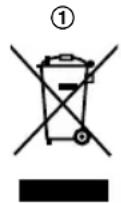
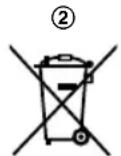
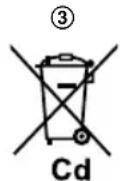
These symbols (①, ②, ③) on the products, packaging, and/or accompanying documents mean that used electrical and electronic products and batteries should not be mixed with general household waste. For proper treatment, recovery and recycling of old products and used batteries, please take them to applicable collection points, in accordance with your national legislation and the Directives 2002/96/EC and 2006/66/EC. By disposing of these products and batteries correctly, you will help to save valuable resources and prevent any potential negative effects on human health and the environment which could otherwise arise from inappropriate waste handling.
Important Information
For more information about collection and recycling of old products and batteries, please contact your local municipality, your waste disposal service or the point of sale where you purchased the items.
Penalties may be applicable for incorrect disposal of this waste, in accordance with national legislation.
For business users in the European Union
If you wish to discard electrical and electronic equipment, please contact your dealer or supplier for further information.
Information on Disposal in other Countries outside the European Union
These symbols (①, ②, ③) are only valid in the European Union. If you wish to discard these items, please contact your local authorities or dealer and ask for the correct method of disposal.
Note for the battery symbol
This symbol (②) might be used in combination with a chemical symbol (③). In this case it complies with the requirement set by the Directive for the chemical involved.
Trademarks
The Bluetooth® word mark and logos are owned by the Bluetooth SIG, Inc. and any use of such marks by Panasonic Corporation is under licence. All other trademarks identified herein are the property of their respective owners.
SAR
THIS MODEL MEETS INTERNATIONAL GUIDELINES FOR EXPOSURE TO RADIO WAVES and the requirements of the EU Directive 1999/5/EC.
Your wireless device is a radio transmitter and receiver. It is designed not to exceed radio wave exposure limits recommended by international guidelines. These guidelines
were developed by the independent scientific organisation ICNIRP and include safety margins designed to assure the protection of all persons, regardless of age and health.
These guidelines also form the basis of international regulations and standards on RF Exposure.
The guidelines use a unit of measurement known as the Specific Absorption Rate, or SAR. The SAR limit for wireless devices is 2 W/kg. The highest SAR value for this device tested at the ear was 0.569 W/kg. The highest SAR value for this device tested on the body was 0.244 W/kg.*1
As SAR is measured utilizing the device's highest transmitting power, the actual SAR of this unit while operating is typically below that indicated above. This is due to automatic changes to the power level of the device to ensure it only uses the minimum level required to communicate with the network.
The World Health Organization has stated that present scientific information does not indicate the need for any special precautions for the use of wireless devices. They note that if you want to reduce your exposure then you can do so by limiting the length of calls.
Additional Information can be found on the websites:
World Health Organization (http://www.who.int/emf)
ICNIRP (http://www.icnirp.org)
*1 For body-worn operation, this device must be separated from the body by a minimum of 1.5 cm.
Specifications
- Standard:
Dual band GSM 900/1800 MHz
Bluetooth version 2.0
- Power source:
220–240 V AC, 50/60 Hz
● Power consumption (When charging):
Standby: Approx. 0.2 W
Maximum: Approx. 4.0 W
- Operating/Charging conditions:
Operating: 0 °C – 40 °C, 20 % – 80 %
relative air humidity (dry)
Charging: 5 °C – 40 °C
Important Information
- Battery: Li-Ion 3.7 V/940 mAh
- Antenna: Internal • SIM card type: 1.8 V/3 V
- Shock resistant: This product has cleared the drop test stipulated by "MIL-STD-810E,516".
Note:
- The illustrations in these instructions may vary slightly from the actual product.
Getting Started
Setting up
Installing the SIM card and the battery
Important:
- Make sure the phone is turned off and the AC adaptor is disconnected before removing the battery.
- Use only the battery specified.
1 Open the battery cover.
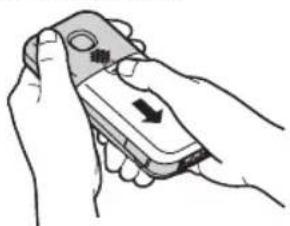
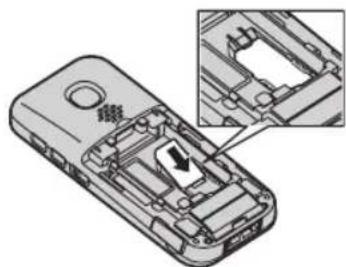
2 Position the SIM card as shown below with the gold-coloured contacts facing down and the notched corner turned to the left. Carefully slide the SIM card into the holder until the tab is positioned on the SIM card edge.
3 Insert the battery, and then close the battery cover.
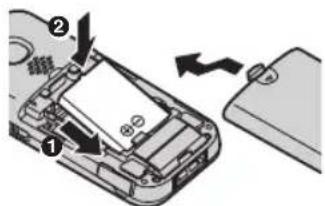
- When the language selection is displayed, see page 14.
Removing the SIM card
To remove the SIM card, press the tab and place a finger on the opposite side of the SIM card edge, then gently slide it out.
Battery charging
Charge for about 3 hours. Charging time and battery life might differ when the phone is out of GSM network range.
- Use only the supplied AC adaptor. ■ Charging with charger
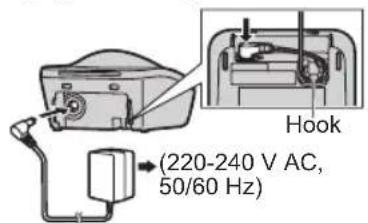

Charge indicator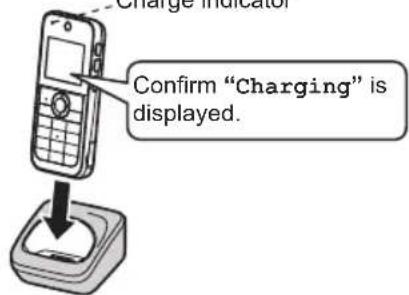
■ Charging without charger
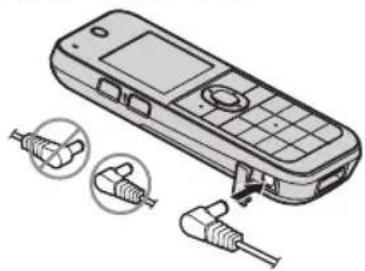
Getting Started
Note:
- When the battery is fully charged, the charge indicator goes off and "Fully charged" is displayed.
Note when setting up
Note for installing the SIM card and the battery
- When inserting or removing the SIM card, take care not to accidentally touch or scratch the gold-coloured contacts.
- Wipe the battery end (+), ⊕ with a dry cloth.
- Avoid touching the battery end (+), (+) or the unit contacts.
Note for battery charging
- Charge the battery in a place with an appropriate ambient temperature ranging from 5 °C to 40 °C.
- The AC adaptor should only be used indoors.
- Do not put any conductive materials such as coins or hairpins onto the charge contacts. This can result in the risk of overheating.
- It is normal for the phone and the AC adaptor to feel warm during charging.
- The AC adaptor should be connected to a vertically oriented or floor-mounted AC outlet. Do not connect the AC adaptor to a ceiling-mounted AC outlet, as the weight of the adaptor may cause it to become disconnected.
- Clean the charge contacts of the phone and charger with a soft and dry cloth once a month. Clean more often if the unit is exposed to grease, dust, or high humidity.
Battery level
| Colour Icon | Battery | level |
| Green High | ||
| Medium | ||
| Low | ||
| Red Needs | charging. |
Panasonic Lithium Ion (Li-Ion) battery performance (supplied battery)
| Operation | Operating time*1 |
| In continuous use 3.8- | 9.0 hours |
| Not in use (standby) 2 | 80 hours max. |
*1 Operating time is dependent upon usage environment, battery age and condition.
Note:
- The battery might swell when its life is close to an end. This is dependent on the usage conditions and is not a problem.
- The battery level may not be displayed correctly after you replace the battery. In this case, charge the battery again.
Getting Started
Controls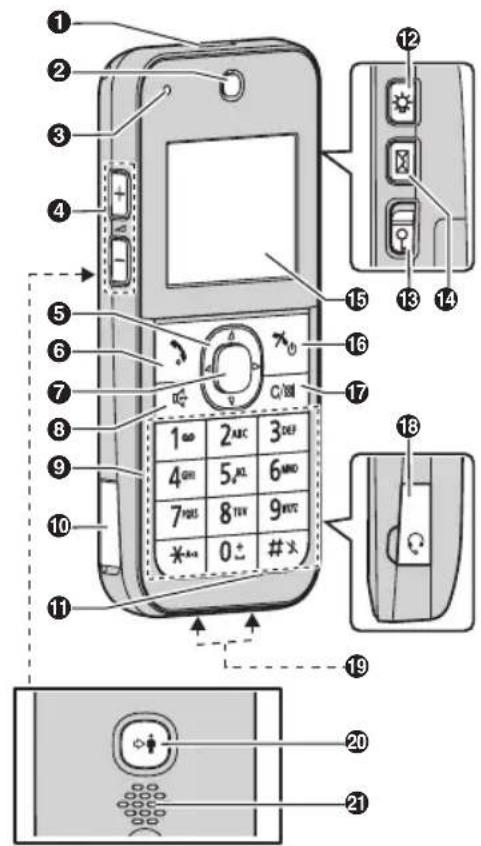
① Light ② Receiver ③ Charge indicator Ringer indicator ④ [+]/[−] (Volume up/down) (Change display font size) ⑤ Navigator key ⑥ 【】(Talk) ⑦ Centre of navigator key/Confirmation key ⑧ (Speakerphone) ⑨ Dial keypad
[0] International call “+”/
Space insert "L"
[1∞]: Call voicemail
【#】: Profile key
⑩ Connector cover ⑪ Microphone ⑫ [ Light ]
Press and hold to keep the light on.
⑬ [♀ (Key lock) ⑭ [Message shortcut key) ⑮ Display ⑯ [×(Off/Power) ⑰ [d/clear/Mute) ⑱ Headset jack ⑲ Charge contacts ⑳ [→] (Priority call) ㉑ Speaker
Key functions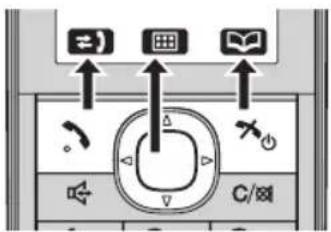
Function key
- 【】: Make or answer calls/function key to select the feature shown above. - 【×】: End calls/function key to select the feature shown above.
Navigation Key
– Centre of navigator key: Select the feature shown above. - [▲], [▼], [◀], or [▶]: Scroll through various lists/items or move the cursor to edit a number/name. - 【▶】or【◀】: Adjust the receiver, speaker, or ringer volume. - 【▲】: Open the main menu (page 14). - 【▼】: View the contacts list (page 23).
Getting Started Display Display symbols
| Symbol Meaning | |
| Signal strength: the more bars visible, the stronger the signal.R: The phone is currently seeking or using another network outside your home network. | |
| Battery level | |
| Key lock is on. (page 15) | |
| Silent mode is on. (page 15) | |
| Vibration mode is on. (page 26) | |
| The line is on a call. | |
| Speakerphone is on. (page 16) | |
| Ringer volume is off. (page 26) | |
| Incoming call | |
| Outgoing call | |
| Missed call | |
| Mute is on. (page 17) | |
| Equalizer is set. (page 17) | |
| The call is on hold. (page 18) | |
| Text messages (SMS) or contacts saved to the phone. (page 20, 23) | |
| Text messages (SMS) or contacts saved to the SIM card. (page 20, 23) | |
| New text message (SMS) received. (page 21)Text message (SMS) which has not been sent or read.When flashing: Text message (SMS) memory is full. | |
| Symbol Meaning | |
| Text message (SMS) which has been sent. | |
| Text message (SMS) which has already been read. | |
| New voicemail message received.*1(page 22) | |
| Schedule alarm is set.(page 33)Alarm is on. (page 34) | |
| Night mode is on. (page 34) | |
| The Bluetooth feature is on.(page 36) | |
| Another Bluetooth device is connected. (page 36) | |
| Headset/Bluetooth headset (option) is connected. | |
*1 Voicemail subscribers only
Function items
| Icon Action | |
| Displays the menu. | |
| Accepts the current selection. | |
| Returns to the previous screen. | |
| Opens the recent call log. | |
| Makes/answers a call. | |
| Ends the call. | |
| Opens the option menu. | |
| Answers a 2nd call.(page 18) | |
| Resets the call duration. | |
| Opens the contacts list.(page 23) | |
| Stores phone numbers. | |
| Selects multiple items.(page 34) | |
| Stops alarm. (page 33, 34) |
Getting Started
| Icon Action | |
 | Activates the snooze function. (page 33, 34) |
 | Turns the power off. (page 34) |
Menu items
The following items are shown when you press 📄 (centre of the navigator key).
| Item Feature | |
| Messages | |
| Phonebook | |
| Call Log | |
| Settings | |
| Tools | |
| Clock Settings |
Turning the power on/off
Power on
Press [×] for about 1 second.
Note:
- PIN1 code request is displayed if the inserted SIM card is initially PIN locked or PIN1 code request is set to on (page 32). Enter PIN1 code and press OK or [#]
Power off
Press [×] for about 2 seconds.
Initial settings
Symbol meaning:
Example: [▲]: "Off"
Press [▼] or [▲] to select the words in quotations.
Important:
- The phone may prompt you to set display language and date and time each time a new SIM card is installed.
① 【▲】: Select your desired language. → OK ② Continue from step 3 in "Date and time", page 14.
Display language
1 → OK 2 【◆】: "Display" → OK 3 [▲]: "Language" → OK 4 【◆】: Select your desired language. → OK
Note:
- If you select a language you cannot read: → ⬤→ OK → [▼] 2 times → OK → [▲] → OK → [◀]: Select your desired language. → OK
Date and time
1 → OK 2 [▲]: "Date & Time" → OK 3 Enter the current date, month, and year. → OK
Example: 15 July, 2011
[1][5][0][7][2][0][1][1]
• To change the date format:
≡ → [▲]: Select the desired format. → OK
4 Enter the current hour and minute.
Example: 9:30
[0][9][3][0]
• To change the time format:
→ [▲]: Select "AM", "PM", or "24 hours". → OK
5 OK
Getting Started
Note:
- The date and time may be incorrect when the battery is dead or replaced. In this case, set the date and time again.
- To adjust the hour for summer time, see page 29.
Clock display
You can select how the date and time is displayed in standby mode from the following 3 options;
- "Large": Displays only the time in large font.
- "Normal": Displays the date and time.
- "Off": Does not display the date or time. The default setting is "Large".
1 → OK 2 [▲]: "Display" → OK 3 【◆】: "Clock Display" → OK 4 【▲】: Select the desired setting. → OK
Display font size
You can adjust the size of characters/numbers shown on the display. The default setting is "Middle".
1 → OK
2 [▲]: "Display" → OK
3 【▲】: "Font Size" → OK
4 [◀]: Select the desired font size.
Note:
- You can adjust the display font size by simply pressing [+] or [→] unless you are on a call or the phone is ringing for an incoming call.
Profile
You can set the silent mode by pressing 【#】for about 2 seconds in standby mode.
Note:
- You can also change the profile setting from the menu tree (page 26).
Key lock
The keypad can be locked to prevent any keys from being accidentally pressed. Slide [9] (right side of the phone) to lock or unlock.
Audible dialling
When you turn this feature on, numbers are announced when pressing dial keys. The default setting is "Normal".
1 → OK 2 [▲]: "Sound" → OK 3 [▲]: "Audible Dialling" → OK 4 [▲]: Select "Loud", "Normal", or "Off". → OK
Note:
- The language used for the dial announcement is the same as the display language (page 14).
Telecoil (T-coil) mode
When you activate the Telecoil mode of your hearing aid, turn this feature "On". The default setting is "Off".
1 → OK
2 [▲]: "Telecoil Mode" → OK
3 [◆]: Select the desired setting. → OK
Note:
- When this feature is on, you cannot use the voice equalizer feature (page 17).
Making/Answering Calls
Making calls
1 Enter the phone number (40 digits max.).
- To correct a digit, press [C/⊗].
2 Press [ ] to dial.
3 Press [ ✗] to end the call.
Note:
- To insert a pause, press and hold (*) until "p" is displayed. A 3 second pause is inserted each time "p" is displayed.
- To set the auto redial feature, see page 27.
Using the speakerphone
1 Enter the phone number and press [ ] . Speak alternately with the other party.
2 Press [ ✗] to end the call.
Note:
- For best performance, use the speakerphone in a quiet environment.
- To switch back to the receiver, press [←] or [→].
Adjusting the receiver or speaker volume
There are 6 volume levels (1 to 6) available. Press [+] or [−] repeatedly while talking.
- When you try to set the receiver volume to level 5 or 6, "Access volume booster mode?" is displayed. Press CIX continue adjusting the volume.
Note:
- Even if you set the receiver volume to level 5 or 6, the volume decreases to level 4 when the phone is turned off.
International call
1 Press and hold [0±] until the international prefix “+” is displayed. 2 Enter the country/region code, area code, and phone number. → [○]
Emergency call
To make an emergency call, the phone must be within the range of a GSM network. Enter the emergency number. → [▶]
Note:
- When "Limited Service" is displayed (page 37), you may not be able to make an emergency call. Call the international emergency number "112", if your country supports this number.
- If you find that a number does not work on your phone, or for details of emergency numbers, please contact your network operator/service provider.
Answering calls
When a call is being received, the ringer indicator flashes.
1 Press [ ] or [ ] to answer a call.
- You can also answer a call by pressing any dial key from [0] to [9], [★], or [#★]. (Any key answer feature: page 27)
- To reject the call, press [×○].
2 Press【】to end the call.
Adjusting the ringer volume
Press [+] or [−] repeatedly to select the desired volume while the phone is ringing for an incoming call.
Note:
- You can also customise the ringer volume beforehand (page 26).
- You cannot adjust the ringer volume while the phone is ringing in silent mode (page 15).
Temporary ringer off
While the phone is ringing for a call, you can turn the ringer off temporarily by pressing [C/☑].
Call log
This phone has 4 call log lists. The last 10 incoming, outgoing, and missed calls are stored in each call log (each 40 digits max.). The recent call log list displays the last 30 calls (incoming, outgoing, and missed), beside 3 other types of call log.
Note:
- When a caller's phone number matches a phone number stored in the contacts list, the stored name is displayed and logged.
- “Unknown Number” is displayed when a call cannot be received displaying a phone number.
- “Withheld” is displayed when the caller requests not to send a phone number.
Making a call using the call log
1 Press [ ] to display the recent call log list in standby mode. - Press [▶] or [◀] to select the desired call log list.
2 【◆】: Select the desired phone number. → 【◆】
Note:
- You can check and reset the duration of incoming, outgoing, and the last call. To check the call duration:
Press [回] → [回] → [OK] → [回]: "Call Duration" → [OK]
Missed calls
If a call is not answered, the phone treats it as a missed call. "Missed Call(s)" and the number of missed calls are shown on the display. You can view the missed call log by pressing OK when it is displayed.
Caller ID readout
This feature allows you to know who is calling without looking at the display. To use this feature, you must turn this feature on. When a call is received, the phone announces the caller's phone number following every ring. The default setting is "Off".
1 → OK
2 [▲]: "Sound" → OK
3 [▲]: "Caller ID Readout" → OK
4 [▲]: Select the desired setting. → OK
Note:
- The language used for the announcement is the same as the display language (page 14).
- The volume level used for the announcement is the same level as the ringer volume (page 26).
Call log options
In the call log list, the following options are available by pressing ☐:
- "Use Number": edit and call using the phone number.
- "Detail": view the caller's information.
- "Create Message": write and send text messages (SMS).
- "Add Phonebook": edit and store the phone number to the contacts list.
- "Delete": delete a caller's log.
- "Delete All": delete all caller logs from the selected call log list.
Useful features during a call
Mute
While mute is on, you can hear the other party, but the other party cannot hear you.
1 Press [ C/∅] during conversation.
2 To return to the conversation, press [C/⊗] again.
Voice equalizer
This feature clarifies the voice of the person you are talking to, producing a more natural-sounding voice that is easier to hear.
Making/Answering Calls
and understand. The default setting is "Normal".
1 Press ≡ during conversation. 2 [▲]: "Equalizer" → OK 3 [▲]: Select "Normal", "Treble Boost", or "Bass Boost". → OK
Note:
- Depending on the condition and quality of the network, this feature may amplify existing line noise. If it becomes difficult to hear, turn this feature off.
Network service features during a call
You must first subscribe to the services of your network operator/service provider. Please contact your network operator/service provider for details and availability of the services in your area.
Hold
This feature allows you to put a call on hold.
1 Press ☐ during conversation. 2 [▲]: "Hold" → OK 3 To release hold, press ≡ → [▲]: "Retrieve" → OK
For call waiting service users
This feature allows you to receive and make calls to other parties while on the phone. If you receive a call while on the phone, you will hear a very brief call waiting tone.
To receive a 2nd call displaying the 2nd caller's information, activate the call waiting feature (page 30).
1 To answer the 2nd call:
Press
- The 1st call is put on hold and displays the line on hold. To make another call: Enter the phone number. → [→] • Using the contacts list:
→ [▲]: "Menu" → OK → → OK → [▲]: "Contacts" → OK → [▲]: Select the desired contact. → [▼]
- The 1st call is put on hold and displays the line on hold.
2 To switch between calls:
≡ → [▲]: "Swap" → OK To end a call: [▲]: Select the call you want to end. → [×○] To end all calls: ≡ → [▲]: "Release All" → OK
For conference call service users
This feature allows you to have a conversation with up to 5 parties at the same time.
■ When receiving another call:
1 Press to answer the 2nd call. 2 ≡ → [▲]: "Merge" → OK 3 While on the conference call, press [×○] to end.
■ When making another call:
1 Enter the phone number. → [ ] 2 After the call is connected, press . 3 [▲]: "Merge" → OK 4 While on the conference call, press [×○] to end.
Useful features during a conference call
1 During a conference call, press 2 [▲]: "Browse conf." → OK
- All members in the conference call are displayed, either by name or number.
3 [▲]: Select the desired party.
4 ≡ → [▲]: "Split" → OK
- To end the selected caller's participation, select "Disconnect". → OK
- The remaining callers can continue with the conference call.
5 To re-build the conference, press
![PANASONIC KX-TU311 - [▲]: Select the desired party. - 1](/content/2026/05/1038477/images/fede43654a6ed9b02df5f2e0d2fc69a6f85bf38cee0d5e0f3e340753ef637a3e.jpg)
→ [▲]: "Merge" → OK
For transferring call service users
This feature allows you to transfer and connect 2 outside calls.
1 When receiving another call:
Press → to answer the 2nd call.
When making another call:
Enter the phone number. → [→]
2 Press [4] and [\~].
- Calls are automatically ended after the other parties connect successfully.
Messages
Character entry
The dial keys are used to enter characters and numbers. Each dial key has multiple characters assigned to it. The characters that can be entered depend on the input mode.
- Press [◀] or [▶] to move the cursor.
- Press dial keys to enter characters and numbers.
- Press [ ] to select the desired symbol.
- Press [C/☒] to erase the character or number to the left of the cursor. Press and hold [C/☒] to erase all characters or numbers to the left of the cursor.
- Press [★] (A→a) to change the input letter case. For example, small letter (abc), auto case (Abc), and capital letter (ABC).
- To enter another character located on the same dial key, press [▶] to move the cursor to the next space, then press the dial key again.
- If you do not press any dial key for about 1 second after entering a character, the character is fixed.
Selecting input modes and the symbols
The available input modes are Alphabet (abc), Numeric (123), Greek (αβγ), Extended 1 (a) and Extended 2 ( ). You can select which mode is entered by pressing a dial key repeatedly in all modes except Numeric.
When the phone displays the character entry screen,
■ To select the input mode:
![≡ → [▲]: "Input mode" → OK → [▲]: Select the desired input mode. → OK](/content/2026/05/1038477/images/ff3348bb75e9c066955b7dda25a7577c994c53b844200fb1995c7319e92e6019.jpg)
■ To select the symbols:
[#] → Press [▲], [▼], [◀], or [▶] to select the desired symbol. → OK
- is used only for text message (SMS) entry.
Text message (SMS)
SMS (Short Message Service) allows you to send and receive text messages using network services. To use SMS features, you must confirm that the correct service centre number is stored. Contact your network operator/service provider for details and availability of this service.
Note:
- The service centre number may be preprogrammed to the SIM card (page 22).
- You can save SMS messages in the phone or SIM card by changing storage media (page 22). SMS messages are automatically saved to other media when the memory of the current media is full.
- SMS messages saved in the phone are indicated by 📁 and those saved in the SIM card are indicated by 📋.
- A total of 100 SMS messages at 160 characters (70 characters depending on type) per message can be saved in the phone. The maximum number of SMS messages that can be stored to the SIM card is dependent on your SIM card.
- The phone can send or receive SMS messages beyond the character limit for a single message. Longer messages are sent as a series of 2 or more messages. The message length indicator at the top of the screen displays the number of characters remaining and the number of SMS messages required to send.
- Characters that cannot be displayed are shown as “?” instead.
Writing and sending a new message
1 [ ] (right side of the phone) 2 【▲】: "Create Message" → OK
- The display shows any unfinished or unsaved text for you to continue.
3 Enter a message. → OK
- To change the input letter, press [✗] (page 20).
Messages
• To change the input mode:
≡ → [▲]: "Input mode" → OK
→【◆】: Select the desired input mode (page 20). → OK
• To save the message:
≡ → [▲]: "Save" → OK
4 Enter destination phone number (20 digits max.).
• Using the contacts list:
→【▲】: Select the desired
contact. → OK
5 OK
6 To send the message, select "Yes". →
OK
- The sent message is automatically saved to outbox.
- If you select "No", the display returns to step 4.
Note:
- This phone supports long messages (3 connected SMS messages max.) of up to 459 or 201 characters depending on character type. However, the maximum number of characters you can send or receive may be limited by your network operator/service provider. Contact your network operator/service provider for details.
- If your SMS message contains over 160 characters (70 characters depending on character type), it is a long message. The message length indicator in the upper-right of the screen displays the number of characters remaining and the number of SMS messages required to send. Your network operator/service provider may treat long messages differently from other SMS messages. Contact your network operator/service provider for details.
- You cannot send or receive SMS messages containing pictures, sound, or contacts list.
Reading a received message
When an SMS message is received: - an SMS ring tone is heard (if the ringer volume is on).
– the phone vibrates (if the silent mode is on, page 15). - “New Message (s)” is displayed with the total number of new (unread) SMS messages. - ✉ is displayed.
Note:
- SMS messages are automatically saved to other media when the memory of the current media is full (page 22).
- When the SMS message memory is full, you cannot receive any new SMS messages. Erase unnecessary SMS messages (page 21) to receive new SMS messages.
1 [ 📧] → [▲]: "Inbox" → OK
2 [◀]: Select a message.
- To scroll through the SMS messages, press and hold [▼] or [▲].
3 Press OK to read the message content.
Note:
- Display the inbox by simply pressing OK when "New Message(s)" is displayed.
Replying to a received message
1 While reading a received message, press
2 [▲]: "Reply Message" → OK
3 Enter a message (page 20). → OK
• To save the message:
≡ → [▲]: "Save" → OK
4 Edit the destination phone number if necessary. → OK
5 To send the message, select "Yes". →
OK
SMS options
In the inbox, outbox, and draftbox, the following options are available by pressing
- "Use Number": edit and call using the recipient's or sender's phone number.
Messages
- "Reply Message": reply to the SMS message.
- "Forward Message": edit and send an SMS message from the inbox.
- "Edit Message": edit and send an SMS message from the outbox or draft box.
- "Add Phonebook": edit and store the recipient's or sender's phone number or the numbers in the SMS message to the contacts list.
- "Delete": erase an SMS message.
- "Delete All": erase all SMS messages from the selected box.
SMS settings
In the SMS menu, you can change the following settings. To change the settings:
Press [✉] → [▲]: "Settings" → OK
- "Service Centre": change and store the service centre number.
- "Validity Period": set the time period during which the service centre will try to resend the SMS message if it has not been delivered.
- "Status Report": receive status reports to find out whether your sent SMS messages have been successfully delivered or not.
- "Reply Path": SMS messages may be sent using another service centre number when this feature is turned on.
- "Storage Media": select the memory location of SMS messages from SIM or phone.
- "Memory Status": check the amount of current SMS messages.
Voicemail service
Voicemail is an automatic answering service offered by your network operator/service provider. Contact your network operator/service provider for details and availability of this service.
Storing the voicemail access number
In order to listen to your voicemail messages, you must dial your network operator/service provider's voicemail access number.
1 [ ☒] → [▲]: "Voicemail" → OK 2 [▲]: "Voicemail num." → OK 3 Enter the voicemail access number (20 digits max.). → OK
Listening to voicemail messages
When you have new voicemail messages, is displayed or you receive a text message (SMS), depending on your network operator/service provider.
1 Press and hold [ 1∞] when in standby mode.
2 Press [ ×] to end the call.
Phonebook
Adding contacts
This phone can store up to 200 contacts with 2 phone numbers for each contact. You can also store the contacts in a SIM card with 1 phone number for each contact. The maximum number of contacts that can be stored in a SIM card is dependent on your SIM card. Make sure of the memory location (phone or SIM card) before adding contacts (page 24).
1 → OK 2 [▲]: "Create" → OK 3 【▲】: "(No name)" → OK 4 Enter the party's name (16 characters max.; page 20). → OK
- To change the input letter case, press 【★】(page 20). • To change the input mode:
→ [ ▲ ]: "Input mode" → OK
→ [ ▲ ]: Select the desired input mode (page 20). → OK
5 【◆】: “1) No number” → OK 6 Enter the party's phone number (40 digits max.). → OK
- If you want to store another phone number, select "2) No number" when it is displayed.
- When the selected memory location is SIM card, go to step 9.
7 【▲】: “(Ungrouped)” → OK 8 【▲】: Select the desired group. → OK 9
- To add other contacts, repeat from step 2.
Note:
- The number of characters and digits that can be input into each SIM card contact is limited by your SIM card.
Finding and calling from contacts
Scrolling through all contacts
All contacts stored in the phone and SIM card are displayed.
Important:
- A maximum of 254 SIM card contacts can be displayed regardless of how many contacts are stored in your SIM card.
1 Press [▼] or 📄.
- indicates SIM card contacts and indicates the contacts stored in the phone.
- To change the input mode for searching the contacts list: [#]→[◆]: Select the desired input mode (page 20).→OK
- To change the input letter case for searching the contacts list, press [*] (page 20).
2 [▲]: Select the desired contact.
- Press a dial key ([0] to [9]) repeatedly to display each first contact corresponding to each character located on the selected dial key (page 20). If there is no contact corresponding to the character you selected, the next contact is displayed.
3 [ 2 ]
- If 2 phone numbers are stored for the contact, both phone numbers are displayed. [▲]: Select the desired phone number. →[▼]
Searching by category
1 Press [▼] or 📄. 2 ≡ → [▲]: "Change Category" → OK 3 [▲]: Select the desired category. → OK - To end the category search, select "All Users". 4 [◆]: Scroll through the contacts list if necessary. → [◆]
Phonebook
Contacts list options
In the contacts list, the following options are available by pressing ☐:
- "Edit": edit and store a contact.
- "Create Message": write and send a text message (SMS).
- "Use Number": edit and call using a contact.
- "Create": add a contact to the contacts list.
- "Change Category": select the category or group to search for in the contacts list.
- “more...”: show more available options. - “Add Speed Dial”: assign a contact to a speed dial key.
- "Add to group": assign a contact to the group.
- "Copy": copy a contact from the phone to SIM card or vice versa.
- "Delete": delete a contact.
- "Input mode": change the character input mode when entering the character.
Groups (contacts stored in the phone only)
When adding a contact to the phone, you can assign it to one of 4 groups. You can change the names of groups to your desired name and search for contacts by group. You can also assign a ringer tone for each group.
Assigning a contact stored in the phone
1 Find the desired contact (page 23). 2 → [▲]: "more..." → OK 3 【▲】: "Add to group" → OK 4 【◆】: Select the desired group. → OK
Changing the group settings
1 → OK 2 【◆】: “Group” → OK 3 【▲】: Select a group. → OK
4 To change the group name:
【◆】: “Rename” → OK → Press [O/⊗] to delete the current name. → Edit the name (16 characters max.; page 20). → OK
To change the group ringer tones:
[◀]: "Ringtone" → OK → [◀]: Select the desired ringer tone. → OK
To reset a group:
[▲]: "Reset user group" → OK → [▼]: "Yes" → OK
Copying contacts between the phone and SIM card
Important:
- Contacts copied from the phone to SIM card or vice versa are copied without overwriting any previously copied contacts, even in the case of duplicates.
- When copying a contact with 2 phone numbers from the phone to SIM card, only 1 phone number is copied.
Copying a contact
1 Find the desired contact (page 23). 2 ≡ → [▲]: "more..." → OK 3 [▲]: "Copy" → OK
Copying all contacts
1 → BOOK OK 2 [▲]: "more..." → OK 3 [▲]: "Memory manager" → OK 4 [▲]: "Copy All" → OK 5 [◆]: Select "Copy to SIM" or "Copy to Phone". → OK
Phonebook settings
In the phonebook menu, you can change the following settings. To change the settings:
Press → 📎 → OK → [▲]:
"more..." → OK
- "My Number": view the phone number assigned to the SIM card and enter/edit it if necessary.
- "Memory manager": show more available settings menus.
- "Memory Status": check for free and used memory capacity in the contacts list.
- "Copy All": copy all contacts from the phone to SIM card or vice versa.
- "Delete All": erase all contacts from the phone or SIM card.
- "Save New Entry": select the memory location for contacts.
- "Enable FDN"/"Disable FDN" (SIM card dependent): activate or deactivate FDN (Fixed Dialling Number). This feature allows you to restrict your outgoing calls to selected phone numbers if supported by your SIM card. Only the phone numbers stored in FDN can be shown, dialled, or messaged when this feature is enabled. You need to enter PIN2 each time you access FDN.
- "Service Dial" (SIM card dependent): access the special services of your network operator/service provider (such as customer support, emergency services, etc.) if SDN (Service Dialling Number) is included on your SIM card.
Speed dial
Assigning a contact to a speed dial key
1 → OK 2 [▲]: "Speed Dial" → OK
3 【◆】: Select the desired dial key number. → OK
4 [▲]: "Add List" → OK
5 【◆】: Select the desired contact. → OK
Note:
- If you edit a contact which is assigned to a speed dial key, the link between the contact and speed dial key is cut. In this case, assign the contact to a speed dial key again.
Making a call using a speed dial key Press the desired speed dial key ([2] to [9]). → [★]
Cancelling a speed dial assignment
1 → [image] OK 2 [▲]: "Speed Dial" → OK 3 【◆】: Select the desired dial key number. → OK 4 [▲]: "Remove" → OK 5 [▲]: "Yes" → OK
Customising your phone
Settings and Tools
Find useful features for customising your phone by scrolling through the various menus in the following table. You can customise the basic phone settings (sound settings, display settings etc.) and other various useful features.
First, press 📄 to display the top-menu. To scroll through the menus, press [▲], [▼], [◀], or [▶]. Press OK to select your desired menu and/or setting.
Profile
Press → OK
| Menu Sub-menu | Default setting page | ||
| Profile | - | Normal | 15 |
Sound
Press 📄 → ⬤ → OK → [▲]: "Sound" → OK
| Menu Sub-menu | Default setting page | ||
| Ringer Volume*1 | - Maximum 16 | ||
| Ringtone*2 | - | Ringtone 1 | - |
| SMS Ringtone*2 | - | Ringtone 2 | - |
| Vibration - | Off | - | |
| Audible Dialling - | Normal | 15 | |
| Caller ID Readout | - | Off | 17 |
| Keytone*3 | - | On | - |
*1 Ringer volume cannot be set to off for the alarm (page 33, 34). *2 The preset melodies in this product are used with permission of © 2011 Copyrights Vision Inc. *3 Turn this feature off if you prefer not to hear key tones while you are dialling or pressing any keys.
Display
Press 📄 → ⬤ → OK → [▲]: "Display" → OK
| Menu Sub-menu | Default setting page | ||
| Brightness - | Level 4 | - | |
| Wallpaper - | Off | - | |
| Background - | Black | - | |
| Clock Display | - | Large | 15 |
| Network Name*1 | - | On | - |
Customising your phone
| Menu Sub-menu | Default setting page | ||
| Font Size | - | Middle | 15 |
| Language | -Auto | *2 | 14 |
*1 This feature allows you to display the current network in standby mode. If 2 network names are displayed, the upper line shows network name and the lower line shows network operator/service provider's name. The lower line displays depending on your SIM card. *2 "Auto" means the phone automatically changes the inserted SIM card language, dictated by the language setting of the SIM card.
Call
Press 📄 → ⬤ → OK → [▲]: "Call" → OK
| Menu Sub-menu | Default setting page | ||
| Priority Call Call Number | - | 31 | |
| Message | - | ||
| Buzzer On | |||
| Call Waiting | -- 30 | ||
| Call Divert | -- 30 | ||
| Call Barring Outgoing | Barring | - | 30 |
| Incoming Barring | - | ||
| Restrict Incoming*1 | - | - | |
| Barring Password | - | 30 | |
| Show My ID*2 | - | Network Set | - |
| Auto Redial*3 | - | Off | - |
| Any Key Answer - | Off | 16 | |
| Auto Talk*4 | - | Off | - |
*1 You can set the phone to reject calls when an anonymous call is received.
- "Except Contacts": reject calls from phone numbers not registered in the contacts list. The default setting is "Off".
- "Withheld": reject calls when caller information is deliberately withheld. The default setting is "Off".
When an anonymous call is received, it is disconnected and logged by the phone.
*2 When you set to "Off", you may not be able to make calls depending on the network. *3 This feature allows the phone to automatically redial multiple times under certain conditions, such as no answer or when the other party's line is engaged. To stop auto redial while redialling, press [✗]. *4 When you turn this feature on, you can answer calls by simply lifting the phone off the charger while charging.
Customising your phone
Other settings
Press 📄 → ⬤ → OK → [▲]: "more..." → OK
| Menu Sub-menu | Default setting page | ||
| Security | PIN1 Request | - | 32 |
| Change PIN1*1 | - | - | |
| Change PIN2 | - | - | |
| Phone Code Request Off | 32 | ||
| Change Phone Code | 0000 - | ||
| Network*2 | - | Auto | - |
| Reset Settings*3 | Enter the current 4-digit phone code. → OK | - | - |
*1 When you change PIN1 code, make sure that the PIN1 code request is set to "On".
*2 This feature allows you to set the phone to automatically roam for a network or to just search manually.
"Auto": The phone automatically searches for the currently available network.
"Manual": Depending on network situations the phone displays a list of networks that exist in the current location, allowing you to manually select the desired network. A network name with "√" is an available network that you can select. If the selection fails, re-select the network from the list.
*3 All settings other than the following items can be reset to factory default:
– Date and time (page 14), Summer time
- Call logs (page 17)
- All text messages (SMS), service centre number, and validity period (page 22)
- Call waiting (page 30), Call divert (page 30), and Call barring (page 30)
– Priority call settings (page 31)
- PIN1 code request (page 32), Phone code
- All schedule items stored in the calendar/schedule (page 33)
- Contacts, group, fixed dial, and my number in the phonebook settings (page 24)
Tools
Press → OK
| Menu Sub-menu | Default setting page | ||
| Calendar | --33 | ||
| Bluetooth | On/Off Off | 36 | |
| Import Contacts | - | 36 | |
| Headset | - | ||
| Deregister | - | ||
| Set PIN | - | ||
| SIM Tool Kit*1 | --- | ||
| Telecoil Mode | - | Off | 15 |
Customising your phone
*1 If your SIM card includes SAT (SIM Application Toolkit), the display shows the network operator/service provider's additional menu in this area. The SIM Toolkit allows the applications existing on the SIM card to interact and operate with your phone. Please contact your network operator/service provider for further information.
Clock settings Press → OK
| Menu Sub-menu | Default setting page | ||
| Date & Time | -- 14 | ||
| Alarm | -- 34 | ||
| Night Mode | - | Off | 34 |
| Summer Time - | Off | - |
Customising your phone
Call settings
Call waiting (network service)
Activating/deactivating call waiting
1 → OK
2 [▲]: "Call" → OK
3 [▲]: "Call Waiting" → OK
4 [▲]: Select "Activate" or "Deactivate". → OK
- To check the status, select "Status".
Note:
- For details of call waiting service, see page 18.
Call divert (network service)
This feature allows the phone to divert incoming calls to another phone number. Contact your network operator/service provider for details and availability of this service.
Note:
- Call divert may not work if call barring is activated (page 30).
Activating/deactivating call divert
1 OK
2 【▲】: "Call" → OK
3 【▲】: "Call Divert" → OK
4 【◆】: Select the desired situation. → OK
- "All Calls": All calls are diverted.
- "If Unavailable": Calls are diverted when if busy, no answer, and unreachable.
- "If Busy": Calls are diverted if you are already on a call.
- "No Answer": Calls are diverted if you do not answer a call after a delay.
- "If Unreachable": Calls are diverted if the phone is out of GSM network range.
5 【▲】: Select "Activate" or
"Deactivate". → OK
- To check the status, select "Status".
6 Enter/edit the phone number if necessary (20 digits max.). → OK
- When you select "If Unavailable" or "No Answer" in step 4, select a delay time (5-30 seconds). → OK
Call barring (network service)
Call barring restricts certain types of incoming and/or outgoing calls, using a password supplied by your network operator/service provider. Contact your network operator/service provider for details and availability of this service.
Note:
- Call barring may not work if call divert is activated (page 30).
Activating/deactivating call barring
1 → OK
2 [▲]: "Call" → OK
3 【◆】: "Call Barring" → OK
4 【◆】: Select "Outgoing Barring" or "Incoming Barring". → OK
5 【◆】: Select the desired option. → OK
6 【◆】: Select "Activate" or "Deactivate". → OK
- To check the status, select "Status".
7 Enter the 4-digit barring password. → OK
Note:
- If you enter the incorrect barring password 3 times, it then becomes invalid. Contact your network operator/service provider.
Changing the call barring password
1 → OK
2 【◆】: "Call" → OK
3 【▲】: "Call Barring" → OK
Customising your phone
4 【▲】: "Barring Password" → OK 5 Enter the current 4-digit password. → OK 6 Enter the new 4-digit password. → OK 7 Re-enter the new 4-digit password for verifying. → OK
Priority call
Priority call is a function that allows you to ask a registered person for assistance by sending a text message (SMS) and making a call, using [◇] (back of the phone).
The phone will beep and send an SMS message, and then call the number you stored in the call number list. Before using this feature, you need to store the phone number (5 numbers max.) to the call number list in the desired order of priority.
Note:
- 【→】 can be activated while the key lock is on (page 15).
Priority call procedure
1 Press and hold [ ◇] (back of the phone) for about 3 seconds, or press it 3 times within 3 seconds when in standby mode. 2 The phone sends an SMS message.
- If the buzzer function is on, the phone beeps until the SMS message is sent (page 32).
- If the SMS message is not stored (page 32), the phone skips this step.
3 The phone dials the 1st phone number in the call number list. Speakerphone is on.
- To switch to the receiver, press [→].
4 ■ If the call is answered, the priority call procedure is stopped and you can start the conversation.
- The priority call procedure is stopped even if the call accesses the voicemail centre.
OR
■ If the other party is busy, rejects the call, or does not answer within 60
seconds, the phone automatically dials the next number. The phone repeats the sequence of sending SMS message and dialling the numbers in the call number list, a maximum of 2 times. If nobody answers the priority call, the phone disconnects the call.
Note:
- If you want to stop the priority call procedure, press [✗] during dialling.
Adding a priority call number
You can store the phone number to the priority call number list (5 numbers max.).
■ By entering phone numbers:
1 → OK 2 [▲]: "Call" → OK 3 [▲]: "Priority Call" → OK 4 [▲]: "Call Number" → OK
5 [◆]: Select the desired position in the call number list. → OK
6 [▲]: "(No name)" → OK 7 Enter the party's name (16 characters max.; page 20). → OK 8 [▲]: "(Number Empty)" → OK 9 Enter the party's phone number (40 digits max.). → OK
■ From the contacts list:
1 → OK 2 [▲]: "Call" → OK 3 [▲]: "Priority Call" → OK 4 [▲]: "Call Number" → OK 5 [◆]: Select the desired position in the call number list. → OK 6 [▲]: "Add List" → OK 7 [▲]: Select the desired contact. → OK
Note:
- Storing public institutions such as the police, rescue services, or fire brigade is not recommended.
Customising your phone
Storing an SMS message
When you store an SMS message, the phone sends the SMS message before dialling the priority call number.
Note:
- Make sure the SMS service centre number is stored (page 22).
1 → [Grid] → OK 2 [▲]: "Call" → OK 3 [▲]: "Priority Call" → OK 4 [▲]: "Message" → OK 5 Enter a message (70 characters max.; page 20). → OK
Turning the buzzer on/off
The default setting is "On".
1 → OK 2 [▲]: "Call" → OK 3 [▲]: "Priority Call" → OK 4 [▲]: "Buzzer" → OK 5 [▲]: Select the desired setting. → OK
Security settings
PIN code
PIN1/PIN2 protects your SIM card against unauthorised use. PIN1 is used for security to limit access to the phone. PIN2 is used to control security of certain provided services such as fixed dial (page 24). Both PIN numbers are issued by your network operator/service provider.
Important:
- If you enter the incorrect PIN1/PIN2 code 3 times, the SIM card is locked. Enter the 8-digit PUK1 code for PIN1 or the 8-digit PUK2 code for PIN2 to unlock. Both PUK numbers are issued by your network operator/service provider.
- If you enter the incorrect PUK1 code 10 times, the SIM card is permanently locked. The SIM card will need to be replaced as all information stored will be lost. If you enter the incorrect PUK2 code 10 times, services controlled by PIN2 code cannot be used. Contact your network operator/service provider for further information.
Setting the PIN1 code request
When you turn this feature on, you must enter PIN1 code each time the phone is turned on. The default setting is followed by the SIM card setting.
Important:
- The PIN1 code request cannot be set to "Off" with some SIM card types.
1 → OK 2 [▲]: "more..." → OK 3 [▲]: "Security" → OK 4 [▲]: "PIN1 Request" → OK 5 [▲]: Select the desired setting. → OK 6 Enter the current PIN1 code (4 to 8 digits). → OK
Phone code
The phone code protects the phone against unauthorised use.
Setting the phone code request
When you turn this feature on, you must enter the phone code each time the phone is turned on or a new SIM card is inserted. The default setting is "Off" and the default phone code is "0000".
1 → OK 2 [▲]: "more..." → OK 3 [▲]: "Security" → OK 4 [▲]: "Phone Code Request" → OK 5 [▲]: Select "Power On", "New SIM Set", or "Off". → OK
Customising your phone
6 Enter the current 4-digit phone code. → OK
Calendar/Schedule
This feature allows you to see the calendar and store schedule items for a specific date. You can store up to 30 schedule items (maximum 10 items per day). If you set a schedule alarm, an alarm sounds for 30 seconds and a text memo is displayed at the set time.
Creating a new schedule item
1 → OK 2 [◀]: "Calendar" → OK 3 Press [▲], [▼], [◀], or [▶] to select the desired date. - To go to a specific date: → [▲]: "Go to date" → OK → Enter the desired date, month, and year. → OK
4 Press to create the schedule item.
5 [▲]: "Create" → OK
6 Edit the date if necessary. → OK
7 Set the desired time. → OK
8 Enter a text memo (30 characters max.; page 20). → OK
9 [▲]: "On" → OK
- If you prefer not to set a schedule alarm, select "Off", and then go to step 11.
10 [▲]: Select the desired ringer (alarm) tone. → OK
- We recommend selecting a different ringer tone to the one used for calls.
11 OK - The background colour is changed for the date the schedule item is added to. - To add other schedule items, repeat from step 3.
Note:
- Press 🔒 to stop the alarm completely.
- Press ⚠… to stop the sound but keep the snooze function activated.
- The phone will automatically turn on and sound the alarm at the set time even if the phone is off.
- The volume level used for the alarm is the same level as the ringer volume (page 26). However, when the ringer volume is set to off, the alarm still sounds at a low level.
Viewing/editing schedule items
1 → OK 2 [▲]: "Calendar" → OK 3 Press [▲], [▼], [◀], or [▶] to select the desired date. → OK - The schedule items are displayed as a list. 4 To see the details of each schedule item: 【▲】: Select the desired schedule item. → OK To edit a schedule item: [◆]: Select the desired schedule item. → ≡ → [◆]: "Edit" → OK → Continue from step 6 in "Creating a new schedule item", page 33.
Erasing schedule items
Schedule items are not erased automatically even after the set time has passed.
Erasing a schedule item
You can delete a schedule item from a selected date.
1 → OK 2 [▲]: "Calendar" → OK 3 Press [▲], [▼], [◀], or [▶] to select the desired date. → OK
4 [▲]: Select the desired schedule item.
5 →【◆】: "Delete" → OK
Customising your phone
6 [▲]: "Yes" → OK
Erasing all schedule items
You can erase all schedule items stored in the calendar.
1 → OK 2 [▲]: "Calendar" → OK 3 Press [▲], [▼], [◀], or [▶] to select the desired date. → OK 4 → [▲]: "Delete All" → OK 5 [▲]: "Yes" → OK
Clock settings
Alarm
An alarm sounds at the set time (once or weekly) for 30 seconds and is repeated 3 times at 5 minute intervals (snooze function). While the alarm is sounding, the text memo is displayed. A total of 3 separate alarm times can be programmed. The phone vibrates at the set time when the silent mode is on (page 15).
1 → OK 2 【◆】: "Alarm" → OK 3 【▲】: Select an alarm (1 to 3). → OK 4 【◆】: Select the desired alarm option. → OK - "Once": Alarm sounds once at the set time. Go to step 6. - "Weekly": Alarm sounds weekly at the set time(s). - "Off": Turns alarm off.
5 [◆]: Select the desired day of the week and press √. → OK
6 Set the desired time. → OK
7 Enter/edit a text memo if necessary (30 characters max.; page 20). → OK
8 [◆]: Select the desired ringer (alarm) tone. → OK
- We recommend selecting a different ringer tone to the one used for calls.
Note:
- Press 🔒 to stop the alarm completely.
- Press ⚠… to stop the sound but keep the snooze function activated.
- The phone will automatically turn on and sound the alarm at the set time even if the phone is off.
When the alarm sounds:
- Press ⚠ and Ⓗ to keep the power on after the alarm completely stops.
- Press 📄 and 🔒 to stop the alarm completely and keep the power off.
- The volume level used for the alarm is the same level as the ringer volume (page 26). However, when the ringer volume is set to off, the alarm still sounds at a low level.
Night mode
Night mode is a function that stops the phone from ringing when you do not want to be disturbed. If you set the ring delay, the phone starts ringing after a selected amount of time has passed.
Note:
- If you have set the alarm, the alarm sounds even if the night mode is on.
- Even when the night mode is on, the phone vibrates while the phone is ringing in silent mode (page 15).
Turning night mode on/off
1 → OK
2 [▲]: "Night Mode" → OK
3 [▲]: "On" → OK
- To turn this feature off, select "Off".
4 Enter the desired hour and minute you wish to start this feature. → OK
5 Enter the desired hour and minute you wish to end this feature. → OK
Customising your phone
6 [▲]: Select the desired ring delay. →
OK
- If you select "No Ringing", the phone never rings during night mode.
Bluetooth
Using a Bluetooth wireless connection
This phone supports Bluetooth wireless technology and allows the phone to connect to compatible Bluetooth devices (such as headsets, hands-free car kits, etc.) within an approximate range of 10 m. Consult the manufacturers of other devices to determine their compatibility with this phone.
Note:
- Bluetooth wireless technology uses radio waves and there may be restrictions in some locations. Check with your local authorities or network operator/service provider.
- Using Bluetooth technology increases the battery power consumption and reduces the battery life. Turn this feature off to save the battery life when you do not use it.
Turning Bluetooth on/off
To use Bluetooth wireless technology, turn this feature on. The default setting is "Off".
1 → OK 2 [▲]: "Bluetooth" → OK 3 【▲】: "On/Off" → OK 4 【◆】: Select the desired setting. → OK
Bluetooth features
In the Bluetooth menus, the following features are available;
Press → OK → [▲]:
"Bluetooth" → OK
- "On/Off": turn Bluetooth on/off.
- "Import Contacts": import the phonebook data from other Bluetooth devices and store it to your phone or SIM card.
- "Headset": show the available menus for registering and using a Bluetooth devices.
- "Add New Device": register a Bluetooth device to your phone. When the Bluetooth device has been
registered successfully, the registered Bluetooth device name will be displayed.
- "Connect"/"Disconnect": connect or disconnect a registered Bluetooth device.
- "Register": register another Bluetooth device to your phone.
- "Ringer": select which device (the phone or Bluetooth headset) rings when a call is received.
- "Deregister": deregister a registered Bluetooth device.
- "Set PIN": change the PIN used to import the phonebook data from other Bluetooth devices. The default PIN is "0000".
Note:
- When you import a contact with multiple phone numbers from another Bluetooth device, each phone number is stored separately with the same name.
- You can only import the name and phone number in each contact and cannot import any included pictures.
- You cannot turn the incoming ringer volume off when the ringer is set to ring at the Bluetooth headset.
Error messages
| Display message Cause/solution | |
| SIM Error | Contact your network operator/service provider for further information. |
| Limited Service | There is no network service in your current location. Move to another location where your network can be received properly. |
| No Service | There is no network service in your current location. Check the current status and move to a new location with better reception (page 13). |
| PUK1 Blocked!orPUK2 Blocked! | You entered incorrect PUK1/PUK2 code 10 times, therefore PUK1/PUK2 code is blocked. Contact your network operator/service provider. |
| Charging stopped,charge within specified temperature range. | Charge the battery in a place with an appropriate ambient temperature ranging from 5 °C to 40 °C. |
Troubleshooting
If you still have difficulties after following the instructions in this section, turn off the phone, remove the battery, then turn it on again after about 1 minute.
General use
| Problem Cause/solution | |
| The phone does not turn on even after installing charged battery. | Press [IMAGE] about 1 second to turn the power on. |
| The phone does not work. Make sure the SIM card and the battery are installed correctly (page 10).Fully charge the battery (page 10). | |
| The display is blank. The phone is in power save mode. Activate the display again by pressing the centre of the navigator key.The phone is not turned on. Press [IMAGE] for about 1 second to turn the power on. | |
| The contacts in the contacts list are not displayed correctly. | Only characters supported by this phone can be displayed (page 20). |
| The display is in a language I cannot read. | Change the display language (page 14). |
Useful Information
| Problem Cause/solution | |
| The receiver volume has changed to level 4, even though I set it to a higher volume. | ● The receiver volume decreases to level 4 when the phone is turned off. Adjust the volume again (page 16). |
Battery recharge
| Problem Cause/solution | |
| The phone beeps and/orflashes. | Battery charge is low. Fully charge the battery (page 10). |
| I fully charged the battery, but–still flashes or– the operating time seems to be shorter. | Clean the battery end (+) and the charge contacts with a dry cloth and charge again.It is time to replace the battery (page 10).The battery power consumption is increased and the battery life is reduced when the Bluetooth feature is turned on. Turn the Bluetooth setting off (page 36) if you want to save the battery life. |
Making/answering calls
| Problem Cause/solution | |
| Noise is heard, sound cuts in and out. | You are using the phone in an area with high electrical interference. Move to a location away from sources of interference.The GSM network signal is weak. Check the current status and move to a new location until more bars are visible (page 13). |
| The phone does not ring. The | ringer volume is turned off. Adjust ringer volume (page 26).Night mode is on. Turn it off (page 34).The ringer is set to ring at the Bluetooth headset. Change the setting (page 36). |
| I cannot make a call. The phone | is not in a GSM network service coverage area. Check the current status and move to a new location until more bars are visible (page 13).Outgoing calls are barred. Deactivate the outgoing call bar settings (page 30).Your call is withheld. Change the show my ID setting to a setting other than “Off” (page 27).The key lock is on. Unlock it (page 15).Fixed dialling feature is enabled (page 24). Disable it. |
Useful Information
| Problem Cause/solution | |
| I cannot receive a call. • The phone is not in a GSM network service coverage area. Check the current status and move to a new location until more bars are visible (page 13).• Incoming calls are barred. Deactivate the incoming call bar settings (page 30).• A call matching the criteria for incoming restriction is being received (page 27). Turn the incoming restriction feature off. | |
Messages
| Problem Cause/solution | |
| I cannot send text messages (SMS). | The phone could not connect to the service centre. Confirm that the correct service centre number is stored (page 22).Connection to service centre is temporarily down. Wait and try again later.The destination phone number is incorrect. Enter the correct destination phone number (page 21) and try again.Fixed dialling feature is enabled (page 24). Disable it.Recipient is currently out of network or has turned their power off. Wait and try again later. |
| I cannot receive text messages (SMS). | Text message (SMS) transmission was interrupted. Wait until the text message (SMS) has been sent before using phone functions. |
| I cannot receive voicemail message notifications. | When the text message (SMS) memory is full, you may not be able to receive any new voicemail message notifications. Erase unnecessary text messages (SMS) to receive new voicemail message notifications (page 21). |
| I cannot receive text messages (SMS) even though the phone has enough memory to receive messages. | Some kind of text messages (SMS) can be received to the SIM card only. Check the memory status in the SIM card (page 22) and erase unnecessary text messages (SMS) (page 21). |
| I cannot receive E-mail messages. | This phone only supports text message (SMS) services. Contact your network operator/service provider for details of this service. |
Bluetooth
| Problem Cause/solution | |
| I cannot import the phonebook data from another device. | Confirm that the other device supports Bluetooth wireless technology.Turn the other Bluetooth device off, then turn it on and try again.Fixed dialling feature is enabled (page 24). Disable it. |
Useful Information
| Problem Cause/solution | |
| I cannot have a conversation using the Bluetooth headset. | The Bluetooth headset is not registered. Register it (page 36).The Bluetooth headset is not connected. Connect it (page 36).Turn the Bluetooth headset off, then turn it on and try again. |
| There is noise interference during calls on the Bluetooth headset. | A Bluetooth headset can communicate with a phone within a range of approximately 10 m. The connection may be subject to interference from obstructions such as walls or electronic devices. Move to a new location. |
| I cannot connect the Bluetooth device to my phone. | Confirm that the Bluetooth device is turned on.If the Bluetooth device is already connected to another Bluetooth device, disconnect it. Then connect it to the phone (page 36).The Bluetooth device is not registered. Register it (page 36).Confirm that the Bluetooth setting of the phone is turned on (page 36). |
Liquid damage
| Problem Cause/solution | |
| Liquid or other form of moisture has entered the phone/charger. | ● Disconnect the AC adaptor from the phone/charger. Remove the SIM card and battery from the phone and leave to dry for at least 3 days. After the phone/charger are completely dry, insert the SIM card and battery into the phone. Then reconnect the AC adaptor to charge fully before use. If the phone does not work properly, contact your place of purchase or nearest Panasonic service centre. |
Caution:
- To avoid permanent damage, do not use a microwave oven to speed up the drying process.
Conditions of guarantee
This guarantee is in addition to and does not in any way affect any statutory or other rights of consumer purchasers. If within the applicable guarantee period, the product proves to be defective by reason of faulty design, workmanship or materials, we undertake subject to the following conditions to have the defective product (or any part or parts thereof) repaired or replaced free of charge.
- The product shall have been purchased and used solely within either the U.K. or Ireland and in accordance with standard operating instructions and the technical and/or Safety Standards required in the U.K.
- On being found defective, please consult with the retailer from where it was purchased for assistance.
- This guarantee shall not apply to damage caused through fire, accident, lightning, misuse, wear and tear, neglect, incorrect adjustment or repair, to damage caused through installation, adaption, modification or use in an improper manner or inconsistent with the technical and/or safety standards required in the country where this product is used, or to damage occurred during transit to or from the purchaser.
- If at any time during the guarantee period any part or parts of the product are replaced with a part or parts not supplied or approved by us or of an objective quality safe and suitable for the product, or the product has been dismantled or repaired by any person not authorised by us, we shall have the right to terminate this guarantee in whole or in part immediately without further notice.
- The purchaser's sole and exclusive remedy under this guarantee against us is for the repair or replacement of the product or any defective part or parts and no other remedy, including, but not limited to, incidental or consequential damage or loss of whatsoever nature shall be available to the purchaser.
- This guarantee shall not apply to batteries and any other items of limited natural life.
- Our decision on all matters relating to complaints shall be final. Any product or defective part which has been replaced shall become our property.
- The guarantee period applicable to this product shall be 12 months.
Please keep these operating instructions with your receipt.
Panasonic U.K. a branch of Panasonic Marketing Europe GmbH
Receipt No. Date of purchase
Model No. Serial No.
Index
Index
AAlarm: 34
Answering calls: 16
Any key answer: 16, 27
Audible dialling: 15, 26
Auto redial: 27
Auto talk: 27
Battery: 10
Bluetooth: 28, 36
Calendar: 33
Call barring: 30
Call divert: 30
Call duration: 17
Call log: 17
Call waiting: 18, 30
Caller ID readout: 17
Character entry: 20
Conference call: 18
Date and time: 14
Display
Background: 26
Brightness: 26
Clock: 15
Font size: 15
Language: 14
Network name: 26
Wallpaper: 26
Emergency call: 16
Equalizer: 17
Error messages: 37
Group: 24
Hold: 18
International call: 16
Key lock: 15
Keytone: 26
Light: 12
Making calls: 16
Missed calls: 17
Mute: 17
Network: 28
Night mode: 34
Pause: 16
Phonebook: 23
Contacts list: 23
Contacts list options: 24
Phonebook settings
Fixed dialling number: 24
Memory status: 24
Memory storage location: 24
My number: 24
Service dialling number: 24
Power on/off: 14
Priority call: 31
Profile: 15, 26
Reset settings: 28
Restrict incoming call: 27
Ringer tone: 26
SAT: 28
Schedule: 33
Security: 28, 32
Phone code: 32
PIN: 32
PUK: 32, 37
Show my ID: 27
Silent mode: 15, 26
SIM: 10
Speakerphone: 16
Speed dial: 25
Summer time: 29
Telecoil (T-coil) mode: 15
Text message (SMS): 20
Text message (SMS) settings
Memory status: 22
Reply path: 22
Service centre: 22
Status report: 22
Storage media: 22
Validity period: 22
Transferring call: 19
Troubleshooting: 37
Vibration: 26
Voicemail: 22
Volume
Receiver: 16
Ringer: 16, 26
Speaker: 16
TU311EBE(en-en)_0901_ver011
Notes
For your future reference
We recommend keeping a record of the following information to assist with any repair under warranty.
Serial No. Date of purchase
(found on the carton box or to the left of the battery compartment)
Name and address of dealer
Attach your purchase receipt here.
Helpline Tel. No. for customers within the U.K.: 0844 844 3899
Helpline Tel. No. for customers within Ireland: 01289 8333
CE0700
Sales Department:
Panasonic U.K. a branch of
Panasonic Marketing Europe GmbH
Panasonic House, Willoughby Road, Bracknell, Berkshire, RG12 8FP
Web site: www.panasonic.co.uk
Panasonic System Networks Co., Ltd.
1-62, 4-chome, Minoshima, Hakata-ku, Fukuoka 812-8531, Japan
© Panasonic System Networks Co., Ltd. 2011

*TU311EBE*
PNQX5077ZA TT0911YK0



- OPERATING INSTRUCTIONS
- TABLE OF CONTENTS
- INTRODUCTION
- IMPORTANT INFORMATION
- GETTING STARTED
- MAKING/ANSWERING CALLS
- MESSAGES
- PHONEBOOK
- CUSTOMISING YOUR PHONE
- BLUETOOTH
- USEFUL INFORMATION
- INDEX
- ACCESSORY INFORMATION
- ADDITIONAL/REPLACEMENT ACCESSORIES
- SALES AND SUPPORT INFORMATION
- CUSTOMER COMMUNICATIONS CENTRE
- DIRECT SALES AT PANASONIC U.K
- GENERAL INFORMATION
- DECLARATION OF CONFORMITY
- CONTACT TO AUTHORISED REPRESENTATIVE
- FOR YOUR SAFETY
- WARNING
- POWER CONNECTION
- INSTALLATION
- BATTERY
- OPERATING SAFEGUARDS
- MEDICAL
- HEARING AIDS
- CAUTION
- SIM CARD
- IMPORTANT SAFETY INSTRUCTIONS
- SAVE THESE INSTRUCTIONS
- FOR BEST PERFORMANCE
- ENVIRONMENT
- ROUTINE CARE
- OTHER INFORMATION
- NOTICE FOR PRODUCT DISPOSAL, TRANSFER, OR RETURN
- INFORMATION FOR USERS ON COLLECTION AND DISPOSAL OF OLD EQUIPMENT AND USED BATTERIES
- FOR BUSINESS USERS IN THE EUROPEAN UNION
- INFORMATION ON DISPOSAL IN OTHER COUNTRIES OUTSIDE THE EUROPEAN UNION
- NOTE FOR THE BATTERY SYMBOL
- TRADEMARKS
- SAR
- SPECIFICATIONS
- NOTE
- SETTING UP
- INSTALLING THE SIM CARD AND THE BATTERY
- IMPORTANT
- REMOVING THE SIM CARD
- BATTERY CHARGING
- NOTE WHEN SETTING UP
- NOTE FOR INSTALLING THE SIM CARD AND THE BATTERY
- NOTE FOR BATTERY CHARGING
- PANASONIC LITHIUM ION (LI-ION) BATTERY PERFORMANCE (SUPPLIED BATTERY)
- FUNCTION KEY
- NAVIGATION KEY
- MENU ITEMS
- TURNING THE POWER ON/OFF
- POWER ON
- POWER OFF
- INITIAL SETTINGS
- DISPLAY LANGUAGE
- DATE AND TIME
- CLOCK DISPLAY
- DISPLAY FONT SIZE
- PROFILE
- KEY LOCK
- AUDIBLE DIALLING
- TELECOIL (T-COIL) MODE
- MAKING CALLS
- USING THE SPEAKERPHONE
- ADJUSTING THE RECEIVER OR SPEAKER VOLUME
- INTERNATIONAL CALL
- EMERGENCY CALL
- ANSWERING CALLS
- ADJUSTING THE RINGER VOLUME
- TEMPORARY RINGER OFF
- CALL LOG
- MAKING A CALL USING THE CALL LOG
- MISSED CALLS
- CALLER ID READOUT
- CALL LOG OPTIONS
- USEFUL FEATURES DURING A CALL
- MUTE
- VOICE EQUALIZER
- NETWORK SERVICE FEATURES DURING A CALL
- HOLD
- FOR CALL WAITING SERVICE USERS
- TO ANSWER THE 2ND CALL
- TO SWITCH BETWEEN CALLS
- FOR CONFERENCE CALL SERVICE USERS
- WHEN RECEIVING ANOTHER CALL
- WHEN MAKING ANOTHER CALL
- USEFUL FEATURES DURING A CONFERENCE CALL
- [▲]: SELECT THE DESIRED PARTY
- FOR TRANSFERRING CALL SERVICE USERS
- CHARACTER ENTRY
- SELECTING INPUT MODES AND THE SYMBOLS
- TEXT MESSAGE (SMS)
- WRITING AND SENDING A NEW MESSAGE
- OK
- READING A RECEIVED MESSAGE
- REPLYING TO A RECEIVED MESSAGE
- SMS OPTIONS
- SMS SETTINGS
- VOICEMAIL SERVICE
- STORING THE VOICEMAIL ACCESS NUMBER
- LISTENING TO VOICEMAIL MESSAGES
- ADDING CONTACTS
- FINDING AND CALLING FROM CONTACTS
- SCROLLING THROUGH ALL CONTACTS
- SEARCHING BY CATEGORY
- CONTACTS LIST OPTIONS
- GROUPS (CONTACTS STORED IN THE PHONE ONLY)
- ASSIGNING A CONTACT STORED IN THE PHONE
- CHANGING THE GROUP SETTINGS
- COPYING CONTACTS BETWEEN THE PHONE AND SIM CARD
- COPYING A CONTACT
- COPYING ALL CONTACTS
- PHONEBOOK SETTINGS
- SPEED DIAL
- ASSIGNING A CONTACT TO A SPEED DIAL KEY
- CANCELLING A SPEED DIAL ASSIGNMENT
- SETTINGS AND TOOLS
- SOUND
- DISPLAY
- CALL
- OTHER SETTINGS
- TOOLS
- CALL SETTINGS
- CALL WAITING (NETWORK SERVICE)
- ACTIVATING/DEACTIVATING CALL WAITING
- CALL DIVERT (NETWORK SERVICE)
- ACTIVATING/DEACTIVATING CALL DIVERT
- CALL BARRING (NETWORK SERVICE)
- ACTIVATING/DEACTIVATING CALL BARRING
- CHANGING THE CALL BARRING PASSWORD
- PRIORITY CALL
- PRIORITY CALL PROCEDURE
- OR
- ADDING A PRIORITY CALL NUMBER
- STORING AN SMS MESSAGE
- TURNING THE BUZZER ON/OFF
- SECURITY SETTINGS
- PIN CODE
- SETTING THE PIN1 CODE REQUEST
- PHONE CODE
- SETTING THE PHONE CODE REQUEST
- CALENDAR/SCHEDULE
- CREATING A NEW SCHEDULE ITEM
- VIEWING/EDITING SCHEDULE ITEMS
- ERASING SCHEDULE ITEMS
- ERASING A SCHEDULE ITEM
- ERASING ALL SCHEDULE ITEMS
- CLOCK SETTINGS
- ALARM
- NIGHT MODE
- TURNING NIGHT MODE ON/OFF
- USING A BLUETOOTH WIRELESS CONNECTION
- TURNING BLUETOOTH ON/OFF
- BLUETOOTH FEATURES
- TROUBLESHOOTING
- CONDITIONS OF GUARANTEE
- FOR YOUR FUTURE REFERENCE
- CE
Brand : PANASONIC
Model : KX-TU311
Category : Mobile Phone