
Neffos C5L - Smartphone TP-LINK - Free user manual and instructions
Find the device manual for free Neffos C5L TP-LINK in PDF.


| Product Type | Smartphone |
| Brand | TP-Link |
| Model | Neffos C5L |
| Dimensions | 143 x 72 x 8.7 mm |
| Weight | 140 g |
| Display | 5.0 inch IPS LCD, 480 x 854 pixels |
| Processor | Quad-core 1.3 GHz Cortex-A53 |
| RAM | 1 GB |
| Internal Storage | 8 GB, expandable via microSD |
| Rear Camera | 5 MP, autofocus, LED flash |
| Front Camera | 2 MP |
| Battery | Li-Ion 2000 mAh, removable |
| Operating System | Android 5.1 Lollipop |
| Connectivity | Wi-Fi 802.11 b/g/n, Bluetooth 4.0, GPS, microUSB 2.0 |
| SIM | Dual SIM (Micro-SIM, dual stand-by) |
| Security | Face unlock, pattern, PIN, password |
| Maintenance | Clean with soft dry cloth; avoid liquids |
| Repairability | Battery and SIM tray user-replaceable; other parts require professional service |
Frequently Asked Questions - Neffos C5L TP-LINK
User questions about Neffos C5L TP-LINK
0 question about this device. Answer the ones you know or ask your own.
Ask a new question about this device
Download the instructions for your Smartphone in PDF format for free! Find your manual Neffos C5L - TP-LINK and take your electronic device back in hand. On this page are published all the documents necessary for the use of your device. Neffos C5L by TP-LINK.
USER MANUAL Neffos C5L TP-LINK
Chapter 1. Get started.... 1
1.1 Overview ...... 1 1.2 Assemble your device .... 1 1.3 Power on....2 1.4 Charge your device.... 2
Chapter 2. Basics....4
2.1 Touchscreen gestures 4 2.2 Unlock and lock the screen 6 2.3 Home screen....7 2.4 Status icons 7 2.5 Quick settings panel....8 2.6 Notification panel 9 2.7 Enter a text....9
Chapter 3. Connection ...... 11
3.1 Connect to WLAN 11 3.2 Connect to mobile data 11 3.3 Connect to computer.... 11 3.4 Bluetooth 11 3.5 Tethering & portable hotspot 12
Chapter 4. Calls....13
4.1 Make a call.... 13 4.2 Answer & end a call.... 14 4.3 Options during a call 14 4.4 Call log.... 15 4.5 Call settings.... 16
Chapter 5. Messages ...... 17
5.1 Type of messages 17 5.2 Send & receive messages 17
5.3 Manage conversations ...... 17
Chapter 6. Contacts ...... 19
6.1 Manage contacts.... 19
6.2 Import/Export contacts.... 19
6.3 Groups....20
6.4 Contacts settings.... 20
Chapter 7. Emails ...... 22
7.1 Set up your email accounts 22
7.2 Send and check emails 22
7.3 Email settings 23
Chapter 8. Camera and video ...... 24
8.1 Get to know camera....24
8.2 Take a photo 25
8.3 Record a video 25
8.4 Gallery....25
8.5 Video Player....26
Chapter 9. Calendar ...... 27
9.1 Use the calendar 27
9.2 Calendar settings.... 27
Chapter 10. Clock ...... 28
10.1 Alarm....28
10.2 Clock 28
10.3 Timer 28
10.4 Stopwatch 29
Chapter 11. Browser....30
11.1 Go to a webpage....30
11.2 Browser tabs 30
11.3 Bookmarks....31
11.4 History....31
Chapter 12. File Explorer ...... 32
12.1 View files (PIC, MUSIC, VIDEO, DOC, APK, ZIP) 32 12.2 Manage your files 32 12.3 Options for selected files or folders 32
Chapter 13. Weather ...... 34
13.1 Add a city 34 13.2 Check the weather 34 13.3 Remove a city 34 13.4 Update the weather 34
Chapter 14. Music....35
14.1 Get to know music 35
Chapter 15. Notes ...... 37
15.1 Compose a note....37 15.2 Note options....37
Chapter 16. Applications ...... 38
16.1. Manage applications 38 16.2. Google™ applications ..... 38
Chapter 17. Tools ....40
17.1 FM Radio....40 17.2 Flashlight 40 17.3 Sound Record....40 17.4 Mirror.... 40 17.5 Calculator....41 17.6 Downloads....41 17.7 System Update....41 17.8 Feedback 41 17.9 SIM Toolkits 41
Chapter 18. Settings....42
18.1 SIM cards 42 18.2 Airplane mode 42 18.3 Display....42 18.4 Sound and notification 43
18.5 Storage 43 18.6 Battery....43 18.7 Apps....43 18.8 Location 43 18.9 Security....44 18.10 Accounts....44 18.11 Language and input....44 18.12 Backup and reset....45 18.13 Date and time....45 18.14 Accessibility.... 46 18.15 About phone....46
Appendix A: Specifications 47
Appendix B: Technical Support 49
About this guide
This guide provides details of each function and shows how to configure the smart phone appropriate to your needs.
Conventions
In this guide, the following conventions are used:
| Convention | Description |
| Smart phone/phone Stands for C5L without any explanation. | |
| Parameters | Parameters provided in the screenshots are just references for configuring the smart phone, which may differ from the actual situation. You can set the parameters according to your demand. |
| Screenshots | The demonstrated screenshots may look a little different from the actual UI of your smart phone due to the various firmware versions. Please just configure your phone based on the actual UI. |
| -> | The menu structure which shows the path to enter the corresponding page. For example, Settings -> WLAN means the WLAN function page is under the Settings menu. |
| Note: | Ignoring the notes in the guide might result in a malfunction or damage to the phone. |
| Tips: | Indicates important information that helps you make better use of your phone. |
1 Get started
This chapter introduces the smart phone's hardware information and guides you how to assemble your phone when you get started on using your new phone.
• Overview • Assemble your device • Power on - Charge your device
1.1 Overview
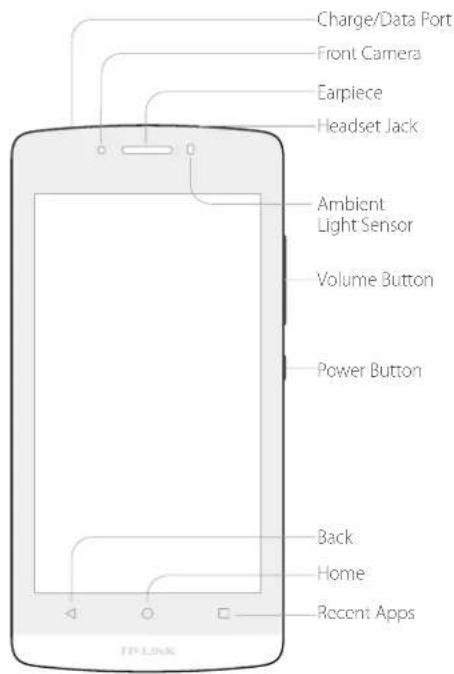
1.2 Assemble your device
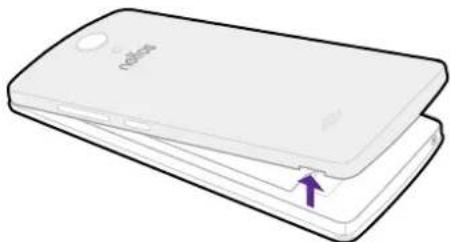
Remove the back cover
Hold your phone face down, put a fingernail in the bottom corner hole in the cover and pry the back cover off. Note: Do not bend or twist the back cover excessively in case you damage the phone.
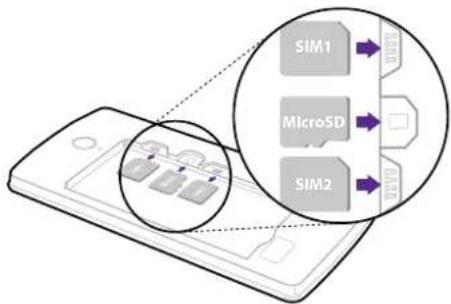
Insert Micro SIM cards and MicroSD card (optional)
Carefully slide the cards into the card slots with the gold contacts facing down. Since your phone is a dual SIM phone, you can use one or two SIM cards by putting them in the corresponding card slots.
Note:
- The device uses Micro SIM cards.
- If the card is not inserted correctly, the phone will not detect them.
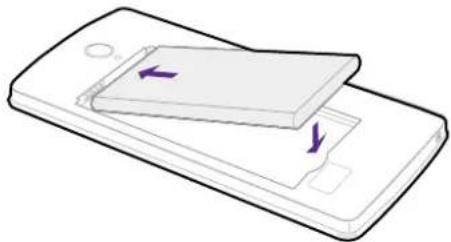
Insert the battery
Insert the battery into the opening on the back of the phone, aligning the gold contacts on the battery with the gold contacts in your phone. Then gently press down to secure the battery.
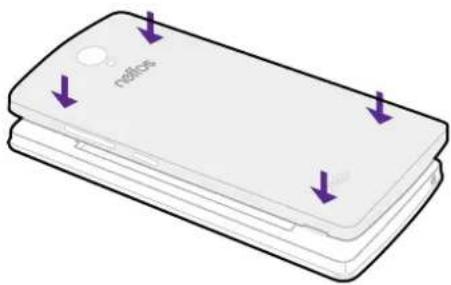
Replace the back cover
Align the cover and press all the way around the cover's edges for a water-resistant seal, making sure it snaps into place.
1.3 Power on
Press and hold the Power button until your phone vibrates and starts up.
1.4 Charge your device
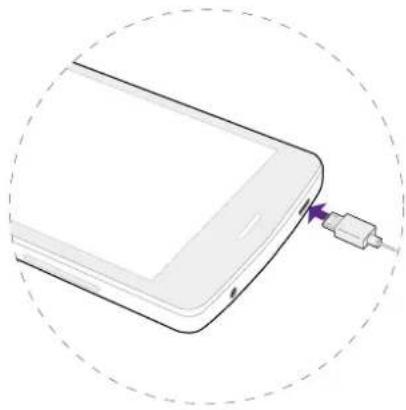
Connect the device to a power outlet using the included USB cable and power adapter.
- Connect the USB cable into the port.
- Connect the USB cable to the power adapter, then plug the power adapter into a power outlet.
- When the battery is full, unplug the power adapter from the power outlet and remove the USB cable from your phone.
2 Basics
This chapter introduces the smart phone's basic features.
- Touchscreen gestures
- Unlock and lock the screen
- Home screen
- Status icons
- Quick settings panel
- Notification panel
- Enter a text
2.1 Touchscreen gestures
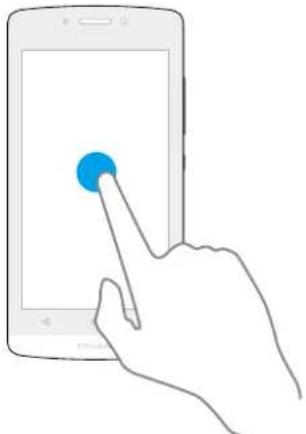
Touch: Simply tap an item to select or launch it.
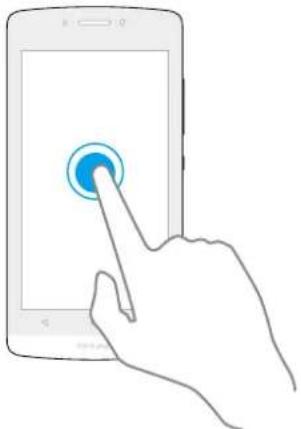
Touch and hold: Touch and leave your finger on the screen for 2 seconds or more to activate onscreen items. For example, touch and hold a widget on the Home screen to move it.
Swipe: Place your finger on the screen, and drag your finger in the direction you want. For example, you can swipe to scroll through the Home screen or a menu.
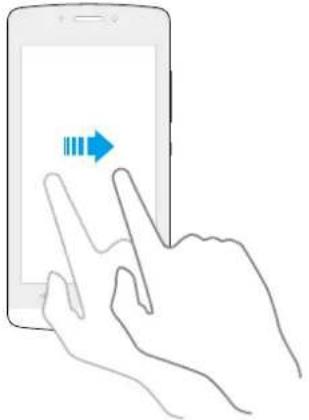
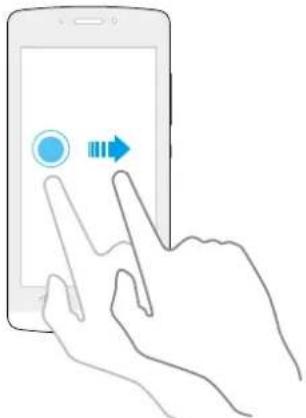
Drag: To drag, touch and hold an item and then move it to a new position. For example, you can rearrange a widget on the home screen.
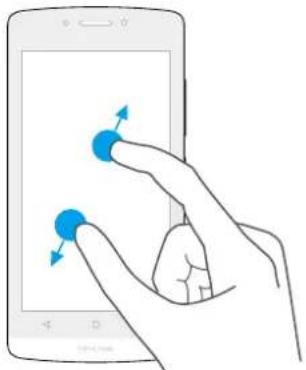
Zoom in: Pinch two fingers apart on the screen. For example, pinch two fingers out to zoom in while viewing a picture or a web page.
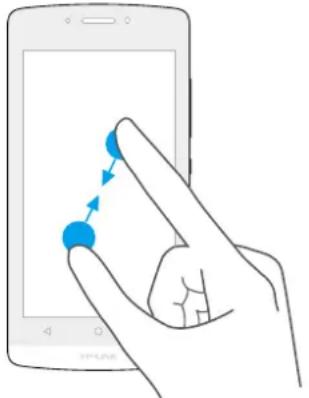
Zoom out: Pinch two fingers together on the screen. For example, pinch two fingers together to zoom out while viewing a picture or a web page.
2.2 Unlock and lock the screen
Use the screen lock features to secure your phone.
- Screen unlock: Press the Power button, then swipe the screen.
- Screen lock: Press the Power button to turn the screen off.
Note: By default, your phone locks automatically when the screen times out.
If you want to set a more secure lock, you can do as follows:
- On the Home screen, tap settings.
- Tap security.
- Tap Screen lock to choose a screen lock and level of security.
- None: Never use a screen lock.
- Swipe: Swipe the screen to unlock it. It's the default option and offers no security.
- Pattern: Slide your finger on the dots to create a pattern. You can use the pattern to unlock the screen. • PIN: Create a PIN code to unlock the screen.
- Password: Create a password to unlock the screen.
2.3 Home screen
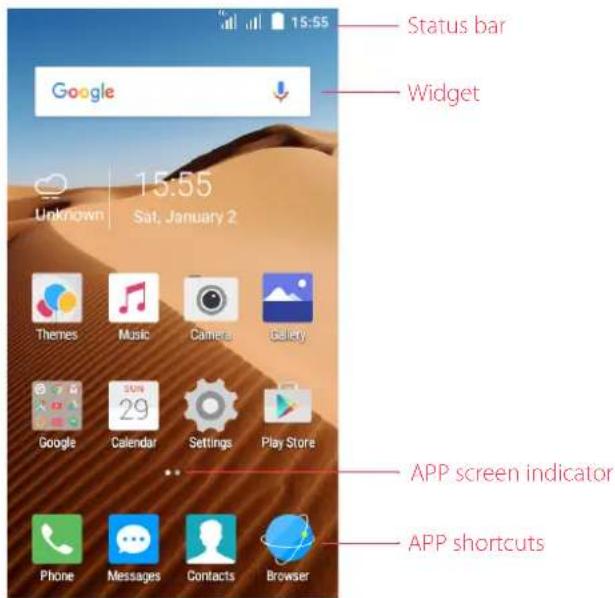
Status bar: Status and notification icons are displayed in the status bar.
Widget: Self-contained applications that run on the Home screen (not shortcuts).
APP screen indicator: Indicates which Home screen is being displayed.
APP shortcuts: Shortcuts to your favorite applications.
2.4 Status icons
The icons in the status bar at the top of the screen provide device information.
| Status icons Indications | |
| Battery low | |
| Charging | |
| Battery full | |
| Signal strength | |
| No signal | |
| G | GPRS network connected |
| 3G | 3G network connected |
| 4G | 4G network connected |
| E | Enhanced Data Rates for GSM EvolutioN network connected |
| H | High Speed Packet Access(HSPA) network connected |
| H^+ | Evolved HSPA network connected |
| Connected to a PC using USB cable | |
| Wi-Fi | |
| Hotspot | |
| MicroSD card | |
| Micro SIM card | |
| No SIM card installed | |
| Screenshots | |
| Mute mode enabled(not include alarms) | |
| Vibrate mode enabled | |
| Airplane mode enabled | |
| Bluetooth enabled | |
| Download status | |
| Uploading data | |
| Synchronizing data | |
| GPS enabled | |
| Alarms enabled | |
| Call in progress | |
| Missed calls | |
| New messages | |
| New emails | |
| Headset plugged in | |
| System update is available. | |
2.5 Quick settings panel
Swipe down from the top of any screen twice to open the quick settings panel.
Note: On the lock screen, swipe only once to open the quick settings panel.
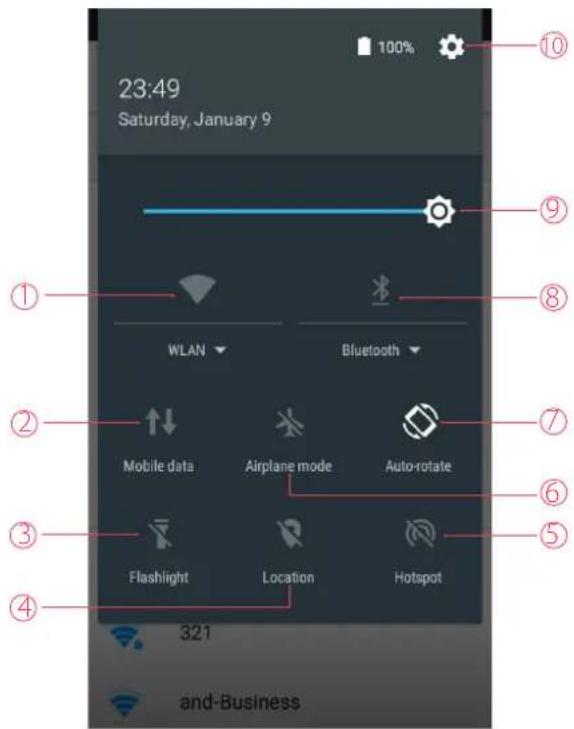
Touch the shortcut switches on the quick settings panel to turn the functions on or off.
- WLAN: Tap to enable WLAN. For more information, see Connecting to WLAN.
- Mobile data: Tap to enable mobile data. For more information, see Connect to mobile data.
- Flashlight: Tap to enable flashlight.
- Location: Tap to enable location services.
- Hotspot: Tap to enable hotspot. For more information, see Tethering & portable hotspot.
- Airplane mode: Tap to enable airplane mode. For more information, see Airplane mode.
- Auto-rotate: Tap to enable auto-rotate.
- Bluetooth: Tap to enable Bluetooth. For more information, see Bluetooth.
- Brightness slider: Use this slider to adjust the brightness of the screen.
- Settings: Tap to configure the settings.
2.6 Notification panel
Swipe down from the top of any screen to open the notification panel.
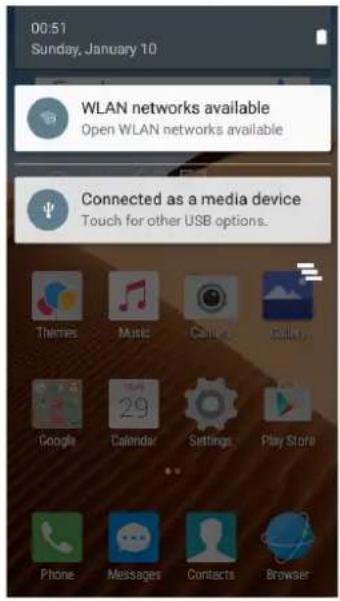
- Tap an item to view the details.
- Swipe the notification to the left or right to remove it from the list.
2.7 Enter text
Switch input method
- On the Home screen, tap Settings.
- Tap Language and input.
- Tap Language, then select an input method.
Use Android Keyboard
Tap a text field to use the onscreen keyboard.
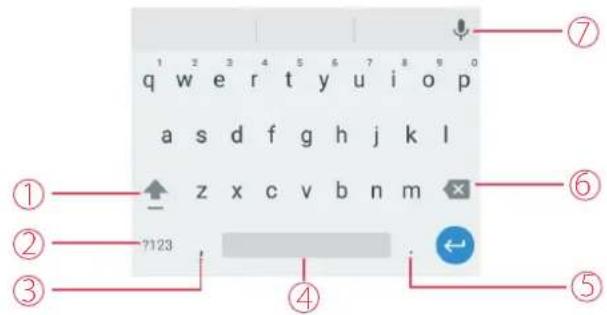
- Tap to switch between lowercase and uppercase letters. Tap and hold or quickly tap twice to enable caps lock.
- Tap to switch to numbers and symbols.
- Tap to enter a comma.
Tap and hold to open the input options menu.
- Tap to enter a space.
- Tap to enter a period.
Tap and hold to enter a symbol.
- Tap to delete the character to the left of the cursor.
Tap and hold to delete multiple characters to the left of the cursor.
- Switch to Use Google Voice Typing.
Edit text
Tap a text field to use the onscreen keyboard.
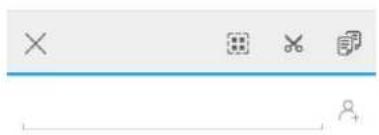
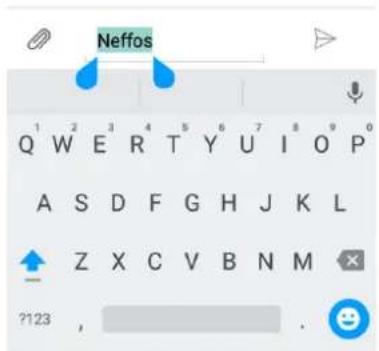
- Select text: Touch and hold the text to bring up [◀◀]. Then drag [◀] or [◀] to select more or less text.
- Select all text: Touch and hold the text. Then tap [☐].
- Cut text: Select text and tap [✗].
- Copy text: Select text and tap [icon].
- Paste text: Open the text box where you want to paste the text. Then tap PASTE to paste the text.
3 Connection
This chapter contains the following sections.
- Connect to WLAN
- Connect to mobile data
- Connect to computer
- Bluetooth • Tethering & portable hotspot
3.1 Connect to WLAN
Option One
- Swipe down from the top of any screen (except for the Lock screen) twice to open the quick settings panel.
- Tap and hold WLAN to enter the WLAN settings.
- Tap the switch to turn it on.
- Tap an available WLAN to connect. Then enter the password if needed.
Option Two
- On the Home screen, tap Settings -> WLAN.
- Tap the switch to turn it on.
- Tap an available WLAN to connect. Then enter the password if needed.
3.2 Connect to mobile data
- Swipe down from the top of any screen twice (except for the Lock screen) to open the quick settings panel.
- Tap Mobile data to enable mobile data.
3.3 Connect to computer
- Connect your phone to a computer using a USB cable.
- On the notification panel, tap Connect to PC software.
- Select a USB connection mode (Media device (MTP), Camera (PTP) or Charging) depending on your needs.
3.4 Bluetooth
You can share data on your phone with other devices using Bluetooth.
Pair and connect your phone to a Bluetooth device.
Option One
- Swipe down from the top of any screen twice (except for the Lock screen) to open the quick settings panel.
- Tap and hold Bluetooth ▼ to enter the Bluetooth settings.
- Tap the device you want to connect. Then follow the pop-up prompts to complete the connection.
Option Two
- On the Home screen, tap
Settings -> Bluetooth.
- Tap the switch to turn it on.
- Tap the device you want to connect. Then follow the pop-up prompts to complete the connection.
Note: Your phone is visible to nearby devices while Bluetooth settings is open.
Rename your phone
- On the Home screen, tap
Settings -> Bluetooth.
- Tap the switch to turn it on.
- Tap
: -> Rename this device.
- Edit the device name and tap Rename to complete the setting.
3.5 Tethering & portable hotspot
Use USB tethering
You can use a USB cable to share your phone's mobile data with a computer.
- Connect your phone to a computer using a USB cable.
- On the Home screen, tap Settings -> More ->Tethering & portable hotspot.
- Tap the USB tethering switch to turn it on. Then you can share your phone's mobile data with computer.
Use WLAN hotspot
You can use a portable WLAN hotspot to share your phone's mobile network with other devices.
- On the Home screen, tap
Settings -> ... More -> Tethering & portable hotspot.
- Tap the Portable WLAN hotspot switch to turn it on.
- Tap Set up WLAN hotspot.
- Set the Network name and password.
- Tap Save to complete the settings.
Use Bluetooth tethering
You can use Bluetooth tethering to share your phone's mobile data with other devices.
- Pair your phone with other devices via Bluetooth.
- On the Home screen, tap Settings -> More -> Tethering & portable hotspot.
- Tap the Bluetooth tethering switch to turn it on. Then you can share your phone's mobile data with the connected devices.
4 Calls
This chapter contains the following sections.
• Make a call • Answer & end a call - Options during a call - Call log - Call settings
4.1 Make a call
Dial directly by entering numbers
- On the Home screen, tap

- Enter a number and tap

Dial a recent number from the call log
All incoming, outgoing and missed call are in the call log.
- On the Home screen, tap
Phone -> Recent, a list of recent calls will be displayed.
- Tap a number to call. If your phone supports dual SIM cards, choose SIM1 or SIM2 to make the call.
Note:
If you want to make SIM1 or SIM2 the default SIM card for calls, or if you want to deactivate one of them, go to
Settings -> SIM cards to configure.
Dial from contact list
- On the Home screen, tap

- Tap a contact and then tap the number to dial. If your phone supports dual SIM cards, choose SIM1 or SIM2 to make the call.
Make an international call
- On the Home screen, tap
- On the dialer, tap and hold 0 to enter +, then enter the country or region code, area code, and phone number in sequence.
- Tap . If your phone supports dual SIM cards, choose SIM1 or SIM2 to make a call.
Make an emergency call without SIM cards
The emergency calling mode makes dialing an emergency number a one-tap process.
- On the Lock screen, tap EMERGENCY CALL.
- Enter an emergency number and tap to dial.
Make a conference call
The conference calling enables multiple persons to talk simultaneously.
- Call the first participant.
- After connected, tap -> Add call to call the second participant. The first participant will be placed on hold.
- When the second participant is connected, tap -> Merge calls to start a conference call.
Make a call using speed dial
Using speed dial, you can call someone quickly by dialing a shortcut number instead of the original number.
- Make a speed dial: Go to 📞 Phone, then press and hold the speed dial number.
- Create a speed dial: Go to Phone -> Settings -> General Settings -> Speed dial settings. The speed dial screen will display the numbers 1 through 9 (Number 1 is reserved for voicemail). Then tap a not-set number and enter a phone number or select a contact, and then tap OK.
- Replace a speed dial: Go to Phone -> Settings -> General Settings -> Speed dial settings, press and hold the number you want to remove, then select Replace and enter a new number.
- Delete a speed dial: Go to Phone -> Settings -> General Settings -> Speed dial settings, press and hold the number you want to remove, then select Delete.
4.2 Answer & end a call
On the incoming call screen:
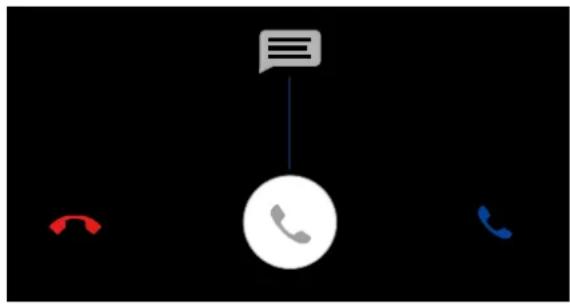
Answer a call: Drag 📞 right.
Reject a call: Drag ⏰ left.
Quick response message: Drag 📧 upward to reject the call and select a quick response message to the caller.
Note:
On the dialer screen, you can tap ⋯ -> Settings -> General settings -> Quick responses to edit the quick response message that will be sent to the receiver. Then tap OK.
End a call
When you are ready to end a call, tap 📞.
4.3 Options during a call
Your phone provides a variety of functions that you can use during a call.
Adjust the call volume
You can press the volume key to increase or decrease the volume.
Listen with the speaker
You can press 📋 to hear the caller with the speaker.
Place a new call while in a call
You can make another call while a call is in progress.
- While making a call with others, tap -> Add call on the calling screen.
- Enter another phone number or choose another contact, and then tap to dial.
Call waiting
When you want to answer a new incoming call while you are calling someone, you can use Call Waiting function.
When a new call comes in,
- Slide right to answer the new call. The previous call will hold on automatically.
- When you want to reactivate the previous call and place the new caller on hold, tap
Note:
You can tap 11 or tap the panel at the bottom of the screen to switch between the two calls.
Record calls
Your phone allows you to record a conversation for future reference.
- Call a contact or dial a number.
- On the calling interface, tap → Record call to start recording.
- Tap → Stop recording to finish recording. To check the record, go to ➤ ->Album to search for the recorded sound.
Note:
Make sure that you have ask for permission from the other party before recording a call.
Multitasking while on a call
If you exit from the call screen to the Home screen, you can continue with your current call and do other things, such as viewing a recent email at the same time.
- If you want to return to the call screen, slide down from the top of the screen and tap Ongoing call.
- If you want to hang up the phone, slide down from the top of the screen and tap Hang up.
4.4 Call log
All incoming, outgoing, and missed calls are recorded in the call log.
Save a recent call to your contact list
- Go to Phone -> Recent, find the number you want to save in your contact list, and tap ⓘ.
- Tap → Create new contact to add it to your contact list.
- Choose to store the contact to your SIM card or phone, then enter the contact's information and tap Add new contact to save.
Delete a call from the call log
Option 1: Go to Phone -> Recent, tap and hold the call you want to delete from the Call Log and tap OK.
Option 2: Find the number you want to delete from the Call Log and tap ⓘ, then tap to delete.
Delete the whole call log
If you want to delete all the contacts in your call log, tap Phone -> Delete.
Add a call to the reject list
If you have added a caller to your Reject list, future calls from this caller will be sent directly to your voicemail.
- Go to Phone -> Contacts, tap the contact that you want to add to the Reject list.
- Tap →...
- Check the All calls to voicemail option.
4.5 Call settings
You can go to Phone -> ⋯ -> Settings -> Call settings to configure the settings.
SIM settings
Go to Phone ->... -> Settings -> Call settings -> SIM Settings to configure your SIM cards settings.
- Voice mail: You can set up a voicemail number, configure the sound of your voice mail or choose vibrate or not.
- Fixed dialing numbers: you can enable your fixed dialing, change PIN for access or manage phone number list.
- Call forwarding: You can set up a number as always forward, forward when busy, forward when unanswered, or forward when unreachable. • Additional settings: You can configure your call waiting setting in Additional Settings.
- Call barring: You can block all calls (such as incoming, outgoing or international calls, etc.) especially when roaming to avoid being disturbed.
Other call settings
- TTY mode: Tap to select the mode.
- DTMF tones: Tap to set the length of DTMF tones.
- Display duration: Check the option to turn on or off the display duration.
- Turn on proximity sensor: Check the option to make the phone screen turned off when you answer a call.
- Vibrating after connected: Check the option to make the phone vibrate when answers.
5 Messages
This chapter contains the following sections.
- Type of messages
- Send & receive messages
- Manage conversations
5.1 Type of messages
Text Messages (SMS)
The Short Messages Service (SMS) lets you send and receive text messages to and from other mobile phones.
Multimedia Messages (MMS)
The Multimedia Messaging Service (MMS) lets you send and receive multimedia messages (such as pictures, videos, and audio messages) to and from other mobile phones.
5.2 Send & receive messages
Send messages
- On the Home screen, tap Messages -> to type your message.
- Enter a number or tap ♂ to select the recipients from your contacts or groups.
- Tap the Type message field and start composing your message. You can tap Ⓔ to add emotions and tap ⚠ to select an attachment (such as pictures, videos, slideshows or other multimedia files).
- Then tap ▷ to send out the message.
Receive messages:
Option 1: Tap Messages and the new message to view.
Option 2: Slide down from top of the screen to display the Notification Panel and tap the new arrived message to view or reply.
5.3 Manage conversations
Reply to messages
Tap Messages and the received message to view the conversation thread. Tap the Type message field to begin composing your message, then tap to send out.
Delete messages
If you want to delete a message:
Tap Messages and then tap and hold the message you want to delete. Then tap
If you want to delete the message thread:
Tap Messages and then tap the message. Tap : -> Delete all threads -> Delete
Forward messages
- On the Home screen, tap Messages.
- In the list of message threads, tap a contact name or phone number to view the conversation thread.
- Tap and hold the message you want to forward and then tap to select a contact, then tap to send out the message. ☐. Enter a phone number directly or tap ♀
Message search
You can search the message you need by using the Message Search feature.
- On the Home screen, tap Messages ->
- Enter a keyword to search for, then tap on the keyboard.
Add a message to your favorites
You can add important messages to your favorites so that you can find them easily when you need them.
- On the Home screen, tap Messages.
- In the list of message threads, tap a contact name or phone number to view the conversation thread.
- Tap and hold the message you want to add to your favorites, and then tap : ->Add to Favourites. Note: you can check the emails in My Favourites.
6
Contacts
This chapter contains the following sections.
- Manage contacts
- Import/Export contacts
- Groups
- Contacts settings
6.1 Manage contacts
Add a contact
- On the Home screen, tap Contacts.
- Tap
- Enter the contact's information.
- Tap √ Add new contact to save.
Edit a contact
- On the Home screen, tap Contacts.
- Tap the contact to display it.
- Then tap to edit.
- Edit the contact's information.
- Tap Edit contact to save.
Delete a contact
- On the Home screen, tap Contacts.
- Tap the contact to display it.
- Then tap ⋯ -> Delete.
Add a contact to favorites
- On the Home screen, tap Contacts.
- Tap and hold the contact.
- Then tap ☆ to add it to favorites until it turns to ★
Note:
You can view the favorites by tapping CONTACTS -> Favourites.
6.2 Import/Export contacts
Import contacts from storage
- On the Home screen, tap Contacts.
- Tap CONTACTS -> Import/export.
- Tap Import from storage.
- Select vCard files on storage
Export contacts to storage
- On the Home screen, tap Contacts.
- Tap CONTACTS -> Import/export.
- Tap Export to storage device.
- Select the contacts you want to export and tap

Share contacts
- On the Home screen, tap Contacts.
- Tap CONTACTS -> Import/export.
- Tap Share visible contacts.
- Select the contacts you want to share.
- Tap √.
- Select a sharing method. Then follow the pop-up prompts to share the contacts.
6.3 Groups
Create a group
- On the Home screen, tap Contacts.
- Tap CONTACTS -> Groups.
- Tap +.
- Enter the group's name and select the contacts you want to add.
- Tap √Done.
Edit a group
- On the Home screen, tap Contacts.
- Tap CONTACTS -> Groups.
- Select the group you want to edit.
- Then tap ... -> Edit.
- Edit the group information.
- Tap Done to save.
Delete a group
- On the Home screen, tap Contacts.
- Tap CONTACTS -> Groups.
- Select the group you want to edit.
- Then tap ... -> Delete.
6.4 Contacts settings
- On the Home screen, tap Contacts -> CONTACTS -> Settings.
- Set the contacts order.
- Sort by: You can make the contacts sort by first name or surname.
- Name format: You can choose the name format (first name first/ last name first).
7 Emails
This chapter contains the following sections.
- Set up your email accounts
- Send and check emails
- Email settings
7.1 Set up your email accounts
Set up your email accounts to manage your email more conveniently.
Add an email account
- On the Home screen, tap Emails.
- Enter your email address and password.
- Select IMAP (default), POP3, or EXCHANGE, and tap Sign in.
- Configure the general settings (nickname, sync time, and ways, etc.) and tap Done.
7.2 Send and check emails
Send emails
- After logging into Email, tap

- Add the account you want to send to and copy to. You can tap

- Then start composing and tap Send when finished.
Note: You can tap →Sent to check if the email has been sent out.
Check emails
You can check the received emails in unread or your inbox.
- Tap the received email so that you can check the details.
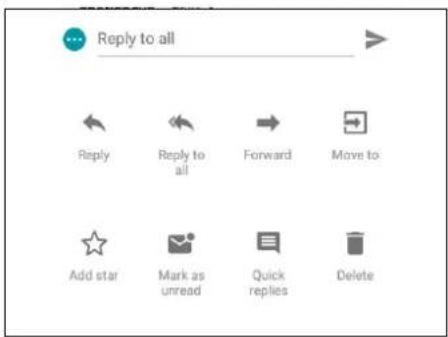
- Then tap ⋯ and you can edit (reply/forward/move/add star/make as unread/set quick replies/delete) your emails.
7.3 Email settings
Use the Email settings to configure your email preferences.
Tap => Settings to configure:
- Patterned password: You can draw your own patterned password.
- Confirm before deleting: If you turn on this function, every time before you delete an email, a confirmation prompt will prompt out.
- Confirm before sending: If you turn on this function, every time before you send an email, a confirmation prompt will prompt out.
- Subjects merge: If you have several emails with the same subjects, enabling Subjects merge helps you to merge these emails into one mail so that you can find them easily.
- Email preview rows: You can set the number of email preview rows from 1 to 5 lines.
- Do Not Disturb mode: If you enable Do Not Disturb mode, new mails will not be automatically synchronized with the set period. You can configure the Start time and End time as you like.
- Feedback: If you have any suggestions or advice, you can write feedbacks and send them out.
Refresh your email account
Refresh your account to update your email account.
After logging into your email, slide from the top of the screen to refresh your account and check for emails.
Remove an email account
- Tap Settings.
- Choose the account you want to remove and tap Delete account.
8
Camera and video
This chapter contains the following sections.
• Get to know camera • Take a photo • Record a video • Gallery • Video Player
8.1 Get to know camera
Launch the camera app
- On the Home screen: Tap Camera.
- On the Lock screen: Press the Power button. Then swipe left until the camera app is launched.
Camera home screen
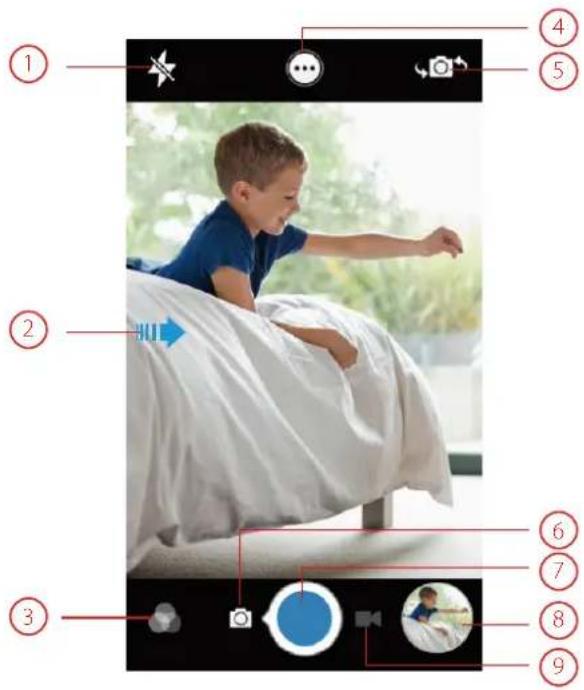
- Tap to switch to the flash mode.
- Swipe right for settings. For more information, see Camera settings.
- Select filter.
- Tap to set the shooting mode. For more information, see Shooting mode.
- Switch between front camera and back camera.
- Switch to camera mode.
- Tap to take a photo.
- View the photos and videos you have taken.
- Switch to video mode.
8.2 Take a photo
Tap to choose Photo, then tap the shutter button or press the volume button to take photos.
If you want to take a selfie, please tap the icon to switch to selfie mode.
Shooting mode
- Intelligent: Intelligent mode allows the camera to evaluate the surroundings and determine the ideal mode automatically for the photo.
- Normal: Normal mode can set configuration automatically and allow you to capture daily scenes.
- Scenery: Scenery mode can adjust aperture automatically and make the photo colorful.
- Food: Food mode makes the picture of food you have taken look more delicious.
- High-Dynamic: HDR (High-dynamic-range) mode allows you to take more detailed images for low-light and highly contrasting scenes.
Camera settings
- Time stamp: Enable it to add the time stamp to your photos.
- Delay shot: Set a timer to delay shooting.
- Shutter sound: Turn the shutter sound on or off.
- Forced focus: Turn the forced focus on or off. • Picture size: Select the picture size.
- Reset: Reset camera to its default settings
8.3 Record a video
Tap to choose Video, then tap or press the volume button to start and stop recording.
Video settings
- Microphone: Turn the microphone on or off. • Video quality: Select the video quality you need.
8.4 Gallery
View photos
- On the Home screen, tap

- You can:
- Select Camera tab: View the photos in a timeline.
- Select Album tab: View the photos grouped by album.
- Select Collection tab: Create a new album. Then you can view the photos grouped by your selection.
Edit a photo
- Select the photo you want to edit. Then tap ∠ to log into the edit page.
- You can:
- Tap Edit to crop or rotate the photo
- Tap Special effects to select a filter.
- Tap Beauty to add beautifying effects to face.
- Tap Sticker to add stickers to the photo.
- Tap Photo frame to add a frame to the photo.
- Tap Blur to make some region of the photo blurry.
- Tap Brush to paint some patterns.
- Tap Mosaic to add mosaic effects to the photo.
- Tap Color to adjust the color.
- Tap √ to save the edited photo.
Delete a photo
- Select the photo you want to edit.
- Then tap 📋 to delete it.
Share photos
- Select the photo you want to edit.
- Choose an application. Then follow the pop-up prompts to share the photo.

Capture a screenshot
Press the Volume down button and Power button at the same time to capture a screenshot.
8.5 Video Player
View a video
- On the Home screen, tap Video Player.
- You can tap a video to view it.
Delete a video
- On the Home screen, tap 📋 Video Player.
- Tap and hold the video you want to remove until a window pops-up. Then tap Delete to remove it.
9
Calendar
This chapter contains the following sections.
- Use the calendar
- Calendar settings
9.1 Use the calendar
View the calendar
- On the Home screen, tap Calendar.
- Tap the arrow at the top of the screen to select Day, Week, Month, or Agenda to switch the calendar view.
Create an event
- On the Home screen, tap Calendar.
- Tap the add icon.
- Follow the pop-up prompts to set your own event, then tap Done when finished.
Delete an event
- On the Home screen, tap Calendar.
- Tap the event to view it.
- Tap the delete icon to delete the event.
9.2 Calendar settings
Go to Calendar -> Settings to configure the following settings.
Calendar view setting
- Hide declined events: Check the option to hide declined events.
- Week starts on: Tap to choose the day when a week starts on.
- Use home time zone: Tap to display calendars and events in your home time zone when travelling.
- Clear search history: Tap to remove all the searches you've performed.
Notification & reminders
- Notifications: Check the option to enable notifications. • Sound: Tap to choose the sound of notifications.
- Vibrate: Check the option to make the phone vibrate when receiving notifications.
- Default reminder time: Tap to set the default reminder time.
- Quick responses: Tap to edit default responses when emailing guests.
Accounts
- Calendars to display: Tap to choose whether to display the local calendar.
- About calendar: Tap to know about the calendar version.
10 Clock
This chapter contains the following sections:
• Alarm - Clock - Timer
- Stopwatch
10.1 Alarm
Create an alarm
- On the Home screen, tap
Clock -> Alarm -> to create a new alarm.
- Scroll down to configure:
• Time: Choose a time for the alarm. • Days: Choose the days to use this alarm. - Repeat: Choose the days to repeat this alarm. - Label: Edit the name of this alarm.
- Ringtones: Choose your ringtones. You can select from the default ringtones list or tap More Ringtones to choose the one you like.
- Vibrate: Turn on the switch to enable your phone to vibrate.
- Tap Confirm to complete the setting.
Delete an alarm
- On the Home screen, tap
Clock -> Alarm.
- Tap and hold the alarm you want to delete, and then tap Confirm.
10.2 Clock
You can check the time of a country or region using Clock.
On the Home screen, tap Clock -> Clock -> + to choose a country or region. The time of the place will be displayed on the screen.
10.3 Timer
You can use Timer to count down.
- On the Home screen, tap
Clock -> Timer.
- Set a specific time (not more than 1 hour) if you want to count backwards.
- Tap Set default ringtone to choose a ringtone and then tap OK.
- Turn the screen on or off.
- Screen on: Your phone will keep the screen on after the screen saver has started.
- Screen off: Your phone will turn the screen off after the screen saver has started.
- Tap Start to start the countdown. You can tap Stop and Continue to control the timing, or tap Reset to finish the countdown.
10.4 Stopwatch
Stopwatch contributes to recording the precise time.
- On the Home screen, tap Clock -> Stopwatch.
- Tap Start to start counting.
- Tap Stop to stop counting.
If you want to continue the counting, tap Continue.
If you want to restart another counting, tap Reset and Start again.
- You can count time when counting.
After you start a stopwatch, tap Count once or several times. The time of your each tap and the interval time between every two taps will be displayed.
11 Browser
This chapter contains the following sections.
- Go to a webpage
- Browser tabs
- Bookmarks • History
11.1 Go to a webpage
View a website
Tap Browser, then tap the address bar on top of the page and enter the web address you want to visit.
Then tap →
Do more options about the web page (such as save or share the page)
Tap : and choose the option that you want to configure.
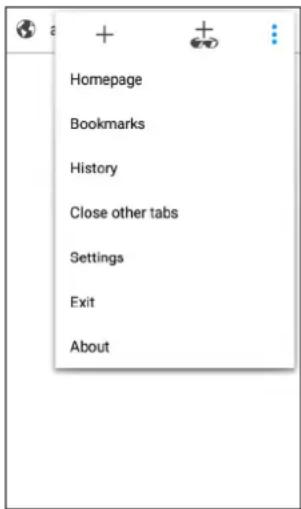
- Homepage: Tap to turn the webpage to a Home page. • Bookmarks: Tap to bookmark the page. • History: Tap to check your visited histories.
- Close other tabs: Tap to close other tabs except for the current tab.
- Settings: Tap to configure the browser settings.
- Exit: Tap to minimize or quit the page.
- About: Tap to know about the browser information.
11.2 Browser tabs
You can view multiple pages simultaneously using tabs. Tap the icon ☐ which is on the top right and the pages will be displayed. The number on the icon means the current number of the web pages.
Open a new tab
- Tab -> +
- Enter a new web address in the address bar and visit the webpage.
To close a tab
Tap 2 and drag the tab left or right to close.
Incognito tabs
Pages that you view with incognito tabs will not appear in your browser history or search history, and they will not leave other traces (such as cookies) on your device after you close the incognito window.
Note: Any files that you download or bookmarks that you create will be preserved.
Tap Browser -> ➤
11.3 Bookmarks
Use bookmarks to record the address of a website so that you can return to it easily.
On the Browser interface, tap : ->☆ to add to the Bookmarks.
11.4 History
You can visit History to check the websites that you have visited before.
On the Browser interface, tap : -> History to view a list of recent visited and most visited web pages.
12 File Explorer
This chapter contains the following sections.
• View files (PIC, MUSIC, VIDEO, DOC, APK, ZIP) - Manage your files - Options for selected files or folders
12.1 View files (PIC, MUSIC, VIDEO, DOC, APK, ZIP)
- On the Home screen, tap ☐ File Explorer. Files are stored in and organized into six categories (PIC, MUSIC, VIDEO, DOC, APK, ZIP).
- Tap a category to view the relevant files.
- Tap a file to open it and view.
12.2 Manage your files
On the main screen of the file explorer, the following options are available:
Search
Tap Q and then enter the file name to search. You can search faster by selecting the category.
New folder
You can add a new folder if needed.
- Tap File Explorer -> Phone -> : -> New Folder.
- Enter a name for the new folder and tap OK.
Sort by
Select a sort (Date/Name/Size/Type) to arrange the folders in a specific order.
Show hidden files
If you have hidden some files, you can view them by tapping Show Hidden Files.
Refresh
Tap Refresh to refresh the current page.
12.3 Options for selected files or folders
After you select files or folders, you can manage them via the following options:
Copy a folder
- Tap ☐ File Explorer -> Phone. Find the folder you want to remove.
- Tap and hold the folder and tap 📋.
- Select the folder you want to copy to and tap 📄.
Cut a folder
- Tap File Explorer -> Phone. Find the folder you want to remove.
- Tap and hold the folder and tap ✗
- Select the folder you want to store into and tap 📄.
Delete a folder
- Tap File Explorer -> Phone. Find the folder you want to remove.
- Tap and hold the folder and tap 📋-> Delete to remove.
View the file information
You can view the file path, size, modified date, and its status.
- Tap File Explorer -> Phone.
- Tap and hold the folder and tap ⋯ -> File Info to view the file information.
Send a folder
You can share the file with others by sending them out.
- Tap File Explorer -> Phone.
- Tap and hold the folder you want to send and tap ... -> Send.
- Choose a way to send.
Rename a folder
- Tap File Explorer -> Phone.
- Tap and hold a folder and tap ... -> Rename.
- Enter a new name and tap OK.
13
Weather
This chapter contains the following sections.
- Add a city
- Check the weather
- Remove a city
- Update the weather
13.1 Add a city
Add a city to check its real-time weather information.
- On the Home screen, tap
Weather to log into the Weather interface.
- Tap
in the top left corner and then tap to add a city.
- Enter the city you want to search and tap on the screen.
√. The weather information about the city will be displayed
13.2 Check the weather
On the Weather interface, slide left or right to switch to the cities and view the detailed weather information.
13.3 Remove a city
- On the Weather interface, tap in the top left corner and find the city you want to remove.
- Tap and hold the city you want to remove until □ appears, select the cities you want to remove and tap Delete.
13.4 Update the weather
On the Weather interface, swipe down from the top of the screen to manually update the weather.
14 Music
This chapter contains the following section.
• Get to know music
14.1 Get to know music
Launch the Music app
- On the Home screen, Tap
Music.
- The music library will scan each song on your phone storage and SD card and then displays them in Song, Album, Artist and Playlist.
Play the music
- On the Home screen, tap Music.
- Tap a library category (Song, Album, Artist or Playlist) to view your music files.
- Select one of the music files and tap it to play.
- You can tap the album cover at the bottom of the screen to enter the player interface.
Player interface
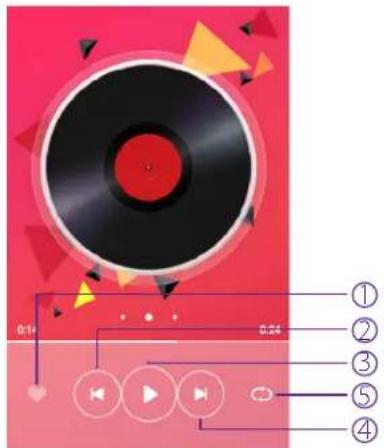
- Add a song to your favorites.
- Play the previous song.
- Play or pause the song.
- Play the next song.
- Tap to repeat the current song, shuffle songs or repeat all the songs.
Create a playlist
Music.
- On the Home screen, tap
- Tap Playlist.
- Tap Create new playlist.
- Enter the playlist name and tap Save.
- Select the songs you want to add in this playlist.
- Tap Done to complete it.
Music library settings
- On the Home screen, tap

- Tap
- Shake: Tap to turn it on, then you can shake your phone to switch songs.
- Desktop lyrics: Tap to display the desktop lyrics.
- Sleep time: Tap to set the sleep time.
15 Notes
This chapter contains the following sections.
- Compose a note
- Note options
15.1 Compose a note
- On the Home screen, tap Notes -> and begin composing your new note.
- When finishing composing, tap Done to save the note.
15.2 Note options
Edit a note
- Tap the note you want to edit and tap the edit field to start editing.
- Tap Done to save the note.
Delete a note
Tap and hold the note you want to delete and tap 📊 -> Done.
Add a folder
Tap Notes -> My folders -> + and give a name to the new folder, then tap OK.
Delete a folder
- Tap Notes -> My folders.
- Tap and hold the folder you want to delete and then tap 📋.
Move the notes between different folders
- Tap Notes and then tap and hold the note you want to move and tap
- Choose the targeted folder and tap Done.
16 Applications
This chapter contains the following sections.
- Manage applications
- Google™ applications
16.1. Manage applications
Download applications from
- Play Store
- Phone browser
- Computer browser
Install an application
- On the Home screen, tap File Explorer.
- Tap APK to view all the application files.
- Select the application you want to install and follow the pop-up prompts.
Uninstall an application
- On the Home screen, tap and hold the application icon you want to uninstall until the top of the screen.
- Drag the application icon to uninstall the application.
16.2. Google™ applications
Google™
Google indexes billions of web pages, so that you can search for the information you desire through the use of keywords and operators.
Chrome™
Use Chrome to browse the Internet and bring your open tabs, bookmarks and address bar data from your computer to your device.
Gmail™
Gmail, a free webmail service provided by Google.
Maps™
Google Maps helps you find your current location, get directions, and other location-based information. To use Maps, you should enable location services first.
YouTube™
Use YouTube to share and view videos.
Drive™
Use Drive to open, view, rename, and share your Google Docs and files.
Play Music™
With Google Play Music, you can play music from local files or copied from your computer.
Play Movies & TV™
Watch movies and TV shows purchased from Google Play. You can stream them instantly, or download them for viewing when you're not connected to the Internet. You can also view videos in local storage.
Hangouts™
Use Hangouts to meet friends and family, share photos, and host video calls. The conversation logs would be saved automatically in your Gmail account.
Photos™
Use Google Photos to back up your photos and videos in the Google cloud.
Voice Search™
Use voice commands to search for the information you desire.
Google Settings
Use Google Settings to quickly and easily change Google app settings to suit your preferences.
17 Tools
This chapter contains the following sections.
• FM Radio - Flashlight - Sound Record - Mirror - Calculator - Downloads - System Update - Feedback • SIM Toolkits
17.1 FM Radio
Scan stations
- Connect a headset to the phone.
- On the Home screen, tap Tools -> FM Radio.
- Tap 8 -> Scan to scan for all stations.
Listen to FM Radio
- Connect a headset to the phone.
- On the Home screen, tap Tools -> FM Radio.
17.2 Flashlight
- On the Home screen, tap Tools -> Flashlight to enable the flashlight.
- Tap the button on the torch or tap the Back button to turn off the flashlight.
17.3 Sound Record
- On the Home screen, tap Tools -> Sound Record.
- Tap the record button to start recording.
- Tap the pause button to pause the recording.
- Tap the stop button to stop and save the recording. Note: You can tap the list icon to view all the recordings you have saved.
17.4 Mirror
- On the Home screen, tap Tools -> Mirror to use your screen as a mirror.
- Tap to choose the brightness you need.
17.5 Calculator
- On the Home screen, tap Tools -> Calculator.
- Tap numbers and use the arithmetic feature to complete an operation.
17.6 Downloads
On the Home screen, tap Tools -> Downloads to view the download information.
17.7 System Update
- On the Home screen, tap Tools -> System Update.
- Tap Check for update.
- Follow the pop-up prompts to update the system.
17.8 Feedback
- On the Home screen, tap Tools -> Feedback.
- Enter your feedback.
- Attach the snapshot.
- Tap Submit. Then the technical support will help you solve your issue.
17.9 SIM Toolkits
On the Home screen, tap Tools -> SIM Toolkit 1 or Tools -> SIM Toolkit 2 to configure the SIM card settings.
18 Settings
This chapter contains the following sections.
• SIM cards - Airplane mode • Display • Sound and notification - Storage - Battery - Apps - Location • Security - Accounts • Language and input - Backup and reset - Date and time - Accessibility - About phone
18.1 SIM cards
- On the Home screen, tap Settings.
- Tap SIM cards.
- Choose the preferred SIM for mobile data, calls or SMS messages.
18.2 Airplane mode
When you turn on airplane mode, you cannot make calls. Additionally, other wireless functions may be disabled.
Option One
- On the Home screen, tap Settings.
- Tap More.
- Tap the Airplane mode switch to turn it on.
Option Two
- On the Home screen, swipe down from the top of the screen (except for the Lock screen) twice to open the quick settings panel.
- Tap Airplane mode to turn it on or off.
18.3 Display
- On the Home screen, tap Settings -> Display.
- You can set the following options.
- Brightness level: Tap to adjust screen brightness.
- Adaptive brightness: Turn the switch on to enable optimizing brightness level for available light.
- Wallpaper: Tap to set the wallpaper.
- Sleep: Tap to set the time when the screen turns off.
- Daydream: This option can control what the screen displays when the phone is locked or sleeping.
- Font size: Tap to set the font size.
- When device is rotated: Tap to rotate the contents of the screen or stay in current orientation.
18.4 Sound and notification
- On the Home screen, tap Settings.
- Tap Sound & notification.
- You can set the following options.
• Media volume: Tap to adjust media volume.
- Alarm volume: Tap to adjust alarm volume.
- Ring volume: Tap to adjust ring volume.
- Also vibrate for calls: Turn the switch on to make the phone vibrate for calls.
- Interruptions: Tap to set interruptions for calls and notifications.
- Phone ringtone: Tap to set phone ringtone.
- Default notification ringtone: Set default notification ringtone.
- Other Sounds: Tap to set dial pad tones, screen locking sounds, touch sounds and vibrate on touch.
- When device is locked: Tap to choose show all notification content or don't show notifications at all.
- App notification: Set notification sounds for applications.
18.5 Storage
- On the Home screen, tap Settings -> Storage.
- Know about the storage taken up by all kinds of applications and the available space of your device.
18.6 Battery
- On the Home screen, tap Settings -> Battery.
- Configure the following settings to better use your battery feature.
- Show battery percent: Check the option to make your phone display battery percent.
18.7 Apps
- On the Home screen, tap Settings.
- Tap Apps to view all the apps including the downloaded, running apps and apps on SD card.
18.8 Location
- On the Home screen, tap Settings.
- Tap Location.
- Tap the switch to enable the location services.
- Tap Mode to select the location mode.
- High accuracy: Use GPS, WLAN, and cellular networks to determine location.
- Battery saving: Use WLAN and cellular networks to determine location.
- Device only: Use GPS to determine location.
18.9 Security
- On the Home screen, tap Settings.
- Tap Security.
- You can manage the security settings to secure your phone and protect your data.
18.10 Accounts
When you use your phone for the first time, you can set up a connection with your existing account or create a new account.
Add an account
- On the Home screen, tap Settings.
- Tap Accounts.
- Tap Add account.
- Select an account type.
- Follow the pop-up prompts to set up the account.
Synchronize accounts
- On the Home screen, tap settings.
- Tap Accounts.
- Tap : -> Auto-sync data to turn it on.
Delete an account
- On the Home screen, tap settings.
- Tap Accounts.
- Select an account type.
- Then select the account you want to delete.
- Tap : -> Remove account to delete the account.
18. 11 Language and input
Manage your phone's language and input settings.
Select your default language
- On the Home screen, tap Settings.
- Tap Language and input -> Language.
- Select the language from the list.
Keyboard settings
For more information, see Enter a text.
Use Google Voice Typing
This feature uses Google voice recognition to convert your spoken words into text.
To quickly access Google Voice Typing, tap on the Home screen and speak the words you want your phone to type.
Configure Google Voice Typing
On the Home screen, tap Settings -> Language and input -> Google voice typing.
• Language: Select a language as your default language. - "OK Google" detection: Tap to choose whether you say "OK Google" to start a voice search from the Google app. - Hands-free: Tap to choose whether you allow requests or not with device locked. - Speech output: Tap to choose "On" or "Hands-free only". - Offline speech recognition: Tap to download additional language packs. - Block offensive words: Turn the switch on to make the phone recognize and block offensive voice results. - Bluetooth headset: Turn the switch on to enable the phone to record audio through Bluetooth headset if available.
18. 12 Backup and reset
You can back up your data to Google servers or reset your phone to its factory defaults.
Back up your data
On the Home screen, tap Settings.
- Tap
Backup & reset.
- Turn Backup my data on.
- Select the data you want to back up.
Factory data reset
- On the Home screen, tap
Settings.
- Tap
Backup & reset -> Factory data reset -> Reset Phone.
18. 13 Date and time
- On the Home screen, tap Settings.
- Tap
Date and time.
- You can set the following options:
• Automatic date & time: Tap the checkbox to use network-provided time. • Automatic time zone: Tap the checkbox to use the network-provided time zone. - Set date: Tap to set the date manually when Automatic date & time option is disabled. - Set time: Tap to set the time manually when Automatic date & time option is disabled. - Select time zone: Tap to set the time zone manually when Automatic time zone is disabled.
- Use 24-hour format: Tap to switch between the 24-hour format and 12-hour format.
18.14 Accessibility
Use Accessibility to make mobile phones easy to use for all individuals, including those with disabilities.
- On the Home screen, tap Settings.
- Tap Accessibility.
- Set the accessibility options.
18.15 About phone
Use About phone to know more information about your phone including your phone's status, model, android version, baseband version and so on.
- On the Home screen, tap Settings.
- Tap About phone.
Appendix A: Specifications
| Specifications | |
| Size and Weight | Height: 136mmWidth: 67.7mmDepth: 10.15mmWeight: 154 g |
| Color Pearl White/Dark Grey | |
| Display | 4.5inches, FWVGA 480 x 854217.7PPIAGC® Glass 2 |
| CPU | Qualcomm MSM8909 ARM Cortex-A7 1.1 GHzGPU: AdrenotM 304 |
| Operation System Android 5.1 | |
| Memory | ROM: 8 GBRAM: 1 GB |
| Memory Slot MicroSD card (up to 32 GB) | |
| Network | LTE FDD Cat4(up to 150Mbps DL / 50Mbps UL)HSPA+(up to 21Mbps DL / 5.76Mbps UL)DC-HSPA+(up to 42Mbps DL / 5.76Mbps UL) |
| GPS GPS/A-GPS | |
| Connectivity | Wi-Fi 802.11b/g/n, 2.4GHzBluetooth: 4.0 (compatible with 3.0 2.1 + EDR)Dual Micro SIM card (Dual SIM Dual Stanby)SIM1 Support2G/3G/4GSIM2 Support2G/3G/4G |
| Network Standard | FDD-LTE/WCDMA/UMTS |
| A: GSM: band (2/3/5/8)WCDMA: band (1/8)FDD-LTE: band(1/3/7/8/20) | |
| B: GSM: band (2/3/5/8)WCDMA: band (1/5/8)FDD-LTE: band (1/3/5/7/28) | |
| C: GSM: band (2/3/5/8)WCDMA: band (1/2/4/5)FDD-LTE: band (2/4/7/28) | |
| E: GSM: band (2/3/5/8)WCDMA: band (1/8) | |
| Sensors | Ambient Light SensorAccelerometerProximity sensor |
| Navigation GPS/GLONASS | |
| Camera | Front 2 Mega-pixelRear 8 Mega-pixel, Auto Focus |
| Audio | Dual noise reduction MIC, Receiver and SpeakerAudio formats: MP3, FLAC, WAV, Ogg, MIDI, 3GP |
| Video | Decoder: 1080p/30 fpsEncoder: 720p/30 fpsVideo formats: MPEG-4, 3GP, 3G2, MOV, H264, H263 |
| Cloud Service Supported | |
| Battery 2000mAh | |
| In the box | TP-LINK Neffos C5LChargerUSB CableQuick Start Guide |
Appendix B:
Technical Support
Contact our technical support if you have any questions related to this product.
| Countries/Regions | Support | |
| Global | Tel: +86 755 26504400 (English Service)Fee: Depending on rate of different carriers, IDD.E-mail: support@neffos.com(English Service)Service Time: 24 hours a day, 7 days a week. | |
| Europe | Germany | Tel: +86 755/ 26504400 (englischsprachig)E-mail: support@neffos.com (englischsprachig)Service Time: 24/7 |
| Italy | Tel: +390221116579E-mail: support.it@neffos.comServiceTime: 9:00 AM to 1:00PM & 2:00PM to 6:00PM, Monday to Friday. | |
| Poland | Tel: +48 (0) 801 002 228; +48 22 360 63 90E-mail: support.pl@neffos.comService Time: 9:00AM to 5:00PM, Monday to Friday. | |
| Russia | Tel: 8 (495) 228-55-60 (Moscow and the Moscow Region)8 (800) 250-55-60 (free call from any region of the Russian Federation)E-mail: support.ru@neffos.comService Time: 10:00 - 18:00 (GMT+3), Monday to Friday.*Except for holidays in the Russian Federation | |
| Spain | Tel: 902 060 365E-mail: soporte.es@neffos.comService Time: 9:00AM to 7:00PM, Monday to Thursday 9:00AM to 5:00PM, Friday (*Except Spanish Bank holidays) August, 8:00AM to 4:00PM, Monday to Friday. | |
| Turkey | Tel: +90 (850) 222 00 15E-mail: support.tr@neffos.com | |
| Ukrain | Tel: 0 (800) 505-508E-mail: support.ua@neffos.comService Time:10:00AM to 10:00PM, working day, Monday to Friday. | |
| Middle East&Africa | UnitedArabEmirates | Tel: +971-4-3966356(Arabic & English)E-mail: support.mea@neffos.comService Time: 8:30 - 22:30 |
| Asia-pacific | India | Toll Free:1800 2094 168E-mail:support.in@neffos.comService Time:10:00AM to 6:00PM, Monday to Saturday. |
| Indonesia | Local No.: (+62) 021 63861936E-mail: support.id@neffos.comService Time: 09:00AM to 12:00AM & 01:00PM to 06:00PM, Monday to Friday. | |
| Malaysia | Tel: + 60 (3) 2141 4358 (Mon-Sun, 10.30am-8.00pm)E-mail: support.my@neffos.comService Time: 24 hours a day, 7 days a week | |
| Singapore | Local No.: +65 62840493E-mail: support.sg@neffos.comService Time: 24 hours a day, 7 days a week | |
| Thailand | Tel: +66 2 440 0029 (Depending on rate of different carriers)E-mail:support.th@neffos.comService Time: 08.30-17.30, Monday to Saturday. | |
| Vietnam | Local No.: (08) 62615079E-mail: support.vn@neffos.comService Time: Thú 2 – Thú 6: Giò hành chính (8h30 – 12h ; 13h – 17h30); Thú 7: Buǒi sáng (8h30 – 12h) | |
| Americas | Brazil | Tel: Portuguese Service Only4007-2172 (Capitais e regiões metropolitanas)0800-608-9799 (Demais localidades)11 2222-1245 (SP)21 3180-0092 (RJ )Service Time: Monday to Friday 9:00AM to 6:00PM, Saturday 9:00AM to 3:00PM.E-mail: suporte.br@neffos.com (Dúvidas Técnicas) |
| Mexico | Local No.: +525 59 1388104E-mail: support.mx@neffos.comService Time: 09:00AM to 5:30PM, Monday to Friday. | |
COPYRIGHT & TRADEMARKS
Specifications are subject to change without notice. TP-LINK is a registered trademark of TP-LINK TECHNOLOGIES CO., LTD. Neffos is a registered trademark of Neffos Limited. Other brands and product names are trademarks or registered trademarks of their respective holders.
No part of the specifications may be reproduced in any form or by any means or used to make any derivative such as translation, transformation, or adaptation without permission from TP-LINK TECHNOLOGIES CO., LTD. Copyright © 2016 TP-LINK TECHNOLOGIES CO., LTD. All rights reserved.
Android is a trademark of Google Inc.
The Bluetooth® word mark and logos are registered trademarks owned by Bluetooth SIG, Inc. And any use of such marks by TP-LINK TECHNOLOGIES CO., LTD. is under license.
http://www.neffos.com
FCC STATEMENT
FC
This equipment has been tested and found to comply with the limits for a Class B digital device, pursuant to part 15 of the FCC Rules. These limits are designed to provide reasonable protection against harmful interference in a residential installation. This equipment generates, uses and can radiate radio frequency energy and, if not installed and used in accordance with the instructions, may cause harmful interference to radio communications. However, there is no guarantee that interference will not occur in a particular installation. If this equipment does cause harmful interference to radio or television reception, which can be determined by turning the equipment off and on, the user is encouraged to try to correct the interference by one or more of the following measures:
- Reorient or relocate the receiving antenna.
- Increase the separation between the equipment and receiver.
- Connect the equipment into an outlet on a circuit different from that to which the receiver is connected.
- Consult the dealer or an experienced radio/TV technician for help.
This device complies with part 15 of the FCC Rules. Operation is subject to the following two conditions:
1) This device may not cause harmful interference. 2) This device must accept any interference received, including interference that may cause undesired operation.
Any changes or modifications not expressly approved by the party responsible for compliance could void the user's authority to operate the equipment.
Note: The manufacturer is not responsible for any radio or TV interference caused by unauthorized modifications to this equipment. Such modifications could void the user's authority to operate the equipment.
FCC Compliance
The exposure recommendations for mobile phones use a measurement unit known as the Specific Absorption Rate (SAR). The SAR limit recommended by the ICNIRP for the mobile phones used by the general public is 1.6 W/kg averaged over one gram of tissue by IEEE Std 1528 for the head.
The highest SAR value for this model phone when tested was 0.596 W/kg for head, 1.256 W/kg for body-worn and 1.256 W/kg for the hotspot.
For limiting the radio waves exposure, it is recommended to reduce the mobile phone call duration or to use a headset. The purpose of those precautions is to take the mobile phone away from the head and the body.
For body-worn operation, this phone has been tested and meets FCC RF exposure guidelines when used with an accessory that contains no metal and that positions the headset a minimum of 1.0 cm from the body. Use of other accessories may not ensure compliance with FCC RF exposure guidelines.

Personal information and data security
The use of some functions or third-party applications on your device could result in your personal information and data being lost or becoming accessible to others. Several measures are recommended to help you protect personal and confidential information.
- Place your device in a safe area to prevent it from unauthorized use.
- Set your device screen to lock and create a password or unlock pattern to open it.
- Periodically back up personal information kept on your USIM card, memory card, or stored in your device memory. If you change to a different device, be sure to move or delete any personal information on your old device.
- If you are worried about viruses when you receive messages or emails from a stranger, you can delete them without opening them.
- If you use your device to browse the Internet, avoid websites that might pose a security risk to avoid theft of your personal information.
- If you use services such as Wi-Fi tether or Bluetooth, set passwords for these services to prevent unauthorized access. When these services are not in use, turn them off. • Install or upgrade device security software and regularly scan for viruses.
- Be sure to obtain third-party applications from a legitimate source. Downloaded third-party applications should be scanned for viruses. • Install security software or patches released by Neffos or third-party application providers.
- Some applications require and transmit location information. As a result, a third-party may be able to share your location information.
- Your device may provide detection and diagnostic information to third-party application providers. Third party vendors use this information to improve their products and services.
- If you have concerns about the security of your personal information and data, please contact support@neffos.com.
Legal notice
Copyright © 2016 TP-LINK TECHNOLOGIES CO., LTD. All rights reserved.
Trademarks and permissions
neffos is a trademark or registered trademark of Neffos Limited. TP-LINK is responsible for Neffos.
Android is a trademark of Google Inc.
The Bluetooth® word mark and logos are registered trademarks owned by Bluetooth SIG, Inc. and any use of such marks by Neffos Limited is under license.
Other trademarks, product, service and company names mentioned may be the property of their respective owners.
Third-Party software statement
Neffos does not own the intellectual property of the third-party software and applications that are delivered with this product. Therefore, Neffos will not provide any warranty of any kind for third party software and applications. Neither will Neffos provide support to customers who use third-party software and applications, nor be responsible or liable for the functions or performance of third-party software and applications.
Third-party software and applications services may be interrupted or terminated at any time, and Neffos does not guarantee the availability of any content or service. Third-party service providers provide content and services through network or transmission tools outside of the control of Neffos. To the greatest extent permitted by applicable law, it is explicitly stated that Neffos shall not compensate or be liable for services provided by third-party service providers, or the interruption or termination of third-party contents or services. Neffos shall not be responsible for the legality, quality, or any other aspects of any software installed on this product, or for any uploaded or downloaded third-party works in any form, including but not limited to texts, images, videos, or software etc. Customers shall bear the risk for any and all effects, including incompatibility between the software and this product, which result from installing software or uploading or downloading the third-party works.
This product is based on the open-source Android™ platform. Neffos has made necessary changes to the platform.
Therefore, this product may not support all the functions that are supported by the standard Android platform or may be incompatible with third-party software. Neffos does not provide any warranty or representation in connection with any such compatibility and expressly excludes all liability in connection with such matters.
DISCLAIMER
ALL CONTENTS OF THIS MANUAL ARE PROVIDED "AS IS". EXCEPT AS REQUIRED BY APPLICABLE LAWS, NO WARRANTIES OF ANY KIND, EITHER EXPRESS OR IMPLIED, INCLUDING BUT NOT LIMITED TO, THE IMPLIED WARRANTIES OF MERCHANTABILITY AND FITNESS FOR A PARTICULAR PURPOSE, ARE MADE IN RELATION TO THE ACCURACY, RELIABILITY OR CONTENTS OF THIS MANUAL.
TO THE MAXIMUM EXTENT PERMITTED BY APPLICABLE LAW, IN NO EVENT SHALL NEFFOS BE LIABLE FOR ANY SPECIAL, INCIDENTAL, INDIRECT, OR CONSEQUENTIAL DAMAGES, OR LOSS OF PROFITS, BUSINESS, REVENUE, DATA, GOODWILL, SAVINGS, OR ANTICIPATED SAVINGS, REGARDLESS OF WHETHER SUCH LOSSES ARE FORESEEABLE OR NOT.
THE MAXIMUM LIABILITY (THIS LIMITATION SHALL NOT APPLY TO LIABILITY FOR PERSONAL INJURY TO THE EXTENT APPLICABLE LAW PROHIBITS SUCH A LIMITATION) OF NEFFOS ARISING FROM THE USE OF THE PRODUCT DESCRIBED IN THIS MANUAL SHALL BE LIMITED TO THE AMOUNT PAID BY CUSTOMERS FOR THE PURCHASE OF THIS PRODUCT.
Privacy policy
To better understand how we protect your personal information, please see the privacy policy at www.neffos.com.
Safety information
This section contains important information about the operation of your device. It also contains information about how to use the device safely. Read this information carefully before using your device.
Electronic device
Do not use your device if using the device is prohibited. Do not use the device if doing so causes danger or interference with other electronic devices.
Interference with medical equipment
- Follow rules and regulations set forth by hospitals and health care facilities. Do not use your device where prohibited.
- Some wireless devices may affect the performance of hearing aids or pacemakers. Consult your service provider for more information.
- Avoid using your device within a 15 cm range of a pacemaker if possible, as your device can interfere with the pacemaker. To minimize possible interference with a pacemaker, use your device only on the side of your body that is opposite the pacemaker.
- If you use medical equipment, contact the equipment manufacturer before using your device to determine whether or not the equipment will be affected by radio frequencies emitted by the device.
- Do not use your device near devices or apparatuses that emit radio frequencies, such as sound systems or radio towers. Radio frequencies may cause your device to malfunction.
- Do not use your device near devices or apparatuses that emit radio frequencies, such as sound systems or radio towers. Radio frequencies may cause your device to malfunction.
- Electronic devices in your car may malfunction due to radio interference from your device. Contact the manufacturer for more information.
Protecting your hearing when using a headset
- To prevent possible hearing damage, do not listen at high volume levels for long periods.
- Using a headset at high volumes may damage your hearing. To reduce this risk, lower the headset volume to a safe and comfortable level.
- Exposure to high volumes while driving may cause distraction and increase your risk of an accident.
- Do not use a headset while driving or riding. Doing so may distract your attention and cause an accident, or may be illegal depending on your region.
Areas with flammables and explosives
- Turn off your device in potentially explosive environments instead of removing the battery. Always comply with regulations, instructions and signs in potentially explosive environments.
- Do not use your device at refueling points (petrol stations), near fuels or chemicals, or in blasting areas.
- Do not store or carry flammable liquids, gases, or explosive materials in the same compartment as the device, its parts, or accessories.
Traffic security
- Observe local laws and regulations while using the device. To reduce the risk of accidents, do not use your wireless device while driving.
- Concentrate on driving. Your first responsibility is to drive safely.
- Do not hold the device while driving. Use hands-free accessories.
- When you must make or answer a call, pull off the road safely and park the vehicle first.
- RF signals may affect the electronic systems of motor vehicles. For more information, consult the vehicle manufacturer.
- Do not place the device over the air bag or in the air bag deployment area in a motor vehicle. Doing so may hurt you because of the strong force when the air bag inflates.
- On an aircraft, using electronic devices can interfere with the aircraft's electronic navigational instruments. Make sure the device is turned off during takeoff and landing. After takeoff, you can use the device in flight mode if allowed by aircraft personnel.
Operating environment
- Do not expose the device to heavy smoke or fumes. Doing so may damage the outside of the device or cause it to malfunction.
- Do not use or store your device in areas with high concentrations of dust or airborne materials. Dust or foreign materials can cause your device to malfunction and may result in fire or electric shock.
- Do not use your device during thunderstorms to protect your device against any danger caused by lightning.
- Avoid exposing your device and battery to very cold or very hot temperatures. Extreme temperatures can damage the device and reduce the charging capacity and life of your device and battery.
- Prevent the battery from coming into contact with metal objects, as this can create a connection between the + and - terminals of your battery and lead to temporary or permanent battery damage.
- Do not expose your device to direct sunlight (such as on a car dashboard) for prolonged periods. To protect your device or accessories from fire or electrical shock hazards, avoid rain and moisture.
- Keep the device away from sources of heat and fire, such as a heater, microwave oven, stove, water heater, radiator, or candle.
- Do not place sharp metal objects, such as pins, near the earpiece or speaker. The earpiece may attract these objects and result in injury.
- Prevent the multipurpose jack and the small end of the charger from contact with conductive materials, such as liquids, dust, metal powders, and pencil leads. Conductive materials may cause a short circuit or corrosion of the terminals, which may result in an explosion or fire.
- Stop using your device or applications for a while if the device is overheated. If skin is exposed to an overheated device for an extended period, low temperature burn symptoms, such as red spots and darker pigmentation, may occur.
- Do not touch the device's antenna. Otherwise, communication quality may be reduced.
- Do not allow children or pets to bite or suck the device or accessories. Doing so may result in damage or explosion.
- Observe local laws and regulations, and respect the privacy and legal rights of others.
- Do not use your device's camera flash directly in the eyes of people or pets. Otherwise temporary loss of vision or damage to the eyes may occur.
- While using your device, leave some lights on in the room and do not hold the screen too close to your eyes.
Child's safety
- Comply with all precautions with regard to child's safety. Letting children play with the device or its accessories may be dangerous. The device includes detachable parts that may present a choking hazard. Keep away from children.
- The device and its accessories are not intended for use by children. Children should only use the device with adult supervision.
Accessories
- Using an unapproved or incompatible power adapter, charger or battery may cause fire, explosion or other hazards.
- Use manufacturer-approved batteries, chargers, accessories, and supplies
- Using generic batteries or chargers may shorten the life of your device or cause the device to malfunction. They may also cause a fire or cause the battery to explode.
- TP-LINK cannot be responsible for the user's safety when using accessories or supplies that are not approved by TP-LINK.
Charger safety
- For pluggable devices, the socket-outlet shall be installed near the devices and shall be easily accessible.
- Unplug the charger from electrical outlets and the device when not in use.
- Do not drop or cause an impact to the charger.
- Do not use damaged power cords or plugs, or loose electrical sockets. Unsecured connections can cause electric shock or fire.
- Never use a damaged charger or battery.
- Do not touch the device or the charger with wet hands. Doing so may lead to short circuits, malfunctions, or electric shocks.
- If your charger has been exposed to water, other liquids, or excessive moisture, take it to an authorized service center for inspection.
- Ensure that the charger meets the requirements of Clause 2.5 in IEC60950-1/EN60950-1 and has been tested and approved according to national or local standards.
- Connect the device only to products with the USB-IF logo or with USB-IF compliance program completion.
- Do not bend or damage the power cord. Doing so may cause electric shock or fire.
- Do not use your device while it is charging or touch your device with wet hands. Doing so may cause electric shock.
- Do not short-circuit the charger or the device. Doing so may cause electric shock or fire, or the battery may malfunction or explode.
Battery safety
- Do not connect battery poles with conductors, such as keys, jewelry, or other metal materials. Doing so may short-circuit the battery and cause injuries or burns.
- Keep the battery away from excessive heat and direct sunlight. Do not place it on or in heating devices, such as microwave ovens, stoves, or radiators. Batteries may explode if overheated.
- Do not attempt to modify or remanufacture the battery, insert foreign objects into it, or immerse or expose it to water or other liquids. Doing so may lead to fire, explosion, or other hazards.
- If the battery leaks, ensure that the electrolyte does not make direct contact with your skins or eyes. If the electrolyte touches your skins or splashes into your eyes, immediately flush with clean water and consult a doctor.
- In case of battery deformation, color change, or overheating while charging or storing, immediately stop using the device and remove the battery. Continued use may lead to battery leakage, fire, or explosion.
- Do not put batteries in fire as they may explode. Damaged batteries may also explode.
- Dispose of used batteries in accordance with local regulations. Improper battery use may lead to fire, explosion, or other hazards.
- Do not bite or suck the device or the battery. Doing so may damage the device or result in an explosion or fire.
- Do not smash or pierce the battery, or expose it to high external pressure. Doing so may lead to a short circuit or overheating.
- Do not drop the device or battery. If the device or battery is dropped, especially on a hard surface, and may be damaged.
- If the device standby time shortens significantly, replace the battery.
- Do not handle a damaged or leaking Lithium Ion (Li-Ion) battery. For safe disposal of your Li-Ion battery, contact your nearest authorized service center.
- If you notice strange smells or sounds coming from your device or the battery, or if you see smoke or liquids leaking from the device or battery, stop using the device immediately and take it to a TP-LINK Service Centre. Failure to do so may result in fire or explosion.
Cleaning and maintenance
- Keep the device and accessories dry. Do not attempt to dry it with an external heat source, such as a microwave oven or hair dryer. Do not turn on your device if it is wet. If your device is already on, turn it off and remove the battery immediately (if the device will not turn off or you cannot remove the battery, leave it as-is). Then, dry the device with a towel and take it to a service center.
- Do not expose your device or accessories to extreme heat or cold. These environments may interfere with proper function and may lead to fire or explosion.
- Avoid collision, which may lead to device malfunctions, overheating, fire, or explosion.
- Before you clean or maintain the device, stop using it, stop all applications, and disconnect all cables connected to it.
- Do not use any chemical detergent, powder, or other chemical agents (such as alcohol and benzene) to clean the device or accessories. These substances may cause damage to parts or present a fire hazard. Use a clean, soft, and dry cloth to clean the device and accessories.
- Do not store your device near magnetic fields for extended periods of time. Your device may malfunction or the battery may discharge from exposure to magnetic fields. Magnetic stripe cards, including credit cards, phone cards, passbooks, and boarding passes, may be damaged by magnetic fields.
- Do not use your device with the back cover removed. The battery may fall out of the device, which may result in damage or malfunction.
- Do not dismantle or remanufacture the device and its accessories. This voids the warranty and releases the manufacturer from liability for damage. In case of damage, contact an authorized service center for assistance or repair.
- If the device screen is broken in a collision, immediately stop using the device. Do not touch or attempt to remove the broken parts. Promptly contact an authorized service center.
- Do not store your device with metal objects, such as coins, keys, and necklaces. Your device may be scratched or may malfunction. If the battery terminals come into contact with metal objects, this may cause a fire.
Emergency calls
The availability of emergency calls is subject to your cellular network quality, service provider policy, and local laws and regulations. Never rely solely on your device for critical communications like medical emergencies.
Environmental protection
- The device and its accessories (if included), such as the power adapter, headset, and battery should not be disposed of with household garbage.
- Disposal of the device and its accessories is subject to local regulations. Support proper collection and recycling.
Disposal and recycling information
This marking on the product, accessories or literature indicates that the product and its electronic accessories (e.g. charger, batteries, headset, USB cable) should not be disposed of with other household waste.
To prevent possible harm to the environment or human health from uncontrolled waste disposal, please separate these items from other types of waste and recycle them responsibly to promote the sustainable reuse of material resources.
Household users should contact either the retailer where they purchased this product, or their local government office, for details of where and how they can take these items for environmentally safe recycling.
Business users should contact their supplier and check the terms and conditions of the purchase contract. This product and its electronic accessories should not be mixed with other commercial wastes for disposal.
This product is RoHS compliant.
EU regulatory conformance.
Body worn operation
The device complies with RF specifications when used near your ear or at a distance of 1.5 cm from your body. Ensure that the device accessories, such as a device case and device holster, are not composed of metal components. Keep the device away from your body to meet the distance requirement.
Certification information (SAR)
This device meets guidelines for exposure to radio waves. Your device is a low-power radio transmitter and receiver. As recommended by international guidelines, the device is designed not to exceed the limits for exposure to radio waves. These guidelines were developed by the International Commission on Non-Ionizing Radiation Protection (ICNIRP), an independent scientific organization, and include safety measures designed to ensure the safety of all users, regardless of age and health.
The Specific Absorption Rate (SAR) is the unit of measurement for the amount of radio frequency energy absorbed by the body when using a device. The SAR value is determined at the highest certified power level in laboratory conditions, but the actual SAR level during operation can be well below the value. This is because the device is designed to use the minimum power required to reach the network.
The SAR limit adopted by Europe is 2.0 W/kg averaged over 10 grams of tissue, and the highest SAR value for this device complies with this limit.
The highest SAR value reported for this device type when tested at the ear is 0.641 W/kg, and when properly worn on the body is 0.646 W/kg.
Statement
Hereby, Neffos Limited declares that this device is in compliance with the essential requirements and other relevant provisions of Directive 1999/5/EC.
For the declaration of conformity, visit the web site www.neffos.com.
The following marking is included in the product:
This device may be operated in all member states of the EU. Observe national and local regulations where the device is used.
This device may be restricted for use, depending on the local network.
DECLARATION OF CONFORMITY
We, TP-LINK TECHNOLOGIES CO., LTD.,
Address: Building 24 (floors 1,3,4,5) and 28 (floors 1-4) Central Science and Technology Park, Shennan Rd, Nanshan, Shenzhen, China
Declare under our own responsibility that the product:
Model: TP601/A/B/C/E
Intended use: C5L
This product is in conformity with the following standards and/or other normative documents:
- Health (Article 3.1(a) of the R&TTE Directive) • EN 50360:2001/A1:2012, EN 50566:2013 • EN 62209-1:2006, EN 62209-2:2010, EN 62479:2010
- Safety (Article 3.1(a) of the R&TTE Directive) • EN 60950-1:2006/A11:2009+A1:2010+A12:2011+A2:2013 • EN 50332-2:2003
- Electromagnetic compatibility (Article 3.1 (b) of the R&TTE Directive) • EN 301 489-1 V1.9.2, EN 301 489-7 V1.3.1 • EN 301 489-17 V2.2.1, EN 301 489-24 V1.5.1 • EN 301489-3 V1.6.1
- Radio frequency spectrum usage (Article 3.2 of the R&TTE Directive) • EN 301 511 V9.0.2, EN 301 908-1 V6.2.1 • EN 301 908-2 V6.2.1, EN 301 908-13 V6.2.1 • EN 300 328 V1.8.1 • EN 300440-1 V1.6.1, EN 300440-2 V1.4.1
We hereby declare that the above named product is in conformance to all the essential requirements of the Directives:
R&TTE Directive (1999/5/EC),
All the reports of the applied standards have the Positive Opinion of Notified Body:
ATCB, 6731 Whittler Avenue, Suite C110 McLean, VA 22101
Identification mark:
CE1588
The technical documentation relevant to the above equipment will be held at:
TP-LINK TECHNOLOGIES CO., LTD.
Building 24 (floors 1,3,4,5) and 28 (floors1-4) Central Science and Technology Park, Shennan Rd, Nanshan, Shenzhen, China
Authorized Person:
[handwritten signature]
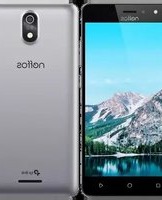
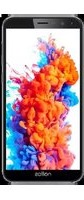
- CHAPTER 1. GET STARTED
- CHAPTER 2. BASICS
- CHAPTER 3. CONNECTION
- CHAPTER 4. CALLS
- CHAPTER 5. MESSAGES
- CHAPTER 6. CONTACTS
- CHAPTER 7. EMAILS
- CHAPTER 8. CAMERA AND VIDEO
- CHAPTER 9. CALENDAR
- CHAPTER 10. CLOCK
- CHAPTER 11. BROWSER
- CHAPTER 12. FILE EXPLORER
- CHAPTER 13. WEATHER
- CHAPTER 14. MUSIC
- CHAPTER 15. NOTES
- CHAPTER 16. APPLICATIONS
- CHAPTER 17. TOOLS
- CHAPTER 18. SETTINGS
- ABOUT THIS GUIDE
- CONVENTIONS
- GET STARTED
- OVERVIEW
- ASSEMBLE YOUR DEVICE
- REMOVE THE BACK COVER
- INSERT MICRO SIM CARDS AND MICROSD CARD (OPTIONAL)
- INSERT THE BATTERY
- REPLACE THE BACK COVER
- POWER ON
- CHARGE YOUR DEVICE
- BASICS
- TOUCHSCREEN GESTURES
- UNLOCK AND LOCK THE SCREEN
- HOME SCREEN
- STATUS ICONS
- QUICK SETTINGS PANEL
- NOTIFICATION PANEL
- ENTER TEXT
- SWITCH INPUT METHOD
- USE ANDROID KEYBOARD
- EDIT TEXT
- CONNECTION
- CONNECT TO WLAN
- OPTION ONE
- OPTION TWO
- CONNECT TO MOBILE DATA
- CONNECT TO COMPUTER
- BLUETOOTH
- RENAME YOUR PHONE
- TETHERING & PORTABLE HOTSPOT
- USE USB TETHERING
- USE WLAN HOTSPOT
- USE BLUETOOTH TETHERING
- CALLS
- MAKE A CALL
- DIAL DIRECTLY BY ENTERING NUMBERS
- DIAL A RECENT NUMBER FROM THE CALL LOG
- DIAL FROM CONTACT LIST
- MAKE AN INTERNATIONAL CALL
- MAKE AN EMERGENCY CALL WITHOUT SIM CARDS
- MAKE A CONFERENCE CALL
- MAKE A CALL USING SPEED DIAL
- ANSWER & END A CALL
- END A CALL
- OPTIONS DURING A CALL
- ADJUST THE CALL VOLUME
- LISTEN WITH THE SPEAKER
- PLACE A NEW CALL WHILE IN A CALL
- CALL WAITING
- RECORD CALLS
- MULTITASKING WHILE ON A CALL
- CALL LOG
- SAVE A RECENT CALL TO YOUR CONTACT LIST
- DELETE A CALL FROM THE CALL LOG
- DELETE THE WHOLE CALL LOG
- ADD A CALL TO THE REJECT LIST
- CALL SETTINGS
- SIM SETTINGS
- OTHER CALL SETTINGS
- MESSAGES
- TYPE OF MESSAGES
- TEXT MESSAGES (SMS)
- MULTIMEDIA MESSAGES (MMS)
- SEND & RECEIVE MESSAGES
- SEND MESSAGES
- RECEIVE MESSAGES
- MANAGE CONVERSATIONS
- REPLY TO MESSAGES
- DELETE MESSAGES
- FORWARD MESSAGES
- MESSAGE SEARCH
- ADD A MESSAGE TO YOUR FAVORITES
- CONTACTS
- MANAGE CONTACTS
- ADD A CONTACT
- EDIT A CONTACT
- DELETE A CONTACT
- ADD A CONTACT TO FAVORITES
- NOTE
- IMPORT/EXPORT CONTACTS
- IMPORT CONTACTS FROM STORAGE
- EXPORT CONTACTS TO STORAGE
- SHARE CONTACTS
- GROUPS
- CREATE A GROUP
- EDIT A GROUP
- DELETE A GROUP
- CONTACTS SETTINGS
- EMAILS
- SET UP YOUR EMAIL ACCOUNTS
- ADD AN EMAIL ACCOUNT
- SEND AND CHECK EMAILS
- SEND EMAILS
- CHECK EMAILS
- EMAIL SETTINGS
- REFRESH YOUR EMAIL ACCOUNT
- REMOVE AN EMAIL ACCOUNT
- CAMERA AND VIDEO
- GET TO KNOW CAMERA
- LAUNCH THE CAMERA APP
- CAMERA HOME SCREEN
- TAKE A PHOTO
- SHOOTING MODE
- CAMERA SETTINGS
- RECORD A VIDEO
- VIDEO SETTINGS
- GALLERY
- VIEW PHOTOS
- EDIT A PHOTO
- DELETE A PHOTO
- SHARE PHOTOS
- CAPTURE A SCREENSHOT
- VIDEO PLAYER
- VIEW A VIDEO
- DELETE A VIDEO
- CALENDAR
- USE THE CALENDAR
- VIEW THE CALENDAR
- CREATE AN EVENT
- DELETE AN EVENT
- CALENDAR SETTINGS
- CALENDAR VIEW SETTING
- NOTIFICATION & REMINDERS
- ACCOUNTS
- CLOCK
- ALARM
- CREATE AN ALARM
- DELETE AN ALARM
- TIMER
- STOPWATCH
- BROWSER
- GO TO A WEBPAGE
- VIEW A WEBSITE
- DO MORE OPTIONS ABOUT THE WEB PAGE (SUCH AS SAVE OR SHARE THE PAGE)
- BROWSER TABS
- OPEN A NEW TAB
- TO CLOSE A TAB
- INCOGNITO TABS
- BOOKMARKS
- HISTORY
- FILE EXPLORER
- VIEW FILES (PIC, MUSIC, VIDEO, DOC, APK, ZIP)
- MANAGE YOUR FILES
- SEARCH
- NEW FOLDER
- SORT BY
- SHOW HIDDEN FILES
- REFRESH
- OPTIONS FOR SELECTED FILES OR FOLDERS
- COPY A FOLDER
- CUT A FOLDER
- DELETE A FOLDER
- VIEW THE FILE INFORMATION
- SEND A FOLDER
- RENAME A FOLDER
- WEATHER
- ADD A CITY
- CHECK THE WEATHER
- REMOVE A CITY
- UPDATE THE WEATHER
- MUSIC
- GET TO KNOW MUSIC
- LAUNCH THE MUSIC APP
- PLAY THE MUSIC
- PLAYER INTERFACE
- CREATE A PLAYLIST
- MUSIC LIBRARY SETTINGS
- NOTES
- COMPOSE A NOTE
- NOTE OPTIONS
- EDIT A NOTE
- DELETE A NOTE
- ADD A FOLDER
- MOVE THE NOTES BETWEEN DIFFERENT FOLDERS
- APPLICATIONS
- MANAGE APPLICATIONS
- DOWNLOAD APPLICATIONS FROM
- INSTALL AN APPLICATION
- UNINSTALL AN APPLICATION
- GOOGLE™ APPLICATIONS
- GOOGLE™
- CHROME™
- GMAIL™
- MAPS™
- YOUTUBE™
- DRIVE™
- PLAY MUSIC™
- PLAY MOVIES & TV™
- HANGOUTS™
- PHOTOS™
- VOICE SEARCH™
- GOOGLE SETTINGS
- TOOLS
- FM RADIO
- SCAN STATIONS
- LISTEN TO FM RADIO
- FLASHLIGHT
- SOUND RECORD
- MIRROR
- CALCULATOR
- DOWNLOADS
- SYSTEM UPDATE
- FEEDBACK
- SIM TOOLKITS
- SETTINGS
- SIM CARDS
- AIRPLANE MODE
- DISPLAY
- SOUND AND NOTIFICATION
- STORAGE
- BATTERY
- APPS
- LOCATION
- SECURITY
- ADD AN ACCOUNT
- SYNCHRONIZE ACCOUNTS
- DELETE AN ACCOUNT
- LANGUAGE AND INPUT
- SELECT YOUR DEFAULT LANGUAGE
- KEYBOARD SETTINGS
- USE GOOGLE VOICE TYPING
- CONFIGURE GOOGLE VOICE TYPING
- BACKUP AND RESET
- BACK UP YOUR DATA
- FACTORY DATA RESET
- DATE AND TIME
- ACCESSIBILITY
- ABOUT PHONE
- APPENDIX A: SPECIFICATIONS
- APPENDIX B
- TECHNICAL SUPPORT
- COPYRIGHT & TRADEMARKS
- FCC STATEMENT
- FC
- FCC COMPLIANCE
- PERSONAL INFORMATION AND DATA SECURITY
- LEGAL NOTICE
- TRADEMARKS AND PERMISSIONS
- THIRD-PARTY SOFTWARE STATEMENT
- DISCLAIMER
- PRIVACY POLICY
- SAFETY INFORMATION
- ELECTRONIC DEVICE
- INTERFERENCE WITH MEDICAL EQUIPMENT
- PROTECTING YOUR HEARING WHEN USING A HEADSET
- AREAS WITH FLAMMABLES AND EXPLOSIVES
- TRAFFIC SECURITY
- OPERATING ENVIRONMENT
- CHILD'S SAFETY
- ACCESSORIES
- CHARGER SAFETY
- BATTERY SAFETY
- CLEANING AND MAINTENANCE
- EMERGENCY CALLS
- ENVIRONMENTAL PROTECTION
- DISPOSAL AND RECYCLING INFORMATION
- EU REGULATORY CONFORMANCE
- BODY WORN OPERATION
- STATEMENT
- DECLARATION OF CONFORMITY
- MODEL: TP601/A/B/C/E
- INTENDED USE: C5L
- CE
Brand : TP-LINK
Model : Neffos C5L
Category : Smartphone