
Shark Zone M50 - Computer Mouse Sharkoon - Free user manual and instructions
Find the device manual for free Shark Zone M50 Sharkoon in PDF.


| Brand | Sharkoon |
| Model | Shark Zone M50 |
| Product Type | Computer Mouse |
| Connection Type | Wired (USB) |
| Dimensions (L x W x H) | 125 x 70 x 40 mm |
| Weight | 100 g |
| Cable Length | 1.8 m |
| Sensor Type | Optical |
| DPI Resolution | 4000 DPI (adjustable) |
| Button Count | 6 |
| Scroll Wheel | Yes, with tilt |
| Ergonomic Design | Right-handed |
| LED Lighting | RGB (customizable) |
| Compatible Operating Systems | Windows 7/8/10/11, macOS |
| Power Source | USB bus powered |
| Maintenance | Clean with dry, soft cloth |
| Safety Precautions | Avoid moisture and extreme temperatures |
| Spare Parts | Not user-serviceable; contact support |
| Repairability | Not repairable by user; warranty service |
| Warranty | 2 years limited warranty |
Frequently Asked Questions - Shark Zone M50 Sharkoon
User questions about Shark Zone M50 Sharkoon
0 question about this device. Answer the ones you know or ask your own.
Ask a new question about this device
Download the instructions for your Computer Mouse in PDF format for free! Find your manual Shark Zone M50 - Sharkoon and take your electronic device back in hand. On this page are published all the documents necessary for the use of your device. Shark Zone M50 by Sharkoon.
USER MANUAL Shark Zone M50 Sharkoon
SHARK ZONE
M50
GAMING MOUSE
Manual
Table of Contents
- Mouse Properties 03
- Software Properties 03
- Mouse Specifications 03
3.1 General 03
3.2 Button Properties 04
3.3 DPI Properties 04
3.4 Cable and Connectors 04
3.5 Software Properties 04
- Package Contents 04
- SHARK ZONE M50 Overview 05
- Changing the Side Panels 06
- Connecting to the PC 06
- Installing the Gaming Software 06
- Gaming Software 08
9.1 DPI Setting 09
9.2 Polling Rate 09
9.3 Mouse Speed 09
9.4 Double-Click Speed 09
9.5 Scroll Speed 09
9.6 Angle Snapping 09
9.7 Game Profiles 10
9.8 Axis Sensitivity 11
9.9 Macro Manager 11
9.10 Button Assignment 13
1. Mouse Properties:
■ Robust gaming mouse with yellow LED illumination
■ Solid, aluminium alloy bottom
■ Avago ADNS-9800 laser sensor with 8,200 DPI
■ Interchangeable side panels for individual adjustments
■ Symmetric design, also suitable for left-handers
■ Onboard memory for game profiles
■ Durable Omron switches in left and right mouse buttons
■ Gaming software
■ Programmable buttons
■ Textile braided cable
■ Gold-plated USB plug
2. Software Properties:
■ All seven buttons are freely programmable with either functions or macros
■ Supports up to six game profiles
■ Select the polling rate, DPI setting, mouse speed (also individually per axis), double-click and scroll speed
■ Macro manager
3. Mouse Specifications:
3.1 General:
| Max. DPI/CPI 8,200 | |
| Sensor Laser | |
| Chip Avago ADNS-9800 | |
| Illumination Yellow | |
| Max. Polling-Rate 1,000 Hz | |
| Lift-Off Distance 1-5 mm | |
| Frames Per Second 12,000 | |
| Inches Per Second 150 | |
| Max. Acceleration 30 g | |
| Bottom Material | Aluminium Alloy |
| Mouse Feet | 5, PTFE |
| Weight Without Cable | 135 g |
| Dimensions (L x W x H) | 121 x 80 x 42 mm |
| Supported Operating Systems | Windows 7/8/10 |
3.2 Button Properties:
| Number of Buttons 7 | |
| Programmable Buttons 7 | |
| Durable Omron Switches in Left and Right Mouse Buttons | √ |
| Operating Life Cycles of Buttons Min. 5 Million Clicks | |
3.3 DPI Properties:
| DPI Steps * 8,200; 6,000; 4,800; 3,600; 2,400; 1,000 | |
| DPI Switch | √ |
| DPI Indicator LED | |
*DPI levels are customizable through the software
3.4 Cable and Connectors:
| Connector USB | |
| Gold-Plated USB Plug | √ |
| Textile Braided Cable | √ |
| Cable Length 180 cm |
3.5 Software Properties:
| Gaming Software | √ |
| Onboard Memory for Game Profiles | √ |
| Capacity of Onboard Memory 16 kB | |
| Number of Profiles 6 |
4. Package Contents:
■ SHARK ZONE M50
■ Interchangeable side panels
■ CD with software and manual
■ Additional set of mouse feet
■ Transport bag
■ Screwdriver
■ Spare screws
Note:
If you are missing any of the items listed above, please contact our customer service immediately: support@sharkoon.com (Germany and Europe) support@sharkoon.com.tw (International)
5. SHARK ZONE M50 Overview

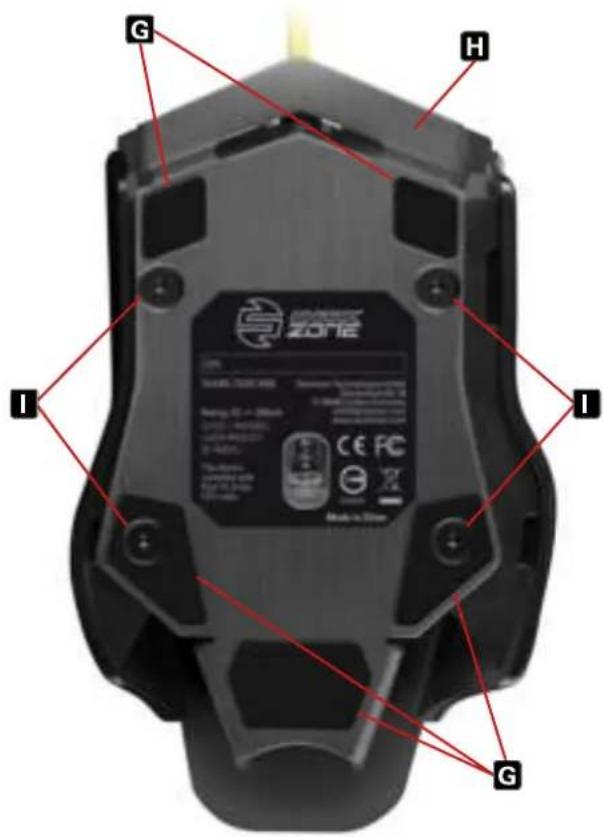
A left mouse button
BScroll wheel
Right mouse button
DDPI switches
EThumb button 1
FThumb button 2
GMouse feet
HAluminium alloy bottom
Screws
JSide panels

Note:
The button functions are factory preset and customized within the gaming software.
6. Changing the Side Panels
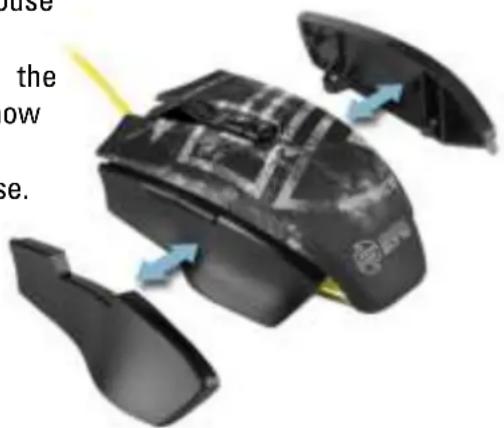
Your mouse comes with interchangeable side panels in order to ensure a perfect fit within your hand. To switch out the side panels, proceed as follows:
-
Remove the four screws on the bottom of the mouse using the supplied screwdriver.
-
Next, remove the current side panels and attach the additional side panels. Then ensure that the mouse now has an optimal grip.
-
Lastly, retighten the four screws to the bottom of the mouse.
7. Connecting to the PC
- Connect the USB plug from the mouse into an available USB port on your PC.
- The operating system will automatically recognize the SHARK ZONE M50 mouse and install all needed drivers.
Note:
If your mouse is not recognized, disconnect it and try a different USB port on your PC.
8. Installing the Gaming Software
Before installing the included gaming software, ensure that no other mouse software is currently installed. If necessary, uninstall existing software from the PC before proceeding with the installation of the gaming software.
- Insert the CD into your CD/DVD/BD drive
- Open the directory of the CD/DVD/BD drive (i.e. D:).
- Open the "Gaming Software" folder.
- Start the "SHARK ZONE M50 Configuration Setup.exe" application and follow the Install-Shield Wizard instructions.
Alternatively, the latest software version is also available for download on our website www.sharkoon.com.

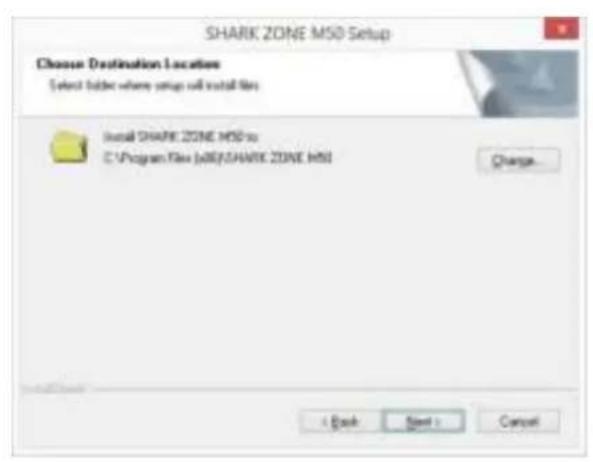
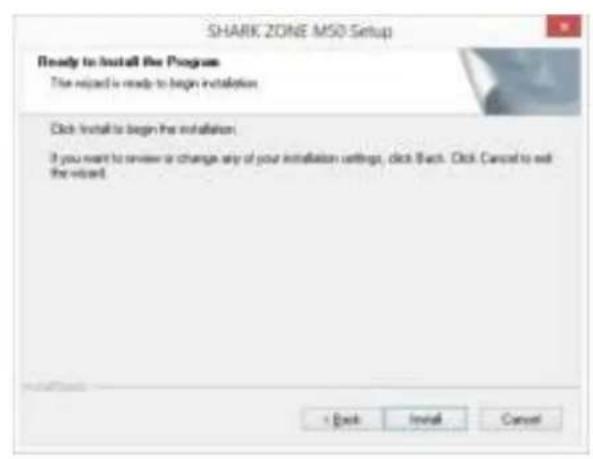
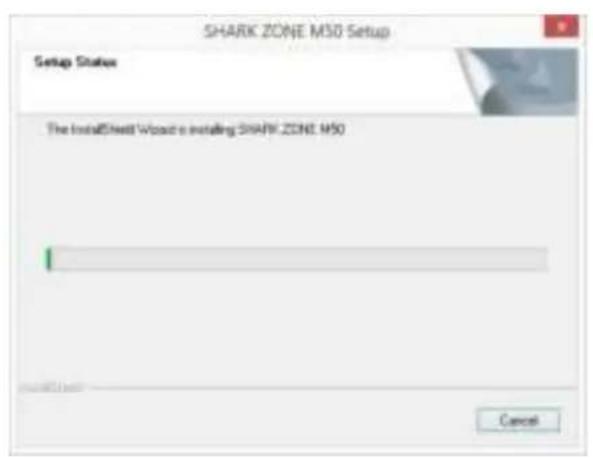
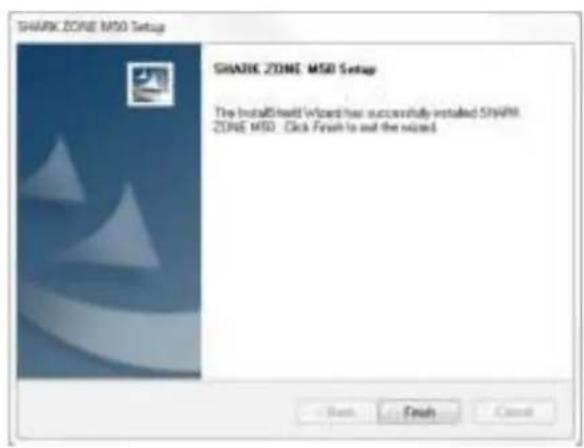
5. Once complete, click "Finish."
Restart the PC once the installation is complete. The SHARK ZONE M50 icon will now appear in the taskbar. The software is now successfully installed.
9. Gaming Software

ADPI Setting
B Polling Rate
cMouse Speed
DDouble-Click Speed
E Scroll Speed
F Angle Snapping
GGame Profiles
HAxis Sensitivity
Macro Manager
J Button Assignment
Important: After making changes, you must press "Apply" in order to save all changes.
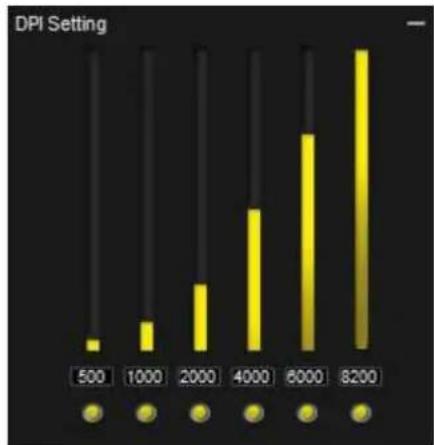
9.1 DPI Setting A
In this menu, you can set individual DPI values simply by clicking on the bar. If certain steps are not required, then deactivate it by clicking the corresponding yellow button. The higher the value, the more sensitive your mouse responds.
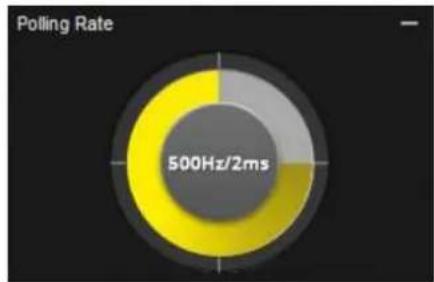
9.2 Polling Rate B
The polling rate is the query rate between PC and mouse. The higher the Hertz (Hz) value, the shorter the time between the two queries. The polling rate allows four increment settings:
■ 125 Hz, 8 ms
■ 250 Hz, 4 ms
■ 500 Hz, 2 ms
■ 1000 Hz, 1 ms
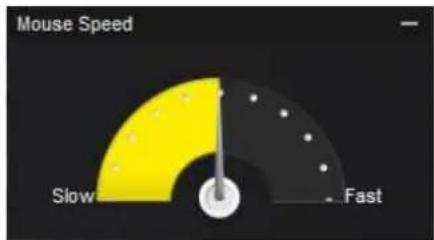
9.3 Mouse Speed C
There are 11 increments to the adjustment of the mouse speed. The higher the value, with the same mouse movement, the faster the cursor on the screen moves.
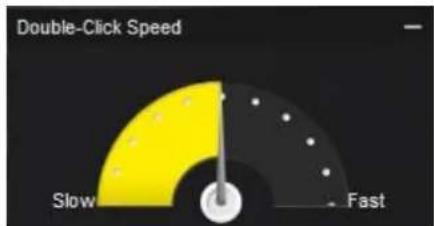
9.4 Double-Click Speed D
In this menu, you can set how far two clicks are allowed to be apart while still being recognized as a double-click. The higher the value, the faster the clicks must follow each other. The double-click speed can be adjusted by 11 levels.
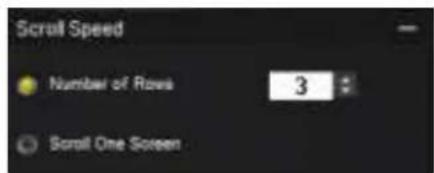
9.5 Scroll Speed E
When scrolling, the mouse wheel moves the image to the selected number of rows or screen page. The standard setting is three lines. At a lower value, scrolling with the mouse wheel must be more frequent to achieve the same distance. With a higher value, less frequently.
9.6 Angle Snapping F
Angle snapping corrects uneven movements by the mouse into straight movements automatically. This is primarily beneficial in games and graphics programs. For example, the higher the value, the easier it is to keep focus on a pixel object without the cursor drifting off by slight movements. Angle snapping can be adjusted up to 10 different increments. The higher the level, the stronger the effect.

↑
9.7. Game Profiles G

Game Profiles is where all gaming software settings are saved. The use of multiple game profiles allows the possibility of custom configurations for every game or application, and allows you to quickly switch between them without having to readjust the configuration after changing the game. To create a game profile, proceed as follows:
- Click on "Game Profiles" in the lower left corner.
- Select a profile or click on "New" to create a new profile. To rename a new profile, double-click in the name field or right-click and select "Edit."
- Click the "X" on the top-right corner of the Configuration field to close.
- Perform the desired configurations using the options explained under section 9 "Gaming Software."
- Click on "Apply" on the bottom right to save the data in the profile.
- The selected profile is activated immediately. To switch profiles, first click on "Game Profiles" and then the desired profile. The desired profile is then loaded and now press "Apply" to activated it. To close, click the "X" on the top-right corner of the Configuration field.
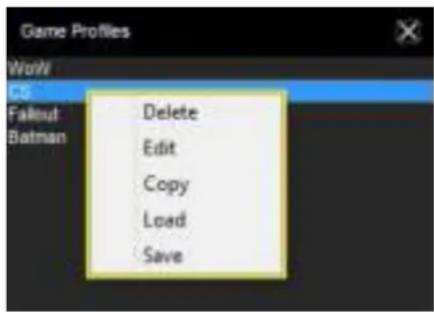
Within Game Profiles, up to six profiles can be created, edited or deleted. Additional commands are available by right-clicking on the profile:
■ Delete: Delete this profile.
■ Edit: Allows changes to the name.
■ Copy: Copies the profile, so it can be used as a basis to create a similar profile.
- Load: Load a saved configuration from the hard drive.
■ Save: Save the configuration to the hard drive.
9.8 Axis Sensitivity H
Here, the axis sensitivity of the horizontal and vertical axis can be individually adjusted up to 10 increments. The higher the value, the more sensitive your mouse.
9.9 Macro Manager
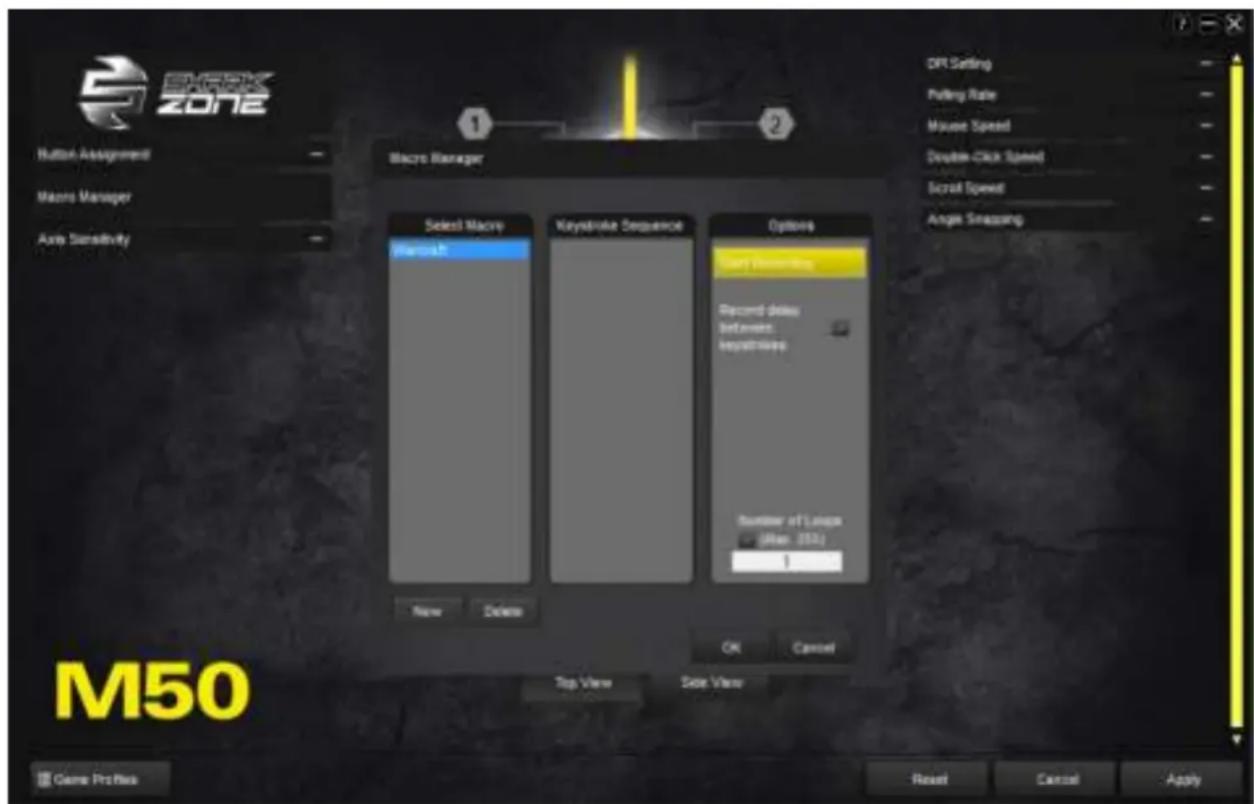
Macros can be recorded, edited and deleted through the Macro Manager. After clicking "New," the software automatically assigns the macro a name within the "Select Macro" field, double-click the macro to rename it. Before recording a macro, you can assign the delay between keystrokes and number of loops settings.
If the box “Record delay between keystrokes” is checked, the input breaks apply also during the recording of the macro for that specific macro. Details regarding the times in milliseconds will appear within the “Keystroke Sequence.”
Also in the "Options" field, the number of loops can be adjusted. To do this, check the "Number of Loops" box and input the specific number of loops desired. Up to 255 loops are possible.
↑
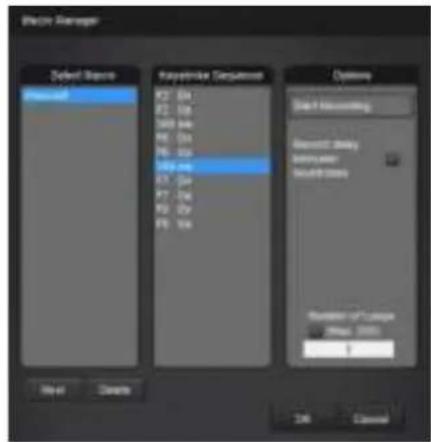
Example: A macro containing the key sequence "F6, F2, 478" with three loops; the macro's output will be the following: F6 F2 478 F6 F2 478 F6 F2 478.
After clicking "Start Recording" within "Options," any subsequent keyboard inputs will be recorded. Click on "Stop Recording" to end the recording.
After recording a macro, manual adjustments are made within the Keystroke Sequence field. Right-click on a recorded keystroke to delete it. Also, right-click to insert left, right, middle mouse clicks and delays. Delays are initially for 50 milliseconds; this value can be adjusted by double- clicking on the individual delay. However, 50 milliseconds is the lowest value possible.
Up to 12 macros can be stored within the Macro Manager. The maximum number of keystrokes is 62, plus mouse commands and delays. Please note, pressing and releasing a key represents two commands. Each macro can be assigned to a mouse button through the "Button Assignment" menu (see 9.10 Button Assignment).

9.10 Button Assignment J
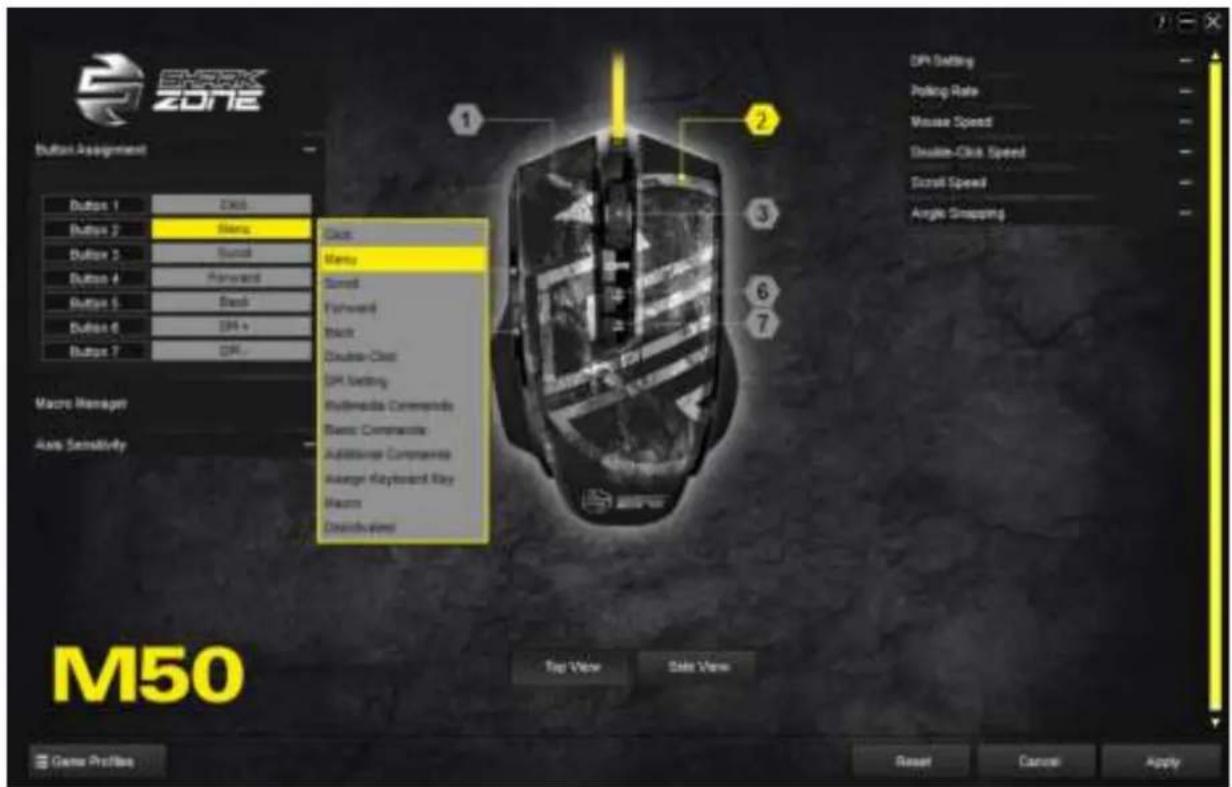
Assign every single mouse button with a function through the Button Assignment menu. Select from the following choices: Click, Menu, Scroll, Forward, Back, Double-Click, DPI Setting, Multimedia Commands, Basic and Additional Commands as well as to assign any keyboard key (except FN and Windows keys). In addition, it is possible to assign macros or deactivate a mouse button.
Macros can be programmed to run once, endless loop or endless loop while the button is pressed (see 9.9 Macro Manager).
Example: A macro is assigned with a "1, 2, 3" sequence. The following settings and outputs are possible:
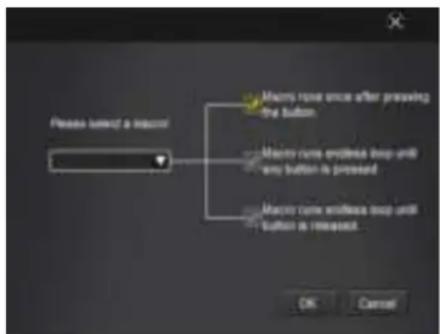
■ Setting: Macro runs once after pressing the button.
Output: 123
■ Setting: Macro runs endless loop until any button is pressed.
Output: 1231231231231231231
The output stops when the selected macro button or any other button is pressed.
■ Setting: Macro runs endless loop until button is released.
Output: 12312312312312312
The output stops once the pressed macro key is released.
Note:
Please note, with the latter two options the macro does not run to an end but rather stops by button stroke.
Legal Disclaimer:
For potential loss of data, especially due to inappropriate handling, SHARKOON assumes no liability. All named products and descriptions are trademarks and/or registered trademarks of the respective manufacturers and are accepted as protected. As a continuing policy of product improvement at SHARKOON, the design and specifications are subject to change without prior notice. National product specifications may vary.
The legal rights of the enclosed software belong to the respective owner. Please observe the license terms of the manufacturer before using the software.
All rights reserved especially (also in extracts) for translation, reprinting, reproduction by copying or other technical means. Infringements will lead to compensation.
All rights reserved especially in case of assignation of patent or utility patent. Means of delivery and technical modifications reserved.
Disposal of your old product:
Your product is designed and manufactured with high quality materials and components, which can be recycled and reused.

When this crossed-out wheeled bin symbol is attached to a product, it means the product is covered by the European Directive 2002/96/EC. Please be informed about the local separate collection system for electrical and electronic products. Please act according to your local rules and do not dispose of your old products with your normal household waste. The correct disposal of your old product will help prevent potential negative consequences to the environment and human health.


- SHARK ZONE
- M50
- GAMING MOUSE
- TABLE OF CONTENTS
- MOUSE PROPERTIES
- SOFTWARE PROPERTIES
- MOUSE SPECIFICATIONS
- 3.1 GENERAL
- 3.2 BUTTON PROPERTIES
- 3.3 DPI PROPERTIES
- 3.4 CABLE AND CONNECTORS
- 3.5 SOFTWARE PROPERTIES
- PACKAGE CONTENTS
- NOTE
- SHARK ZONE M50 OVERVIEW
- CHANGING THE SIDE PANELS
- CONNECTING TO THE PC
- INSTALLING THE GAMING SOFTWARE
- ONCE COMPLETE, CLICK "FINISH
- GAMING SOFTWARE
- 9.1 DPI SETTING A
- 9.2 POLLING RATE B
- 9.3 MOUSE SPEED C
- 9.4 DOUBLE-CLICK SPEED D
- 9.5 SCROLL SPEED E
- 9.6 ANGLE SNAPPING F
- GAME PROFILES G
- 9.8 AXIS SENSITIVITY H
- 9.9 MACRO MANAGER
- 9.10 BUTTON ASSIGNMENT J
- LEGAL DISCLAIMER
- DISPOSAL OF YOUR OLD PRODUCT
Brand : Sharkoon
Model : Shark Zone M50
Category : Computer Mouse