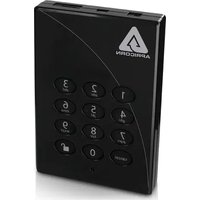
Aegis Padlock Pro - External hard drive Apricorn - Free user manual and instructions
Find the device manual for free Aegis Padlock Pro Apricorn in PDF.


| Product Type | External Hard Drive |
| Brand | Apricorn |
| Model | Aegis Padlock Pro |
| Capacity | 1 TB (also available in 500 GB, 2 TB, 4 TB) |
| Interface | USB 3.2 Gen 1 (USB 3.0), backward compatible |
| Encryption | AES-XTS 256-bit hardware encryption |
| Dimensions (W x D x H) | 117 x 78 x 19 mm (4.6 x 3.1 x 0.75 in) |
| Weight | Approximately 120 g (4.2 oz) |
| Power Supply | Bus-powered via USB; no external power adapter required |
| Material | Aluminum alloy with rubberised coating |
| Main Functions | Hardware-encrypted portable storage; PIN access via integrated keypad; auto-lock; read-only mode; multiple user + admin PINs |
| Security Features | Military-grade AES 256-bit encryption; brute force attack defence; tamper-resistant enclosure; data at rest protection |
| Durability | Water and dust resistant (IP rating not specified); shock-resistant design |
| Compatible Operating Systems | Windows, macOS, Linux, Chrome OS, Android (with OTG), iOS (via external app) |
| Maintenance and Cleaning | Wipe with a soft, dry cloth; avoid liquids and abrasives |
| Spare Parts and Repairability | Not user-serviceable; internal components are sealed; contact Apricorn for service |
| Warranty | 3-year limited warranty |
| Package Contents | Aegis Padlock Pro drive, USB 3.0 cable, quick start guide, security slip |
| General Information | Designed for secure data transport; ideal for professionals and enterprises needing hardware encryption |
Frequently Asked Questions - Aegis Padlock Pro Apricorn
User questions about Aegis Padlock Pro Apricorn
0 question about this device. Answer the ones you know or ask your own.
Ask a new question about this device
Download the instructions for your External hard drive in PDF format for free! Find your manual Aegis Padlock Pro - Apricorn and take your electronic device back in hand. On this page are published all the documents necessary for the use of your device. Aegis Padlock Pro by Apricorn.
USER MANUAL Aegis Padlock Pro Apricorn
Copyright © Apricorn, Inc 2012. All rights reserved.
Windows is a registered trademark of Microsoft Corporation.
All other trademarks and copyrights referred to are the property of their respective owners.
Distribution of substantively modified versions of this document is prohibited without the explicit permission of the copyright holder.
Distribution of the work or derivative work in any standard (paper) book form for commercial purposes is prohibited unless prior permission is obtained from the copyright holder.
DOCUMENTATION IS PROVIDED AS IS AND ALL EXPRESS OR IMPLIED CONDITIONS, REPRESENTATIONS AND WARRANTIES, INCLUDING ANY IMPLIED WARRANTY OF MERCHANTABILITY, FITNESS FOR A PARTICULAR PURPOSE OR NON-INFRINGEMENT, ARE DISCLAIMED, EXCEPT TO THE EXTENT THAT SUCH DISCLAIMERS ARE HELD TO BE LEGALLY INVALID
Table of Contents
About the Aegis Padlock Pro Secure Hard Drive 4
Package contents 4
Aegis Padlock Pro button panel 5
Aegis Padlock Pro - Getting Started 6
Before you begin 6
Powering the Aegis Padlock Pro 6
Connecting via USB 6
Connecting via eSATA 7
How do I use the Aegis Padlock Pro for the first time? 8
What if I forget the User Password? 8
Setup for the Mac OS 9
Using the Aegis Padlock Pro 10
Entering the Standby Mode 10
Entering the User Mode 10
Exiting the User Mode 10
Entering the Admin Mode 11
Exiting the Admin Mode 11
Password Management 12
Changing the Admin Password 12
Adding a new User Password 13
Deleting the User Passwords 13
Changing the User Password 13
Aegis Padlock Pro Brute Force Protection 14
What is Brute Force Attack? 14
How does the Aegis Padlock Pro Protect against brute force attack? 14
Completely resetting the Aegis Padlock Pro 15
Initializing and formatting the Aegis Padlock Pro after a complete reset 15
Hibernating, Suspending, or Logging off from the Operating System 17
Troubleshooting 18
Technical Support 20
Warranty and RMA information 20
About the Aegis Padlock Pro Secure Hard Drive
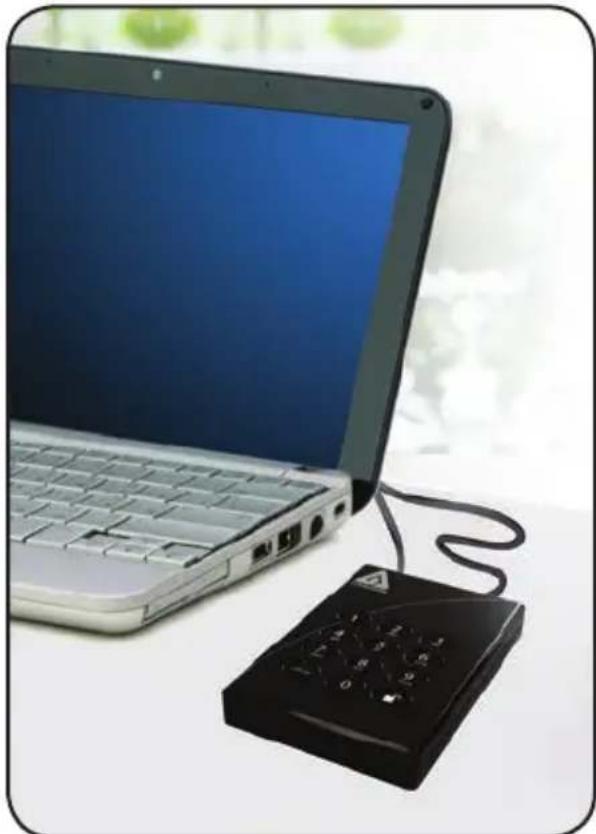
Looking for an effortless way to secure your data? The Aegis Padlock Pro Secure Drive is the ultimate portable hard drive and secure storage system. With an easy-to-use keypad design and software free setup, the Aegis Padlock Pro Secure Drive enables you to access the drive with your own unique pin. Featuring a choice of AES-128 or 256 bit hardware encryption, the Aegis Padlock Pro provides seamless real-time encryption, keeping your data safe even if the hard drive is removed from its enclosure.
Package contents
• Aegis Padlock Pro drive
- Travel pouch
- Quick Start Guide
- USB Power Cable
- USB Data Cable
• eSATA Combo Cable


Aegis Padlock Pro button panel

The "Cancel" button can be used to:
- Cancel current operation
- Return to the previous step when you knowingly entered a wrong password
- Exit the Admin Mode
The ■ button can be used to access the Aegis Padlock Pro and it can also be used as an OK acknowledgement in the following operations:
- Entering a password
- Confirming a new password
The indicator light displays the following colors to indicate the various modes of operation:
• Red: Standby Mode
- Blue: Admin Mode
- Green: User Mode
The indicator light has other display methods to indicate different status of the Aegis Padlock Pro. Details are provided later in this chapter.
Aegis Padlock Pro - Getting Started Before you begin
Be sure to review the following information before you begin to use the Aegis Padlock Pro.

Attention: Use only the included cables with your Aegis Padlock Pro. You might damage the drive if you use a cable not included with the Aegis Padlock Pro.
Powering the Aegis Padlock Pro
To power the Aegis Padlock Pro attach one end of the USB power cable to the secure hard drive, and then attach the other end to an available USB connector on your computer. The indicator light will turn red, as shown right.
Once the Aegis Padlock Pro is powered you have two options for connection, via USB or eSATA.
Connecting via USB
Attach one end of the USB data cable to the Aegis Padlock Pro, and then attach the other end to another available USB connector on your computer, as shown right.


Note: If your USB port provides enough power to run the drive then you will not need to use the extra USB power cable.
Connecting via eSATA
eSATA/ USB Combo Connector
If you are using the eSATA/USB combo connector on your computer, attach one end of the eSATA data cable to the Aegis Padlock Pro, and then attach the other end to the eSATA/USB combo connector on your computer, as shown below.
Standard eSATA Connector
If you are using the standard eSATA connector on your computer, attach both the USB AC Adapter and the eSATA data cable to the Aegis Padlock Pro and your computer, as shown below.
![graph TD A["User Interface"] -->|1| B["Data Cable"] B -->|2| C["USB Cable"] C -->|1| D["Standard eSATA Connection Transfer"] D -->|2| E["USB Power Cable"] style A fill:#f9f,stroke:#333 style B fill:#ccf,stroke:#333 style C fill:#cfc,stroke:#333 style D fill:#fcc,stroke:#333 style E fill:#cff,stroke:…](/content/2026/05/1028337/images/5e4d08880f42bbd0e72603fa709f9d8329fca14d0dda04686bb794ca543a822b.jpg)
How do I use the Aegis Padlock Pro for the first time?
You can use it in one of the following ways:
- Enter the Admin Mode with 123456 (default administrator password), and then you are able to change the Admin Password or create a User Password - this option is recommended.

For directions on how to change the Admin Password or create a User Password please refer to the directions on pages 12 and 13 of this manual.
- Directly enter the Secure User Mode with 123456 (default Admin Password) to use the Aegis Padlock Pro.
What if I forget the User Password?
Use your Admin Password to enter Admin Mode, and then create another User Password in Admin Mode.
Aegis Padlock Pro Setup for Mac®OS
Your Aegis Padlock Pro is preformatted in NTFS for Windows®. To reformat the drive to a Mac compatible format please read the below.
Once the drive is unlocked, open Disk Utility from Applications/ Utilities/Disk Utilities.
To format the Aegis Padlock Pro:
- Select the Aegis Padlock Pro from the list of drives and volumes. Each drive in the list will display its capacity, manufacturer, and product name, such as 232.9 Apricorn Padlock Pro.
- Click the 'Erase' tab.
- Enter a name for the drive. The default name is Untitled. The drive's name will eventually appear on the desktop.
- Select a volume format to use. The Volume Format dropdown menu lists the available drive formats that the Mac supports. The recommended format type is 'Mac OS Extended (Journaled).'
- Click the 'Erase' button. Disk Utility will unmount the volume from the desktop, erase it, and then remount it on the desktop.
Your Aegis Padlock Pro is now formatted and ready to use. To change your ADMIN PIN please refer to the directions on the previous page.
Using the Aegis Padlock Pro
Entering and exiting the Standby Mode, Admin Mode, and User Mode
Entering the Standby Mode
The Standby Mode is the default working mode of the Aegis Padlock Pro and is the gateway to other working modes.
To enter the Standby Mode, attach the Aegis Padlock Pro to your computer. The drive automatically goes into Standby Mode and the indicator light turns red. In this mode, the Aegis Padlock Pro is locked. It cannot be recognized by My Computer and it does not provide either the regular functions or the encryption function. However, it enables you to enter and switch between the Admin Mode and the User Mode.

Attention: To switch between the Admin Mode and the User Mode, you are required to switch to the Standby Mode first, and then you can enter the mode of your choice.
Entering the User Mode
To enter the User Mode, do the following:
- Attach the Secure Hard Drive to your computer. It enters the Standby Mode.
- Enter the User Password or the Admin Password (the default Admin Password is 123456) and press 🔍. The indicator light turns green indicating that the drive is in the User Mode. If the indicator light flashes red, you need to re-enter the correct password.
Exiting the User Mode
To exit the User Mode, double-click the Safely Remove Hardware icon from the Microsoft® Windows® desktop, and then remove the Aegis Padlock Pro from your computer.
Attach the Aegis Padlock Pro to your computer again and the indicator light turns red. This indicates that you are in the Standby Mode.
Entering the Admin Mode
Note: The Aegis Padlock Pro cannot be recognized by the operating system in the Admin Mode.
To enter the Admin Mode, do the following:
- Attach the USB cable to an available USB port on your computer. The Aegis Padlock Pro goes into the Standby Mode, and the indicator light turns red.
- Press and hold ■ + 0 for five seconds until the indicator light flashes red. This indicates that you can enter the Admin Password.
- Enter the Admin Password and press ☐. The default Admin Password is 123456. The Secure Hard Drive is in Admin Mode when the indicator light has changed to blue.
Exiting the Admin Mode
To exit the Admin Mode, press the “Cancel” button in the Admin Mode until the indicator light turns red. This indicates that you are in the Standby Mode.

Note: If the indicator light flashes red for a few seconds, indicating the Aegis Padlock Pro has returned to the Standby Mode, go back to Step 2. This is due to one of the following conditions:
- You entered an incorrect Admin Password in Step 3.
- No activity was detected within two minutes in the Admin Mode.
Password Management
Changing the Admin Password
- To enter Admin Mode, first plug the drive into the USB port and wait until the LED light turns RED.
- Next, press and hold 0 + ■ for 5 seconds until the LED light flashes RED.
- Enter the Admin PIN number (default is 123456) and press 📋. The LED light will turn BLUE indicating you are in Admin Mode.
- While in Admin Mode, press and hold 9 + ■ until the LED light flashes BLUE.
- Enter the new PIN number (minimum 6 digits) and press 🔍. The LED light will flash GREEN 3 times if successful.
- Re-enter the new PIN number and press ■. The LED light will stay solid GREEN for 2 seconds and then solid BLUE indicating you have successfully changed the Admin PIN.
- To exit admin mode and begin using your Aegis Padlock Pro drive, press the CANCEL button until the LED turns RED. Now enter your new PIN number and press 🔊.

Note: If the indicator light flashes red three times, this indicates that the password is less than 6 digits or more than 16 digits. Enter a password that contains 6 – 16 digits after the indicator light flashes blue intermittently.
- If the indicator light flashes red intermittently and then blue intermittently, go back to step 3. This is due to one of the following conditions:
-
You waited longer than 10 seconds before entering a password.
• The new password was entered incorrectly. -
If no activity is detected within two minutes in the Admin Mode, the Aegis Padlock Pro will return to the Standby Mode.
Adding a new User Password
You can add a new User Password by doing the following:
- Enter the Admin Mode (refer to page 11 for details).
- Press and hold 📁 + 1 until the indicator light flashes blue intermittently.
- Enter a User Password and press ☐ (a minimum of 6 digits and a maximum of 16 digits) The indicator light flashes green three times.
- Re-enter the new User Password and press 🔍. If the indicator light stays solid green for two seconds and then solid blue, the User Password was added successfully.
Deleting the User Passwords
You can delete all User Passwords by doing the following:
- Enter the Admin Mode (refer to page 11 for details).
- Press and hold 7 + 8 + for five seconds until the indicator light flashes blue intermittently. After the indicator light flashes green three times and then blue intermittently.
- Press and hold 7 + 8 + a second time for five seconds until the indicator light goes on solid green for two seconds and then back to solid blue, this indicates that the User Passwords were deleted successfully.
Changing the User Password
You can change the User Password by doing the following:
- Enter User Mode (refer to page 10 for details).
- Press and hold 📁 + 1 until the indicator light flashes red.
- Enter your old password and press 🔍. The indicator light will turn green, then change to flashing blue.
- Enter the new password and press ■ (The Password must be a minimum of 6 digits and a maximum of 16 digits). The indicator light will flash green three times.
- Re-enter the new User Password and press 🔍. The indicator light stays solid green indicating the User Password has been changed successfully.
Aegis Padlock Pro Brute Force Protection What is Brute Force Attack?
In cryptanalysis, a brute force attack is a method of defeating a cryptographic scheme by systematically trying a large number of possibilities; for example, a large number of the possible keys in a key space in order to decrypt a message. In most schemes, the theoretical possibility of a brute force attack is recognized, but it is set up in such a way that it would be computationally infeasible to carry out. Accordingly, one definition of “breaking” a cryptographic scheme is to find a method faster than a brute force attack.
How does the Aegis Padlock Pro Protect against brute force attack?
- With the drive locked and in the standby state the LED is red solid
- After six tries to enter the correct user or admin password the keypad will not respond and LED will turn off. The drive will need to be unplugged from the USB port and repluged. This will be repeated for each six unsuccessful attempts.
- If the user, unsuccessfully tries to unlock the drive on his 25th try the keypad will lock and the LED will begin blinking quickly. Even if unplugging and replugging the drive will remain locked with the LED blinking quickly
- Here are the steps to allow the user to unlock the keypad for 25 more attempts to unlock his drive.
a. Unplug the device from the computer
b. Push and hold the number five key and plug-in the drive
c. The LED will be blinking alternating red and green fast
d. Enter the code 5278879 and press 🔍 button.
e. The keypad will unlock and will be in the standby state with the LED solid red, this will allow only 25 more attempts
g. After a total of 50 Attempts the drive will remain locked with the LED flashing red quickly. You must now go through the reset process and reformat the drive to be able to use the drive again. (see page 8)
Completely resetting the Aegis Padlock Pro
If you forget all the User Passwords or Admin Passwords, you can perform a complete reset to remove all the User Passwords, and restore the Admin Password to the default 123456.

Attention: Completely resetting the Aegis Padlock Pro will erase all the data on the drive. You will need to partition and format the Aegis Padlock Pro with disk management applications.
To perform a complete reset of the drive, do the following:
- Press and hold the "Cancel" button while you attach the Aegis Padlock Pro to an available USB port on your computer. The indicator light will flash blue and red alternately.
Note: If no activity is detected for 30 seconds in this step, the Aegis Padlock Pro will go into the Standby Mode.
- Press and hold "Cancel" + ■ + 2 for 10 seconds until the indicator light turns solid green for two seconds and then solid red. You have successfully reset the Aegis Padlock Pro.
Initializing and formatting the Aegis Padlock Pro after a complete reset
A complete reset of the Aegis Padlock Pro will erase all information and partition settings. You will need to initialize and format the Aegis Padlock Pro.
To initialize your Aegis Padlock Pro, do the following:
- After a complete reset, attach the Aegis Padlock Pro to the computer.
- Wait 5 seconds for the computer to renumerate the device.
- Enter the default User Password 123456 and press ■ to enter the User Mode.
-
Right-click My Computer, and then click Manage from the Windows desktop.
-
In the Computer Manage window, click Disk Management. In the Disk Management window, the Aegis Padlock Pro is recognized as an unknown device that is uninitialized and unallocated.
- Do the following to make the drive recognized as a basic drive.
- If the Initialize and Convert Disk Wizard window opens, click Cancel, then initialize the disk manually using the following steps.
a. Right-click Unknown Disk, and then select Initialize Disk.
b. In the Initialize Disk window, click OK.
- Right-click in the blank area under the Unallocated section, and then select New Partition. The Welcome to the New Partition Wizard window opens.
- Click Next.
- Select Primary partition and click Next.
- If you need only one partition, accept the default partition size and click Next.
- Click Next.
- Create a volume label, select Perform a quick format, and then click Next.
- Click Finish.
- Wait until the format process is complete. The Aegis Padlock Pro will be recognized and it is available for use.
Hibernating, Suspending, or Logging off from the Operating System
Be sure to save and close all the files on your Aegis Padlock Pro before hibernating, suspending, or logging off from the Windows operating system.
It is recommended that you log off the Aegis Padlock Pro manually before hibernating, suspending, or logging off from your system.
To log off the Aegis Padlock Pro, double-click Safely Remove Hardware on the Windows desktop and remove the Aegis Padlock Pro from your computer.

Attention: To ensure the data integrity of your Aegis Padlock Pro, be sure to lock or log off your Aegis Padlock Pro if you are:
• away from your computer
• using the switching user function by sharing a computer with others
Troubleshooting
This section contains troubleshooting information for the Aegis Padlock Pro. If you encounter any of the following problems when using the Aegis Padlock Pro, refer to the corresponding answers.
Q: How do I use the Aegis Padlock Pro the first time?
A: You can use it in one of the following ways:
- Enter the Admin Mode with 123456 (default administrator password), and then you are able to change the Admin Password or create a User Password
- Directly enter the Secure User Mode with 123456 (default Admin Password) to use the Aegis Padlock Pro
Q: What can I do if I forget the User Password?
A: Use your Admin Password to enter Admin Mode, and then create another User Password in Admin Mode.
Q: What can I do if I forget the Admin Password?
A: There is no other way to retrieve the Admin Password except a complete reset of the Aegis Padlock Pro. After a complete reset, all data will be lost and you will need to initialize, allocate and format the Aegis Padlock Pro manually. Then you will be able to use the default Admin Password 123456.
Q: Why did the operating system not recognize the Aegis Padlock Pro after I enter the User Mode and completely reset the computer?
A: You need to initialize, allocate and format the Aegis Padlock Pro manually. For more information, refer to Initializing and formatting the Hard Drive after a complete reset in this manual.
Q: Can I initialize and format the Aegis Padlock Pro with Windows user account?
A: No, this is a Windows limitation, you must use the Admin account to initialize and format the Aegis Padlock Pro.
Q: How do I use the Aegis Padlock Pro without a password?
A: As a full disk encryption product, the Aegis Padlock Pro can never be used without a password.
Q: What encryption algorithm is used in this product?
A: Depending on your model the Aegis Padlock Pro uses either AES 128-bit or 256-bit algorithm.
Q: Why could I not change my User Password which has the same digits as the Admin password?
A: You can change it only in the Admin Mode. In the User Mode, the User Password which has the same digits is created in the Admin Mode cannot be changed or deleted.
Q: Why could I not initialize, partition or format the Aegis Padlock Pro?
A: Ensure that you have administrator privileges. You can use only the administrator account to initialize, partition or format the Aegis Padlock Pro in the Admin Mode.
Technical Support
Apricorn provides the following helpful resources for you:
- Apricorn's Website (http://www.apricorn.com)
This gives you the ability to check for up-to-date information. - E-mail us at support@apricorn.com.
- Or call the Technical Support Department at 1-800-458-5448.
Apricorn's Technical Support Specialists are available from 8:00 a.m. to 5:00 p.m., Pacific Standard Time Monday through Friday.
Warranty and RMA information
One Year Warranty:
Apricorn offers a 3-year warranty on the Aegis Padlock Pro against defects in materials and workmanship under normal use. The warranty period is effective from the date of purchase either directly from Apricorn or an authorized reseller.
Disclaimer and terms of the warranties:
THE WARRANTY BECOMES EFFECTIVE ON THE DATE OF PURCHASE AND MUST BE VERIFIED WITH YOUR SALES RECEIPT OR INVOICE DISPLAYING THE DATE OF PRODUCT PURCHASE.
APRICORN WILL, AT NO ADDITIONAL CHARGE, REPAIR OR REPLACE DEFECTIVE PARTS WITH NEW PARTS OR SERVICEABLE USED PARTS THAT ARE EQUIVALENT TO NEW IN PERFORMANCE. ALL EXCHANGED PARTS AND PRODUCTS REPLACED UNDER THIS WARRANTY WILL BECOME THE PROPERTY OF APRICORN.
THIS WARRANTY DOES NOT EXTEND TO ANY PRODUCT NOT PURCHASED DIRECTLY FROM APRICORN OR AN AUTHORIZED RESELLER OR TO ANY PRODUCT THAT HAS BEEN DAMAGED OR RENDERED DEFECTIVE: 1. AS A RESULT OF ACCIDENT, MISUSE, NEGLECT, ABUSE OR FAILURE AND/OR INABILITY TO FOLLOW THE WRITTEN INSTRUCTIONS PROVIDED IN THIS INSTRUCTION GUIDE: 2. BY THE USE OF PARTS NOT MANUFACTURED OR SOLD BY APRICORN; 3. BY MODIFICATION OF THE PRODUCT; OR 4. AS A RESULT OF SERVICE, ALTERNATION OR REPAIR BY ANYONE OTHER THAN APRICORN AND SHALL BE VOID. THIS WARRANTY DOES NOT COVER NORMAL WEAR AND TEAR.
NO OTHER WARRANTY, EITHER EXPRESS OR IMPLIED, INCLUDING ANY WARRANTY OR MERCHANTABILITY AND FITNESS FOR A PARTICULAR PURPOSE, HAS BEEN OR WILL BE MADE BY OR ON BEHALF OF APRICORN OR BY OPERATION OF LAW WITH RESPECT TO THE PRODUCT OR ITS INSTALLATION, USE, OPERATION, REPLACEMENT OR REPAIR.
APRICORN SHALL NOT BE LIABLE BY VIRTUE OF THIS WARRANTY, OR OTHERWISE, FOR ANY INCIDENTAL, SPECIAL OR CONSEQUENTIAL DAMAGE INCLUDING ANY LOSS OF DATA RESULTING FROM THE USE OR OPERATION OF THE PRODUCT, WHETHER OR NOT APRICORN WAS APPRISED OF THE POSSIBILITY OF SUCH DAMAGES.

APRICORN
© Apricorn, Inc. 2012. All rights reserved.
12191 Kirkham Road
Poway, CA, U.S.A. 92064
1-858-513-2000 www.apricorn.com
- TABLE OF CONTENTS
- ABOUT THE AEGIS PADLOCK PRO SECURE HARD DRIVE 4
- AEGIS PADLOCK PRO BUTTON PANEL 5
- AEGIS PADLOCK PRO - GETTING STARTED 6
- USING THE AEGIS PADLOCK PRO 10
- PASSWORD MANAGEMENT 12
- AEGIS PADLOCK PRO BRUTE FORCE PROTECTION 14
- COMPLETELY RESETTING THE AEGIS PADLOCK PRO 15
- TROUBLESHOOTING 18
- TECHNICAL SUPPORT 20
- ABOUT THE AEGIS PADLOCK PRO SECURE HARD DRIVE
- PACKAGE CONTENTS
- AEGIS PADLOCK PRO BUTTON PANEL
- AEGIS PADLOCK PRO - GETTING STARTED BEFORE YOU BEGIN
- POWERING THE AEGIS PADLOCK PRO
- CONNECTING VIA USB
- CONNECTING VIA ESATA
- ESATA/ USB COMBO CONNECTOR
- STANDARD ESATA CONNECTOR
- HOW DO I USE THE AEGIS PADLOCK PRO FOR THE FIRST TIME
- WHAT IF I FORGET THE USER PASSWORD
- AEGIS PADLOCK PRO SETUP FOR MAC®OS
- TO FORMAT THE AEGIS PADLOCK PRO
- USING THE AEGIS PADLOCK PRO
- ENTERING AND EXITING THE STANDBY MODE, ADMIN MODE, AND USER MODE
- ENTERING THE STANDBY MODE
- ENTERING THE USER MODE
- EXITING THE USER MODE
- ENTERING THE ADMIN MODE
- EXITING THE ADMIN MODE
- PASSWORD MANAGEMENT
- CHANGING THE ADMIN PASSWORD
- ADDING A NEW USER PASSWORD
- DELETING THE USER PASSWORDS
- CHANGING THE USER PASSWORD
- AEGIS PADLOCK PRO BRUTE FORCE PROTECTION WHAT IS BRUTE FORCE ATTACK
- HOW DOES THE AEGIS PADLOCK PRO PROTECT AGAINST BRUTE FORCE ATTACK
- COMPLETELY RESETTING THE AEGIS PADLOCK PRO
- INITIALIZING AND FORMATTING THE AEGIS PADLOCK PRO AFTER A COMPLETE RESET
- HIBERNATING, SUSPENDING, OR LOGGING OFF FROM THE OPERATING SYSTEM
- TROUBLESHOOTING
- Q: HOW DO I USE THE AEGIS PADLOCK PRO THE FIRST TIME
- Q: WHAT CAN I DO IF I FORGET THE USER PASSWORD
- Q: WHAT CAN I DO IF I FORGET THE ADMIN PASSWORD
- Q: WHY DID THE OPERATING SYSTEM NOT RECOGNIZE THE AEGIS PADLOCK PRO AFTER I ENTER THE USER MODE AND COMPLETELY RESET THE COMPUTER
- Q: CAN I INITIALIZE AND FORMAT THE AEGIS PADLOCK PRO WITH WINDOWS USER ACCOUNT
- TECHNICAL SUPPORT
- WARRANTY AND RMA INFORMATION
- ONE YEAR WARRANTY
- DISCLAIMER AND TERMS OF THE WARRANTIES
Brand : Apricorn
Model : Aegis Padlock Pro
Category : External hard drive