Liebert IntelliSlot IS-WEBRT3 Card - Network card / adapter Emerson - Free user manual and instructions
Find the device manual for free Liebert IntelliSlot IS-WEBRT3 Card Emerson in PDF.


| Product Type | Network Card / Adapter |
| Brand | Emerson |
| Model | Liebert IntelliSlot IS-WEBRT3 Card |
| Compatibility | Compatible with Liebert UPS systems featuring IntelliSlot port |
| Connectivity | 10/100Base-T Ethernet RJ-45 |
| Supported Protocols | HTTP, HTTPS, SNMP v1/v2c/v3, Telnet, SSH, SMTP, DHCP, DNS |
| Power Source | Powered by UPS via IntelliSlot interface |
| Dimensions (approx.) | 100mm x 70mm x 25mm |
| Weight (approx.) | 0.2 kg |
| Operating Temperature | 0°C to 40°C |
| Operating Humidity | 0% to 95% non-condensing |
| LED Indicators | Power, Ethernet Link/Activity, Status |
| Management Interface | Web browser (HTTP/HTTPS), Command line (Telnet/SSH), SNMP |
| Security | Password protection, SSL encryption, SNMPv3, user access control |
| Maintenance | No regular maintenance required; keep clean and dry; firmware updates via web |
| Spare Parts & Repairability | Not repairable as a component; replace entire card if faulty |
Frequently Asked Questions - Liebert IntelliSlot IS-WEBRT3 Card Emerson
User questions about Liebert IntelliSlot IS-WEBRT3 Card Emerson
0 question about this device. Answer the ones you know or ask your own.
Ask a new question about this device
Download the instructions for your Network card / adapter in PDF format for free! Find your manual Liebert IntelliSlot IS-WEBRT3 Card - Emerson and take your electronic device back in hand. On this page are published all the documents necessary for the use of your device. Liebert IntelliSlot IS-WEBRT3 Card by Emerson.
USER MANUAL Liebert IntelliSlot IS-WEBRT3 Card Emerson
natural_image
Electronic device with two Ethernet ports and three colored indicator lights, mounted on a white panel (no visible text or symbols)TABLE OF CONTENTS
1.0 INTRODUCTION....1
1.1 Features 1
1.1.1 Features 1
1.2 Applications 1
1.2.1 Liebert IS-WEBRT3 Card Web Interface 1
1.2.2 Liebert Web Card Provides Shutdown Utilities 1
2.0 WHAT'S INCLUDED....2
3.0 INSTALLATION 3
4.0 USING DESKPRO-NET UTILITY 4
4.1 Launch the Liebert IS-WEBRT3 Card 4
4.2 Configure the Liebert IS-WEBRT3 Card 4
4.3 Advanced Liebert Web Card UPS Setting 5
4.3.1 Enable DeskPro Net Password or Management Protocol 5
4.3.2 Download Firmware....6
4.3.3 Refresh 6
5.0 UPS WEB MANAGEMENT BY LIEBERT IS-WEBRT3 CARD 7
5.1 Introduction 7
5.2 Liebert IS-WEBRT3 Card UPS Web Interface....7
5.2.1 Information....8
5.2.2 Basic Information....8
5.2.3 Current Status 9
5.2.4 Remote Control.... 10
5.2.5 Meter/Chart 10
5.3 Configuration 11
5.3.1 UPS Configuration 11
5.3.2 UPS On/Off Schedule 12
5.3.3 Network....13
5.3.4 SNMP 14
5.3.5 WEB/Telnet.... 16
5.3.6 System Time 17
5.3.7 Language.... 18
5.4 Log Information 18
5.4.1 Event Log 18
5.4.2 Data Log 19
5.4.3 Save Data Log.... 19
5.5 Help....20
5.5.1 About.... 20
6.0 TELNET—REMOTE MONITORING....21
6.1 Introduction 21
6.2 Telnet Configuration 21
FIGURES
Figure 1 Liebert IS-WEBRT3 card 2
Figure 2 Liebert IS-WEBRT3 installation .... 3
Figure 3 Installation steps 3
Figure 4 Liebert DeskPro-Net Utility main window 4
Figure 5 Network settings window....4
Figure 6 Advanced setting of Liebert IS-WEBRT3 card UPS....5
Figure 7 Update Liebert IS-WEBRT3 card firmware 6
Figure 8 Input Liebert IS-WEBRT3 card UPS IP address 7
Figure 9 Liebert IS-WEBRT3 card UPS login dialog....7
Figure 10 System status 8
Figure 11 Basic information 9
Figure 12 Current status....9
Figure 13 Remote control.... 10
Figure 14 Meter/Chart.... 10
Figure 15 UPS configuration.... 12
Figure 16 UPS On/Off schedule 13
Figure 17 Network.... 14
Figure 18 SNMP.... 15
Figure 19 E-mail 16
Figure 20 WEB/Telnet....17
Figure 21 System time setting 17
Figure 22 Language....18
Figure 23 Event log 18
Figure 24 Date log 19
Figure 25 Save data log 19
Figure 26 Help screen 20
Figure 27 Telnet startup 21
Figure 28 Telnet connection 21
Figure 29 Liebert IS-WEBRT3 card Telnet window 21
1.0 INTRODUCTION
1.1 Features
The Liebert IS-WEBRT3 card is a new generation SNMP (Simple Network Management Protocol) UPS monitoring product. The card permits remote control of the UPS and enables reporting its current status.
The Liebert IS-WEBRT3 card is simple and easy to install: insert the card into a compatible UPS, install the Liebert DeskPro-Net ^™ software on the included CD on a Windows ^® operating system and configure the IP address. All other configuration may be done with a Web browser.
The Liebert IS-WEBRT3 card also provides shutdown, using Liebert MultiLink ^™ , for different operating systems. It can be configured to send a shutdown command for such events as utility power failure and low battery.
1.1.1 Features
- Provides SNMP MIB to monitor and control UPS
• Auto-senses 10M/100M fast Ethernet - Manages and configures via Telnet, Web browser or NMS
• Supports TCP/IP, UDP, SNMP, Telnet, SNTP, PPP, HTTP, SMTP protocol - Sends both SNMP traps and e-mails for event notification
• Automatically e-mails a daily UPS history - Matches with shutdown software to protect computer's file saving and shut down safely
1.2 Applications
1.2.1 Liebert IS-WEBRT3 Card Web Interface
The system administrator can use a Web browser to check the status of all UPSs where a Liebert IS-WEBRT3 has been installed. The administrator can access a UPS by entering its IP address in the browser. When utility power surges, sags or fails, the Liebert IS-WEBRT3 can, if so configured, also send the trap information to the system manager to take proper action.
1.2.2 Liebert Web Card Provides Shutdown Utilities
A computer on the network with the Liebert IS-WEBRT3 card and DeskPro-Net Utility installed can locate all Liebert IS-WEBRT3 cards on the network. Liebert MultiLink can be set up to close open files and perform a graceful system shutdown when a UPS with a Liebert IS-WEBRT3 card experiences an input power failure or low battery.
Liebert MultiLink
Liebert MultiLink software is available at multilink.liebert.com
User manuals for Liebert MultiLink are available at the Liebert Web site: multilink.liebert.com
2.0 WHAT'S INCLUDED
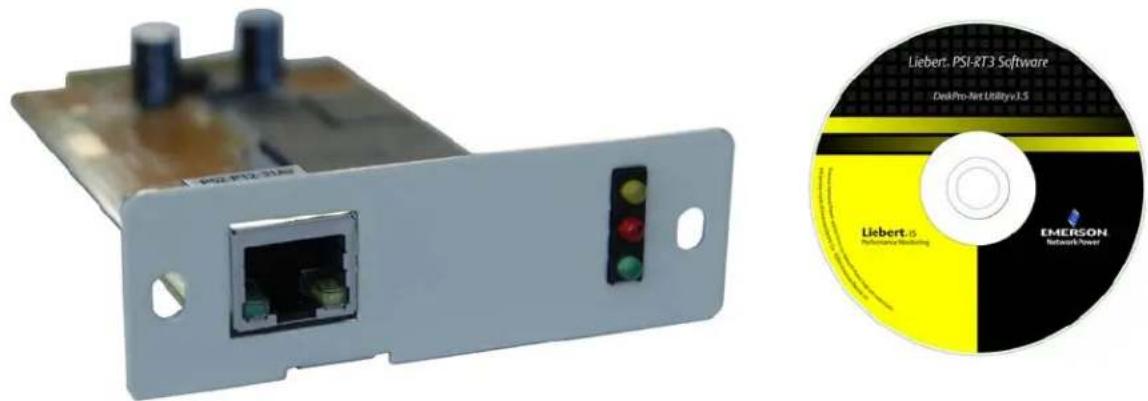
• Liebert IS-WEBRT3 card
- Liebert Web Card CD, including:
- DeskPro-Net Utility: Configure Liebert Web Card UPS IP address, update firmware
• Liebert IS-WEBRT3 card user manual, SL-52665
• Liebert IS-WEBRT3 card MIB
Figure 1 Liebert IS-WEBRT3 card
natural_image
Exterior view of a USB device with two ports and a CD showing EMERSON network power interface (no text or symbols on main components)3.0 INSTALLATION
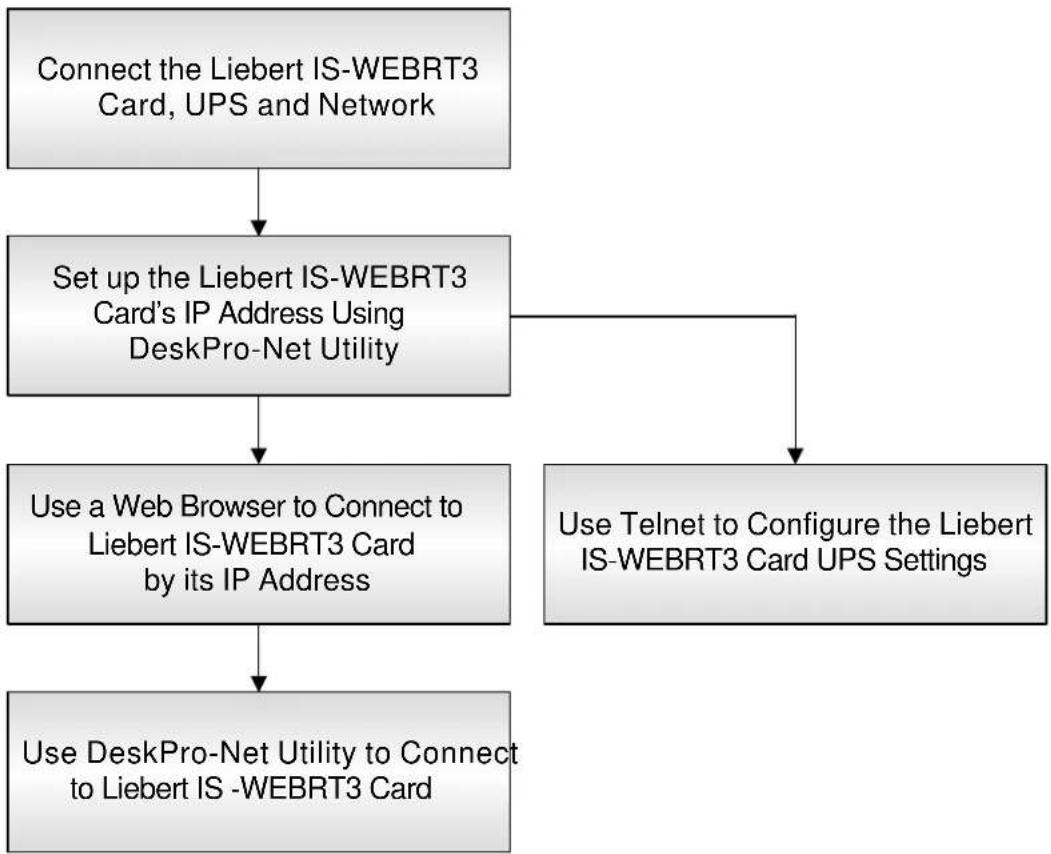
Before using the Liebert Web Card, the hardware and software configuration is necessary.
-
Install the Liebert IS-WEBRT3 card in the Liebert IntelliSlot® bay on the UPS. The bay may be protected with a plastic cover.
-
Attach an RJ-45 Ethernet cable, CAT5 or better, to the card and to your network.
-
Install Liebert DeskPro-Net Utility on your computer. a. Insert the included DeskPro-Net Utility CD in the monitoring computer. b. Follow the prompts to install the software.
After complete installation, DeskPro-Net Utility will appear in Start>Programs.
Figure 2 Liebert IS-WEBRT3 installation

Figure 3 Installation steps
flowchart
graph TD
    A["Connect the Liebert IS-WEBRT3 Card, UPS and Network"] --> B["Set up the Liebert IS-WEBRT3 Card's IP Address Using DeskPro-Net Utility"]
    B --> C["Use a Web Browser to Connect to Liebert IS-WEBRT3 Card by its IP Address"]
    B --> D["Use Telnet to Configure the Liebert IS-WEBRT3 Card UPS Settings"]
    C --> E["Use DeskPro-Net Utility to Connect to Liebert IS -WEBRT3 Card"]
4.0 USING DESKPRO-NET UTILITY
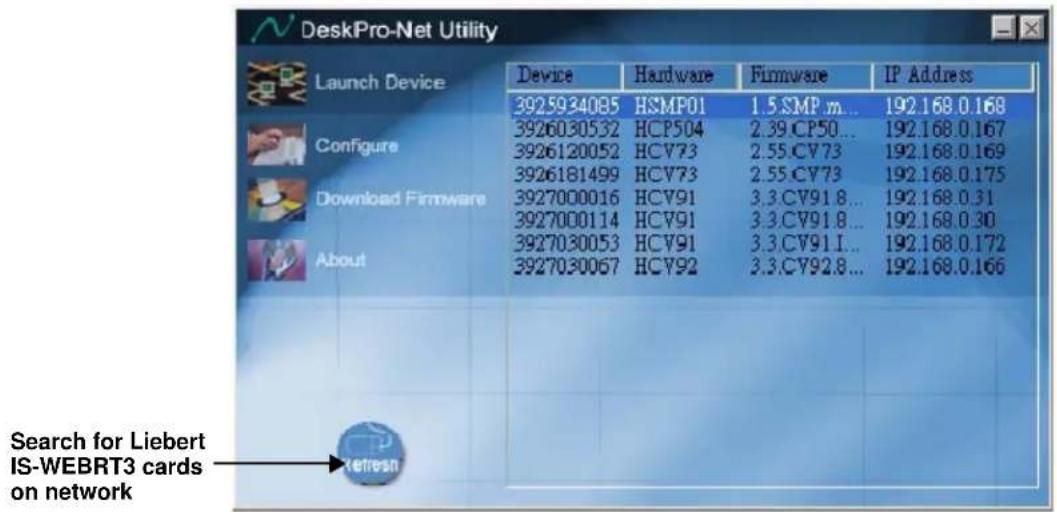
DeskPro-Net Utility's main window is shown in Figure 4. The left side of the window shows the main functions. The list at right shows the Liebert IS-WEBRT3 cards found on the network.
Figure 4 Liebert DeskPro-Net Utility main window
4.1 Launch the Liebert IS-WEBRT3 Card
- Start DeskPro-Net Utility by clicking on Start>Programs>DeskPro-Net Utility.
- Click Launch Device or double-click a Liebert IS-WEBRT3 card in the table to launch it.
- Logon to the card by entering the Account (Login Name) and Password (Login Password) set earlier. If an account and password have not been set, click Apply to login.
4.2 Configure the Liebert IS-WEBRT3 Card
- Select the Liebert IS-WEBRT3 card from the right side of the screen and click Configure; the window in Figure 5 opens.
- If using a static IP address, set the card's IP address, subnet mask and gateway. See your network administrator for the settings.
- After making the settings, open a Web browser, such as Microsoft's Internet Explorer ^® .
- Enter the card's IP address to connect to the card's Web interface.
Figure 5 Network settings window
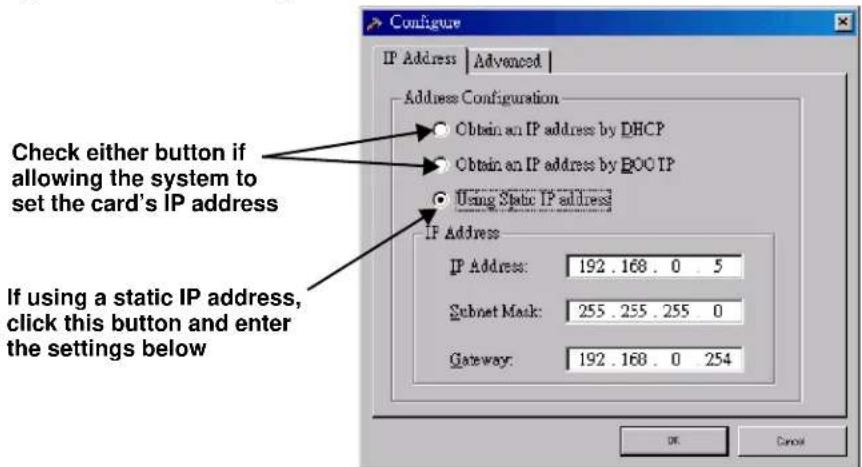
The Liebert IS-WEBRT3 card can be used with DHCP or BOOTTP, permitting the system to assign an IP address, Subnet Mask and Gateway.
4.3 Advanced Liebert Web Card UPS Setting
DeskPro-Net Utility provides two security functions:
- DeskPro Net Password
• Management Protocol
4.3.1 Enable DeskPro Net Password or Management Protocol
To enable the password function:
- Start DeskPro-Net Utility by clicking on Start>Programs>DeskPro-Net Utility.
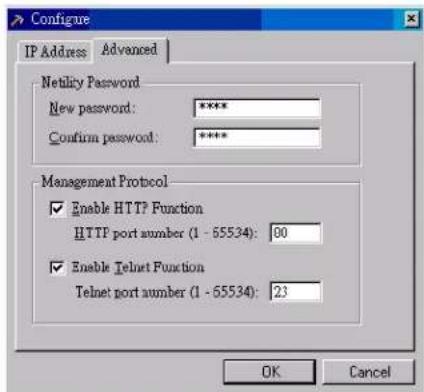
- Click the Configure function and select the Advanced tab.
- Enter a password in the first box and enter it a second time as confirmation in the box below.

NOTE
After setting a password, write it down and keep it accessible: Without the password, it will not be possible to give any commands to the Liebert IS-WEBRT3 card using DeskPro-Net Utility software
To enable the Management Protocol function:
- Start DeskPro-Net Utility by clicking on Start>Programs>DeskPro-Net Utility.
- Click the Configure function and select the Advanced tab.
- Check the boxes to enable the HTTP and Telnet function and enter port numbers.
The Liebert IS-WEBRT3 card UPS provides HTTP(WEB) and Telnet to reference any related parameter setting for the manager. Concerning security, the manager could use any advanced port setting with the above two methods. Followings are the descriptions:
- At advanced setting, two functions were set as activated by using port number 80 and 23.
- If the boxes are unchecked, the functions will not be available.
- When set to the other port value, the full IP address must be entered in order to login to the website or Telnet.
For example,
- If "81" is set as the HTTP port number, then http://192.168.0.177:81 must be typed as the Web address to connect to Liebert IS-WEBRT3 card UPS's interface.
- If "24" is set as the Telnet port number, then 192.168.0.177 24 must be typed at Telnet to proceed to the Telnet screen of Liebert IS-WEBRT3 card.
Figure 6 Advanced setting of Liebert IS-WEBRT3 card UPS
4.3.2 Download Firmware
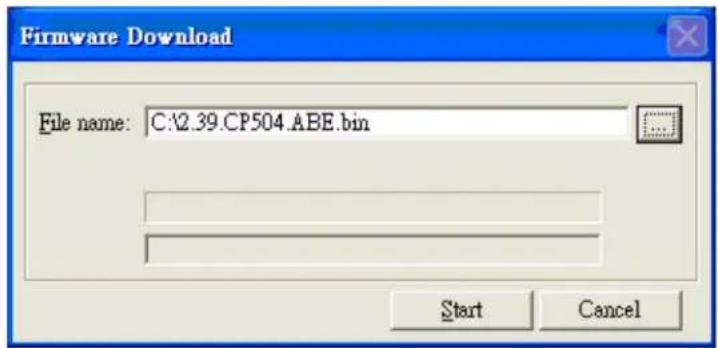
To upgrade the Liebert IS-WEBRT3 card's firmware, click Download Firmware on the DeskPro-Net Utility Setup menu, click Browser, select the new firmware file (*.bin) and press Start.
The Liebert IS-WEBRT3 card's red LED and yellow LED flashing alternately means the firmware is upgrading. After the upgrade is completed, the Liebert IS-WEBRT3 card will reboot automatically.

NOTE
The Liebert IS-WEBRT3 card protects against interruptions in the upgrade. If the upload is interrupted and incomplete, the Liebert IS-WEBRT3 card will retain its current firmware to avoid data loss. If the upload is incomplete, repeat "firmware upload."
Figure 7 Update Liebert IS-WEBRT3 card firmware
4.3.3 Refresh
Liebert DeskPro-Net Utility automatically searches the network for new cards and obtains new data from cards already configured. The Refresh function manually prompts the software to search the network for new Liebert IS-WEBRT3 cards and obtain new data.

5.0 UPS WEB MANAGEMENT BY LIEBERT IS-WEBRT3 CARD
5.1 Introduction
After installing the Liebert IS-WEBRT3 card, including hardware installation and setting its IP address, users can access the card's Web interface to monitor and control the UPS where the card is installed.
- Open a Web browser, such as Internet Explorer.
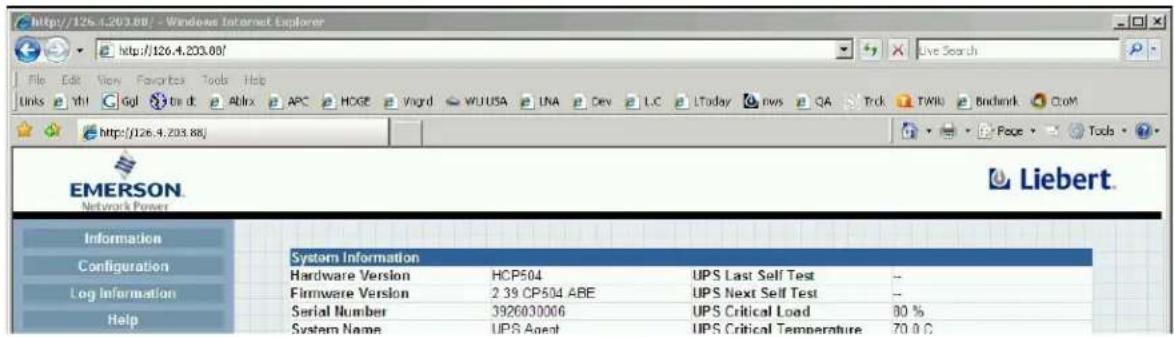
- Enter the Liebert IS-WEBRT3 card IP address, set previously with DeskPro-Net Utility (211.21.67.51 in the example in Figure 8).
Figure 8 Input Liebert IS-WEBRT3 card UPS IP address
- When prompted, enter the password. If no password has been set, press the Enter key or click OK.
Figure 9 Liebert IS-WEBRT3 card UPS login dialog
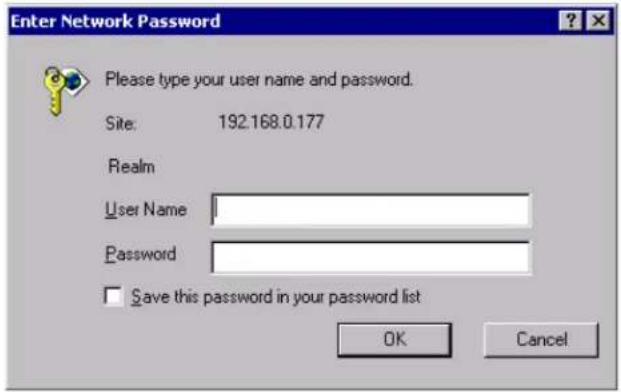
Fig.
5.2 Liebert IS-WEBRT3 Card UPS Web Interface
Enter the Liebert IS-WEBRT3 card's Web interface. There are four main function items in the first Web page:
• Information
- Configuration
- Log Information
• Help
Enter the main function item; the sub-menu items will be shown on the left side of the page. When connecting to the Liebert IS-WEBRT3 card for the first time, please enter the Config menu item to set all the configuration items.
5.2.1 Information
Sub-Menu
- System Status
- Basic Information
- Current Status
- Remote Control
- Meter/Chart
System Status
This page shows the Liebert IS-WEBRT3 card system information and Network settings. Values shown here are either provided by the Liebert IS-WEBRT3 card or they are user settings from the Configuration pages.
System Information
This section shows the Liebert IS-WEBRT3 card system information. Values in Hardware Version/Firmware Version/Serial Number/System Time are provided by the Liebert IS-WEBRT3 card. Other values are user settings from the Configuration pages.
Network Status
This section shows the Liebert IS-WEBRT3 card Network settings. The MAC address is provided by the Liebert IS-WEBRT3 card. All other values in this section are user settings from the Configuration pages.
Figure 10 System status
| System Information | |||
| Hardware Version | HCP504 | UPS Last Self Test | -- |
| Firmware Version | 2.39.CP504.ABE | UPS Next Self Test | -- |
| Serial Number | 3926030532 | UPS Critical Load | 80 % |
| System Name | UPS Agent | UPS Critical Temperature | 70.0 C |
| System Contact | administrator | UPS Critical Capacity | 10 % |
| Location | My Office | ||
| System Time | 2008/03/21 07:42:50 | ||
| Uptime | 3 day(s) 23:38:04 | ||
Warning will be initiated 10 minute(s) before Scheduled Shutdown Event Send Email for Daily Report
| Network Status | |||
| MAC Address | 00:03:EA:02:78:C4 | Primary DNS Server | 168.95.1.1 |
| Connection Type | Auto Sense | Secondary DNS Server | |
| IP Address | 192.168.0.167 | Time Server | time.nist.gov |
| Subnet Mask | 255.255.255.0 | PPPoE IP | |
| Gateway | 192.168.0.3 | ||
| Email Server | |||
5.2.2 Basic Information
This page shows the UPS basic information. Values here are either provided by the UPS or they are user settings from the Configuration pages.
UPS Information
Information about UPS Manufacturer/UPS Firmware Version/UPS Model are provided by the UPS.
Battery Information
Values here are user settings from the Configuration pages.
Rating Information
Values here are user settings from the Configuration pages.
Figure 11 Basic information
| UPS Information | |
| UPS Manufacturer | ON-LINE |
| UPS Firmware Version | H05E9A5 |
| UPS Model | 500VA |
| Battery Information | |
| Last Battery Replaced Date | 2003/01/01 |
| Number of Battery | 2 |
| Battery Charge Voltage | 2.267V |
| Rating Information | |
| Voltage Rating | 120.0V |
| Frequency Rating | 50.0Hz |
| Battery Voltage Rating | 24.0V |
5.2.3 Current Status
This page shows the UPS current status. Users can choose an interval from the drop-down box to refresh the status readings.
UPS Status
This section shows the UPS power status. The abnormal status will be displayed in red when there is a power event.
Input Status
This section shows the UPS input status, including AC Status/Input Voltage/Input Frequency. Values here will be shown in red when an abnormal status condition occurs.
Output Status
This section shows the UPS output status, including Output Voltage/Output Status/UPS Loading. Values here will be shown in red when an abnormal status condition occurs.
Battery Status
This section shows the UPS Battery Status, including Temperature/Battery Status/Battery Capacity/Battery Voltage/Time on Battery. Values here will be shown in red when an abnormal status condition occurs.
Figure 12 Current status
| UPS Status | UPS Normal |
| Input Status | |
| AC Status | Normal |
| Input Line Voltage | 115.0 V |
| Input Max. Line Voltage | 115.0 V |
| Input Min. Line Voltage | 112.0 V |
| Input Frequency | 59.9 Hz |
| Output Status | |
| Output Voltage | 117.0 V |
| Output Status | On line |
| UPS loading | 0 % |
| Battery Status | |
| Temperature | 27.0C (80.6F) |
| Battery Status | Battery Normal |
| Battery Capacity | 100 % |
| Battery Voltage | 28.44 V |
| Time on Battery | 00:00:00 |
5.2.4 Remote Control
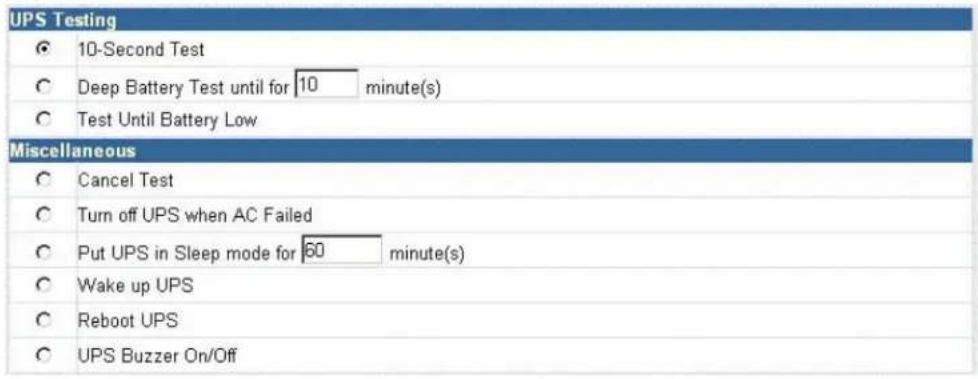
This page provides remote UPS test functions. Choose the test item, then click on Apply to execute it. (Please refer to the UPS manual for individual UPS Test functions.)
If you are using a Contact Closure UPS, you will only be able to use the function Turn off UPS when AC Failed.
Cancel Test
This function aborts a test when it is executing.
Turn Off UPS When AC Failed/Reboot UPS
Selecting Turn off UPS when AC failed will turn off the UPS. You can reboot the UPS by selecting Reboot UPS.
Put UPS in Sleep mode for \_\_\_\_ minutes/Wake up UPS
When the UPS is put into Sleep mode, it will not provide power. The UPS will provide power after exiting Sleep mode.
Figure 13 Remote control
5.2.5 Meter/Chart
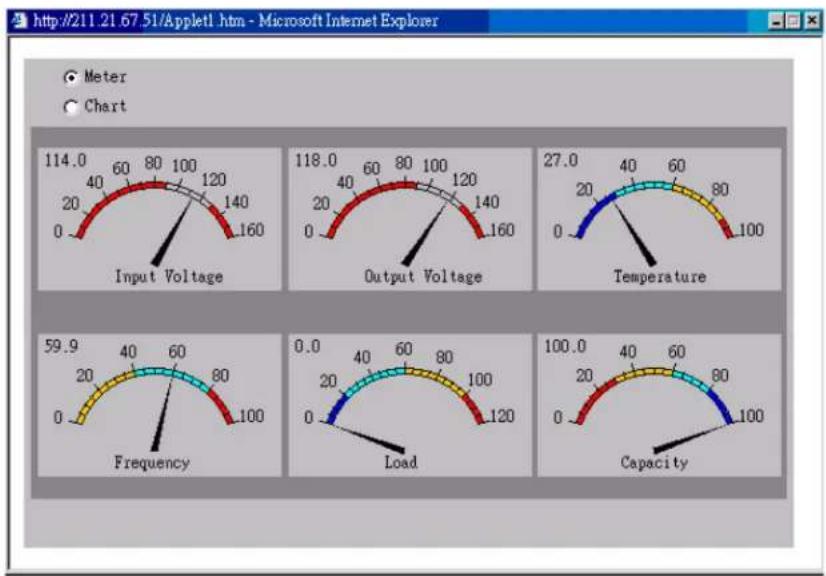
This page displays the UPS's temperature, capacity, load, voltage, etc., with meter diagrams.
Figure 14 Meter/Chart
gauge
| Metric | Value | | :--- | :--- | | Input Voltage | 114.0 | | Output Voltage | 118.0 | | Temperature | 27.0 | | Frequency | 59.9 | | Load | 0.0 | | Capacity | 100.0 |5.3 Configuration
Sub-Menu
- UPS Configuration
- UPS On/Off Schedule
- Network
• SNMP - E mail
- WEB/Telnet
- System Time
- Language
Please set each parameter correctly, so that Liebert IS-WEBRT3 card operates properly.

NOTE
This page's selection will differ according to the different interface of the UPS.
5.3.1 UPS Configuration
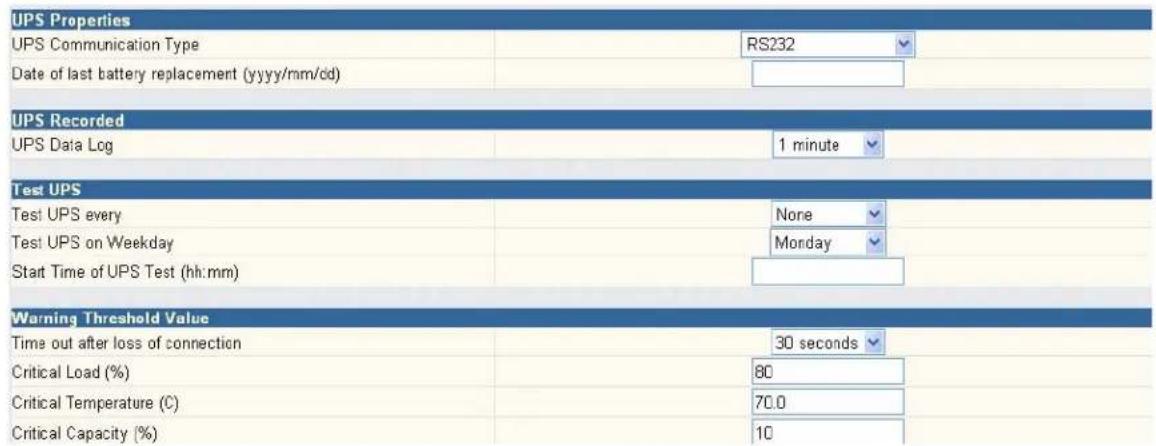
This page is used to set the UPS configuration. Any incorrect settings will cause incorrect display values or disconnection between the UPS and Liebert IS-WEBRT3 card.
UPS Properties
UPS Communication Type—This section is used to set up the communication interface of the UPS. (e.g., Contact Closure/RS232/3 phase, etc.) Please refer to the UPS manual to set the correct communication type. Any incorrect settings will cause disconnection between the UPS and Liebert IS-WEBRT3 card.
UPS Rating Voltage(V)—This section is used to set the UPS Rating Voltage. (Unit: Volt). Refer to the UPS manual for details.
Number of Battery—This is used to set the UPS battery unit number. Please refer to the UPS manual.
Battery Charge Voltage—This section is used to set the UPS battery Charge Voltage. (Unit: Volt). Refer to the UPS manual for details.
Last Battery Replaced Date (mm/dd/yyyy)—This section is to record the date when the UPS battery was last replaced.
UPS Recorded
UPS Data Log —This section is used to set how often the UPS data should be logged.
Test UPS
Test UPS for every—This section is used to schedule the UPS to test once a week or once every two weeks.
Test UPS on Weekday—This section is used to set the UPS to test on a particular day of a week.
Time of UPS Testing (hh:mm)—This section is used to set the UPS to test at a certain time on the test day.
Warning Threshold Value
Time Out when Connection Lost—This is used to set a certain period of time before sending a disconnection warning. When the Liebert IS-WEBRT3 card loses contact with the UPS it will send a disconnection warning message after this certain period of time.
Critical Loading (%) —This section is used to set the UPS critical loading (shown as % ). The Liebert IS-WEBRT3 card will send a warning message when the UPS is overloaded.
Critical Temperature (C)—This section is used to set the UPS critical internal temperature. Liebert IS-WEBRT3 card will send warning messages when the UPS overheats.
Figure 15 UPS configuration
5.3.2 UPS On/Off Schedule
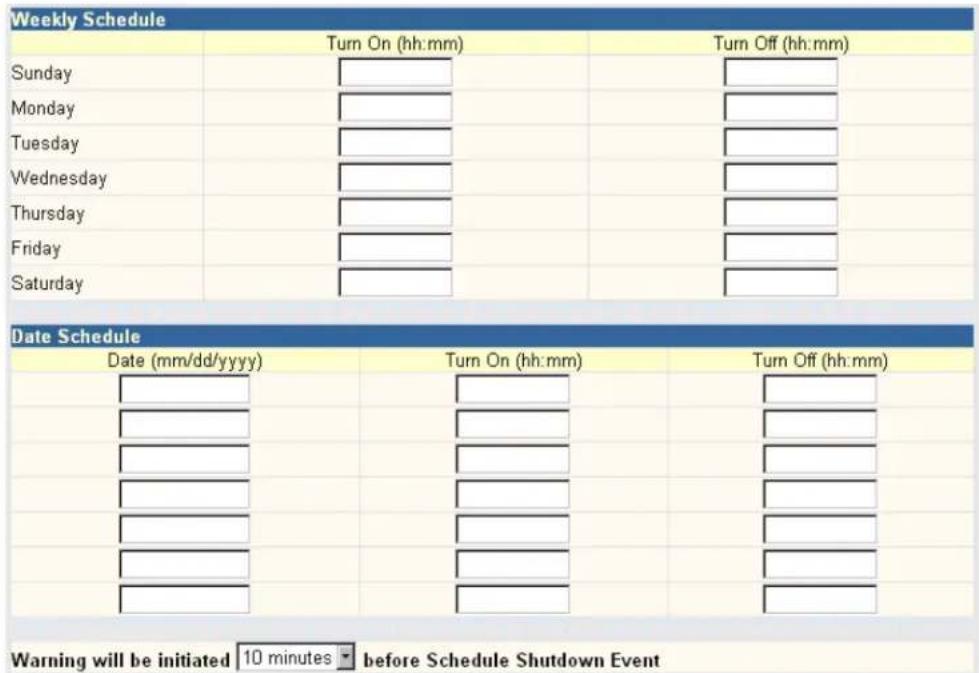
This page is used to schedule On/Off time for the UPS.
This page is used to schedule the UPS for automatic start and shutdown.
Weekly Schedule
This section is to set the time to turn the UPS On/Off each day of the week.
Date Schedule
This section is to set the time to turn on/off the UPS on particular days. (Eg, holidays.) The settings here override the settings in the Weekly Schedule.
Warning Will be Initiated \_ Before Schedule Shutdown Event
The Liebert IS-WEBRT3 card will send a warning message before a scheduled shutdown. This section sets the delay time after the message is sent until the scheduled shutdown begins.
Figure 16 UPS On/Off schedule
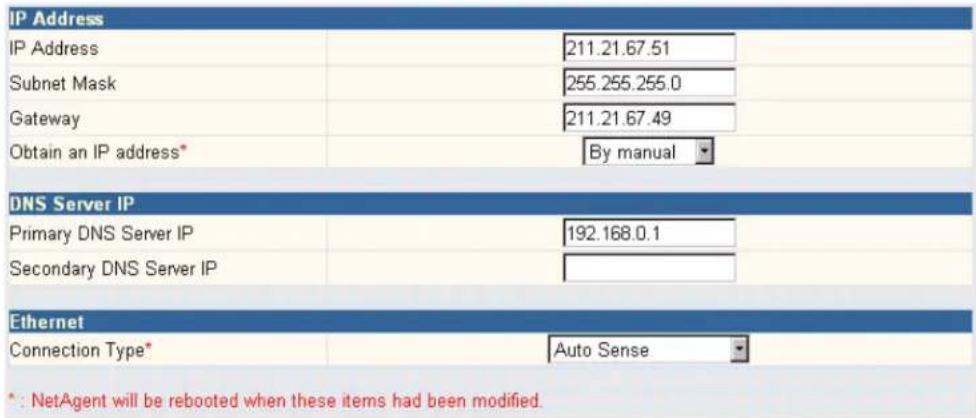
5.3.3 Network
This page is used to set the Liebert IS-WEBRT3 card Network settings.
IP Address—This section is used to set the Liebert IS-WEBRT3 card IP address.
Subnet Mask—This section is used to set the Liebert IS-WEBRT3 card Subnet Mask.
Gateway—This section is used to set the Liebert IS-WEBRT3 card Gateway.
Obtain an IP address—This section is used to choose to set Liebert IS-WEBRT3 card IP address manually or via DHCP.
The four sections above can be set in Liebert DeskPro-Net as well. The Liebert IS-WEBRT3 card will reboot after any of the above are changed.
DNS Server IP
Primary DNS Server IP—This section is used to set the Liebert IS-WEBRT3 card primary DNS Server IP address.
Secondary DNS Server IP—This section is used to set the Liebert IS-WEBRT3 card secondary DNS Server IP address. The Liebert IS-WEBRT3 card will use the secondary DNS Server IP address when the Primary DNS Server IP address is not working.
Ethernet
Connection Type—This section is used to set the communication speed between Liebert IS-WEBRT3 card and Network. The Liebert IS-WEBRT3 card will reboot after Connection Type is changed.
Figure 17 Network
5.3.4 SNMP
This page is to set Liebert IS-WEBRT3 card SNMP settings so it can be used by an NMS (Network Management System).
MIB System
System Name—This section is used to give a name to a Liebert IS-WEBRT3 card.
System Contact—This section is used to list a name for the administrator.
System Location—This section is used to set the Liebert IS-WEBRT3 card's location.
Access Control
Manager IP Address—This section is used to set the IP address so that the administrator can manage the Liebert IS-WEBRT3 card. It is valid for up to eight IP addresses. To manage the Liebert IS-WEBRT3 card from any IP address, enter *.*.*into the IP address.
Community—This section is used to set a Community name for NMS. The community name must be the same as the setting in NMS.
Permission—This section is used to set options for administrators. Options are Read, Read/Write, and No Access.
Description—This section is available for an administrator to make notes.
Trap Notification
Receiver IP Address—This section is used to set the receivers' IP address for traps sent by the Liebert IS-WEBRT3 card. It is valid for up to eight IP addresses.
Community—This section is used to set a Community name for an NMS. The community name must be as the same as the setting in the NMS.
Severity—This section is to set Trap receiver levels. There are three levels of Trap receiver:
• Information: To receive all traps.
- Warning: To receive only "warning" and "severe" traps.
- Severe: To receive only "severe" traps.
- (Please refer to NMS manual for Trap levels.)
Accept—This section is to set whether the Destination IP Address will Accept traps.
Description—This section is available for an administrator to make notes.
Event—This section is used to select the events that will be sent to the associated IP address. Clicking on Select will open a Select Events List. Event Traps may be selected from this list.
Figure 18 SNMP
| MIB System | |||||
| System Name | System Contact | System Location | |||
| UPS Agent | Administrator | My Office | |||
| Access Control | |||||
| Manager IP Address | Community | Permission | Description | ||
| **** | public | Read/Write | |||
| public | No Access | ||||
| public | No Access | ||||
| public | No Access | ||||
| public | No Access | ||||
| public | No Access | ||||
| public | No Access | ||||
| public | No Access | ||||
| Trap Notification | |||||
| Receiver IP Address | Community | Severity | Accept | Description | Events |
| public | Information | No | Select | ||
| public | Information | No | Select | ||
| public | Information | No | Select | ||
| public | Information | No | Select | ||
| public | Information | No | Select | ||
| public | Information | No | Select | ||
| public | Information | No | Select | ||
| public | Information | No | Select | ||
| Device Connected | |||||
2.2.5 E-mail
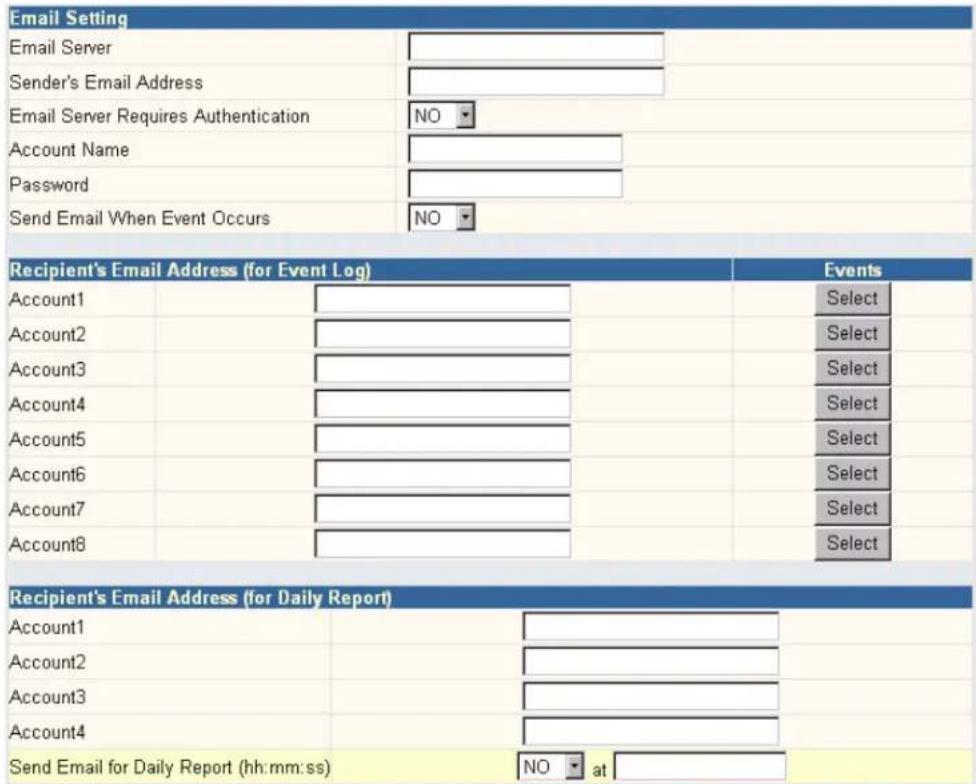
This page is used to set e-mail details for use by Liebert IS-WEBRT3 card.
Email Server—This section is used to enter the name of the e-mail server (i.e., SMTPserver.liebert.com).
Sender's Email Address—This section is to set the Liebert IS-WEBRT3 card's e-mail address.
Email Server Requires Authentication—This section is used to set whether the e-mail server requires authentication.
Account Name—This section is used to set an e-mail account name when the email server requires authentication.
Password—This section is used to set a password when the e-mail server requires authentication.
Send Email When Event Occurs—This section is used to set the Liebert IS-WEBRT3 card to send warning e-mail when an event occurs.
Recipient's Email Address (for Event Log)—This section is used to designate e-mail addresses to receive warning e-mails sent by the Liebert IS-WEBRT3 card when an event occurs. It is valid for up to eight e-mail addresses.
Event—This section is used to select events for the Liebert IS-WEBRT3 card to send e-mail warnings. Clicking on Select will open a Select Events List. Event e-mail may be selected from this list.
Recipient's Email Address (for Daily Report)—This section is used to set e-mail addresses to receive the Daily Report e-mail sent by the Liebert IS-WEBRT3 card when an event occurs. It is valid for up to four e-mail addresses.
Send Email for Daily Report (hh.mm.ss)—This section is used to set a particular time for the Liebert IS-WEBRT3 card to send Daily Report every day.
Figure 19 E-mail
5.3.5 WEB/Telnet
This page is used to set up the User Account in the Liebert IS-WEBRT3 card.
User Name—This section is used to set a user name for the Liebert IS-WEBRT3 card Web pages. It is valid for up to eight users. Users must enter the user name to access the Liebert IS-WEBRT3 card Web pages from a Web browser.
Password—This section is used to set a password for the Liebert IS-WEBRT3 card Web pages. Users must enter the password to access the Liebert IS-WEBRT3 card Web pages from a browser.
Permission—This section is used to set user's authorizations of Read or Read/Write.
IP Filter—This section is used to set a particular IP address. Users can gain access to the Liebert IS-WEBRT3 card Web pages only if they come from this IP address. To enable managing the Liebert IS-WEBRT3 card from any IP address, set it as *.*.*.*
Figure 20 WEB/Telnet
| User Account | |||
| User Name | Password | Permission | IP Filter |
| afdafdasdfas | ********** | Read/Write ▼ | ****** |
| guest | ********** | Read ▼ | ****** |
| Read/Write ▼ | ****** | ||
| Read/Write ▼ | ****** | ||
| Read/Write ▼ | ****** | ||
| Read/Write ▼ | ****** | ||
| Read/Write ▼ | ****** | ||
| Read/Write ▼ | ****** | ||
| Read/Write ▼ | ****** | ||
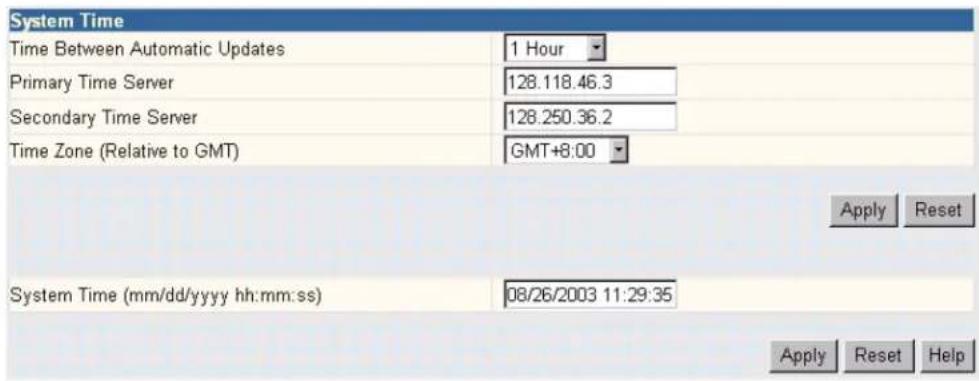
5.3.6 System Time
This page is used to set the Liebert IS-WEBRT3 card system time. The Liebert IS-WEBRT3 card can be designated to have as many as two time servers; a time zone may also be entered.
Time Between Automatic Updates—This section is used to set an interval for time synchronization.
Primary Time Server / Secondary Time Server—This section is used to set a Primary Time Server and a Secondary Time Server for the Liebert IS-WEBRT3 card.
Time Zone (Relative to GMT)—This section is used to set a different time zone for different countries.
System Time (mm/dd/yyyy hh:mm:ss)—This section is used to set the Liebert IS-WEBRT3 card system time manually. Set this in the format: mm/dd/yyyy hh:mm:ss
Figure 21 System time setting
5.3.7 Language
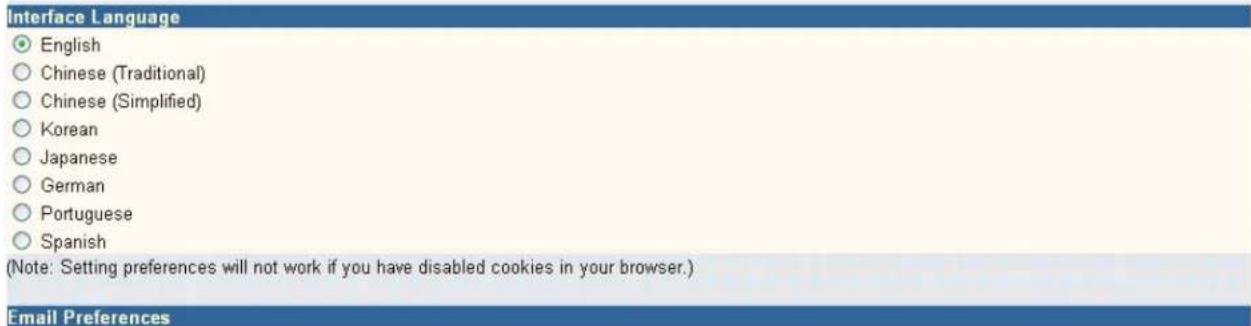
This page is used to set the language for the Liebert IS-WEBRT3 card.
Interface Language—This section is used to set the language for the Liebert IS-WEBRT3 card's Web pages. When users view the Liebert IS-WEBRT3 card in a browser, the card will automatically detect the language used by the computer system and show that language on its Web pages. Users can also choose other languages from the Interface Language list.

NOTE
Users must enable cookies before this function is available.
Email Preferences—This section is used to set the language for e-mail sent by the Liebert IS-WEBRT3 card.
Figure 22 Language
□ Use above interface language in Email and SMS notification
5.4 Log Information
Sub-Menu
- Event Log
- Data Log
- Save Data Log

NOTE
This page's selection would differ according to the different interface of the UPS.
5.4.1 Event Log
This page displays a UPS Event log. It shows a record of all events, giving the Date/Time of the event and a detailed description of each. It can log up to 99 events. When this limit is reached, Liebert IS-WEBRT3 card will delete the earliest event record and continue logging new events.
Date/Time—This is a record of the Date (mm/dd/yyyy) and Time (hh:mm:ss) that the event occurred.
Description—This is a detailed description of the event.
Figure 23 Event log
| Date/Time | Event |
| 08/25/2003 20:37:01 | Utility power has been restored. |
| 08/25/2003 20:36:47 | UPS has switch to battery backup power. |
| 08/25/2003 20:36:44 | Utility power has been restored. |
| 08/25/2003 20:36:27 | UPS has switch to battery backup power. |
5.4.2 Data Log
This page displays a UPS data log. It records UPS Input Voltage/Output Voltage/ Frequency/ Loading/Capacity/ Temperature. It can log up to 500 events. When this limit is reached, the Liebert IS-WEBRT3 card will delete the earliest event record and continue logging new events. Logs can be saved in CSV format by clicking on Save Data Log.
Date/Time—This is a record of the Date (mm/dd/yyyy) and Time (hh:mm:ss) that the data was recorded. The interval between every log can be set in /Configuration/UPS configuration/UPS recorded/UPS data Log/.
Input Voltage—This section shows records of the UPS Input voltage readings in volts.
Output Voltage—This section shows records of the UPS Output voltage readings in volts.
Loading—This section shows records of the UPS Output loading as %.
Capacity—This section shows records of the UPS battery capacity as %.
Frequency—This section shows records of the UPS Input Frequency in Hz.
Temp.—This section shows records of the UPS internal temperature in degrees Celsius.
Figure 24 Date log
| 1 2 3 4 5 6 Next | ||||||
| Date/Time | Input Volt. | Output Volt. | Freq. (Hz) | Loading | Capacity | Temp. |
| 08/25/2003 20:32:49 | 115.0 | 117.0 | 60.0 | 0 | 100 | 26.0C 78.8F |
| 08/25/2003 20:31:49 | 114.0 | 117.0 | 59.9 | 0 | 100 | 26.0C 78.8F |
| 08/25/2003 20:30:47 | 114.0 | 117.0 | 60.0 | 0 | 100 | 26.0C 78.8F |
| 08/25/2003 20:29:45 | 114.0 | 117.0 | 59.9 | 0 | 100 | 26.0C 78.8F |
| 08/25/2003 20:28:43 | 114.0 | 118.0 | 60.0 | 0 | 100 | 26.0C 78.8F |
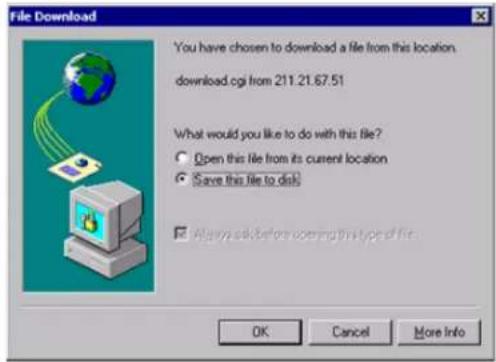
5.4.3 Save Data Log
This function is to save a copy of the Data Log information (shown on the screen) to a file.
Figure 25 Save data log
5.5 Help
Sub-Menu
• Help
- About
- Help
Figure 26 Help screen
![http://192.168.0.167/index_help.htm - Windows Internet Explorer http://192.168.0.167/index_help.htm NetAgent Help Information Configuration Log Information Help System Status [Back] This page is to show NetAgent system information and Network settings. Values shown here are either provided by NetAgent itself or they are user settings from the Configuration pages. System Information This section is to show NetAgent system information. Values in Hardware Version/Firmware Version/Serial Number/System Time, are provided by NetAgent itself. Other values are user settings from the Configuration pages. Network Status This section is to show NetAgent Network settings. The MAC address is provided by NetAgent. All other values in this section are user settings from the Configuration pages. Done Internet 100%](/content/2026/05/1023962/images/4cc7e1727ccb466f49974757d53774a00ff0c8c0aa4e4ce1994285473bc94539.jpg)
5.5.1 About
This displays the firmware version, hardware version and serial number.
Save current configuration—Click Save to save the configuration as a text file. The text file will have a default format of YYYY_MMDD_### .cfg. Administrative permission is required.
Restore previous configuration—Use this function to restore a *.cfg configuration that has been saved earlier. Click Browse to the location of the file and click Restore.
Reset to factory default—This function will reset all settings to the default values.
6.0 TELNET—REMOTE MONITORING
6.1 Introduction
The Liebert IS-WEBRT3 card supports multiple Network Management Systems and LAN protocols. After installing and configuring the card, you have the same configuration selections using Telnet that are available through the Web page.
6.2 Telnet Configuration
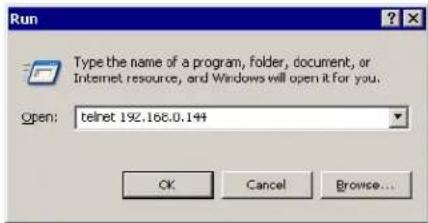
- Click on Start>Run and enter telnet and the Liebert IS-WEBRT3 cards IP address.
Figure 27 Telnet startup
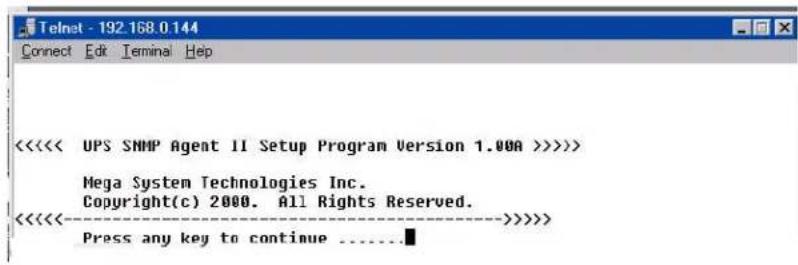
- If the connection is successful, the window in Figure 28 will be displayed.
Figure 28 Telnet connection
-
Press the Enter key to enter telnet main screen. If the user name and password were set previously, enter those actual values to gain access.
-
If the connection is successful, the main screen in Figure 29 will be displayed.
Figure 29 Liebert IS-WEBRT3 card Telnet window
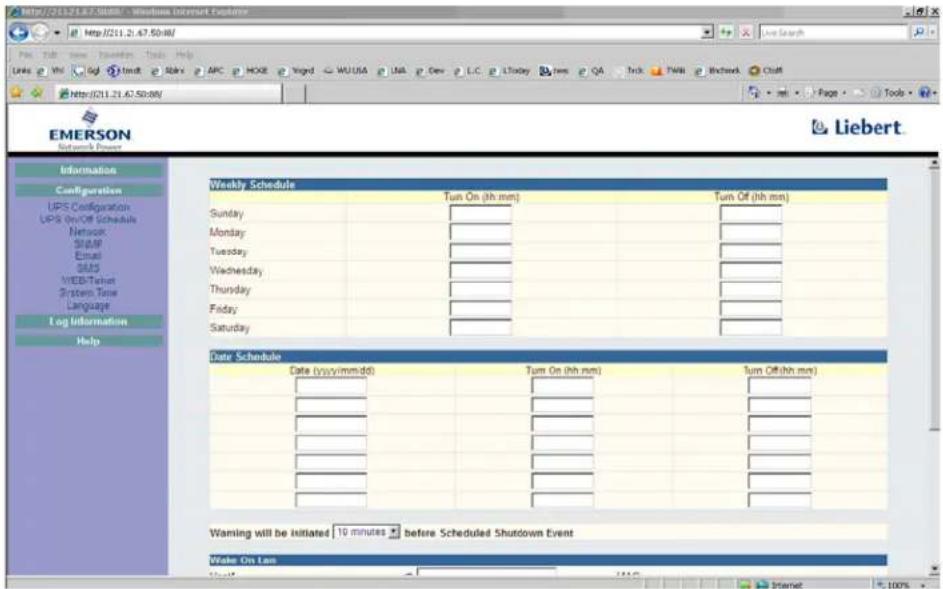
The main screen gives access to these functions:
- Set IP Address—This function allows setting up the IP address, Gateway address and Subnet Mask parameters.
- Set SNMP MIB System—This function allows setting up the MIB system group parameters.
- Set SNMP Access Control—This function allows setting up the Manager IP, Community, Access Permission.

NOTE
The configuration of Set SNMP Access Control is used only for SNMP Network Manager.
- Set SNMP Trap Notification—Add the IP address of trap receivers, community string (matching the NMS), type of traps to receive and whether the Destination IP Address should receive traps to this list.

NOTE
The configuration of Set SNMP Trap Receiver is only used for SNMP Network Manager.
- Set UPS Properties—This allows setting up the Communication Type of UPS, UPS Device Name and Battery Replacement Date.
- Set UPS Devices Connected—This section allows setting up the connected devices name, rating and whether the device is connected.
- Set System Time & Time Server—This allows setting up the System date, time and two time servers.
- Set Web and Telnet User Account—This is allows setting up the user accounts' authority.
- Set E-mail—This is allows setting up the e-mail accounts to receive power event notification for emergency management.
- Reset Configuration to Default—Set all values to their default values.
- Save & Reboot—Save the current configuration data, including any changes made, and reboot the Liebert IS-WEBRT3 card.
- Exit Without Saving—Exit; no configuration changes will be made.
Ensuring The High Availability Of Mission-Critical Data And Applications.
Emerson Network Power, the global leader in enabling business-critical continuity, ensures network resiliency and adaptability through a family of technologies—including Liebert power and cooling technologies—that protect and support business-critical systems. Liebert solutions employ an adaptive architecture that responds to changes in criticality, density and capacity. Enterprises benefit from greater IT system availability, operational flexibility and reduced capital equipment and operating costs.
Technical Support / Service
Web Site
www.liebert.com
Monitoring
800-222-5877
Liebert.monitoring@emerson.com
Outside the US: 614-841-6755
Single-Phase UPS
800-222-5877
upstech@emersonnetworkpower.com
Outside the US: 614-841-6755
Three-Phase UPS
800-543-2378
powertech@emersonnetworkpower.com
Environmental Systems
800-543-2778
Outside the United States
614-888-0246
Locations
United States
1050 Dearborn Drive
P.O. Box 29186
Columbus, OH 43229
Europe
Via Leonardo Da Vinci 8
Zona Industriale Tognana
35028 Piove Di Sacco (PD) Italy
+39 049 9719 111
Fax: +39 049 5841 257
Asia
7/F, Dah Sing Financial Centre
108 Gloucester Road, Wanchai
Hong Kong
852 2572220
Fax: 852 28029250
While every precaution has been taken to ensure the accuracy
and completeness of this literature, Liebert Corporation assumes no
responsibility and disclaims all liability for damages resulting from use of
this information or for any errors or omissions.
© 2008 Liebert Corporation
All rights reserved throughout the world. Specifications subject to change
without notice.
© Liebert is a registered trademark of Liebert Corporation.
All names referred to are trademarks
or registered trademarks of their respective owners.
SL-52665_REV01_07-08
Emerson Network Power.
The global leader in enabling Business-Critical Continuity.
AC Power
Connectivity
DC Power
Embedded Computing
Embedded Power Power Switching & Controls
Monitoring
Outside Plant
vitching & Controls
Precision Cooling
EmersonNetworkPower.com
Racks & Integrated Cabinets
Services
Surge Protection

- TABLE OF CONTENTS
- INTRODUCTION....1
- Features 1
- Applications 1
- WHAT'S INCLUDED....2
- INSTALLATION 3
- USING DESKPRO-NET UTILITY 4
- Launch the Liebert IS-WEBRT3 Card 4
- Configure the Liebert IS-WEBRT3 Card 4
- Advanced Liebert Web Card UPS Setting 5
- UPS WEB MANAGEMENT BY LIEBERT IS-WEBRT3 CARD 7
- Introduction 7
- Liebert IS-WEBRT3 Card UPS Web Interface....7
- Configuration 11
- Log Information 18
- Help....20
- TELNET—REMOTE MONITORING....21
- FIGURES
- INTRODUCTION
- Features
- Features
- Applications
- Liebert IS-WEBRT3 Card Web Interface
- Liebert Web Card Provides Shutdown Utilities
- Liebert MultiLink
- WHAT'S INCLUDED
- INSTALLATION
- USING DESKPRO-NET UTILITY
- Launch the Liebert IS-WEBRT3 Card
- Configure the Liebert IS-WEBRT3 Card
- Advanced Liebert Web Card UPS Setting
- Enable DeskPro Net Password or Management Protocol
- NOTE
- Download Firmware
- Refresh
- UPS WEB MANAGEMENT BY LIEBERT IS-WEBRT3 CARD
- Introduction
- Liebert IS-WEBRT3 Card UPS Web Interface
- Information
- Sub-Menu
- System Status
- System Information
- Network Status
- Basic Information
- UPS Information
- Battery Information
- Rating Information
- Current Status
- UPS Status
- Input Status
- Output Status
- Battery Status
- Remote Control
- Cancel Test
- Turn Off UPS When AC Failed/Reboot UPS
- Put UPS in Sleep mode for \_\_\_\_ minutes/Wake up UPS
- Meter/Chart
- Configuration
- UPS Configuration
- UPS Properties
- UPS Recorded
- Test UPS
- Warning Threshold Value
- UPS On/Off Schedule
- Weekly Schedule
- Date Schedule
- Warning Will be Initiated \_ Before Schedule Shutdown Event
- Network
- DNS Server IP
- Ethernet
- SNMP
- MIB System
- Access Control
- Trap Notification
- WEB/Telnet
- System Time
- Language
- Log Information
- Event Log
- Data Log
- Save Data Log
- Help
- About
- TELNET—REMOTE MONITORING
- Introduction
- Telnet Configuration
- Ensuring The High Availability Of Mission-Critical Data And Applications.
- Technical Support / Service
- Web Site
- Monitoring
- Single-Phase UPS
- Three-Phase UPS
- Environmental Systems
- Locations
- United States
- Europe
- Asia
- Emerson Network Power.
- EmersonNetworkPower.com
Brand : Emerson
Model : Liebert IntelliSlot IS-WEBRT3 Card
Category : Network card / adapter