
D1809PK - DVD player AUDIOVOX - Free user manual and instructions
Find the device manual for free D1809PK AUDIOVOX in PDF.


| Product Type | DVD Player |
| Brand | Audiovox |
| Model | D1809PK |
| Power Supply | AC 110-240 V, 50/60 Hz |
| Dimensions (W x H x D) | 17.0 x 2.5 x 10.0 inches |
| Weight | 3.5 lbs |
| Disc Compatibility | DVD, DVD±R/RW, CD, CD-R/RW, MP3, JPEG |
| Video Outputs | Composite, Component, S-Video |
| Audio Outputs | Stereo RCA, Digital Coaxial |
| Progressive Scan | Yes |
| Parental Control | Yes |
| TV System | NTSC / PAL compatible |
| Region Code | 1 (North America) |
| Remote Control | Included |
| Display | LED |
| Power Consumption | 10 W |
| Cleaning | Wipe with a soft, dry cloth; avoid solvents |
| Safety | Do not expose to moisture or extreme temperatures |
| Spare Parts & Repairability | Contact Audiovox support for replacement parts |
Frequently Asked Questions - D1809PK AUDIOVOX
User questions about D1809PK AUDIOVOX
0 question about this device. Answer the ones you know or ask your own.
Ask a new question about this device
Download the instructions for your DVD player in PDF format for free! Find your manual D1809PK - AUDIOVOX and take your electronic device back in hand. On this page are published all the documents necessary for the use of your device. D1809PK by AUDIOVOX.
USER MANUAL D1809PK AUDIOVOX
natural_image
Abstract black and white geometric pattern with intersecting lines (no text or symbols)AUDIOVOX®
ELECTRONICS CORP.

natural_image
Line drawing of a laptop computer with front panel and rear panel (no text or symbols)D1809PK
8" LCD MONITOR WITH DVD PLAYER

For Customer Service
Visit Our Website At
www.audiovox.com
Product Information, Photos
FACTs, Owner's Manuals
FCC Information
This device complies with Part 15 of the FCC Rules. Operation is subject to the following two conditions: (1) This device may not cause harmful interference, and (2) this device must accept any interference received, including interference that may cause undesired operation.
In accordance with FCC requirements, changes or modifications not expressly approved by Audiovox Electronics Corp. could void the user's authority to operate this product.
This device generates and uses radio frequency(RF) energy, and if not installed and used properly, this equipment may cause interference to radio and television reception. If this equipment does cause interference to radio or television reception (which you can determine by turning the equipment off and on), try to correct the interference by one or more of the following measures:
- Reorient the receiving antenna (that is, the antenna for the radio or television that is "receiving" the interference).
- Move the unit away from the equipment that is receiving interference.
- Plug the unit into a different wall outlet so that the unit and the equipment receiving interference are on different branch circuits.
If these measures do not eliminate the interference, please consult your dealer or an experienced radio/television technician for additional suggestions.
This product complies with DHHS Rules 21 CFR Subchapter J. Applicable at the date of manufacture.
Manufacturer/Responsible Party
Audiovox Electronics Corp.,
150 Marcus Blvd., Hauppauge, NY 11788
Caution: Use of any controls, adjustments, or procedures other than those specified herein may result in hazardous radiation exposure.
For Your Safety
Main plug is used as the disconnect device, it shall remain readily operable and should not be obstructed during intended used. To be completely disconnected the apparatus from supply mains, the main plug of the apparatus shall be disconnected from the mains socket outlet completely.
This power unit is intended to be correctly oriented in a vertical or floor mount position.
WARNING: TO PREVENT FIREOR ELECTRICAL SHOCK HAZARD, DO NOT EXPOSE THIS PRODUCTTO RAIN OR MOISTURE.
Notice:
This Product incorporates copyright protection technology that is protected by method claims of certain U.S. Patents and other intellectual property rights owned by Macrovision Corporation and other rights owners. Use of this copyright protection technology must be authorized by Macrovision Corporation, and is intended for home and other limited viewing uses only unless otherwise authorized by Macrovision Corporation. Reverse engineering or disassembly is prohibited.
Content
A. Introduction 5
B. Cautions and Warnings 5
C. Contents....7
D. Powering and Installation 8
E. Vehicle Installation 9
F. Controls, Indicators, and Connectors....10
G. Loading and Playing a Disc....11
H. Setup....12
I. Basic Operation ....20
J. Menu....21
K. Display....21
L. Playing Audio CDs....27
M. Playing JPEG Files....29
N. Connecting to Other Equipment....29
O. Specifications....30
P. Rechargeable Built-in Battery ....31
Q. Troubleshooting....32
A. Introduction
Thank you for selecting the D1809PK portable DVD player. The main features include a 8" Screen (16:9 Aspect Ratio) Liquid Crystal Display (LCD) monitor and a DVD player. The unit applies the latest state of the art electronics and is designed for use in hotels, offices home or vehicle. The unit is constructed to provide years of reliable, trouble-free service, and is compact so that you can take it with you anywhere and is designed for quick and easy use. Please read the entire instruction manual supplied with this product prior to operation. The documentation will assist you in installing the system properly to obtain the best equipment performance. Please save this manual for later use.
B. Cautions and Warnings
Water and Moisture
Do not use this product near water for example, near a bathtub, wash bowl, kitchen sink, or laundry tub; in a wet basement; or near a swimming pool; and the like. Do not spill liquids on your Portable DVD or its components as they may touch dangerous voltage points or short-out parts that could result in a fire or electric shock. If the unit is brought directly from a cold to a warm location, moisture may condense inside the unit. Wait for about one hour till the moisture evaporates before operating the unit.
Cleaning
Unplug this product from the wall outlet before cleaning. Do not use liquid cleaners or aerosol cleaners. Use a soft slightly damp cloth for cleaning. Always allow all the components to dry completely before using again.
Heat
The product should be placed away from heat sources such as radiators, heat registers, stoves, or other products(including amplifiers) that produce heat. Do not expose the Portable DVD or any of its components to extreme heat or cold. Do not expose the player to direct sunlight.
Attachments
Do not use attachments not recommended by the product manufacturer as they may cause hazards.
Servicing
Do not attempt to service this product yourself as opening or removing covers may expose you to dangerous voltage or other hazards. Refer all servicing to qualified service personnel.
AC/DC Power Adapter Cords
AC/DC power adapter cords should be routed so that they are not likely to be walked on or pinched by items placed upon or against them, paying particular attention to cords at plugs, convenience receptacles, and the point where they exit from the product.
Power Sources
This product should be operated only from the type of power source indicated on the marking label. If you are not sure of the type of power supply to your home, consult your product dealer or local power company.
Caution
Do not push objects of any kind into the unit through openings; do not spill or spray liquid of any kind on or in the system (this may result in a fire or electric shock). Do not place anything heavy on the unit. To ensure proper ventilation and proper operation, never cover or block the slots and openings with a cloth or other material. Keep the unit away from an open flame such as fire, candle etc. Built-in battery is not user-serviceable. Contact Audiovox Customer Service for assistance. In order to protect the environment please dispose of the battery properly. Do not use the unit in temperatures higher than 104 degrees Fahrenheit or 40 degrees Celsius.
Disc
Do not use irregularly shaped discs such as heart or star-shaped discs as they may cause the unit to malfunction. Do not stick paper, tape or glue on the disc. Do not expose the disc to direct sunlight or heat sources such as hot air ducts. Do not touch the surface of disc. Handle the disc by its edge. Clean the disc by wiping the disc from the center out with a cleaning cloth. Remove the disc from the unit and store it in its case after playing. Some playback operations of discs may be intentionally fixed by software producers. Since this unit plays
discs according to the disc contents the software producers designed, some playback features may not be available. Also refer to the instructions supplied with the discs.
DVD Regional Code
Your DVD player has been designed to process regional management information that is stored on DVD discs.

The regional code for your player is 1 (The U.S., U.S. Territories and Canada). Only DVD discs that have regional codes of 1 or ALL (for all regions) can be played by your player.
Precautions When Watching
When using your Portable DVD player donot sit or stand too close to the screen.
Have a Blast-Just Not in your eardrums! Make sure you turn down the volume on the unit before you put on headphones. Increase the volume to the desired level only after headphone are in place.

The descriptions and characteristics in this owner's manual are for the purpose of general reference only and not as a guarantee. In order to provide you with the highest quality product, we may make changes or modifications without prior notice.
C. Contents
- 1 x 8" LCD Monitor and DVD Player
- 1 x AC to DC Adapter
- 1 x Remote Control w/Battery (CR2025)
4.1 x Instruction Manual - 1 x Audio/Video Cable
6.1 x DC Power Adapter - 1 x Carry Bag With Straps
- 2 x Foldable Headphones
9.1 x Product Registration Card - 1 x eMusic Card
D. Powering and Installation
1. Powering the System Indoors (Refer to Figure 1)
Plug one end of the AC to DC adapter into the DC 9-12V jack on the right side of the main unit, then plug the other end into the 100-240V AC power receptacle.

natural_image
Diagram showing connection between a car air conditioner unit, steering wheel, and power outlet (no text or symbols)Figure 1
2. Powering the System in a Car (Refer to Figure 1)
Plug one end of the DC power adapter into the DC jack on the unit, then plug the other end into the vehicle's DC power socket.
3. Charging the Built-in Battery
Slide the Power On/Off Switch to Off position. Plug one end of the AC to DC adapter into the DC jack on the side of the player, then plug the other end into the 100\~240V AC power outlet. The charge light will flash for about 3 seconds, then it turns to red. Once fully charged, the LED indicator will be green. Then remove the AC to DC adapter wall plug.
NOTE: Your new battery must be charged a minimum of 8 hours before the first usage. Each full recharge takes approximately five hours and one full charge can provide power to the player for approximately 2 hours.
E. Vehicle Installation
Installing the DVD Player onto the Seat Back in a Car
(Refer to Figure 2)
Carry Bag Opened


Figure 2
1). Unfold the carry bag, and place the DVD player on the bag beneath the elastic straps. Ensure that the unit's corners are secured by the elastic straps.
2). Secure the upper portion of the carry bag to headrest support bars using the headrest strap. Adjust the headrest strap until the bag is firmly secured.
3). Secure the lower portion of the carry bag to the vehicle seat back using the seat back strap. Adjust the seat back strap until the bag is firmly secured.
F. Controls, Indicators, and Connectors
1. Unit View (Refer to Figure 3)

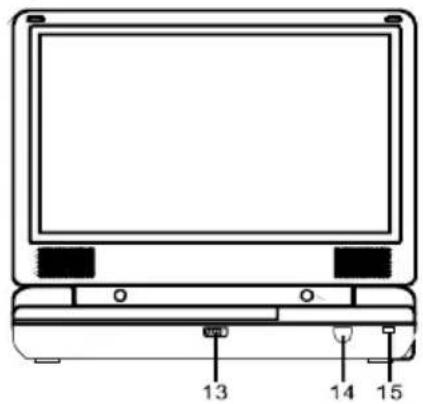

Figure 3
*Using headphone jack 1 will disable the internal speakers
2. Remote Control View (Refer to Figure 4)
G. Loading and Playing a Disc
a. After connecting power to the unit, apply power to the DVD player with the POWER ON/OFF switch. The power indicator will light.
b. Open the disc tray by sliding OPEN DOOR switch and place a disc into the tray with the label side facing up.
c. Close the tray by pressing the PRESS button. The unit will load the disc and start playing.
d. Rotate the VOLUME control to adjust the DVD player's volume.
e. To stop playback of a disc, press the STOP button.
f. To turn off the DVD player, slide the POWER ON/OFF switch to OFF.
H. Setup
Press SETUP button to display the Main screen of the SETUP Menu on the screen. Press SETUP button again to exit the SETUP Menu and the unit will resume it's last playback mode.
1) Press SETUP button, the 'GENERAL SETUP PAGE' will display on screen.

Main Setup Menu Screen
a) Select 'TV DISPLAY' using the DOWN button, and then press ENTER button to enter the submenu. Select the TV display mode on the screen using UP/DOWN button, and press ENTER button to confirm the setting. Press the LEFT button to exit the TV DISPLAY menu.
* NORMAL/PS: When the player is connected to a normal TV, and a wide picture is shown on the full screen.
* NORMAL/LB: When the player is connected to a normal TV, and a wide picture is shown on the screen with a black strip at both the top and bottom of the screen.
* WIDE: When the player is connected to a wide screen TV, a wide picture is shown on the full screen.

TV Display Screen Display
b) Select 'ANGLE MARK' using the DOWN button, and then press the ENTER button to enter the submenu. Choose Angle Mark on or off using the UP/DOWN buttons and then press ENTER button to confirm the setting. Press the LEFT button to return.

Angle Mark Screen Display
* ON: The screen will show the angle mark icon. (*If an angle option is available).
* OFF: The screen will not display the Angle Mark icon.
NOTE: Not all discs contain above features.
c) Select 'OSD LANG' using the DOWN button, and then press the ENTER button to enter the submenu. Choose the screen display language you desire using the UP/DOWN buttons and then press ENTER button to confirm the setting. Press the LEFT button to return.

OSD Language Screen Display
d) Select 'SCREEN SAVER' using the DOWN button, and then press the RIGHT button to enter the submenu. Choose Screen saver on or off using the UP/DOWN buttons and then press ENTER button to confirm the setting. Press the LEFT button to return.

Screen Saver Screen Display
*ON: Enables screen saver.
*OFF: Disables screen saver.
NOTE: The DVD player will enter the Screen Saver mode after approximately five minutes if the same image remains on the screen.
e) Select 'LAST MEMORY' by using the DOWN button, and then press the RIGHT button to enter the submenu. Choose Last Memory on or off using the UP/DOWN buttons and then press ENTER button to confirm the setting. Press the LEFT button to return.
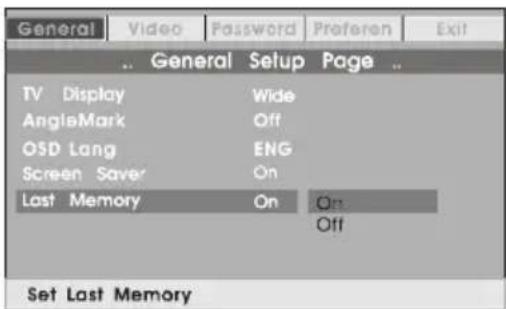
Last Memory Screen Display
*ON: The unit will return to the last position on the disc.
*OFF: The unit will not return to the last position on the disc.
NOTE: The Last position memory function is only accessible when the disc tray has been opened.
2) Select 'VIDEO' by using the LEFT/RIGHT buttons, press ENTER button to enter the VIDEO SETUP PAGE.

Video Quality Setup Screen Display
a) Select 'BRIGHTNESS' by using the UP or DOWN buttons, then press ENTER button. Adjust the Brightness by pressing the LEFT or RIGHT buttons. To exit Brightness Setting, press ENTER button again.
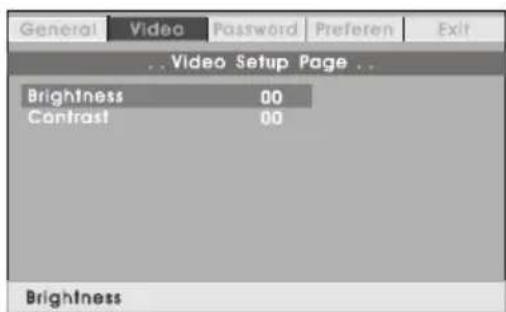
Brightness Screen Display
b) Select 'CONTRAST' by using the UP or DOWN buttons, then press ENTER button. Adjust the Contrast by pressing the LEFT or RIGHT buttons.

Contrast Screen Display
Press ENTER button again to exit the Contrast setting. And press LEFT button to exit the VIDEO QUALITY SETUP menu.
3) Select 'Password' using the LEFT or RIGHT buttons, then press the ENTER button to enter the submenu.
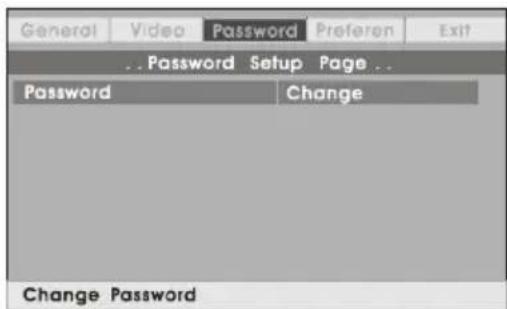
Password Setup Page Screen Display
Press ENTER button twice to enter the PASSWORD CHANGE PAGE. Input the Old Password or the Default Password, the New Password, and the Confirmed New Password. Press ENTER button to confirm the change.

Password Change Page Screen Display
NOTE: The Default Password is 3308. This password is always effective even after you have selected your own password and changed it. To avoid the possibility of others using the default password to set the parental level and change the password, you can record this default password in another area and delete it from this manual. Some discs can be limited depending on the age of users while some discs cannot.
4) With no disc inside the player select 'PREFEREN' using the LEFT or RIGHT buttons, then press ENTER button to enter the PREFERENCES PAGE.
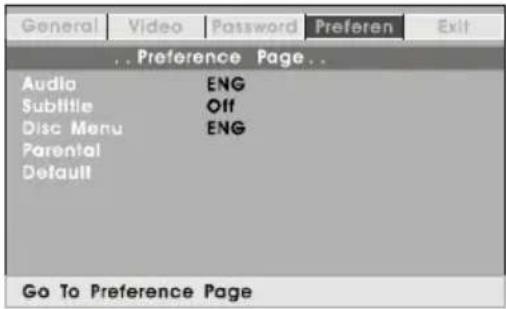
Preference Screen Display
a) Select ‘AUDIO’ using the DOWN button, then press ENTER button to enter the submenu. Select the audio language you desire using the UP or DOWN buttons, then press ENTER button to confirm the setting. Press LEFT to return.

Preference Audio Language
b) Select 'SUBTITLE' using the DOWN button, then press ENTER to enter the submenu. Select the desired subtitle language or SUBTITLE OFF using the UP or DOWN buttons, then press ENTER button to confirm the setting. Press LEFT to return.

Preference Subtitle Language
c) Select 'DISC MENU' using the DOWN button, then press ENTER button to enter the submenu. Select the Disc Menu Language you desire using the UP or DOWN buttons, then press ENTER button to confirm the setting. Press LEFT to return.

Preference Disc Menu Language Screen
NOTE: Language and subtitle selection is only available for discs that are recorded in the above listed languages. If the selected language is not available, the player will play and display on the screen the original recorded language contained in the disc.
d) Select 'PARENTAL' using the DOWN button, then press ENTER button to enter the submenu.

Parental Preference Screen Display
Select the parental level you desire using the UP or DOWN buttons for discs with lock-out function or multiple rating levels. These are listed from the lowest level (KID SAFE) to the highest level (ADULT). Enter a 4 digit password, then press ENTER button to confirm the parental level setting.
NOTE: The level of 8 ADULT is the factory default.
e) Select 'DEFAULT' using the DOWN button, then press ENTER button to enter the submenu. Press ENTER button to make the setting return to the factory-set mode.
NOTE: The parental setting is not affected by the default reset function.

Loading Factory Setting
I. Basic Operation
| POWER | Turn the unit on/off |
| OPEN | Remove/load the disc |
| PLAY | Start Play/Execute item or setting |
| PAUSE | Still Picture |
| STOP | (1 time) Stop at the present playing point / (2 times) Stop playback of the DVD |
| NEXT | Go to the next chapter, track or scene during playback |
| PREVIOUS | Go back to the previous chapter, track or scene during playback |
| FORWARD | Scan forward at 2, 4, 8,16 or 32x times speed |
| REVERSE | Scan backward at 2, 4, 8, 16 or 32x times speed |
| LEFT/RIGHT/UP/DOWN | Used for Menu Navigation |
| ENTER | Execute item or confirm setting |
| NUMBERS | Select item or setting |
| MENU | Display the main menu of the disc |
| REPEAT | Repeat playing title, chapter, or track |
| A-B | Repeat a specific portion from point A to point B of the disc |
| DISPLAY | Display information (title, chapter, track, time, etc.). |
| ANGLE | Change the viewing angles on the scene |
| SUBTITLE | Select the subtitle language and turn it on/off |
| AUDIO | Select the audio language |
| ZOOM | Enlarge an image to 2, 3, or 4 times the original size. |
| SETUP | Display the setup menu to select and set items, and exit the setup menu. |
J. Menu
A DVD is divided into sections called titles and chapters. When you play a DVD, a root menu of the disc will appear on the screen of your TV or Monitor. The contents of the menu vary from disc to disc. Press MENU during playback to display the menu. Some DVDs only allow you to select disc playback options using the DVD root menu.
K. Display (Display contents vary from disc to disc.)
1. Playing Time and Remaining Time
a. During playback press the DISPLAY button to display the current Title Number (1), the total Number of Titles (2), the current Chapter Number (3), the total Number of Chapters (4), and the elapsed playing Time for the title (5). The heading will disappear automatically after 3 seconds if no buttons are pressed.
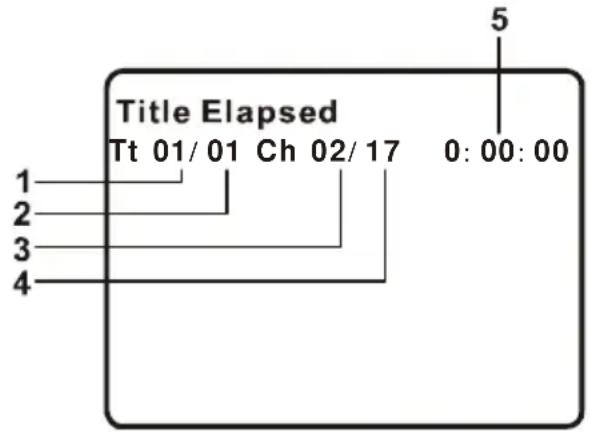
Title, Chapter Number and Time Screen Display
b. Press DISPLAY button again to display the Remaining Time of the title. The heading will disappear automatically in 3 seconds.
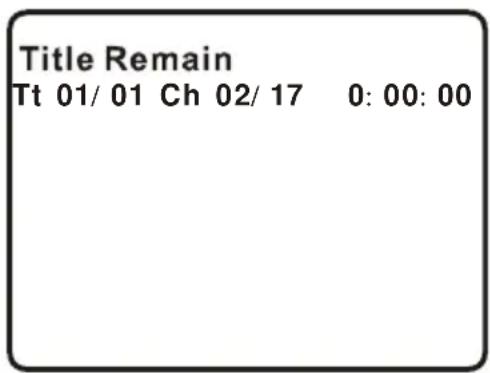
Title Remaining Time Screen Display
c. Press DISPLAY button a third time to display the Elapsed Time for the chapter. The heading will disappear automatically in 3 seconds.

Chapter Elapsed Time Screen Display
d. Press DISPLAY button a fourth time to display the Remaining Time for the chapter. The heading will disappear automatically in 3 seconds.

Chapter Remaining Time Screen Display
e. Press DISPLAY button a fifth time to exit, 'DISPLAY OFF' will be displayed and will disappear automatically in 3 seconds.
NOTE: To select the Chapter you want, enter the number of the Chapter you want on the remote while in any display mode. The information for Chapter and Title will be displayed and the number of the Chapter you selected will be highlighted. Press ENTER button to confirm the selection.
2. Angle
During playback of a disc, press ANGLE button to display the available angles for discs containing multi-angles*, with the current angle number (1) and the total number of angles (2) displaying. Press ANGLE button to select another angle, then press it again to exit and return to the normal viewing angle. The angle display will disappear automatically if the ANGLE button is not pressed again within 3 seconds.
*NOTE: Not all discs contain this feature.

Angle Screen Display
3. Subtitle
During disc playback press SUB button to select the subtitle language you desire*, with the current Subtitle Language Number (1) and the total Number of Subtitle Languages (2) displayed. If there are multiple languages press SUB button again to select another subtitle language. To turn subtitles OFF, press the SUB button until 'SUBTITLE OFF' is displayed. The Subtitle display will disappear automatically if the SUB button is not pressed again within 3 seconds.

Subtitle Screen Display
* Some DVDs only allow access to this function through the DVD menu.
4. Audio
During playback press AUDIO button to select the audio language you desire*, with the current Audio Channel Number (1) and the total number of Audio Channels (2) displayed. Press AUDIO again to select another audio language. The audio display will disappear automatically if the AUDIO button is not pressed within 3 seconds.

Audio Language Screen Display
* Some DVDs only allow access to this function through the DVD menu.
5. Zoom
During playback press ZOOM button to enlarge the picture by 2x, 3x or 4X with the current zoom multiple. Press ZOOM button one time, the picture will be enlarged 2X. Press ZOOM button a second time, the picture will be enlarged 3X. Press ZOOM button a third time, the picture will be enlarged 4X. Press ZOOM button a fourth time, the picture will return to normal size.

ZOOM Screen Display
6. A-B Repeat
a. During playback press A-B button to set the Starting Point A.

A-B Repeat Starting Point Screen Display
b. Press A-B button a second time to set the Ending Point B and the player will repeatedly play the part between Point A and Point B.
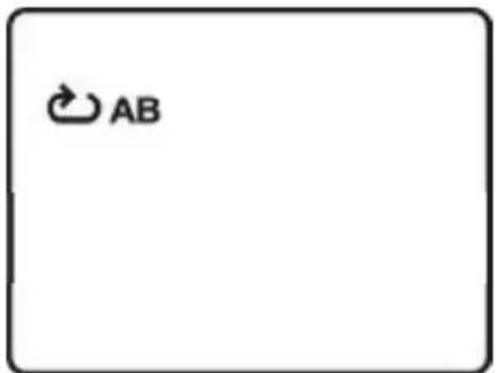
A-B Repeat Ending Point Screen Display
c. Press A-B button a third time to cancel A-B repeat and resume normal playback.

A-B Repeat Cancelled Screen Display
7. Repeat
a. During playback press 1/ALL button once to repeatedly play the current chapter.

Chapter Repeat ON Screen Display
b. During playback press 1/ALL button again to repeatedly play the current title.

Title Repeat ON Screen Display
c. During playback press 1/ALL button a third time to repeat all chapters and titles.

All Repeat ON Screen Display
d. Press 1/ALL button a fourth time, to resume normal playback.
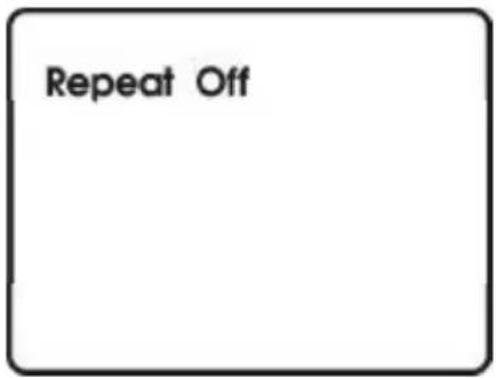
Repeat Off Screen Display
8. Forward/Reverse Scan
a. During playback press u u to scan forward at 2x, 4x, 8x, 16x, 32x and normal speed.
b. During playback press t t to scan backward at 2x, 4x, 8x, 16x, 32x and normal speed.
L. Playing Audio CDs
When an CD disc is put into the unit, the Menu Screen appears. You can use Up and DOWN button to choose the song you desired. Press ENTER button to play.

Menu Screen
1. Using the Repeat Feature
The default mode for the Repeat feature is OFF. Pressing 1/ALL button consecutively changes the repeat options:
- Repeat one- repeats the track that is playing.
- Repeat All - repeats the disc that is playing.
- Repeat Off
As you toggle through the options, the repeat option changes. The selected repeat option loops repeatedly until you turn it off.
2. A-B Repeat
a. During playback press A-B to set the Starting Point A.
b. Press A-B a second time to set the Ending Point B and the player will repeatedly play the part between Point A and Point B.
c. Press A-B a third time to cancel A-B repeat and resume playback.
3. Forward/Reverse Scan
a. During playback press u u to scan forward at 2x, 4x, 8x, 16x, 32x and normal speed.
b. During playback press t to scan backward at 2x, 4x, 8x, 16x, 32x and normal speed.
M. Playing JPEG Files
1) Load a JPEG disc onto the disc tray.
2) A screen showing folders or picture files contain on the disc will be displayed automatically after loading.
3) You can select a picture you desire by pressing UP, DOWN, LEFT, RIGHT and ENTER buttons.
4) Press the DOWN button to rotate the picture clockwise.
5) Press the ZOOM button to enlarge the picture size by 125%, 150%, 200% or zoom out by 75%, 50% and then return to the original size. When the image is enlarged, you can use the navigation buttons to view blocked parts of the picture.
6) Press UP button to return to the screen showing folders and picture files.
N. Connecting to Other Equipment
1. AV Out
Connecting to a TV or Another Monitor (Refer to Figure 5)
Connect the black end (1/8" plug) of the audio/video cable into the unit's DVD's A/V OUT jack, and connect the other end to the AUDIO INPUT jacks on your TV or Monitor using an additional set of AV cable (not included) (white = left audio channel, red = right audio channel, yellow = video).

Figure 5
2. Connecting Headphones
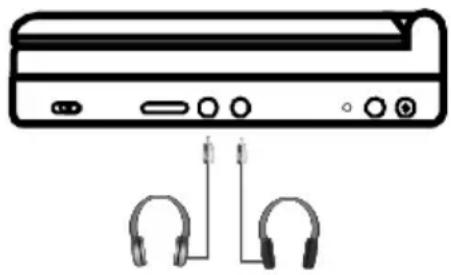
Simply plug the headphones into either Headphone jack 1 or Headphone jack 2 on the right side of the DVD Player. (Refer to Figure 6)
natural_image
Diagram of a portable electronic device with two earphones and ports, no text or symbols presentFigure 6
Plugging into Headphone jack 1 will disable the internal speakers.
O. Specifications
Compatible DISC: DVD/CD
Signal system: NTSC
Panel size: 8 inch
Frequency response: 20 Hz to 20 kHz
Video output: 1 Vp-p/75 Ohm, unbalanced
Audio output: 1.4V _rms /10kOhm
Audio S/N: Better than 60 dB
Dynamic range : Better than 85 dB
Laser: Semiconductor Laser, Wave Length: 650 nm/795 nm
Power source: DC 9-12 V
Power consumption: 7 W
Operating temperature: 41\~95°F (5\~35°C)
Weight : 1.74lbs (0.79 kg)
Dimensions (W x D x H): 8.03 X 5.90 X 1.57 inches
(204 x 150 x 40 mm)
Battery Type: Li-Polymer
P. Rechargeable Built-in Battery
The DVD player utilizes a long-life Li-Polymer battery for portability. Li-Polymer batteries feature high storage capacity and low level of degradation. This means the Li-Polymer batteries do not have “Memory Effect” and thus can be recharged regardless of whether the battery is fully or only partially discharged. The battery must be charged at least 8 hours prior to first use.
NOTE: If you plan not to use the battery for an extended period of time (one week or longer), we recommend that you fully charge the battery. For longer periods of storage, please recharge the battery at least once every two months to maintain the battery in optimum condition. Each full recharge takes approximately five hours and one full charge can provide power to the player for approximately 2 hours.
During recharge, the red indicator will stay on. Once fully recharged, the red light will turn green. At this point you may remove the wall plug and stop charging.
Precautions Related to Battery Recharge:
- The DVD player must be set to power off.
- Once the battery is fully discharged, immediately recharge (regardless of whether you plan to use battery or not) in order to maximize battery life.
- To charge the battery, please connect the power jack directly into the DVD Player and leave connected until the red power indicator turns green.
Using and Maintaining Your Rechargeable Batteries
- Please make sure you always use only the AC adapter included with the player to recharge your batteries. The battery can only be charged with the AC adaptor and will NOT charge with the car DC adaptor.
- Recharge efficiency will degrade when environmental temperatures drop below 50^ F ( 10^ C) or exceed 95^ F ( 35^ C).
Q. Troubleshooting
| PROBLEM | SOLUTION |
| No sound or distorted sound | Make sure the DVD player is connected properly. Make sure all cables are securely inserted into the appropriate jacks. |
| Can't advance through a movie | You can't advance through the opening credits and warning information that appears at the beginning of movies because the disc is programmed to prohibit that action. |
| The icon (∅) appears on screen | The feature or action cannot be completed at this time because:The disc's software restricts it.The disc's software doesn't support the feature (e.g., angles)The feature is not available at the moment.You've requested a title or chapter number that is out of range. |
| Picture is distorted | The disc might be damaged. Try another disc.It is normal for some distortion to appear during forward or reverse scan. |
| No forward or reverse scan | Some discs have sections that prohibit rapid scanning or title and chapter skip.You will not be able to skip through the warning information and credits at the beginning of a movie. This part of the movie is often programmed to prohibit skipping through it. |
Troubleshooting (Cont)
| PROBLEM | SOLUTION |
| IR sensor inoperative | ·Verify that the batteries in the remote are fresh.·Verify that the remote sensor eye is not obstructed. |
| Disc won’t play | ·Check the type of disc you put into disc tray. This DVD player only plays DVDs and audio CDs. |
| Play starts, but then stops immediately | ·Your DVD player has been designed to process regional management information that is stored on DVD discs. The regional code for your player is 1 (The U.S.,U.S. Territories and Canada). Only DVD discs that have regional codes of 1 or ALL (for all regions) can be played by your player.·The disc is dirty. Clean it.·Condensation has formed. Allow player to dry out. |

AUDIOVOX ELECTRONICS CORP
90 DAY LIMITED WARRANTY
Applies to Audiovox Video Products
AUDIOVOX ELECTRONICS CORP. (the Company) warrants to the original retail purchaser of this product that should this product or any part thereof, under normal use and conditions, be proven defective in material or workmanship within ninety (90) days from the date of original purchase, such defect(s) will be repaired or replaced with reconditioned product (at the Company's option) without charge for parts and repair labor. A game controller, if supplied, is similarly warranted for ninety (90) days.
To obtain repair or replacement within the terms of this Warranty, the product is to be delivered with proof of warranty coverage (e.g. dated bill of sale), specification of defect(s), transportation prepaid, to the Company at the address shown below.
This Warranty does not extend to the elimination of externally generated static or noise, to correction of antenna problems, to costs incurred for installation, removal or reinstallation of the product, or to damage to digital memory/media devices, gaming devices, discs, speakers, accessories, or electrical systems.
This Warranty does not apply to any product or part thereof which, in the opinion of the Company, has suffered or been damaged through alteration, improper installation, mishandling, misuse, neglect, accident, or by removal or defacement of the factory serial number/bar code label(s). THE EXTENT OF THE COMPANY'S LIABILITY UNDER THIS WARRANTY IS LIMITED TO THE REPAIR OR REPLACEMENT PROVIDED ABOVE AND, IN NO EVENT, SHALL THE COMPANY'S LIABILITY EXCEED THE PURCHASE PRICE PAID BY PURCHASER FOR THE PRODUCT.
This Warranty is in lieu of all other express warranties or liabilities. ANY IMPLIED WARRANTIES, INCLUDING ANY IMPLIED WARRANTY OF MERCHANTABILITY, SHALL BE LIMITED TO THE DURATION OF THIS WRITTEN WARRANTY. ANY ACTION FOR BREACH OF ANY WARRANTY HEREUNDER INCLUDING ANY IMPLIED WARRANTY OF MERCHANTABILITY MUST BE BROUGHT WITHIN A PERIOD OF 12 MONTHS FROM DATE OF ORIGINAL PURCHASE. IN NO CASE SHALL THE COMPANY BE LIABLE FOR ANY CONSEQUENTIAL OR INCIDENTAL DAMAGES FOR BREACH OF THIS OR ANY OTHER WARRANTY, EXPRESS OR IMPLIED, WHATSOEVER. No person or representative is authorized to assume for the Company any liability other than expressed herein in connection with the sale of this product.
Some states do not allow limitations on how long an implied warranty lasts or the exclusion or limitation of incidental or consequential damage so the above limitations or exclusions may not apply to you. This Warranty gives you specific legal rights and you may also have other rights which vary from state to state.
AUDIOVOX ELECTRONICS CORPORATION, 150 MARCUS BLVD. HAUPPAUGE, NEW YORK 11788 I 1-800-645-4994
128-5556G
- AUDIOVOX®
- ELECTRONICS CORP.
- D1809PK
- 8" LCD MONITOR WITH DVD PLAYER
- FCC Information
- Manufacturer/Responsible Party
- For Your Safety
- This power unit is intended to be correctly oriented in a vertical or floor mount position.
- Notice:
- Content
- Introduction
- Cautions and Warnings
- Water and Moisture
- Cleaning
- Heat
- Attachments
- Servicing
- AC/DC Power Adapter Cords
- Power Sources
- Caution
- Disc
- DVD Regional Code
- Precautions When Watching
- Contents
- Powering and Installation
- Powering the System Indoors (Refer to Figure 1)
- Powering the System in a Car (Refer to Figure 1)
- Charging the Built-in Battery
- Vehicle Installation
- Installing the DVD Player onto the Seat Back in a Car
- Controls, Indicators, and Connectors
- Unit View (Refer to Figure 3)
- Remote Control View (Refer to Figure 4)
- Loading and Playing a Disc
- Setup
- Angle Mark Screen Display
- Screen Saver Screen Display
- Last Memory Screen Display
- Video Quality Setup Screen Display
- Brightness Screen Display
- Contrast Screen Display
- Password Setup Page Screen Display
- Password Change Page Screen Display
- Preference Screen Display
- Preference Audio Language
- Preference Subtitle Language
- Preference Disc Menu Language Screen
- Parental Preference Screen Display
- Basic Operation
- Menu
- Display (Display contents vary from disc to disc.)
- Playing Time and Remaining Time
- Title, Chapter Number and Time Screen Display
- Chapter Elapsed Time Screen Display
- Chapter Remaining Time Screen Display
- Angle
- Subtitle
- Audio
- Zoom
- A-B Repeat
- A-B Repeat Starting Point Screen Display
- A-B Repeat Ending Point Screen Display
- A-B Repeat Cancelled Screen Display
- Repeat
- Forward/Reverse Scan
- Playing Audio CDs
- Using the Repeat Feature
- A-B Repeat
- Forward/Reverse Scan
- Playing JPEG Files
- Connecting to Other Equipment
- AV Out
- Connecting Headphones
- Specifications
- Rechargeable Built-in Battery
- Precautions Related to Battery Recharge:
- Using and Maintaining Your Rechargeable Batteries
- Troubleshooting
- AUDIOVOX ELECTRONICS CORP
- DAY LIMITED WARRANTY
- Applies to Audiovox Video Products
Brand : AUDIOVOX
Model : D1809PK
Category : DVD player