 ManualGo.com
MAVICA MVC-FD7 - Digital Camera SONY - Free user manual and instructions
Find the device manual for free MAVICA MVC-FD7 SONY in PDF.



Download the instructions for your Digital Camera in PDF format for free! Find your manual MAVICA MVC-FD7 - SONY and take your electronic device back in hand. On this page are published all the documents necessary for the use of your device. MAVICA MVC-FD7 by SONY.
USER MANUAL MAVICA MVC-FD7 SONY
MVC-FD5 MVC-FD7 ©1997 by Sony Corporation
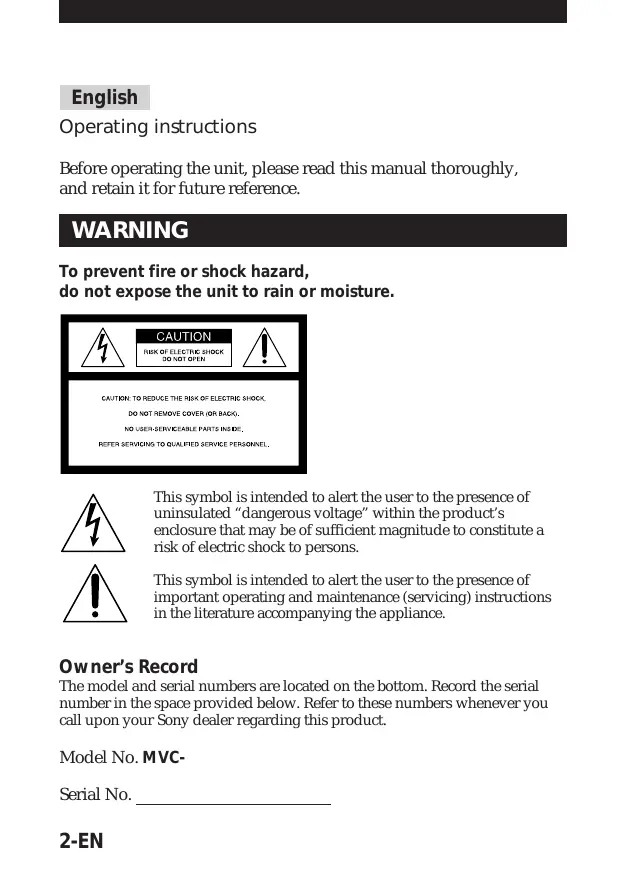
English Operating instructions Before operating the unit, please read this manual thoroughly, and retain it for future reference. WARNING To prevent fire or shock hazard, do not expose the unit to rain or moisture. This symbol is intended to alert the user to the presence of uninsulated “dangerous voltage” within the product’s enclosure that may be of sufficient magnitude to constitute a risk of electric shock to persons. This symbol is intended to alert the user to the presence of important operating and maintenance (servicing) instructions in the literature accompanying the appliance. Owner’s Record The model and serial numbers are located on the bottom. Record the serial number in the space provided below. Refer to these numbers whenever you call upon your Sony dealer regarding this product. Model No. MVCSerial No. 2-EN CAUTION Never expose the battery pack to temperatures above 140°F (60°C), such as in a car parked in the sun or under direct sunlight. TO PREVENT ELECTRIC SHOCK, DO NOT USE THIS POLARIZED AC PLUG WITH AN EXTENSION CORD, RECEPTACLE OR OTHER OUTLET UNLESS THE BLADES CAN BE FULLY INSERTED TO PREVENT BLADE EXPOSURE. You are cautioned that any changes or modifications not expressly approved in this manual could void your authority to operate this equipment. Note: This equipment has been tested and found to comply with the limits for a Class B digital device, pursuant to Part 15 of the FCC Rules. These limits are designed to provide reasonable protection against harmful interference in a residential installation. This equipment generates, uses, and can radiate radio frequency energy and, if not installed and used in accordance with the instructions, may cause harmful interference to radio communications. However, there is no guarantee that interference will not occur in a particular installation. If this equipment does cause harmful interference to radio or television reception, which can be determined by turning the equipment off and on, the user is encouraged to try to correct the interference by one or more of the following measures: – Reorient or relocate the receiving antenna. – Increase the separation between the equipment and receiver. – Connect the equipment into an outlet on a circuit different from that to which the receiver is connected. – Consult the dealer or an experienced radio/TV technician for help. For the Customers in the United States and CANADA DISPOSAL OF LITHIUM ION BATTERY. LITHIUM ION BATTERY. DISPOSE OF PROPERLY. You can return you unwanted lithium ion batteries to your nearest Sony Service Center or Factory Service Center. Note: In some areas the disposal of lithium ion batteries in household or business trash may be prohibited. For the Sony Service Center nearest you call 1-800-222-SONY (United States only) For the Factory Service Center nearest you call 416-499-SONY (Canada only) Caution: Do not handle damaged or leaking lithium ion batteries. 3-EN NOTICE FOR THE CUSTOMERS IN THE UNITED KINGDOM A moulded plug complying with BS 1363 is fitted to this equipment for your safety and convenience. Should the fuse in the plug supplied need to be replaced, a 5 AMP fuse approved by ASTA or BSI to BS 1362, (i.e., marked with 2 or @ mark) must be used. If the plug supplied with this equipment has a detachable fuse cover, be sure to attach the fuse cover after you change the fuse. Never use the plug without the fuse cover. If you should lose the fuse cover, please contact your nearest Sony service station.
- IBM PC/AT is a registered trademark of International Business Machines Corporation of the U.S.A.
- MS-DOS and Windows are registered trademarks licensed to Microsoft Corporation, registered in the U.S.A. and other countries.
- Macintosh is a trademark licensed to Apple Computer, Inc., registered in the U.S.A. and other countries.
- All other product names mentioned herein may be the trademarks or registered trademarks of their respective companies. Furthermore, “TM” and “” are not mentioned in each case in this manual. 4-EN Table of contents Be sure to read before using your camera Before using your camera 7
Getting started Preparation 9 Step 1: Charging the battery pack 10 Step 2: Installing the battery pack 11 Step 3: Setting the date and time 13 Basic operations Recording images 16 The indicators during recording 19 Adjusting the brightness of the LCD screen 20 Flash/Zoom/Self-timer 20 Adjusting the exposure 21 Watching images on the LCD screen 22 The indicators during playback 23 Adjusting the brightness of the LCD screen 23 Playing back 6 recorded images at a time (INDEX screen) 24 Protecting images 25 Deleting images 28 Viewing images using a personal computer 32 Advanced operations Changing the mode settings 33 Using various functions for recording (MVC-FD7 only)
Additional information Changing the lithium battery in the camera Precautions 39 Troubleshooting 41 Self-diagnosis display 43 Specifications 44 Parts identification 45 Index 47
5-EN Be sure to read before using your camera Checking supplied accessories (see page 9) Digital still camera (1) Power cord (1 set) Shoulder strap (1) Battery charger (1) NP-F530 battery pack (1) Lens cap (1) (MVC-FD7 only) Image recording format on this camera The image data recorded with this camera is compressed and recorded in JPEG format. Extension of the file is “.JPG”. For details, see page 32. Power sources This camera operates only with the “InfoLITHIUM” battery pack NP-F530*. If you use any other battery or power sources to operate your camera, the camera may not operate. Trial recording Before you record one-time events, you may want to make a trial recording to make sure that the camera is working correctly. No compensation for contents of the recording Contents of the recording cannot be compensated for if recording or playback is not made due to a malfunction of the camera, floppy disk, etc. Precaution on copyright Television programs, films, video tapes, floppy disk, and other materials may be copyrighted. Unauthorized recording of such materials may be contrary to the provision of the copyright laws.
- “InfoLITHIUM” battery pack The “InfoLITHIUM” is a lithium ion battery pack which can exchange data with compatible equipment about its battery consumption. ”InfoLITHIUM” is a trademark of Sony Corporation. 6-EN Before using your camera This digital still camera uses a floppy disk as media. Use the following floppy disk type.
3.5 inch
- Format: MS-DOS format (512 bytes × 18 sector) When using 3.5 inch, 2HD floppy disk other than described above, format it using the camera or personal computer. Do not shake or strike the unit Malfunctions, inability to record images as well as inability to use floppy disks or image and memory data breakdown, damage or loss may occur. Do not get the unit wet This unit is an electronic device, do not allow it to get wet. When shooting in the rain or outdoors, be careful not allow water to get on or into the unit. When moving this unit from one atmospheric condition to another, moisture may condense inside or outside the camera. If this occurs refer to page 40 and follow instructions on how to remove it before using. Back up recommendations To avoid the potential risk of data loss always copy (back up) data to disk. 7-EN ÷ Before using your camera
- The instructions in this manual are for the two models listed below. Before you start reading this manual and operating the unit, check your model number by looking at the bottom of your camera.
- The MVC-FD7 is the model used for illustration purposes. Otherwise, the model name is indicated in the illustrations. Any differences in operation are clearly indicated in the text, for example, “MVC-FD7 only.” As you read through this manual, buttons and settings on the camera are shown in capital letters. e.g., Press FLASH. Types of differences Model number MVC-FD5 Macro shooting Macro switch Auto Zoom
8-EN MVC-FD7 Preparation What you need Digital Still Camera Battery pack (NP-F530) Battery charger (BC-V615) (MVC-FD7) Floppy disk (not supplied)
3.5 inch, 2HD (1.44 MB)
Power cord Shoulder strap Lens cap (MVC-FD7 only) Preparation outlines The clock is not set at the factory. Be sure to set the clock before using your camera.
Charge the battery pack. (p. 10) Install the battery pack. (p. 11) This camera operates by battery pack. Install a fully charged battery pack.
Set the date and time. (p. 13) The date and time data are necessary for MS-DOS format recording. If they are not set, incorrect date and time are recorded. The CLOCK SET screen appears whenever you turn on the camera in CAMERA mode. 9-EN Step 1: Charging the battery pack To charge the battery pack, use the battery charger. For details, refer to the instruction manual of the battery charger. to wall outlet
CHARGE lamp (orange) Battery charger 1 Connect the power cord to a wall outlet. 2 Insert the battery pack in the direction of the $ mark. Slide it down until it clicks. The CHARGE lamp (orange) lights up. Charging begins. To remove the battery pack Slide up the battery pack. Charging time Full charge* 225 min. Normal charge** 165 min. Approximate minutes to charge an empty battery pack using the battery charger BC-V615. (Lower temperatures require a longer charging time.)
- Charging for about one hour after the CHARGE lamp goes out. ** Charging just until the CHARGE lamp goes out. 10-EN Step 2: Installing the battery pack
While sliding OPEN (BATT) in the direction of the arrow, open the battery cover.
Insert the battery pack with the $ mark facing toward the battery compartment.
Close the cover until it clicks. To remove the battery pack Open the battery cover. While sliding BATT rightward, remove the battery pack. Be careful not to drop the battery pack when removing. 11-EN ÷ Step 2: Installing the battery pack Battery life/No. of images that can be recorded/ played back MVC-FD5 Continuous recording Unusing the flash* Using the flash** Continuous playing*** Battery life (min.) No. of images (record/playback) 95 (80) 85 (75) 125 (110) 540 (450) 320 (280) 750 (650) Battery life (min.) No. of images (record/playback) 90 (70) 70 (60) 120 (105) 500 (400) 280 (240) 720 (620) MVC-FD7 Continuous recording Unusing the flash* Using the flash** Continuous playing*** Approximate battery life and No. of images that can be recorded/played back under the temperature of 77°F (25°C) using NP-F530. Numbers in parentheses indicate the time when you use a normally charged battery.
- Recording at about 10 second intervals ** Recording at about 15 second intervals *** Playing back single image at about 10 second intervals
- Battery life and No. of images will be decreased if you use the camera in a cold environment or while you repeat turning the power on/off and zooming (MVC-FD7 only).
- Battery life and No. of images above are a guide with using some floppy disks. ¡ Notes on remaining battery time indication Remaining battery time is displayed on the LCD screen*. However, the indication may not be displayed properly, depending on using conditions and circumstances.
- During recording, remaining battery time is displayed while the power is on. During playback, it is displayed with the image on the LCD screen. ¡ Auto power-off function During recording if you leave the camera inactive for about 3 minutes while the power is on, the camera turns off automatically to prevent wearing down the battery. 12-EN Step 3: Setting the date and time Function of the control button You can select an item in the menu which appears on the LCD screen by pressing the upper, lower, left or right side of the control button. When an item is selected, the color of the item changes from blue to yellow. To enter your selection, press the center of the control button. Control button Upper side
Left side Lower side Right side Press to execute.
When you use the camera first With the floppy disk inserted (p.16) and the power turned on, as in step 1, the clock set screen appears. If this occurs, follow the procedures from step 4.
Slide POWER down to turn on the power. If the “I” indicator appears on the LCD screen, replace the lithium battery according to the procedures on page 38. 13-EN ÷ Step 3: Setting the date and time 2 Select “MENU” with the control button, then press it. The menu appears on the LCD screen. To cancel menu screen, select “ RETURN” with the control button, then press it. –EV MENU +EV 3 Select “CLOCK SET” with the control button, then press it. CLOCK SET BEEP FIELD/FRAME QUALITY RETURN CLOCK SET
Y/M/D M/D/Y D/M/Y 1997 1 8 10: 20AM ENTER CANCEL 4 Select the desired display of the date with the control button, then press it. Y/M/D (year/month/day) M/D/Y (month/day/year) D/M/Y (day/month/year) 14-EN
Select the date and time with the control button, then press it. The item to be changed is indicated with 4/$. Select number by pressing the upper side or lower side of the control button, then press it to enter the number. After entering the number, 4/$ moves to the next item. When “D/M/Y” is selected, set the time on a 24-hour cycle.
CLOCK SET Y/M/D 1997 1 8 10: 20AM Select “ENTER” with the control button, then press it at the desired moment to begin clock movement. To cancel setting the date and time Select “CANCEL” with the control button, then press it. 15-EN Recording images
3.5 inch, 2 HD (1.44 MB), MS-DOS format floppy disk is necessary
ACCESS lamp BRIGHT (brightness of the LCD screen) +/– button 5,6 Macro switch (MVC-FD5 only)
DISPLAY button 1 Remove the lens cap. (MVC-FD7 only) 2 Slide POWER down to turn on the power. 3 Set PLAY/CAMERA to CAMERA. The image captured by the lens and “NO DISK” appear on the LCD screen. 4 Slide OPEN in the direction of the arrow and open the floppy disk cover. The screen turns blue and “COVER OPEN” appears. 16-EN
Insert the floppy disk until it clicks. Before inserting, check that the write protect tab set to the recordable position.
Close the cover. The image appears on the LCD screen.
+EV 120min Image quality indicator Remaining disk capacity indicator No. of recorded images AE lock indicator (Green) Zoom indicator (MVC-FD7 only) Press the shutter button halfway down. The AE lock indicator r (green) appears on the LCD screen. AE (auto exposure), AWB (auto white balance) and AF (auto focus: MVC-FD7 only) are frozen.
Press the shutter button fully down. The image is recorded on the disk. The ACCESS lamp flashes, the remaining disk capacity indicator rotates and “RECORDING” appears on the LCD screen. Note When the ACCESS lamp is flashing, never shake or strike the unit. As well do not open the floppy disk cover, turn the power off or remove the battery pack. Otherwise, the image data breakdown may occur. 17-EN ÷ Recording images The number of images you can record on a floppy disk The number of images you can record is different depending on which image quality mode you select and subject complexity. STANDARD FINE about 30 – 40 images about 15 – 20 images Change the disk when the remaining disk capacity indicator is emptied and flashes. The image quality mode is set at the factory to STANDARD (p. 34). Notes
- If you attempt to record 55 images or above, DISC FULL appears on the LCD screen and you cannot record the image even when the remaining disc capacity indicator is not emptied.
- When the remaining disk capacity indicator flashes, image data cannot be recorded and INDEX screen may not be displayed. To remove the floppy disk Open the floppy disk cover and press EJECT. EJECT button 18-EN The indicators during recording The indicators on the LCD screen are not recorded. Flash indicator Manual focusing (MVC-FD7 only) Program AE indicator (MVC-FD7 only)/Macro shooting indicator (MVC-FD5 only) Exposure/Zoom indicator* (MVC-FD7
only) SEPIA Picture effect indicator (MVC-FD7 only) LCD brightness +EV –EV indicator* MENU Adjusting the exposure button MENU button Self-timer indicator AE lock indicator Image quality indicator Remaining disk capacity indicator No. of stored images Self-diagnosis function indicator 120min FRAME indicator Remaining battery time indicator Self-timer button *Displayed when pressed only. To go off the indicators Press DISPLAY. The indicators do not go off in the following modes: Program AE, Picture effect, Manual focus, Zoom, Macro, AE Lock, Self-timer, Flash, FRAME and Adjusting the exposure. 19-EN ÷ Recording images Adjusting the brightness of the LCD screen Use the BRIGHT +/– button. Flash/Zoom/Self-timer Zoom (MVC-FD7) “T” side: for telephoto (subject appears closer) “W” side: for wide-angle (subject appears farther away) FLASH CHARGE lamp Flash Press FLASH. When the blinking FLASH CHARGE lamp lights up, you can shoot images using the flash. To cancel flash mode, press it again. Self-timer with the control Select button, then press it. About 10 seconds after you press the shutter button, the subject is recorded.
- The subject must be 2 m to 4 m (6.5 feet to 13 feet) away from the flash.
- If flash is used in FRAME mode, the image is recorded in FIELD mode. The FRAME indicator flashes on the LCD screen (p. 34).
- When recording in relatively dark environment, it is recommended to record after focusing manually (MVC-FD7 only). 20-EN Adjusting the exposure Select “+EV” or “–EV” with the control button, then press it to select the desired value. To raise the exposure value (brighten the picture): +EV To lower the exposure value (darken the picture): –EV Selected value +1.5EV –EV MENU +EV
- The EV (exposure value) can be adjusted –1.5EV to +1.5EV.
- When the PROGRAM AE function is turned on, you cannot adjust the brightness of the image (MVC-FD7 only). ¡ When the subject is too close to focus on MVC-FD5 Move the macro switch on the front of the camera to the “MACRO” side, and then focus on the subject. The macro indicator appears on the LCD screen. You can shoot a subject that is about 3 to 9 inches (about 8 to 25 cm) or more away from the lens surface in macro mode. To resume normal recording slide the switch until it clicks. cMACRO MVC-FD7 Move the zoom lever to the “W” side until the focus is sharp. You can shoot a subject that is at least about 3 1/4 feet (about 100 cm) away from the lens surface in the telephoto position, or about 1/2 inch (about 1 cm) away in the wide-angle position. 21-EN Watching images on the LCD screen ACCESS lamp
1 Slide POWER down to turn on the power. 2 Slide OPEN in the direction of the arrow and open the floppy disk cover. 3 Insert the floppy disk until it clicks, then close the cover. 4 Set PLAY/CAMERA to PLAY. The last recorded image appears on the LCD screen. 5 To display the preceding recorded image, select
” with the control button, then press it. To display the next image, select “ ” with the control button, then press it. When the indicators on the LCD screen are not displayed, Image number STD press the left or 11/11 right side of the Number of stored control button images in the floppy disk to display the File name preceding or MVC-011S Recording date next image. 12:30PM MENU INDEX 22-EN 120min of the playback image / buttons Note When the ACCESS lamp is flashing, never shake or strike the unit. As well do not open the floppy disk cover, turn the power off or remove the battery pack. The indicators during playback Image number Image quality indicator STD 11/11 MVC-011S MENU INDEX
12:30PM 120min Remaining disk capacity indicator Number of stored images in the floppy disk File name Recording date of the playback image Remaining battery time indicator
buttons (Single screen mode)/ buttons (Index screen mode) Adjusting the brightness of the LCD screen Use the BRIGHT +/– button. 23-EN ÷ Watching images on the LCD screen Playing back 6 recorded images at a time (INDEX screen) Select “INDEX” with the control button, then press it. The ” mark appears on the image that is displayed before changing to INDEX screen mode. STD 11/11
12:30PM 11/11 120min
- To display the following 6 images, select “b” with the control button, then press it.
- To display the preceding 6 images, select “B” with the control button, then press it.
- To return to the normal playback screen (SINGLE screen), select an image with the control button, then press it.
- The number displayed at the upper right side of the image shows the recording order on the disk. It is different from the file name (p. 32). 24-EN Protecting images To prevent accidental erasure, you can protect the image. In SINGLE screen mode
Display the image you want to protect. Select “MENU” with the control button, then press it. The menu appears on the LCD screen. To cancel menu screen, select “ RETURN” with the control button, then press it.
Select “PROTECT” with the control button, then press it. The red r mark shows the current setting. CLOCK SET BEEP FORMAT DISK DELETE PROTECT RETURN
Select “ON” with the control button, then press it. The protect mark H appears on the upper left side of the image. To cancel protecting image Select “ RETURN” with the control button, then press it. The screen returns to the menu screen. 25-EN ÷ Watching images on the LCD screen To cancel protection of the image Select “OFF” in step 4 with the control button, then press it. Note When you format the disk, the contents of the whole disk, including the protected image data, are erased. In INDEX screen mode—Protecting all or selected images 1 Select “INDEX” with the control button, then press it to enter INDEX screen mode.
12:30PM 11/11 120min 2 Select “MENU” with the control button, then press it. The menu appears on the LCD screen. To cancel menu screen, select “ RETURN” with the control button, then press it. 3 Select “PROTECT” with the control button, then press it. 26-EN
Protecting all the images 1 Select “ALL” with the control button, then press it. 2 Select “OK” with the control button, then press it. The screen returns to the index screen. When you cancel the menu screen, H appears on the upper left side of all the images. Protecting selected images 1 Select “SELECT” with the control button, then press it. “PROTECT” appears on the LCD screen.
ENTER CANCEL 7-11
2 Use the control button to display the red ” mark at the image you want to protect. H appears on the upper left side of the image. To cancel protecting, press the control button so that the “H” indicator goes out. To display preceding or following 6 images, select “B” or “b” with the control button, then press it. 3 Select “ENTER” with the control button, then press it. 27-EN ÷ Watching images on the LCD screen To cancel protection of the image in INDEX screen mode Follow the procedures of “Protecting selected images”. In step 2, select the images you want to cancel protection with the control button, then press it. The “H” indicator at the upper left side of the image disappears. When you have finished the cancelling, select “ENTER” with the control button, then press it. To cancel protecting image Select “CANCEL” with the control button, then press it. The screen returns to the menu screen. Deleting images You can delete images you do not want to keep any longer. In SINGLE screen mode 1 Display the image you want to delete. 2 Select “MENU” with the control button, then press it. The menu appears on the LCD screen. To cancel menu screen, select “ RETURN” with the control button, then press it. 28-EN
Select “DELETE” with the control button, then press it. CLOCK SET BEEP FORMAT DISK DELETE PROTECT RETURN
Select “OK” with the control button, then press it. To cancel deleting image Select “CANCEL” in step 4 with the control button, then press it. Notes
- You cannot delete a protected image. To delete protected image, cancel their protection first.
- Once you delete an image, you cannot restore it. Check the images to delete carefully before deleting them. 29-EN ÷ Watching images on the LCD screen In INDEX screen mode—Deleting all or selected images 1 Select “INDEX” with the control button, then press it to enter INDEX screen mode.
12:30PM 11/11 120min 2 Select “MENU” with the control button, then press it. The menu appears on the LCD screen. To cancel menu screen, select “ RETURN” with the control button, then press it. 3 Select “DELETE” with the control button, then press it.
Deleting all the images 1 Select “ALL” with the control button, then press it. 2 Select “OK” with the control button, then press it. The screen turns to blue and “NO FILE” appears. 30-EN
Deleting selected images 1 Select “SELECT” with the control button, then press it. “DELETE” appears on the LCD screen.
ENTER CANCEL 7-11
2 Use the control button to display the red ” mark at the image you want to delete. The selected image number reverses color. To cancel deleting, press the control button. The image number display returns to normal. To display the preceding or following 6 images, select “B” or “b” with the control button, then press it. 3 Select “ENTER” with the control button, then press it. The selected images are deleted and the image numbers move up. To cancel deleting image Select “CANCEL” with the control button, then press it. The screen returns to the menu screen. Notes
- Even when you select “ALL”, you cannot delete the protected image.
- When you select “SELECT” , you cannot select a protected image.
- To delete protected image, cancel their protection first.
- Once you delete an image, you cannot restore it. Check the images to delete carefully before deleting them. 31-EN Viewing images using a personal computer The image data recorded with this camera is compressed in JPEG format. This data can be viewed using a personal computer which has JPEG view ability application installed such as Microsoft Internet Explorer. For detailed procedures using image data with a application, refer to the personal computer instruction manual. Example: personal computer installed Windows 95 1 Start up Windows 95 and insert the floppy disk into the disk drive of the personal computer. 2 Open “My computer” and double click “3.5 inch FD”. 3 Double-click the desired data file. On file format This camera compresses image data in JPEG format (extension .JPG) and simultaneously records file data (extension .411) for index screen. The index screen data is available only on this camera. Example MVC-001F.JPG: Data file name of image MVC-001F.411: Data file name for index screen Recommended OS/applications example
- Windows 95 or later applications
- Microsoft Internet Explorer etc. Note For Macintosh, you can use the floppy disk recorded with this camera using the PC Exchange with Mac OS system 7.5 or higher. A viewing application for Macintosh is also necessary for viewing images. 32-EN Changing the mode settings
Select “MENU” with the control button, then press it. The menu appears on the LCD screen. CAMERA mode CLOCK SET BEEP FIELD/FRAME QUALITY RETURN
PLAY mode CLOCK SET BEEP FORMAT DISK DELETE PROTECT RETURN Select desired item with the control button, then press it. When a item is selected, the color of the item changes from blue to yellow.
Change the setting with the control button, then press it. When the setting is finished, menu screen disappears from the LCD screen. To cancel changing the mode settings Select “ RETURN” or “CANCEL” with the control button, then press it. The screen returns to the menu screen. To cancel menu screen, select “ RETURN” with the control button, then press it. 33-EN ÷ Changing the mode settings Setting the mode of each item Items in CAMERA mode
QUALITY < STANDARD*/ FINE >
- Select STANDARD as a standard image quality. (about 30 - 40 images can be recorded on 1 floppy disk)
- Select FINE when giving priority to image quality. (about 15 - 20 images can be recorded on 1 floppy disk) Number of images can be recorded is different depending on subjects. FIELD**/FRAME**
- Normally select FIELD. The camera compensates for camerashake.
- Select FRAME for high quality recording. Care for camera-shake in this mode. If flash is used in FRAME mode, the image is recorded in FIELD mode. The FRAME indicator flashes on the LCD screen. When recording fast-moving subjects in FRAME mode, the recorded image is blurry. Items in PLAY mode PROTECT Select this item to protect images. See page 25. DELETE Select this item to delete images. See page 28.
FORMAT <OK/CANCEL>
- Select OK to format floppy disks.
- Select CANCEL to cancel formatting. Formatting erases all information on the floppy disk, including the protected image data. Check the contents of the disk before formatting. Be sure that the battery is fully charged when formatting a floppy disk. Formatting takes about 3 minutes maximum. 34-EN Items for both CAMERA and PLAY modes
BEEP <ON*/OFF>
Normally select ON. Select OFF to turn the beep sound off. CLOCK SET Select this item to set the date and time. See page 13.
- is set at the factory. ** is setting of the FIELD/FRAME at the factory. MVC-FD5: FRAME MVC-FD7: FIELD 35-EN Using various functions for recording (MVC-FD7 only) FOCUS AUTO/ MANUAL PROGRAM AE PICTURE EFFECT 1 Set AUTO/MANUAL to MANUAL. f appears on the LCD screen. 2 Turn the NEAR/FAR dial to achieve a sharp focus. To reactivate auto focusing Set AUTO/MANUAL to AUTO. Enjoying Picture Effect Press PICTURE EFFECT repeatedly to select the desired picture effect mode. PASTEL: Emphasize contrast and gives picture animation-like colors. NEG. ART: The color and brightness of the picture is reversed. SEPIA: The picture is sepia. B&W: The picture is monochrome (black and white). To cancel picture effect Press PICTURE EFFECT repeatedly until the indicator on the LCD screen goes out. When you turn the power off or set CAMERA/ PLAY to PLAY, the picture effect is automatically cancelled. 36-EN Using the PROGRAM AE function You can select one of five PROGRAM AE (Auto Exposure) modes to suit your shooting situation, referring to the following. Press PROGRAM AE repeatedly to select the desired PROGRAM AE mode. a Soft Portrait mode Creates a soft background for subjects such as people or flowers, and faithfully reproduces skin color. A Sports Lesson mode For recording fast-moving subjects such as in tennis or golf games. Beach & Ski mode For people or faces in strong light or reflected light, such as at a beach in midsummer or on a ski slope. Sunset & Moon mode For recording subjects in dark environments such as sunsets, fireworks, neon signs, or general night views. Landscape mode For distant subjects such as mountains or when recording a subject behind an obstacle such as a window or screen. To cancel PROGRAM AE Press PROGRAM AE repeatedly until the indicator on the LCD screen goes out. Notes on focus settings
- You cannot take close-ups in Sports Lesson and Beach & Ski modes.
- You can focus only on distance subjects in Sunset & Moon and Landscape modes. 37-EN Changing the lithium battery in the camera When the lithium battery becomes weak or dead, the “I” indicator flashes on the LCD screen. In this case, replace the battery with a Sony CR2025 or Duracell DL-2025 lithium battery. Use of any other battery may present a risk of fire or explosion. When installing the lithium battery, keep the battery pack attached. Otherwise, you will need to reset the date and time retained by the lithium battery. 1 Slide the lid of the lithium battery compartment down and open it. 2 Push the lithium battery once and push it out from the holder. 3 Install the lithium battery with the positive (+) side facing out. 4 Close the lid. WARNING The battery may explode if mistreated. Do not recharge, disassemble, or dispose of in fire. CAUTION Danger of explosion if battery is incorrectly replaced. Replace only with the same type recommended by the manufacturer. Discard used batteries according to the manufacturer’s instructions. 38-EN Precautions On cleaning Cleaning the LCD screen Wipe the screen surface with a LCD cleaning kit (not supplied) to remove fingerprints, dust, etc. Cleaning the camera surface Clean the camera surface with a soft cloth slightly moistened with water. Do not use any type of solvent such as alcohol or benzene as it may mar the finish of the casing. Using the camera on a sandy beach or in a dusty place Do not let sand get into the camera. Sand or dust may cause the unit to malfunction, and sometimes this malfunction cannot be repaired. Concerning floppy disks To protect data recorded on floppy disk, note the following:
- Avoid storing floppy disks near magnets or magnetic fields such as those of speakers and televisions, permanent erasure of disk data may result.
- Avoid storing floppy disks in areas subject to direct sunlight or sources of high temperature, such a heating device. Floppy disk warping or damage may result, rendering the disk useless.
- Avoid contact with the disk’s surface by opening the disk shutter plate. If the disk’s surface becomes blemished, data may be rendered unreadable.
- Avoid getting liquids on the floppy disk.
- Be sure to use a floppy disk case to ensure protection of important data.
- Use only a 2HD type disk head cleaner when cleaning the disk drive.
- Even when you use a 3.5 inch 2HD floppy disk, image data may not be recorded and/or displayed depending on the using environment. In this case, use other brand disks. 39-EN ÷ Precautions Operational temperature recommendations This camera’s operational temperature is between 32°F to +104°F (0°C to +40°C). Do not use this camera in extreme climates such as that of a hot beach or a skiing resort. Moisture condensation If the camera is brought directly from a cold to a warm location, or is placed in a very damp room, moisture may condense inside or outside the camera. Should this occur, the camera will not operate properly. In this case, remove the floppy disk, turn off the camera, and open the floppy disk cover and wait about an hour for the moisture to evaporate. To prevent moisture condensation When bringing the camera from a cold place to a warm place, put the camera in a plastic bag and allow it to adapt to room conditions over period of time. 1 Be sure to tightly seal the plastic bag containing the camera. 2 Remove the bag when the air temperature inside it has reached the temperature surrounding it (about 1 hour). Notes on lithium battery
- Keep the lithium battery out of the reach of children. Should the battery be swallowed, immediately consult a doctor.
- Wipe the battery with a dry cloth to assure a good contact.
- Do not hold the battery with metallic tweezers, otherwise a shortcircuit may occur.
- Note that the lithium battery has a positive (+) and a negative (–) terminals. Be sure to install the lithium battery so that terminals on the battery match the terminals on the camera. 40-EN Troubleshooting Should any problem persist after you have made those checks, consult your nearest Sony dealer. If “C: ππ: ππ” appears on the LCD screen, the self-diagnosis function has worked. See page Symptom Cause and/or Solution The camera does not work.
- The battery is dead. n Use a charged battery pack. (p.10)
- The camera does not operate when using a battery pack that is not an “InfoLITHIUM” battery pack. n Use an “InfoLITHIUM” battery pack NPF530. (p.6)
- The floppy disk is not installed properly. n Remove the disk and reinstall it. (p.17) You cannot record images.
- PLAY/CAMERA is not set to CAMERA. n Set it to CAMERA. (p.16)
- Floppy disk is full. n Delete certain images you do not want to keep, and then start recording. (p.28) n Change the floppy disk.
- The battery is dead. n Use a charged battery pack.
- No disk has been inserted. n Insert a disk.
- The disk which cannot be used with the camera is installed. n Use 2HD, 1.44MB, MS-DOS formatted disk. (p.7)
- The tab on the disk is set to the writing impossible position. n Set it to the writing possible position. (p.17) The picture is out of focus.
- The macro switch is set to MACRO. (MVC-FD5 only) n Turn the switch to the normal recording position. (p.21) The picture is noisy.
- The camera is placed near a TV or other equipment that uses strong magnets. n Place the camera away from the TV, etc. 41-EN ÷ Troubleshooting Symptom Cause and/or Solution The picture is too dark.
- You are shooting a subject with the light source behind the subject or light is insufficient. n Adjust brightness of the image. (p.21)
- The LCD screen is adjusted too dark. n Adjust brightness. (p.20, 23) Incorrect date and time are recorded.
- The date and time are not set. n Set the date and time. (p.13) Vertical streaks appear when shooting a very bright subject.
- The smear phenomenon. n The camera is not malfunctioning. The battery life deteriorates too fast.
- The ambient temperature is too low.
- Charging of the battery pack is not enough. n Charge the battery pack fully.
- The battery pack has served its time. n Replace the battery pack with a new one. You cannot play back the • PLAY/CAMERA is not set to PLAY. images. n Set it to PLAY. (p.22)
- The battery is dead. n Use a charged battery pack. You cannot delete an image.
- The image is protected. n Cancel the protection of the image. (p.26) The power turns off automatically.
- If you leave the camera inactive in CAMERA mode for about 3 minutes while the power is on,it turns off automatically to prevent wearing down the battery. n Turn the power on. 42-EN Self-diagnosis display The camera has a self-diagnosis display. This function displays the camera condition with fivedigits (a combination of a letter and figures) on the LCD screen. If this occurs check the following code chart. The fivedigit display informs you of the camera current condition. The last two digits (indicated by ππ) will differ depending on the state of the camera. First three digits C:32:ππ C:32:ππ Self-diagnosis display
- C: ππ: ππ You can reverse the camera malfunction yourself.
- E: ππ: ππ Contact your Sony dealer or local authorized Sony service facility. Cause and/or Corrective Action
- Trouble is with the disk drive. nTurn the power off and on again. C:13:ππ
- The unformatted disk is installed. nFormat the disk. (p.34)
- The unusable disk with the camera is installed. nChange the disk. (p. 15, 16) E:91:ππ E:61:ππ
- A camera malfunction which you can not reverse has occurred. nContact your Sony dealer or local authorized Sony service facility and inform them of the five digits. (example: E:61:10) 43-EN Specifications System Image device Lens MVC-FD5 MVC-FD7 Exposure control White balance Data compression Image capacity Image size Memory Flash 1/4-inch CCD f=4.8 mm (47 mm, when converted into a 35 mm still camera) F2.0 f=4.2 – 42 mm (40 - 400 mm, when converted into a 35 mm still camera) F1.8 – 2.9 Automatic exposure Automatic Standard JPEG Number of the pictures stored on 1 floppy disk STANDARD: about 30 – 40 pictures FINE: about 15 – 20 pictures 640 x 480 (VGA) Floppy disk:
3.5 inch 2HD MS-DOS format (1.44 MB)
Recording distance limitations: 2 – 4 m (6.5 – 13 ft.) LCD screen Screen size LCD panel Total dot number
2.5 inch
TFT 61380 dots General Application Sony battery pack NP-F530 Power requirements
7.2 V (battery pack)
Power consumption (During shooting) MVC-FD5
3.2 W
3.4 W
Operation temperature 32°F to +104°F (0°C to +40°C) Storage temperature –4°F to 140°F (–20°C to 60°C) Dimensions MVC-FD5 Approx. 5 x 4 3/8 x 2 1/2 in. (126.5 x 110.5 x 62.5 mm) (w/h/d) MVC-FD7 Approx. 5 x 4 3/8 x 2 7/8 in. (126.5 x 110.5 x 73.3 mm) (w/h/d) Mass MVC-FD5 Approx. 21 1/6 oz. (470 g) (excluding batteries and floppy disks) MVC-FD7 Approx. 25 2/5 oz. (600 g) (excluding batteries and floppy disks) Supplied accessories See page 9. Design and specifications are subject to change without notice. 44-EN Parts identification See pages in ( ) for more details. Shutter button (16) Lens Self-timer lamp (20) FOCUS AUTO/ MANUAL switch (MVC-FD7 only) (36)
FOCUS NEAR/FAR
dial (MVC-FD7 only) (36) Macro switch (MVC-FD5 only) (21) ACCESS lamp (17) BRIGHT +/– button (20, 23) OPEN button (16) FLASH button (20) PLAY/CAMERA switch (16, 22) PICTURE EFFECT button (MVC-FD7 only) (36) PROGRAM AE button (MVC-FD7 only) (37) DISPLAY button (19) Tripod receptacle Make sure that the length of the tripod screw is less than 7/32 inch (6.5 mm). LCD screen Zoom lever (MVCFD7 only) (20) Hook for strap POWER switch (13) Control button (13) Lithium battery compartment (38) Hook for strap Battery cover/ OPEN (BATT) button (11) 45-EN ÷ Parts identification Attaching the shoulder strap Attach the supplied shoulder strap to the hooks for strap.
Warning messages Various messages appear on the LCD screen. Check them with the following list. Message Meaning DRIVE ERROR Trouble is with the disk drive. NO DISK No disk has been inserted. DISK ERROR Trouble is with the disk. Unusable disk with the camera is installed. DISK PROTECT The tab on the disk is set to the writing impossible position. DISK FULL The disk is full. NO FILE No image has been recorded on the disk. FILE ERROR Trouble has occurred during playback. FILE PROTECT The picture is protected. COVER OPEN The disk cover is not closed.
- The battery is weak. 46-EN Index Adjusting brightness LCD screen p. 20
- , 23 Image p. 16
- Adjusting the exposure p. 21
- AE (auto exposure) p. 17
- Auto power-off function p. 12
- Image quality p. 34
- INDEX screen p. 24
- Indicators on the LCD screen p. 19
- , 23 InfoLITHIUM battery pack p. 6
- Recording p. 16
- Recording in macro p. 21
- Remaining battery indicator . 12 S, T Self-diagnosis display p. 43
- Self timer p. 20
- Setting the date and time p. 13
- Troubleshooting Batterie rechargeable (NP-F530) CLOCK SET BEEP FIELD/FRAME QUALITY RETURN CLOCK SET p. 41
Y/M/D M/D/Y D/M/Y 1997 1 8 10: 20AM ENTER CANCEL MVC-011S MENU INDEX
12:30PM 11/11 120min CLOCK SET BEEP FORMAT DISK DELETE PROTECT RETURN
CLOCK SET BEEP FORMAT DISK DELETE PROTECT RETURN
CLOCK SET BEEP FIELD/FRAME QUALITY RETURN
Mode PLAY (lecture) CLOCK SET BEEP FORMAT DISK DELETE PROTECT RETURN PROGRAM AE PICTURE EFFECT Causes et/ou solutions Causes et/ou solutions
Batterie rechargeable ............ 4, 7 Batterie rechargeable InfoLITHIUM ......................... 4 Close the cover until it clicks. CLOCK SET BEEP FIELD/FRAME QUALITY RETURN CLOCK SET
Y/M/D M/D/Y D/M/Y 1997 1 8 10: 20AM ENTER CANCEL CLOCK SET Y/M/D 1997 1 8 10: 20AM MVC-011S MENU INDEX 20-ES
12:30PM 120min MVC-011S MENU INDEX
12:30PM 11/11 120min CLOCK SET BEEP FORMAT DISK DELETE PROTECT RETURN
CLOCK SET BEEP FORMAT DISK DELETE PROTECT RETURN
CLOCK SET BEEP FIELD/FRAME QUALITY RETURN
Modo PLAY CLOCK SET BEEP FORMAT DISK DELETE PROTECT RETURN Printed in Japan