
Celviano AP-6 - Piano CASIO - Free user manual and instructions
Find the device manual for free Celviano AP-6 CASIO in PDF.


| Brand | Casio |
| Model | Celviano AP-6 |
| Product Type | Digital Piano |
| Keyboard | 88 keys (A0–C8), weighted hammer action with simulated ebony/ivory texture |
| Touch Sensitivity | 3 levels + fixed |
| Sound Source | Multi-dimensional Morphing AiR |
| Polyphony | 256 notes (max) |
| Number of Tones | 22 built-in tones |
| Effects | Reverb (4 types), Chorus (4 types), Brilliance (3 types), Damper Resonance, String Resonance |
| Pedals | 3 pedals (damper, soft, sostenuto) with half-damper capability |
| Speakers | 38W + 38W (2-way, 3 speakers per channel) |
| Power Consumption | 38 W |
| Power Supply | AC adaptor (AD-A1215LW) |
| Dimensions (with stand) | Approx. 1371 × 417 × 771 mm |
| Weight (with stand) | Approx. 46.5 kg |
| Accessories Included | AC adaptor, music stand, bench, owner's manual, warranty card |
| Finish | Black wood grain |
| Recommended Cleaning | Wipe with a soft, dry cloth. Do not use solvents or abrasive cleaners. |
| Repairability | Service center recommended for internal repairs; user-replaceable parts: none |
| Safety Features | Auto power off (after 6 hours), theft prevention via optional lock |
Frequently Asked Questions - Celviano AP-6 CASIO
User questions about Celviano AP-6 CASIO
0 question about this device. Answer the ones you know or ask your own.
Ask a new question about this device
Download the instructions for your Piano in PDF format for free! Find your manual Celviano AP-6 - CASIO and take your electronic device back in hand. On this page are published all the documents necessary for the use of your device. Celviano AP-6 by CASIO.
USER MANUAL Celviano AP-6 CASIO
Please keep all information for future reference.
Before trying to use the piano, be sure to read the separate "Safety Precautions".
natural_image
Line drawing of a grand piano with keys and a keyboard (no text or symbols)IMPORTANT SAFETY INSTRUCTIONS
-
Read these instructions.
-
Keep these instructions.
-
Heed all warnings.
-
Follow all instructions.
-
Do not use this apparatus near water.
-
Clean only with dry cloth.
-
Do not block any ventilation openings. Install in accordance with the manufacturer's instructions.
-
Do not install near any heat sources such as radiators, heat registers, stoves, or other apparatus (including amplifiers) that produce heat.
-
Do not defeat the safety purpose of the polarized or grounding-type plug. A polarized plug has two blades with one wider than the other. A grounding type plug has two blades and a third grounding prong. The wide blade or the third prong are provided for your safety. If the provided plug does not fit into your outlet, consult an electrician for replacement of the obsolete outlet.
-
Protect the power cord from being walked on or pinched particularly at plugs, convenience receptacles, and the point where they exit from the apparatus.
-
Only use attachments/accessories specified by the manufacturer.
-
Use only with the cart, stand, tripod, bracket, or table specified by the manufacturer, or sold with the apparatus. When a cart is used, use caution when moving the cart/apparatus combination to avoid injury from tip-over.

natural_image
Symbolic icon of a person pushing a large stack of objects inside a circle (no text or symbols)-
Unplug this apparatus during lightning storms or when unused for long periods of time.
-
Refer all servicing to qualified service personnel. Servicing is required when the apparatus has been damaged in any way, such as power-supply cord or plug is damaged, liquid has been spilled or objects have fallen into the apparatus, the apparatus has been exposed to rain or moisture, does not operate normally, or has been dropped.
The apparatus shall not be exposed to dripping or splashing and that no objects filled with liquids, such as vases, shall be placed on the apparatus.
The power indicator being unlit does not mean the apparatus is completely disconnected from the MAINS.
When you need to have the apparatus completely disconnected from the MAINS, you must unplug the power cord. For that purpose, locate the apparatus in a way that secures easy access to the power cord.
Declaration of Conformity
Model Number: AP-620/AP-6
Trade Name: CASIO COMPUTER CO., LTD.
Responsible party: CASIO AMERICA, INC.
Address: 570 MT. PLEASANT AVENUE, DOVER, NEW JERSEY 07801
Telephone number: 973-361-5400
This device complies with Part 15 of the FCC Rules, Operation is subject to the following two conditions:
(1) This device may not cause harmful interference, and (2) this device must accept any interference received, including interference that may cause undesired operation.

CAUTION
RISK OF ELECTRIC SHOCK DO NOT OPEN

CAUTION: TO REDUCE THE RISK OF ELECTRIC SHOCK, DO NOT REMOVE COVER (OR BACK). NO USER -SERVICEABLE PARTS INSIDE. REFER SERVICING TO QUALIFIED SERVICE PERSONNEL.
The lightning flash with arrowhead symbol, within an equilateral triangle, is intended to alert the user to the presence of uninsulated “dangerous voltage” within the product’s enclosure that may be of sufficient magnitude to constitute a risk of electric shock to persons.

The exclamation point within an equilateral triangle is intended to alert the user to the presence of important operating and maintenance (servicing) instructions in the literature accompanying the product.
NOTICE
This equipment has been tested and found to comply with the limits for a Class B digital device, pursuant to Part 15 of the FCC Rules. These limits are designed to provide reasonable protection against harmful interference in a residential installation. This equipment generates, uses and can radiate radio frequency energy and, if not installed and used in accordance with the instructions, may cause harmful interference to radio communications. However, there is no guarantee that interference will not occur in a particular installation. If this equipment does cause harmful interference to radio or television reception, which can be determined by turning the equipment off and on, the user is encouraged to try to correct the interference by one or more of the following measures:
- Reorient or relocate the receiving antenna.
- Increase the separation between the equipment and receiver.
- Connect the equipment into an outlet on a circuit different from that to which the receiver is connected.
- Consult the dealer or an experienced radio/TV technician for help.
FCC WARNING
Changes or modifications not expressly approved by the party responsible for compliance could void the user's authority to operate the equipment.
TO REDUCE THE RISK OF FIRE OR ELECTRIC SHOCK, REFER SERVICING TO QUALIFIED SERVICE PERSONNEL.
- Any reproduction of the contents of this manual, either in part or its entirety, is prohibited. Except for your own, personal use, any other use of the contents of this manual without the consent of CASIO is prohibited under copyright laws.
- IN NO EVENT SHALL CASIO BE LIABLE FOR ANY DAMAGES WHATSOEVER (INCLUDING, WITHOUT LIMITATION, DAMAGES FOR LOSS OF PROFITS, BUSINESS INTERRUPTION, LOSS OF INFORMATION) ARISING OUT OF THE USE OF OR INABILITY TO USE THIS MANUAL OR PRODUCT, EVEN IF CASIO HAS BEEN ADVISED OF THE POSSIBILITY OF SUCH DAMAGES.
● The contents of this manual are subject to change without notice. - The actual appearance of the product may be different from that shown in the illustrations in this User's Guide.
● Company and product names used in this manual may be registered trademarks of others.

This mark applies in EU countries only.

Manufacturer:
CASIO COMPUTER CO.,LTD.
6-2, Hon-machi 1-chome, Shibuya-ku, Tokyo 151-8543, Japan
Responsible within the European Union:
CASIO EUROPE GmbH
This mark applies to the AP-620BKV and AP-6BPV.
Please keep all information for future reference.
Assembling the Stand....E-56
Unpacking ....E-56
To assemble the stand.....E-56
To connect cables ......E-59
To install the music stand and headphones hook ......E-60
General Guide ......E-2
Saving Settings and Using Panel Lock E-4
Returning the Digital Piano to Its Factory Default Settings .... E-4
Power Supply.....E-5
Connections.....E-6
Connecting Headphones E-6
Connecting Audio Equipment or an Amplifier ...... E-6
Bundled and Optional Accessories E-7
Using Built-in Tones......E-8
Turning on the Digital Piano and Playing Something..... E-8
Selecting a Tone ...... E-8
Layering Two Tones E-9
Splitting the Keyboard between Two Tones ...... E-10
Using Octave Shift E-11
Adjusting the Brilliance of a Tone ...... E-11
Adding Reverb to the Tone ...... E-12
Adding the Chorus Effect to the Tone.... E-12
Using the Digital Piano's Pedals ...... E-13
Using the Metronome.... E-13
Playing a Duet.... E-14
Using Auto Accompaniment .....E-16
Playing an Auto Accompaniment ...... E-16
Using One-Touch Presets.... E-19
Using Auto Harmonize ...... E-19
Creating Your Own Original Rhythms..... E-20
Playing Back Built-in Songs.....E-23
Playing Back All of the Built-in Songs ...... E-23
Playing Back a Specific Music Library Song.... E-24
Music Presets ......E-26
Selecting a Music Preset E-26
Creating an Original User Preset E-27
Registering Tone and
Rhythm Setups ......E-32
Saving Registration Data E-33
Recalling a Registration E-33
Recording Your
Keyboard Play E-34
Recording or Playing Back a Single Song ...... E-34
Recording or Playing Back Multiple Songs E-35
Recording to a Specific Track (Part) E-35
Deleting Recorder Data.... E-37
Re-recording Part of a Recorder Song
(Punch-in Recording) E-37
Other Settings ...... E-40
Configuring Settings..... E-40
Using a Memory Card ...... E-43
Loading and Removing a Memory Card .... E-44
Formatting a Memory Card ...... E-45
Saving Digital Piano Data to a Memory Card.... E-45
Loading Data from a Memory Card.... E-46
Deleting Memory Card Data.... E-47
Renaming a Memory Card File E-47
Playing Back a Song from a Memory Card ...... E-48
Saving Data to Digital Piano Memory (Internal Area)
Instead of a Memory Card.... E-49
Error Messages.... E-50
Connecting to a Computer...... E-51
Minimum Computer System Requirements ...... E-51
Connecting the Digital Piano to Your Computer .... E-51
Using MIDI E-52
Transferring Data between the Digital Piano
and a Computer E-52
Reference..... E-61
Troubleshooting E-61
Product Specifications.... E-62
Operating Precautions E-63
Appendix...... A-1
Tone List ...... A-1
Drum Assignment List A-3
Rhythm List A-4
Song List ...... A-6
Music Preset List.... A-7
Fingering Guide....A-9
Chord Example List.... A-10
MIDI Implementation Chart
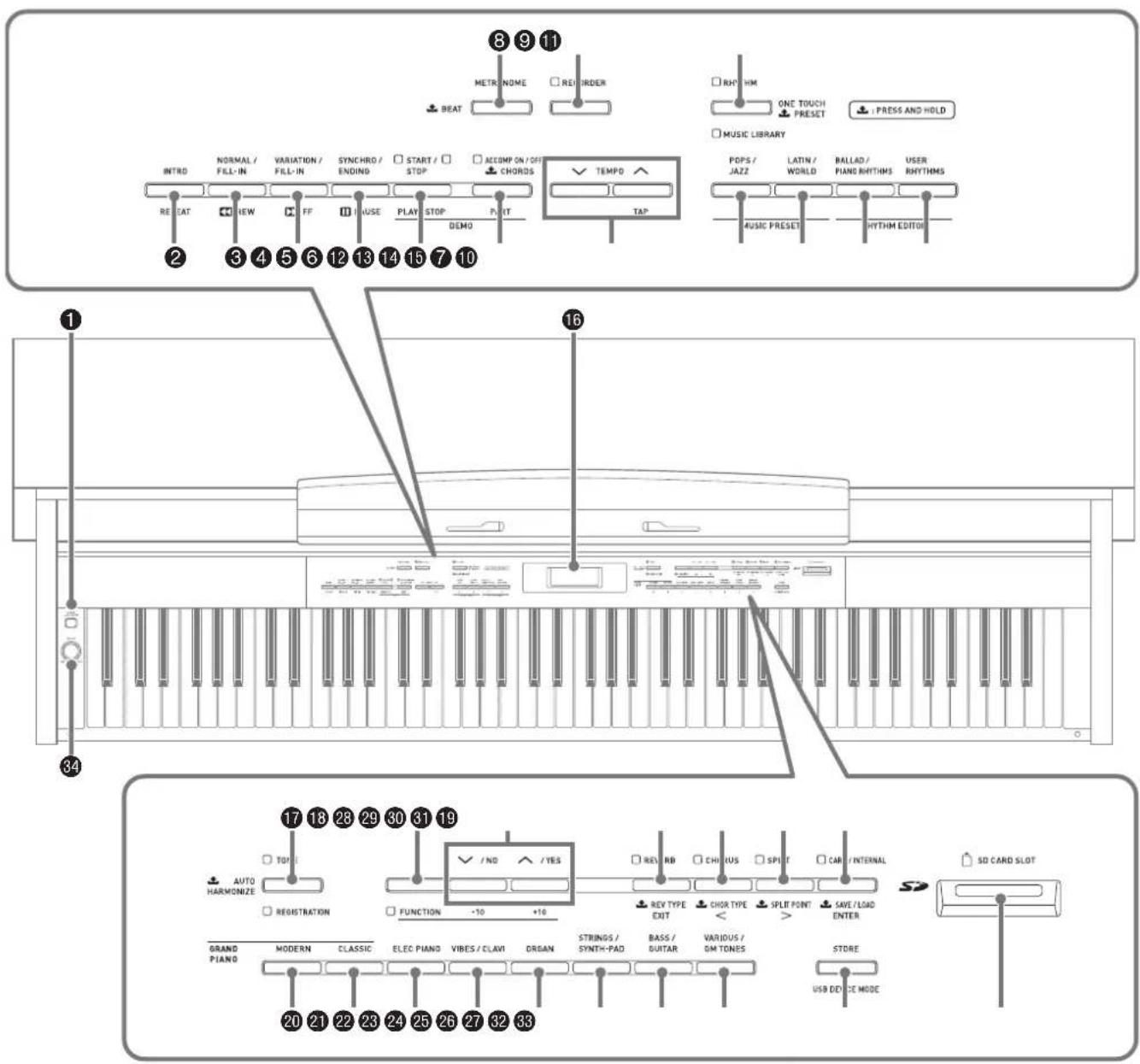

- This manual uses the numbers and names below to refer to buttons and controllers.
① POWER button
② INTRO/REPEAT button
③ NORMAL/FILL-IN, ◀REW button
④ VARIATION/FILL-IN, ▶FF button
⑤ SYNCHRO/ENDING, PAUSE button
⑥ START/STOP, PLAY/STOP button
⑦ ACCOMP ON/OFF, PART button
⑧ METRONOME button
⑨ RECORDER button
10 TEMPO buttons
③0 SPLIT, SPLIT POINT, > button
③1 CARD/INTERNAL, SAVE/LOAD, ENTER button
③2 STORE, USB DEVICE MODE button
33 SD CARD SLOT
34 VOLUME controller
35 PHONES jacks
36 AC power jack
37 USB port
38 MIDI OUT/IN terminals
39 LINE IN R, L/MONO jacks
40 LINE OUT R, L/MONO jacks
41 Pedal connector
Saving Settings and Using Panel Lock
Your Digital Piano lets you save its current settings, and lock its buttons to protect against operation errors. For details, see "Setting Backup" (page E-42) and "Panel Lock" (page E-42).
Returning the Digital Piano to Its Factory Default Settings
Perform the following procedure when you want to return the Digital Piano's stored data and settings to their initial factory defaults.
- Turn off the Digital Piano.
- While holding down both the ⑰ (TONE) and ⑱ (FUNCTION) buttons, press the ⑪ (POWER) button.
The Digital Piano will turn on and initialize its internal system. You will be able to use the Digital Piano in a short while.
NOTE
- See "Turning on the Digital Piano and Playing Something" (page E-8) for information about turning digital power on and off.
Power Supply
Your Digital Piano runs on standard household power.
IMPORTANT!
- Be sure to turn off power whenever you are not using the Digital Piano.
Placing the cover on the Digital Piano while power is on can cause internal circuitry to over heat and lead to the risk of fire.
- Make sure that the POWER button is in the OFF position (raised).

- Connect the power cord that comes with the Digital Piano to the AC power jack on the bottom of the Digital Piano.*
* applies to the AP-620BKV and AP-6BPV
- Plug the power cord into a household power outlet.
IMPORTANT!
- Always make sure that the POWER button is the OFF position before plugging in or unplugging the power cord.
- The shape of the power cord plug and household power outlet receptacle differ according to country and geographical area. The illustration shows just one example of the shapes that are available.
● Make sure the power lamp is completely turned off before unplugging the power cord from the power outlet. Be sure to read and observe all of the safety precautions concerning power supply.
Connecting Headphones
IMPORTANT!
- Before connecting headphones, be sure to use the Digital Piano's VOLUME controller to turn the volume down to a low level. After connecting, you can adjust the volume to the level you want.
- The Digital Piano automatically adjusts sound output to optimize for headphones (when headphones are connected) or the built-in speakers (when headphones are not connected).
Bottom

Connect commercially available headphones to the PHONES jacks. Connecting headphones to either of the PHONES jack cuts off output to the speakers, which means you can practice even late at night without bothering others. To protect your hearing, make sure that you do not set the volume level too high when using headphones.
NOTE
- Be sure to push the headphones plug into the PHONES jacks as far as it will go. If you don't, you may hear sound from only one side of the headphones.
- If the plug of the headphones you are using does not match the PHONES jacks, use the applicable commercially available adaptor plug.
- If you are using headphones that require an adaptor plug, make sure you do not leave the adaptor plugged in when you unplug the headphones. If you do, nothing will sound from the speakers when you play.
Connecting Audio Equipment or an Amplifier
You can connect audio equipment or a music amplifier to the Digital Piano and then play through external speakers for more powerful volume and better sound quality.
IMPORTANT!
- The Digital Piano automatically adjusts sound output to optimize for headphone output (when headphones are connected) or built-in speaker output (when headphones are not connected). This also will cause a change in the output quality from the Digital Piano's LINE OUT R and L/MONO jacks.
- Whenever connecting a device to the Digital Piano, first use the VOLUME controller to set the volume to a low level. After connecting, you can adjust the volume to the level you want.
- Whenever you connect any device to the Digital Piano, be sure to read the user documentation that comes with the device.

flowchart
graph TD
    A["Pin plug"] --> B["RIGHT (Red)"]
    A --> C["LEFT (White)"]
    D["Standard jack"] --> E["Portable audio player, etc."]
    F["Standard plug"] --> G["Guitar amplifier Keyboard amplifier, etc."]
    H["Audio amplifier AUX IN jack, etc."] --> I["2"]
    J["Portable audio player, etc."] --> K["1"]
    L["Portable audio player, etc."] --> M["3"]
Playing Output from External Equipment through the Piano's Speakers
Use commercially available cables to connect the external audio equipment to the piano's LINE IN jacks as shown in Figure Ⅱ.
LINE IN R jack input sounds through the piano's right speaker, while LINE IN L/MONO jack input sounds through the left speaker. Connecting to the LINE IN L/MONO jack only causes the same output to be produced from both speakers. It is up to you to purchase connecting cables that are compatible with the equipment you are connecting.
Connecting to Audio Equipment ②
Use commercially available cables to connect the external audio equipment to the piano's LINE OUT jacks as shown in Figure ②. LINE OUT R jack output is right channel sound, while LINE OUT L/MONO jack output is left channel sound. It is up to you to purchase connecting cables like the ones shown in the illustration for connection of audio equipment. Normally in this configuration you must set the audio equipment's input selector to the setting that specifies the terminal (such as AUX IN) to which the piano is connected. Use the piano's VOLUME controller to adjust the volume level.
Connecting to a Musical Instrument Amplifier ③
Use commercially available cables to connect the amplifier to the piano's LINE OUT jacks as shown in Figure ③. LINE OUT R jack output is right channel sound, while LINE OUT L/MONO jack output is left channel sound. Connecting to the LINE OUT L/MONO jack only outputs a mixture of both channels. It is up to you to purchase connecting cable like the one shown in the illustration for connection of the amplifier. Use the piano's VOLUME controller to adjust the volume level.
Bundled and Optional Accessories
Use only accessories that are specified for use with this Digital Piano.
Use of unauthorized accessories creates the risk of fire, electric shock, and personal injury.
NOTE
- You can get information about accessories that are sold separately for this product from the CASIO catalog available from your retailer, and from the CASIO website at the following URL. http://world.casio.com/
Using Built-in Tones

Turning on the Digital Piano and Playing Something
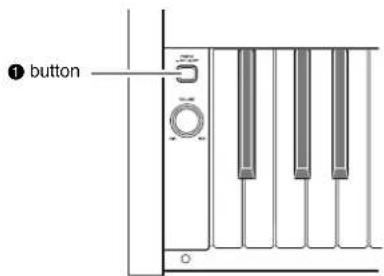
1. Press the ① (POWER) button.
This turns on power.
- To turn off the Digital Piano, press the ① button again.
Left Side
- After a short while, the display screen should appear as shown below, which indicates that the Digital Piano is ready to be played.

- Use the ③4 (VOLUME) controller to adjust the volume level.
- Play something on the keyboard.
Selecting a Tone
Your Digital Piano has 250 tones, divided into eight groups.
- For more information, see the "Tone List" (page A-1).
-
The Digital Piano has built-in demonstration tunes that highlight the different characteristics of tones. For more information, see “Playing Back All of the Built-in Songs” (page E-23).
-
Press the ⑰ (TONE) button so its upper lamp is lit.
• Each press of the button toggles between the upper and lower lamps.

IMPORTANT!
- Continuing on to the next step while the REGISTRATION lamp is lit will perform a registration recall operation (page E-32), which will change the setup of the Digital Piano. Make sure that the TONE lamp is lit before you advance to the next step.
- Use the "Tone List" (page A-1) to look up the group and the number of the tone you want to select.
3. Use the 20 to 27 (tone groups) buttons to select the group you want.
Example: To select the ORGAN group

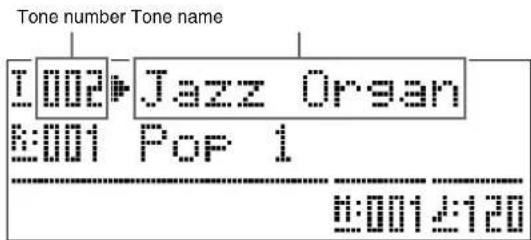
4. Use the 19 (√, ∧) buttons to select the tone you want.
Example: To select "002 Jazz Organ"
NOTE
- Pressing ∧ and ∨ at the same time will jump to tone 001 of the currently selected group. Holding down either button changes the tone number at high speed.
• See page E-40 for more information about scrolling.
Layering Two Tones
You can layer two different tones so they play at the same time when you press a keyboard key.
- The first tone you select is called the "main tone," while the second tone is called the "layered tone."
1. Select the main tone.
Example: To select MELLOW PIANO in the CLASSIC group, press the 21 (CLASSIC) button and then use the 19 (√, ∧) buttons to select "002 Mellow Piano".
2. Hold down the button of the group that contains the tone you want to select as the layered tone until "LAYER: ON" appears on the display as shown below for a few moments.
This will layer the tones currently selected in the two groups.
![LAYER: [ON] 0:0012:120](/content/2026/05/1021452/images/f9a0368f68d7d74c84d0e57403cf945fedc1080cb7232d0a4ef56f591b1e67da.jpg)
The button you held down in step 2 will light to indicate that it is selected.
Example: When BASS/GUITAR group is selected

3. Use the 19 (√, ∧) buttons to select the tone you want in the group you selected in step 2.
Example: When "006 Picked Bass" is selected

4. To unlayer the tones and return the keyboard to a single tone, press any one of the tone group buttons.
NOTE
- You can adjust the balance between the main tone and layered tone. For details, see "Layer Balance" (page E-41).
Splitting the Keyboard between Two Tones
You can split the keyboard so the left side (lower range) plays one tone and the right side (upper range) plays a different tone.
Example: To split the keyboard between the GM SLAP BASS 1 tone on the left (lower range) and the GRAND PIANO tone on the right (upper range).
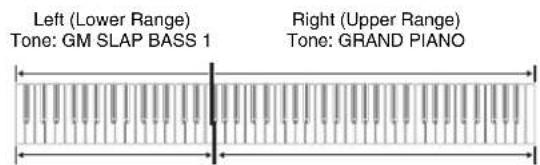
1. Press the 30 (SPLIT) button.
This causes the SPLIT lamp to light, indicating that the keyboard is split between two tones.

2. Select the tone you want to assign to the left side (lower range) of the keyboard.
Example: To select GM SLAP BASS 1 in the VARIOUS/GM TONES group, press the 27 (VARIOUS/GM TONES) button and then use the 19 (√, ∧) buttons to select "073 GM SlapBass1".

3. To unsplit the keyboard and return it to a single tone, press the ③0 (SPLIT) button.
The SPLIT lamp will go out, indicating that the keyboard is no longer split.
NOTE
- If the keyboard is set up with layered tones (page E-9) when you perform the above split operation, the layered tones will play on the right (upper range) side of the keyboard.
Moving the Keyboard Split Point
You can use the procedure below to specify the location on the keyboard where it splits between the left side and the right side. That location is called the "split point".

- Hold down the 30 (SPLIT) button until the split point setting screen appears on the display as shown below.

- Press the keyboard key where you want to specify as the leftmost key of the right (upper range) tone.
This specifies the split point.
- Press the ③0 (SPLIT) button.
This exits the split point screen.
Using Octave Shift
After you split the keyboard (page E-10), you may find out that the lower range notes on the left are too low or that the upper range notes on the right are too high. You can use octave shift to shift the octaves of the upper range and lower range upwards or downwards in octave units.
- While holding down the ⑱ (FUNCTION) button, press the ⑰ (TONE) button.
This displays the octave shift screen.
![-FUNCTION- OctShift:U1[ Q1] Currently selected range Shift amount](/content/2026/05/1021452/images/2fc18c7f47690541fd983bb1ff1d4b5349f5903b02b847a4138b6a28f47d48fd.jpg)
- Use the ⑦ (PART) button to select the range whose octave you want to change.
• Each press of ⑦ (PART) cycles through the ranges below.
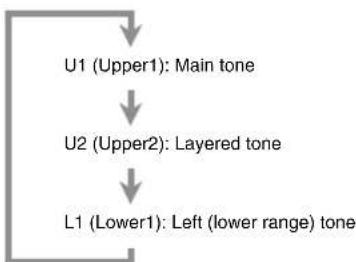
flowchart
graph TD
    A["U1 (Upper1): Main tone"] --> B["U2 (Upper2): Layered tone"]
    B --> C["L1 (Lower1): Left (lower range) tone"]
- Use the 19 (√, ∧) buttons to shift the octave of the currently selected range.
- You can shift the octave within the range of -2 to 0 to 2.
- Press the 18 (FUNCTION) button.
This exits the octave shift screen.

- Octave shift also can be performed as described for "Octave Shift" (page E-41).
Adjusting the Brilliance of a Tone
- Press the ⑱ (FUNCTION) button.
The FUNCTION lamp will light and the function screen will appear on the display.
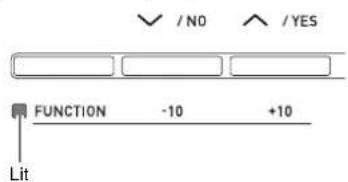
- Use the 30 (>) and 29 (<) buttons to select the Tmpr/Effect screen.
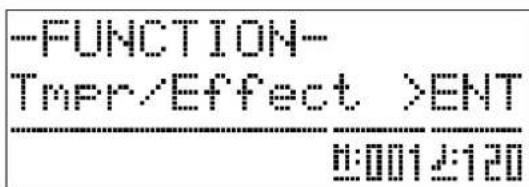
- Press the ③1 (ENTER) button.
This will display a screen for selecting settings in the Tmpr/Effect group.
- Use the 30 (>) or 29 (<) button to select the brilliance screen shown below.
![=Tmpr/Effect= Brilliance:[ 0] 0:001±120](/content/2026/05/1021452/images/0d3d59783b0ac46df5cee93079c0a23b8303cb9fd13a88d7381f0130a315fe8c.jpg)
- Use the 19 (√, ∧) buttons to adjust the brilliance of the currently selected tone. You can adjust brilliance in the range of -3 to 0 to 3.
√: Mellower and softer ^: Brighter and harder
- Press the 18 (FUNCTION) button.
This will exit the brilliance screen and cause the FUNCTION lamp to go out.

- See "Other Settings" (page E-40) for details about using the 18 (FUNCTION) button.
Adding Reverb to the Tone
- Press the 28 (REVERB) button to toggle reverb on and off.
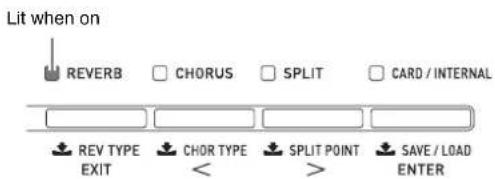
Selecting the Reverb Type
You can select from among the following four types of reverb.
1: Room
2: Hall
3: Large Hall
4: Stadium
- Hold down the 28 (REVERB) button until the reverb type selection screen shown below appears on the display.
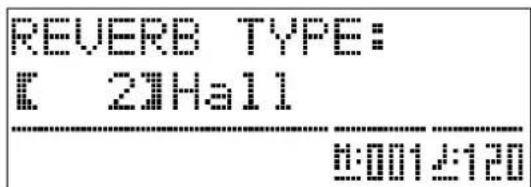
- Use the 19 (√, ∧) buttons to select the reverb type you want.
- Press the 26 (REVERB) button to exit the reverb type screen.
Adding the Chorus Effect to the Tone
- Press the 29 (CHORUS) button to toggle chorus (which adds depth to a tone) on and off.
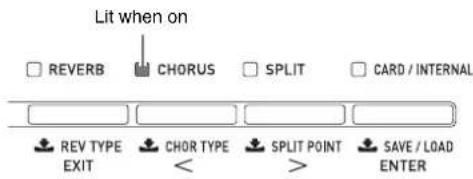
Selecting the Chorus Type
You can select from among the following four chorus types.
1: LightChorus
2: Chorus
3: Deep Chorus
4: Flanger
- Hold down the 29 (CHORUS) button until the chorus type selection screen shown below appears on the display.
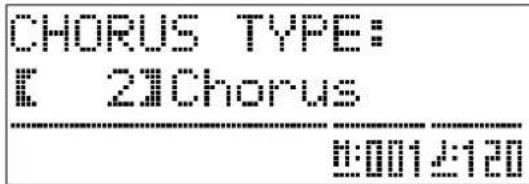
- Use the 19 (√, ∧) buttons to select the chorus type you want.
- Press the 29 (CHORUS) button to exit the chorus type screen.
Using the Digital Piano's Pedals
Your Digital Piano comes equipped with three pedals: damper, soft, and sostenuto.

Pedal Functions
- Damper Pedal
Pressing the damper pedal while playing will cause the notes you play to reverberate for a very long time.
- When a GRAND PIANO tone (MODERN, CLASSIC, VARIATION) is selected as the tone, pressing this pedal will cause notes to reverberate (acoustic resonance) just like the damper pedal on an acoustic grand piano. Half-pedal operation (pressing the pedal part way) is also supported.
- Soft Pedal
Pressing this pedal while playing suppresses notes played on the keyboard after the pedal was pressed, and makes them sound softer.
- Sostenuto Pedal
Only the notes of the keys that are depressed when this pedal is pressed are sustained until the pedal is released.
Using the Metronome
- Press the ⑧ (METRONOME) button. This will start the metronome.
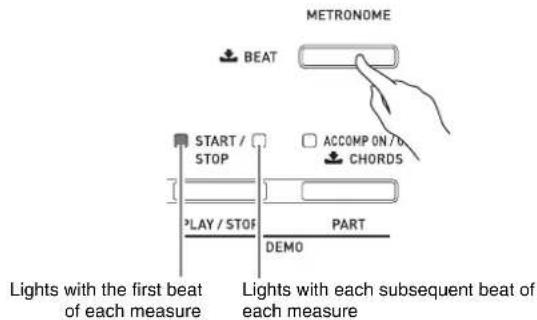
- Press the ⑧ (METRONOME) button again to stop the metronome.
Changing the Beats Per Measure
You can specify from two to six beats per measure for the metronome. After you do, a chime will sound at the beginning of each measure. Specifying 0 for this setting will sound a straight beat, without a chime. This setting lets you practice with a steady beat.
- Hold down the ⑧ (METRONOME) button until the number of beats per measure screen shown below appears on the display.
![METRONOME BEAT: [ 4]](/content/2026/05/1021452/images/5484290d93196111558829c2747b3e236cb9795a6dab4efa43520bfb9b2c2a4c.jpg)
-
Use the 19 (√, ∧) buttons to select the beats per measure value you want.
-
Press the ⑧ (METRONOME) button to exit the number of beats per measure screen.
Changing the Tempo Setting
There are two different methods you can use to change the tempo setting: by pressing ▲ (faster) and √ (slower) buttons or by tapping a beat with a button.
■ To adjust the tempo using ∧ and ∨ buttons
1. Use the ⑩ (TEMPO ∨, ∧) buttons to adjust the tempo setting.
Each press of a button increases or decreases the beats per minute value by one.
- Holding down either button changes the value at high speed.
- You can specify a tempo value in the range of 20 to 255.

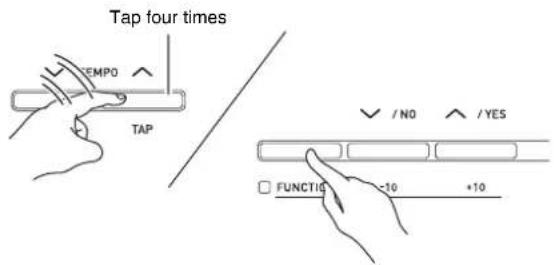
■To adjust the tempo by tapping a beat
1. While holding down the ⑬ (FUNCTION) button, tap the ^ ⑩ (TEMPO) button four times in time with the beat you want to specify.
- The tempo setting will change in accordance with the timing of your tapping.
- After you use this method to specify the approximate tempo, you can then use the procedure under "To adjust the tempo using and buttons" to adjust the setting to a more exact value.
Adjusting the Metronome Volume
You can use the following procedure to adjust the volume level of the metronome, without affecting the volume of Digital Piano output.
- While holding down the ⑬ (FUNCTION) button, press the ⑧ (METRONOME) button. This displays the metronome volume screen.
![=Volume= MetroVol.: [ 36 ] 0:0012 120 Metronome volume](/content/2026/05/1021452/images/6a0cb56c636164246692de6a6ebe4c35ce8d0800fbb5ee1f0b777d66a50f2d4f.jpg)
-
Use the 19 (√, ∧) buttons to adjust the metronome volume.
-
Press the 18 (FUNCTION) button. This will exit the metronome volume screen and cause the FUNCTION lamp to go out.
NOTE
- You also can use the procedure under "Metronome Volume" (page E-41) to adjust the metronome volume.
Playing a Duet
You can use the Duet Mode to split the Digital Piano's keyboard in the center so two people can play a duet. This makes it possible to configure the keyboard so, for example, the teacher can play on the left and the student can follow along on the right. Or one person can play the left hand part on the left, while another plays the right hand part on the right.
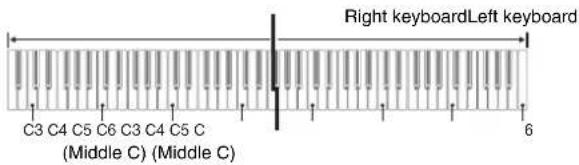
Pedal Operation when Playing a Duet

Configuring the Digital Piano for Duet Play
- Press the Ⓤ (MUSIC LIBRARY) button so its lower lamp is lit.
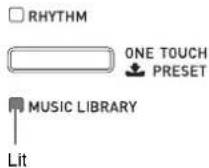
• To practice with songs stored on a memory card, press the 31 (CARD/INTERNAL) button so its lamp is lit in place of the 11 (MUSIC LIBRARY) button.
- While holding down the 18 (FUNCTION) button, press the 30 (SPLIT) button.
This causes the Duet Mode on/off screen to appear.
![=TMPR/Effect= Duet! [OFF] ----------------------------- 0:0002:120](/content/2026/05/1021452/images/2fbf1ef30b521ad2a554fa8aebfecac0f14f6bb4d146a1685d3093cfe65148e6.jpg)
-
Press the 19 (∧) button to turn on the Duet Mode.
-
Press the 18 (FUNCTION) button.
This exits the Duet Mode on/off screen and configures the Digital Piano's keyboard for duet play. This will cause the ③0 (SPLIT) button lamp to flash.
- To turn off the Duet Mode, press the 30 (SPLIT) button so the SPLIT lamp goes out.
NOTE
- You also can use the procedure under "Duet Mode" (page E-41) to turn the Duet Mode on or off.
Changing the Octave of a Duet Mode Keyboard
You can use the following procedure to change the octave of the left and right Duet Mode keyboards.
- While holding down the ⑱ (FUNCTION) button, press the ⑲ (SPLIT) button.
This displays the Duet Mode on/off screen shown in step 2 under "Configuring the Digital Piano for Duet Play" (page E-15). If the Duet Mode is currently turned off, press the 19 (∧) button to turn it on.
- Of the four C keys in the left keyboard, press the one that you want to have located at middle C.
- This will sound the note assigned to C4 and change the octave of the left keyboard.
Example: To change the configuration so the leftmost C key is middle C as shown below.
Leftmost C key (Pressed key)

1 octave higher than initial setting Unchanged
-
You can use the same procedure as step 2 to select one of the C keys in the right keyboard to shift its octave as well.
-
Press the 18 (FUNCTION) button.
This exits the Duet Mode on/off screen and causes the 18 (FUNCTION) button lamp to go out.
The left and right keyboards will be configured according to your settings.
NOTE
- Turning off the Duet Mode will clear your octave shift settings and return the keyboard to its initial default settings.
Using Auto Accompaniment
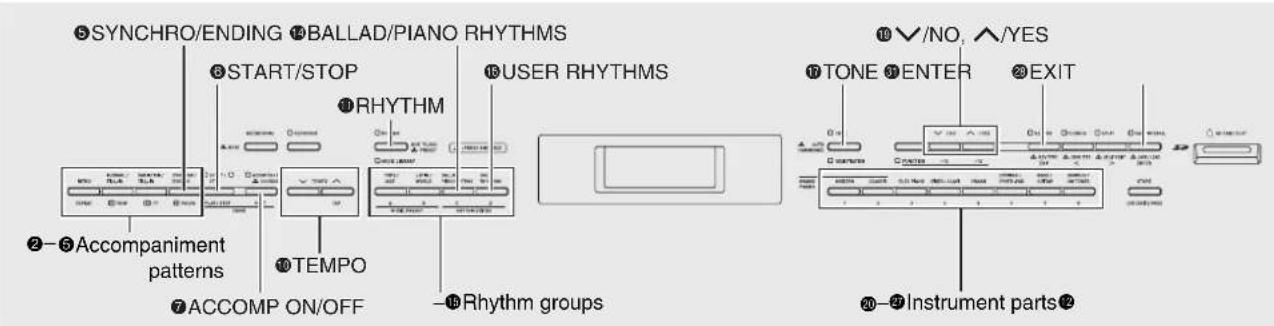
With Auto Accompaniment, simply select the accompaniment rhythm you want and the matching accompaniment (drums, guitar, etc.) will play automatically when you play a chord with your left hand. It's like having your own personal backup group along with you wherever you go.
This Digital Piano has 180 built-in Auto Accompaniment patterns, which are divided into three groups. You can edit built-in rhythms to create your own original rhythms (called "user rhythms"), which you can save in a fourth group. For more information, see the "Rhythm List" (page A-4).
Playing an Auto Accompaniment
- Press the ⑪ (RHYTHM) button so its upper lamp is lit.
This enables Auto Accompaniment.
• Each press of the button toggles between the RHYTHM and MUSIC LIBRARY lamps.

-
Use the "Rhythm List" (page A-4) to look up the group and the number of the rhythm you want to select.
-
Use the 12 to 15 (rhythm groups) buttons to select the group you want.
Example: When the LATIN/WORLD group is selected

- Use the 19 (√, ∧) buttons to select the rhythm you want.
Example: When "005 Samba 2" is selected

-
Use the 10 (TEMPO ∨, ∧) buttons to adjust the tempo setting.
-
This is the same as metronome tempo adjustment (page E-14).
- To return the rhythm to its standard tempo setting, press the 10 (TEMPO ∨, ∧) buttons at the same time.
6. Press the ⑦ (ACCOMP ON/OFF) button so its lamp is lit.
This turns ACCOMP on, so all accompaniment parts sound.
- Turning ACCOMP off so the ACCOMP lamp is unlit causes only the percussion instrument parts to sound.
• Each press of the ⑦ (ACCOMP ON/OFF) button toggles ACCOMP on and off.
7. Press the ⑤ (SYNCHRO/ENDING) button.
This puts Auto Accompaniment into "synchro standby". Playing a chord during synchro standby will cause Auto Accompaniment to start to play automatically.
- Pressing the ② (INTRO) button while Auto Accompaniment is in synchro standby will enter intro standby. Pressing the ④ (VARIATION) button will enter variation standby. For details about intro and variation patterns, see "Modifying Auto Accompaniment Patterns" (page E-19).

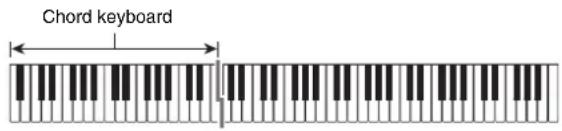
8. Play the chord you want on the chord keyboard (left keyboard keys).
Auto Accompaniment will start playing when you play the chord.
- To start percussion part play without playing a chord, press the ⑥ (START/STOP) button.
Example: To play a C chord
Chord keyboard Melody keyboard
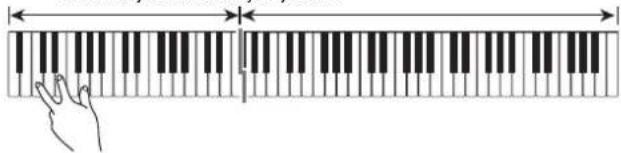
9. Play other chords with left hand as you play the melody with your right hand.
- You can use "CASIO Chord" or other simplified chord fingering modes to play chords. For details, see "Selecting a Chord Fingering Mode" in the following section. - You can use the ③ (NORMAL) and ④ (VARIATION) buttons to modify accompaniment patterns. For details, see "Modifying Auto Accompaniment Patterns" (page E-19).
10. When you are finished, press the ⑥ (START/STOP) button again to stop Auto Accompaniment.
- Pressing the ⑤ (SYNCHRO/ENDING) button instead of the ⑥ (START/STOP) button will play an ending pattern before stopping Auto Accompaniment play. For details about ending patterns, see "Modifying Auto Accompaniment Patterns" (page E-19).
NOTE
- You can use the following procedure to adjust the volume level of the Auto Accompaniment, without affecting the volume of Digital Piano output. For details, see "Auto Accompaniment Volume" (page E-41).
- You can change the size of the chord keyboard by using the split feature to move the split point (page E-10). The keyboard keys to the left of the split point make up the chord keyboard.
Selecting a Chord Fingering Mode
You can select from among the following five chord fingering modes.
1: Fingered 1
2: Fingered 2
3: Fingered 3
4: CASIO Chord
5: Full Range
- Hold down the ⑦ (ACCOMP ON/OFF) button until the chord type selection screen appears on the display.
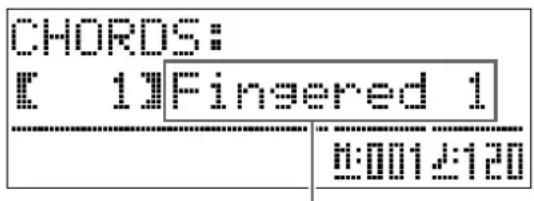
Chord fingering mode
- Use the 19 (√, ∧) buttons to select the chord fingering mode you want.
- Press the ⑦ (ACCOMP ON/OFF) button.
This exits the chord fingering screen.
■Fingered 1, 2, 3
With these three chord fingering modes, you play chords on the chord keyboard using their normal chord fingerings. Some chord forms are abbreviated, and can be fingered with one or two keys.
For information about the types of chords you can finger and their fingerings, see the "Fingering Guide" (page A-9).

Fingered 1: Play the component notes of the chord on the keyboard.
Fingered 2: Unlike Fingered 1, 6th input is not possible with this mode.
Fingered 3: Unlike Fingered 1, this mode allows input of fraction chords with the lowest keyboard note as the bass note.
■CASIO CHORD
With "CASIO Chord", you can use simplified fingerings to play the four types of chords described below.
| Chord Type Example | |
| Major ChordsPress one key, whose note corresponds to the chord name.• To play C Major, press any C key in the chord keyboard. The octave of the note does not matter. | C (C Major)Note name  |
| Minor ChordsPress the chord keyboard key that corresponds to the major chord, while also pressing one other chord keyboard key to the right. | Cm (C minor)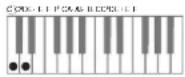 |
| Seventh ChordsPress the chord keyboard key that corresponds to the major chord, while also pressing two other chord keyboard keys to the right. | C7 (C seventh)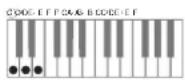 |
| Minor Seventh ChordsPress the chord keyboard key that corresponds to the major chord, while also pressing three other chord keyboard keys to the right. | Cm7 (C minor seventh) |
When pressing more than one chord keyboard key, makes no difference whether the additional keys are white or black.
■FULL RANGE CHORD
With this chord fingering mode, you can use the full range of the keyboard to play chords and the melody. For information about the types of chords you can finger and their fingerings, see the "Fingering Guide" (page A-9).
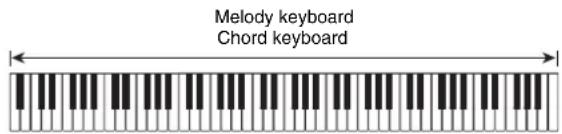
Modifying Auto Accompaniment Patterns
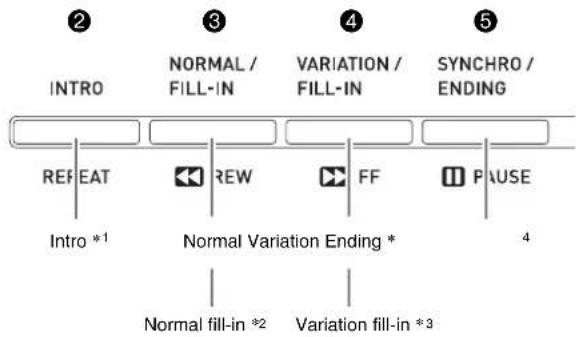
There are six different Auto Accompaniment patterns, shown below. You can switch between patterns during accompaniment play and even modify patterns. Use buttons ② through ⑤ to select the pattern you want.
flowchart
graph TD
    A["INTRO"] --> B["REF EAT"]
    B --> C["Intro *1"]
    C --> D["Normal Variation Ending *"]
    D --> E["Normal fill-in *2"]
    D --> F["Variation fill-in *3"]
    G["NORMAL / FILL-IN"] --> H["REW"]
    H --> I["FF"]
    I --> J["PAUSE"]
    K["VARIATION / FILL-IN"] --> L["FF"]
    L --> M["PAUSE"]
    N["SYNCHRO / ENDING"] --> O["PAUSE"]
*1 Press at the beginning of a song.
Accompaniment play proceeds with the normal pattern after the intro pattern is complete. Pressing the ④ (VARIATION/FILL-IN) button before pressing this button will proceed with the variation pattern after the intro pattern is complete.
*2 Press while a normal pattern is playing to insert a fill-in pattern.
*3 Press while a variation pattern is playing to insert a fill-in variation pattern.
*4 Press at the end of a song.
This will play an ending pattern and then stop Auto Accompaniment.
Using One-Touch Presets
One-Touch Preset gives you one-touch access to tone and tempo settings that go well with the currently selected Auto Accompaniment rhythm pattern.
- Hold down the ⑪ (RHYTHM) button for at least two seconds. This will configure tone, tempo, and other settings to match the currently selected rhythm pattern. At this time, Auto Accompaniment play also will go into synchro standby, which means that Auto Accompaniment will start to play automatically when you finger a chord.
- Play a chord on the keyboard.
This will start Auto Accompaniment play.
NOTE
- One-Touch Presets are not supported for user rhythms (001 through 010 of the USER RHYTHMS group).
Using Auto Harmonize
Auto Harmonize lets you add harmony to melody notes you play with your right hand. You can select any one of 12 Auto Harmonize settings.
- Press the ⑰ (TONE) button so its lamp is lit.
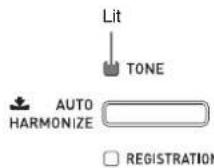
- Hold down the ⑰ (TONE) button until the auto harmonize screen appears on the display.
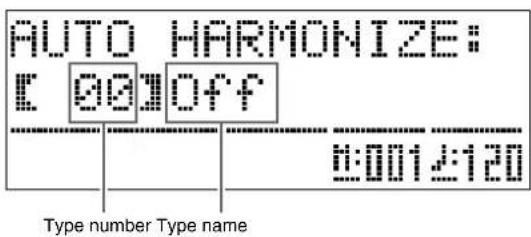
3. Use the 19 (√, ∧) buttons to select the Auto Harmonize type you want.
| Type Number | Type Name Description |
| 00 Off | Turns off Auto Harmonize. |
| 01 Duet 1 | Adds close (separated by two to four degrees) one-note harmony below the melody note. |
| 02 Duet 2 | Adds open (separated by more than 4 to 6 degrees) 1-note harmony below the melody note. |
| 03 Country | Addrs Addrs country style harmony. |
| 04 Octave | Adds the note from the next lower octave. |
| 05 5th | Adds the fifth degree note. |
| 06 3-Way Open | Adds 2-note open harmony, for a total of three notes. |
| 07 3-Way Close | Adds 2-note close harmony, for a total of three notes. |
| 08 Strings | Adds harmony that is optimal for strings. |
| 09 4-Way Open | Adds 3-note open harmony, for a total of four notes. |
| 10 4-Way Close | Adds 3-note close harmony, for a total of four notes. |
| 11 Block | Chord notes. |
| 12 Big | Band Adds big band style harmony. |
4. Press the ⑰ (TONE) button.
This will exit the auto harmonize screen.
5. While playing chords, play the melody on the keyboard.
Harmony will be added to your melody notes based on the chords you play.
Creating Your Own Original Rhythms
You can use rhythm editing to modify a built-in Auto Accompaniment rhythm to create an original "user rhythm" of your own. You can select a part (drum, bass, etc.) of a normal, intro, or other pattern (page E-19) and turn it on or off, adjust its volume level, and perform other operations.
-
Select the number of the Auto Accompaniment rhythm you want to edit.
-
At the same time, press the 14 (BALLAD/PIANO RHYTHMS) and 15 (USER RHYTHMS) buttons.
This displays the rhythm editor screen.
![-RHYTHM EDITOR-- Part: [DRUM] Rhythm Select: [001]POP 1](/content/2026/05/1021452/images/c4436f7c63d1127a63730cf29638c74fa96d585510d5f2de0c9bad2627123582.jpg)
3. Use the accompaniment pattern buttons (② through ⑤) to select the pattern (normal, intro, ending, etc.) you want to edit.
The button you press will light, indicating that the pattern is being edited.
• Each press of ③ (NORMAL/FILL-IN) toggles between NORMAL and FILL-IN, and each press of ④ (VARIATION/FILL-IN) toggles between VARIATION and FILL-IN. The applicable button flashes while the fill-in pattern is selected.
Example: When intro is selected

4. Use the instrument part buttons (20 through 27) to select the part (drums, bass etc.) you want to edit.
The name of the part you select will appear on the display. Rhythm patterns are made up of the eight parts shown below.
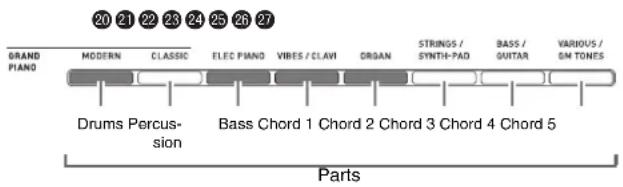
- Button illumination does not change when you press the instrument part buttons (20 through 27). Button illumination indicates whether there is accompaniment data corresponding to each part.
Example: When bass is selected
![-RHYTHM EDITOR-- Part: [BASS] Prt: vol: Part: [ON] [105] [ 0]](/content/2026/05/1021452/images/58fe49986dababd406fa85c90263e481ba1c99cfe69d1e80651f97721b19d158.jpg)
Instrument part name
5. Edit the selected part as desired.
The table below describes the parameters you can edit.
- Use the 29 (<) and 30 (>) buttons to select a parameter, and the 19 (√, ∧) buttons to change its setting. You also can use shortcut buttons (see table below) to select parameters.
- Pressing the 19 (√, ∧) buttons at the same time will return the currently selected parameter to its initial default setting.
- Pressing the ⑥ (START/STOP) button during an edit operation will sound the accompaniment pattern with the edits you have made up to that point. Pressing the ⑦ (ACCOMP ON/OFF) button will sound only the instrument part you are editing.
Procedure continues on page E-22.
| Parameter | Description | Setting | Shortcut Button |
| Rhythm Select: Rhythm | Replaces the part (drum, bass, etc.) accompaniment data with that of the specified rhythm number. *1 | 001 to 190: Rhythm number *2 *3 | 12 |
| Tone Select: Tone | Switches the part tone (instrument) to that of the specified tone number. | 001 to 250: Tone Numbers *2 *4 | 13 |
| Prt: Part on/off | Toggles each part on or off. | OFF: Mutes the part. ON: Sounds the part. | 14 |
| Vol: Volume level | Controls the volume level of each part. | 000 to 127 | |
| Pan: Panning (position) | Controls whether the sound of the part can be heard from the left side or right side. | -64 to 0 to 63 *5 | |
| Reverb: Reverb | Controls the level of the reverb effect (page E-12) applied to the part notes. | 000 to 127 | 15 |
| Chorus: Chorus | Controls the level of the chorus effect (page E-12) applied to the part notes. | 000 to 127 |
*1 Replacing part accompaniment data clears all edits to the currently selected accompaniment data made up to that point.
*2 Sequential numbers starting from 001, which is the first rhythm of the first group (POPS/JAZZ). See the "Tone List" (page A-1) and "Rhythm List" (page A-4) for information on the numbering system.
*3 In the case of the intro and ending, specifying a rhythm for one part (drum, bass, etc.) will cause the same rhythm to be specified automatically for all of the other parts of the pattern.
*4 Only drum set sounds (tone numbers 237 through 250) can be selected for drum parts and percussion parts. Drum set sounds cannot be selected for the bass and the chord 1 through chord 5 parts.
*5 A smaller value shifts leftward, while a larger value shifts rightward. A value of zero specifies center.
-
Repeat steps 3 through 5 to edit all of the accompaniment patterns and parts you want.
-
After editing is complete, adjust the tempo of the rhythm as desired.
- The tempo you set here becomes the initial default tempo of the rhythm.
- Press the 28 (EXIT) button.
This causes a confirmation message to appear asking if you want to save your edits.

- Press the 19 (YES) button.
This displays a screen for specifying the user rhythm number and rhythm name.
- If you want to exit the editing operation without saving, press the 19 (NO) button instead of the 19 (YES) button.
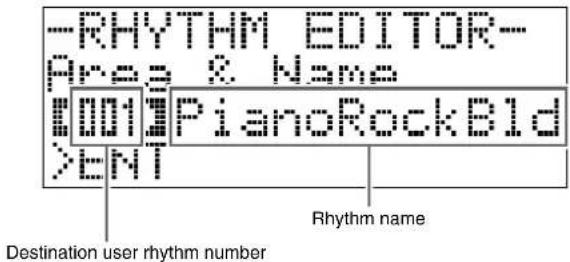
- Decide on the user rhythm number where you want to save the rhythm and a rhythm name.
- Use the 29 (<) and 30 (>) buttons to move the cursor to the user rhythm number and rhythm name character you want to change. Use the 19 (√, ∧) buttons to select the number or character you want.
- The rhythm name characters you can select are shown below. To input a space, press both of the 19 (√ and ∧) buttons at the same time.
| ! | " | # | $ | % | & | ' | ( | ) | |
| * | + | , | - | . | / | 0 | 1 | 2 | 3 |
| 4 | 5 | 6 | 7 | 8 | 9 | : | ; | < | = |
| > | ? | @ | A | B | C | D | E | F | G |
| H | I | J | K | L | M | N | O | P | Q |
| R | S | T | U | V | W | X | Y | Z | [ |
| ¥ | ] | ^ | _ | ` | a | b | c | d | e |
| f | g | h | i | j | k | l | m | n | o |
| p | q | r | s | t | u | v | w | x | y |
| z | { | | | } | ||||||
- Press the 31 (ENTER) button.
This saves the data.
- If the rhythm number where you are saving the data already has data saved to it, a message (Replace?) will appear on the display to confirm whether you want to replace the existing data with the new data. Press the 19 (YES) button to replace. To cancel the save operation and return to the screen in step 9, press the 19 (NO) button instead.
IMPORTANT!
- Saving user rhythm data to a user rhythm number that already has data will cause the existing data to be replaced by the new data.
NOTE
- If the size of the accompaniment pattern or instrument part data is too large to be edited, a memory full message (Memory Full) will appear on the display. If that happens, select a different accompaniment pattern or instrument part for editing.
Playing Back Built-in Songs

Playing Back All of the Built-in Songs
Your Digital Piano comes with a total of 68 built-in songs: eight demo songs that are arranged to highlight the characteristics of the tones in each of the tone groups, and 60 classics in the Music Library. You can configure the Digital Piano to play back these songs in sequence.
- See "Song List" (page A-6) for a list of built-in songs.
1. While holding down the ⑦ (PART) button, press the ⑥ (PLAY/STOP) button.
This will start sequential playback of the tone demo songs, starting from song 1.
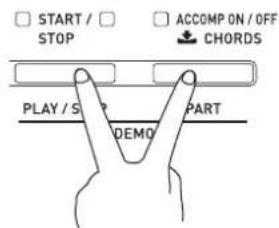

- Pressing a tone group button (buttons 20 through 27) while demo song playback is in progress will switch to the demo song that uses the tones of that group. Pressing a Music Library song group button (buttons 12 through 14, Group A through C) while demo song playback is in progress will switch to playback of the songs in that group.
- Pressing the ③1 (CARD/INTERNAL) button during demo song playback will start playback of the songs on the loaded card. For details, see "Playing Back All of the Songs in a Folder" (page E-48).
2. Press the ⑥ (PLAY/STOP) button.
This stops demo song playback. Playback of the demo songs will continue in an endless loop until you press the ⑥ (PLAY/STOP) button to stop it.
NOTE
- Only the operations described above can be performed while demo song playback is in progress.
Playing Back a Specific Music Library Song
You can use the procedure below to select a Music Library song for listening or practice.
The Music Library has a total of 60 songs, divided into three groups (A, B, C). You also can load songs from a memory card or your computer into a fourth Music Library group (Group D) for playback and practice (pages 46 and 52).
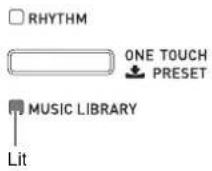
- Press the Ⓤ (MUSIC LIBRARY) button so its lamp is lit.
• Each press of the button toggles between the upper and lower lamps.
- In the "Song List" (page A-6), find the group and group number of the song you want.
- User songs are in Group D.
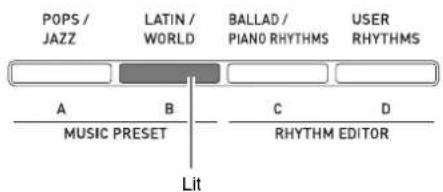
- Use the 12 to 15 (Song group A to D) buttons to select the group you want.
- Press button 15 (Group D) if you want to select a user song.
Example: When Group B is selected
- Use the 19 (√, ∧) buttons to select the song you want.
Example: When "008 Gavotte" is selected

- Press the ⑥ (PLAY/STOP) button.
This starts playback of the song.
- Press the ④ (FF) button to perform a fast forward operation or the ③ (REW) button for rewind. Pressing and releasing either button moves one measure, while holding down a button scrolls at high speed.
- Pressing the ⑤ (PAUSE) button pauses playback. Press again to resume song playback.

- Press the ⑥ (PLAY/STOP) button again.
This stops song playback.
- Song playback also will stop automatically when the end of the song is reached. To configure the Digital Piano to loop song playback without stopping, turn on "Song Repeat" (page E-42).
Changing the Song Tempo
You can change the song tempo using the same procedure that you use to adjust the metronome tempo. For more information, see "Changing the Tempo Setting" (page E-14).
Playing on the Keyboard Using the Same Tone as the Song
- Hold down the ⑪ (MUSIC LIBRARY) button for at least two seconds.
This will assign the same tone as the right hand part of the current song to the keyboard.

- You can use the procedure under "Practicing Either Hand's Part (Part Off)" (page E-25) to turn off the left hand part and play along on the keyboard using the left hand part tone.
Adjusting the Song Volume
You can use the following procedure to adjust the volume level of the song's Auto Accompaniment, without affecting the volume of keyboard tone output. For details, see "Song Volume" (page E-41).
Practicing Either Hand's Part (Part Off)
You can turn off the right hand part or left hand part of a song and play that part on the Digital Piano while the song plays back.
- Press the ⑦ (PART) button.
This causes "L-[ON] R-[ON]" to appear on the display. - Use the 19 (√, ∧) buttons to turn off the part you want.
Press (∨) to toggle the left hand part or (∧) to toggle the right hand part on and off. - Press the ⑦ (PART) button again.
This exits the part on/off screen. - Hold down the ⑪ (MUSIC LIBRARY) button for at least two seconds.
This will assign the same tone as the hand that is turned off to the keyboard. - Press the ⑥ (PLAY/STOP) button to start song playback.
The part you turned off does not sound, so you can play it on the keyboard.
Sounding a Count at the Beginning of a Song
You can configure the Digital Piano to sound a count before playback of a song starts, which helps to get the timing right when you are playing along on the keyboard. For details, see "Pre-count" (page E-42).
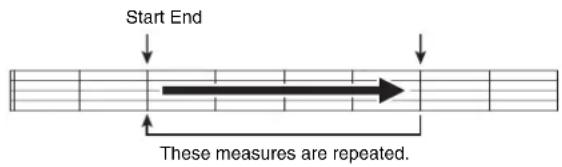
Repeating Playback of a Specific Section (Repeat)
You can configure the Digital Piano to repeat the section of a song you want to practice. You could, for example, specify repeat play from measure 5 to measure 8.
- Press the ⑥ (PLAY/STOP) button.
This starts playback of the song.
- When playback reaches the first measure of the section you want to repeat, press the ② (REPEAT) button.
This makes the measure the "start measure".
The ② (REPEAT) button lamp flashes at this time.
- When playback reaches the last measure of the section you want to repeat, press the ② (REPEAT) button again.
This makes the measure the "end measure".
Repeat playback of the specified section starts as soon as you select the end measure.
The ② (REPEAT) button lamp is lit (not flashing) at this time.
- Pressing ② (REPEAT) again returns to normal play.
This will cause the ② (REPEAT) button lamp to go out.
Music Presets
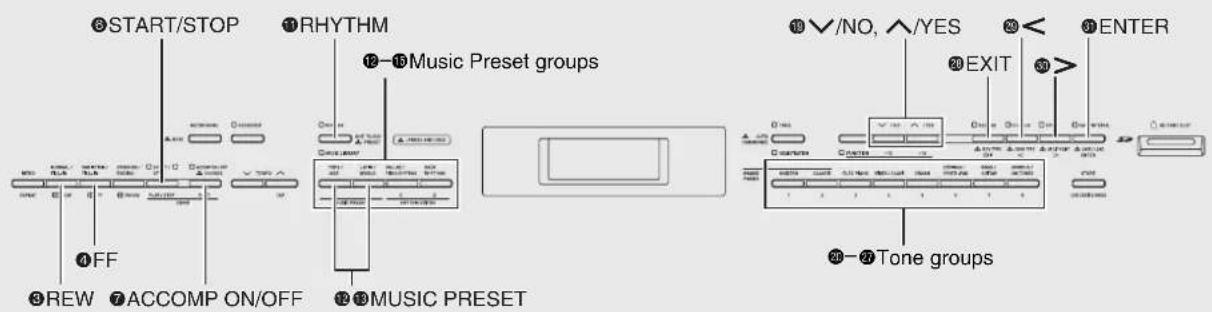
Music Presets provide you with one-touch tone, rhythm, chord, and other settings that are optimized for specific musical genres and songs.
In addition to built-in presets, you can create your own original Music Presets (user presets).
There are a total of 300 built-in Music Presets, which are divided into three groups (A, B, C). A fourth group (D) is provided for user presets.
- For more information, see the "Music Preset List" (page A-7).
Selecting a Music Preset
- Press ⑫ and ⑬ (MUSIC PRESET) at the same time.
This causes the ⑦ (ACCOMP ON/OFF) lamp to flash and the Music Preset screen to appear.
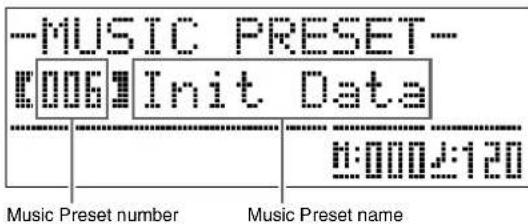
- Use buttons 12 to 15 (Music Preset group buttons) to select a group, and then use the 19 (√, ∧) buttons to select the Music Preset you want.
This will configure the Digital Piano with settings (tone, rhythm, etc.) of the selected Music Preset. The following are the settings that are included in a Music Preset.
- Tones (main, layer, lower split) (page E-8)
• Layer balance (page E-9) - Octave shift (page E-11)
- Reverb (page E-12)
- Chorus (page E-12)
• Rhythm (page E-20) -
Tempo (page E-19)
• Auto Harmonize (page E-19) -
Press the ⑥ (START/STOP) button to start Auto Accompaniment with the chord progression of the Music Preset. Play the melody on the keyboard.
-
The preset chord progression repeats until you stop it by pressing the ⑥ (START/STOP) button again.
- Pressing the 7 (ACCOMP ON/OFF) button so the ACCOMP ON/OFF lamp is lit (not flashing) or unlit will turn off the chord progression of the Music Preset and play the normal Auto Accompaniment pattern.
• Each press of the ⑦ (ACCOMP ON/OFF) button cycles in the sequence shown below.

flowchart
graph LR
    A["ACCOMP ON / OFF CHORDS"] --> B["Normal Auto Accompaniment"]
    C["ACCOMP ON / OFF CHORDS"] --> D["Music Preset chord progression"]
    E["ACCOMP ON / OFF CHORDS"] --> F["Normal Auto Accompaniment"]
    G["ACCOMP ON / OFF CHORDS"] --> H["Music Preset chord progression"]
    I["LitUnlit Flashing"] --> A
    J["LitUnlit Flashing"] --> C
    K["LitUnlit Flashing"] --> E
    L["LitUnlit Flashing"] --> G
- You can use the following steps to change the rhythm after selecting a Music Preset.
(1) Hold down the Ⓞ (RHYTHM) button until the displayed Music Preset number and name change to the rhythm number and name.
(2) Use the ⑲ (∨, ∧) buttons to select the rhythm you want.
(3) Hold down the Ⓞ (RHYTHM) button again until the rhythm number and name change back to the Music Preset number and name.
- To change the tone, use the 20 through 27 (tone group) buttons to select the tone group and then use the 19 (√, ∧) buttons to select a tone number.
- To exit a Music Preset, press 12 and 13 (MUSIC PRESET) at the same time.
Creating an Original User Preset
A Music Preset editor is provided to allow you to create your own original Music Presets (user presets). Up to 50 user presets can be stored in Music Preset Group D.
- Select the Music Preset you want to edit in order to create your user preset.
- Change the tone number, rhythm number, and other settings of the Music Preset as you want.
- The settings you configure here will be saved as a user Music Preset. See step 2 under "Selecting a Music Preset" (page E-26) for the settings you can configure and save for a user Music Preset.
- Press the 14 (BALLAD/PIANO RHYTHMS) and 15 (USER RHYTHMS) buttons at the same time.
This displays a screen for selecting the type of editing operation you want to perform.
![-MUSIC PRESET-- Edit Object: ["CHORD"] >EN Editing operation type](/content/2026/05/1021452/images/75e683b985a121618159ad94f6749b232ada3e517b727f2148a82045e2dbd12c.jpg)
4. Edit the Music Preset parameters.
4-1. To edit the chord progression
Press the ⑲ (√) down button to display "CHORD" and then press the ⑳ (ENTER) button to advance to the chord progression editing screen.
Next, perform the editing operation described under "To edit the chord progression" (page E-29). After you finish the editing operation, press the Ⓤ (EXIT) button to return to the screen for selecting the type of editing operation, above.
4-2. To edit Auto Accompaniment parameters
Press the 19 (∧) up button to display "Parameter" and then press the 31 (ENTER) button to advance to the Auto Accompaniment parameter editing screen. Next, perform the editing operation described under "To edit Auto Accompaniment parameters" (page E-31). After you finish the editing operation, press the 28 (EXIT) button to return to the screen for selecting the type of editing operation, above.
5. After editing everything you want, press the 28 (EXIT) button.
- This will display a message asking if you want to save the user preset.
6. Press the ⑲ (YES) button.
This displays a screen for selecting the Music Preset number and name for storing the edited data.
- If you do not want to save the edited data, press the 19 (NO) button in place of the 19 (YES) button.
![-MUSIC PRESET-- Area & Name: [001] Init Data >ENT Music Preset name Music Preset number for data storage](/content/2026/05/1021452/images/b578fca5d475d0c534d80ebd8ae302b91e14f3c0462c22abf5d4964630a16f65.jpg)
7. Use the 19 (√, ∧) buttons to select the Music Preset number where you want to store the edited data.
8. Enter a name for the preset.
Use the 29 (<) and 30 (>) buttons to move the cursor to the character you want to change and then use the 19 (√, ∧) buttons to change the character. The following shows a table of available characters.
- To input a space, press both of the 19 (√ and ∧) buttons at the same time.
| ! | " | # | $ | % | & | ' | ( | ) | |
| * | + | , | - | . | / | 0 | 1 | 2 | 3 |
| 4 | 5 | 6 | 7 | 8 | 9 | : | ; | < | = |
| > | ? | @ | A | B | C | D | E | F | G |
| H | I | J | K | L | M | N | O | P | Q |
| R | S | T | U | V | W | X | Y | Z | [ |
| ¥ | ] | ^ | _ | ` | a | b | c | d | e |
| f | g | h | i | j | k | l | m | n | o |
| p | q | r | s | t | u | v | w | x | y |
| z | { | | | } | ||||||
9. Press the ③1 (ENTER) button.
This saves the data.
- If the preset number where you are saving the data already has data saved to it, a message (Replace?) will appear on the display to confirm whether you want to replace the existing data with the new data. Press the 19 (YES) button to replace. To cancel the save operation and return to the screen in step 6, press the 19 (NO) button instead.
■To edit the chord progression
- On the editing operation selection screen (page E-27), select "CHORD" and then press the ③① (ENTER) button to display the chord progression editing screen shown below.

(1) Step (timing and chord)
(3) Resolution(2) Cursor
(1) Step (timing and chord)
The timing of a chord progression is expressed as a series of three values separated by colons (such as 001:1:00) indicating measure ^1 (001), beat (1), and tick (00). ^2 This series of three values is referred to collectively as a “step”.
The screen shot above shows the first two steps (001, 002) of the Music Preset. Use the ③ (REW) and
④ (FF) buttons to scroll and view other steps.
*1 Up to 999 measures
*2 There are 12 ticks per beat, as shown below.
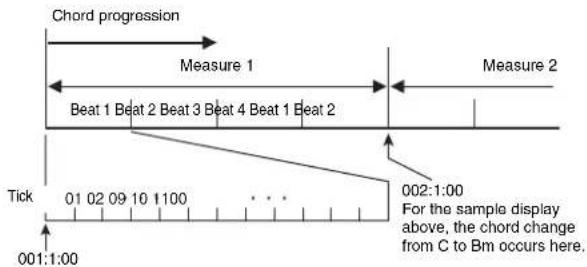
(2) Cursor
Specifies the step that is currently selected for editing.
(3) Resolution
Resolution is a unit used when editing step timing. The initial resolution is R1 (one measure), but you also can select R4 (1 beat = 4 quarter notes) when you want to specify chords for each beat. Use the instrument part buttons (20 through 27) to select one of the eight resolutions shown below.

-
Use the ③ (REW) and ④ (FF) buttons to move the cursor (2) on the chord progression editing screen to the step you want to select.
-
Change the content of the selected step as desired.
3-1. Select a chord fingering mode and use the chord keyboard (page E-18) to input chords.
Fingering a chord causes the cursor (2) to move to the next step automatically.
- If you want to advance to the next step without changing the current chord, press the ⑤ (PAUSE) button.
- If (3) Resolution is shorter than the time up to the next step, a new step (without chord) that is equal to the time of the resolution will be inserted temporarily into the Music Preset. Fingering a chord for the new step will cause the step to be registered as part of the Music Preset, and the cursor will advance to the next step.* You can use this operation to insert a new step between the current and following step.
* Using the ③ (REW) and ④ (FF) buttons to move the cursor without inputting a chord will delete the temporarily inserted step.
3-2. Use the 19 (√, ∧) buttons to change the step timing (measure:beat:tick).
Each press of either button changing the timing in accordance with the resolution.
- The range of values you can specify for the step timing is limited by the steps before and after the current step.
- The timing of the first step (001:1:00) is fixed and cannot be changed. Also, the final step is always one measure, regardless of the resolution.
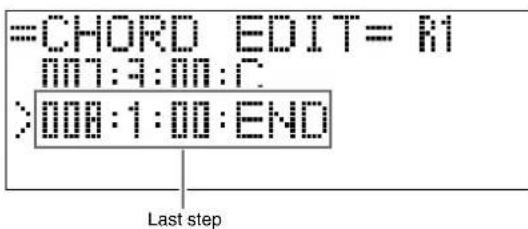
3-3. To delete a step, press both of the 19 (√ and ∧) buttons at the same time.
- You cannot delete the first step or the last step.
4. Repeat the above steps to edit all of the steps you want.
- You can playback the Music Preset you are currently editing by pressing the ⑥ (START/STOP) button.
- The table below describes other Music Preset editing operations you can perform. Press the 18 (FUNCTION) button, use the 29 (<) and 30 (>) buttons to select the editing operation you want, perform the required operation, and then press the 31 (ENTER) button to apply the edit and return to the chord progression editing screen.
- To exit the editing operation and discard all of your edits, press the 28 (EXIT) button.
| Editing Operation(Display) | Description Operation | ||
| 1 | Initialize(Initialize) | Initializes all steps. Initialization is useful when you want to create a totally new chord progression from scratch. | - |
| 2 | Change Key(Change Key) | Changes the pitch (key) of the chords in all of the steps in semitone units. | Use the 19 (√, ∧) buttons to select the amount of change you want (-5 to 6 semitones). |
| 3 | Append Music Preset(Append Chords) | Copies all of the steps of another Music Preset to the end of the current Music Preset. | Use the 19 (√, ∧) buttons to select the number*of the Music Preset you want to add. |
| 4 | Delete Measures(DELETE Measure) | Deletes a specified number of measures from the current cursor step forward. | Use the 19 (√, ∧) buttons to select the measures. |
| 5 | Insert Measure(INSERT 1Measure) | Inserts a blank measure at the currently selected step. | - |
* The Music Presets in groups B, C, and D are numbered sequentially, following the numbers in group A, which start with 001. For details about sequential numbers, see the “Music Preset List” on page A-7.
5. After all editing operations are complete, press the 28 (EXIT) button to return to the editing operation selection screen (page E-27).

- A single preset can contain up to approximately 2,000 chords. If your edits cause the chord limit to be exceeded, the message “Memory Full” will appear on the display and further editing will become impossible.
■To edit Auto Accompaniment parameters
- On the editing operation selection screen (page E-27), select "Parameter" and then press the ENTER button to display the Auto Accompaniment parameter editing screen shown below.

- Use the ⑲ (<) and ⑳ (>) buttons to select a parameter, and the ⑲ (∨, ∧) buttons to change its setting.
| Parameter Description | Setting | ||
| 1 | SYNCHRO TYPE: Synchro type | Selects the synchro standby status and type when the Music Preset is selected. | 0 Off: Off (no standby)1 Normal: From standby to normal pattern2 Variation: From standby to variation pattern3 Intro: From standby to intro pattern |
| 2 | DRUM ON/OFF: Drum on/off | Toggles the drum part (page E-21) on or off. | OFF: Mutes the part.ON: Sounds the part. |
| 3 | PERC ON/OFF: Percussion on/off | Toggles the percussion part (page E-21) on or off. | OFF: Mutes the part.ON: Sounds the part. |
| 4 | BASS ON/OFF: Bass on/off | Toggles the bass part (page E-21) on or off. | OFF: Mutes the part.ON: Sounds the part. |
| 5 - 9 | CHORD1 - 5ON/OFF:Chord 1 - 5 on/off | Toggles the Chord 1 through 5 parts (page E-21) on or off. | OFF: Mutes the parts.ON: Sounds the parts. |
| 10 | INTRO CHORD:Intro chord | Selects from among major ( × 12 keys) and minor ( × 12 keys) for the intro chords. | C - B: Major (C to B)Cm - Bm: Minor (Cm to Bm) |
| 11 | ENDING CHORD:Ending chord | Selects from among major ( × 12 keys) and minor ( × 12 keys) for the ending chords. | C - B: Major (C to B)Cm - Bm: Minor (Cm to Bm) |
| 12 | AUTO FILL-IN:Auto fill-in on/off | Specifies whether or not a fill-in should be inserted into the final measure of a chord progression. | OFF: Fill-in not insertedON: Fill-in inserted |
| 13 | TIMING SET:Chord progression variation | This parameter lets you add different variations to the timing of the chord progression being edited. You can use it to match the chord progression to the beat of a specific rhythm.A chord (step) that is outside of the rhythm's beat is cut off. | 1 Normal: Edited chord progression proceeds as-is.2 Half: Halves chord timing within a measure.3 Double: Doubles chord timing within a measure.4 3/4: Multiplies chord timing within a measure by 3/4. Select this setting to match to a 6/8 time rhythm.5 6/4: Multiplies chord timing within a measure by 3/2. Select this setting to match to a 6/4 time rhythm. |
- After all editing operations are complete, press the 28 (EXIT) button to return to the editing operation selection screen (page E-27).
Registering Tone and Rhythm Setups
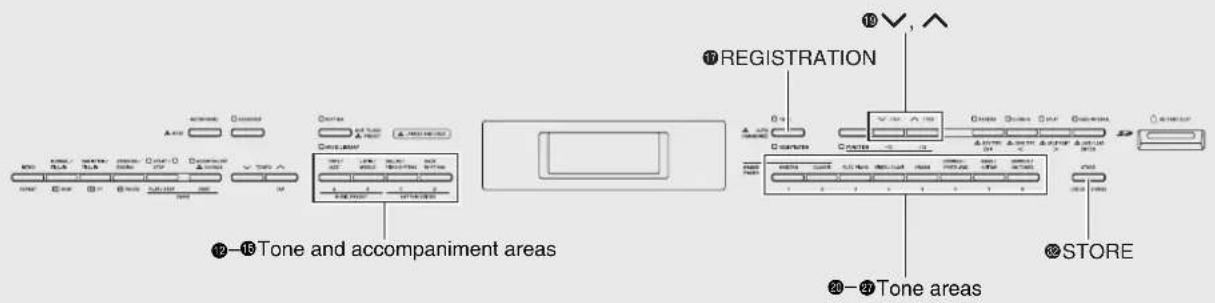
Registrations let you save Digital Piano setups (tone, rhythm, tempo, etc.) and for quick and easy recall when you need them.
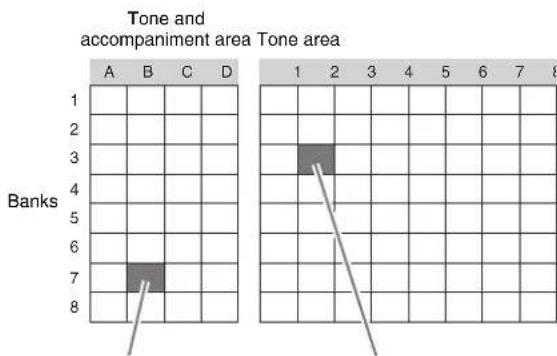
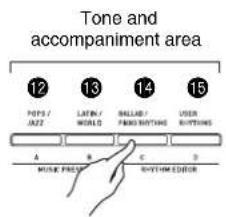
Registrations are stored using eight banks of 12 areas each as shown in the illustration below, for a total of 96 setups. Areas A through D on the left (tone and accompaniment area) is for storing tones and Auto Accompaniment settings, while areas 1 through 8 (tone areas) are for storing tone settings only.
bar
Tone and accompaniment area Tone area | Banks | Tone area | |---|---| | 7 | 1 | | 3 | 2 | | 8 | 0 |Bank 7, Area B data Bank 3, Area 2 data

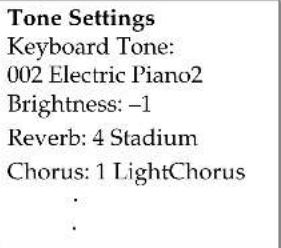
■Registration Data Types
- Tone Settings
- Tone numbers (main, layer, lower split)
- Layer on/off
- Layer balance
- Split on/off
- Split point
- Octave shift
- Brightness
- Reverb
- Chorus
- Transpose
- Touch response
● Auto Accompaniment Settings (Areas A through D only)
• Rhythm number
- Accomp on/off
- Chord fingering mode
- Synchro standby
- Tempo
• Auto Accompaniment volume
- Auto harmonize
Saving Registration Data
- Configure the Digital Piano with the tone, rhythm, and other settings you want to save.
- While holding down the Ⓜ (STORE) button, use the Ⓟ (∨, ∧) buttons to select the bank where you want to save the registration.
Example: Bank 4
![-REGISTRATION-- Bank: [4- ]](/content/2026/05/1021452/images/9bc4b8649fe6e373b7584feec662c8c8dde86f5c81d79560e493846ce7e5f3ae.jpg)
- Next, hold down the ③2 (STORE) button again as you use the rhythm group buttons (12 through 15) or instrument part buttons (20 through 27) to select an area.
The data will be saved to the bank and area you specify.

Example: Bank 4, Area C
![-REGISTRATION-- Store! [4-C] Area](/content/2026/05/1021452/images/c987e1ad381ff209959bf6222bd6cba93a7e33009e3b59fbe7f1445446eb7434.jpg)
Recalling a Registration
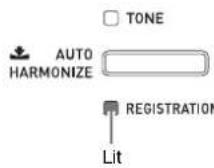
- Press the ⑰ (REGISTRATION) button so its lower lamp is lit.
This enters the registration recall mode.
![-REGISTRATION- Bank: [ 13]](/content/2026/05/1021452/images/4abf22e03a7dd834fcb0a1cda345c8d12d35a0339b55b3cdcae1d9841351061d.jpg)
- Use the 19 (√, ∧) buttons to select the bank where the registration you want to recall is located.
- Use the rhythm group buttons (12 through 15) or instrument part buttons (20 through 27) to specify the area.
This will configure the Digital Piano with the registration data located at the bank and area you specified.
Example: When recalling the registration data in Bank 4, Area C
![-REGISTRATION-- Recall: [4-C]](/content/2026/05/1021452/images/438d8529c7ad6976a837b1567274027914e8bae6d82743849571b63e9cec2762.jpg)
Recording Your Keyboard Play

You can record your music as you play and store up to five songs in Digital Piano memory for later playback. You can divide a song into parts (by instrument, by left hand and right hand, etc.) and record each part separately. You can even use "punch-in recording" to edit specific parts of existing recordings.
Recording or Playing Back a Single Song
The following are the steps for recording or playing back a single recorder memory song.
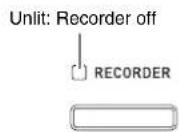
- Press the ⑨ (RECORDER) button twice so its lamp is flashing.
This turns on the recorder and enters record mode.
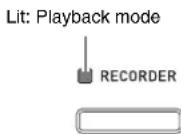
• Each press of the ⑨ (RECORDER) button cycles through modes as shown below.
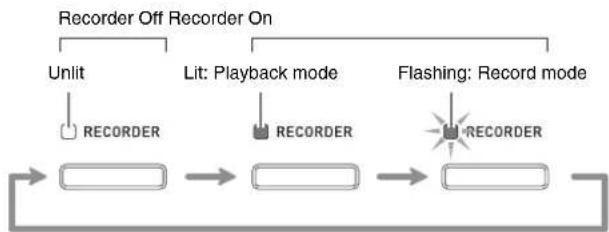
flowchart
graph LR
    A["Unlit"] --> B["REORDER"]
    B --> C["Lit: Playback mode"]
    C --> D["REORDER"]
    D --> E["Flashing: Record mode"]
    E --> F["REORDER"]
-
Configure the tone, rhythm, and other settings you want to use.
-
The settings you configure here will be included as part of the recorded song data.
-
For details about what is included in the recorded song data, see "System Track" (page E-35).
-
Play something on the keyboard.
Recording starts as soon as you play something.
- If Auto Accompaniment is playing, it will be included in the recorded data.
- When you are finished, press the ⑥ (START/STOP) button.
This will cause the ⑨ (RECORDER) lamp to flash and then light, indicating the playback mode.
- If you are using Auto Accompaniment, you also can end the recording session by pressing the ⑤ (ENDING) button.
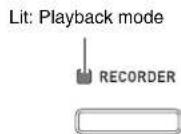
- To play back what you have recorded, press ⑥ (START/STOP) again.
• Each press of ⑥ starts and stops playback.
- To turn off the recorder, press the ⑨ (RECORDER) button so its lamp goes out.
NOTE
- Recorder memory capacity is approximately 10,000 notes per song. When remaining capacity is 100 notes or less, the ⑨ (RECORDER) button lamp will flash at high speed. Recording will stop automatically when memory becomes full.
- Repeat, fast reverse, fast forward, pause, and tempo adjustment during playback are the same as when playing back songs. See "Playing Back a Specific Music Library Song" (page E-24) for more information.
- You can listen to the song data currently stored in recorder memory at any time by pressing the ⑨ (RECORDER) button to enter the playback mode and then pressing ⑥ (START/STOP).
IMPORTANT!
- A new recording replaces (deletes) previously recorded contents.
- If power to the Digital Piano is cut off while recording is in progress, everything you recorded up to that point will be deleted. Take care so power is not turned off accidentally during recording operations.
Recording or Playing Back Multiple Songs
You can record up to five songs (numbered 1 through 5) in memory. After that, you can select a specific song for playback.
- Use the ⑨ (RECORDER) button to cycle through the recorder modes until the playback mode is selected.
- While holding down the 18 (FUNCTION) button, press the 9 (RECORDER) button. This displays the song selection screen.

- Use the 19 (√, ∧) buttons to select the song number you want.
-
Press the 28 (EXIT) button to exit the song selection screen.
-
To record to the currently selected song, press the ⑨ (RECORDER) button. To play back the currently selected song, press the ⑥ (START/STOP) button.
- If you are recording, continue from step 2 under "Recording or Playing Back a Single Song" (page E-34).
Recording to a Specific Track (Part)
You can record specific instruments, the left hand and right hand, or other parts of a song individually, and then combine them into a final song.
■What is a track?
A “track” is a separate recorded part of a song. The recorder of this Digital Piano supports a total of 17 tracks, which are divided between two types described below.
- System Track
In addition to notes you play on the keyboard and other performance operation data, the system track also includes a wide range of setup information for the song, including layer on/off, split on/off, tempo, Auto Accompaniment settings, reverb on/off, etc. When you record a single-track song to recorder memory, as shown under "Recording or Playing Back a Single Song" (page E-34) and "Recording or Playing Back Multiple Songs" (page E-35), everything is recorded to the system track.
● Tracks 01 through 16
These tracks are used to record keyboard notes, tone settings, and pedal operations. These tracks can be combined with the system track and each other to create the final song.
■Supported Track Data
The following describes the data that can be recorded to each type of track.
System Track, Tracks 01 through 16
Keyboard notes, keyboard tone setting (main), and pedal operations
System Track only
Layer, split, octave shift, reverb, chorus, keyboard temperament, tempo, Auto Accompaniment play, auto harmonize, one-touch preset, Music Preset; ^1 registration ^|*2
*1 Recall only
*2 The Auto Accompaniment volume level and transpose setting of the recalled data is not included in the recording.
1. Record the first part to the system track.
- Use the procedure under "Recording or Playing Back a Single Song" (page E-34) or "Recording or Playing Back Multiple Songs" (page E-35) to record to the system track.
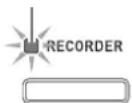
2. Use the ⑨ (RECORDER) button to cycle through the recorder modes until the RECORDER lamp is flashing (record mode).
Flashing: Record mode
3. While holding down the 18 (FUNCTION) button, press the 9 (RECORDER) button.
This displays the track selection screen.
Use the 19 (√, ∧) button to select the track you want to record next (T01 through T16).
After selecting a track, press the 28 (EXIT) button to exit the track selection screen.
| Track Name Display | |
| System Track Sys | |
| Tracks 01 through 16 T01 through T16 | |
![-RecSetting- TrSelect: [Sys] 0:001±120](/content/2026/05/1021452/images/19ec7cbabafcc0e11b44a27110feb4978def0732260b06b576ec386174ae4d22.jpg)
- Select the tone of the part you want to record to the track.
5. Press the ⑥ (START/STOP) button.
This will start playback of what you recorded to the system track and start recording to the currently selected track. Play what you want to record to the current track along with the playback from the system track.
6. To stop recording, press the ⑥ (START/STOP) button again.
This enters the playback mode. Press the ⑥ (START/STOP) button again to play back the track you just recorded. Each press of ⑥ (START/STOP) starts and stops playback.
- You can use the following procedure to turn specific tracks on (play enabled) and off (play disabled). This allows you to listen only to the track(s) you want when recording a new track.
(1) While holding down the 18 (FUNCTION) button, press the 9 (RECORDER) button. This displays the song selection screen.
(2) Press the 30 (>) button once. This displays the track on/off screen.
(3) Use the 19 (√, ∧) buttons to select the track you want, and then press the 31 (ENTER) button to toggle it on or off.
7. Repeat steps 2 through 6 as required to record all of the tracks you want.
Deleting Recorder Data
You can use the procedures below to delete an entire recorder song or to delete a specific track of a recorder song.
Deleting a Recorder Song
- Use the ⑨ (RECORDER) button to cycle through the recorder modes until the RECORDER lamp is lit (playback mode).

-
While holding down the 18 (FUNCTION) button, press the 9 (RECORDER) button. This displays the recorder song selection screen.
-
Use the 19 (√, ∧) buttons to select the recorder song you want to delete.
-
Hold down the ⑨ (RECORDER) button until the message "Sure?" appears on the display.
-
Press the ⑲ (YES) button to delete the recorder song.
• To cancel the delete operation, press the ⑲ (NO) button.
Deleting a Recorder Song Track
-
Perform steps 1 through 3 of the procedure under "Deleting a Recorder Song" to select the recorder song that contains the track you want to delete.
-
Press the 30 (>) button. This displays the track selection screen.
-
Use the 19 (√, ∧) buttons to select the track you want to delete.
-
Hold down the ⑨ (RECORDER) button until the message "Sure?" appears on the display.
-
Press the 19 (YES) button to delete the track. • To cancel the delete operation, press the 19 (NO) button.
Re-recording Part of a Recorder Song (Punch-in Recording)
You can use punch-in recording to re-record a specific part of recorder song that you want to improve or correct.

flowchart
graph TD
    A["Mistake"] --> B(( ))
    B --> C["Use punch-in recording to re-record only this part."]
    C --> D["Playback"]
- Turn on the recorder, enter the record mode, and select the track that contains the section you want to re-record.
- See step 3 under "Recording to a Specific Track (Part)" (page E-35).
- Hold down the ⑨ (RECORDER) button until the punch-in recording screen appears on the display.
![-PunchIn Rec- AutoIN/OUT: [OFF] 0:0012:120](/content/2026/05/1021452/images/98c2f222f11258777f5fb229df841235f6cf809689b5744f36c57d61e977e945.jpg)
3. Press the ⑥ (START/STOP) button.
This will start playback of the selected track.
4. When playback reaches the point you want to re-record, play the notes and perform the other operations you want.
This automatically starts punch-in recording, which will continue until step 5, below.
- Any one of the following also will start punch-in recording: a pedal operation; pressing the ⑨ (RECORDER) button;*1 changing the tone setting; changing the rhythm or tempo setting*2.
*1 Press ⑨ (RECORDER) when you want to start punch-in recording without note input or a setting change.
*2 System track only - You can perform ③ (REW), ④ (FF), and ⑤ (PAUSE) button operations during punch-in playback to jump more quickly to the section you want to re-record.
5. To stop punch-in recording, press the ⑥ (START/STOP) button again.
Anything in the track following the point where you pressed the ⑥ (START/STOP) button will be retained as-is.
- If you want to delete all of the data in the track following the section you re-recorded with punch-in recording, press the ⑨ (RECORDER) button in place of the ⑥ (START/STOP) button above.
- If you want to cancel punch-in recording and retain the original (unedited) track data, hold down the ⑨ (RECORDER) button until the display exits the punch-in recording screen.
Specifying the Punch-in Recording Location (Auto Punch-in Recording)
You can use the following procedure to specify a particular range for punch-in recording.

- Turn on the recorder, enter the record mode, and display the recording setup screen.
- While holding down the 18 (FUNCTION) button, press the 9 (RECORDER) button.
- Use the ⑲9 (<) and ⑳0 (>) buttons to display "AutoPu.IN", and then use the ⑲9 (√, ∧) buttons to select the start measure.
- Use the 29 (<) and 30 (>) buttons to display "AutoPu.OUT", and then use the 19 (√, ∧) buttons to select the end measure.
- After selecting the start and end measures, press the 28 (EXIT) button to exit the recording setup screen.
- Select the track that contains the range of measures you want to re-record.
- See step 3 under "Recording to a Specific Track (Part)" (page E-35).
- Hold down the ⑨ (RECORDER) button until the punch-in recording screen appears on the display.
- Press the 19 (∧) button to turn on auto punch-in recording.
- Press the ⑥ (START/STOP) button to start playback.
- Punch in recording will start from the start measure and stop with the end measure automatically.
- Play the notes and perform the other operations you want.
■Performing Punch-in Recording for Areas Smaller than One Measure
Use the procedure below to specify a punch-in recording area that includes a part of a measure.
Example: To re-record from beat 3 of measure 2 up to beat 1 of measure 4
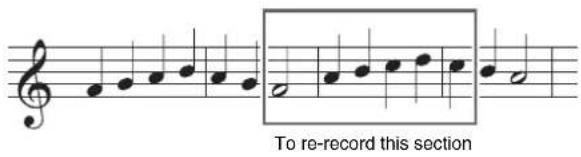
- Start playback of the song that contains the section you want to re-record.
- When playback reaches the beginning of the section you want to re-record, press the ② (REPEAT) button.
- When playback reaches the end of the section you want to re-record, press the ② (REPEAT) button again.
- Press the ⑥ (START/STOP) button to stop playback.
- Turn on the recorder and select the track that contains the section you want to re-record.
- For information about selecting a track, see step 3 under "Recording to a Specific Track (Part)" (page E-35).
- Hold down the ⑨ (RECORDER) button until the punch-in recording screen appears on the display.
- Press the 19 (∧) button to turn on auto punch-in recording.
- Press the ② (REPEAT) button to turn on repeat.
- Press the ⑥ (START/STOP) button.
This starts punch-in playback from the measure before the location (start point) you specified in step 2, above.
- Punch-in recording starts automatically when playback reaches the start point and ends automatically when it reaches the location you specified in step 3 (end point).
Other Settings

You can use the settings in this section to adjust the tuning and touch of the keyboard, to configure pedal and MIDI settings, and to configure other parameters in order to tailor Digital Piano operation to your particular needs.
Configuring Settings
1. Press the ⑱ (FUNCTION) button.
The FUNCTION lamp will light and the function screen will appear on the display. (See table below.)
![FUNCTION Transpose: [ 00] Parameter or group Setting](/content/2026/05/1021452/images/db065e02141263a311fee762602968f0520876eb07555f1397e178fa29d833e0.jpg)
2. Use the ⑲ (<) and ⑳ (>) buttons to select one of the parameters (1 through 8) shown in the table below.
- Parameters 4 through 8 actually are parameter groups. After selecting a group, press the (ENTER) button, and then use buttons ( < ) and ( > ) to select the parameter you want.
- Short cut buttons also are available for accessing a parameter directly after you press the 18 (FUNCTION) button, without going through the menu. See the "Shortcut Button" column in the table below for the applicable shortcut button of each parameter.
3. Use the 19 (√, ∧) buttons to change the setting of the currently selected parameter.
- To return to the function screen, press the 28 (EXIT) or 18 (FUNCTION) button.
NOTE
- Holding down the 18 (FUNCTION) button while you press the 19 (√, ∧) buttons in step 3 will scroll the setting in steps of 10.
- You also can use the 18 (FUNCTION) button for faster scrolling while changing the tone number, rhythm number, and other scrollable settings.
- Keep the 18 (FUNCTION) button depressed while pressing a 19 (√, ∧) button for high-speed scrolling. Releasing the 18 (FUNCTION) button first can result in another unintended setting being changed.
| No. | Parameter | Display Name | Description Settings | Shortcut Button* | |
| 1 | Keyboard Key (Transpose) Transpose Adjusts keyboard tuning by semitone units. | -12 to 00 to 12 semitones | 20 | ||
| 2 | Keyboard Fine Tuning (Tuning) | Tune Adjusts keyboard tuning by cent (1 semitone = 100 cents) units. | -99 to 00 to 99 cents | 21 | |
| 3 | K e y b o a r d Response) | Touch Adjusts keyboard (touch. Off: Off c h | 1: Strong sound even with light pressure2: Normal3: Normal sound even with strong pressure | 22 | |
| 4 Volume Level Group Volume | |||||
| 4-1 Layer Balance LayerBal. Adjusts the volume balance of two tones layered using the Layer function (page E-9).To lower the volume of the layered tone, set a negative value. To lower the volume of the main tone, set a positive value. | -24 to 00 to 24 | - | |||
| 4-2 Auto Accompaniment Volume | AccompVol. Adjusts the volume level of Auto Accompaniment without changing the keyboard tone volume level. | 00 to 42 | 18 - 11 | ||
| 4-3 Song Volume SongVol. | Adjusts the volume level of song playback without changing the keyboard tone volume level. | 00 to 42 | 18 - 11 | ||
| 4-4 Metronome Volume | MetroVol. | See page E-14. | 00 to 42 | 18 - 13 | |
| 5 | Temperament/Effect Group Tmpr/Effect | ||||
| 5-1 Temperament Temper. | Changes the temperament of the keyboard and Auto Accompaniment from the standard equal temperament to another tuning more suitable for playing classics, etc.Pressing a keyboard key while the temperament screen is displayed will make the pressed key the base note of the temperament. | 00: Equal / 01: Pure Major / 02: Pure Minor / 03: Pythagorean / 04: Kirnberger 3 / 05: Werckmeister / 06: Mean-Tone / 07: Rast / 08: Bayati / 09: Hijaz / 10: Saba / 11: Dashti / 12: Chahargah / 13: Segah / 14: Gurjari Todi / 15: Chandrakauns / 16: CharukeshiBase notes>C to B (12 types) | - | ||
| 5-2 Accompaniment Temperament | AccompTmpr | Turn this setting off to play Auto Accompaniment patterns using standard equal temperament (00: Equal), regardless of the temperament setting currently selected with the Temperament parameter (5-1). | Off, On | - | |
| 5-3 Stretch Tuning Stretch Sharpens high notes and flattens low notes to achieve stretch tuning. Turn off this setting to play with normal (non-stretch) tuning. | Off, On | - | |||
| 5-4 Brilliance | Brilliance | See page E-11. | -3 to 0 to 3 | - | |
| 5-5 Acoustic Resonance | AcoResona. | Reproduces the acoustic resonance that occurs when the damper pedal is depressed on a grand piano.No acoustic resonance is applied when this setting is turned off. | Off, On | - | |
| 5-6 Octave Shift | OctShift | See page E-11. | U1 : -2 to 0 to 2U2 : -2 to 0 to 2L1 : -2 to 0 to 2 | 18 - 17 | |
| 5-7 Duet Mode Duet See page E-14. Off, On | 18 - 20 | ||||
* 18 – 11 in this column means, "While holding down 18, press 11."
| No. | Parameter | Display Name | Description | Settings | Shortcut Button* | |
| 6 Song Playback/Card Group Play/CARD | ||||||
| 6-1 | Pre-count PreCount Turn on this setting for | an audible count before starting playback of a song. | Off, On | - | ||
| 6-2 | Song Repeat SongRepeat Turn on this setting to repeat play a song. Off, On | 10 - 2 | ||||
| 6-3 | Card Folder CARD Folder See page E-53. (Folder Name) | 18 - 13 to 15 | ||||
| 6-4 | Formatting a Memory Card | CARD FORMAT | See page E-45. - | 19 - 31 | ||
| 6-5 | Card File Delete File DELETE See page E-47. -- | |||||
| 6-6 | Card File Rename File REN AME See page E-47. -- | |||||
| 7 MIDI Group MIDI | ||||||
| 7-1 | Keyboard Channel | KeyboardCh | Selects the keyboard channel, which is the channel used to send MIDI data corresponding to Digital Piano keyboard play to an external device. | 01 to 16 | - | |
| 7-2 | Accomp MIDI Out | AccompOut | Turn on this setting to send MIDI data corresponding to Auto Accompaniment to an external device. | Off, On | - | |
| 7-3 | MIDI In Chord Judge | ChordJudge | Select whether chord input should be performed when an Auto Accompaniment chord keyboard MIDI note on message is received. | Off, On | - | |
| 7-4 | Local Control | LocalCtl. | Turn off this setting to have keyboard notes sent to an external device without being sounded by the Digital Piano. | Off, On | - | |
| 8 Other Parameters Group General | ||||||
| 8-1 | Display Contrast | Contrast | Adjusts the contrast of the Digital Piano's display. | 00 to 16 | - | |
| 8-2 | Panel Lock | PanelLock | Turn on to lock the Digital Piano's control panel to prevent unauthorized or accidental operation.This setting is disabled while the recorder is on, or while Auto Accompaniment, a song, or the metronome is playing. | Off, On | - | |
| 8-3 | Setting Backup | BackUp | Switching this setting from off to on will save various Digital Piano settings in effect at that time, and restore them the next time the Digital Piano is turned on.This operation is disabled in the Duet Mode, while the recorder is on, or while Auto Accompaniment, a song, or the metronome is playing. | Off, On | - | |
* 18 – 11 in this column means, "While holding down 18, press 11."
Using a Memory Card

You can use the procedures in this section to transfer edited Auto Accompaniment data, recorder data, and other data from the Digital Piano to a commercially available SD memory card for storage. You also can use a memory card to transfer standard MIDI files (SMF), and accompaniment data you downloaded from the CASIO website from your computer to Digital Piano memory. Once you do, you can use them as user songs and user rhythms.
- Use a memory card with a capacity of 2GB or less. Use of a card with a capacity that is greater than 2GB or other types of memory cards is not supported.
- In this manual, mentions of a "memory card" refer to an SD memory card.
■Types of Data
| Data Type | Description(File Name Extension) | Supported Operations | |
| Save to Memory Card | Load from Memory Card | ||
| User rhythms(page E-20) | Auto Accompaniment data edited with this Digital Piano (AC7) | ○ | ○ |
| User songs(page E-24) | One of the following two types of music data1. CASIO format data (CM2)2. Standard MIDI files (MID)SMF Format 0 or Format 1 | - ○ | |
| User Music Presets(page E-27) | Music Preset data edited on this Digital Piano (MPS) | ○ | ○ |
| Recorder songs(page E-34) | Song data recorded on this Digital Piano (CSR) ○* ○ | ||
| Registration(page E-32) | Tone and rhythm setup settings (CR6) | ○ | ○ |
* Can be saved as a standard MIDI file (SMF format 0).
Card and Card Slot Precautions
IMPORTANT!
- Be sure to observe the precautions provided in the documentation that comes with the memory card.
- Memory cards have a write-protect switch. Use it when you want to protect the data on the card from accidental deletion.
- Avoid using a memory card under the following conditions. Such conditions can corrupt data stored on the memory card.
- Areas subjected to high temperature, high humidity, or corrosive gas
- Areas subjected to strong electrostatic charge and digital noise
- Never touch the contacts of a memory card when loading it or removing it from the Digital Piano.
- Never eject the memory card while data is being written to or loaded from it. Doing so can corrupt the data on the memory card and damage the memory card slot.
- Never insert anything besides a memory card into the card slot. Doing so creates the risk of malfunction.
- Electrostatic charge from your fingers or the memory card to the card slot can cause malfunction of the Digital Piano. If this happens, turn the Digital Piano off and then back on again.
A memory card can become quite warm after very long use in the memory card slot. This is normal and does not indicate malfunction.
Loading and Removing a Memory Card
IMPORTANT!
- A memory card must be positioned correctly when being loaded into the Digital Piano. Trying to force an improperly oriented memory card into the slot can damage the memory card and the slot.
- With the top of the memory card facing upwards (so you can see it), carefully insert it into the Digital Piano's memory card slot (33) until stops with a click.
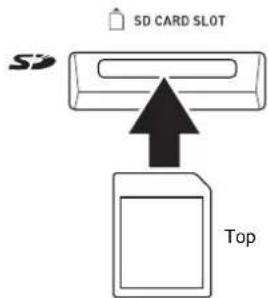
flowchart
graph TD
    A["Top"] --> B["SD CARD SLOT"]
    B --> C["SD"]
- To remove the memory card first press it into the slot further.
This will cause the memory card to disengage and eject partially. Pull the memory card the rest of the way out of the slot.
Formatting a Memory Card Saving
Digital Piano Data to a Memory Card

IMPORTANT!
- Format a memory card before using it for the first time.
- Before formatting a memory card, make sure it does not have any valuable data stored on it.
-
The memory card format operation performed by this Digital Piano is a “quick format”. If you want to completely delete all of the data on the memory card, format it on your computer or some other device.
-
Insert the memory card you want to format into the Digital Piano's memory card slot.
Make sure the write-protect switch of the memory card is not in the write-protect position so writing is enabled.
- While holding down the 18 (FUNCTION) button, press the 31 (CARD/INTERNAL) button.
This displays the format screen.
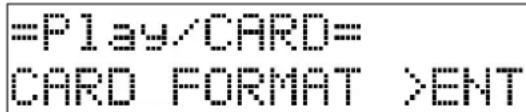
- Press the ③1 (ENTER) button.
This will display a confirmation message (SURE?).
- If you want to cancel the format operation, press the 19 (NO) or 28 (EXIT) button.
- Press the 19 (YES) button.
- The message "Please Wait" will remain on the display while the format operation is being performed. Do not perform any Digital Piano operation while this message is on the display. "Complete" appears on the display after formatting is complete.
Use the following procedure to save Digital Piano data to a memory card.
- Recorder songs can be saved as a standard MIDI file (SMF format 0).
-
User songs (downloaded songs, etc.) cannot be saved to a memory card.
-
Insert a memory card into the Digital Piano's memory card slot.
-
Select the data you want to save to the memory card.
| To select this type of data:*1 | Do this: |
| User rhythms Select from among user rhythms 001 through 010 (page E-20). | |
| User Music Preset | Select from among user Music Preset 001 through 050 (page E-27). |
| Recorder songs | Select from among recorder songs 1 through 5 (page E-34). |
| Registrations*2 | Press the 17 (REGISTRATION) button so its lower lamp is lit. |
*1 For more information about data types, see page E-43.
*2 All registration data (8 banks × 12 areas) is saved in a single file.
- Hold down the ③1 (CARD/INTERNAL) button until the "LOAD" screen appears for the data you selected.
- You can cancel the LOAD/SAVE operation any time by pressing the 28 (EXIT) button.
- Press the 30 (>) button to switch to the "SAVE" screen for the data you selected.
- If you are saving a recorder song to a standard MIDI file (SMF), press the Ⓞ0 (>) button again so "SMF" is displayed on the right side of the screen.
- Use the 19 (√, ∧) buttons to select the file number (01 to 99) you want to assign to the data when it is saved to the memory card.
- The file number is the final two characters of the file name* that appears on the display. By changing this within the range of 01 to 99 for each save, up to 99 files of the same data type can be stored on the memory card.
* The first six characters of the file name indicate the data type as shown below. These characters are fixed and cannot be changed.
| Data Type | File Name(** = file number) |
| User rhythms USRRHY** | |
| User Music Preset USRMPS | ** |
| Recorder songs RECSNG** | |
| Registrations REGIST** |
- Press the 31 (ENTER) button.
- The message "Please Wait" will remain on the display while the save operation is being performed. Do not perform any Digital Piano operation while this message is on the display. "Complete" appears on the display after data save is complete.
- If there already is a file with the same name on the memory card, a message (Replace?) will appear asking if you want to replace it with the new data. Press the 19 (YES) button to replace or the 19 (NO) button to cancel the save operation.
■Memory Card Data Storage
The above procedure stores Digital Piano data in a folder named MUSICDAT on the memory card.
- The MUSICDAT folder is created automatically when you format the memory card on the Digital Piano (page E-45).
- Note that files not in the MUSICDAT folder cannot be loaded, deleted, or renamed by this Digital Piano. You also will not be able to load or delete any file stored in any subfolder inside the MUSICDAT folder.
Loading Data from a Memory Card
You can use the procedure below to load data from a memory card into Digital Piano memory.
IMPORTANT!
- Make sure that all of the data you want to load is in the MUSICDAT folder on the memory card. Note that if you put data into a music data play-only folder on a memory card (such as the MUSIC_B folder), you will no longer be able to load that file into Digital Piano memory.
-
Insert the memory card into the Digital Piano's memory card slot.
-
Select the data you want to load.
| To load this type of data* | Do this: |
| User rhythms Select from among user rhythms 001 through 010 (page E-20). | |
| User songs Select from among user songs 001 through 010 (page E-24). | |
| User Music Preset | Select from among user Music Presets 001 through 050 (page E-27). |
| Recorder songs | Select from among recorder songs 1 through 5 (page E-34). |
| Registrations Press the 17 (REGISTRATION) button so its lower lamp is lit. | |
* For more information about data types, see page E-43.
- Hold down the ③1 (CARD/INTERNAL) button until the "LOAD" screen appears for the data you selected.
- You can cancel the LOAD/SAVE operation any time by pressing the 28 (EXIT) button.
-
Use the 19 (√, ∧) buttons to select the file you want.
-
Press the 31 (ENTER) button.
-
The message "Please Wait" will remain on the display while the load operation is being performed. Do not perform any Digital Piano operation while this message is on the display. "Complete" appears on the display after data loading is complete.
- If there is already data in the destination you are loading to, a message (Replace?) will appear asking if you want to replace it with the new data. Press the 18 (YES) button to replace or the 19 (NO) button to cancel the load operation.
Deleting Memory Card Data Renaming a Memory Card File
Use the following procedure to delete memory card data (files).
- Insert the memory card into the Digital Piano's memory card slot.
-
While holding down the 18 (FUNCTION) button, press the 31 (CARD/INTERNAL) button.
This displays the memory card format screen (page E-45). -
Press the ③0 (>) button.
This displays the file delete screen. -
Press the 31 (ENTER) button.
This displays a screen for selecting data for deletion. -
Use the 19 (√, ∧) buttons to select the file you want.
-
Press the ③1 (ENTER) button.
This will display a confirmation message (SURE?).
- If you want to cancel the delete operation, press the 19 (NO) or 28 (EXIT) button.
- Press the 19 (YES) button.
- The message “Please Wait” will remain on the display while the delete operation is being performed. Do not perform any Digital Piano operation while this message is on the display. “Complete” appears on the display after deletion is complete.
Use the following procedure to change the file name of a file on a memory card.
- Insert the memory card into the Digital Piano's memory card slot.
-
While holding down the 18 (FUNCTION) button, press the 31 (CARD/INTERNAL) button.
This displays the memory card format screen (page E-45). -
Press the ③0 button (>) twice so "File RENAME" is displayed.
-
Press the 31 (ENTER) button. This displays a screen for changing the file name.
-
Use the 19 (√, ∧) buttons to select the file you want.
-
Use the ③0 (>) and ②9 (<) buttons to move the flashing cursor to the character you want to change, and then use the ⑲9 (√, ∧) buttons to change the character.
- The characters you can select are shown below.
| 0 | 1 | 2 | 3 | 4 | 5 | 6 | 7 | 8 | 9 |
| A | B | C | D | E | F | G | H | I | J |
| K | L | M | N | O | P | Q | R | S | T |
| U | V | W | X | Y | Z | $ | & | _ | ' |
| ( | ) | - | ^ | { | } | @ | ~ | ` |
- After the file name is the way you want, press the Ⓞ (ENTER) button.
This will display a confirmation message (SURE?).
- If you want to cancel the renaming operation, press the 19 (NO) or 28 (EXIT) button.
- Press the 19 (YES) button.
- The message “Please Wait” will remain on the display while the rename operation is being performed. Do not perform any Digital Piano operation while this message is on the display. “Complete” appears on the display after renaming is complete.
Playing Back a Song from a Memory Card
You can use the procedure below to play back a user song (page E-24) stored on a memory card without loading the song into Digital Piano memory.
■Memory Card Folders
Formatting a memory card on the Digital Piano will automatically create the four folders shown below. You put playback song data into any one of the folders. You can use the four folders to group your music data by family member, genre, or some other categories. Use buttons 12 through 15 (folders) to select a folder.
| Folder Name Button Assignment | |
| MUSICDAT | 12 (A) |
| MUSIC__B | 13 (B) |
| MUSIC__C | 14 (C) |
| MUSIC__D | 15 (D) |
- Store the music data you want to play back in one of the memory card folders.
- Insert the memory card into the Digital Piano's memory card slot.
- Press the ③1 (CARD/INTERNAL) button.
- Press one of the folder selection buttons (12 through 15) to select the card folder you want. This will display the song number and song name of the first song in the folder you selected.
- Use the 19 (√, ∧) buttons to select the song you want.
- Press the ⑥ (PLAY/STOP) button.
This will start playback.
• Each press of ⑥ (PLAY/STOP) starts and stops playback.
- Fast forward, fast reverse, tempo changes, and other operations are the same as those during playback of a user song in Digital Piano memory. For details, see "Playing Back a Specific Music Library Song" (page E-24).
- To quit memory card data playback, press the ③1 (CARD/INTERNAL) button.
Playing Back All of the Songs in a Folder
Use the procedure below to select one of the four folders on a memory card and play back all of the songs in the folder in succession.
- While holding down the ⑦ (PART) button, press the ⑥ (PLAY/STOP) button.
This will start tone demo tune playback (page E-23).
- Press the 31 (CARD/INTERNAL) button.
This will switch from tone demo tune playback to card tune playback.
- While playback is in progress, you can use the 12 through 15 buttons (folders) to switch playback to another folder.
- To stop playback, press the ⑥ (PLAY/STOP) button.
Assigning a Different Folder to a Folder Selection Button
You can use the following procedure to assign different folders to folder selection buttons 13, 14, and 15.
- While holding down the 13 (FUNCTION) button, press the folder selection button (13, 14, or 15) whose folder assignment you want to change.
- This displays the folder assignment screen for the button you press.
- Use the 19 (√, ∧) buttons to select the folder you want to assign to the button.
- You can select any folder on the memory card.
- After selecting a folder, you can rename it if you want.
- Perform steps 6 through 8 of the procedure under "Renaming a Memory Card File" (page E-47) to rename the folder.
Saving Data to Digital Piano Memory (Internal Area) Instead of a Memory Card
Even when you do not have a memory card loaded in the Digital Piano's memory card slot, you can save up to about 16MB of data in the Digital Piano's internal memory area. You also can load and delete internal memory area data using the same procedures that you use with a memory card.
1. Remove the memory card from the Digital Piano's memory card slot (page E-44).
- Removing the memory card from the slot enables internal memory area data operations (save, load, delete, rename, playback).
| To do this Perform this operation | |
| Save data to the internal memory area | From step 2 under “Saving Digital Piano Data to a Memory Card” on page E-45 |
| Load data from the internal memory area | From step 2 under “Loading Data from a Memory Card” on page E-46 |
| Delete data from the internal memory area | From step 2 under “Deleting Memory Card Data” on page E-47 |
| Rename a file in the internal memory area | From step 2 under “Renaming a Memory Card File” on page E-47 |
| Play back a song in the internal memory area | From step 3 under “Playing Back a Song from a Memory Card” on page E-48• The operation in step 4 of the above procedure is not possible in the case of internal memory area song playback. |
Error Messages
One of the error messages below appears on the display when a problem occurs.
- All mentions of "memory card" in the following table refer to an SD memory card.
| Display Message | Cause Required Action | |
| Convert There | is not enough Digital Piano memory available to convert a recorder song (page E-34) to SMF data and store it on the memory card. | Reduce the size of the recorder song data by deleting unneeded tracks (page E-37), if there are any. |
| FileName You | are trying to use the procedure under “Renaming a Memory Card File” (page E-47) to change to a file name that already exists on the memory card. | Use a different file name. |
| Format 1. The | current memory card format is not compatible with this Digital Piano.2. The memory card capacity is greater than 2GB. 2. Use a memory card with a capacity of 2GB or less.3. There is something wrong with the memory card. 3. Use a different memory card. | 1. Format the memory card on the Digital Piano (page E-45).memory card with a capacity of 2GB or less. |
| MediaFull 1. | There is not enough room available on the memory card.2. There is not enough room available in Digital Piano memory. | 1. Delete some of the files on the memory card to make room for new data (page E-47), or use a different card.2. Delete some or all user data from Digital Piano memory to make room for new data. |
| Media R/W 1. | Memory card data is corrupted. 1. Use a different memory card.2. Digital Piano memory is corrupted. | 2. Back-up Digital Piano memory data by copying it to your computer, and then turn the Digital Piano off and then back on again.Note that you may not be able to back-up Digital Piano data in certain cases. |
| No Card 1. | The memory card is not loaded correctly in the Digital Piano's memory card slot.2. The memory card was removed while some operation was in progress. | 1. Correctly load the memory card into the memory card slot.2. Do not remove the memory card while any operation is in progress. |
| No Data You tried to save a Digital Piano user area (user rhythm, user rhythm song, etc.) that does not contain any data to the memory card. | Select a user area that contains data. | |
| No File | 1. There is no MUSICDAT folder (page E-46) on the memory card.2. There is no loadable or playable data in the MUSICDAT folder, or there is no playable data in a song playback folder (MUSIC_B, etc.) | 1. Create a MUSICDAT folder on the memory card or format the memory card on the Digital Piano (page E-45).2. Move the file you want to load or play into the memory card's MUSICDAT folder. For song playback, you can place the song data into any one of the following folders: MUSIC_B, MUSIC_C, or MUSIC_D. |
| Not SMF01 | You are attempting to play back SMF Format 2 song data. | This Digital Piano supports playback of SMF Format 0 or Format 1 only. |
| Protect | The memory card is write-protected. | Use the memory card's write protect switch to enable writing. |
| ReadOnly A read-only file with the same name you are trying to use is already stored on the memory card. | Use a different name to save the new file.Remove the read-only attribute from the existing file and overwrite it with the new file.Use a different memory card. | |
| SizeOver | The data on the memory card is too big to play.The data you are trying to load is too large. | This Digital Piano supports playback of song data files with a maximum size of 320KB.The following is the maximum data size (per data item) when loading data into Digital Piano memory.User rhythm: Approximately 40KBUser Song: 320KBUser Music Preset: Approximately 8KB |
| WrongDat | The memory card data is corrupted.The memory card contains data that is not supported by this Digital Piano. | — |
Connecting to a Computer
You can connect the Digital Piano to a computer and exchange MIDI data between them. You can send play data from the Digital Piano to music software running on your computer, or you can send MIDI data from your computer to the Digital Piano for playback.
Minimum Computer System Requirements
The following shows the minimum computer system requirements for sending and receiving MIDI data.
Check to make sure that your computer complies with these requirements before connecting the Digital Piano to it.
- Operating System
Windows® XP (SP2 or later)*
Windows Vista® *2
Windows® 7 *3
Mac OS ^® X (10.3.9, 10.4.11 or later, 10.5.6 or later, 10.6.2 or later)
*1 Windows XP Home Edition Windows XP Professional (32-bit)
*2 Windows Vista (32-bit)
*3 Windows 7 (32-bit, 64-bit)
- USB port
IMPORTANT!
- Never connect to a computer that does not conform to the above requirements. Doing so can cause problems with your computer.
Connecting the Digital Piano to Your Computer
IMPORTANT!
- Make sure you follow the steps of the procedure below exactly. Connecting incorrectly can make data send and receive impossible.
- Turn off the Digital Piano and then start up your computer.
- Do not start up the music software on your computer yet!
- After starting up your computer, use a commercially available USB cable to connect it to the Digital Piano.

flowchart
graph TD
    A["USB cable (A-B type)"] --> B["A connector"]
    B --> C["Computer USB port"]
    D["B connector"] --> E["Digital Piano USB port"]
    F["USB"] --> E
- Turn on the Digital Piano.
- If this is the first time you are connecting the Digital Piano to your computer, the driver software required to send and receive data will be installed on your computer automatically.
-
Start up your computer's music software.
-
Configure the music software settings to select one of the following as the MIDI device.
CASIO USB-MIDI : (For Windows Vista, Windows 7, Mac OS X)
USB Audio Device: (For Windows XP)
- For information about how to select the MIDI device, see the user documentation that comes with the music software you are using.
IMPORTANT!
- Be sure to turn on the Digital Piano first before starting up your computer's music software.
NOTE
- Once you are able to connect successfully, there is no problem with leaving the USB cable connected when you turn off your computer and/or Digital Piano.
• This Digital Piano conforms to General MIDI Level 1 (GM). - For detailed specifications and connections that apply to MIDI data send and receive by this Digital Piano, see the latest support information provided by the website at the following URL. http://world.casio.com/
Using MIDI
What is MIDI?
The letters MIDI stand for Musical Instrument Digital Interface, which is the name of a worldwide standard for digital signals and connectors that makes it possible to exchange musical data between musical instruments and computers (machines) produced by different manufacturers.
For details about the MIDI specifications of this Digital Piano, see the "MIDI Implementation" document at the website located at the URL below.
http://world.casio.com/
NOTE
- You can alter the Digital Piano's MIDI setup by changing the MIDI data send channel or other settings. For details, see "MIDI Group" (page E-42).
- Use a separately available or commercially available MIDI cable to connect the MIDI terminals of your Digital Piano and another electronic musical instrument for exchange of MIDI data.
- The MIDI terminal cannot be used to exchange data while the Digital Piano is connected to a computer via the USB port.
Transferring Data between the Digital Piano and a Computer
You can use the procedure below to transfer edited Auto Accompaniment data, recorder data, and other data from the Digital Piano to a computer for storage. You also can transfer standard MIDI files (SMF), as well as Auto Accompaniment data you downloaded from the CASIO website from your computer to Digital Piano memory.
■Data Types Supported for Data Transfer
The types of data that can be exchanged with a computer are the same as those that can be saved to an SD memory card from the Digital Piano (page E-43).*
* Recorder songs (page E-34) cannot be converted to SMF data for storage on a computer.
IMPORTANT!
- Turning off the Digital Piano while data is being saved or loaded can cause all data currently stored in Digital Piano memory (recorded songs, etc.) to be deleted. Take care so power is not turned off accidentally during data save and load operations. If data is deleted, it will take longer than normal for the Digital Piano to power up the next time you turn it on (page E-8).
- Remove the memory card from the Digital Piano's memory card slot (page E-44).
- You will not be able to transfer data between the Digital Piano and a computer if a card is in the memory card slot.
- Perform steps 1 through 3 under "Connecting the Digital Piano to Your Computer" to connect the piano to your computer (page E-51).
3. While holding down the 18 (FUNCTION) button, press the 32 (USB DEVICE MODE) button.
This will enter the storage mode, which enables data transfer with the connected computer. The 18 (FUNCTION) button lamp will flash and the display will appear as shown below.
![USB DEVICE MODE: [Storage(INT.)] 0:001:120](/content/2026/05/1021452/images/5ee83429abbfa7560eacf64c12d2136459efe2bfb6d3138825c4a066c02222a7.jpg)
- To exit the storage mode at any time, press the (FUNCTION) button. This is the only button operation that is supported while the Digital Piano is in the storage mode.
- You will not be able to enter the storage mode while any one of the following operations is in progress. Metronome, Auto Accompaniment, song playback, recorder (on), Auto Accompaniment editing, Music Preset editing, data transfer between the Digital Piano and card
4. If your computer is running Windows XP, double-click "My Computer".\*
Under "Devices with Removable Storage", you should be able to see a folder representing Digital Piano memory or the memory card loaded in the Digital Piano (see below).
* Windows Vista, Windows 7: Double-click "Computer". Mac OS: Skip step 4 and double-click "PIANO" on your Mac desktop.

PIANO drive (Digital Piano memory)
5. Double-click "PIANO".
You now should see five data folders, one for each data type.

flowchart
graph TD
    A["MUSICLIB"] --> B["STATELOC"]
    B --> C["REGISTMP"]
    D["RECORDER"] --> E["MUSICPST"]
    E --> F["RHYTHMAC"]
This folder is not a data folder. You should not try to use it for normal Digital Piano operation.
6. Referring to the table below, open the folder that corresponds to the type of data you want to transfer.
| To load this type of data | Open this data folder | Data File Name |
| User rhythms (page E-20) | RHYTHMAC | BIDRHYnn.AC7 (nn: 01 to 10) |
| User songs (page E-24) | MUSICLIB | BIDSNGnn.MID (nn: 01 to 10) (SMF Format 0 or Format 1) BIDSNGnn.CM2 (nn: 01 to 10) (CASIO format) |
| User Music Presets (page E-27) | MUSICPST | BIDMPSnn.MPS (nn: 01 to 50) |
| Recorder songs (page E-34) | RECORDER | BIDRECnn.CSR (nn: 01 to 05) |
| Registration (page E-32) | REGISTMR BID | REGAL.CR6 |
- Data types and contents are the same as those when saving Digital Piano data to or loading it from an SD memory card. See "Using a Memory Card" (page E-43) for more information.
- File name extensions (.MID, .CM2, etc.) are not displayed under initial default Windows settings. Perform the procedure below to turn on display of file name extensions.
(1) Open any one of the folders shown on page E-53.
(2) Perform one of the following operations to display folder information.
- Windows XP:
On the [Tools] menu at the top of the folder window, select [Folder Options].
- Windows Vista, Windows 7:
On the left side of the folder window, click [Organize] and then select [Folder and Search Options].
(3) On the Folder Information window, click the [View] tab.
(4) Under "Advanced Settings", clear the "Hide extensions for known file types" check box and then click [OK].
- After opening a data folder, perform either of the following operations to transfer data.
8-1. To transfer data from Digital Piano memory to a computer, perform the required operation on your computer to copy the data from the Digital Piano folder you opened in step 6 of this procedure to another location on your computer.
8-2. To load data from your computer to Digital Piano memory, first copy the data you want to load to the data folder you opened. Next, rename the file as shown in the "Data File Name" * column in the table under step 6 of this procedure.
* The value you assign for "nn" in the data file name in this case specifies the user number (user rhythm, user song, recorder song, user preset) you want the data to be assigned to.
Example: Renaming downloaded song data to BIDSNG04.CM2 to the MUSICLIB folder will make the data user song 004.
- Press the 18 (FUNCTION) button to exit the storage mode.
- If you are using a Macintosh, drag the PIANO folder to the Trash and then press the Digital Piano's 18 (FUNCTION) button.
IMPORTANT!
- The message “ERROR, DATA EXCHANGE” will appear on the display if a problem occurs during data transfer. If this happens, check the message in the “STATELOG” folder (page E-53) on the “PIANO” drive. Next find the same message in the table on page E-50 of this manual to determine the cause of the problem and what action you need to take to avoid it.
Playing Back User Song Data by Copying It to the PIANO Drive
You can use the procedure below at any time to copy user song data to the PIANO drive (without putting it in the MUSICLIB folder) for simplified playback on the Digital Piano.
- When you copy a user song data file to the MUSICLIB folder, you need to rename it according to specified format (page E-53, step 6). You do not need to rename the file if you use the procedure below.
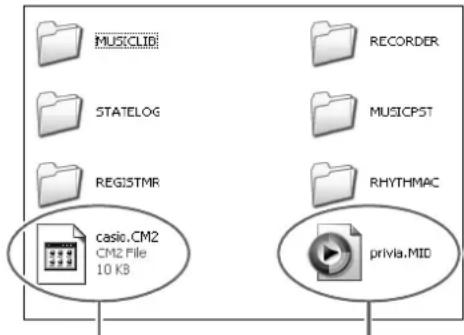
CASIO format song data MIDI file song data
- Perform the previous procedure to copy the user song data file to the PIANO drive.
- Press the 18 (FUNCTION) button to exit the storage mode.
- Press the ③1 (CARD/INTERNAL) button.
This will cause the button's lamp to light and will the display the song number and song name of the first song on the PIANO drive.
- Use the 19 (√, ∧) buttons to select the song you want to play.
- Press the ⑥ (PLAY/STOP) button.
This starts playback of the selected song.
• Each press of the ⑥ (PLAY/STOP) button toggles between play and stop.
- Fast forward, fast reverse, tempo change, and other operations are the same as those during playback of a loaded user song and a song file on a memory card.
- When you are finished playing back songs, press the 31 (CARD/INTERNAL) button.
Using Your Digital Piano as a Memory Card Reader
You can display the contents of the memory card currently loaded in the Digital Piano's card slot and perform copy, delete, and other card operations from your computer.
- Insert the memory card into the Digital Piano's memory card slot.
- Perform the procedure starting from step 2 on page E-52.
In step 4 of the procedure, "SD_MMC" will appear in place of "PIANO". You can double-click "SD_MMC" to display the contents of the card loaded in the Digital Piano card slot, and change it as you like.
■Using Auto Accompaniment (Rhythm) Data from the CASIO Website
You can download other model Auto Accompaniment data from the "Internet Data Expansion System" of the CASIO Music Site (http://music.casio.com/) and transfer it to Digital Piano memory.

- Since the accompaniment data is for other models, you may experience some abnormalities when playing it on this model.
Copyrights
The rights of creators and copyright holders of music, images, computer programs, databases, and other data are protected by copyright laws. You are allowed to reproduce such works for personal or non-commercial use only. For any other purpose, all reproduction (including data format conversion), modification, transfer of reproductions, distribution over a network, or any other use without permission of the copyright holder exposes you to claims for damages and criminal prosecution for copyright infringement and violation of the author's personal rights. Be sure to reproduce and otherwise use copyrighted works only in accordance with applicable copyright laws.
Assembling the Stand
Unpacking
PREPARATION
- This stand does not include any of the tools required for assembly. It is up to you to prepare a large Philips head (+) screwdriver for assembly.
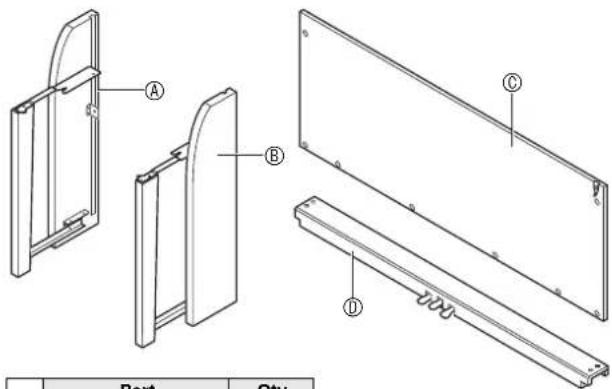
| Part | Qty | |
| E | 4 | |
| F | 6 | |
| G | 1 | |
| H | 2 | |
| I | 2 | |
| J | 4 | |
| K | 2 | |
| L | 1 | |
| M | 1 |
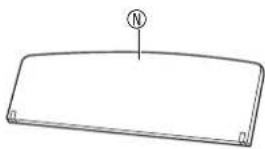
natural_image
Simple line drawing of a rectangular object with a labeled point marked by a circle (no text or symbols present)IMPORTANT!
- If anything is missing or damaged, contact your local CASIO service provider.
- Do not use any screws other than those that come with the stand. Doing so risks damage to the stand and/or the Digital Piano.
CAUTION
- Assembly of the stand should be performed by at least two people working together.
- This stand should be assembled on a flat surface.
- Do not remove the tape securing the keyboard cover in place until assembly is complete. Removing the tape can cause the keyboard cover to open and close during assembly, creating the risk of personal injury to your hands and fingers.
• Take care that you do not pinch your fingers between parts when assembling them.
To assemble the stand
- Unfasten the band ① that bundles the pedal cable to the back of the crosspiece ⑪ and pull the pedal cord out from the crosspiece.
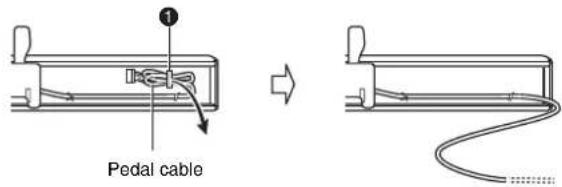
-
Attach the side panels Ⓐ and Ⓑ to the crosspiece Ⓓ. Secure the side panels using the four screws Ⓔ.
-
When installing part ②, slide the brackets ③ into the slots in either end crosspiece ①. If the brackets ③ are not inserted into the ends of the crosspiece ④ as far as they will go, the screws ⑤ will not be able to enter into the screw holes of the brackets ③, which can strip the threads of the screws.
• Cover the screw heads with the caps Ⓙ.
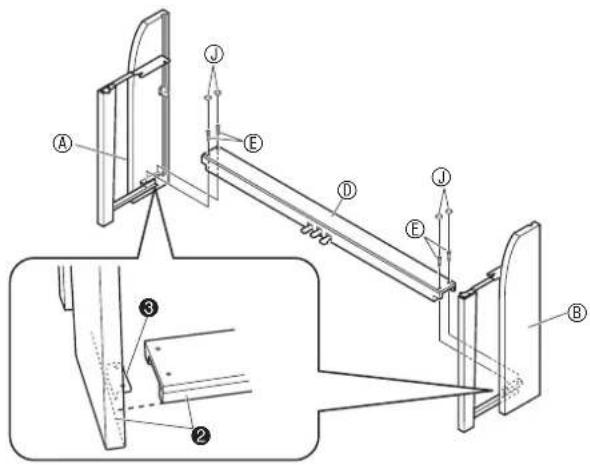
- Slide the back panel Ⓐ into the grooves ④ of the side panels.


IMPORTANT!
- Be sure to check that the back panel Ⓐ bracket engages correctly with the side panel Ⓑ bracket as shown in the nearby illustration marked “○”. Assembling the stand while these brackets are not engaged correctly (as shown in the illustration marked “×”) creates the risk of damage to stand components.
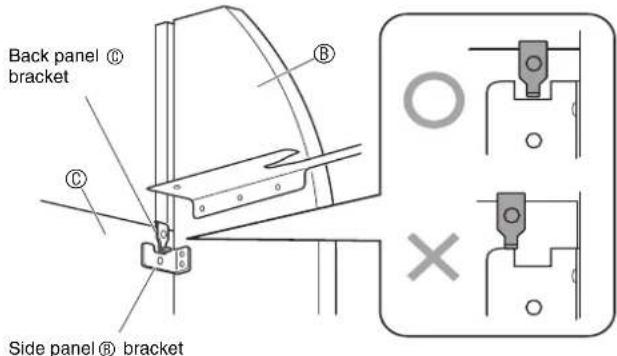
- Attach the right side of the back panel Ⓐ to the bracket ⑤ of the side panel Ⓐ.
- Secure the back panel in place with a screw ①.
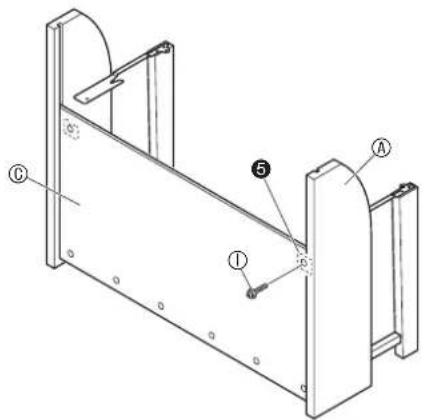
- Pull the side panel Ⓑ slightly outwards in the direction marked with ★ in the illustration below.
- Check to make sure that the relative positions of the back panel Ⓐ bracket and the side panel Ⓑ bracket are as shown in the illustration A. This step creates a slight gap between the side panels Ⓐ and Ⓑ, which makes it easier to mount the Digital Piano onto the stand in step 6 below.
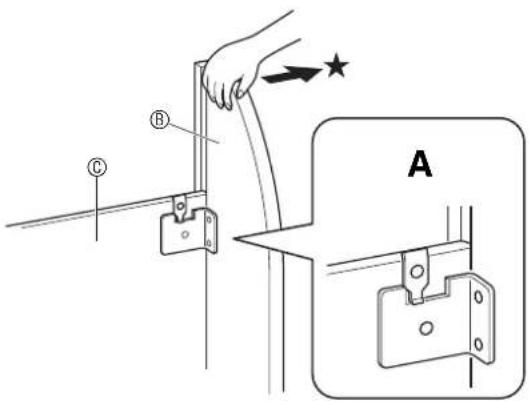
6. Place the piano onto the stand.

IMPORTANT!
- In order to ensure you do not get your fingers pinched between the piano and the stand, grasp the piano on its sides (not its ends) at the locations marked with stars ( ) in the illustration.
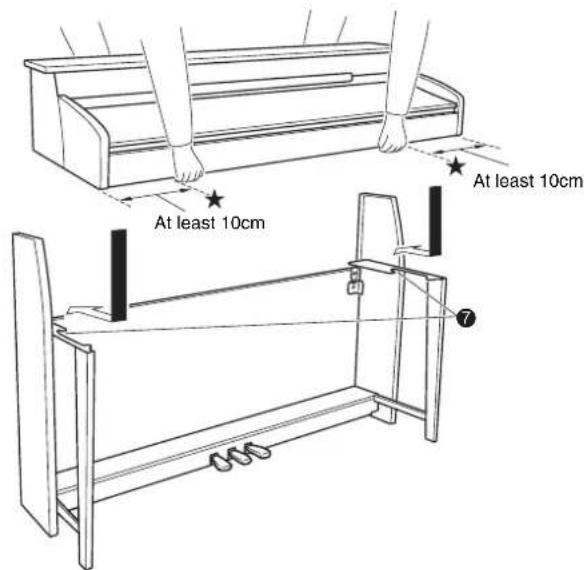
- At this time the screws on the bottom of the piano ⑥ should hook into the cutouts in the stand brackets ⑦.

- First, use the two butterfly bolts Ⓗ to secure the back of the piano to the stand. Next, use the two screws Ⓚ to secure the front of the piano.


IMPORTANT!
- The butterfly bolts Ⓗ and the screws Ⓚ keep the piano from slipping off the stand. Never use the piano without the butterfly bolts Ⓗ and the screws Ⓚ installed.
- Attach the left side of the back panel Ⓓ to the bracket Ⓤ of the side panel Ⓔ.
- When attaching the back panel, place the clip ⑥ on the screw ① as shown in the illustration below.
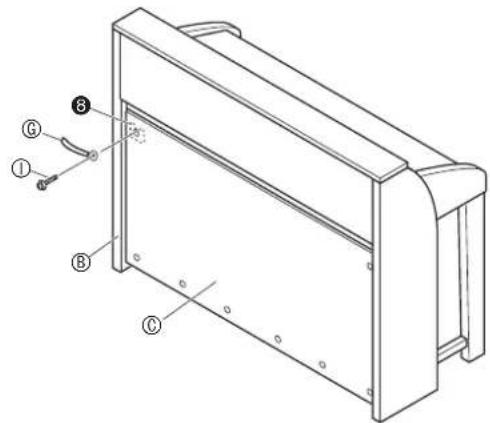
- Next, secure the bottom of the back panel Ⓓ with the six screws Ⓕ.
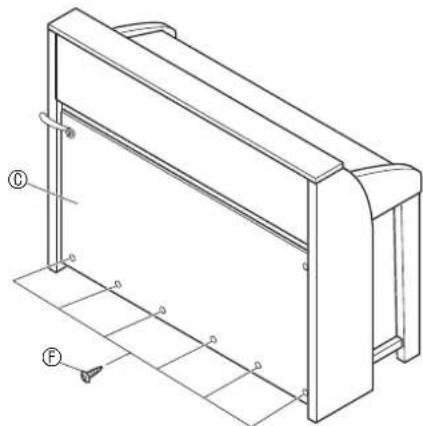
natural_image
Technical line drawing of a mechanical device with labeled components (no text or symbols present)- Adjust the height adjustment screw ⑨ to provide support so the crosspiece ⑩ does not bow downwards when the pedals are pressed.
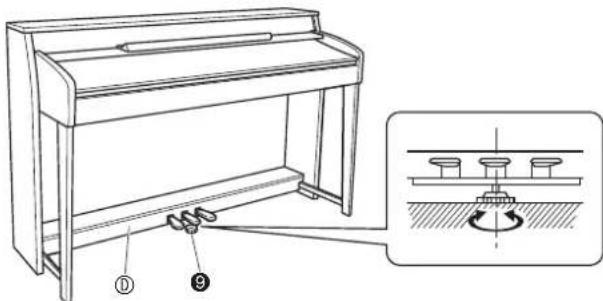
IMPORTANT!
- Pressing the pedals without adjusting the height adjustment screw ⑨ can result in damage to the crosspiece ⑩. Always make sure you adjust the height adjustment screw ⑨ before operating the pedals.
To connect cables
- Orienting the pedal plug as shown in the illustration, plug it into the pedal connector on the bottom of the piano.
- Secure the pedal cord with the clip ⑥.
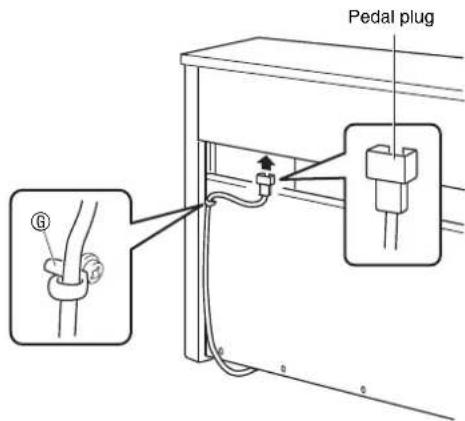
-
Check to make sure that the POWER button is in the OFF position (raised). If power is on, press the POWER button to turn it off.
-
Plug the power cord that comes with the Digital Piano into the AC power jack on the bottom of the Digital Piano.*
* applies to the AP-620BKV and AP-6BPV
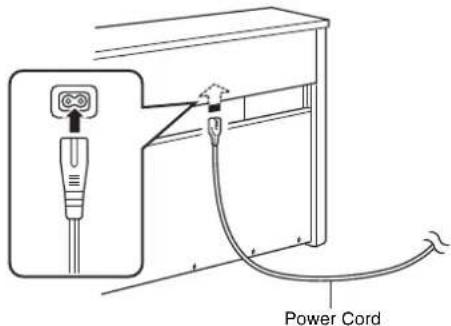
IMPORTANT!
- The shape of the power cord plug and household power outlet receptacle differ according to country and geographical area. The illustration shows just one example of the shapes that are available.
- With the AP-620BK and AP-6BP, the power cord is hard-wired to the Digital Piano.
- Plug the power cord into a household power outlet.
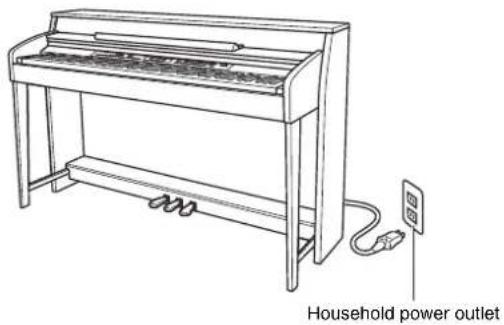
CAUTION
- The screws of the stand can work loose due to the effects of temperature and humidity changes, vibration, etc. Because of this, you need to periodically check the screws for proper tightness. Retighten any loose screws you find.
• To power the Digital Piano, use a power outlet that allows easy access when plugging in or unplugging the power cord.
To install the music stand and headphones hook
- Insert music stand Ⓞ into the groove on the Digital Piano console as shown in the figure below.
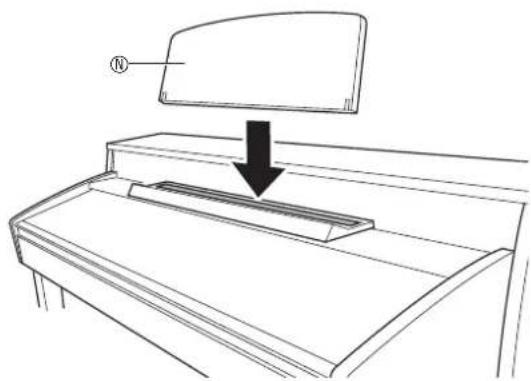
natural_image
Line drawing of a mechanical device with a downward arrow indicating force or motion (no text or symbols)- Install the headphones hook.
2-1. Insert the headphones hook Ⓐ into the two holes on the bottom of the piano.
2-2. Use the screw Ⓜ to secure the headphones hook in place.
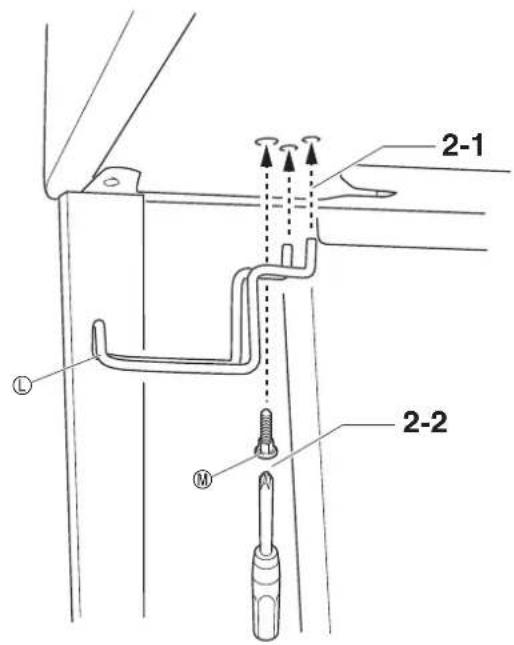
Troubleshooting
| Problem Cause Action | See Page | ||
| No sound is produced when I press a keyboard key. | 1. The VOLUME controller is set to “MIN”.2. Headphones or an adaptor plug is plugged into one of the PHONES jacks. | 1. Rotate the VOLUME controller more towards “MAX”.2. Disconnect whatever is connected to the PHONES jack. | E-8E-6 |
| The pitch of the Digital Piano is off. | 1. The Digital Piano’s key setting is something other than “00”.2. Digital Piano tuning is incorrect. 2. Adjust Digital Piano tuning, or turn the piano off and then back on again.3. A non-standard temperament setting is being used.4. Octave shift is enabled. | 1. Change the key setting to “00”, or turn Digital Piano power off and then back on again.2. Adjust Digital Piano tuning, or turn the piano off and then back on again.3. Change the temperament setting to “00:Equal”, which is the standard modern tuning.4. Change the octave shift setting to 0. | E-41E-41E-41E-11 |
| Tones and/or effects sound strange. Turning power off and then back on again does not eliminate the problem.Example: Note intensity does not change even though I alter key pressure. | The “Setting Backup” feature is turned on. | Turn off “Setting Backup”. Next, turn power off and then back on again. | E-42 |
| I cannot transfer data after connecting the Digital Piano to a computer. | — 1. Check to make sure that the USB cable is connected to the Digital Piano and computer, and that the correct device is selected with your computer’s music software.2. Turn off the Digital Piano and then exit the music software on your computer. Next, turn the Digital Piano back on and then restart the music software on your computer. | E-51 | |
| I cannot record chord accompaniment data on my computer. | Accomp MIDI Out is turned off. | Turn on Accomp MIDI Out. | E-42 |
| I cannot store data to a memory card or load data from a memory card. | — See “Error Messages” on page E-50. — | ||
| Playback stops part way through while transferring song data from my computer. | Digital noise from the USB cable or power cord caused data communication your computer and Digital Piano to be interrupted. | Stop song playback, disconnect the USB cable from the Digital Piano, and then reconnect it. Next, try playing back the song again.If this does not solve the problem, quit the MIDI software you are using, disconnect the USB cable from the Digital Piano, and then reconnect it. Next, restart the MIDI software and then try playing back the song again. | E-51 |
| A tone’s quality and volume sounds slightly different depending where it is played on the keyboard. | This is an unavoidable result of the digital sampling process,* and does not indicate malfunction.* Multiple digital samples are taken for the low range, middle range, and high range of the original musical instrument. Because of this, there may be a very slight difference in tonal quality and volume between sample ranges. | ||
| When I press a button, the note that is sounding cuts out momentarily or there is a slight change in how effects are applied. | Performing a button operation while playing with the Duet Mode, Auto Accompaniment, the recorder, or other functions can cause such phenomena when the Digital Piano switches internal tone effects. It does not indicate malfunction. | ||
| Even though I play on different ranges of the keyboard, the notes do not change octaves. | The ranges of certain tones are limited, which means that octaves change normally up to a certain low note or high note. With such a tone, the notes of the lowest octave will be repeated to the left of the lowest possible note, and the highest octave will be repeated to the right of the highest possible note. This is due to limitations in the range of the original musical instrument for each tone, and does not indicate malfunction of the Digital Piano. | ||
Product Specifications
All of the items in these specifications apply to the AP-620BK, AP-620BKV, AP-6BP, and AP-6BPV, unless specifically noted otherwise.
| Models AP-620BK/AP-620BKV/AP-6BP/AP-6BPV | |
| Keyboard 88-key piano keyboard, with Touch Response (3 types) | |
| Maximum Polyphony 128 notes | |
| Tones 250 (with Layer and Split) | |
| Effects | Reverb (4 types), Chorus (4 types), Brilliance (-3 to 0 to 3), Acoustic Resonance |
| Metronome • Beats per measure: 0, 2, 3, 4, 5, 6• Tempo Range: 20 to 255 | |
| Duet Adjustable tone range: 0 to 3 octaves for the left keyboard; -4 to -1 octaves for the right keyboard | |
| Auto Accompaniment • Built-in Rhythms: 180• User Rhythms: Up to 10 (Approximately 40KB * maximum per rhythm)• One Touch Presets: 180 types• Auto Harmonize: 12 types | |
| Demo Songs 68 (8 tone demo songs; 60 Music Library songs) | |
| Music Library • Built-in Songs: 60 | • User Songs: Up to 10 (320KB * maximum per song) |
| Music Presets Built-in Presets: 300 | User Presets: Up to 50 (Approximately 8KB* maximum per preset) |
| Registration (4 rhythm areas + 8 tone areas) x 8 banks | |
| Recorder • Functions: Real-time recording, playback• Number of Songs: 5• Number of Tracks: 17 (System Track + Tracks 01 through 16)• Capacity: Approximately 50,000 notes total (Up to approximately 10,000 notes per song)• Punch-in recording | |
| Pedals Damper (with half-pedal operation), Soft, Sostenuto | |
| Other Functions | • Transpose: ±1 octave (-12 to 00 to 12)• Tuning: A4 = 440.0 Hz ±99 cents• Octave Shift: ±2 octaves• Temperaments: 17 types• Stretch Tune• Panel Lock |
| MIDI 16 multi-timbre received, GM | Level 1 standard |
| SD Memory Card | • SD memory card slot• Supported SD Memory Cards: Up to 2GB• Functions: SMF playback, file storage, file recall, card format |
| Inputs/Outputs | • PHONES jacks: Stereo standard jacks x 2• MIDI OUT/IN terminals• LINE OUT R, L/MONO jacks: Standard jacks x 2Output impedance: 2.8KΩOutput voltage: 1.8V (RMS) MAX• LINE IN R, L/MONO jacks: Standard jacks x 2Input impedance: 9.0KΩInput voltage: 200mV• USB port: Type B• Pedal connector |
| Speakers | 16cm x 2 + 5cm x 2 (Output 30W + 30W) |
| Power Requirements | AP-620BK/AP-6BP : 120VAP-620BKV/AP-6BPV : 220-240V |
| Power Consumption | 78W |
| Dimensions | Digital Piano and Stand: 141.2 (W) x 49.2 (D) x 90.0 (H) cm ( 55^5/_8 × 19^3/_8 × 35^7/_16 inch) |
| Weight | Digital Piano and Stand: AP-620BK/AP-620BKV: Approximately 57.1 kg (125.9 lbs)AP-6BP/AP-6BPV: Approximately 58.2 kg (128.3 lbs) |
* Based on 1KB = 1024bytes, 1MB = 1024 ^2 bytes
- Specifications and designs are subject to change without notice.
Operating Precautions
Be sure to read and observe the following operating precautions.
■Location
Avoid the following locations for this product.
- Areas exposed to direct sunlight and high humidity
- Areas subjected to temperature extremes
• Near a radio, TV, video deck, or tuner - The above devices will not cause malfunction of the product, but the product can cause interference in the audio or video of a nearby device.
■User Maintenance
- Never use benzine, alcohol, thinner, or other chemical agents to clean the product.
• To clean the product or its keyboard, wipe with a soft cloth moistened in a weak solution of water and a mild neutral detergent. Wring all excess moisture from the cloth before wiping.
■Included and Optional Accessories
Use only accessories that are specified for use with this product. Use of unauthorized accessories creates the risk of fire, electric shock, and personal injury.
■Weld Lines
Lines may be visible on the exterior of the product. These are "weld lines" that result from the plastic molding process. They are not cracks or scratches.
■Musical Instrument Etiquette
Always be aware of others around you whenever using this product. Be especially careful when playing late at night to keep the volume at levels that do not disturb others. Other steps you can take when playing late at night are closing windows and using headphones.
Tone List/Lista de tonos
| Group Name/Nombre del grupo | Group Number/Número de grupo | Sequential Number/Número secuencial | Tone Name/Nombre del tono | Program Change/Cambio de programa | Bank Select MSB/MSB de Selección de banco | Acoustic Resonance/Resonancia acústica |
| GRAND PIANO MODERN | ||||||
| 001 001 GRAND PIANO MODERN 0 48 ○ | ||||||
| 002 002 | GRAND PIANO VARIATION | 0 | 50 | ○ | ||
| 003 003 ROCK PIANO 1 48 ○ | ||||||
| 004 004 LA PIANO 1 49 ○ | ||||||
| 005 005 MODERN PIANO 1 50 ○ | ||||||
| 006 006 DANCE PIANO 1 51 ○ | ||||||
| GRAND PIANO CLASSIC | ||||||
| 001 007 GRAND PIANO CLASSIC 0 49 ○ | ||||||
| 002 008 MELLOW PIANO 0 51 ○ | ||||||
| 003 | 009 HONKY-TONK | 3 | 48 | ○ | ||
| 004 010 OCTAVE PIANO 3 49 ○ | ||||||
| 005 011 STRINGS PIANO 0 52 ○ | ||||||
| 006 | 012 | PIANO PAD | 0 | 53 | ○ | |
| ELEC PIANO | ||||||
| 001 013 ELEC.PIANO 1 4 48 | ||||||
| 002 014 ELEC.PIANO 2 5 48 | ||||||
| 003 015 60'S EPIANO 4 51 | ||||||
| 004 016 E.GRAND 80 2 48 | ||||||
| 005 017 DYNO ELEC.PIANO 4 49 | ||||||
| 006 018 FM ELEC.PIANO 5 49 | ||||||
| 007 019 MELLOW E.PIANO 4 50 | ||||||
| 008 020 POP ELEC.PIANO 5 50 | ||||||
| 009 021 SYNTH-STR.E.PIANO 4 52 | ||||||
| VIBES/CLAVI | ||||||
| 001 | 022 | VIBRAPHONE | 11 | 48 | ||
| 002 | 023 | CLAVI | 7 | 48 | ||
| 003 024 HARPSICHORD 6 48 | ||||||
| 004 025 | COUPLED HARPSICHORD | 6 | 49 | |||
| 005 | 026 | MARIMBA | 12 | 48 | ||
| 006 027 CHORUS VIBRAPHONE 11 49 | ||||||
| ORGAN | ||||||
| 001 | 028 ROCK ORGAN 1 | 16 | 49 | |||
| 002 | 029 | JAZZ ORGAN | 17 | 48 | ||
| 003 | 030 | DRAWBAR ORGAN | 16 | 48 | ||
| 004 | 031 | ROTARY DRAWBAR | 16 | 50 | ||
| 005 | 032 | ROTARY ORGAN | 16 | 51 | ||
| 006 | 033 | PERC.ORGAN | 17 | 49 | ||
| 007 | 034 | 70'S ORGAN | 17 | 50 | ||
| 008 | 035 | OVERDRIVE ORGAN | 16 | 52 | ||
| 009 | 036 | TREMOLO ORGAN | 16 | 53 | ||
| 010 | 037 | ROCK ORGAN 2 | 18 | 48 | ||
| 011 | 038 | ELEC.ORGAN | 16 | 54 | ||
| 012 | 039 | CHURCH ORGAN | 19 | 48 | ||
| 013 | 040 | CHAPEL ORGAN | 19 | 49 | ||
| STRINGS/SYNTH-PAD | ||||||
| 001 | 041 | STRINGS | 49 | 48 | ||
| 002 | 042 | STRING ENSEMBLE | 48 | 48 | ||
| 003 | 043 | SYNTH-STRINGS | 50 | 48 | ||
| 004 | 044 | 70'S SYNTH-STR. | 50 | 49 | ||
| 005 | 045 | 80'S SYNTH-STR. | 50 | 50 | ||
| 006 | 046 | VIOLIN SECTION | 40 | 48 | ||
| 007 | 047 | CHOIR | 52 | 48 | ||
| 008 | 048 | SYNTH-VOICE | 54 | 48 | ||
| 009 | 049 | SYNTH-PAD | 90 | 48 | ||
| 010 | 050 | FANTASY | 88 | 48 | ||
| 011 | 051 | NEW AGE | 88 | 49 | ||
| 012 | 052 | WARM PAD | 89 | 48 | ||
| 013 | 053 | WARM VOX | 89 | 49 | ||
| 014 | 054 | POLYSYNTH PAD | 90 | 49 | ||
| 015 | 055 | ATMOSPHERE PAD | 99 | 48 | ||
| BASS/GUITAR | ||||||
| 001 | 056 | ACOUSTIC BASS | 32 | 48 | ||
| 002 | 057 | RIDE BASS | 32 | 49 | ||
| 003 | 058 | FINGERED BASS 1 | 33 | 48 | ||
| 004 | 059 | FINGERED BASS 2 | 33 | 49 | ||
| 005 | 060 | FINGERED BASS 3 | 33 | 50 | ||
| 006 | 061 | PICKED BASS | 34 | 48 | ||
| 007 | 062 | TRANCE BASS | 38 | 48 | ||
| 008 | 063 | NYLON STR.GUITAR | 24 | 48 | ||
| Group Name/Nombre del grupo | Group Number/Número de grupo | Sequential Number/Número secuencial | Tone Name/Nombre del tono | Program Change/Cambio de programa | Bank Select MSB/MSB de Selección de banco | Acoustic Resonance/Resonancia acústica |
| 009 | 064 S | TEEL STR.GUITAR 1 | 25 | 48 | ||
| 010 | 065 | STEEL STR.GUITAR 2 | 25 | 49 | ||
| 011 | 066 S | TEEL STR.GUITAR 3 | 25 | 50 | ||
| 012 | 067 | JAZZ GUITAR | 26 | 48 | ||
| 013 | 068 | CLEAN GUITAR | 27 | 49 | ||
| 014 | 069 | CHORUS CLEAN GUITAR | 27 | 48 | ||
| 015 | 070 | CRUNCH ELEC.GUITAR 1 | 27 | 50 | ||
| 016 | 071 | CRUNCH ELEC.GUITAR 2 | 27 | 51 | ||
| 017 | 072 | OVERDRIVE GUITAR | 29 | 48 | ||
| VARIOUS/GM TONES | ||||||
| 001 | 073 B | BREATHY ALTO SAX | 65 | 49 | ||
| 002 | 074 | BREATHY TENOR SAX | 66 | 49 | ||
| 003 | 075 | ALTO SAX 65 | 48 | |||
| 004 | 076 | TENOR SAX | 66 | 48 | ||
| 005 | 077 | CLARINET 71 | 48 | |||
| 006 | 078 | FLUTE | 73 | 48 | ||
| 007 | 079 | TRUMPET | 56 | 48 | ||
| 008 | 080 | TROMBONE | 57 | 48 | ||
| 009 | 081 | STEREO BRASS | 61 | 48 | ||
| 010 | 082 | BRASS SECTION | 61 | 49 | ||
| 011 | 083 | SYNTH-BRASS | 62 | 48 | ||
| 012 | 084 | 80'S SYNTH-BRASS | 62 | 49 | ||
| 013 | 085 | SAW LEAD | 81 | 48 | ||
| 014 | 086 | MELLOW SAW LEAD | 81 | 49 | ||
| 015 | 087 | SQUARE LEAD | 80 | 48 | ||
| 016 | 088 | ER HU | 110 | 56 | ||
| 017 | 089 YANG QIN 1 15 56 | |||||
| 018 | 090 | YANG QIN 2 | 15 | 57 | ||
| 019 | 091 | DI ZI | 72 | 56 | ||
| 020 | 092 | ZHENG | 107 | 56 | ||
| 021 | 093 | SHENG | 109 | 56 | ||
| 022 | 094 | SUO NA | 111 | 57 | ||
| 023 | 095 | XIAO | 77 | 56 | ||
| 024 | 096 | PI PA 1 | 105 | 56 | ||
| 025 | 097 | PI PA 2 | 105 | 57 | ||
| 026 | 098 | SITAR | 104 | 56 | ||
| 027 | 099 | TANPURA 104 | 57 | |||
| 028 | 100 | HARMONIUM | 20 | 56 | ||
| 029 | 101 | SANTUR | 15 | 58 | ||
| 030 | 102 | SAROD | 105 | 58 | ||
| 031 | 103 | SHANAI 111 | 56 | |||
| 032 | 104 | SARANGI | 110 | 57 | ||
| 033 | 105 | KANUN | 15 | 59 | ||
| 034 | 106 | OUD | 105 | 59 | ||
| 035 | 107 | NEY | 72 | 57 | ||
| 036 | 108 | ARABIC ORGAN | 16 | 56 | ||
| 037 | 109 | GM PIANO 1 | 0 | 0 | ○ | |
| 038 | 110 | GM PIANO 2 | 1 | 0 | ○ | |
| 039 | 111 GM PIANO 3 | 2 | 0 | |||
| 040 | 112 | GM HONKY-TONK | 3 | 0 | ||
| 041 | 113 GM E.PIANO 1 | 4 | 0 | |||
| 042 | 114 | GM E.PIANO 2 | 5 | 0 | ||
| 043 | 115 | GM HARPSICHORD | 6 | 0 | ||
| 044 | 116 | GM CLAVI | 7 | 0 | ||
| 045 | 117 | GM CELESTA | 8 | 0 | ||
| 046 | 118 | GM GLOCKENSPIEL | 9 | 0 | ||
| 047 | 119 GM MUSIC BOX | 10 0 | ||||
| 048 | 120 | GM VIBRAPHONE | 11 | 0 | ||
| 049 | 121 | GM MARIMBA | 12 | 0 | ||
| 050 | 122 | GM XYLOPHONE | 13 | 0 | ||
| 051 | 123 GM TUBULAR BELL | 14 0 | ||||
| 052 | 124 | GM DULCIMER | 15 | 0 | ||
| 053 | 125 | GM ORGAN 1 | 16 | 0 | ||
| 054 | 126 | GM ORGAN 2 | 17 | 0 | ||
| 055 | 127 | GM ORGAN 3 | 18 | 0 | ||
| 056 | 128 | GM PIPE ORGAN | 19 | 0 | ||
| 057 | 129 | GM REED ORGAN | 20 | 0 | ||
| 058 | 130 | GM ACCORDION | 21 | 0 | ||
| 059 | 131 | GM HARMONICA | 22 | 0 | ||
| 060 | 132 | GM BANDONEON | 23 | 0 | ||
| 061 | 133 GM NYLON STR.GUITAR | 24 0 | ||||
| Group Name/Nombre del grupo | Group Number/Número de grupo | Sequential Number/Número sequential | Tone Name/Nombre del tono | Program Change/Cambio de programa | Bank Select MSB/MSB de Selección de banco | Acoustic Resonance/Resonancia acústica |
| 062 | 134 GM STEEL STR.GUITAR 25 0 | |||||
| 063 | 135 GM JAZZ GUITAR | 26 | 0 | |||
| 064 | 136 GM CLEAN GUITAR 27 0 | |||||
| 065 | 137 GM MUTE GUITAR 28 0 | |||||
| 066 | 138 GM OVERDRIVE GT 29 0 | |||||
| 067 | 139 GM DISTORTION GT 30 0 | |||||
| 068 | 140 GM GT HARMONICS 31 0 | |||||
| 069 | 141 GM ACOUSTIC BASS 32 0 | |||||
| 070 | 142 GM FINGERED BASS 33 0 | |||||
| 071 | 143 GM PICKED BASS 34 0 | |||||
| 072 | 144 GM PRETLESS BASS 35 0 | |||||
| 073 | 145 GM SLAP BASS 1 36 0 | |||||
| 074 | 146 GM SLAP BASS 2 37 0 | |||||
| 075 | 147 GM SYNTH-BASS 1 38 0 | |||||
| 076 | 148 GM SYNTH-BASS 2 39 0 | |||||
| 077 | 149 GM VIOLIN 40 0 | |||||
| 078 | 150 GM VOLA 41 0 | |||||
| 079 | 151 GM CELLO 42 0 | |||||
| 080 | 152 GM CONTRABASS 43 0 | |||||
| 081 | 153 GM TREMOLO STRINGS 44 0 | |||||
| 082 | 154 GM PIZZICATO 45 0 | |||||
| 083 | 155 GM HARP 46 0 | |||||
| 084 | 156 GM TIMPANI 47 0 | |||||
| 085 | 157 GM STRINGS 1 48 0 | |||||
| 086 | 158 GM STRINGS 2 49 0 | |||||
| 087 | 159 GM SYNTH-STRINGS 1 50 0 | |||||
| 088 | 160 GM SYNTH-STRINGS 2 51 0 | |||||
| 089 | 161 GM CHOIR AAHS 52 0 | |||||
| 090 | 162 GM VOICE DOO 53 0 | |||||
| 091 | 163 GM SYNTH-VOICE 54 0 | |||||
| 092 | 164 GM ORCHESTRA HIT 55 0 | |||||
| 093 | 165 GM TRUMPET 56 0 | |||||
| 094 | 166 GM TROMBONE 57 0 | |||||
| 095 | 167 GM TUBA 58 0 | |||||
| 096 | 168 GM MUTE TRUMPET 59 0 | |||||
| 097 | 169 GM FRENCH HORN 60 0 | |||||
| 098 | 170 GM BRASS 61 0 | |||||
| 099 | 171 GM SYNTH-BRASS 1 62 0 | |||||
| 100 | 172 GM SYNTH-BRASS 2 63 0 | |||||
| 101 | 173 GM SOPRANO SAX 64 0 | |||||
| 102 | 174 GM ALTO SAX 65 0 | |||||
| 103 | 175 GM TENOR SAX 66 0 | |||||
| 104 | 176 GM BARITONE SAX 67 0 | |||||
| 105 | 177 GM OBOE 68 0 | |||||
| 106 | 178 GM ENGLISH HORN 69 0 | |||||
| 107 | 179 GM BASSOON 70 0 | |||||
| 108 | 180 GM CLARINET 71 0 | |||||
| 109 | 181 GM PICCOLO 72 0 | |||||
| 110 | 182 GM FLUTE 73 0 | |||||
| 111 | 183 GM RECORDER 74 0 | |||||
| 112 | 184 GM PAN FLUTE 75 0 | |||||
| 113 | 185 GM BOTTLE BLOW 76 0 | |||||
| 114 | 186 GM SHAKUHACHI 77 0 | |||||
| 115 | 187 GM WHISTLE 78 0 | |||||
| 116 | 188 GM CARINA 79 0 | |||||
| 117 | 189 GM SQUARE LEAD 80 0 | |||||
| 118 | 190 GM SAW LEAD 81 0 | |||||
| 119 | 191 GM CALLIOPE 82 0 | |||||
| 120 | 192 GM CHIFF LEAD 83 0 | |||||
| 121 | 193 GM CHARANG 84 0 | |||||
| 122 | 194 GM VOICE LEAD 85 0 | |||||
| 123 | 195 GM FIFTH LEAD 86 0 | |||||
| 124 | 196 GM BASS+LEAD 87 0 | |||||
| 125 | 197 GM FANTASY 88 0 | |||||
| 126 | 198 GM WARM PAD 89 0 | |||||
| 127 | 199 GM POLYSYNTH 90 0 | |||||
| 128 | 200 GM SPACE CHOIR 91 0 | |||||
| 129 | 201 GM BOWED GLASS 92 0 | |||||
| 130 | 202 GM METAL PAD 93 0 | |||||
| 131 | 203 GM HALO PAD 94 0 | |||||
| 132 | 204 GM SWEEP PAD 95 0 | |||||
| 133 | 205 GM RAIN DROP 96 0 | |||||
| 134 | 206 GM SOUND TRACK 97 0 | |||||
| 135 | 207 GM CRYSTAL 98 0 | |||||
| 136 | 208 GM ATMOSPHERE 99 0 | |||||
| 137 | 209 GM BRIGHTNESS 100 0 | |||||
| 138 | 210 GM GOBLINS 101 0 | |||||
| 139 | 211 GM ECHOES 102 0 | |||||
| Group Name/Nombre del grupo | Group Number/Número de grupo | Sequential Number/Número secuencial | Tone Name/Nombre del tono | Program Change/Cambio de programa | Bank Select MSB/MSB de Selección de banco | Acoustic Resonance/Resonancia acústica |
| 140 | 212 | GM SF | 103 | 0 | ||
| 141 | 213 | GM SITAR | 104 | 0 | ||
| 142 | 214 | GM BANJO | 105 | 0 | ||
| 143 | 215 | GM SHAMISEN | 106 | 0 | ||
| 144 | 216 | GM KOTO | 107 | 0 | ||
| 145 | 217 GM T | HUMB PIANO 108 | 0 | |||
| 146 | 218 | GM BAGPIPE | 109 | 0 | ||
| 147 | 219 | GM FIDDLE | 110 | 0 | ||
| 148 | 220 | GM SHANAI | 111 | 0 | ||
| 149 | 221 GM T | INKLE BELL 112 | 0 | |||
| 150 | 222 | GM AGOGO | 113 | 0 | ||
| 151 | 223 | GM STEEL DRUMS | 114 | 0 | ||
| 152 | 224 | GM WOOD BLOCK | 115 | 0 | ||
| 153 | 225 | GM TAIKO | 116 | 0 | ||
| 154 | 226 | GM MELODIC TOM | 117 | 0 | ||
| 155 | 227 | GM SYNTH-DRUM | 118 | 0 | ||
| 156 | 228 | GM REVERSE CYMBAL | 119 | 0 | ||
| 157 | 229 GM G | GT FRET NOISE 120 | 0 | |||
| 158 | 230 | GM BREATH NOISE | 121 | 0 | ||
| 159 | 231 | GM SEASHORE | 122 | 0 | ||
| 160 | 232 | GM BIRD | 123 | 0 | ||
| 161 | 233 | GM TELEPHONE | 124 | 0 | ||
| 162 | 234 | GM HELICOPTER | 125 | 0 | ||
| 163 | 235 | GM APPLAUSE | 126 | 0 | ||
| 164 | 236 | GM GUNSHOT | 127 | 0 | ||
| 165 | 237 STAN | DARD SET 1 0 | 120 | |||
| 166 | 238 | STANDARD SET 2 | 1 | 120 | ||
| 167 | 239 STAN | DARD SET 3 2 | 120 | |||
| 168 | 240 | STANDARD SET 4 | 3 | 120 | ||
| 169 | 241 | ROOM SET | 8 | 120 | ||
| 170 | 242 | HIP-HOP SET | 9 | 120 | ||
| 171 | 243 | POWER SET | 16 | 120 | ||
| 172 | 244 | ELECTRONIC SET | 24 | 120 | ||
| 173 | 245 SYNT | H SET 1 25 | 120 | |||
| 174 | 246 | SYNTH SET 2 | 30 | 120 | ||
| 175 | 247 | TRANCE SET | 31 | 120 | ||
| 176 | 248 | JAZZ SET | 32 | 120 | ||
| 177 | 249 | BRUSH SET | 40 | 120 | ||
| 178 | 250 | ORCHESTRA SET | 48 | 120 |
NOTE
- Acoustic resonance (page E-41) is applied only to tones indicated by “ ”.
- While sequential numbered tone 065 (STEEL STR.GUITAR 2) or 066 (STEEL STR.GUITAR 3) is selected, pressing multiple keys on the far left side of the keyboard will produce a guitar strumming sound. It does not indicate malfunction.
- See the “Drum Assignment List” (page A-3) for the percussion instrument assigned to each keyboard key when a drum set (Sequential Number 237 to 250) is selected.
NOTA
| Key/Note NumberNúmero de clave/nota | STANDARD SET 1 | STANDARD SET 2 | STANDARD SET 3 | STANDARD SET 4 | ROOM SET HIP-HOP SET POWER SET | ELECTRONIC SET | SYNTH SET 1 | SYNTH SET 2 | TRA | NCE SET JAZZ SET BRUSH SET | ORCHESTRA SET | ||||
| E1 27 | High Q | ← | ← | ← | ← | ← | ← | ← | ← | ← | ← | ← | ← | Closed Hi-Hat | |
| E1 28 | Slap | ← | ← | ← | ← | ← | ← | ← | ← | ← | ← | ← | ← | Pedal Hi-Hat | |
| F1 29 | Scratch Push | ← | ← | ← | ← | ← | ← | ← | ← | ← | ← | ← | ← | Open Hi-Hat | |
| F1 30 | F1 30 | Scratch Pull | ← | ← | ← | ← | ← | ← | ← | ← | ← | ← | ← | ← | Ride Cymbal 1 |
| G1 31 | Sticks | ← | ← | ← | ← | ← | ← | ← | ← | ← | ← | ← | ← | ← | |
| A1 32 | A1 32 | Square Click | ← | ← | ← | ← | ← | ← | ← | ← | ← | ← | ← | ← | ← |
| A1 33 | Melronome Click | ← | ← | ← | ← | ← | ← | ← | ← | ← | ← | ← | ← | ← | |
| B1 34 | B1 34 | Melronome Bell | ← | ← | ← | ← | ← | ← | ← | ← | ← | ← | ← | ← | ← |
| B1 35 | Standard1 Kick 2 | Standard2 Kick 2 | Standard3 Kick 2 | Standard4 Kick 2 | Room Kick 2 | Hip-Hop Kick 2 | Power Kick 2 | Elec. Kick 2 | Synth1 Kick 2 | Synth2 Kick 2 | Trance Kick 2 | Jazz Kick 2 | Jazz Kick 2 | Jazz Kick 1 | |
| C2 36 | C2 37 | Standard1 Kick 1 | Standard2 Kick 1 | Standard3 Kick 1 | Standard4 Kick 1 | Room Kick 1 | Hip-Hop Kick 1 | Power Kick 1 | Elec. Kick 1 | Synth1 Kick 1 | Synth2 Kick 1 | Trance Kick 1 | Jazz Kick 1 | Brush Kick | Concert BD |
| Side Stick | ← | Standard3 Side Stick | ← | ← | Hip-Hop Side Stick | ← | ← | Synth1 Rim Shot | Synth1 Rim Shot | Trance Side Stick | ← | Brush Side Stick | ← | ||
| D2 38 | D2 38 | Standard1 Snare 1 | Standard2 Snare 1 | Standard3 Snare 1 | Standard4 Snare 1 | Room Snare 1 | Hip-Hop Snare 1 | Power Snare 1 | Elec. Snare 1 | Synth1 Snare 1 | Synth2 Snare 1 | Trance Snare 1 | Jazz Snare 1 | Brush Snare 1 | Concert SD |
| Hand Clap | ← | Standard3 Hand Clap | ← | ← | Hip-Hop Hand Clap | ← | ← | Synth1 Hand Clap | ← | Trance Hand Clap | ← | Brush Slap | Castanets | ||
| E2 40 | Standard1 Snare 2 | Standard2 Snare 2 | Standard3 Snare 2 | Standard4 Snare 2 | Room Snare 2 | Hip-Hop Snare 2 | Power Snare 2 | Elec. Snare 2 | Synth1 Snare 2 | Synth2 Snare 2 | Trance Snare 2 | Jazz Snare 2 | Brush Snare 2 | Concert SD | |
| F2 41 | F2 42 | Low Tom 2 | ← | Standard3 Low Tom 2 | ← | Room Low Tom 2 | ← | Room Low Tom 2 | Elec. Low Tom 2 | Synth1 Low Tom 2 | Synth2 Low Tom 2 | ← | ← | ← | Timpani F |
| Closed Hi-Hat | Standard2 Closed Hi-Hat | Standard3 Closed Hi-Hat | ← | ← | Hip-Hop Closed Hi-Hat | ← | ← | Synth1 Closed Hi-Hat 1 | Synth2 Closed Hi-Hat 1 | Trance Closed Hi-Hat | ← | ← | Timpani F ^d | ||
| G2 43 | Low Tom 1 | ← | Standard3 Low Tom 1 | ← | Room Low Tom 1 | ← | Room Low Tom 1 | Elec. Low Tom 1 | Synth1 Low Tom 1 | Synth2 Low Tom 1 | ← | ← | ← | Timpani G | |
| A2 44 | Pedal Hi-Hat | Standard2 Pedal Hi-Hat | Standard3 Pedal Hi-Hat | ← | ← | Hip-Hop Pedal Hi-Hat | ← | ← | Synth1 Closed Hi-Hat 2 | Synth2 Closed Hi-Hat 2 | Trance Open Hi-Hat 1 | ← | ← | Timpani Gh | |
| Mid Tom 2 | ← | Standard3 Mid Tom 2 | ← | Room Mid Tom 2 | ← | Room Mid Tom 2 | Elec. Mid Tom 2 | Synth1 Mid Tom 2 | Synth2 Mid Tom 2 | ← | ← | ← | Timpani A | ||
| A2 45 | Open Hi-Hat | Standard2 Open Hi-Hat | Standard3 Open Hi-Hat | ← | ← | Hip-Hop Open Hi-Hat | ← | ← | Synth1 Open Hi-Hat | Synth2 Open Hi-Hat | Trance Open Hi-Hat 2 | ← | ← | Timpani A ^d | |
| B2 47 | Mid Tom 1 | ← | Standard3 Mid Tom 1 | ← | Room Mid Tom 1 | ← | Room Mid Tom 1 | Elec. Mid Tom 1 | Synth1 Mid Tom 1 | Synth2 Mid Tom 1 | ← | ← | ← | Timpani B | |
| C3 48 | C3 49 | High Tom 2 | ← | Standard3 High Tom 2 | ← | Room High Tom 2 | ← | Room High Tom 2 | Elec. High Tom 2 | Synth1 High Tom 2 | Synth2 High Tom 2 | ← | ← | ← | Timpani c |
| Crash Cymbal 1 | ← | ← | ← | ← | ← | ← | ← | Synth1 Crash Cymbal | ← | ← | ← | Brush Crash Cymbal 1 | Timpani c ^d | ||
| D3 50 | High Tom 1 | ← | Standard3 High Tom 1 | ← | Room High Tom 1 | ← | Room High Tom 1 | Elec. High Tom 1 | Synth1 High Tom 1 | Synth2 High Tom 1 | ← | ← | ← | Timpani d | |
| Ride Cymbal 1 | ← | ← | ← | ← | ← | ← | ← | Synth1 Ride Cymbal | ← | ← | ← | Brush Ride Cymbal 1 | Timpani d ^d | ||
| E3 52 | Chinese Cymbal | ← | ← | ← | ← | ← | ← | Reverse Cymbal | ← | ← | ← | ← | ← | Timpani e | |
| F3 53 | F3 54 | Ride Deli | ← | ← | ← | ← | ← | ← | ← | ← | ← | ← | ← | Brush Ride Bell | Timpani f |
| Tambourine | ← | ← | ← | ← | ← | ← | ← | Synth1 Tambourine | ← | Trance Tambourine | ← | Brush Tambourine | ← | ||
| G3 55 | Splash Cymbal | ← | ← | ← | ← | ← | ← | ← | ← | ← | ← | ← | Brush Splash Cymbal | ← | |
| A3 56 | Cowbell | ← | ← | ← | ← | ← | ← | ← | Synth1 Cowbell | Synth1 Cowbell | ← | ← | ← | ← | |
| A3 57 | Crash Cymbal 2 | ← | ← | ← | ← | ← | ← | ← | ← | ← | ← | ← | Brush Crash Cymbal 2 | Concert Cymbal 2 | |
| B3 58 | Vibraslap | ← | ← | ← | ← | ← | ← | ← | ← | ← | ← | ← | ← | ← | |
| B3 59 | Ride Cymbal 2 | ← | ← | ← | ← | ← | ← | ← | ← | ← | ← | ← | Brush Ride Cymbal 2 | Concert Cymbal 1 | |
| C4 60 | C4 61 | High Bongo | ← | ← | ← | ← | ← | ← | ← | Synth1 High Bongo | ← | ← | ← | ← | ← |
| Low Bongo | ← | ← | ← | ← | ← | ← | ← | Synth1 Low Bongo | ← | ← | ← | ← | ← | ||
| D4 62 | Mute High Conga | ← | ← | ← | ← | ← | ← | ← | Synth1 Mute Hi Conga | ← | ← | ← | ← | ← | |
| Open High Conga | ← | ← | ← | ← | ← | ← | ← | Synth1 Open Hi Conga | ← | ← | ← | ← | ← | ||
| E4 64 | Open Low Conga | ← | ← | ← | ← | ← | ← | ← | Synth1 Open Low Conga | ← | ← | ← | ← | ← | |
| High Timbale | ← | ← | ← | ← | ← | ← | ← | ← | ← | ← | ← | ← | ← | ||
| F4 65 | Low Timbale | ← | ← | ← | ← | ← | ← | ← | ← | ← | ← | ← | ← | ← | |
| High Agogo | ← | ← | ← | ← | ← | ← | ← | ← | ← | ← | ← | ← | ← | ||
| G4 67 | Low Agogo | ← | ← | ← | ← | ← | ← | ← | ← | ← | ← | ← | ← | ← | |
| Cabasa | ← | ← | ← | ← | ← | ← | ← | ← | ← | ← | ← | ← | ← | ||
| Maracas | ← | ← | ← | ← | ← | ← | ← | Synth1 Maracas | Synth1 Maracas | ← | ← | ← | ← | ||
| Short High Whistle | ← | ← | ← | ← | ← | ← | ← | ← | ← | ← | ← | ← | ← | ||
| Long Low Whistle | ← | ← | ← | ← | ← | ← | ← | ← | ← | ← | ← | ← | ← | ||
| Short Guiro | ← | ← | ← | ← | ← | ← | ← | ← | ← | ← | ← | ← | ← | ||
| Long Guiro | ← | ← | ← | ← | ← | ← | ← | ← | ← | ← | ← | ← | ← | ||
| Claves | ← | ← | ← | ← | ← | ← | ← | Synth1 Claves | Synth1 Claves | ← | ← | ← | ← | ||
| High Wood Block | ← | ← | ← | ← | ← | ← | ← | ← | ← | ← | ← | ← | ← | ||
| Low Wood Block | ← | ← | ← | ← | ← | ← | ← | ← | ← | ← | ← | ← | ← | ||
| Mute Cuica | ← | ← | ← | ← | ← | ← | ← | ← | ← | ← | ← | ← | ← | ||
| Open Cuica | ← | ← | ← | ← | ← | ← | ← | ← | ← | ← | ← | ← | ← | ||
| Mute Triangle | ← | ← | ← | ← | ← | ← | ← | ← | ← | ← | ← | ← | ← | ||
| Open Triangle | ← | ← | ← | ← | ← | ← | ← | ← | ← | ← | ← | ← | ← | ||
| Shaker | ← | ← | ← | ← | ← | ← | ← | ← | ← | ← | ← | ← | ← | ||
| Jingle Bell | ← | ← | ← | ← | ← | ← | ← | ← | ← | ← | ← | ← | ← | ||
| Bell Tree | ← | ← | ← | ← | ← | ← | ← | ← | ← | ← | ← | ← | ← | ||
| Castanets | ← | ← | ← | ← | ← | ← | ← | ← | ← | ← | ← | ← | ← | ||
| Mute Surdo | ← | ← | ← | ← | ← | ← | ← | ← | ← | ← | ← | ← | ← | ||
| Open Surdo | ← | ← | ← | ← | ← | ← | ← | ← | ← | ← | ← | ← | ← | ||
| Applause 1 | ← | ← | ← | ← | ← | ← | ← | ← | ← | ← | ← | ← | ← | ||
- “←” indicates a key is assigned the same tones as it is for STANDARD SET 1.
Rhythm List/Lista de ritmos
| Group Name/Nombre del grupo | Group Number/Número de grupo | Sequential Number/Número secuencial | Rhythm name/Nombre del ritmo |
| POPS/JAZZ | |||
| POPS | |||
| 001 001 POP 1 | |||
| 002 002 POP 2 | |||
| 003 003 FAST POP | |||
| 004 004 FUNK POP | |||
| 005 005 POP ROCK | |||
| 006 006 6/8 POP | |||
| 007 007 FAST SOUL | |||
| 008 008 SLOW SOUL | |||
| 009 009 60'S SOUL | |||
| 010 010 POP SHUFFLE | |||
| 8 BEAT/16 BEAT | |||
| 011 011 STRAIGHT 8 BEAT 1 | |||
| 012 012 STRAIGHT 8 BEAT 2 | |||
| 013 013 FUNK 8 BEAT | |||
| 014 014 MELLOW 8 BEAT | |||
| 015 015 GUITAR 8 BEAT | |||
| 016 016 8 BEAT | |||
| 017 017 8 BEAT POP | |||
| 018 018 OLDIES 8 BEAT | |||
| 019 019 60'S 8 BEAT | |||
| 020 020 16 BEAT | |||
| 021 021 16 BEAT SHUFFLE | |||
| DANCE | |||
| 022 022 HIP-HOP | |||
| 023 023 DANCE POP | |||
| 024 024 DISCO POP | |||
| 025 025 TECHINO POP | |||
| 026 026 TRANCE | |||
| 027 027 MODERN R&B | |||
| 028 028 MODERN DANCE | |||
| 029 029 DISCO SOUL | |||
| ROCK | |||
| 030 030 STRAIGHT ROCK | |||
| 031 031 SHUFFLE ROCK | |||
| 032 032 BLUES 1 | |||
| 033 033 BLUES 2 | |||
| 034 034 EP BLUES | |||
| 035 035 SLOW BLUES | |||
| 036 036 SOFT ROCK | |||
| 037 037 LATIN ROCK | |||
| 038 038 SLOW ROCK | |||
| 039 039 50'S ROCK | |||
| 040 040 50'S PIANO ROCK | |||
| 041 041 NEW ORLNS R&R | |||
| 042 042 60'S ROCK | |||
| 043 043 ROCK | |||
| 044 044 70'S PIANO ROCK | |||
| 045 045 ROCK WALTZ | |||
| JAZZ | |||
| 046 046 SLOW BIG BAND | |||
| 047 047 MIDDLE BIG BAND | |||
| 048 048 FAST BIG BAND | |||
| 049 049 SWING 1 | |||
| 050 050 SWING 2 | |||
| 051 051 SLOW SWING | |||
| 052 052 JAZZ WALTZ | |||
| 053 053 FOX TROI | |||
| 054 054 QUICKSTEP | |||
| 055 055 JAZZ COMBO 1 | |||
| EUROPEAN | |||
| 056 056 SCHLAGER | |||
| 057 057 POLKA | |||
| 058 058 WALTZ 1 | |||
| Group Name/Nombre del grupo | Group Number/Número de grupo | Sequential Number/Número secuencial | Rhythm name/Nombre del ritmo |
| WORLD II | |||
| INDIAN | |||
| 050 116 BHANGRA | |||
| 051 117 DADRA | |||
| 052 118 GARBA | |||
| 053 119 KEHARWA | |||
| 054 120 DANDIYA | |||
| 055 121 TEEN TAAL | |||
| 056 122 BHAJAN | |||
| CHINESE | |||
| 057 123 GUANGDONG | |||
| 058 124 JIANGNAN | |||
| 059 125 BEIJING | |||
| 060 126 DONGBEIYANGGE | |||
| 061 127 JINGJU | |||
| 062 128 HUANGMEIXI | |||
| 063 129 QINQIANG | |||
| 064 130 YUJU | |||
| 065 131 YAOZU | |||
| 066 132 DATZU | |||
| 067 133 MIAOZU | |||
| 068 134 MENCCU | |||
| 069 135 XINJIANG | |||
| 070 136 ZANGZU | |||
| SOUTHEAST ASIAN | |||
| 071 137 KRONCONG | |||
| 072 138 DANGDUT | |||
| JAPANESE | |||
| 073 139 ENKA | |||
| BALLAD/PIANO RHYTHMS | |||
| BALLAD | |||
| 001 140 PLANO ROCK BALLAD | |||
| 002 141 90'S BALLAD | |||
| 003 142 MODERN BALLAD | |||
| 004 143 ELECTRIC BALLAD | |||
| 005 144 SLOW BALLAD 1 | |||
| 006 145 SLOW BALLAD 2 | |||
| 007 146 R&B BALLAD | |||
| 008 147 16 BEAT BALLAD | |||
| 009 148 SOUL BALLAD | |||
| 010 149 POP BALLAD 1 | |||
| 011 150 POP BALLAD 2 | |||
| 012 151 PLANO WALTZ BALLAD | |||
| 013 152 90'S 6/8 BALLAD | |||
| 014 153 6/8 BALLAD 1 | |||
| 015 154 6/8 BALLAD 2 | |||
| 016 155 ROCK BALLAD | |||
| VARIOUS | |||
| 017 156 CHRISTMAS SONG | |||
| 018 157 CHRISTMAS WALTZ | |||
| 019 158 SCREEN SWING | |||
| 020 159 SYMPHONY | |||
| 021 160 STR QUARTET | |||
| PIANO RHYTHMS | |||
| 022 161 PLANO 8 BEAT | |||
| 023 162 PLANO BALLAD 1 | |||
| 024 163 PLANO BALLAD 2 | |||
| 025 164 EP BALLAD 1 | |||
| 026 165 EP BALLAD 2 | |||
| 027 166 BLUES BALLAD | |||
| 028 167 JAZZ COMBO 2 | |||
| 029 168 JAZZ COMBO 3 | |||
| 030 169 RAGTIME | |||
| 031 170 BOOGIE-WOOGIE | |||
| 032 171 PLANO ROCK & ROLL | |||
| 033 172 ARPEGGIO 1 | |||
| 034 173 ARPEGGIO 2 | |||
| 035 174 ARPEGGIO 3 | |||
| 036 175 PLANO MARCH 1 | |||
- Sequential number rhythms 171 through 180 do not sound unless a chord is being played.

Music Library/Biblioteca musical
| Group Name/Nombre del grupo | Group Number/Número de grupo | Sequential Number/Número secuencial | Song Name/Nombre de la canción |
| A | |||
| 001 001 | Nocturne Op.9-2 | ||
| 002 002 | Fantaisie-Impromptu Op.66 | ||
| 003 003 | Etude Op.10-3 "Chanson de l'adieu" | ||
| 004 004 | Etude Op.10-5 "Black Keys" | ||
| 005 005 | Etude Op.10-12 "Revolutionary" | ||
| 006 006 | Etude Op.25-9 "Butterflies" | ||
| 007 007 | Prélude Op.28-7 | ||
| 008 008 | Valse Op.64-1 "Petit Chien" | ||
| 009 009 | Valse Op.64-2 | ||
| 010 010 | Moments Musicaux 3 | ||
| 011 011 | Impromptu Op.90-2 | ||
| 012 012 | Marche Militaire 1 (Duet) | ||
| 013 013 | Frühlingslied [Lieder Ohne Worte IHeft 5] | ||
| 014 014 | Fröhlicher Landmann [Album fur die Jugend] | ||
| 015 015 | Von fremden Ländern und Menschen [Kinderszenen] | ||
| 016 016 | Träumcrei [Kinderszenen] | ||
| B | |||
| 001 017 | ambourin | ||
| 002 018 | Mcnuet BWV Anh.114[Clavierbüchlein der Anna Magdalena Bach] | ||
| 003 019 | Inventio 1 BWV 772 | ||
| 004 020 | Inventio 8 BWV 779 | ||
| 005 021 | Inventio 13 BWV 784 | ||
| 006 022 | 'l'raeludium 1 BWV 846[Das Wohltemperierte Klavier 1] | ||
| 007 023 | Le Coucou | ||
| 008 024 | Gavotte | ||
| 009 025 | Sonatina Op.36-1 1st Mov. | ||
| 010 026 | Sonatine Op.20-1 1st Mov. | ||
| 011 027 | Sonate K.545 1st Mov. | ||
| 012 028 | Sonate K.331 3rd Mov. "Turkish March" | ||
| 013 029 | Rondo K.485 | ||
| 014 030 | Für Elise | ||
| 015 031 | Marcia alla Turca | ||
| 016 032 | Sonate Op.13 "Pathétique" 1st Mov. | ||
| 017 033 | Sonate Op.13 "Pathétique" 2nd Mov. | ||
| 018 034 | Sonate Op.13 "Pathétique" 3rd Mov. | ||
| 019 035 | Sonate Op.27-2 "Moonlight" 1st Mov. | ||
| 020 036 | Rhapsodie 2 | ||
| 021 037 | Waltz Op.39-15 (Duet) | ||
| C | |||
| 001 038 | Liebesträume $ | ||
| 002 039 | Blumenlied | ||
| 003 040 | La Prière d'une Vierge | ||
| 004 041 | Csikos Post | ||
| 005 042 | Humorcsque Op.101-7 | ||
| 006 043 | Melodie [Lyrische Stucke IHeft 2] | ||
| 007 044 | Sicilienne Op.78 | ||
| 008 045 | Berccusc [Dolly] (Duet) | ||
| 009 046 | Arabesque 1 | ||
| 010 047 | La Fille aux Cheveux de Lin [Préludes] | ||
| 011 048 | Passepied [Suite bergamasque] | ||
| 012 049 | Gymnopédie 1 | ||
| 013 050 | Je Te Veux | ||
| 014 051 | Salut d'Amou | ||
| 015 052 | The Entertainer | ||
| 016 053 | Maple Leaf Rag | ||
| 017 054 | L'arabesque [25 Etüden Op.100] | ||
| 018 055 | La Styrienne [25 Etüden Op.100] | ||
| 019 056 | Ave Maria [25 Etüden Op.100] | ||
| 020 057 | Le retour [25 Etüden Op.100] | ||
| 021 058 | La chevaleresque [25 Etüden Op.100] | ||
| 022 059 | No.13 [Études de Mécanisme Op.849] | ||
| 023 060 | No.26 [Études de Mécanisme Op.849] | ||
Music Preset List/Lista de preajustes musicales
| Group Name/Nombre del grupo | Group Number/Número de grupo | Sequential Number/Número secuencial | Preset Name/Nombre de preajuste |
| A | |||
| POPS | |||
| 1 1 Soft Pop | |||
| 2 2 Winter Pop | |||
| 3 3 Oldies Pop | |||
| 4 4 Alpiré Flora | |||
| 5 | 5 | G y p | |
| 6 6 Rain Pop | |||
| 7 7 Movie Waltz | |||
| 8 8 Blowin' in | |||
| 9 9 Funky Rspct | |||
| 10 10 Love Pop | |||
| 11 11 Loco | |||
| 12 12 Rising Sun | |||
| 13 13 Believer | |||
| 14 14 Pop Ska | |||
| 15 15 Weep Blues | |||
| 16 16 Sugar Pop | |||
| 17 17 JoyWorldPop | |||
| 18 18 My Life | |||
| 19 19 Ribbon | |||
| 20 20 Blue Love | |||
| 21 21 Xmas Pop | |||
| 22 22 Close | |||
| 23 23 Going On | |||
| 24 24 70's Pop | |||
| 25 25 West Coast | |||
| 26 26 Bossa Pop | |||
| 27 27 Radio Pop | |||
| 28 28 Crazy Roll | |||
| 29 29 Ivory Pop | |||
| 30 30 UK Pop | |||
| 31 31 Brath You | |||
| 32 32 A Feeling | |||
| 33 33 Calling | |||
| 34 34 Take On | |||
| 35 35 The World | |||
| 36 36 PlaceOnEarth | |||
| 37 37 Mexican Pop | |||
| 38 38 Guitar Pop | |||
| 39 39 W Up | |||
| 40 40 Sign | |||
| 41 41 Wonder | |||
| 42 42 Hips D Lie | |||
| 43 43 Say Right | |||
| 44 44 MomPopRock | |||
| ROCK | |||
| 45 45 Rock Clock | |||
| 46 46 Johnny | |||
| 47 47 Heartache | |||
| 48 48 EP R&R | |||
| 49 49 Pop R&B | |||
| 50 50 60's Rock 1 | |||
| 51 51 60's Rock 2 | |||
| 52 52 60's Rock 3 | |||
| 53 53 60's Rock 4 | |||
| 54 54 60's Rock 5 | |||
| 55 55 Get Rock | |||
| 56 56 Honky Rock | |||
| 57 57 Wild Rock | |||
| 58 58 Alligator | |||
| 59 59 The Tiger | |||
| 60 60 Pop Rock | |||
| 61 61 16St Rosa | |||
| 62 62 Heat Up | |||
| 63 63 Hard Rock | |||
| 64 64 Grunge Rock | |||
| 65 65 Latin Rock | |||
| 66 66 Hanging By | |||
| 67 67 R&R | |||
| 68 68 Piano R&R | |||
| 69 69 Blues | |||
| 70 70 8 Ears Blues | |||
| 71 71 Rif Rock 1 | |||
| 72 72 Rif Rock 2 | |||
| 73 73 Rif Rock 3 | |||
| DANCE | |||
| 74 74 Disco Freak | |||
| Group Name/Nombre del grupo | Group Number/Número de grupo | Sequential Number/Número secuencial | Preset Name/Nombre de preajuste |
| 30 | 150 Nutcracker | ||
| 31 151 Liebestraume | |||
| 32 | 152 Gymnopedies | ||
| 33 153 Jupiter | |||
| 34 | 154 Entertainer | ||
| 35 155 MapleLeafRag | |||
| TRAD | |||
| 36 156 Michael Row | |||
| 37 | 157 GmdpasClock | ||
| 38 158 Troika | |||
| 39 | 159 Auld LangSyne | ||
| 40 160 Aloha Oe | |||
| 41 161 O Sole Mio | |||
| 42 162 Furusato | |||
| 43 | 163 Szla Dzlweczk | ||
| 44 164 Battle Hymn | |||
| 45 | 165 Condor | ||
| 46 166 ScarboroFair | |||
| 47 | 167 Danny Boy | ||
| 48 168 Greensleeves | |||
| 49 | 169 Annie Laurie | ||
| 50 170 AmazingGrace | |||
| 51 | 171 WeWishU Xmas | ||
| 52 172 Silent Night | |||
| 53 173 Joy To World | |||
| 54 174 YankeeDoodle | |||
| 55 | 175 Clarnt Polka | ||
| 56 176 TaRaRaBoom | |||
| 57 | 177 Double Eagle | ||
| 58 178 Blauen Donau | |||
| 59 | 179 Yellow Rose | ||
| 60 180 BeautDreamer | |||
| LATIN | |||
| 61 181 Moon Bossa | |||
| 62 | 182 Your Smile | ||
| 63 183 Rio | |||
| 64 | 184 Bossa Blue | ||
| 65 185 One Note | |||
| 66 | 186 Wave Bossa | ||
| 67 187 Out Of Tune | |||
| 68 | 188 Quiet Star | ||
| 69 189 Insentive | |||
| 70 | 190 Brzl Samba | ||
| 71 191 Orpheus | |||
| 72 | 192 Tico-Tico | ||
| 73 193 Beguine | |||
| 74 | 194 Amapola | ||
| 75 195 La Paloma | |||
| 76 | 196 Banana Boat | ||
| 77 197 Peanut | |||
| 78 | 198 Coffee | ||
| 79 199 Jamaica | |||
| 80 | 200 More Beguine | ||
| 81 201 The No.5 | |||
| 82 | 202 Everyday | ||
| 83 203 Mucho | |||
| 84 | 204 El Tango | ||
| 85 205 El Choclo | |||
| 86 | 206 Sheriff | ||
| 87 207 No Woman | |||
| 88 | 208 Can't Help | ||
| 89 209 Livin' | |||
| 90 | 210 Whenever | ||
| COUNTRY | |||
| 91 | 211 This Land | ||
| 92 212 My Sunshine | |||
| 93 | 213 Walk Line | ||
| 94 214 Home Roads | |||
| 95 | 215 A Friend | ||
| 96 216 Cowboy | |||
| 97 | 217 Still One | ||
| 98 218 Breath | |||
| 99 | 219 CountryWaltz | ||
| 100 220 He Cheats | |||
| C | |||
| BALLAD | |||
| 1 | 221 Love Ballad | ||
| 2 222 R&B Ballad | |||
| 3 | 223 Soul Ballad | ||
| 4 224 Blues Ballad | |||
| 5 | 225 MovieBallad1 | ||
| 6 226 MovieBallad2 | |||
| Group Name/Nombre del grupo | Group Number/Número de grupo | Sequential Number/Número secuencial | Preset Name/Nombre de preajuste |
| 7 | 227 Xmas | Ballad | |
| 8 228 Love Me | |||
| 9 229 Oldies Bld 1 | |||
| 10 230 Oldies Bld 2 | |||
| 11 231 Oldies Bld 3 | |||
| 12 232 Oldies Bld 4 | |||
| 13 | 233 E | World | |
| 14 234 Tears | |||
| 15 | 235 Moon | Waltz | |
| 16 236 A's Theme | |||
| 17 | 237 Paradise | ||
| 18 238 60's Ballad1 | |||
| 19 | 239 60's | Ballad2 | |
| 20 240 Whiter Shade | |||
| 21 | 241 FrenchBallad | ||
| 22 242 Everywhere | |||
| 23 | 243 Wonderful | ||
| 24 244 70's Ballad1 | |||
| 25 | 245 70's | Ballad2 | |
| 26 246 My Song | |||
| 27 | 247 Bridge | ||
| 28 248 Img Ballad | |||
| 29 | 249 Without | ||
| 30 250 Not In Love | |||
| 31 | 251 Soft | Ballad | |
| 32 252 We Were | |||
| 33 | 253 Minor | Ballad | |
| 34 254 Pop Ballad 1 | |||
| 35 255 Pop Ballad 2 | |||
| 36 256 PianoBallad1 | |||
| 37 | 257 PianoBallad2 | ||
| 38 258 Musical Bld | |||
| 39 | 259 R | Ballad | |
| 40 260 Always Mind | |||
| 41 | 261 Endless | ||
| 42 262 80's Ballad1 | |||
| 43 | 263 80's | Ballad2 | |
| 44 264 80's Ballad3 | |||
| 45 | 265 80's | Ballad4 | |
| 46 266 Friends For | |||
| 47 | 267 Rock | Ballad | |
| 48 268 Eternal | |||
| 49 | 269 Everything | ||
| 50 270 Save Best | |||
| 51 271 Of The Road | |||
| 52 272 I Always | |||
| 53 | 273 New | World | |
| 54 274 Vision | |||
| 55 | 275 I | Can Fly | |
| 56 276 Wind Ballad | |||
| 57 277 Love To You | |||
| 58 278 My Ballad | |||
| 59 | 279 Beautiful | ||
| 60 280 Scrubs | |||
| 61 | 281 Falling | ||
| 62 282 BingTogether | |||
| 63 | 283 B | Day | |
| 64 284 Rap Ballad | |||
| 65 | 285 Dance | Ballad | |
| 66 286 MdrnRock Bld | |||
| 67 | 287 Slow | Ballad | |
| 68 288 Kiss Rose | |||
| JAZZ BALLAD | |||
| 69 289 Summer | |||
| 70 | 290 New | York | |
| 71 291 B & S | |||
| 72 | 292 L | Alone | |
| 73 293 Foggy | |||
| 74 | 294 Moon | Swing | |
| 75 295 Foolish | |||
| 76 | 296 Valentine | ||
| 77 297 Midnight | |||
| 78 | 298 Journey | ||
| 79 299 Star | |||
| 80 | 300 Starlight | ||
Fingered 1, Fingered 2 Chords/Acordes Fingered 1, Fingered 2
| C |  |
| Cm |  |
| Cdim |  |
| Caug *3 |  |
| Csus4 *3 |  |
| Csus2 *3 |  |
| C7 |  |
| Cm7 *3 |  |
| CM7 |  |
| Cm7*5 *3 |  |
| C7*5 *3 |  |
| C7sus4 |  |
| Cadd9 |  |
| Cmadd9 |  |
| CmM7 |  |
| Cdim7 *3 |  |
| C69 *3 |  |
| C6 *1 *3 |  |
| Cm6 *2 *3 |

*1 With Fingered 2, interpreted as Am7.
*2 With Fingered 2, interpreted as Am7b5.
*3 Inverted form not supported in some cases.
Fingered 3, Full Range Chords/Acordes Fingered 3, Full Range
In addition to the chords that can be fingered with Fingered 1 and Fingered 2, the following chords also are recognized.
- With Fingered 3, the lowest note fingered is interpreted as the base note. Inverted forms are not supported.
- With Full Range Chord, when the lowest fingered is a certain distance from the neighboring note, the chord is interpreted as a fraction chord.
- Unlike Fingered 1, 2, and 3, Full Range Chord requires pressing of at least three keys to form a chord.
NOTA
| Function Transmitted | Recognized Remarks | |||
| Basic Channel | Default Changed | 1 - 161 - 16 | 1 - 161 - 16 | |
| Mode | Default Messages Altered | Mode 3X***** | Mode 3X***** | |
| Note Number | 0 - 127 0 - 127***** | 0 - 127*1True voice | ||
| Velocity | Note ON Note OFF | O 9nH v = 1 - 127X 8nH v = 64 | O 9nH v = 1 - 127X 9nH v = 0, 8nH v =** | **: no relation**: sin relación |
| After Touch | Key's Ch's | X X | X O | |
| Pitch Bender | X | O | ||
| Control Change | 0,32156,387101161718196465666776777880818283849193100,101120121 | OXXXXXXXXXXXXXXXXXXXXXXXXXXXXXXXXXXXXXXXXXXXXXXXXXXXXXXXXXXXXXXXXXXXXXXXXXXXXXXXXXXXXXXXXXXXXXXXXXXXXXXXXXXXXXXXXXXXXXXXXXXXXXXXXXXXXXXXXXXXXXXXXXXXXXXXXXXXXXXXXXXXXXXXXXXXXXXXXXXXXXXXXXXXXXXXXXXXXXXXX | OOOOOOOOOOOOOOOOOOOOOOOOOOOOOOOOOOOOOOOOOOOOOOOOOOOOOOOOOOOOOOOOOOOOOOOOOOOOOOOOOOOOOOOOOOOOOOOOOOOOOOOOOOOOOOOOOOOOOOOOOOOOOOOOOOOOOOOOOOOOOOOOOOOOOOOOOOOOOOOOOOOOOOOOOOOOOOOOOOOOOOOOOOOOOOOOOOOOOOOOO | Bank selectModulationPortamento TimeData entry LSB, MSB*2VolumePanExpressionDSP Parameter0*2DSP Parameter1*2DSP Parameter2*2DSP Parameter3*2DamperPortamento SwitchSostenutoSoft pedalVibrato rateVibrato depthVibrato delayDSP Parameter4*2DSP Parameter5*2DSP Parameter6*2DSP Parameter7*2Portamento ControlReverb sendChorus sendRPN LSB, MSB*2All sound offReset all controller |
| Program Change | O***** | O0 - 127:True # | ||
| System Exclusive | O | O | *2 | |
| System Common | : Song Pos : Song Sel : Tune | XXXX | XXX | |
| System Real Time | : Clock : Commands | OO | XX | |
| Aux Messages | : Local ON/OFF : All notes OFF : Active Sense : Reset | XOXXX | XOOXX | |
| Remarks | *1 : Depends on tone*2 : For details, see MIDI Implementation at http://world.casio.com/.*1 : depende del tono*2 : si desea más información, vea Implementación MIDI en http://world.casio.com/. | |||
Mode 1 : OMNI ON, POLY
Mode 3 : OMNI OFF, POLY
Mode 2 : OMNI ON, MONO
Mode 4 : OMNI OFF, MONO
O: Yes
X: No

This recycle mark indicates that the packaging conforms to the environmental protection legislation in Germany.


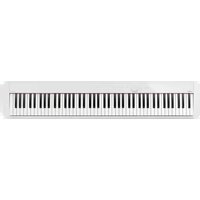

- IMPORTANT SAFETY INSTRUCTIONS
- Declaration of Conformity
- CAUTION
- RISK OF ELECTRIC SHOCK DO NOT OPEN
- NOTICE
- FCC WARNING
- Assembling the Stand....E-56
- General Guide ......E-2
- Power Supply.....E-5
- Connections.....E-6
- Using Built-in Tones......E-8
- Using Auto Accompaniment .....E-16
- Playing Back Built-in Songs.....E-23
- Music Presets ......E-26
- Registering Tone and
- Rhythm Setups ......E-32
- Recording Your
- Keyboard Play E-34
- Other Settings ...... E-40
- Using a Memory Card ...... E-43
- Connecting to a Computer...... E-51
- Reference..... E-61
- Appendix...... A-1
- MIDI Implementation Chart
- Saving Settings and Using Panel Lock
- Returning the Digital Piano to Its Factory Default Settings
- NOTE
- Power Supply
- IMPORTANT!
- Connecting Headphones
- Connecting Audio Equipment or an Amplifier
- Playing Output from External Equipment through the Piano's Speakers
- Connecting to Audio Equipment ②
- Connecting to a Musical Instrument Amplifier ③
- Bundled and Optional Accessories
- Using Built-in Tones
- Turning on the Digital Piano and Playing Something
- Press the ① (POWER) button.
- Selecting a Tone
- Use the 20 to 27 (tone groups) buttons to select the group you want.
- Use the 19 (√, ∧) buttons to select the tone you want.
- Layering Two Tones
- Select the main tone.
- Hold down the button of the group that contains the tone you want to select as the layered tone until "LAYER: ON" appears on the display as shown below for a few moments.
- Use the 19 (√, ∧) buttons to select the tone you want in the group you selected in step 2.
- To unlayer the tones and return the keyboard to a single tone, press any one of the tone group buttons.
- Splitting the Keyboard between Two Tones
- Press the 30 (SPLIT) button.
- Select the tone you want to assign to the left side (lower range) of the keyboard.
- To unsplit the keyboard and return it to a single tone, press the ③0 (SPLIT) button.
- Moving the Keyboard Split Point
- Using Octave Shift
- Adjusting the Brilliance of a Tone
- Adding Reverb to the Tone
- Selecting the Reverb Type
- Adding the Chorus Effect to the Tone
- Selecting the Chorus Type
- Using the Digital Piano's Pedals
- Pedal Functions
- - Damper Pedal
- - Soft Pedal
- - Sostenuto Pedal
- Using the Metronome
- Changing the Beats Per Measure
- Changing the Tempo Setting
- ■ To adjust the tempo using ∧ and ∨ buttons
- Use the ⑩ (TEMPO ∨, ∧) buttons to adjust the tempo setting.
- ■To adjust the tempo by tapping a beat
- While holding down the ⑬ (FUNCTION) button, tap the ^ ⑩ (TEMPO) button four times in time with the beat you want to specify.
- Adjusting the Metronome Volume
- Playing a Duet
- Pedal Operation when Playing a Duet
- Configuring the Digital Piano for Duet Play
- Changing the Octave of a Duet Mode Keyboard
- Using Auto Accompaniment
- Playing an Auto Accompaniment
- Press the ⑦ (ACCOMP ON/OFF) button so its lamp is lit.
- Press the ⑤ (SYNCHRO/ENDING) button.
- Play the chord you want on the chord keyboard (left keyboard keys).
- Play other chords with left hand as you play the melody with your right hand.
- When you are finished, press the ⑥ (START/STOP) button again to stop Auto Accompaniment.
- Selecting a Chord Fingering Mode
- ■Fingered 1, 2, 3
- ■CASIO CHORD
- ■FULL RANGE CHORD
- Modifying Auto Accompaniment Patterns
- Using One-Touch Presets
- Using Auto Harmonize
- Use the 19 (√, ∧) buttons to select the Auto Harmonize type you want.
- Press the ⑰ (TONE) button.
- While playing chords, play the melody on the keyboard.
- Creating Your Own Original Rhythms
- Use the accompaniment pattern buttons (② through ⑤) to select the pattern (normal, intro, ending, etc.) you want to edit.
- Use the instrument part buttons (20 through 27) to select the part (drums, bass etc.) you want to edit.
- Edit the selected part as desired.
- Playing Back Built-in Songs
- Playing Back All of the Built-in Songs
- While holding down the ⑦ (PART) button, press the ⑥ (PLAY/STOP) button.
- Press the ⑥ (PLAY/STOP) button.
- Playing Back a Specific Music Library Song
- Changing the Song Tempo
- Playing on the Keyboard Using the Same Tone as the Song
- Adjusting the Song Volume
- Practicing Either Hand's Part (Part Off)
- Sounding a Count at the Beginning of a Song
- Repeating Playback of a Specific Section (Repeat)
- Music Presets
- Selecting a Music Preset
- Creating an Original User Preset
- Edit the Music Preset parameters.
- 4-1. To edit the chord progression
- 4-2. To edit Auto Accompaniment parameters
- After editing everything you want, press the 28 (EXIT) button.
- Press the ⑲ (YES) button.
- Use the 19 (√, ∧) buttons to select the Music Preset number where you want to store the edited data.
- Enter a name for the preset.
- Press the ③1 (ENTER) button.
- ■To edit the chord progression
- Repeat the above steps to edit all of the steps you want.
- After all editing operations are complete, press the 28 (EXIT) button to return to the editing operation selection screen (page E-27).
- ■To edit Auto Accompaniment parameters
- Registering Tone and Rhythm Setups
- ■Registration Data Types
- - Tone Settings
- ● Auto Accompaniment Settings (Areas A through D only)
- Saving Registration Data
- Recalling a Registration
- Recording Your Keyboard Play
- Recording or Playing Back a Single Song
- Recording or Playing Back Multiple Songs
- Recording to a Specific Track (Part)
- ■What is a track?
- ■Supported Track Data
- System Track, Tracks 01 through 16
- System Track only
- Record the first part to the system track.
- Use the ⑨ (RECORDER) button to cycle through the recorder modes until the RECORDER lamp is flashing (record mode).
- While holding down the 18 (FUNCTION) button, press the 9 (RECORDER) button.
- Press the ⑥ (START/STOP) button.
- To stop recording, press the ⑥ (START/STOP) button again.
- Repeat steps 2 through 6 as required to record all of the tracks you want.
- Deleting Recorder Data
- Deleting a Recorder Song
- Deleting a Recorder Song Track
- Re-recording Part of a Recorder Song (Punch-in Recording)
- Press the ⑥ (START/STOP) button.
- When playback reaches the point you want to re-record, play the notes and perform the other operations you want.
- To stop punch-in recording, press the ⑥ (START/STOP) button again.
- Specifying the Punch-in Recording Location (Auto Punch-in Recording)
- ■Performing Punch-in Recording for Areas Smaller than One Measure
- Other Settings
- Configuring Settings
- Press the ⑱ (FUNCTION) button.
- Use the ⑲ (<) and ⑳ (>) buttons to select one of the parameters (1 through 8) shown in the table below.
- Use the 19 (√, ∧) buttons to change the setting of the currently selected parameter.
- Using a Memory Card
- Card and Card Slot Precautions
- Loading and Removing a Memory Card
- Formatting a Memory Card Saving
- Digital Piano Data to a Memory Card
- ■Memory Card Data Storage
- Loading Data from a Memory Card
- Deleting Memory Card Data Renaming a Memory Card File
- Playing Back a Song from a Memory Card
- ■Memory Card Folders
- Playing Back All of the Songs in a Folder
- Assigning a Different Folder to a Folder Selection Button
- Saving Data to Digital Piano Memory (Internal Area) Instead of a Memory Card
- Remove the memory card from the Digital Piano's memory card slot (page E-44).
- Error Messages
- Connecting to a Computer
- Minimum Computer System Requirements
- - Operating System
- Connecting the Digital Piano to Your Computer
- Using MIDI
- What is MIDI?
- Transferring Data between the Digital Piano and a Computer
- ■Data Types Supported for Data Transfer
- While holding down the 18 (FUNCTION) button, press the 32 (USB DEVICE MODE) button.
- If your computer is running Windows XP, double-click "My Computer".\*
- Double-click "PIANO".
- Referring to the table below, open the folder that corresponds to the type of data you want to transfer.
- Playing Back User Song Data by Copying It to the PIANO Drive
- Using Your Digital Piano as a Memory Card Reader
- ■Using Auto Accompaniment (Rhythm) Data from the CASIO Website
- Copyrights
- Assembling the Stand
- Unpacking
- PREPARATION
- To assemble the stand
- Place the piano onto the stand.
- To connect cables
- To install the music stand and headphones hook
- Product Specifications
- Operating Precautions
- ■Location
- ■User Maintenance
- ■Included and Optional Accessories
- ■Weld Lines
- ■Musical Instrument Etiquette
- NOTA
- Fingered 3, Full Range Chords/Acordes Fingered 3, Full Range
Brand : CASIO
Model : Celviano AP-6
Category : Piano