
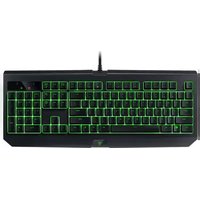
Anansi Expert MMO - Keyboard RAZER - Free user manual and instructions
Find the device manual for free Anansi Expert MMO RAZER in PDF.


| Product Type | Gaming Keyboard with MMO Features |
| Brand | Razer |
| Model | Anansi Expert MMO |
| Dimensions (L x W x H) | 475 x 165 x 30 mm |
| Weight | 1.2 kg |
| Power Source | USB 2.0 (5V, 500mA) |
| Key Switch Technology | Membrane with mechanical-like feel |
| Programmable Keys | 5 dedicated macro keys |
| Backlight | 4-level adjustable green backlight |
| Anti-Ghosting | 10-key rollover |
| Wrist Rest | Integrated, detachable |
| Cable Length | 1.8 m braided fiber |
| Software | Razer Synapse 2.0 |
| Operating Systems | Windows 7/8/10 |
| Maintenance | Wipe with soft damp cloth; no solvents |
| Safety Warnings | Avoid liquids; keep away from heat sources |
| Spare Parts / Repairability | Not available separately; contact Razer support |
| Warranty | 2 years limited hardware warranty |
| Package Contents | Keyboard, quick start guide, Razer stickers |
Frequently Asked Questions - Anansi Expert MMO RAZER
User questions about Anansi Expert MMO RAZER
0 question about this device. Answer the ones you know or ask your own.
Ask a new question about this device
Download the instructions for your Keyboard in PDF format for free! Find your manual Anansi Expert MMO - RAZER and take your electronic device back in hand. On this page are published all the documents necessary for the use of your device. Anansi Expert MMO by RAZER.
USER MANUAL Anansi Expert MMO RAZER
Designed and engineered especially for the MMO gamer, the Razer Anansi is the world's first keyboard that raises your level of gameplay by giving you the power to instantly use up to 7x more commands and abilities over the current ±12 ability keys you now have. Its seven thumb modifier keys located below the space bar allow you to actuate every possible combination of modifier key (shift, ctrl, alt) in total accuracy and comfort using a single key stroke, exponentially expanding the repertoire of spells, abilities and macros you have at your command.
From the casual MMO gamer to the serious hardcore raider, the Razer Anansi will take you to the head of the pack in both PVE and PVP action. Combine it with the Razer Naga MMOG mouse to use the Razer Anansi's 7 thumb modifier keys seamlessly with the 12-button mouse keypad, giving you an unprecedented level of battle control while dual-wielding the world's most phenomenal weapons for dragon slaying dominance.
MASTER GUIDE
CONTENTS
- System Requirements
- Installation / Registration / Technical Support
- Key Features
- Configuring Your Razer Anansi
- Using Your Razer Anansi
- Legalese
1. SYSTEM REQUIREMENTS
- PC with USB port
- Windows® 7 / Windows Vista® / Windows® XP
- Internet connection (for driver installation)
- 75MB of free hard disk space
2. INSTALLATION / REGISTRATION / TECHNICAL SUPPORT
WINDOWS® 7 / WINDOWS VISTA® / WINDOWS® XP INSTALLATION INSTRUCTIONS

-
Plug your Razer Anansi into the USB ports of your computer.
-
Download the Driver Installer from www.razersupport.com
-
Run the installer.
-
Choose setup language. Click OK to proceed.
-
The Razer Anansi setup screen appears. Click NEXT to proceed.
-
Read the license agreement. If you agree to all the terms, select "I accept the terms in the license agreement". Click NEXT to proceed.
-
Enter your User Name and Organization. Click NEXT to proceed.
-
Choose your installation setup. Click NEXT to proceed.
-
If everything is correct. Click INSTALL to begin installation.
-
At the end of the installation, click FINISH to complete the installation.
-
Follow the instructions onscreen to restart your computer. Click YES.
REGISTERING YOUR RAZER ANANSI
Please visit www.razerzone.com/registration/ for online product registration.
What you'll get:
- 1 year limited manufacturer's warranty
- Free online technical support at www.razersupport.com
3. KEY FEATURES

A. 7 Thumb Modifier Keys
B. 5 Additional Gaming Keys
C. 100+ Programmable Hyperesponse™ Keys
D. Media Keys
E. 16 million color key backlighting
F. On-The-Fly Macro Recording
4. CONFIGURING YOUR RAZER ANANSI
The features listed here require the Razer Anansi Configurator to be installed and the Razer Anansi Tray Icon to be active.
ASSIGN KEYS TAB

In the Assign Keys tab, you can assign various functions to each of the keys based on your own preferences. Each key can be programmed using the following functions:
- Default key – Revert to the default function of the key.
- Single key – Change the function of the key to another.
- Macro – Assign a macro to the key.
- Profile Switch – Assign a profile to the key for quick profile change.
- Launch Program – Activate a program with the key.
Note: All keys are programmable except for "Fn" key.
Make use of the Current Profile drop down menu to switch between different profiles during key assignment.
MANAGE MACROS TAB
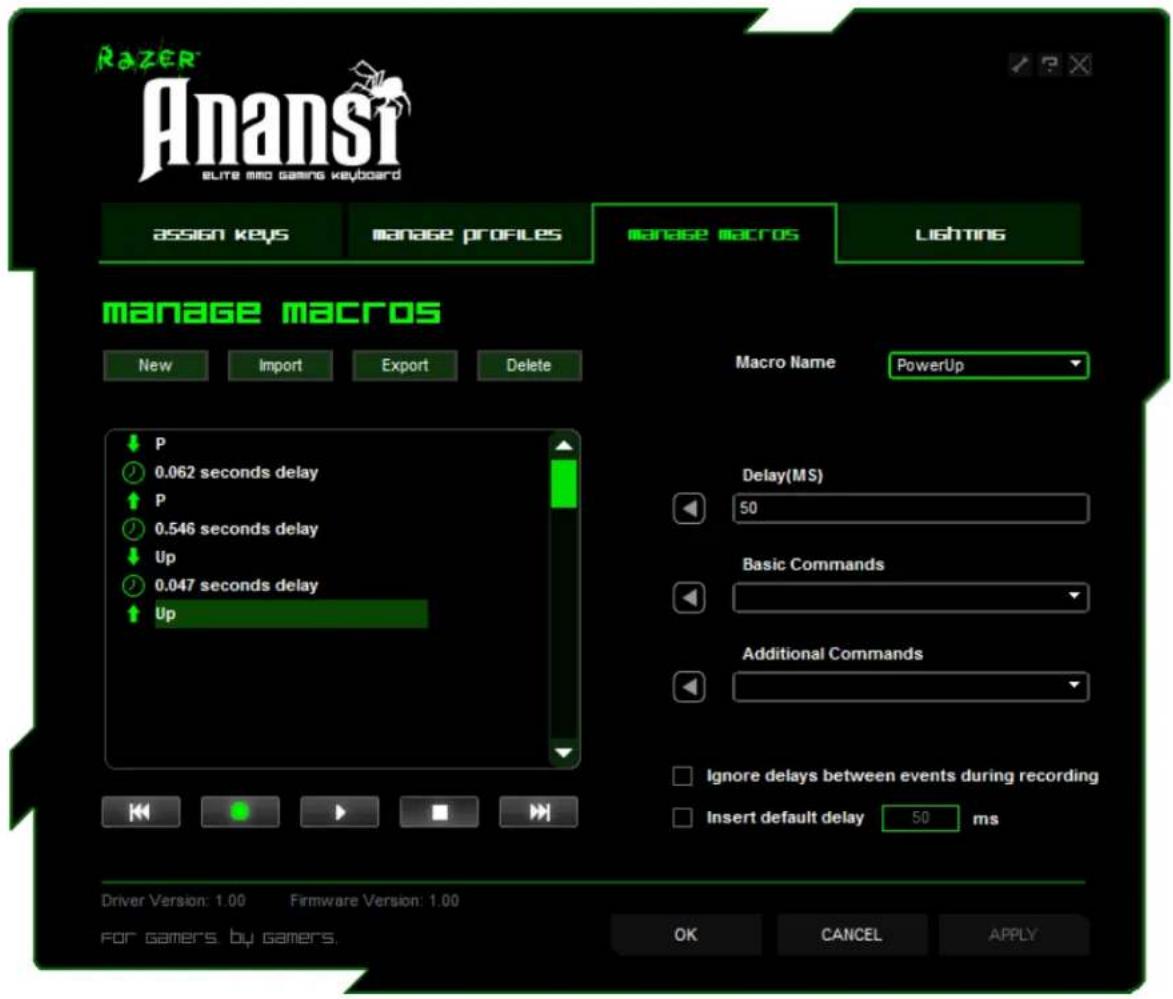
A macro is a sequence of keystrokes executed in a particular order and timing. It allows you to execute a chain of commands, with the press of just one button, to optimize your gameplay.
In the Manage Macros tab, you can record unlimited keystrokes (dependent on your storage resources). These macros can also be imported and exported onto your hard disk for future usage.
A. Macro Entry: Enter your macro in the Macro Entry box. You can even choose to insert a delay time and/or a mouse-button press.
B. Delay (ms): Choose the amount of delay to be inserted between keystrokes of your macro.
C. Basic Commands: A list of basic commands in Windows OS that can be inserted between keystrokes of your macro.
D. Additional Commands: A list of additional commands in Windows OS that can be inserted between keystrokes of your macro.
You can ignore delays between events of a macro by clicking on the respective checkbox before recording.
You can specify a fixed default delay timing to be used in between events of a macro by clicking on the respective checkbox before recording.
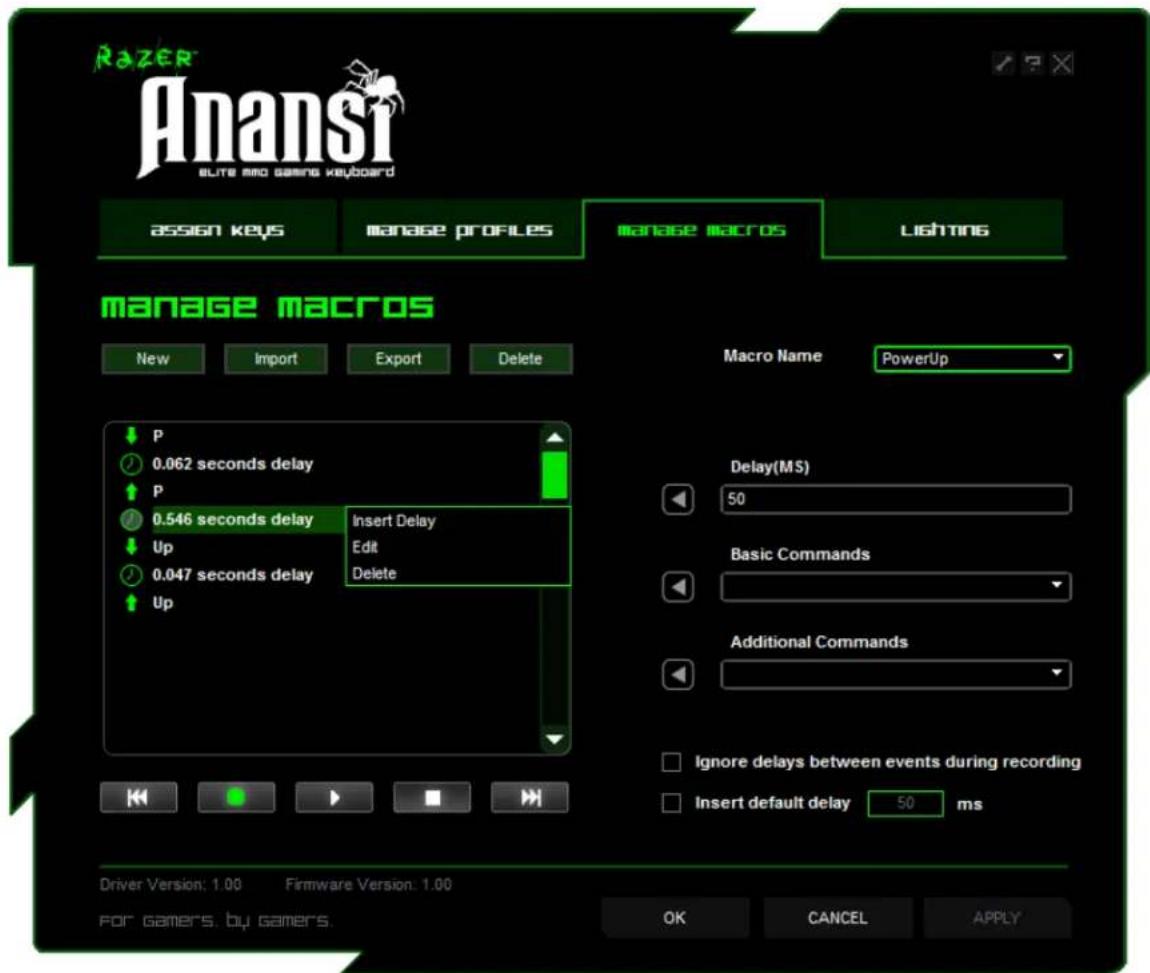
Right-clicking inside the Macro window allows you quick access to a list of extra commands for inserting or editing in-between the keystrokes of your macro.
MANAGE PROFILES TAB

A profile allows you to store your various keyboard settings such as key assignments and macros as a single group for your convenience.
In the Manage Profiles tab, you can create and launch customized profiles based on the application you have activated.
a. Current: Indicates the current active profile.
b. Profile: Indicates the profile number
c. Profile Name: Right-click on this row and select "Rename" to enter a profile name of your choice.
d. Application: Right-click this row and select "Assign Application" to open up the directory browsing. Select the executable file of the program you want the profile to be linked to.
e. Auto Switch: Check the box to enable automatic profile switching when the chosen application is launched.
Check the Enable On-Screen Display box to show your profile name when the profile is activated.

Right-clicking inside the Manage Profile tab allows you to quickly access a list of extra commands.
LIGHTING TAB
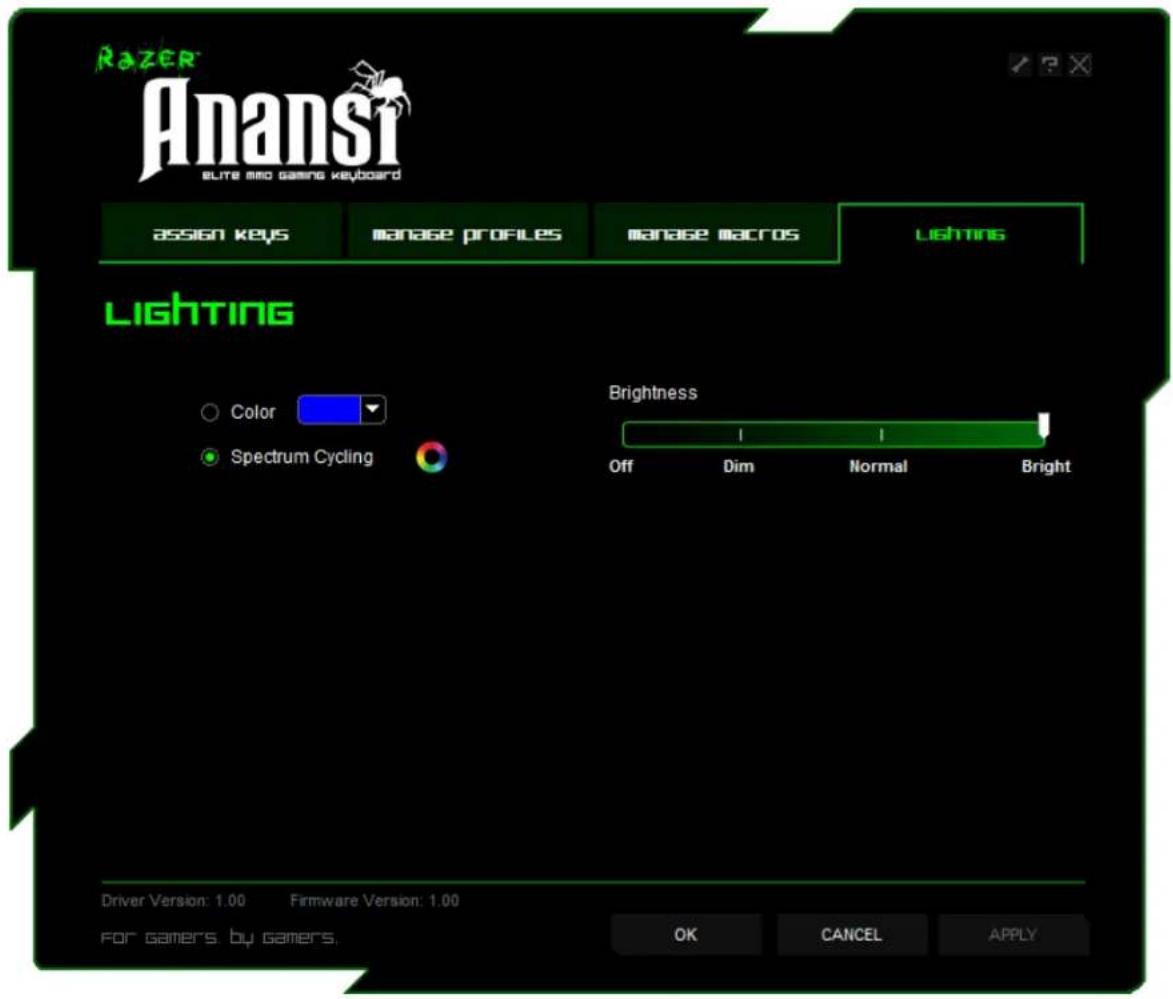
You can customize the look of the Razer Anansi by choosing from over 16 million colors to adjust the color of the keyboard lighting.
Select the Spectrum Cycling option to allow the colors to change indefinitely.
You can adjust the light brightness to your liking.
The default key functionality is as shown below.

Switching Profiles
You can switch between profiles in five ways:
A. By pressing the "FN" button + Number key (1 - 9 & 0).

Example: To select Profile 4, hold on to 'FN' button and press '4'. Up to 10 profiles may be preconfigured.
Note: The profile switching does not work using the NumKeys.
B. By changing the Current Profile in the Razer Anansi Configurator.
Example:
-
Open up the Razer Anansi Configurator.
-
Click on the Current Profile name on the Assign Keys tab.
-
Choose the profile you will like to change to from the dropdown list.
-
Click OK.
C. By selecting the Current Profile radio button in the Manage Profiles tab in the Razer Anansi Configurator.
Example:
-
Open up the Razer Anansi Configurator.
-
Click on the Manage Profiles tab.
-
Click on the Current Profile radio button you will like to activate or right click and choose "Set Active" to switch profile.
-
Click OK.
D. By activating auto-switching profile in the Razer Anansi Configurator.
Example: Selecting Profile 6 to be activated upon loading of Program A
-
Open up the Razer Anansi Configurator.
-
Click on the Manage Profiles tab.
-
Select Profile 6.
-
Right-click the row, select "Rename" and enter a name for the Profile.
-
Right-click the row, select "Assign Application" to open up the directory browser and locate the executable file for Program A.
-
Check the auto-switching option for Profile 6 to activate auto-switching.
-
Click OK.
E. By programming a key in the Razer Anansi Configurator to activate a particular Profile.
Programming Keys
You can record macro in two ways:
a. By using the On-The-Fly (OTF) Macro Recording function of the Razer Anansi
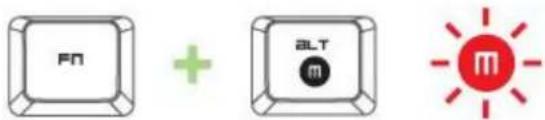
Example: To configure Key "Q" to "Save" in Notepad.
- Press "FN" button with Alt-Macro button to start the recording of the macro. The Macro Recording indicator lights up.
- Press "Ctrl" and "S" (this command is the "Save" function) to define the keystrokes for the macro.
- Press "FN" button with Alt-Macro button again to stop recording the macro. The Macro Recording indicator starts blinking.
- Press "Q" to assign the recently recorded macro to the "Q" button. The Macro Recording indicator turns off.
If you make a mistake while recording your macro, simply press ESC to cancel the current OTF Macro Recording. The Macro Recording indicator turns off. Press "FN" button with Alt-Macro button to restart over the recording of the macro.
b. By recording the macro in the Razer Anansi Configurator
Example: To configure Key "Q" to "Save" in Notepad.
- Open up the Razer Anansi Configurator.
- Go to the Manage Macros Tab.
- Press "New" to start a new macro
- Enter a name for the macro – example "Save" and press OK.
- Enter "Ctrl" and "S" (this command is the "Save" function) to define the keystroke for the macro.
- Go to the Assign Keys tab.
- Select "Q" key in the Assign Keys tab.
- Choose the Macro function. A Macro List pop up box appears.
- Select the "Save" macro.
-
Choose the Playback mode. This indicates how the macro should be playback. You have the options of setting the macro to run:
-
One time;
- User defined number of times;
• Continuously until key is released; -
Continuously until key is pressed again.
-
Click OK.
Accessing Media Keys

You can quickly control your media player function with the Media key on the Razer Anansi. To access them, press the FN key and the corresponding media key which you will like to activate.
Switching Lighting Mode

We have 4 different backlighting modes for your Razer Anansi – Dim, Normal, Bright and Off. You choose the different backlighting mode for your Razer Anansi by using the "FN" button together with Lighting Mode button. Press & hold the "FN" button and tap on the Lighting Mode button to cycle through the different backlighting modes.
Setting Gaming Mode

Gaming mode prevents accidental activation of the Windows Start function by disabling the Windows button.
You can toggle the Gaming Mode ON/OFF by pressing the "FN" button together with Gaming Mode button. When this key combination is pressed, the Windows button is disabled. This is indicated by the Gaming mode indicator lighting up. To reactivate the Windows button, press the "FN" button together with Gaming Mode button again.
Enable Sleep Mode

You can enter the Sleep mode quickly with your Razer Anansi. Simply press "FN" button with the Sleep Mode button. To wake up from Sleep mode, press any key on your Razer Anansi.
SOFTWARE UPDATE & RESET
Update the Razer driver and firmware software by clicking on the button. This will connect you to www.razersupport.com for the latest driver/firmware downloads. You can also restore your Razer Anansi to the default settings by clicking the RESET button.
6. LEGALESE
COPYRIGHT AND INTELLECTUAL PROPERTY INFORMATION
©2010 Razer USA Ltd. Patent Pending. All Rights Reserved. Razer, the Razer Triple-Headed Snake logo, the Razer distressed word logo and other trademarks contained herein are the trademarks or registered trademarks of Razer USA Ltd and/or its affiliated or associated companies, registered in the United States and/or other countries. Windows and the Windows logo are the trademarks of the Microsoft group of companies. Mac OS, Mac and the Mac logo are trademarks or registered trademarks of Apple Inc., registered in the U.S. and other countries. All other trademarks are the property of their respective owners.
Razer USA Ltd (“Razer”) may have copyright, trademarks, trade secrets, patents, patent applications, or other intellectual property rights (whether registered or unregistered) concerning the product in this Master Guide. Furnishing of this Master Guide does not give you a license to any such copyright, trademark, patent or other intellectual property right. The Razer Anansi product (the “Product”) may differ from pictures whether on packaging or otherwise. Razer assumes no responsibility for such differences or for any errors that may appear. Information contained herein is subject to change without notice.
LIMITED PRODUCT WARRANTY
For the latest and current terms of the Limited Product Warranty, please visit http://warranty.razerzone.com.
LIMITATION OF LIABILITY
Razer shall in no event be liable for any lost profits, loss of information or data, special, incidental, indirect, punitive or consequential or incidental damages, arising in any way out of distribution of, sale of, resale of, use of, or inability to use the Product. In no event shall Razer's liability exceed the retail purchase price of the Product.
COSTS OF PROCUREMENT
For the avoidance of doubt, in no event will Razer be liable for any costs of procurement unless it has been advised of the possibility of such damages, and in no case shall Razer be liable for any costs of procurement liability exceeding the retail purchase price of the Product.
GENERAL
These terms shall be governed by and construed under the laws of the jurisdiction in which the Product was purchased. If any term herein is held to be invalid or unenforceable, then such term (in so far as it is invalid or unenforceable) shall be given no effect and deemed to be excluded without invalidating any of the remaining terms. Razer reserves the right to amend any term at any time without notice.



- MASTER GUIDE
- CONTENTS
- SYSTEM REQUIREMENTS
- INSTALLATION / REGISTRATION / TECHNICAL SUPPORT
- WINDOWS® 7 / WINDOWS VISTA® / WINDOWS® XP INSTALLATION INSTRUCTIONS
- REGISTERING YOUR RAZER ANANSI
- KEY FEATURES
- CONFIGURING YOUR RAZER ANANSI
- ASSIGN KEYS TAB
- MANAGE MACROS TAB
- MANAGE PROFILES TAB
- LIGHTING TAB
- Switching Profiles
- Example:
- Programming Keys
- Accessing Media Keys
- Switching Lighting Mode
- Setting Gaming Mode
- Enable Sleep Mode
- SOFTWARE UPDATE & RESET
- LEGALESE
- COPYRIGHT AND INTELLECTUAL PROPERTY INFORMATION
- LIMITED PRODUCT WARRANTY
- LIMITATION OF LIABILITY
- COSTS OF PROCUREMENT
- GENERAL
Brand : RAZER
Model : Anansi Expert MMO
Category : Keyboard