Smart:EQ Live - Audio software Sonible - Free user manual and instructions
Find the device manual for free Smart:EQ Live Sonible in PDF.


| Type | Audio plug-in (adaptive equalizer) |
| Platform compatibility | Windows 7+ (32/64-bit), macOS 10.7+ |
| Minimum hardware | Intel Core i5, 2 GB RAM |
| Plugin formats | VST2, VST3, AAX, Audio Unit, WPAPI |
| Licensing | Machine-based or iLok USB dongle (2nd gen or higher) |
| Trial version | Time-limited full-featured trial available |
| Smart:Filter | Adaptive filter with real-time learning, auto-stop, manual control |
| Profiles | Preset profiles for different sources; custom profiles with .spf files |
| Snapshots | Recallable full session settings; saved as .spr files |
| Interactive equalizer | Drag-and-drop filter bands; Alt+drag for Q, Shift+drag lock frequency |
| Filter types per band | Low cut, high cut, low shelf, high shelf, bell (PEQ) |
| Real-time analyzer | Pre/Post input/output analysis with selectable display |
| Adaptation speed | Configurable per frequency ranges (low, mid, high) with fast/mid/slow/freeze |
| Limit control | Maximum gain limit for smart:response |
| Master output | Global output volume control |
| Bypass | Internal bypass to avoid host glitches |
| Resizable UI | Yes, via drag on bottom-right corner |
| Updates | In-app notification and direct download link |
| Manual | Free PDF available online (18 pages) |
Frequently Asked Questions - Smart:EQ Live Sonible
User questions about Smart:EQ Live Sonible
0 question about this device. Answer the ones you know or ask your own.
Ask a new question about this device
Download the instructions for your Audio software in PDF format for free! Find your manual Smart:EQ Live - Sonible and take your electronic device back in hand. On this page are published all the documents necessary for the use of your device. Smart:EQ Live by Sonible.
USER MANUAL Smart:EQ Live Sonible
Live never felt so good

line
| Frequency | Value | | --------- | --------- | | 59.3 Hz | -10.0 dB | | 350 Hz | 0.0 dB | | 764 Hz | 9.4 dB |
contents
welcome to smart:EQ 3
install 4
authorization 5
updates 6
stay up to date
user interface 7
an overview
tab area 8
smart:liter
tab area 10
profiles
tab area 12
snapshots
interactive equalizer 13
parameter section 15
settings 16

natural_image
Abstract orange line pattern on white background (no text or symbols)welcome to smart:EQ live
The adaptive equalizer smart:EQ live by sonible analyzes audio signals, interprets them musically and compensates spectral imbalances in real-time.
Live sound engineers are all too familiar with stressful circumstances. Often there is little or no time for sound checks and proper preparation. Engineers constantly have to deal with unexpected situations and need to make substantial decisions within seconds. That's why sonible developed smart:EQ live.
Based on different analysis methods, the plug-in is able to recognize spectral deficiencies in the audio signal (broad- and narrow-band) and to compensate them with an accurate and complex filter structure within seconds.
Informed by years of hands-on experience, the practice-oriented selection of parameters facilitates a targeted adaptation and control of the unique smart:filter section of smart:EQ live for a hassle free mixing experience.
Get started with smart:EQ live and enjoy your new live workflow!
install
Minimum requirements
CPU Intel Core Duo i5
RAM 2GB
Operating systems Windows 7 (32/64 bit) Mac OSX 10.7

You will need admin rights to successfully install the plug-in.
Windows
To start the installation process, extract the downloaded zip-file sonible_smartEQlive_win.zip on your hard disk and run the installation file smartEQlive_installer.exe.
The installer will now guide you through the necessary steps to install smart:EQ live on your computer.
During installation, you can select which version(s) of smart:EQ live should be installed. You can also select custom installation folders for the VST2 and WPAPI version or simply use the default folders provided by the installer.
The VST3 and AAX version of the plug-in will automatically be installed to the default folders for the respective format:
VST3 (on a 64 bit operating system):
..\Program Files\Common Files\VST3\
..\Program Files(x86)\Common Files\VST3\
AAX (on a 64 bit operating system)
..\Program Files\Common Files\Avid\Audio\Plug-Ins
..\Program Files(x86)\Common Files\Avid\Audio\Plug-Ins
Mac OSX
To start the installation process, please open the disk image sonible_smartEQlive_osx.dmg. This will mount the image and open a finder window showing the content of the installation package.
To install smart:EQ live on your system, please run the installation file smartEQlive_installer.mpkg.
The installer will now guide you through the necessary steps to install smart:EQ live on your computer. smart:EQ live will automatically be installed at the default locations for audio plug-ins:
Audio Unit
/Library/Audio/Plug-Ins/Components/smartEQlive.component
VST
/Library/Audio/Plug-Ins/VST/smartEQlive.vst
WPAPI
/Library/Audio/Plug-Ins/WPAPIw/smartEQlive.bundle
If you need to change the location of the plug-in, please drag the corresponding file(s) manually to the designated folder after the installation has finished.
authorization
Licensing system
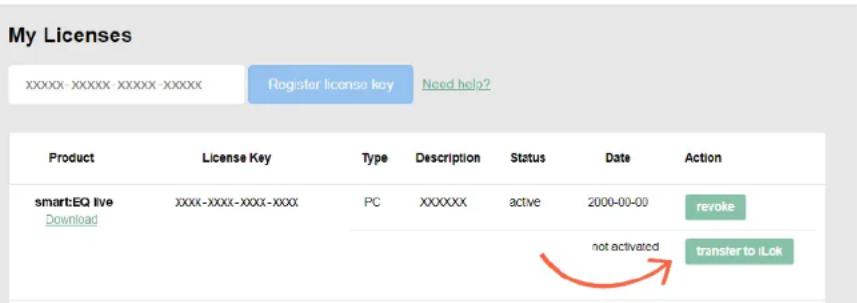
You can select between two licensing systems: machine-based or iLok (USB dongle).
By creating a user account on www.sonible.com and registering your products – if they are not already visible in your Dashboard, you can manage your plug-in activations.
Machine-based model
Each license key allows you to install smart:EQ live on two computers with unique system IDs. These system IDs are computed during license activation.
The same license can be used by multiple users, but each user has to individually unlock the full version of smart:EQ live under their account.
In case a system-ID is changed (e.g. replacement of the hard drive), you can revoke/activate the plug-in next to the respective system-ID in the Dashboard of your sonible user account.
iLok
If you want to transfer one activation to your iLok, just make sure the plug-in is registered in your sonible user account. Click on the button „transfer to iLok“ next to the plug-in in your Dashboard and follow the instructions.
Note: 1st gen iLok dongles and the iLok Cloud are currently not supported.
Unlocking
If you purchased a license for smart:EQ live online, you receive your license key via email.
Machine-based unlocking
When opening smart:comp for the first time, a notification window will be displayed asking you to unlock smart:comp with a valid license key.
- Please make sure that your computer is connected to the internet before starting the registration process.
- Enter your license key and click „register.“ The plug-in will now communicate with our server to check if the license is valid. If it is – enjoy! :)
iLok
If you transferred your license to an iLok, simply attach the iLok to your computer. The plug-in will then be automatically registered – enjoy!
If you don't receive the email within minutes please check your junk folder first before contacting our support (support@sonible.com).
Trial version
To run smart:EQ live in demo-mode, simply click "try" and you will then be able to use smart:EQ live for a couple of days without any limitations. (Please refer to our website to find out more about the current demo period of smart:EQ live)
When the demo period expires, you will need to purchase a full license in order to continue using the plug-in.

updates
stay up to date
If a new release of the plug-in is available you'll get a notification at the top left of the plug-in window (see screenshot). By clicking on the orange label you'll be forwarded to a website where you can download the latest version of smart:EQ live.
To install the latest version of smart:EQ live, simply follow the installation instructions given in this manual. A reactivation of the plug-in is not necessary.
update notice click to update

user interface
an overview
tabs
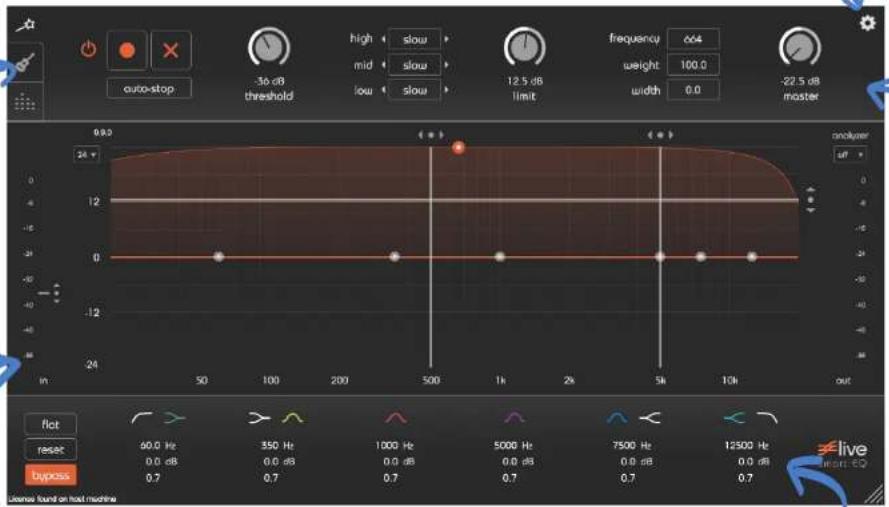
Use the three tabs to switch between the following sections:
-
- smart:filter
-
- profiles
-
- snapshots
settings
Access smart:EQ live settings.
tab area
This area provides control parameters according to the chosen tab on the left (smart:filter, profiles, snapshots).
interactive equalizer
Use this section to interactively control all filter curves. The filter parameters (center frequency, quality and gain) can be adjusted freely.
EQ parameter section
The EQ parameter section provides an overview of all filter settings.
tab area
smart:filter
The first tab (wand symbol) provides you with all parameters to configure your smart:filter.
The smart:filter is enabled by pushing the on/off icon. When activated, an additional orange curve will appear inside the equalizer interface. This is the weighting function for the smart:response. Once a smart filter has been learned, you can interact with it as with any normal filter.
start the learning process
To use the smart:filter, the plug-in has to learn the adaptive filter curve (smart:response) performing the following steps:
1. enable the smart:filter
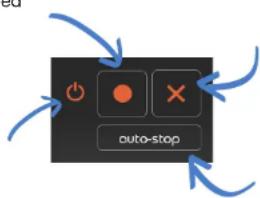
Click the on/off symbol on the left to enable the smart:filter.
2. start learning
To start learning manually, click the record button. Now, a pulsating pause icon indicates that the smart:filter is actively learning.
record
Use this button to start or stop learning. While learning, a pause symbol will be displayed instead of the record button.
on/off
Enable or disable the smart:filter.
reset
This button resets the learned filter curve (smart:response).
auto-stop
When activated, the smart:filter will stop learning as soon as a certain spectral balance has been reached.
3a. continuous learning
If the auto-stop button is not activated, the filter will continuously adapt to the source signal, allowing for dynamic changes of the smart:response over time.
3b. auto-stop
If auto-stop is in an active state (orange), the smart:filter will stop learning as soon as a certain spectral balance has been reached (the pause button stops blinking and turns back to a record icon).
To continue learning, repeat steps 2 and 3. To re-start learning from scratch, click on the reset button "x" and repeat steps 2 to 3.

The smart:filter block (on/off, record, reset and auto-stop button) will be visible from all tabs.
control parameters
Apart from the record, reset and auto-stop button, there are several other control parameters to adapt the smart:filter to your needs.
threshold
This parameters sets a learning threshold for the smart:filter. The power of the input signal has to exceed this threshold to trigger the learning process.
Make sure that this threshold setting is low enough so that the smart:filter is able to adapt to your input signal!
adaptation speed
high - mid - low
The next control parameters are three toggle buttons called high, mid and low. These buttons help to set the adaption speed of the smart:filter within different frequency ranges.
The ranges can be controlled by the two vertical markers (they become blue when the mouse is hovered over the toggle buttons) in the equalizer interface.
For each range, there are four different adaptation speeds: fast, mid, slow and freeze:
A fast setting allows the filter to adapt quickly to new signal content, whereas a slow setting will tell the smart:filter to adapt slowly to new signal content. The exact speed can be set in the settings area, which is described later in this manual.
limit
weighting curve
master
If the option freeze is chosen, there will be no further dynamic adaption within the respective frequency range.
With the limit slider you can set a maximum gain for the smart:response. Thus, the smart:response will never exhibit gains above this limit. This parameter can be controlled by the slider or by the horizontal marker in the equalizer interface. You can only limit the smart response towards positive gains.
You can interact with a computed smart:response as with any other filter of the equalizer. The weight of the bell-shaped smart:response weighting curve corresponds to the gain of a classical filter and the width corresponds to its quality.
You can change the parameters of the weighting curve by dragging the values inside the numeric field or by moving the thumb within the equalizer interface (ALT + drag for changing the width).
The master slider controls the output volume. This parameter will always be visible - no matter which tab you have chosen.


profiles
The second tab (guitar symbol) provides you with a collection of different profiles, which prime the smart:filter towards certain source signals. In addition to a given set of standard profiles, you can create your own profiles to adapt the smart:filter to your musical needs.
choose a profile
You can choose different profiles using hot keys. Each hot key shows a profile with its name and icon. The profile can be assigned to a hot key by clicking the small arrow on the bottom. This action opens the corresponding drop-down menu listing the total collection of available profiles.
In order to activate a selected profile, just click on the hot key. An activated hot key is indicated by a brighter and more intense color. As soon as you activate a profile, the smart:response will change according to the selection.
Please note, that also the adaption speed markers as well as the adaption speeds for different frequency ranges will change according to the selected profile.
In addition to the activation by mouse click, you can also use the keys 1 - 5 on your keyboard to switch between the hot keys.
create a profile
If a smart:response computed based on a certain profile does not perfectly fit to your needs, you can easily generate new custom profiles and use them as the basis for future learning processes.
Let's say you like the result of a certain profile, but you want more heights. No problem! Adjust the computed smart:response using the classical filters of the EQ (e.g. add a shelving filter) and listen to the modified filter curve. Once you are satisfied with the result of the modified smart:response, save the changes to a new profile.
By saving the profile, the changes you made with the classical filters will be incorporated as a new learning information into the custom profile.
To save the profile, click the hot key with the "+" icon and enter a unique name. After name validation, the new profile will be assigned to the currently activated hot key and you can instantly start working with your personal profile!
All profiles are saved with the file extension ".spf" to the following paths:
OSX: \~/Library/Audio/Profiles/sonible/smartEOlive
Windows: My Documents\Profiles\sonible\smartEQlive
You can easily change existing custom profiles by choosing the "update" option from the context menu of the hot key (right click on the hot key).
You can also activate a profile, make changes in the equalizer interface, click the plus button and save the profile with the same name. This will override the current profile.
If you want to rename the profile, please use the context menu as well.
delete a profile
A user profile can also be deleted by opening the context menu of the hot key and choosing the option "delete".

NOTE: This action can't be undone!
edit a profile
context menu
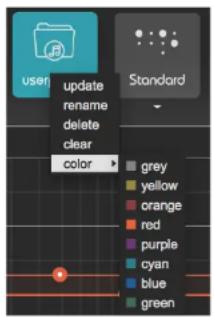
Each hot key provides a context menu. The menu is accessible by a right click anywhere on the key. In this menu, you have the following options (the first three options are described in more detail in the previous section):
| update | overwrites the profile with the current settings |
| rename | renames the selected profile |
| delete | deletes the selected profile |
| clear | clears the profile selection of the hot key |
| color | choose a hot key color |


snapshots
The third tab (dots) works analogous to the profiles interface, but helps to handle snapshots. A snapshot saves all settings of your current session, similar to a preset of classical plug-ins. Snapshots make it easy to recall a certain setup e.g. all profiles relevant for a certain show or track.
(Please refer to the section profiles to get a basic understanding on the handling of hot keys.)
To assign a snapshot to a hot key, click on the little arrow below the key and select the respective snapshot from the list. The name of the snapshot will now appear inside the hot key. Once selected, you can load the snapshot by clicking on the key.
To generate a new snapshot, click onto the "+" symbol and enter a name for the snapshot. Please note that the new snapshot will instantly be loaded into the currently active hot key.
To change the settings of a snapshot, you can use the update option in the context menu or the "+" symbol on the right and overwrite the snapshot.
All snapshots are saved with the file extension ".spr" to the following paths:
OSX: --/Library/Audio/Presets/sonible/smartEQlive Windows: My Documents\Presets\sonible\smartEQlive
interactive equalizer

The interactive equalizer display of smart:EQ live allows for a very intuitive and quick control of all parameters of a filter band.
change parameters
You can simply drag and drop the thumbs related to each filter and immediately see (and hear) the resulting curve.
There are also three complementary key combinations for enhanced parameter control:
| •alt+click+drag | → | change quality of the filter |
| •shift+click+drag | → | lock the center frequency |
| •double-click | → | reset filter band |
In addition, it is also possible to change the quality (width) of a filter using the scroll wheel of your mouse hovering over an active thumb.
precision mode
Using the small drop-down on the top left, you are able to change the gain zooming factor (y-axis) of your interactive equalizer window between 24, 12 or 6 dB.
markers
The vertical and horizontal markers indicate the limit line (horizontal) and the borders between the low, mid and high frequency ranges (vertical) for the adaption speed. For more information on the specific features of the settings, please refer to section "tab area - smart:filter".
real-time analyzer
smartEQ live provides you with a real-time analyzer of your input and output signal. On the right top corner of the equalizer display you can enable the analyzer by choosing an option from the drop-down: pre (input signal), post (output signal) and off (analyzer disabled).
parameter section

The parameter section shows six filter bands and their related parameters. When hovering over the parameter section of a band, the band is highlighted with the color of the related filter curve inside the interactive equalizer display.
filter selection
With a click on the filter symbol (cut, shelving, peq) the filter type of each band can be selected. With another click on the selected filter symbol, the filter band can be disabled or enabled again.
changing parameters
All filter parameters can be changed by dragging the respective value up and down with your mouse. In addition, a click on the label will allow you to edit the value with your keyboard. Use ALT + Click on the label for a reset of the value.
The values can also be changed using the thumb control inside the interactive equalizer section (see chapter "smart:EQ live - interactive equalizer").
flat The flat button resets all filter gains to 0 dB. All other filter parameters are retained.
reset The reset button resets all parameters of the plug-in to their default values.
bypass This button can be used to bypass all processing of smart:EQ live. This internal bypass may be helpful when the bypass function offered by your host leads to glitches or sync-problems with other tracks.
resizing In the bottom right corner, you see a triangle that enables you to resize the plug-in. The next time you open the plug-in, the size will be restored.
filter types

low cut
high cut
low shelve
high shelve
bell
settings

smart:filter settings
adaption speed
In this area you can set the adaption speed for the slow, mid and fast setting of the smart:filter.
The parameters are given in "ms" and indicate the observation time used by the smart:filter to compute a new adaption step. A high value will lead to a more stable filter (beneficial, if no unexpected signal changes occur), while a low value will lead to a highly responsive filter computation (beneficial, if a fast adaption to new sonic situations is needed).
For example, if you are using smart:EQ live on a sum signal, a stable filter (low adaption speed) will lead to very robust results.
If you are using smart:EQ live on individual channels, e.g. highly dynamic vocals, a faster adaption speed will help to keep better control of unexpected dynamic changes in different frequency regions.
live
smart:∈Q
www.sonible.com/smarteq-live
sonible GmbH
Haydngasse 10/1
8010 Graz
Austria
phone: +43 316 912288
contact@sonible.com
All specifications are subject to change without notice.
©2020, sonible GmbH. All rights reserved.
Engineered & designed by sonible in Austria.
- contents
- welcome to smart:EQ live
- install
- Minimum requirements
- Windows
- Mac OSX
- Audio Unit
- VST
- WPAPI
- authorization
- Licensing system
- Machine-based model
- iLok
- Unlocking
- Machine-based unlocking
- Trial version
- updates
- user interface
- tabs
- settings
- tab area
- interactive equalizer
- EQ parameter section
- smart:filter
- start the learning process
- enable the smart:filter
- start learning
- record
- on/off
- reset
- auto-stop
- 3a. continuous learning
- 3b. auto-stop
- control parameters
- threshold
- adaptation speed
- limit
- weighting curve
- master
- profiles
- choose a profile
- create a profile
- delete a profile
- context menu
- snapshots
- change parameters
- precision mode
- markers
- real-time analyzer
- parameter section
- filter selection
- changing parameters
- filter types
- smart:filter settings
- adaption speed
- live
- smart:∈Q
- sonible GmbH
Brand : Sonible
Model : Smart:EQ Live
Category : Audio software