
90564 - Barcode Reader DeLOCK - Free user manual and instructions
Find the device manual for free 90564 DeLOCK in PDF.


| Product Type | Handheld Barcode Reader |
| Model | 90564 |
| Brand | DeLOCK |
| Dimensions (L x W x H) | 170 x 70 x 100 mm |
| Weight | 150 g (without cable) |
| Power Supply | USB powered (5V, 500mA) |
| Interface | USB (HID Keyboard emulation) |
| Scanner Type | Laser / CMOS (1D and 2D) |
| Readable Barcodes | Code 39, Code 128, EAN-13, QR Code, Data Matrix, PDF417 |
| Scan Rate | Up to 300 scans/second |
| Resolution | ≥ 3 mil (0.076 mm) for high density |
| Operating Distance | Up to 300 mm (depending on code) |
| Light Source | Visible red laser (650 nm) or LED |
| Connectivity | Cable (2m USB-A) |
| Supported OS | Windows, macOS, Linux (plug & play) |
| Maintenance | Clean lens with soft, dry cloth; avoid solvents |
| Safety | Laser Class 2, < 1mW, compliant with IEC 60825-1 |
| Operating Temperature | 0°C to 40°C |
| Storage Temperature | -20°C to 60°C |
| Spare Parts / Repairability | No user-replaceable parts; contact DeLOCK support |
| Warranty | 2 years |
Frequently Asked Questions - 90564 DeLOCK
User questions about 90564 DeLOCK
0 question about this device. Answer the ones you know or ask your own.
Ask a new question about this device
Download the instructions for your Barcode Reader in PDF format for free! Find your manual 90564 - DeLOCK and take your electronic device back in hand. On this page are published all the documents necessary for the use of your device. 90564 by DeLOCK.
USER MANUAL 90564 DeLOCK
Declaration of conformity
Products with a CE symbol fulfill the RED directive (2014/53/EU) and RoHS directive (2011/65/EU+2015/863+2017/2102), which were released by the EU-comission.
The declaration of conformity can be downloaded here: https://www.delock.de/produkte/G_90562/merkmale.htm
Frequency band(s): 2402 - 2480 MHz
Maximum radio-frequency power transmitted: 1.28 mW EIRP
WEEE-notice
The WEEE (Waste Electrical and Electronic Equipment)-directive, which became effective as European law on February 13th 2003, resulted in an all out change in the disposal of disused electro devices. The primarily purpose of this directive is the avoidance of electrical waste (WEEE) and at the same time the support of recycling and other forms of recycling in order to reduce waste. The WEEE-logo on the device and the package indicates that the device should not be disposed in the normal household garbage. You are responsible for taking the disused electrical and electronical devices to a respective collecting point. A separated collection and reasonable recycling of your electrical waste helps handling the natural resources more economical. Furthermore recycling of electrical waste is a contribution to keep the environment and thus also the health of men. Further information about disposal of electrical and electronical waste, recycling and the collection points are available in local organizations, waste management enterprises, in specialized trade and the producer of the device.
Battery guideline (2006/66/EC)
The built in battery is recyclable. Please dispose of it by using the battery container or dealer. Just dispose of the empty battery to guarantee the environmental protection.


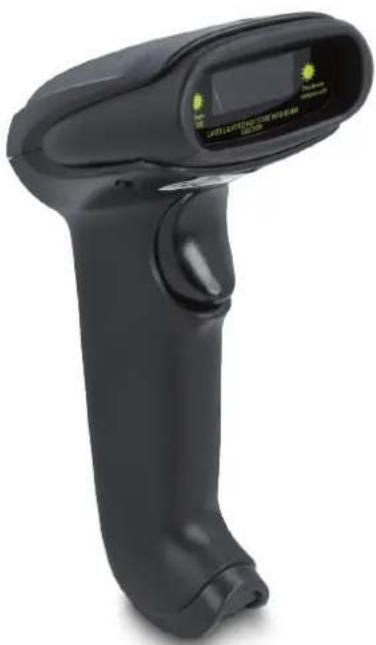
Barcode Laser Scanner 1D for 2.4 GHz, Bluetooth and USB
natural_image
Black handheld barcode scanner with digital display and control buttons (no visible text or symbols)


Product-No: 90564
User manual no:90564-a
www.delock.com
If you have further questions, please contact our customer support support@delock.de
You can find current product information on our homepage: www.delock.com
Final clause
Information and data contained in this manual are subject to change without notice in advance. Errors and misprints excepted.
Copyright
No part of this user's manual may be reproduced, or transmitted for any purpose, regardless in which way or by which means, electronically or mechanically, without explicit written approval of Delock.
Edition: 07/2022
Description
This barcode laser scanner by Delock can be connected directly to a PC or laptop. Alternatively, an adapter can be used to connect the scanner to a mobile phone or tablet. Up to 100 scans per second of all common 1D barcode types can be precisely captured, even at long distances.
Transmission via Bluetooth, USB or 2.4 GHz
The data transfer of the scanned barcodes is done either via Bluetooth directly with the Bluetooth capable output device or via the 2.4 GHz frequency band using the included USB dongle. Alternatively, the scanner can be connected to the computer with the included USB cable.
Specification
- Connector: 1 x USB 2.0 Type-B female
• Rechargeable battery: Li-Polymer battery 1800 mAh
• Decoding chip: ARM Cortex 32 Bit
• Resolution: 752 x 480 - Trigger: scan button
- Reading distance: ca. 185 mm to 300 mm
- Reading accuracy: 3 mil
- Scan type: laser class 1, 570 nm, <0,5 mW
- Scan rate: up to 100 scans per second
- Scan angle: 55^
- Input voltage: 5 V
- Current consumption:
operation: max. 100 mA standby: max. 30 mA
- Operating temperature: 0 °C \~ 50 °C
• Storage temperature: -10 °C \~ 50 °C
• Relative humidity: 5 - 95 % (non condensing) - Colour: black
• Weight: ca. 190 g
• Dimensions (LxWxH): ca. 170 x 90 x 70 mm
• Cable length without connectors: ca. 1.5 m - Scancodes:
Code 128
Code 39
Code2of5 Interleaved
EAN-8 / EAN-13
ISBN - 13
System requirements
- Android 11.0 or above
- iPad Air (2020)
- iPad Pro (2018)
• Mac OS 12.3.1 or above
• Windows 8.1/8.1-64/10/10-64/11
• PC or laptop with a free USB Type-A port
Package content
- Barcode scanner
- USB 2.4 GHz dongle
- USB charging cable
- User manual
Kurzbeschreibung
- Protect the product against moisture
- Protect the product against direct sunlight
- Do not look directly into the Laser diode of the scanner
Battery charging
You can charge the scanner's battery by using the included USB cable. For this, plug the USB Type-B connector into the scanner and the USB-A connector into a USB A female on a laptop or desktop PC.
Beep sounds
| Three short beeps Scanner is activated | |
| One short beep Bluetooth connection is established | |
| Two short beeps The scanner successfully reads a configuration barcode. | |
| Two long beeps Bluetooth connection disconnected | |
| Three short beeps a) The scanner reads a barcode although it is not connected.b) The scanner reads an unexpected barcode during configuration. (Scan [ABORT] to cancel and restart) | |
| Two long beeps Out of range / Bad connection | |
| One long beep Device switches off |
Reset scanner

Connect with Bluetooth
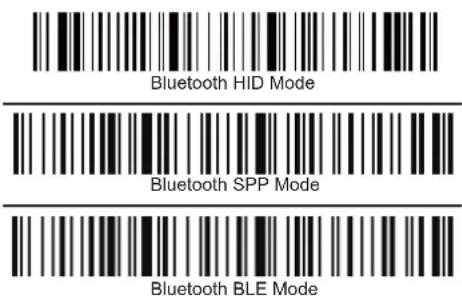
To connect the device to Bluetooth, start the scanner, press trigger for 8 seconds and scan the barcode below and turn on the Bluetooth on your smartphone, notebook or tablet.

Now connect to "Scanner HID". If the connection was successful, you will hear a short tone.
If your system does not automatically connect to Bluetooth, you need to add the Bluetooth device first.
Or alternatively, for other profiles, select the desired barcode for the Bluetooth communication protocol.
Change name of Scanner
You have the possibility to change the name of the scanner via Bluetooth.
You need to generate a name in advance using a barcode generator with the help of the barcode.
Scan the barcode below

Then scan the barcode you generated to change the name of the scanner.
If you select the code from the example below, the name of the scanner changes to "Scanner 123".

With the following barcode you can fix the name of the scanner

To change the name permanently, you need to turn off the Bluetooth completely, remove the device from the list, reconnect and add the device again.
Hide keyboard (iOS)
With the code below you can enter the menu to activate or hide the keyboard of your IOS device.

Attention: if the scanner enters the matching state and does not successfully pair with Bluetooth within 1 minute, a double tone will be displayed to indicate a mismatch and return to scan mode
Menü to pull up and hide keyboard
This code below allows you to move up and down the keyboard by pressing the button twice.

Pull twice to pull up keyboard
This code below switches the function off again.

pull twice to hide keyboard
Sound and vibration setting
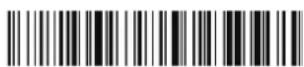
Switch off sound
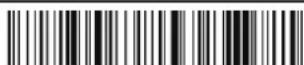
Switch on sound
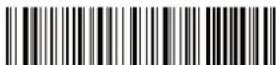
Turn on vibration
Connect via 2,4 GHz
Alternatively to Bluetooth, you can connect the scanner to your system via the 2.4 GHz frequency band.
Normally the scanner connects to the dongle automatically after it is connected to the system.
If not, please follow the instructions below.
For this, scan the dongle menu of the scanner

Connect to the dongle with the barcode below

Then plug the dongle into the USB socket provided for this purpose. If the connection was successful you will hear a beep. The blue light shines continuously Attention: if the scanner enters the matching state and does not successfully pair up within 1 minute, a double beep is displayed indicating a mismatch and returns to scan mode
Set standby time
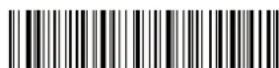
Standby after 1 minute
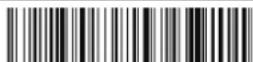
Standby after 5 minutes
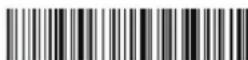
Standby after 10 minutes
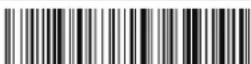
Standby after 30 minutes
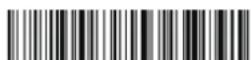
Never switch to standby mode
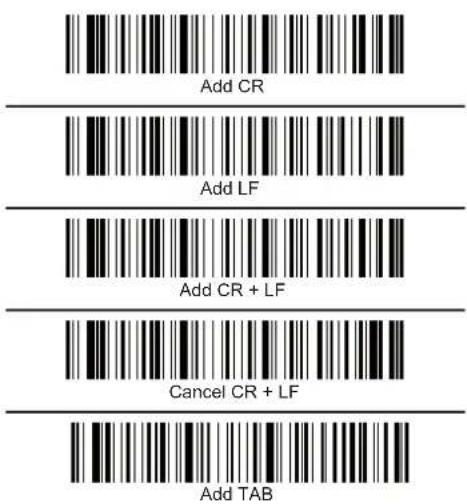
Settings End characters
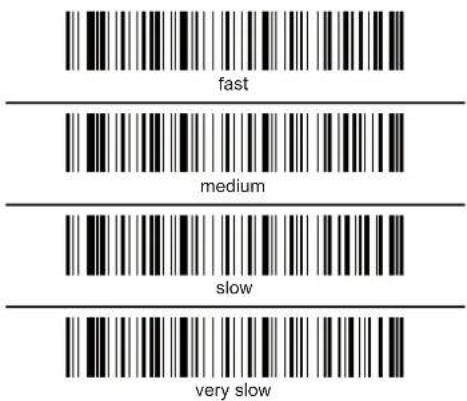
Transmission speed
Select the appropriate transmission speed according to the PC reception speed.
If not set otherwise, the scanned barcodes are displayed directly on the output device.
Data transfer via USB cable
Among the possibilities to output your data via Bluetooth or 2.4Ghz directly to the media, you have the possibility to connect the scanner to the system with a USB cable.
Usually, the scanner transfers the data directly to the output media when the cable is connected.
Data transfer from the save mode
If you are outside the transmission range to your Bluetooth device, you can save the codes directly in the scanner's memory. If the internal memory is full, you will hear three short beeps.
Use the code below for the internal storage mode.
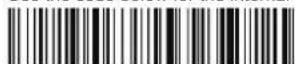
You can now upload the stored data by scanning the barcode below

Please make sure that you are in the reception area of your USB device and that an ideal connection has been established. Otherwise, please use the enclosed USB cable for data transfer.
To delete the internal memory afterwards you can use the following code

Return to normal mode
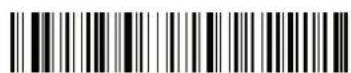
Sicherheitshinweise
| 6 | |
| 7 | |
| 8 | |
| 9 | |
| : | |
| ; | |
| < | |
| = | |
| > | |
| ? | |
| @ | |
| A | |
| B | |
| C | |
| D | |
| E | |
| F | |
| G | |
| H | |
| I | |
| J | |
| K | |
| L | |
| M | |
| N | |
| O | |
| P | |
| Q | |
| R | |
| S | |
| T | |
| U | |
| V | |
| W | |
| X | |
| Y | |
| Z | |
| [ | |
| \ | |
| ] | |
| ^ | |
| - | |
| a | |
| b | |
| c | |
| d | |
| e | |
| f | |
| g | |
| h |
| i | |
| j | |
| k | |
| l | |
| m | |
| n | |
| o | |
| p | |
| q | |
| r | |
| s | |
| t | |
| u | |
| v | |
| w | |
| x | |
| y | |
| z | |
| { | |
| l | |
| } | |
| ~ |
Hiding Pre and Post-characters
Hide pre-character

Hide post-character

Choose how many characters you want to hide.
Cancel hiding pre-characters

Cancel hiding post-characters

- Declaration of conformity
- WEEE-notice
- Battery guideline (2006/66/EC)
- Final clause
- Copyright
- Description
- Transmission via Bluetooth, USB or 2.4 GHz
- Specification
- System requirements
- Package content
- Kurzbeschreibung
- Battery charging
- Connect with Bluetooth
- Change name of Scanner
- Hide keyboard (iOS)
- Menü to pull up and hide keyboard
- Connect via 2,4 GHz
- Data transfer via USB cable
- Data transfer from the save mode
- Sicherheitshinweise
- Hiding Pre and Post-characters
Brand : DeLOCK
Model : 90564
Category : Barcode Reader