
EL5220 - Barcode Reader Elgin - Free user manual and instructions
Find the device manual for free EL5220 Elgin in PDF.


| Product Type | Wristwatch |
| Brand | Elgin |
| Model | EL5220 |
| Movement Type | Quartz |
| Case Diameter | 40 mm |
| Case Thickness | 10 mm |
| Weight | 80 g |
| Strap Material | Leather |
| Water Resistance | 30 meters (3 ATM) |
| Battery Type | SR626SW |
| Functions | Time and Date Display |
| Display Type | Analog |
| Crystal Material | Mineral Glass |
| Closure Type | Buckle |
| Warranty | 2 years |
| Care Instructions | Clean with soft cloth; avoid contact with chemicals |
| Safety Precautions | Keep away from strong magnetic fields; avoid shocks |
| Reparability | Serviceable by authorized repair centers |
Frequently Asked Questions - EL5220 Elgin
User questions about EL5220 Elgin
0 question about this device. Answer the ones you know or ask your own.
Ask a new question about this device
Download the instructions for your Barcode Reader in PDF format for free! Find your manual EL5220 - Elgin and take your electronic device back in hand. On this page are published all the documents necessary for the use of your device. EL5220 by Elgin.
USER MANUAL EL5220 Elgin
This manual is copyrighted, with all right reserved .under the copyright laws, this manual ,may not, in whole or in part, be copied, photocopied, reproduced, translated or converted to any electronic medium or machine readable form without prior written consent of maker.
Note:
Due to product improvement programs, specification and features are subject to change without prior notice.
Configuration Guide
Programming with Barcodes
The BARCODE PROGRAMMING feature gives the possibility to change scanner settings without any tools or dismounting the scanner from the check stand.
Table of contents
Change Scanner Settings....17
Factory Default Settings....18
Default Message Format....22
Programming flow chart....24
- General 25
1.1 RETURN TO FACTORY DEFAULT SETTINGS....26
1.2 FIRMWARE VERSION....26
- Scanner Functionality....27
2.1 Speaker Settings....28
BEEPER TONE 29
2.1.1 Type 1 29
2.1.2 Type 2 29
2.1.3 Type 3 30
2.1.4 Type 4 30
2.1.5 Type 5 31
BEEPER VOLUME 31
2.1.6 LOW 31
2.1.7 MIDDLE....32
2.1.8 HIGH 32
2.2 Standby Duration....33
2.2.1 DURATION MODE FOR 10 SECONDS *....34
2.2.2 DURATION MODE FOR 10 MINUTES....34
2.2.3 DURATION MODE FOR 30 MINUTES....35
2.2.4 DURATION MODE FOR 60 MINUTES....35
2.3 Scanner Timing 36
2.3.1 SAME BARCODE DELAY 300MSEC FOR 1D SYMBOL....37
2.3.2 SAME BARCODE DELAY 600MSEC FOR 1D SYMBOL....37
2.3.3 SAME BARCODE DELAY 300MSEC FOR 2D SYMBOL....38
2.3.4 SAME BARCODE DELAY 600MSEC FOR 2D SYMBOL....38
2.4 Led Illumination 39
3.3 Keyboard Wedge Interface 80
3.3.1 IBM AT, PS/2 81
3.3.2 APPLE MAC COMPATIBLES 81
3.3.3 US KEYBOARD LAYOUT * 82
3.3.4 TURKISH F KEYBOARD LAYOUT....82
3.3.5 TURKISH Q KEYBOARD LAYOUT 83
3.3.6 FRENCH KEYBOARD LAYOUT 83
3.3.7 ITALIAN KEYBOARD LAYOUT 84
3.3.8 SPANISH KEYBOARD LAYOUT....84
3.3.9 SLOVAK KEYBOARD LAYOUT 85
3.3.10 DENMARK KEYBOARD LAYOUT 85
3.3.11 JANPANESE KEYBOARD LAYOUT 86
3.3.12 GERMAN KEYBOARD LAYOUT....86
3.3.12 BELGIAN KEYBOARD LAYOUT 87
3.3.13 RUSSIAN KEYBOARD LAYOUT 87
3.3.14 CZECH KEYBOARD LAYOUT 88
3.3.15 INTER-CHARACTER DELAY 0MS....88
3.3.16 INTER-CHARACTER DELAY 5MS....89
3.3.17 INTER-CHARACTER DELAY 10 MS 89
3.3.18 ALPHABETIC KEY....90
3.3.19 NUMERIC KEYPAD....90
3.3.20 ALT+KEYPAD 91
- Decoding Parameters....92
4.1 Decoder Selection....93
4.1.1 UPC-A OFF....94
4.1.2 UPC-A ON * 94
4.1.3 UPC-A + ADD ON (2 OR 5 DIGITS)....95
4.1.4 UPC-A + ADD ON DISABLE....95
4.1.5 UPC-E OFF 96
4.1.6 UPC-E ON * 96
4.1.7 UPC-E + ADD ON (2 OR 5 DIGITS)....97
4.1.8 UPC-E + ADD ON DISABLED....97
4.1.15 EAN-13 + ADD ON (2 OR 5 DIGITS)....101
4.1.16 EAN-13 + ADD ON DISABLED 101
4.1.17 ISBN/ISSN CONVERSION ON....102
4.1.18 ISBN/ISSN CONVERSION OFF * 102
4.1.19 EAN-8 OFF....103
4.1.20 EAN-8 ON * 103
4.1.21 EAN-8+ ADD ON (2 OR 5 DIGITS)....104
4.1.22 EAN-8 + ADD ON DISABLED....104
4.1.23 CODE 39 ON *....105
4.1.24 CODE 39 OFF....105
4.1.25 CONVERT CODE 39 TO CODE 32 ON....106
4.1.26 CONVERT CODE 39 TO CODE 32 OFF *....106
4.1.27 INTERLEAVED 2 OF 5 ON *....107
4.1.28 INTERLEAVED 2/5 OFF....107
4.1.29 INDUSTRIAL 2 OF 5 (DISCRETE 2 OF 5) OFF *....108
4.1.30 INDUSTRIAL 2 OF 5 (DISCRETE 2 OF 5) ON....108
4.1.31 MATRIX 2 OF 5 OFF....109
4.1.32 MATRIX 2 OF 5 ON *....109
4.1.33 CODABAR ON * 110
4.1.34 CODABAR OFF 110
4.1.35 CODE 128 ON *....111
4.1.36 CODE 128 OFF....111
4.1.37 UCC/EAN 128 (GS1-128) OFF....112
4.1.38 UCC/EAN 128 (GS1-128) ON *....112
4.1.39 ISBT 128 OFF....113
4.1.40 ISBT 128 ON * 113
4.1.41 CODE 93 OFF....114
4.1.42 CODE 93 ON *....114
4.1.43 CODE 11 OFF *....115
4.1.44 CODE 11 ON....115
4.1.45 MSI/PLESSEY ON 116
4.1.46 MSI/PLESSEY OFF * 116
4.1.47 UK/PLESSEY OFF * 117
4.1.48 UK/PLESSEY ON 117
4.1.49CHINA POST OFF....118
4.1.50 CHINA POST ON * 118
4.1.51 CHINA FINANCE ON * 119
4.1.52 GS1 DATA BAR ON *....119
4.1.53 GS1 DATA BAR OFF....120
4.1.54 GS1 DATABAR LIMITED ON....120
4.1.55 GS1 DATABAR LIMITED OFF....121
4.1.56 GS1 DATABASE EXPANDED ON *....121
4.1.57 GS1 DATABASE EXPANDED OFF....122
4.1.58 PDF417 OFF....122
4.1.59 PDF417 ON * 123
4.1.60 MICROPDF417 OFF * 123
4.1.61 MICROPDF417 ON....124
4.1.62 QR CODE OFF....124
4.1.63 QR CODE ON * 125
4.1.64 DATA MATRIX OFF....125
4.1.65 DATA MATRIX ON *....126
4.1.66 HAN XIN CODE OFF * 126
4.1.67 HAN XIN CODE ON....127
4.1.68 AZTEC CODE OFF *....127
4.1.69 AZTEC CODE ON....128
4.1.70 CHINA FINANCE OFF 128
4.2 Decoder Configuration ..... 129
Programming Flow Chart for Minimum Length of Barcode....130
4.2.1 MIN. CODE LENGTH CODE 39 (CODE 32, TRIOPTIC CODE 39)....131
4.2.2 MIN. CODE LENGTH INTERLEAVED 2 OF 5....131
4.2.4 MIN. CODE LENGTH INDUSTRIAL 2 OF 5 (DISCRETE 2 OF 5)....132
4.2.5 MIN. CODE LENGTH MATRIX 2 OF 5....132
4.2.6 MIN.CODE LENGTH CODABAR....133
4.2.7 MIN.CODE LENGTH CODE 128....133
4.2.8 MIN. CODE LENGTH UCC/EAN 128 (GS1-128)....134
4.2.9 MIN. CODE LENGTH ISBT 128....134
4.2.10 MIN. CODE LENGTH CODE 93....135
4.2.12 MIN. CODE LENGTH CODE 11....135
4.2.13 MIN. CODE LENGTH MSI/PLESSEY....136
4.2.14 MIN. CODE LENGTH UK/PLESSEY....136
4.2.15 MIN. CODE LENGTH CHINA POST 137
4.2.16 MIN. CODE LENGTH CHINA FINANCE....137
4.2.17 MIN. CODE LENGTH DATABASE EXPANDED 138
4.2.18 LENGTH=3 138
4.2.19 LENGTH=4....139
4.2.20 LENGTH=5....139
4.2.21 LENGTH=6....140
4.2.22 LENGTH=7 140
4.2.23 LENGTH=8....141
4.2.24 LENGTH=9 141
4.2.25 LENGTH=10....142
4.2.26 LENGTH=11....142
4.2.27 LENGTH=12....143
4.2.28 LENGTH=13....143
4.2.29 LENGTH=14....144
4.2.30 LENGTH=15....144
4.2.31 LENGTH=16....145
4.3 Single type of barcode & multi-symbols read....146
4.3.1 FOLLOW RESPECTIVE 1D SYMBOL SETTING*....147
4.3.2 ALL 1D DISABLE....147
4.3.3 ALL 1D ENABLE....148
4.3.4 FOLLOW RESPECTIVE 2D SYMBOL SETTING....148
4.3.5 ALL 2D DISABLE....149
4.3.7 ONLY PDF417 ENABLE....150
4.3.8 ONLY QR CODE ENABLE....150
5. Data Formatting....154
5.1 Prefix....155
Programming sequence prefix....156
Programming flow chart prefix....158
5.1.1 PREFIX STRING SETTING....159
5.1.2 END....159
5.1.3 ENABLE PREFIX TRANSMISSION 160
5.1.4 DISABLE PREFIX TRANSMISSION*....160
5.2 SUFFIX....161
Programming sequence suffix....162
Programming flow chart suffix 164
5.2.1 SUFFIX STRING SETTING 165
5.2.2 END....165
5.2.3 ENABLE SUFFIX TRANSMISSION....166
5.2.4 DISABLE SUFFIX TRANSMISSION *....166
5.3 Code Identifiers....167
5.3.1 DISABLE CODE ID TRANSMISSION....170
(SET MESSAGE FORMAT WITHOUT CODE IDENTIFIERS)....170
5.3.2 ENABLE PROPRIETARY ID 170
5.3.3 ENABLE AIM ID 171
5.3.4 CODE ID POSITION (BEFORE CODE DATA)....171
5.3.5 CODE ID POSITION (AFTER CODE DATA)....172
Programming flow chart for setting code identifier....173
5.3.6UPCA CODE ID SETTING 174
5.3.7 UPCE CODE ID SETTING....174
5.3.8 UPCE1 CODE ID SETTING 175
5.3.9 EAN-13 CODE ID SETTING....175
5.3.10 ISBN/ISSN CODE ID SETTING....176
5.3.11 EAN-8 CODE ID SETTING....176
5.3.12 CODE 39 CODE ID SETTING....177
5.3.13 INTERLEAVED 2 OF 5 CODE ID SETTING....177
5.3.14 INDUSTRIAL 2 OF 5 (DISCRETE 2 OF 5) CODE ID SETTING....178
5.3.15 MATRIX 2 OF 5 CODE ID SETTING....178
5.3.16 CODABAR CODE ID SETTING....179
5.3.17 CODE 128 CODE ID SETTING....179
5.3.18 UCC/EAN 128 (GS1-128) CODE ID SETTING....180
5.3.19 ISBT 128 CODE ID SETTING....180
5.3.20 CODE 93 CODE ID SETTING....181
5.3.21 CODE 11 CODE ID SETTING....181
5.3.22 MSI/PLESSEY CODE ID SETTING 182
5.3.23 UK/PLESSEY CODE ID SETTING....182
5.3.24 CHINA POST CODE ID SETTING....183
5.3.25 CHINA FINANCE CODE ID SETTING....183
5.3.26 GS1 DATABAR (GS1 DATABAR TRUNCATED) CODE ID SETTING .....184
5.3.27 GS1 DATABAR LIMITED CODE ID SETTING....184
5.3.28 GS1 DATABAR EXPANDED CODE ID SETTING....185
5.3.29 END THE SETTING MODE....185
5.4 Code Representation....186
5.4.1UPCA FORMAT TRANSMITTED ASUPCA(12DIGITS)....187
5.4.2 UPCA FORMAT TRANSMITTED AS EAN13 (WITH LEADING ZERO)....187
5.4.3 UPCE FORMAT UPCE TO UPCA EXPANSION ON....188
5.4.4 UPCE FORMAT TO UPCA EXPANSION OFF....188
5.4.5 UPCE FORMAT WITH LEADING ZERO 189
5.4.6 UPCE FORMAT WITHOUT LEADING ZERO....189
5.4.8 VERIFICATION OF THE CHECK DIGIT AT UPCE OFF....190
5.4.9 VERIFICATION OF THE CHECK DIGIT AT UPCE ON 190
5.4.10 TRANSMIT UPCE WITH CHECK DIGIT OFF 191
5.4.11 TRANSMIT UPCE WITH CHECK DIGIT ON 191
5.4.12 VERIFICATION OF THE CHECK DIGIT AT UPCE1 OFF....192
5.4.13 VERIFICATION OF THE CHECK DIGIT AT UPCE1 ON....192
5.4.14 TRANSMIT UPCE1 WITH CHECK DIGIT OFF....193
5.4.15 TRANSMIT UPCE1 WITH CHECK DIGIT ON....193
5.4.16 VERIFICATION OF THE CHECK DIGIT AT EAN13 OFF....194
5.4.17 VERIFICATION OF THE CHECK DIGIT AT EAN13 ON....194
5.4.18 TRANSMIT EAN13 WITH CHECKDIGIT OFF....195
5.4.19 TRANSMIT EAN13 WITH CHECK DIGIT ON....195
5.4.20 VERIFICATION OF THE CHECK DIGIT AT EAN-8 OFF 196
5.4.21 VERIFICATION OF THE CHECK DIGIT AT EAN-8 ON 196
5.4.22 TRANSMIT EAN-8 WITH CHECKDIGIT OFF....197
5.4.23 TRANSMIT EAN-8 WITH CHECKDIGIT ON....197
5.4.24 VERIFICATION OF THE CHECK DIGIT AT CODE 39 OFF....198
5.4.25 VERIFICATION OF THE CHECK DIGIT AT CODE 39 ON....198
5.4.26 TRANSMIT CODE39 WITH CHECK DIGIT OFF....199
5.4.27 TRANSMIT CODE39 WITH CHECK DIGIT ON....199
5.4.28 VERIFICATION OF THE CHECK DIGIT AT INTERLEAVED 2/5 OFF....200
5.4.29 VERIFICATION OF THE CHECK DIGIT AT INTERLEAVED 2/5 (USS) ON.....200
5.4.30 VERIFICATION OF THE CHECK DIGIT AT INTERLEAVED 2/5 (OPCC) ON..201
5.4.31 TRANSMIT INTERLEAVED 2/5 WITH CHECK DIGIT OFF....201
5.4.32 TRANSMIT INTERLEAVED 2/5 WITH CHECK DIGIT ON....202
5.4.33 VERIFICATION OF THE CHECK DIGIT AT Matrix 2 of 5 OFF....202
5.4.34 VERIFICATION OF THE CHECK DIGIT AT Matrix 2 of 5 ON....203
5.4.35 TRANSMIT MATRIX 2 OF 5 WITH CHECK DIGIT OFF....203
5.4.36 TRANSMIT MATRIX 2 OF 5 WITH CHECK DIGIT ON....204
5.4.37 VERIFICATION OF THE CHECK DIGIT AT CODABAR OFF....204
5.4.38 VERIFICATION OF THE CHECK DIGIT AT CODABAR ON....205
5.4.39 TRANSMISSION OF THE CHECK DIGIT AT CODABAR OFF....205
5.4.40 TRANSMISSION OF THE CHECK DIGIT AT CODABAR ON....206
5.4.41 VERIFICATION OF THE CHECK DIGIT AT CODE 128 OFF....206
5.4.42 VERIFICATION OF CHECK DIGIT AT CODE 128 ON....207
5.4.43 TRANSMISSION OF CHECK DIGIT AT CDDE 128 OFF 207
5.4.44 TRANSMISSION OF CHECK DIGIT AT CDDE 128 ON....208
5.4.45 VERIFICATION OF CHECK DIGIT AT UCC/EAN128 OFF....208
5.4.46 VERIFICATION OF CHECK DIGIT AT UCC/EAN128 ON 209
5.4.47 TRANSMIT UCC/EAN128 WITH CHECKDIGIT OFF 209
5.4.48 VERIFICATION OF CHECK DIGIT AT ISBT128 OFF....210
5.4.49 VERIFICATION OF CHECK DIGIT AT ISBT128 ON....210
5.4.50 TRANSMISSION OF CHECK DIGIT AT ISBT128 OFF....211
5.4.51 VERIFICATION OF THE CHECK DIGIT AT CODE 93 OFF....211
5.4.52 VERIFICATION OF THE CHECK DIGIT AT CODE 93 ON....212
5.4.53 TRANSMISSION OF CODE 93 CHECK DIGIT OFF 212
5.4.54 TRANSMISSION OF CODE 93 CHECK DIGIT ON....213
5.4.55 VERIFICATION OF THE CHECK DIGIT AT CODE 11 OFF....213
5.4.56 VERIFICATION OF THE CHECK DIGIT AT CODE 11 ON (ONE DIGIT)....214
5.4.57 TRANSMIT CODE 11 CHECKDIGIT OFF....214
5.4.58 TRANSMIT CODE 11 CHECKDIGIT ON....215
5.4.59 VERIFICATION MSI/PLESSEY CHECK DIGIT OFF 215
5.4.60 VERIFICATION MSI/PLESSEY CHECK DIGIT ON (ONE DIGIT, MODE 10).....216
5.4.61 TRANSMISSION OF CHECK DIGIT MSI/PLESSEY OFF 216
5.4.62 TRANSMISSION OF CHECK DIGIT MSI/PLESSEY ON 217
5.4.63 VERIFICATION of UK/Plessey CHECK DIGIT OFF 217
5.4.64 VERIFICATION of UK/Plessey CHECK DIGIT ON 218
5.4.65 TRANSMISSION OF THE CHECK DIGIT AT UK/Plessey OFF....218
5.4.66 TRANSMISSION OF THE CHECK DIGIT AT UK/Plssey ON....219
5.5 G1-G4 substitution string....220
Global G1-G4 string setting selection: 221
5.5.1 Global G1-G4 string setting selection....222
Insert G1/G2/G3/G4 string setting....223
5.5.2 Insert G1 string setting....225
5.5.3 Insert G2 string setting 225
5.5.4 Insert G3 string setting....226
5.5.5 Insert G4 string setting....226
5.5.6 Insert G1 string position 227
5.5.7 Insert G2 string position 227
5.5.8 Insert G3 string position 228
5.5.9 Insert G4 string position 228
5.6 FN1 substitution string setting: 229
5.6.1 FN1 substitution string setting 230
5.6.2 FN1 substitution transmission disable 231
5.6.3 FN1 substitution transmission (keyboard wedge/USB)....231
5.6.4 FN1 substitution transmission (RS-232)....232
5.6.5 FN1 substitution transmission (Keyboard wedge/USB/RS-232)....232
5.7 Single character C1/C2 replacement: 233
5.6.1 Single character C1 replacement....235
5.6.2 Single character C2 replacement....235
5.8 String transmission 236
5.7.1 Code length transmission (disable)....237
5.7.2 Code length transmission enable....237
5.7.3 Case conversion disabled....238
5.7.4 Case conversion upper (data only) 238
5.7.5 Case conversion lower (data only) 239
5.5.14 Case conversion upper (whole string) 239
5.5.15 Case conversion lower (whole string).....240
5.5.16 Transmit the first N data characters only 240
5.5.17 Transmit the last N data characters only....241
Appendices 242
ASCII Table 243
Change Scanner Settings
In order to change the scanner settings please follow the sequence below:
- Change scanner setting by scanning any of the code 1.1 to 4.2.31. Most settings are single-scan settings without reading the open / close code. In chapter 5, part setting are multiple step, please see the steps below.
Example:
For setting “A” as prefix, the following code must be scanned successively.

flowchart
graph LR
    A["Start prefix string setting"] --> B["Read corresponding characters in ASCII sheet"]
    B --> C["Read end code"]
    C --> D["Enable prefix transmission"]
- The scanner will beep three times when it is set successfully. At any moment, you can scan the code 1.1 to return to default setting.
Factory Default Settings
| Factory Default Setting | |
| Sleep Mode | |
| Sleep mode After 10 seconds | |
| Rs232 interface | |
| Flow control None | |
| Inter-character delay 0ms | |
| Baud rate 9600 | |
| Parity bit None | |
| Data bits 8 bits | |
| Stop bits 1bit | |
| Keyboard Wedge interface | |
| Keyboard layout USB | |
| Keyboard type IBM AT,PS/2 | |
| Clock period 80 us | |
| Delay-after-compound-key 0 ms | |
| Numerix key Alphabetic key | |
| Power-on simulation | Disable |
| Inter-character delay | 0 ms |
| Inter-byte delay | 1 ms |
| Caps lock reversion | Disable |
| Caps lock override Disable | |
| USB interface | |
| USB device type HID keyboard | |
| Keyboard layout USA | |
| Inter-character delay 5ms | |
| Numeric key Alphabetic key | |
| Code type | |
| UPC-A On | |
| UPC-E On | |
| UPC-E1 On | |
| EAN-13 On | |
| EAN-8 On | |
| ISBN (Bookland EAN)/ISSN1 On | |
| Code 39 On | |
| Interleaved 2 of 5 On | |
| Industrial 2 of 5 Off | |
| Matrix 2 of 5 On | |
| Codabar On | |
| Code 128 | On |
| UCC/EAN 128 (GS1-128) | On |
| ISBT 128 | On |
| Code 93 On | |
| Code 11 Off | |
| MSI/Plessey Off | |
| UK/Plessey Off | |
| China Post On | |
| China Finance On | |
| GS1 DataBar On | |
| GS1 DataBar Truncated3 On | |
| GS1 DataBar Limited On | |
| GS1 DataBar Expanded On | |
| GS1 Composite Off | |
| PDF417 On | |
| MicroPDF417 Off | |
| DataMatrix On | |
| QR code On | |
| Han Xin Code Off | |
| Aztec Code Off | |
NOTE:
Throughout the programming barcode menus, the factory default settings are indicated with asterisks(*).
Default Message Format
| Default Message Format | |
| CODE MESSAGE FORMAT | |
| UPC-A [System character] [Data digits (10 digits)] [Check digit (1 digit)] | |
| UPC-E [System character “0”] [Data digits (6 digits)] [Check digit (1 digit)] | |
| UPC-E1 [UPC-E1] [Data digits (6 digits)] [Check digit (1 digit)] | |
| EAN-13 [Data digits (12 digits)] [Check digit (1 digit)] | |
| EAN-8 [Data digits (7 digits)] [Check digit (1 digit)] | |
| Code 39 | [Start character(*)] [Data digits (variable)] [Check digit (1 digit, optional)] [End character(*)] |
| Interleaved 2 of 5 | [Data digits (Variable)] [Check digit (1 digit, optional)] |
| Industrial 2 of 5 | [Data digits (variable)] |
| Matrix 2 of 5 | [Data digits (variable)] [Check digit (1 digit, optional)] |
| Coda bar [Start] [Data digits (variable)] [Check digit (1 digit, optional)] [End] | |
| Code 128 [Data digits (variable)] [Check digit (1 digit, optional)] | |
| UCC/EAN 128 | [Data digits (variable)] [Check digit (1 digit, optional)] |
| ISBT 128 [“=” or “&”] [Data digits (variable)] [Check digit (1 digit, optional)] | |
| Code 93 [Data digits (variable)] [Check digits (2 digits, optional)] | |
| Code 11 [Data digits (variable)] [Check digit 1 (optional)] [Check digit 2 (optional)] | |
| MSI/Plessey | [Data digits (variable)] [Check digit 1 (optional)] [Check digit 2 (optional)] |
| UK/Plessey | [Data digits (variable)] [Data digits (variable)] |
| China Post | [Data digits (11 digits)] |
| China Finance | [Data digits (10 digits)] |
| GS1 DataBar | [Data digits (16 digits)] |
| GS1 DataBar Limited | [Data digits (16 digits)] |
| GS1 DataBar Expanded | [Data characters (variable)] |
| PDF417 [Data characters (variable)] | |
| MicroPDF417 | [Data characters (variable)] |
| QR Code [Data characters (variable)] | |
| Data Matrix | [Data characters (variable)] |
| Han Xin Code | [Data characters (variable)] |
| Aztec Code | [Data characters (variable)] |
Programming Flow Chart
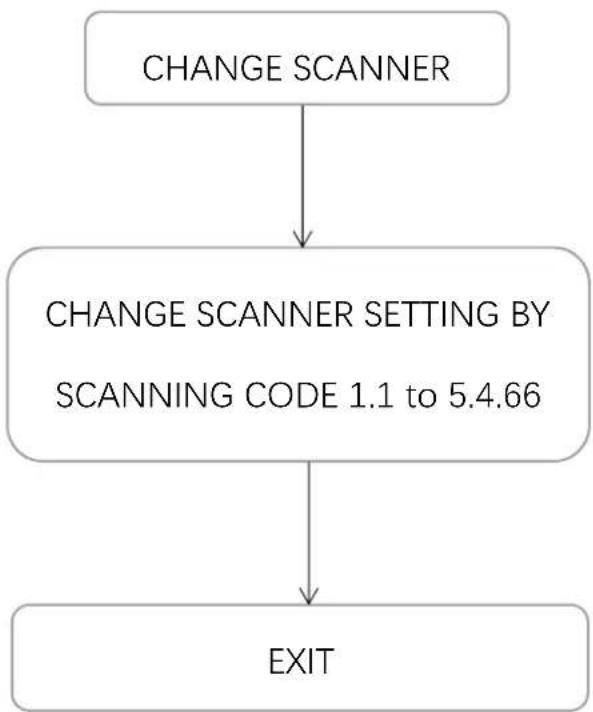
flowchart
graph TD
    A["CHANGE SCANNER"] --> B["CHANGE SCANNER SETTING BY SCANNING CODE 1.1 to 5.4.66"]
    B --> C["EXIT"]
1. General
1.1 RETURN TO ↑ACTORY DE↑AULT SETT→N←S

Use this code to return to the original factory default setting.
1.2 ↑→RMWARE VERS→ON

If you wish to display the firmware version, scan the barcode above.
2. Scanner Functionality
2.1 Speaker Settings
BEEPER TONE
2.1.1 Type 1

2.1.2 Type 2

2.1.3 Type 3
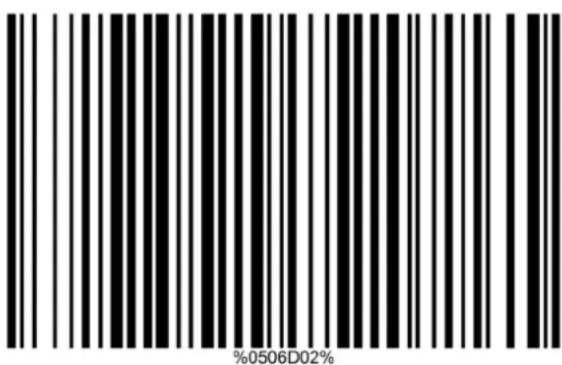
2.1.4 Type 4

2.1.5 Type 5

Note: This parameter can be adjusted for a favorite ring tone. This parameter can also be adjusted by pushing Beeper push button.
BEEPER VOLUME
2.1.6 LOW

2.1.7 M→DDLE

2.1.8 ↓→←↓

Note: This parameter can be adjusted for different level of the volume of the beeper. This parameter can also be adjusted by pushing Beeper push button.
2.2 Standby Duration
2.2.1 DURAT→ON MODE ↑OR 10 SECONDS *

2.2.2 DURAT→ON MODE ↑OR 10 M→NUTES

2.2.3 DURAT→ON MODE ↑OR 30 M→NUTES
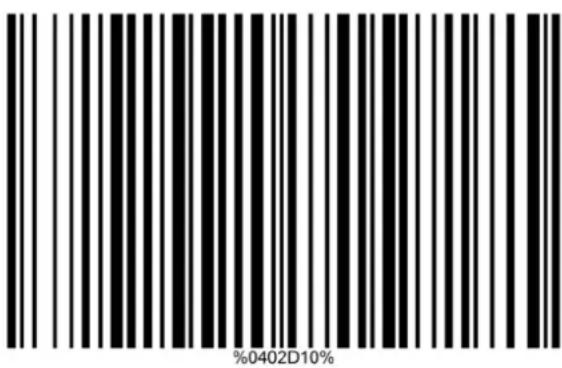
2.2.4 DURAT→ON MODE ↑OR 60 M→NUTES

2.3 Scanner Timing
2.3.1 SAME BARCODE DELAY 300MSEC ↑OR 1D SYMBOL

2.3.2 SAME BARCODE DELAY 600MSEC ↑OR 1D SYMBOL

2.3.3 SAME BARCODE DELAY 300MSEC ↑OR 2D SYMBOL

2.3.4 SAME BARCODE DELAY 600MSEC ↑OR 2D SYMBOL

2.4 Led Illumination
LED → LLUM → NAT → ON LEVEL
2.4.1 D→SABLE DECODE →LLUM→NAT→ON

2.4.2 LOW

2.4.3 M→DDLE *

%9003D02%
2.4.4 ↓→←↓

%9003D03%
DECODE → LLUM → NAT → ON
2.4.5 ALWAYS O↑↑
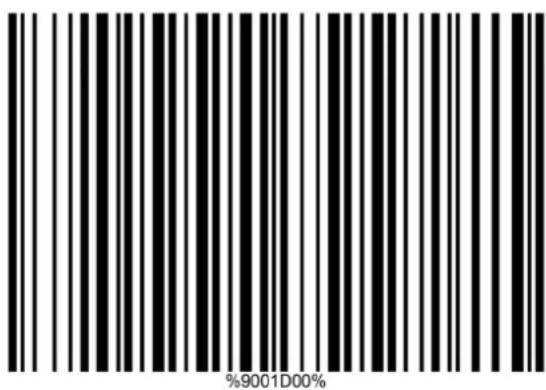
2.4.6 ALWAYS ON

2.4.7 ↑LAS↓→N←

%9001D02%
2.4.8 ALWAYS-ON W↓EN READ→N←

%9001D03%
2.5 Scan Mode
2.5.1 CONT→NUE

2.5.2 AUTO-DETECT→ON- ←OOD READ ON*
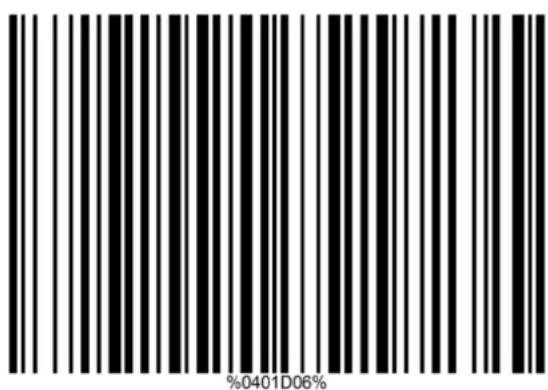
2.5.3 AUTO-DETECT→ON-←OOD READ O↑↑
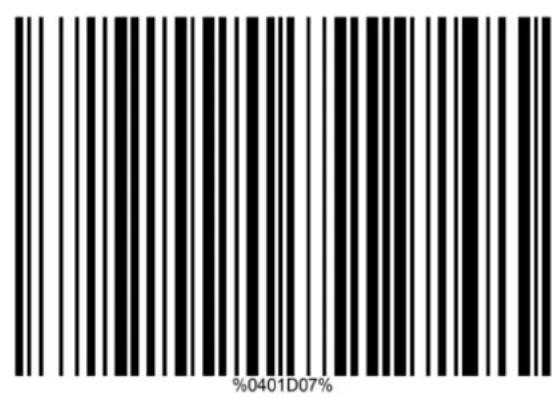
2.6 Auto-Detection Sensitivity
2.6.1 ↓→←↓

2.6.2 LOW

2.7 Character Encoding System
2.7.1 ASK→→*

2.7.2 UT↑-8
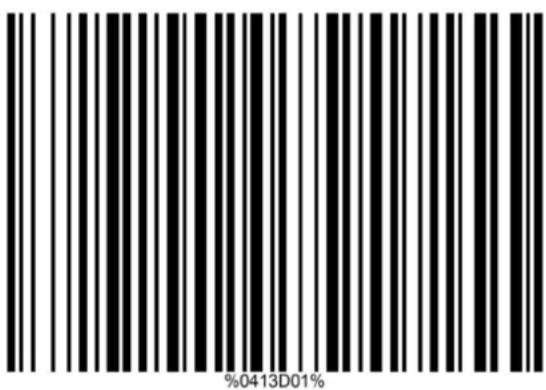
2.7.3 W→NDOWS-1251

%0413D02%
3. Communication Parameters
3.1 RS232 Interface
3.1.1 BAUD RATE 4800

3.1.2 BAUD RATE 9600 *

3.1.3 BAUD RATE 19200

3.1.4 BAUD RATE 38400

3.1.5 PAR→TY B→T NONE *

3.1.6 PAR→TY B→T EVEN
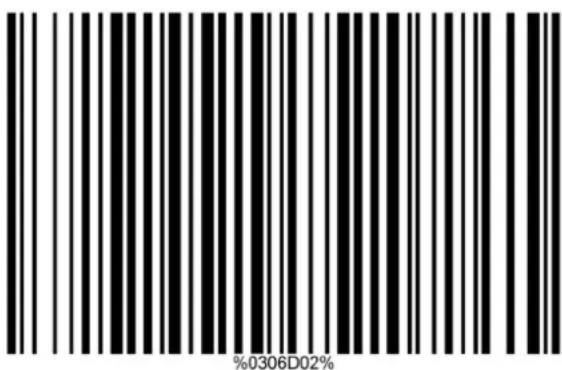
3.1.7 PAR→TY B→T ODD

3.1.8 DATA B→T (7 B→TS)
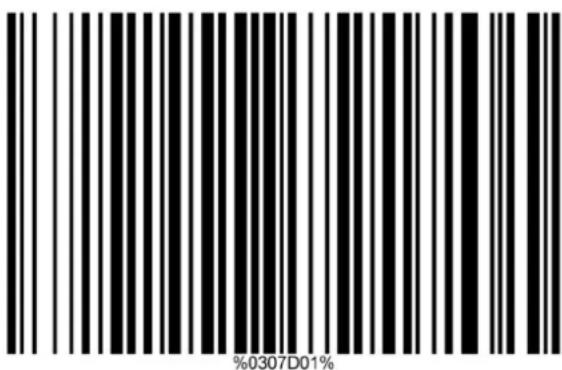
3.1.9 DATA B→T (8 B→TS) *

3.1.1 STOP B→T (ONE B→T) *

3.1.11 STOP B→TS (2 B→TS)

3.1.12 ↑LOW CONTROL
3.1.12.1 NONE *

3.1.12.2 RTS/CTS ( OST DLE: RTS)

3.1.12.3 RTS/CTS (↓OST → DLE: LOW RTS)

3.1.12.4 XON/XO↑↑

%0301D03%
3.1.12.5 ACK/NAK

%0301D04%
3.1.13.1 → NTER-C↓ARACTER DELAY (0 ms) *

%0302D00%
3.1.13.2 → NTER-C↓ARACTER DELAY (10 ms)

%0302D02%
3.1.13.3 → NTER-C↓ARACTER DELAY (20 ms)

%0302D03%
3.1.13.4 → NTER-C↓ARACTER DELAY (40 ms)

%0302D04%
3.1.13.5 → NTER-C↓ARACTER DELAY (80 ms)

3.1.14.1 RESPONSE DELAY (0 ms) *

3.1.14.2 RESPONSE DELAY

Note: This setting is multiple steps. Find and scan the value in the ASCII table, read "end" barcode at the final steps.
3.2 USB Interface
3.2.1 ↓→D KEYBOARD *

3.2.2 ↓→D KEYBOARD ↑OR APPLE MAC

3.2.3 USB V→RTUAL COM

%0901D02%
3.2.4 S→MPLE COM PORT EMULAT→ON

%0901D03%
3.2.5 US KEYBOARD LAYOUT *

3.2.6 TURK→S↓ ↑ KEYBOARD LAYOUT
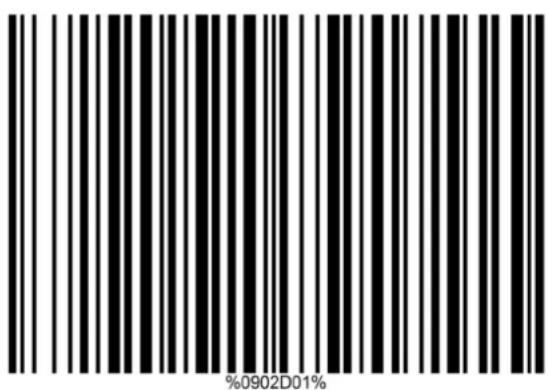
3.2.7 TURK→S↓ Q KEYBOARD LAYOUT

%0902D02%
3.2.8 ↑RENC↓ KEYBOARD LAYOUT

%0902D03%
3.2.8 → TAL → AN KEYBOARD LAYOUT
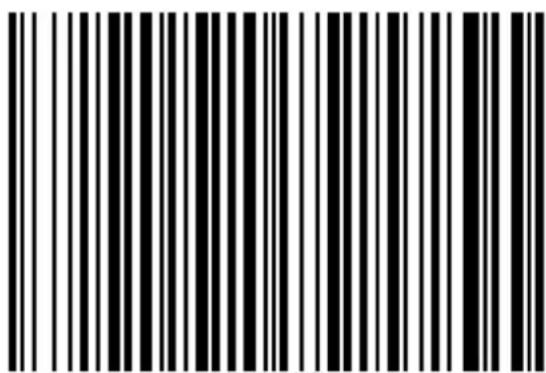
%0902D04%
3.2.9 SPA→N→S↓ KEYBOARD LAYOUT

%0902D05%
3.2.10 SLOVAK KEYBOARD LAYOUT

%0902D06%
3.2.11 DENMARK KEYBOARD LAYOUT

%0902D07%
3.2.12 JAPANESE KEYBOARD LAYOUT

%0902D08%
3.2.13 ← ERMAN KEYBOARD LAYOUT

%0902D09%
3.2.14 BEL←→AN KEYBOARD LAYOUT

%0902D10%
%0902D11%
3.2.16 CZEC↓ KEYBOARD LAYOUT

%0902D12%
3.2.10 → NTER C↓ARACTER DELAY 0 MSEC

%0903D00%
3.2.11.1 → NTER C↓ARACTER DELAY 5 MS *

3.2.11.2 → NTER-C↓ARACTER DELAY 10MS

3.2.11.3 → NTER-C↓ARACTER DELAY 20MSEC

%0903D03%
3.2.11.4 → NTER-C ↓ARACTER DELAY 40MS

%0903D04%
3.2.11.5 → NTER-C↓ARACTER DELAY 60MS

%0903D05%
3.2.12 ALP↓ABET→C KEY

%0904D00%
3.2.13 NUMER→C KEYPAD

3.2.14
3.2.14 ALT+KEYPAD

Note: The image platform will output code result as pressing Alt+ numeric key (on keypad). Note that the Num Lock control key must be ON. This setting can be specially adapted for use with different national keyboard layout.
3.3 Keyboard Wedge Interface
3.3.1 → BM AT, PS/2
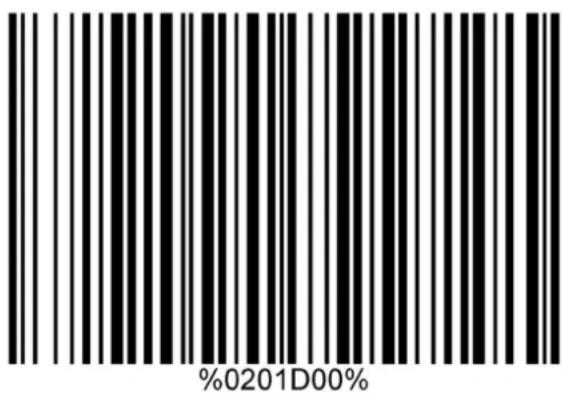
3.3.2 APPLE MAC COMPAT→BLES

3.3.3 US KEYBOARD LAYOUT *

%0202D00%
3.3.4 TURK→S↓ ↑ KEYBOARD LAYOUT

%0202D01%
3.3.5 TURK→S↓ Q KEYBOARD LAYOUT

%0202D02%
3.3.6 ↑RENC↓ KEYBOARD LAYOUT

%0202D03%
3.3.7 → TAL → AN KEYBOARD LAYOUT

%0202D04%
3.3.8 SPAN→S↓ KEYBOARD LAYOUT

%0202D05%
3.3.9 SLOVAK KEYBOARD LAYOUT

%0202D06%
3.3.10 DENMARK KEYBOARD LAYOUT

%0202D07%
3.3.11 JANPANESE KEYBOARD LAYOUT

3.3.12 ← ERMAN KEYBOARD LAYOUT
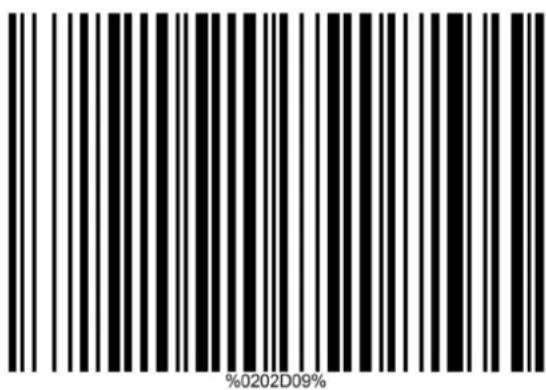
3.3.12 BEL←→AN KEYBOARD LAYOUT

%0202D10%
%0202D11%
3.3.14 CZEC↓ KEYBOARD LAYOUT

%0202D12%
3.3.15 → NTER-C↓ARACTER DELAY 0MS

%0207D00%
3.3.16 → NTER-C↓ARACTER DELAY 5MS

%0207D01%
3.3.17 → NTER-C↓ARACTER DELAY 10 MS

%0207D02%
3.3.18 ALP↓ABET→C KEY

%0205D00%
3.3.19 NUMER→C KEYPAD

%0205D01%
3.3.20 ALT+KEYPAD
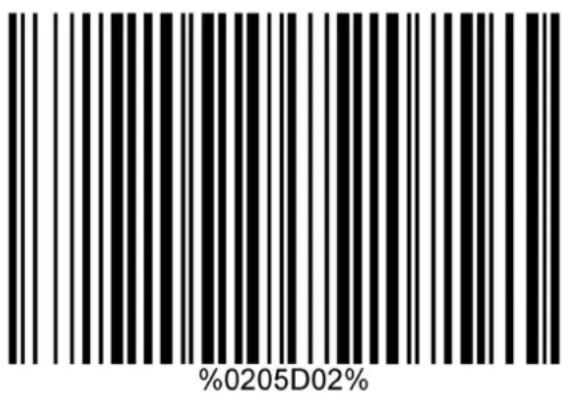
Note: The image platform will output code result as pressing Alt+ numeric key (on keypad). Note that the Num Lock control key must be ON. This setting can be specially adapted for use with different national keyboard layout.
4. Decoding Parameters
4.1 Decoder Selection
4.1.1 UPC-A O↑↑

4.1.2 UPC-A ON *

4.1.3 UPC-A + ADD ON (2 OR 5 D→←→TS)

4.1.4 UPC-A + ADD ON D→SABLE
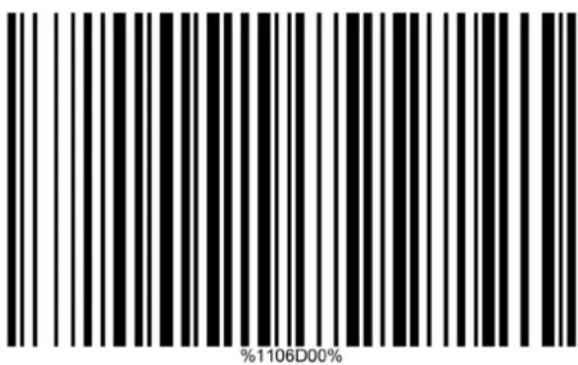
4.1.5 UPC-E O↑↑
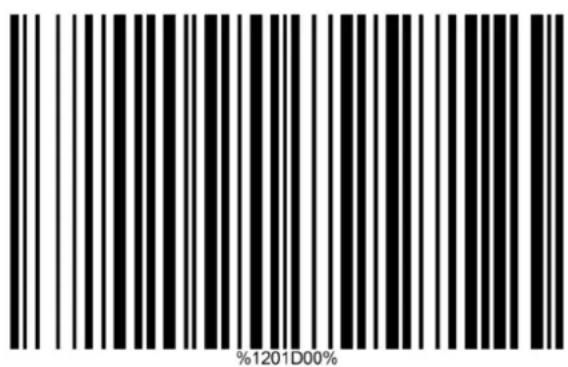
4.1.6 UPC-E ON *

4.1.7 UPC-E + ADD ON (2 OR 5 D→←→TS)
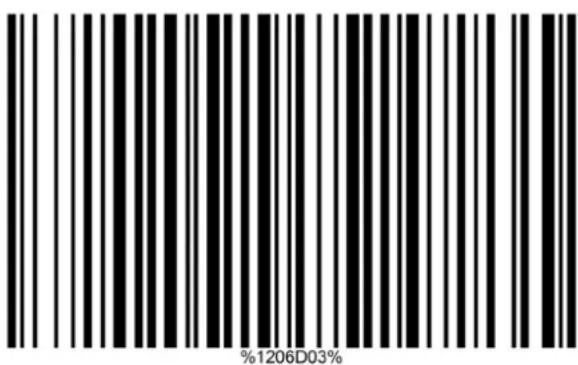
4.1.8 UPC-E + ADD ON D→SABLED
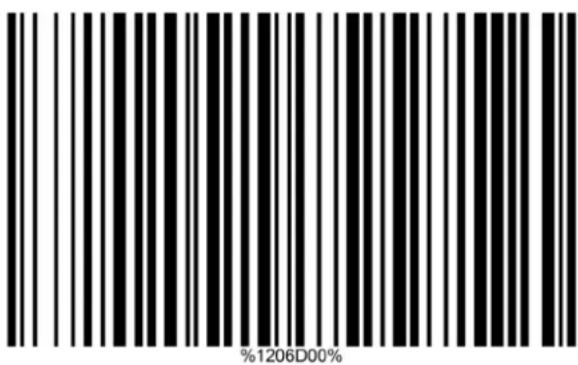
4.1.9 UPC-E1 O↑↑

4.1.10 UPC-E1 ON *

4.1.11 UPC-E + ADD ON (2 OR 5 D→←→TS)

4.1.12 UPC-E + ADD ON D→SABLED

4.1.13 EAN-13 (→SBN/→SSN) O↑↑

4.1.14 EAN-13 ( SBN/ SSN) ON *

4.1.15 EAN-13 + ADD ON (2 OR 5 D→←→TS)

4.1.16 EAN-13 + ADD ON D→SABLED

4.1.17 → SBN/→ SSN CONVERS → ON ON

4.1.18 → SBN/→ SSN CONVERS → ON O↑↑ *

4.1.19 EAN-8 O↑↑
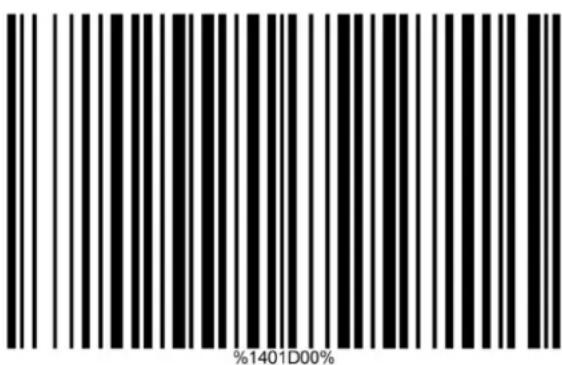
4.1.20 EAN-8 ON *
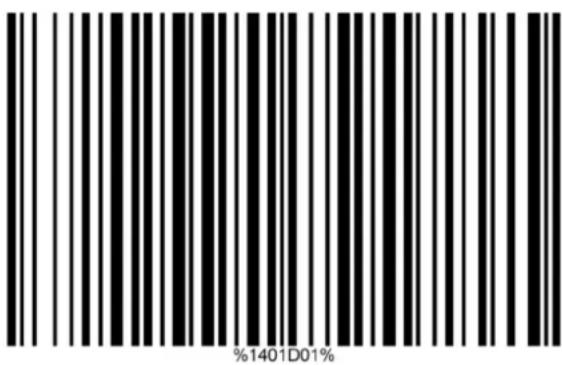
4.1.21 EAN-8+ ADD ON (2 OR 5 D→←→TS)

%1406D03%
4.1.22 EAN-8 + ADD ON D→SABLED

%1406D00%
4.1.23 CODE 39 ON *

4.1.24 CODE 39 O↑↑

4.1.25 CONVERT CODE 39 TO CODE 32 ON

4.1.26 CONVERT CODE 39 TO CODE 32 O↑↑ *

4.1.27 → NTERLEAVED 2 O↑ 5 ON *
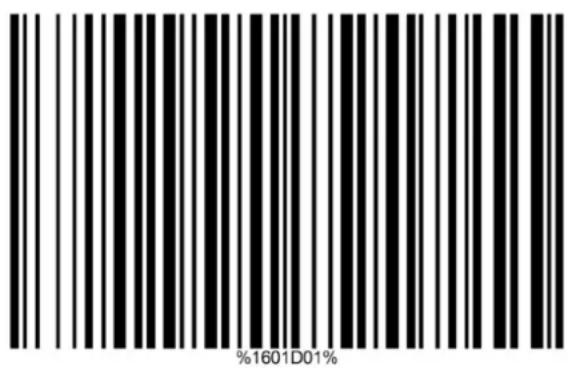
4.1.28 → NTERLEAVED 2/5 O↑↑
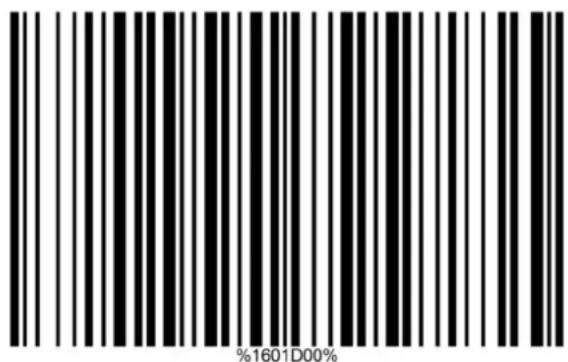
4.1.29 →NDUSTR→AL 2 O↑ 5 (D→SCRETE 2 O↑ 5) O↑↑ *

4.1.30 →NDUSTR→AL 2 O↑ 5 (D→SCRETE 2 O↑ 5) ON
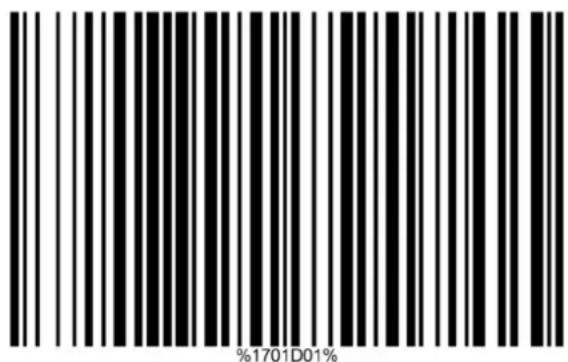
4.1.31 MATR→X 2 O↑ 5 O↑↑

4.1.32 MATR→X 2 O↑ 5 ON *

4.1.33 CODABAR ON *

4.1.34 CODABAR O↑↑

4.1.45 MS→/PLESSEY ON

4.1.46 MS→/PLESSEY O↑↑ *

4.1.47 UK/PLESSEY O↑↑ *

4.1.48 UK/PLESSEY ON

4.1.49C↓→NA POST O↑↑
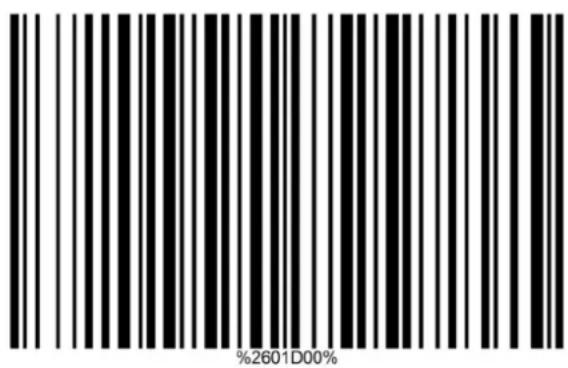
4.1.50 C↓→NA POST ON *
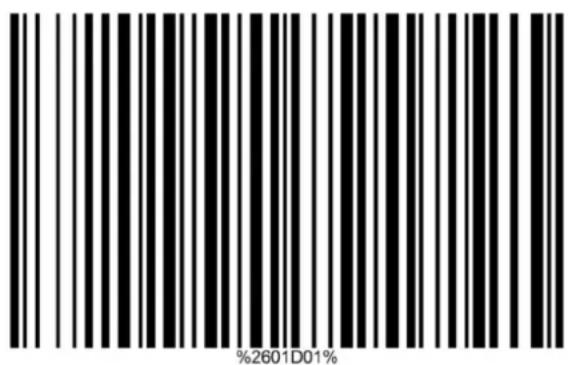
4.1.51 C↓→NA ↑→NANCE ON *

4.1.52 ← S1 DATA BAR ON *

4.1.53 ← S1 DATA BAR O↑↑

4.1.54 ← S1 DATABAR L→M→TED ON

4.1.55 ← S1 DATABASE L→M→TED O↑↑

4.1.56 ← S1 DATABAR EXPANDED ON *

4.1.57 ←S1 DATABAR EXPANDED O↑↑

4.1.58 PD↑417 O↑↑

4.1.59 PD↑417 ON *

4.1.60 M→CROPD↑417 O↑↑ *

4.1.61 M→CROPD↑417 ON
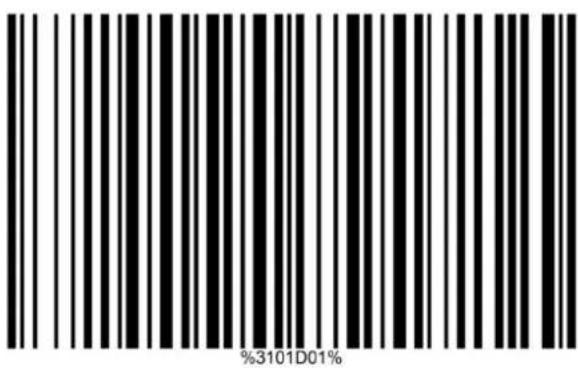
4.1.62 QR CODE O↑↑

4.1.63 QR CODE ON *

4.1.64 DATA MATR→X O↑↑
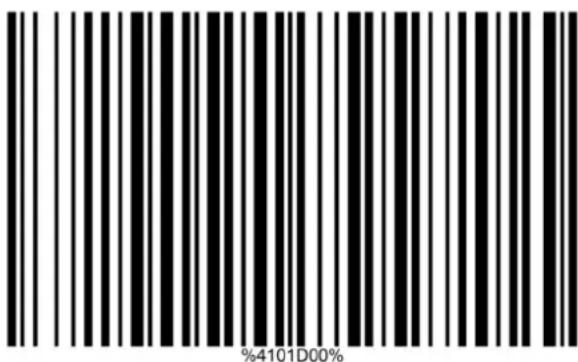
4.1.65 DATA MATR→X ON *

4.1.66 ↓AN X→N CODE O↑↑ *

4.1.67 ↓AN X→N CODE ON

4.1.68 AZTEC CODE O↑↑*
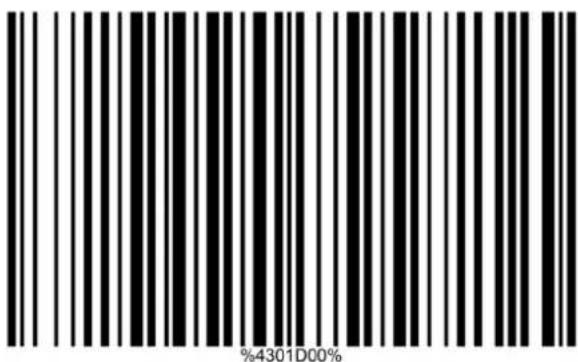
4.1.69 AZTEC CODE ON
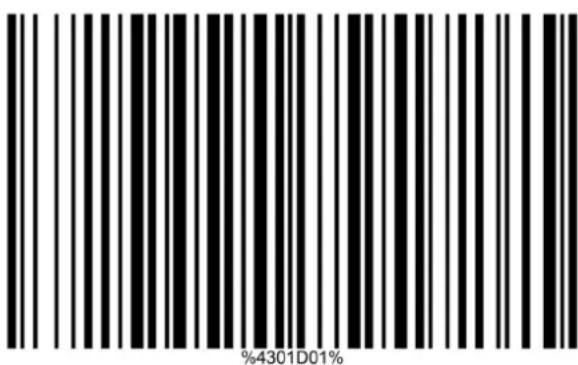
4.1.70 C↓→NA ↑→NANCE O↑↑
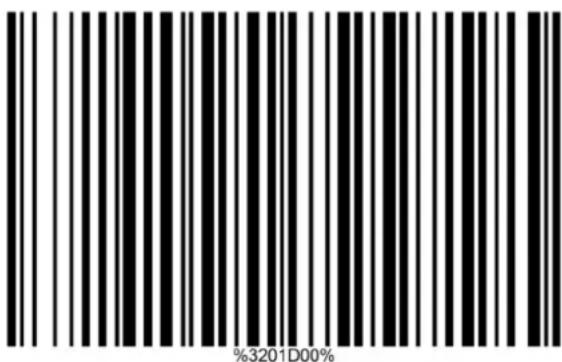
4.2 Decoder Configuration
Programming Flow Chart for Minimum
Length of Barcode
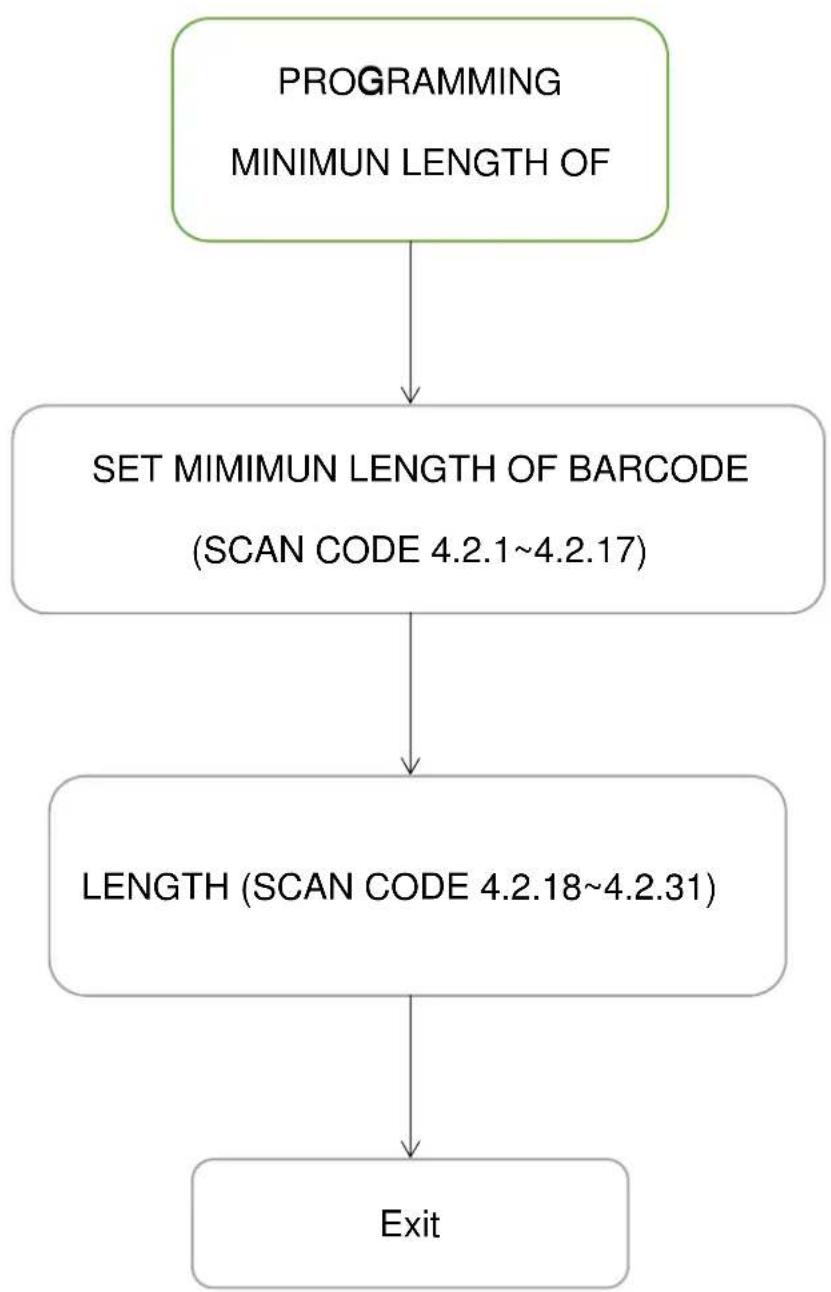
flowchart
graph TD
    A["PROGRAMMING\nMINIMUM LENGTH OF"] --> B["SET MIMIMUN LENGTH OF BARCODE\n(SCAN CODE 4.2.1~4.2.17)"]
    B --> C["LENGTH (SCAN CODE 4.2.18~4.2.31)"]
    C --> D["Exit"]
4.2.1 M→N. CODE LEN←T↓ CODE 39 (CODE 32, TR→OPT→C CODE 39)

4.2.2 M→N. CODE LEN←T↓→NTERLEAVED 2 O↑5

4.2.4 M→N. CODE LEN←T↓→NDUSTR→AL 2 O↑ 5
(D→SCRETE 2 O↑ 5)
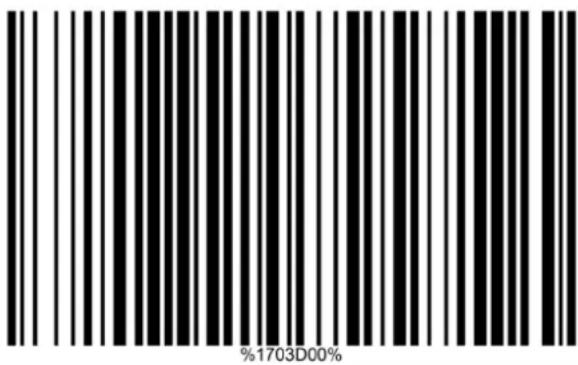
4.2.5 M→N. CODE LEN←T↓ MATR→X 2 O↑ 5

4.2.6 M→N. CODE LEN←T↓ CODABAR

4.2.7 M→N. CODE LEN←T↓ CODE 128
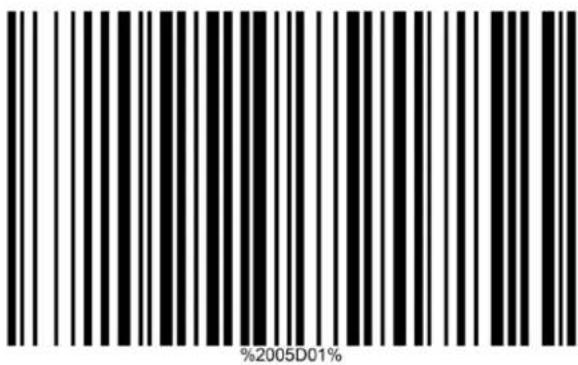
4.2.8 M→N. CODE LEN←T↓ UCC/EAN 128 (←S1-128)
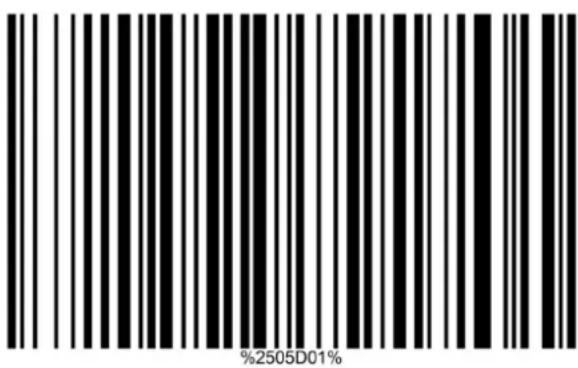
4.2.9 M→N. CODE LEN←T↓→SBT 128
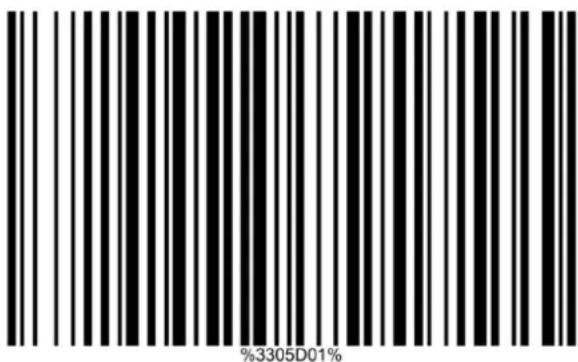
4.2.10 M→N. CODE LEN←T↓ CODE 93

4.2.12 M→N. CODE LEN←T↓ CODE 11

4.2.13 M→N. CODE LEN←T↓ MS→/PLESSEY

4.2.14 M→N. CODE LEN←T↓ UK/PLESSEY

4.2.15 M→N. CODE LEN←T↓ C↓→NA POST

4.2.16 M→N. CODE LEN←T↓ C↓→NA ↑→NANCE
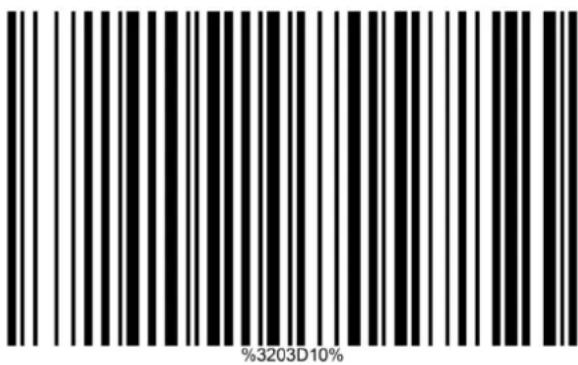
4.2.17 M→N. CODE LEN←T↓ DATABAR EXPANDED

4.2.18 LEN←T↓=3

4.2.19 LEN←T↓=4
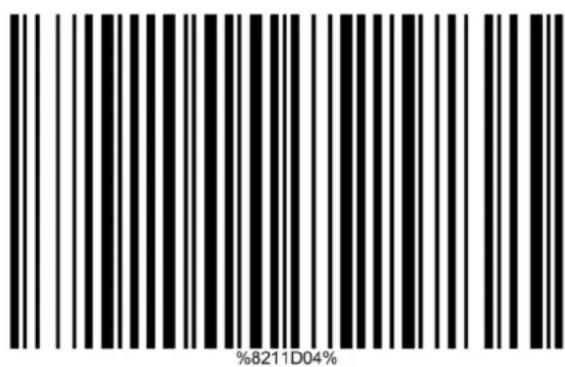
4.2.20 LEN←T↓=5

4.2.21 LEN←T↓=6
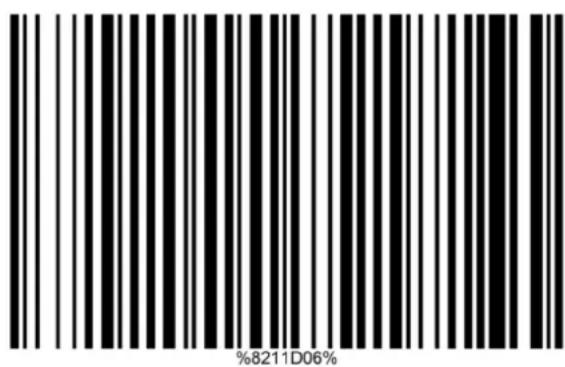
4.2.22 LEN←T↓=7
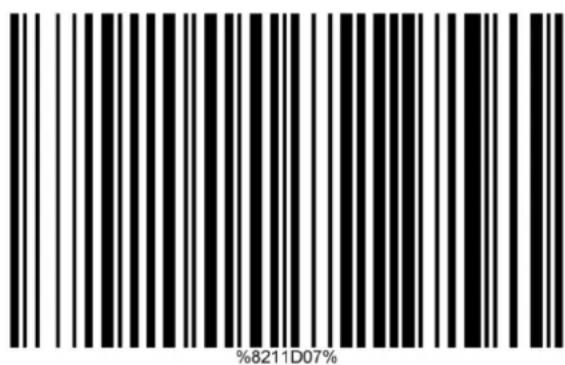
4.2.23 LEN←T↓=8

4.2.24 LEN←T↓=9

4.2.25 LEN←T↓=10
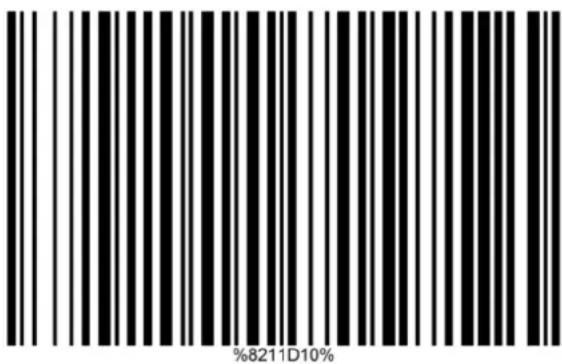
4.2.26 LEN←T↓=11

4.2.27 LEN←T↓=12
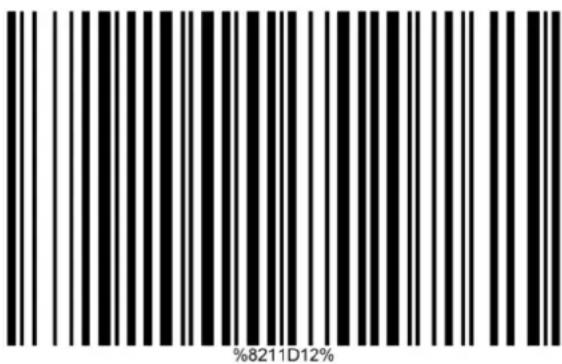
4.2.28 LEN←T↓=13

4.2.29 LEN←T↓=14

4.2.30 LEN←T↓=15

4.2.31 LEN←T↓=16
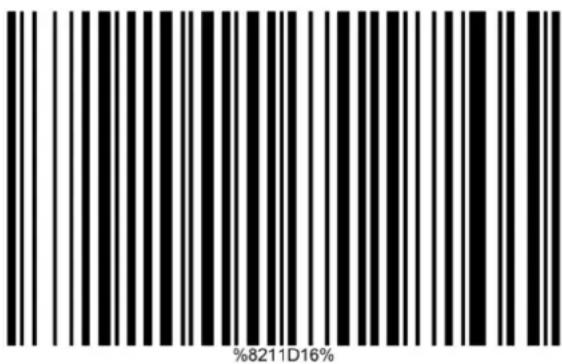
4.3 Single type of barcode & multi-symbols read
4.3.1 ↑OLLOW RESPECT→VE 1D SYMBOL SETT→N←\*

4.3.2 ALL 1D D→SABLE

4.3.3 ALL 1D ENABLE

4.3.4 ↑OLLOW RESPECT→VE 2D SYMBOL SETT→N←

4.3.5 ALL 2D D→SABLE

%1001D01%
4.3.6 ALL 2D ENABLE

%1001D02%
4.3.7 ONLY PD↑417 ENABLE

4.3.8 ONLY QR CODE ENABLE

4.3.9 ONLY DATA MATR→X ENABLE

%1001D05%
4.3.10 ONLY MAX→CODE ENABLE

%1001D06%
4.3.11 ONLY AZTEC CODE ENABLE

%1001D07%
4.3.12 ONLY ↓AN X→N CODE ENABLE

%1001D08%
4.3.13 MULT→-SYMBOLS READ D→SABLE*

%1003D00%
4.3.14 MULT→-SYMBOLS READ ENABLE

%1003D01%
5. Data Formatting
5.1 Prefix
Programming sequence prefix
The scanner can be programmed to output bar code data according to the following format:
[PREFIX] [CODE NAME] [PREAMBLE] [CODE ID] [CODE LENGTH] [CODE DATA] [CODE ID] [POSTAMBLE] [SUFFIX]
The prefix is limited to a maximum length of 22 characters. Use the chart on the next page to program the prefix string.
Example:
To send a
5.1.1. Start the prefix string setting.
Find corresponding characters in ASCII sheet in appendix to read disassembled digit or characters.
Eg. ASCII “A” = “41”, ASCII “B” = “42”, ASCII “A” = “43”

flowchart
graph TD
    A["A"] --> 4["4"]
    A --> 1["1"]

flowchart
graph TD
    B["B"] --> 4["4"]
    B --> 2["2"]
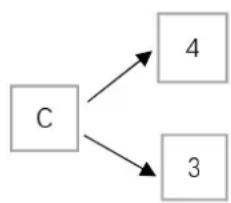
flowchart
graph TD
    C["C"] --> 4["4"]
    C --> 3["3"]
5.1.2 Scan the barcode to end the settings.
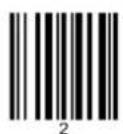
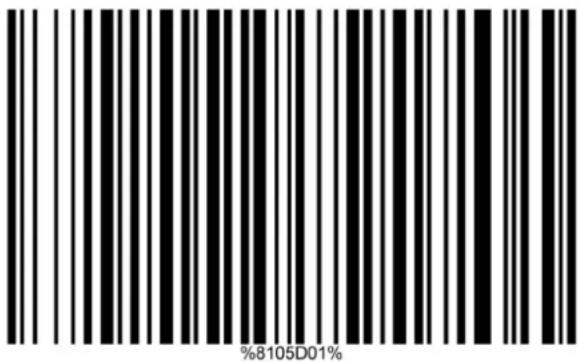
5.1.3 Enable the prefix transmission
Please scan the barcode below successively:






Programming flow chart prefix
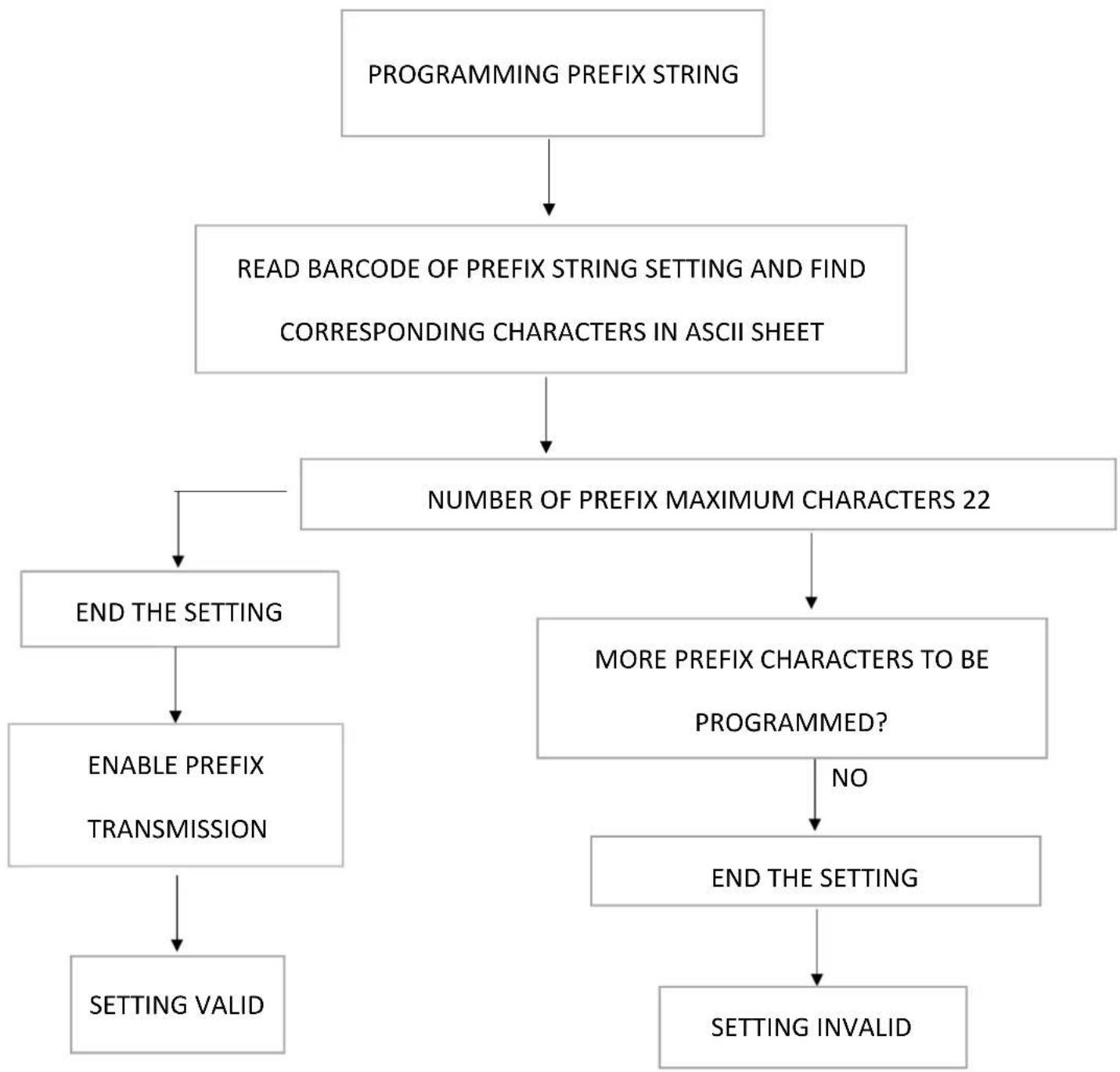
flowchart
graph TD
    A["PROGRAMMING PREFIX STRING"] --> B["READ BARCODE OF PREFIX STRING SETTING AND FIND CORRESPONDING CHARACTERS IN ASCII SHEET"]
    B --> C["NUMBER OF PREFIX MAXIMUM CHARACTERS 22"]
    C --> D["END THE SETTING"]
    C --> E["MORE PREFIX CHARACTERS TO BE PROGRAMMED?"]
    D --> F["ENABLE PREFIX TRANSMISSION"]
    F --> G["SETTING VALID"]
    E --> H["NO"]
    H --> I["END THE SETTING"]
    I --> J["SETTING INVALID"]
5.1.1 PRE↑→X STR→N← SETT→N←

%8001M%
5.1.2 END

%END%
5.1.3 ENABLE PRE↑→X TRANSM→SS→ON

%8201D01%
5.1.4 D→SABLE PRE↑→X TRANSM→SS→ON*

%8201D00%
5.2 SUFFIX
Programming sequence suffix
The scanner can be programmed to output bar code data according to following format:
[PREFIX] [CODE NAME] [PREAMBLE] [CODE ID] [CODE LENGTH] [CODE DATA] [CODE ID] [POSTAMBLE] [SUFFIX]
The suffix string is limited to a maximum length of 22 characters. Use the chart on the next page to program the suffix string.
Example:
To send a
Find corresponding characters in ASCII sheet in appendix to read disassembled digit or characters.
ASCII "D"="44", ASCII "E"="45", ASCII "F"="46"
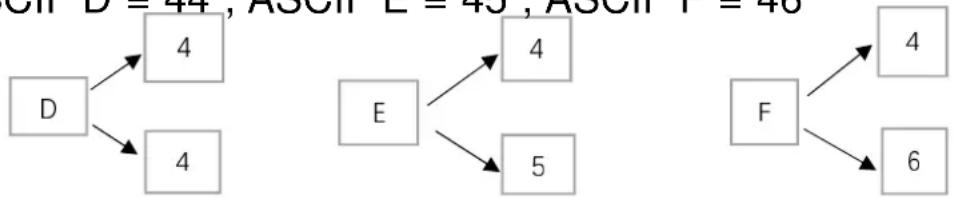
flowchart
graph TD
    D --> 4
    D --> 4
    E --> 4
    E --> 5
    F --> 4
    F --> 6
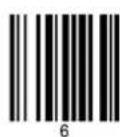
5.2.2 Scan the barcode to end the settings.
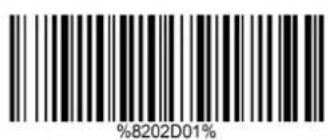
5.2.3 Enable the suffix transmission.
Please scan the barcode below successively:


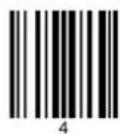

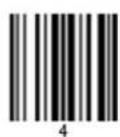

Programming flow chart suffix

flowchart
graph TD
    A["PROGRAMMING SUFFIX STRING"] --> B["READ BARCODE OF SUFFIX STRING SETTING AND FIND CORRESPONDING CHARACTERS IN ASCII SHEET"]
    B --> C["NUMBER OF SUFFIX MAXIMUM CHARACTERS 22"]
    C --> D["END the setting"]
    C --> E["MORE SUFFIX CHARACTERS TO BE PROGRAMMED?"]
    D --> F["ENABLE SUFFIX TRANSMISSION"]
    E --> G["NO"]
    F --> H["SETTING VALID"]
    G --> I["SAVE PROGRAMMED DATA?"]
    I --> J["SETTING INVALID"]
    H --> K["Setting valid"]
5.2.1 SU↑↑→X STR→N← SETT→N←

%8002M%
5.2.2 END

%END%
5.2.3 ENABLE SU↑↑→X TRANSM→SS→ON

%8202D01%
5.2.4 D→SABLE SU↑↑→X TRANSM→SS→ON *

%8202D00%
5.3 Code Identifiers
Code ID is a one-or-two-character string used to represent the symbol upon a succeeding reading. If you want application to transmit Code ID, you must set Code ID transmission to be enabled.
| Code type Proprietary AIM | ||
| UPC-A A ]Em | ||
| UPC-E D ]Em | ||
| UPC-E1 D ]X0 | ||
| EAN-13 A ]Em | ||
| EAN-8 C ]E4 | ||
| ISBN (Bookland EAN)/ISSN ^1 B ]Em | ||
| Code 39 M ]Am | ||
| Interleaved 2 of 5 I | ]lm | |
| Industrial 2 of 5 | H ]S0 | |
| Matrix 2 of 5 | X | ]X0 |
| Codabar | N ]Fm | |
| Code 128 | K ]Cm | |
| UCC/EAN 128 (GS1-128) | K ]Cm | |
| ISBT 128Code 93 L ]Gm | K ]Cm | |
| Code 11 V ]H3 | ||
| MSI/Plessey O ]Mm | ||
| UK/Plessey U ]Mm | ||
| China Post T ]Im | ||
| China Finance Y - | ||
| GS1 DataBar R ]em | ||
| GS1 DataBar Truncated ^8 R ]em | ||
| GS1 DataBar Limited | R ]em | |
| GS1 DataBar Expanded | R ]em | |
| GS1 Composite | Y | ]em |
| PDF417 | R ]Lm | |
| MicroPDF417 | P | ]Lm |
| DataMatrix | W | ]dm |
| QR code | S | ]Qm |
| Han Xin Code | C | ]X0 |
| Aztec Code | Z | ]zm |
5.3.1 D→SABLE CODE →D TRANSM→SS→ON
(SET MESSA←E ↑ORMAT W→T↓OUT CODE
→DENT→↑→ERS)

5.3.2 ENABLE PROPR→ETARY →D

5.3.3 ENABLE A→M→D

5.3.4 CODE →D POS→T→ON (BE↑ORE CODE DATA)

5.3.5 CODE →D POS→T→ON (A↑TER CODE DATA)
Programming flow chart for setting code identifier

flowchart
graph TD
    A["PROGRAMMING CODE IDENTIFIER"] --> B["SET IDENTIFIER OF BAR CODE.<br>READ BARCODE FROM 5.3.6 TO 5.3.27"]
    B --> C["FIND CORRESPONDING CHARACTERS IN<br>ASCII CODE"]
    C --> D["READ 5.3.28 BARCODE OF END<br>SETTING MODE WITH UPDATE"]
5.3.6 UPCA CODE →D SETT→N←

%1104M%
5.3.7 UPCE CODE →D SETT→N←

%1204M%
5.3.8 UPCE1 CODE →D SETT→N←

5.3.9 EAN-13 CODE →D SETT→N←

5.3.10 → SBN/→ SSN CODE → D SETT→ N←

%1309M%
5.3.11 EAN-8 CODE →D SETT→N←

%1404M%
5.3.12 CODE 39 CODE →D SETT→N←
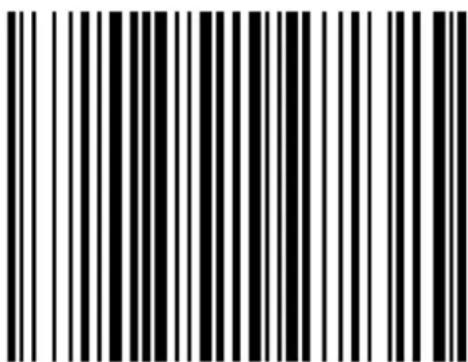
%1506M%
5.3.13 → NTERLEAVED 2 O↑ 5 CODE → D SETT→N←

%1606M%
5.3.14 →NDUSTR→AL 2 O↑ 5 (D→SCRETE 2 O↑ 5) CODE →D
SETT→N←

5.3.15 MATR→X 2 O↑ 5 CODE →D SETT→N←

5.3.16 CODABAR CODE →D SETT→N←

5.3.17 CODE 128 CODE →D SETT→N←
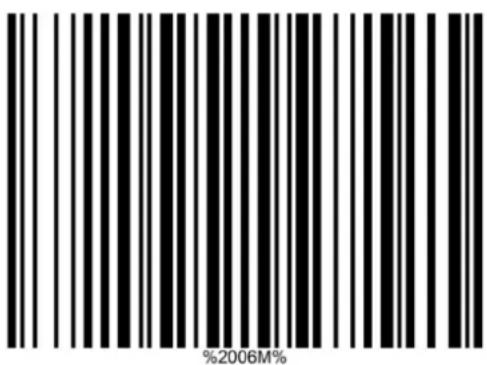
5.3.18 UCC/EAN 128 (←S1-128)CODE →D SETT→N←

5.3.19 →SBT 128 CODE →D SETT→N←

5.3.20 CODE 93 CODE →D SETT→N←

5.3.21 CODE 11 CODE →D SETT→N←
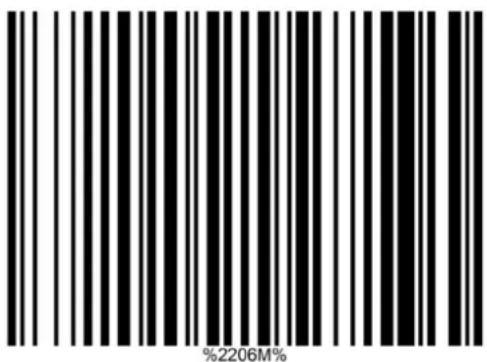
5.3.22 MS→/PLESSEY CODE →D SETT→N←

5.3.23 UK/PLESSEY CODE →D SETT→N←
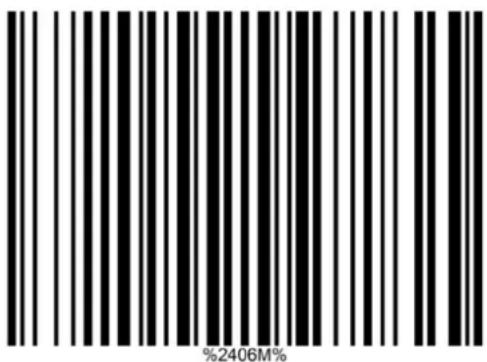
5.3.24 C↓→NA POST CODE →D SETT→N←

5.3.25 C↓→NA ↑→NANCE CODE →D SETT→N←
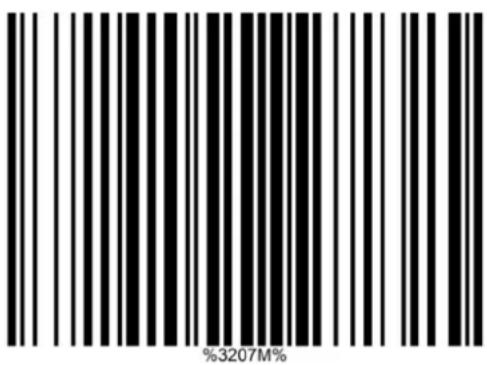
5.3.26 ← S1 DATABAR (← S1 DATABAR TRUNCATED)
CODE →D SETT→N←
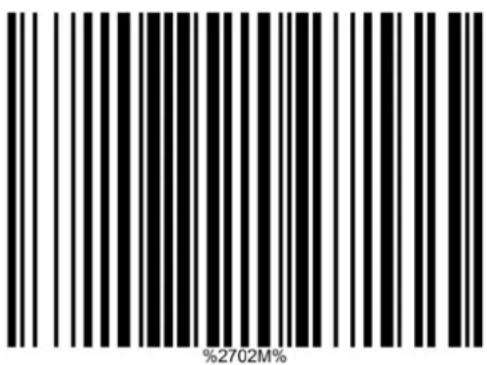
5.3.27 ← S1 DATABAR L→M→TED CODE →D SETT→N←

5.3.28 ← S1 DATABAR EXPANDED CODE →D SETT→N←

5.3.29 END T↓E SETT→N← MODE

5.4 Code Representation
5.4.1 UPCA ↑ORMAT TRANSM→TTED AS UPCA (12
D→←→TS)

5.4.2 UPCA ↑ORMAT TRANSM→TTED AS EAN13 (W→T↓)
LEAD→N←ZERO)

5.4.3 UPCE ↑ORMAT UPCE TO UPCA EXPANS→ON ON

5.4.4 UPCE ↑ORMAT TO UPCA EXPANS→ON O↑↑

5.4.5 UPCE ↑ORMAT W→T↓ LEAD→N← ZERO
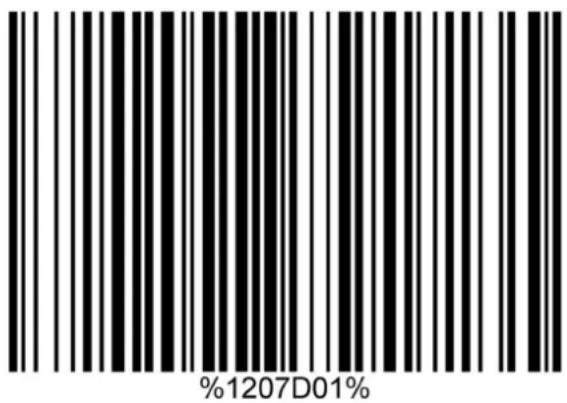
5.4.6 UPCE ↑ORMAT W→T↓OUT LEAD→N←ZERO

5.4.8 VER→↑→CAT→ON O↑ T↓E C↓ECK D→←→T AT UPCE
O↑↑

5.4.9 VER→↑→CAT→ON O↑ T↓E C↓ECK D→←→T AT UPCE ON

5.4.10 TRANSM→T UPCE W→T↓ C↓ECK D→←→T O↑↑
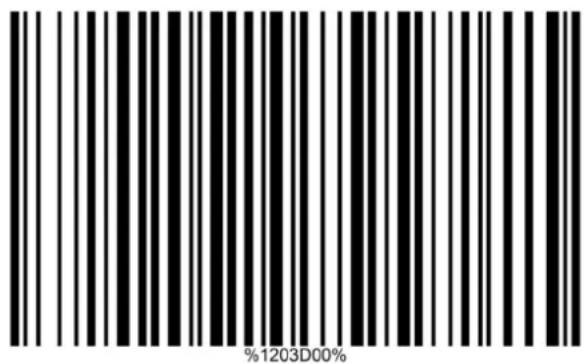
5.4.11 TRANSM→T UPCE W→T↓ C↓ECK D→←→T ON

5.4.12 VER→↑→CAT→ON O↑ T↓E C↓ECK D→←→T AT UPCE1
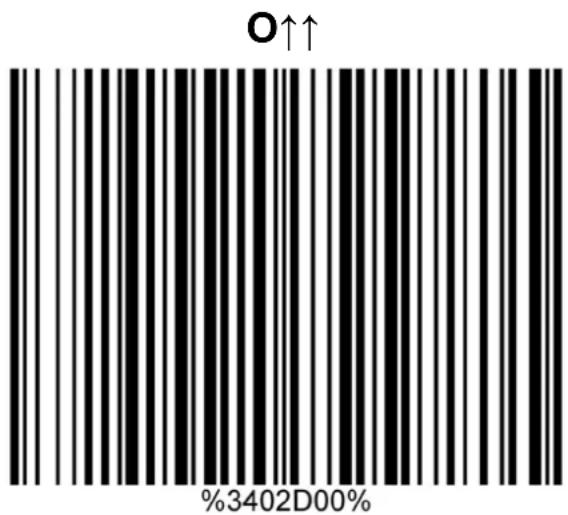
5.4.13 VER→↑→CAT→ON O↑ T↓E C↓ECK D→←→T AT UPCE1
ON

%3402D01%
5.4.14 TRANSM→T UPCE1 W→T↓ C↓ECK D→←→T O↑↑

5.4.15 TRANSM→T UPCE1 W→T↓ C↓ECK D→←→T ON
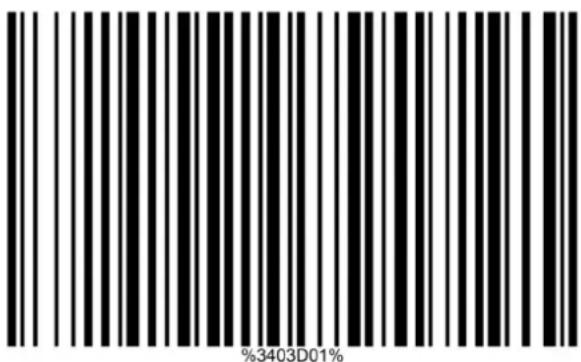
5.4.16 VER→↑→CAT→ON O↑ T↓E C↓ECK D→←→T AT EAN13

5.4.17 VERI→↑→CAT→ON O↑ T↓E C↓ECK D→←→T AT EAN13

5.4.18 TRANSM→T EAN13 W→T↓ C↓ECKD→←→T O↑↑
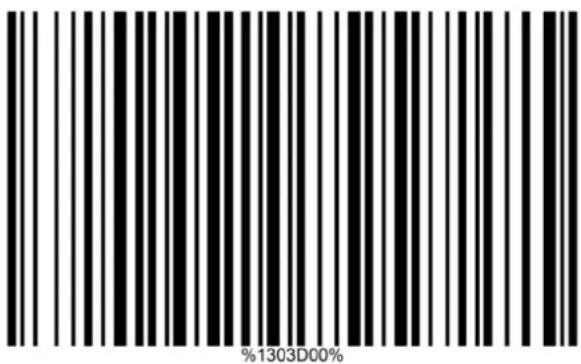
5.4.19 TRANSMI→T EAN13 W→T↓ C↓ECK D→←→T ON
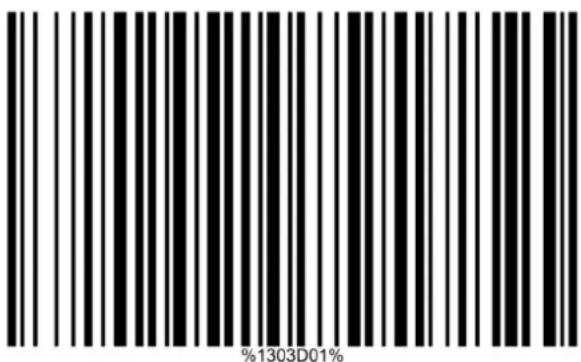
5.4.20 VER→↑→CAT→ON O↑ T↓E C↓ECK D→←→T AT EAN-8

5.4.21 VER→↑→CAT→ON O↑ T↓E C↓ECK D→←→T AT EAN-8
ON

5.4.22 TRANSM→T EAN-8 W→T↓ C↓ECKD→←→T O↑↑
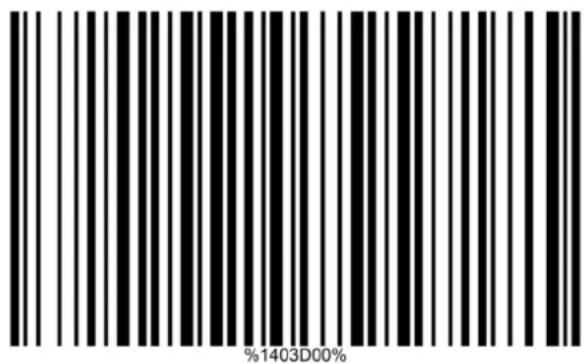
5.4.23 TRANSM→T EAN-8 W→T↓ C↓ECKD→←→T ON

5.4.24 VER→↑→CAT→ON O↑ T↓E C↓ECK D→←→T AT CODE

5.4.25 VER→↑→CAT→ON O↑ T↓E C↓ECK D→←→T AT CODE

5.4.26 TRANSM→T CODE39 W→T↓ C↓ECK D→←→T O↑↑

5.4.27 TRANSM→T CODE39 W→T↓ C↓ECK D→←→T ON
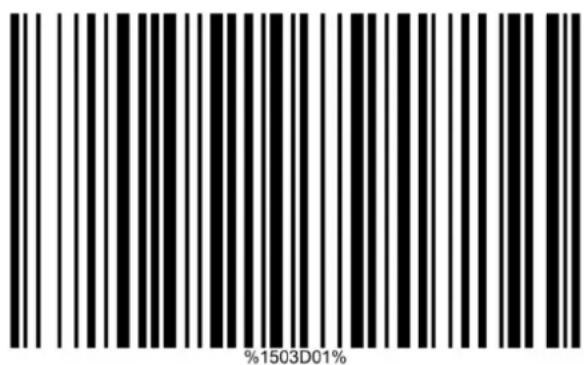
5.4.28 VER→↑→CAT→ON O↑ T↓E C↓ECK D→←→T AT
→NTERLEAVED 2/5 O↑↑

5.4.29 VER→↑→CAT→ON O↑ T↓E C↓ECK D→←→T AT
→NTERLEAVED 2/5 (USS) ON

5.4.30 VER→↑→CAT→ON O↑ T↓E C↓ECK D→←→T AT
→NTERLEAVED 2/5 (QPCC) ON

5.4.31 TRANSM→T → NTERLEAVED 2/5 W→T↓ C↓ECK
D→←→T O↑↑

5.4.32 TRANSM→T → NTERLEAVED 2/5 W→T↓ C↓ECK
D→←→T ON

5.4.33 VER→↑→CAT→ON O↑ T↓E C↓ECK D→←→T AT Matrix
2 of 5 O↑↑

5.4.34 VER→↑→CAT→ON O↑ T↓E C↓ECK D→←→T AT Matrix
2 of 5 ON

5.4.35 TRANSM→T MATR→X 2 O↑ 5 W→T↓ C↓ECK D→←→T

5.4.36 TRANSM→T MATR→X 2 O↑ 5 W→T↓ C↓ECK D→←→T
ON
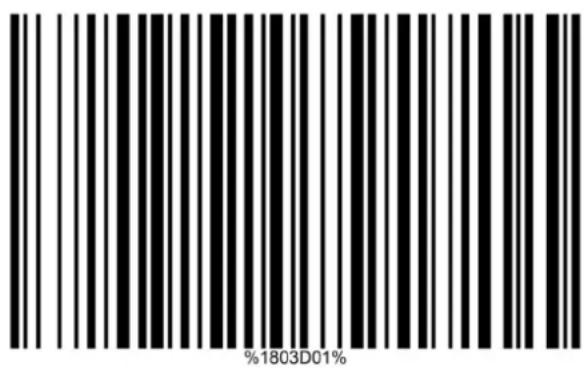
5.4.37 VER→↑→CAT→ON O↑ T↓E C↓ECK D→←→T AT
CODABAR O↑↑

5.4.38 VER→↑→CAT→ON O↑ T↓E C↓ECK D→←→T AT
CODABAR ON

5.4.39 TRANSM→SS→ON O↑ T↓E C↓ECK D→←→T AT
CODABAR O↑↑

5.4.40 TRANSM→SS→ON O↑ T↓E C↓ECK D→←→T AT
CODABAR ON
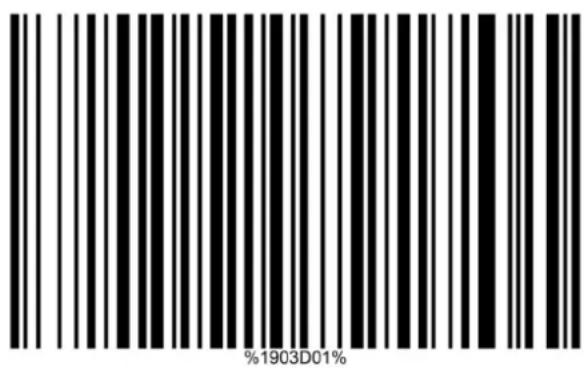
5.4.41 VER→↑→CAT→ON O↑ T↓E C↓ECK D→←→T AT CODE
128 O↑↑
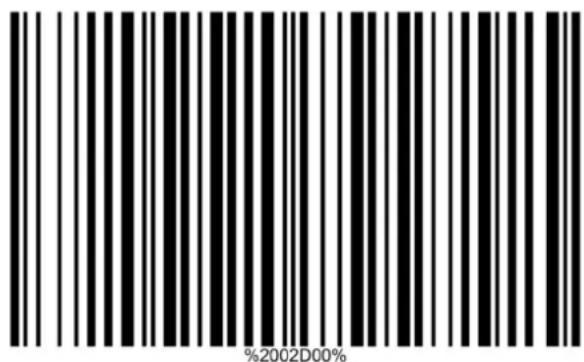
5.4.42 VER→↑→CAT→ON O↑ C↓ECK D→←→T AT CODE 128
ON

5.4.43 TRANSM→SS→ON O↑ C↓ECK D→←→T AT CDDE 128

5.4.44 TRANSM→SS→ON O↑ C↓ECK D→←→T AT CDDE 128

5.4.45 VER→↑→CAT→ON O↑ C↓ECK D→←→T AT
UCC/EAN128 O↑↑

%2502D00%
5.4.46 VER→↑→CAT→ON O↑ C↓ECK D→←→T AT
UCC/EAN128 ON

5.4.47 TRANSM→T UCC/EAN128 W→T↓ C↓ECKD→←→T

5.4.48 VER→↑→CAT→ON O↑ C↓ECK D→←→T AT →SBT128
O↑↑

%3302D00%
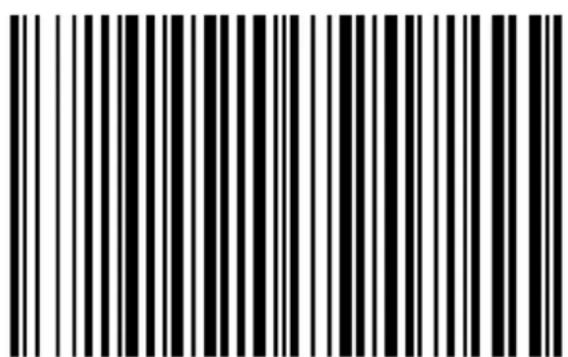
5.4.49 VER→↑→CAT→ON O↑ C↓ECK D→←→T AT →SBT128 ON
%3302D01%
5.4.50 TRANSM→SS→ON O↑ C↓ECK D→←→T AT →SBT128

5.4.51 VER→↑→CAT→ON O↑ T↓E C↓ECK D→←→T AT CODE

5.4.52 VER→↑→CAT→ON O↑ T↓E C↓ECK D→←→T AT CODE
93 ON

5.4.53 TRANSM→SS→ON O↑ CODE 93 C↓ECK D→←→T O↑↑

5.4.54 TRANSM→SS→ON O↑ CODE 93 C↓ECK D→←→T ON

5.4.55 VER→↑→CAT→ON O↑ T↓E C↓ECK D→←→T AT CODE

5.4.56 VER→↑→CAT→ON O↑ T↓E C↓ECK D→←→T AT CODE
11 ON ( ONE D→←→T)

5.4.57 TRANSM→T CODE 11 C↓ECKD→←→T O↑↑

5.4.58 TRANSM→T CODE 11 C↓ECKD→←→T ON
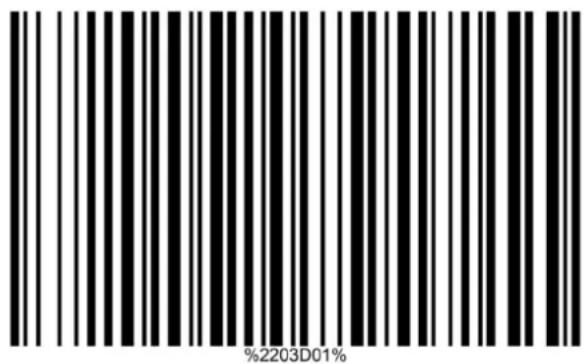
5.4.59 VER→↑→CAT→ON MS→/PLESSEY C↓ECK D→←→T O↑↑

5.4.60 VER→↑→CAT→ON MS→/PLESSEY C↓ECK D→←→T ON
(ONE D→←→T, MODE 10)
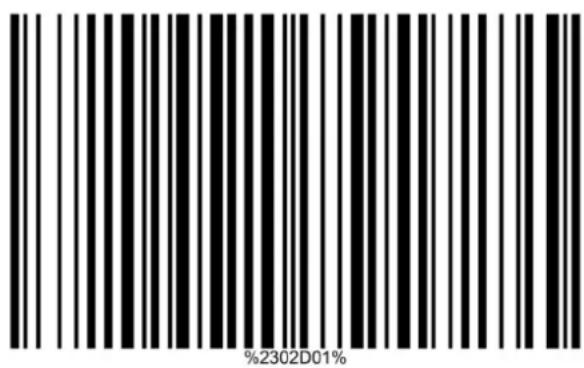
5.4.61 TRANSM→SS→ON O↑ C↓ECK D→←→T
MS→/PLESSEY O↑↑

5.4.62 TRANSM→SS→ON O↑ C↓ECK D→←→T
MS→/PLESSEY ON

5.4.63 VER→↑→CAT→ON of UK/Plessey C↓ECK D→←→T O↑↑
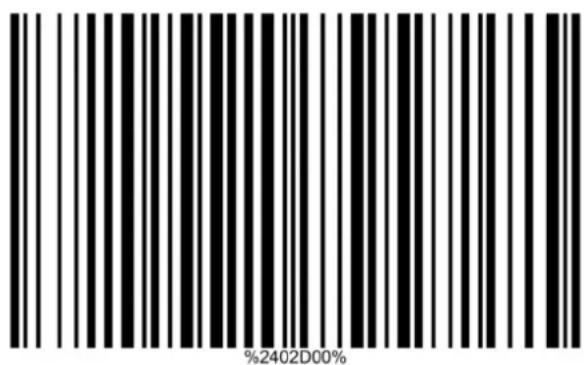
5.4.64 VER→↑→CAT→ON of UK/Plessey C↓ECK D→←→T ON

5.4.65 TRANSM→SS→ON O↑ T↓E C↓ECK D→←→T AT
UK/Plessey O↑↑
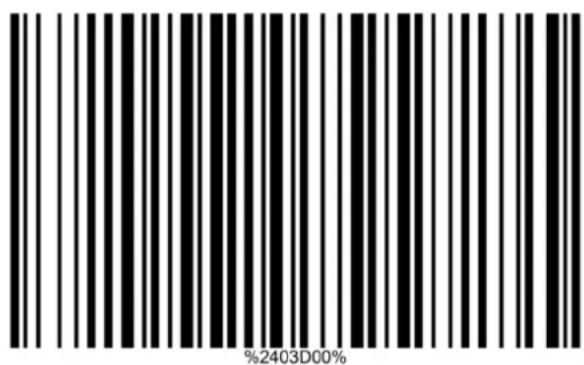
5.4.66 TRANSM→SS→ON O↑ T↓E C↓ECK D→←→T AT
UK/Plessey ON
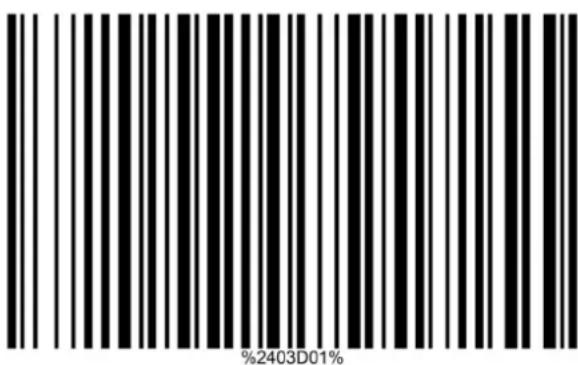
5.5 G1-G4 substitution string
GGlobal ←1←4 string setting selection:
The image platform offer one or two string group for all symbols. By setting one or two digits to indicate which string group you want to apply.
Example:
Group1→set 01or10; group 2 and 4→set 24 or 42.
All valid settings include:
00,01,02,03,04,11,12,13,14,20,21,22,23,24,30,31,3
2,33,34,40,41,42,43 and 44.

5.5.1 ← global ← 1-←4 string setting selection
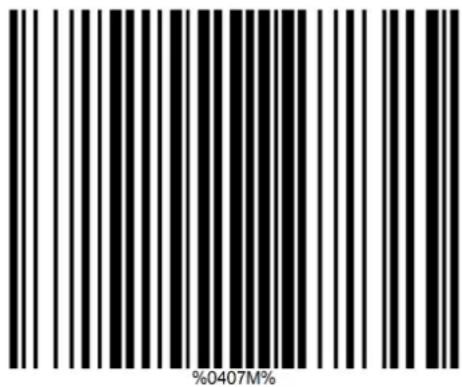
Note: This setting is multiple steps with maximum 4 characters. Find and scan the value in the ASCII table, read "end" barcode at the final steps.
Insert ←1/←2/←3/←4 string setting
The image platform offer 4 positions and 4 character strings to insert among the symbol.
Example:
Set G1 string to be "AB"
Original code data: "1234→6"
Output code data: "123AB4→6"
Steps:
1) Scan the option barcode of "insert G1 string setting"

2) Use the ASCII table to find the value of “A→41”, “B→42”.
3) Scan “4”, “1” and “4”, “2” from the barcode on the ASCII table.
4) Scan "END" barcode

5.5.2 →nsert ←1 string setting

5.5.3 →nsert ←2 string setting

5.5.4 →nsert ←3 string setting

5.5.5 →nsert ←4 string setting

5.5.6 →nsert ←1 string position

5.5.7 →nsert ←2 string position

5.5.8 →nsert ←3 string position

5.5.9 →nsert ←4 string position

5.6 FN1 substitution string setting:
The FN1 character (0x1D) in an UCC/EAN128 barcode, or a Code 128 barcode, or a GS1 DataBar barcode can be substituted with a defined string. This setting is multiple steps with maximum 4 characters.
5.6.1 ↑N1 substitution string setting

Note: This setting is multiple steps with maximum 4 characters. Find and scan the value in the ASCII table, read end barcode at the end steps.
5.6.2 ↑N1 substitution transmission disable

%8209D00%
5.6.3 ↑N1 substitution transmission (keyboard wedge/USB)

%8209D01%
5.6.4 ↑N1 substitution transmission (RS-232)

%8209D02%
5.6.5 ↑N1 substitution transmission (Keyboard wedge/USB/RS-232)

%8209D03%
5.7 Single character C1/C2 replacement:
By setting, a defined character in the data string can be replaced by another defined character. The C1 and C2 replacement can be applied simultaneously.
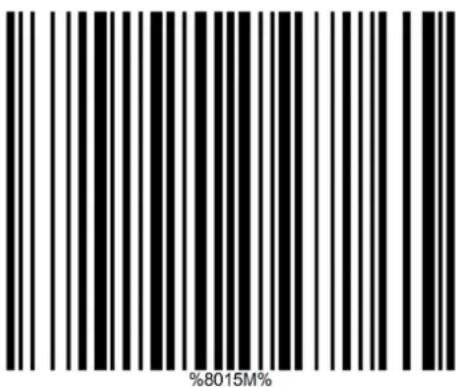
Example: Replace all the "A" character in a data string with "B" character.
Original code data: 123A→A
Output code data: 123B→B
Steps: scan the following barcodes in order the ASCII value for A is 41 and the ASCII value for "B" is "42".
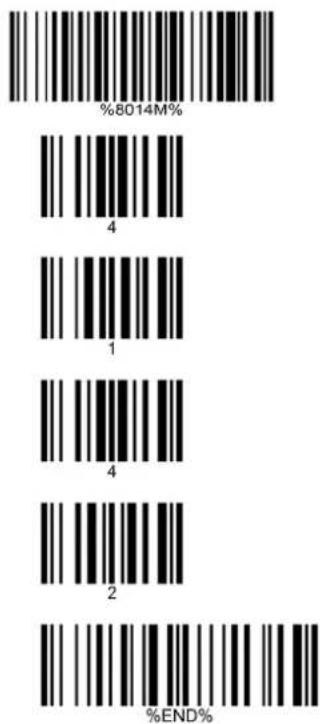
Testing barcode:

5.6.1 Single character C1 replacement

5.6.2 Single character C2 replacement
5.8 String transmission
5.7.1 Code length transmission (disable)

5.7.2 Code length transmission enable

5.7.3 Case conversion disabled

%8208D00%
5.7.4 Case conversion upper (data only)

%8208D01%
5.7.5 Case conversion lower (data only)

%8208D02%
5.5.14 Case conversion upper (whole string)

%8208D03%
5.5.15 Case conversion lower (whole string)

%8208D04%
5.5.16 Transmit the first N data characters only

%8211M%
5.5.17 Transmit the last N data characters only

%8212M%
Appendices
ASCII Table
| for keyboard wedge for RS-232 | ||||
| HL\H | 0 1 0 | 1 | ||
| 0 Null | NUL DLE | |||
| 1 Up | F1 SOH DC1 | |||
| 2 Down | F2 STX DC2 | |||
| 3 | Left | F3 ETX DC3 | ||
| 4 | Right | F4 | EOT | DC4 |
| 5 | PgUp | F5 ENQ | NAK | |
| 6 | PgDn | F6 | ACK | SYN |
| 7 | F7 | BEL | ETB | |
| 8 | Bs | F8 | BS | CAN |
| 9 | Tab | F9 | HT | EM |
| A | F10 | LF | SUB | |
| B | Home | Esc | VT | ESC |
| C | End | F11 | FF | FS |
| D Enter | F12 | CR GS | ||
| E | Insert | Ctrl+ | SO | RS |
| F | Delete | Alt+ | SI | US |
Notes: The 2nd and the 3rd columns above are used for keyboard wedge only.
| HL | 2 3 | 4 5 6 7 | ||||
| 0 SP | 0 @ P ` p | |||||
| 1 ! | 1 A Q a q | |||||
| 2 “ | 2 B R b r | |||||
| 3 # | 3 C S c s | |||||
| 4 $ | 4 D T d t | |||||
| 5 % | 5 E U e u | |||||
| 6 | & | 6 F V f v | ||||
| 7 | ‘ | 7 G W g w | ||||
| 8 ( | 8 H X h x | |||||
| 9 ) | 9 l | Y i y | ||||
| A | * | : | J | Z | j | z |
| B + | ; K | [ k | { | |||
| C | , | < | L | \ | l | | |
| D | - = | M ] m | } | |||
| E | . > | N ^ n | ~ | |||
| F / ? | O _ o | DEL |
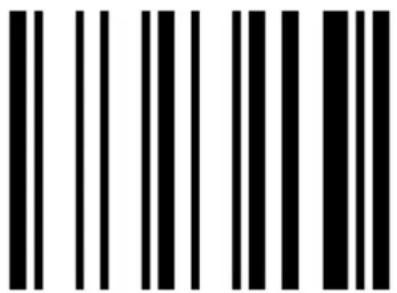
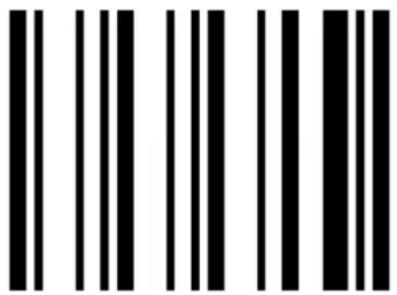
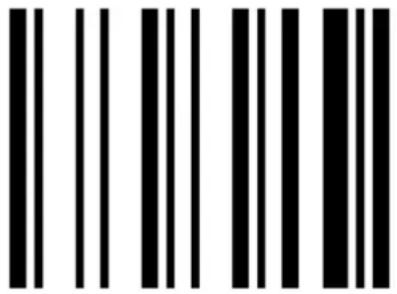
Example: ASCII "A" = "41".
| Up ↑ | Left ← |
 |  |
| Down ↓ | Right → |
 |  |
| Page Up | Page Down |
 |  |
| Backspace Tab | |
 |  |
| Home | End |
 | 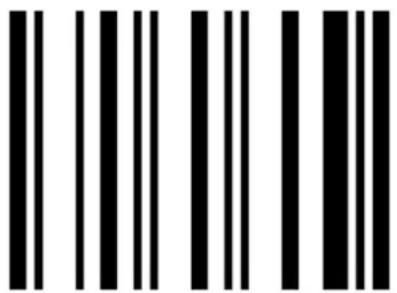 |
| Enter | →nsert |
 | 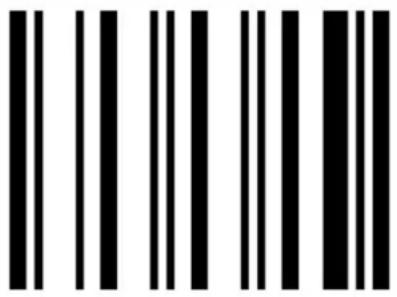 |
| Delete | ↑1 |
 |  |
| ↑2 ↑3 | |
 |  |
| F4 | ↑5 |
 |  |
| ↑6 | ↑7 |
 |  |
| ↑8 | ↑9 |
 |  |
| ↑10 ↑11 | |
 |  |
| F12 | Esc |
 |  |
| 1 | 2 |
 |  |
| 3 | 4 |
 |  |
| 5 6 | |
 |  |
| 7 | 8 |
 |  |
| 9 | A |
 | 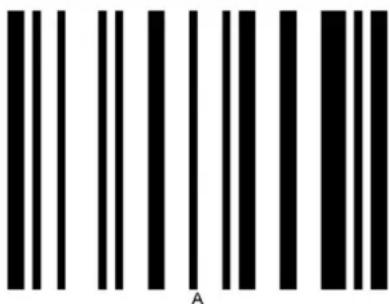 |
| B | C |
 |  |
| D E | |
 |  |
| F | ← |
 |  |
| ↓ | → |
 |  |
| J | K |
 | 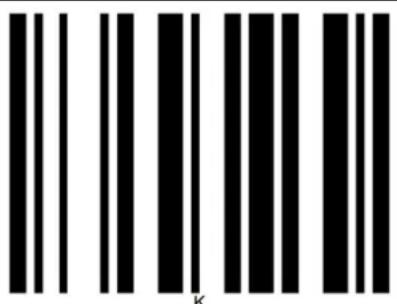 |
| LM | |
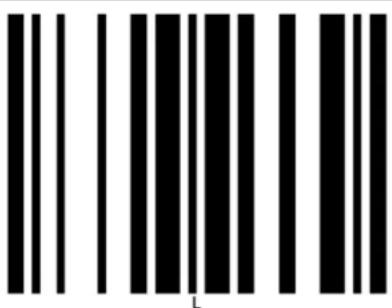 |  |
| N O | |
 | 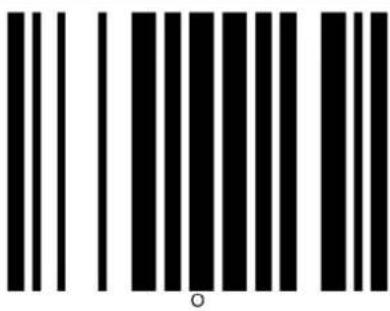 |
| P Q | |
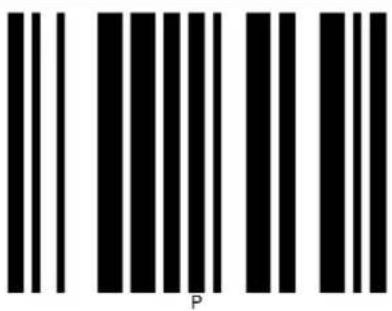 | 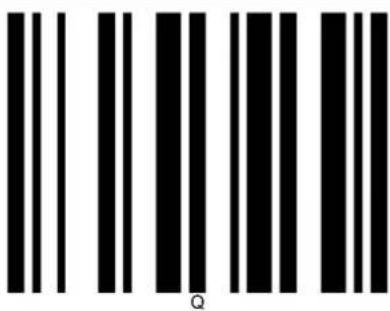 |
| R S | |
 |  |
| T U | |
 |  |
| v w | |
 |  |
| x y | |
 |  |
| z END | |
 |  |
Note: To finish parameter setting, please scan the bar code.
- Note:
- Configuration Guide
- Programming with Barcodes
- Table of contents
- Data Formatting....154
- Programming sequence prefix....156
- Programming flow chart prefix....158
- SUFFIX....161
- Programming sequence suffix....162
- Programming flow chart suffix 164
- Code Identifiers....167
- Programming flow chart for setting code identifier....173
- Change Scanner Settings
- Example:
- Factory Default Settings
- Default Message Format
- Programming Flow Chart
- General
- Scanner Functionality
- Speaker Settings
- BEEPER TONE
- BEEPER VOLUME
- Standby Duration
- Scanner Timing
- SAME BARCODE DELAY 300MSEC ↑OR 2D SYMBOL
- SAME BARCODE DELAY 600MSEC ↑OR 2D SYMBOL
- Led Illumination
- DECODE → LLUM → NAT → ON
- ALWAYS O↑↑
- ALWAYS ON
- Scan Mode
- AUTO-DETECT→ON-←OOD READ O↑↑
- Auto-Detection Sensitivity
- Character Encoding System
- Communication Parameters
- RS232 Interface
- USB Interface
- Keyboard Wedge Interface
- ALT+KEYPAD
- Decoding Parameters
- Decoder Selection
- Decoder Configuration
- Programming Flow Chart for Minimum
- Length of Barcode
- Single type of barcode & multi-symbols read
- ↑OLLOW RESPECT→VE 1D SYMBOL SETT→N←\*
- Data Formatting
- Prefix
- Programming sequence prefix
- PRE↑→X STR→N← SETT→N←
- SUFFIX
- Programming sequence suffix
- Code Identifiers
- D→SABLE CODE →D TRANSM→SS→ON
- ENABLE PROPR→ETARY →D
- Programming flow chart for setting code identifier
- →NDUSTR→AL 2 O↑ 5 (D→SCRETE 2 O↑ 5) CODE →D
- MATR→X 2 O↑ 5 CODE →D SETT→N←
- ← S1 DATABAR (← S1 DATABAR TRUNCATED)
- ← S1 DATABAR L→M→TED CODE →D SETT→N←
- ← S1 DATABAR EXPANDED CODE →D SETT→N←
- END T↓E SETT→N← MODE
- Code Representation
- UPCA ↑ORMAT TRANSM→TTED AS UPCA (12
- UPCA ↑ORMAT TRANSM→TTED AS EAN13 (W→T↓)
- TRANSM→SS→ON O↑ T↓E C↓ECK D→←→T AT
- G1-G4 substitution string
- GGlobal ←1←4 string setting selection:
- Insert ←1/←2/←3/←4 string setting
- Steps:
- FN1 substitution string setting:
- ↑N1 substitution string setting
- Single character C1/C2 replacement:
- String transmission
- Appendices
- ASCII Table
Brand : Elgin
Model : EL5220
Category : Barcode Reader