
HGWIP812 - Security Camera HomeGuard - Free user manual and instructions
Find the device manual for free HGWIP812 HomeGuard in PDF.


| Product Type | Indoor/Outdoor Security Camera |
| Model | HGWIP812 |
| Resolution | 1920 x 1080 (Full HD) |
| Field of View | 110 degrees |
| Night Vision | Up to 30 feet (9 meters) with IR LEDs |
| Audio | Two-way audio with built-in microphone and speaker |
| Motion Detection | Yes, with adjustable sensitivity and push notifications |
| Connectivity | Wi-Fi 802.11 b/g/n 2.4 GHz |
| Power Supply | 5V DC, 1A (USB power adapter included) |
| Power Consumption | Max 5W |
| Dimensions (with mount) | 10.2 x 8.0 x 6.5 cm |
| Weight | 280 g |
| Weather Resistance | IP65 rated (dust-tight, water-resistant) |
| Storage | MicroSD card up to 128 GB (not included) or cloud subscription |
| Compatibility | iOS and Android app (HomeGuard View) |
| Warranty | 2 years |
| Maintenance | Clean lens with a soft, dry cloth. Do not use solvents. |
| Safety | Do not expose to extreme temperatures or moisture. Use only provided adapter. |
| Spare Parts | No user-serviceable parts. Contact support for repairs. |
Frequently Asked Questions - HGWIP812 HomeGuard
User questions about HGWIP812 HomeGuard
0 question about this device. Answer the ones you know or ask your own.
Ask a new question about this device
Download the instructions for your Security Camera in PDF format for free! Find your manual HGWIP812 - HomeGuard and take your electronic device back in hand. On this page are published all the documents necessary for the use of your device. HGWIP812 by HomeGuard.
USER MANUAL HGWIP812 HomeGuard
iGET
HOME
GUARD

Quick start guide - EN
Model: HGVIP012
Welcome
Thank you for choosing HOMEGUARD. Getting started is easy.
What's included

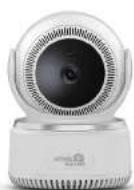
Parts & Description

Get the App
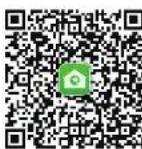
For the best experience, download the Homeguardcare app for your smartphone by scanning the QR code below or searching for "Homeguardcare" in the app store.


Available on the App Store

ANDROID APP ON Google play
Step 1
Network Connection

•

Make sure you are within range of the same Wi-Fi network you'll use for your camera.
LED status
| Ethnicity | Knowledge, information, and value | Working areas, information, and value |
| Blending facility | MRK mining area, semi-urban, Taylor's project | |
| Blending away | Clustering in MRK facility | Tractor area currently |
| Drilling site, at 149 | Dining site currently | |
| Keystone Network unit | 2.225 commercial area, local area available MRK space | Transitments and |
| Keystone Marketing unit | 2.007 commercial area, at 149 | Transitments and |
| Technic work half | MRK construction area, local area available |
Step 2 WiFi Configuration Guide


Name the camera and click "Next"
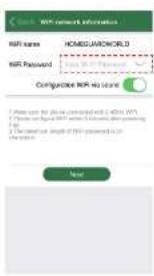
- input correct WiFi password and click "Next"
The camera will try to connect WIFI network (the default process is 30 seconds)
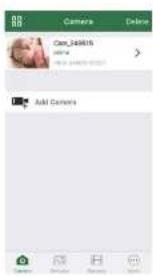
It connected, it will go back to the Camera page and add the device automatically

You're Done!
Congratulations! Your HOMEGUARD Camera is set up and ready to go.
- You are now free to position your camera anywhere in your home where you get a 'MT' signal.
• Please remember to change your password in the Advanced Setting-User Setting. - Record your new password here.
OR YOU CAN CHOOSE One Key WiFi Connection
Before you begin your IP Camera Set up, please:
√ Have your IP Camera and power adapter ready.
Have your iOS / android device available to download the Homeguardcare app.
Make sure you are within range of the same Wi-Fi network you'll use for your camera.
√ Run the app and add camera by scan the QR code at the bottom of the camera; Then input the user name and password.
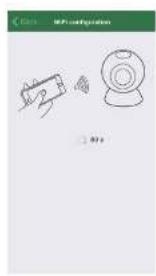
√ Click "More", select "Wi-Fi Config", fill in the Wi-Fi password and click "Configuration"




Tips:
- Please put your smartphone one next to the phone
- Input WF-SCID and answered, click config better, then WF actuar's finished.
- "See We're an estimate that's body, yourself will be in the position in personation and toil for 5 months."
Live View Monitoring Options
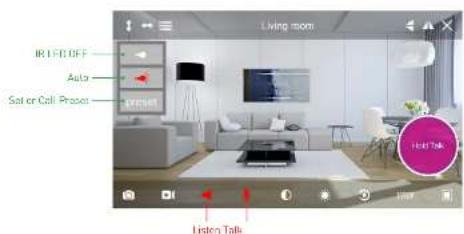
Tap the monitoring screen, the video menu action bar will appear.

natural_image
Interior view of a modern living room with sofa, coffee table, and TV (no visible text or symbols)① Cruise Vertically
3 Cruise Horizontally
① Menu
Flip
③ Mirror
6 Exit
Snapshot to phone
Record video to phone
Audio On/OFF
10 Mk Cn/Cnt
1 Contract
12 Brightness
Resolution: VGN/1080p
Contract
- For 2-way Audio, ensure that the speaker is on. To Talk press & hold the Mic button until you've finished talking, then release.
- Press Menu to switch between IR LED On/OH & Set or call Preset (for Pan&Tilt camera).

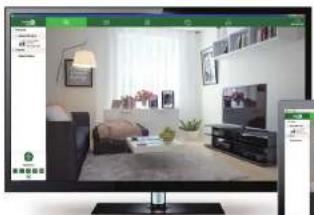
View from Mac or Windows PC Specifications
Install: Homeguardcare software for your Mac or Windows PC from the included CD.

| Item | Description |
| Hardware Features | Wi-Fi Support |
| Power Interface | |
| Reset Button | |
| Built-in microSD Socket | |
| Built-in Micraphone and speaker | |
| & infrared LED, 8m Night Vision Range | |
| Resolution | 1920 x 1080, 640 x 360 |
| Compression / Max Frame Rate | H.26W/N.PEG, 20fps |
| Image Sensor / Lens | 1/2.7" CMOS Sensor, 1=0.6mm, F=2.8 Viewing Angle: 100° |
| Fan / Tilt Range | Horizontal 300°, Vertical at° |
| Motion Detection | Supported, Wi-Fi Active Camera |
| Security Protocols | WPA/WPA2, WPA-PSK/WPA2-PSK |
| Wireless Saccord | R-E-R32, 11h/g/n 150Mbps |
| Camera Dimensions | 8mm x 85mm x 121mm |
| Power Input | 3V DC, <4W |


Brand : HomeGuard
Model : HGWIP812
Category : Security Camera