
130219 - Uncategorized MANHATTAN - Free user manual and instructions
Find the device manual for free 130219 MANHATTAN in PDF.


| Product Type | USB Hub |
| Model Number | 130219 |
| Brand | Manhattan |
| Dimensions (L x W x H) | 10 x 5 x 2 cm |
| Weight | 50 g |
| Power Source | USB bus-powered (5V, 500mA) |
| Number of Ports | 4 |
| Port Type | USB 2.0 Type-A female |
| Data Transfer Rate | Up to 480 Mbps |
| LED Indicator | Yes, power/speed |
| Compatible Operating Systems | Windows, macOS, Linux |
| Plug and Play | Yes, no drivers required |
| Main Functions | Expand USB ports, data transfer, device charging |
| Maintenance & Cleaning | Wipe with a dry, soft cloth; avoid liquids |
| Safety Certifications | FCC, CE, RoHS |
| Working Temperature | 0°C to 40°C |
| Storage Temperature | -20°C to 60°C |
| Spare Parts Availability | Not user-serviceable; contact Manhattan support |
| Repairability | No; replacement recommended if defective |
| General Information | Designed for desktop and laptop computers; compact design |
Frequently Asked Questions - 130219 MANHATTAN
User questions about 130219 MANHATTAN
0 question about this device. Answer the ones you know or ask your own.
Ask a new question about this device
Download the instructions for your Uncategorized in PDF format for free! Find your manual 130219 - MANHATTAN and take your electronic device back in hand. On this page are published all the documents necessary for the use of your device. 130219 by MANHATTAN.
USER MANUAL 130219 MANHATTAN
Thank you for purchasing the MANHATTAN® SATA Quick Clone Dock, Model 130219.
Using one-touch cloning, this handy device easily replicates a SATA hard-disk drive while attached (software required) or unattached to a host PC. The easy-to-use clone feature helps make upgrading to larger-capacity hard drives quick and simple. Dual insertion slots accept 3.5" and 2.5" SATA hard-disk drives up to 2 TB simultaneously, allowing data to be copied between multiple drives of different sizes for easier data recovery and backup tasks.
Ideal for system builders, integrators and computer technicians, it's Windows XP/Vista/7 compatible and supports Mac and Linux systems (excluding PC-based cloning software) with Hi-Speed USB and SATA data transfer speeds up to 480 Mbps and 3 Gbps.
By following the instructions in this user manual, you'll soon be enjoying these popular features:
- Provides fast data access, creates portable storage and simplifies hard-disk drive backup and exchanges
- Quick and easy USB or eSATA installation — no special drivers or configuration required
- Lifetime Warranty (For a complete list of country-specific warranties, go to www.manhattan-products.com/warranty.)
Package Contents
• SATA Quick Clone Dock
- Power adapter
• USB and eSATA cables
- Software CD
- Quick install guide
System Requirements
• Available USB Standard-A port
• Available eSATA port
- Windows XP/Vista/7 compatible
• Mac 9.x/10.x and Linux supported (excluding PC-based cloning software)
Before using the SATA Quick Clone Dock, note the following features and requirements to ensure smooth and successful operation.
• Bay A is where you insert the source (master) hard-disk drive (HDD)
• Bay B is where you insert the target (slave) hard-disk drive
- The capacity of the target HDD must be greater than that of the source HDD; otherwise, the cloning can not be properly completed. NOTE: Equal capacity is not adequate.
- Be sure there is no data on the target HDD before you begin, as it will be deleted during the cloning process.
- Once the dock is connected to the computer through the USB or eSATA interface, the offline clone function will be disabled.
Rear view: connections

- Use the included power adapter to connect the DC Input jack to an AC power outlet.
Top view: HDD bays
- Insert the source HDD in Bay A and the target HDD n Bay B.
NOTE: The capacity of the target (slave) HDD must be greater than the capacity of the source (master) HDD; otherwise, the cloning can not be properly completed.
-
When the A and B LEDs light, toggle the Power switch (on the rear panel) to On.
-
Press the Clone button for 3 seconds. When the LED lights, press the Clone button again. The LEDs will light to indicate progress (25%, 50%, 75% and 100%). All the LEDs will light when the cloning process is complete.
-
Turn the power off and remove the drives.

Front view: LED indicators
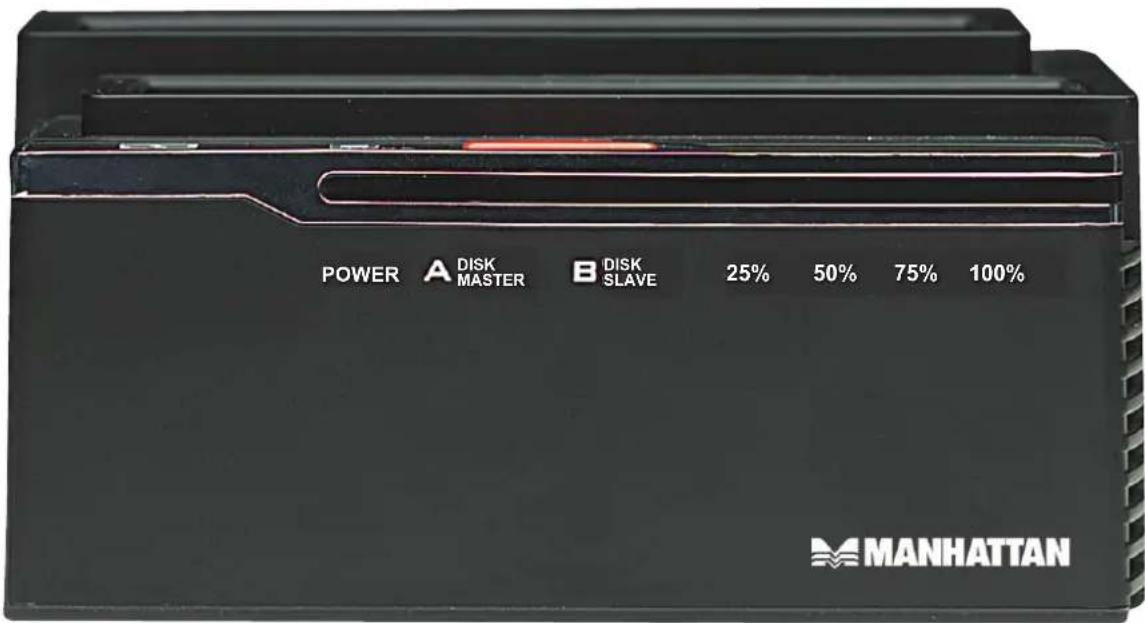
ONLINE (ATTACHED) OPERATION
The included software needs to be installed in order to operate the SATA Quick Clone Dock in conjunction with your computer. Before you begin, write down the serial number (printed on the software CD label or sleeve), as you'll need to enter it in Step 5 below.
- Use the included power adapter to connect the DC Input jack of the Dock to an AC power outlet.
- Use either the included USB cable or eSATA cable to connect the Dock to the computer. NOTE: If using the eSATA interface, either bay can be used for data transfer, but not both at the same time. If two HDDs are inserted in the dock, only Bay A will be recognized.
- Insert the included software CD in your computer's CD-ROM drive and click "setup.exe."
- When the CloneDrive welcome screen displays, select a language from the drop-down menu and click "Next."

- On the second screen, enter the serial number as it appears on the label of the software CD. Click "Install" to continue.
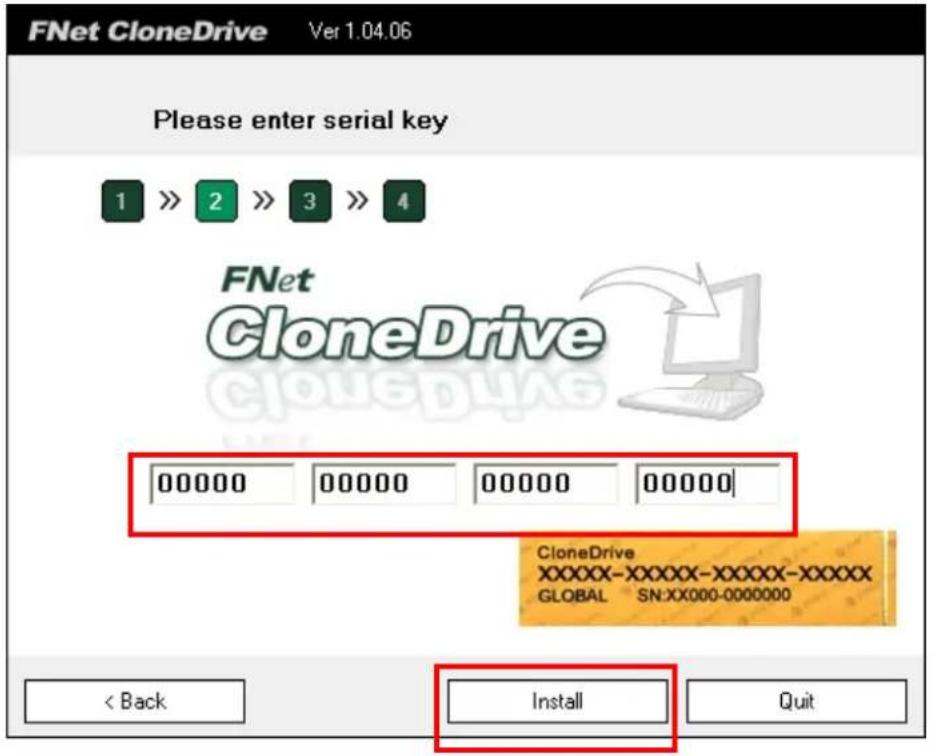
- A status screen will display to indicate the progress of the application installation. Click "Done" when the process is complete.

-
Insert the source HDD in Bay A and the target HDD in Bay B. NOTE: The capacity of the target (slave) HDD must be greater than the capacity of the source (master) HDD; otherwise, the cloning can not be properly completed.
-
When the A and B LEDs light, toggle the Power switch (on the rear panel) to On.
-
When the clone icon appears in your system tray, double-click it to start the program.

- When the initial clone activation screen displays, click "Start."
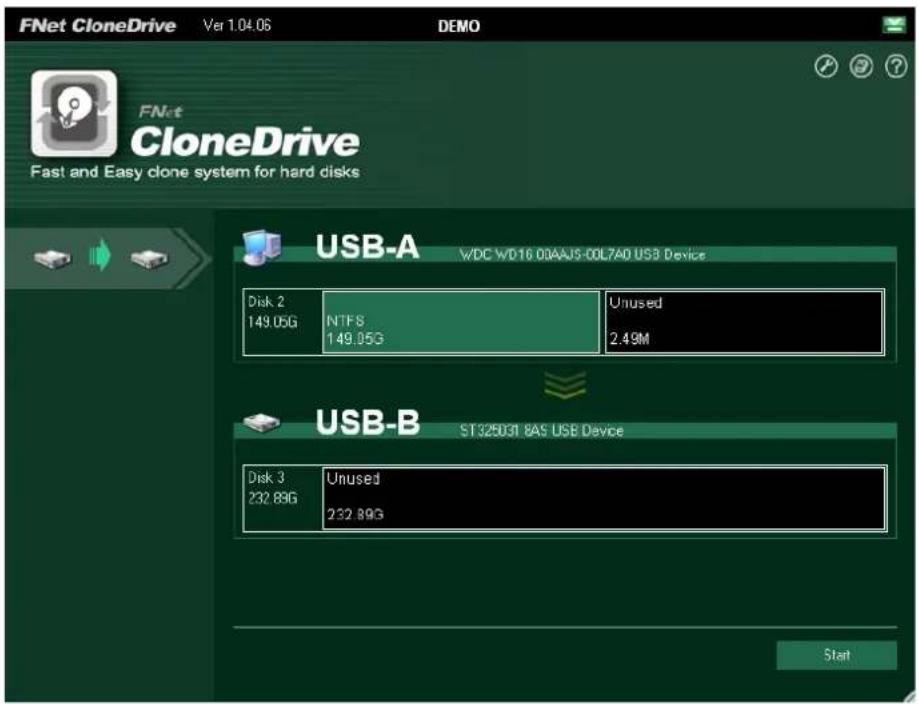
- When the second prompt appears, click "Start" again.

- A status screen will display to indicate progress of the operation. Click "OK" when the status bar reads 100% and the operation is complete.

- The next screen should indicate that the contents of the target HDD are now the same as the source HDD. (Note the Unused space on the target HDD.)

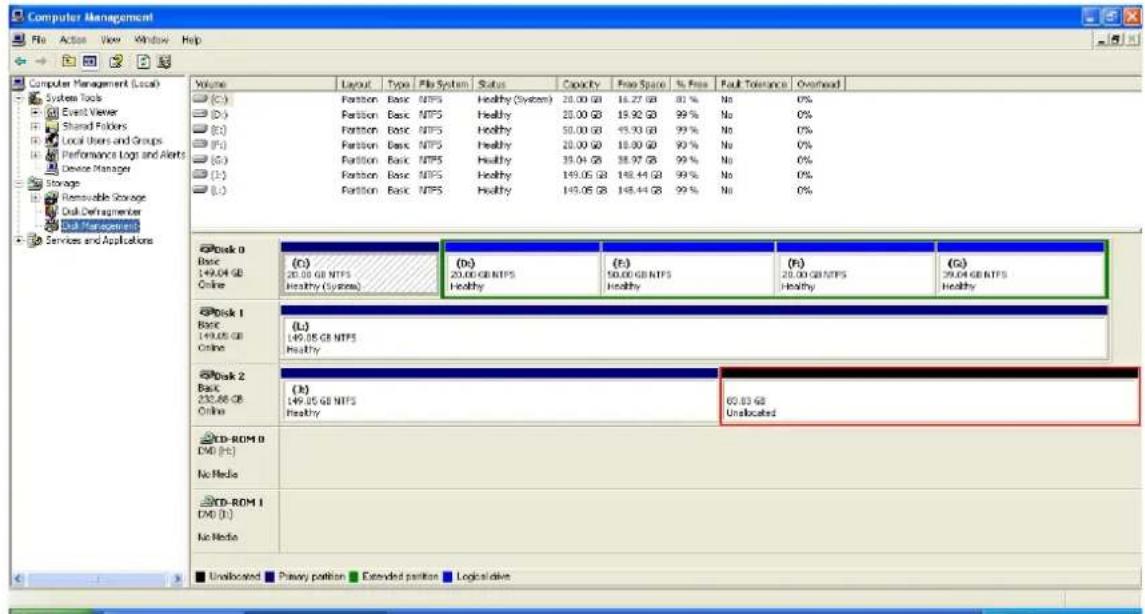
- If the target HDD has extra space, the system will automatically allocate it to an unallocated area, as shown below. NOTE: Windows allows a maximum of only four primary partitions. If the original disk already has four primary partitions, then it can not distinguish the extra space.
SPECIFICATIONS
Standards and Certifications
• Compliant with USB 2.0 and SATA Revision 2.6
• CE
• RoHS
• WEEE
General
- Connections: external, DC power input, eSATA and USB Standard-B; internal, (2) SATA data and power
- Dual insertion slots fits 2.5" and 3.5" SATA HDD
• Power and activity LED indicators with power button
Transfer Rate
• Hi-Speed USB up to 480 Mbps and SATA up to 3 Gbps
Physical
• Power adapter: 241.3 cm (95 in.)
• eSATA cable: 80 cm (31.5 in.)
• USB cable: 80 cm (31.5 in.)
- Dimensions: 6.2 × 10.3 × 13.1 ~cm (2.4 x 4 x 5.2 in.)
• Weight: 218.3 g (7.7 oz.)
Electrical
- Input: 100 – 240 V AC; 50/60 Hz / 1.8 A
• Output: +12 V / 4 A center post
WASTE ELECTRICAL & ELECTRONIC EQUIPMENT
Disposal of Electric and Electronic Equipment
(applicable in the European Union and other European countries with separate collection systems)
ENGLISH
This symbol on the product or its packaging indicates that this product shall not be treated as household waste. Instead, it should be taken to an applicable collection point for the recycling of electrical and electronic equipment. By ensuring this product is disposed of correctly, you will help prevent potential negative consequences to the environment and human health, which could otherwise be caused by inappropriate waste handling of this product. If your equipment contains easily removable batteries or accumulators, dispose of these separately according to your local requirements. The recycling of materials will help to conserve natural resources. For more detailed information about recycling of this product, contact your local city office, your household waste disposal service or the shop where you purchased this product. In countries outside of the EU: If you wish to discard this product, contact your local authorities and ask for the correct manner of disposal.
DEUTSCH
ENGLISH: For warranty information, go to www.manhattan-products.com/warranty.
This device complies with the requirements of the R&TTE Directive 1999/5/EC.
DEUTSCH
MANHATTAN® offers a complete line of PC Components,
Peripherals, Cables and Accessories. Ask your local computer dealer for more information or visit www.manhattan-products.com.
All products mentioned are trademarks or registered trademarks of their respective owners.
Brand : MANHATTAN
Model : 130219
Category : Uncategorized