
Clié PEGA-MSB1 - Bluetooth module SONY - Free user manual and instructions
Find the device manual for free Clié PEGA-MSB1 SONY in PDF.


| Product Type | Bluetooth Communication Module for Sony CLIÉ Handheld |
| Model | PEGA-MSB1 |
| Compatibility | CLIÉ handhelds with Palm OS 4.0 or later |
| Wireless Communication Standard | Bluetooth Ver. 1.1, Power Class 2 |
| Communication Range | Approx. 10 m (line of sight) |
| Frequency Band | 2.4 GHz (2.4000–2.4835 GHz) |
| Supported Bluetooth Profiles | Serial Port, Dial-up Networking, LAN Access, Object Push |
| Power Source | Powered by CLIÉ handheld, DC 3.0V |
| Power Consumption | Approx. 330 mW (during communication) |
| Dimensions (W x L x T) | Approx. 7/8 × 23/8 × 1/8 in. |
| Operating Temperature | 41°F to 95°F (5°C to 35°C) |
| Main Functions | Wireless HotSync, Internet access via Bluetooth, data exchange between two CLIÉ handhelds, play Reversi |
| Security | Passkey bonding to prevent unauthorized access |
| Regulatory Compliance | FCC Part 15 Class B, ICES-003 |
| Care and Maintenance | Avoid shock, extreme temperatures, dust, humidity; do not force insertion; remove only when power indicator off |
Frequently Asked Questions - Clié PEGA-MSB1 SONY
User questions about Clié PEGA-MSB1 SONY
0 question about this device. Answer the ones you know or ask your own.
Ask a new question about this device
Download the instructions for your Bluetooth module in PDF format for free! Find your manual Clié PEGA-MSB1 - SONY and take your electronic device back in hand. On this page are published all the documents necessary for the use of your device. Clié PEGA-MSB1 by SONY.
USER MANUAL Clié PEGA-MSB1 SONY
Operating Instructions


PEGA-MSB1
Owner's Record
The model number and serial number are located at the rear of the product. Record the model number and the serial number in the space provided below. Refer to them whenever you call upon your Sony dealer regarding this product.
Model Number : PEGA-MSB1
Serial Number : ____
NOTICE
This equipment has been tested and found to comply with the limits for a Class B digital device, pursuant to part 15 of the FCC Rules.
These limits are designed to provide reasonable protection against harmful interference in a residential installation.
This equipment generates, uses and can radiate radio frequency energy and, if not installed and used in accordance with the instructions, may cause harmful interference to radio communications.
However, there is no guarantee that interference will not occur in a particular installation. If this equipment does cause harmful interference to radio or television reception, which can be determined by turning the equipment off and on, the user is encouraged to try to correct the interference by one or more of the following measures:
— Reorient or relocate the receiving antenna.
— Increase the separation between the equipment and receiver.
— Connect the equipment into an outlet on a circuit different from that to which the receiver is connected.
— Consult the dealer or an experienced radio/TV technician for help.
FCC WARNING
Changes or modifications not expressly approved by the party responsible for compliance could void the user's authority to operate the equipment.
Declaration of Conformity
Trade Name : SONY
Model No. : PEGA-MSB1
Responsible Party : Sony Electronics Inc.
Address : 680 Kinderkamack Road, Oradell,
NJ 07649 USA
Telephone No.: 201-930-6972
This device complies with part 15 of the FCC Rules.
Operation is subject to the following two conditions:
(1) This device may not cause harmful interference, and
(2) this device must accept any interference received, including interference that may cause undesired operation.
FCC Radio-Frequency Exposure Statement:
This equipment generates and radiates radio-frequency energy. In order to comply with FCC radio-frequency radiation exposure guidelines for an uncontrolled environment, this equipment has to be installed and operated while maintaining a minimum body to antenna distance of 2.5 cm. Based on continuous exposure of 30 minutes.
User are not permitted to make changes or modify the system in any way.
The term “IC:” before the radio certification number only signifies that Industry Canada technical specifications were met.
This Class B digital apparatus complies with Canadian ICES-003.
Operation is subject to the following two conditions: (1) this device may not cause interference, and (2) this device must accept any interference, including interference that may cause undesired operation of the device.
To prevent radio interference to the licensed service, this device is intended to be operated indoors and away from windows to provide maximum shielding. Equipment (or its transmit antenna) that is installed outdoors is subject to licensing.
- In some situations or environments, the use of the Bluetooth™ technology might be restricted by the proprietor of the building or responsible representatives of the organization, for example on board of airplanes, in hospitals or in any other environment where the risk of interference with other devices or services is perceived or identified as harmful.
- If you are uncertain about the policy applying to the use of Bluetooth™ technology in a specific organization or environment, you are encouraged to first ask for authorization prior to switching it on.
-
Consult your physician or the manufacturer of personal medical devices (pacemakers, hearing aids, etc.) regarding any restrictions on the use of Bluetooth™ technology.
-
Sony, SONY, CLIÉ, CLIÉ, CLIÉ GEAR, CLIÉ, VAI0, Jog Dial and Memory Stick are trademarks of Sony Corporation.
- Palm OS and HotSync are registered trademarks of Palm, Inc. or its subsidiaries. Palm Desktop and HotSync logo are trademarks of Palm, Inc. or its subsidiaries.
- Microsoft, Windows and Windows NT are registered trademarks of Microsoft Corporation in the United States and/or other countries.
- Adobe and Adobe Acrobat Reader are trademarks of Adobe Systems Incorporated.
- The Bluetooth trademarks are owned by their proprietor and used by Sony Corporation under license.
- All other names of systems, products and services are trademarks of their respective owners. In the manual, the ^TM or ^® marks are not specified.
Before using the PEGA-MSB1, be sure to read the End User Software License Agreement that accompanies it.
• Copyright laws prohibit reproducing the software or the manual accompanying it in whole or in part, or renting the software without the permission of the copyright holder.
- In no event will SONY be liable for any financial damages, or loss of profits, including claims made by third parties, arising out of the use of the software supplied with this unit.
- If a problem occurs with this product as a result of defective manufacturing, SONY will replace it. However, SONY bears no other responsibility.
- The software provided with this unit cannot be used with other units.
- Please note that, due to continued efforts to improve quality, the software specifications may be changed without notice.
- Operation of this unit with software other than that provided is not covered by the warranty.
Table of Contents
Introduction 7
What You Can Do with this Bluetooth Module 8
Names of Parts ...... 10
Inserting/Removing this Bluetooth Module 11
Installing the Software 13
Performing a HotSync Operation.... 15
Performing a HotSync Operation by Bluetooth Communications for the First Time.... 15
Performing a HotSync Operation for the Second Time and Thereafter 21
Accessing the Internet 22
Accessing the Internet by Bluetooth Communications for the First Time 22
Accessing the Internet for the Second Time and Thereafter ..... 29
Exchanging Information between Two CLIÉ Handhelds ...... 31
Playing Reversi 33
Reading the Online Manual 33
Looking at Information 34
Looking at Information on Bluetooth Communications...... 34
Looking at Information on Other Devices 35
Deleting Unnecessary Bonding Information 37
Troubleshooting 39
Precautions on Use 44
Specifications 46
Introduction
This product is a Bluetooth communication module for Sony Personal Entertainment Organizer (mentioned as CLIÉ handheld after this) of the OS version 4.0 or later. Inserting this unit in your CLIÉ handheld allows you to perform wireless communication easily without the need to connect the CLIÉ handheld to a Bluetooth enabled personal computer, cellular phone, modem, or LAN access point (mentioned as Bluetooth compatible devices after this) with a cable.
PEGA-MSB1 has the following features.
- Bluetooth support enables wireless communication within a range of about 10 meters. (The actual range will vary depending on factors such as obstacles between devices, magnetic fields around a microwave oven, static electricity, interference, radio wave conditions, reception sensitivity or antenna's performance, and operating system or software application, etc).
- The security function prevents communication with unauthorized Bluetooth compatible devices.
Bluetooth compatible devices that can be used with PEGA-MSB1
For information on the Bluetooth compatible devices, check our official Sony CLIÉ Web site:
Customers in USA, Canada and Mexico:
http://www.ita.sel.sony.com/support/clie/access/
Customers in Asia-Pacific Countries:
http://vaio-online.sony.com/clie/
Notes
- This Bluetooth Module is a stick-type module only for the CLIÉ handheld of OS Ver. 4.0 or later. Do not insert this Bluetooth Module in the memory stick slot of other devices. It will cause a malfunction of this Bluetooth Module and other devices.
- Since a part of the operations of the device is not compatible with the jog assist function of CLIÉ handheld, you cannot perform these operations with the Jog Dial navigator of your CLIÉ handheld.
What You Can Do with this Bluetooth Module
Inserting this Bluetooth Module in your CLIÉ handheld allows you to perform wireless communication between your CLIÉ handheld and a Bluetooth compatible device without connecting them with a cable.
Performing a HotSync operation
You can perform a wireless HotSync operation (i.e., synchronizing data) between your CLIÉ handheld and a Bluetooth compatible personal computer. For detailed information on the HotSync operation, see the Operating Instructions of your CLIÉ handheld.
Accessing the Internet
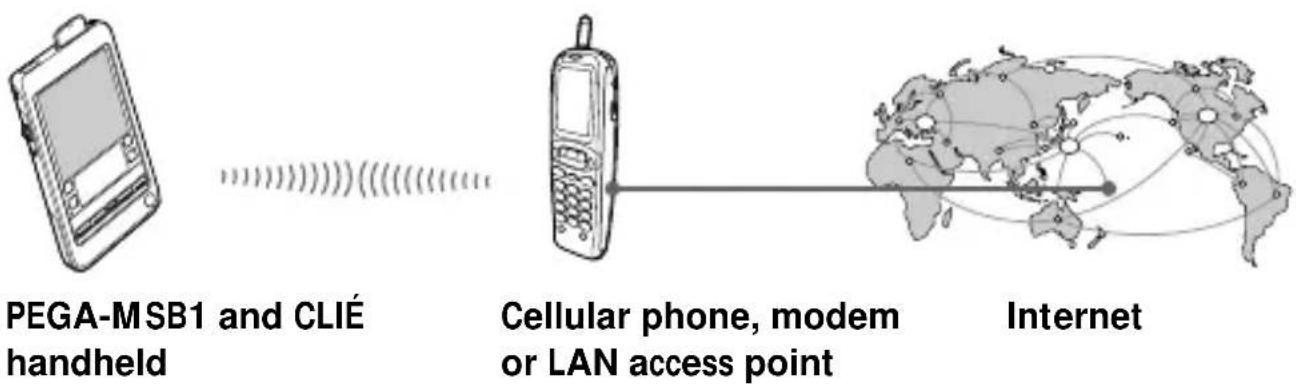
You can access the Internet from your CLIÉ handheld through a Bluetooth compatible cellular phone, modem, or LAN access point, and enjoy browsing various websites or sending/receiving email.
Note
To access the Internet through a cellular phone, modem or LAN access point, you need to be a subscriber to a telecommunications company and an Internet Service Provider (ISP) in advance.
Communicating between two CLIÉ handhelds Enjoying the supplied application “Reversi”
You can play a game of Reversi, using two communicating CLIÉ handhelds. Install the Bluetooth Preferences utility and the Reversi application in the CLIÉ handhelds you use. For details, see page 33.

natural_image
Line drawing of a handheld electronic device with a screen and buttons (no text or symbols)PEGA-MSB1 and CLIÉ handheld


natural_image
Line drawing of a handheld electronic device with a screen and antenna (no text or symbols)PEGA-MSB1 and CLIÉ handheld
Exchanging data
You can exchange data, including address information, between two CLIÉ handhelds.
Notes
When exchanging data by using the Bluetooth Module
- When you exchange data in the Address Book application with devices other than a CLIÉ handheld, you can only exchange data without image content.
- The Bluetooth Module supports vCard Ver. 2.1. Exchanging data in the Address Book application may not work properly depending on the other device, and the version it supports.
- You cannot exchange data with devices other than a CLIÉ handheld, except data in the Address Book application.
Names of Parts
Bluetooth Module
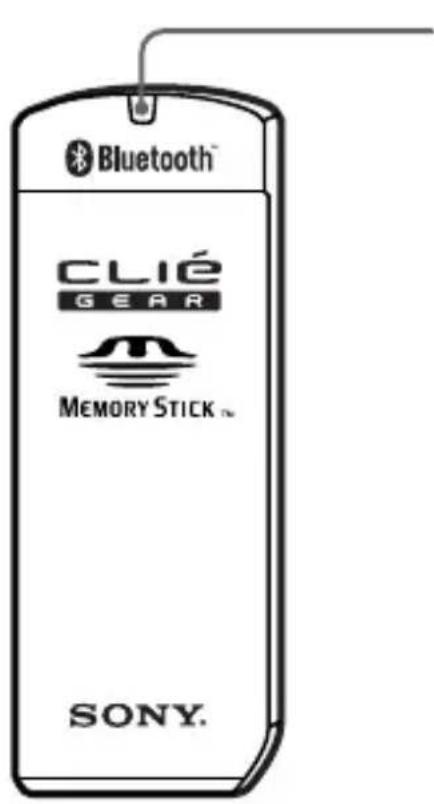
POWER indicator
This indicator lights when the CLIÉ handheld is ready for Bluetooth communications.
Accessories
CD-ROM (1)
Operating Instructions (1)
Warranty card (1)
End-User's License Agreement (1)
Inserting/Removing this Bluetooth Module
Inserting this Bluetooth Module in your CLIÉ handheld
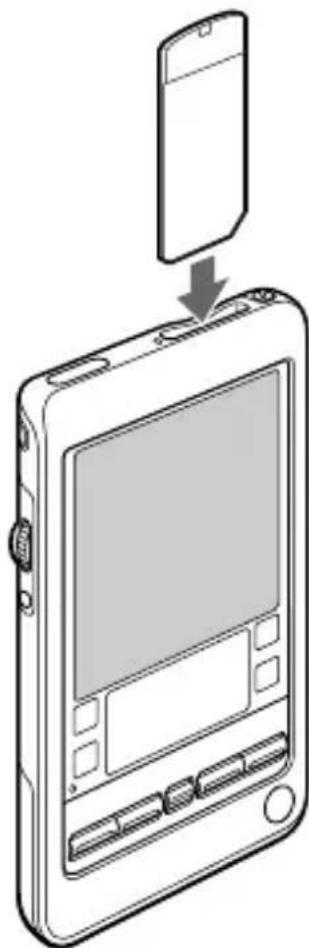
Insert this Bluetooth Module in the memory stick slot of the CLIÉ handheld.
Notes
- Insert this Bluetooth Module straight in the memory stick slot of the CLIÉ handheld.
- Before performing Bluetooth communications, remove the supplied cover from this Bluetooth Module. The cover blocks off radio waves, and it may cause an incorrect operation.
- Do not insert this Bluetooth Module in the wrong way. Forcing it in the wrong way will damage it and cause a malfunction.
- You may be unable to use this Bluetooth Module when the remaining power of the battery is extremely little. Before using, charge the battery fully.
- Do not remove this Bluetooth Module from the memory stick slot immediately after you have inserted it. It will interrupt the initialization of the Bluetooth Module and may cause a malfunction.
natural_image
Diagram of a smartphone with an attached device showing the screen and keyway (no text or symbols present)Insert this unit until it clicks.
Removing this Bluetooth Module from your CLIÉ handheld
After use, terminate Bluetooth communications. Then, push this Bluetooth Module down gently into the slot (1), and pull it up straight (2).

Notes
- Be sure to push this Bluetooth Module down gently before pulling it out to avoid damaging this Bluetooth Module and the memory stick slot.
- While the POWER indicator is on, do not remove this Bluetooth Module or subject the CLIÉ handheld to excessive shock.
Installing the Software
When you try to perform Bluetooth communications for the first time after inserting this Bluetooth Module in your CLIÉ handheld, you need to install the Bluetooth Preferences utility in your CLIÉ handheld. You can install the utility from the supplied CD-ROM.
Note
Before installation, it is necessary to prepare to perform a HotSync operation. Connect the CLIÉ handheld to a Windows computer, using a cradle, etc. For details on how to connect the CLIÉ handheld to the computer, see the Operating Instructions of your CLIÉ handheld.
1 Perform a soft reset on your CLIÉ handheld.
For details on how to perform a soft reset, see the Operating Instructions of your CLIÉ handheld.
2 Insert the supplied CD-ROM in the CD-ROM drive of your Windows computer.
The installer starts and the initial screen appears.
Tip
If the installer does not start automatically, double-click [setup] (setup.exe). You can find it in the CD-ROM.
3 Proceed with the installation, following the installer's instructions.
On the user name selection screen, select a user's name.
Notes
- If you want to use more than one CLIÉ handheld, you need to install this utility in each CLIÉ handheld.
- The Bluetooth Preferences utility does not support the high resolution mode. It is recommendable to enable the High Resolution Assist function on the Preferences settings screen of your CLIÉ handheld.
4 Click [Done] when the installer-closing screen appears.
Your computer is ready to install the Bluetooth Preferences utility to your CLIÉ handheld. In the next step, you will perform a HotSync operation to carry out the installation.
5 Click the icon on the task tray that is located in the lower right corner of Windows display on your computer.
Check that [Local USB] is ticked in the shortcut menu on the display.

If you cannot find the icon on the task tray
From the [Start] menu, click [Programs] ([All Programs] in Windows® XP), [Sony Handheld], and [HotSync Manager] to start up the HotSync manager.
6 Execute a local HotSync operation on your CLIÉ handheld.
The Bluetooth Preferences utility is installed into your CLIÉ handheld.
Note
Part of this utility extends in the system of CLIÉ handheld. Therefore, it cannot be uninstalled.
Performing a HotSync Operation
After inserting this Bluetooth Module in your CLIÉ handheld, you can perform a wireless HotSync operation between your CLIÉ handheld and a Bluetooth compatible Windows computer.
Performing a HotSync Operation by Bluetooth Communications for the First Time
When you perform a HotSync operation for the first time between your CLIÉ handheld and a Bluetooth compatible computer, you need to set the communication method and bond the computer to your CLIÉ handheld.
The following is the procedure of performing a HotSync operation by Bluetooth communications for the first time. From the second time, see “Performing a HotSync Operation for the Second Time and Thereafter” (page 21).

What is "bonding"?
To enable Bluetooth communication between this Bluetooth Module and another Bluetooth compatible device, the device must be identified. This process is referred to as “bonding,” which is necessary to prevent access from unauthorized Bluetooth compatible devices. A common Passkey is used to bond the device to this Bluetooth Module.

What is a Passkey?
A Passkey is a secret code entered by the user to enable two Bluetooth compatible devices to communicate. When the same alphanumeric string is entered at both devices, communication becomes possible. The Passkey may be changed for every communication session as long as the same one is used for both devices. Once a valid link has been established, communication is possible without further Passkey input for a preset period of time.
1 Setting the communication method/Performing bonding
For Bluetooth communications, set the communication method and bond a communication device to your CLIÉ handheld.
Turn on the power of your computer and activate Bluetooth communications.
For details, see the manual and online manual of your computer.
1 Insert this Bluetooth Module in your CLIÉ handheld.
2 Tap the [Preferences] icon on the home screen of your CLIÉ handheld.
The [Preferences] screen appears.
3 Tap ▼ in the upper right corner of the screen, and select [Connection].

The list of [Available Connections] appears.

4 Tap [New].
The [Edit Connection] screen appears.

- Name: You can specify a name of connection method freely according to the Bluetooth compatible communication device you use. Enter any connection name you like in [Custom].
- Connect to : Select [PC].
• Via : Tap ▼ and select [Bluetooth].
• Device: [Tap to Find] appears.
5 Tap [Tap to Find].
A Bluetooth compatible device discovery begins in the vicinity of your CLIÉ handheld.
When the discovery ends, the Bluetooth compatible device that has been found around your CLIÉ handheld is displayed.

If you are a VAIO user
If you bond a Sony VAIO to your CLIÉ handheld, perform a device discovery on the part of your VAIO first.
Continued on next page
6 Select a personal computer you want to bond to your CLIÉ handheld, and tap [OK].
The [Add Trusted Device] screen appears.
7 Tap [Yes].
The [Bluetooth Security] screen appears on your CLIÉ handheld.

The [Passkey Input] dialog box appears on the display of the selected computer.
8 Enter a Passkey and tap [OK] on your CLIÉ handheld.
For Passkey input, use the alphanumeric keys.
The [Authentication] dialog box appears on the display of the computer.
9 Enter the same Passkey as Step 8 and click [OK] on the computer.
Bonding is completed on both the CLIÉ handheld and the computer. The communication method you have set is added to the list of [Available Connections] by the name you entered in [Name] in Step 4.
10 Tap the home icon on your CLIÉ handheld.
The home screen appears.
Tips
- The step in which the [Passkey Input] screen appears varies depending on Bluetooth compatible devices, and for some devices, the [Passkey input] screen does not appear. In any case, follow the instructions shown on the screen and enter a Passkey when required.
- Depending on the radio wave conditions, it may take time to complete a device discovery and establish communication.
- If it takes too long to perform a device discovery, tap [Cancel] on the discovery screen, and conduct a discovery again.
- If the device discovery failed in detecting a Bluetooth compatible computer, conduct a discovery again.
2 Performing a HotSync operation
1 Check that the icon is displayed on the task tray in the lower right corner of your computer display.

If you cannot find the icon on the task tray
From the [Start] menu, click [Programs] ([All Programs] in Windows ^® XP), [Sony Handheld], and [HotSync Manager] to start up the HotSync manager.
2 Tap the [HotSync] icon on the home screen of your CLIÉ handheld.
The [HotSync] screen appears.
3 Check that [Local] is selected.
4 Tap ▼ below the 📊 icon, and select the connection you would like to use.
For connection, select the connection name that you specified in the Step 4 of “1 Setting the communication method/Performing bonding” on page 17.

5 Tap the icon.
A HotSync operation starts.
When this operation ends, a message appears indicating that the HotSync Operation is completed.
Tip
Bluetooth communications between the CLIÉ handheld and the computer is automatically disconnected when the HotSync operation finishes.
Performing a HotSync Operation for the Second Time and Thereafter
Once you have bonded your Bluetooth compatible computer to your CLIÉ handheld, following the instructions described in “Performing a HotSync Operation by Bluetooth Communications for the First Time” on pages 15-20, you can perform a HotSync operation easily from the second time.
If you try to perform a HotSync operation with an unauthorized Bluetooth compatible computer, follow the Procedures 1 and 2 of "Performing a HotSync Operation by Bluetooth Communications for the First Time" on pages 16-20.
1 Make the following preparations.
- Insert this Bluetooth Module in your CLIÉ handheld.
- Turn on the power of your computer and activate Bluetooth communications.
2 Tap the [HotSync] icon on the home screen of your CLIÉ handheld.
The [HotSync] screen appears.
3 Tap the icon.
A HotSync operation starts.
When this operation ends, a message appears indicating that the HotSync Operation is completed.
If you cannot perform a HotSync operation following the instructions in “Performing a HotSync Operation for the Second Time and Thereafter”
Perform bonding again to authorize your Bluetooth compatible computer as a communication device, following the instructions in “Performing a HotSync Operation for the First Time” on pages 15-20.
Accessing the Internet
You can enjoy browsing various homepages or sending/receiving email using your CLIÉ handheld, via a Bluetooth compatible cellular phone, modem, or LAN access point.
Accessing the Internet by Bluetooth Communications for the First Time
When you access the Internet using your CLIÉ handheld via a Bluetooth compatible cellular phone, modem, or LAN access point for the first time, you need to set the communication method and bond the device to your CLIÉ handheld.
The following is the procedure of accessing the Internet by Bluetooth communications for the first time. From the second time, see “Accessing the Internet for the Second Time and Thereafter” (page 29).

What is "bonding"?
To enable Bluetooth communication between this Bluetooth Module and another Bluetooth compatible device, the device must be identified. This process is referred to as “bonding,” which is necessary to prevent access from unauthorized Bluetooth compatible devices. A common Passkey is used to bond the device to this Bluetooth Module.

What is a Passkey?
A Passkey is a secret code entered by the user to enable two Bluetooth compatible devices to communicate. When the same alphanumeric string is entered at both devices, communication becomes possible. The Passkey may be changed for every communication session as long as the same one is used for both devices. Once a valid link has been established, communication is possible without further Passkey input for a preset period of time.

If the Passkey for a communication device is fixed
The Passkey for some Bluetooth compatible devices is fixed. When you try to authorize a device of which the Passkey is fixed, you need to confirm what Passkey is used for the device in advance, and enter that Passkey at your CLIÉ handheld to enable communication. For details, refer to the manual of the Bluetooth compatible device you use.
1 Setting the connection method/Performing bonding
You need to set the communication method and perform bonding for Bluetooth communications.
1 Turn on the power of a cellular phone, modem, or LAN access point, and activate Bluetooth communications.
For details, see the manual of the cellular phone, modem or LAN access point you use.
2 Insert this Bluetooth Module in your CLIÉ handheld.
3 Tap the [Preferences] icon on the home screen of your CLIÉ handheld.
The [Preferences] screen appears.
4 Tap ▼ in the upper right corner of the screen, and select [Connection].
The list of [Available Connections] appears.

5 Tap [New].
The [Edit Connection] screen appears.

- Name You can specify a name of connection method freely according to the Bluetooth compatible communication device you use. Enter any connection name you like in [Custom].
- Connectto : Select according to the device you use.
When you connect the CLIÉ handheld to;
- a cellular phone or a modem: [Modem]
- a LAN access point: [Local Network]
• Via : Tap ▼ and select [Bluetooth].
- Dialing : Select the type of telephone circuit you use. Normally, select [TouchTone™].
• Volume Select the speaker volume to browse the Internet.
6 Tap [Tap to Find].
A Bluetooth compatible device discovery begins in the vicinity of your CLIÉ handheld.
When the discovery ends, the Bluetooth compatible device that has been found around your CLIÉ handheld is displayed.

7 Select the cellular phone, modem or LAN access point you want to bond to your CLIÉ handheld, and tap [OK].
The [Add Trusted Device] screen appears.

8 Tap [Yes].
If you have selected a cellular phone, the [Passkey Input] screen appears on the display of the cellular phone.
If you have selected a Bluetooth compatible device (modem or LAN access point) of which the Passkey is fixed, the
[Authentication] screen appears on your CLIÉ handheld.
9 If you have selected a cellular phone, enter a Passkey at the cellular phone, and click [OK].
The [Authentication] screen appears on your CLIÉ handheld.
10 Enter the same Passkey \* as Step 9 and tap [OK] on your CLIÉ handheld.
Bonding is completed on the CLIÉ handheld and the communication device (cellular phone, modem or LAN access point). The communication method you have set is added to the list of [Available Connections] by the name you entered in [Name] in Step 5.
* If the Passkey of the communication device is fixed, enter that fixed Passkey.
Tips
- The step in which the [Passkey Input] screen appears varies depending on Bluetooth compatible devices, and for some devices, the [Passkey input] screen does not appear. In any case, follow the instructions shown on the screen and enter a Passkey when required.
- Depending on the radio wave conditions, it may take time to complete a Bluetooth compatible device discovery or establish communication.
- If it takes too long to perform a device discovery, tap [Cancel] on the discovery screen, and conduct a discovery again.
- If the device discovery failed in detecting a device, conduct a discovery again.
Note
Enter a Passkey to activate the security. If the security is off, you may be charged the telephone line rental fee that someone else should pay for a dial-up connection when you access the Internet from your CLIÉ handheld through a Bluetooth compatible cellular phone, modem or LAN access point.
2 Executing a dial-up connection
1 Tap ▼ in the upper right corner of the [Preferences] screen of your CLIÉ handheld, and select [Network].
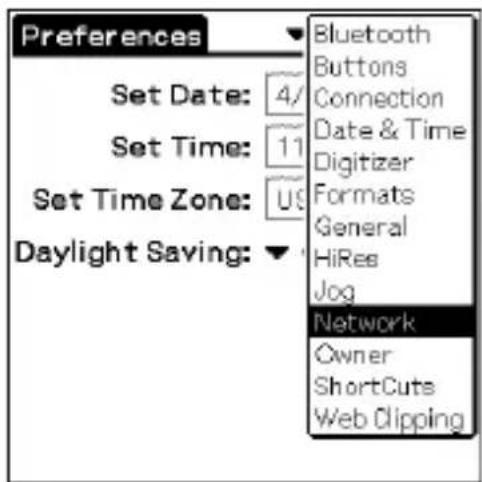
2 Tap ▼ of [Service], and select the name of the Internet Service Provider you use.
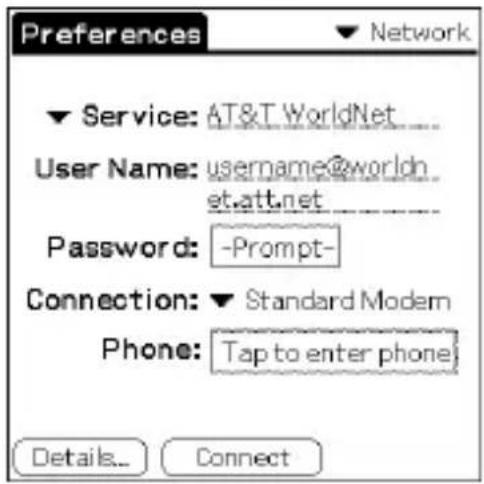
3 Tap ▼ of [Connection] that is located in the middle of the screen, and select the connection you use.
Select the connection name you specified in Step 5 in the procedure of “1 Setting the connecting method/Performing bonding” on page 24.
Tip
If you have not set the items other than [Connection], specify information on your Internet Service Provider. For details on how to specify information, see the manual of your CLIÉ handheld.
4 Tap [Connect] at the bottom of the screen.
A dial-up connection is executed.
5 Tap the home icon.
The home screen appears.
3 Browsing homepages/ Sending/receiving email
You can do the following operations from the home screen of your CLIÉ handheld.
Browsing homepages
Start up necessary application such as “AvantGo,” etc., and specify a homepage address (URL) to see a homepage.
Sending/receiving email
Start up the “CLIÉ Mail” application, etc., to send or receive email on your CLIÉ handheld. For example, tapping [Send/Receive Email] on the [CLIÉ Mail] screen allows you to send/receive email.
After using the Internet
1 Cut off the dial-up connection on your CLIÉ handheld.
For detailed operations, refer to the Help function, etc., of the application you are using.
2 Terminate Bluetooth communications on the cellular phone, modem or LAN access point.
For detailed operations, refer to the manual of the cellular phone, modem or LAN access point.
Tip
Bluetooth communication between the CLIÉ handheld and the cellular phone, modem or LAN access point is automatically cut off when the dial-up connection is disconnected.
Accessing the Internet for the Second Time and Thereafter
Once you have bonded a communication device to your CLIÉ handheld, following the instructions in “Accessing the Internet by Bluetooth Communications for the First Time” on pages 22-28, you can access the Internet easily from the second time.
If you try to use an unauthorized Bluetooth compatible cellular phone, modem, or LAN access point, follow the Procedures 1 to 3 of “Accessing the Internet by Bluetooth Communications for the First Time” on pages 23-28.
Note on the connection method for "CLIÉ Mail"
The explanation below is made on the assumption that you have set the connection method in the “Preferences” settings of your CLIÉ handheld, by following the procedures on pages 22-28. Therefore, if you have set the connection method for CLIÉ Mail from the “Net Settings” application, it may be impossible to perform a dial-up connection in Step 3 below. In this case, you need to give priority to the “Preferences” settings for the connecting method from the CLIÉ Mail application menu beforehand. For detailed operations, see the manual of CLIÉ Mail.
1 Make the following preparations.
- Insert this Bluetooth Module in your CLIÉ handheld.
- Turn on the power of the cellular phone, modem, or LAN access point, and activate Bluetooth communications.
2 Start up the appropriate application on the home screen of your CLIÉ handheld.
To see homepages: Start up the “AvantGo” application etc. To send/receive email: Start up the “CLIÉ Mail” application.
3 Tap the 📞on.
A dial-up connection is executed.
4 Browse a homepage or send/receive email.
If you cannot access the Internet following the instructions in “Accessing the Internet for the Second Time and Thereafter”
Tap ▼ in the upper right corner of the [Preferences] screen on your CLIÉ handheld, and select [Network]. Then, tap [Connect] at the bottom of the screen.
If you still cannot access the Internet, perform bonding again for the Bluetooth compatible device (cellular phone, modem or LAN access point) you use, following the instructions in “Accessing the Internet by Bluetooth Communications for the First Time” on pages 22-28.
Exchanging Information between Two CLIÉ Handhelds
You can transfer the data you have stored in Date Book, Address Book, To Do List, and Memo Pad to another Bluetooth compatible CLIÉ handheld.
1 Select the data you want to transfer from Date Book, Address Book, To Do List, and Memo Pad.
(E.g.) Transferring the data in Address Book

2 Tap the Menu icon on your CLIÉ handheld.
The menu list of the application you have selected appears.
3 Tap [Send] on the menu list.
To transfer Date Book data: Tap [Send Event].
To transfer Address Book data: Tap [Send Address].
To transfer To Do List data: Tap [Send Item].
To transfer Memo Pad data: Tap [Send Memo].

A Bluetooth compatible device discovery begins in the vicinity of your CLIÉ handheld.
When the discovery ends, the Bluetooth compatible device that has been found around your CLIÉ handheld is displayed.
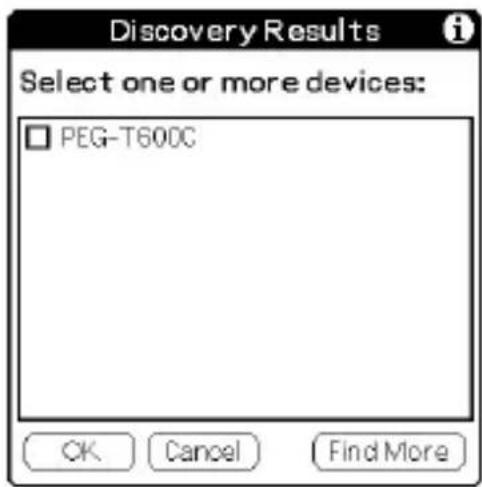
4 Select the CLIÉ handheld to which you want to transfer the data, and tap [OK].
A device discovery begins on the part of the other CLIÉ handheld, and the data transfer starts.
![SONY Clié PEGA-MSB1 - Select the CLIÉ handheld to which you want to transfer the data, and tap [OK]. - 1](/content/2026/05/1001726/images/07234e2dca3eeddf69140f726c4fb7795f4ac15640efee81f0f281fddd69760b.jpg)
You can exchange address data with a Bluetooth compatible personal computer or cellular phone.
For details, see the manual of each device.
Playing Reversi
The supplied application “Reversi” allows you to play the game against your opponent using two Bluetooth compatible CLIÉ handhelds.
Installing Reversi
Follow the instructions on page 13, and tick the check box of [Reversi] in Step 3.
Referring to the manual of Reversi
You can refer to the online manual of Reversi in the supplied CD-ROM. To read this online manual, you need to install Acrobat Reader in your personal computer.
Reading the Online Manual
1 Insert the supplied CD-ROM in the CD-ROM drive of your Windows computer.
The installer screen appears automatically.
2 Click [Done].
3 Double-click the [My Computer] icon.
4 Right-click the icon of the CD-ROM drive, and select [Open] from the displayed menu.
5 Double-click the [Manuals] folder.
6 Double-click Reversi Manual.pdf.
Looking at Information
Looking at Information on Bluetooth Communications
You can see Bluetooth related information on your CLIÉ handheld.
1 Tap the [Preferences] icon on the home screen of your CLIÉ handheld.
The [Preferences] screen appears.
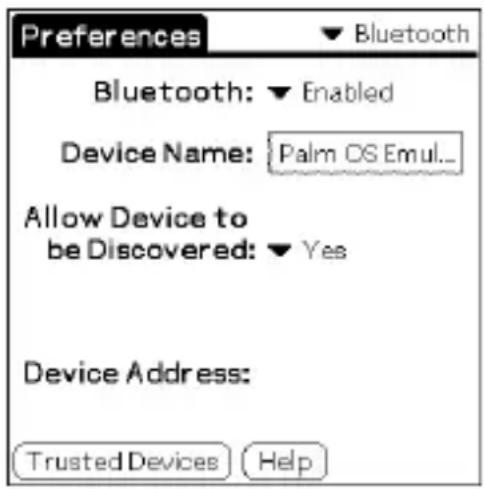
2 Tap ▼ in the upper right corner of the screen, and select [Bluetooth].
The [Bluetooth] screen appears showing the information on Bluetooth.

- Bluetooth : If you set this item to [Enabled], your CLIÉ handheld enters the radio wave standby mode while this Bluetooth Module is inserted in it. (The blue indicator is on all the time). If you set this item to [Disabled], Bluetooth communications become unavailable.
- Device Name : Enter the name of the CLIÉ handheld. The name is necessary for identification.
To change the name, tap inside the pane. The screen to edit the name appears, and you can enter a new name.
- AllowDevice&beDiscovered : If you set this item to [Yes], the CLIÉ handheld becomes detectable as a Bluetooth compatible device when another Bluetooth compatible device is performing a device discovery. If you set this item to [No], the CLIÉ handheld will not respond to a device discovery.
- Device Address : The device address (the number that is assigned to each Bluetooth compatible device) of this Bluetooth Module is displayed.
Looking at Information on Other Devices
You can see information on other Bluetooth compatible devices that are bonded to your CLIÉ handheld.
1 Tap the [Preferences] icon on the home screen of your CLIÉ handheld.
The [Preferences] screen appears.
2 Tap ▼ in the upper right corner of the screen, and select [Bluetooth].
The [Bluetooth] screen appears.
3 Tap [Trusted Devices].
The Bluetooth Module is initialized, and the Bluetooth compatible devices that are bonded to it are displayed.

4 Select a device the information of which you want to know.
5 Tap [Details].
The [Device Details] screen appears.
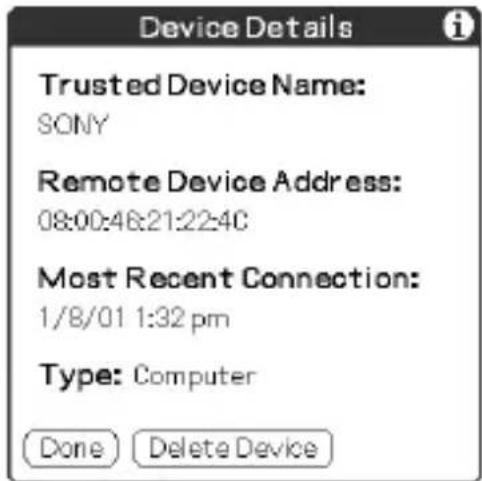
- Trusted Device Name : The name of the device you have selected is displayed.
- Remote Device Address : The device address that is assigned to the device you have selected is displayed.
- Most Recent Connection : The date on which the connection was made last time is displayed.
- Type : The type of the device is displayed.
6 Tap [Done].
The [Bluetooth] screen appears.
Deleting Unnecessary Bonding Information
You can delete bonding information on the devices that are no longer needed.
1 Insert this Bluetooth Module in your CLIÉ handheld.
2 Tap the [Preferences] icon on the home screen of your CLIÉ handheld.
The [Preferences] screen appears.
3 Tap ▼ in the right corner of the screen, and select [Bluetooth].
The [Bluetooth] screen appears.
4 Tap [Trusted Devices].
The Bluetooth Module is initialized, and the Bluetooth compatible devices that are bonded to it are displayed.
5 Select an unnecessary Bluetooth compatible device.

6 Tap [Details].
The [Device Details] screen appears.
7 Tap [Delete The Device].
The [Delete Trusted Device] screen appears on your CLIÉ handheld.
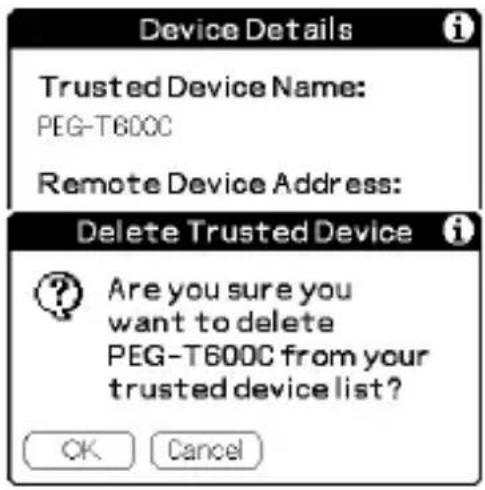
8 Tap [OK].
The Bluetooth compatible device that you have selected is deleted from the list of bonded devices.
Troubleshooting
If any problem occurs, for example, if communication is not possible, or if the unit does not operate normally, please check the points listed in this troubleshooting guide. For information on the Bluetooth compatible devices, check our official Sony CLIÉ Web site:
Customers in USA, Canada and Mexico:
http://www.ita.sel.sony.com/support/clie/access/
Customers in Asia-Pacific Countries: http://vaio-online.sony.com/clie/
If the problem persists, contact the Sony dealer where you purchased this product or a Sony service representative serving your area.
General problems
| Symptom | Cause/Remedy |
| Communication is not possible.Connection cannot be established.A device discovery cannot find a Bluetooth compatible device. | The Bluetooth communication range may be exceeded. Decrease the distance between this Bluetooth Module and the other Bluetooth compatible device.No device may have bonded to the CLIÉ handheld and the other Bluetooth compatible device (Bonding may not have been completed on these devices). Perform bonding again referring to the instructions on page 16 or 23.If you have bonded a Bluetooth compatible device including a cellular phone to more than one CLIÉ handheld using this Bluetooth Module, delete the bonding information on the device from the device itself and the CLIÉ handheld.The Bluetooth function may be off on the part of Bluetooth compatible device. Activate the Bluetooth communications referring to the manual or online manual of the device.Turn off the power of your CLIÉ handheld, and then on again. Otherwise, remove this Bluetooth Module from the CLIÉ handheld, and insert it again.The devices may be placed too close. Increase the distance between them. |
| A message appears indicating that Bluetooth accessory cannot be found. | Remove this Bluetooth Module from the CLIÉ handheld, and insert it again. |
| The message “The server does not respond” or “A modem cannot be found” appears, and communication is not possible. | ·A wrong Passkey may have been entered. Perform bonding again and enter the correct Passkey. (See pages 18 and 25). ·A Software or old link key that cannot respond to a Passkey exchange request from other devices may have been stored. Perform bonding again. (See pages 16 and 23). |
| Communication is not possible although distance between this Bluetooth Module and the other Bluetooth compatible device is less than 10 meters. | The actual communication range may be less than 10 meters depending on factors such as obstacles between devices, magnetic fields around a microwave oven, static electricity, interference, reception sensitivity or antenna's performance, and operating system or software application, etc. Change the installation location of this Bluetooth Module, or decrease the distance between devices. |
| Data transfer speed is slow. | The data transfer rate varies, depending on factors such as distance, obstacles between devices, magnetic fields around a microwave oven, static electricity, interference, reception sensitivity or antenna's performance, and operating system or software application, etc. Change the installation location of this Bluetooth Module, or decrease the distance between devices. |
HotSync operation problems
| Symptom | Cause/Remedy |
| A HotSync operation cannot be performed. | ·Ensure that the icon is displayed on the task tray on your Windows computer display and that HotSync Manager is running. To make sure it is running, click the icon. If a menu appears, it is running.·Ensure that [PC] and [Bluetooth] are selected in the [Connection] settings for HotSync operations on the CLIÉ handheld. (See page 17) |
Internet Connection problems
| Symptom | Cause/Remedy |
| Communication is not stable. | Radio wave conditions or telephone circuit conditions may not be good. Check the bars showing the reception field intensity on the cellular phone. If a minimum of two bars is not displayed steadily, try to access the Internet again after waiting for a while. |
| You cannot access the Internet. | •Check the following Network settings on the CLIÉ handheld.- Is the DNS setting of the Internet Service Provider set correctly?- Are the user name and the password set correctly?- Is the telephone number of the access point set correctly?- Is the area code not omitted? Even if your telephone number has the same area code as the access point, the area code needs to be entered.- Is the communication system set correctly? Check the details of the respective agreements with your Telecommunications Company and Internet Service Provider about the services you are using, e.g., telephone circuit type.- Are the Connection settings correct? If you use a cellular phone or a modem, select [Modem], and if you use a LAN access point, select [Local Network]. (See page 24)•Perform bonding again following the instructions in “Accessing the Internet by Bluetooth Communications for the First Time” on page 22. |
| You cannot send or receive email. | Check the following settings of the emailing application on the CLIÉ handheld.Is the server type set correctly?Are the user name and the password set correctly? |
Precautions on Use
Handling this Bluetooth Module
- Do not subject this unit to excessive shock, and take care not to drop it to prevent a malfunction.
- Do not use or store this unit in locations subject to:
- extremely high temperature, such as in direct sunlight or near a heater.
- excessive dust
- high humidity
- vibrations
- poor ventilation
It may cause a malfunction.
- Do not use this unit in a shaky, unstable place.
- Do not put a metal object such as a metal clip etc. inside this unit.
- When inserting this unit in the CLIÉ handheld, take care not to force it in the wrong way. It may cause a malfunction.
- Do not remove this unit from the CLIÉ handheld while the POWER indicator is on. Before removing it, make sure that the POWER indicator is off.
- The CLIÉ handheld in which this unit inserted and a Bluetooth compatible device may operate incorrectly depending on how they are placed.
Condensation
Condensation is a phenomenon that moisture in the air becomes water drops when it contacts a metal plate etc. Condensation may occur on the surface or inside of this Bluetooth Module on occasions when you quickly move it from a cold place to a warm place, when you turn on the heater in the room on a cold, winter morning. Using this Bluetooth Module with condensation on it may cause a malfunction. If condensation occurs on this Bluetooth Module, leave it without turning on the power of the CLIÉ handheld until the condensation disappears.
Communication (If You Use a Cellular Phone)
- If you have performed an unnecessary line feed or entered alphanumeric string of three lines or more in the user name of the [Network] settings on the [Preferences] screen of the CLIÉ handheld, authentication may not be carried out correctly because the unnecessary line feed or string is not displayed.
- Communication is not possible in places where radio wave does not reach. Bluetooth communications is data communication. Therefore, even if you are in a place where you can talk on the cellular phone, you may not be able to perform Bluetooth communications there. For detailed information, contact your mobile communications company.
- Connection may not be performed correctly if you move the cellular phone in to and out from the service area of your mobile communications company.
- Depending on time or the radio wave conditions, data communication may not be possible. In this case, move the cellular phone to a different place, or try to establish a connection again after waiting for a while.
- In a roaming area, data communication may not be possible, and the service you are usually using may be unavailable. For details, contact your mobile communications company.
- It is impossible to send/receive fax messages using this Bluetooth Module.
- Transfer rate may become slow depending on the circuit conditions.
Specifications
Wireless Communication
Communication method
Bluetooth standard Ver. 1.1
Output
Bluetooth standard Power Class 2
Communication range ^1)
Line of sight approx. 10 m
Supported Bluetooth profiles ^2)
Serial Port Profile
Dial-up Networking Profile
LAN Access Profile
Object Push Profile
Frequency band
2.4 GHz band (2.4000 GHz - 2.4835 GHz)
Power Source / General
Power source
Powered by CLIÉ handheld
DC 3.0 V (Approx.)
Power consumption (when communication is performed)
TYP. 330 mW
Operating temperature
41^ - 95^(5^ - 35^)
Dimensions
Approx. 7 / 8 · 23 / 8 · 1 / 8 in.
(width · length · thickness)
Design and specifications are subject to change without notice.
^1) Actual range will vary depending on factors such as obstacles between devices, magnetic fields around a microwave oven, static electricity, interference, radio wave conditions, reception sensitivity or antenna's performance, and operating system or software application, etc.
^2) Bluetooth standard profiles specify the usage purpose for Bluetooth devices communicating with each other.
Customer Support
For the latest support information, check our official Sony CLIÉ Web site
Customers in USA, Canada and Mexico:
http://www.ita.sel.sony.com/support/clie/access/
Customers in Asia-Pacific Countries:
http://vaio-online.sony.com/clie/
http://www.sony.net/

Printed on 100% recycled paper using VOC (Volatile Organic Compound)-free vegetable oil based ink.
Printed in Japan
- Owner's Record
- NOTICE
- FCC WARNING
- Declaration of Conformity
- FCC Radio-Frequency Exposure Statement:
- Table of Contents
- Introduction
- Bluetooth compatible devices that can be used with PEGA-MSB1
- Notes
- What You Can Do with this Bluetooth Module
- Performing a HotSync operation
- Accessing the Internet
- Note
- Communicating between two CLIÉ handhelds Enjoying the supplied application “Reversi”
- Exchanging data
- When exchanging data by using the Bluetooth Module
- Names of Parts
- Bluetooth Module
- POWER indicator
- Accessories
- Inserting/Removing this Bluetooth Module
- Inserting this Bluetooth Module in your CLIÉ handheld
- Removing this Bluetooth Module from your CLIÉ handheld
- Installing the Software
- Perform a soft reset on your CLIÉ handheld.
- Insert the supplied CD-ROM in the CD-ROM drive of your Windows computer.
- Tip
- Proceed with the installation, following the installer's instructions.
- Click [Done] when the installer-closing screen appears.
- Click the icon on the task tray that is located in the lower right corner of Windows display on your computer.
- If you cannot find the icon on the task tray
- Execute a local HotSync operation on your CLIÉ handheld.
- Performing a HotSync Operation by Bluetooth Communications for the First Time
- What is "bonding"?
- What is a Passkey?
- Setting the communication method/Performing bonding
- Tap [New].
- Tap [Tap to Find].
- If you are a VAIO user
- Select a personal computer you want to bond to your CLIÉ handheld, and tap [OK].
- Tap [Yes].
- Enter a Passkey and tap [OK] on your CLIÉ handheld.
- Enter the same Passkey as Step 8 and click [OK] on the computer.
- Tap the home icon on your CLIÉ handheld.
- Tips
- Performing a HotSync operation
- Check that the icon is displayed on the task tray in the lower right corner of your computer display.
- Tap the [HotSync] icon on the home screen of your CLIÉ handheld.
- Check that [Local] is selected.
- Tap ▼ below the 📊 icon, and select the connection you would like to use.
- Tap the icon.
- Performing a HotSync Operation for the Second Time and Thereafter
- Make the following preparations.
- Tap the icon.
- If you cannot perform a HotSync operation following the instructions in “Performing a HotSync Operation for the Second Time and Thereafter”
- Accessing the Internet by Bluetooth Communications for the First Time
- If the Passkey for a communication device is fixed
- Setting the connection method/Performing bonding
- Tap [New].
- Tap [Tap to Find].
- Select the cellular phone, modem or LAN access point you want to bond to your CLIÉ handheld, and tap [OK].
- Tap [Yes].
- If you have selected a cellular phone, enter a Passkey at the cellular phone, and click [OK].
- Enter the same Passkey \* as Step 9 and tap [OK] on your CLIÉ handheld.
- Executing a dial-up connection
- Tap ▼ in the upper right corner of the [Preferences] screen of your CLIÉ handheld, and select [Network].
- Browsing homepages/ Sending/receiving email
- Browsing homepages
- Sending/receiving email
- After using the Internet
- Cut off the dial-up connection on your CLIÉ handheld.
- Terminate Bluetooth communications on the cellular phone, modem or LAN access point.
- Accessing the Internet for the Second Time and Thereafter
- Note on the connection method for "CLIÉ Mail"
- Start up the appropriate application on the home screen of your CLIÉ handheld.
- Tap the 📞on.
- Browse a homepage or send/receive email.
- If you cannot access the Internet following the instructions in “Accessing the Internet for the Second Time and Thereafter”
- Exchanging Information between Two CLIÉ Handhelds
- Select the data you want to transfer from Date Book, Address Book, To Do List, and Memo Pad.
- Tap the Menu icon on your CLIÉ handheld.
- Tap [Send] on the menu list.
- Select the CLIÉ handheld to which you want to transfer the data, and tap [OK].
- Playing Reversi
- Installing Reversi
- Referring to the manual of Reversi
- Reading the Online Manual
- Looking at Information
- Looking at Information on Bluetooth Communications
- Looking at Information on Other Devices
- Tap the [Preferences] icon on the home screen of your CLIÉ handheld.
- Tap ▼ in the upper right corner of the screen, and select [Bluetooth].
- Tap [Trusted Devices].
- Select a device the information of which you want to know.
- Tap [Details].
- Tap [Done].
- Deleting Unnecessary Bonding Information
- Tap [Delete The Device].
- Tap [OK].
- Troubleshooting
- Customers in USA, Canada and Mexico:
- Precautions on Use
- Handling this Bluetooth Module
- Condensation
- Communication (If You Use a Cellular Phone)
- Specifications
- Wireless Communication
- Communication method
- Output
- Supported Bluetooth profiles 2)
- Frequency band
- Power Source / General
- Power source
- Power consumption (when communication is performed)
- Operating temperature
- Dimensions
- Customer Support
- Customers in Asia-Pacific Countries:
Brand : SONY
Model : Clié PEGA-MSB1
Category : Bluetooth module