
POC-W152 - Desktop computer Advantech - Free user manual and instructions
Find the device manual for free POC-W152 Advantech in PDF.


| Type of product | All-in-one medical panel PC |
| Brand | Advantech |
| Model | POC-W152 |
| Display size | 15.6 inch |
| Resolution | 1920 x 1080 (Full HD) |
| Touchscreen | Projected capacitive, multi-touch |
| Processor | Intel Core i5-6300U |
| Memory | 8 GB DDR4 |
| Storage | 128 GB SSD |
| Operating system | Windows 10 IoT Enterprise |
| Dimensions (W x H x D) | 406 x 269 x 52 mm |
| Weight | 5.5 kg |
| Power supply | 100-240V AC, 50/60 Hz |
| Power consumption | 45 W typical |
| Protection class front | IP65 |
| Antimicrobial housing | Yes |
| Mounting options | VESA 75 x 75 mm, stand, wall mount |
| Interfaces | 2x USB 3.0, 2x USB 2.0, 1x HDMI, 1x VGA, 1x RJ45, 1x RS-232, audio |
| Wireless connectivity | WiFi 802.11ac, Bluetooth 4.2 |
| Cleaning and maintenance | Use mild detergent, avoid abrasive cleaners; ensure device is powered off |
| Safety certifications | IEC 60601-1 (medical safety), CE, FCC |
| Spare parts and repairability | Contact Advantech service for replacement parts; battery and fan replaceable |
| General information | Designed for clinical environments; fanless cooling for silent operation |
Frequently Asked Questions - POC-W152 Advantech
User questions about POC-W152 Advantech
0 question about this device. Answer the ones you know or ask your own.
Ask a new question about this device
Download the instructions for your Desktop computer in PDF format for free! Find your manual POC-W152 - Advantech and take your electronic device back in hand. On this page are published all the documents necessary for the use of your device. POC-W152 by Advantech.
USER MANUAL POC-W152 Advantech
Point- of-Care Terminal with Intel® Core™ Haswell / Intel® J1900 Processor and a 15.6" VA LCD (Computer)
Instructions for the User
The document provides a comprehensive overview of the system. The information is presented as a sequential series of actions, allowing the user to learn directly how to use the device. The text provides explanations and instructs the user step-by-step in the practical use of the product, with short, clear instructions in an easy-to-follow sequence.
Definitions
Warning! A WARNING statement provides important information about a potentially hazardous situation which, if not avoided, could result in death or serious injury.

Caution! A CAUTION statement provides important information about a potentially hazardous situation which, if not avoided, may result in minor or moderate injury to the user or patient or in damage to the equipment or other property.
Note! A NOTE provides additional information intended to avoid inconveniences during operation.

Safety Instructions
- Strictly follow these Instructions for Use; please read these safety instructions carefully.
- Please keep this User Manual for later reference; any use of the product requires full understanding and strict observation of all portions of these instructions. Observe all WARNINGS and CAUTIONS as rendered throughout this manual and on labels on the equipment.
- Repair of the device may only be carried out by trained service personnel. Advantech recommends that a service contract be obtained with Advantech Service and that all repairs also be carried out by them. Otherwise the correct functioning of the device may be compromised.
Warning! Because of the danger of electric shock, never remove the cover of a device while it is in operation or connected to a power outlet.

- If one of the following situations arises, have the equipment checked by service personnel:
■ The power cord or plug is damaged.
- Liquid has penetrated into the equipment.
■ The equipment has been exposed to moisture.
Part No. 2008W15200 Edition 1
Printed in Taiwan October 2015
The equipment does not work well, or you cannot get it to work according to the user manual.
■ The equipment has been dropped and damaged.
■ The equipment has obvious signs of breakage.
- Disconnect this equipment from any AC outlet before cleaning. Use a damp cloth. Do not use liquid or spray detergents for cleaning and keep this equipment away from humidity.
Caution! To avoid short-circuiting and otherwise damaging the device, do not allow fluids to come in contact with the device. If fluids are accidentally spilled on the equipment, remove the affected unit from service as soon as possible and contact the service personnel to verify that patient safety is not compromised.

- Put this equipment on a reliable surface during installation. Dropping it or letting it fall may cause damage. For plug-in equipment, the power outlet socket must be located near the equipment and must be easily accessible.
Caution! To prevent overheating, do not cover the openings or place the device in direct sunlight or near radiant heaters.

- Make sure the voltage of the power source is correct before connecting the equipment to the power outlet. Position the power cord so that people cannot step on it. Do not place anything over the power cord. If the equipment is not used for a long time, disconnect it from the power source to avoid damage by transient over voltage.
Caution! Do not leave this equipment in an uncontrolled environment where the storage temperature is below -20^ C ( -4^ F) or above 60^ C ( 140^ F). This may damage the equipment.
- If your computer does not keep the correct time or the BIOS configuration has been reset to default, the battery may have no charge.
Caution! Do not replace battery yourself. Please contact a qualified technician or your retailer.

The computer is provided with a battery-powered, real-time clock circuit. There is a danger of explosion if battery is incorrectly replaced. Replace only with same or equivalent type recommended by the manufacturer. Discard used batteries according to the manufacturer's instructions.
Caution! The battery charging indicator is not included with this device. It will be added to the finished system assembly and be shown with the completed system.

-
Improper installation of VESA mounting can result in serious personal injury! VESA mount installation should be operated by professional technician, please contact the service technician or your retailer if you need this service. The detail operating procedure is specified in Appendix A.
-
Classification:
1). Supply Class I adapter
2). No applied part
3). IPX1
4). Continuous Operation
5). Not AP or APG category
Warning! This device is not suitable for use in the presence of flammable anesthetic mixture with air, oxygen, nitrous oxide, or for life support systems.

- Environmental protection: follow national requirements to dispose of unit.
- Maintenance: to properly maintain and clean the surfaces, use only the approved products or clean with a dry applicator.
Caution! When servicing the device, always use replacement parts that are qualified to Advantech standards. Advantech Digital Healthcare cannot warrant or endorse the safe performance of third-party replacement parts for use with our medical device.
-
Make sure the user does not allow contact between SIP/SOPs and the patient at the same time.
-
When networking with electrical devices, the operator is responsible for ensuring that the resulting system meets the requirements set forth by the following standards:
- EN 60601-1 (IEC 60601-1) Medical electrical equipment Part 1: General requirements for safety
- EN 60601-1-1 (IEC 60601-1-1) Medical electrical equipment Part 1-1: General requirements for safety Collateral standard: Safety requirements for Medical electrical systems
- EN 60601-1-2 (IEC 60601-1-2) Medical electrical equipment Part 1-2: General requirements for safety Collateral standard: Electromagnetic compatibility; Requirements and tests

Medical Equipment
With Respect to Electric Shock, Fire, and Mechanical Hazards Only, In Accordance with UL 60601-1, CAN/CSA C22.2 No. 601.1, and IEC 60601-1
- Accessory equipment connected to analog and digital interfaces must be in compliance with the respective nationally harmonized IEC standards (i.e. IEC 60950 for data processing equipment, IEC 60065 for video equipment, IEC 61010-1 for laboratory equipment, and IEC 60601-1 for medical equipment.) Furthermore all configurations shall comply with the system standard IEC 60601-1-1. Anyone who connects additional equipment to the signal input part or signal output part is configuring a medical system, and is therefore, responsible that the system complies with the requirements of the system standard IEC
60601-1-1. The unit is for exclusive interconnection with IEC 60601-1 certified equipment in the patient environment and IEC 60XXX certified equipment outside of the patient environment. If in doubt, consult the technical services department or your local representative.
Caution! Use suitable mounting apparatus to avoid risk of injury.

- Grounding reliability can only be achieved when the equipment is connected to an equivalent receptacle marked "Hospital Only" or "Hospital Grade".
- Use a power cord that matches the voltage of the power outlet, which has been approved and complies with the safety standard of your particular country.
Note! Environmental protection

Follow national requirements to dispose of unit.
- "WARNING - Do not modify this equipment without authorization of the manufacturer."
- "WARNING – To avoid risk of electric shock, this equipment must only be connected to a supply mains with protective earth.
- "CAUTION: This adapter Sinpro Power: Type: HPU101-107 is a forming part of the medical device".
Explanation of Graphical Symbols

IEC 60878 and ISO 3864-B.3.6 : Warning: dangerous voltage

ISO 7000-0434 : Caution, consult ACCOMPANYING DOCUMENTS.

ISO 7000-1641 : Follow operating instructions or consult instructions for use.

IEC 60417 -5009 : STAND-BY.

IEC 60417-5031 : Direct current.

IEC 60417-5021 : Equipotentiality.
Disposing of Old Products
Within the European Union

EU-wide legislation, as implemented in each member state, requires that waste electrical and electronic products carrying the mark shown at left must be disposed of separately from normal household waste. This includes monitors and electrical accessories, such as signal cables or power cords. When you need to dispose of your display products, please follow the guidance of your local authority, or ask the shop where you purchased the product, or if applicable, follow any agreements made between you and the provider.
The mark on electrical and electronic products only applies to the current European Union Member States.
FCC Class B
This equipment has been tested and found to comply with the limits for a Class B digital device, pursuant to Part 15 of the FCC Rules.
These limits are designed to provide reasonable protection against harmful interference when the equipment is operated in a residential environment. This equipment generates, uses and can radiate radio frequency energy. If not installed and used in accordance with this user manual, it may cause harmful interference to radio communications.
Note that even when this equipment is installed and used in accordance with this user manual, there is still no guarantee that interference will not occur. If this equipment is believed to be causing harmful interference to radio or television reception, this can be determined by turning the equipment on and off. If interference is occurring, the user is encouraged to try to correct the interference by one or more of the following measures:
■ Reorient or relocate the receiving antenna
■ Increase the separation between the equipment and the receiver
■ Connect the equipment to a power outlet on a circuit different from that to which the receiver is connected
Consult the dealer or an experienced radio/TV technician for help
Warning! Any changes or modifications made to the equipment which are not expressly approved by the relevant standard's authority could void your authority to operate the equipment.

List of Accessories
Before installing your Point-of-Care Terminal, ensure that the following materials have been received:
■ POC-W152 series Point-of-Care Terminal
■ Accessories for POC-W152
■ CD-ROM disc-"Drivers, User's manual and Utilities"
■ Mounting kits and packet of screws.
■ VESA mounting note x1
China RoHs note x1
Warning! No user serviceable parts inside; refer servicing to qualified personnel. Only the accessories indicated on the list of accessories above have been tested and approved to be used with the device. Accordingly it is strongly recommended that only these accessories be used in conjunction with the specific device. Otherwise the correct functioning of the device may be compromised.
Additional Information and Assistance
Contact your distributor, sales representative, or Advantech's customer service center for technical support if you need additional assistance. Please have the following information ready before you call:
■ Product name and serial number
■ Description of your peripheral attachments
■ Description of your software (operating system, version, application software, etc.)
■ A complete description of the problem
■ The exact wording of any error messages
This equipment is a source of electromagnetic waves. Before use please, make sure that there are not EMI sensitive devices in its surrounding which may malfunction therefore.
Environmental protection
■ Follow national requirements to dispose of unit.
Manufacturer:
Advantech Co., Ltd.
No.1, Alley 20, Lane 26, Rueiguang Road Neihu District, Taipei,
Taiwan 114, R.O.C.
TEL: (02) 2792-7818
Distributed in Europe by:
Advantech Europe GmbH Kolberger Straße 7
D-40599 Düsseldorf, Germany
Tel: 49-211-97477350
Fax: 49-211-97477300
Visit the Advantech websites at www.advantech.com or www.advantech.com.tw if you need more information.

Contents
Chapter 1 General Information ....1
1.1 Introduction 2
1.2 Specifications 2
1.3 Dimensions 4
Figure 1.1 Dimensions of the POC-W152/W152C 4
Figure 1.2 VESA Mounting of the POC-W152/W152C....4
Figure 1.3 POC-W152/W152C Front Panel.... 5
1.3.1 Optional Modules 5
1.3.2 Cleaning and Disinfecting 5
Chapter 2 System Setup....7
2.1 A Quick Tour of the POC-W152/W152C....8
2.1.1 Front View....8 Figure 2.1 Front View of the Point-of-Care Terminal ....8
2.1.2 Rear View .... 8 Figure 2.2 Rear view of the Point of Care Terminal.... 8 Figure 2.3 Rear view of Multi I/O ports.... 9
2.1.3 Bottom view ...... 9 Figure 2.4 Bottom view ...... 9
2.2 Installation Procedures.... 10
2.2.1 Connecting the Power Cord.... 10 Figure 2.5 Connecting the power cord.... 10
2.2.2 Connecting the Ground Pin.... 10 Figure 2.6 POC-W152/W152C Equipotential Terminal Pin .... 10 Figure 2.7 Grounding cable with connector .... 10
2.3 Running the BIOS Setup Program 11
2.4 Installing System Software.... 11
2.5 Installing the Drivers.... 12
Chapter 3 Operation and Safety Information....17
3.1 General Safety Guide.... 18
3.2 Protecting Your Optical Drive 18
3.3 Thermal 18
3.4 Disconnect the Power 19
Appendix A Install VESA Mounting .....21
A.1 Install VESA Mounting 22
Chapter 1
General Information
1.1 Introduction
The POC-W152/W152C is a multimedia Intel® Haswell/Baytrail processor series designed for mobile computing as a Point-of-Care terminal (POC.) It is a PC-based system with 15.6" wide screen TFT LCD display, single VGA Port, HDMI out, onboard 10/100/1000 PCI-E Ethernet controllers, and LAN ports. It has dual COM ports, USB 2.0 and 3.0 ports and a 24-bit stereo audio controller. With the 2.5" SATA interface, the POC-W152/W152C is a user-friendly computer. For system integrators, this highly integrated multimedia system lets you easily build a Point-of-Care Terminal into your applications. The POC-W152/W152C makes it an ideal and safe point-of-care solution for patients and hospital practitioners.
The POC-W152/W152C is specially designed to resist spills and water damage, and ensures dust resistance with its protected LCD and sealed ports. The POC-W152/W152C is a reliable solution to your application's processing requirements.
Intended use - The POC-W152/W152C is intended to serve as a Point-of-Care terminal (POC) for integration with hospital systems. POC-W152/W152C is designed for general purpose medical computing in the hospital environment, for data collection and for dis-playing information.
NOTE: It should not be used as a life-support system.
The latest version of this user manual is available for download from http://support.advantech.com.tw/support/
1.2 Specifications
| Computing System | CPU | POC-W152: Intel® Core™ i7-4650U Processor Intel® Core™ i5-4300U Processor Intel® Core™ i3-4010U Processor |
| POC-W152C: Intel® Celeron® J1900 Quad Core 2.0GHz | ||
| Memory Up to 16GB DDR3L 1600MHz | ||
| Graphics Controller LVDS | ||
| Operating System Win 7, Win 8 | ||
| System Input Rating Display | Input Voltage +18 VDC,5.55 A. | |
| Display Size 15.6" TFT LCD (16:9) | ||
| Type VA | ||
| Max Resolution 1366 x 768 | ||
| Max. Colors 16.7 M colors | ||
| (6-bits+A-FRC) | ||
| Pixel Pitch (mm) | 0.252(H) x 0.252(V) | |
| Viewing Angle | 160°/160° | |
| Luminance | 300 cd/m2 | |
| Backlight | LCD | |
| Contrast Ratio | 300 | |
| Expansion Slot PCIe | 1 x PCIe (x4)PCIe and Battery Pack can switchable for only one interface. | |
| Storage HDD | 1 x 2.5" SATA, Support 5V/12V, Height up to 15mm, Easy installation | |
| IO Port | Serial Ports 1 x RS-232/422/485 serial port | |
| USB Ports 2 x USB 3.0 ports | ||
| 3 x USB 2.0 ports | ||
| HDMI 1 x HDMI | ||
| VGA Port 1 x VGA | ||
| LAN 1 x Gigabit Ethernet (RJ45 isolation) | ||
| Audio 2 x speakers (1 W) | ||
| Power Supply | DC Model | External Power AdapterAC/DC adapter (Sinpro Model no.HPU101-107) |
| Input Voltage 100-240V AC, 47-63Hz, 1.2-0.5A | ||
| Output Voltage +18 VDC,5.55 A. | ||
| Battery | 1x Backup Battery PackPCIe and Battery Pack can switchable for only one interface | |
| Optional Function | WLAN Integrated wireless 802.11 a/b/g/n | |
| Bluetooth Bluetooth 4.0 | ||
| RFID | Passive RFID | |
| Type | Res TS | |
| Touch Screen | Light transmission | Res. TS 75% |
| Controller | USB surface | |
| Surface | Res. AG | |
| Certification | UL/TUV/CB, ANSI/AAMI ES60601-1/EN60601-1/IEC60601-1, CE & FCC Class B certified | |
| Environment | Shock Resistance | 20G peak acceleration (11ms duration) |
| Temperature | 0 ~ 40°C(Operating)-20 ~60°C (Storage)-20 ~60°C (Transportation) | |
| Humidity | 10%-90% @ 40°C (non-condensing)5 ~90% (non condensing) (Storage)5 ~90% (Transportation) | |
| Pressure | 700-1013 hPa (Operation)375 mmHg to 760 mmHg (Storage)375 mmHg to 760 mmHg (Transportation) | |
| Physical Characteristics | Dimensions(W x H x D) | 405.53mmx274mmx60.82mm |
| Weight | 4.65Kg | |
1.3 Dimensions
Dimensions: 405.53 x 274 x 60.82 mm (Unit: mm)
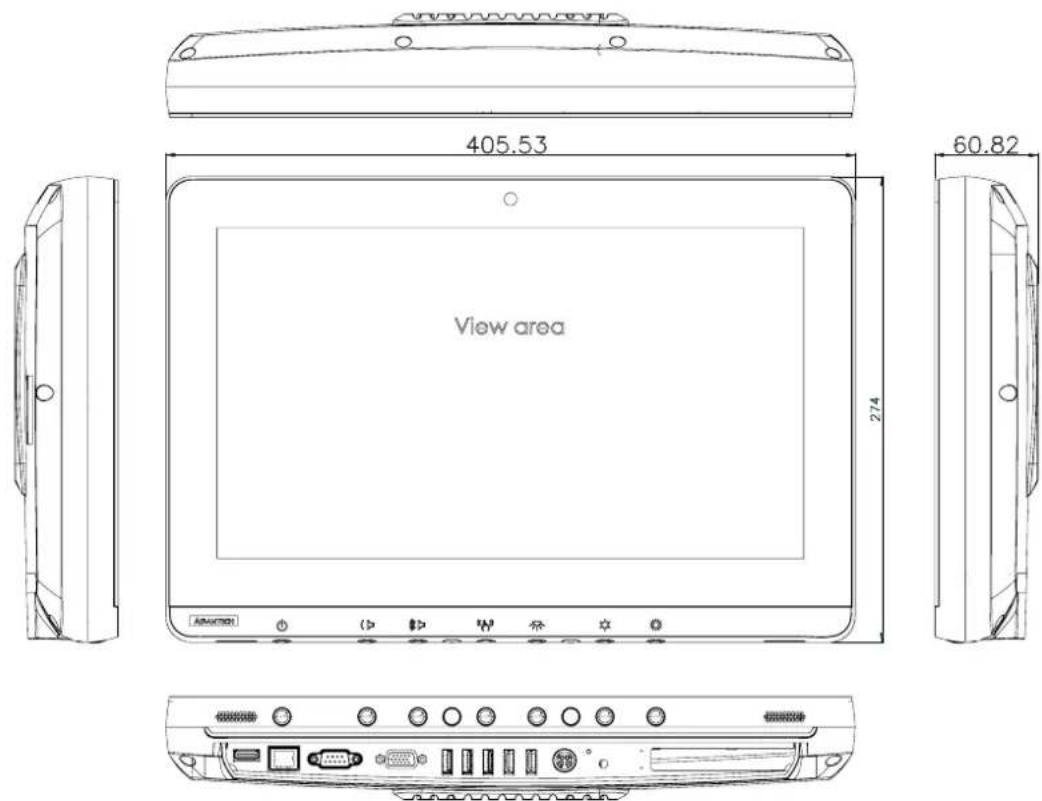
Figure 1.1 Dimensions of the POC-W152/W152C
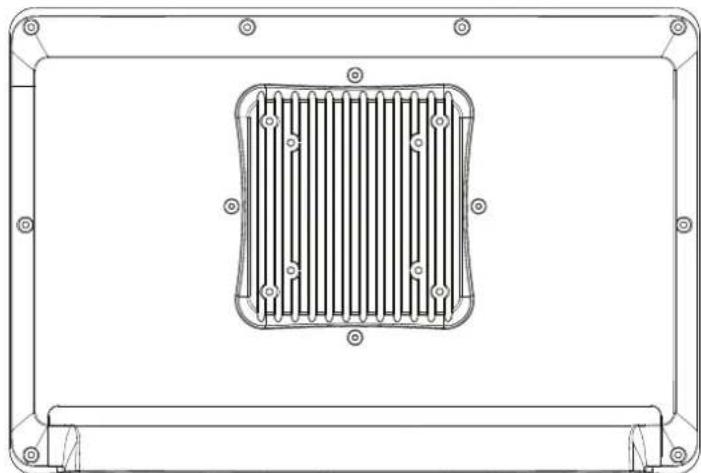
VESA Mounting: 75 x 75 mm; 100x100 mm Please use M4x12L (Maxium)screw.
natural_image
Technical line drawing of a rectangular enclosure with a central heating element (no text or symbols)Figure 1.2 VESA Mounting of the POC-W152/W152C
Warning! Use suitable mounting apparatus to avoid risk of injury.

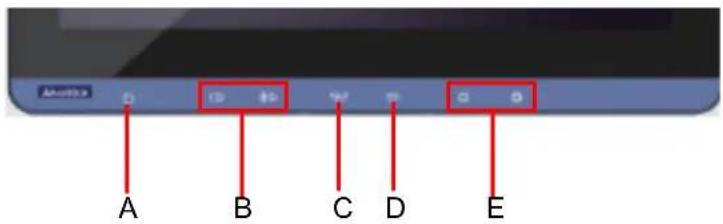
Figure 1.3 POC-W152/W152C Front Panel
(A) Power
(B) Volume Down/Up
(C) Touchscreen Status Control
(D) Read Light Control
(E) Brightness Decrease / Increase
1.3.1 Optional Modules
WLAN: Integrated wireless 802.11 a/b/g/n.
Bluetooth: Bluetooth 4.0.
Smart card reader: 1x Smart card reader.
RFID: Passive RFID.
1.3.2 Cleaning and Disinfecting
During normal use of the POC (Point-of-Care Terminal) the device may become dirty and should be regularly cleaned.
Steps:
- Prepare cleaning water.
- Wipe the POC with a clean cloth that has been moistened in the pure water.
- Wipe thoroughly with a clean cloth.
Caution!

Do not immerse or rinse the POC or its peripherals. If you accidentally spill liquid on the device, disconnect the unit from the power source. Contact your IT support department regarding the continued safety of the unit before placing it back in operation-Do not spray cleaning agent on the chassis.
Do not use disinfectants that contain phenol.
Do not autoclave or clean the POC or its peripherals with strong aromatic, chlorinated, ketone, either, or ether solvents, sharp tools or abrasives. Never immerse electrical connectors in water or other liquids.
Chapter 2
System Setup
2.1 A Quick Tour of the POC-W152/W152C
Before you start to set up the POC-W152/W152C, take a moment to become familiar with the locations and purposes of the controls, drives, connections and ports, which are illustrated in the figures below.
When you place the POC-W152/W152C upright on the desktop, its front panel appears as shown in Figure 2.1.
2.1.1 Front View
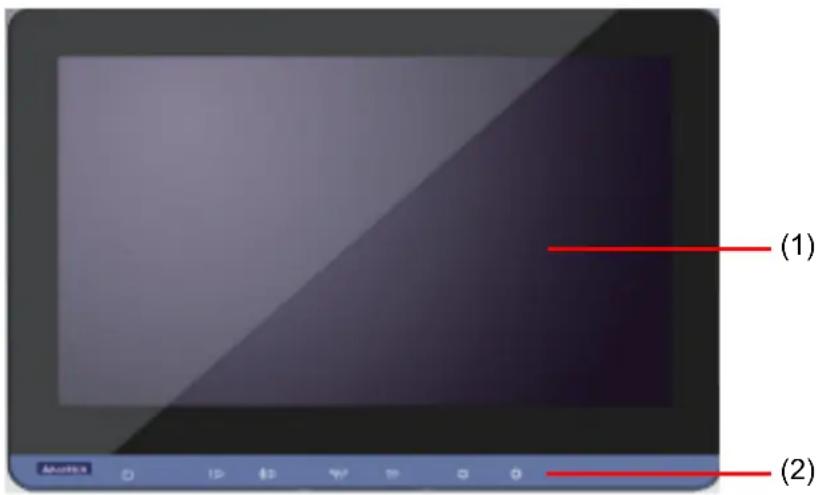
Figure 2.1 Front View of the Point-of-Care Terminal
Front Bezel View
(1) LCD panel will touch screen module
(2) Power symbol w/ indicator light
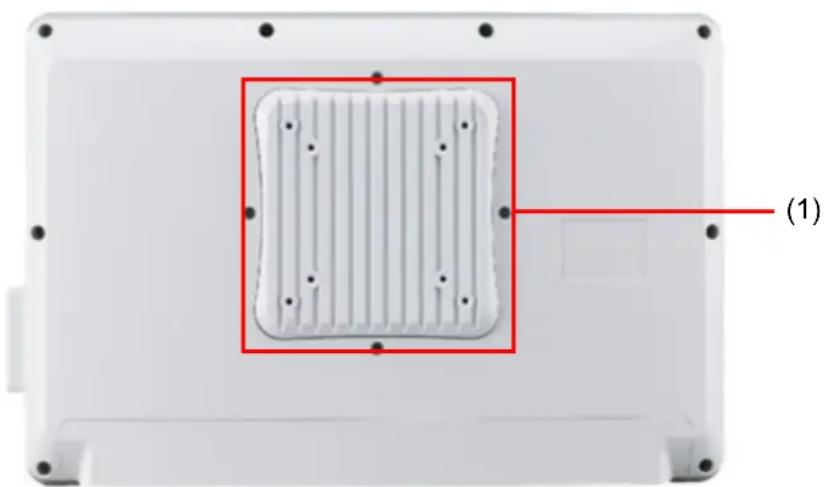
2.1.2 Rear View
When you turn the Point of Care Terminal around and look at its rear cover, the sunken I/O section is at the bottom of the panel PC, as shown in Figure 2-2 and zoom in Figure 2-3. (The I/O section includes various I/O ports, including serial ports, VGA port, the Ethernet port, USB ports and so on.)
natural_image
Diagram of a rectangular device with internal grid pattern and red annotation line (1), no readable text or symbols beyond labelFigure 2.2 Rear view of the Point of Care Terminal
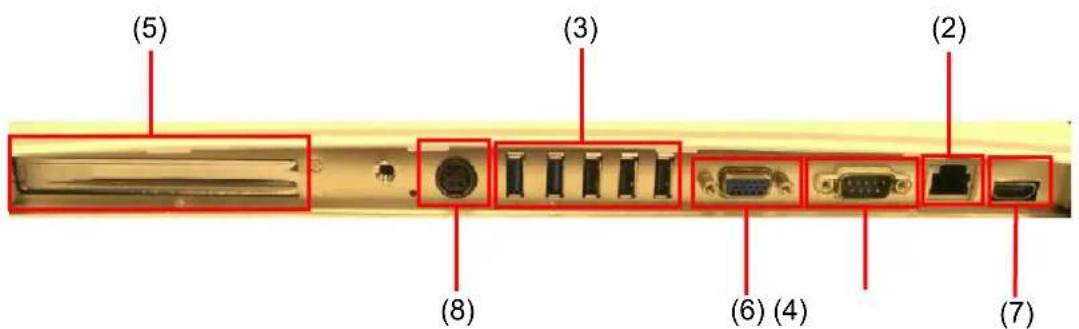
Figure 2.3 Rear view of Multi I/O ports
2-2 and 2-3 Rear view
(1) VESA mounting 75mmx75mm( VESA screw: 1/4R/S+M4*12L ST Ni)
Please use M4x12L (Maxium) screw.
(2) Ethernet (network) ports labeled TCP/IP (LAN1)
(3) USB1-USB5 ports* (USB2.0X3, USB3.0 X2)
(4) COM serial port
(5) PCIE slot
(6) VGA port
(7) HDMI port
(8) DC-in
2.1.3 Bottom view
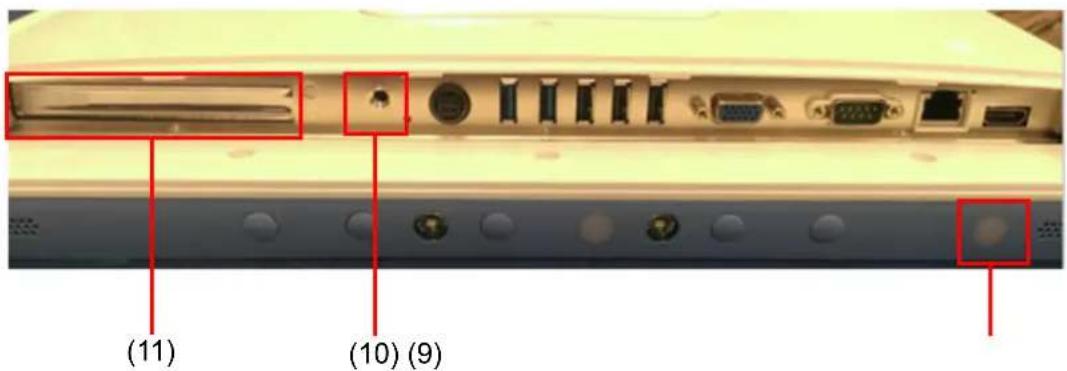
Figure 2.4 Bottom view
Bottom View
(9) Power switch
(10) Equipotential terminal
(11) Add on card bracket PCIe and Battery Pack can switchable for only one interface
Note! Equipotential terminal need link to hospital ground/earth system before system boot to protect operator and system.

2.2 Installation Procedures
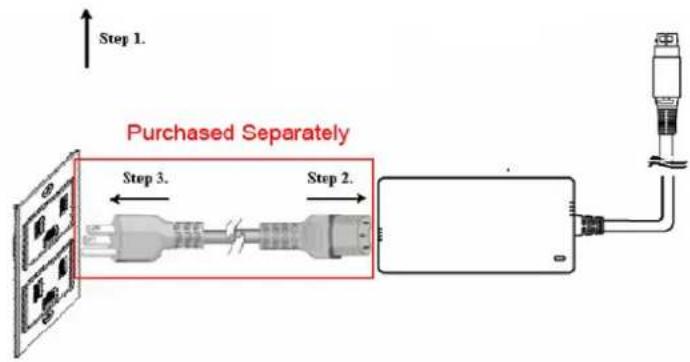
2.2.1 Connecting the Power Cord
The POC-W152/W152C can only be powered by a DC power adapter (Sinpro Model HPU101-107). Be sure to always handle the power cords by holding the plug ends only.
Follow these procedures in order:
-
Connect the female end of the power adapter to the DC jack of the panel PC. (See Figure 2.5)
-
Connect the female end of the power cord to the DC power adapter.
-
Connect the 3-pin male plug of the power cord to an electrical outlet.
flowchart
graph LR
    A["Initial Setup"] --> B["Step 1: Purchased Separately"]
    B --> C["Step 2: Product Connection"]
    C --> D["Step 3: Same to Purchase"]
    style A fill:#f9f,stroke:#333
    style D fill:#ccf,stroke:#333
Figure 2.5 Connecting the power cord
2.2.2 Connecting the Ground Pin
- System ready and find the Equipotential Terminal on rear side of POC. An Equipotential Terminal is provide to optionally connect to a hospital ground/earth system
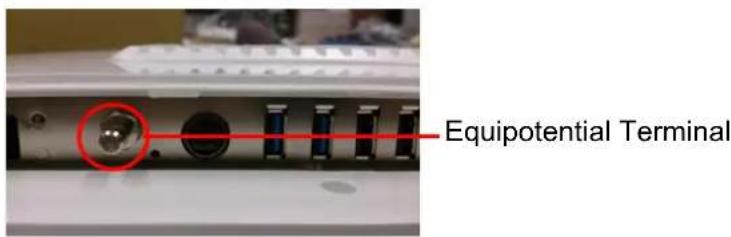
Figure 2.6 POC-W152/W152C Equipotential Terminal Pin
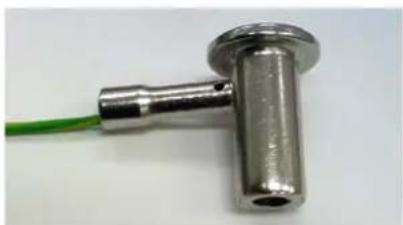
- Prepare the Grounding cable and the other terminal link to hospital ground/earth system.
natural_image
Close-up of a metallic T-shaped connector with a green cable attached (no text or symbols visible)Figure 2.7 Grounding cable with connector
- Grounding cable plug with POC-W152/W152C Equipotential Terminal (See Figure 2-7).
2.3 Running the BIOS Setup Program
Your POC-W152/W152C was probably set up and configured by your dealer prior to delivery. You may still find it necessary to use the BIOS (Basic Input-Output System) setup program to change system configuration information, such as the current date and time or your type of hard drive. The setup program is stored in read-only memory. It can be accessed either when you turn on or reset the panel PC, by pressing the "F2 or Del" key on your keyboard immediately after powering on the computer.
The settings you specify with the setup program are recorded in a special area of memory called CMOS RAM. This memory is backed up by a battery so that it will not be erased when you turn off or reset the system. Whenever you turn on the power, the system reads the settings stored in CMOS RAM and compares them to the equipment check conducted during the power on self-test (POST). If an error occurs, an error message will be displayed on screen, and you will be prompted to run the setup program.
2.4 Installing System Software
Recent releases of operating systems from major vendors include setup programs which load automatically and guide you through hard disk preparation and operating system installation. The guidelines below will help you determine the steps necessary to install your operating system on the panel PC hard drive.
Note! Some distributors and system integrators may have already pre-installed system software prior to shipment of your panel PC.

If required, insert your operating system's installation or setup diskette into the external diskette drive until the release button pops out.
The BIOS supports system boots up directly from the CD-ROM drive. You may also insert your system installation CD-ROM disk into your external CD-ROM drive.
Power on or reset the system by pressing the “F2 or Del” key to boot into BIOS menu and adjust the boot device sequence.
You can also press F12 key when booting; a bootable device popup menu will appear, you can select bootable device that you want. The Point-of-Care Terminal will automatically load the operating system from the diskette or CD-ROM.
If you are presented with the opening screen of a setup or installation program, follow the instructions on screen. The setup program will guide you through preparation of your hard drive, and installation of the operating system.
2.5 Installing the Drivers
After installing your system software, you will be able to set up the Chipset, Graphics, Ethernet, Audio, and Touchscreen functions from your own external CD-ROM drive. All the drivers except the CD-ROM drive driver are stored in a CD-ROM disc entitled "Drivers and Utilities."
The standard automatic installation procedures for installing the Chipset, Graphics, Audio, Ethernet, TXE and Touch drivers are described in Chapter 3.
The various drivers and utilities in the CD-ROM disc have their own text files which help users install the drivers and understand their functions. These files are a very useful supplement to the information in this manual.
Troubleshooting
When system behaves abnormally, such as:
- Failure to power on
- Failure to power off
- Power LED ON but no DC power output
- AC power in and all switches ON, but system doesn't power on
Contact your distributor, sales representative, or Advantech's customer service center for technical support if you need additional assistance. Please have the following information ready before you call:
■ Product name and serial number
■ Description of your peripheral attachments
■ Description of your software (operating system, version, application software, etc.)
■ A complete description of the problem
■ The exact wording of any error messages
■ Symptoms, photo or video if available.
Guidance and Manufacturer's Declaration – Electromagnetic Emissions
| The model POC-W212C is intended for use in an electromagnetic environment as specified below. The customer or the user of the POC-W212C should assure that it is used in such an environment. |
Emissions Test Compliance Electromagnetic Environmental Guidance
| RF emissionsCISPR 11 | Group 1 | The model POC-W212C uses RF energy only for its internal function. Therefore, its RF emissions are very low and are not likely to cause any interference in nearby electronic equipment. |
| RF emissionsCISPR 11 | Class B | The model POC-W212C is suitable for use in all establishments, including domestic establishments and those directly connected to the public low-voltage power supply network that supplies buildings used for domestic purposes. |
| Harmonic emissionsIEC 61000-3-2 | Class A | |
| Voltage fluctuations/flicker emissionsIEC 61000-3-3 | Not applicable |
Recommended Separation Distances Between Portable and Mobile RF Communications Equipment and the POC-W212C
POC-W212C is intended for use in an electromagnetic environment in which radiated RF disturbances are controlled. The customer or the user of the model POC -W211 can help prevent electromagnetic interference by maintaining a minimum distance between portable and mobile RF communications equipment (transmitters) and the model POC-W212C as recommended below, according to the maximum output power of the communications equipment.
| Rated Maximum Output Power of Transmitter W | Separation Distance According to Frequency of Transmitter m | ||
| 150 kHz to 80 MHz d = 1,2 P | 80 MHz to 800 MHz d = 1,2 P | 800 MHz to 2,5 GHz d = 2,3 P | |
| 0,01 0,12 0,12 0,23 | |||
| 0,1 0,38 0,38 0,73 | |||
| 1 1,2 1,2 2,3 | |||
| 10 3,8 3,8 7,3 | |||
| 100 12 12 | 23 | ||
For transmitters rated at a maximum output power not listed above, the recommended separation distance d in meters (m) can be estimated using the equation in the table above applicable to the frequency of the transmitter, where P is the maximum output power rating of the transmitter in watts (W) according to the transmitter manufacturer.
NOTE 1 At 80 MHz and 800 MHz, the separation distance for the higher frequency range applies.
NOTE 2 These guidelines may not apply in all situations. Electromagnetic propagation is affected by absorption and reflection from structures, objects and people.
Guidance and Manufacturer's Declaration – Electromagnetic Immunity
POC-W212C is intended for use in the electromagnetic environment specified below. The customer or the user of the model POC-W212C should assure that it is used in such an environment.
| Immunity Test | IEC 60601Test Level | ComplianceLevel | ElectromagneticEnvironmental Guidance |
| Electrostatic discharge (ESD)IEC 61000-4-2 | ±6 kV contact±8 kV air | ±6 kV contact±8 kV air | Floors should be wood, concrete or ceramic tile. If floors are covered with synthetic material, the relative humidity should be at least 30%. |
| Electrical fast transient/burstIEC 61000-4-4 | ±2 kV for power supply lines±1 kV for input/output lines | ±2 kV for power supply lines±1 kV for input/output lines | Main power quality should be that of a typical commercial or hospital environment. |
| SurgeIEC 61000-4-5 | ±1 kV line(s) to line(s) ±2 kV line(s) to earth | ±1 kV line(s) to line(s)±2 kV line(s) to earth | Main power quality should be that of a typical commercial or hospital environment. |
| <5% UT (>95% dip in UT) for 0,5 cycle | <5% UT (>95% dip in UT) for 0,5 cycle | ||
| Interruptions and voltage varia-tions on power supply input lines IEC 61000-4-11 | 40% UT(60% dip in UT)for 5 cycles | 40% UT (60% dip in UT) for 5 cycles | Main power quality should be that of a typical commercial or hospital environment. If the user of the model POC-W212C requires continued operation during main power interruption, it is recommended that the model POC-W212C be pow-ered from an un-interruptible power supply or a battery. |
| 70% UT(30% dip in UT)for 25 cycles | 70% UT (30% dip in UT) for 25 cycles | ||
| <5% UT(>95% dip in UT)for 5 sec | <5% UT(>95% dip in UT) for 5 sec | ||
| Power frequency (50/60 Hz)magnetic fieldIEC 61000-4-8 | 3 A/m 3 A/m | Power frequency magnetic fields should be at levels characteristic of a typical location in a typical commercial or hospital environ-ment. |
NOTE UT is the A.C. main voltage prior to application of the test level.
Guidance and Manufacturer's Declaration – Electromagnetic Immunity
The model POC-W212C is intended for use in the electromagnetic environment specified below. The customer or the user of the model POC-W212C should assure that it is used in such an environment.
| Immunity Test | IEC 60601Test Level | ComplianceLevel | Electromagnetic EnvironmentalGuidance |
| Portable and mobile RF communications equipment should be used no closer to any part of the model POC-W212C, including cables, than the recommended separation distance calculated from the equation applicable to the frequency of the transmitter. | |||
| Recommended Separation Distanced = 1,2 √Pd = 1,2 √80 MHz to 800 MHz | |||
| ConductedRF IEC 61000-4-6 | 3 Vrms150 kHz to 80MHz | VrmsV/m | d = 2,3 √800 MHz to 2,5 GHzwhere P is the maximum output power rating of the transmitter in watts (W) according to the transmitter manufacturer and d is the recommended separation distance in meters (m).Field strengths from fixed RF transmitters, as determined by an electromagnetic site survey, ^a should be less than the compliance level in each frequency range. ^b Interference may occur in the vicinity of equipment marked with the following symbol: |
| Radiated RFIEC 61000-4-3 | 3 V/m80 MHz to 2,5GHz | ||
 |
NOTE 1 At 80 MHz and 800 MHz, the higher frequency range applies.
NOTE 2 These guidelines may not apply in all situations. Electromagnetic propagation is affected by absorption and reflection from structures, objects and people.
^a Field strengths from fixed transmitters, such as base stations for radio (cellular/cordless) telephones and land mobile radios, amateur radio, AM and FM radio broadcast and TV broadcast cannot be predicted theoretically with accuracy. To assess the electromagnetic environment due to fixed RF transmitters, an electromagnetic site survey should be considered. If the measured field strength in the location in which the POC-W212C is used exceeds the applicable RF compliance level above, the POC-W212C should be observed to verify normal operation. If abnormal performance is observed, additional measures may be necessary, such as reorienting or relocating the unit.
b Over the frequency range 150 kHz to 80 MHz, field strengths should be less than 3 V/m.
Chapter 3
Operation and Safety Information
3.1 General Safety Guide
For your own safety and that of your equipment, always take the following precautions.
Disconnect the power plug (by pulling the plug, not the cord), from your computer if any of the following conditions exists:
■ The power cord or plug becomes frayed or otherwise damaged
■ You spill something into the case
- Your computer has been dropped or the case has been otherwise damaged
■ You suspect that your computer needs service or repair
■ You want to clean the computer or screen
■ You want to remove/install any parts
3.2 Protecting Your Optical Drive
To keep your optical drive working properly:
■ Position your computer so that the drive tray doesn't bump into anything when it opens.
■ Close the drive when you're not using it.
- Do not put anything on the drive tray when it is open.
Do not touch the optical drive lens with your fingers. Do not wipe the lens with a paper towel or other abrasive surface.
3.3 Thermal
The vent hole of the POC-W152/W152C rear cover functions as a cooling air flow inlet and outlet. These air inlets and outlets transfer heat from inside the computer to the cooler air outside. Do not block these holes/vents with any soft material.
When using your POC-W152/W152C system, it is normal for the rear metal heatsink to get warm. The rear metal heatsink of the POC-W152/W152C functions as a cooling surface that transfers heat from inside the computer to the cooler air outside. Do not block this heatsink with any soft material.
Warning! Do not place your POC-W152/W152C system on a pillow or other soft material when it is on, as the material may block the airflow and cause the computer to overheat.

3.4 Disconnect the Power
The only way to disconnect power completely is to unplug the adapter power cord. Make sure at least one end of the power cord is within easy reach so that you can unplug the computer when you need to.
Warning! Your AC cord came equipped with a three-wire grounding plug (a plug that has a third grounding pin). This plug will fit only a grounded AC outlet. If you are unable to insert the plug into an outlet because the outlet is not grounded, contact a licensed electrician to replace the outlet with a properly grounded outlet. Do not defeat the purpose of the grounding plug.
Warning! Never push objects of any kind into this product through the openings in the case. Doing so may be dangerous and result in fire or a dangerous electric shock.
Never place anything on system case before turning off the computer.
Never turn on your computer unless all of its internal and external parts are in place.
Operating the computer when it is open or missing parts can be dangerous and can damage the system.
Appendix A
Install VESA Mounting
A.1 Install VESA Mounting
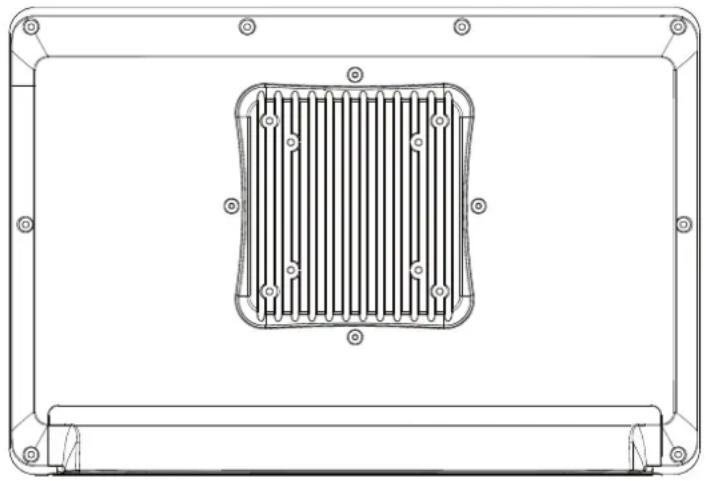
The POC-W152/W152C also provides standard VESA mounting to help system integrators conveniently integrate the panel PC into their system.
Never use mounting brackets except as provided by Advantech to prevent unreliable mounting of the POC-W152/W152C. VESA mount installation should be carried out by a professional technician; please contact a service technician or your retailer if you need this service.
Installation instructions follow:
- First attach wall-mounting to the heat-sink of the POC-W152/W152C, securing it in place with the four Phillips-head screws provided.
- Mount the unit on the wall, stand or other flat surface.
Warning! Be sure to secure the screws of the mounting bracket tightly. A loose joint between the POC-W152/W152C and mounting bracket may create danger of injury.

natural_image
Technical line drawing of a rectangular enclosure with a central rectangular component and mounting holes (no text or symbols)ADVANTECH
Enabling an Intelligent Planet
www.advantech.com
Please verify specifications before quoting. This guide is intended for reference purposes only.
All product specifications are subject to change without notice.
No part of this publication may be reproduced in any form or by any means, electronic, photocopying, recording or otherwise, without prior written permission of the publisher.
All brand and product names are trademarks or registered trademarks of their respective companies.
© Advantech Co., Ltd. 2015

- Instructions for the User
- Definitions
- Safety Instructions
- Medical Equipment
- Explanation of Graphical Symbols
- Disposing of Old Products
- FCC Class B
- List of Accessories
- Additional Information and Assistance
- Environmental protection
- Manufacturer:
- Distributed in Europe by:
- Contents
- Chapter 1 General Information ....1
- Chapter 2 System Setup....7
- Chapter 3 Operation and Safety Information....17
- Appendix A Install VESA Mounting .....21
- Chapter 1
- Introduction
- Specifications
- Dimensions
- Optional Modules
- Cleaning and Disinfecting
- Steps:
- Caution!
- Chapter 2
- A Quick Tour of the POC-W152/W152C
- Front View
- Front Bezel View
- Rear View
- 2-2 and 2-3 Rear view
- Bottom view
- Bottom View
- Installation Procedures
- Connecting the Power Cord
- Connecting the Ground Pin
- Running the BIOS Setup Program
- Installing System Software
- Installing the Drivers
- Troubleshooting
- Chapter 3
- Operation and Safety Information
- General Safety Guide
- Protecting Your Optical Drive
- Thermal
- Disconnect the Power
- Appendix A
- A.1 Install VESA Mounting
- ADVANTECH
- www.advantech.com
Brand : Advantech
Model : POC-W152
Category : Desktop computer