
SBC850 - Battery charger SHURE - Free user manual and instructions
Find the device manual for free SBC850 SHURE in PDF.


| Product Type | Battery Charger |
| Brand | Shure |
| Model | SBC850 |
| Compatible Batteries | Shure SB800 series |
| Number of Charging Bays | 2 |
| Charging Type | Simultaneous |
| Input Voltage | 12V DC |
| Input Current | 1.5A |
| Output Voltage | 8.4V |
| Output Current per Bay | 500mA |
| Charging Status Indication | LED indicators per bay |
| Dimensions (H x W x D) | 70 x 100 x 80 mm |
| Weight | 200 g |
| Color | Black |
| Mounting | Desktop |
| Safety Features | Overcharge protection, short-circuit protection, temperature monitoring |
| Materials | ABS plastic |
| Operating Temperature | 0°C to 40°C |
| Storage Temperature | -20°C to 60°C |
| Connector Type | DC barrel jack (2.1mm inner pin) |
| Included Accessories | Power adapter (12V DC, 1.5A) |
| Certifications | CE, FCC |
| Warranty | 1 year |
| Cleaning Instructions | Wipe with a dry, lint-free cloth. |
| Repairability | Not user-serviceable. Contact Shure support for repairs. |
Frequently Asked Questions - SBC850 SHURE
User questions about SBC850 SHURE
0 question about this device. Answer the ones you know or ask your own.
Ask a new question about this device
Download the instructions for your Battery charger in PDF format for free! Find your manual SBC850 - SHURE and take your electronic device back in hand. On this page are published all the documents necessary for the use of your device. SBC850 by SHURE.
USER MANUAL SBC850 SHURE
IMPORTANT SAFETY INSTRUCTIONS
-
READ these instructions.
-
KEEP these instructions.
-
HEED all warnings.
-
FOLLOW all instructions.
-
DO NOT use this apparatus near water.
-
CLEAN ONLY with dry cloth.
-
DO NOT block any ventilation openings. Allow sufficient distances for rain or moisture. adequate ventilation and install in accordance with the manufacturer's instructions.
- To reduce the risk of fire or electric shock, do not expose
-
Do not attempt to modify this product. Doing so could result
-
DO NOT install near any heat sources such as open flames, radiators, heat registers, stoves, or other apparatus (including amplifiers) that produce heat. Do not place any open flame sources on the product.
-
DO NOT defeat the safety purpose of the polarized or grounding type plug. A polarized plug has two blades with one wider than the other. Caution: risk of electric shock grounding type plug has two blades and a third grounding prong. The wider blade or the third prong are provided for your safety. If the provided plug does not fit into your outlet, consult an electrician for replacement of the obsolete outlet.
-
PROTECT the power cord from being walked on or pinched, particularly at plugs, convenience receptacles, and the point where they exit from the apparatus. Direct current Alternating current On (Supply)
-
ONLY USE attachments/accessories specified by the manufacturer.
-
USE only with a cart, stand, tripod, bracket, or table specific manufacturer, or sold with the apparatus. When a cart is used, when moving the cart/apparatus combination to avoid injury from

- DO NOT expose the apparatus to dripping and splashing. DO objects filled with liquids, such as vases, on the apparatus.
- The MAINS plug or an appliance coupler shall remain readily
- The airborne noise of the Apparatus does not exceed 70dB (
-
Apparatus with CLASS I construction shall be connected to a socket outlet with a protective earthing connection.
-
To reduce the risk of fire or electric shock, do not expose a rain or moisture.
-
Do not attempt to modify this product. Doing so could result in injury and/or product failure.
-
Operate this product within its specified operating temperature reaction. Explanation of Symbols
Explanation of Symbols
ng type
e other. Caution: risk of electric shock ng. The
the provided placement Caution: risk of danger (See note.)

Direct current
Alternating current
On (Supply)

equipment protected throughout by DOUBLE INSULATION or REINFORCED INSULATION

Stand-by

Equipment should not be disposed of in the normal waste
-
UNPLUG this apparatus during lightning storms or when unused for long periods of time.
-
REFER all servicing to qualified service personnel. Servicing is required when the apparatus has been damaged in any way, such as possible parts inside. Refer all servicing to qualified service personnel supply cord or plug is damaged, liquid has been spilled or objects have fallen into the apparatus, the apparatus has been exposed to rain or moisture, does not operate normally, or has been dropped.
General Description
SBC450 and SBC850 networked docking stations provide monitoring, contasily adjust transmitter settings using Shure control software such and power to charge 4 or 8 ULXD6 and ULXD8 transmitters with SHWireless Workbench and external control systems such as AMX rechargeable batteries. Connect to a network to adjust transmitter setting on
and monitor rechargeable batteries using Shure Wireless Workbench SystemOn software, or through a third-party room control system.
- Monitor rechargeable battery information such as health, temperatur charge, and cycle using control software
- Update transmitter and docking station firmware using Shure Upda Utility
Features
- Compatible with ULXD6 and ULXD8 transmitters using Shure rechargeable batteries
Included Components
- PS60 power supply (some models available without power supply)
More Information Available Online
A comprehensive online user guide is available at pubs.shure.com.
Controls and Connectors
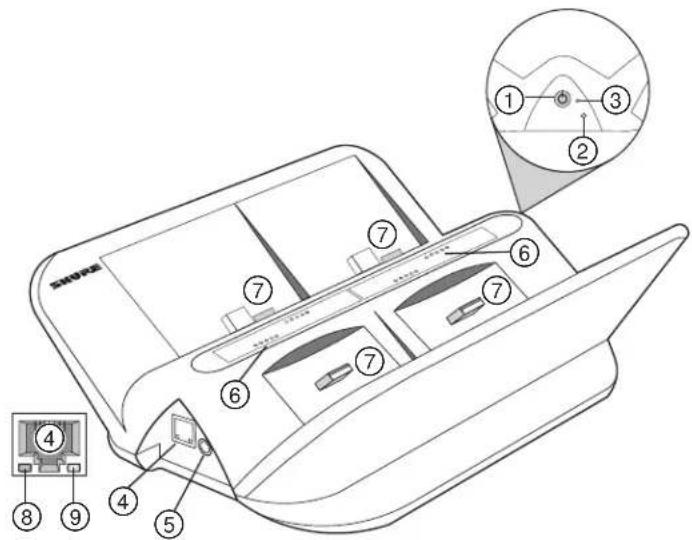
① Power Button
Press to turn on; press and hold to turn off.
② Reset Button
- Docking station reset: Press and hold reset button while simultaneously powering on the docking station to restore factory settings. IP addressing will be reset to Automatic. LEDs = solid green.
- Transmitter reset: Place transmitters in docks. Press and hold reset button for 5 seconds to restore transmitter factory settings. Transmitter mute LEDs = flashing.
③ Power LED
- On = Docking station is on
• Off = Docking station is off
④ Ethernet Port
Connect to an Ethernet network to enable remote device control and monitoring using Wireless Workbench or other control software.
⑤ Power Input
Connect to power supply.
⑥ Battery Status LEDs
Each slot has 5 LEDs that illuminate to show the battery's charge level:
| % Battery ChargeLED | |
| 1 | Flashing: <10%Solid: >10% |
| >25%2 | |
| >50%3 | |
| >75%4 | |
| 100%5 |
⑦ Docking Slots (USB 3.0)
Slide any ULXD6 or ULXD8 transmitter with a Shure rechargeable battery into a slot to begin charging.
⑧ Ethernet Link Speed LED (Amber)
• Off = 10 Mbps
- On = 100 Mbps
⑨ Ethernet Status LED (Green)
• Off = No network link
• On = Network link established
- Flashing = Network link active
Power Connections
- Connect power supply to a power outlet and to the docking state the powering station loses power, transmitters will also power off. input.
- The docking station automatically turns on when connected to power. Press and hold power button to turn off.
Connecting Transmitters
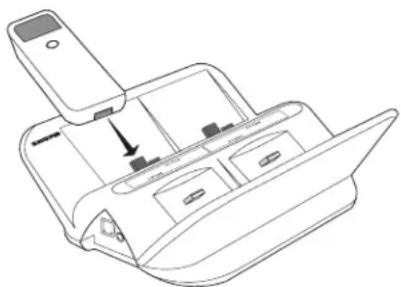
Insert a ULXD6 or ULXD8 transmitter with Shure rechargeable batteries, the blocking station provides power to charge transmitter batteries: the slot as shown: • 15 minutes - 1 hour of use
natural_image
Line drawing of a device interior with a handle and internal compartments (no text or symbols)• 15 minutes = 1 hour of use
• 1 hour = 50% charged
• 3 hours = 100% charged
Note: If the docking station loses power, transmitters will also power Batteries will resume charging when power is restored.
Connecting Shure Devices to Wireless Workbench
Wireless Workbench lets you control and monitor devices over the network. To get started, visit http://www.shure.com/wwb and download Wireless Workbench software. Wireless Workbench communicates with connected devices over a standard Ethernet network.
Required equipment: Shure device, computer with Wireless Workbench installed, Cat 5 (or better) Ethernet cable, and router or network switch
natural_image
Line drawing of a laptop computer with blank screen (no text or symbols)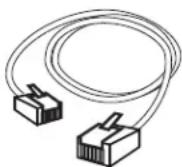
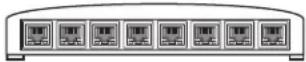
- Connect the device to your computer with a shielded Cat 5 (or better) Ethernet cable to ensure reliable network performance. If you have multiple devices to manage, connect each device to a router or network switch. The Ethernet port LEDs on your device will illuminate to indicate network connectivity. Verify that Shure devices can see each other by looking for the network connectivity icon on the front panel (location varies).
- For most applications, use the Automatic mode (default) to let your switch or router assign an IP address using DHCP addressing. If no DHCP server is present, your devices will fall back to a link-local address in the 169.254.xxx.xxx range. If you need to assign specific IP addresses, set the IP mode to Manual in the Network menu. Find model-specific instructions at http://shore-community.custhelp.com/posts/a21b97f121.
- Open Wireless Workbench software.
- Select a Network Interface in the pop-up window. Choose the network that most closely matches the Ethernet port where your devices are connected.
- Your device will appear in the Inventory tab when the connection is successful.
Configuration Tips
- Check your firewall settings to make sure Wireless Workbench has access to your network
- Use multiple Ethernet switches to extend the network for larger installations
For more help, visit the Help menu in Wireless Workbench or http://www.shure.com/wwb.
Monitoring Batteries with Wireless Workbench
Wireless Workbench provides detailed battery information for each transmitter.
Click the Inventory tab to view the networked docking station in Wireless Workbench.
![Chargerxx - [Chrgr-01] - Properties 1: [DevID] Charge Health Cycle Temperature 8 7 6 5 75 100 100 21 0:31 TO FULL 0:00 TO FULL 0:00 TO FULL 1:33 TO FULL MODEL MODEL MODEL MODEL DEVICE ID DEVICE ID DEVICE ID DEVICE ID 1 2 3 4 23 10 EMPTY 95 1:25 TO FULL 2:03 TO FULL 0:07 TO FULL MODEL MODEL MODEL DEVICE ID DEVICE ID DEVICE ID ► Item Properties Bay #1 DEVICE PROPERTIES MODEL ULXD6 DEVICE ID Kels-BN ■ Auto-enumerate from ▼ RADIO RF BAND G50 TUNING BANDWIDTH 470-534 MHz FREQUENCY 470.125 MHZ. GROUP/CHANNEL G: AA CH: AA TV CHANNEL TV 14 ▼ ADVANCED RF RF POWER LEVEL Low TRANSMISSION MODE High Density ENCRYPTION Changes sent. CANCEL APPLY ► Settings](/content/2026/05/1000036/images/80eeec5a3bb9b8e63c7788c90011cb9c1a9d18c99225ffb8d739be5354a5148c.jpg)
Each tab provides different battery statistics:
Charge
Displays charge as a percentage of the total battery capacity. Also shows time remaining to full charge.
Health
Displays health of selected battery as a percentage of the charge capacity of a new battery. Charge capacity (battery life when fully charged) will decline as a result of repeated charge cycles, age, or storage conditions.
Cycle
Displays total number of times that the battery has undergone one full count of discharge and charge. Recharging after discharging halfway counts as one half of a cycle. Recharging after discharging a quarter of the way counts as one quarter of a cycle.
Temperature
Displays battery temperature (in Celsius and Fahrenheit) and status.
Controlling Transmitters with Networked Docking Stations
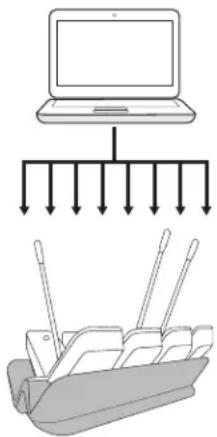
Quickly review and control many transmitter settings using Wireless Workbench or other external control systems.
You can adjust the following settings:
- Mute button and mute LED behavior or brightness
- High-pass filter
- RF power
- Power lock
- Initial state from charger
- Battery type
- Device name
- Channel name
- Frequency
• Normal or High-Density Mode
• Boundary and gooseneck offset
flowchart
graph TD
    A["Laptop"] --> B["Output Line 1"]
    A --> C["Output Line 2"]
    A --> D["Output Line 3"]
    A --> E["Output Line 4"]
    A --> F["Output Line 5"]
    A --> G["Output Line 6"]
    A --> H["Output Line 7"]
    A --> I["Output Line 8"]
- Place transmitters on the docking station. Check that the dockin is connected to the network and to Wireless Workbench.
- Find the docking station in the inventory and right-click to selecties.
- Select one or multiple transmitters.
- Make changes to transmitter settings and select Apply. Transmit now ready to use.
Connecting to an External Control System
SBC450 and SBC850 networked docking stations connect to external • connection: Ethernet (TCP/IP; SBC450 or SBC850 is the client) systems such as AMX or Crestron via the Ethernet. Use only one controller per system to avoid messaging conflicts. For a comprehensive list of command strings, visit http://www.shure.com.
Firmware Updates
Firmware is embedded software in each component that controls functional-
ity. Periodically, new versions of firmware are developed to incorporate updating Transmitter Firmware with Docking Stal tional features and enhancements. To take advantage of design improve Place transmitters on the docking station and check that docking ments, download new versions of the firmware using the Shure Update is Utility connected to the network. tool.
Download Shure Update Utility at http://www.shure.com/suu.
- Launch Shure Update Utility to find firmware updates.
- Download updates and click Send Updates.
Model Variations
All include power supply unless otherwise noted.
| ModelRegion | |
| SBC450-US or SBC850-USUnited S | |
| SBC450-AR or SBC850-ARAArgentina | |
| SBC450-BR or SBC850-BRBrazil | |
| SBC450-E or SBC850-EEurope | |
| SBC450-UK or SBC850-UKUnited K | |
| SBC450-J or SBC850-JJapan |
| ModelRegion | |
| SBC450-CN or SBC850-CNChina | |
| States | SBC450-K or SBC850-KKorea |
| a | SBC450-TW or SBC850-TWTaiwan |
| Australia | SBC450-AZ or SBC850-AZ |
| India | SBC450-IN or SBC850-IN |
| Kingdom | SBC450 (no power supply)Global |
| SBC850 (no power supply)Global |
Specifications
SBC450/SBC850
ULXD6 and ULXD8 Charge Time
15 minutes = 1 hour runtime; 1 hour = 50% charged; 3 hours
Network Interface
10/100 Mbps Ethernet
Power Requirement
15 V DC @ 4.0 A maximum, supplied by external power supply
Housing
Molded Plastic, Cast Zinc Alloy
Dimensions
| SBC450 | 82.1 mm x 224.4 mm x 192 mm (3.23 in. x 7.56 in.), H x W x D |
| 100% charged SBC850 | 82.1 mm x 392 mm x 192 mm (3.23 in. x 7.56 in.), H x W x D |
Weight
| 1.59 kg (3.51 lbs)SBC450 | |
| (tip positive) | 2.67 kg (5.89 lbs)SBC850 |
Operating Temperature Range
0^ C (32°F) to 45^ C (113°F)
Storage Temperature Range
-29°C (-20°F) to 74°C (165°F)
Certifications
Authorized under the verification provision of FCC Part 15B.
Industry Canada ICES-003 Compliance Label: CAN ICES-3 (B)/NMB-3(B)
Note: See the label located on the bottom side of the charger en the FCC marking, the CE marking, the RCM marking, the KC ma the electrical ratings.
Meets requirements of the following standards:
Information to the user
This equipment has been tested and found to comply with the limits for a
Class B digital device, pursuant to Part 15 of the FCC Rules. These WARNING
are designed to provide reasonable protection against harmful interference in a residential installation. This equipment generates uses and can radiate. Battery packs may explode or release toxic materials. Risk of fire burns. Do not open, crush, modify, disassemble, heat above 140 radio frequency energy and, if not installed and used in accordance with the (80°C), or incinerate.
instructions, may cause harmful interference to radio communications. However, there is no guarantee that interference will not occur in a particular following instructions from manufacturer
installation. If this equipment does cause harmful interference to radio only use Shure charger to recharge Shure rechargeable batteries television reception, which can be determined by turning the equipment and on, the user is encouraged to try to correct the interference by one with same or equivalent type. WARNING: Danger of explosion if battery incorrectly replaced. Rep
- Reorient or relocate the receiving antenna.
- Increase the separation between the equipment and the receiver. • Do not short circuit; may cause burns or catch fire
- Connect the equipment to an outlet on a circuit different from that do not charge or use battery packs other than Shure rechargea which the receiver is connected. teries
- Consult the dealer or an experienced radio/TV technician for help: Dispose of battery packs properly. Check with local vendor for disposal of used battery packs.
LICENSING INFORMATION
Licensing: A ministerial license to operate this equipment may be required in certain areas. Consult your national authority for possible requirements. WARNING: This product contains a chemical known to the State of Changes or modifications not expressly approved by Shure Incorporated cause cancer and birth defects or other reproductive harm. could void your authority to operate the equipment. Licensing of Shure wireless microphone equipment is the user's responsibility, and licensability depends on the user's classification and application, and on the selected frequency. Shure strongly urges the user to contact the appropriate telecommunications authority concerning proper licensing, and before choosing and ordering frequencies.
WARNING: Danger of explosion if incorrect battery replaced. Operate only with AA batteries.
- IMPORTANT SAFETY INSTRUCTIONS
- Explanation of Symbols
- General Description
- Features
- Included Components
- More Information Available Online
- Controls and Connectors
- ① Power Button
- ② Reset Button
- ③ Power LED
- ④ Ethernet Port
- ⑤ Power Input
- ⑥ Battery Status LEDs
- ⑦ Docking Slots (USB 3.0)
- ⑧ Ethernet Link Speed LED (Amber)
- ⑨ Ethernet Status LED (Green)
- Power Connections
- Connecting Transmitters
- Connecting Shure Devices to Wireless Workbench
- Configuration Tips
- Monitoring Batteries with Wireless Workbench
- Charge
- Health
- Cycle
- Temperature
- Controlling Transmitters with Networked Docking Stations
- Connecting to an External Control System
- Firmware Updates
- Specifications
- SBC450/SBC850
- ULXD6 and ULXD8 Charge Time
- Network Interface
- Power Requirement
- Housing
- Operating Temperature Range
- Storage Temperature Range
- Certifications
- Information to the user
- LICENSING INFORMATION
Brand : SHURE
Model : SBC850
Category : Battery charger